<?xml version="1.0" encoding="UTF-8"?>
<!DOCTYPE html PUBLIC "-//W3C//DTD XHTML 1.1//EN" "http://www.w3.org/TR/xhtml11/DTD/xhtml11.dtd">
<html xmlns="http://www.w3.org/1999/xhtml" xml:lang="en">
<head>
<meta content="text/html; charset=UTF-8" http-equiv="content-type" />
<meta http-equiv="Content-Language" content="en" />
<meta name="generator" content="Pressbooks 5.37.0" />
<meta name="pb-authors" content="Brian Coey" />
<meta name="pb-illustrators" content="Jess Paffard" />
<meta name="pb-title" content="Pattern Development: Sheet Metal Level 1" />
<meta name="pb-language" content="en-ca" />
<meta name="pb-cover-image" content="https://opentextbc.ca/patterndevelopment/wp-content/uploads/sites/359/2022/12/OTB291-01-Pattern-Development-Sheet-Metal-Level-1-COVER-STORE.jpg" />
<meta name="pb-short-title" content="Pattern Development" />
<meta name="pb-primary-subject" content="TNT" />
<meta name="pb-subtitle" content="Line E" />
<meta name="pb-publisher" content="BCcampus" />
<meta name="pb-publisher-city" content="Victoria, B.C." />
<meta name="pb-about-50" content="This book covers all three forms of layout as well as geometric construction. It introduces the learner to the techniques used in parallel line, radial line, and triangulation. With videos and animations, the learner has an opportunity to play, pause, and rewind as they practice these techniques. This book covers material required for a level 1 sheet metal apprentice (Line E)." />
<meta name="pb-book-license" content="cc-by" />
<meta name="pb-custom-copyright" content="© 2021 Brian CoeyThe CC licence permits you to retain, reuse, copy, redistribute, and revise this book—in whole or in part—for free providing the author is attributed as follows:Pattern Development: Sheet Metal Level 1 by Brian Coey is licensed under a CC BY 4.0 Licence.If you redistribute all or part of this book, it is recommended the following statement be added to the copyright page so readers can access the original book at no cost:Download for free from the B.C. Open Collection.Sample APA-style citation (7th Edition):Coey, B. (2021). Pattern Development: Sheet Metal Level 1. BCcampus. https://opentextbc.ca/patterndevelopment/Image attributions:All GIFs and images in this book are © Camosun College and licensed under a CC BY 4.0 Licence, unless otherwise noted.Cover image attribution:“Right Cone – Step 8” by Camosun College is licensed under a CC BY 4.0 Licence.Ebook ISBN: 978-1-77420-124-4Print ISBN: 978-1-77420-123-7Visit BCcampus Open Education to learn about open education in British Columbia." />
<meta name="pb-publication-date" content="1628812800" />
<meta name="pb-ebook-isbn" content="978-1-77420-124-4" />
<meta name="pb-print-isbn" content="978-1-77420-123-7" />
<meta name="pb-additional-subjects" content="TBG" />
<title>Pattern Development: Sheet Metal Level 1</title>
</head>
<body lang='en' >
<div id="half-title-page"><h1 class="title">Pattern Development: Sheet Metal Level 1</h1></div><div id="title-page">
			<h1 class="title">Pattern Development: Sheet Metal Level 1</h1>
		<h2 class="subtitle">Line E</h2>
					<p class="author">Brian Coey</p>
								<p class="publisher">BCcampus</p>
		<p class="publisher-city">Victoria, B.C.</p>
	</div>
<div id="copyright-page">
	<div class="ugc">
					
<div class="license-attribution"><p><img src="https://opentextbc.ca/patterndevelopment/wp-content/themes/pressbooks-book/packages/buckram/assets/images/cc-by.svg" alt="Icon for the Creative Commons Attribution 4.0 International License" /></p><p>Pattern Development: Sheet Metal Level 1 by Brian Coey is licensed under a <a rel="license" href="https://creativecommons.org/licenses/by/4.0/">Creative Commons Attribution 4.0 International License</a>, except where otherwise noted.</p></div>

							<p>© 2021 Brian Coey</p><p>The CC licence permits you to retain, reuse, copy, redistribute, and revise this book—in whole or in part—for free providing the author is attributed as follows:</p><div class="textbox"><a href="https://opentextbc.ca/patterndevelopment/"><em>Pattern Development: Sheet Metal Level 1</em></a> by Brian Coey is licensed under a <a href="http://creativecommons.org/licenses/by/4.0/">CC BY 4.0 Licence</a>.</div><p>If you redistribute all or part of this book, it is recommended the following statement be added to the copyright page so readers can access the original book at no cost:</p><div class="textbox">Download for free from the <a href="https://collection.bccampus.ca/" target="_blank" rel="noopener">B.C. Open Collection</a>.</div><p><strong>Sample APA-style citation (7th Edition):</strong></p><div class="textbox">Coey, B. (2021). <em>Pattern Development: Sheet Metal Level 1</em>. BCcampus. https://opentextbc.ca/patterndevelopment/</div><p><strong>Image attributions:</strong></p><div class="textbox">All GIFs and images in this book are © Camosun College and licensed under a <a href="http://creativecommons.org/licenses/by/4.0/">CC BY 4.0 Licence</a>, unless otherwise noted.</div><p><strong>Cover image attribution:</strong></p><div class="textbox">&#8220;<a href="https://pressbooks.bccampus.ca/geoconst/chapter/right-cone/">Right Cone &#8211; Step 8</a>&#8221; by Camosun College is licensed under a <a href="https://creativecommons.org/licenses/by/4.0/">CC BY 4.0 Licence</a>.</div><p><strong>Ebook ISBN:</strong> 978-1-77420-124-4</p><p><strong>Print ISBN:</strong> 978-1-77420-123-7<br />Visit <a href="http://open.bccampus.ca/">BCcampus Open Education</a> to learn about open education in British Columbia.</p>
							</div>
</div>
<div id="toc">
	<h1>Contents</h1>
	<ul>
					<li class="front-matter miscellaneous">
	<a href="#front-matter-accessibility-statement">
		<span class="toc-chapter-title">Accessibility Statement</span>
							</a>
	</li>

					<li class="front-matter miscellaneous">
	<a href="#front-matter-for-students">
		<span class="toc-chapter-title">For Students: How to Access and Use this Textbook</span>
							</a>
	</li>

					<li class="front-matter miscellaneous">
	<a href="#front-matter-about-bccampus">
		<span class="toc-chapter-title">About BCcampus Open Education</span>
							</a>
	</li>

					<li class="front-matter introduction">
	<a href="#front-matter-introduction">
		<span class="toc-chapter-title">Introduction</span>
							</a>
	</li>

					<li class="part">
	<a href="#part-geometric-construction">
					Geometric Construction
			</a>
</li>

					<li class="chapter standard">
	<a href="#chapter-construct-triangles-triangulation-print">
		<span class="toc-chapter-title">Construct Triangles - &quot;Triangulation&quot;</span>
							</a>
	</li>

					<li class="chapter standard">
	<a href="#chapter-bisect-a-line-print">
		<span class="toc-chapter-title">Bisect a Line</span>
							</a>
	</li>

					<li class="chapter standard">
	<a href="#chapter-bisect-an-arc-print">
		<span class="toc-chapter-title">Bisect an Arc</span>
							</a>
	</li>

					<li class="chapter standard">
	<a href="#chapter-bisect-an-angle-print">
		<span class="toc-chapter-title">Bisect an Angle</span>
							</a>
	</li>

					<li class="chapter standard">
	<a href="#chapter-copy-an-angle-print">
		<span class="toc-chapter-title">Copy an Angle</span>
							</a>
	</li>

					<li class="chapter standard">
	<a href="#chapter-create-a-parallel-line-print">
		<span class="toc-chapter-title">Create a Parallel Line</span>
							</a>
	</li>

					<li class="chapter standard">
	<a href="#chapter-create-a-perpendicular-line-print">
		<span class="toc-chapter-title">Create a Perpendicular Line</span>
							</a>
	</li>

					<li class="chapter standard">
	<a href="#chapter-draw-an-arc-through-3-points-print">
		<span class="toc-chapter-title">Draw an Arc Through Three Points</span>
							</a>
	</li>

					<li class="chapter standard">
	<a href="#chapter-divide-a-circle-into-12-equal-parts-print">
		<span class="toc-chapter-title">Divide a Circle Into 12 Equal Parts</span>
							</a>
	</li>

					<li class="chapter standard">
	<a href="#chapter-divide-a-line-using-a-ruler-on-an-angle-print">
		<span class="toc-chapter-title">Divide a Line Using a Ruler on an Angle</span>
							</a>
	</li>

					<li class="chapter standard">
	<a href="#chapter-create-a-hexagon-print">
		<span class="toc-chapter-title">Create a Hexagon</span>
							</a>
	</li>

					<li class="chapter standard">
	<a href="#chapter-create-other-polygons-print">
		<span class="toc-chapter-title">Create Other Polygons</span>
							</a>
	</li>

					<li class="chapter standard">
	<a href="#chapter-video-geometric-construction-print">
		<span class="toc-chapter-title">Video: Geometric Construction</span>
							</a>
	</li>

					<li class="part">
	<a href="#part-parallel-line-pattern-development">
					Parallel Line Pattern Development
			</a>
</li>

					<li class="chapter standard">
	<a href="#chapter-pipe-on-a-miter-print">
		<span class="toc-chapter-title">Pipe on a Miter</span>
							</a>
	</li>

					<li class="chapter standard">
	<a href="#chapter-equal-diameter-90-deg-tee-print">
		<span class="toc-chapter-title">Equal Diameter 90 Degree Tee</span>
							</a>
	</li>

					<li class="chapter standard">
	<a href="#chapter-unequal-diameter-90-deg-tee-print">
		<span class="toc-chapter-title">Unequal Diameter 90 Degree Tee-Shop Method</span>
							</a>
	</li>

					<li class="chapter standard">
	<a href="#chapter-off-centre-90-deg-tee-print">
		<span class="toc-chapter-title">Off Centre 90 Degree Tee</span>
							</a>
	</li>

					<li class="chapter standard">
	<a href="#chapter-oblique-tee-print">
		<span class="toc-chapter-title">Oblique Tee</span>
							</a>
	</li>

					<li class="chapter standard">
	<a href="#chapter-round-elbow-print">
		<span class="toc-chapter-title">Round Elbow</span>
							</a>
	</li>

					<li class="part">
	<a href="#part-radial-line">
					Radial Line Pattern Development
			</a>
</li>

					<li class="chapter standard">
	<a href="#chapter-right-cone-print">
		<span class="toc-chapter-title">Right Cone</span>
							</a>
	</li>

					<li class="chapter standard">
	<a href="#chapter-pyramid-print">
		<span class="toc-chapter-title">Pyramid</span>
							</a>
	</li>

					<li class="chapter standard">
	<a href="#chapter-frustum-of-a-cone-print">
		<span class="toc-chapter-title">Frustum of a Cone</span>
							</a>
	</li>

					<li class="chapter standard">
	<a href="#chapter-cone-on-a-pitch-miter-print">
		<span class="toc-chapter-title">Cone on a Pitch/Miter</span>
							</a>
	</li>

					<li class="part">
	<a href="#part-triangulation">
					Triangulation
			</a>
</li>

					<li class="chapter standard">
	<a href="#chapter-on-centre-square-to-round-print">
		<span class="toc-chapter-title">On-Centre Square to Round</span>
							</a>
	</li>

					<li class="chapter standard">
	<a href="#chapter-on-centre-round-to-taper-print">
		<span class="toc-chapter-title">On-Centre Round to Taper</span>
							</a>
	</li>

					<li class="chapter standard">
	<a href="#chapter-off-centre-square-to-round-print">
		<span class="toc-chapter-title">Off-Centre Square to Round</span>
							</a>
	</li>

					<li class="chapter standard">
	<a href="#chapter-off-centre-round-taper-print">
		<span class="toc-chapter-title">Off-Centre Round Taper</span>
							</a>
	</li>

					<li class="chapter standard">
	<a href="#chapter-way-off-centre-square-to-round-print">
		<span class="toc-chapter-title">Way-Off-Centre Square to Round or Any Shape</span>
							</a>
	</li>

					<li class="back-matter glossary">
	<a href="#back-matter-glossary">
		<span class="toc-chapter-title">Glossary</span>
							</a>
	</li>

					<li class="back-matter miscellaneous">
	<a href="#back-matter-versioning-history">
		<span class="toc-chapter-title">Versioning History</span>
							</a>
	</li>

			</ul>
</div>
<div class="front-matter miscellaneous " id="front-matter-accessibility-statement" title="Accessibility Statement">
	<div class="front-matter-title-wrap">
		<p class="front-matter-number">1</p>
		<h1 class="front-matter-title">Accessibility Statement</h1>
								</div>
	<div class="ugc front-matter-ugc">
				 <p>BCcampus Open Education believes that education must be available to everyone. This means supporting the creation of free, open, and accessible educational resources. We are actively committed to increasing the accessibility and usability of the textbooks we produce.</p> <h1>Accessibility of This Textbook</h1> <table class="grid" style="width: 100%;"><caption>Accessibility Checklist</caption> <tbody><tr><th scope="col">Element</th> <th scope="col">Requirements</th> <th scope="col">Pass?</th> </tr> <tr><th scope="row">Headings</th> <td>Content is organized under headings and subheadings that are used sequentially.</td> <td>Yes</td> </tr> <tr><th scope="row">Images</th> <td>Images that convey information include alternative text descriptions. These descriptions are provided in the alt text field, in the surrounding text, or linked to as a long description.</td> <td>No</td> </tr> <tr><th scope="row">Images</th> <td>Images and text do not rely on colour to convey information.</td> <td>Yes</td> </tr> <tr><th scope="row">Images</th> <td>Images that are purely decorative or are already described in the surrounding text contain empty alternative text descriptions. (Descriptive text is unnecessary if the image doesn’t convey contextual content information.)</td> <td>Yes</td> </tr> <tr><th scope="row">Tables</th> <td>Tables include row and/or column headers that have the correct scope assigned.</td> <td>N/A</td> </tr> <tr><th scope="row">Tables</th> <td>Tables include a title or caption.</td> <td>N/A</td> </tr> <tr><th scope="row">Tables</th> <td>Tables do not have merged or split cells.</td> <td>N/A</td> </tr> <tr><th scope="row">Tables</th> <td>Tables have adequate cell padding.</td> <td>N/A</td> </tr> <tr><th scope="row">Links</th> <td>The link text describes the destination of the link.</td> <td>Yes</td> </tr> <tr><th scope="row">Links</th> <td>Links do not open new windows or tabs. If they do, a textual reference is included in the link text.</td> <td>Yes</td> </tr> <tr><th><strong>Links</strong></th> <td>Links to files include the file type in the link text.</td> <td>Yes</td> </tr> <tr><th><strong>Audio</strong></th> <td>All audio content includes a transcript that includes all speech content and relevant descriptions of non-speach audio and speaker names/headings where necessary.</td> <td>N/A</td> </tr> <tr><th scope="row">Video</th> <td>All videos include high-quality (i.e., not machine generated) captions of all speech content and relevant non-speech content.</td> <td>Yes</td> </tr> <tr><th scope="row">Video</th> <td>All videos with contextual visuals (graphs, charts, etc.) are described audibly in the video.</td> <td>No</td> </tr> <tr><th>H5P</th> <td>All H5P activities have been tested for accessibility by the H5P team and have passed their testing.</td> <td>N/A</td> </tr> <tr><th>H5P</th> <td>All H5P activities that include images, videos, and/or audio content meet the accessibility requirements for those media types.</td> <td>N/A</td> </tr> <tr><th scope="row">Formulas</th> <td>Formulas have been created using LaTeX and are rendered with MathJax.</td> <td>N/A</td> </tr> <tr><th scope="row">Formulas</th> <td>If LaTeX is not an option, formulas are images with alternative text descriptions.</td> <td>N/A</td> </tr> <tr><th scope="row">Font</th> <td>Font size is 12 point or higher for body text.</td> <td>Yes</td> </tr> <tr><th scope="row">Font</th> <td>Font size is 9 point for footnotes or endnotes.</td> <td>Yes</td> </tr> <tr><th scope="row">Font</th> <td>Font size can be zoomed to 200% in the webbook or eBook formats.</td> <td>Yes</td> </tr> </tbody> </table> <h1>Known Accessibility Issues and Areas for Improvement</h1> <ul><li>Videos may not have adequate audio description for people who cannot see the visuals.</li> <li>Images/animations are often described in the surrounding text, but these text descriptions may not have adequate for people who cannot see the images.</li> <li>The webbook uses animations that cannot be paused, which some may find distracting or hard to follow. To address this, the animations have been spaced out so only one should appear on the screen at a time, and there is a PDF version of the text that uses static images instead.</li> </ul> <h1>Let Us Know if You are Having Problems Accessing This Book</h1> <p>We are always looking for ways to make our textbooks more accessible. If you have problems accessing this textbook, please contact us to let us know so we can fix the issue.</p> <p>Please include the following information:</p> <ul><li>The name of the textbook</li> <li>The location of the problem by providing a web address or page description.</li> <li>A description of the problem</li> <li>The computer, software, browser, and any assistive technology you are using that can help us diagnose and solve your issue (e.g., Windows 10, Google Chrome (Version 65.0.3325.181), NVDA screen reader)</li> </ul> <p>You can contact us one of the following ways:</p> <ul><li>Web form: <a href="https://collection.bccampus.ca/contact/" target="_blank" rel="noopener" data-url="https://collection.bccampus.ca/contact/">BCcampus OpenEd Help</a></li> <li>Web form: <a href="https://open.bccampus.ca/browse-our-collection/reporting-an-error/" target="_blank" rel="noopener" data-url="https://open.bccampus.ca/browse-our-collection/reporting-an-error/">Report an Error</a></li> </ul> <p>This statement was last updated on August 13, 2021.</p> <p>The Accessibility Checklist table was adapted from one originally created by the <a href="https://press.rebus.community/the-rebus-guide-to-publishing-open-textbooks/back-matter/accessibility-assessment/" data-url="https://press.rebus.community/the-rebus-guide-to-publishing-open-textbooks/back-matter/accessibility-assessment/">Rebus Community</a> and shared under a <a href="https://creativecommons.org/licenses/by/4.0/" data-url="https://creativecommons.org/licenses/by/4.0/">CC BY 4.0 License</a>.</p> 
	</div>


	</div>
<div class="front-matter miscellaneous " id="front-matter-for-students" title="For Students: How to Access and Use this Textbook">
	<div class="front-matter-title-wrap">
		<p class="front-matter-number">2</p>
		<h1 class="front-matter-title">For Students: How to Access and Use this Textbook</h1>
								</div>
	<div class="ugc front-matter-ugc">
				 <p>This textbook is available in the following formats:</p> <ul><li><strong>Online webbook</strong>. You can read this textbook online on a computer or mobile device in one of the following browsers: Chrome, Firefox, Edge, and Safari.</li> <li><strong>PDF</strong>. You can download this book as a PDF to read on a computer (Digital PDF) or print it out (Print PDF).</li> <li><strong>Mobile</strong>. If you want to read this textbook on your phone or tablet, you can use the EPUB (eReader) file.</li> <li><strong>HTML</strong>. An HTML file can be opened in a browser. It has very little style so it doesn’t look very nice, but some people might find it useful.</li> </ul> <p>For more information about the accessibility of this textbook, see the Accessibility Statement.</p> <p>You can access the online webbook and download any of the formats for free here: <a href="https://opentextbc.ca/patterndevelopment/" data-url="https://opentextbc.ca/patterndevelopment/">Pattern Development: Sheet Metal Level 1</a>. To download the book in a different format, look for the “Download this book” drop-down menu and select the file type you want.</p> <table style="width: 670px;"><caption>How can I use the different formats?</caption> <tbody><tr><th style="width: 80.55px;" scope="col">Format</th> <th style="width: 91.9px;" scope="col">Internet required?</th> <th style="width: 96.35px;" scope="col">Device</th> <th style="width: 127.55px;" scope="col">Required apps</th> <th style="width: 193.983px;" scope="col">Features</th> </tr> <tr><td style="width: 81.2167px;">Online webbook</td> <td style="width: 92.5667px;">Yes</td> <td style="width: 97.0167px;">Computer, tablet, phone</td> <td style="width: 128.217px;">An Internet browser (Chrome, Firefox, Edge, or Safari)</td> <td style="width: 193.983px;">Animations (GIFs), option to enlarge text, compatible with browser text-to-speech tools, videos with captions.</td> </tr> <tr><td style="width: 81.2167px;">PDF</td> <td style="width: 92.5667px;">No</td> <td style="width: 97.0167px;">Computer, print copy</td> <td style="width: 128.217px;">Adobe Reader (for reading on a computer) or a printer</td> <td style="width: 193.983px;">Ability to highlight and annotate the text. If reading on the computer, you can zoom in. Static images instead of animations.</td> </tr> <tr><td style="width: 81.2167px;">EPUB</td> <td style="width: 92.5667px;">No</td> <td style="width: 97.0167px;">Computer, tablet, phone</td> <td style="width: 128.217px;">An eReader app</td> <td style="width: 193.983px;">Option to enlarge text, change font style, size, and colour. Static images instead of animations.</td> </tr> <tr><td style="width: 81.2167px;">HTML</td> <td style="width: 92.5667px;">No</td> <td style="width: 97.0167px;">Computer, tablet, phone</td> <td style="width: 128.217px;">An Internet browser (Chrome, Firefox, Edge, or Safari)</td> <td style="width: 193.983px;">Compatible with browser text-to-speech tools. Static images instead of animations.</td> </tr> </tbody> </table> <h1>Tips for Using This Textbook</h1> <ul><li><strong>Search the textbook</strong>. <ul><li>If using the online webbook, you can use the search bar in the top right corner to search the entire book for a key word or phrase. To search a specific chapter, open that chapter and use your browser’s search feature by hitting <strong>[Cntr] + [f]</strong> on your keyboard if using a Windows computer or <strong>[Command] + [f] </strong>if using a Mac computer.</li> <li>The <strong>[Cntr] + [f]</strong> and <strong>[Command] + [f]</strong> keys will also allow you to search a PDF, HTML, and EPUB files if you are reading them on a computer.</li> <li>If using an eBook app to read this textbook, the app should have a built-in search tool.</li> </ul> </li> <li><strong>Navigate the textbook</strong>. <ul><li>This textbook has a table of contents to help you navigate through the book easier. If using the online webbook, you can find the full table of contents on the book’s homepage or by selecting “Contents” from the top menu when you are in a chapter.</li> </ul> </li> <li><strong>Annotate the textbook</strong>. <ul><li>If you like to highlight or write on your textbooks, you can do that by getting a print copy, using the Digital PDF in Adobe Reader, or using the highlighting tools in eReader apps.</li> </ul> </li> </ul> <h1>Webbook vs. All Other Formats</h1> <ul><li>The webbook includes animations (GIFs) and videos. If you find the animations distracting, you can use the PDF or eBook version of the book instead, which uses images instead of animations.</li> <li>In the PDF, eBook (EPUB), and printed versions, the animations and videos will not be included. Instead, PDF, eBook, and printed versions will have static images and links will be provided to where you can access the videos.</li> </ul> <p>Even if you decide to use a PDF or a print copy to access the textbook, you can access the webbook and download any other formats at any time.</p> 
	</div>


	</div>
<div class="front-matter miscellaneous " id="front-matter-about-bccampus" title="About BCcampus Open Education">
	<div class="front-matter-title-wrap">
		<p class="front-matter-number">3</p>
		<h1 class="front-matter-title">About BCcampus Open Education</h1>
								</div>
	<div class="ugc front-matter-ugc">
				 <p><em>Pattern Development: Sheet Metal Level 1</em> by Brian Coey was funded by BCcampus Open Education.</p> <p><a href="https://open.bccampus.ca/" data-url="https://open.bccampus.ca/">BCcampus Open Education</a> began in 2012 as the B.C. Open Textbook Project with the goal of making post-secondary education in British Columbia more accessible by reducing students’ costs through the use of open textbooks and other OER. <a href="https://bccampus.ca/about-us/" rel="noopener" data-url="https://bccampus.ca/about-us/">BCcampus</a> supports the post-secondary institutions of British Columbia as they adapt and evolve their teaching and learning practices to enable powerful learning opportunities for the students of B.C. BCcampus Open Education is funded by the <a href="https://www2.gov.bc.ca/gov/content/governments/organizational-structure/ministries-organizations/ministries/advanced-education-skills-training" rel="noopener" data-url="https://www2.gov.bc.ca/gov/content/governments/organizational-structure/ministries-organizations/ministries/advanced-education-skills-training">British Columbia Ministry of Advanced Education and Skills Training</a> and the <a href="http://www.hewlett.org/" rel="noopener" data-url="http://www.hewlett.org/">Hewlett Foundation</a>.</p> <p>Open educational resources (OER) are teaching, learning, and research resources that, through permissions granted by the copyright holder, allow others to use, distribute, keep, or make changes to them. Our open textbooks are openly licensed using a <a href="https://creativecommons.org/licenses/" data-url="https://creativecommons.org/licenses/">Creative Commons licence</a> and are offered in various eBook formats free of charge, or as printed books that are available at cost.</p> <p>For more information about open education in British Columbia, please visit the <a href="https://open.bccampus.ca/" data-url="https://open.bccampus.ca/">BCcampus Open Education</a> website. If you are an instructor who is using this book for a course, please fill out our <a href="https://open.bccampus.ca/use-open-textbooks/tell-us-youre-using-an-open-textbook/" data-url="https://open.bccampus.ca/use-open-textbooks/tell-us-youre-using-an-open-textbook/">Adoption of an Open Textbook</a> form.</p> 
	</div>


	</div>
<div class="front-matter introduction " id="front-matter-introduction" title="Introduction">
	<div class="front-matter-title-wrap">
		<p class="front-matter-number">4</p>
		<h1 class="front-matter-title">Introduction</h1>
								</div>
	<div class="ugc front-matter-ugc">
				 <p>When wanting to build a project, we need to first imagine it. The process of pattern development gives us the ability to take that visual representation and actually create the object. It allows us to turn two-dimensional metal, into three-dimensional objects, which is the basis for everything we fabricate.</p> <div class="textbox textbox--learning-objectives"><div class="textbox__header"><p class="textbox__title">Learning Objectives</p> </div> <div class="textbox__content"><ol><li>Understand the layout and pattern-development processes.</li> </ol> </div> </div> <div class="textbox textbox--key-takeaways"><div class="textbox__header"><p class="textbox__title">Layout Terms</p> </div> <div class="textbox__content"><ul><li><strong>Elevation view – </strong>looking at the front or side of something, to have elevation (height), 2D.</li> <li><strong>Element Line – </strong>a line representing an edge or bend.</li> <li><strong>Perimeter – </strong>the distance around an object.</li> <li><strong>Plan view</strong> <strong>– </strong>looking down at something, a “birds eye view,” “floor plan,” 2D.</li> <li><strong>Profile – </strong>a view showing half of a plan view.</li> <li><strong>Sector – </strong>a special profile which is inside of an object, a section view.</li> <li><strong>Step-off – </strong>a length equal to <img src="http://opentextbc.ca:3000/latex?latex=%5Csmall%5Cfrac%7B1%7D%7B12%7D&amp;fg=000000&amp;font=TeX&amp;svg=1" alt="\small\frac{1}{12}" title="\small\frac{1}{12}" class="latex mathjax" /> of a circumference.</li> <li><strong>Stretch-out – </strong>a shape which has been “stretched out,” to take a perimeter and make it straight.</li> <li><strong>True length – </strong>a dimension or line that is not distorted by the view.</li> </ul> </div> </div> 
	</div>


	</div>
<div class="part-wrapper" id="part-geometric-construction-wrapper">
    <div class="part  " id="part-geometric-construction">
	<div class="part-title-wrap">
		<p class="part-number">I</p>
		<h1 class="part-title">Geometric Construction</h1>
	</div>
	<div class="ugc part-ugc">
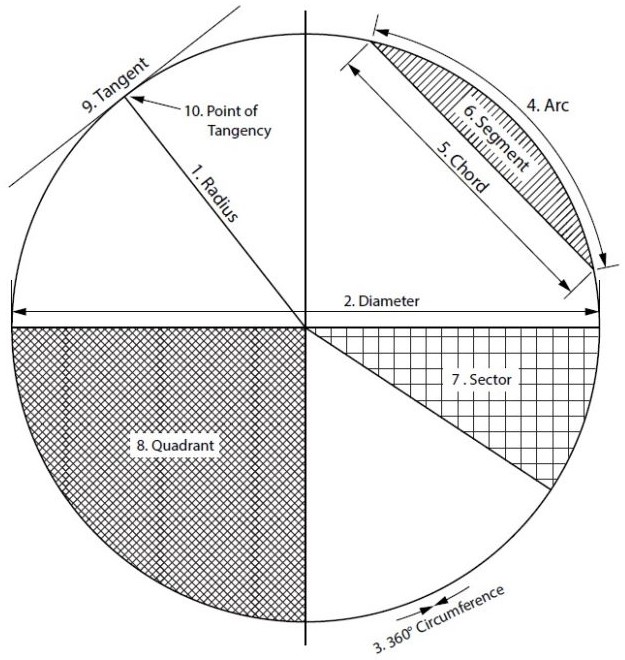
		<h1>Introduction</h1> <p>As a sheet metal worker, we work with different lines, angles and shapes. We work with geometry. Be it in the field or in a shop, geometry is a tool we use in many different ways. From creating 2D patterns of 3D objects, to making sure roof panels are installed square, to locating duct runs and penetrations, geometry is used everyday by a sheet metal worker. This is the foundation for which all layout is done. Craftspeople who excel at this stage are able to quickly transform any complex ideas into reality.</p> <div class="textbox textbox--learning-objectives"><div class="textbox__header"><p class="textbox__title">Learning Objectives</p> </div> <div class="textbox__content"><ol><li>Understand the process of geometric construction and its uses</li> <li>Learn geometric terms</li> </ol> </div> </div> <div class="textbox textbox--key-takeaways"><div class="textbox__header"><p class="textbox__title">Geometric Terms</p> </div> <div class="textbox__content"><ul><li><strong>Acute Angle/Triangle</strong> <strong>– </strong>an angle/triangle with an angle smaller than 90°</li> <li><strong>Bisect</strong> <strong>– </strong>to divide in half</li> <li><strong>Horizontal</strong> <strong>– </strong>a line/plane level with the horizon. Flat, level</li> <li><strong>Obtuse Angle/Triangle</strong> <strong>– </strong>an angle/triangle with an angle larger than 90°</li> <li><strong>Parallel</strong> <strong>– </strong>a line/plane that is equal distance from another</li> <li><strong>Parts of a Circle<img class="aligncenter wp-image-1402" src="https://opentextbc.ca/patterndevelopment/wp-content/uploads/sites/359/2021/08/parts-of-a-circle-2.jpg" alt="A circle with its parts labelled. Described in the following list." width="500" height="528" title="" /></strong> <ol><li><strong>Radius </strong>– the distance from centre to any point of the <strong>circumference</strong> or half the <strong>diameter</strong></li> <li><strong>Diameter&nbsp;</strong>– the distance across a circle at centre, twice the <strong>radius</strong></li> <li><strong>Circumference&nbsp;</strong>– the distance around a circle, <strong>perimeter</strong> of a circle</li> <li style="margin-top: 0px;"><strong>Arc&nbsp;</strong>– a portion of a <strong>circumference</strong></li> <li><strong>Chord&nbsp;</strong>– a straight line from 2 points on a <strong>circumference</strong></li> <li><strong>Segment –</strong> the area of a circle bound by an <strong>arc</strong> and a <strong>chord</strong></li> <li><strong>Sector&nbsp;</strong>– the area of a circle bound by 2 <strong>radii</strong> and an <strong>arc</strong></li> <li><strong>Quadrant&nbsp;</strong>– a <strong>sector</strong> which equals one quarter of the area of a circle</li> <li><strong>Tangent</strong> – a line which touches only 1 point of a <strong>circumference</strong></li> <li><strong>Point of Tangency&nbsp;</strong>– 90° to the centre of the circle</li> </ol> </li> <li><strong>Perpendicular&nbsp;</strong>– a line/plane which is 90° to another</li> <li><strong>Right Angle/Triangle&nbsp;</strong>– an angle/triangle which has a 90° angle</li> <li><strong>Vertical&nbsp;</strong>– a line/plane straight up and down, vertically level (plumb)</li> <li><strong>Vertex&nbsp;</strong>– the point at which an angle is formed</li> </ul> </div> </div> <div class="textbox"><p>Circle Facts:</p> <ul><li>There are 360° in a circle.</li> <li>Circumference (or perimeter) = Pi × diameter or 2 × Pi × radius.</li> <li>Area = Pi × radius<sup>2</sup>.</li> </ul> </div> <h1>Points, Lines, Angles and Shapes</h1> <p>In geometry we deal with many different shapes. All shapes are made up of various points, lines and angles.</p> <h2>Lines</h2> <p>We can define a point (A) as a single location on a shape or line.</p> <p>A line (A-B) is made up of 2 points. There are different types of lines:</p> <ul><li><strong>horizontal</strong> (level with the horizon),</li> <li><strong>vertical</strong> (up and down, also known as plumb),</li> <li>tilted (neither vertical nor horizontal), and</li> <li>arcs (a line from a radius point).</li> </ul> <p>We also have lines which are <strong>parallel</strong> or equal distance apart and lines which are <strong>perpendicular</strong> or at right angles to one another.</p> <h2>Angles</h2> <p>An angle is formed at a point at where 2 lines meet (<strong>vertex</strong>). We deal with three different types of angles:</p> <ul><li><strong>Right angles</strong> are at 90° and are very important in layout,</li> <li><strong>Obtuse angles</strong>, which are greater than 90°, and</li> <li><strong>acute angles</strong>, which are smaller than 90°.</li> </ul> <h2>Shapes</h2> <p>With a combination of points, lines, and angles, we start to create shapes. Triangles (A-B-C), squares or rectangles <span style="font-size: 1em;">(A-B-C-D),</span> <span style="text-align: initial; font-size: 1em;">and circles are some of the most common shapes seen in the sheet metal industry. It is a combination of points, lines, and angles that make up different shapes —or in our case, our patterns.</span></p>
	</div>
			
				
	</div>
<div class="chapter standard " id="chapter-construct-triangles-triangulation-print" title="Construct Triangles - &quot;Triangulation&quot;">
	<div class="chapter-title-wrap">
		<p class="chapter-number">1</p>
		<h1 class="chapter-title">Construct Triangles - &quot;Triangulation&quot;</h1>
								</div>
	<div class="ugc chapter-ugc">
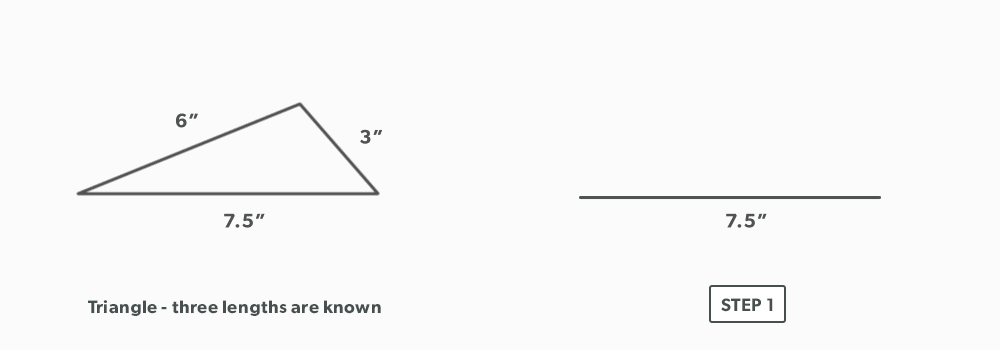
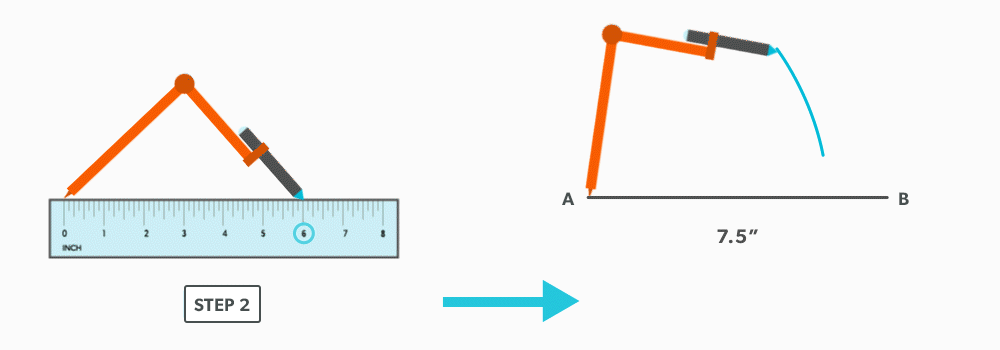
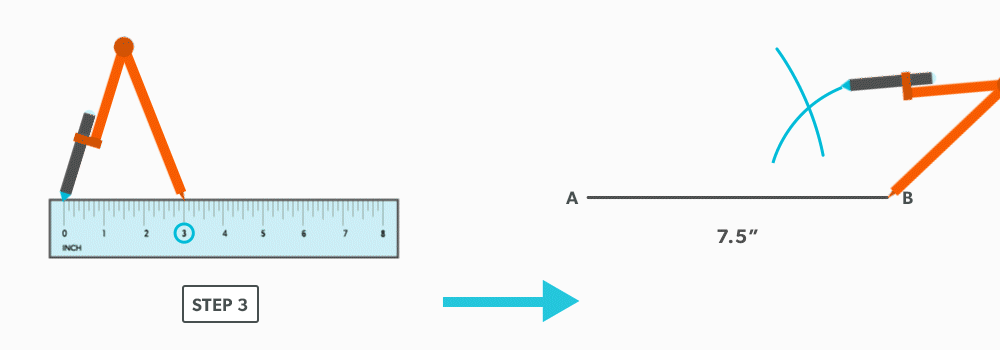
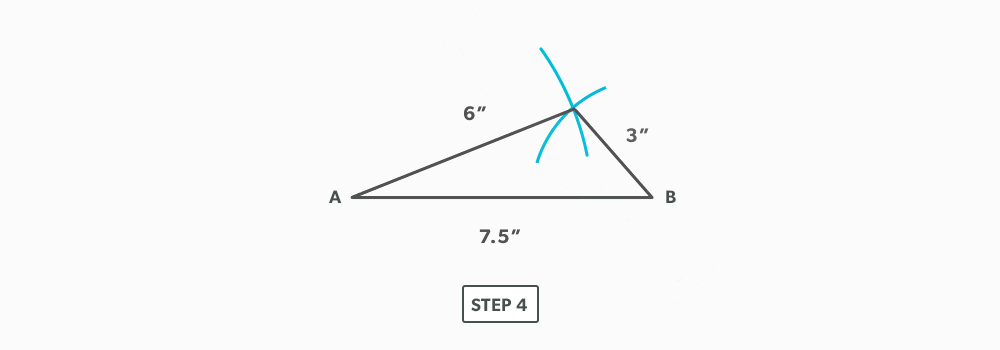
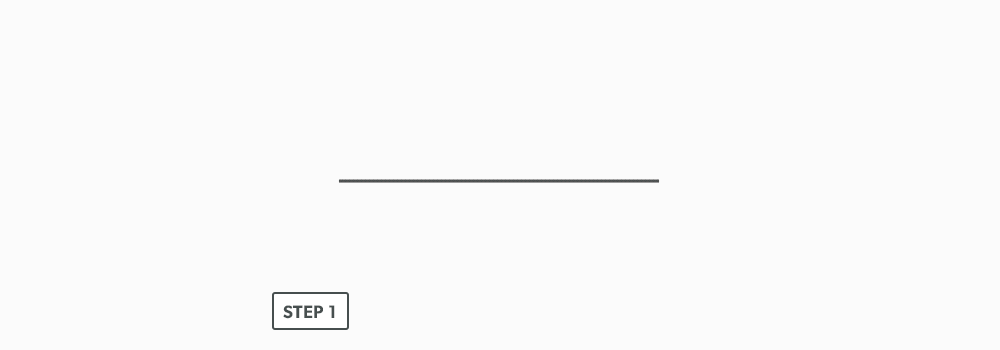
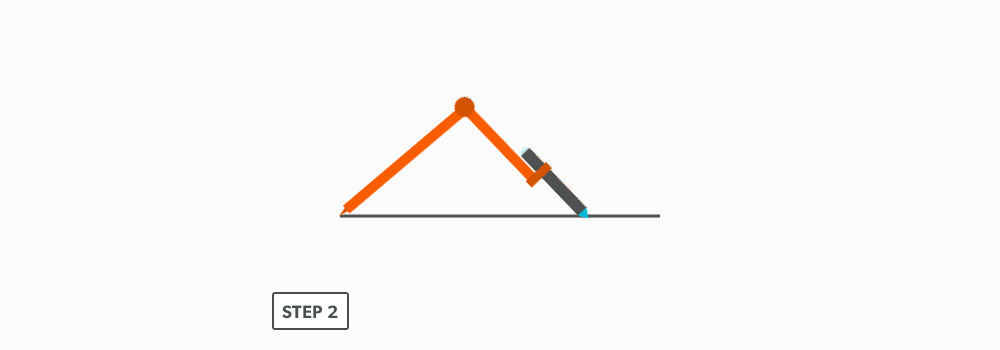
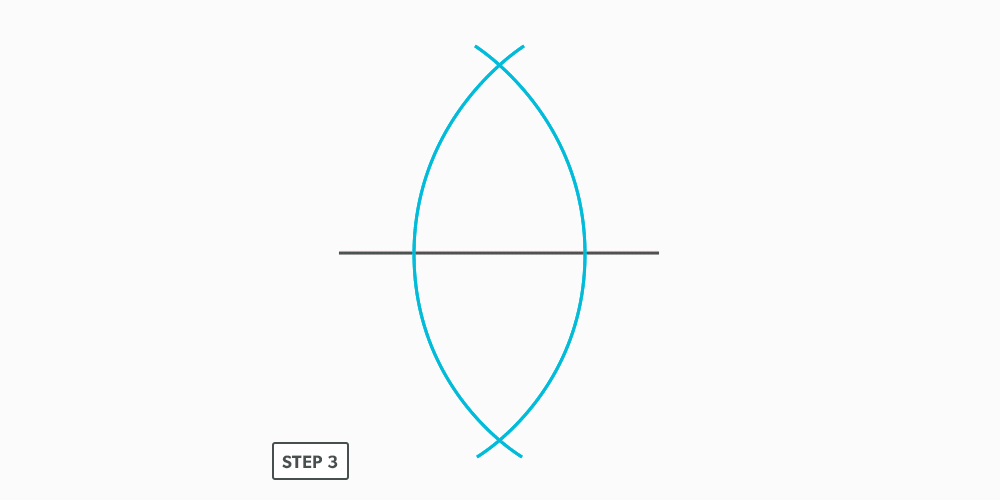
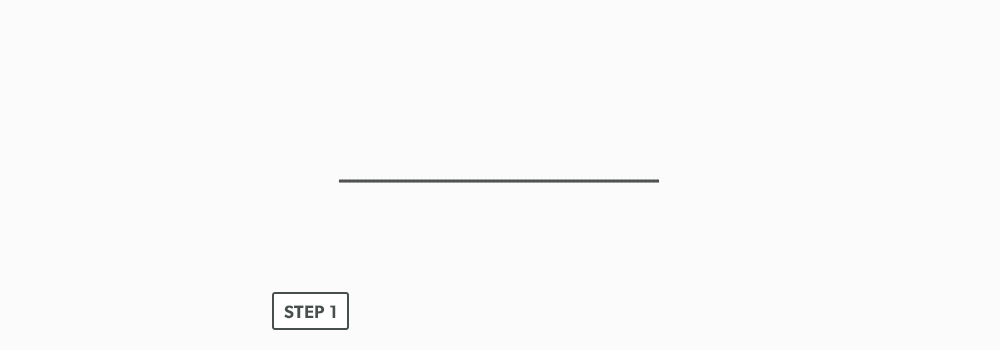
				 <h1>When the Three Lengths Are Known (3-4-5)</h1> <ol><li>Draw a line equal to one of the known lengths.<img class="aligncenter wp-image-1092 size-full" src="https://opentextbc.ca/patterndevelopment/wp-content/uploads/sites/359/2021/08/construct-triangles-Step-1.png" alt="The triangles sides are 6 inches, 3 inches, and 7.5 inches. Draw a line for 7.5 inches. One side of the line is point A, the other is point B." width="1000" height="350" title="" /></li> <li>Set your compass to the second known length (6 inches) and swing an <strong><span class="glossary-term">arc</span></strong> from one end of the line (point A).<img class="aligncenter size-full wp-image-1093" src="https://opentextbc.ca/patterndevelopment/wp-content/uploads/sites/359/2021/08/Construct-Triangles-Step-2.png" alt="" width="1000" height="350" title="" /></li> <li>Set your compass to the third known length (3 inches) and swing an arc from the other end (point B) of the line, crossing the first arc.<img class="aligncenter size-full wp-image-1095" src="https://opentextbc.ca/patterndevelopment/wp-content/uploads/sites/359/2021/08/Construct-Triangles-Step-3.png" alt="" width="1000" height="350" title="" /></li> <li>Complete the triangle by drawing two lines from the ends (points A and B) of the line to the cross point of the two arcs.<img class="aligncenter size-full wp-image-1096" src="https://opentextbc.ca/patterndevelopment/wp-content/uploads/sites/359/2021/08/Construct-Triangles-Step-4.png" alt="" width="1000" height="350" title="" /></li> </ol> 
	</div>


	</div>
<div class="chapter standard " id="chapter-bisect-a-line-print" title="Bisect a Line">
	<div class="chapter-title-wrap">
		<p class="chapter-number">2</p>
		<h1 class="chapter-title">Bisect a Line</h1>
								</div>
	<div class="ugc chapter-ugc">
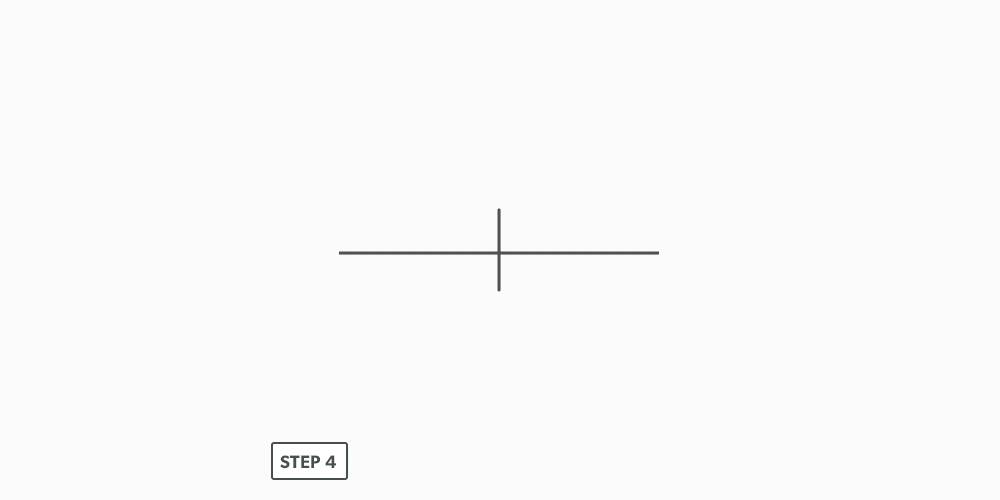
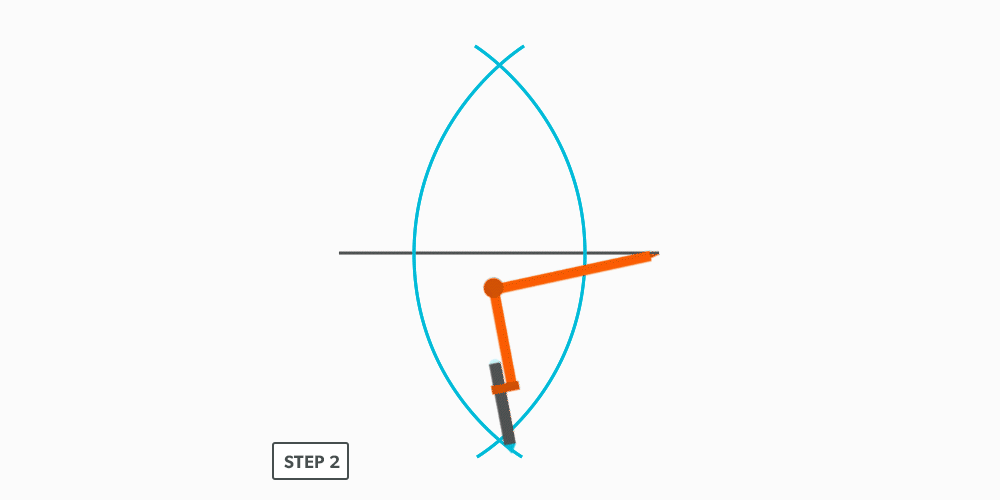
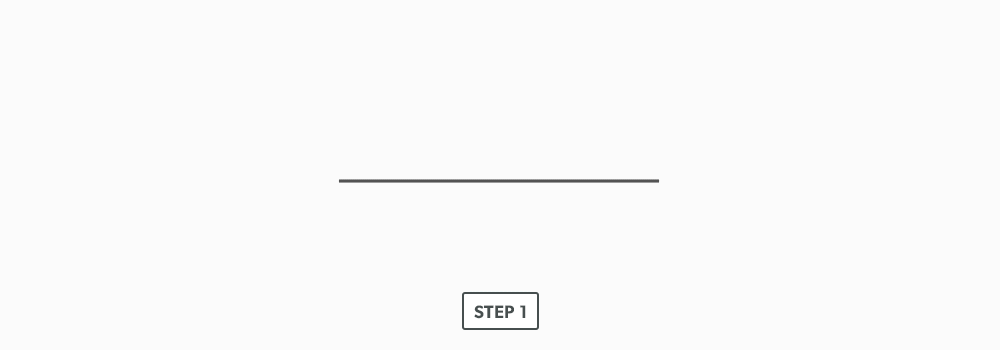
				 <ol><li>Draw a line<img class="aligncenter wp-image-1102 size-full" src="https://opentextbc.ca/patterndevelopment/wp-content/uploads/sites/359/2021/08/Bisect-A-Line-Step-1.png" alt="A horizontal line." width="1000" height="350" title="" /></li> <li>Set your compass to approximately ¾ of the length of the line. (The important thing is that it is set to more than half. The further away from half way, the more accurate, but the larger the space required becomes.)<img class="aligncenter size-full wp-image-1103" src="https://opentextbc.ca/patterndevelopment/wp-content/uploads/sites/359/2021/08/Bisect-A-Line-Step-2.png" alt="" width="1000" height="350" title="" /></li> <li>Keeping this distance set on your compass, swing an <strong><span class="glossary-term">arc</span></strong> from both ends of the line towards the centre of the line.<img class="aligncenter size-full wp-image-1104" src="https://opentextbc.ca/patterndevelopment/wp-content/uploads/sites/359/2021/08/Bisect-A-Line-Step-3.png" alt="" width="1000" height="500" title="" /></li> <li>Draw a line, connecting the two intersection points of the arcs.<strong><img class="aligncenter size-full wp-image-1105" src="https://opentextbc.ca/patterndevelopment/wp-content/uploads/sites/359/2021/08/Bisect-A-Line-Step-4.png" alt="" width="1000" height="500" title="" /></strong></li> </ol> 
	</div>


	</div>
<div class="chapter standard " id="chapter-bisect-an-arc-print" title="Bisect an Arc">
	<div class="chapter-title-wrap">
		<p class="chapter-number">3</p>
		<h1 class="chapter-title">Bisect an Arc</h1>
								</div>
	<div class="ugc chapter-ugc">
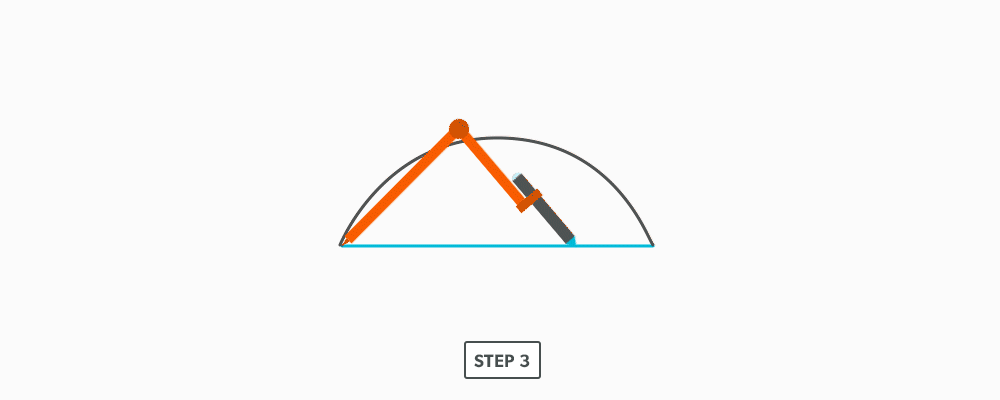
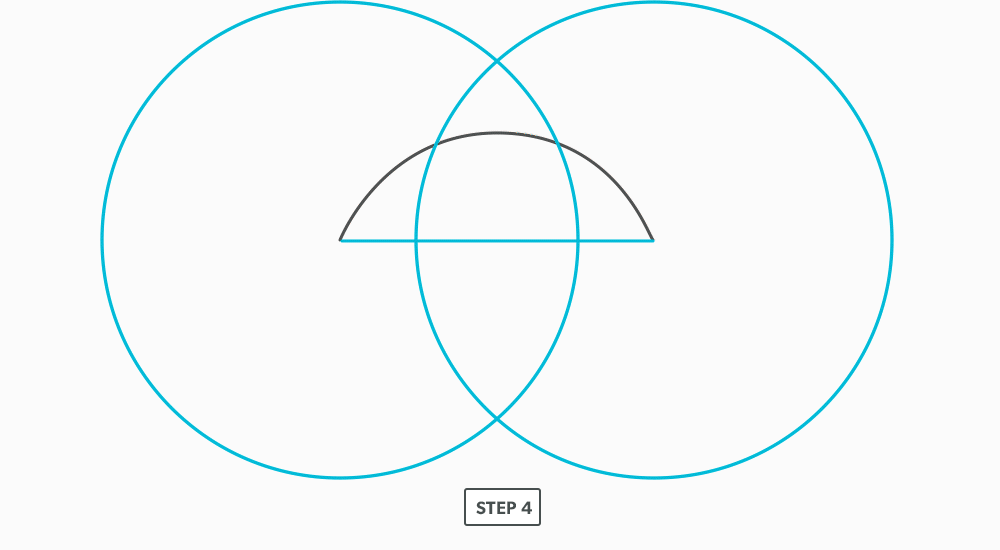
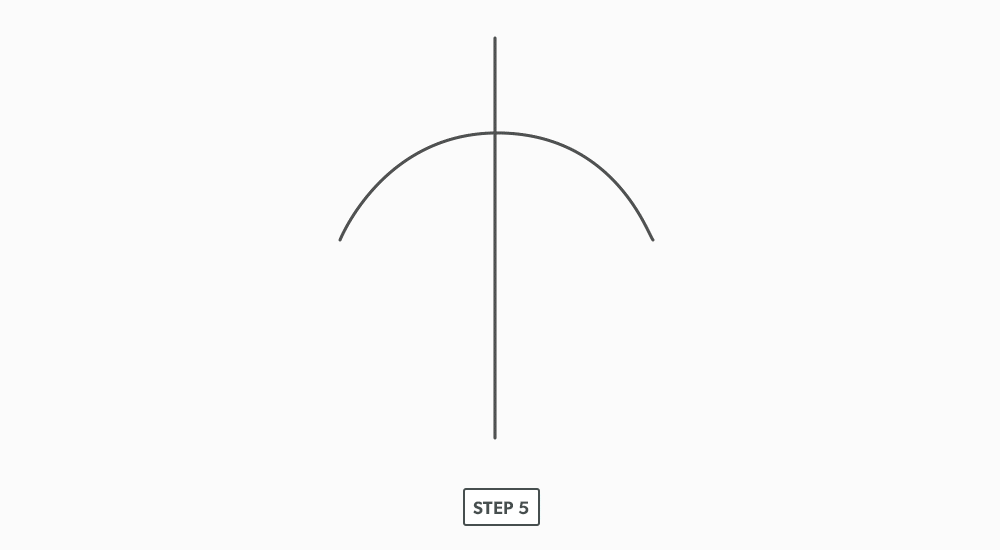
				 <ol><li>Draw an <strong><span class="glossary-term">arc</span></strong>.<strong><br /> <img class="aligncenter size-full wp-image-1111" src="https://opentextbc.ca/patterndevelopment/wp-content/uploads/sites/359/2021/08/Bisect-An-Arc-Step-1.png" alt="" width="1000" height="350" title="" /></strong></li> <li>Draw a line (<strong><span class="glossary-term">chord</span></strong>) that connects the two points of the arc (now, <strong><span class="glossary-term">bisect</span></strong> the line).<br /> <img class="aligncenter size-full wp-image-1112" src="https://opentextbc.ca/patterndevelopment/wp-content/uploads/sites/359/2021/08/Bisect-An-Arc-Step-2.png" alt="" width="1000" height="268" title="" /></li> <li>Set your compass to approximately ¾ of the length of the line. (The important thing is to set it to more than half. The further past half way, the more accurate, but the larger the space required becomes.)<img class="aligncenter size-full wp-image-1113" src="https://opentextbc.ca/patterndevelopment/wp-content/uploads/sites/359/2021/08/Bisect-An-Arc-Step-3.png" alt="" width="1000" height="400" title="" /></li> <li>Keeping this distance set on your compass, swing arcs from both ends of the line, directed towards the centre.<img class="aligncenter size-full wp-image-1114" src="https://opentextbc.ca/patterndevelopment/wp-content/uploads/sites/359/2021/08/Bisect-An-Arc-Step-4.png" alt="" width="1000" height="550" title="" /></li> <li>Draw a line through the two intersection points of the arcs.<strong><br /> <img class="aligncenter size-full wp-image-1110" src="https://opentextbc.ca/patterndevelopment/wp-content/uploads/sites/359/2021/08/Bisect-An-Arc-Step-5.png" alt="" width="1000" height="550" title="" /></strong></li> </ol> 
	</div>


	</div>
<div class="chapter standard " id="chapter-bisect-an-angle-print" title="Bisect an Angle">
	<div class="chapter-title-wrap">
		<p class="chapter-number">4</p>
		<h1 class="chapter-title">Bisect an Angle</h1>
								</div>
	<div class="ugc chapter-ugc">
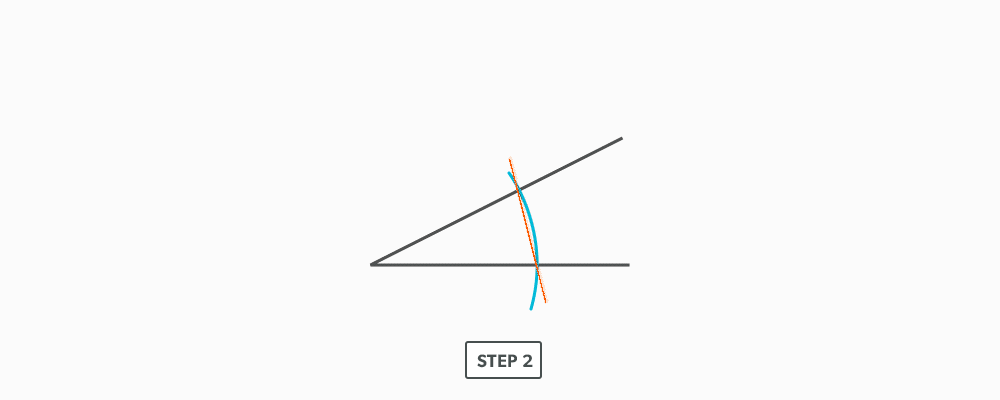
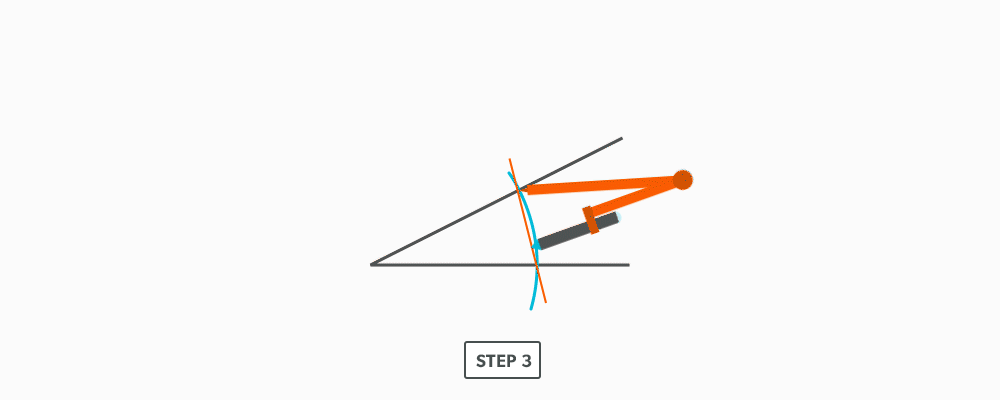
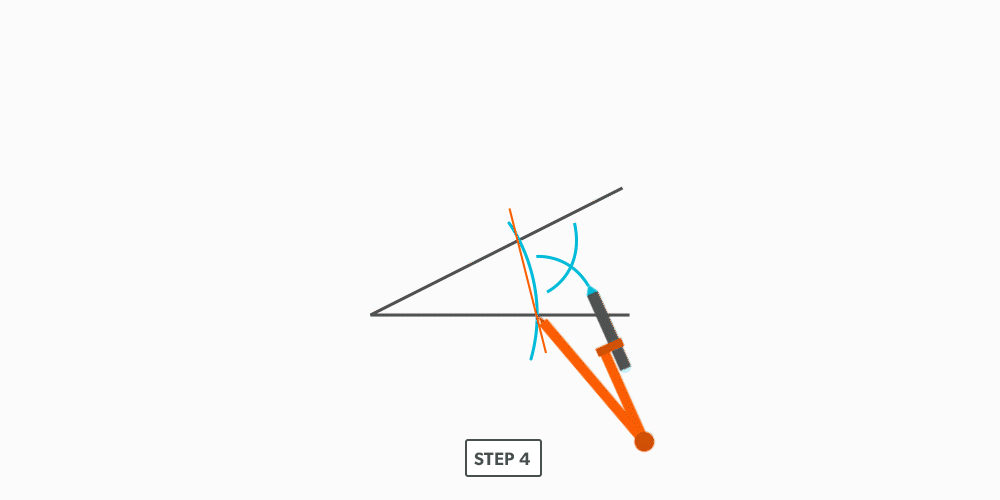
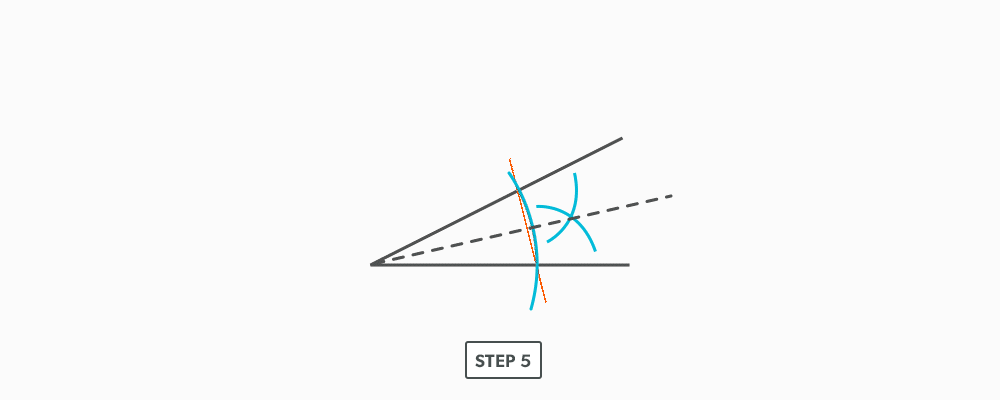
				 <ol><li>Set your compass to a radius of reasonable distance inside the angle and swing it from the&nbsp;<strong><span class="glossary-term">vertex</span></strong> to&nbsp;create an&nbsp;<strong><span class="glossary-term">arc</span></strong> inside the angle.<img class="aligncenter size-full wp-image-1120" src="https://opentextbc.ca/patterndevelopment/wp-content/uploads/sites/359/2021/08/Bisect-An-Angle-Step-1.png" alt="" width="1000" height="350" title="" /></li> <li>. Draw a line (<strong><span class="glossary-term">chord</span></strong>) from the two points that cross the lines that make the angle.<img class="aligncenter size-full wp-image-1121" src="https://opentextbc.ca/patterndevelopment/wp-content/uploads/sites/359/2021/08/Bisect-An-Angle-Step-2.png" alt="" width="1000" height="400" title="" /></li> <li>Now,&nbsp;<strong><span class="glossary-term">bisect</span></strong>&nbsp;the line (<strong>chord</strong>). You can use the&nbsp;vertex as one point, so you only need arc outside the chord. Set your compass to approximately ¾ of the length of the line.<img class="aligncenter size-full wp-image-1122" src="https://opentextbc.ca/patterndevelopment/wp-content/uploads/sites/359/2021/08/Bisect-An-Angle-Step-3.png" alt="" width="1000" height="400" title="" /></li> <li>Keeping this distance set on your compass, swing arcs from both ends of the line.<img class="aligncenter size-full wp-image-1123" src="https://opentextbc.ca/patterndevelopment/wp-content/uploads/sites/359/2021/08/Bisect-An-Angle-Step-4.png" alt="" width="1000" height="500" title="" /></li> <li>Draw a line through the vertex to the intersection of the arcs.<strong><strong><br /> <img class="aligncenter size-full wp-image-1124" src="https://opentextbc.ca/patterndevelopment/wp-content/uploads/sites/359/2021/08/Bisect-An-Angle-Step-5a.png" alt="" width="1000" height="400" title="" /></strong></strong><img class="aligncenter size-full wp-image-1125" src="https://opentextbc.ca/patterndevelopment/wp-content/uploads/sites/359/2021/08/Bisect-An-Angle-Step-5b.png" alt="" width="1000" height="400" title="" /></li> </ol> 
	</div>


	</div>
<div class="chapter standard " id="chapter-copy-an-angle-print" title="Copy an Angle">
	<div class="chapter-title-wrap">
		<p class="chapter-number">5</p>
		<h1 class="chapter-title">Copy an Angle</h1>
								</div>
	<div class="ugc chapter-ugc">
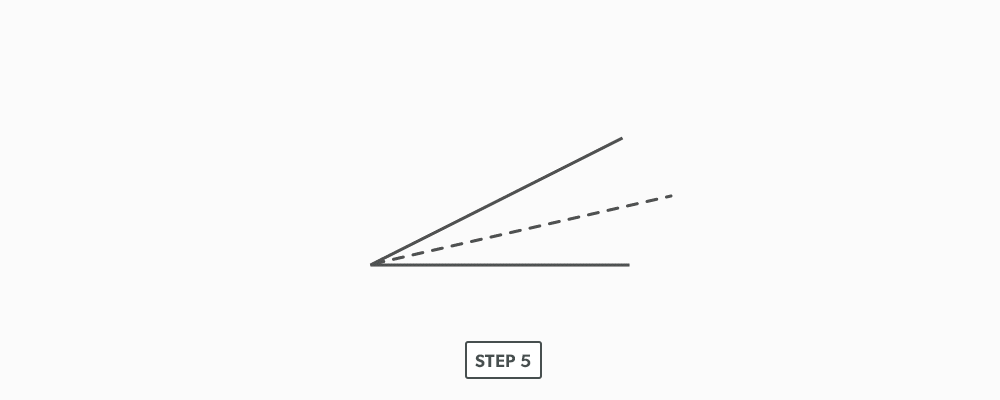
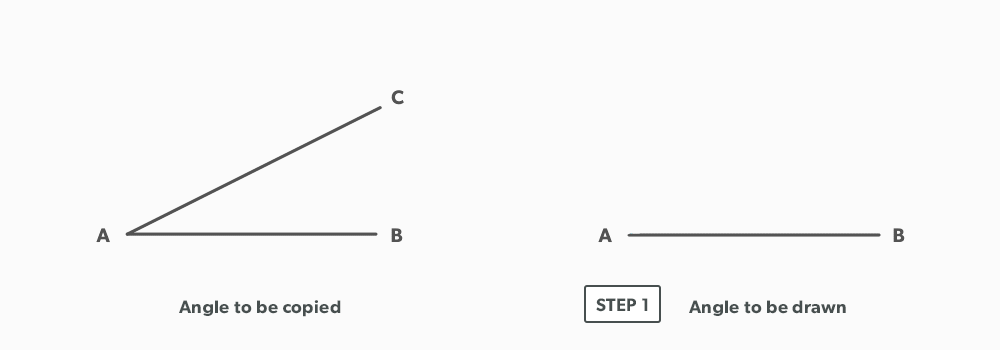
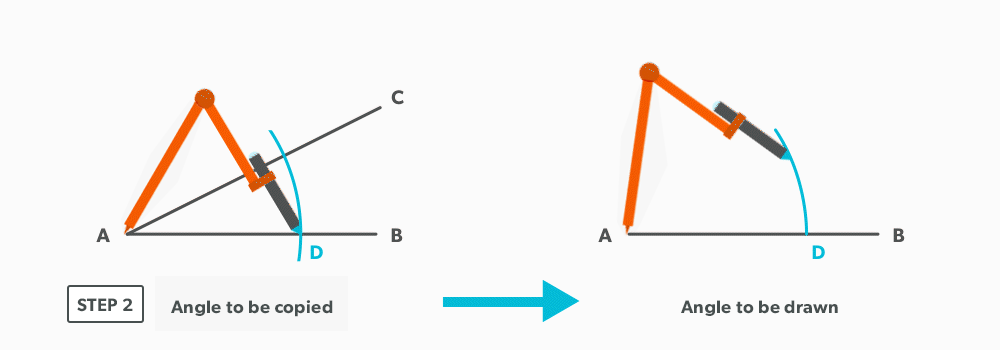
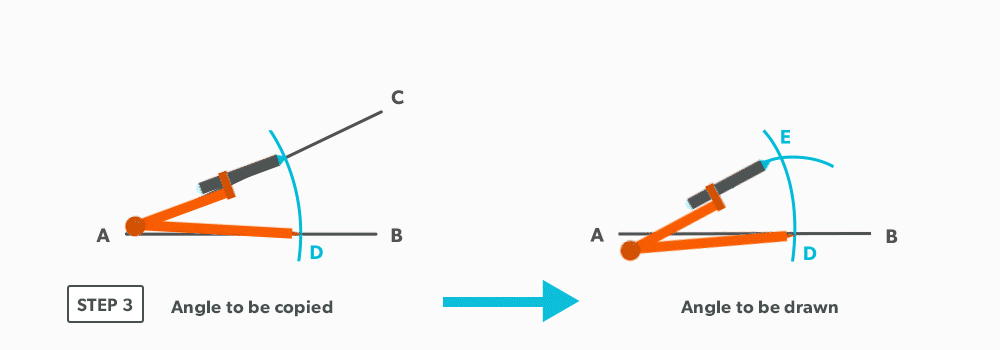
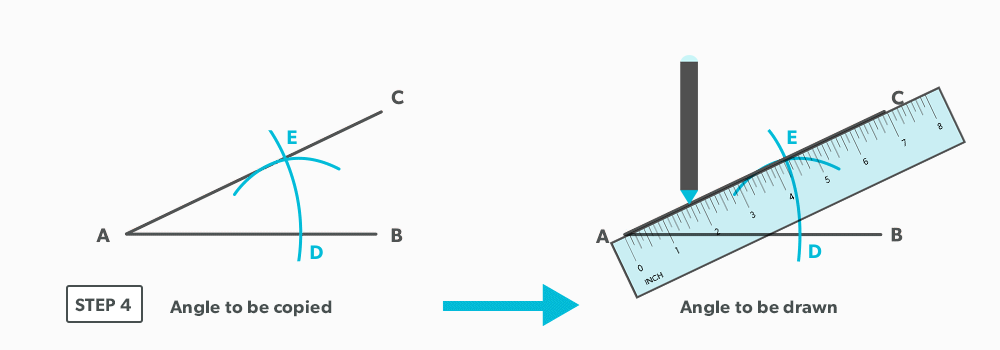
				 <div class="textbox">This is a similar process to creating a triangle.</div> <ol><li>Draw the angle to be copied and label it A-B-C. Then, draw a baseline for the new angle and label it A-B.<img class="aligncenter size-full wp-image-1130" src="https://opentextbc.ca/patterndevelopment/wp-content/uploads/sites/359/2021/08/Copy-An-Angle-Step-1.png" alt="" width="1000" height="350" title="" /></li> <li>Set your compass to a <strong><span class="glossary-term">radius</span></strong> of reasonable distance. Swing it from the <strong><span class="glossary-term">vertex</span></strong> point of the original angle and from point A of the new baseline.<img class="aligncenter size-full wp-image-1131" src="https://opentextbc.ca/patterndevelopment/wp-content/uploads/sites/359/2021/08/Copy-An-Angle-Step-2.png" alt="" width="1000" height="350" title="" /></li> <li>Pick up the distance of this <strong><span class="glossary-term">arc</span></strong> from the original angle and transfer it to the copied angle.<img class="aligncenter size-full wp-image-1132" src="https://opentextbc.ca/patterndevelopment/wp-content/uploads/sites/359/2021/08/Copy-An-Angle-Step-3.png" alt="" width="1000" height="350" title="" /></li> <li>Draw in the line from point A to the intersection point to form the angle. Pick up distance A-C and transfer if required.<img class="aligncenter size-full wp-image-1133" src="https://opentextbc.ca/patterndevelopment/wp-content/uploads/sites/359/2021/08/Copy-An-Angle-Step-4.png" alt="" width="1000" height="350" title="" /></li> </ol> 
	</div>


	</div>
<div class="chapter standard " id="chapter-create-a-parallel-line-print" title="Create a Parallel Line">
	<div class="chapter-title-wrap">
		<p class="chapter-number">6</p>
		<h1 class="chapter-title">Create a Parallel Line</h1>
								</div>
	<div class="ugc chapter-ugc">
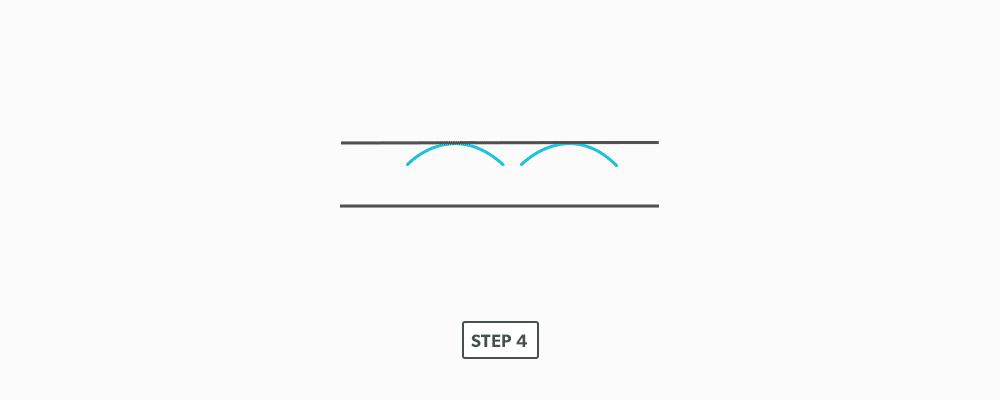
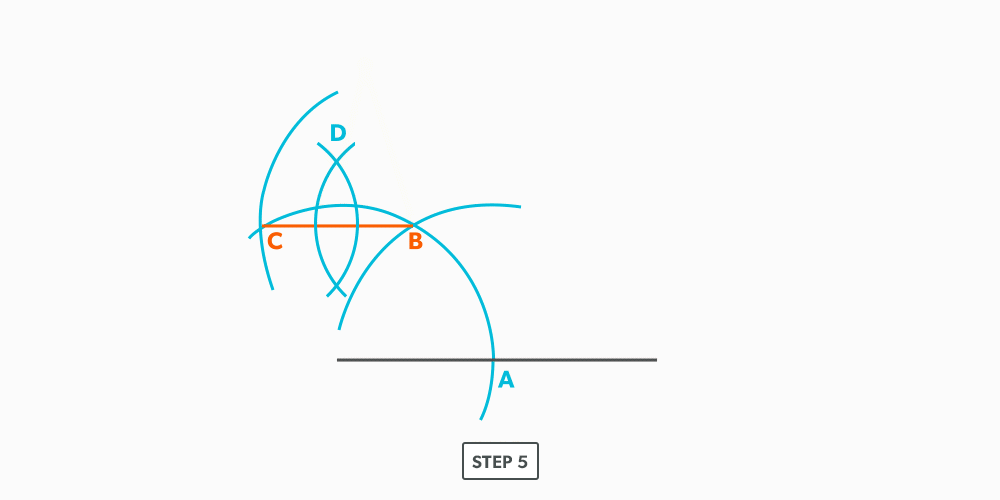
				 <ol><li>Draw a line.<br /> <img class="aligncenter size-full wp-image-1136" src="https://opentextbc.ca/patterndevelopment/wp-content/uploads/sites/359/2021/08/Create-A-Parallel-Line-Step-1.png" alt="" width="1000" height="350" title="" /></li> <li>Set your compass equal to the distance required for the <strong><span class="glossary-term">parallel</span></strong> line.<img class="aligncenter size-full wp-image-1137" src="https://opentextbc.ca/patterndevelopment/wp-content/uploads/sites/359/2021/08/Create-A-Parallel-Line-Step-2.png" alt="" width="1000" height="350" title="" /></li> <li>Swing at least two <strong><span class="glossary-term">arcs</span></strong> from the line.<br /> <img class="aligncenter size-full wp-image-1138" src="https://opentextbc.ca/patterndevelopment/wp-content/uploads/sites/359/2021/08/Create-A-Parallel-Line-Step-3.png" alt="" width="1000" height="350" title="" /></li> <li>Create the parallel line from the peak (<strong><span class="glossary-term">point of tangency</span></strong>) of the arcs.<strong><img class="aligncenter size-full wp-image-1139" src="https://opentextbc.ca/patterndevelopment/wp-content/uploads/sites/359/2021/08/Create-A-Parallel-Line-Step-4.png" alt="" width="1000" height="400" title="" /></strong></li> </ol> 
	</div>


	</div>
<div class="chapter standard " id="chapter-create-a-perpendicular-line-print" title="Create a Perpendicular Line">
	<div class="chapter-title-wrap">
		<p class="chapter-number">7</p>
		<h1 class="chapter-title">Create a Perpendicular Line</h1>
								</div>
	<div class="ugc chapter-ugc">
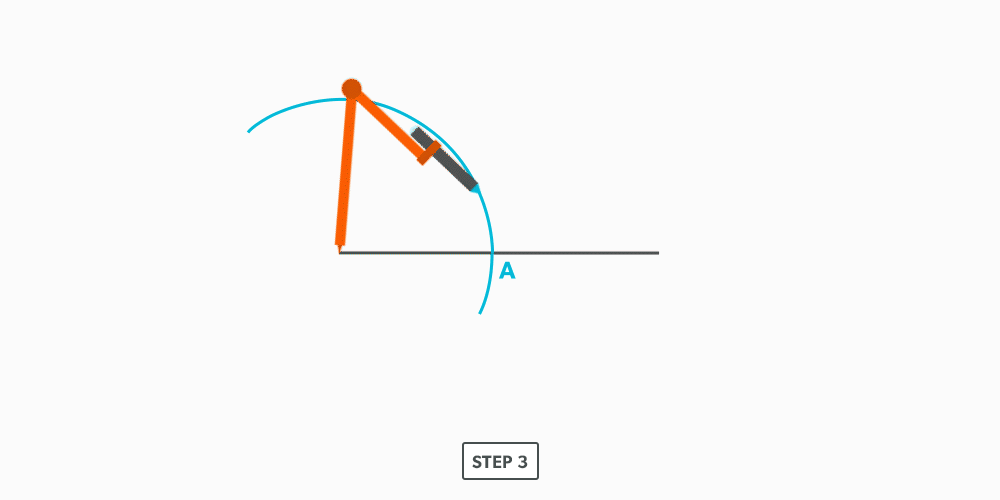
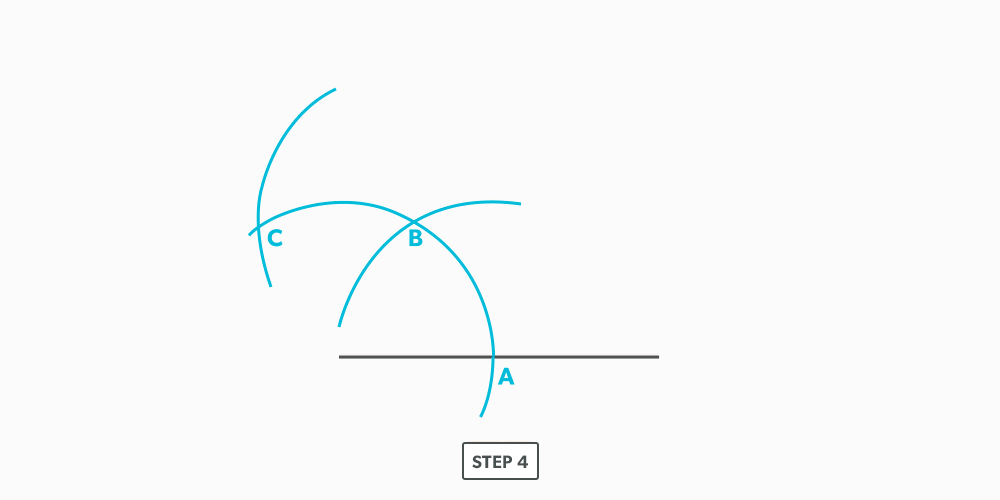
				 <h1>Create a Perpendicular Line at the Middle of a Line</h1> <ol><li>Draw a line.<br /> <img class="aligncenter size-full wp-image-1144" src="https://opentextbc.ca/patterndevelopment/wp-content/uploads/sites/359/2021/08/Create-A-Perpendicular-Line-Middle-Step-1.png" alt="" width="1000" height="350" title="" /></li> <li><strong><span class="glossary-term">Bisect</span></strong> the line.<br /> <img class="aligncenter size-full wp-image-1145" src="https://opentextbc.ca/patterndevelopment/wp-content/uploads/sites/359/2021/08/Create-A-Perpendicular-Line-Middle-Step-2.png" alt="" width="1000" height="500" title="" /></li> <li>In <strong>bisecting</strong> the line, we have created a <strong><span class="glossary-term">perpendicular</span></strong> line (x-y axis).<img class="aligncenter size-full wp-image-1146" src="https://opentextbc.ca/patterndevelopment/wp-content/uploads/sites/359/2021/08/Create-A-Perpendicular-Line-Middle-Step-3.png" alt="" width="1000" height="500" title="" /></li> </ol> <h1>Create a Perpendicular Line at the End of a Line</h1> <ol><li>Draw a line.<br /> <img class="aligncenter size-full wp-image-1147" src="https://opentextbc.ca/patterndevelopment/wp-content/uploads/sites/359/2021/08/Create-A-Perpendicular-Line-End-Step-1.png" alt="" width="1000" height="350" title="" /></li> <li>Set your compass to a <strong><span class="glossary-term">radius</span></strong> of reasonable distance.<br /> <img class="aligncenter size-full wp-image-1148" src="https://opentextbc.ca/patterndevelopment/wp-content/uploads/sites/359/2021/08/Create-A-Perpendicular-Line-End-Step-2.png" alt="" width="1000" height="350" title="" /></li> <li>Swing that <strong>arc</strong> from the end of the line.<img class="aligncenter size-full wp-image-1149" src="https://opentextbc.ca/patterndevelopment/wp-content/uploads/sites/359/2021/08/Create-A-Perpendicular-Line-End-Step-3.png" alt="" width="1000" height="500" title="" /></li> <li>Using the same distance (radius) on your compass, swing that distance along the arc twice. Each time you swing the radius along its own arc/<strong><span class="glossary-term">circumference</span></strong>, it create a 60° angle and <strong><span class="glossary-term">sector</span></strong>.<strong><img class="aligncenter size-full wp-image-1150" src="https://opentextbc.ca/patterndevelopment/wp-content/uploads/sites/359/2021/08/Create-A-Perpendicular-Line-End-Step-4.png" alt="" width="1000" height="500" title="" /></strong></li> <li>Bisect the arc between the last two points. We are bisecting the second 60° sector to create two 30° sectors. If we then look at the arc, we have a 60° sector and a 30° sector, which combine to make a 90° <strong><span class="glossary-term">quadrant</span></strong>.<img class="aligncenter size-full wp-image-1151" src="https://opentextbc.ca/patterndevelopment/wp-content/uploads/sites/359/2021/08/Create-A-Perpendicular-Line-End-Step-5.png" alt="" width="1000" height="500" title="" /></li> <li>From the end of the line, draw a line through the last point.<img class="aligncenter size-full wp-image-1152" src="https://opentextbc.ca/patterndevelopment/wp-content/uploads/sites/359/2021/08/Create-A-Perpendicular-Line-End-Step-6.png" alt="" width="1000" height="500" title="" /></li> </ol> 
	</div>


	</div>
<div class="chapter standard " id="chapter-draw-an-arc-through-3-points-print" title="Draw an Arc Through Three Points">
	<div class="chapter-title-wrap">
		<p class="chapter-number">8</p>
		<h1 class="chapter-title">Draw an Arc Through Three Points</h1>
								</div>
	<div class="ugc chapter-ugc">
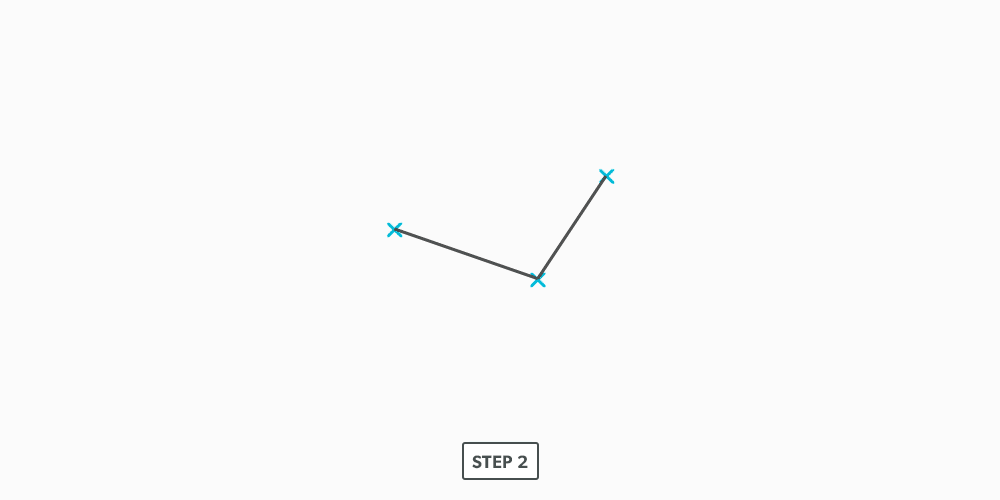
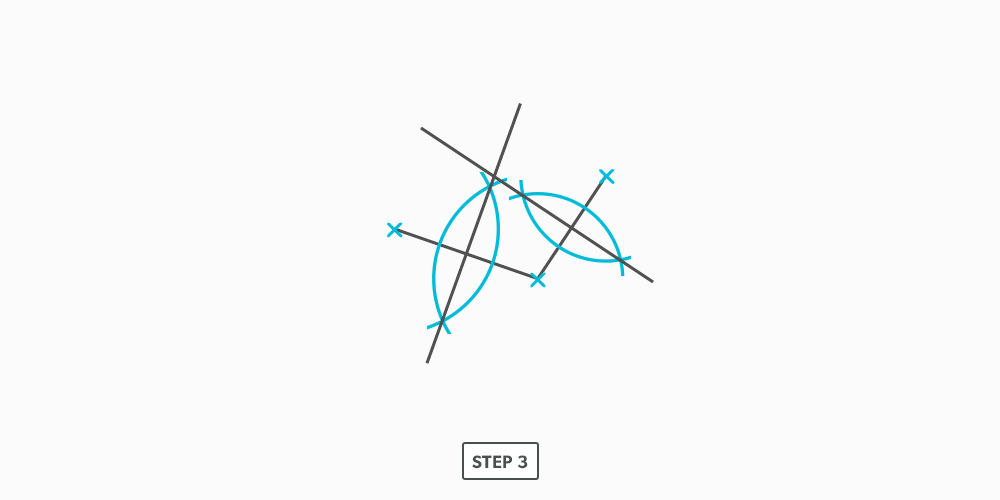
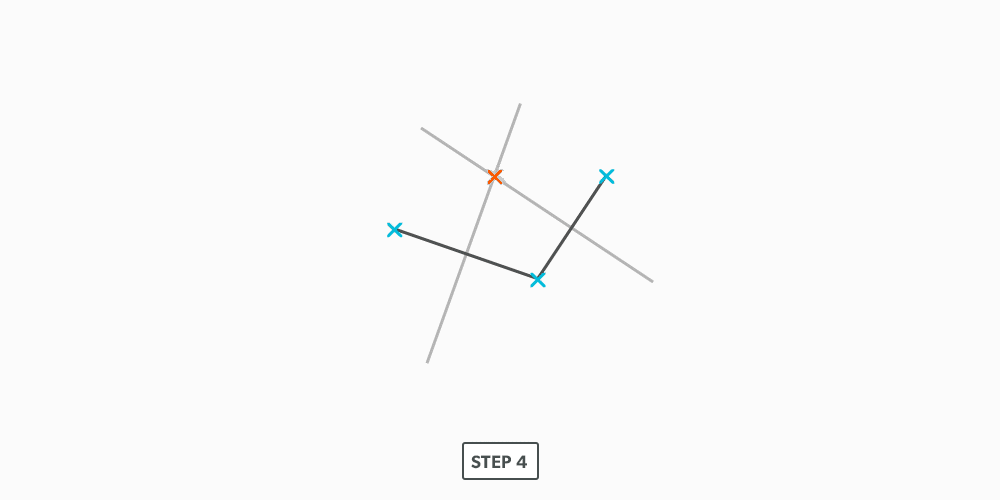
				 <ol><li>Establish three random points. (Under normal conditions, these points will not be random).<img class="aligncenter size-full wp-image-1156" src="https://opentextbc.ca/patterndevelopment/wp-content/uploads/sites/359/2021/08/Draw-Line-Through-Three-Points-1.png" alt="" width="1000" height="500" title="" /></li> <li>Draw two lines to connect the points.<br /> <img class="aligncenter size-full wp-image-1157" src="https://opentextbc.ca/patterndevelopment/wp-content/uploads/sites/359/2021/08/Draw-Line-Through-Three-Points-2.png" alt="" width="1000" height="500" title="" /></li> <li><strong><span class="glossary-term">Bisect</span></strong> the two lines and create <strong><span class="glossary-term">perpendicular</span></strong> lines.<img class="aligncenter size-full wp-image-1158" src="https://opentextbc.ca/patterndevelopment/wp-content/uploads/sites/359/2021/08/Draw-Line-Through-Three-Points-3.png" alt="" width="1000" height="500" title="" /></li> <li>Where the two perpendicular lines cross becomes the <strong><span class="glossary-term">radius</span></strong> point for the <strong><span class="glossary-term">arc</span></strong>.<strong><img class="aligncenter size-full wp-image-1159" src="https://opentextbc.ca/patterndevelopment/wp-content/uploads/sites/359/2021/08/Draw-Line-Through-Three-Points-4.png" alt="" width="1000" height="500" title="" /></strong></li> <li>Set your compass from the established radius point to one of the three points.<img class="aligncenter size-full wp-image-1160" src="https://opentextbc.ca/patterndevelopment/wp-content/uploads/sites/359/2021/08/Draw-Line-Through-Three-Points-5.png" alt="" width="1000" height="500" title="" /></li> <li>Swing the arc through the points.<br /> <img class="aligncenter size-full wp-image-1161" src="https://opentextbc.ca/patterndevelopment/wp-content/uploads/sites/359/2021/08/Draw-Line-Through-Three-Points-6a.png" alt="" width="1000" height="500" title="" /><img class="aligncenter size-full wp-image-1162" src="https://opentextbc.ca/patterndevelopment/wp-content/uploads/sites/359/2021/08/Draw-Line-Through-Three-Points-6b.png" alt="" width="1000" height="332" title="" /></li> </ol> 
	</div>


	</div>
<div class="chapter standard " id="chapter-divide-a-circle-into-12-equal-parts-print" title="Divide a Circle Into 12 Equal Parts">
	<div class="chapter-title-wrap">
		<p class="chapter-number">9</p>
		<h1 class="chapter-title">Divide a Circle Into 12 Equal Parts</h1>
								</div>
	<div class="ugc chapter-ugc">
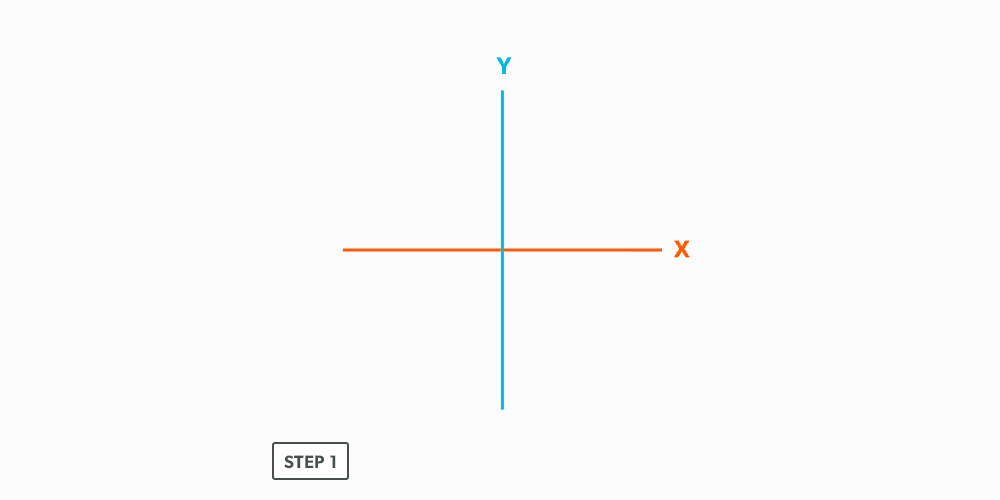
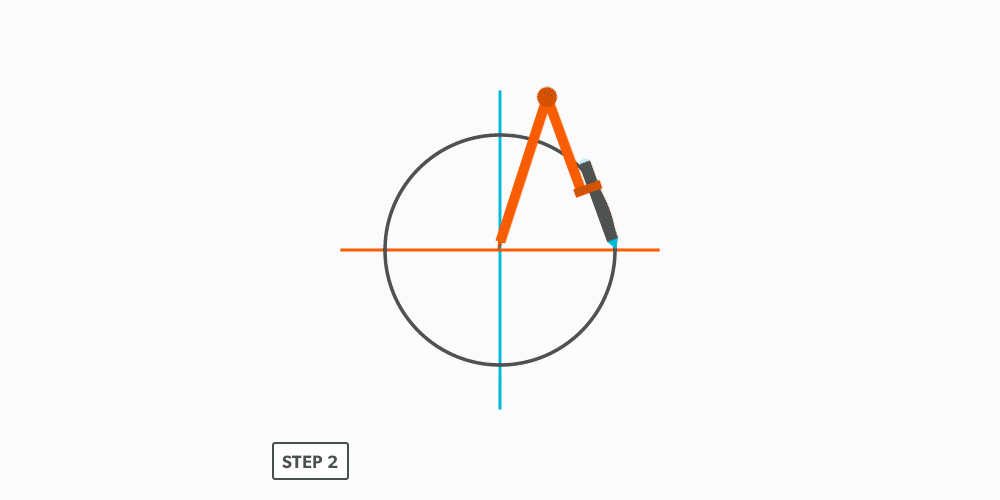
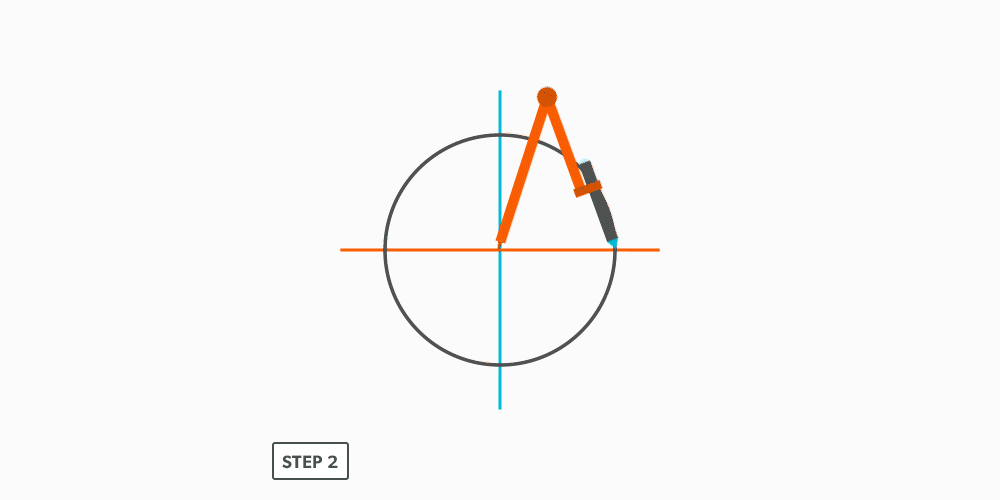
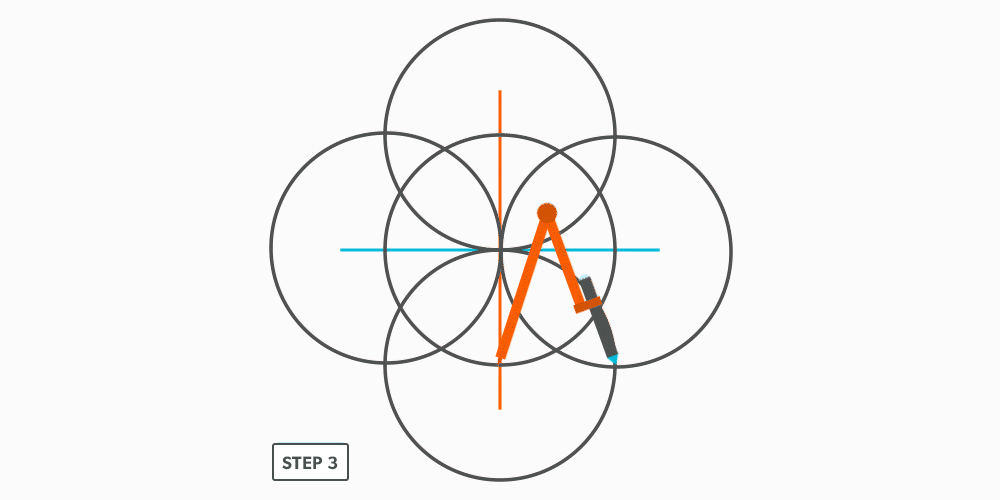
				 <ol><li>Draw an x-y axis.<br /> <img class="aligncenter size-full wp-image-1166" src="https://opentextbc.ca/patterndevelopment/wp-content/uploads/sites/359/2021/08/Divide-Circle-12-Equal-Parts-Step-1.png" alt="" width="1000" height="500" title="" /></li> <li>Draw a circle.<strong><br /> <img class="aligncenter size-full wp-image-1167" src="https://opentextbc.ca/patterndevelopment/wp-content/uploads/sites/359/2021/08/Divide-Circle-12-Equal-Parts-Step-2.png" alt="" width="1000" height="500" title="" /></strong></li> <li>From each <strong><span class="glossary-term">quadrant</span></strong> point, swing the <strong><span class="glossary-term">radius</span></strong> in both directions to cross the <strong><span class="glossary-term">circumference</span></strong>. (Remember, when we swing the <strong><span class="glossary-term">radius</span></strong> along an <strong><span class="glossary-term">arc</span></strong> of equal distance, we create 60°.) As we do it both ways, we end up with 30°-60°-90° all the way around the circumference. <strong><strong><br /> <img class="aligncenter size-full wp-image-1168" src="https://opentextbc.ca/patterndevelopment/wp-content/uploads/sites/359/2021/08/Divide-Circle-12-Equal-Parts-Step-3.png" alt="" width="1000" height="500" title="" /></strong></strong><img class="aligncenter size-full wp-image-1169" src="https://opentextbc.ca/patterndevelopment/wp-content/uploads/sites/359/2021/08/Divide-Circle-12-Equal-Parts-Step-4.png" alt="" width="1000" height="500" title="" /></li> </ol> <div class="textbox shaded"><strong>This is one of the most common techniques we use. Know it well!!!</strong></div> 
	</div>


	</div>
<div class="chapter standard " id="chapter-divide-a-line-using-a-ruler-on-an-angle-print" title="Divide a Line Using a Ruler on an Angle">
	<div class="chapter-title-wrap">
		<p class="chapter-number">10</p>
		<h1 class="chapter-title">Divide a Line Using a Ruler on an Angle</h1>
								</div>
	<div class="ugc chapter-ugc">
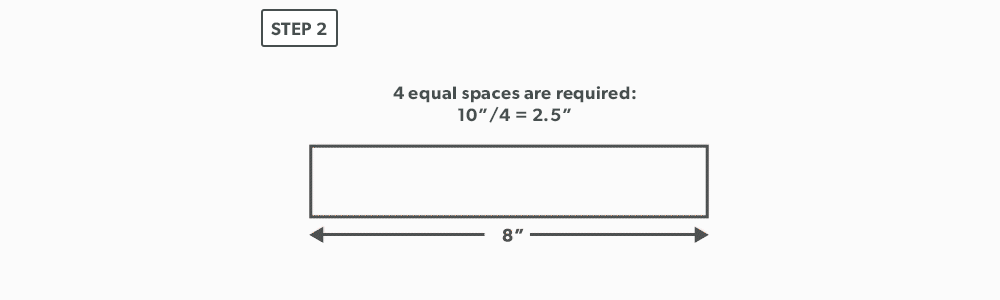
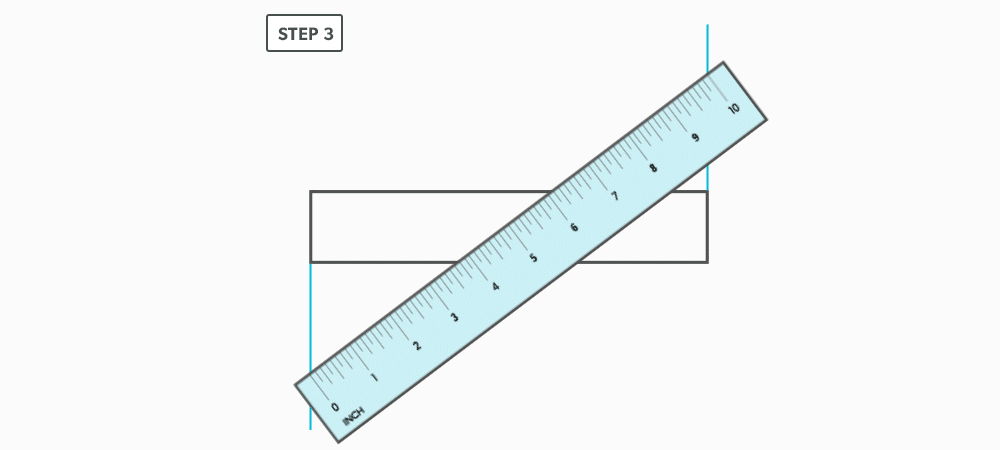
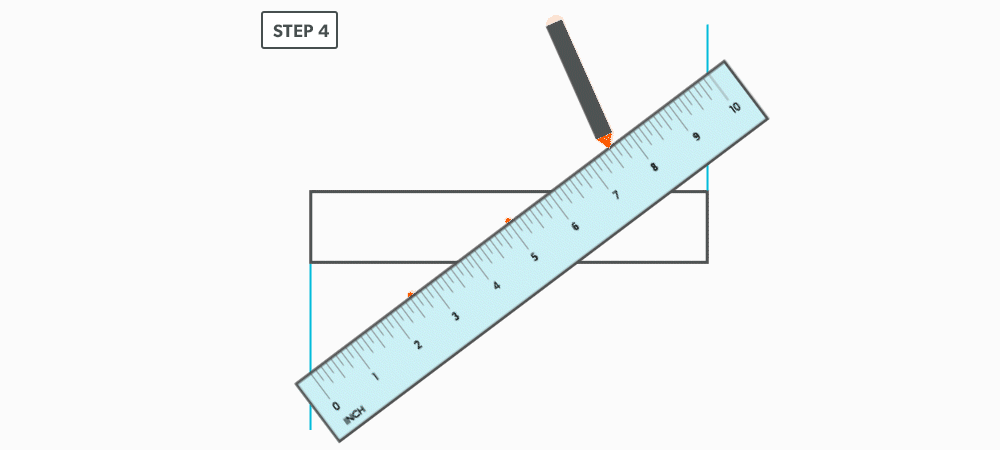
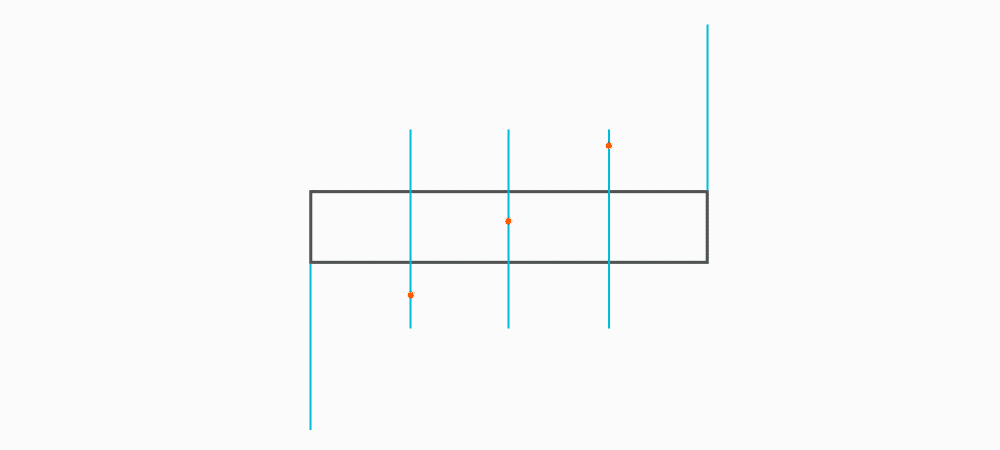
				 <ol><li>Draw a rectangle.<br /> <img class="aligncenter size-full wp-image-1173" src="https://opentextbc.ca/patterndevelopment/wp-content/uploads/sites/359/2021/08/Divide-A-Line-Using-Ruler-On-Angle-Step-1.png" alt="" width="1000" height="200" title="" /></li> <li>Determine a larger length that divides easily into how many equal spaces you want. (For example, if four equal spaces are required, 10 inches, 12 inches, 16 inches, etc. are good choices.)<img class="aligncenter size-full wp-image-1174" src="https://opentextbc.ca/patterndevelopment/wp-content/uploads/sites/359/2021/08/Divide-A-Line-Using-Ruler-On-Angle-Step-2.png" alt="" width="1000" height="300" title="" /></li> <li>Angle the ruler so that zero and the number chosen, in this case 10 inches, are on the <strong><span class="glossary-term">vertical</span></strong>, outside edges of the rectangle (you may need to extend the vertical lines of the rectangle).<img class="aligncenter size-full wp-image-1175" src="https://opentextbc.ca/patterndevelopment/wp-content/uploads/sites/359/2021/08/Divide-A-Line-Using-Ruler-On-Angle-Step-3.png" alt="" width="1000" height="450" title="" /></li> <li>Mark the divisions along the ruler and square them vertically. If four divisions are required and 10 inches is chosen, then mark every 2.5 inches on the ruler.<strong><strong><br /> <img class="aligncenter size-full wp-image-1176" src="https://opentextbc.ca/patterndevelopment/wp-content/uploads/sites/359/2021/08/Divide-A-Line-Using-Ruler-On-Angle-Step-4a.png" alt="" width="1000" height="450" title="" /></strong></strong><img class="aligncenter size-full wp-image-1177" src="https://opentextbc.ca/patterndevelopment/wp-content/uploads/sites/359/2021/08/Divide-A-Line-Using-Ruler-On-Angle-Step-4b.png" alt="" width="1000" height="450" title="" /><img class="alignnone size-full wp-image-146" src="https://opentextbc.ca/patterndevelopment/wp-content/uploads/sites/359/2021/08/Divide-A-Line-Using-Ruler-On-Angle-Step-4c-e1628880101348.png" alt="" width="1000" height="230" srcset="https://opentextbc.ca/patterndevelopment/wp-content/uploads/sites/359/2021/08/Divide-A-Line-Using-Ruler-On-Angle-Step-4c-e1628880101348.png 1000w, https://opentextbc.ca/patterndevelopment/wp-content/uploads/sites/359/2021/08/Divide-A-Line-Using-Ruler-On-Angle-Step-4c-e1628880101348-300x69.png 300w, https://opentextbc.ca/patterndevelopment/wp-content/uploads/sites/359/2021/08/Divide-A-Line-Using-Ruler-On-Angle-Step-4c-e1628880101348-768x177.png 768w, https://opentextbc.ca/patterndevelopment/wp-content/uploads/sites/359/2021/08/Divide-A-Line-Using-Ruler-On-Angle-Step-4c-e1628880101348-65x15.png 65w, https://opentextbc.ca/patterndevelopment/wp-content/uploads/sites/359/2021/08/Divide-A-Line-Using-Ruler-On-Angle-Step-4c-e1628880101348-225x52.png 225w, https://opentextbc.ca/patterndevelopment/wp-content/uploads/sites/359/2021/08/Divide-A-Line-Using-Ruler-On-Angle-Step-4c-e1628880101348-350x81.png 350w" title="" /></li> </ol> <div class="textbox shaded"><strong>This is one of the most common techniques we use. Know it well!!!</strong></div> 
	</div>


	</div>
<div class="chapter standard " id="chapter-create-a-hexagon-print" title="Create a Hexagon">
	<div class="chapter-title-wrap">
		<p class="chapter-number">11</p>
		<h1 class="chapter-title">Create a Hexagon</h1>
								</div>
	<div class="ugc chapter-ugc">
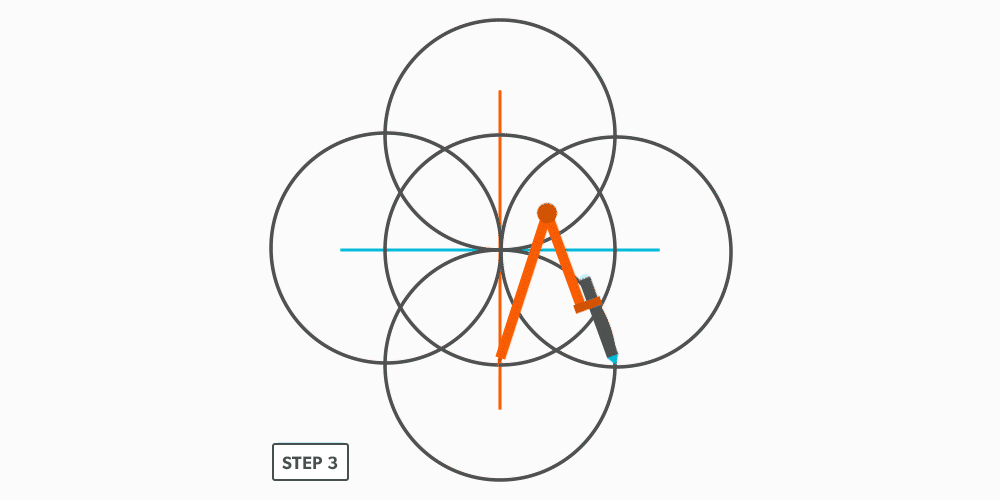
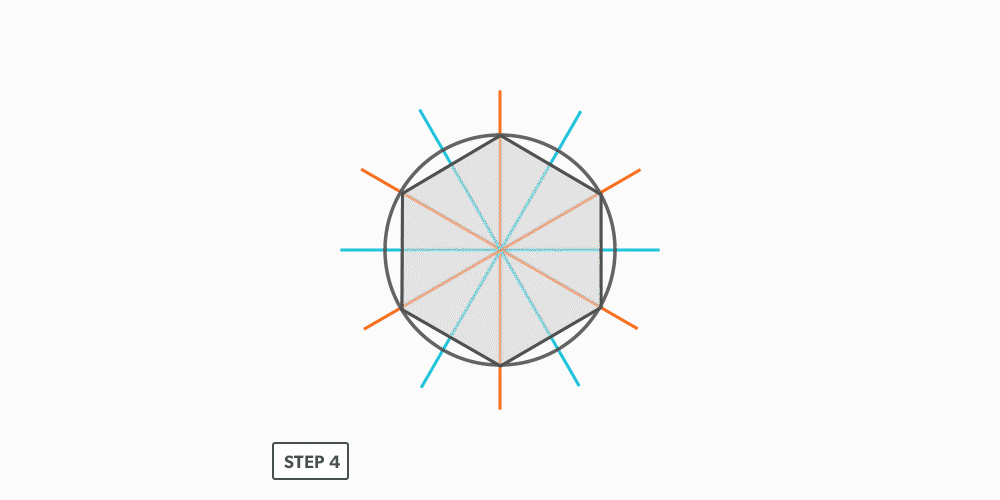
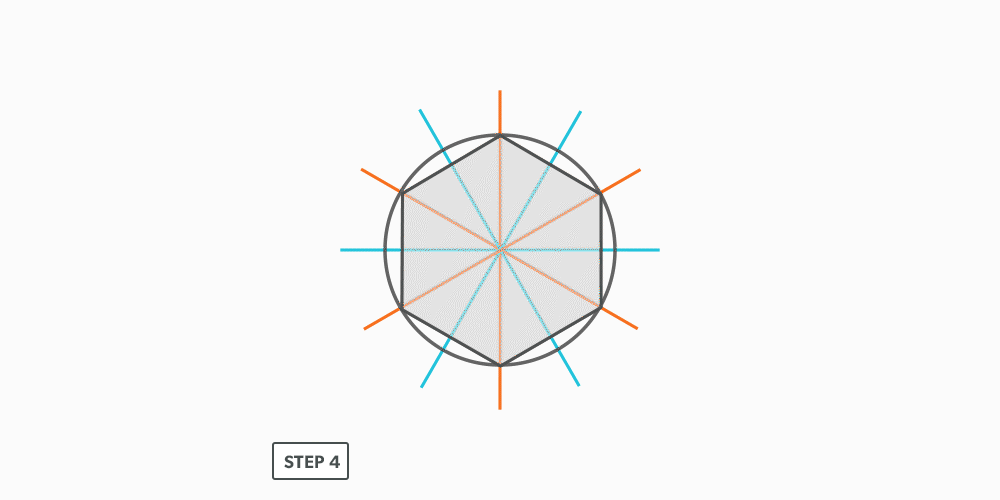
				 <p>If we think of a hexagon inside a circle, it has a <strong><span class="glossary-term">radius</span></strong> equal to the length of any given side. This makes it quite easy to construct.</p> <ol><li>Set your compass to the desired radius or side length.</li> <li>Draw a circle<br /> <img class="aligncenter size-full wp-image-1370" src="https://opentextbc.ca/patterndevelopment/wp-content/uploads/sites/359/2021/08/Create-Hexagon-Step-2.png" alt="" width="1000" height="500" title="" /></li> <li>Using the same radius, swing it along the <strong><span class="glossary-term">circumference</span></strong> six times. Remember, this creates 60° <strong><span class="glossary-term">sectors</span></strong>.<strong><img class="aligncenter size-full wp-image-1371" src="https://opentextbc.ca/patterndevelopment/wp-content/uploads/sites/359/2021/08/Create-Hexagon-Step-3.png" alt="" width="1000" height="500" title="" /></strong></li> <li>Connect the points to create the hexagon.<br /> <img class="aligncenter size-full wp-image-1372" src="https://opentextbc.ca/patterndevelopment/wp-content/uploads/sites/359/2021/08/Create-Hexagon-Step-4.png" alt="" width="1000" height="500" title="" /></li> </ol> 
	</div>


	</div>
<div class="chapter standard " id="chapter-create-other-polygons-print" title="Create Other Polygons">
	<div class="chapter-title-wrap">
		<p class="chapter-number">12</p>
		<h1 class="chapter-title">Create Other Polygons</h1>
								</div>
	<div class="ugc chapter-ugc">
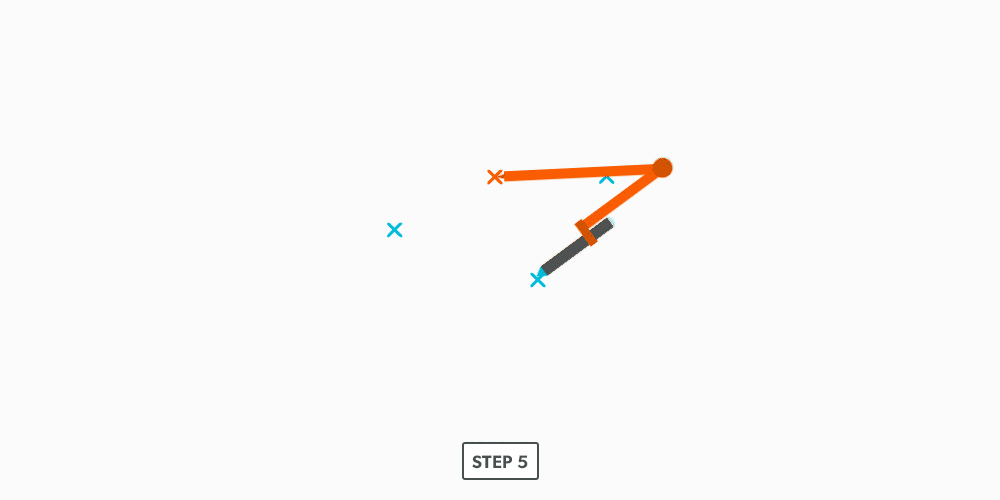
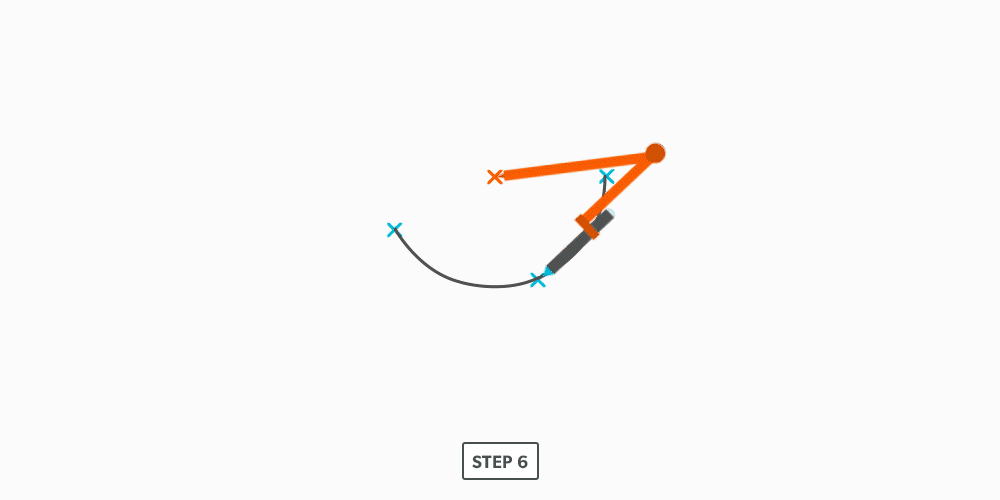
				 <ol><li>Choose how many side you want.</li> <li>Choose a side length. Think of this line as a <strong><span class="glossary-term">radius</span></strong>.</li> <li>Draw a baseline double that length.</li> <li>Set you compass to the side length (radius).</li> <li>Draw a half circle from the centre of the line.</li> <li>Divide the half circle into the number of sides required and number it (other geometric construction techniques will be used here).</li> <li>Draw a line from the radius point to the third point and label the angle/triangle A-B-C. This will create an angle equal to the polygon angle (for example, five sides equals 5 ÷ 360 = 72°).</li> <li>Use “<a class="internal" href="#chapter-draw-an-arc-through-3-points-print" data-url="/geoconst/chapter/draw-an-arc-through-3-points-print/">Draw an Arc Through Three Points</a>” to find the radius point for A-B-C.</li> <li>Use this radius to draw a complete circle.</li> <li>Set your compass to the required side length and swing it along the <strong><span class="glossary-term">circumference</span></strong> however many times needed to complete the polygon.</li> </ol> 
	</div>


	</div>
<div class="chapter standard " id="chapter-video-geometric-construction-print" title="Video: Geometric Construction">
	<div class="chapter-title-wrap">
		<p class="chapter-number">13</p>
		<h1 class="chapter-title">Video: Geometric Construction</h1>
								</div>
	<div class="ugc chapter-ugc">
				 <div class="textbox">Watch the following video: <a href="https://media.bccampus.ca/media/0_ha9soe3l" data-url="https://media.bccampus.ca/media/0_ha9soe3l">Geometric Construction (30 minutes)</a></div> 
	</div>


	</div>

</div>
<div class="part-wrapper" id="part-parallel-line-pattern-development-wrapper">
    <div class="part  " id="part-parallel-line-pattern-development">
	<div class="part-title-wrap">
		<p class="part-number">II</p>
		<h1 class="part-title">Parallel Line Pattern Development</h1>
	</div>
	<div class="ugc part-ugc">
		<h1>Introduction</h1> <p>When wanting to build a project, we need to first imagine it. The process of pattern development gives us the ability to take that visual representation and actually create the object. It allows us to turn two-dimensional metal into three-dimensional objects, which is the basis for everything we fabricate.</p> <p>Consider a globe and a map. The map is a 2D representation of a 3D object. What should the map look like? Is it truly flat? Well, maybe some would argue, but a map is not a true representation of the Earth until we remove some of it. The actual shape of the map will have numerous “cut outs” which would allow it to form a sphere. This is a form of pattern development.</p> <div class="textbox textbox--learning-objectives"><div class="textbox__header"><p class="textbox__title">Learning Objectives</p> </div> <div class="textbox__content"><ol><li>Understand the parallel line pattern development processes.</li> <li>Understand the “language” of layout.</li> </ol> </div> </div> <div class="textbox textbox--key-takeaways"><div class="textbox__header"><p class="textbox__title">Layout Terms</p> </div> <div class="textbox__content"><ol><li style="margin-top: 0px;"><strong>Allowance </strong>– the material needed for a specific component. “We must allow this much extra.” Usually a seam for connection.</li> <li><strong>Auxiliary Line </strong>– an extra element line added, different from the standard divisions.</li> <li><strong>Elbow Rule </strong>– the number of pieces of a round elbow times 2 then minus 2 (# of pcs × 2 − 2) gives us the number of gores in the elbow.</li> <li><strong>Element Line&nbsp;</strong>– a line representing an edge or bend.</li> <li><strong>Elevation View </strong>– looking at the front or side of something, to have elevation (height), 2D.</li> <li><strong>Gore </strong>– a part of a round elbow which allows us to calculate the miter angle.</li> <li><strong>Miter </strong>– an intersection of 2 pieces, an irregular cut on the end of something.</li> <li><strong>Pattern </strong>– the shape of the object, still in 2D form.</li> <li><strong>Plan view </strong>– looking down at something, a “birds eye view,” “floor plan,” (2D).</li> <li><strong>Profile </strong>– a half of a plan view, drawn on the outside of an object.</li> <li><strong>Sector </strong>– a special profile which is inside of an object, a section view.</li> <li><strong>Stretch-out </strong>-a shape which has been “stretched out,” to take a perimeter and make it straight.</li> </ol> </div> </div> <h1>Parallel Line Development</h1> <p>The process of pattern development is the way we turn 2D sheets of metal into 3D objects. A <strong><span class="glossary-term">parallel line</span></strong> is one of the basic forms of layout. We use it when <strong><span class="glossary-term">element lines</span></strong> (bends) on an object are indeed parallel. The two ends of the part must be the same. Consider a gutter: It may have curves and bends and angles, but each end is the same shape. The element lines and bends are all parallel. This is the <strong>only</strong> factor which will allow parallel line pattern development to be used.</p> <h1>Basic Steps</h1> <ol><li>Draw a full <strong><span class="glossary-term">plan</span></strong> and <strong><span class="glossary-term">elevation view</span></strong>, complete with all <strong><span class="glossary-term">element lines</span></strong> and <strong><span class="glossary-term">miter lines</span></strong>.</li> <li>Draw a <strong><span class="glossary-term">stretch-out</span></strong>, complete with all element including auxiliary lines.</li> <li>Transfer the lengths (height) of the element lines from the elevation view to the corresponding element line on the stretch-out.</li> <li>Join the point to create the pattern.</li> </ol>
	</div>
			
				
	</div>
<div class="chapter standard " id="chapter-pipe-on-a-miter-print" title="Pipe on a Miter">
	<div class="chapter-title-wrap">
		<p class="chapter-number">14</p>
		<h1 class="chapter-title">Pipe on a Miter</h1>
								</div>
	<div class="ugc chapter-ugc">
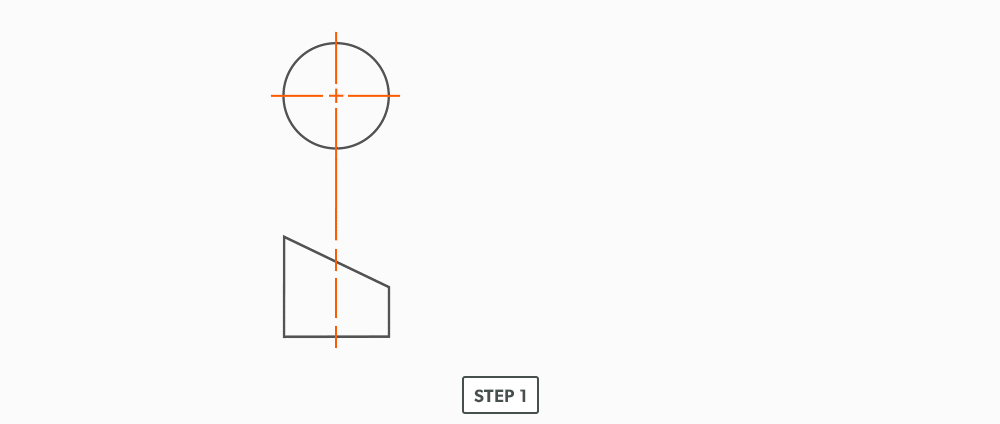
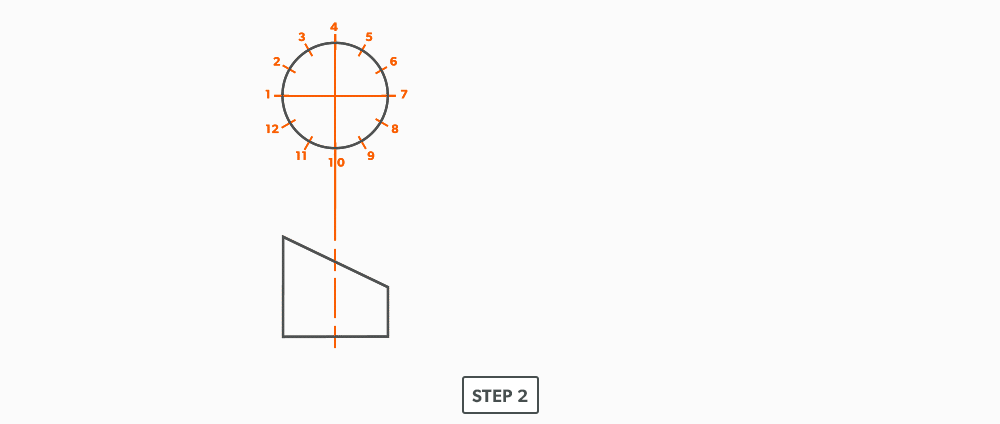
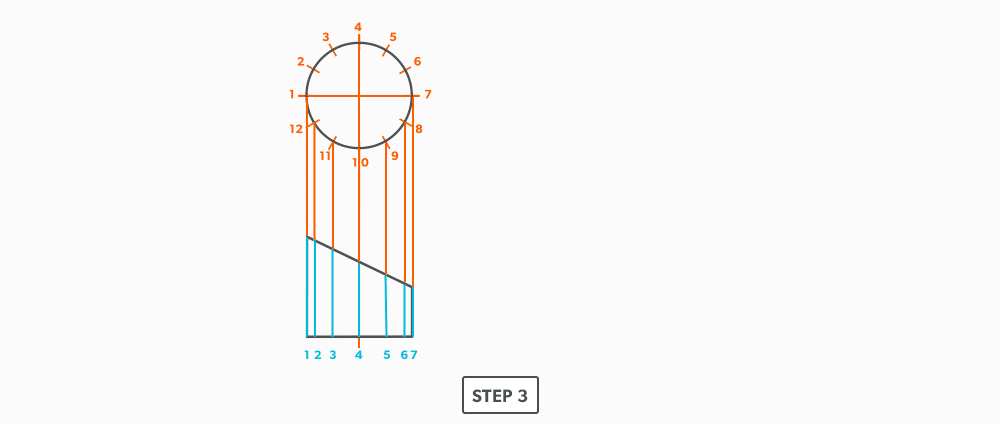
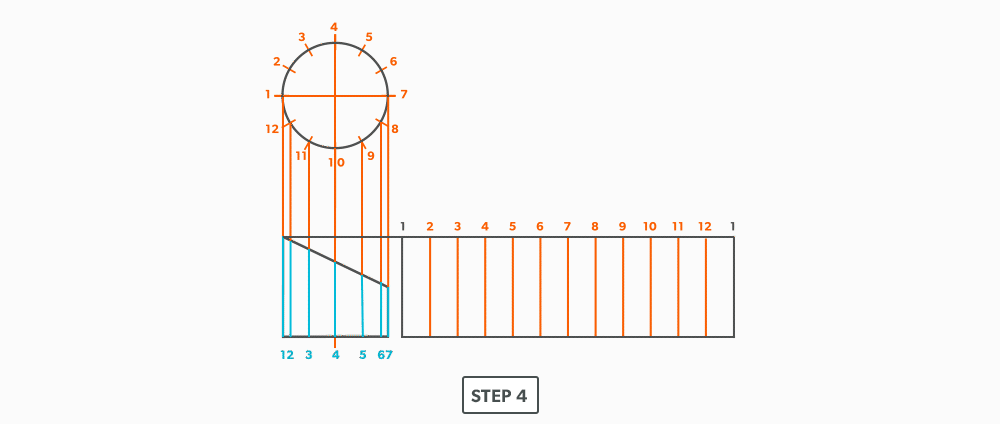
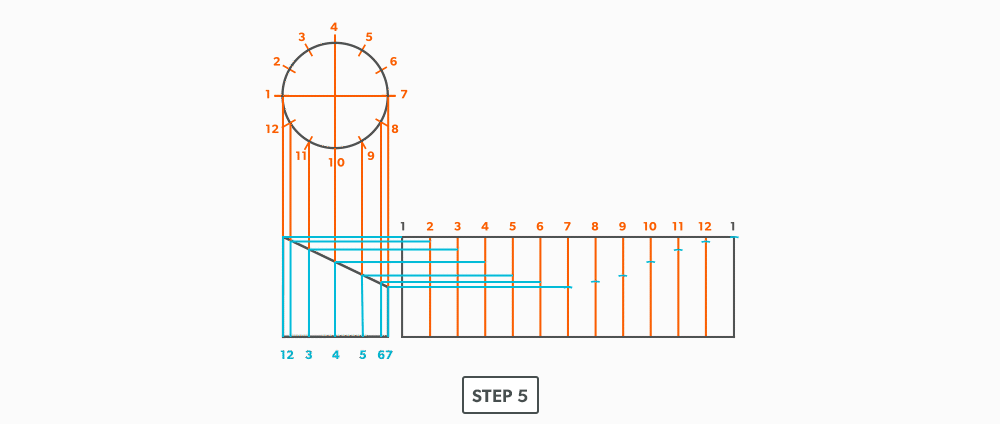
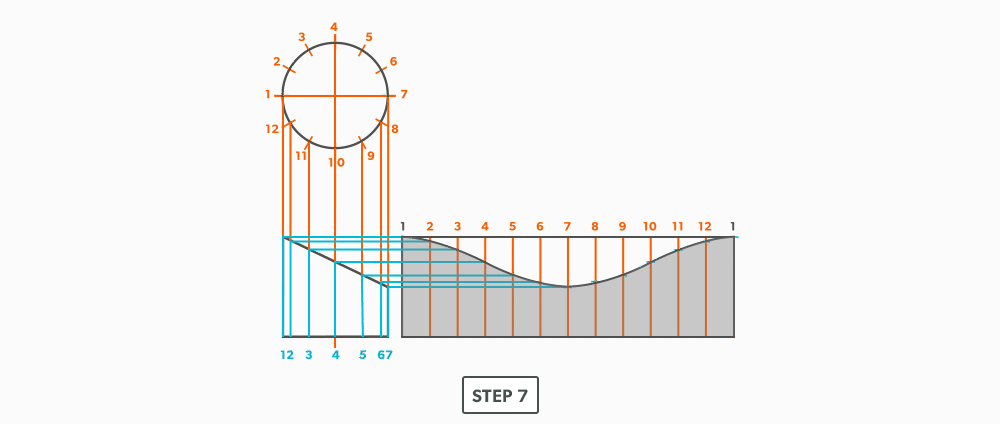
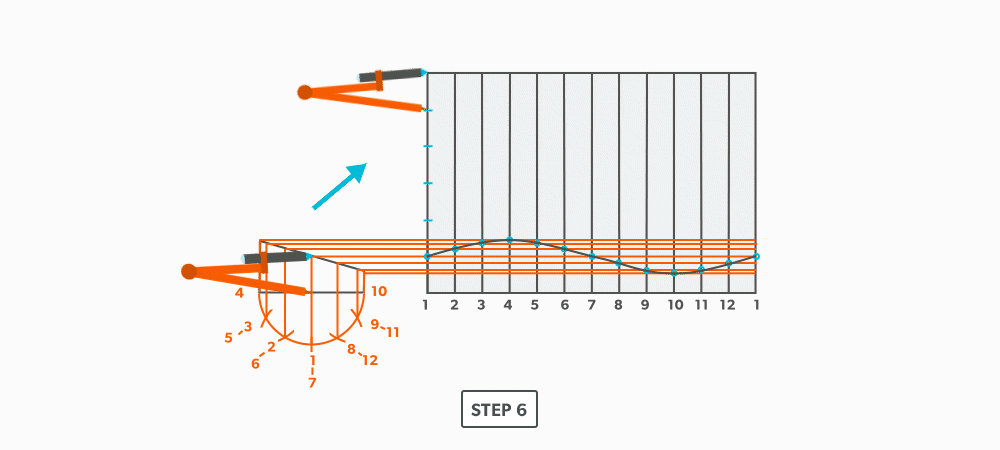
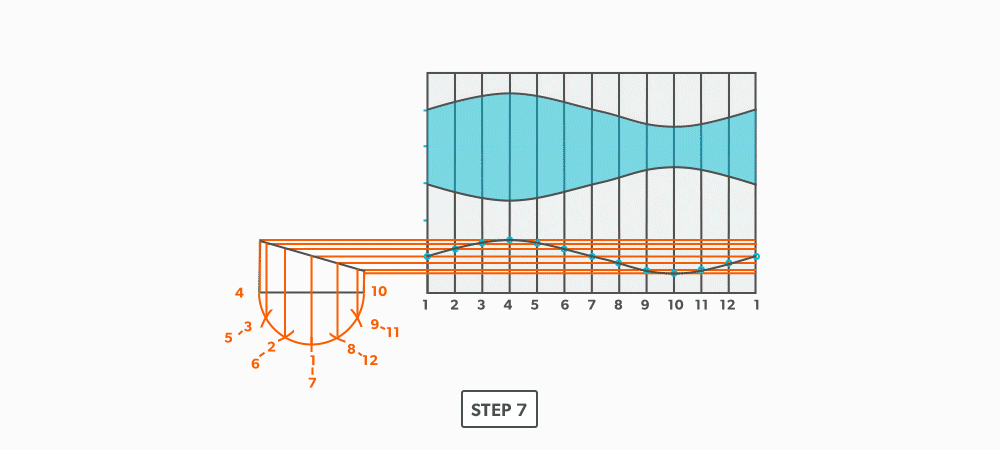
				 <ol><li>Draw a full&nbsp;<strong><span class="glossary-term">plan</span> </strong>(top) and <strong><span class="glossary-term">elevation view</span> </strong>(front) of the project, complete with the <strong><span class="glossary-term">miter</span></strong> line.<img class="aligncenter size-full wp-image-1187" src="https://opentextbc.ca/patterndevelopment/wp-content/uploads/sites/359/2021/08/Pipe-On-Miter-Step-1.png" alt="" width="1000" height="424" title="" /></li> <li>Divide the <strong><span class="glossary-term">plan view</span></strong> into 12 equal parts (see <a class="internal" href="#chapter-divide-a-circle-into-12-equal-parts-print" data-url="/geoconst/chapter/divide-a-circle-into-12-equal-parts-print/">Divide a Circle Into 12 Equal Parts</a>) and label it. <strong>It is common practice to label a round object with numbers.<img class="aligncenter size-full wp-image-1188" src="https://opentextbc.ca/patterndevelopment/wp-content/uploads/sites/359/2021/08/Pipe-On-Miter-Step-2.png" alt="" width="1000" height="424" title="" /></strong></li> <li>Project the&nbsp;plan view&nbsp;divisions down into the&nbsp;elevation view.<strong><img class="aligncenter size-full wp-image-1189" src="https://opentextbc.ca/patterndevelopment/wp-content/uploads/sites/359/2021/08/Pipe-On-Miter-Step-3.png" alt="" width="1000" height="424" title="" /></strong></li> <li>Draw the&nbsp;<strong><span class="glossary-term">stretch-out</span></strong>&nbsp;directly to the right of the&nbsp;elevation view&nbsp;and divide it into 12 equal parts (see <a class="internal" href="#chapter-divide-a-line-using-a-ruler-on-an-angle-print" data-url="/geoconst/chapter/divide-a-line-using-a-ruler-on-an-angle-print/">Divide a Line Using a Ruler on an Angle</a>). <strong>Label it to match the plan view and make sure to start the labeling where you want the seam. Add any required seam allowances outside of the stretch-out.<img class="aligncenter size-full wp-image-1190" src="https://opentextbc.ca/patterndevelopment/wp-content/uploads/sites/359/2021/08/Pipe-On-Miter-Step-4.png" alt="" width="1000" height="424" title="" /></strong></li> <li>At the points where the&nbsp;<strong><span class="glossary-term">element lines</span></strong>&nbsp;cross the&nbsp;miter line, project them into the&nbsp;stretch-out.<strong><img class="aligncenter size-full wp-image-1191" src="https://opentextbc.ca/patterndevelopment/wp-content/uploads/sites/359/2021/08/Pipe-On-Miter-Step-5.png" alt="" width="1000" height="424" title="" /></strong></li> <li>Following the labeling, circle the intersection points on the&nbsp;<strong>stretch-out. Don’t put a dot over the points, but circle around them.</strong></li> <li>Using a flexible curve, join the points to draw in the miter line,&nbsp;completing the&nbsp;<strong><span class="glossary-term">pattern</span></strong>.<strong><img class="aligncenter size-full wp-image-1192" src="https://opentextbc.ca/patterndevelopment/wp-content/uploads/sites/359/2021/08/Pipe-On-Miter-Step-7.png" alt="" width="1000" height="424" title="" /></strong></li> </ol> <div class="textbox">Watch the following video: <a href="https://media.bccampus.ca/media/0_r7cht8gb" data-url="https://media.bccampus.ca/media/0_r7cht8gb">Parallel Line – Pipe on a Miter (21 minutes)</a></div> 
	</div>


	</div>
<div class="chapter standard " id="chapter-equal-diameter-90-deg-tee-print" title="Equal Diameter 90 Degree Tee">
	<div class="chapter-title-wrap">
		<p class="chapter-number">15</p>
		<h1 class="chapter-title">Equal Diameter 90 Degree Tee</h1>
								</div>
	<div class="ugc chapter-ugc">
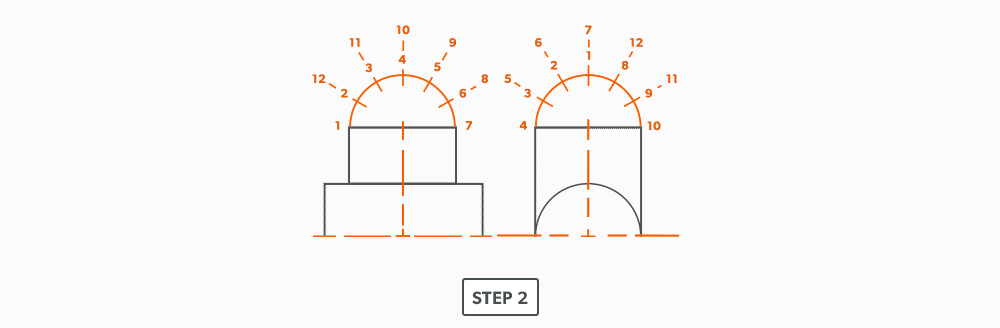
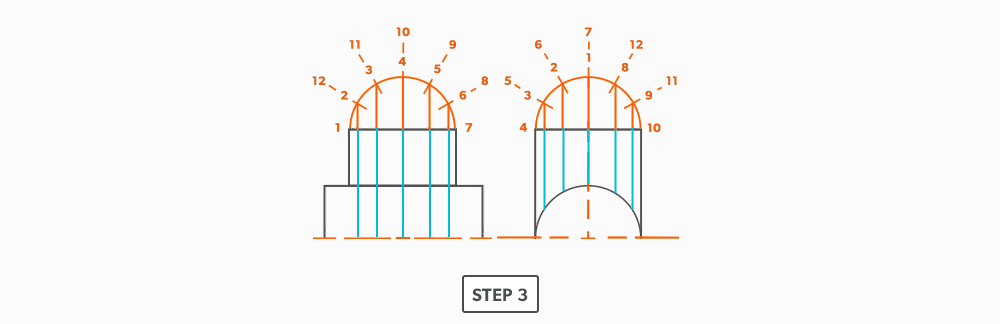
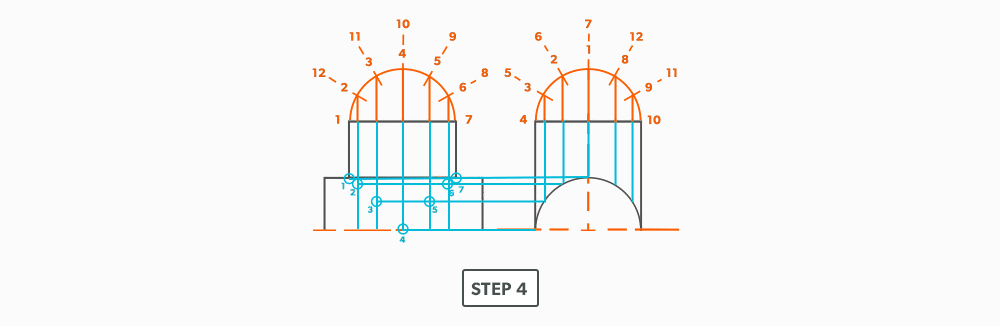
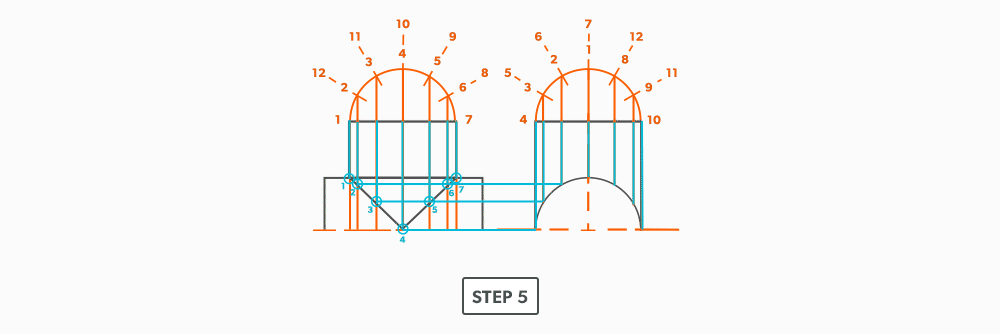
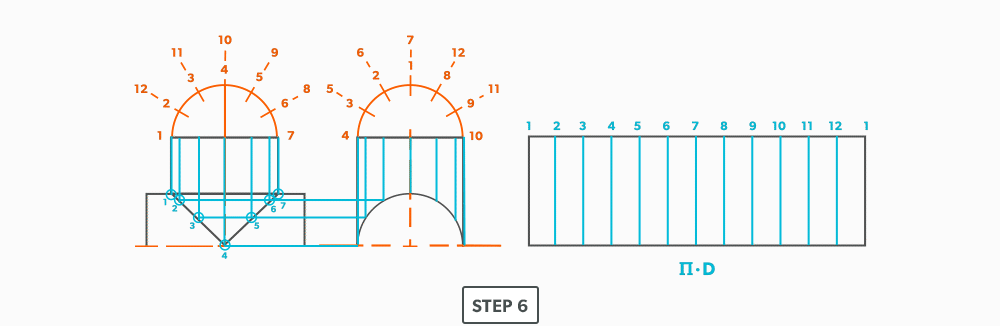
				 <div class="textbox">We can start to take some short-cuts in our drawing. Instead of drawing a full plan view, we will use profiles. You can always go back to drawing the full plan view!</div> <ol><li>Draw a full front <strong><span class="glossary-term">elevation view</span></strong> and end <strong>elevation view (right side). Notice that the tee does not go passed centre of the pipe, it never will. Because of that, we can delete that portion of the drawing.<img class="aligncenter size-full wp-image-1196" src="https://opentextbc.ca/patterndevelopment/wp-content/uploads/sites/359/2021/08/Equal-Diameter-90-Deg-Tee-Step-1.png" alt="" width="1000" height="316" title="" /></strong></li> <li>Draw <strong><span class="glossary-term">profiles</span></strong> on the tee in both views and divide into 6 equal parts (see <a class="internal" href="#chapter-divide-a-circle-into-12-equal-parts-print" data-url="/geoconst/chapter/divide-a-circle-into-12-equal-parts-print/">Divide a Circle Into 12 Equal Parts</a>). <strong>Include all labeling. Keep in mind that the labeling will rotate 90° with the view.<img class="aligncenter size-full wp-image-1197" src="https://opentextbc.ca/patterndevelopment/wp-content/uploads/sites/359/2021/08/Equal-Diameter-90-Deg-Tee-Step-2.png" alt="" width="1000" height="328" title="" /></strong></li> <li>Draw in the <strong><span class="glossary-term">element lines</span></strong> from the <strong>profile</strong> divisions.<img class="aligncenter size-full wp-image-1198" src="https://opentextbc.ca/patterndevelopment/wp-content/uploads/sites/359/2021/08/Equal-Diameter-90-Deg-Tee-Step-3.png" alt="" width="1000" height="324" title="" /></li> <li>Where the element lines hit the pipe in the end elevation view, project them <strong><span class="glossary-term">horizontally</span></strong> into the front view.<img class="aligncenter size-full wp-image-1199" src="https://opentextbc.ca/patterndevelopment/wp-content/uploads/sites/359/2021/08/Equal-Diameter-90-Deg-Tee-Step-4.png" alt="" width="1000" height="326" title="" /></li> <li>Following the labeling, draw in the <strong><span class="glossary-term">miter</span></strong> line in the front view.<img class="aligncenter size-full wp-image-1200" src="https://opentextbc.ca/patterndevelopment/wp-content/uploads/sites/359/2021/08/Equal-Diameter-90-Deg-Tee-Step-5.png" alt="" width="1000" height="334" title="" /></li> <li>Draw the tee <strong><span class="glossary-term">stretch-out</span></strong> and divide into 12 equal parts (see <a class="internal" href="#chapter-divide-a-line-using-a-ruler-on-an-angle-print" data-url="/geoconst/chapter/divide-a-line-using-a-ruler-on-an-angle-print/">Divide a Line Using a Ruler on an Angle</a>). Label the <strong>stretch-out</strong> to match the <strong>elevation views</strong>.<strong><img class="aligncenter size-full wp-image-1201" src="https://opentextbc.ca/patterndevelopment/wp-content/uploads/sites/359/2021/08/Equal-Diameter-90-Deg-Tee-Step-6.png" alt="" width="1000" height="326" title="" /></strong></li> <li>Transfer/project the corresponding points from the elevation views to the stretch-out.<strong><img class="aligncenter size-full wp-image-1202" src="https://opentextbc.ca/patterndevelopment/wp-content/uploads/sites/359/2021/08/Equal-Diameter-90-Deg-Tee-Step-7.png" alt="" width="1000" height="336" title="" /></strong></li> <li>Use a flexible curve to draw in the miter line, completing the&nbsp;<strong><span class="glossary-term">pattern</span></strong>.<strong><img class="aligncenter size-full wp-image-1203" src="https://opentextbc.ca/patterndevelopment/wp-content/uploads/sites/359/2021/08/Equal-Diameter-90-Deg-Tee-Step-8.png" alt="" width="1000" height="318" title="" /></strong></li> </ol> <div class="textbox">Watch the following video: <a href="https://media.bccampus.ca/media/0_x32luezd" data-url="https://media.bccampus.ca/media/0_x32luezd">Parallel Line – Equal Diameter 90 Degree Tee (18 minutes)</a></div> 
	</div>


	</div>
<div class="chapter standard " id="chapter-unequal-diameter-90-deg-tee-print" title="Unequal Diameter 90 Degree Tee-Shop Method">
	<div class="chapter-title-wrap">
		<p class="chapter-number">16</p>
		<h1 class="chapter-title">Unequal Diameter 90 Degree Tee-Shop Method</h1>
								</div>
	<div class="ugc chapter-ugc">
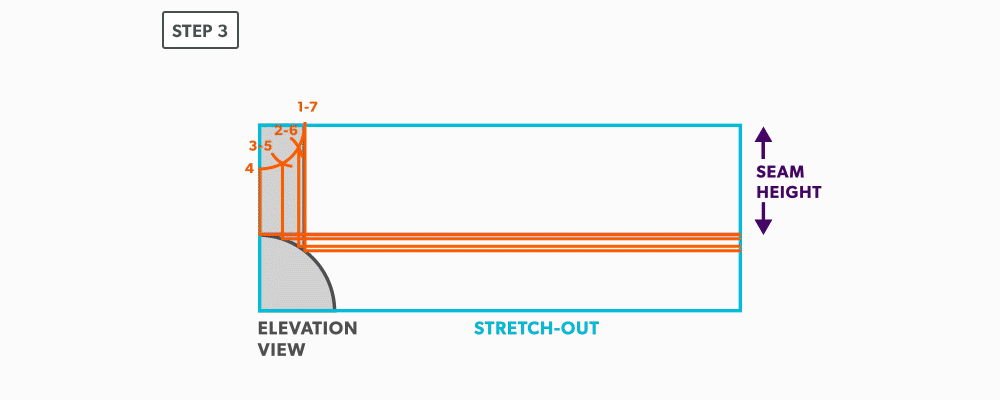
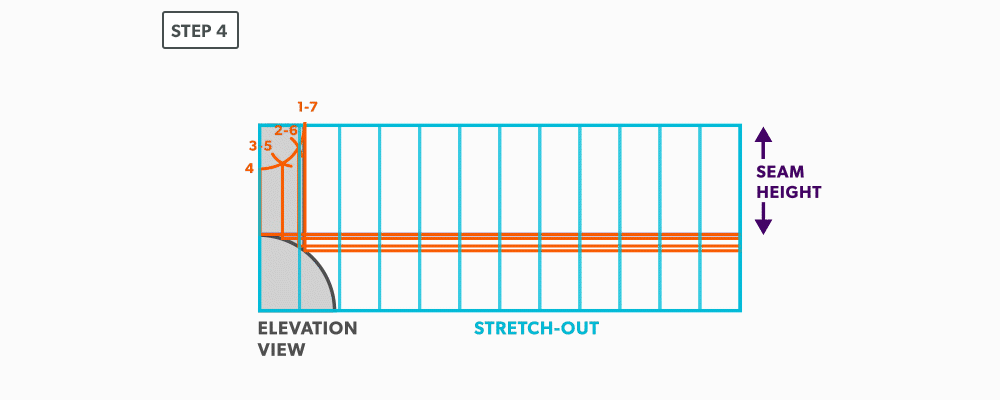
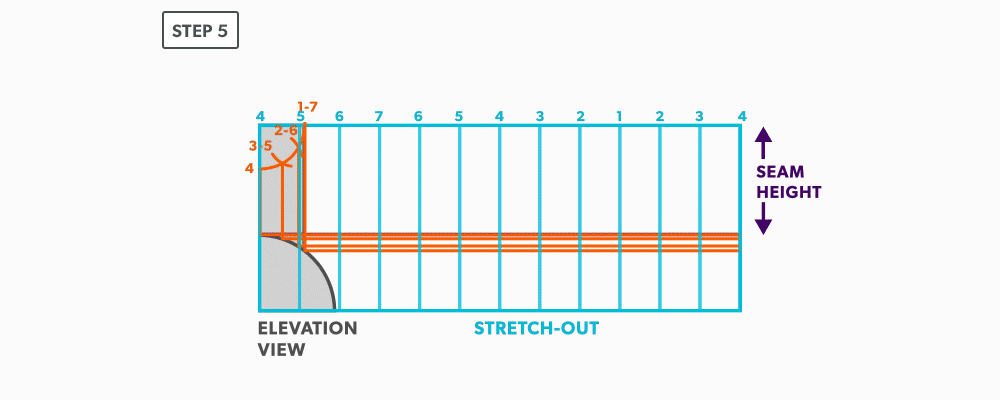
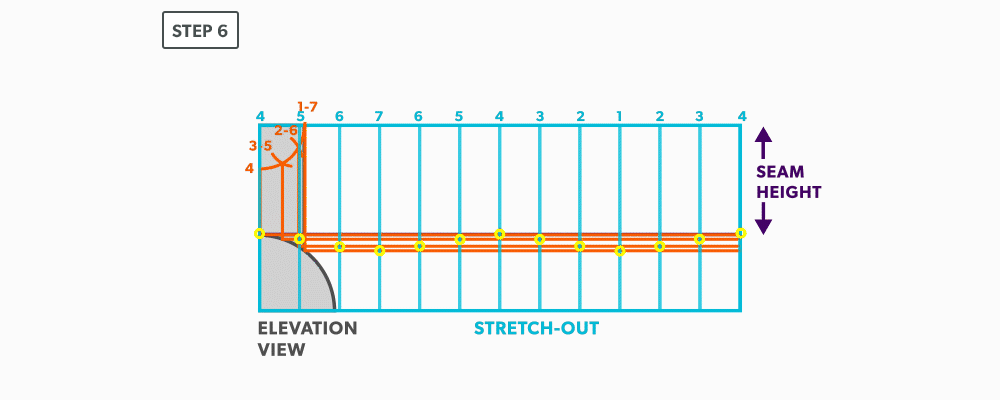
				 <div><div class="textbox">We will continue to use short-cuts. In this example, we move the views into the blank size and minimize our drawing. It still gives us the point “where the tee hits the pipe” and it is much more manageable to do in the shop. This method can be used on any tee besides an oblique tee.</div> </div> <ol><li>Calculate the blank size. Use the stretch-out for one dimension (<strong><span class="glossary-term">horizontal</span></strong>) and the seam height plus the radius of the pipe for the second (vertical) dimension. Add any seam allowances on before shearing the blank size.<strong><br /> <img class="aligncenter size-full wp-image-1206" src="https://opentextbc.ca/patterndevelopment/wp-content/uploads/sites/359/2021/08/Unequal-Diameter-90-Deg-Tee-Step-1.png" alt="" width="1000" height="400" title="" /><br /> </strong></li> <li>With your dividers, swing the <strong><span class="glossary-term">radius</span></strong> of the pipe to 180° at the bottom of the blank. Then, from the same <strong>radius</strong> point, swing the <strong>radius</strong> of the tee and divide it into 6 equal parts (see <a class="internal" href="#chapter-divide-a-circle-into-12-equal-parts-print" data-url="/geoconst/chapter/divide-a-circle-into-12-equal-parts-print/">Divide a Circle Into 12 Equal Parts</a>) a<span style="color: #ff0000;"><span style="color: #000000;">nd label it</span></span>. <strong>Remember that only the tee is divided</strong>. <strong>Also, notice that the half circles are symmetrical, so a quarter circle is the minimum required in this case.<br /> <img class="aligncenter size-full wp-image-1207" src="https://opentextbc.ca/patterndevelopment/wp-content/uploads/sites/359/2021/08/Unequal-Diameter-90-Deg-Tee-Step-2.png" alt="" width="1000" height="400" title="" /><br /> </strong></li> <li>Project the divisions of the tee <strong><span class="glossary-term">vertically</span></strong> into the pipe and where they intersect, project them horizontally.<strong><br /> <img class="aligncenter size-full wp-image-1208" src="https://opentextbc.ca/patterndevelopment/wp-content/uploads/sites/359/2021/08/Unequal-Diameter-90-Deg-Tee-Step-3.png" alt="" width="1000" height="400" title="" /><br /> </strong></li> <li>Divide the blank size into 12 equal parts&nbsp;(see <a class="internal" href="#chapter-divide-a-line-using-a-ruler-on-an-angle-print" data-url="/geoconst/chapter/divide-a-line-using-a-ruler-on-an-angle-print/">Divide a Line Using a Ruler on an Angle</a>).&nbsp;<strong>Remember to only divide the circumference, any seam allowance should not be included in the divisions.<br /> <img class="aligncenter size-full wp-image-1209" src="https://opentextbc.ca/patterndevelopment/wp-content/uploads/sites/359/2021/08/Unequal-Diameter-90-Deg-Tee-Step-4.png" alt="" width="1000" height="400" title="" /><br /> </strong></li> <li>Label the <strong><span class="glossary-term">stretch-out</span></strong> to match the <strong><span class="glossary-term">profiles</span></strong>, starting at the seam.<br /> <img class="aligncenter size-full wp-image-1210" src="https://opentextbc.ca/patterndevelopment/wp-content/uploads/sites/359/2021/08/Unequal-Diameter-90-Deg-Tee-Step-5.png" alt="" width="1000" height="400" title="" /></li> <li>Start the <strong><span class="glossary-term">pattern</span></strong> at your seam and follow the labeling. <strong>Notice the pattern of over 1, up/down 1, until you reach the last line and then it reverses.<br /> <img class="aligncenter size-full wp-image-1211" src="https://opentextbc.ca/patterndevelopment/wp-content/uploads/sites/359/2021/08/Unequal-Diameter-90-Deg-Tee-Step-6.png" alt="" width="1000" height="400" title="" /><br /> </strong></li> <li>Draw the <strong><span class="glossary-term">miter</span> line</strong> on the <strong>pattern</strong> with a flexible curve<br /> <img class="aligncenter size-full wp-image-1212" src="https://opentextbc.ca/patterndevelopment/wp-content/uploads/sites/359/2021/08/Unequal-Diameter-90-Deg-Tee-Step-7.png" alt="" width="1000" height="400" title="" /></li> </ol> <div class="textbox">Watch the following video: <a href="https://media.bccampus.ca/media/0_bfkdze3y" data-url="https://media.bccampus.ca/media/0_bfkdze3y">Parallel Line – Unequal Diameter 90 Degree Tee (15 minutes)</a></div> 
	</div>


	</div>
<div class="chapter standard " id="chapter-off-centre-90-deg-tee-print" title="Off Centre 90 Degree Tee">
	<div class="chapter-title-wrap">
		<p class="chapter-number">17</p>
		<h1 class="chapter-title">Off Centre 90 Degree Tee</h1>
								</div>
	<div class="ugc chapter-ugc">
				 <ol><li>Draw a full front <strong><span class="glossary-term">elevation view</span></strong> and end elevation view.<strong><img class="aligncenter size-full wp-image-1215" src="https://opentextbc.ca/patterndevelopment/wp-content/uploads/sites/359/2021/08/Off-Center-90-Deg-Tee-Step-1.png" alt="" width="1500" height="420" title="" /></strong></li> <li>Draw <strong><span class="glossary-term">profiles</span></strong> on the tee in both views and divide into 6 equal parts (see <a class="internal" href="#chapter-divide-a-circle-into-12-equal-parts-print" data-url="/geoconst/chapter/divide-a-circle-into-12-equal-parts-print/">Divide a Circle Into 12 Equal Parts</a>). Include all labeling. <strong>Remember that the labeling will flip with the view.<img class="aligncenter size-full wp-image-1216" src="https://opentextbc.ca/patterndevelopment/wp-content/uploads/sites/359/2021/08/Off-Center-90-Deg-Tee-Step-2.png" alt="" width="1500" height="423" title="" /></strong></li> <li>Draw in the <strong><span class="glossary-term">element lines</span></strong> from the profile divisions.<img class="aligncenter size-full wp-image-1217" src="https://opentextbc.ca/patterndevelopment/wp-content/uploads/sites/359/2021/08/Off-Center-90-Deg-Tee-Step-3.png" alt="" width="1500" height="405" title="" /></li> <li>Where the element lines hit the pipe in the end view, project them <strong><span class="glossary-term">horizontally</span></strong> into the front view.<img class="aligncenter size-full wp-image-1218" src="https://opentextbc.ca/patterndevelopment/wp-content/uploads/sites/359/2021/08/Off-Center-90-Deg-Tee-Step-4.png" alt="" width="1500" height="408" title="" /></li> <li>Following the labeling, draw in the <strong><span class="glossary-term">miter</span> line</strong> in the front view.<img class="aligncenter size-full wp-image-1219" src="https://opentextbc.ca/patterndevelopment/wp-content/uploads/sites/359/2021/08/Off-Center-90-Deg-Tee-Step-5.png" alt="" width="1500" height="396" title="" /></li> <li>Draw the tee <strong><span class="glossary-term">stretch-out</span></strong> and divide into 12 equal parts (see <a class="internal" href="#chapter-divide-a-line-using-a-ruler-on-an-angle-print" data-url="/geoconst/chapter/divide-a-line-using-a-ruler-on-an-angle-print/">Divide a Line Using a Ruler on an Angle</a>). Label the stretch-out to match the elevation view.<strong><img class="aligncenter size-full wp-image-1220" src="https://opentextbc.ca/patterndevelopment/wp-content/uploads/sites/359/2021/08/Off-Center-90-Deg-Tee-Step-6.png" alt="" width="1500" height="390" title="" /></strong></li> <li>Transfer/project the corresponding points from the front elevation view&nbsp;to the&nbsp;stretch-out.<strong><img class="aligncenter size-full wp-image-1221" src="https://opentextbc.ca/patterndevelopment/wp-content/uploads/sites/359/2021/08/Off-Center-90-Deg-Tee-Step-7.png" alt="" width="1500" height="390" title="" /></strong></li> <li>Circle the points and use a flexible curve to complete the <strong><span class="glossary-term">pattern</span></strong>.<strong><img class="aligncenter size-full wp-image-1222" src="https://opentextbc.ca/patterndevelopment/wp-content/uploads/sites/359/2021/08/Off-Center-90-Deg-Tee-Step-8.png" alt="" width="1500" height="393" title="" /></strong></li> </ol> <div class="textbox">Watch the following video: <a href="https://media.bccampus.ca/media/0_n4z5857d" data-url="https://media.bccampus.ca/media/0_n4z5857d">Parallel Line – Off Center Tee (9 minutes)</a></div> 
	</div>


	</div>
<div class="chapter standard " id="chapter-oblique-tee-print" title="Oblique Tee">
	<div class="chapter-title-wrap">
		<p class="chapter-number">18</p>
		<h1 class="chapter-title">Oblique Tee</h1>
								</div>
	<div class="ugc chapter-ugc">
				 <div class="textbox">Note: This is the only tee which requires a full front elevation view.</div> <ol><li>Draw a full front and end <strong><span class="glossary-term">elevation view</span></strong>.<strong><img class="aligncenter size-full wp-image-1225" src="https://opentextbc.ca/patterndevelopment/wp-content/uploads/sites/359/2021/08/Oblique-Tee-Step-1.png" alt="" width="1250" height="378" title="" /></strong></li> <li>Draw <strong><span class="glossary-term">profiles</span></strong> on the tee in both views and divide into 6 equal parts (see <a class="internal" href="#chapter-divide-a-circle-into-12-equal-parts-print" data-url="/geoconst/chapter/divide-a-circle-into-12-equal-parts-print/">Divide a Circle Into 12 Equal Parts</a>). Include all labeling.<img class="aligncenter size-full wp-image-1226" src="https://opentextbc.ca/patterndevelopment/wp-content/uploads/sites/359/2021/08/Oblique-Tee-Step-2.png" alt="" width="1250" height="305" title="" /></li> <li>Draw in the <strong><span class="glossary-term">element lines</span></strong> from the profile divisions.<img class="aligncenter size-full wp-image-1227" src="https://opentextbc.ca/patterndevelopment/wp-content/uploads/sites/359/2021/08/Oblique-Tee-Step-3.png" alt="" width="1000" height="254" title="" /></li> <li>Where the element lines hit the pipe in the end view, project them <strong><span class="glossary-term">horizontally</span></strong> into the front view.<img class="aligncenter size-full wp-image-1228" src="https://opentextbc.ca/patterndevelopment/wp-content/uploads/sites/359/2021/08/Oblique-Tee-Step-4.png" alt="" width="1250" height="314" title="" /></li> <li>Following the labeling, draw in the <strong><span class="glossary-term">miter</span> line</strong> in the front view.<img class="aligncenter size-full wp-image-1229" src="https://opentextbc.ca/patterndevelopment/wp-content/uploads/sites/359/2021/08/Oblique-Tee-Step-5.png" alt="" width="1000" height="254" title="" /></li> <li>Draw the tee <strong><span class="glossary-term">stretch-out</span></strong> to the right and divide it into 12 equal parts (see <a class="internal" href="#chapter-divide-a-line-using-a-ruler-on-an-angle-print" data-url="/geoconst/chapter/divide-a-line-using-a-ruler-on-an-angle-print/">Divide a Line Using a Ruler on an Angle</a>). Label to match the elevation views.<strong><img class="aligncenter size-full wp-image-1230" src="https://opentextbc.ca/patterndevelopment/wp-content/uploads/sites/359/2021/08/Oblique-Tee-Step-6.png" alt="" width="1250" height="343" title="" /></strong></li> <li>Using your compass, transfer the corresponding points from the front elevation view to the stretch-out. &nbsp;<strong>Note: The element lines cannot be projected in this case because the stretch-out is not perpendicular to the tee. In the case of a 90° tee, it is at a right angle to the stretch-out. To be able to project an oblique tee, the stretch-out must be draw at an angle equal to the tee angle. This usually takes too much room to justify doing so.<img class="aligncenter size-full wp-image-1231" src="https://opentextbc.ca/patterndevelopment/wp-content/uploads/sites/359/2021/08/Oblique-Tee-Step-7.png" alt="" width="1250" height="315" title="" /></strong></li> <li>Use a flexible curve to join the points and complete the pattern.<img class="aligncenter size-full wp-image-1232" src="https://opentextbc.ca/patterndevelopment/wp-content/uploads/sites/359/2021/08/Oblique-Tee-Step-8.png" alt="" width="1250" height="338" title="" /></li> </ol> <div class="textbox">Watch the following video: <a href="https://media.bccampus.ca/media/0_bu8ozc46" data-url="https://media.bccampus.ca/media/0_bu8ozc46">Parallel Line – Oblique Tee (7 minutes)</a></div> 
	</div>


	</div>
<div class="chapter standard " id="chapter-round-elbow-print" title="Round Elbow">
	<div class="chapter-title-wrap">
		<p class="chapter-number">19</p>
		<h1 class="chapter-title">Round Elbow</h1>
								</div>
	<div class="ugc chapter-ugc">
				 <div class="textbox">For this example we will use a 6″ diameter-6″ throat radius-4pc-90°.</div> <ol><li>Use the <strong><span class="glossary-term">elbow rule</span></strong> (# of pcs × 2 − 2) to find the number of <strong><span class="glossary-term">gores</span></strong>. For our example, it is <strong>4 × 2 − 2 = 6</strong>. Each end piece is made up of one <span class="glossary-term">gore</span> and each middle piece is made up of two gores.<strong><br /> <img class="aligncenter size-full wp-image-1235" src="https://opentextbc.ca/patterndevelopment/wp-content/uploads/sites/359/2021/08/Round-Elbow-Step-1.png" alt="" width="1000" height="350" title="" /></strong></li> <li>Use the angle of the elbow divided by the number of gores to find the <strong><span class="glossary-term">miter</span></strong> angle. In our case, <strong>90° ÷ 6 = 15°</strong>.<strong><img class="aligncenter size-full wp-image-1236" src="https://opentextbc.ca/patterndevelopment/wp-content/uploads/sites/359/2021/08/Round-Elbow-Step-2.png" alt="" width="1000" height="350" title="" /></strong></li> <li>Now that we know the <strong>miter angle</strong> is 15°, we can use an end gore and lay it out similar to a “Pipe on a Miter” (see <a class="internal" href="#chapter-pipe-on-a-miter-print" data-url="/geoconst/chapter/pipe-on-a-miter-print/">Pipe on a Miter</a>).<span style="color: #ff0000;"><strong><img class="aligncenter size-full wp-image-1237" src="https://opentextbc.ca/patterndevelopment/wp-content/uploads/sites/359/2021/08/Round-Elbow-Step-3.0.png" alt="" width="1000" height="350" title="" /></strong></span> <ol><li>Draw an <strong><span class="glossary-term">elevation view</span></strong>, complete with the miter line.<br /> <img class="aligncenter size-full wp-image-1238" src="https://opentextbc.ca/patterndevelopment/wp-content/uploads/sites/359/2021/08/Round-Elbow-Step-3.1.png" alt="" width="1000" height="350" title="" /></li> <li>Draw a profile below (see <a class="internal" href="#chapter-divide-a-circle-into-12-equal-parts-print" data-url="/geoconst/chapter/divide-a-circle-into-12-equal-parts-print/">Divide a Circle Into 12 Equal Parts</a>) and label it.<img class="aligncenter size-full wp-image-1239" src="https://opentextbc.ca/patterndevelopment/wp-content/uploads/sites/359/2021/08/Round-Elbow-Step-3.2.png" alt="" width="1000" height="350" title="" /></li> <li>Project the <strong><span class="glossary-term">profile</span></strong> divisions up into the elevation view.<strong><img class="aligncenter size-full wp-image-1240" src="https://opentextbc.ca/patterndevelopment/wp-content/uploads/sites/359/2021/08/Round-Elbow-Step-3.3.png" alt="" width="1000" height="350" title="" /></strong></li> <li>Draw the <strong><span class="glossary-term">stretch-out</span> </strong>(6 × Pi) directly to the right of the <strong>elevation view </strong>and divide it into 12 equal parts (see <a class="internal" href="#chapter-divide-a-line-using-a-ruler-on-an-angle-print" data-url="/geoconst/chapter/divide-a-line-using-a-ruler-on-an-angle-print/">Divide a Line Using a Ruler on an Angle</a>). <strong>Label it to match the elevation view and make sure to start the labeling on centre of the gore. Add any required seam allowances outside of the stretch-out.<img class="aligncenter size-full wp-image-1241" src="https://opentextbc.ca/patterndevelopment/wp-content/uploads/sites/359/2021/08/Round-Elbow-Step-3.4.png" alt="" width="1000" height="350" title="" /></strong></li> <li>At the points where the <strong><span class="glossary-term">element lines</span></strong> cross the miter line, project them into the stretch-out.<strong><img class="aligncenter size-full wp-image-1242" src="https://opentextbc.ca/patterndevelopment/wp-content/uploads/sites/359/2021/08/Round-Elbow-Step-3.5.png" alt="" width="1000" height="350" title="" /></strong></li> <li>Following the labeling, circle the intersection points on the stretch-out. <strong>Don’t put a dot over the points, but circle around them.<img class="aligncenter size-full wp-image-1243" src="https://opentextbc.ca/patterndevelopment/wp-content/uploads/sites/359/2021/08/Round-Elbow-Step-3.6.png" alt="" width="1000" height="350" title="" /></strong></li> <li>Using a flexible curve, join the points to draw in the miter line, completing the <strong><span class="glossary-term">pattern</span>.<img class="aligncenter size-full wp-image-1244" src="https://opentextbc.ca/patterndevelopment/wp-content/uploads/sites/359/2021/08/Round-Elbow-Step-3.7.png" alt="" width="1000" height="350" title="" /><br /> </strong></li> </ol> </li> <li>We now need to finish the calculation for the blank size of the elbow. We already have the stretch-out, but we need the height. This is found by multiplying the seam height by the number of gores. For our example, simply measure the elevation view and find the height of the element line on centre of the gore. This should be 2 7/16″. <strong>2 7/16″ × 6 =14 5/8″</strong>.</li> <li>Now, cut out the blank size.<br /> <img class="aligncenter size-full wp-image-1245" src="https://opentextbc.ca/patterndevelopment/wp-content/uploads/sites/359/2021/08/Round-Elbow-Step-5.png" alt="" width="1000" height="450" title="" /></li> <li>Mark the seam height of each gore vertically on the stretch-out.<strong><br /> <img class="aligncenter size-full wp-image-1246" src="https://opentextbc.ca/patterndevelopment/wp-content/uploads/sites/359/2021/08/Round-Elbow-Step-6.png" alt="" width="1000" height="450" title="" /></strong></li> <li>To complete the elbow, trace or transfer the first gore pattern onto the blank and cut it out. Then, flip it and trace it for the rest of the gores. <b>Do not flip left to right, only up and down and remember&nbsp;that you must leave 2 seam heights (</b><strong style="font-weight: bold;">2 gores) </strong><b>for the middle pieces. This will allow the seams to be orientated on opposing sides </b><strong>and&nbsp;<strong>produce the</strong> “fish”&nbsp;pattern.<br /> <img class="aligncenter size-full wp-image-1247" src="https://opentextbc.ca/patterndevelopment/wp-content/uploads/sites/359/2021/08/Round-Elbow-Step-7.png" alt="" width="1000" height="450" title="" />&nbsp;</strong></li> </ol> <div class="textbox">Watch the following video: <a href="https://media.bccampus.ca/media/0_741w99xr" data-url="https://media.bccampus.ca/media/0_741w99xr">Parallel Line – Round Elbow (24 minutes)</a></div> 
	</div>


	</div>

</div>
<div class="part-wrapper" id="part-radial-line-wrapper">
    <div class="part  " id="part-radial-line">
	<div class="part-title-wrap">
		<p class="part-number">III</p>
		<h1 class="part-title">Radial Line Pattern Development</h1>
	</div>
	<div class="ugc part-ugc">
		<p>In Parallel Line Pattern Development, we required parallel element line or bends. Some objects are of a conical shape and parallel line will not work on them. Rather, we will look at using <strong>Radial Line</strong> <strong>Pattern Development</strong>.</p> <p>In radial line, we develop patterns for shapes that have a taper, all element lines (bends) must radiate back to a common point, a radius point. We need two things for this process to work:</p> <ul><li>A radius point that is on centre (right cone).</li> <li>A radius point that is within a reasonable distance.</li> </ul> <p>So, when we find ourselves determining if radial line will work, we look at those two things. If the cone is a scalene or oblique cone, it will not work. If a radius point is 40 feet away, it is not worth the effort with this process, another should be chosen, but if it will fit in our bench space, then it will work.</p> <p>Being one of the simplest forms of layout, it allows us to create these patterns with accuracy and speed. If we can use radial line, it is an effective and efficient choice.</p> <div class="textbox textbox--learning-objectives"><div class="textbox__header"><p class="textbox__title">Learning Objectives</p> </div> <div class="textbox__content"><ol><li>Understand the process of Radial Line Pattern Development and its uses.</li> <li>Understand the language of Radial Line.</li> </ol> </div> </div> <div class="textbox textbox--key-takeaways"><div class="textbox__header"><p class="textbox__title">Terms</p> </div> <div class="textbox__content"><ol><li><strong>Apex&nbsp;</strong>– the intersection point of a cone, as seen in the elevation view.</li> <li><strong>Slant Height (small or large)&nbsp;</strong>– the hypotenuse of a cone, outside edge. The slant height is always a true length in the elevation view.</li> <li><strong>Stretch-Out Angle/Arc&nbsp;</strong>– the angle or arc which encompasses a radial line pattern.</li> <li><strong>Frustum&nbsp;</strong>– a cone with the top cut parallel to the base.</li> <li><strong>True length&nbsp;</strong>– a dimension or line that is not distorted by the view.</li> </ol> </div> </div> <h1>Basic Steps</h1> <ol><li>Draw a full <strong><span class="glossary-term">elevation view</span></strong> and <strong><span class="glossary-term">plan view</span></strong> complete with all <strong><span class="glossary-term">element lines</span></strong>.</li> <li>Swing the <strong><span class="glossary-term">slant height</span></strong> with your compass. Remember, in the elevation view, the slant height&nbsp;is always a <strong><span class="glossary-term">true length</span></strong>. This arc is also called the <strong><span class="glossary-term">stretch-out arc</span></strong>.</li> <li>Make the length of the stretch-out arc equal to the distance/<strong><span class="glossary-term">circumference</span></strong> of the base. There are many ways to accomplish this, but we will focus on the most common method, using step-offs.</li> </ol> <div class="textbox">A step-off can come from calculating the circumference and dividing by 12 or simply set your compass to one of the profile divisions. Keep in mind that either way will have accuracy problems, it depends on how accurate the pattern must be. We will cover the most accurate method, layout by mathematics, in another unit later.</div>
	</div>
			
				
	</div>
<div class="chapter standard " id="chapter-right-cone-print" title="Right Cone">
	<div class="chapter-title-wrap">
		<p class="chapter-number">20</p>
		<h1 class="chapter-title">Right Cone</h1>
								</div>
	<div class="ugc chapter-ugc">
				 <ol><li>Draw an <strong><span class="glossary-term">elevation view</span></strong>.<strong><br /> <img class="aligncenter size-full wp-image-1252" src="https://opentextbc.ca/patterndevelopment/wp-content/uploads/sites/359/2021/08/Right-Cone-Step-1.png" alt="" width="1000" height="350" title="" /></strong></li> <li><strong><span class="glossary-term">Profile</span></strong> the base of the elevation view and divide it into six equal parts (see <a class="internal" href="#chapter-divide-a-circle-into-12-equal-parts-print" data-url="/geoconst/chapter/divide-a-circle-into-12-equal-parts-print/">Divide a Circle Into 12 Equal Parts</a>).<span style="color: #ff0000;"><strong><img class="aligncenter size-full wp-image-1253" src="https://opentextbc.ca/patterndevelopment/wp-content/uploads/sites/359/2021/08/Right-Cone-Step-2.png" alt="" width="1000" height="350" title="" /></strong></span></li> <li>Label the profile from 1 to 7 and project the divisions vertically into the base of the cone.<img class="aligncenter size-full wp-image-1254" src="https://opentextbc.ca/patterndevelopment/wp-content/uploads/sites/359/2021/08/Right-Cone-Step-3.png" alt="" width="1000" height="350" title="" /></li> <li>Project the <strong><span class="glossary-term">element lines</span></strong> from the base to the <strong><span class="glossary-term">apex</span></strong> of the cone.<img class="aligncenter size-full wp-image-1255" src="https://opentextbc.ca/patterndevelopment/wp-content/uploads/sites/359/2021/08/Right-Cone-Step-4.png" alt="" width="1000" height="350" title="" /></li> <li>Locate a radius point where you want to develop the pattern.&nbsp;<strong>Unlike Parallel line, it doesn’t matter where this is. There is no projection into the pattern like we used before. But keep in mind that you may require enough room to fit a diameter equal to two slant heights.<img class="aligncenter size-full wp-image-1256" src="https://opentextbc.ca/patterndevelopment/wp-content/uploads/sites/359/2021/08/Right-Cone-Step-5.png" alt="" width="1000" height="600" title="" /></strong></li> <li>With your compass, take the <strong><span class="glossary-term">slant height</span></strong> from the elevation view and swing an arc <strong>(<span class="glossary-term">stretch-out arc</span>)</strong>. <strong>Because we don’t know how long the arc needs to be yet, we use best judgement. We do know that it will be equal to the base circumference. The shallower the cone is, the larger the stretch-out angle will be. A very steep cone will be a much smaller angle<img class="aligncenter size-full wp-image-1257" src="https://opentextbc.ca/patterndevelopment/wp-content/uploads/sites/359/2021/08/Right-Cone-Step-6.png" alt="" width="1000" height="600" title="" /></strong></li> <li>Establish a starting point for the pattern and draw a line back to the radius point. The starting point can be anywhere along the arc<img class="aligncenter size-full wp-image-1258" src="https://opentextbc.ca/patterndevelopment/wp-content/uploads/sites/359/2021/08/Right-Cone-Step-7.png" alt="" width="1000" height="600" title="" /></li> <li>Set your compass to a step-off. From your starting point, swing it 12 times along the stretch-out arc.<strong><img class="aligncenter size-full wp-image-1259" src="https://opentextbc.ca/patterndevelopment/wp-content/uploads/sites/359/2021/08/Right-Cone-Step-8.png" alt="" width="1000" height="600" title="" /></strong></li> <li>Connect the last point back to the radius point to complete the pattern.<img class="aligncenter size-full wp-image-1260" src="https://opentextbc.ca/patterndevelopment/wp-content/uploads/sites/359/2021/08/Right-Cone-Step-9.png" alt="" width="1000" height="600" title="" /></li> </ol> <div class="textbox">Watch the following video: <a href="https://media.bccampus.ca/media/0_etp3c1tk" data-url="https://media.bccampus.ca/media/0_etp3c1tk">Radial Line – Right Cone (17 minutes)</a></div> 
	</div>


	</div>
<div class="chapter standard " id="chapter-pyramid-print" title="Pyramid">
	<div class="chapter-title-wrap">
		<p class="chapter-number">21</p>
		<h1 class="chapter-title">Pyramid</h1>
								</div>
	<div class="ugc chapter-ugc">
				 <div class="textbox">Any number of sides can be developed with this same method.</div> <ol><li>Draw a <strong><span class="glossary-term">plan</span></strong> and <strong><span class="glossary-term">elevation view</span></strong>. <strong>When a pyramid is being developed, the plan view must have a point on the X axis to to give it a true length in the elevation view.<br /> <img class="aligncenter size-full wp-image-1264" src="https://opentextbc.ca/patterndevelopment/wp-content/uploads/sites/359/2021/08/Pyramid-Step-1.png" alt="" width="1000" height="500" title="" /></strong></li> <li>Locate a radius point where you want to develop the pattern.<img class="aligncenter size-full wp-image-1265" src="https://opentextbc.ca/patterndevelopment/wp-content/uploads/sites/359/2021/08/Pyramid-Step-2.png" alt="" width="1000" height="500" title="" /></li> <li>With your compass, take the <strong><span class="glossary-term">slant height</span></strong> from the elevation view and swing an arc (<strong><span class="glossary-term">stretch-out arc</span></strong>).<strong><img class="aligncenter size-full wp-image-1266" src="https://opentextbc.ca/patterndevelopment/wp-content/uploads/sites/359/2021/08/Pyramid-Step-3.png" alt="" width="1000" height="500" title="" /></strong></li> <li>Establish a starting point for the pattern and draw a line back to the radius point. The starting point can be anywhere along the arc.<img class="aligncenter size-full wp-image-1267" src="https://opentextbc.ca/patterndevelopment/wp-content/uploads/sites/359/2021/08/Pyramid-Step-4.png" alt="" width="1000" height="500" title="" /></li> <li>Set your compass to a length equal to one side of the base. From your starting point, swing it as many times as sides along the stretch-out arc.<strong><img class="aligncenter size-full wp-image-1268" src="https://opentextbc.ca/patterndevelopment/wp-content/uploads/sites/359/2021/08/Pyramid-Step-5.png" alt="" width="1000" height="500" title="" /></strong></li> <li>Connect all the points back to the radius point to complete the pattern.<img class="aligncenter size-full wp-image-1269" src="https://opentextbc.ca/patterndevelopment/wp-content/uploads/sites/359/2021/08/Pyramid-Step-6.png" alt="" width="1000" height="500" title="" /></li> </ol> <div class="textbox">Watch the following video: <a href="https://media.bccampus.ca/media/0_b0wmrqb8" data-url="https://media.bccampus.ca/media/0_b0wmrqb8">Radial Line – Pyramid (5 minutes)</a></div> 
	</div>


	</div>
<div class="chapter standard " id="chapter-frustum-of-a-cone-print" title="Frustum of a Cone">
	<div class="chapter-title-wrap">
		<p class="chapter-number">22</p>
		<h1 class="chapter-title">Frustum of a Cone</h1>
								</div>
	<div class="ugc chapter-ugc">
				 <ol><li>Draw an <strong><span class="glossary-term">elevation view</span></strong>, including the <strong><span class="glossary-term">apex</span> point</strong>.<strong><img class="aligncenter size-full wp-image-1272" src="https://opentextbc.ca/patterndevelopment/wp-content/uploads/sites/359/2021/08/Frustum-Of-A-Cone-Step-1.png" alt="" width="1000" height="350" title="" /></strong></li> <li><strong><span class="glossary-term">Profile</span></strong> the base of the elevation view and divide it into 6 equal parts.<img class="aligncenter size-full wp-image-1273" src="https://opentextbc.ca/patterndevelopment/wp-content/uploads/sites/359/2021/08/Frustum-Of-A-Cone-Step-2.png" alt="" width="1000" height="350" title="" /></li> <li>Label the profile from 1 to 7 and project the divisions vertically into the base of the cone.<img class="aligncenter size-full wp-image-1274" src="https://opentextbc.ca/patterndevelopment/wp-content/uploads/sites/359/2021/08/Frustum-Of-A-Cone-Step-3.png" alt="" width="1000" height="350" title="" /></li> <li>Project the <strong><span class="glossary-term">element lines</span></strong> from the base to the apex of the cone.<br /> <img class="aligncenter size-full wp-image-1275" src="https://opentextbc.ca/patterndevelopment/wp-content/uploads/sites/359/2021/08/Frustum-Of-A-Cone-Step-4.png" alt="" width="1000" height="350" title="" /></li> <li>Locate a radius point where you want to develop the pattern.<img class="aligncenter size-full wp-image-1276" src="https://opentextbc.ca/patterndevelopment/wp-content/uploads/sites/359/2021/08/Frustum-Of-A-Cone-Step-5.png" alt="" width="1000" height="432" title="" /></li> <li>With your compass, take the large&nbsp;<strong><span class="glossary-term">slant height</span></strong>&nbsp;from the elevation view and swing an arc from the radius point.<strong><img class="aligncenter size-full wp-image-1277" src="https://opentextbc.ca/patterndevelopment/wp-content/uploads/sites/359/2021/08/Frustum-Of-A-Cone-Step-6.png" alt="" width="1000" height="500" title="" /></strong></li> <li>Set your compass to the small&nbsp;slant height and swing it from the same radius point.<strong><img class="aligncenter size-full wp-image-1278" src="https://opentextbc.ca/patterndevelopment/wp-content/uploads/sites/359/2021/08/Frustum-Of-A-Cone-Step-7.png" alt="" width="1000" height="500" title="" /></strong></li> <li>Along the <strong><span class="glossary-term">stretch-out</span></strong> (large) arc, establish a starting point for the pattern and draw a line back to the radius point.<strong><img class="aligncenter size-full wp-image-1279" src="https://opentextbc.ca/patterndevelopment/wp-content/uploads/sites/359/2021/08/Frustum-Of-A-Cone-Step-8.png" alt="" width="1000" height="500" title="" /></strong></li> <li>Set your compass to a step-off. From your starting point, swing it 12 times along the stretch-out arc. <strong>In this case, this must be done on the large or stretch-out arc because that is where the step-off is taken from.<img class="aligncenter size-full wp-image-1280" src="https://opentextbc.ca/patterndevelopment/wp-content/uploads/sites/359/2021/08/Frustum-Of-A-Cone-Step-9.png" alt="" width="1000" height="500" title="" /></strong></li> <li>Connect the last point back to the radius point to complete the pattern.<img class="aligncenter size-full wp-image-1281" src="https://opentextbc.ca/patterndevelopment/wp-content/uploads/sites/359/2021/08/Frustum-Of-A-Cone-Step-10.png" alt="" width="1000" height="500" title="" /></li> </ol> <div class="textbox">Watch the following video: <a href="https://media.bccampus.ca/media/0_59h7c0p4" data-url="https://media.bccampus.ca/media/0_59h7c0p4">Radial Line – Frustum of a Cone (5 minutes)</a></div> 
	</div>


	</div>
<div class="chapter standard " id="chapter-cone-on-a-pitch-miter-print" title="Cone on a Pitch/Miter">
	<div class="chapter-title-wrap">
		<p class="chapter-number">23</p>
		<h1 class="chapter-title">Cone on a Pitch/Miter</h1>
								</div>
	<div class="ugc chapter-ugc">
				 <ol><li>Draw an <strong><span class="glossary-term">elevation view</span></strong>, including the <strong><span class="glossary-term">apex</span> point</strong>.<strong><img class="aligncenter size-full wp-image-1284" src="https://opentextbc.ca/patterndevelopment/wp-content/uploads/sites/359/2021/08/Cone-On-Pitch-Miter-Step-1.png" alt="" width="1000" height="350" title="" /></strong></li> <li><strong><span class="glossary-term">Profile</span></strong> the base of the elevation view and divide it into six equal parts.<img class="aligncenter size-full wp-image-1285" src="https://opentextbc.ca/patterndevelopment/wp-content/uploads/sites/359/2021/08/Cone-On-Pitch-Miter-Step-2.png" alt="" width="1000" height="350" title="" /></li> <li>Label the profile from 1 to 7 and project the divisions vertically into the base of the cone.<img class="aligncenter size-full wp-image-1286" src="https://opentextbc.ca/patterndevelopment/wp-content/uploads/sites/359/2021/08/Cone-On-Pitch-Miter-Step-3.png" alt="" width="1000" height="350" title="" /></li> <li>Project the <strong><span class="glossary-term">element lines</span></strong> from the base to the apex of the cone.<img class="aligncenter size-full wp-image-1287" src="https://opentextbc.ca/patterndevelopment/wp-content/uploads/sites/359/2021/08/Cone-On-Pitch-Miter-Step-4.png" alt="" width="1000" height="350" title="" /></li> <li>Draw in the <strong><span class="glossary-term">miter</span> line</strong>.<strong><br /> <img class="aligncenter size-full wp-image-1288" src="https://opentextbc.ca/patterndevelopment/wp-content/uploads/sites/359/2021/08/Cone-On-Pitch-Miter-Step-5.png" alt="" width="1000" height="350" title="" /></strong></li> <li>Where the element lines cross the miter line, project them horizontally to the outside edge. This now creates seven different slant heights.<b><br /> <img class="aligncenter size-full wp-image-1289" src="https://opentextbc.ca/patterndevelopment/wp-content/uploads/sites/359/2021/08/Cone-On-Pitch-Miter-Step-6.png" alt="" width="1000" height="350" title="" /><br /> </b></li> <li>Locate a&nbsp;radius point where you want to develop the pattern.<img class="aligncenter size-full wp-image-1290" src="https://opentextbc.ca/patterndevelopment/wp-content/uploads/sites/359/2021/08/Cone-On-Pitch-Miter-Step-7.png" alt="" width="1000" height="500" title="" /></li> <li>With your compass, take the large&nbsp;<strong><span class="glossary-term">slant height</span></strong> and swing an arc.<img class="aligncenter size-full wp-image-1291" src="https://opentextbc.ca/patterndevelopment/wp-content/uploads/sites/359/2021/08/Cone-On-Pitch-Miter-Step-8.png" alt="" width="1000" height="500" title="" /></li> <li>Set your compass to all of the remaining&nbsp;slant heights&nbsp;and swing them from the&nbsp;radius point.<strong><img class="aligncenter size-full wp-image-1292" src="https://opentextbc.ca/patterndevelopment/wp-content/uploads/sites/359/2021/08/Cone-On-Pitch-Miter-Step-9.png" alt="" width="1000" height="500" title="" /></strong></li> <li>Establish a starting point for the pattern and draw a line back to the&nbsp;radius point.<strong><img class="aligncenter size-full wp-image-1293" src="https://opentextbc.ca/patterndevelopment/wp-content/uploads/sites/359/2021/08/Cone-On-Pitch-Miter-Step-10.png" alt="" width="1000" height="500" title="" /></strong></li> <li>Set your compass to a step-off. From your starting point, swing it 12 times along the <strong><span class="glossary-term">stretch-out arc</span></strong>&nbsp;and label each point to match the&nbsp;elevation view.&nbsp;<strong>Start your numbering where you want the seam, commonly put on the short side of the cone.<img class="aligncenter size-full wp-image-1294" src="https://opentextbc.ca/patterndevelopment/wp-content/uploads/sites/359/2021/08/Cone-On-Pitch-Miter-Step-11.png" alt="" width="1000" height="500" title="" /></strong></li> <li>Connect the all of the points back to the&nbsp;radius point.<strong><img class="aligncenter size-full wp-image-1295" src="https://opentextbc.ca/patterndevelopment/wp-content/uploads/sites/359/2021/08/Cone-On-Pitch-Miter-Step-12.png" alt="" width="1000" height="500" title="" /></strong></li> <li>Following your numbering, circle each intersection point.&nbsp;<strong>This will create the pattern of over 1, down 1.<img class="aligncenter size-full wp-image-1296" src="https://opentextbc.ca/patterndevelopment/wp-content/uploads/sites/359/2021/08/Cone-On-Pitch-Miter-Step-13.png" alt="" width="1000" height="500" title="" /></strong></li> <li>Use a flexible curve to connect the points and create the pattern.<img class="aligncenter size-full wp-image-1297" src="https://opentextbc.ca/patterndevelopment/wp-content/uploads/sites/359/2021/08/Cone-On-Pitch-Miter-Step-14.png" alt="" width="1000" height="500" title="" /></li> </ol> <div class="textbox">Watch the following video: <a href="https://media.bccampus.ca/media/0_9sxssw9e" data-url="https://media.bccampus.ca/media/0_9sxssw9e">Radial Line – Cone on a Pitch (14 minutes)</a></div> 
	</div>


	</div>

</div>
<div class="part-wrapper" id="part-triangulation-wrapper">
    <div class="part  " id="part-triangulation">
	<div class="part-title-wrap">
		<p class="part-number">IV</p>
		<h1 class="part-title">Triangulation</h1>
	</div>
	<div class="ugc part-ugc">
		<p>When we looked at both parallel line and radial line pattern development, we saw fairly simple and limited layout process. We have conditions that must be met in order to use them. <strong>Triangulation</strong> is the process used when nothing else works. There are very few conditions in which triangulation will not work. It is the most complex and time consuming, but it allows us to create patterns of endless possibilities. When all else fails, triangulation will work.</p> <div class="textbox textbox--learning-objectives"><div class="textbox__header"><p class="textbox__title">Learning Objectives</p> </div> <div class="textbox__content"><ol><li>Understand the process of Triangulation Pattern Development and its uses.</li> <li>Learn Triangulation terms.</li> </ol> </div> </div> <div class="textbox textbox--key-takeaways"><div class="textbox__header"><p class="textbox__title">Triangulation Terms</p> </div> <div class="textbox__content"><ol><li><strong>True Length&nbsp;</strong>– a dimension or line that is not distorted by the view.</li> <li><strong>True Length Diagram (TLD)&nbsp;</strong>– a 90° corner in that we use to find the actual length of a line.</li> <li><strong>Triangulation from Plan View&nbsp;</strong>– the length of an <strong><span class="glossary-term">element line</span></strong>, set 90° to the vertical height, gives the <span class="glossary-term"><strong>true length</strong></span> of that line.</li> </ol> </div> </div> <p><strong>Triangulation</strong> is defined as <strong>using two known points to create a third</strong>. If we think back to geometric construction, we created triangles such as a 3-4-5 in this manner. The development of patterns using triangulation is an extension of that process. Developing one triangle after another, we build 2D patterns for 3D objects.</p> <p>In this unit, we will focus on Triangulation from <strong><span class="glossary-term">plan view</span></strong>.</p> <p>Let’s look at a <strong><span class="glossary-term">right triangle</span></strong> in orthographic terms. If we look down on a triangle (plan view), we only see the one leg of the triangle. If we look from the front (<strong><span class="glossary-term">elevation view</span></strong>), we see the other leg. When we look from the right side, we see a full view of the triangle, with all three legs. The right side is the only view that gives enough information to see the whole triangle.</p> <p>The same is true when we think of these ideas in relation to a 3D object. With few exceptions, we don’t actually see true lengths of the element lines for an object in the plan or elevation views. They are representations. Think again of the triangle in orthographic projection. If only the hypotenuse was drawn, not a full triangle, the plan and elevation views would still look the same as it did when we looked at the triangle. This is true of any 3D object. The plan and elevation views only show a representation of the hypotenuse from different views. Remember that the element lines or edges only represent the outside of the object.</p> <p>So, to triangulate a pattern for an object, we must find the outside lengths of all the element lines, the hypotenuses. We must get all element lines from an object into a right side view. With a 3D object, this takes rotating the object over and over, putting each line individually into a right side view. This would take a tremendous amount of work, but, we can do this quite easily by using what is called a <strong><span class="glossary-term">true length diagram</span></strong>. This is know as finding true lengths and is the foundation that all triangulation is built upon<strong>. </strong></p> <p>For triangulation, we must find the true lengths of the element line before we create any triangles. And the true lengths are the hypotenuses between the plan length and vertical height. This is the way we triangulate from plan view.</p> <p>If we again think of the plan view, we have the length of one leg. It doesn’t matter how the line is orientated, it is shows us how much the outside edge (hypotenuse) is leaning. We also have the vertical height of the triangle in the front view. So, if we take these two known lengths and place them in a 90° corner, it shows us the same as the right side. It show us the hypotenuse. It shows us the true view of the element line. This is known as a true length diagram.</p> <h1>Basic Steps</h1> <ol><li>Draw a full elevation view and plan view.</li> <li>Draw in all element lines in both views. <strong>An element line which appears as a dot in one view, is a true length in the other view. As well, a line parallel to the x-axis in the plan view is also a true length in the elevation view.</strong></li> <li>Label the&nbsp;element lines.&nbsp;It is common to label round shapes with numbers and square/rectangular with letters.</li> <li>Create a 90° corner for a&nbsp;true length diagram&nbsp;and transfer all the&nbsp;element lines&nbsp;from the&nbsp;plan view into it.</li> <li>Start the pattern with a line of two known points. There will always be two known points to start from, either a horizontal or vertical line.</li> <li>Using triangulation (see <a class="internal" href="#chapter-construct-triangles-triangulation" data-url="/geoconst/chapter/construct-triangles-triangulation/">Construct Triangles – “Triangulation”</a>), create the third point.</li> <li>Repeat until all the&nbsp;element lines have been used.</li> <li>Draw in all the&nbsp;element lines and outside edges to complete the pattern.</li> </ol>
	</div>
			
				
	</div>
<div class="chapter standard " id="chapter-on-centre-square-to-round-print" title="On-Centre Square to Round">
	<div class="chapter-title-wrap">
		<p class="chapter-number">24</p>
		<h1 class="chapter-title">On-Centre Square to Round</h1>
								</div>
	<div class="ugc chapter-ugc">
				 <div class="textbox">A square to round can only be formed in halves, so we always develop a half pattern.</div> <ol><li>Draw a full <strong><span class="glossary-term">plan view</span></strong> complete with all <strong><span class="glossary-term">element lines</span> </strong>and labeling. Label one half of the plan view, the round end with numbers and the square end with letters. <strong>Notice the lines of symmetry in the plan view. Parts of the drawing can be deleted because of this symmetry. In this case, it is on centre in both directions, so a quarter plan view is the minimum required to avoid duplication. But, sometimes it is easier to draw at least a half plan, there is no harm in drawing more than the minimum required.<br /> <img class="aligncenter size-full wp-image-1301" src="https://opentextbc.ca/patterndevelopment/wp-content/uploads/sites/359/2021/08/On-Center-Square-to-Round-Step-1.png" alt="" width="1000" height="350" title="" /></strong></li> <li>Create a <strong><span class="glossary-term">true length diagram (TLD)</span></strong> with the vertical height of the fitting and a horizontal length long enough to fit any of the element lines.<strong><img class="aligncenter size-full wp-image-1302" src="https://opentextbc.ca/patterndevelopment/wp-content/uploads/sites/359/2021/08/On-Center-Square-to-Round-Step-2.png" alt="" width="1000" height="450" title="" /></strong></li> <li>Take the&nbsp;element lines A-1, A-2 and C-7 from the plan view&nbsp;and place them in the horizontal of the&nbsp;TLD.&nbsp;In this case, all other lines will be a duplicates of these 3 lines. Still, label the&nbsp;TLD&nbsp;with <strong>ALL</strong> of the&nbsp;element lines&nbsp;so you don’t make a mistake!!!<img class="aligncenter size-full wp-image-1303" src="https://opentextbc.ca/patterndevelopment/wp-content/uploads/sites/359/2021/08/On-Center-Square-to-Round-Step-3.png" alt="" width="1000" height="450" title="" /></li> <li>Draw a baseline equal to line A-B. We are now ready to triangulate<img class="aligncenter size-full wp-image-1304" src="https://opentextbc.ca/patterndevelopment/wp-content/uploads/sites/359/2021/08/On-Center-Square-to-Round-Step-4.png" alt="" width="1000" height="450" title="" /></li> <li>From the&nbsp;TLD, pick up the&nbsp;<strong><span class="glossary-term">true length</span></strong>&nbsp;of line A-4 and swing it upwards from point A towards the centre. Then swing it from point B. Where these arcs cross is point 4. We now have our first triangle, A-B-4.&nbsp;<strong>This is our first step of triangulating. Remember that triangulation means using two known points to create a third. In this case, the known points are A and B and the unknown is 4.<img class="aligncenter size-full wp-image-1305" src="https://opentextbc.ca/patterndevelopment/wp-content/uploads/sites/359/2021/08/On-Center-Square-to-Round-Step-5.png" alt="" width="1000" height="450" title="" /></strong></li> <li>Next, pick up true length of line A-3 and swing it from point A. <strong>In this step our two known points are now points A and 4 (or B and 4) and the unknown is 3. In each step, we will use the last point created as one of our new known points. Because the fitting is symmetrical, continue to work both sides at the same time. We will only discuss one side here, but the steps repeat on the other side.<img class="aligncenter size-full wp-image-1306" src="https://opentextbc.ca/patterndevelopment/wp-content/uploads/sites/359/2021/08/On-Center-Square-to-Round-Step-6.png" alt="" width="1000" height="450" title="" /></strong></li> <li>Pick up line 3-4, a step-off, from the&nbsp;plan view and swing it from point 4, to create point 3.&nbsp;<strong>When we look at our plan view, we have labeled it in a way that numbers are at one end and letters on the other. So, when we go from one end to the other (number to letter), we need to find the true length, but when we go from number to number (or letter to letter) we don’t have any elevation change involved. We are just going horizontally along the end, which means it is a true length in the plan view.<br /> <img class="aligncenter size-full wp-image-1307" src="https://opentextbc.ca/patterndevelopment/wp-content/uploads/sites/359/2021/08/On-Center-Square-to-Round-Step-7.png" alt="" width="1000" height="450" title="" /></strong></li> <li>Pick up line A-2 and swing it from point A.<img class="aligncenter size-full wp-image-1308" src="https://opentextbc.ca/patterndevelopment/wp-content/uploads/sites/359/2021/08/On-Center-Square-to-Round-Step-8.png" alt="" width="1000" height="450" title="" /></li> <li>Pick up a step-off and swing it from point 3, to create point 2<img class="aligncenter size-full wp-image-1309" src="https://opentextbc.ca/patterndevelopment/wp-content/uploads/sites/359/2021/08/On-Center-Square-to-Round-Step-9.png" alt="" width="1000" height="450" title="" /></li> <li>Pick up line A-1 and swing it from point A.<img class="aligncenter size-full wp-image-1310" src="https://opentextbc.ca/patterndevelopment/wp-content/uploads/sites/359/2021/08/On-Center-Square-to-Round-Step-10.png" alt="" width="1000" height="450" title="" /></li> <li>Pick up a step-off and swing it from 2, to create point 1.<img class="aligncenter size-full wp-image-1311" src="https://opentextbc.ca/patterndevelopment/wp-content/uploads/sites/359/2021/08/On-Center-Square-to-Round-Step-11.png" alt="" width="1000" height="450" title="" /></li> <li>Pick up line C-1 and swing it from 1.&nbsp;<strong>This is our first step where we are not swinging from A; we now must swing from 1. Always be thinking of the known points and the unknown. We must always swing an arc from a known point. For this triangle, the known points are A and 1 and the unknown is C. So, line C-1 has to be swung from 1 since we don’t know where C is yet.<img class="aligncenter size-full wp-image-1312" src="https://opentextbc.ca/patterndevelopment/wp-content/uploads/sites/359/2021/08/On-Center-Square-to-Round-Step-12.png" alt="" width="1000" height="450" title="" /></strong></li> <li>Pick up line A-C from the plan view (remember that letter to letter is true length) and swing it from point A, to create point C.<strong>&nbsp;The way to check our work is this last triangle should be a right triangle. Point C should be 90</strong><strong>°, if it’s not, go back and check your work.<img class="aligncenter size-full wp-image-1313" src="https://opentextbc.ca/patterndevelopment/wp-content/uploads/sites/359/2021/08/On-Center-Square-to-Round-Step-13.png" alt="" width="1000" height="450" title="" /></strong></li> <li>Draw in the all the element lines and outside edges, using a flexible curve for the round end.<img class="aligncenter size-full wp-image-1314" src="https://opentextbc.ca/patterndevelopment/wp-content/uploads/sites/359/2021/08/On-Center-Square-to-Round-Step-14.png" alt="" width="1000" height="450" title="" /></li> <li>Cut out and trace the pattern for the other half.</li> </ol> <div class="textbox">Watch the following video: <a href="https://media.bccampus.ca/media/0_33xyq490" data-url="https://media.bccampus.ca/media/0_33xyq490">Triangulation – On-Centre Square to Round (33 minutes)</a></div> 
	</div>


	</div>
<div class="chapter standard " id="chapter-on-centre-round-to-taper-print" title="On-Centre Round to Taper">
	<div class="chapter-title-wrap">
		<p class="chapter-number">25</p>
		<h1 class="chapter-title">On-Centre Round to Taper</h1>
								</div>
	<div class="ugc chapter-ugc">
				 <ol><li>Draw a full <strong><span class="glossary-term">plan view</span></strong> complete with all <strong><span class="glossary-term">element lines</span> </strong>and labeling. Label one half of the plan view, travel from large end to small end, zig-zagging back and forth with the numbering 1-14. <strong>Notice the lines of symmetry in the plan view. Every round to round will be on centre one way, but it is always worth drawing the whole thing.<img class="aligncenter size-full wp-image-1317" src="https://opentextbc.ca/patterndevelopment/wp-content/uploads/sites/359/2021/08/On-Center-Round-to-Taper-Step-1.png" alt="" width="1000" height="400" title="" /></strong></li> <li>Create a&nbsp;<strong><span class="glossary-term">TLD</span></strong>&nbsp;and label all the&nbsp;element lines.&nbsp;<strong>Remember, any element line which travels from one end of the fitting to the other, will need to be put into a true length diagram.<br /> <img class="aligncenter size-full wp-image-1318" src="https://opentextbc.ca/patterndevelopment/wp-content/uploads/sites/359/2021/08/On-Center-Round-to-Taper-Step-2.png" alt="" width="1000" height="500" title="" /></strong></li> <li>Draw a vertical line equal to the <strong><span class="glossary-term">true length</span></strong> of line 1-2. <strong>Square to rounds always start with a horizontal line and round tapers always start with a vertical line. </strong><strong>We are now ready to triangulate.<br /> <img class="aligncenter size-full wp-image-1319" src="https://opentextbc.ca/patterndevelopment/wp-content/uploads/sites/359/2021/08/On-Center-Round-to-Taper-Step-3.png" alt="" width="1000" height="800" title="" /></strong></li> <li>From the&nbsp;TLD, pick up the true length of line 2-3 and swing it from point 2, back towards point 1. <strong>Remember to work both sides at the same time.<img class="aligncenter size-full wp-image-1320" src="https://opentextbc.ca/patterndevelopment/wp-content/uploads/sites/359/2021/08/On-Center-Round-to-Taper-Step-4.png" alt="" width="1000" height="800" title="" /></strong></li> <li>Next, pick up&nbsp;step-off&nbsp;1-3 and swing it from point 1, to complete point 3.&nbsp;<strong>When we look at our plan view, we have labeled it in a way that odd numbers are at one end and even on the other. So, when we go from one end to the other (odd to even), we need to find the true length, but when we go from even to even or odd to odd we don’t have any elevation change involved. We are just going horizontally along the end, which means it is a true length in the plan view.<img class="aligncenter size-full wp-image-1321" src="https://opentextbc.ca/patterndevelopment/wp-content/uploads/sites/359/2021/08/On-Center-Round-to-Taper-Step-5.png" alt="" width="1000" height="800" title="" /></strong></li> <li>Pick up line 3-4 from the&nbsp;TLD and swing it from point 3 back towards point 2.<code><img class="aligncenter size-full wp-image-1322" src="https://opentextbc.ca/patterndevelopment/wp-content/uploads/sites/359/2021/08/On-Center-Round-to-Taper-Step-6.png" alt="" width="1000" height="800" title="" /></code></li> <li>Pick up the&nbsp;step-off and swing it from point 2, to complete point 4.<code><img class="aligncenter size-full wp-image-1323" src="https://opentextbc.ca/patterndevelopment/wp-content/uploads/sites/359/2021/08/On-Center-Round-to-Taper-Step-7.png" alt="" width="1000" height="800" title="" /></code></li> <li>Follow this same procedures, swing a true length of an&nbsp;element line&nbsp;and a&nbsp;step-off to create the next point until you reach point 14.<img class="aligncenter size-full wp-image-1324" src="https://opentextbc.ca/patterndevelopment/wp-content/uploads/sites/359/2021/08/On-Center-Round-to-Taper-Step-8.png" alt="" width="1000" height="800" title="" /></li> <li>Draw in the all the&nbsp;element lines&nbsp;and outside edges, use a flexible curve for the round ends.&nbsp;<strong>Because this is a fitting that could be done in radial line, although maybe not practical, the pattern will follow the same shape, having a common radius point and parallel arcs.<img class="aligncenter size-full wp-image-1325" src="https://opentextbc.ca/patterndevelopment/wp-content/uploads/sites/359/2021/08/On-Center-Round-to-Taper-Step-9.png" alt="" width="1000" height="800" title="" /></strong></li> </ol> <div class="textbox">Watch the following video: <a href="https://media.bccampus.ca/media/0_yk0f2kbk" data-url="https://media.bccampus.ca/media/0_yk0f2kbk">Triangulation – On-Centre Round to Taper (20 minutes)</a></div> 
	</div>


	</div>
<div class="chapter standard " id="chapter-off-centre-square-to-round-print" title="Off-Centre Square to Round">
	<div class="chapter-title-wrap">
		<p class="chapter-number">26</p>
		<h1 class="chapter-title">Off-Centre Square to Round</h1>
								</div>
	<div class="ugc chapter-ugc">
				 <div class="textbox">The only difference with this fitting is a few more element line lengths than an on-centre, the process is exactly the same.</div> <ol><li>Draw a full <strong><span class="glossary-term">plan view</span></strong> complete with all <strong><span class="glossary-term">element lines</span> </strong>and labeling. Choose a line of symmetry to place the seam so you only need to make 1 pattern. Label one half of the plan view, the round end with numbers and the square end with letters.<img class="aligncenter size-full wp-image-1328" src="https://opentextbc.ca/patterndevelopment/wp-content/uploads/sites/359/2021/08/Off-Center-Square-to-Round-Step-1.png" alt="" width="1000" height="380" title="" /></li> <li>Create a <strong><span class="glossary-term">TLD</span> </strong>and label it<br /> <img class="aligncenter size-full wp-image-1329" src="https://opentextbc.ca/patterndevelopment/wp-content/uploads/sites/359/2021/08/Off-Center-Square-to-Round-Step-2.png" alt="" width="1000" height="450" title="" /></li> <li>Draw a baseline equal to line A-B.<br /> <img class="aligncenter size-full wp-image-1330" src="https://opentextbc.ca/patterndevelopment/wp-content/uploads/sites/359/2021/08/Off-Center-Square-to-Round-Step-3.png" alt="" width="1000" height="450" title="" /></li> <li>Pick up the <strong><span class="glossary-term">true length</span></strong> of line A-4 and swing it from point A.<img class="aligncenter size-full wp-image-1331" src="https://opentextbc.ca/patterndevelopment/wp-content/uploads/sites/359/2021/08/Off-Center-Square-to-Round-Step-4.png" alt="" width="1000" height="450" title="" /></li> <li>Next, pick up true length of line B-4 and swing it from point B. Where it crosses the first arc, becomes point 4.<img class="aligncenter size-full wp-image-1332" src="https://opentextbc.ca/patterndevelopment/wp-content/uploads/sites/359/2021/08/Off-Center-Square-to-Round-Step-5.png" alt="" width="1000" height="450" title="" /></li> <li>Pick up a step-off from the plan view and swing it from point 4. <strong>Unlike an on-centre square to round, this fitting needs to be developed one side at a time. Complete one side, then go back to finish the other side.<img class="aligncenter size-full wp-image-1333" src="https://opentextbc.ca/patterndevelopment/wp-content/uploads/sites/359/2021/08/Off-Center-Square-to-Round-Step-6.png" alt="" width="1000" height="450" title="" /></strong></li> <li>Pick up the true length of line A-3 and swing it from point A.<img class="aligncenter size-full wp-image-1334" src="https://opentextbc.ca/patterndevelopment/wp-content/uploads/sites/359/2021/08/Off-Center-Square-to-Round-Step-7.png" alt="" width="1000" height="450" title="" /></li> <li>Pick a step-off and swing it from point 3.<img class="aligncenter size-full wp-image-1335" src="https://opentextbc.ca/patterndevelopment/wp-content/uploads/sites/359/2021/08/Off-Center-Square-to-Round-Step-8.png" alt="" width="1000" height="450" title="" /></li> <li>Pick up the true length of line A-2 and swing it from point A.<img class="aligncenter size-full wp-image-1336" src="https://opentextbc.ca/patterndevelopment/wp-content/uploads/sites/359/2021/08/Off-Center-Square-to-Round-Step-9.png" alt="" width="1000" height="450" title="" /></li> <li>Pick up a step-off and swing it from 2.<br /> <img class="aligncenter size-full wp-image-1337" src="https://opentextbc.ca/patterndevelopment/wp-content/uploads/sites/359/2021/08/Off-Center-Square-to-Round-Step-10.png" alt="" width="1000" height="450" title="" /></li> <li>Pick up the true length of line A-1 and swing it from point A.<img class="aligncenter size-full wp-image-1338" src="https://opentextbc.ca/patterndevelopment/wp-content/uploads/sites/359/2021/08/Off-Center-Square-to-Round-Step-11.png" alt="" width="1000" height="450" title="" /></li> <li>Pick up the true length of line D-1 and swing it from 1.<img class="aligncenter size-full wp-image-1339" src="https://opentextbc.ca/patterndevelopment/wp-content/uploads/sites/359/2021/08/Off-Center-Square-to-Round-Step-12.png" alt="" width="1000" height="450" title="" /></li> <li>Pick up line A-D from the plan view (remember that letter to letter is true length) and swing it from point A. <strong>Remember that point D should be 90</strong><strong>°. If it not, go back and check your work.<br /> <img class="aligncenter size-full wp-image-1340" src="https://opentextbc.ca/patterndevelopment/wp-content/uploads/sites/359/2021/08/Off-Center-Square-to-Round-Step-13.png" alt="" width="1000" height="450" title="" /></strong></li> <li>Now, go back to point 4 and work the pattern to the other side, completing it at point C. Notice in this example, line C-7 has no length in the plan view, it is a dot. The true length is the <strong><span class="glossary-term">vertical</span></strong> height. Zero plan length put 90 deg to the vertical height, will have no change to the vertical height.<img class="aligncenter size-full wp-image-1341" src="https://opentextbc.ca/patterndevelopment/wp-content/uploads/sites/359/2021/08/Off-Center-Square-to-Round-Step-14.png" alt="" width="1000" height="450" title="" /></li> <li>Draw in the all the element lines and outside edges, using a flexible curve for the round end.<img class="aligncenter size-full wp-image-1342" src="https://opentextbc.ca/patterndevelopment/wp-content/uploads/sites/359/2021/08/Off-Center-Square-to-Round-Step-15.png" alt="" width="1000" height="450" title="" /></li> </ol> <div class="textbox">Watch the following video: <a href="https://media.bccampus.ca/media/0_js891yob" data-url="https://media.bccampus.ca/media/0_js891yob">Off-Centre Square to Round (16 minutes)</a></div> 
	</div>


	</div>
<div class="chapter standard " id="chapter-off-centre-round-taper-print" title="Off-Centre Round Taper">
	<div class="chapter-title-wrap">
		<p class="chapter-number">27</p>
		<h1 class="chapter-title">Off-Centre Round Taper</h1>
								</div>
	<div class="ugc chapter-ugc">
				 <ol><li>Draw a full <strong><span class="glossary-term">plan view</span></strong> complete with all <strong><span class="glossary-term">element lines</span> </strong>and labeling. Label one half of the plan view, go from large end to small end, zigzagging back and forth with the numbering 1-14. <strong>Remember, every round to round will be on centre one way, but it is always worth drawing the whole thing.<img class="aligncenter size-full wp-image-1345" src="https://opentextbc.ca/patterndevelopment/wp-content/uploads/sites/359/2021/08/Off-Center-Round-to-Taper-Step-1.png" alt="" width="1250" height="438" title="" /></strong></li> <li>Create a&nbsp;<strong><span class="glossary-term">TLD</span></strong>&nbsp;and label all the&nbsp;element lines.<strong><img class="aligncenter size-full wp-image-1346" src="https://opentextbc.ca/patterndevelopment/wp-content/uploads/sites/359/2021/08/Off-Center-Round-to-Taper-Step-2.png" alt="" width="1250" height="563" title="" /></strong></li> <li>Draw a vertical line equal to the <strong><span class="glossary-term">true length</span></strong> of line 13-14.<img class="aligncenter size-full wp-image-1347" src="https://opentextbc.ca/patterndevelopment/wp-content/uploads/sites/359/2021/08/Off-Center-Round-to-Taper-Step-3.png" alt="" width="1250" height="1000" title="" /></li> <li>From the&nbsp;TLD, pick up the true length of line 13-12 and swing it from point 13 back towards point 14. <strong>Remember to work both sides at the same time.<img class="aligncenter size-full wp-image-1348" src="https://opentextbc.ca/patterndevelopment/wp-content/uploads/sites/359/2021/08/Off-Center-Round-to-Taper-Step-4.png" alt="" width="1250" height="1000" title="" /></strong></li> <li>Next, pick up&nbsp;step-off 14-12, and swing it from point 14.<img class="aligncenter size-full wp-image-1349" src="https://opentextbc.ca/patterndevelopment/wp-content/uploads/sites/359/2021/08/Off-Center-Round-to-Taper-Step-5.png" alt="" width="1250" height="1000" title="" /></li> <li>Pick up line 12-11 from the TLD, and swing it from point 12.<img class="aligncenter size-full wp-image-1350" src="https://opentextbc.ca/patterndevelopment/wp-content/uploads/sites/359/2021/08/Off-Center-Round-to-Taper-Step-6.png" alt="" width="1250" height="1000" title="" /></li> <li>Pick up step-off 11-13, and swing it from point 13.<img class="aligncenter size-full wp-image-1351" src="https://opentextbc.ca/patterndevelopment/wp-content/uploads/sites/359/2021/08/Off-Center-Round-to-Taper-Step-7.png" alt="" width="1250" height="1000" title="" /></li> <li>Follow this same procedures, swing the true length of an&nbsp;element line&nbsp;and a&nbsp;step-off to create the next point until you reach point 1.<img class="aligncenter size-full wp-image-1352" src="https://opentextbc.ca/patterndevelopment/wp-content/uploads/sites/359/2021/08/Off-Center-Round-to-Taper-Step-8.png" alt="" width="1250" height="1000" title="" /></li> <li>Draw in the all the&nbsp;element lines and outside edges, use a flexible curve for the round ends.<img class="aligncenter size-full wp-image-1353" src="https://opentextbc.ca/patterndevelopment/wp-content/uploads/sites/359/2021/08/Off-Center-Round-to-Taper-Step-9.png" alt="" width="1000" height="800" title="" /></li> </ol> <div class="textbox">Watch the following video: <a href="https://media.bccampus.ca/media/0_rlj21pf2" data-url="https://media.bccampus.ca/media/0_rlj21pf2">Off-Centre Round Taper (10 minutes)</a></div> 
	</div>


	</div>
<div class="chapter standard " id="chapter-way-off-centre-square-to-round-print" title="Way-Off-Centre Square to Round or Any Shape">
	<div class="chapter-title-wrap">
		<p class="chapter-number">28</p>
		<h1 class="chapter-title">Way-Off-Centre Square to Round or Any Shape</h1>
								</div>
	<div class="ugc chapter-ugc">
				 <div class="textbox">For any square to round, we want to think of the four quadrants of each end. No matter how they are configured, if we connect each of the corresponding quadrants (upper left to upper left, lower left to lower left, etc.), we can develop the pattern in the same way done previously. If we think of other shapes, as long as we can connect the two ends with element lines, which create triangles, we can triangulate it. We just have to think about forming it!</div> <p><img class="aligncenter wp-image-1360" src="https://opentextbc.ca/patterndevelopment/wp-content/uploads/sites/359/2021/08/Way-Off-Center-Square-to-Round-EXAMPLES.png" alt="" width="525" height="800" title="" /></p> <ol><li>Draw a full <strong><span class="glossary-term">plan view</span></strong> complete with all <strong><span class="glossary-term">element lines</span> </strong>and labeling.<img class="aligncenter wp-image-1356" src="https://opentextbc.ca/patterndevelopment/wp-content/uploads/sites/359/2021/08/Way-Off-Center-Square-to-Round-1.png" alt="" width="738" height="1200" title="" /></li> <li>Create a <strong><span class="glossary-term">TLD</span></strong> with all element lines required.<img class="aligncenter wp-image-1357" src="https://opentextbc.ca/patterndevelopment/wp-content/uploads/sites/359/2021/08/Way-Off-Center-Square-to-Round-2.png" alt="" width="738" height="1200" title="" /></li> <li>Start with baseline of two known points then <strong><span class="glossary-term">triangulate</span></strong> the third point.<img class="aligncenter wp-image-1358" src="https://opentextbc.ca/patterndevelopment/wp-content/uploads/sites/359/2021/08/Way-Off-Center-Square-to-Round-3.png" alt="" width="859" height="1200" title="" /></li> <li>Follow the basic steps of triangulation to finish the pattern. <strong>In the case of a square to round with NO line of symmetry, two different half patterns will need to be developed.<img class="aligncenter wp-image-1359" src="https://opentextbc.ca/patterndevelopment/wp-content/uploads/sites/359/2021/08/Way-Off-Center-Square-to-Round-4.png" alt="" width="988" height="1200" title="" /></strong></li> </ol> <div class="textbox">Watch the following video: <a href="https://media.bccampus.ca/media/0_5ddsswb8" data-url="https://media.bccampus.ca/media/0_5ddsswb8">Way Off Centre and Different Shapes (8 minutes)</a></div> 

	</div>


	</div>

</div>
<div class="back-matter glossary " id="back-matter-glossary" title="Glossary">
	<div class="back-matter-title-wrap">
		<p class="back-matter-number">1</p>
		<h1 class="back-matter-title">Glossary</h1>
								</div>
	<div class="ugc back-matter-ugc">
				 <dl data-type="glossary"><dt data-type="glossterm"><dfn id="dfn-acute-angletriangle">Acute Angle/Triangle</dfn></dt> <dd data-type="glossdef"><p>an angle/triangle with an angle smaller than 90°</p> </dd> <dt data-type="glossterm"><dfn id="dfn-allowance">Allowance</dfn></dt> <dd data-type="glossdef"><p>the material needed for a specific component-“We must allow this much extra”. Usually a seam for connection</p> </dd> <dt data-type="glossterm"><dfn id="dfn-apex">Apex</dfn></dt> <dd data-type="glossdef"><p>the intersection point of a cone, as seen in the elevation view</p> </dd> <dt data-type="glossterm"><dfn id="dfn-arc">Arc</dfn></dt> <dd data-type="glossdef"><p>a portion of a circumference</p> </dd> <dt data-type="glossterm"><dfn id="dfn-auxiliary-line">Auxiliary Line</dfn></dt> <dd data-type="glossdef"><p>an extra element line added, different from the standard divisions</p> </dd> <dt data-type="glossterm"><dfn id="dfn-bisect">Bisect</dfn></dt> <dd data-type="glossdef"><p>to divide in half</p> </dd> <dt data-type="glossterm"><dfn id="dfn-chord">Chord</dfn></dt> <dd data-type="glossdef"><p>a straight line from 2 points on a circumference</p> </dd> <dt data-type="glossterm"><dfn id="dfn-circumference">Circumference</dfn></dt> <dd data-type="glossdef"><p>the distance around a circle, perimeter of a circle</p> </dd> <dt data-type="glossterm"><dfn id="dfn-diameter">Diameter</dfn></dt> <dd data-type="glossdef"><p>the distance across a circle at center, twice the radius</p> </dd> <dt data-type="glossterm"><dfn id="dfn-elbow-rule">Elbow Rule</dfn></dt> <dd data-type="glossdef"><p>the number of pieces of a round elbow times 2 then minus 2(# of pcs x 2-2) gives us the number of gores in the elbow</p> </dd> <dt data-type="glossterm"><dfn id="dfn-element-line">Element Line</dfn></dt> <dd data-type="glossdef"><p>a line representing an edge or bend</p> </dd> <dt data-type="glossterm"><dfn id="dfn-elevation-view">Elevation View</dfn></dt> <dd data-type="glossdef"><p>looking at the front or side of something, to have elevation (height), 2D</p> </dd> <dt data-type="glossterm"><dfn id="dfn-frustum">Frustum</dfn></dt> <dd data-type="glossdef"><p>a cone with the top cut parallel to the base</p> </dd> <dt data-type="glossterm"><dfn id="dfn-gore">Gore</dfn></dt> <dd data-type="glossdef"><p>a part of a round elbow which allows us to calculate the miter angle</p> </dd> <dt data-type="glossterm"><dfn id="dfn-horizontal">Horizontal</dfn></dt> <dd data-type="glossdef"><p>a line/plane level with the horizon. Flat, level</p> </dd> <dt data-type="glossterm"><dfn id="dfn-miter">Miter</dfn></dt> <dd data-type="glossdef"><p>an intersection of 2 pieces- an irregular cut on the end of something</p> </dd> <dt data-type="glossterm"><dfn id="dfn-obtuse-angletriangle">Obtuse Angle/Triangle</dfn></dt> <dd data-type="glossdef"><p>an angle/triangle with an angle larger than 90°</p> </dd> <dt data-type="glossterm"><dfn id="dfn-parallel">Parallel</dfn></dt> <dd data-type="glossdef"><p>a line/plane that is equal distance from another</p> </dd> <dt data-type="glossterm"><dfn id="dfn-pattern">Pattern</dfn></dt> <dd data-type="glossdef"><p>the shape of the object, still in 2D form</p> </dd> <dt data-type="glossterm"><dfn id="dfn-perpendicular">Perpendicular</dfn></dt> <dd data-type="glossdef"><p>a line/plane which is 90° to another</p> </dd> <dt data-type="glossterm"><dfn id="dfn-plan-view">Plan view</dfn></dt> <dd data-type="glossdef"><p>looking down at something, a “birds eye view”, “floor plan” (2D)</p> </dd> <dt data-type="glossterm"><dfn id="dfn-point-of-tangency">Point of Tangency</dfn></dt> <dd data-type="glossdef"><p>a straight line that touches the circle at only one point</p> </dd> <dt data-type="glossterm"><dfn id="dfn-profile">Profile</dfn></dt> <dd data-type="glossdef"><p>a half of a plan view, drawn on the outside of an object</p> </dd> <dt data-type="glossterm"><dfn id="dfn-quadrant">Quadrant</dfn></dt> <dd data-type="glossdef"><p>a sector which equals one quarter of the area of a circle</p> </dd> <dt data-type="glossterm"><dfn id="dfn-radius">Radius</dfn></dt> <dd data-type="glossdef"><p>the distance from center to any point of the circumference, half the diameter</p> </dd> <dt data-type="glossterm"><dfn id="dfn-right-angletriangle">Right Angle/Triangle</dfn></dt> <dd data-type="glossdef"><p>an angle/triangle which has a 90° angle</p> </dd> <dt data-type="glossterm"><dfn id="dfn-sector">Sector</dfn></dt> <dd data-type="glossdef"><p>the area of a circle bound by 2 radii and an arc</p> </dd> <dt data-type="glossterm"><dfn id="dfn-segment">Segment</dfn></dt> <dd data-type="glossdef"><p>the area of a circle bound by an arc and a chord</p> </dd> <dt data-type="glossterm"><dfn id="dfn-slant-height-small-or-large">Slant Height (small or large)</dfn></dt> <dd data-type="glossdef"><p>the hypotenuse of a cone, outside edge. The slant height is always a true length in the elevation view</p> </dd> <dt data-type="glossterm"><dfn id="dfn-stretch-out">Stretch-out</dfn></dt> <dd data-type="glossdef"><p>a shape which has been “stretched out”, to take a perimeter and make it straight</p> </dd> <dt data-type="glossterm"><dfn id="dfn-stretch-out-anglearc">Stretch-Out Angle/Arc</dfn></dt> <dd data-type="glossdef"><p>the angle or arc which encompasses a radial line pattern</p> </dd> <dt data-type="glossterm"><dfn id="dfn-tangent">Tangent</dfn></dt> <dd data-type="glossdef"><p>a line which touches only 1 point of a circumference</p> </dd> <dt data-type="glossterm"><dfn id="dfn-triangulation-from-plan-view">Triangulation from Plan View</dfn></dt> <dd data-type="glossdef"><p>the length of an element line, set 90° to the vertical height, gives the true length of that line</p> </dd> <dt data-type="glossterm"><dfn id="dfn-true-length">True Length</dfn></dt> <dd data-type="glossdef"><p>a dimension or line that is not distorted by the view</p> </dd> <dt data-type="glossterm"><dfn id="dfn-true-length-diagram-tld">True Length Diagram (TLD)</dfn></dt> <dd data-type="glossdef"><p>a 90° corner in that we use to find the actual length of a line</p> </dd> <dt data-type="glossterm"><dfn id="dfn-vertex">Vertex</dfn></dt> <dd data-type="glossdef"><p>the point at which an angle is formed</p> </dd> <dt data-type="glossterm"><dfn id="dfn-vertical">Vertical</dfn></dt> <dd data-type="glossdef"><p>a line/plane straight up and down, vertically level (plumb)</p> </dd> </dl> 
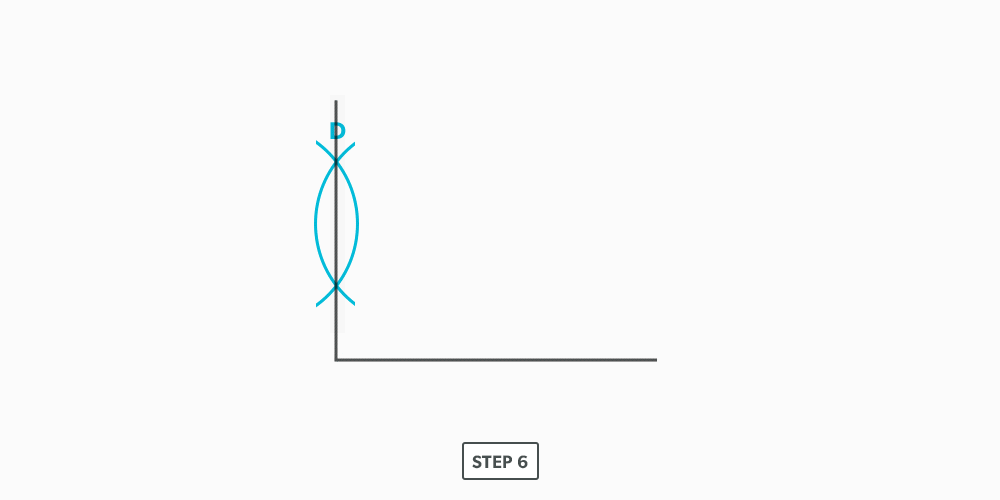
	</div>


	</div>
<div class="back-matter miscellaneous " id="back-matter-versioning-history" title="Versioning History">
	<div class="back-matter-title-wrap">
		<p class="back-matter-number">2</p>
		<h1 class="back-matter-title">Versioning History</h1>
								</div>
	<div class="ugc back-matter-ugc">
				 <p>This page provides a record of edits and changes made to this book since its initial publication. Whenever edits or updates are made in the text, we provide a record and description of those changes here. If the change is minor, the version number increases by 0.01. If the edits involve substantial updates, the version number increases to the next full number.</p> <p>The files posted by this book always reflect the most recent version. If you find an error in this book, please fill out the <a href="https://open.bccampus.ca/browse-our-collection/reporting-an-error/" target="_blank" rel="noopener" data-url="https://open.bccampus.ca/browse-our-collection/reporting-an-error/">Report an Error</a> form.</p> <table style="border-collapse: collapse; width: 100%;"><tbody><tr><th style="width: 10%;" scope="col">Version</th> <th style="width: 15%;" scope="col">Date</th> <th style="width: 35%;" scope="col">Change</th> <th style="width: 40%;" scope="col">Details</th> </tr> <tr><td style="width: 10%;">1.00</td> <td style="width: 15%;">August 13, 2021</td> <td style="width: 35%;">Book published.</td> <td style="width: 40%;"></td> </tr> </tbody> </table> 

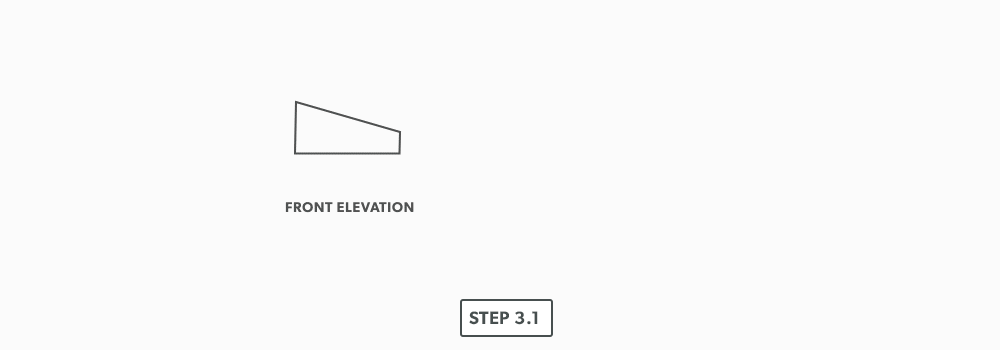
	</div>


	</div>

</body>
</html>