<?xml version="1.0" encoding="UTF-8"?>
<!DOCTYPE html PUBLIC "-//W3C//DTD XHTML 1.1//EN" "http://www.w3.org/TR/xhtml11/DTD/xhtml11.dtd">
<html xmlns="http://www.w3.org/1999/xhtml" xml:lang="en">
<head>
<meta content="text/html; charset=UTF-8" http-equiv="content-type" />
<meta http-equiv="Content-Language" content="en" />
<meta name="generator" content="Pressbooks 6.8.0" />
<meta name="pb-authors" content="Hamid Talebi" />
<meta name="pb-reviewers" content="Giovanni Porta" />
<meta name="pb-reviewers" content="Lewis Saludo" />
<meta name="pb-reviewers" content="Xavier Cawley" />
<meta name="pb-reviewers" content="Tung Lee" />
<meta name="pb-reviewers" content="Mahdad Zakaria" />
<meta name="pb-reviewers" content="Michael Kueh" />
<meta name="pb-title" content="FortiGate Firewall" />
<meta name="pb-language" content="en-ca" />
<meta name="pb-cover-image" content="https://opentextbc.ca/fortigatefirewall/wp-content/uploads/sites/438/2023/08/OTB325-01-COVER-FortiGate-Firewall-Practical-Guidance-and-Hands-On-Labs.jpg" />
<meta name="pb-subtitle" content="Practical Guidance and Hands-On Labs" />
<meta name="pb-copyright-year" content="2023" />
<meta name="pb-about-50" content="This book explains step-by-step how to configure a FortiGate firewall in the network. Each chapter begins with learning objectives and contains step-by-step explanations for GNS3 beginners on how to build different security scenarios from scratch." />
<meta name="pb-is-based-on" content="https://pressbooks.bccampus.ca/fortigatefirewall" />
<meta name="pb-primary-subject" content="UR" />
<meta name="pb-publisher" content="BCcampus" />
<meta name="pb-publisher-city" content="Victoria, B.C." />
<meta name="pb-publication-date" content="1693267200" />
<meta name="pb-copyright-holder" content="Hamid Talebi" />
<meta name="pb-book-license" content="cc-by" />
<meta name="pb-custom-copyright" content="© 2023 Hamid TalebiThe CC licence permits you to retain, reuse, copy, redistribute, and revise this book—in whole or in part—for free providing the author is attributed as follows:FortiGate Firewall: Practical Guidance and Hands-On Labs by Hamid Talebi is licensed under a CC BY 4.0 licence.If you redistribute all or part of this book, it is recommended the following statement be added to the copyright page so readers can access the original book at no cost:Download for free from the B.C. Open Collection.Sample APA-style citation (7th Edition):Talebi, H. (2023). FortiGate firewall: Practical guidance and hands-on labs. BCcampus. https://opentextbc.ca/fortigatefirewall/Cover image attribution:“Firewall” by Chanut-is-Industries is licensed under a Flaticon licence.Ebook ISBN: 978-1-77420-225-8Print ISBN: 978-1-77420-224-1Visit BCcampus Open Education to learn about open education in British Columbia." />
<meta name="pb-ebook-isbn" content="978-1-77420-225-8" />
<meta name="pb-print-isbn" content="978-1-77420-224-1" />
<meta name="pb-additional-subjects" content="URQ" />
<title>FortiGate Firewall</title>
</head>
<body lang='en' >
<div id="half-title-page"><h1 class="title">FortiGate Firewall</h1></div>
<div id="title-page">
			<h1 class="title">FortiGate Firewall</h1>
		<h2 class="subtitle">Practical Guidance and Hands-On Labs</h2>
					<p class="author">Hamid Talebi</p>
								<p class="publisher">BCcampus</p>
		<p class="publisher-city">Victoria, B.C.</p>
	</div>
<div id="copyright-page">
	<div class="ugc">
					
<div class="license-attribution"><p><img src="https://opentextbc.ca/fortigatefirewall/wp-content/themes/pressbooks-book/packages/buckram/assets/images/cc-by.svg" alt="Icon for the Creative Commons Attribution 4.0 International License" /></p><p>FortiGate Firewall by Hamid Talebi is licensed under a <a rel="license" href="https://creativecommons.org/licenses/by/4.0/">Creative Commons Attribution 4.0 International License</a>, except where otherwise noted.</p></div>

							<p>© 2023 Hamid Talebi</p><p>The CC licence permits you to retain, reuse, copy, redistribute, and revise this book—in whole or in part—for free providing the author is attributed as follows:</p><div class="textbox"><em>FortiGate Firewall: Practical Guidance and Hands-On Labs</em> by Hamid Talebi is licensed under a <a href="http://creativecommons.org/licenses/by/4.0/">CC BY 4.0 licence</a>.</div><p>If you redistribute all or part of this book, it is recommended the following statement be added to the copyright page so readers can access the original book at no cost:</p><div class="textbox">Download for free from the <a href="https://collection.bccampus.ca/">B.C. Open Collection</a>.</div><p><strong>Sample APA-style citation (7th Edition):</strong></p><div class="textbox">Talebi, H. (2023). <i>FortiGate firewall: Practical guidance and hands-on labs</i>. BCcampus. https://opentextbc.ca/fortigatefirewall/</div><p><strong>Cover image attribution:</strong></p><div class="textbox"><a href="https://www.flaticon.com/free-icon/firewall_886917">&#8220;Firewall&#8221;</a> by <a href="https://www.flaticon.com/authors/chanut-is-industries">Chanut-is-Industries</a> is licensed under a <a href="https://www.freepikcompany.com/legal#nav-flaticon-agreement">Flaticon licence</a>.</div><p><strong>Ebook ISBN:</strong> 978-1-77420-225-8</p><p><strong>Print ISBN:</strong> 978-1-77420-224-1</p><p>Visit <a href="http://open.bccampus.ca/">BCcampus Open Education</a> to learn about open education in British Columbia.</p>
							</div>
</div>
<div id="toc">
	<h1>Contents</h1>
	<ul>
					<li class="front-matter miscellaneous">
	<a href="#front-matter-accessibility-statement">
		<span class="toc-chapter-title">Accessibility Statement</span>
							</a>
	</li>

					<li class="front-matter miscellaneous">
	<a href="#front-matter-for-students-how-to-access-and-use-this-textbook">
		<span class="toc-chapter-title">For Students: How to Access and Use this Textbook</span>
							</a>
	</li>

					<li class="front-matter miscellaneous">
	<a href="#front-matter-about-bccampus-open-education">
		<span class="toc-chapter-title">About BCcampus Open Education</span>
							</a>
	</li>

					<li class="front-matter introduction">
	<a href="#front-matter-introduction">
		<span class="toc-chapter-title">Preface</span>
							</a>
	</li>

					<li class="front-matter post-introduction miscellaneous">
	<a href="#front-matter-dedication">
		<span class="toc-chapter-title">Dedication</span>
							</a>
	</li>

					<li class="part">
	<a href="#part-main-body">
					Chapter 1. Basic Settings
			</a>
</li>

					<li class="chapter standard">
	<a href="#chapter-basic-settings">
		<span class="toc-chapter-title">1.1 Basic Settings</span>
							</a>
	</li>

					<li class="part">
	<a href="#part-policy">
					Chapter 2. Policy
			</a>
</li>

					<li class="chapter standard">
	<a href="#chapter-security-policy">
		<span class="toc-chapter-title">2.1 Security Policy</span>
							</a>
	</li>

					<li class="chapter standard">
	<a href="#chapter-application-profile">
		<span class="toc-chapter-title">2.2 Application Profile</span>
							</a>
	</li>

					<li class="part">
	<a href="#part-chapter-3-nat">
					Chapter 3. NAT
			</a>
</li>

					<li class="chapter standard">
	<a href="#chapter-source-nat">
		<span class="toc-chapter-title">3.1 Source NAT</span>
							</a>
	</li>

					<li class="chapter standard">
	<a href="#chapter-destination-nat">
		<span class="toc-chapter-title">3.2 Destination NAT</span>
							</a>
	</li>

					<li class="part">
	<a href="#part-chapter-4-vpn">
					Chapter 4. VPN
			</a>
</li>

					<li class="chapter standard">
	<a href="#chapter-ipsec-vpn">
		<span class="toc-chapter-title">4.1 IPsec VPN</span>
							</a>
	</li>

					<li class="chapter standard">
	<a href="#chapter-ssl-vpn">
		<span class="toc-chapter-title">4.2 SSL VPN</span>
							</a>
	</li>

					<li class="part">
	<a href="#part-chapter-5-authentication">
					Chapter 5. Authentication
			</a>
</li>

					<li class="chapter standard">
	<a href="#chapter-captive-portal">
		<span class="toc-chapter-title">5.1 Captive Portal</span>
							</a>
	</li>

					<li class="chapter standard">
	<a href="#chapter-fsso">
		<span class="toc-chapter-title">5.2 FSSO</span>
							</a>
	</li>

					<li class="part">
	<a href="#part-chapter-6-high-availability">
					Chapter 6. High Availability
			</a>
</li>

					<li class="chapter standard">
	<a href="#chapter-high-availability">
		<span class="toc-chapter-title">6.1 High Availability</span>
							</a>
	</li>

					<li class="part">
	<a href="#part-chapter-7-security">
					Chapter 7. Security
			</a>
</li>

					<li class="chapter standard">
	<a href="#chapter-ddos-prevention">
		<span class="toc-chapter-title">7.1 DDoS Prevention</span>
							</a>
	</li>

					<li class="chapter standard">
	<a href="#chapter-security-profile">
		<span class="toc-chapter-title">7.2 Security Profile</span>
							</a>
	</li>

					<li class="chapter standard">
	<a href="#chapter-vlan-and-security-profile">
		<span class="toc-chapter-title">7.3 VLAN and Security Profile</span>
							</a>
	</li>

					<li class="part">
	<a href="#part-chapter-8-vdom">
					Chapter 8. VDOM
			</a>
</li>

					<li class="chapter standard">
	<a href="#chapter-vdom">
		<span class="toc-chapter-title">8.1 VDOM</span>
							</a>
	</li>

					<li class="chapter standard">
	<a href="#chapter-inter-vdom-routing">
		<span class="toc-chapter-title">8.2 Inter-VDOM Routing</span>
							</a>
	</li>

					<li class="part">
	<a href="#part-chapter-9-sdwan">
					Chapter 9. SD-WAN
			</a>
</li>

					<li class="chapter standard">
	<a href="#chapter-sd-wan">
		<span class="toc-chapter-title">9.1 SD-WAN</span>
							</a>
	</li>

					<li class="part">
	<a href="#part-chapter-10-cloud">
					Chapter 10. Cloud Technologies
			</a>
</li>

					<li class="chapter standard">
	<a href="#chapter-ipsec-vpn-fortigate-azure">
		<span class="toc-chapter-title">10.1 IPsec VPN from FortiGate (on Premise) to Azure</span>
							</a>
	</li>

					<li class="chapter standard">
	<a href="#chapter-deploy-fortigate-in-azure">
		<span class="toc-chapter-title">10.2 Deploy FortiGate in Azure</span>
							</a>
	</li>

					<li class="chapter standard">
	<a href="#chapter-s2s-vpn-fortigate-on-prem-azure">
		<span class="toc-chapter-title">10.3 Site to Site VPN between FortiGate on Premise and FortiGate in the Azure</span>
							</a>
	</li>

					<li class="chapter standard">
	<a href="#chapter-ipsec-vpn-fortigate-aws">
		<span class="toc-chapter-title">10.4 IPsec VPN from FortiGate (on Premise) to AWS</span>
							</a>
	</li>

					<li class="chapter standard">
	<a href="#chapter-deploy-fortigate-in-aws">
		<span class="toc-chapter-title">10.5 Deploy FortiGate in AWS</span>
							</a>
	</li>

					<li class="chapter standard">
	<a href="#chapter-s2s-vpn-fortigate-on-prem-aws">
		<span class="toc-chapter-title">10.6 Site-to-Site VPN between FortiGate on Premise and FortiGate in the AWS</span>
							</a>
	</li>

					<li class="back-matter appendix">
	<a href="#back-matter-appendix">
		<span class="toc-chapter-title">Appendix: GNS3 Basics</span>
							</a>
	</li>

					<li class="back-matter acknowledgements">
	<a href="#back-matter-acknowledgements">
		<span class="toc-chapter-title">Acknowledgements</span>
							</a>
	</li>

					<li class="back-matter about-the-author">
	<a href="#back-matter-about-the-author">
		<span class="toc-chapter-title">About the Author</span>
							</a>
	</li>

					<li class="back-matter miscellaneous">
	<a href="#back-matter-versioning-history">
		<span class="toc-chapter-title">Versioning History</span>
							</a>
	</li>

			</ul>
</div>
<div class="front-matter miscellaneous " id="front-matter-accessibility-statement" title="Accessibility Statement">
	<div class="front-matter-title-wrap">
		<p class="front-matter-number">1</p>
		<h1 class="front-matter-title">Accessibility Statement</h1>
								</div>
	<div class="ugc front-matter-ugc">
				 <p>BCcampus Open Education believes that education must be available to everyone. This means supporting the creation of free, open, and accessible educational resources. We are actively committed to increasing the accessibility and usability of the resources we produce.</p> <h1>Accessibility of this Textbook</h1> <p>The <a href="https://opentextbc.ca/fortigatefirewall/" data-url="https://opentextbc.ca/fortigatefirewall/">web version of this resource</a> has been designed to meet <a href="https://www.w3.org/TR/WCAG20/" data-url="https://www.w3.org/TR/WCAG20/">Web Content Accessibility Guidelines 2.0</a>, level AA. In addition, it follows all guidelines in <a href="https://opentextbc.ca/accessibilitytoolkit/back-matter/appendix-checklist-for-accessibility-toolkit/" data-url="https://opentextbc.ca/accessibilitytoolkit/back-matter/appendix-checklist-for-accessibility-toolkit/">Appendix A: Checklist for Accessibility</a> of the <a href="https://opentextbc.ca/accessibilitytoolkit/" data-url="https://opentextbc.ca/accessibilitytoolkit/"><em>Accessibility Toolkit – 2nd Edition</em></a>. It includes:</p> <ul><li><strong>Easy navigation</strong>. This resource has a linked table of contents and uses headings in each chapter to make navigation easy.</li> <li><strong>Accessible images</strong>. All images in this resource that convey information have alternative text. Images that are decorative have empty alternative text.</li> <li><strong>Accessible links</strong>. All links use descriptive link text.</li> </ul> <table class="grid" style="width: 100%;"><caption>Accessibility Checklist</caption> <tbody><tr><th scope="col">Element</th> <th scope="col">Requirements</th> <th scope="col">Pass?</th> </tr> <tr><th scope="row">Headings</th> <td>Content is organized under headings and subheadings that are used sequentially.</td> <td>Yes</td> </tr> <tr><th scope="row">Images</th> <td>Images that convey information include alternative text descriptions. These descriptions are provided in the alt text field, in the surrounding text, or linked to as a long description.</td> <td>Yes</td> </tr> <tr><th scope="row">Images</th> <td>Images and text do not rely on colour to convey information.</td> <td>Yes</td> </tr> <tr><th scope="row">Images</th> <td>Images that are purely decorative or are already described in the surrounding text contain empty alternative text descriptions. (Descriptive text is unnecessary if the image doesn’t convey contextual content information.)</td> <td>Yes</td> </tr> <tr><th scope="row">Tables</th> <td>Tables include row and/or column headers that have the correct scope assigned.</td> <td>Yes</td> </tr> <tr><th scope="row">Tables</th> <td>Tables include a title or caption.</td> <td>Yes</td> </tr> <tr><th scope="row">Tables</th> <td>Tables do not have merged or split cells.</td> <td>Yes</td> </tr> <tr><th scope="row">Tables</th> <td>Tables have adequate cell padding.</td> <td>Yes</td> </tr> <tr><th scope="row">Links</th> <td>The link text describes the destination of the link.</td> <td>Yes</td> </tr> <tr><th scope="row">Links</th> <td>Links do not open new windows or tabs. If they do, a textual reference is included in the link text.</td> <td>Yes</td> </tr> <tr><th><strong>Links</strong></th> <td>Links to files include the file type in the link text.</td> <td>Yes</td> </tr> <tr><th scope="row">Font</th> <td>Font size is 12 point or higher for body text.</td> <td>Yes</td> </tr> <tr><th scope="row">Font</th> <td>Font size is 9 point for footnotes or endnotes.</td> <td>Yes</td> </tr> <tr><th scope="row">Font</th> <td>Font size can be zoomed to 200% in the webbook or eBook formats.</td> <td>Yes</td> </tr> </tbody> </table> <h1>Known Accessibility Issues and Areas for Improvement</h1> <ul><li>The book relies heavily on screenshots from FortiGate Firewall. These screenshots do not have alt text. While many of the screenshots are described in the surrounding text, the book has not been reviewed to ensure that the surrounding text is an adequate alternative for all images in the book.</li> </ul> <h1>Let Us Know if You are Having Problems Accessing This Book</h1> <p>We are always looking for ways to make our resources more accessible. If you have problems accessing this textbook, please contact us to let us know so we can fix the issue.</p> <p>Please include the following information:</p> <ul><li>The name of the textbook</li> <li>The location of the problem by providing a web address or page description.</li> <li>A description of the problem</li> <li>The computer, software, browser, and any assistive technology you are using that can help us diagnose and solve your issue (e.g., Windows 10, Google Chrome (Version 65.0.3325.181), NVDA screen reader)</li> </ul> <p>You can contact us one of the following ways:</p> <ul><li>Web form: <a href="https://open.bccampus.ca/contact-us/" data-url="https://open.bccampus.ca/contact-us/">BCcampus IT Support</a></li> <li>Web form: <a href="https://collection.bccampus.ca/report-error/" data-url="https://collection.bccampus.ca/report-error/">Report an Error</a></li> </ul> <p>This statement was last updated on August 29, 2023.</p> <p>The Accessibility Checklist table was adapted from one originally created by the <a href="https://press.rebus.community/the-rebus-guide-to-publishing-open-textbooks/back-matter/accessibility-assessment/" data-url="https://press.rebus.community/the-rebus-guide-to-publishing-open-textbooks/back-matter/accessibility-assessment/">Rebus Community</a> and shared under a <a href="https://creativecommons.org/licenses/by/4.0/" data-url="https://creativecommons.org/licenses/by/4.0/">CC BY 4.0 License</a>.</p> 
	</div>


	</div>
<div class="front-matter miscellaneous " id="front-matter-for-students-how-to-access-and-use-this-textbook" title="For Students: How to Access and Use this Textbook">
	<div class="front-matter-title-wrap">
		<p class="front-matter-number">2</p>
		<h1 class="front-matter-title">For Students: How to Access and Use this Textbook</h1>
								</div>
	<div class="ugc front-matter-ugc">
				 <p>This textbook is available in the following formats:</p> <ul><li><strong>Online webbook</strong>. You can read this textbook online on a computer or mobile device in one of the following browsers: Chrome, Firefox, Edge, and Safari.</li> <li><strong>PDF</strong>. You can download this book as a PDF to read on a computer (Digital PDF) or print it out (Print PDF).</li> <li><strong>Mobile</strong>. If you want to read this textbook on your phone or tablet, you can use the EPUB (eReader) file.</li> <li><strong>HTML</strong>. An HTML file can be opened in a browser. It has very little style so it doesn’t look very nice, but some people might find it useful.</li> </ul> <p>For more information about the accessibility of this textbook, see the Accessibility Statement.</p> <p>You can access the online webbook and download any of the formats for free here: <a href="https://opentextbc.ca/fortigatefirewall" data-url="https://opentextbc.ca/fortigatefirewall"><em>FortiGate Firewall: Practical Guidance and Hands-On Labs</em></a>. To download the book in a different format, look for the “Download this book” drop-down menu and select the file type you want.</p> <table style="width: 100%;"><caption>How can I use the different formats?</caption> <tbody><tr><th scope="col">Format</th> <th scope="col">Internet required?</th> <th scope="col">Device</th> <th scope="col">Required apps</th> <th scope="col">Accessibility Features</th> <th scope="col">Screen reader compatible</th> </tr> <tr><td>Online webbook</td> <td>Yes</td> <td>Computer, tablet, phone</td> <td>An Internet browser (Chrome, Firefox, Edge, or Safari)</td> <td>WCAG 2.0 AA compliant, option to enlarge text, and compatible with browser text-to-speech tools</td> <td>Yes</td> </tr> <tr><td>PDF</td> <td>No</td> <td>Computer, print copy</td> <td>Adobe Reader (for reading on a computer) or a printer</td> <td>Ability to highlight and annotate the text. If reading on the computer, you can zoom in.</td> <td>Unsure</td> </tr> <tr><td>EPUB</td> <td>No</td> <td>Computer, tablet, phone</td> <td>An eReader app</td> <td>Option to enlarge text, change font style, size, and colour.</td> <td>Unsure</td> </tr> <tr><td>HTML</td> <td>No</td> <td>Computer, tablet, phone</td> <td>An Internet browser (Chrome, Firefox, Edge, or Safari)</td> <td>WCAG 2.0 AA compliant and compatible with browser text-to-speech tools.</td> <td>Yes</td> </tr> </tbody> </table> <h1>Tips for Using This Textbook</h1> <ul><li><strong>Search the textbook</strong>. <ul><li>If using the online webbook, you can use the search bar in the top right corner to search the entire book for a key word or phrase. To search a specific chapter, open that chapter and use your browser’s search feature by hitting <strong>[Cntr] + [f]</strong> on your keyboard if using a Windows computer or <strong>[Command] + [f] </strong>if using a Mac computer.</li> <li>The <strong>[Cntr] + [f]</strong> and <strong>[Command] + [f]</strong> keys will also allow you to search a PDF, HTML, and EPUB files if you are reading them on a computer.</li> <li>If using an eBook app to read this textbook, the app should have a built-in search tool.</li> </ul> </li> <li><strong>Navigate the textbook</strong>. <ul><li>This textbook has a table of contents to help you navigate through the book easier. If using the online webbook, you can find the full table of contents on the book’s homepage or by selecting “Contents” from the top menu when you are in a chapter.</li> </ul> </li> <li><strong>Annotate the textbook</strong>. <ul><li>If you like to highlight or write on your textbooks, you can do that by getting a print copy, using the Digital PDF in Adobe Reader, or using the highlighting tools in eReader apps.</li> </ul> </li> </ul> 
	</div>


	</div>
<div class="front-matter miscellaneous " id="front-matter-about-bccampus-open-education" title="About BCcampus Open Education">
	<div class="front-matter-title-wrap">
		<p class="front-matter-number">3</p>
		<h1 class="front-matter-title">About BCcampus Open Education</h1>
								</div>
	<div class="ugc front-matter-ugc">
				 <p><em>FortiGate Firewall: Practical Guidance and Hands-On Labs</em> by Hamid Talebi was funded by BCcampus Open Education.</p> <p><a href="https://open.bccampus.ca/" data-url="https://open.bccampus.ca/">BCcampus Open Education</a> began in 2012 as the B.C. Open Textbook Project with the goal of making post-secondary education in British Columbia more accessible by reducing students’ costs through the use of open textbooks and other OER. <a href="https://bccampus.ca/about-us/" data-url="https://bccampus.ca/about-us/">BCcampus</a> supports the post-secondary institutions of British Columbia as they adapt and evolve their teaching and learning practices to enable powerful learning opportunities for the students of B.C. BCcampus Open Education is funded by the <a href="https://www2.gov.bc.ca/gov/content/governments/organizational-structure/ministries-organizations/ministries/post-secondary-education-and-future-skills" data-url="https://www2.gov.bc.ca/gov/content/governments/organizational-structure/ministries-organizations/ministries/post-secondary-education-and-future-skills">British Columbia Ministry of Post-Secondary Education and Future Skills</a> and the <a href="http://www.hewlett.org/" data-url="http://www.hewlett.org/">Hewlett Foundation</a>.</p> <p>Open educational resources (OER) are teaching, learning, and research resources that, through permissions granted by the copyright holder, allow others to use, distribute, keep, or make changes to them. Our open textbooks are openly licensed using a <a href="https://creativecommons.org/licenses/" data-url="https://creativecommons.org/licenses/">Creative Commons licence</a> and are offered in various eBook formats free of charge, or as printed books that are available at cost.</p> <p>For more information about open education in British Columbia, please visit the <a href="https://open.bccampus.ca/" data-url="https://open.bccampus.ca/">BCcampus Open Education</a> website. If you are an instructor who is using this book for a course, please fill out our <a href="https://open.bccampus.ca/use-open-textbooks/tell-us-youre-using-an-open-textbook/" data-url="https://open.bccampus.ca/use-open-textbooks/tell-us-youre-using-an-open-textbook/">Adoption of an Open Textbook</a> form.</p> <div class="textbox">This book was produced using the following styles: <a href="https://opentextbc.ca/fortigatefirewall/wp-content/uploads/sites/438/2022/05/FortiGate-Firewall-Style-Sheet.docx" data-url="https://opentextbc.ca/fortigatefirewall/wp-content/uploads/sites/438/2022/05/FortiGate-Firewall-Style-Sheet.docx">FortiGate Firewall: Practical Guidance and Hands-On Labs Style Sheet</a></div> 
	</div>


	</div>
<div class="front-matter introduction " id="front-matter-introduction" title="Preface">
	<div class="front-matter-title-wrap">
		<p class="front-matter-number">4</p>
		<h1 class="front-matter-title">Preface</h1>
								</div>
	<div class="ugc front-matter-ugc">
				 <p>Firewall technologies are growing very fast and knowing how to protect the network is vital for network administrators. A firewall is a network security device that monitors incoming and outgoing network traffic and decides whether to allow or block specific traffic based on a defined set of security rules. Firewalls have been the first line of defense in network security for over 25 years.<span class="footnote"><span class="footnote-indirect" data-fnref="21-1"></span></span> The lack of materials available for students to learn is part of our issue.</p> <p>Since I have been teaching Enterprise Security at BCIT, I have received a lot of feedback from my students. Then, I have decided to collect all labs and make them as a book for students. This book is part of the Enterprise Security Course and is based on the practical labs in the class. Each chapter begins with a learning objective and step-by-step explanations in GNS3 to beginners on how to build different security scenarios from scratch.</p> <p>The book is divided into ten chapters as following:</p> <ul><li><strong>Chapter 1. Basic Settings</strong> of FortiGate firewall and how to work with CLI or GUI to configure the firewall.</li> <li><strong>Chapter 2. Policy:</strong> We will focus on firewall policy and how firewall pass the traffic from one port to another port.</li> <li><strong>Chapter 3. NAT: </strong>We will use Source NAT and Destination NAT. You will learn how to use port forwarding when you are using DNAT.</li> <li><strong>Chapter 4. VPN: </strong>This is very important chapter focus on SSL VPN and IPsec VPN. You will learn how to set site-to-site VPN.</li> <li><strong>Chapter 5. Authentication: </strong>This chapter will focus on Captive Portal and FSSO. You will learn how to install FSSO Agent in the server and monitor Active Directory.</li> <li><strong>Chapter 6. High Availability: </strong>This chapter will focus on High Availability (Active-Passive) in FortiGate firewalls.</li> <li><strong>Chapter 7. Security: </strong>This chapter will focus on security profile, DDoS prevention and VLANs configuration.</li> <li><strong>Chapter 8. VDOM </strong>or Virtual Domain is a feature in FortiGate firewalls to manage resources and access. You will learn how to enable VDOM and how to use it.</li> <li><strong>Chapter 9. SD-WAN</strong><strong>: </strong>This chapter will focus on SD-WAN and how to use this feature.</li> <li><strong>Chapter 10. Cloud Technologies:</strong> This chapter will focus on how to deploy FortiGate in the cloud.</li> <li><strong>Appendix: </strong>We will cover basic GNS3 settings you need during this book.</li> </ul> <p>As we know “a picture is worth 1000 words” and that is why this book is based on snapshots and screen-capture all the steps and configurations. This will be useful for fast-tracking. This book will be a practical resource/guide that can be used by BCIT students, and students at other institutions as well as IT professionals.</p> <p>Hamid Talebi</p> 
	</div>
			
				
				<div class="footnotes"><div id='21-1'>
<a href="https://www.cisco.com/c/en_ca/products/security/firewalls/what-is-a-firewall.html" data-url="https://www.cisco.com/c/en_ca/products/security/firewalls/what-is-a-firewall.html">What is a Firewall?</a>
</div></div>
	</div>
<div class="front-matter miscellaneous post-introduction " id="front-matter-dedication" title="Dedication">
	<div class="front-matter-title-wrap">
		<p class="front-matter-number">5</p>
		<h1 class="front-matter-title">Dedication</h1>
								</div>
	<div class="ugc front-matter-ugc">
				 <p>This book is dedicated to those looking to further their knowledge of next-generation firewalls.</p> 
	</div>


	</div>
<div class="part-wrapper" id="part-main-body-wrapper">
    <div class="part  " id="part-main-body">
	<div class="part-title-wrap">
		<p class="part-number">I</p>
		<h1 class="part-title">Chapter 1. Basic Settings</h1>
	</div>
	<div class="ugc part-ugc">
		
	</div>
			
				
	</div>
<div class="chapter standard " id="chapter-basic-settings" title="1.1 Basic Settings">
	<div class="chapter-title-wrap">
		<p class="chapter-number">1</p>
		<h1 class="chapter-title">1.1 Basic Settings</h1>
								</div>
	<div class="ugc chapter-ugc">
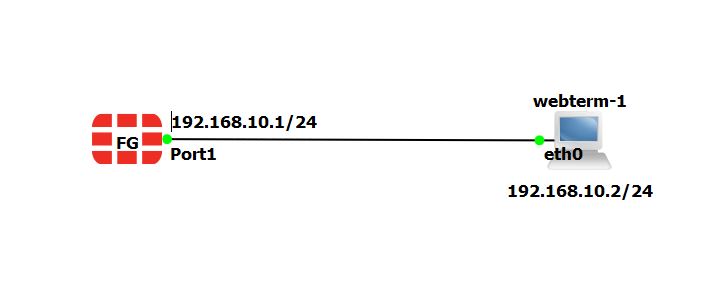
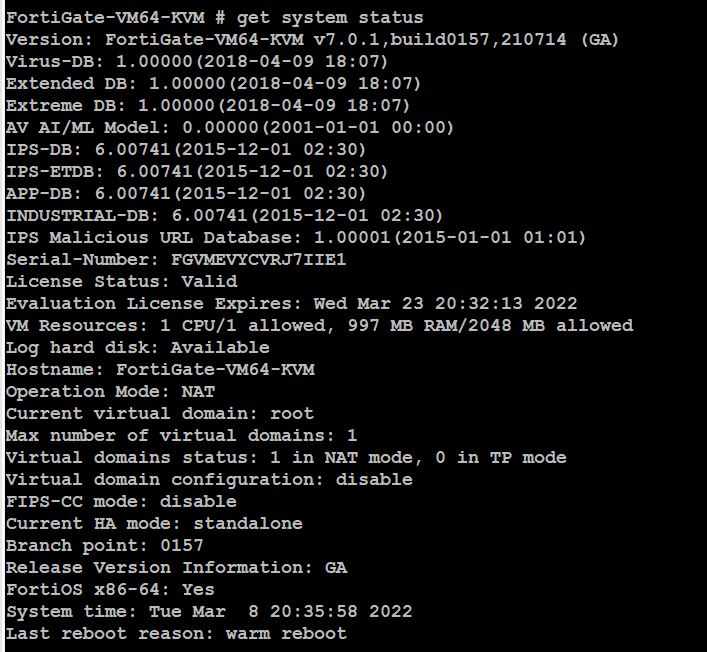
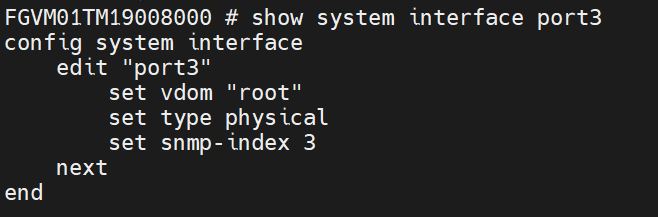
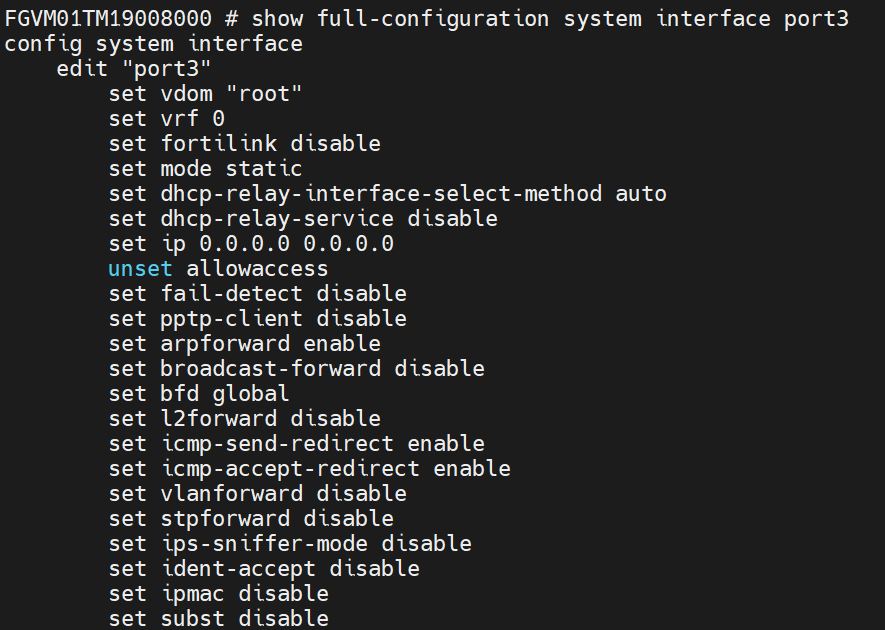
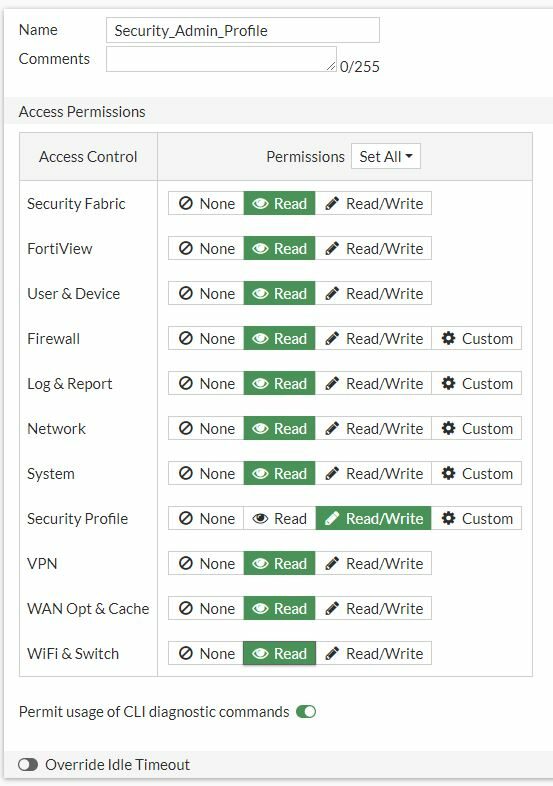
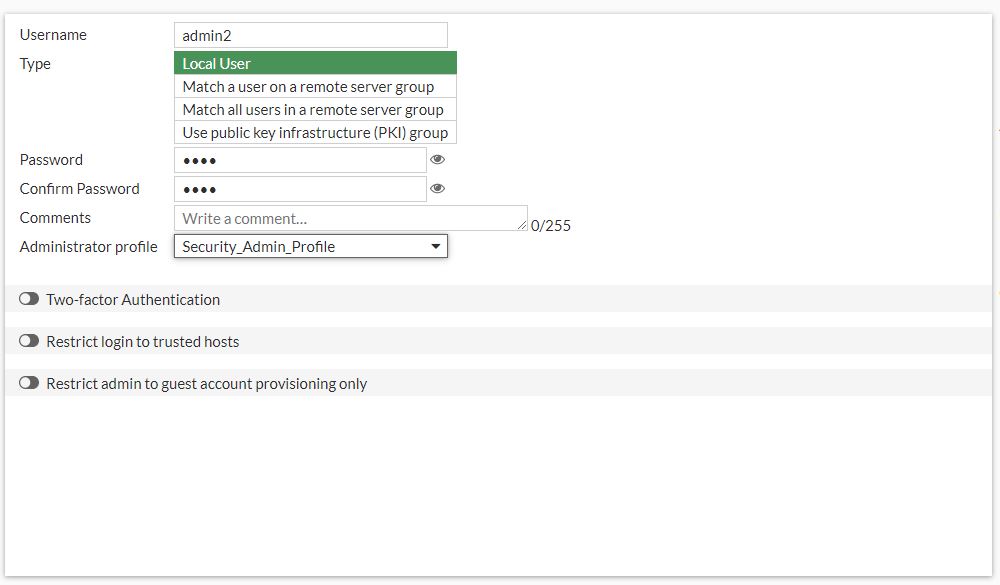
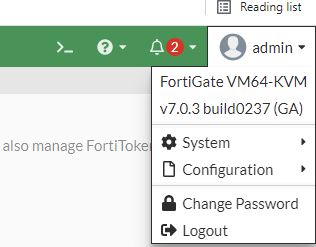
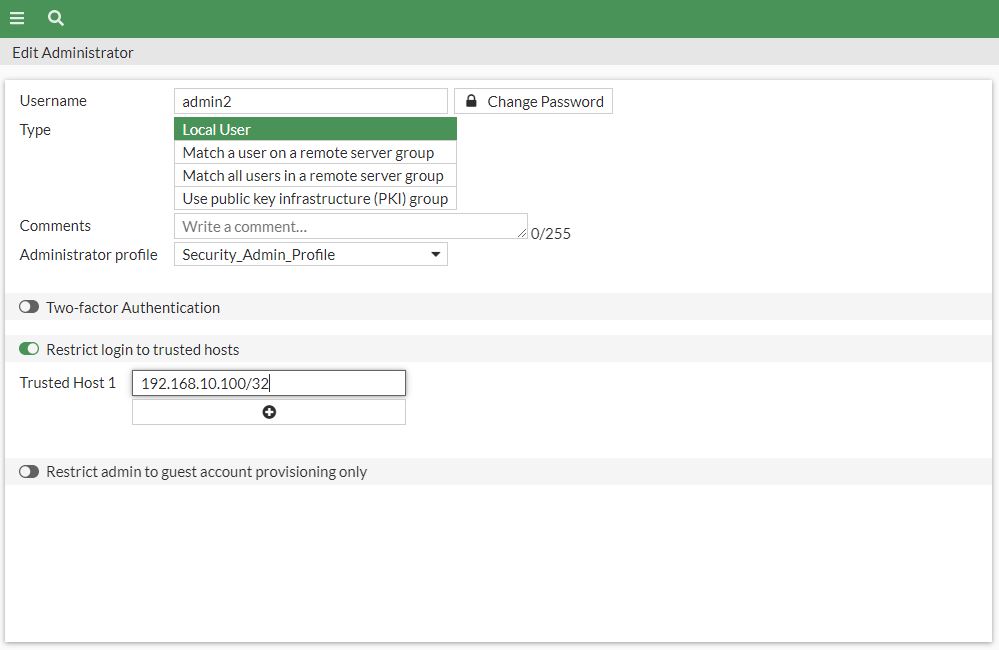
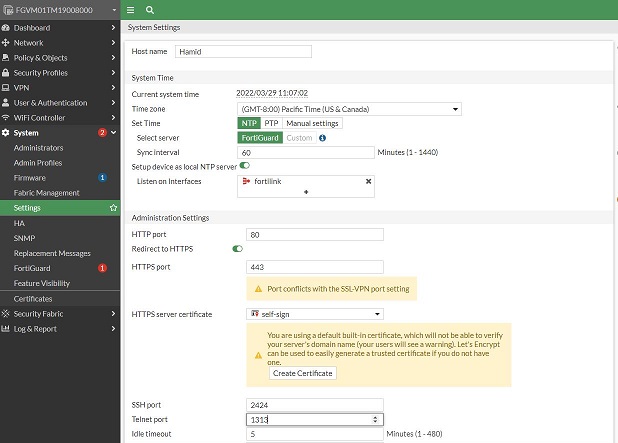
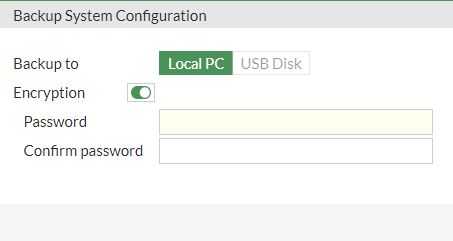
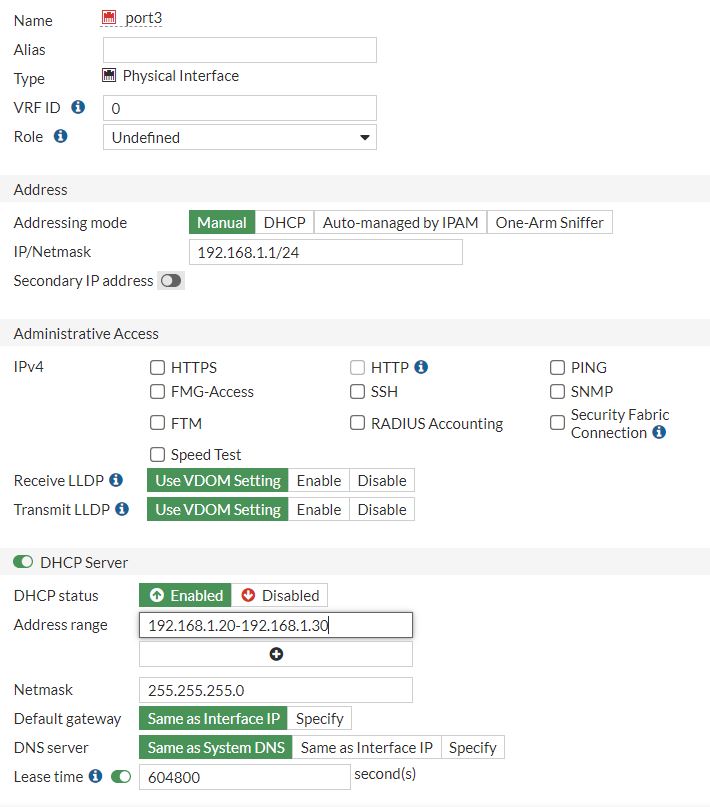
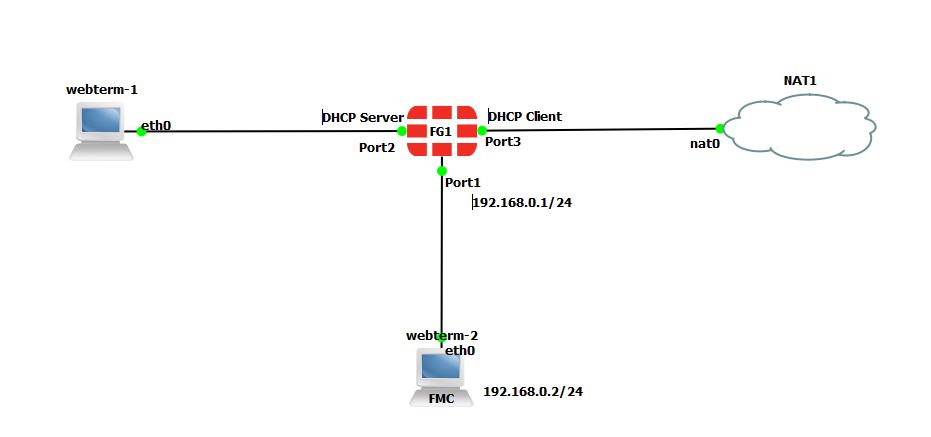
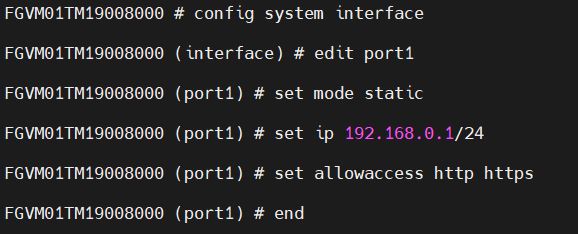
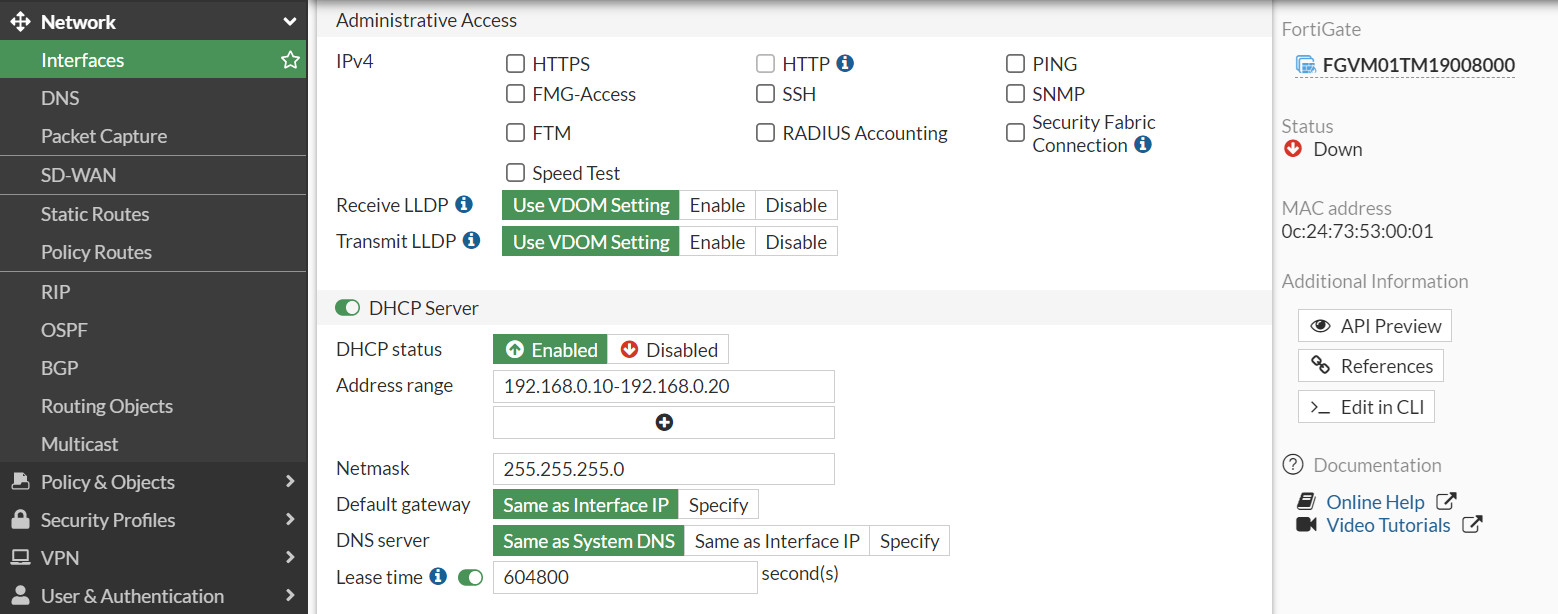
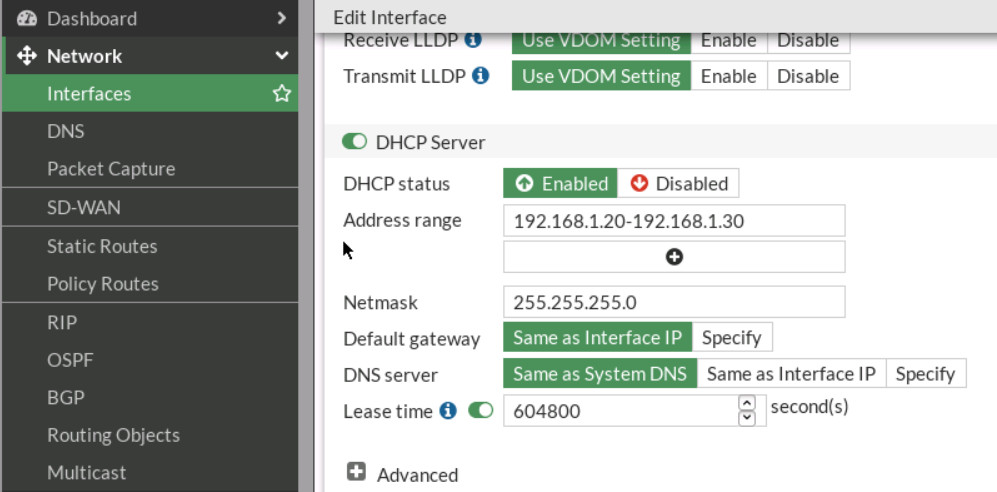
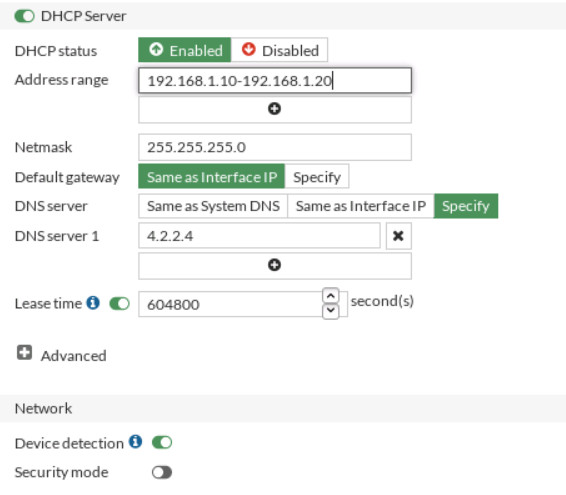
				 <div class="textbox textbox--learning-objectives"><div class="textbox__header"><p class="textbox__title">Learning Objectives</p> </div> <div class="textbox__content"><ul><li>Create a basic configuration in FortiGate</li> <li>Identify CLI commands in FortiGate</li> <li>Create an IP access in FortiGate</li> <li>Create a DHCP server in FortiGate</li> <li>Restore previous configurations in FortiGate using backups</li> </ul> </div> </div> <div class="textbox shaded"><strong>Scenario</strong>: This exercise will access a FortiGate device using the command-line interface (CLI). Setup your GNS3 and try to connect to FortiGate through WebTerm.</div> <div class="wp-caption aligncenter" id="attachment_34" aria-describedby="caption-attachment-34" style="width: 718px"><img class="wp-image-24 size-full" src="https://opentextbc.ca/wp-content/uploads/sites/438/2022/03/1.jpg" alt="main scenario" width="718" height="293" srcset="https://opentextbc.ca/fortigatefirewall/wp-content/uploads/sites/438/2022/03/1.jpg 718w, https://opentextbc.ca/fortigatefirewall/wp-content/uploads/sites/438/2022/03/1-300x122.jpg 300w, https://opentextbc.ca/fortigatefirewall/wp-content/uploads/sites/438/2022/03/1-65x27.jpg 65w, https://opentextbc.ca/fortigatefirewall/wp-content/uploads/sites/438/2022/03/1-225x92.jpg 225w, https://opentextbc.ca/fortigatefirewall/wp-content/uploads/sites/438/2022/03/1-350x143.jpg 350w" title="" /><div class="wp-caption-text" id="caption-attachment-34">Figure 1.1: Main scenario</div></div> <h2>Explore the CLI</h2> <p>To explore the CLI, from the GNS3 double click on FortiGate to open the console. In the Password field, type <strong>&lt;the default password is blank&gt;</strong>, and then press enter.</p> <p>Enter the following command:</p> <div class="textbox shaded" style="text-align: left;"><em>get system status</em></div> <div class="wp-caption aligncenter" aria-describedby="caption-attachment-34" style="width: 707px"><img class="wp-image-25 size-full" src="https://opentextbc.ca/wp-content/uploads/sites/438/2023/08/2.jpg" alt="get system status output" width="707" height="652" srcset="https://opentextbc.ca/fortigatefirewall/wp-content/uploads/sites/438/2023/08/2.jpg 707w, https://opentextbc.ca/fortigatefirewall/wp-content/uploads/sites/438/2023/08/2-300x277.jpg 300w, https://opentextbc.ca/fortigatefirewall/wp-content/uploads/sites/438/2023/08/2-65x60.jpg 65w, https://opentextbc.ca/fortigatefirewall/wp-content/uploads/sites/438/2023/08/2-225x207.jpg 225w, https://opentextbc.ca/fortigatefirewall/wp-content/uploads/sites/438/2023/08/2-350x323.jpg 350w" title="" /><div class="wp-caption-text">Figure 1.2: Get system status output</div></div> <p>This command displays basic status information about FortiGate. The output includes FortiGate’s serial number, operation mode, and a lot of useful information. When the More prompt appears on the CLI, do one of the following:</p> <ul><li>To continue scrolling, Space bar.</li> <li>To scroll one line at a time, Enter.</li> <li>Enter the following command: get ?</li> </ul> <div class="textbox">The ? character is not displayed on the screen.</div> <p>This command shows all of the options that the CLI will accept after the # get command. Depending on the command, you may need to enter additional words to completely specify a configuration option.</p> <ul><li>Enter the following command: <strong>execute ? </strong></li> <li>This command lists all options that the CLI will accept after the execute command.</li> <li>Type exe, and then press the Tab key. Notice that the CLI completes the current word.</li> <li>Press the space bar and then press the Tab key three times.</li> <li>Each time you press the Tab key, the CLI replaces the second word with the next possible option for the execute command, in alphabetical order.</li> </ul> <div class="textbox"><p>You can abbreviate most commands. In this book, many of the commands that you see will be in abbreviated form. For example, instead of typing execute, you can type exe.</p> <p>Use this technique to reduce the number of keystrokes that are required to enter a command. Often, experts can configure FortiGate faster using the CLI than the GUI.</p> </div> <h3 id="configuration">Configuration</h3> <table class="aligncenter" style="border-collapse: collapse; width: 100%;"><caption>Table 1.1: Check configuration CLI</caption> <tbody><tr><th style="width: 25%;" scope="col">Action</th> <th style="width: 75%;" scope="col">Command</th> </tr> <tr><td style="width: 25%;">Check configuration</td> <td style="width: 75%;"># show<br /> # show | grep xxxx<br /> # show full-configuration<br /> # show full-configuration | grep XXXX<br /> # show full-configuration | grep -f XXXX ← display with tree view</td> </tr> </tbody> </table> <h3 id="network">Network</h3> <table style="border-collapse: collapse; width: 100%;"><caption>Table 1.2: Routing and firewall policy CLI</caption> <tbody><tr><th style="width: 25%;" scope="col">Action</th> <th style="width: 75%;" scope="col">Command</th> </tr> <tr><td style="width: 25%;">Check Routing</td> <td style="width: 75%;"># get router info routing-table detail<br /> # show router static# config router static<br /> (static) # show<br /> (static) # end</td> </tr> <tr><td style="width: 25%;">Check Firewall Policy</td> <td style="width: 75%;"># show firewall policy<br /> # show firewall policy XXXX# config firewall policy<br /> (policy) # show</td> </tr> </tbody> </table> <h3 id="hardware">Hardware</h3> <table class="aligncenter" style="border-collapse: collapse; width: 100%;"><caption>Table 1.3: Hardware CLI</caption> <tbody><tr><th style="width: 60%;" scope="col">Action</th> <th style="width: 40%;" scope="col">Command</th> </tr> <tr><td style="width: 60%;">Check Hardware Information</td> <td style="width: 40%;"># get hardware status</td> </tr> <tr><td style="width: 60%;">Check Version, BIOS, Firmware, etc.</td> <td style="width: 40%;"># get system status</td> </tr> <tr><td style="width: 60%;">Check version</td> <td style="width: 40%;"># get system status</td> </tr> <tr><td style="width: 60%;">Display CPU / memory / line usage</td> <td style="width: 40%;"># get system performance status</td> </tr> <tr><td style="width: 60%;">Display of NTP server</td> <td style="width: 40%;"># get system ntp</td> </tr> <tr><td style="width: 60%;">Display the current time and the time of synchronization with the NTP server</td> <td style="width: 40%;"># execute time</td> </tr> <tr><td style="width: 60%;">Check interfaces status, Up or Down</td> <td style="width: 40%;"># get system interface physical</td> </tr> <tr><td style="width: 60%;">Check interfaces</td> <td style="width: 40%;"># config system interface<br /> (interface) # show<br /> (interface) # end</td> </tr> <tr><td style="width: 60%;">Display of ARP table</td> <td style="width: 40%;"># get system arp</td> </tr> </tbody> </table> <h3 id="ha">High Availability (HA)</h3> <table class="aligncenter" style="border-collapse: collapse; width: 100%;"><caption>Table 1.4: High Availability CLI</caption> <tbody><tr><th style="width: 50%;" scope="col">Action</th> <th style="width: 50%;" scope="col">Command</th> </tr> <tr><td style="width: 50%;">Check HA Status</td> <td style="width: 50%;"># get system ha status</td> </tr> <tr><td style="width: 50%;">Check HA Configuration</td> <td style="width: 50%;"># get system ha<br /> # show system ha</td> </tr> </tbody> </table> <h3 id="ntp">Network Time Protocol (NTP)</h3> <div class="level4"><div class="table sectionedit14"><table style="border-collapse: collapse; width: 100%;"><caption>Table 1.5: NTP CLI</caption> <tbody><tr><th style="width: 50%;" scope="col">Action</th> <th style="width: 50%;" scope="col">Command</th> </tr> <tr style="height: 55px;"><td style="width: 50%; height: 55px;">Check NTP</td> <td style="width: 50%; height: 55px;"># execute time<br /> # get system ntp<br /> # diagnose sys ntp status</td> </tr> </tbody> </table> <p>On a fresh line, enter the following command to view the port3 interface configuration:</p> <div class="textbox shaded"><em>show system interface port3</em></div> <div><div class="wp-caption aligncenter" id="attachment_26" aria-describedby="caption-attachment-26" style="width: 461px"><img class="wp-image-26" src="https://opentextbc.ca/wp-content/uploads/sites/438/2023/08/3.jpg" alt="Configuration of port3" width="461" height="152" srcset="https://opentextbc.ca/fortigatefirewall/wp-content/uploads/sites/438/2023/08/3.jpg 658w, https://opentextbc.ca/fortigatefirewall/wp-content/uploads/sites/438/2023/08/3-300x99.jpg 300w, https://opentextbc.ca/fortigatefirewall/wp-content/uploads/sites/438/2023/08/3-65x21.jpg 65w, https://opentextbc.ca/fortigatefirewall/wp-content/uploads/sites/438/2023/08/3-225x74.jpg 225w, https://opentextbc.ca/fortigatefirewall/wp-content/uploads/sites/438/2023/08/3-350x115.jpg 350w" title="" /><div class="wp-caption-text" id="caption-attachment-26">Figure 1.3: Configuration of port3</div></div> </div> <p>Enter the following command:</p> <div class="textbox shaded"><em>show full-configuration system interface port3</em></div> <div><div class="wp-caption aligncenter" id="attachment_27" aria-describedby="caption-attachment-27" style="width: 745px"><img class="wp-image-27" src="https://opentextbc.ca/wp-content/uploads/sites/438/2023/08/4.jpg" alt="show full-configuration system interface port3" width="745" height="530" srcset="https://opentextbc.ca/fortigatefirewall/wp-content/uploads/sites/438/2023/08/4.jpg 885w, https://opentextbc.ca/fortigatefirewall/wp-content/uploads/sites/438/2023/08/4-300x214.jpg 300w, https://opentextbc.ca/fortigatefirewall/wp-content/uploads/sites/438/2023/08/4-768x547.jpg 768w, https://opentextbc.ca/fortigatefirewall/wp-content/uploads/sites/438/2023/08/4-65x46.jpg 65w, https://opentextbc.ca/fortigatefirewall/wp-content/uploads/sites/438/2023/08/4-225x160.jpg 225w, https://opentextbc.ca/fortigatefirewall/wp-content/uploads/sites/438/2023/08/4-350x249.jpg 350w" title="" /><div class="wp-caption-text" id="caption-attachment-27">Figure 1.4: Show full-configuration of port3</div></div> </div> <p>Enter the following command:</p> <div class="textbox shaded"><em>show system interface</em></div> <p>For setting an IP address on the port1:</p> <div class="textbox shaded"><em>config system interface</em><br /> <em>edit port1</em><br /> <em>set mode static</em><br /> <em>set ip 192.168.10.1 255.255.255.0</em><br /> <em>set allowaccess ping ssh http https</em><br /> <em>end</em></div> <p>Now you should be able to reach the firewall from port1. In browser, type http://192.168.10.1 and enter username and password.</p> <div class="textbox">In the licensed devices, you should type https://192.168.10.1 and then enter username and password.</div> <h2>Configuring Administrator Accounts</h2> <p>FortiGate offers many options for configuring administrator privileges. For example, you can specify the IP addresses that administrators are allowed to connect from. In this exercise, you will work with administrator profiles and administrator user accounts. An administrator profile is a role that is assigned to an administrator user that defines what the user is permitted to do on the FortiGate GUI and CLI.</p> <h3>Configure a User Administrator Profile</h3> <ol><li>Click <strong>System &gt; Admin Profiles</strong>.</li> <li>Click <strong>Create New</strong>.</li> <li>In the Name field, type <strong>Security_Admin_Profile</strong>.</li> <li>In the permissions table, set Security Profile to <strong>Read-Write</strong>, but set all other permissions to Read.</li> <li>Click <strong>OK</strong> to save the changes.</li> </ol> <div class="wp-caption aligncenter" id="attachment_30" aria-describedby="caption-attachment-30" style="width: 400px"><img class="wp-image-28" src="https://opentextbc.ca/wp-content/uploads/sites/438/2023/08/user-profile-e1691185014412.jpg" alt="Create a custom profile" width="400" height="569" srcset="https://opentextbc.ca/fortigatefirewall/wp-content/uploads/sites/438/2023/08/user-profile-e1691185014412.jpg 553w, https://opentextbc.ca/fortigatefirewall/wp-content/uploads/sites/438/2023/08/user-profile-e1691185014412-211x300.jpg 211w, https://opentextbc.ca/fortigatefirewall/wp-content/uploads/sites/438/2023/08/user-profile-e1691185014412-65x92.jpg 65w, https://opentextbc.ca/fortigatefirewall/wp-content/uploads/sites/438/2023/08/user-profile-e1691185014412-225x320.jpg 225w, https://opentextbc.ca/fortigatefirewall/wp-content/uploads/sites/438/2023/08/user-profile-e1691185014412-350x497.jpg 350w" title="" /><div class="wp-caption-text" id="caption-attachment-30">Figure 1.5: Create a custom profile</div></div> <h2>Create an Administrator Account</h2> <p>Now, you will create a new administrator account. You will assign the account to the administrator profile you created previously. The administrator will have read-only access to most of the configuration settings. To create an administrator account Continuing on the Local-FortiGate GUI, click <strong>System &gt; Administrators</strong>. Click Create New and then click Administrator to add a new administrator account and assign the previous profile you have created to the administrator.</p> <div class="wp-caption aligncenter" aria-describedby="caption-attachment-30" style="width: 1000px"><img class="wp-image-29 size-full" src="https://opentextbc.ca/wp-content/uploads/sites/438/2023/08/second.jpg" alt="Create a local user" width="1000" height="585" srcset="https://opentextbc.ca/fortigatefirewall/wp-content/uploads/sites/438/2023/08/second.jpg 1000w, https://opentextbc.ca/fortigatefirewall/wp-content/uploads/sites/438/2023/08/second-300x176.jpg 300w, https://opentextbc.ca/fortigatefirewall/wp-content/uploads/sites/438/2023/08/second-768x449.jpg 768w, https://opentextbc.ca/fortigatefirewall/wp-content/uploads/sites/438/2023/08/second-65x38.jpg 65w, https://opentextbc.ca/fortigatefirewall/wp-content/uploads/sites/438/2023/08/second-225x132.jpg 225w, https://opentextbc.ca/fortigatefirewall/wp-content/uploads/sites/438/2023/08/second-350x205.jpg 350w" title="" /><div class="wp-caption-text">Figure 1.6: Create a local user</div></div> <h3>Test the New Administrator Account</h3> <p>In this procedure, you will confirm that the new administrator account has read-write access to only the security profiles configuration.</p> <p>To test the new administrator account Continuing on the Local-FortiGate GUI, click username (in my case, it’s admin2) and then Logout to log out of the admin account’s GUI session.</p> <div class="wp-caption aligncenter" aria-describedby="caption-attachment-30" style="width: 316px"><img class="wp-image-30 size-full" src="https://opentextbc.ca/wp-content/uploads/sites/438/2023/08/logout.jpg" alt="Logout option" width="316" height="247" srcset="https://opentextbc.ca/fortigatefirewall/wp-content/uploads/sites/438/2023/08/logout.jpg 316w, https://opentextbc.ca/fortigatefirewall/wp-content/uploads/sites/438/2023/08/logout-300x234.jpg 300w, https://opentextbc.ca/fortigatefirewall/wp-content/uploads/sites/438/2023/08/logout-65x51.jpg 65w, https://opentextbc.ca/fortigatefirewall/wp-content/uploads/sites/438/2023/08/logout-225x176.jpg 225w" title="" /><div class="wp-caption-text">Figure 1.7: Logout option</div></div> </div> <p>Explore the permissions that you have in the GUI. You should see that this account can configure only security profiles. Log out of the GUI once done.</p> </div> <h2>Restrict Administrator Access</h2> <p>Now, you will restrict access for FortiGate administrators. Only administrators connecting from a trusted subnet will be allowed access. This is useful if you need to restrict the access points from which administrators connect to FortiGate. To restrict administrator access.</p> <ol><li>Click <strong>System &gt; Administrators</strong>. Edit the admin account.</li> <li>Enable Restrict login to trusted hosts, and set <strong>Trusted Host 1</strong> to the address<br /> <strong>192.168.10.100/32</strong>.</li> <li>Click <strong>OK</strong> to save the changes.</li> </ol> <div class="wp-caption aligncenter" aria-describedby="caption-attachment-34" style="width: 999px"><img class="wp-image-31 size-full" src="https://opentextbc.ca/wp-content/uploads/sites/438/2023/08/administrator.jpg" alt="create a trusted host for the user" width="999" height="650" srcset="https://opentextbc.ca/fortigatefirewall/wp-content/uploads/sites/438/2023/08/administrator.jpg 999w, https://opentextbc.ca/fortigatefirewall/wp-content/uploads/sites/438/2023/08/administrator-300x195.jpg 300w, https://opentextbc.ca/fortigatefirewall/wp-content/uploads/sites/438/2023/08/administrator-768x500.jpg 768w, https://opentextbc.ca/fortigatefirewall/wp-content/uploads/sites/438/2023/08/administrator-65x42.jpg 65w, https://opentextbc.ca/fortigatefirewall/wp-content/uploads/sites/438/2023/08/administrator-225x146.jpg 225w, https://opentextbc.ca/fortigatefirewall/wp-content/uploads/sites/438/2023/08/administrator-350x228.jpg 350w" title="" /><div class="wp-caption-text">Figure 1.8: Create a trusted host for the user</div></div> <h3>To test the restricted access</h3> <ol><li>Continuing on Local-Windows, log out of the Local-FortiGate GUI session as the admin user.</li> <li>Try to log in to the admin2 account again with password &lt; Your password&gt;. Because you are trying to connect from the 192.168.10.101 address, you shouldn’t be able to connect.</li> <li>Log in as admin with password &lt;Your password&gt;. Enter the following CLI commands to add <strong>192.168.10.101/32</strong> as the second trusted IP subnet (Trusted Host 2) to the admin account: <div class="textbox shaded"><em>config system admin</em><br /> <em>edit admin</em><br /> <em>set trusthost2 192.168.10.101/32</em><br /> <em>end</em></div> </li> <li>Try to log in to the Local-FortiGate GUI at &lt;IP address&gt; with the username admin and password &lt;Your password&gt;. You should be able to log in. (<strong>Hint:</strong> add the IP address 192.168.10.101 to WebTerm and try to reach to the firewall.)</li> </ol> <div class="wp-caption aligncenter" aria-describedby="caption-attachment-34" style="width: 618px"><img class="wp-image-32 size-full" src="https://opentextbc.ca/wp-content/uploads/sites/438/2023/08/System-111.jpg" alt="System settings" width="618" height="443" srcset="https://opentextbc.ca/fortigatefirewall/wp-content/uploads/sites/438/2023/08/System-111.jpg 618w, https://opentextbc.ca/fortigatefirewall/wp-content/uploads/sites/438/2023/08/System-111-300x215.jpg 300w, https://opentextbc.ca/fortigatefirewall/wp-content/uploads/sites/438/2023/08/System-111-65x47.jpg 65w, https://opentextbc.ca/fortigatefirewall/wp-content/uploads/sites/438/2023/08/System-111-225x161.jpg 225w, https://opentextbc.ca/fortigatefirewall/wp-content/uploads/sites/438/2023/08/System-111-350x251.jpg 350w" title="" /><div class="wp-caption-text">Figure 1.9: System settings</div></div> <h2>Configuration Backups</h2> <p>The configuration files produced by backups allow you to restore to an earlier FortiGate configuration.</p> <h3>Backup &amp; Restore</h3> <p style="text-align: left;">Always back up the configuration file before making changes to FortiGate (even if the change seems minor or unimportant). There is no undo. You should carefully consider the pros and cons of an encrypted backup before you begin encrypting backups. While your configuration, including things like private keys, remains private, an encrypted file hampers troubleshooting because Fortinet support cannot read the file. Consider saving backups in plain-text and storing them in a secure place instead. Now, you will create an encrypted file with the backup of the FortiGate’s current configuration.</p> <h3>To save an encrypted configuration backup</h3> <p>Continuing on the Local-FortiGate GUI, in the upper-right corner, click <strong>admin</strong>, and then click <strong>Configuration &gt; Backup</strong>. On the Backup System Configuration page, enable Encryption. In the Password field, enter <strong>fortigate</strong> and repeat in the Confirm password field.</p> <div class="wp-caption aligncenter" aria-describedby="caption-attachment-34" style="width: 453px"><img class="wp-image-33 size-full" src="https://opentextbc.ca/wp-content/uploads/sites/438/2023/08/backup.jpg" alt="Backup System Configuration" width="453" height="241" srcset="https://opentextbc.ca/fortigatefirewall/wp-content/uploads/sites/438/2023/08/backup.jpg 453w, https://opentextbc.ca/fortigatefirewall/wp-content/uploads/sites/438/2023/08/backup-300x160.jpg 300w, https://opentextbc.ca/fortigatefirewall/wp-content/uploads/sites/438/2023/08/backup-65x35.jpg 65w, https://opentextbc.ca/fortigatefirewall/wp-content/uploads/sites/438/2023/08/backup-225x120.jpg 225w, https://opentextbc.ca/fortigatefirewall/wp-content/uploads/sites/438/2023/08/backup-350x186.jpg 350w" title="" /><div class="wp-caption-text">Figure 1.10: Backup System Configuration</div></div> <p>Click <strong>OK</strong>.</p> <p>Select <strong>Save File</strong> and click <strong>OK</strong>.</p> <h3>To restore an encrypted configuration backup</h3> <p>Continuing on the Local-FortiGate GUI, in the upper-right corner, click admin, and then click <strong>Configuration &gt; Restore</strong>. On the Restore System Configuration page, click Upload. Browse to your <strong>Downloads</strong> folder and select the configuration file that you created in the previous procedure. In the Password field, type <strong>fortigate</strong>, and then click <strong>OK.</strong></p> <h2>DHCP (Dynamic Host Configuration Protocol)</h2> <p>You can configure one or more DHCP servers on any FortiGate interface. A DHCP server dynamically assigns IP addresses to hosts on the network connected to the interface. The host computers must be configured to obtain their IP addresses using DHCP.</p> <h3 style="text-align: left;">Configure DHCP on the FortiGate</h3> <p style="text-align: left;">To add a DHCP server on the GUI:</p> <ol><li>Go to <strong>Network &gt; Interfaces</strong>.</li> <li>Edit an interface.</li> <li>Enable the DHCP Server option and configure the settings.</li> </ol> <div class="wp-caption aligncenter" aria-describedby="caption-attachment-34" style="width: 710px"><img class="wp-image-34 size-full" src="https://opentextbc.ca/wp-content/uploads/sites/438/2023/08/DHCP.jpg" alt="Enable DHCP Server" width="710" height="807" srcset="https://opentextbc.ca/fortigatefirewall/wp-content/uploads/sites/438/2023/08/DHCP.jpg 710w, https://opentextbc.ca/fortigatefirewall/wp-content/uploads/sites/438/2023/08/DHCP-264x300.jpg 264w, https://opentextbc.ca/fortigatefirewall/wp-content/uploads/sites/438/2023/08/DHCP-65x74.jpg 65w, https://opentextbc.ca/fortigatefirewall/wp-content/uploads/sites/438/2023/08/DHCP-225x256.jpg 225w, https://opentextbc.ca/fortigatefirewall/wp-content/uploads/sites/438/2023/08/DHCP-350x398.jpg 350w" title="" /><div class="wp-caption-text">Figure 1.11: Enable DHCP Server</div></div> <p>To do it through command line, use following commands:</p> <div class="textbox shaded" style="padding-left: 40px;"><div><em>FGVM01TM19008000 # config system dhcp server</em></div> <div></div> <div><em>FGVM01TM19008000 (server) # edit 1</em></div> <div></div> <div><em>FGVM01TM19008000 (1) # set dns-service default</em></div> <div></div> <div><em>FGVM01TM19008000 (1) # set netmask 255.255.255.0</em></div> <div></div> <div><em>FGVM01TM19008000 (1) # config ip-range</em></div> <div></div> <div><em>FGVM01TM19008000 (ip-range) # edit 1</em></div> <div></div> <div><em>FGVM01TM19008000 (1) # set start-ip 192.168.1.1</em></div> <div></div> <div><em>FGVM01TM19008000 (1) # set end-ip 192.168.1.1</em></div> <div></div> <div><em>FGVM01TM19008000 (1) # next</em></div> <div></div> <div><em>FGVM01TM19008000 (ip-range) # edit 2</em></div> <div><em>new entry ‘2’ added</em></div> <div></div> <div><em>FGVM01TM19008000 (2) # set start-ip 192.168.1.20</em></div> <div></div> <div><em>FGVM01TM19008000 (2) # set end-ip 192.168.1.30</em></div> <div></div> <div><em>FGVM01TM19008000 (2) # next</em></div> <div></div> <div><em>FGVM01TM19008000 (ip-range) # end</em></div> <div></div> <div><em>FGVM01TM19008000 (1) # next</em></div> <div></div> <div><em>FGVM01TM19008000 (server) # end</em></div> <div></div> </div> <div class="textbox">If you are looking for a specific configuration or CLI, the <a href="https://docs.fortinet.com/product/fortigate" data-url="https://docs.fortinet.com/product/fortigate">FortiGate document library</a> has full resources.</div> <h2>Resources</h2> <ul><li><a href="https://cmdref.net/hardware/fortigate/index.html" data-url="https://cmdref.net/hardware/fortigate/index.html">Fortinet Fortigate CLI Commands</a></li> <li><a href="https://docs.fortinet.com/product/fortigate/7.2" data-url="https://docs.fortinet.com/product/fortigate/7.2">FortiGate document library</a></li> </ul> 
	</div>


	</div>

</div>
<div class="part-wrapper" id="part-policy-wrapper">
    <div class="part  " id="part-policy">
	<div class="part-title-wrap">
		<p class="part-number">II</p>
		<h1 class="part-title">Chapter 2. Policy</h1>
	</div>
	<div class="ugc part-ugc">
		
	</div>
			
				
	</div>
<div class="chapter standard " id="chapter-security-policy" title="2.1 Security Policy">
	<div class="chapter-title-wrap">
		<p class="chapter-number">2</p>
		<h1 class="chapter-title">2.1 Security Policy</h1>
								</div>
	<div class="ugc chapter-ugc">
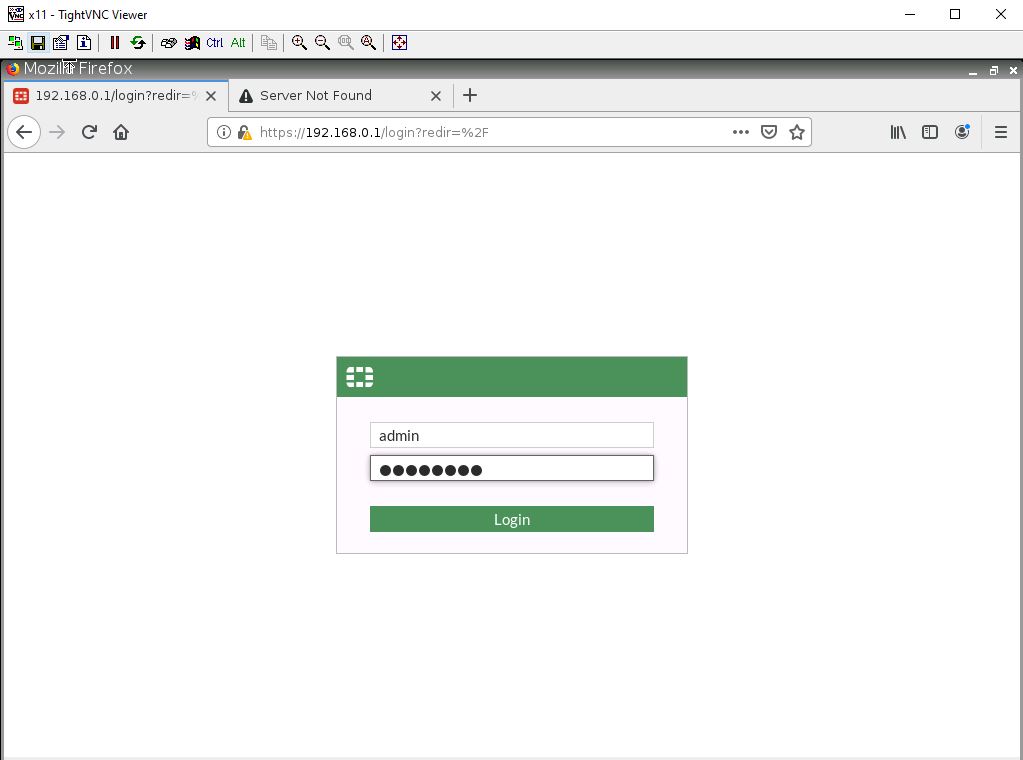
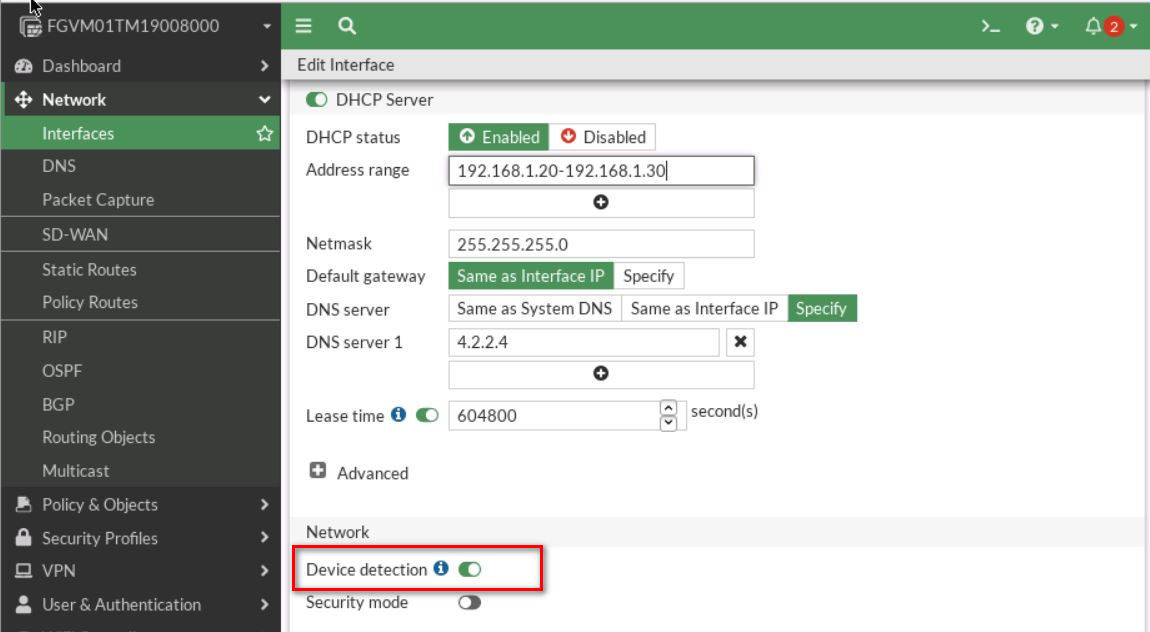
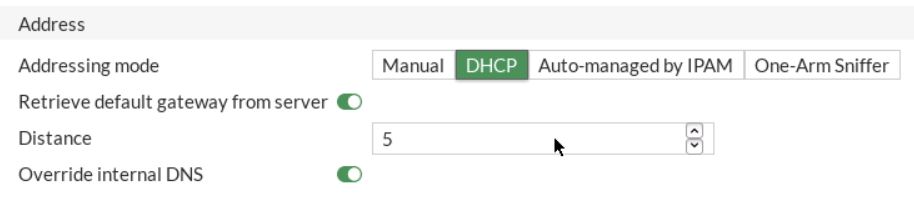
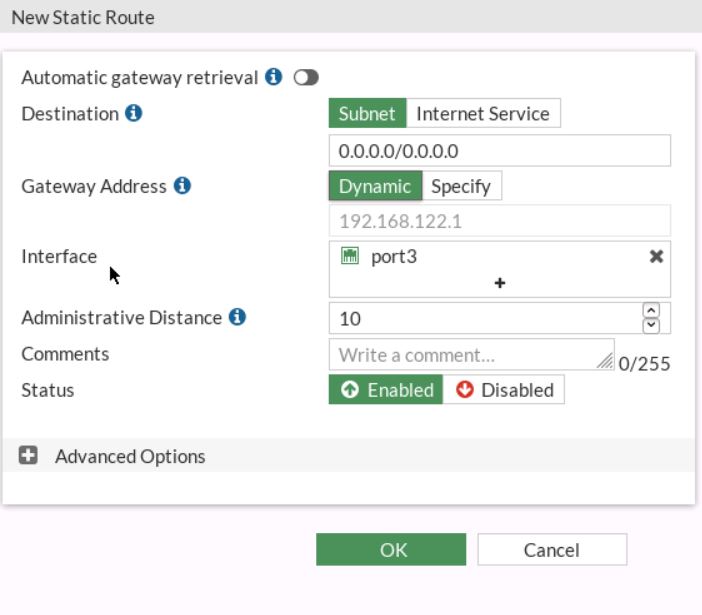
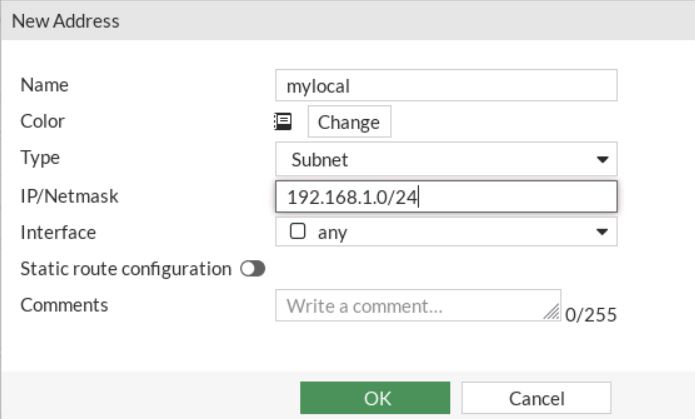
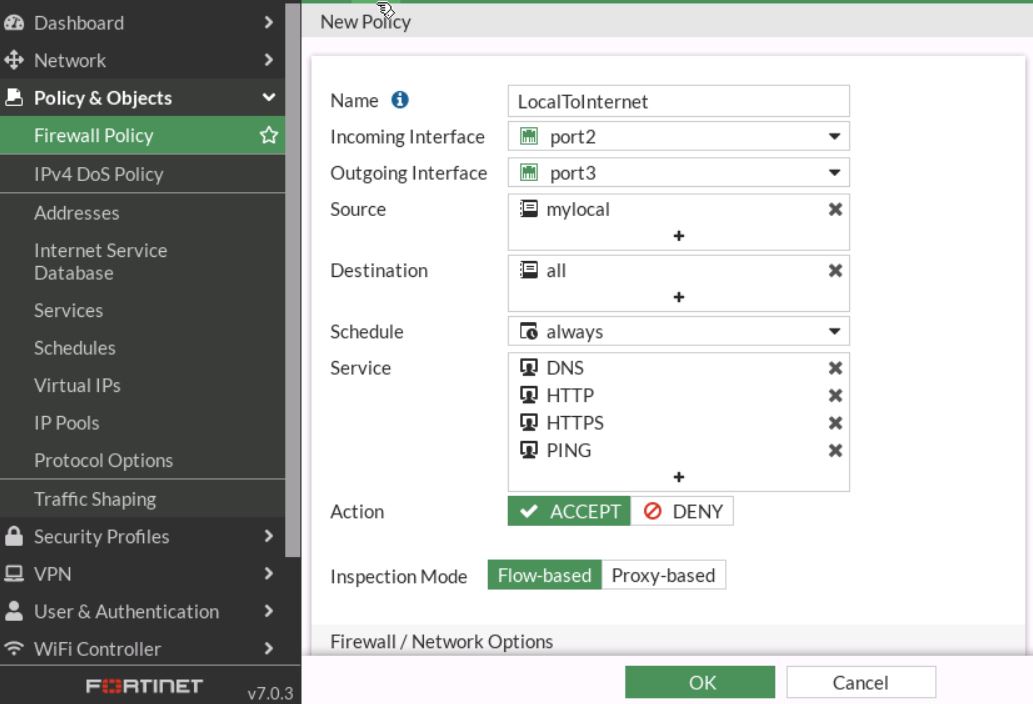
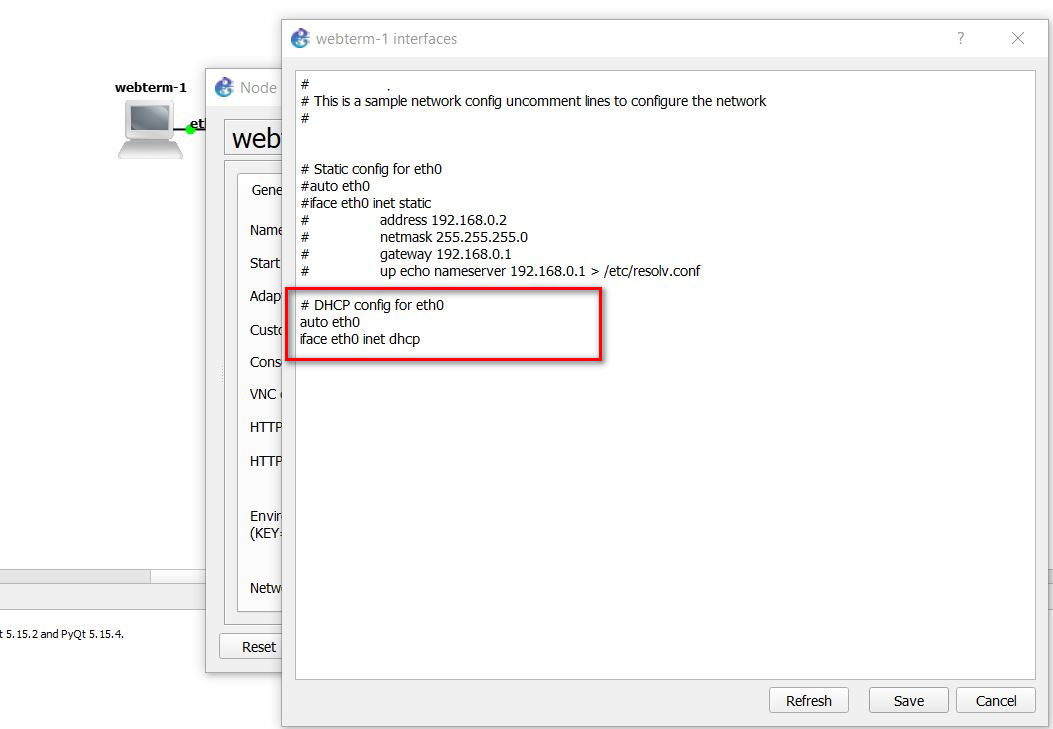
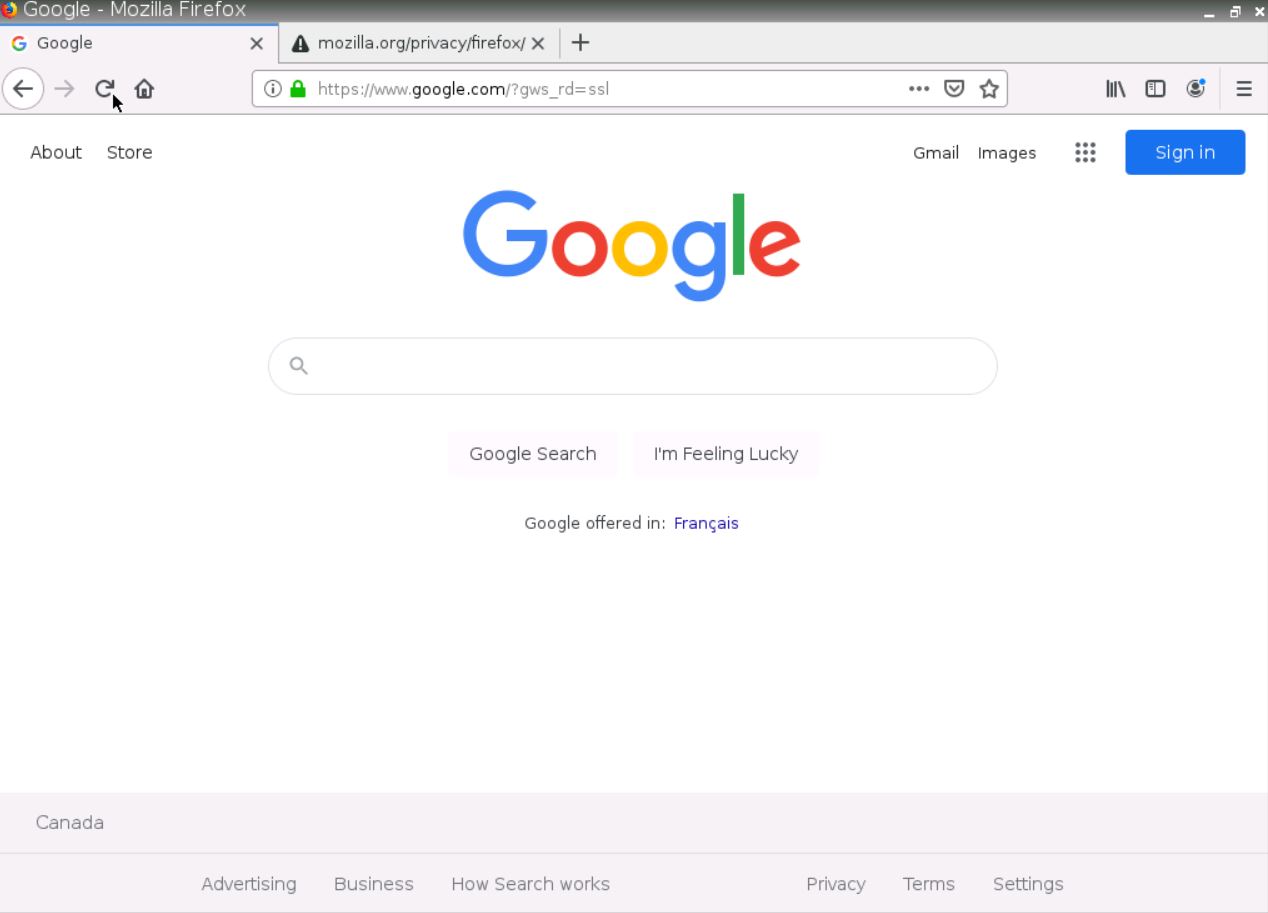
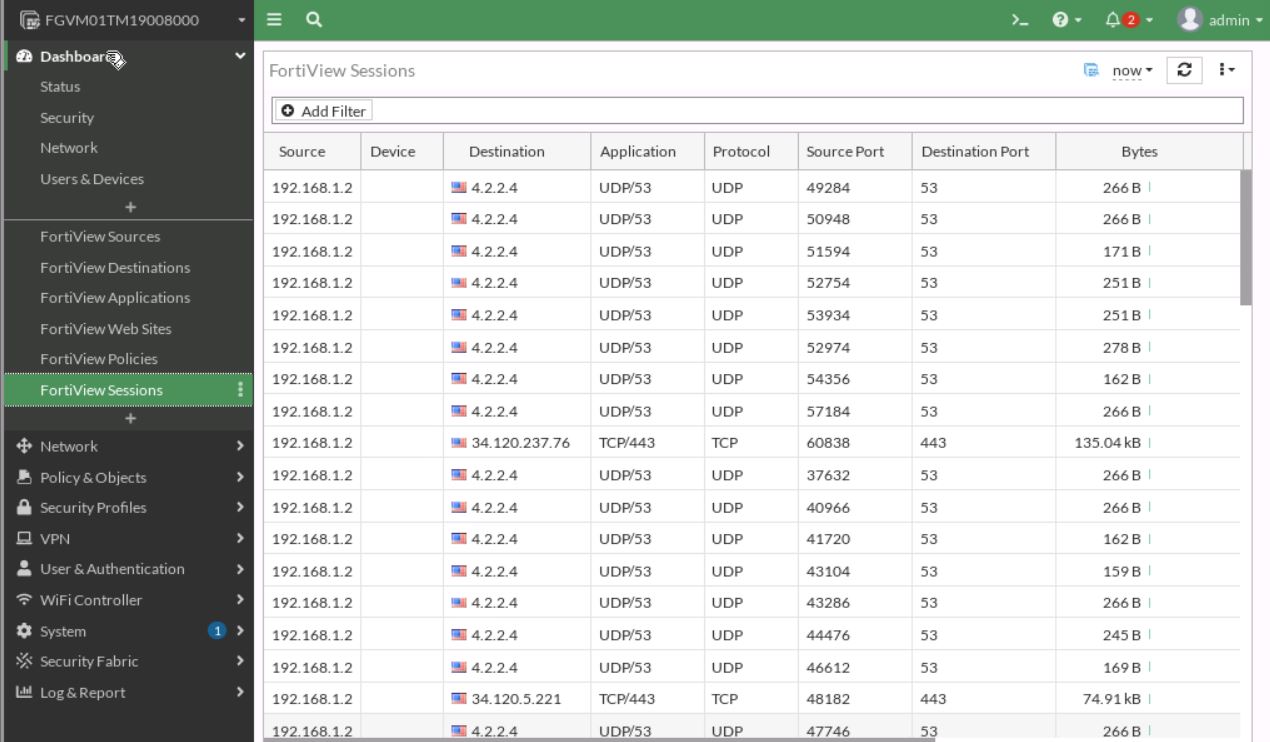
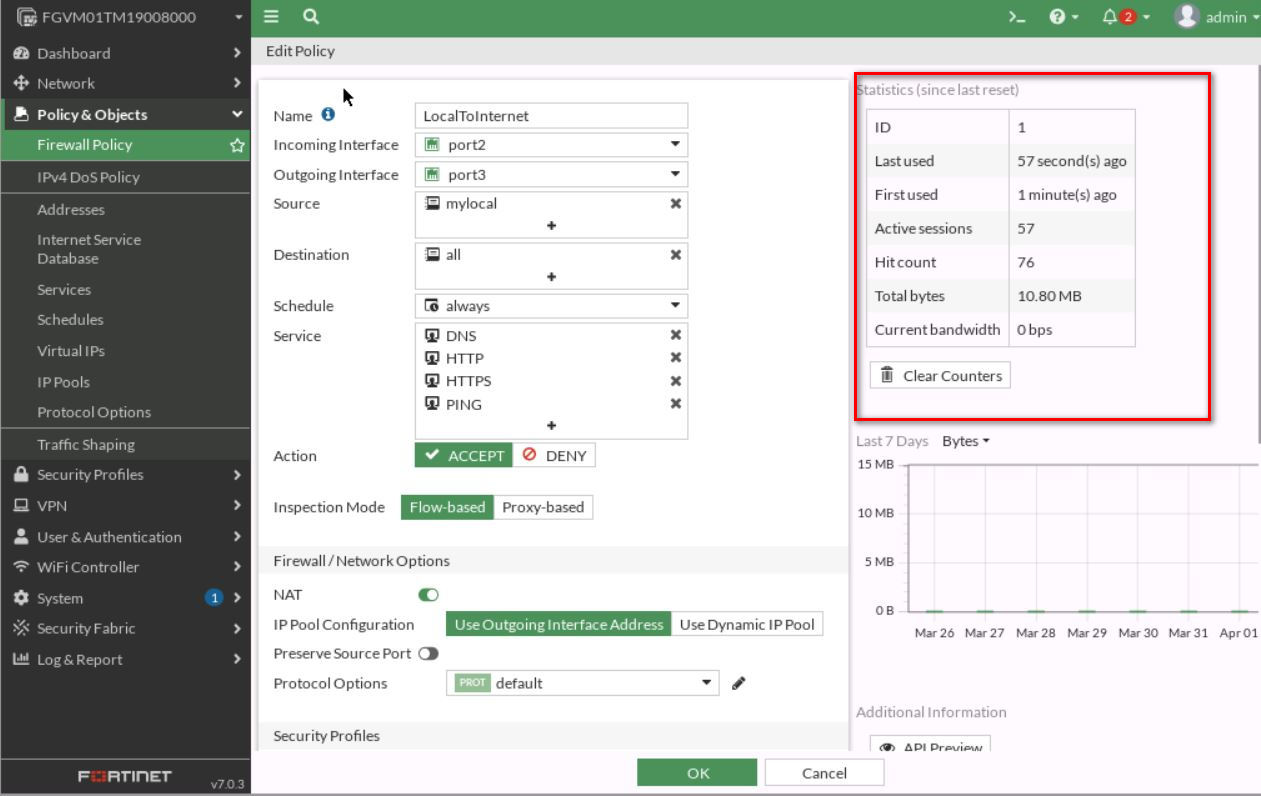
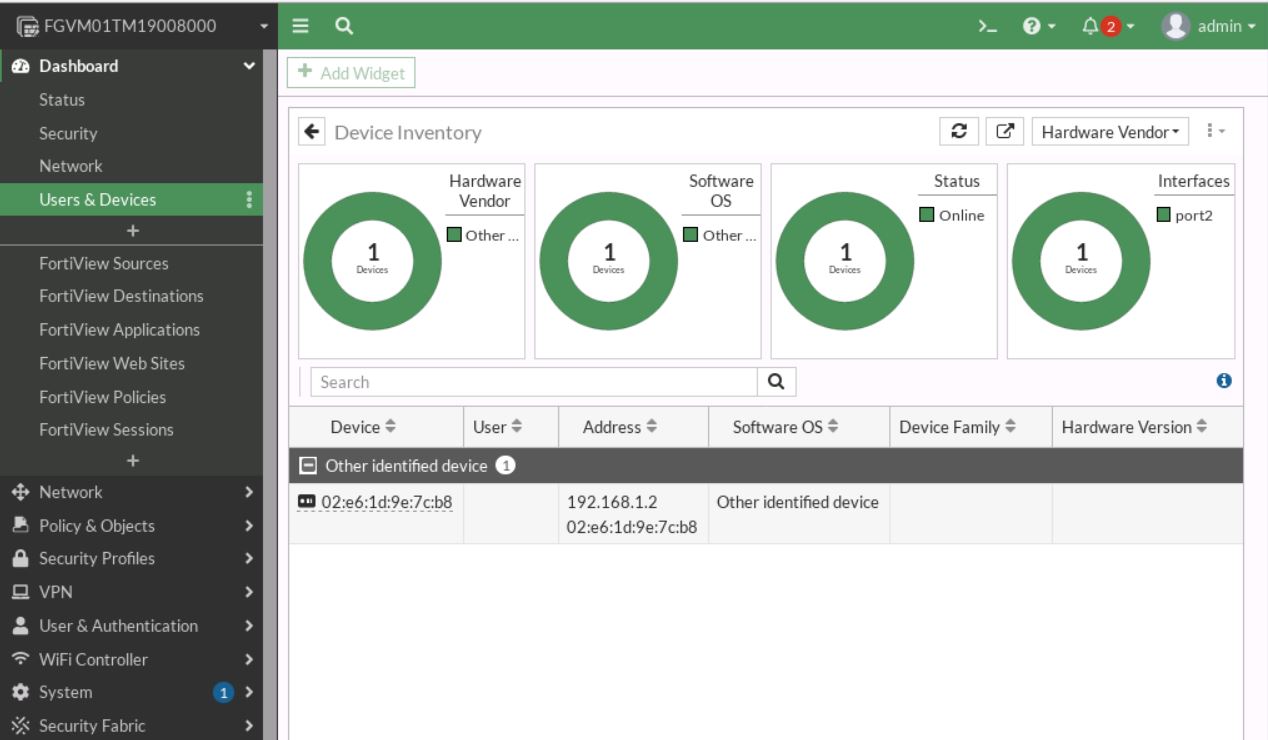
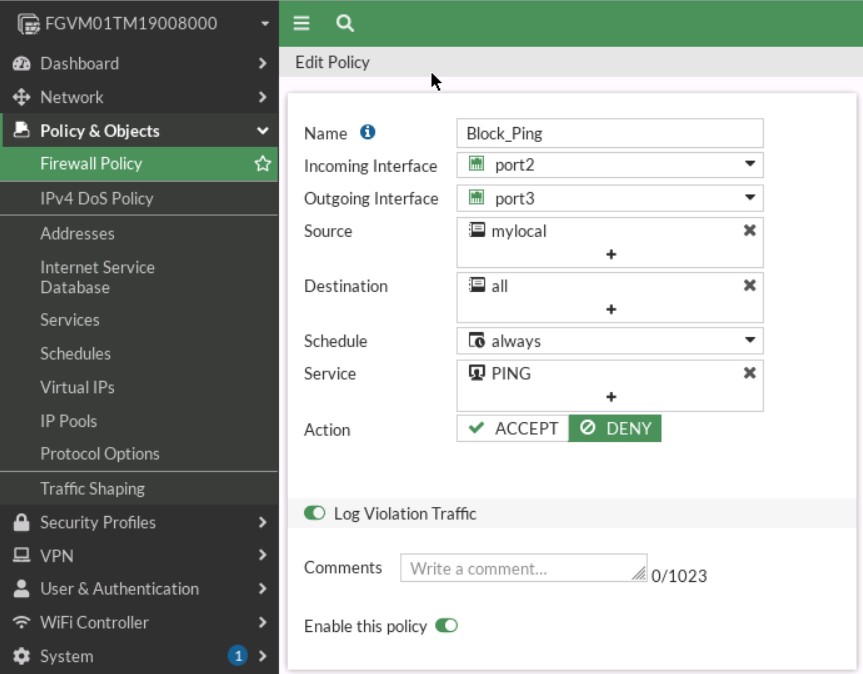
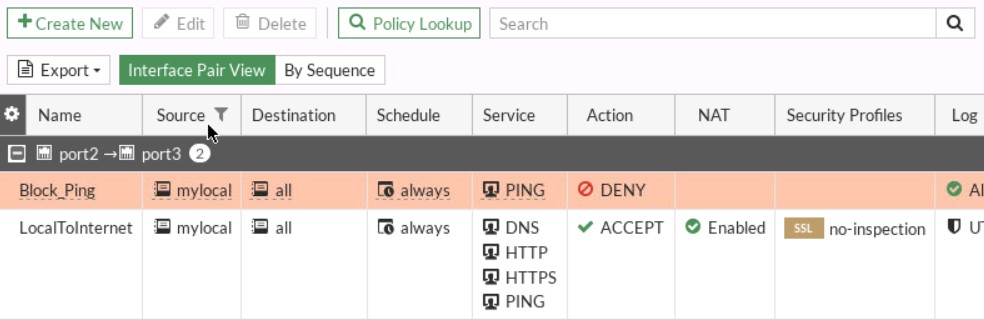
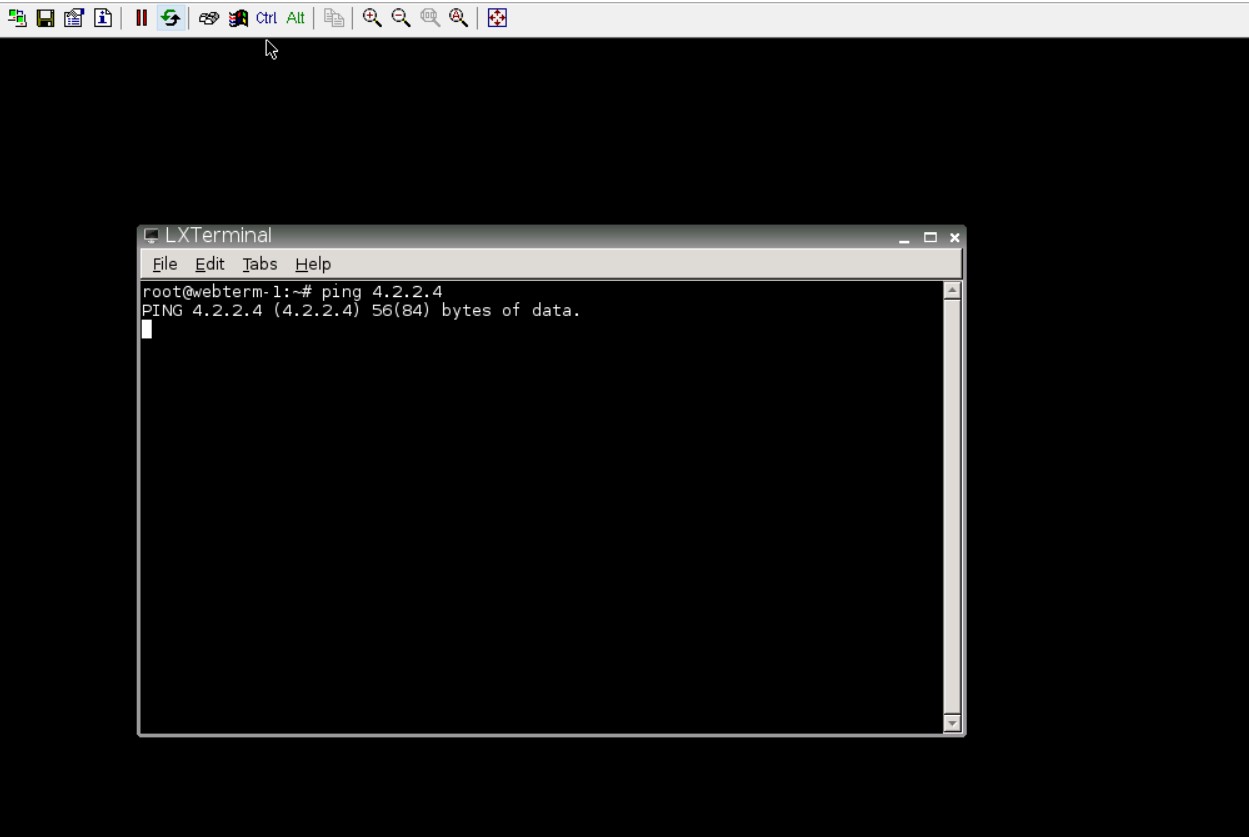
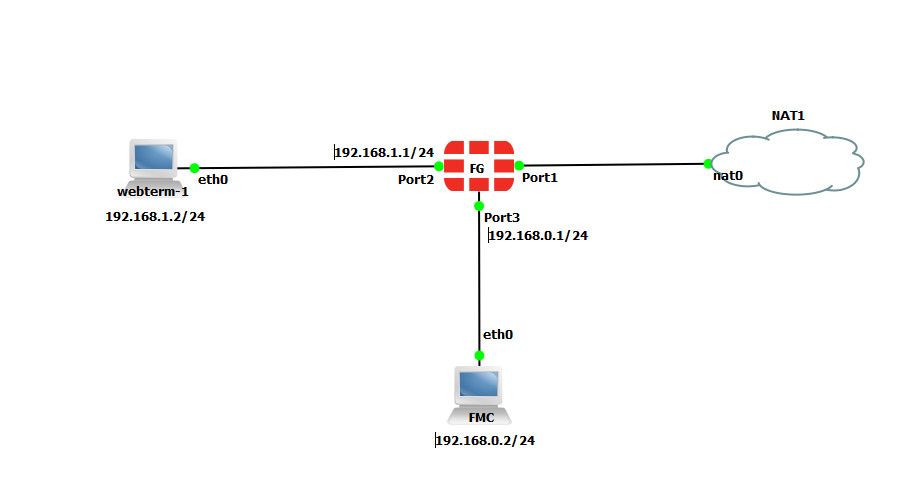
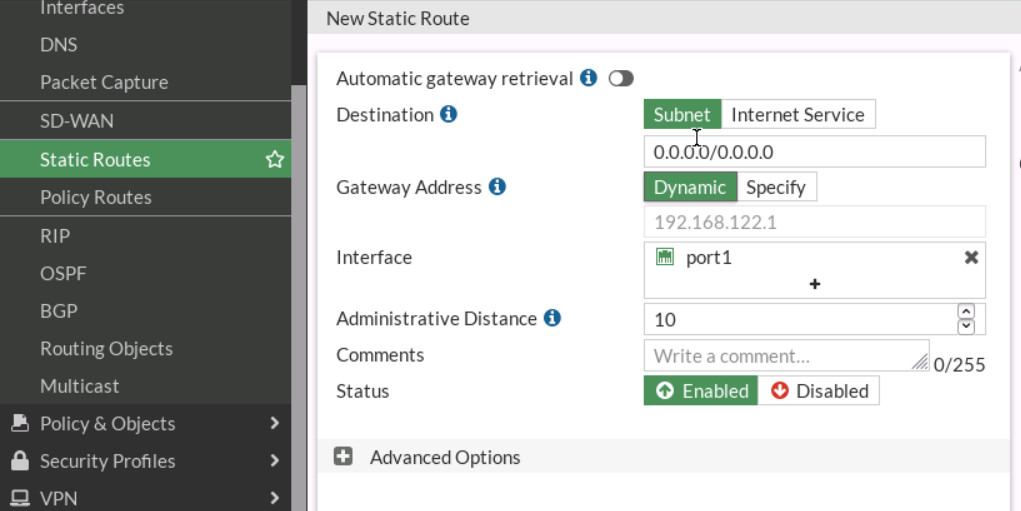
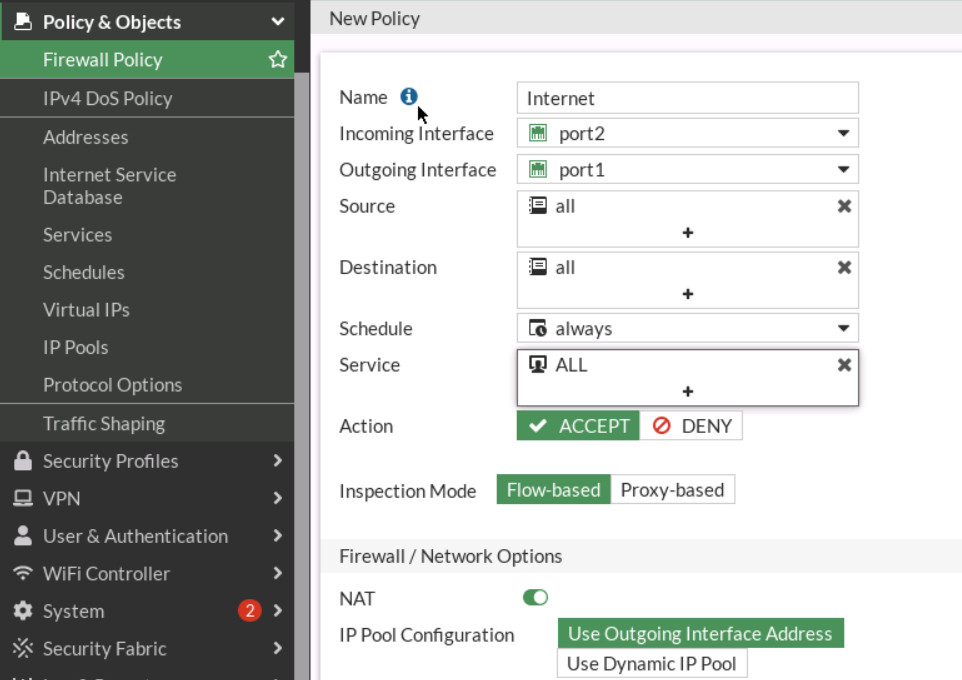
				 <div class="textbox textbox--learning-objectives"><div class="textbox__header"><p class="textbox__title">Learning Objectives</p> </div> <div class="textbox__content"><ul><li>Create a Security Policy in FortiGate</li> <li>Reorder Firewall Policies and Firewall Policy Actions</li> </ul> </div> </div> <div class="textbox shaded"><strong>Scenario</strong>: We are going to allow traffic from the local network to the Internet. We will set Security Policy that allows the traffic from Port 2 to Port 3. Then, WebTerm1 will be able to reach the Internet.</div> <h2 style="text-align: left;">Security Policy</h2> <div class="wp-caption aligncenter" id="attachment_53" aria-describedby="caption-attachment-53" style="width: 931px"><img class="wp-image-38 size-full" src="https://opentextbc.ca/wp-content/uploads/sites/438/2022/04/2-0.jpg" alt="Security Policy main scenario" width="931" height="437" srcset="https://opentextbc.ca/fortigatefirewall/wp-content/uploads/sites/438/2022/04/2-0.jpg 931w, https://opentextbc.ca/fortigatefirewall/wp-content/uploads/sites/438/2022/04/2-0-300x141.jpg 300w, https://opentextbc.ca/fortigatefirewall/wp-content/uploads/sites/438/2022/04/2-0-768x360.jpg 768w, https://opentextbc.ca/fortigatefirewall/wp-content/uploads/sites/438/2022/04/2-0-65x31.jpg 65w, https://opentextbc.ca/fortigatefirewall/wp-content/uploads/sites/438/2022/04/2-0-225x106.jpg 225w, https://opentextbc.ca/fortigatefirewall/wp-content/uploads/sites/438/2022/04/2-0-350x164.jpg 350w" title="" /><div class="wp-caption-text" id="caption-attachment-53">Figure 2.1: Main scenario</div></div> <p>&nbsp;</p> <div class="level4"><table class="aligncenter" style="border-collapse: collapse; width: 100%;"><caption>Table 2.1: Devices configuration</caption> <tbody><tr style="height: 18px;"><th style="width: 16.4488%; height: 18px;" scope="col">Device</th> <th style="width: 50.2178%; height: 18px;" scope="col">Configuration</th> </tr> <tr style="height: 18px;"><td style="width: 16.4488%; height: 18px;">FortiGate</td> <td style="width: 50.2178%; height: 18px;">Port 2: DHCP Server <p>Port 3: DHCP Client</p></td> </tr> <tr style="height: 18px;"><td style="width: 16.4488%; height: 18px;">&nbsp;WebTerm</td> <td style="width: 50.2178%; height: 18px;">DHCP Client</td> </tr> </tbody> </table> </div> <p>Configuration of port1 of the firewall in CLI is as follows:</p> <div class="wp-caption aligncenter" aria-describedby="caption-attachment-53" style="width: 578px"><img class="wp-image-39 size-full" src="https://opentextbc.ca/wp-content/uploads/sites/438/2023/08/2-3.jpg" alt="Configuration of Port1" width="578" height="234" srcset="https://opentextbc.ca/fortigatefirewall/wp-content/uploads/sites/438/2023/08/2-3.jpg 578w, https://opentextbc.ca/fortigatefirewall/wp-content/uploads/sites/438/2023/08/2-3-300x121.jpg 300w, https://opentextbc.ca/fortigatefirewall/wp-content/uploads/sites/438/2023/08/2-3-65x26.jpg 65w, https://opentextbc.ca/fortigatefirewall/wp-content/uploads/sites/438/2023/08/2-3-225x91.jpg 225w, https://opentextbc.ca/fortigatefirewall/wp-content/uploads/sites/438/2023/08/2-3-350x142.jpg 350w" title="" /><div class="wp-caption-text">Figure 2.2: Configuration of port1</div></div> <ol><li>Open the browser in WebTerm2 and type https://192.168.0.1. You should be able to access the firewall.<br /> <div class="wp-caption aligncenter" id="attachment_40" aria-describedby="caption-attachment-40" style="width: 400px"><img class="wp-image-40" src="https://opentextbc.ca/wp-content/uploads/sites/438/2023/08/2-4.jpg" alt="Login in to the FortiGate" width="400" height="297" srcset="https://opentextbc.ca/fortigatefirewall/wp-content/uploads/sites/438/2023/08/2-4.jpg 1023w, https://opentextbc.ca/fortigatefirewall/wp-content/uploads/sites/438/2023/08/2-4-300x223.jpg 300w, https://opentextbc.ca/fortigatefirewall/wp-content/uploads/sites/438/2023/08/2-4-768x571.jpg 768w, https://opentextbc.ca/fortigatefirewall/wp-content/uploads/sites/438/2023/08/2-4-65x48.jpg 65w, https://opentextbc.ca/fortigatefirewall/wp-content/uploads/sites/438/2023/08/2-4-225x167.jpg 225w, https://opentextbc.ca/fortigatefirewall/wp-content/uploads/sites/438/2023/08/2-4-350x260.jpg 350w" title="" /><div class="wp-caption-text" id="caption-attachment-40">Figure 2.3: Log in to the FortiGate</div></div> </li> <li>Go to <strong>Network</strong> &gt; <strong>Interfaces</strong> &gt; <strong>Port2</strong>, set the interface IP address as <strong>192.168.1.1/24</strong> and configure DHCP server on interface port2 (Range of IP addresses should be: 192.168.1.20 to 192.168.1.30, DNS: 4.2.2.4) and <strong>Enable Device Detection</strong> under Port2.<br /> <div class="wp-caption aligncenter" id="attachment_41" aria-describedby="caption-attachment-41" style="width: 1150px"><img class="wp-image-41 size-full" src="https://opentextbc.ca/wp-content/uploads/sites/438/2023/08/2-5-2.jpg" alt="Enable DHCP Server" width="1150" height="632" srcset="https://opentextbc.ca/fortigatefirewall/wp-content/uploads/sites/438/2023/08/2-5-2.jpg 1150w, https://opentextbc.ca/fortigatefirewall/wp-content/uploads/sites/438/2023/08/2-5-2-300x165.jpg 300w, https://opentextbc.ca/fortigatefirewall/wp-content/uploads/sites/438/2023/08/2-5-2-1024x563.jpg 1024w, https://opentextbc.ca/fortigatefirewall/wp-content/uploads/sites/438/2023/08/2-5-2-768x422.jpg 768w, https://opentextbc.ca/fortigatefirewall/wp-content/uploads/sites/438/2023/08/2-5-2-65x36.jpg 65w, https://opentextbc.ca/fortigatefirewall/wp-content/uploads/sites/438/2023/08/2-5-2-225x124.jpg 225w, https://opentextbc.ca/fortigatefirewall/wp-content/uploads/sites/438/2023/08/2-5-2-350x192.jpg 350w" title="" /><div class="wp-caption-text" id="caption-attachment-41">Figure 2.4: Enable DHCP Server</div></div> </li> <li>Set a port3 as a DHCP client and enable <strong>Device Detection</strong> under Port3.<br /> <div class="wp-caption aligncenter" id="attachment_42" aria-describedby="caption-attachment-42" style="width: 914px"><img class="wp-image-42 size-full" src="https://opentextbc.ca/wp-content/uploads/sites/438/2023/08/2-6.jpg" alt="Enable DHCP Client" width="914" height="218" srcset="https://opentextbc.ca/fortigatefirewall/wp-content/uploads/sites/438/2023/08/2-6.jpg 914w, https://opentextbc.ca/fortigatefirewall/wp-content/uploads/sites/438/2023/08/2-6-300x72.jpg 300w, https://opentextbc.ca/fortigatefirewall/wp-content/uploads/sites/438/2023/08/2-6-768x183.jpg 768w, https://opentextbc.ca/fortigatefirewall/wp-content/uploads/sites/438/2023/08/2-6-65x16.jpg 65w, https://opentextbc.ca/fortigatefirewall/wp-content/uploads/sites/438/2023/08/2-6-225x54.jpg 225w, https://opentextbc.ca/fortigatefirewall/wp-content/uploads/sites/438/2023/08/2-6-350x83.jpg 350w" title="" /><div class="wp-caption-text" id="caption-attachment-42">Figure 2.5: Enable DHCP Client</div></div> </li> <li>Set a Static route in the firewall to reach the NAT object. Go to <strong>Network &gt; Static Route &gt; Create a new</strong>.<br /> <div class="wp-caption aligncenter" id="attachment_43" aria-describedby="caption-attachment-43" style="width: 400px"><img class="wp-image-43" src="https://opentextbc.ca/wp-content/uploads/sites/438/2023/08/2-7.jpg" alt="Configure a static route" width="400" height="350" srcset="https://opentextbc.ca/fortigatefirewall/wp-content/uploads/sites/438/2023/08/2-7.jpg 702w, https://opentextbc.ca/fortigatefirewall/wp-content/uploads/sites/438/2023/08/2-7-300x263.jpg 300w, https://opentextbc.ca/fortigatefirewall/wp-content/uploads/sites/438/2023/08/2-7-65x57.jpg 65w, https://opentextbc.ca/fortigatefirewall/wp-content/uploads/sites/438/2023/08/2-7-225x197.jpg 225w, https://opentextbc.ca/fortigatefirewall/wp-content/uploads/sites/438/2023/08/2-7-350x307.jpg 350w" title="" /><div class="wp-caption-text" id="caption-attachment-43">Figure 2.6: Configure a static route</div></div> </li> <li>Go to <strong>Policy &amp; Objects &gt; Firewall Policy</strong> section, click <strong>Create New</strong> to add a new firewall policy, and configure the following settings: <ul><li>Name: <strong>LocalToInternet</strong></li> <li>From <strong>inside</strong> to <strong>outside (port2 to port3)</strong></li> <li>Source: <strong>Create an address for local network (Subnet: 192.168.1.0/24)</strong></li> <li>Destination: <strong>all</strong></li> <li>Schedule: <strong>Always</strong></li> <li>Service: Only <strong>HTTP, HTTPS, DNS, Ping</strong></li> <li>Action: <strong>Accept</strong></li> </ul> <div class="wp-caption aligncenter" id="attachment_45" aria-describedby="caption-attachment-45" style="width: 400px"><img class="wp-image-44" src="https://opentextbc.ca/wp-content/uploads/sites/438/2023/08/2-8.jpg" alt="set local subnet" width="400" height="241" srcset="https://opentextbc.ca/fortigatefirewall/wp-content/uploads/sites/438/2023/08/2-8.jpg 695w, https://opentextbc.ca/fortigatefirewall/wp-content/uploads/sites/438/2023/08/2-8-300x181.jpg 300w, https://opentextbc.ca/fortigatefirewall/wp-content/uploads/sites/438/2023/08/2-8-65x39.jpg 65w, https://opentextbc.ca/fortigatefirewall/wp-content/uploads/sites/438/2023/08/2-8-225x136.jpg 225w, https://opentextbc.ca/fortigatefirewall/wp-content/uploads/sites/438/2023/08/2-8-350x211.jpg 350w" title="" /><div class="wp-caption-text" id="caption-attachment-45">Figure 2.7: Set local subnet</div></div> <div class="wp-caption aligncenter" aria-describedby="caption-attachment-45" style="width: 500px"><img class="wp-image-45" src="https://opentextbc.ca/wp-content/uploads/sites/438/2023/08/2-9.jpg" alt="Set firewall policy" width="500" height="341" srcset="https://opentextbc.ca/fortigatefirewall/wp-content/uploads/sites/438/2023/08/2-9.jpg 1033w, https://opentextbc.ca/fortigatefirewall/wp-content/uploads/sites/438/2023/08/2-9-300x204.jpg 300w, https://opentextbc.ca/fortigatefirewall/wp-content/uploads/sites/438/2023/08/2-9-1024x698.jpg 1024w, https://opentextbc.ca/fortigatefirewall/wp-content/uploads/sites/438/2023/08/2-9-768x523.jpg 768w, https://opentextbc.ca/fortigatefirewall/wp-content/uploads/sites/438/2023/08/2-9-65x44.jpg 65w, https://opentextbc.ca/fortigatefirewall/wp-content/uploads/sites/438/2023/08/2-9-225x153.jpg 225w, https://opentextbc.ca/fortigatefirewall/wp-content/uploads/sites/438/2023/08/2-9-350x239.jpg 350w" title="" /><div class="wp-caption-text">Figure 2.8: Set firewall policy</div></div> </li> <li>Go to <strong>WebTerm1</strong>, Set interface as DHCP and then open the browser, you should be able to access the internet.<br /> <div class="wp-caption aligncenter" id="attachment_47" aria-describedby="caption-attachment-47" style="width: 1053px"><img class="wp-image-46 size-full" src="https://opentextbc.ca/wp-content/uploads/sites/438/2023/08/2-10-1.jpg" alt="Enable DHCP Client on webterm1" width="1053" height="729" srcset="https://opentextbc.ca/fortigatefirewall/wp-content/uploads/sites/438/2023/08/2-10-1.jpg 1053w, https://opentextbc.ca/fortigatefirewall/wp-content/uploads/sites/438/2023/08/2-10-1-300x208.jpg 300w, https://opentextbc.ca/fortigatefirewall/wp-content/uploads/sites/438/2023/08/2-10-1-1024x709.jpg 1024w, https://opentextbc.ca/fortigatefirewall/wp-content/uploads/sites/438/2023/08/2-10-1-768x532.jpg 768w, https://opentextbc.ca/fortigatefirewall/wp-content/uploads/sites/438/2023/08/2-10-1-65x45.jpg 65w, https://opentextbc.ca/fortigatefirewall/wp-content/uploads/sites/438/2023/08/2-10-1-225x156.jpg 225w, https://opentextbc.ca/fortigatefirewall/wp-content/uploads/sites/438/2023/08/2-10-1-350x242.jpg 350w" title="" /><div class="wp-caption-text" id="caption-attachment-47">Figure 2.9: Enable DHCP Client on WebTerm1</div></div> <div class="wp-caption aligncenter" aria-describedby="caption-attachment-47" style="width: 500px"><img class="wp-image-47" src="https://opentextbc.ca/wp-content/uploads/sites/438/2023/08/2-11.jpg" alt="Verify your configuration by testing google.com" width="500" height="360" srcset="https://opentextbc.ca/fortigatefirewall/wp-content/uploads/sites/438/2023/08/2-11.jpg 1268w, https://opentextbc.ca/fortigatefirewall/wp-content/uploads/sites/438/2023/08/2-11-300x216.jpg 300w, https://opentextbc.ca/fortigatefirewall/wp-content/uploads/sites/438/2023/08/2-11-1024x737.jpg 1024w, https://opentextbc.ca/fortigatefirewall/wp-content/uploads/sites/438/2023/08/2-11-768x553.jpg 768w, https://opentextbc.ca/fortigatefirewall/wp-content/uploads/sites/438/2023/08/2-11-65x47.jpg 65w, https://opentextbc.ca/fortigatefirewall/wp-content/uploads/sites/438/2023/08/2-11-225x162.jpg 225w, https://opentextbc.ca/fortigatefirewall/wp-content/uploads/sites/438/2023/08/2-11-350x252.jpg 350w" title="" /><div class="wp-caption-text">Figure 2.10: Verify your configuration by testing Google.com</div></div> </li> </ol> <h2>Verify Your Configuration</h2> <ul><li>Go to <strong>Dashboard </strong>&gt; <strong>FortiView Sessions</strong>. You should be able to see the traffic.</li> </ul> <div class="wp-caption aligncenter" aria-describedby="caption-attachment-53" style="width: 1270px"><img class="wp-image-48 size-full" src="https://opentextbc.ca/wp-content/uploads/sites/438/2023/08/2-12.jpg" alt="Fortiview Sessions" width="1270" height="742" srcset="https://opentextbc.ca/fortigatefirewall/wp-content/uploads/sites/438/2023/08/2-12.jpg 1270w, https://opentextbc.ca/fortigatefirewall/wp-content/uploads/sites/438/2023/08/2-12-300x175.jpg 300w, https://opentextbc.ca/fortigatefirewall/wp-content/uploads/sites/438/2023/08/2-12-1024x598.jpg 1024w, https://opentextbc.ca/fortigatefirewall/wp-content/uploads/sites/438/2023/08/2-12-768x449.jpg 768w, https://opentextbc.ca/fortigatefirewall/wp-content/uploads/sites/438/2023/08/2-12-65x38.jpg 65w, https://opentextbc.ca/fortigatefirewall/wp-content/uploads/sites/438/2023/08/2-12-225x131.jpg 225w, https://opentextbc.ca/fortigatefirewall/wp-content/uploads/sites/438/2023/08/2-12-350x204.jpg 350w" title="" /><div class="wp-caption-text">Figure 2.11: FortiView Sessions</div></div> <ul><li>&nbsp;Go to Firewall Policy and on the right side of the screen, you should be able to see <strong>Hit count.</strong></li> </ul> <div class="wp-caption aligncenter" aria-describedby="caption-attachment-53" style="width: 1261px"><img class="wp-image-49 size-full" src="https://opentextbc.ca/wp-content/uploads/sites/438/2023/08/2-13-1.jpg" alt="Hit count in the Firewall Policy" width="1261" height="796" srcset="https://opentextbc.ca/fortigatefirewall/wp-content/uploads/sites/438/2023/08/2-13-1.jpg 1261w, https://opentextbc.ca/fortigatefirewall/wp-content/uploads/sites/438/2023/08/2-13-1-300x189.jpg 300w, https://opentextbc.ca/fortigatefirewall/wp-content/uploads/sites/438/2023/08/2-13-1-1024x646.jpg 1024w, https://opentextbc.ca/fortigatefirewall/wp-content/uploads/sites/438/2023/08/2-13-1-768x485.jpg 768w, https://opentextbc.ca/fortigatefirewall/wp-content/uploads/sites/438/2023/08/2-13-1-65x41.jpg 65w, https://opentextbc.ca/fortigatefirewall/wp-content/uploads/sites/438/2023/08/2-13-1-225x142.jpg 225w, https://opentextbc.ca/fortigatefirewall/wp-content/uploads/sites/438/2023/08/2-13-1-350x221.jpg 350w" title="" /><div class="wp-caption-text">Figure 2.12: Hit count in the Firewall Policy</div></div> <ul><li>Go to <strong>Dashboard</strong> &gt; <strong>Users &amp; Devices</strong> &gt; <strong>Device Inventory</strong> and verify the IP and Mac address of the device.</li> </ul> <div class="wp-caption aligncenter" aria-describedby="caption-attachment-53" style="width: 1268px"><img class="wp-image-50 size-full" src="https://opentextbc.ca/wp-content/uploads/sites/438/2023/08/2-14.jpg" alt="Device Inventory" width="1268" height="740" srcset="https://opentextbc.ca/fortigatefirewall/wp-content/uploads/sites/438/2023/08/2-14.jpg 1268w, https://opentextbc.ca/fortigatefirewall/wp-content/uploads/sites/438/2023/08/2-14-300x175.jpg 300w, https://opentextbc.ca/fortigatefirewall/wp-content/uploads/sites/438/2023/08/2-14-1024x598.jpg 1024w, https://opentextbc.ca/fortigatefirewall/wp-content/uploads/sites/438/2023/08/2-14-768x448.jpg 768w, https://opentextbc.ca/fortigatefirewall/wp-content/uploads/sites/438/2023/08/2-14-65x38.jpg 65w, https://opentextbc.ca/fortigatefirewall/wp-content/uploads/sites/438/2023/08/2-14-225x131.jpg 225w, https://opentextbc.ca/fortigatefirewall/wp-content/uploads/sites/438/2023/08/2-14-350x204.jpg 350w" title="" /><div class="wp-caption-text">Figure 2.13: Device Inventory</div></div> <h2>Reordering Firewall Policies and Firewall Policy Actions</h2> <p>FortiGate will look for a matching policy, beginning at the top. Usually, you should put more specific policies at the top; otherwise, more general policies will match the traffic first, and your more granular policies will never be applied.</p> <p>You will create a new firewall policy with more specific settings such as source, destination, service, and action set to <strong>DENY</strong>. Then, you will move this firewall policy above the existing firewall policies and observe the behaviour of firewall policy reordering.</p> <h3>Create a firewall policy</h3> <p>You will create a new firewall policy to match a specific source, destination, service, and action set to <strong>DENY</strong>.</p> <table class="aligncenter" style="width: 100%;"><caption>Table 2.2: Firewall policy configuration</caption> <tbody><tr><th scope="col">Field</th> <th scope="col">Value</th> </tr> <tr><td>Name</td> <td>Block_Ping</td> </tr> <tr><td>Incoming Interface</td> <td>Port2</td> </tr> <tr><td>Outgoing Interface</td> <td>Port3</td> </tr> <tr><td>Source</td> <td>LOCAL_SUBNET</td> </tr> <tr><td>Destination</td> <td>All</td> </tr> <tr><td>Schedule</td> <td>Always</td> </tr> <tr><td>Service</td> <td>PING</td> </tr> <tr><td>Action</td> <td>DENY</td> </tr> <tr><td>Log Violation Traffic</td> <td>&lt;enable&gt;</td> </tr> <tr><td>Enable this policy</td> <td>&lt;enable&gt;</td> </tr> </tbody> </table> <div class="wp-caption aligncenter" aria-describedby="caption-attachment-53" style="width: 500px"><img class="wp-image-51" src="https://opentextbc.ca/wp-content/uploads/sites/438/2023/08/ScreenShot00068.jpg" alt="Set firewall policy to block ping" width="500" height="390" srcset="https://opentextbc.ca/fortigatefirewall/wp-content/uploads/sites/438/2023/08/ScreenShot00068.jpg 863w, https://opentextbc.ca/fortigatefirewall/wp-content/uploads/sites/438/2023/08/ScreenShot00068-300x234.jpg 300w, https://opentextbc.ca/fortigatefirewall/wp-content/uploads/sites/438/2023/08/ScreenShot00068-768x600.jpg 768w, https://opentextbc.ca/fortigatefirewall/wp-content/uploads/sites/438/2023/08/ScreenShot00068-65x51.jpg 65w, https://opentextbc.ca/fortigatefirewall/wp-content/uploads/sites/438/2023/08/ScreenShot00068-225x176.jpg 225w, https://opentextbc.ca/fortigatefirewall/wp-content/uploads/sites/438/2023/08/ScreenShot00068-350x273.jpg 350w" title="" /><div class="wp-caption-text">Figure 2.14: Set firewall policy to block ping</div></div> <p>Click <strong>OK</strong> to save the changes. Add this policy on top of the previous policy.</p> <div class="wp-caption aligncenter" aria-describedby="caption-attachment-53" style="width: 984px"><img class="wp-image-52 size-full" src="https://opentextbc.ca/wp-content/uploads/sites/438/2023/08/ScreenShot00069.jpg" alt="Priority of Block_Ping should be higher than LocalToInternet" width="984" height="320" srcset="https://opentextbc.ca/fortigatefirewall/wp-content/uploads/sites/438/2023/08/ScreenShot00069.jpg 984w, https://opentextbc.ca/fortigatefirewall/wp-content/uploads/sites/438/2023/08/ScreenShot00069-300x98.jpg 300w, https://opentextbc.ca/fortigatefirewall/wp-content/uploads/sites/438/2023/08/ScreenShot00069-768x250.jpg 768w, https://opentextbc.ca/fortigatefirewall/wp-content/uploads/sites/438/2023/08/ScreenShot00069-65x21.jpg 65w, https://opentextbc.ca/fortigatefirewall/wp-content/uploads/sites/438/2023/08/ScreenShot00069-225x73.jpg 225w, https://opentextbc.ca/fortigatefirewall/wp-content/uploads/sites/438/2023/08/ScreenShot00069-350x114.jpg 350w" title="" /><div class="wp-caption-text">Figure 2.15: Priority of Block_Ping should be higher than LocalToInternet</div></div> <p>Go to <strong>Webterm1</strong> and ping <strong>4.2.2.4</strong>. You shouldn’t be able to ping!</p> <div class="wp-caption aligncenter" aria-describedby="caption-attachment-53" style="width: 1249px"><img class="wp-image-53 size-full" src="https://opentextbc.ca/wp-content/uploads/sites/438/2023/08/ScreenShot00070.jpg" alt="Webterm1 and ping 4.2.2.4. You shouldn&amp;#039;t be able to ping!" width="1249" height="837" srcset="https://opentextbc.ca/fortigatefirewall/wp-content/uploads/sites/438/2023/08/ScreenShot00070.jpg 1249w, https://opentextbc.ca/fortigatefirewall/wp-content/uploads/sites/438/2023/08/ScreenShot00070-300x201.jpg 300w, https://opentextbc.ca/fortigatefirewall/wp-content/uploads/sites/438/2023/08/ScreenShot00070-1024x686.jpg 1024w, https://opentextbc.ca/fortigatefirewall/wp-content/uploads/sites/438/2023/08/ScreenShot00070-768x515.jpg 768w, https://opentextbc.ca/fortigatefirewall/wp-content/uploads/sites/438/2023/08/ScreenShot00070-65x44.jpg 65w, https://opentextbc.ca/fortigatefirewall/wp-content/uploads/sites/438/2023/08/ScreenShot00070-225x151.jpg 225w, https://opentextbc.ca/fortigatefirewall/wp-content/uploads/sites/438/2023/08/ScreenShot00070-350x235.jpg 350w" title="" /><div class="wp-caption-text">Figure 2.16: Verify ping in the WebTerm1</div></div> 
	</div>


	</div>
<div class="chapter standard " id="chapter-application-profile" title="2.2 Application Profile">
	<div class="chapter-title-wrap">
		<p class="chapter-number">3</p>
		<h1 class="chapter-title">2.2 Application Profile</h1>
								</div>
	<div class="ugc chapter-ugc">
				 <div class="textbox textbox--learning-objectives"><div class="textbox__header"><p class="textbox__title">Learning Objectives</p> </div> <div class="textbox__content"><ul><li>Work with application profile in FortiGate</li> <li>Create a Traffic Shaper</li> <li>Apply Traffic Shaping to the traffic</li> </ul> </div> </div> <div class="textbox shaded"><strong>Scenario</strong>: Application control uses IPS protocol decoders that can analyze network traffic to detect application traffic, even if the traffic uses non-standard ports or protocols. We are going to block social networks in the first example and then we are going to set Traffic Shaper for the local PCs in the second example. Finally, we will try to verify the connection speed in both PCs in the local network and compare them together.</div> <h2>Working with Application Profile</h2> <ol><li>Go to <strong>Policy &amp; Objects</strong> &gt; <strong>Firewall Policy</strong> section, select <strong>LocalToInternet</strong> policy you have created in the previous section. Click on Edit.</li> <li>Go to <strong>Security Profile section</strong> &gt; <strong>Application Control</strong>. <ul><li>Create a new Application Control</li> <li>Name: <strong>Ban-SocialNetwork</strong></li> <li>In Categories <strong>Block</strong> Social Media, Video/Audio</li> </ul> <div class="wp-caption aligncenter" id="attachment_56" aria-describedby="caption-attachment-56" style="width: 500px"><img class="wp-image-56" src="https://opentextbc.ca/wp-content/uploads/sites/438/2022/03/ScreenShot00071.jpg" alt="Block Social Media, Video/Audio" width="500" height="460" srcset="https://opentextbc.ca/fortigatefirewall/wp-content/uploads/sites/438/2022/03/ScreenShot00071.jpg 714w, https://opentextbc.ca/fortigatefirewall/wp-content/uploads/sites/438/2022/03/ScreenShot00071-300x276.jpg 300w, https://opentextbc.ca/fortigatefirewall/wp-content/uploads/sites/438/2022/03/ScreenShot00071-65x60.jpg 65w, https://opentextbc.ca/fortigatefirewall/wp-content/uploads/sites/438/2022/03/ScreenShot00071-225x207.jpg 225w, https://opentextbc.ca/fortigatefirewall/wp-content/uploads/sites/438/2022/03/ScreenShot00071-350x322.jpg 350w" title="" /><div class="wp-caption-text" id="caption-attachment-56">Figure 2.17: Block Social.Media and Video/Audio</div></div> <p>For Application and Filter Overrides. Because a filter override is configured to block applications that use excessive bandwidth, it will block all applications using excessive bandwidth, regardless of categories that allow these applications.</p></li> <li>In <strong>Application and Filter overrides</strong> &gt; <strong>Create a new</strong>. <ol><li>Select <strong>Application</strong></li> <li>Action: <strong>Block</strong></li> <li>Application: <strong>YouTube</strong></li> </ol> <div class="wp-caption aligncenter" id="attachment_57" aria-describedby="caption-attachment-57" style="width: 500px"><img class="wp-image-57" src="https://opentextbc.ca/wp-content/uploads/sites/438/2023/08/ScreenShot00074.jpg" alt="Blocking YouTube" width="500" height="399" srcset="https://opentextbc.ca/fortigatefirewall/wp-content/uploads/sites/438/2023/08/ScreenShot00074.jpg 994w, https://opentextbc.ca/fortigatefirewall/wp-content/uploads/sites/438/2023/08/ScreenShot00074-300x239.jpg 300w, https://opentextbc.ca/fortigatefirewall/wp-content/uploads/sites/438/2023/08/ScreenShot00074-768x613.jpg 768w, https://opentextbc.ca/fortigatefirewall/wp-content/uploads/sites/438/2023/08/ScreenShot00074-65x52.jpg 65w, https://opentextbc.ca/fortigatefirewall/wp-content/uploads/sites/438/2023/08/ScreenShot00074-225x180.jpg 225w, https://opentextbc.ca/fortigatefirewall/wp-content/uploads/sites/438/2023/08/ScreenShot00074-350x279.jpg 350w" title="" /><div class="wp-caption-text" id="caption-attachment-57">Figure 2.18: Block YouTube</div></div> </li> <li>In <strong>Application and Filter overrides</strong> &gt; <strong>Create a new</strong>. <ol><li>Select <strong>Application</strong></li> <li>Action: <strong>Block</strong></li> <li>Application: <strong>Facebook_Chat</strong></li> </ol> <div class="wp-caption aligncenter" id="attachment_58" aria-describedby="caption-attachment-58" style="width: 500px"><img class="wp-image-58" src="https://opentextbc.ca/wp-content/uploads/sites/438/2023/08/ScreenShot00079.jpg" alt="Blocking Facebook" width="500" height="400" srcset="https://opentextbc.ca/fortigatefirewall/wp-content/uploads/sites/438/2023/08/ScreenShot00079.jpg 997w, https://opentextbc.ca/fortigatefirewall/wp-content/uploads/sites/438/2023/08/ScreenShot00079-300x240.jpg 300w, https://opentextbc.ca/fortigatefirewall/wp-content/uploads/sites/438/2023/08/ScreenShot00079-768x615.jpg 768w, https://opentextbc.ca/fortigatefirewall/wp-content/uploads/sites/438/2023/08/ScreenShot00079-65x52.jpg 65w, https://opentextbc.ca/fortigatefirewall/wp-content/uploads/sites/438/2023/08/ScreenShot00079-225x180.jpg 225w, https://opentextbc.ca/fortigatefirewall/wp-content/uploads/sites/438/2023/08/ScreenShot00079-350x280.jpg 350w" title="" /><div class="wp-caption-text" id="caption-attachment-58">Figure 2.19: Block Facebook</div></div> </li> <li><strong>OK</strong> all and now open the browser and go to <strong>Twitter.com</strong> or <strong>YouTube.com</strong> and try to search for a video and you should receive an application block page.<br /> <div class="wp-caption aligncenter" id="attachment_59" aria-describedby="caption-attachment-59" style="width: 500px"><img class="wp-image-59" src="https://opentextbc.ca/wp-content/uploads/sites/438/2023/08/ScreenShot00078.jpg" alt="Application Control Blocked Page" width="500" height="391" srcset="https://opentextbc.ca/fortigatefirewall/wp-content/uploads/sites/438/2023/08/ScreenShot00078.jpg 1127w, https://opentextbc.ca/fortigatefirewall/wp-content/uploads/sites/438/2023/08/ScreenShot00078-300x235.jpg 300w, https://opentextbc.ca/fortigatefirewall/wp-content/uploads/sites/438/2023/08/ScreenShot00078-1024x801.jpg 1024w, https://opentextbc.ca/fortigatefirewall/wp-content/uploads/sites/438/2023/08/ScreenShot00078-768x601.jpg 768w, https://opentextbc.ca/fortigatefirewall/wp-content/uploads/sites/438/2023/08/ScreenShot00078-65x51.jpg 65w, https://opentextbc.ca/fortigatefirewall/wp-content/uploads/sites/438/2023/08/ScreenShot00078-225x176.jpg 225w, https://opentextbc.ca/fortigatefirewall/wp-content/uploads/sites/438/2023/08/ScreenShot00078-350x274.jpg 350w" title="" /><div class="wp-caption-text" id="caption-attachment-59">Figure 2.20: Application Control Blocked page</div></div> </li> <li>Go to <strong>Log &amp; Report</strong> &gt; <strong>Application Control</strong> and try to find the logs related to the previous step.<br /> <div class="wp-caption alignnone" id="attachment_60" aria-describedby="caption-attachment-60" style="width: 1194px"><img class="wp-image-60 size-full" src="https://opentextbc.ca/wp-content/uploads/sites/438/2023/08/ScreenShot00080.jpg" alt="Application Control Logs" width="1194" height="717" srcset="https://opentextbc.ca/fortigatefirewall/wp-content/uploads/sites/438/2023/08/ScreenShot00080.jpg 1194w, https://opentextbc.ca/fortigatefirewall/wp-content/uploads/sites/438/2023/08/ScreenShot00080-300x180.jpg 300w, https://opentextbc.ca/fortigatefirewall/wp-content/uploads/sites/438/2023/08/ScreenShot00080-1024x615.jpg 1024w, https://opentextbc.ca/fortigatefirewall/wp-content/uploads/sites/438/2023/08/ScreenShot00080-768x461.jpg 768w, https://opentextbc.ca/fortigatefirewall/wp-content/uploads/sites/438/2023/08/ScreenShot00080-65x39.jpg 65w, https://opentextbc.ca/fortigatefirewall/wp-content/uploads/sites/438/2023/08/ScreenShot00080-225x135.jpg 225w, https://opentextbc.ca/fortigatefirewall/wp-content/uploads/sites/438/2023/08/ScreenShot00080-350x210.jpg 350w" title="" /><div class="wp-caption-text" id="caption-attachment-60">Figure 2.21: Application Control logs</div></div> </li> </ol> <h2>Working with Application Profile: Part 2</h2> <div class="wp-caption aligncenter" id="attachment_61" aria-describedby="caption-attachment-61" style="width: 1090px"><img class="wp-image-61 size-full" src="https://opentextbc.ca/wp-content/uploads/sites/438/2023/08/ScreenShot00081.jpg" alt="main scenario" width="1090" height="535" srcset="https://opentextbc.ca/fortigatefirewall/wp-content/uploads/sites/438/2023/08/ScreenShot00081.jpg 1090w, https://opentextbc.ca/fortigatefirewall/wp-content/uploads/sites/438/2023/08/ScreenShot00081-300x147.jpg 300w, https://opentextbc.ca/fortigatefirewall/wp-content/uploads/sites/438/2023/08/ScreenShot00081-1024x503.jpg 1024w, https://opentextbc.ca/fortigatefirewall/wp-content/uploads/sites/438/2023/08/ScreenShot00081-768x377.jpg 768w, https://opentextbc.ca/fortigatefirewall/wp-content/uploads/sites/438/2023/08/ScreenShot00081-65x32.jpg 65w, https://opentextbc.ca/fortigatefirewall/wp-content/uploads/sites/438/2023/08/ScreenShot00081-225x110.jpg 225w, https://opentextbc.ca/fortigatefirewall/wp-content/uploads/sites/438/2023/08/ScreenShot00081-350x172.jpg 350w" title="" /><div class="wp-caption-text" id="caption-attachment-61">Figure 2.22: Main scenario</div></div> <div class="level4"><table class="aligncenter" style="border-collapse: collapse; width: 100%;"><caption>Table 2.3: Devices Configuration</caption> <tbody><tr style="height: 18px;"><th style="width: 17.8558%; height: 18px;" scope="col">Device</th> <th style="width: 48.8108%; height: 18px;" scope="col">Configuration</th> </tr> <tr style="height: 18px;"><td style="width: 17.8558%; height: 18px;">FortiGate</td> <td style="width: 48.8108%; height: 18px;">Port 2: DHCP Server (192.168.1.20 – 192.168.1.30) <p>Port 3: DHCP Client</p></td> </tr> <tr style="height: 18px;"><td style="width: 17.8558%; height: 18px;">WebTerm1</td> <td style="width: 48.8108%; height: 18px;">DHCP Client</td> </tr> <tr style="height: 18px;"><td style="width: 17.8558%; height: 18px;">WebTerm3</td> <td style="width: 48.8108%; height: 18px;">DHCP Client</td> </tr> </tbody> </table> </div> <ol><li>Remove the application control you have set for policies in the previous step.</li> <li>Add Ethernet Switch and <strong>WebTerm3 </strong>to your GNS3. WebTerm3 should receive an IP address from DHCP.<br /> <div class="wp-caption aligncenter" id="attachment_62" aria-describedby="caption-attachment-62" style="width: 1281px"><img class="wp-image-62 size-full" src="https://opentextbc.ca/wp-content/uploads/sites/438/2023/08/ScreenShot00084.jpg" alt="Verify DHCP address in WebTerm3" width="1281" height="994" srcset="https://opentextbc.ca/fortigatefirewall/wp-content/uploads/sites/438/2023/08/ScreenShot00084.jpg 1281w, https://opentextbc.ca/fortigatefirewall/wp-content/uploads/sites/438/2023/08/ScreenShot00084-300x233.jpg 300w, https://opentextbc.ca/fortigatefirewall/wp-content/uploads/sites/438/2023/08/ScreenShot00084-1024x795.jpg 1024w, https://opentextbc.ca/fortigatefirewall/wp-content/uploads/sites/438/2023/08/ScreenShot00084-768x596.jpg 768w, https://opentextbc.ca/fortigatefirewall/wp-content/uploads/sites/438/2023/08/ScreenShot00084-65x50.jpg 65w, https://opentextbc.ca/fortigatefirewall/wp-content/uploads/sites/438/2023/08/ScreenShot00084-225x175.jpg 225w, https://opentextbc.ca/fortigatefirewall/wp-content/uploads/sites/438/2023/08/ScreenShot00084-350x272.jpg 350w" title="" /><div class="wp-caption-text" id="caption-attachment-62">Figure 2.23: Verify DHCP address in WebTerm3</div></div> </li> <li>Set traffic shaping for WebTerm3 to save the bandwidth. <ul><li>Create an Address object for WebTerm3<em>. </em>Go to <strong>Addresses</strong> &gt; <strong>Create a new Address</strong> with the following information:</li> </ul> <table class="standard aligncenter" style="width: 100%;"><caption>Table 2.4: Create a new Address for WebTerm3</caption> <tbody><tr><th scope="col">Field</th> <th scope="col">Value</th> </tr> <tr><td>Name</td> <td>WebTerm3</td> </tr> <tr><td>Type</td> <td>Subnet</td> </tr> <tr><td>Subnet/IP Range</td> <td>192.168.1.21/32 (Check your IP in WebTerm3)</td> </tr> <tr><td>Interface</td> <td>any</td> </tr> </tbody> </table> <div class="wp-caption aligncenter" id="attachment_63" aria-describedby="caption-attachment-63" style="width: 450px"><img class="wp-image-63" src="https://opentextbc.ca/wp-content/uploads/sites/438/2023/08/ScreenShot00086.jpg" alt="WebTerm3 IP Address" width="450" height="251" srcset="https://opentextbc.ca/fortigatefirewall/wp-content/uploads/sites/438/2023/08/ScreenShot00086.jpg 680w, https://opentextbc.ca/fortigatefirewall/wp-content/uploads/sites/438/2023/08/ScreenShot00086-300x168.jpg 300w, https://opentextbc.ca/fortigatefirewall/wp-content/uploads/sites/438/2023/08/ScreenShot00086-65x36.jpg 65w, https://opentextbc.ca/fortigatefirewall/wp-content/uploads/sites/438/2023/08/ScreenShot00086-225x126.jpg 225w, https://opentextbc.ca/fortigatefirewall/wp-content/uploads/sites/438/2023/08/ScreenShot00086-350x196.jpg 350w" title="" /><div class="wp-caption-text" id="caption-attachment-63">Figure 2.24: WebTerm3 IP address</div></div> </li> <li>Go to <strong>Policy &amp; Objects</strong> &gt; <strong>Traffic Shapers</strong> and create a new Per-IP traffic shaper. Shared affects upload speed while Per-IP affects download and upload speed.<br /> <table class="aligncenter" style="width: 100%;"><caption>Table 2.5: Traffic Shaper Configuration</caption> <tbody><tr><th style="width: 264.987px;" scope="col">Field</th> <th style="width: 231.012px;" scope="col">Value</th> </tr> <tr><td style="width: 264.987px;">Type</td> <td style="width: 231.012px;">Per-IP</td> </tr> <tr><td style="width: 264.987px;">Name</td> <td style="width: 231.012px;">WebTerm3</td> </tr> <tr><td style="width: 264.987px;">Max Bandwidth</td> <td style="width: 231.012px;">10000</td> </tr> <tr><td style="width: 264.987px;">Max Concurrent Connections</td> <td style="width: 231.012px;">5000</td> </tr> </tbody> </table> <div class="wp-caption aligncenter" id="attachment_64" aria-describedby="caption-attachment-64" style="width: 917px"><img class="wp-image-64" src="https://opentextbc.ca/wp-content/uploads/sites/438/2023/08/ScreenShot00085.jpg" alt="Set Traffic Shaping" width="917" height="634" srcset="https://opentextbc.ca/fortigatefirewall/wp-content/uploads/sites/438/2023/08/ScreenShot00085.jpg 917w, https://opentextbc.ca/fortigatefirewall/wp-content/uploads/sites/438/2023/08/ScreenShot00085-300x207.jpg 300w, https://opentextbc.ca/fortigatefirewall/wp-content/uploads/sites/438/2023/08/ScreenShot00085-768x531.jpg 768w, https://opentextbc.ca/fortigatefirewall/wp-content/uploads/sites/438/2023/08/ScreenShot00085-65x45.jpg 65w, https://opentextbc.ca/fortigatefirewall/wp-content/uploads/sites/438/2023/08/ScreenShot00085-225x156.jpg 225w, https://opentextbc.ca/fortigatefirewall/wp-content/uploads/sites/438/2023/08/ScreenShot00085-350x242.jpg 350w" title="" /><div class="wp-caption-text" id="caption-attachment-64">Figure 2.25: Set traffic shaping</div></div> </li> <li>Go to <strong>Policy &amp; Objects &gt; Traffic Shaping Policy </strong>and create a new Policy.<br /> <table class="aligncenter" style="width: 100%;"><caption>Table 2.6: Traffic Shaping Policy Configuration</caption> <tbody><tr><th scope="col">Field</th> <th scope="col">Value</th> </tr> <tr><td>Source</td> <td>WebTerm3</td> </tr> <tr><td>Destination</td> <td>ALL</td> </tr> <tr><td>Service</td> <td>ALL</td> </tr> <tr><td>Outgoing interface</td> <td>Port3</td> </tr> <tr><td>Per-IP Shaper</td> <td>WebTerm3</td> </tr> </tbody> </table> <div class="wp-caption aligncenter" id="attachment_65" aria-describedby="caption-attachment-65" style="width: 500px"><img class="wp-image-65" src="https://opentextbc.ca/wp-content/uploads/sites/438/2023/08/ScreenShot00087.jpg" alt="Set traffic shaping policy" width="500" height="492" srcset="https://opentextbc.ca/fortigatefirewall/wp-content/uploads/sites/438/2023/08/ScreenShot00087.jpg 766w, https://opentextbc.ca/fortigatefirewall/wp-content/uploads/sites/438/2023/08/ScreenShot00087-300x295.jpg 300w, https://opentextbc.ca/fortigatefirewall/wp-content/uploads/sites/438/2023/08/ScreenShot00087-65x64.jpg 65w, https://opentextbc.ca/fortigatefirewall/wp-content/uploads/sites/438/2023/08/ScreenShot00087-225x221.jpg 225w, https://opentextbc.ca/fortigatefirewall/wp-content/uploads/sites/438/2023/08/ScreenShot00087-350x345.jpg 350w" title="" /><div class="wp-caption-text" id="caption-attachment-65">Figure 2.26: Set traffic shaping policy</div></div> </li> <li>To verify open the browser in the WebTerm3 and go to <strong>Fast.com</strong>.<br /> <div class="wp-caption aligncenter" id="attachment_66" aria-describedby="caption-attachment-66" style="width: 350px"><img class="wp-image-66" src="https://opentextbc.ca/wp-content/uploads/sites/438/2023/08/ScreenShot00088.jpg" alt="WebTerm3 speed test" width="350" height="301" srcset="https://opentextbc.ca/fortigatefirewall/wp-content/uploads/sites/438/2023/08/ScreenShot00088.jpg 1066w, https://opentextbc.ca/fortigatefirewall/wp-content/uploads/sites/438/2023/08/ScreenShot00088-300x258.jpg 300w, https://opentextbc.ca/fortigatefirewall/wp-content/uploads/sites/438/2023/08/ScreenShot00088-1024x882.jpg 1024w, https://opentextbc.ca/fortigatefirewall/wp-content/uploads/sites/438/2023/08/ScreenShot00088-768x661.jpg 768w, https://opentextbc.ca/fortigatefirewall/wp-content/uploads/sites/438/2023/08/ScreenShot00088-65x56.jpg 65w, https://opentextbc.ca/fortigatefirewall/wp-content/uploads/sites/438/2023/08/ScreenShot00088-225x194.jpg 225w, https://opentextbc.ca/fortigatefirewall/wp-content/uploads/sites/438/2023/08/ScreenShot00088-350x301.jpg 350w" title="" /><div class="wp-caption-text" id="caption-attachment-66">Figure 2.27: WebTerm3 speed test</div></div> </li> <li>Now, open the browser in WebTerm1 and go to <strong>Fast.com.</strong><br /> <div class="wp-caption aligncenter" style="width: 400px"><img src="https://opentextbc.ca/wp-content/uploads/sites/438/2023/08/ScreenShot00089.jpg" alt="WebTerm1 speed test" width="400" height="344" title="" /><div class="wp-caption-text">Figure 2.28: WebTerm1 speed test</div></div> </li> <li>We are going to allow only twitter Applications in WebTerm3. Other applications should be blocked. To do: <ol><li>Add a new Policy from port2 to port3.<br /> <div class="wp-caption aligncenter" id="attachment_68" aria-describedby="caption-attachment-68" style="width: 1162px"><img class="wp-image-68 size-full" src="https://opentextbc.ca/wp-content/uploads/sites/438/2023/08/ScreenShot00092.jpg" alt="Add a new Policy from port2 to port3" width="1162" height="790" srcset="https://opentextbc.ca/fortigatefirewall/wp-content/uploads/sites/438/2023/08/ScreenShot00092.jpg 1162w, https://opentextbc.ca/fortigatefirewall/wp-content/uploads/sites/438/2023/08/ScreenShot00092-300x204.jpg 300w, https://opentextbc.ca/fortigatefirewall/wp-content/uploads/sites/438/2023/08/ScreenShot00092-1024x696.jpg 1024w, https://opentextbc.ca/fortigatefirewall/wp-content/uploads/sites/438/2023/08/ScreenShot00092-768x522.jpg 768w, https://opentextbc.ca/fortigatefirewall/wp-content/uploads/sites/438/2023/08/ScreenShot00092-65x44.jpg 65w, https://opentextbc.ca/fortigatefirewall/wp-content/uploads/sites/438/2023/08/ScreenShot00092-225x153.jpg 225w, https://opentextbc.ca/fortigatefirewall/wp-content/uploads/sites/438/2023/08/ScreenShot00092-350x238.jpg 350w" title="" /><div class="wp-caption-text" id="caption-attachment-68">Figure 2.29: Set Firewall Policy</div></div> </li> <li>Add and Application Control and Block all applications except Twitter. Then, assign the WebTerm3 profile to Application Control.<br /> <div class="wp-caption aligncenter" id="attachment_70" aria-describedby="caption-attachment-70" style="width: 923px"><img class="wp-image-69 size-full" src="https://opentextbc.ca/wp-content/uploads/sites/438/2023/08/ScreenShot00098.jpg" alt="Add and Application Control and Block all applications except twitter. Then, assign the WebTerm3 profile to Application Control." width="923" height="693" srcset="https://opentextbc.ca/fortigatefirewall/wp-content/uploads/sites/438/2023/08/ScreenShot00098.jpg 923w, https://opentextbc.ca/fortigatefirewall/wp-content/uploads/sites/438/2023/08/ScreenShot00098-300x225.jpg 300w, https://opentextbc.ca/fortigatefirewall/wp-content/uploads/sites/438/2023/08/ScreenShot00098-768x577.jpg 768w, https://opentextbc.ca/fortigatefirewall/wp-content/uploads/sites/438/2023/08/ScreenShot00098-65x49.jpg 65w, https://opentextbc.ca/fortigatefirewall/wp-content/uploads/sites/438/2023/08/ScreenShot00098-225x169.jpg 225w, https://opentextbc.ca/fortigatefirewall/wp-content/uploads/sites/438/2023/08/ScreenShot00098-350x263.jpg 350w" title="" /><div class="wp-caption-text" id="caption-attachment-70">Figure 2.30: WebTerm3 Application Control Settings</div></div> <div class="wp-caption aligncenter" aria-describedby="caption-attachment-70" style="width: 588px"><img class="wp-image-70 size-full" src="https://opentextbc.ca/wp-content/uploads/sites/438/2023/08/ScreenShot00094.jpg" alt="Set Application Control" width="588" height="589" srcset="https://opentextbc.ca/fortigatefirewall/wp-content/uploads/sites/438/2023/08/ScreenShot00094.jpg 588w, https://opentextbc.ca/fortigatefirewall/wp-content/uploads/sites/438/2023/08/ScreenShot00094-300x300.jpg 300w, https://opentextbc.ca/fortigatefirewall/wp-content/uploads/sites/438/2023/08/ScreenShot00094-150x150.jpg 150w, https://opentextbc.ca/fortigatefirewall/wp-content/uploads/sites/438/2023/08/ScreenShot00094-65x65.jpg 65w, https://opentextbc.ca/fortigatefirewall/wp-content/uploads/sites/438/2023/08/ScreenShot00094-225x225.jpg 225w, https://opentextbc.ca/fortigatefirewall/wp-content/uploads/sites/438/2023/08/ScreenShot00094-350x351.jpg 350w" title="" /><div class="wp-caption-text">Figure 2.31: Set Application Control</div></div> </li> <li>Then, put the policy you have created above LocalToInternet Policy.<br /> <div class="wp-caption aligncenter" id="attachment_71" aria-describedby="caption-attachment-71" style="width: 982px"><img class="wp-image-71 size-full" src="https://opentextbc.ca/wp-content/uploads/sites/438/2023/08/ScreenShot00097.jpg" alt="Priority of Policies" width="982" height="333" srcset="https://opentextbc.ca/fortigatefirewall/wp-content/uploads/sites/438/2023/08/ScreenShot00097.jpg 982w, https://opentextbc.ca/fortigatefirewall/wp-content/uploads/sites/438/2023/08/ScreenShot00097-300x102.jpg 300w, https://opentextbc.ca/fortigatefirewall/wp-content/uploads/sites/438/2023/08/ScreenShot00097-768x260.jpg 768w, https://opentextbc.ca/fortigatefirewall/wp-content/uploads/sites/438/2023/08/ScreenShot00097-65x22.jpg 65w, https://opentextbc.ca/fortigatefirewall/wp-content/uploads/sites/438/2023/08/ScreenShot00097-225x76.jpg 225w, https://opentextbc.ca/fortigatefirewall/wp-content/uploads/sites/438/2023/08/ScreenShot00097-350x119.jpg 350w" title="" /><div class="wp-caption-text" id="caption-attachment-71">Figure 2.32: Priority of policies</div></div> </li> <li>Verify: in WebTerm1, you should be able to reach any websites.<br /> <div class="wp-caption aligncenter" id="attachment_72" aria-describedby="caption-attachment-72" style="width: 1000px"><img class="wp-image-72 size-full" src="https://opentextbc.ca/wp-content/uploads/sites/438/2023/08/ScreenShot00099.jpg" alt="Verify the result in Webterm1" width="1000" height="761" srcset="https://opentextbc.ca/fortigatefirewall/wp-content/uploads/sites/438/2023/08/ScreenShot00099.jpg 1000w, https://opentextbc.ca/fortigatefirewall/wp-content/uploads/sites/438/2023/08/ScreenShot00099-300x228.jpg 300w, https://opentextbc.ca/fortigatefirewall/wp-content/uploads/sites/438/2023/08/ScreenShot00099-768x584.jpg 768w, https://opentextbc.ca/fortigatefirewall/wp-content/uploads/sites/438/2023/08/ScreenShot00099-65x49.jpg 65w, https://opentextbc.ca/fortigatefirewall/wp-content/uploads/sites/438/2023/08/ScreenShot00099-225x171.jpg 225w, https://opentextbc.ca/fortigatefirewall/wp-content/uploads/sites/438/2023/08/ScreenShot00099-350x266.jpg 350w" title="" /><div class="wp-caption-text" id="caption-attachment-72">Figure 2.33: Verify the result in WebTerm1</div></div> </li> </ol> </li> </ol> 
	</div>


	</div>

</div>
<div class="part-wrapper" id="part-chapter-3-nat-wrapper">
    <div class="part  " id="part-chapter-3-nat">
	<div class="part-title-wrap">
		<p class="part-number">III</p>
		<h1 class="part-title">Chapter 3. NAT</h1>
	</div>
	<div class="ugc part-ugc">
		
	</div>
			
				
	</div>
<div class="chapter standard " id="chapter-source-nat" title="3.1 Source NAT">
	<div class="chapter-title-wrap">
		<p class="chapter-number">4</p>
		<h1 class="chapter-title">3.1 Source NAT</h1>
								</div>
	<div class="ugc chapter-ugc">
				 <div class="textbox textbox--learning-objectives"><div class="textbox__header"><p class="textbox__title">Learning Objectives</p> </div> <div class="textbox__content"><ul><li style="font-weight: 400;">Configure a NAT policy in FortiGate</li> <li>Identify source NAT</li> </ul> </div> </div> <div class="textbox shaded"><strong>Scenario</strong>: We are going to enable Source NAT (SNAT) to reach the Internet from Kali. That means that all traffic from the local network to the Internet should be allowed.</div> <p>&nbsp;</p> <div class="wp-caption aligncenter" id="attachment_76" aria-describedby="caption-attachment-76" style="width: 1125px"><img class="wp-image-76 size-full" src="https://opentextbc.ca/wp-content/uploads/sites/438/2022/04/5.jpg" alt="Source NAT main scenario" width="1125" height="525" srcset="https://opentextbc.ca/fortigatefirewall/wp-content/uploads/sites/438/2022/04/5.jpg 1125w, https://opentextbc.ca/fortigatefirewall/wp-content/uploads/sites/438/2022/04/5-300x140.jpg 300w, https://opentextbc.ca/fortigatefirewall/wp-content/uploads/sites/438/2022/04/5-1024x478.jpg 1024w, https://opentextbc.ca/fortigatefirewall/wp-content/uploads/sites/438/2022/04/5-768x358.jpg 768w, https://opentextbc.ca/fortigatefirewall/wp-content/uploads/sites/438/2022/04/5-65x30.jpg 65w, https://opentextbc.ca/fortigatefirewall/wp-content/uploads/sites/438/2022/04/5-225x105.jpg 225w, https://opentextbc.ca/fortigatefirewall/wp-content/uploads/sites/438/2022/04/5-350x163.jpg 350w" title="" /><div class="wp-caption-text" id="caption-attachment-76">Figure 3.1: Main scenario</div></div> <h2>Source NAT</h2> <div style="text-align: left;"><table class="aligncenter" style="width: 100%;"><caption>Table 3.1: Devices configuration</caption> <tbody><tr style="height: 35px;"><th style="width: 157.762px; height: 35px;" scope="col">Device</th> <th style="width: 436.7px; height: 35px;" scope="col">IP address</th> <th style="width: 158.238px; height: 35px;" scope="col">Access</th> </tr> <tr style="height: 35px;"><td style="width: 157.762px; height: 35px;">Kali</td> <td style="width: 436.7px; height: 35px;">DHCP Client</td> <td style="width: 158.238px; height: 35px;">–</td> </tr> <tr style="height: 35px;"><td style="width: 157.762px; height: 35px;">WordPress/Kali</td> <td style="width: 436.7px; height: 35px;">DHCP Client</td> <td style="width: 158.238px; height: 35px;">–</td> </tr> <tr style="height: 35px;"><td style="width: 157.762px; height: 35px;">Ethernet Switch</td> <td style="width: 436.7px; height: 35px;">–</td> <td style="width: 158.238px; height: 35px;">–</td> </tr> <tr style="height: 53px;"><td style="width: 157.762px; height: 53px;">FortiGate</td> <td style="width: 436.7px; height: 53px;">Port 2 – (192.168.1.1/24) – DHCP Server (192.168.1.10 to 192.168.1.20) <p>Port 3 – DHCP Client</p> <p>Port 4 – 10.10.10.1/24</p></td> <td style="width: 158.238px; height: 53px;">ICMP-HTTP-HTTPS</td> </tr> <tr style="height: 35px;"><td style="width: 157.762px; height: 35px;">WebTerm</td> <td style="width: 436.7px; height: 35px;">10.10.10.2/24</td> <td style="width: 158.238px; height: 35px;">–</td> </tr> </tbody> </table> </div> <h2>Basic Configuration</h2> <ol><li>Port configuration in the firewall as follows:<br /> <div class="wp-caption aligncenter" id="attachment_77" aria-describedby="caption-attachment-77" style="width: 930px"><img class="wp-image-77 size-full" src="https://opentextbc.ca/wp-content/uploads/sites/438/2023/08/4-1.jpg" alt="Port configuration in the firewall" width="930" height="462" srcset="https://opentextbc.ca/fortigatefirewall/wp-content/uploads/sites/438/2023/08/4-1.jpg 930w, https://opentextbc.ca/fortigatefirewall/wp-content/uploads/sites/438/2023/08/4-1-300x149.jpg 300w, https://opentextbc.ca/fortigatefirewall/wp-content/uploads/sites/438/2023/08/4-1-768x382.jpg 768w, https://opentextbc.ca/fortigatefirewall/wp-content/uploads/sites/438/2023/08/4-1-65x32.jpg 65w, https://opentextbc.ca/fortigatefirewall/wp-content/uploads/sites/438/2023/08/4-1-225x112.jpg 225w, https://opentextbc.ca/fortigatefirewall/wp-content/uploads/sites/438/2023/08/4-1-350x174.jpg 350w" title="" /><div class="wp-caption-text" id="caption-attachment-77">Figure 3.2: Ports configuration in the firewall</div></div> </li> <li>Set a DHCP server on interface port2 (Range of IP address should be: 192.168.1.10 to 192.168.1.20, DNS: 4.2.2.4).<br /> <div class="wp-caption aligncenter" id="attachment_78" aria-describedby="caption-attachment-78" style="width: 400px"><img class="wp-image-78" src="https://opentextbc.ca/wp-content/uploads/sites/438/2023/08/6-1.jpg" alt="Set a DHCP server on interface port2" width="400" height="350" srcset="https://opentextbc.ca/fortigatefirewall/wp-content/uploads/sites/438/2023/08/6-1.jpg 566w, https://opentextbc.ca/fortigatefirewall/wp-content/uploads/sites/438/2023/08/6-1-300x262.jpg 300w, https://opentextbc.ca/fortigatefirewall/wp-content/uploads/sites/438/2023/08/6-1-65x57.jpg 65w, https://opentextbc.ca/fortigatefirewall/wp-content/uploads/sites/438/2023/08/6-1-225x197.jpg 225w, https://opentextbc.ca/fortigatefirewall/wp-content/uploads/sites/438/2023/08/6-1-350x306.jpg 350w" title="" /><div class="wp-caption-text" id="caption-attachment-78">Figure 3.3: DHCP Server configuration</div></div> </li> <li>Set port3 as a DHCP client and connect to the NAT.<br /> <div class="wp-caption aligncenter" id="attachment_79" aria-describedby="caption-attachment-79" style="width: 450px"><img class="wp-image-79" src="https://opentextbc.ca/wp-content/uploads/sites/438/2023/08/8.jpg" alt="Set port3 as a DHCP client and connect to the NAT" width="450" height="231" srcset="https://opentextbc.ca/fortigatefirewall/wp-content/uploads/sites/438/2023/08/8.jpg 640w, https://opentextbc.ca/fortigatefirewall/wp-content/uploads/sites/438/2023/08/8-300x154.jpg 300w, https://opentextbc.ca/fortigatefirewall/wp-content/uploads/sites/438/2023/08/8-65x33.jpg 65w, https://opentextbc.ca/fortigatefirewall/wp-content/uploads/sites/438/2023/08/8-225x115.jpg 225w, https://opentextbc.ca/fortigatefirewall/wp-content/uploads/sites/438/2023/08/8-350x179.jpg 350w" title="" /><div class="wp-caption-text" id="caption-attachment-79">Figure 3.4: DHCP client configuration</div></div> </li> <li>Set a static route in the firewall to reach to NAT object.<br /> <div class="wp-caption aligncenter" id="attachment_80" aria-describedby="caption-attachment-80" style="width: 648px"><img class="wp-image-80" src="https://opentextbc.ca/wp-content/uploads/sites/438/2023/08/9.jpg" alt="Set static route in the firewall to reach to NAT object" width="648" height="367" title="" /><div class="wp-caption-text" id="caption-attachment-80">Figure 3.5: Set a static route</div></div> </li> <li>Go to <strong>Policy &amp; Objects &gt; Firewall Policy</strong> section, click <strong>Create New</strong> to add a new firewall policy, and configure the following settings: <ul><li>Name: <strong>LocalToInternet</strong></li> <li>From <strong>inside to outside (port2 to port3)</strong></li> <li>Source: <strong>Create an address for the local network</strong> (Subnet: 192.168.1.0/24)</li> <li>Destination: <strong>all</strong></li> <li>Schedule: <strong>Always</strong></li> <li>Service: <strong>Only HTTP, HTTPS, and DNS</strong></li> <li>Action: <strong>Accept</strong></li> </ul> <div class="wp-caption aligncenter" id="attachment_81" aria-describedby="caption-attachment-81" style="width: 648px"><img class="wp-image-81" src="https://opentextbc.ca/wp-content/uploads/sites/438/2023/08/10.jpg" alt="Configure Firewall Policy and enable NAT" width="648" height="503" srcset="https://opentextbc.ca/fortigatefirewall/wp-content/uploads/sites/438/2023/08/10.jpg 858w, https://opentextbc.ca/fortigatefirewall/wp-content/uploads/sites/438/2023/08/10-300x233.jpg 300w, https://opentextbc.ca/fortigatefirewall/wp-content/uploads/sites/438/2023/08/10-768x596.jpg 768w, https://opentextbc.ca/fortigatefirewall/wp-content/uploads/sites/438/2023/08/10-65x50.jpg 65w, https://opentextbc.ca/fortigatefirewall/wp-content/uploads/sites/438/2023/08/10-225x175.jpg 225w, https://opentextbc.ca/fortigatefirewall/wp-content/uploads/sites/438/2023/08/10-350x272.jpg 350w" title="" /><div class="wp-caption-text" id="caption-attachment-81">Figure 3.6: Configure Firewall Policy and enable Source NAT</div></div> </li> <li>Open the browser in Kali, you should be able to access the internet.<br /> <div class="wp-caption aligncenter" id="attachment_82" aria-describedby="caption-attachment-82" style="width: 500px"><img class="wp-image-82" src="https://opentextbc.ca/wp-content/uploads/sites/438/2023/08/11.jpg" alt="you should be able to access the internet." width="500" height="321" srcset="https://opentextbc.ca/fortigatefirewall/wp-content/uploads/sites/438/2023/08/11.jpg 1279w, https://opentextbc.ca/fortigatefirewall/wp-content/uploads/sites/438/2023/08/11-300x192.jpg 300w, https://opentextbc.ca/fortigatefirewall/wp-content/uploads/sites/438/2023/08/11-1024x657.jpg 1024w, https://opentextbc.ca/fortigatefirewall/wp-content/uploads/sites/438/2023/08/11-768x492.jpg 768w, https://opentextbc.ca/fortigatefirewall/wp-content/uploads/sites/438/2023/08/11-65x42.jpg 65w, https://opentextbc.ca/fortigatefirewall/wp-content/uploads/sites/438/2023/08/11-225x144.jpg 225w, https://opentextbc.ca/fortigatefirewall/wp-content/uploads/sites/438/2023/08/11-350x224.jpg 350w" title="" /><div class="wp-caption-text" id="caption-attachment-82">Figure 3.7: Verify your configuration</div></div> </li> </ol> 
	</div>


	</div>
<div class="chapter standard " id="chapter-destination-nat" title="3.2 Destination NAT">
	<div class="chapter-title-wrap">
		<p class="chapter-number">5</p>
		<h1 class="chapter-title">3.2 Destination NAT</h1>
								</div>
	<div class="ugc chapter-ugc">
				 <div class="textbox textbox--learning-objectives"><div class="textbox__header"><p class="textbox__title">Learning Objectives</p> </div> <div class="textbox__content"><ul><li style="font-weight: 400;">Create a virtual IP address</li> <li style="font-weight: 400;">Create a Destination NAT</li> <li>Create a Port Forwarding</li> </ul> </div> </div> <div class="textbox shaded"><strong>Scenario</strong>: We are going to enable Destination NAT (DNAT) and able to reach WordPress from WebTerm1. That means if someone from WebTerm1 opens the browser and types http://10.10.10.1 should be able to reach WordPress.</div> <div class="wp-caption aligncenter" aria-describedby="caption-attachment-76" style="width: 1125px"><img class="wp-image-76 size-full" src="https://opentextbc.ca/wp-content/uploads/sites/438/2022/04/5.jpg" alt="Destination NAT Main scenario" width="1125" height="525" srcset="https://opentextbc.ca/fortigatefirewall/wp-content/uploads/sites/438/2022/04/5.jpg 1125w, https://opentextbc.ca/fortigatefirewall/wp-content/uploads/sites/438/2022/04/5-300x140.jpg 300w, https://opentextbc.ca/fortigatefirewall/wp-content/uploads/sites/438/2022/04/5-1024x478.jpg 1024w, https://opentextbc.ca/fortigatefirewall/wp-content/uploads/sites/438/2022/04/5-768x358.jpg 768w, https://opentextbc.ca/fortigatefirewall/wp-content/uploads/sites/438/2022/04/5-65x30.jpg 65w, https://opentextbc.ca/fortigatefirewall/wp-content/uploads/sites/438/2022/04/5-225x105.jpg 225w, https://opentextbc.ca/fortigatefirewall/wp-content/uploads/sites/438/2022/04/5-350x163.jpg 350w" title="" /><div class="wp-caption-text">Figure 3.8: Main scenario</div></div> <h2>VIP (Virtual IP address)</h2> <p>Go to <strong>Policy Objects</strong> &gt; <strong>Virtual IPs</strong> and Create a new Virtual IP:</p> <ul><li>Name: <strong>outsideToDMZ</strong></li> <li>Interface: <strong>Port 4</strong></li> <li>External IP address: <strong>10.10.10.1</strong></li> <li>Mapped IP address: <strong>192.168.1.X </strong>(Find the local IP address of your WordPress)</li> <li>Enable Port Forwarding: <ul><li>External Service Port: <strong>TCP 80&nbsp; </strong></li> <li>Map to Port: <strong>TCP 80</strong></li> </ul> </li> </ul> <div class="wp-caption aligncenter" aria-describedby="caption-attachment-76" style="width: 500px"><img class="wp-image-85" src="https://opentextbc.ca/wp-content/uploads/sites/438/2022/03/12.jpg" alt="Configure Virtual IP" width="500" height="353" srcset="https://opentextbc.ca/fortigatefirewall/wp-content/uploads/sites/438/2022/03/12.jpg 853w, https://opentextbc.ca/fortigatefirewall/wp-content/uploads/sites/438/2022/03/12-300x212.jpg 300w, https://opentextbc.ca/fortigatefirewall/wp-content/uploads/sites/438/2022/03/12-768x543.jpg 768w, https://opentextbc.ca/fortigatefirewall/wp-content/uploads/sites/438/2022/03/12-65x46.jpg 65w, https://opentextbc.ca/fortigatefirewall/wp-content/uploads/sites/438/2022/03/12-225x159.jpg 225w, https://opentextbc.ca/fortigatefirewall/wp-content/uploads/sites/438/2022/03/12-350x247.jpg 350w" title="" /><div class="wp-caption-text">Figure 3.9: Configure Virtual IP</div></div> <h2>Create a Firewall Policy</h2> <p>You will create a new firewall policy to match a specific source, destination, service, and action set to Accept.</p> <div style="text-align: left;"><table class="aligncenter" style="width: 100%;"><caption>Table 3.2: Firewall policy configuration</caption> <tbody><tr style="height: 18px;"><th style="height: 18px; width: 161.962px;" scope="col">Field</th> <th style="height: 18px; width: 303.438px;" scope="col">Value</th> </tr> <tr style="height: 18px;"><td style="height: 18px; width: 161.962px;">Name</td> <td style="height: 18px; width: 303.438px;">Outside-DMZ</td> </tr> <tr style="height: 18px;"><td style="height: 18px; width: 161.962px;">Incoming Interface</td> <td style="height: 18px; width: 303.438px;">Port 4</td> </tr> <tr style="height: 18px;"><td style="height: 18px; width: 161.962px;">Outgoing Interface</td> <td style="height: 18px; width: 303.438px;">Port 2</td> </tr> <tr style="height: 18px;"><td style="height: 18px; width: 161.962px;">Source</td> <td style="height: 18px; width: 303.438px;">All</td> </tr> <tr style="height: 18px;"><td style="height: 18px; width: 161.962px;">Destination</td> <td style="height: 18px; width: 303.438px;">Select your VIP Name (outsideToDMZ)</td> </tr> <tr style="height: 18px;"><td style="height: 18px; width: 161.962px;">Schedule</td> <td style="height: 18px; width: 303.438px;">Always</td> </tr> <tr style="height: 18px;"><td style="height: 18px; width: 161.962px;">Service</td> <td style="height: 18px; width: 303.438px;">HTTP</td> </tr> <tr style="height: 18px;"><td style="height: 18px; width: 161.962px;">Action</td> <td style="height: 18px; width: 303.438px;">ACCEPT</td> </tr> <tr style="height: 18px;"><td style="height: 18px; width: 161.962px;">Log Violation Traffic</td> <td style="height: 18px; width: 303.438px;">&lt;enable&gt;</td> </tr> <tr style="height: 18px;"><td style="height: 18px; width: 161.962px;">Enable this policy</td> <td style="height: 18px; width: 303.438px;">&lt;enable&gt;</td> </tr> </tbody> </table> </div> <p>Click <strong>OK</strong> to save the changes.</p> <div class="wp-caption aligncenter" aria-describedby="caption-attachment-76" style="width: 500px"><img class="wp-image-86" src="https://opentextbc.ca/wp-content/uploads/sites/438/2023/08/13.jpg" alt="Set Firewall Policy" width="500" height="359" srcset="https://opentextbc.ca/fortigatefirewall/wp-content/uploads/sites/438/2023/08/13.jpg 844w, https://opentextbc.ca/fortigatefirewall/wp-content/uploads/sites/438/2023/08/13-300x215.jpg 300w, https://opentextbc.ca/fortigatefirewall/wp-content/uploads/sites/438/2023/08/13-768x551.jpg 768w, https://opentextbc.ca/fortigatefirewall/wp-content/uploads/sites/438/2023/08/13-65x47.jpg 65w, https://opentextbc.ca/fortigatefirewall/wp-content/uploads/sites/438/2023/08/13-225x162.jpg 225w, https://opentextbc.ca/fortigatefirewall/wp-content/uploads/sites/438/2023/08/13-350x251.jpg 350w" title="" /><div class="wp-caption-text">Figure 3.10: Set Firewall Policy</div></div> <p>To confirm traffic matches, go to WebTerm1, open the browser and type http://10.10.10.1 in the browser. You should be able to reach WordPress.</p> <div class="wp-caption aligncenter" aria-describedby="caption-attachment-76" style="width: 500px"><img class="wp-image-87" src="https://opentextbc.ca/wp-content/uploads/sites/438/2023/08/14.jpg" alt="You should be able to reach WordPress" width="500" height="357" srcset="https://opentextbc.ca/fortigatefirewall/wp-content/uploads/sites/438/2023/08/14.jpg 1253w, https://opentextbc.ca/fortigatefirewall/wp-content/uploads/sites/438/2023/08/14-300x214.jpg 300w, https://opentextbc.ca/fortigatefirewall/wp-content/uploads/sites/438/2023/08/14-1024x731.jpg 1024w, https://opentextbc.ca/fortigatefirewall/wp-content/uploads/sites/438/2023/08/14-768x549.jpg 768w, https://opentextbc.ca/fortigatefirewall/wp-content/uploads/sites/438/2023/08/14-65x46.jpg 65w, https://opentextbc.ca/fortigatefirewall/wp-content/uploads/sites/438/2023/08/14-225x161.jpg 225w, https://opentextbc.ca/fortigatefirewall/wp-content/uploads/sites/438/2023/08/14-350x250.jpg 350w" title="" /><div class="wp-caption-text">Figure 3.11: Verify configuration</div></div> <h2>Port Forwarding</h2> <div class="wp-caption aligncenter" aria-describedby="caption-attachment-76" style="width: 1125px"><img class="wp-image-76 size-full" src="https://opentextbc.ca/wp-content/uploads/sites/438/2022/04/5.jpg" alt="main scenario" width="1125" height="525" srcset="https://opentextbc.ca/fortigatefirewall/wp-content/uploads/sites/438/2022/04/5.jpg 1125w, https://opentextbc.ca/fortigatefirewall/wp-content/uploads/sites/438/2022/04/5-300x140.jpg 300w, https://opentextbc.ca/fortigatefirewall/wp-content/uploads/sites/438/2022/04/5-1024x478.jpg 1024w, https://opentextbc.ca/fortigatefirewall/wp-content/uploads/sites/438/2022/04/5-768x358.jpg 768w, https://opentextbc.ca/fortigatefirewall/wp-content/uploads/sites/438/2022/04/5-65x30.jpg 65w, https://opentextbc.ca/fortigatefirewall/wp-content/uploads/sites/438/2022/04/5-225x105.jpg 225w, https://opentextbc.ca/fortigatefirewall/wp-content/uploads/sites/438/2022/04/5-350x163.jpg 350w" title="" /><div class="wp-caption-text">Figure 3.12: Main scenario</div></div> <ol><li>Set the interface of Kali as a DHCP client and enable SSH in Kali. To enable SSH in Kali type Figure 3.13 command:<br /> <div class="wp-caption aligncenter" id="attachment_89" aria-describedby="caption-attachment-89" style="width: 530px"><img class="wp-image-88 size-full" src="https://opentextbc.ca/wp-content/uploads/sites/438/2023/08/15.jpg" alt="To enable SSH in Kali user service ssh start" width="530" height="143" srcset="https://opentextbc.ca/fortigatefirewall/wp-content/uploads/sites/438/2023/08/15.jpg 530w, https://opentextbc.ca/fortigatefirewall/wp-content/uploads/sites/438/2023/08/15-300x81.jpg 300w, https://opentextbc.ca/fortigatefirewall/wp-content/uploads/sites/438/2023/08/15-65x18.jpg 65w, https://opentextbc.ca/fortigatefirewall/wp-content/uploads/sites/438/2023/08/15-225x61.jpg 225w, https://opentextbc.ca/fortigatefirewall/wp-content/uploads/sites/438/2023/08/15-350x94.jpg 350w" title="" /><div class="wp-caption-text" id="caption-attachment-89">Figure 3.13: Enable SSH service in Kali</div></div> <div class="wp-caption aligncenter" aria-describedby="caption-attachment-89" style="width: 758px"><img class="wp-image-89 size-full" src="https://opentextbc.ca/wp-content/uploads/sites/438/2023/08/16.jpg" alt="Verify you&amp;#039;ve received an IP address from DHCP" width="758" height="212" srcset="https://opentextbc.ca/fortigatefirewall/wp-content/uploads/sites/438/2023/08/16.jpg 758w, https://opentextbc.ca/fortigatefirewall/wp-content/uploads/sites/438/2023/08/16-300x84.jpg 300w, https://opentextbc.ca/fortigatefirewall/wp-content/uploads/sites/438/2023/08/16-65x18.jpg 65w, https://opentextbc.ca/fortigatefirewall/wp-content/uploads/sites/438/2023/08/16-225x63.jpg 225w, https://opentextbc.ca/fortigatefirewall/wp-content/uploads/sites/438/2023/08/16-350x98.jpg 350w" title="" /><div class="wp-caption-text">Figure 3.14: Verify you’ve received an IP address from DHCP</div></div> </li> <li>Repeat the previous steps we have done for DNAT and try to reach Kali from port 8080 (Port Forwarding: 8080 → 22)<br /> <div class="wp-caption aligncenter" id="attachment_91" aria-describedby="caption-attachment-91" style="width: 1094px"><img class="wp-image-90 size-full" src="https://opentextbc.ca/wp-content/uploads/sites/438/2023/08/17.jpg" alt="Map External port 8080 to local port 22" width="1094" height="617" srcset="https://opentextbc.ca/fortigatefirewall/wp-content/uploads/sites/438/2023/08/17.jpg 1094w, https://opentextbc.ca/fortigatefirewall/wp-content/uploads/sites/438/2023/08/17-300x169.jpg 300w, https://opentextbc.ca/fortigatefirewall/wp-content/uploads/sites/438/2023/08/17-1024x578.jpg 1024w, https://opentextbc.ca/fortigatefirewall/wp-content/uploads/sites/438/2023/08/17-768x433.jpg 768w, https://opentextbc.ca/fortigatefirewall/wp-content/uploads/sites/438/2023/08/17-65x37.jpg 65w, https://opentextbc.ca/fortigatefirewall/wp-content/uploads/sites/438/2023/08/17-225x127.jpg 225w, https://opentextbc.ca/fortigatefirewall/wp-content/uploads/sites/438/2023/08/17-350x197.jpg 350w" title="" /><div class="wp-caption-text" id="caption-attachment-91">Figure 3.15: Map External port 8080 to local port 22</div></div> <div class="wp-caption aligncenter" aria-describedby="caption-attachment-91" style="width: 843px"><img class="wp-image-91 size-full" src="https://opentextbc.ca/wp-content/uploads/sites/438/2023/08/18.jpg" alt="Set Firewall Policy" width="843" height="588" srcset="https://opentextbc.ca/fortigatefirewall/wp-content/uploads/sites/438/2023/08/18.jpg 843w, https://opentextbc.ca/fortigatefirewall/wp-content/uploads/sites/438/2023/08/18-300x209.jpg 300w, https://opentextbc.ca/fortigatefirewall/wp-content/uploads/sites/438/2023/08/18-768x536.jpg 768w, https://opentextbc.ca/fortigatefirewall/wp-content/uploads/sites/438/2023/08/18-65x45.jpg 65w, https://opentextbc.ca/fortigatefirewall/wp-content/uploads/sites/438/2023/08/18-225x157.jpg 225w, https://opentextbc.ca/fortigatefirewall/wp-content/uploads/sites/438/2023/08/18-350x244.jpg 350w" title="" /><div class="wp-caption-text">Figure 3.16: Set Firewall Policy</div></div> </li> <li>Verify your connection from WebTerm (<strong>Hint:</strong> ssh user@10.10.10.1 -p 8080).<br /> <div class="wp-caption aligncenter" id="attachment_92" aria-describedby="caption-attachment-92" style="width: 814px"><img class="wp-image-92 size-full" src="https://opentextbc.ca/wp-content/uploads/sites/438/2023/08/20.jpg" alt="Verify SSH connection" width="814" height="512" srcset="https://opentextbc.ca/fortigatefirewall/wp-content/uploads/sites/438/2023/08/20.jpg 814w, https://opentextbc.ca/fortigatefirewall/wp-content/uploads/sites/438/2023/08/20-300x189.jpg 300w, https://opentextbc.ca/fortigatefirewall/wp-content/uploads/sites/438/2023/08/20-768x483.jpg 768w, https://opentextbc.ca/fortigatefirewall/wp-content/uploads/sites/438/2023/08/20-65x41.jpg 65w, https://opentextbc.ca/fortigatefirewall/wp-content/uploads/sites/438/2023/08/20-225x142.jpg 225w, https://opentextbc.ca/fortigatefirewall/wp-content/uploads/sites/438/2023/08/20-350x220.jpg 350w" title="" /><div class="wp-caption-text" id="caption-attachment-92">Figure 3.17: Verify SSH connection</div></div> </li> </ol> 
	</div>


	</div>

</div>
<div class="part-wrapper" id="part-chapter-4-vpn-wrapper">
    <div class="part  " id="part-chapter-4-vpn">
	<div class="part-title-wrap">
		<p class="part-number">IV</p>
		<h1 class="part-title">Chapter 4. VPN</h1>
	</div>
	<div class="ugc part-ugc">
		
	</div>
			
				
	</div>
<div class="chapter standard " id="chapter-ipsec-vpn" title="4.1 IPsec VPN">
	<div class="chapter-title-wrap">
		<p class="chapter-number">6</p>
		<h1 class="chapter-title">4.1 IPsec VPN</h1>
								</div>
	<div class="ugc chapter-ugc">
				 <div class="textbox textbox--learning-objectives"><div class="textbox__header"><p class="textbox__title">Learning Objectives</p> </div> <div class="textbox__content"><ul><li class="hanging-indent">Configure an IPsec VPN</li> <li class="hanging-indent">Configure a site-to-site VPN</li> </ul> </div> </div> <div class="textbox shaded"><strong>Scenario</strong>: We are going to have IPsec VPN from Windows to FortiGate Firewall. First, we are going to install FortiClient on Windows and then we will configure the firewall for FortiClient. The goal of this scenario is to have connectivity from Windows to PC1. You should be able to ping PC1 after you have established your VPN connection.</div> <p>&nbsp;</p> <div class="wp-caption aligncenter" id="attachment_121" aria-describedby="caption-attachment-121" style="width: 1203px"><img class="wp-image-96 size-full" src="https://opentextbc.ca/wp-content/uploads/sites/438/2022/04/1-4.jpg" alt="IPSEC VPN main scenario" width="1203" height="444" srcset="https://opentextbc.ca/fortigatefirewall/wp-content/uploads/sites/438/2022/04/1-4.jpg 1203w, https://opentextbc.ca/fortigatefirewall/wp-content/uploads/sites/438/2022/04/1-4-300x111.jpg 300w, https://opentextbc.ca/fortigatefirewall/wp-content/uploads/sites/438/2022/04/1-4-1024x378.jpg 1024w, https://opentextbc.ca/fortigatefirewall/wp-content/uploads/sites/438/2022/04/1-4-768x283.jpg 768w, https://opentextbc.ca/fortigatefirewall/wp-content/uploads/sites/438/2022/04/1-4-65x24.jpg 65w, https://opentextbc.ca/fortigatefirewall/wp-content/uploads/sites/438/2022/04/1-4-225x83.jpg 225w, https://opentextbc.ca/fortigatefirewall/wp-content/uploads/sites/438/2022/04/1-4-350x129.jpg 350w" title="" /><div class="wp-caption-text" id="caption-attachment-121">Figure 4.1: Main scenario</div></div> <h2>Configuration</h2> <div style="text-align: left;"><table class="aligncenter" style="width: 100%;"><caption>Table 4.1: Devices configuration</caption> <tbody><tr><th style="width: 139.975px;" scope="col">Device</th> <th style="width: 273.337px;" scope="col">IP address</th> <th style="width: 64.3875px;" scope="col">Access</th> </tr> <tr><td style="width: 139.975px;">WebTerm2</td> <td style="width: 273.337px;">192.168.0.2/24</td> <td style="width: 64.3875px;">–</td> </tr> <tr><td style="width: 139.975px;">VPC</td> <td style="width: 273.337px;">DHCP Client</td> <td style="width: 64.3875px;">–</td> </tr> <tr><td style="width: 139.975px;">Ethernet Switch1-2</td> <td style="width: 273.337px;">–</td> <td style="width: 64.3875px;">–</td> </tr> <tr><td style="width: 139.975px;">FortiGate</td> <td style="width: 273.337px;">Port 1: DHCP Client <p>Port 2: 192.168.0.1/24</p> <p>DHCP Server (192.168.0.10 to 192.168.0.20)</p></td> <td style="width: 64.3875px;">ICMP <p>HTTP</p> <p>HTTPS</p></td> </tr> <tr><td style="width: 139.975px;">Windows</td> <td style="width: 273.337px;">DHCP Client</td> <td style="width: 64.3875px;">–</td> </tr> </tbody> </table> </div> <p>Before you begin the configuration, please remember with VPC’s and Web terms this is how we edit their IP settings for static and or DHCP Addressing:</p> <p>Before dragging in your web terms or other devices remember to always choose GNS3 VM:</p> <div class="wp-caption aligncenter" aria-describedby="caption-attachment-121" style="width: 450px"><img class="wp-image-97" src="https://opentextbc.ca/wp-content/uploads/sites/438/2023/08/For-when-dragging-a-New-NAT-Cloud.png" alt="Dragging a NAT under GNS3 VM" width="450" height="186" srcset="https://opentextbc.ca/fortigatefirewall/wp-content/uploads/sites/438/2023/08/For-when-dragging-a-New-NAT-Cloud.png 599w, https://opentextbc.ca/fortigatefirewall/wp-content/uploads/sites/438/2023/08/For-when-dragging-a-New-NAT-Cloud-300x124.png 300w, https://opentextbc.ca/fortigatefirewall/wp-content/uploads/sites/438/2023/08/For-when-dragging-a-New-NAT-Cloud-65x27.png 65w, https://opentextbc.ca/fortigatefirewall/wp-content/uploads/sites/438/2023/08/For-when-dragging-a-New-NAT-Cloud-225x93.png 225w, https://opentextbc.ca/fortigatefirewall/wp-content/uploads/sites/438/2023/08/For-when-dragging-a-New-NAT-Cloud-350x144.png 350w" title="" /><div class="wp-caption-text">Figure 4.2: Dragging a NAT under GNS3 VM</div></div> <div class="wp-caption aligncenter" aria-describedby="caption-attachment-121" style="width: 450px"><img class="wp-image-98" src="https://opentextbc.ca/wp-content/uploads/sites/438/2023/08/Make-sure-to-choose-GNS3-when-dragging-a-new-Switch.png" alt="Dragging a Switch under GNS3 VM" width="450" height="217" srcset="https://opentextbc.ca/fortigatefirewall/wp-content/uploads/sites/438/2023/08/Make-sure-to-choose-GNS3-when-dragging-a-new-Switch.png 457w, https://opentextbc.ca/fortigatefirewall/wp-content/uploads/sites/438/2023/08/Make-sure-to-choose-GNS3-when-dragging-a-new-Switch-300x144.png 300w, https://opentextbc.ca/fortigatefirewall/wp-content/uploads/sites/438/2023/08/Make-sure-to-choose-GNS3-when-dragging-a-new-Switch-65x31.png 65w, https://opentextbc.ca/fortigatefirewall/wp-content/uploads/sites/438/2023/08/Make-sure-to-choose-GNS3-when-dragging-a-new-Switch-225x108.png 225w, https://opentextbc.ca/fortigatefirewall/wp-content/uploads/sites/438/2023/08/Make-sure-to-choose-GNS3-when-dragging-a-new-Switch-350x168.png 350w" title="" /><div class="wp-caption-text">Figure 4.3: Dragging a switch under GNS3 VM</div></div> <ol><li>Set a DHCP server on interface port2 (Range of IP address should be: 192.168.0.20 to 192.168.0.30, DNS: 4.2.2.4).<br /> <div class="wp-caption alignnone" id="attachment_101" aria-describedby="caption-attachment-101" style="width: 1558px"><img class="wp-image-99 size-full" src="https://opentextbc.ca/wp-content/uploads/sites/438/2023/08/123.jpg" alt="Set a DHCP server on interface port2 (Range of IP address should be: 192.168.0.20- 192.168.0.30, DNS: 4.2.2.4)" width="1558" height="614" srcset="https://opentextbc.ca/fortigatefirewall/wp-content/uploads/sites/438/2023/08/123.jpg 1558w, https://opentextbc.ca/fortigatefirewall/wp-content/uploads/sites/438/2023/08/123-300x118.jpg 300w, https://opentextbc.ca/fortigatefirewall/wp-content/uploads/sites/438/2023/08/123-1024x404.jpg 1024w, https://opentextbc.ca/fortigatefirewall/wp-content/uploads/sites/438/2023/08/123-768x303.jpg 768w, https://opentextbc.ca/fortigatefirewall/wp-content/uploads/sites/438/2023/08/123-1536x605.jpg 1536w, https://opentextbc.ca/fortigatefirewall/wp-content/uploads/sites/438/2023/08/123-65x26.jpg 65w, https://opentextbc.ca/fortigatefirewall/wp-content/uploads/sites/438/2023/08/123-225x89.jpg 225w, https://opentextbc.ca/fortigatefirewall/wp-content/uploads/sites/438/2023/08/123-350x138.jpg 350w" title="" /><div class="wp-caption-text" id="caption-attachment-101">Figure 4.4: Set DHCP IP address</div></div> <div class="wp-caption aligncenter" aria-describedby="caption-attachment-101" style="width: 450px"><img class="wp-image-100" src="https://opentextbc.ca/wp-content/uploads/sites/438/2023/08/DHCP-IP-Active-Config.png" alt="Enable DHCP client" width="450" height="419" srcset="https://opentextbc.ca/fortigatefirewall/wp-content/uploads/sites/438/2023/08/DHCP-IP-Active-Config.png 768w, https://opentextbc.ca/fortigatefirewall/wp-content/uploads/sites/438/2023/08/DHCP-IP-Active-Config-300x279.png 300w, https://opentextbc.ca/fortigatefirewall/wp-content/uploads/sites/438/2023/08/DHCP-IP-Active-Config-65x61.png 65w, https://opentextbc.ca/fortigatefirewall/wp-content/uploads/sites/438/2023/08/DHCP-IP-Active-Config-225x209.png 225w, https://opentextbc.ca/fortigatefirewall/wp-content/uploads/sites/438/2023/08/DHCP-IP-Active-Config-350x326.png 350w" title="" /><div class="wp-caption-text">Figure 4.5: Enable DHCP client</div></div> <div class="wp-caption aligncenter" aria-describedby="caption-attachment-101" style="width: 450px"><img class="wp-image-101" src="https://opentextbc.ca/wp-content/uploads/sites/438/2023/08/Activated-Static-configuration.png" alt="Configure a static IP address" width="450" height="419" srcset="https://opentextbc.ca/fortigatefirewall/wp-content/uploads/sites/438/2023/08/Activated-Static-configuration.png 766w, https://opentextbc.ca/fortigatefirewall/wp-content/uploads/sites/438/2023/08/Activated-Static-configuration-300x279.png 300w, https://opentextbc.ca/fortigatefirewall/wp-content/uploads/sites/438/2023/08/Activated-Static-configuration-65x61.png 65w, https://opentextbc.ca/fortigatefirewall/wp-content/uploads/sites/438/2023/08/Activated-Static-configuration-225x209.png 225w, https://opentextbc.ca/fortigatefirewall/wp-content/uploads/sites/438/2023/08/Activated-Static-configuration-350x326.png 350w" title="" /><div class="wp-caption-text">Figure 4.6: Configure a static IP address</div></div> </li> <li>Go to <strong>User &amp; Authentication</strong> &gt; <strong>User Group</strong> &gt; <strong>Create New</strong>: <ul><li>Name: <strong>VPN_GRP_A0ID</strong></li> <li>TYPE: <strong>Firewall</strong></li> </ul> <div class="wp-caption aligncenter" id="attachment_103" aria-describedby="caption-attachment-103" style="width: 500px"><img class="wp-image-102" src="https://opentextbc.ca/wp-content/uploads/sites/438/2023/08/Create-User-Group.png" alt="Create a User Groups" width="500" height="284" srcset="https://opentextbc.ca/fortigatefirewall/wp-content/uploads/sites/438/2023/08/Create-User-Group.png 1268w, https://opentextbc.ca/fortigatefirewall/wp-content/uploads/sites/438/2023/08/Create-User-Group-300x171.png 300w, https://opentextbc.ca/fortigatefirewall/wp-content/uploads/sites/438/2023/08/Create-User-Group-1024x582.png 1024w, https://opentextbc.ca/fortigatefirewall/wp-content/uploads/sites/438/2023/08/Create-User-Group-768x437.png 768w, https://opentextbc.ca/fortigatefirewall/wp-content/uploads/sites/438/2023/08/Create-User-Group-65x37.png 65w, https://opentextbc.ca/fortigatefirewall/wp-content/uploads/sites/438/2023/08/Create-User-Group-225x128.png 225w, https://opentextbc.ca/fortigatefirewall/wp-content/uploads/sites/438/2023/08/Create-User-Group-350x199.png 350w" title="" /><div class="wp-caption-text" id="caption-attachment-103">Figure 4.7: Create a user group</div></div> <div class="wp-caption aligncenter" aria-describedby="caption-attachment-103" style="width: 1267px"><img class="wp-image-103 size-full" src="https://opentextbc.ca/wp-content/uploads/sites/438/2023/08/Create-User-Group-2-.png" alt="Create a group in the firewall" width="1267" height="703" srcset="https://opentextbc.ca/fortigatefirewall/wp-content/uploads/sites/438/2023/08/Create-User-Group-2-.png 1267w, https://opentextbc.ca/fortigatefirewall/wp-content/uploads/sites/438/2023/08/Create-User-Group-2--300x166.png 300w, https://opentextbc.ca/fortigatefirewall/wp-content/uploads/sites/438/2023/08/Create-User-Group-2--1024x568.png 1024w, https://opentextbc.ca/fortigatefirewall/wp-content/uploads/sites/438/2023/08/Create-User-Group-2--768x426.png 768w, https://opentextbc.ca/fortigatefirewall/wp-content/uploads/sites/438/2023/08/Create-User-Group-2--65x36.png 65w, https://opentextbc.ca/fortigatefirewall/wp-content/uploads/sites/438/2023/08/Create-User-Group-2--225x125.png 225w, https://opentextbc.ca/fortigatefirewall/wp-content/uploads/sites/438/2023/08/Create-User-Group-2--350x194.png 350w" title="" /><div class="wp-caption-text">Figure 4.8: Create a group in the firewall</div></div> </li> <li>Go to <strong>User &amp; Authentication</strong> &gt; <strong>User Definition</strong> &gt; <strong>Create a User</strong>:<br /> <div class="wp-caption alignnone" id="attachment_107" aria-describedby="caption-attachment-107" style="width: 1272px"><img class="wp-image-104 size-full" src="https://opentextbc.ca/wp-content/uploads/sites/438/2023/08/User-Defenition.png" alt="Create a new user" width="1272" height="711" srcset="https://opentextbc.ca/fortigatefirewall/wp-content/uploads/sites/438/2023/08/User-Defenition.png 1272w, https://opentextbc.ca/fortigatefirewall/wp-content/uploads/sites/438/2023/08/User-Defenition-300x168.png 300w, https://opentextbc.ca/fortigatefirewall/wp-content/uploads/sites/438/2023/08/User-Defenition-1024x572.png 1024w, https://opentextbc.ca/fortigatefirewall/wp-content/uploads/sites/438/2023/08/User-Defenition-768x429.png 768w, https://opentextbc.ca/fortigatefirewall/wp-content/uploads/sites/438/2023/08/User-Defenition-65x36.png 65w, https://opentextbc.ca/fortigatefirewall/wp-content/uploads/sites/438/2023/08/User-Defenition-225x126.png 225w, https://opentextbc.ca/fortigatefirewall/wp-content/uploads/sites/438/2023/08/User-Defenition-350x196.png 350w" title="" /><div class="wp-caption-text" id="caption-attachment-107">Figure 4.9: Create a new user</div></div> <div class="wp-caption alignnone" aria-describedby="caption-attachment-107" style="width: 1278px"><img class="wp-image-105 size-full" src="https://opentextbc.ca/wp-content/uploads/sites/438/2023/08/User-Defenition-2-.png" alt="Create a Local User" width="1278" height="714" srcset="https://opentextbc.ca/fortigatefirewall/wp-content/uploads/sites/438/2023/08/User-Defenition-2-.png 1278w, https://opentextbc.ca/fortigatefirewall/wp-content/uploads/sites/438/2023/08/User-Defenition-2--300x168.png 300w, https://opentextbc.ca/fortigatefirewall/wp-content/uploads/sites/438/2023/08/User-Defenition-2--1024x572.png 1024w, https://opentextbc.ca/fortigatefirewall/wp-content/uploads/sites/438/2023/08/User-Defenition-2--768x429.png 768w, https://opentextbc.ca/fortigatefirewall/wp-content/uploads/sites/438/2023/08/User-Defenition-2--65x36.png 65w, https://opentextbc.ca/fortigatefirewall/wp-content/uploads/sites/438/2023/08/User-Defenition-2--225x126.png 225w, https://opentextbc.ca/fortigatefirewall/wp-content/uploads/sites/438/2023/08/User-Defenition-2--350x196.png 350w" title="" /><div class="wp-caption-text">Figure 4.10: Create a local user</div></div> <div class="wp-caption alignnone" aria-describedby="caption-attachment-107" style="width: 1274px"><img class="wp-image-106 size-full" src="https://opentextbc.ca/wp-content/uploads/sites/438/2023/08/User-Defenition-3-.png" alt="Configure a login credentials for the user" width="1274" height="718" srcset="https://opentextbc.ca/fortigatefirewall/wp-content/uploads/sites/438/2023/08/User-Defenition-3-.png 1274w, https://opentextbc.ca/fortigatefirewall/wp-content/uploads/sites/438/2023/08/User-Defenition-3--300x169.png 300w, https://opentextbc.ca/fortigatefirewall/wp-content/uploads/sites/438/2023/08/User-Defenition-3--1024x577.png 1024w, https://opentextbc.ca/fortigatefirewall/wp-content/uploads/sites/438/2023/08/User-Defenition-3--768x433.png 768w, https://opentextbc.ca/fortigatefirewall/wp-content/uploads/sites/438/2023/08/User-Defenition-3--65x37.png 65w, https://opentextbc.ca/fortigatefirewall/wp-content/uploads/sites/438/2023/08/User-Defenition-3--225x127.png 225w, https://opentextbc.ca/fortigatefirewall/wp-content/uploads/sites/438/2023/08/User-Defenition-3--350x197.png 350w" title="" /><div class="wp-caption-text">Figure 4.11: Configure login credentials for the user</div></div> <div class="wp-caption alignnone" aria-describedby="caption-attachment-107" style="width: 1271px"><img class="wp-image-107 size-full" src="https://opentextbc.ca/wp-content/uploads/sites/438/2023/08/User-Defenition-4-.png" alt="Enter Contact Info" width="1271" height="718" srcset="https://opentextbc.ca/fortigatefirewall/wp-content/uploads/sites/438/2023/08/User-Defenition-4-.png 1271w, https://opentextbc.ca/fortigatefirewall/wp-content/uploads/sites/438/2023/08/User-Defenition-4--300x169.png 300w, https://opentextbc.ca/fortigatefirewall/wp-content/uploads/sites/438/2023/08/User-Defenition-4--1024x578.png 1024w, https://opentextbc.ca/fortigatefirewall/wp-content/uploads/sites/438/2023/08/User-Defenition-4--768x434.png 768w, https://opentextbc.ca/fortigatefirewall/wp-content/uploads/sites/438/2023/08/User-Defenition-4--65x37.png 65w, https://opentextbc.ca/fortigatefirewall/wp-content/uploads/sites/438/2023/08/User-Defenition-4--225x127.png 225w, https://opentextbc.ca/fortigatefirewall/wp-content/uploads/sites/438/2023/08/User-Defenition-4--350x198.png 350w" title="" /><div class="wp-caption-text">Figure 4.12: Contact info</div></div> </li> <li>Assign User Group to your profile.<br /> <div class="wp-caption alignnone" id="attachment_109" aria-describedby="caption-attachment-109" style="width: 1274px"><img class="wp-image-108 size-full" src="https://opentextbc.ca/wp-content/uploads/sites/438/2023/08/User-Defenition-5-.png" alt="Assign a user to the group" width="1274" height="718" srcset="https://opentextbc.ca/fortigatefirewall/wp-content/uploads/sites/438/2023/08/User-Defenition-5-.png 1274w, https://opentextbc.ca/fortigatefirewall/wp-content/uploads/sites/438/2023/08/User-Defenition-5--300x169.png 300w, https://opentextbc.ca/fortigatefirewall/wp-content/uploads/sites/438/2023/08/User-Defenition-5--1024x577.png 1024w, https://opentextbc.ca/fortigatefirewall/wp-content/uploads/sites/438/2023/08/User-Defenition-5--768x433.png 768w, https://opentextbc.ca/fortigatefirewall/wp-content/uploads/sites/438/2023/08/User-Defenition-5--65x37.png 65w, https://opentextbc.ca/fortigatefirewall/wp-content/uploads/sites/438/2023/08/User-Defenition-5--225x127.png 225w, https://opentextbc.ca/fortigatefirewall/wp-content/uploads/sites/438/2023/08/User-Defenition-5--350x197.png 350w" title="" /><div class="wp-caption-text" id="caption-attachment-109">Figure 4.13: Assign a user to the group</div></div> <div class="wp-caption alignnone" aria-describedby="caption-attachment-109" style="width: 1269px"><img class="wp-image-109 size-full" src="https://opentextbc.ca/wp-content/uploads/sites/438/2023/08/User-Defenition-6-.png" alt="Verify configuration" width="1269" height="721" srcset="https://opentextbc.ca/fortigatefirewall/wp-content/uploads/sites/438/2023/08/User-Defenition-6-.png 1269w, https://opentextbc.ca/fortigatefirewall/wp-content/uploads/sites/438/2023/08/User-Defenition-6--300x170.png 300w, https://opentextbc.ca/fortigatefirewall/wp-content/uploads/sites/438/2023/08/User-Defenition-6--1024x582.png 1024w, https://opentextbc.ca/fortigatefirewall/wp-content/uploads/sites/438/2023/08/User-Defenition-6--768x436.png 768w, https://opentextbc.ca/fortigatefirewall/wp-content/uploads/sites/438/2023/08/User-Defenition-6--65x37.png 65w, https://opentextbc.ca/fortigatefirewall/wp-content/uploads/sites/438/2023/08/User-Defenition-6--225x128.png 225w, https://opentextbc.ca/fortigatefirewall/wp-content/uploads/sites/438/2023/08/User-Defenition-6--350x199.png 350w" title="" /><div class="wp-caption-text">Figure 4.14: Verify configuration</div></div> </li> <li>Go to <strong>VPN</strong> &gt; <strong>IPsec Wizard</strong>. <ol><li>First: <ul><li>Select Name: <b>A0ID- VPN(A0ID is a </b><span style="font-size: 18.6667px;"><b>student</b></span> <b>ID)</b></li> <li>Template Type: <strong>Remote Access</strong></li> <li>Remote Type Device: <strong>FortiClient</strong></li> </ul> <div class="wp-caption alignnone" id="attachment_110" aria-describedby="caption-attachment-110" style="width: 1270px"><img class="wp-image-110 size-full" src="https://opentextbc.ca/wp-content/uploads/sites/438/2023/08/VPN-2-png.png" alt="Create a VPN connection" width="1270" height="711" srcset="https://opentextbc.ca/fortigatefirewall/wp-content/uploads/sites/438/2023/08/VPN-2-png.png 1270w, https://opentextbc.ca/fortigatefirewall/wp-content/uploads/sites/438/2023/08/VPN-2-png-300x168.png 300w, https://opentextbc.ca/fortigatefirewall/wp-content/uploads/sites/438/2023/08/VPN-2-png-1024x573.png 1024w, https://opentextbc.ca/fortigatefirewall/wp-content/uploads/sites/438/2023/08/VPN-2-png-768x430.png 768w, https://opentextbc.ca/fortigatefirewall/wp-content/uploads/sites/438/2023/08/VPN-2-png-65x36.png 65w, https://opentextbc.ca/fortigatefirewall/wp-content/uploads/sites/438/2023/08/VPN-2-png-225x126.png 225w, https://opentextbc.ca/fortigatefirewall/wp-content/uploads/sites/438/2023/08/VPN-2-png-350x196.png 350w" title="" /><div class="wp-caption-text" id="caption-attachment-110">Figure 4.15: Create a VPN connection</div></div> </li> <li>Then: <ul><li>Incoming Interface: <strong>Port1</strong></li> <li>Pre-shared Key: &lt;Select a key like a password&gt;</li> <li>User Group: <strong>VPN_GRP_A0ID</strong></li> </ul> <div class="wp-caption alignnone" id="attachment_111" aria-describedby="caption-attachment-111" style="width: 1272px"><img class="wp-image-111 size-full" src="https://opentextbc.ca/wp-content/uploads/sites/438/2023/08/VPN-3.png" alt="Configure Authentication" width="1272" height="724" srcset="https://opentextbc.ca/fortigatefirewall/wp-content/uploads/sites/438/2023/08/VPN-3.png 1272w, https://opentextbc.ca/fortigatefirewall/wp-content/uploads/sites/438/2023/08/VPN-3-300x171.png 300w, https://opentextbc.ca/fortigatefirewall/wp-content/uploads/sites/438/2023/08/VPN-3-1024x583.png 1024w, https://opentextbc.ca/fortigatefirewall/wp-content/uploads/sites/438/2023/08/VPN-3-768x437.png 768w, https://opentextbc.ca/fortigatefirewall/wp-content/uploads/sites/438/2023/08/VPN-3-65x37.png 65w, https://opentextbc.ca/fortigatefirewall/wp-content/uploads/sites/438/2023/08/VPN-3-225x128.png 225w, https://opentextbc.ca/fortigatefirewall/wp-content/uploads/sites/438/2023/08/VPN-3-350x199.png 350w" title="" /><div class="wp-caption-text" id="caption-attachment-111">Figure 4.16: Configure authentication</div></div> </li> <li>Next: <ul><li>Local Interface: <strong>Port 2</strong></li> <li>Local Address: Add your local range of IP address (192.168.0.0/24)</li> <li>Client Range: <strong>172.16.0.1 to 172.16.0.10</strong></li> <li>Subnet Mask: <strong>255.255.255.0</strong></li> <li><strong>Disable Split Tunneling</strong></li> </ul> <div class="wp-caption alignnone" id="attachment_113" aria-describedby="caption-attachment-113" style="width: 1273px"><img class="wp-image-112 size-full" src="https://opentextbc.ca/wp-content/uploads/sites/438/2023/08/VPN-7.png" alt="Configure Policy &amp;amp; Routing" width="1273" height="714" srcset="https://opentextbc.ca/fortigatefirewall/wp-content/uploads/sites/438/2023/08/VPN-7.png 1273w, https://opentextbc.ca/fortigatefirewall/wp-content/uploads/sites/438/2023/08/VPN-7-300x168.png 300w, https://opentextbc.ca/fortigatefirewall/wp-content/uploads/sites/438/2023/08/VPN-7-1024x574.png 1024w, https://opentextbc.ca/fortigatefirewall/wp-content/uploads/sites/438/2023/08/VPN-7-768x431.png 768w, https://opentextbc.ca/fortigatefirewall/wp-content/uploads/sites/438/2023/08/VPN-7-65x36.png 65w, https://opentextbc.ca/fortigatefirewall/wp-content/uploads/sites/438/2023/08/VPN-7-225x126.png 225w, https://opentextbc.ca/fortigatefirewall/wp-content/uploads/sites/438/2023/08/VPN-7-350x196.png 350w" title="" /><div class="wp-caption-text" id="caption-attachment-113">Figure 4.17: Configure Policy &amp; Routing</div></div> <div class="wp-caption alignnone" aria-describedby="caption-attachment-113" style="width: 1279px"><img class="wp-image-113 size-full" src="https://opentextbc.ca/wp-content/uploads/sites/438/2023/08/VPN9.png" alt="Review Settings" width="1279" height="712" srcset="https://opentextbc.ca/fortigatefirewall/wp-content/uploads/sites/438/2023/08/VPN9.png 1279w, https://opentextbc.ca/fortigatefirewall/wp-content/uploads/sites/438/2023/08/VPN9-300x167.png 300w, https://opentextbc.ca/fortigatefirewall/wp-content/uploads/sites/438/2023/08/VPN9-1024x570.png 1024w, https://opentextbc.ca/fortigatefirewall/wp-content/uploads/sites/438/2023/08/VPN9-768x428.png 768w, https://opentextbc.ca/fortigatefirewall/wp-content/uploads/sites/438/2023/08/VPN9-65x36.png 65w, https://opentextbc.ca/fortigatefirewall/wp-content/uploads/sites/438/2023/08/VPN9-225x125.png 225w, https://opentextbc.ca/fortigatefirewall/wp-content/uploads/sites/438/2023/08/VPN9-350x195.png 350w" title="" /><div class="wp-caption-text">Figure 4.18: Review Settings</div></div> </li> </ol> </li> <li>On Windows machine, <a href="https://www.fortinet.com/products/endpoint-security/forticlient" data-url="https://www.fortinet.com/products/endpoint-security/forticlient">download FortiClient from Fortinet</a>. Install the FortiClient and configure IPsec as set in the previous steps. Your remote Gateway IP should be the Port1 IP address.<br /> <div class="wp-caption aligncenter" id="attachment_114" aria-describedby="caption-attachment-114" style="width: 1287px"><img class="wp-image-114 size-full" style="text-align: initial; font-size: 14pt;" src="https://opentextbc.ca/wp-content/uploads/sites/438/2023/08/Windows-Machine-10-.png" alt="Download FortiClient from https://www.forticlient.com/downloads Install the Forti Client and configure IPSEC as set in the previous steps" width="1287" height="718" srcset="https://opentextbc.ca/fortigatefirewall/wp-content/uploads/sites/438/2023/08/Windows-Machine-10-.png 1287w, https://opentextbc.ca/fortigatefirewall/wp-content/uploads/sites/438/2023/08/Windows-Machine-10--300x167.png 300w, https://opentextbc.ca/fortigatefirewall/wp-content/uploads/sites/438/2023/08/Windows-Machine-10--1024x571.png 1024w, https://opentextbc.ca/fortigatefirewall/wp-content/uploads/sites/438/2023/08/Windows-Machine-10--768x428.png 768w, https://opentextbc.ca/fortigatefirewall/wp-content/uploads/sites/438/2023/08/Windows-Machine-10--65x36.png 65w, https://opentextbc.ca/fortigatefirewall/wp-content/uploads/sites/438/2023/08/Windows-Machine-10--225x126.png 225w, https://opentextbc.ca/fortigatefirewall/wp-content/uploads/sites/438/2023/08/Windows-Machine-10--350x195.png 350w" title="" /><div class="wp-caption-text" id="caption-attachment-114">Figure 4.19: Install FortiClient on Windows</div></div> </li> <li><div class="wp-caption aligncenter" id="attachment_115" aria-describedby="caption-attachment-115" style="width: 450px"><img class="wp-image-115" style="font-size: 18.6667px;" src="https://opentextbc.ca/wp-content/uploads/sites/438/2023/08/Windows-Machine-12-.png" alt="Configure VPN in FortiClient" width="450" height="292" srcset="https://opentextbc.ca/fortigatefirewall/wp-content/uploads/sites/438/2023/08/Windows-Machine-12-.png 1102w, https://opentextbc.ca/fortigatefirewall/wp-content/uploads/sites/438/2023/08/Windows-Machine-12--300x195.png 300w, https://opentextbc.ca/fortigatefirewall/wp-content/uploads/sites/438/2023/08/Windows-Machine-12--1024x665.png 1024w, https://opentextbc.ca/fortigatefirewall/wp-content/uploads/sites/438/2023/08/Windows-Machine-12--768x499.png 768w, https://opentextbc.ca/fortigatefirewall/wp-content/uploads/sites/438/2023/08/Windows-Machine-12--65x42.png 65w, https://opentextbc.ca/fortigatefirewall/wp-content/uploads/sites/438/2023/08/Windows-Machine-12--225x146.png 225w, https://opentextbc.ca/fortigatefirewall/wp-content/uploads/sites/438/2023/08/Windows-Machine-12--350x227.png 350w" title="" /><div class="wp-caption-text" id="caption-attachment-115">Figure 4.20: Configure VPN in FortiClient</div></div> </li> <li><div class="wp-caption aligncenter" id="attachment_116" aria-describedby="caption-attachment-116" style="width: 450px"><img class="wp-image-116" style="font-size: 18.6667px;" src="https://opentextbc.ca/wp-content/uploads/sites/438/2023/08/Windows-Machine-11-.png" alt="Accept FortiClient Free License" width="450" height="295" srcset="https://opentextbc.ca/fortigatefirewall/wp-content/uploads/sites/438/2023/08/Windows-Machine-11-.png 1099w, https://opentextbc.ca/fortigatefirewall/wp-content/uploads/sites/438/2023/08/Windows-Machine-11--300x197.png 300w, https://opentextbc.ca/fortigatefirewall/wp-content/uploads/sites/438/2023/08/Windows-Machine-11--1024x672.png 1024w, https://opentextbc.ca/fortigatefirewall/wp-content/uploads/sites/438/2023/08/Windows-Machine-11--768x504.png 768w, https://opentextbc.ca/fortigatefirewall/wp-content/uploads/sites/438/2023/08/Windows-Machine-11--65x43.png 65w, https://opentextbc.ca/fortigatefirewall/wp-content/uploads/sites/438/2023/08/Windows-Machine-11--225x148.png 225w, https://opentextbc.ca/fortigatefirewall/wp-content/uploads/sites/438/2023/08/Windows-Machine-11--350x230.png 350w" title="" /><div class="wp-caption-text" id="caption-attachment-116">Figure 4.21: Accept FortiClient Free Licence</div></div> </li> <li><div class="wp-caption aligncenter" id="attachment_117" aria-describedby="caption-attachment-117" style="width: 1279px"><img class="wp-image-117 size-full" src="https://opentextbc.ca/wp-content/uploads/sites/438/2023/08/Windows-Machine-13-.png" alt="Port1 IP Address" width="1279" height="714" srcset="https://opentextbc.ca/fortigatefirewall/wp-content/uploads/sites/438/2023/08/Windows-Machine-13-.png 1279w, https://opentextbc.ca/fortigatefirewall/wp-content/uploads/sites/438/2023/08/Windows-Machine-13--300x167.png 300w, https://opentextbc.ca/fortigatefirewall/wp-content/uploads/sites/438/2023/08/Windows-Machine-13--1024x572.png 1024w, https://opentextbc.ca/fortigatefirewall/wp-content/uploads/sites/438/2023/08/Windows-Machine-13--768x429.png 768w, https://opentextbc.ca/fortigatefirewall/wp-content/uploads/sites/438/2023/08/Windows-Machine-13--65x36.png 65w, https://opentextbc.ca/fortigatefirewall/wp-content/uploads/sites/438/2023/08/Windows-Machine-13--225x126.png 225w, https://opentextbc.ca/fortigatefirewall/wp-content/uploads/sites/438/2023/08/Windows-Machine-13--350x195.png 350w" title="" /><div class="wp-caption-text" id="caption-attachment-117">Figure 4.22: Port1 IP Address</div></div> </li> <li><div class="wp-caption aligncenter" id="attachment_118" aria-describedby="caption-attachment-118" style="width: 1101px"><img class="wp-image-118 size-full" style="text-align: initial; font-size: 14pt;" src="https://opentextbc.ca/wp-content/uploads/sites/438/2023/08/Windows-Machine-14-.png" alt="Configure FortiClient Remote Gateway and Pre-shared key" width="1101" height="720" srcset="https://opentextbc.ca/fortigatefirewall/wp-content/uploads/sites/438/2023/08/Windows-Machine-14-.png 1101w, https://opentextbc.ca/fortigatefirewall/wp-content/uploads/sites/438/2023/08/Windows-Machine-14--300x196.png 300w, https://opentextbc.ca/fortigatefirewall/wp-content/uploads/sites/438/2023/08/Windows-Machine-14--1024x670.png 1024w, https://opentextbc.ca/fortigatefirewall/wp-content/uploads/sites/438/2023/08/Windows-Machine-14--768x502.png 768w, https://opentextbc.ca/fortigatefirewall/wp-content/uploads/sites/438/2023/08/Windows-Machine-14--65x43.png 65w, https://opentextbc.ca/fortigatefirewall/wp-content/uploads/sites/438/2023/08/Windows-Machine-14--225x147.png 225w, https://opentextbc.ca/fortigatefirewall/wp-content/uploads/sites/438/2023/08/Windows-Machine-14--350x229.png 350w" title="" /><div class="wp-caption-text" id="caption-attachment-118">Figure 4.23: Configure FortiClient Remote Gateway and Pre-shared key</div></div> </li> <li>You should be able to ping from Windows to VPC.<br /> <div class="wp-caption aligncenter" id="attachment_119" aria-describedby="caption-attachment-119" style="width: 1280px"><img class="wp-image-119 size-full" style="text-align: initial; font-size: 14pt;" src="https://opentextbc.ca/wp-content/uploads/sites/438/2023/08/Windows-Machine-15.png" alt="You should be to ping from windows to VPC." width="1280" height="715" srcset="https://opentextbc.ca/fortigatefirewall/wp-content/uploads/sites/438/2023/08/Windows-Machine-15.png 1280w, https://opentextbc.ca/fortigatefirewall/wp-content/uploads/sites/438/2023/08/Windows-Machine-15-300x168.png 300w, https://opentextbc.ca/fortigatefirewall/wp-content/uploads/sites/438/2023/08/Windows-Machine-15-1024x572.png 1024w, https://opentextbc.ca/fortigatefirewall/wp-content/uploads/sites/438/2023/08/Windows-Machine-15-768x429.png 768w, https://opentextbc.ca/fortigatefirewall/wp-content/uploads/sites/438/2023/08/Windows-Machine-15-65x36.png 65w, https://opentextbc.ca/fortigatefirewall/wp-content/uploads/sites/438/2023/08/Windows-Machine-15-225x126.png 225w, https://opentextbc.ca/fortigatefirewall/wp-content/uploads/sites/438/2023/08/Windows-Machine-15-350x196.png 350w" title="" /><div class="wp-caption-text" id="caption-attachment-119">Figure 4.24: Verify configuration</div></div> </li> </ol> <h2>Site-to-Site VPN (IPsec VPN)</h2> <div class="textbox shaded"><strong>Scenario: </strong>We are going to have IPsec VPN from WebTerm1 to WebTerm2. First, we are going to configure both firewalls through IPsec VPN Wizards and then we will verify connectivity from WebTerm1 to WebTerm2.</div> <div class="wp-caption aligncenter" aria-describedby="caption-attachment-121" style="width: 1075px"><img class="wp-image-120 size-full" src="https://opentextbc.ca/wp-content/uploads/sites/438/2023/08/3-1.jpg" alt="main scenario" width="1075" height="415" srcset="https://opentextbc.ca/fortigatefirewall/wp-content/uploads/sites/438/2023/08/3-1.jpg 1075w, https://opentextbc.ca/fortigatefirewall/wp-content/uploads/sites/438/2023/08/3-1-300x116.jpg 300w, https://opentextbc.ca/fortigatefirewall/wp-content/uploads/sites/438/2023/08/3-1-1024x395.jpg 1024w, https://opentextbc.ca/fortigatefirewall/wp-content/uploads/sites/438/2023/08/3-1-768x296.jpg 768w, https://opentextbc.ca/fortigatefirewall/wp-content/uploads/sites/438/2023/08/3-1-65x25.jpg 65w, https://opentextbc.ca/fortigatefirewall/wp-content/uploads/sites/438/2023/08/3-1-225x87.jpg 225w, https://opentextbc.ca/fortigatefirewall/wp-content/uploads/sites/438/2023/08/3-1-350x135.jpg 350w" title="" /><div class="wp-caption-text">Figure 4.25: Main scenario</div></div> <p>To validate Firewalls licences, we are going to connect them to the Internet.</p> <div class="wp-caption aligncenter" aria-describedby="caption-attachment-121" style="width: 1054px"><img class="wp-image-121 size-full" src="https://opentextbc.ca/wp-content/uploads/sites/438/2023/08/4-2.jpg" alt="Validate firewall licenses" width="1054" height="648" srcset="https://opentextbc.ca/fortigatefirewall/wp-content/uploads/sites/438/2023/08/4-2.jpg 1054w, https://opentextbc.ca/fortigatefirewall/wp-content/uploads/sites/438/2023/08/4-2-300x184.jpg 300w, https://opentextbc.ca/fortigatefirewall/wp-content/uploads/sites/438/2023/08/4-2-1024x630.jpg 1024w, https://opentextbc.ca/fortigatefirewall/wp-content/uploads/sites/438/2023/08/4-2-768x472.jpg 768w, https://opentextbc.ca/fortigatefirewall/wp-content/uploads/sites/438/2023/08/4-2-65x40.jpg 65w, https://opentextbc.ca/fortigatefirewall/wp-content/uploads/sites/438/2023/08/4-2-225x138.jpg 225w, https://opentextbc.ca/fortigatefirewall/wp-content/uploads/sites/438/2023/08/4-2-350x215.jpg 350w" title="" /><div class="wp-caption-text">Figure 4.26: Validate firewall licences</div></div> <div style="text-align: left;"><table class="aligncenter" style="width: 100%;"><caption>Table 4.2: Devices configuration</caption> <tbody><tr style="height: 18px;"><th style="width: 118px; height: 18px;" scope="col">Device</th> <th style="width: 165px; height: 18px;" scope="col">IP address</th> <th style="width: 213px; height: 18px;" scope="col">Access</th> </tr> <tr style="height: 18px;"><td style="width: 118px; height: 18px;">Fortigate1</td> <td style="width: 165px; height: 18px;">10.10.10.1/24</td> <td style="width: 213px; height: 18px;">ICMP-HTTP-HTTPS</td> </tr> <tr style="height: 18px;"><td style="width: 118px; height: 18px;">Fortigate2</td> <td style="width: 165px; height: 18px;">10.10.10.2/24</td> <td style="width: 213px; height: 18px;">ICMP-HTTP-HTTPS</td> </tr> <tr style="height: 18px;"><td style="width: 118px; height: 18px;">WebTerm1</td> <td style="width: 165px; height: 18px;">192.168.20.2/24</td> <td style="width: 213px; height: 18px;">–</td> </tr> <tr style="height: 18px;"><td style="width: 118px; height: 18px;">WebTerm2</td> <td style="width: 165px; height: 18px;">192.168.10.2/24</td> <td style="width: 213px; height: 18px;">–</td> </tr> </tbody> </table> </div> <ol><li>On the FG1, go to&nbsp;<strong>VPN &gt; IPsec Wizard</strong> and select Site to Site – FortiGate.<br /> <div class="wp-caption aligncenter" id="attachment_122" aria-describedby="caption-attachment-122" style="width: 1133px"><img class="wp-image-122 size-full" src="https://opentextbc.ca/wp-content/uploads/sites/438/2023/08/5-1.jpg" alt="" width="1133" height="557" srcset="https://opentextbc.ca/fortigatefirewall/wp-content/uploads/sites/438/2023/08/5-1.jpg 1133w, https://opentextbc.ca/fortigatefirewall/wp-content/uploads/sites/438/2023/08/5-1-300x147.jpg 300w, https://opentextbc.ca/fortigatefirewall/wp-content/uploads/sites/438/2023/08/5-1-1024x503.jpg 1024w, https://opentextbc.ca/fortigatefirewall/wp-content/uploads/sites/438/2023/08/5-1-768x378.jpg 768w, https://opentextbc.ca/fortigatefirewall/wp-content/uploads/sites/438/2023/08/5-1-65x32.jpg 65w, https://opentextbc.ca/fortigatefirewall/wp-content/uploads/sites/438/2023/08/5-1-225x111.jpg 225w, https://opentextbc.ca/fortigatefirewall/wp-content/uploads/sites/438/2023/08/5-1-350x172.jpg 350w" title="" /><div class="wp-caption-text" id="caption-attachment-122">Figure 4.27: VPN Setup</div></div> </li> <li>Select <strong>Site2Site/ FortiGate /No Nat. </strong>Enter Remote IP: <strong>10.10.10.2/24</strong>, outgoing interface: <strong>port3</strong>.<br /> <div class="wp-caption aligncenter" id="attachment_123" aria-describedby="caption-attachment-123" style="width: 1133px"><img class="wp-image-123 size-full" src="https://opentextbc.ca/wp-content/uploads/sites/438/2023/08/6-2.jpg" alt="Select Site2Site/ FortiGate /No Nat" width="1133" height="569" srcset="https://opentextbc.ca/fortigatefirewall/wp-content/uploads/sites/438/2023/08/6-2.jpg 1133w, https://opentextbc.ca/fortigatefirewall/wp-content/uploads/sites/438/2023/08/6-2-300x151.jpg 300w, https://opentextbc.ca/fortigatefirewall/wp-content/uploads/sites/438/2023/08/6-2-1024x514.jpg 1024w, https://opentextbc.ca/fortigatefirewall/wp-content/uploads/sites/438/2023/08/6-2-768x386.jpg 768w, https://opentextbc.ca/fortigatefirewall/wp-content/uploads/sites/438/2023/08/6-2-65x33.jpg 65w, https://opentextbc.ca/fortigatefirewall/wp-content/uploads/sites/438/2023/08/6-2-225x113.jpg 225w, https://opentextbc.ca/fortigatefirewall/wp-content/uploads/sites/438/2023/08/6-2-350x176.jpg 350w" title="" /><div class="wp-caption-text" id="caption-attachment-123">Figure 4.28: Authentication</div></div> </li> <li>Local Interface: port2, IP: <strong>192.168.20.0/24</strong>, Remote subnet: <strong>192.168.10.0/24</strong>. Through the wizard, FortiGate creates two policies and two static routes in the firewall.<br /> <div class="wp-caption aligncenter" id="attachment_124" aria-describedby="caption-attachment-124" style="width: 1152px"><img class="wp-image-124 size-full" src="https://opentextbc.ca/wp-content/uploads/sites/438/2023/08/7.jpg" alt="Local Interface: port2 &nbsp; IP: 192.168.20.0/24, Remote subnet: 192.168.10.0/24" width="1152" height="620" srcset="https://opentextbc.ca/fortigatefirewall/wp-content/uploads/sites/438/2023/08/7.jpg 1152w, https://opentextbc.ca/fortigatefirewall/wp-content/uploads/sites/438/2023/08/7-300x161.jpg 300w, https://opentextbc.ca/fortigatefirewall/wp-content/uploads/sites/438/2023/08/7-1024x551.jpg 1024w, https://opentextbc.ca/fortigatefirewall/wp-content/uploads/sites/438/2023/08/7-768x413.jpg 768w, https://opentextbc.ca/fortigatefirewall/wp-content/uploads/sites/438/2023/08/7-65x35.jpg 65w, https://opentextbc.ca/fortigatefirewall/wp-content/uploads/sites/438/2023/08/7-225x121.jpg 225w, https://opentextbc.ca/fortigatefirewall/wp-content/uploads/sites/438/2023/08/7-350x188.jpg 350w" title="" /><div class="wp-caption-text" id="caption-attachment-124">Figure 4.29: Policy &amp; Routing</div></div> </li> <li>On the FG2, go to <strong>VPN &gt; IPsec Wizard</strong> and select Site-to-Site – FortiGate.<br /> <div class="wp-caption alignnone" id="attachment_125" aria-describedby="caption-attachment-125" style="width: 1104px"><img class="wp-image-125 size-full" src="https://opentextbc.ca/wp-content/uploads/sites/438/2023/08/8-1.jpg" alt="" width="1104" height="643" srcset="https://opentextbc.ca/fortigatefirewall/wp-content/uploads/sites/438/2023/08/8-1.jpg 1104w, https://opentextbc.ca/fortigatefirewall/wp-content/uploads/sites/438/2023/08/8-1-300x175.jpg 300w, https://opentextbc.ca/fortigatefirewall/wp-content/uploads/sites/438/2023/08/8-1-1024x596.jpg 1024w, https://opentextbc.ca/fortigatefirewall/wp-content/uploads/sites/438/2023/08/8-1-768x447.jpg 768w, https://opentextbc.ca/fortigatefirewall/wp-content/uploads/sites/438/2023/08/8-1-65x38.jpg 65w, https://opentextbc.ca/fortigatefirewall/wp-content/uploads/sites/438/2023/08/8-1-225x131.jpg 225w, https://opentextbc.ca/fortigatefirewall/wp-content/uploads/sites/438/2023/08/8-1-350x204.jpg 350w" title="" /><div class="wp-caption-text" id="caption-attachment-125">Figure 4.30: Set up FG2</div></div> </li> <li>Do the same configuration for FG2 (remote IP is 10.10.10.1/24 and local IP is 192.168.10.0/24).<br /> <div class="wp-caption aligncenter" id="attachment_126" aria-describedby="caption-attachment-126" style="width: 1121px"><img class="wp-image-126 size-full" src="https://opentextbc.ca/wp-content/uploads/sites/438/2023/08/9-1.jpg" alt="(remote IP is 10.10.10.1/24 and local IP is 192.168.10.0/24)" width="1121" height="602" srcset="https://opentextbc.ca/fortigatefirewall/wp-content/uploads/sites/438/2023/08/9-1.jpg 1121w, https://opentextbc.ca/fortigatefirewall/wp-content/uploads/sites/438/2023/08/9-1-300x161.jpg 300w, https://opentextbc.ca/fortigatefirewall/wp-content/uploads/sites/438/2023/08/9-1-1024x550.jpg 1024w, https://opentextbc.ca/fortigatefirewall/wp-content/uploads/sites/438/2023/08/9-1-768x412.jpg 768w, https://opentextbc.ca/fortigatefirewall/wp-content/uploads/sites/438/2023/08/9-1-65x35.jpg 65w, https://opentextbc.ca/fortigatefirewall/wp-content/uploads/sites/438/2023/08/9-1-225x121.jpg 225w, https://opentextbc.ca/fortigatefirewall/wp-content/uploads/sites/438/2023/08/9-1-350x188.jpg 350w" title="" /><div class="wp-caption-text" id="caption-attachment-126">Figure 4.31: Authentication in FG2</div></div> </li> <li><div class="wp-caption aligncenter" id="attachment_127" aria-describedby="caption-attachment-127" style="width: 1079px"><img class="wp-image-127 size-full" src="https://opentextbc.ca/wp-content/uploads/sites/438/2023/08/10-1.jpg" alt="Step 6- Policy &amp;amp; Routing in FG2" width="1079" height="639" srcset="https://opentextbc.ca/fortigatefirewall/wp-content/uploads/sites/438/2023/08/10-1.jpg 1079w, https://opentextbc.ca/fortigatefirewall/wp-content/uploads/sites/438/2023/08/10-1-300x178.jpg 300w, https://opentextbc.ca/fortigatefirewall/wp-content/uploads/sites/438/2023/08/10-1-1024x606.jpg 1024w, https://opentextbc.ca/fortigatefirewall/wp-content/uploads/sites/438/2023/08/10-1-768x455.jpg 768w, https://opentextbc.ca/fortigatefirewall/wp-content/uploads/sites/438/2023/08/10-1-65x38.jpg 65w, https://opentextbc.ca/fortigatefirewall/wp-content/uploads/sites/438/2023/08/10-1-225x133.jpg 225w, https://opentextbc.ca/fortigatefirewall/wp-content/uploads/sites/438/2023/08/10-1-350x207.jpg 350w" title="" /><div class="wp-caption-text" id="caption-attachment-127">Figure 4.32: Policy &amp; Routing in FG2</div></div> </li> <li><div class="wp-caption aligncenter" id="attachment_130" aria-describedby="caption-attachment-130" style="width: 1219px"><img class="wp-image-128 size-full" src="https://opentextbc.ca/wp-content/uploads/sites/438/2023/08/11-1.jpg" alt="Configure IPsec Tunnels" width="1219" height="268" srcset="https://opentextbc.ca/fortigatefirewall/wp-content/uploads/sites/438/2023/08/11-1.jpg 1219w, https://opentextbc.ca/fortigatefirewall/wp-content/uploads/sites/438/2023/08/11-1-300x66.jpg 300w, https://opentextbc.ca/fortigatefirewall/wp-content/uploads/sites/438/2023/08/11-1-1024x225.jpg 1024w, https://opentextbc.ca/fortigatefirewall/wp-content/uploads/sites/438/2023/08/11-1-768x169.jpg 768w, https://opentextbc.ca/fortigatefirewall/wp-content/uploads/sites/438/2023/08/11-1-65x14.jpg 65w, https://opentextbc.ca/fortigatefirewall/wp-content/uploads/sites/438/2023/08/11-1-225x49.jpg 225w, https://opentextbc.ca/fortigatefirewall/wp-content/uploads/sites/438/2023/08/11-1-350x77.jpg 350w" title="" /><div class="wp-caption-text" id="caption-attachment-130">Figure 4.33: Configure IPsec Tunnels</div></div> <p>Then, go to your IPsec Tunnels and double click on Inactive.</p> <p>On the next windows, right click on the <strong>tunnel</strong> &gt; <strong>Bring UP</strong> &gt; <strong>All Phase 2 selectors</strong>. Then, your tunnel should be up!</p> <div class="wp-caption aligncenter" aria-describedby="caption-attachment-130" style="width: 1186px"><img class="wp-image-129 size-full" src="https://opentextbc.ca/wp-content/uploads/sites/438/2023/08/12.jpg" alt="Bring up IPsec Tunnel" width="1186" height="577" srcset="https://opentextbc.ca/fortigatefirewall/wp-content/uploads/sites/438/2023/08/12.jpg 1186w, https://opentextbc.ca/fortigatefirewall/wp-content/uploads/sites/438/2023/08/12-300x146.jpg 300w, https://opentextbc.ca/fortigatefirewall/wp-content/uploads/sites/438/2023/08/12-1024x498.jpg 1024w, https://opentextbc.ca/fortigatefirewall/wp-content/uploads/sites/438/2023/08/12-768x374.jpg 768w, https://opentextbc.ca/fortigatefirewall/wp-content/uploads/sites/438/2023/08/12-65x32.jpg 65w, https://opentextbc.ca/fortigatefirewall/wp-content/uploads/sites/438/2023/08/12-225x109.jpg 225w, https://opentextbc.ca/fortigatefirewall/wp-content/uploads/sites/438/2023/08/12-350x170.jpg 350w" title="" /><div class="wp-caption-text">Figure 4.34: Bring up IPsec Tunnel</div></div> <div class="wp-caption aligncenter" aria-describedby="caption-attachment-130" style="width: 1266px"><img class="wp-image-130 size-full" src="https://opentextbc.ca/wp-content/uploads/sites/438/2023/08/13-1.jpg" alt="Verify the status of the tunnel" width="1266" height="457" srcset="https://opentextbc.ca/fortigatefirewall/wp-content/uploads/sites/438/2023/08/13-1.jpg 1266w, https://opentextbc.ca/fortigatefirewall/wp-content/uploads/sites/438/2023/08/13-1-300x108.jpg 300w, https://opentextbc.ca/fortigatefirewall/wp-content/uploads/sites/438/2023/08/13-1-1024x370.jpg 1024w, https://opentextbc.ca/fortigatefirewall/wp-content/uploads/sites/438/2023/08/13-1-768x277.jpg 768w, https://opentextbc.ca/fortigatefirewall/wp-content/uploads/sites/438/2023/08/13-1-65x23.jpg 65w, https://opentextbc.ca/fortigatefirewall/wp-content/uploads/sites/438/2023/08/13-1-225x81.jpg 225w, https://opentextbc.ca/fortigatefirewall/wp-content/uploads/sites/438/2023/08/13-1-350x126.jpg 350w" title="" /><div class="wp-caption-text">Figure 4.35: Verify the status of the tunnel</div></div> </li> <li>Go to <strong>Logs &amp; Reports</strong> &gt; <strong>Event</strong> &gt; <strong>VPN Event</strong> and verify your configuration.<br /> <div class="wp-caption alignnone" id="attachment_132" aria-describedby="caption-attachment-132" style="width: 1233px"><img class="wp-image-131 size-full" src="https://opentextbc.ca/wp-content/uploads/sites/438/2023/08/ScreenShot00099-1.jpg" alt="" width="1233" height="742" srcset="https://opentextbc.ca/fortigatefirewall/wp-content/uploads/sites/438/2023/08/ScreenShot00099-1.jpg 1233w, https://opentextbc.ca/fortigatefirewall/wp-content/uploads/sites/438/2023/08/ScreenShot00099-1-300x181.jpg 300w, https://opentextbc.ca/fortigatefirewall/wp-content/uploads/sites/438/2023/08/ScreenShot00099-1-1024x616.jpg 1024w, https://opentextbc.ca/fortigatefirewall/wp-content/uploads/sites/438/2023/08/ScreenShot00099-1-768x462.jpg 768w, https://opentextbc.ca/fortigatefirewall/wp-content/uploads/sites/438/2023/08/ScreenShot00099-1-65x39.jpg 65w, https://opentextbc.ca/fortigatefirewall/wp-content/uploads/sites/438/2023/08/ScreenShot00099-1-225x135.jpg 225w, https://opentextbc.ca/fortigatefirewall/wp-content/uploads/sites/438/2023/08/ScreenShot00099-1-350x211.jpg 350w" title="" /><div class="wp-caption-text" id="caption-attachment-132">Figure 4.36: Verify configuration</div></div> <p>You should be able to ping from WebTerm1 to WebTerm2.</p> <div class="wp-caption aligncenter" aria-describedby="caption-attachment-132" style="width: 800px"><img class="wp-image-132 size-full" src="https://opentextbc.ca/wp-content/uploads/sites/438/2023/08/14-1.jpg" alt="You should be able to ping from WebTerm 1 to WebTerm 2" width="800" height="509" srcset="https://opentextbc.ca/fortigatefirewall/wp-content/uploads/sites/438/2023/08/14-1.jpg 800w, https://opentextbc.ca/fortigatefirewall/wp-content/uploads/sites/438/2023/08/14-1-300x191.jpg 300w, https://opentextbc.ca/fortigatefirewall/wp-content/uploads/sites/438/2023/08/14-1-768x489.jpg 768w, https://opentextbc.ca/fortigatefirewall/wp-content/uploads/sites/438/2023/08/14-1-65x41.jpg 65w, https://opentextbc.ca/fortigatefirewall/wp-content/uploads/sites/438/2023/08/14-1-225x143.jpg 225w, https://opentextbc.ca/fortigatefirewall/wp-content/uploads/sites/438/2023/08/14-1-350x223.jpg 350w" title="" /><div class="wp-caption-text">Figure 4.37: Verify configuration</div></div> </li> </ol> 
	</div>


	</div>
<div class="chapter standard " id="chapter-ssl-vpn" title="4.2 SSL VPN">
	<div class="chapter-title-wrap">
		<p class="chapter-number">7</p>
		<h1 class="chapter-title">4.2 SSL VPN</h1>
								</div>
	<div class="ugc chapter-ugc">
				 <div class="textbox textbox--learning-objectives"><div class="textbox__header"><p class="textbox__title">Learning Objectives</p> </div> <div class="textbox__content"><ul><li>Configure a tunnel-based SSL VPN</li> <li>Configure a web-based SSL VPN (Web Portal)</li> </ul> </div> </div> <div class="textbox shaded"><strong>Scenario</strong>: We are going to have SSL VPN from Windows to FortiGate Firewall. First, we will install FortiClient on Windows and then we will configure the firewall for FortiClient. We have two types of SSL VPN, Web based mode and Tunnel mode. Web based mode doesn’t need any agents and you should be able to reach WordPress and SSH Server from Windows. Tunnel mode is through FortiClient. The goal of this scenario is to have connectivity from Windows to WordPress and SSH Server.</div> <div class="wp-caption aligncenter" id="attachment_135" aria-describedby="caption-attachment-135" style="width: 1242px"><img class="wp-image-135 size-full" src="https://opentextbc.ca/wp-content/uploads/sites/438/2022/03/16-1.jpg" alt="SSL VPN main scenario" width="1242" height="577" srcset="https://opentextbc.ca/fortigatefirewall/wp-content/uploads/sites/438/2022/03/16-1.jpg 1242w, https://opentextbc.ca/fortigatefirewall/wp-content/uploads/sites/438/2022/03/16-1-300x139.jpg 300w, https://opentextbc.ca/fortigatefirewall/wp-content/uploads/sites/438/2022/03/16-1-1024x476.jpg 1024w, https://opentextbc.ca/fortigatefirewall/wp-content/uploads/sites/438/2022/03/16-1-768x357.jpg 768w, https://opentextbc.ca/fortigatefirewall/wp-content/uploads/sites/438/2022/03/16-1-65x30.jpg 65w, https://opentextbc.ca/fortigatefirewall/wp-content/uploads/sites/438/2022/03/16-1-225x105.jpg 225w, https://opentextbc.ca/fortigatefirewall/wp-content/uploads/sites/438/2022/03/16-1-350x163.jpg 350w" title="" /><div class="wp-caption-text" id="caption-attachment-135">Figure 4.38: Main scenario</div></div> <div style="text-align: left;"><table class="aligncenter" style="width: 100%;"><caption>Table 4.3: Devices configuration</caption> <tbody><tr style="height: 35px;"><th scope="col"><strong>Device</strong></th> <td style="height: 35px; width: 546.112px;"><strong>IP address</strong></td> <td style="height: 35px; width: 97.2375px;"><strong>Access</strong></td> </tr> <tr style="height: 70px;"><td style="height: 70px; width: 166.35px;">FortiGate</td> <td style="height: 70px; width: 546.112px;">Port3: 192.168.1.1/24 – DHCP (192.168.1.20 to 192.168.1.30) <p>Port2: DHCP Client</p></td> <td style="height: 70px; width: 97.2375px;">ICMP-HTTP-HTTPS</td> </tr> <tr style="height: 35px;"><td style="height: 35px; width: 166.35px;">WebTerm (FMC)</td> <td style="height: 35px; width: 546.112px;">192.168.1.2/24</td> <td style="height: 35px; width: 97.2375px;">–</td> </tr> <tr style="height: 35px;"><td style="height: 35px; width: 166.35px;">KALI Linux (SSH Server)</td> <td style="height: 35px; width: 546.112px;">192.168.1.3/24</td> <td style="height: 35px; width: 97.2375px;">–</td> </tr> <tr style="height: 35px;"><td style="height: 35px; width: 166.35px;">WordPress</td> <td style="height: 35px; width: 546.112px;">192.168.1.4/24</td> <td style="height: 35px; width: 97.2375px;"></td> </tr> <tr style="height: 35px;"><td style="height: 35px; width: 166.35px;">KALI-outside</td> <td style="height: 35px; width: 546.112px;">DHCP Client</td> <td style="height: 35px; width: 97.2375px;"></td> </tr> <tr style="height: 35px;"><td style="height: 35px; width: 166.35px;">Windows</td> <td style="height: 35px; width: 546.112px;">DHCP Client</td> <td style="height: 35px; width: 97.2375px;"></td> </tr> </tbody> </table> </div> <p>Configure the interfaces of the firewall. Port2 and Port3 should be configured in the terminal to access the firewall.</p> <ol><li>Port 3 Configuration:<br /> <div class="wp-caption aligncenter" id="attachment_136" aria-describedby="caption-attachment-136" style="width: 500px"><img class="wp-image-136" src="https://opentextbc.ca/wp-content/uploads/sites/438/2023/08/17-1.jpg" alt="Port3 settings" width="500" height="197" srcset="https://opentextbc.ca/fortigatefirewall/wp-content/uploads/sites/438/2023/08/17-1.jpg 699w, https://opentextbc.ca/fortigatefirewall/wp-content/uploads/sites/438/2023/08/17-1-300x118.jpg 300w, https://opentextbc.ca/fortigatefirewall/wp-content/uploads/sites/438/2023/08/17-1-65x26.jpg 65w, https://opentextbc.ca/fortigatefirewall/wp-content/uploads/sites/438/2023/08/17-1-225x89.jpg 225w, https://opentextbc.ca/fortigatefirewall/wp-content/uploads/sites/438/2023/08/17-1-350x138.jpg 350w" title="" /><div class="wp-caption-text" id="caption-attachment-136">Figure 4.39: Port3 settings</div></div> </li> <li>Port 2 Configuration:<br /> <div class="wp-caption aligncenter" id="attachment_137" aria-describedby="caption-attachment-137" style="width: 500px"><img class="wp-image-137" src="https://opentextbc.ca/wp-content/uploads/sites/438/2023/08/18-1.jpg" alt="Port2 settings" width="500" height="160" srcset="https://opentextbc.ca/fortigatefirewall/wp-content/uploads/sites/438/2023/08/18-1.jpg 590w, https://opentextbc.ca/fortigatefirewall/wp-content/uploads/sites/438/2023/08/18-1-300x96.jpg 300w, https://opentextbc.ca/fortigatefirewall/wp-content/uploads/sites/438/2023/08/18-1-65x21.jpg 65w, https://opentextbc.ca/fortigatefirewall/wp-content/uploads/sites/438/2023/08/18-1-225x72.jpg 225w, https://opentextbc.ca/fortigatefirewall/wp-content/uploads/sites/438/2023/08/18-1-350x112.jpg 350w" title="" /><div class="wp-caption-text" id="caption-attachment-137">Figure 4.40: Port2 settings</div></div> </li> <li>Configure DHCP Server on port3.<br /> <div class="wp-caption aligncenter" id="attachment_138" aria-describedby="caption-attachment-138" style="width: 997px"><img class="wp-image-138 size-full" src="https://opentextbc.ca/wp-content/uploads/sites/438/2023/08/22-1.jpg" alt="Configure DHCP Server on port3" width="997" height="492" srcset="https://opentextbc.ca/fortigatefirewall/wp-content/uploads/sites/438/2023/08/22-1.jpg 997w, https://opentextbc.ca/fortigatefirewall/wp-content/uploads/sites/438/2023/08/22-1-300x148.jpg 300w, https://opentextbc.ca/fortigatefirewall/wp-content/uploads/sites/438/2023/08/22-1-768x379.jpg 768w, https://opentextbc.ca/fortigatefirewall/wp-content/uploads/sites/438/2023/08/22-1-65x32.jpg 65w, https://opentextbc.ca/fortigatefirewall/wp-content/uploads/sites/438/2023/08/22-1-225x111.jpg 225w, https://opentextbc.ca/fortigatefirewall/wp-content/uploads/sites/438/2023/08/22-1-350x173.jpg 350w" title="" /><div class="wp-caption-text" id="caption-attachment-138">Figure 4.41: Enable DHCP Server on port3</div></div> </li> <li>Configure user and user group. Go to <strong>User &amp; Authentication</strong> &gt; <strong>User Definition</strong> to create a local user <strong>sslvpnuser1</strong>.<br /> <div class="wp-caption aligncenter" id="attachment_141" aria-describedby="caption-attachment-141" style="width: 500px"><img class="wp-image-139" src="https://opentextbc.ca/wp-content/uploads/sites/438/2023/08/19.jpg" alt="Step1- Create a Local User" width="500" height="309" srcset="https://opentextbc.ca/fortigatefirewall/wp-content/uploads/sites/438/2023/08/19.jpg 880w, https://opentextbc.ca/fortigatefirewall/wp-content/uploads/sites/438/2023/08/19-300x185.jpg 300w, https://opentextbc.ca/fortigatefirewall/wp-content/uploads/sites/438/2023/08/19-768x475.jpg 768w, https://opentextbc.ca/fortigatefirewall/wp-content/uploads/sites/438/2023/08/19-65x40.jpg 65w, https://opentextbc.ca/fortigatefirewall/wp-content/uploads/sites/438/2023/08/19-225x139.jpg 225w, https://opentextbc.ca/fortigatefirewall/wp-content/uploads/sites/438/2023/08/19-350x216.jpg 350w" title="" /><div class="wp-caption-text" id="caption-attachment-141">Figure 4.42: Create a local user</div></div> <div class="wp-caption aligncenter" aria-describedby="caption-attachment-141" style="width: 500px"><img class="wp-image-140" src="https://opentextbc.ca/wp-content/uploads/sites/438/2023/08/20-1.jpg" alt="Configure Login Credentials" width="500" height="220" srcset="https://opentextbc.ca/fortigatefirewall/wp-content/uploads/sites/438/2023/08/20-1.jpg 885w, https://opentextbc.ca/fortigatefirewall/wp-content/uploads/sites/438/2023/08/20-1-300x132.jpg 300w, https://opentextbc.ca/fortigatefirewall/wp-content/uploads/sites/438/2023/08/20-1-768x338.jpg 768w, https://opentextbc.ca/fortigatefirewall/wp-content/uploads/sites/438/2023/08/20-1-65x29.jpg 65w, https://opentextbc.ca/fortigatefirewall/wp-content/uploads/sites/438/2023/08/20-1-225x99.jpg 225w, https://opentextbc.ca/fortigatefirewall/wp-content/uploads/sites/438/2023/08/20-1-350x154.jpg 350w" title="" /><div class="wp-caption-text">Figure 4.43: Configure login credentials</div></div> <p>Go to <strong>User &amp; Authentication</strong> &gt; <strong>User Groups</strong> to create a group <strong>sslvpngroup</strong> with the member <strong>sslvpnuser1</strong>.</p> <div class="wp-caption aligncenter" aria-describedby="caption-attachment-141" style="width: 500px"><img class="wp-image-141" src="https://opentextbc.ca/wp-content/uploads/sites/438/2023/08/21.jpg" alt="Create a group" width="500" height="303" srcset="https://opentextbc.ca/fortigatefirewall/wp-content/uploads/sites/438/2023/08/21.jpg 879w, https://opentextbc.ca/fortigatefirewall/wp-content/uploads/sites/438/2023/08/21-300x182.jpg 300w, https://opentextbc.ca/fortigatefirewall/wp-content/uploads/sites/438/2023/08/21-768x465.jpg 768w, https://opentextbc.ca/fortigatefirewall/wp-content/uploads/sites/438/2023/08/21-65x39.jpg 65w, https://opentextbc.ca/fortigatefirewall/wp-content/uploads/sites/438/2023/08/21-225x136.jpg 225w, https://opentextbc.ca/fortigatefirewall/wp-content/uploads/sites/438/2023/08/21-350x212.jpg 350w" title="" /><div class="wp-caption-text">Figure 4.44: Create a group</div></div> </li> <li>Configure SSL VPN web portal and Tunnel mode. Go to&nbsp;<strong>VPN &gt; SSL-VPN</strong> Portals: <ul><li><strong>Split-Tunneling:</strong> Disabled</li> <li><strong>Source IP Pools:</strong> SSLVPN_TUNNEL_ADDR1</li> </ul> <div class="wp-caption aligncenter" id="attachment_145" aria-describedby="caption-attachment-145" style="width: 1146px"><img class="wp-image-142 size-full" src="https://opentextbc.ca/wp-content/uploads/sites/438/2023/08/23.jpg" alt="SSL-VPN Portal" width="1146" height="569" srcset="https://opentextbc.ca/fortigatefirewall/wp-content/uploads/sites/438/2023/08/23.jpg 1146w, https://opentextbc.ca/fortigatefirewall/wp-content/uploads/sites/438/2023/08/23-300x149.jpg 300w, https://opentextbc.ca/fortigatefirewall/wp-content/uploads/sites/438/2023/08/23-1024x508.jpg 1024w, https://opentextbc.ca/fortigatefirewall/wp-content/uploads/sites/438/2023/08/23-768x381.jpg 768w, https://opentextbc.ca/fortigatefirewall/wp-content/uploads/sites/438/2023/08/23-65x32.jpg 65w, https://opentextbc.ca/fortigatefirewall/wp-content/uploads/sites/438/2023/08/23-225x112.jpg 225w, https://opentextbc.ca/fortigatefirewall/wp-content/uploads/sites/438/2023/08/23-350x174.jpg 350w" title="" /><div class="wp-caption-text" id="caption-attachment-145">Figure 4.45: SSL-VPN Portal</div></div> <p>Go to <strong>VPN</strong> &gt; <strong>SSL-VPN Portals</strong>, add KALI IP address (SSH Server: <em>IP Address of Kali</em>) and WordPress (<em>IP Address of WordPress</em>) in the bookmark section.</p> <div class="wp-caption aligncenter" aria-describedby="caption-attachment-145" style="width: 400px"><img class="wp-image-143" src="https://opentextbc.ca/wp-content/uploads/sites/438/2023/08/27.jpg" alt="Create a SSH bookmark" width="400" height="204" srcset="https://opentextbc.ca/fortigatefirewall/wp-content/uploads/sites/438/2023/08/27.jpg 676w, https://opentextbc.ca/fortigatefirewall/wp-content/uploads/sites/438/2023/08/27-300x153.jpg 300w, https://opentextbc.ca/fortigatefirewall/wp-content/uploads/sites/438/2023/08/27-65x33.jpg 65w, https://opentextbc.ca/fortigatefirewall/wp-content/uploads/sites/438/2023/08/27-225x115.jpg 225w, https://opentextbc.ca/fortigatefirewall/wp-content/uploads/sites/438/2023/08/27-350x179.jpg 350w" title="" /><div class="wp-caption-text">Figure 4.46: Create an SSH bookmark</div></div> <div class="wp-caption aligncenter" aria-describedby="caption-attachment-145" style="width: 400px"><img class="wp-image-144" src="https://opentextbc.ca/wp-content/uploads/sites/438/2023/08/25.jpg" alt="Create a HTTP/HTTPS bookmark" width="400" height="243" srcset="https://opentextbc.ca/fortigatefirewall/wp-content/uploads/sites/438/2023/08/25.jpg 684w, https://opentextbc.ca/fortigatefirewall/wp-content/uploads/sites/438/2023/08/25-300x182.jpg 300w, https://opentextbc.ca/fortigatefirewall/wp-content/uploads/sites/438/2023/08/25-65x39.jpg 65w, https://opentextbc.ca/fortigatefirewall/wp-content/uploads/sites/438/2023/08/25-225x137.jpg 225w, https://opentextbc.ca/fortigatefirewall/wp-content/uploads/sites/438/2023/08/25-350x212.jpg 350w" title="" /><div class="wp-caption-text">Figure 4.47: Create an HTTP/HTTPS bookmark</div></div> <div class="wp-caption aligncenter" aria-describedby="caption-attachment-145" style="width: 1092px"><img class="wp-image-145 size-full" src="https://opentextbc.ca/wp-content/uploads/sites/438/2023/08/26.jpg" alt="Bookmark settings" width="1092" height="386" srcset="https://opentextbc.ca/fortigatefirewall/wp-content/uploads/sites/438/2023/08/26.jpg 1092w, https://opentextbc.ca/fortigatefirewall/wp-content/uploads/sites/438/2023/08/26-300x106.jpg 300w, https://opentextbc.ca/fortigatefirewall/wp-content/uploads/sites/438/2023/08/26-1024x362.jpg 1024w, https://opentextbc.ca/fortigatefirewall/wp-content/uploads/sites/438/2023/08/26-768x271.jpg 768w, https://opentextbc.ca/fortigatefirewall/wp-content/uploads/sites/438/2023/08/26-65x23.jpg 65w, https://opentextbc.ca/fortigatefirewall/wp-content/uploads/sites/438/2023/08/26-225x80.jpg 225w, https://opentextbc.ca/fortigatefirewall/wp-content/uploads/sites/438/2023/08/26-350x124.jpg 350w" title="" /><div class="wp-caption-text">Figure 4.48: Bookmark settings</div></div> </li> <li>Configure SSL VPN settings. Go to&nbsp;<strong>VPN &gt; SSL-VPN Settings</strong>: <ul><li>For&nbsp;Listen on Interface(s), select&nbsp;Port2.</li> <li>Set&nbsp;Listen on Port&nbsp;to&nbsp;8080.</li> <li>Server Certificate: Fortinet</li> <li>In restrict Access, select “Allow access from any host”</li> <li>Address range: <strong>Automatically assign address.</strong></li> <li>In Authentication/Portal Mapping All Other Users/Groups, set the Portal to <strong>MyPortal</strong></li> <li>Create new Authentication/Portal Mapping for group <strong>sslvpngroup</strong> mapping portal MyPortal.</li> </ul> <div class="wp-caption aligncenter" id="attachment_148" aria-describedby="caption-attachment-148" style="width: 1092px"><img class="wp-image-146 size-full" src="https://opentextbc.ca/wp-content/uploads/sites/438/2023/08/28.jpg" alt="Enable SSL-VPN Settings" width="1092" height="611" srcset="https://opentextbc.ca/fortigatefirewall/wp-content/uploads/sites/438/2023/08/28.jpg 1092w, https://opentextbc.ca/fortigatefirewall/wp-content/uploads/sites/438/2023/08/28-300x168.jpg 300w, https://opentextbc.ca/fortigatefirewall/wp-content/uploads/sites/438/2023/08/28-1024x573.jpg 1024w, https://opentextbc.ca/fortigatefirewall/wp-content/uploads/sites/438/2023/08/28-768x430.jpg 768w, https://opentextbc.ca/fortigatefirewall/wp-content/uploads/sites/438/2023/08/28-65x36.jpg 65w, https://opentextbc.ca/fortigatefirewall/wp-content/uploads/sites/438/2023/08/28-225x126.jpg 225w, https://opentextbc.ca/fortigatefirewall/wp-content/uploads/sites/438/2023/08/28-350x196.jpg 350w" title="" /><div class="wp-caption-text" id="caption-attachment-148">Figure 4.49: Enable SSL-VPN Settings</div></div> <div class="wp-caption aligncenter" aria-describedby="caption-attachment-148" style="width: 400px"><img class="wp-image-147" src="https://opentextbc.ca/wp-content/uploads/sites/438/2023/08/29.jpg" alt="Assign sslvpngroup to MyPortal" width="400" height="189" srcset="https://opentextbc.ca/fortigatefirewall/wp-content/uploads/sites/438/2023/08/29.jpg 723w, https://opentextbc.ca/fortigatefirewall/wp-content/uploads/sites/438/2023/08/29-300x141.jpg 300w, https://opentextbc.ca/fortigatefirewall/wp-content/uploads/sites/438/2023/08/29-65x31.jpg 65w, https://opentextbc.ca/fortigatefirewall/wp-content/uploads/sites/438/2023/08/29-225x106.jpg 225w, https://opentextbc.ca/fortigatefirewall/wp-content/uploads/sites/438/2023/08/29-350x165.jpg 350w" title="" /><div class="wp-caption-text">Figure 4.50: Assign sslvpngroup to MyPortal</div></div> <div class="wp-caption aligncenter" aria-describedby="caption-attachment-148" style="width: 500px"><img class="wp-image-148" src="https://opentextbc.ca/wp-content/uploads/sites/438/2023/08/30.jpg" alt="Authentication/Portal Mapping" width="500" height="148" srcset="https://opentextbc.ca/fortigatefirewall/wp-content/uploads/sites/438/2023/08/30.jpg 1122w, https://opentextbc.ca/fortigatefirewall/wp-content/uploads/sites/438/2023/08/30-300x89.jpg 300w, https://opentextbc.ca/fortigatefirewall/wp-content/uploads/sites/438/2023/08/30-1024x303.jpg 1024w, https://opentextbc.ca/fortigatefirewall/wp-content/uploads/sites/438/2023/08/30-768x227.jpg 768w, https://opentextbc.ca/fortigatefirewall/wp-content/uploads/sites/438/2023/08/30-65x19.jpg 65w, https://opentextbc.ca/fortigatefirewall/wp-content/uploads/sites/438/2023/08/30-225x67.jpg 225w, https://opentextbc.ca/fortigatefirewall/wp-content/uploads/sites/438/2023/08/30-350x104.jpg 350w" title="" /><div class="wp-caption-text">Figure 4.51: Authentication/Portal Mapping</div></div> </li> <li>Configure SSL VPN firewall policy: <ol><li>Go to <strong>Policy &amp; Objects &gt; Firewall Policy.</strong></li> <li>Fill in the firewall policy name. In this example, <strong>SSLVPN</strong> full tunnel access.</li> <li>The incoming interface must be SSL-VPN tunnel interface(ssl.root).</li> <li>Choose an Outgoing Interface. In this example, port3.</li> <li>Set the&nbsp;Source&nbsp;to&nbsp;all&nbsp;and group to&nbsp;<strong>sslvpngroup</strong>.</li> <li>Set the Destination to all.</li> <li>Set&nbsp;Schedule&nbsp;to&nbsp;always,&nbsp;Service&nbsp;to&nbsp;ALL, and&nbsp;Action&nbsp;to&nbsp;Accept.</li> </ol> <div class="wp-caption aligncenter" id="attachment_149" aria-describedby="caption-attachment-149" style="width: 500px"><img class="wp-image-149" src="https://opentextbc.ca/wp-content/uploads/sites/438/2023/08/31.jpg" alt="Configure SSL VPN firewall policy" width="500" height="375" srcset="https://opentextbc.ca/fortigatefirewall/wp-content/uploads/sites/438/2023/08/31.jpg 977w, https://opentextbc.ca/fortigatefirewall/wp-content/uploads/sites/438/2023/08/31-300x225.jpg 300w, https://opentextbc.ca/fortigatefirewall/wp-content/uploads/sites/438/2023/08/31-768x575.jpg 768w, https://opentextbc.ca/fortigatefirewall/wp-content/uploads/sites/438/2023/08/31-65x49.jpg 65w, https://opentextbc.ca/fortigatefirewall/wp-content/uploads/sites/438/2023/08/31-225x169.jpg 225w, https://opentextbc.ca/fortigatefirewall/wp-content/uploads/sites/438/2023/08/31-350x262.jpg 350w" title="" /><div class="wp-caption-text" id="caption-attachment-149">Figure 4.52: Create a Firewall Policy for SSLVPN</div></div> </li> <li>Now connect to Kali outside and open the browser <strong>https://IP-PORT 2-Firewall:8080</strong><br /> Enter the username and password you created earlier. Then try to connect to the KALI SSH Server and WordPress through the browser. <div class="wp-caption aligncenter" id="attachment_153" aria-describedby="caption-attachment-153" style="width: 400px"><img class="wp-image-150" src="https://opentextbc.ca/wp-content/uploads/sites/438/2023/08/32.jpg" alt="SSL VPN Portal" width="400" height="263" srcset="https://opentextbc.ca/fortigatefirewall/wp-content/uploads/sites/438/2023/08/32.jpg 1197w, https://opentextbc.ca/fortigatefirewall/wp-content/uploads/sites/438/2023/08/32-300x197.jpg 300w, https://opentextbc.ca/fortigatefirewall/wp-content/uploads/sites/438/2023/08/32-1024x673.jpg 1024w, https://opentextbc.ca/fortigatefirewall/wp-content/uploads/sites/438/2023/08/32-768x505.jpg 768w, https://opentextbc.ca/fortigatefirewall/wp-content/uploads/sites/438/2023/08/32-65x43.jpg 65w, https://opentextbc.ca/fortigatefirewall/wp-content/uploads/sites/438/2023/08/32-225x148.jpg 225w, https://opentextbc.ca/fortigatefirewall/wp-content/uploads/sites/438/2023/08/32-350x230.jpg 350w" title="" /><div class="wp-caption-text" id="caption-attachment-153">Figure 4.53: SSL-VPN Portal</div></div> <div class="wp-caption aligncenter" aria-describedby="caption-attachment-153" style="width: 400px"><img class="wp-image-151" src="https://opentextbc.ca/wp-content/uploads/sites/438/2023/08/33.jpg" alt="SSL VPN Portal" width="400" height="283" srcset="https://opentextbc.ca/fortigatefirewall/wp-content/uploads/sites/438/2023/08/33.jpg 983w, https://opentextbc.ca/fortigatefirewall/wp-content/uploads/sites/438/2023/08/33-300x212.jpg 300w, https://opentextbc.ca/fortigatefirewall/wp-content/uploads/sites/438/2023/08/33-768x544.jpg 768w, https://opentextbc.ca/fortigatefirewall/wp-content/uploads/sites/438/2023/08/33-65x46.jpg 65w, https://opentextbc.ca/fortigatefirewall/wp-content/uploads/sites/438/2023/08/33-225x159.jpg 225w, https://opentextbc.ca/fortigatefirewall/wp-content/uploads/sites/438/2023/08/33-350x248.jpg 350w" title="" /><div class="wp-caption-text">Figure 4.54: SSL-VPN Portal</div></div> <div class="wp-caption aligncenter" aria-describedby="caption-attachment-153" style="width: 400px"><img class="wp-image-152" src="https://opentextbc.ca/wp-content/uploads/sites/438/2023/08/34.jpg" alt="Verify WordPress" width="400" height="278" srcset="https://opentextbc.ca/fortigatefirewall/wp-content/uploads/sites/438/2023/08/34.jpg 1217w, https://opentextbc.ca/fortigatefirewall/wp-content/uploads/sites/438/2023/08/34-300x209.jpg 300w, https://opentextbc.ca/fortigatefirewall/wp-content/uploads/sites/438/2023/08/34-1024x712.jpg 1024w, https://opentextbc.ca/fortigatefirewall/wp-content/uploads/sites/438/2023/08/34-768x534.jpg 768w, https://opentextbc.ca/fortigatefirewall/wp-content/uploads/sites/438/2023/08/34-65x45.jpg 65w, https://opentextbc.ca/fortigatefirewall/wp-content/uploads/sites/438/2023/08/34-225x156.jpg 225w, https://opentextbc.ca/fortigatefirewall/wp-content/uploads/sites/438/2023/08/34-350x243.jpg 350w" title="" /><div class="wp-caption-text">Figure 4.55: Verify WordPress</div></div> <div class="wp-caption aligncenter" aria-describedby="caption-attachment-153" style="width: 400px"><img class="wp-image-153" src="https://opentextbc.ca/wp-content/uploads/sites/438/2023/08/35.jpg" alt="Verify SSH" width="400" height="255" srcset="https://opentextbc.ca/fortigatefirewall/wp-content/uploads/sites/438/2023/08/35.jpg 884w, https://opentextbc.ca/fortigatefirewall/wp-content/uploads/sites/438/2023/08/35-300x191.jpg 300w, https://opentextbc.ca/fortigatefirewall/wp-content/uploads/sites/438/2023/08/35-768x490.jpg 768w, https://opentextbc.ca/fortigatefirewall/wp-content/uploads/sites/438/2023/08/35-65x41.jpg 65w, https://opentextbc.ca/fortigatefirewall/wp-content/uploads/sites/438/2023/08/35-225x144.jpg 225w, https://opentextbc.ca/fortigatefirewall/wp-content/uploads/sites/438/2023/08/35-350x223.jpg 350w" title="" /><div class="wp-caption-text">Figure 4.56: Verify SSH</div></div> </li> <li>Now, go to Windows and install FortiClient on Windows. Try to use FortiClient to connect through SSLVPN.<br /> <div class="wp-caption aligncenter" id="attachment_156" aria-describedby="caption-attachment-156" style="width: 400px"><img class="wp-image-154" src="https://opentextbc.ca/wp-content/uploads/sites/438/2023/08/36.jpg" alt="Download FortiClient" width="400" height="300" srcset="https://opentextbc.ca/fortigatefirewall/wp-content/uploads/sites/438/2023/08/36.jpg 996w, https://opentextbc.ca/fortigatefirewall/wp-content/uploads/sites/438/2023/08/36-300x225.jpg 300w, https://opentextbc.ca/fortigatefirewall/wp-content/uploads/sites/438/2023/08/36-768x575.jpg 768w, https://opentextbc.ca/fortigatefirewall/wp-content/uploads/sites/438/2023/08/36-65x49.jpg 65w, https://opentextbc.ca/fortigatefirewall/wp-content/uploads/sites/438/2023/08/36-225x169.jpg 225w, https://opentextbc.ca/fortigatefirewall/wp-content/uploads/sites/438/2023/08/36-350x262.jpg 350w" title="" /><div class="wp-caption-text" id="caption-attachment-156">Figure 4.57: Download FortiClient</div></div> <div class="wp-caption aligncenter" aria-describedby="caption-attachment-156" style="width: 400px"><img class="wp-image-155" src="https://opentextbc.ca/wp-content/uploads/sites/438/2023/08/37.jpg" alt="FortiClient Installation" width="400" height="312" srcset="https://opentextbc.ca/fortigatefirewall/wp-content/uploads/sites/438/2023/08/37.jpg 634w, https://opentextbc.ca/fortigatefirewall/wp-content/uploads/sites/438/2023/08/37-300x234.jpg 300w, https://opentextbc.ca/fortigatefirewall/wp-content/uploads/sites/438/2023/08/37-65x51.jpg 65w, https://opentextbc.ca/fortigatefirewall/wp-content/uploads/sites/438/2023/08/37-225x176.jpg 225w, https://opentextbc.ca/fortigatefirewall/wp-content/uploads/sites/438/2023/08/37-350x273.jpg 350w" title="" /><div class="wp-caption-text">Figure 4.58: FortiClient Installation</div></div> <div class="wp-caption aligncenter" aria-describedby="caption-attachment-156" style="width: 400px"><img class="wp-image-156" src="https://opentextbc.ca/wp-content/uploads/sites/438/2023/08/38.jpg" alt="FortiClient Installation" width="400" height="317" srcset="https://opentextbc.ca/fortigatefirewall/wp-content/uploads/sites/438/2023/08/38.jpg 632w, https://opentextbc.ca/fortigatefirewall/wp-content/uploads/sites/438/2023/08/38-300x238.jpg 300w, https://opentextbc.ca/fortigatefirewall/wp-content/uploads/sites/438/2023/08/38-65x52.jpg 65w, https://opentextbc.ca/fortigatefirewall/wp-content/uploads/sites/438/2023/08/38-225x178.jpg 225w, https://opentextbc.ca/fortigatefirewall/wp-content/uploads/sites/438/2023/08/38-350x277.jpg 350w" title="" /><div class="wp-caption-text">Figure 4.59: FortiClient Installation</div></div> </li> <li>Configure FortiClient.<br /> <div class="wp-caption aligncenter" id="attachment_158" aria-describedby="caption-attachment-158" style="width: 400px"><img class="wp-image-157" src="https://opentextbc.ca/wp-content/uploads/sites/438/2023/08/39.jpg" alt="Configure FortiClient" width="400" height="322" srcset="https://opentextbc.ca/fortigatefirewall/wp-content/uploads/sites/438/2023/08/39.jpg 1106w, https://opentextbc.ca/fortigatefirewall/wp-content/uploads/sites/438/2023/08/39-300x241.jpg 300w, https://opentextbc.ca/fortigatefirewall/wp-content/uploads/sites/438/2023/08/39-1024x824.jpg 1024w, https://opentextbc.ca/fortigatefirewall/wp-content/uploads/sites/438/2023/08/39-768x618.jpg 768w, https://opentextbc.ca/fortigatefirewall/wp-content/uploads/sites/438/2023/08/39-65x52.jpg 65w, https://opentextbc.ca/fortigatefirewall/wp-content/uploads/sites/438/2023/08/39-225x181.jpg 225w, https://opentextbc.ca/fortigatefirewall/wp-content/uploads/sites/438/2023/08/39-350x282.jpg 350w" title="" /><div class="wp-caption-text" id="caption-attachment-158">Figure 4.60: Configure FortiClient</div></div> <div class="wp-caption aligncenter" aria-describedby="caption-attachment-158" style="width: 500px"><img class="wp-image-158" src="https://opentextbc.ca/wp-content/uploads/sites/438/2023/08/40.jpg" alt="Configure SSLVPN" width="500" height="392" srcset="https://opentextbc.ca/fortigatefirewall/wp-content/uploads/sites/438/2023/08/40.jpg 1098w, https://opentextbc.ca/fortigatefirewall/wp-content/uploads/sites/438/2023/08/40-300x235.jpg 300w, https://opentextbc.ca/fortigatefirewall/wp-content/uploads/sites/438/2023/08/40-1024x803.jpg 1024w, https://opentextbc.ca/fortigatefirewall/wp-content/uploads/sites/438/2023/08/40-768x602.jpg 768w, https://opentextbc.ca/fortigatefirewall/wp-content/uploads/sites/438/2023/08/40-65x51.jpg 65w, https://opentextbc.ca/fortigatefirewall/wp-content/uploads/sites/438/2023/08/40-225x176.jpg 225w, https://opentextbc.ca/fortigatefirewall/wp-content/uploads/sites/438/2023/08/40-350x274.jpg 350w" title="" /><div class="wp-caption-text">Figure 4.61: Configure SSLVPN</div></div> </li> <li>Verify configuration. Enter the Username and Password you have set for SSLVPN.<br /> <div class="wp-caption aligncenter" id="attachment_164" aria-describedby="caption-attachment-164" style="width: 400px"><img class="wp-image-159" src="https://opentextbc.ca/wp-content/uploads/sites/438/2023/08/41.jpg" alt="SSLVPN Credentials" width="400" height="429" srcset="https://opentextbc.ca/fortigatefirewall/wp-content/uploads/sites/438/2023/08/41.jpg 666w, https://opentextbc.ca/fortigatefirewall/wp-content/uploads/sites/438/2023/08/41-280x300.jpg 280w, https://opentextbc.ca/fortigatefirewall/wp-content/uploads/sites/438/2023/08/41-65x70.jpg 65w, https://opentextbc.ca/fortigatefirewall/wp-content/uploads/sites/438/2023/08/41-225x241.jpg 225w, https://opentextbc.ca/fortigatefirewall/wp-content/uploads/sites/438/2023/08/41-350x375.jpg 350w" title="" /><div class="wp-caption-text" id="caption-attachment-164">Figure 4.62: SSLVPN Credentials</div></div> <p>Accept the Certificate Issuer to have a secure connection.</p> <div class="wp-caption aligncenter" aria-describedby="caption-attachment-164" style="width: 450px"><img class="wp-image-160" src="https://opentextbc.ca/wp-content/uploads/sites/438/2023/08/42.jpg" alt="Accept the Certificate Issuer to have a secure connection" width="450" height="303" srcset="https://opentextbc.ca/fortigatefirewall/wp-content/uploads/sites/438/2023/08/42.jpg 893w, https://opentextbc.ca/fortigatefirewall/wp-content/uploads/sites/438/2023/08/42-300x202.jpg 300w, https://opentextbc.ca/fortigatefirewall/wp-content/uploads/sites/438/2023/08/42-768x517.jpg 768w, https://opentextbc.ca/fortigatefirewall/wp-content/uploads/sites/438/2023/08/42-65x44.jpg 65w, https://opentextbc.ca/fortigatefirewall/wp-content/uploads/sites/438/2023/08/42-225x151.jpg 225w, https://opentextbc.ca/fortigatefirewall/wp-content/uploads/sites/438/2023/08/42-350x236.jpg 350w" title="" /><div class="wp-caption-text">Figure 4.63: Click on Yes in Security Alert</div></div> <div class="wp-caption aligncenter" aria-describedby="caption-attachment-164" style="width: 400px"><img class="wp-image-161" src="https://opentextbc.ca/wp-content/uploads/sites/438/2023/08/43.jpg" alt="Verify SSL VPN Connection" width="400" height="374" srcset="https://opentextbc.ca/fortigatefirewall/wp-content/uploads/sites/438/2023/08/43.jpg 642w, https://opentextbc.ca/fortigatefirewall/wp-content/uploads/sites/438/2023/08/43-300x281.jpg 300w, https://opentextbc.ca/fortigatefirewall/wp-content/uploads/sites/438/2023/08/43-65x61.jpg 65w, https://opentextbc.ca/fortigatefirewall/wp-content/uploads/sites/438/2023/08/43-225x211.jpg 225w, https://opentextbc.ca/fortigatefirewall/wp-content/uploads/sites/438/2023/08/43-350x328.jpg 350w" title="" /><div class="wp-caption-text">Figure 4.64: Verify SSLVPN Connection</div></div> <p>Verify your connectivity by entering the IP address of WordPress.</p> <div class="wp-caption aligncenter" aria-describedby="caption-attachment-164" style="width: 400px"><img class="wp-image-162" src="https://opentextbc.ca/wp-content/uploads/sites/438/2023/08/44.jpg" alt="Verify your connectivity by entering the IP address of WordPress" width="400" height="299" srcset="https://opentextbc.ca/fortigatefirewall/wp-content/uploads/sites/438/2023/08/44.jpg 998w, https://opentextbc.ca/fortigatefirewall/wp-content/uploads/sites/438/2023/08/44-300x224.jpg 300w, https://opentextbc.ca/fortigatefirewall/wp-content/uploads/sites/438/2023/08/44-768x574.jpg 768w, https://opentextbc.ca/fortigatefirewall/wp-content/uploads/sites/438/2023/08/44-65x49.jpg 65w, https://opentextbc.ca/fortigatefirewall/wp-content/uploads/sites/438/2023/08/44-225x168.jpg 225w, https://opentextbc.ca/fortigatefirewall/wp-content/uploads/sites/438/2023/08/44-350x262.jpg 350w" title="" /><div class="wp-caption-text">Figure 4.65: Verify WordPress</div></div> <p>Verify your connectivity by entering the IP address of SSH Server.</p> <div class="wp-caption aligncenter" aria-describedby="caption-attachment-164" style="width: 450px"><img class="wp-image-163" src="https://opentextbc.ca/wp-content/uploads/sites/438/2023/08/45.jpg" alt="Verify your connectivity by entering the IP address of SSH Server" width="450" height="221" srcset="https://opentextbc.ca/fortigatefirewall/wp-content/uploads/sites/438/2023/08/45.jpg 830w, https://opentextbc.ca/fortigatefirewall/wp-content/uploads/sites/438/2023/08/45-300x147.jpg 300w, https://opentextbc.ca/fortigatefirewall/wp-content/uploads/sites/438/2023/08/45-768x377.jpg 768w, https://opentextbc.ca/fortigatefirewall/wp-content/uploads/sites/438/2023/08/45-65x32.jpg 65w, https://opentextbc.ca/fortigatefirewall/wp-content/uploads/sites/438/2023/08/45-225x110.jpg 225w, https://opentextbc.ca/fortigatefirewall/wp-content/uploads/sites/438/2023/08/45-350x172.jpg 350w" title="" /><div class="wp-caption-text">Figure 4.66: Verify SSH</div></div> <div class="wp-caption aligncenter" aria-describedby="caption-attachment-164" style="width: 450px"><img class="wp-image-164" src="https://opentextbc.ca/wp-content/uploads/sites/438/2023/08/46.jpg" alt="Verify SSH connection" width="450" height="228" srcset="https://opentextbc.ca/fortigatefirewall/wp-content/uploads/sites/438/2023/08/46.jpg 842w, https://opentextbc.ca/fortigatefirewall/wp-content/uploads/sites/438/2023/08/46-300x152.jpg 300w, https://opentextbc.ca/fortigatefirewall/wp-content/uploads/sites/438/2023/08/46-768x389.jpg 768w, https://opentextbc.ca/fortigatefirewall/wp-content/uploads/sites/438/2023/08/46-65x33.jpg 65w, https://opentextbc.ca/fortigatefirewall/wp-content/uploads/sites/438/2023/08/46-225x114.jpg 225w, https://opentextbc.ca/fortigatefirewall/wp-content/uploads/sites/438/2023/08/46-350x177.jpg 350w" title="" /><div class="wp-caption-text">Figure 4.67: Verify SSH connection</div></div> </li> </ol> 
	</div>


	</div>

</div>
<div class="part-wrapper" id="part-chapter-5-authentication-wrapper">
    <div class="part  " id="part-chapter-5-authentication">
	<div class="part-title-wrap">
		<p class="part-number">V</p>
		<h1 class="part-title">Chapter 5. Authentication</h1>
	</div>
	<div class="ugc part-ugc">
		
	</div>
			
				
	</div>
<div class="chapter standard " id="chapter-captive-portal" title="5.1 Captive Portal">
	<div class="chapter-title-wrap">
		<p class="chapter-number">8</p>
		<h1 class="chapter-title">5.1 Captive Portal</h1>
								</div>
	<div class="ugc chapter-ugc">
				 <div class="textbox textbox--learning-objectives"><div class="textbox__header"><p class="textbox__title">Learning Objectives</p> </div> <div class="textbox__content"><ul><li class="hanging-indent">Configure a Captive Portal</li> </ul> </div> </div> <div class="textbox shaded"><strong>Scenario</strong>: We are planning to enable Captive Portal on port2. Then, when users want to connect to the Internet, first they should enter their username and password and after that they are allowed to surf the Internet.</div> <div class="wp-caption aligncenter" id="attachment_168" aria-describedby="caption-attachment-168" style="width: 921px"><img class="wp-image-168 size-full" src="https://opentextbc.ca/wp-content/uploads/sites/438/2022/04/1-5.jpg" alt="Captive Portal main scenario" width="921" height="497" srcset="https://opentextbc.ca/fortigatefirewall/wp-content/uploads/sites/438/2022/04/1-5.jpg 921w, https://opentextbc.ca/fortigatefirewall/wp-content/uploads/sites/438/2022/04/1-5-300x162.jpg 300w, https://opentextbc.ca/fortigatefirewall/wp-content/uploads/sites/438/2022/04/1-5-768x414.jpg 768w, https://opentextbc.ca/fortigatefirewall/wp-content/uploads/sites/438/2022/04/1-5-65x35.jpg 65w, https://opentextbc.ca/fortigatefirewall/wp-content/uploads/sites/438/2022/04/1-5-225x121.jpg 225w, https://opentextbc.ca/fortigatefirewall/wp-content/uploads/sites/438/2022/04/1-5-350x189.jpg 350w" title="" /><div class="wp-caption-text" id="caption-attachment-168">Figure 5.1: Main scenario</div></div> <div style="text-align: left;"><table class="aligncenter" style="width: 952px; width: 100%;"><caption>Table 5.1: Devices configuration</caption> <tbody><tr style="height: 34px;"><th style="width: 144.267px; height: 34px;" scope="col">Device</th> <th style="width: 361.65px; height: 34px;" scope="col">IP address</th> <th style="width: 185.35px; height: 34px;" scope="col">Access</th> </tr> <tr style="height: 34px;"><td style="width: 144.267px; height: 34px;">WebTerm1</td> <td style="width: 361.65px; height: 34px;">192.168.1.2/24</td> <td style="width: 185.35px; height: 34px;">–</td> </tr> <tr style="height: 161px;"><td style="width: 144.267px; height: 161px;">FortiGate</td> <td style="width: 361.65px; height: 161px;">Port 1: DHCP Client <p>Port 2: 192.168.1.1/24</p> <p>Port 3: 192.168.0.1/24</p></td> <td style="width: 185.35px; height: 161px;">ICMP <p>HTTP</p> <p>HTTPS</p></td> </tr> <tr style="height: 34px;"><td style="width: 144.267px; height: 34px;">WebTerm (FMC)</td> <td style="width: 361.65px; height: 34px;">192.168.0.2/24</td> <td style="width: 185.35px; height: 34px;">–</td> </tr> </tbody> </table> </div> <ol><li>Prerequisites: <ol><li>Set the IP addresses in the firewall as above table. The CLI is available as following: <div class="textbox shaded"><p><em>FGVM01TM19008000 # config system interface</em><br /> <em>FGVM01TM19008000 (interface) # edit port1</em><br /> <em>FGVM01TM19008000 (port1) # set mode dhcp</em><br /> <em>FGVM01TM19008000 (port1) # end</em></p> <p><em>FGVM01TM19008000 # config system interface</em><br /> <em>FGVM01TM19008000 (interface) # edit port2</em><br /> <em>FGVM01TM19008000 (port2) # set ip 192.168.1.1/24</em><br /> <em>FGVM01TM19008000 (port2) # end</em></p> <p><em>FGVM01TM19008000 # config system interface</em><br /> <em>FGVM01TM19008000 (interface) # edit port3</em><br /> <em>FGVM01TM19008000 (port3) # set ip 192.168.0.1/24</em><br /> <em>FGVM01TM19008000 (port3) # set allowaccess http https</em><br /> <em>FGVM01TM19008000 (port3) # end</em></p> </div> </li> <li>Set a static route in the firewall. You should always set the default route in the firewall (0.0.0.0 0.0.0.0 Internet IP).<br /> <div class="wp-caption aligncenter" id="attachment_169" aria-describedby="caption-attachment-169" style="width: 863px"><img class="wp-image-169" src="https://opentextbc.ca/wp-content/uploads/sites/438/2023/08/2-1.jpg" alt="Configure a static route" width="863" height="432" srcset="https://opentextbc.ca/fortigatefirewall/wp-content/uploads/sites/438/2023/08/2-1.jpg 1021w, https://opentextbc.ca/fortigatefirewall/wp-content/uploads/sites/438/2023/08/2-1-300x150.jpg 300w, https://opentextbc.ca/fortigatefirewall/wp-content/uploads/sites/438/2023/08/2-1-768x384.jpg 768w, https://opentextbc.ca/fortigatefirewall/wp-content/uploads/sites/438/2023/08/2-1-65x33.jpg 65w, https://opentextbc.ca/fortigatefirewall/wp-content/uploads/sites/438/2023/08/2-1-225x113.jpg 225w, https://opentextbc.ca/fortigatefirewall/wp-content/uploads/sites/438/2023/08/2-1-350x175.jpg 350w" title="" /><div class="wp-caption-text" id="caption-attachment-169">Figure 5.2: Configure a static route</div></div> </li> <li>Set a Firewall Policy from <strong>port2</strong> to <strong>port1.</strong><br /> <div class="wp-caption aligncenter" id="attachment_170" aria-describedby="caption-attachment-170" style="width: 863px"><img class="wp-image-170" src="https://opentextbc.ca/wp-content/uploads/sites/438/2023/08/3-2.jpg" alt="Set a Firewall Policy from port2 to port1." width="863" height="610" srcset="https://opentextbc.ca/fortigatefirewall/wp-content/uploads/sites/438/2023/08/3-2.jpg 962w, https://opentextbc.ca/fortigatefirewall/wp-content/uploads/sites/438/2023/08/3-2-300x212.jpg 300w, https://opentextbc.ca/fortigatefirewall/wp-content/uploads/sites/438/2023/08/3-2-768x543.jpg 768w, https://opentextbc.ca/fortigatefirewall/wp-content/uploads/sites/438/2023/08/3-2-65x46.jpg 65w, https://opentextbc.ca/fortigatefirewall/wp-content/uploads/sites/438/2023/08/3-2-225x159.jpg 225w, https://opentextbc.ca/fortigatefirewall/wp-content/uploads/sites/438/2023/08/3-2-350x247.jpg 350w" title="" /><div class="wp-caption-text" id="caption-attachment-170">Figure 5.3: Set a Firewall Policy</div></div> </li> <li>Set the static IP address in WebTerm1 (192.168.1.2/24).<br /> <div class="wp-caption aligncenter" id="attachment_171" aria-describedby="caption-attachment-171" style="width: 765px"><img class="wp-image-171 size-full" src="https://opentextbc.ca/wp-content/uploads/sites/438/2023/08/4-3.jpg" alt="Set the static IP address in WebTerm1(192.168.1.2/24)" width="765" height="701" srcset="https://opentextbc.ca/fortigatefirewall/wp-content/uploads/sites/438/2023/08/4-3.jpg 765w, https://opentextbc.ca/fortigatefirewall/wp-content/uploads/sites/438/2023/08/4-3-300x275.jpg 300w, https://opentextbc.ca/fortigatefirewall/wp-content/uploads/sites/438/2023/08/4-3-65x60.jpg 65w, https://opentextbc.ca/fortigatefirewall/wp-content/uploads/sites/438/2023/08/4-3-225x206.jpg 225w, https://opentextbc.ca/fortigatefirewall/wp-content/uploads/sites/438/2023/08/4-3-350x321.jpg 350w" title="" /><div class="wp-caption-text" id="caption-attachment-171">Figure 5.4: Configure a static IP address in WebTerm1</div></div> </li> </ol> </li> <li>Create a user and group. Go to <strong>User &amp; Authentication</strong> &gt; <strong>User Groups</strong>. Create a group name: <strong>CaptivePortal</strong>.<br /> <div class="wp-caption aligncenter" id="attachment_175" aria-describedby="caption-attachment-175" style="width: 400px"><img class="wp-image-172" src="https://opentextbc.ca/wp-content/uploads/sites/438/2023/08/5-2.jpg" alt="Create a group" width="400" height="262" srcset="https://opentextbc.ca/fortigatefirewall/wp-content/uploads/sites/438/2023/08/5-2.jpg 885w, https://opentextbc.ca/fortigatefirewall/wp-content/uploads/sites/438/2023/08/5-2-300x197.jpg 300w, https://opentextbc.ca/fortigatefirewall/wp-content/uploads/sites/438/2023/08/5-2-768x503.jpg 768w, https://opentextbc.ca/fortigatefirewall/wp-content/uploads/sites/438/2023/08/5-2-65x43.jpg 65w, https://opentextbc.ca/fortigatefirewall/wp-content/uploads/sites/438/2023/08/5-2-225x147.jpg 225w, https://opentextbc.ca/fortigatefirewall/wp-content/uploads/sites/438/2023/08/5-2-350x229.jpg 350w" title="" /><div class="wp-caption-text" id="caption-attachment-175">Figure 5.5: Create a group</div></div> <p>Go to <strong>User &amp; Authentication</strong> &gt; <strong>User Definition</strong> &gt; <strong>Create a New User</strong> and assign your user in step 4 to A0ID-CaptivePortal Group.</p> <div class="wp-caption aligncenter" aria-describedby="caption-attachment-175" style="width: 500px"><img class="wp-image-173" src="https://opentextbc.ca/wp-content/uploads/sites/438/2023/08/6-3.jpg" alt="Create a local user" width="500" height="353" srcset="https://opentextbc.ca/fortigatefirewall/wp-content/uploads/sites/438/2023/08/6-3.jpg 1134w, https://opentextbc.ca/fortigatefirewall/wp-content/uploads/sites/438/2023/08/6-3-300x212.jpg 300w, https://opentextbc.ca/fortigatefirewall/wp-content/uploads/sites/438/2023/08/6-3-1024x722.jpg 1024w, https://opentextbc.ca/fortigatefirewall/wp-content/uploads/sites/438/2023/08/6-3-768x542.jpg 768w, https://opentextbc.ca/fortigatefirewall/wp-content/uploads/sites/438/2023/08/6-3-65x46.jpg 65w, https://opentextbc.ca/fortigatefirewall/wp-content/uploads/sites/438/2023/08/6-3-225x159.jpg 225w, https://opentextbc.ca/fortigatefirewall/wp-content/uploads/sites/438/2023/08/6-3-350x247.jpg 350w" title="" /><div class="wp-caption-text">Figure 5.6: Create a user</div></div> <div class="wp-caption aligncenter" aria-describedby="caption-attachment-175" style="width: 400px"><img class="wp-image-174" src="https://opentextbc.ca/wp-content/uploads/sites/438/2023/08/7-1.jpg" alt="Step2- Create a Login Credentials" width="400" height="210" srcset="https://opentextbc.ca/fortigatefirewall/wp-content/uploads/sites/438/2023/08/7-1.jpg 882w, https://opentextbc.ca/fortigatefirewall/wp-content/uploads/sites/438/2023/08/7-1-300x157.jpg 300w, https://opentextbc.ca/fortigatefirewall/wp-content/uploads/sites/438/2023/08/7-1-768x402.jpg 768w, https://opentextbc.ca/fortigatefirewall/wp-content/uploads/sites/438/2023/08/7-1-65x34.jpg 65w, https://opentextbc.ca/fortigatefirewall/wp-content/uploads/sites/438/2023/08/7-1-225x118.jpg 225w, https://opentextbc.ca/fortigatefirewall/wp-content/uploads/sites/438/2023/08/7-1-350x183.jpg 350w" title="" /><div class="wp-caption-text">Figure 5.7: Create login credentials</div></div> <div class="wp-caption aligncenter" aria-describedby="caption-attachment-175" style="width: 885px"><img class="wp-image-175 size-full" src="https://opentextbc.ca/wp-content/uploads/sites/438/2023/08/8-2.jpg" alt="Add User to the Group" width="885" height="390" srcset="https://opentextbc.ca/fortigatefirewall/wp-content/uploads/sites/438/2023/08/8-2.jpg 885w, https://opentextbc.ca/fortigatefirewall/wp-content/uploads/sites/438/2023/08/8-2-300x132.jpg 300w, https://opentextbc.ca/fortigatefirewall/wp-content/uploads/sites/438/2023/08/8-2-768x338.jpg 768w, https://opentextbc.ca/fortigatefirewall/wp-content/uploads/sites/438/2023/08/8-2-65x29.jpg 65w, https://opentextbc.ca/fortigatefirewall/wp-content/uploads/sites/438/2023/08/8-2-225x99.jpg 225w, https://opentextbc.ca/fortigatefirewall/wp-content/uploads/sites/438/2023/08/8-2-350x154.jpg 350w" title="" /><div class="wp-caption-text">Figure 5.8: Add user to the group</div></div> </li> <li>Go to <strong>Network</strong> &gt; <strong>Interfaces and edit port 2</strong>. In the Admission Control section, set: <ul><li><strong>Security mode:</strong> captive portal</li> <li><strong>Authentication Portal:</strong> Local</li> <li><strong>User Access:</strong> Restricted to Group and assign the group you have created in the previous step.</li> </ul> <div class="wp-caption alignnone" id="attachment_176" aria-describedby="caption-attachment-176" style="width: 1015px"><img class="wp-image-176 size-full" src="https://opentextbc.ca/wp-content/uploads/sites/438/2023/08/9-2.jpg" alt="Configure Captive Portal on port 2" width="1015" height="575" srcset="https://opentextbc.ca/fortigatefirewall/wp-content/uploads/sites/438/2023/08/9-2.jpg 1015w, https://opentextbc.ca/fortigatefirewall/wp-content/uploads/sites/438/2023/08/9-2-300x170.jpg 300w, https://opentextbc.ca/fortigatefirewall/wp-content/uploads/sites/438/2023/08/9-2-768x435.jpg 768w, https://opentextbc.ca/fortigatefirewall/wp-content/uploads/sites/438/2023/08/9-2-65x37.jpg 65w, https://opentextbc.ca/fortigatefirewall/wp-content/uploads/sites/438/2023/08/9-2-225x127.jpg 225w, https://opentextbc.ca/fortigatefirewall/wp-content/uploads/sites/438/2023/08/9-2-350x198.jpg 350w" title="" /><div class="wp-caption-text" id="caption-attachment-176">Figure 5.9: Configure Captive Portal on port2</div></div> </li> <li>Now, open the browser in WebTerm1 and type http://talebi.ca.<br /> <div class="wp-caption aligncenter" id="attachment_177" aria-describedby="caption-attachment-177" style="width: 400px"><img class="wp-image-177" src="https://opentextbc.ca/wp-content/uploads/sites/438/2023/08/11-2.jpg" alt="open the browser in webterm1 and type http://talebi.ca" width="400" height="285" srcset="https://opentextbc.ca/fortigatefirewall/wp-content/uploads/sites/438/2023/08/11-2.jpg 1130w, https://opentextbc.ca/fortigatefirewall/wp-content/uploads/sites/438/2023/08/11-2-300x213.jpg 300w, https://opentextbc.ca/fortigatefirewall/wp-content/uploads/sites/438/2023/08/11-2-1024x729.jpg 1024w, https://opentextbc.ca/fortigatefirewall/wp-content/uploads/sites/438/2023/08/11-2-768x546.jpg 768w, https://opentextbc.ca/fortigatefirewall/wp-content/uploads/sites/438/2023/08/11-2-65x46.jpg 65w, https://opentextbc.ca/fortigatefirewall/wp-content/uploads/sites/438/2023/08/11-2-225x160.jpg 225w, https://opentextbc.ca/fortigatefirewall/wp-content/uploads/sites/438/2023/08/11-2-350x249.jpg 350w" title="" /><div class="wp-caption-text" id="caption-attachment-177">Figure 5.10: Verify Captive Portal</div></div> </li> </ol> 
	</div>


	</div>
<div class="chapter standard " id="chapter-fsso" title="5.2 FSSO">
	<div class="chapter-title-wrap">
		<p class="chapter-number">9</p>
		<h1 class="chapter-title">5.2 FSSO</h1>
								</div>
	<div class="ugc chapter-ugc">
				 <div class="textbox textbox--learning-objectives"><div class="textbox__header"><p class="textbox__title">Learning Objectives</p> </div> <div class="textbox__content"><ul><li>Install FSSO Agent on Windows Server</li> <li>Configure a FSSO</li> </ul> </div> </div> <div class="textbox shaded"><strong>Scenario</strong>: FSSO stands for Fortinet Single Sign-on and it is used to allow users to login into the network with one single login credential. In this scenario, we are going to focus on agent-based FSSO and we are going to install the agent on Windows Server. Then, anyone logins through Active Directory, we can track them through FortiGate Logs and Events.</div> <ol><li>In this scenario, we are going to join windows 10 to Active Directory that we have set already. The domain controller name is Hamid.local. First, we will join Windows 10 to the domain controller.<br /> <div class="wp-caption aligncenter" id="attachment_182" aria-describedby="caption-attachment-182" style="width: 1004px"><img class="wp-image-180 size-full" src="https://opentextbc.ca/wp-content/uploads/sites/438/2022/03/116.jpg" alt="Step 1- Join Windows to the Active Directory" width="1004" height="751" srcset="https://opentextbc.ca/fortigatefirewall/wp-content/uploads/sites/438/2022/03/116.jpg 1004w, https://opentextbc.ca/fortigatefirewall/wp-content/uploads/sites/438/2022/03/116-300x224.jpg 300w, https://opentextbc.ca/fortigatefirewall/wp-content/uploads/sites/438/2022/03/116-768x574.jpg 768w, https://opentextbc.ca/fortigatefirewall/wp-content/uploads/sites/438/2022/03/116-65x49.jpg 65w, https://opentextbc.ca/fortigatefirewall/wp-content/uploads/sites/438/2022/03/116-225x168.jpg 225w, https://opentextbc.ca/fortigatefirewall/wp-content/uploads/sites/438/2022/03/116-350x262.jpg 350w" title="" /><div class="wp-caption-text" id="caption-attachment-182">Figure 5.11: Join Windows to the Active Directory</div></div> <div class="wp-caption aligncenter" aria-describedby="caption-attachment-182" style="width: 350px"><img class="wp-image-181" src="https://opentextbc.ca/wp-content/uploads/sites/438/2023/08/117.jpg" alt="Step2- Enter Domain name" width="350" height="414" srcset="https://opentextbc.ca/fortigatefirewall/wp-content/uploads/sites/438/2023/08/117.jpg 422w, https://opentextbc.ca/fortigatefirewall/wp-content/uploads/sites/438/2023/08/117-254x300.jpg 254w, https://opentextbc.ca/fortigatefirewall/wp-content/uploads/sites/438/2023/08/117-65x77.jpg 65w, https://opentextbc.ca/fortigatefirewall/wp-content/uploads/sites/438/2023/08/117-225x266.jpg 225w, https://opentextbc.ca/fortigatefirewall/wp-content/uploads/sites/438/2023/08/117-350x414.jpg 350w" title="" /><div class="wp-caption-text">Figure 5.12: Enter Domain name</div></div> <div class="wp-caption aligncenter" aria-describedby="caption-attachment-182" style="width: 350px"><img class="wp-image-182" src="https://opentextbc.ca/wp-content/uploads/sites/438/2023/08/ScreenShot00065.jpg" alt="Step3- Enter username and password of AD administrator" width="350" height="246" srcset="https://opentextbc.ca/fortigatefirewall/wp-content/uploads/sites/438/2023/08/ScreenShot00065.jpg 550w, https://opentextbc.ca/fortigatefirewall/wp-content/uploads/sites/438/2023/08/ScreenShot00065-300x211.jpg 300w, https://opentextbc.ca/fortigatefirewall/wp-content/uploads/sites/438/2023/08/ScreenShot00065-65x46.jpg 65w, https://opentextbc.ca/fortigatefirewall/wp-content/uploads/sites/438/2023/08/ScreenShot00065-225x158.jpg 225w, https://opentextbc.ca/fortigatefirewall/wp-content/uploads/sites/438/2023/08/ScreenShot00065-350x246.jpg 350w" title="" /><div class="wp-caption-text">Figure 5.13: Enter username and password of AD administrator</div></div> </li> <li>Install FSSO Agent on the AD server.<br /> <div class="wp-caption aligncenter" id="attachment_185" aria-describedby="caption-attachment-185" style="width: 400px"><img class="wp-image-183" src="https://opentextbc.ca/wp-content/uploads/sites/438/2023/08/119.jpg" alt="Step1- Install FSSO Agent" width="400" height="313" srcset="https://opentextbc.ca/fortigatefirewall/wp-content/uploads/sites/438/2023/08/119.jpg 617w, https://opentextbc.ca/fortigatefirewall/wp-content/uploads/sites/438/2023/08/119-300x235.jpg 300w, https://opentextbc.ca/fortigatefirewall/wp-content/uploads/sites/438/2023/08/119-65x51.jpg 65w, https://opentextbc.ca/fortigatefirewall/wp-content/uploads/sites/438/2023/08/119-225x176.jpg 225w, https://opentextbc.ca/fortigatefirewall/wp-content/uploads/sites/438/2023/08/119-350x274.jpg 350w" title="" /><div class="wp-caption-text" id="caption-attachment-185">Figure 5.14: Install FSSO Agent</div></div> <div class="wp-caption aligncenter" aria-describedby="caption-attachment-185" style="width: 400px"><img class="wp-image-184" src="https://opentextbc.ca/wp-content/uploads/sites/438/2023/08/120.jpg" alt="Step2- Install FSSO Agent" width="400" height="314" srcset="https://opentextbc.ca/fortigatefirewall/wp-content/uploads/sites/438/2023/08/120.jpg 613w, https://opentextbc.ca/fortigatefirewall/wp-content/uploads/sites/438/2023/08/120-300x235.jpg 300w, https://opentextbc.ca/fortigatefirewall/wp-content/uploads/sites/438/2023/08/120-65x51.jpg 65w, https://opentextbc.ca/fortigatefirewall/wp-content/uploads/sites/438/2023/08/120-225x177.jpg 225w, https://opentextbc.ca/fortigatefirewall/wp-content/uploads/sites/438/2023/08/120-350x275.jpg 350w" title="" /><div class="wp-caption-text">Figure 5.15: Install FSSO Agent</div></div> <p>The password you set here for the agent is going to be used in the FortiGate firewall when you want to connect to the FSSO Agent.</p> <div class="wp-caption aligncenter" aria-describedby="caption-attachment-185" style="width: 917px"><img class="wp-image-185 size-full" src="https://opentextbc.ca/wp-content/uploads/sites/438/2023/08/122.jpg" alt="Configure FSSO Agent" width="917" height="596" srcset="https://opentextbc.ca/fortigatefirewall/wp-content/uploads/sites/438/2023/08/122.jpg 917w, https://opentextbc.ca/fortigatefirewall/wp-content/uploads/sites/438/2023/08/122-300x195.jpg 300w, https://opentextbc.ca/fortigatefirewall/wp-content/uploads/sites/438/2023/08/122-768x499.jpg 768w, https://opentextbc.ca/fortigatefirewall/wp-content/uploads/sites/438/2023/08/122-65x42.jpg 65w, https://opentextbc.ca/fortigatefirewall/wp-content/uploads/sites/438/2023/08/122-225x146.jpg 225w, https://opentextbc.ca/fortigatefirewall/wp-content/uploads/sites/438/2023/08/122-350x227.jpg 350w" title="" /><div class="wp-caption-text">Figure 5.16: Configure FSSO Agent</div></div> </li> <li>In the FortiGate firewall, go to <strong>Security Fabric</strong> &gt; <strong>External Connectors</strong> &gt; <strong>FSSO Agent on Windows AD</strong>.<br /> <div class="wp-caption aligncenter" id="attachment_188" aria-describedby="caption-attachment-188" style="width: 1333px"><img class="wp-image-186 size-full" src="https://opentextbc.ca/wp-content/uploads/sites/438/2023/08/ScreenShot00067.jpg" alt="set external connectors" width="1333" height="680" srcset="https://opentextbc.ca/fortigatefirewall/wp-content/uploads/sites/438/2023/08/ScreenShot00067.jpg 1333w, https://opentextbc.ca/fortigatefirewall/wp-content/uploads/sites/438/2023/08/ScreenShot00067-300x153.jpg 300w, https://opentextbc.ca/fortigatefirewall/wp-content/uploads/sites/438/2023/08/ScreenShot00067-1024x522.jpg 1024w, https://opentextbc.ca/fortigatefirewall/wp-content/uploads/sites/438/2023/08/ScreenShot00067-768x392.jpg 768w, https://opentextbc.ca/fortigatefirewall/wp-content/uploads/sites/438/2023/08/ScreenShot00067-65x33.jpg 65w, https://opentextbc.ca/fortigatefirewall/wp-content/uploads/sites/438/2023/08/ScreenShot00067-225x115.jpg 225w, https://opentextbc.ca/fortigatefirewall/wp-content/uploads/sites/438/2023/08/ScreenShot00067-350x179.jpg 350w" title="" /><div class="wp-caption-text" id="caption-attachment-188">Figure 5.17: Set external connectors</div></div> <p>Enter the same password you have set in step 2.</p> <div class="wp-caption aligncenter" aria-describedby="caption-attachment-188" style="width: 500px"><img class="wp-image-187 size-full" src="https://opentextbc.ca/wp-content/uploads/sites/438/2023/08/ScreenShot00068-1.jpg" alt="Set FFSO Agent settings" width="500" srcset="https://opentextbc.ca/fortigatefirewall/wp-content/uploads/sites/438/2023/08/ScreenShot00068-1.jpg 947w, https://opentextbc.ca/fortigatefirewall/wp-content/uploads/sites/438/2023/08/ScreenShot00068-1-300x178.jpg 300w, https://opentextbc.ca/fortigatefirewall/wp-content/uploads/sites/438/2023/08/ScreenShot00068-1-768x457.jpg 768w, https://opentextbc.ca/fortigatefirewall/wp-content/uploads/sites/438/2023/08/ScreenShot00068-1-65x39.jpg 65w, https://opentextbc.ca/fortigatefirewall/wp-content/uploads/sites/438/2023/08/ScreenShot00068-1-225x134.jpg 225w, https://opentextbc.ca/fortigatefirewall/wp-content/uploads/sites/438/2023/08/ScreenShot00068-1-350x208.jpg 350w" title="" /><div class="wp-caption-text">Figure 5.18: Set FSSO Agent settings</div></div> <div class="wp-caption aligncenter" aria-describedby="caption-attachment-188" style="width: 500px"><img class="wp-image-188 size-full" src="https://opentextbc.ca/wp-content/uploads/sites/438/2023/08/ScreenShot00069-1.jpg" alt="FSSO Agent status" width="500" srcset="https://opentextbc.ca/fortigatefirewall/wp-content/uploads/sites/438/2023/08/ScreenShot00069-1.jpg 975w, https://opentextbc.ca/fortigatefirewall/wp-content/uploads/sites/438/2023/08/ScreenShot00069-1-300x185.jpg 300w, https://opentextbc.ca/fortigatefirewall/wp-content/uploads/sites/438/2023/08/ScreenShot00069-1-768x474.jpg 768w, https://opentextbc.ca/fortigatefirewall/wp-content/uploads/sites/438/2023/08/ScreenShot00069-1-65x40.jpg 65w, https://opentextbc.ca/fortigatefirewall/wp-content/uploads/sites/438/2023/08/ScreenShot00069-1-225x139.jpg 225w, https://opentextbc.ca/fortigatefirewall/wp-content/uploads/sites/438/2023/08/ScreenShot00069-1-350x216.jpg 350w" title="" /><div class="wp-caption-text">Figure 5.19: FSSO Agent status</div></div> </li> <li>You should be able to connect to FSSO Agent and you can verify the status of the external connector.</li> <li>Verify your configuration by going to <strong>Log &amp; Report &gt; Events &gt; User Events.</strong><br /> <div class="wp-caption alignnone" id="attachment_189" aria-describedby="caption-attachment-189" style="width: 1578px"><img class="wp-image-189 size-full" src="https://opentextbc.ca/wp-content/uploads/sites/438/2023/08/ScreenShot00070-1.jpg" alt="FSSO event logs" width="1578" height="763" srcset="https://opentextbc.ca/fortigatefirewall/wp-content/uploads/sites/438/2023/08/ScreenShot00070-1.jpg 1578w, https://opentextbc.ca/fortigatefirewall/wp-content/uploads/sites/438/2023/08/ScreenShot00070-1-300x145.jpg 300w, https://opentextbc.ca/fortigatefirewall/wp-content/uploads/sites/438/2023/08/ScreenShot00070-1-1024x495.jpg 1024w, https://opentextbc.ca/fortigatefirewall/wp-content/uploads/sites/438/2023/08/ScreenShot00070-1-768x371.jpg 768w, https://opentextbc.ca/fortigatefirewall/wp-content/uploads/sites/438/2023/08/ScreenShot00070-1-1536x743.jpg 1536w, https://opentextbc.ca/fortigatefirewall/wp-content/uploads/sites/438/2023/08/ScreenShot00070-1-65x31.jpg 65w, https://opentextbc.ca/fortigatefirewall/wp-content/uploads/sites/438/2023/08/ScreenShot00070-1-225x109.jpg 225w, https://opentextbc.ca/fortigatefirewall/wp-content/uploads/sites/438/2023/08/ScreenShot00070-1-350x169.jpg 350w" title="" /><div class="wp-caption-text" id="caption-attachment-189">Figure 5.20: FSSO event logs</div></div> </li> <li>After connecting to the Agent, you should be able to see users and groups in AD when you are creating a new user.<br /> <div class="wp-caption alignnone" id="attachment_190" aria-describedby="caption-attachment-190" style="width: 1272px"><img class="wp-image-190 size-full" src="https://opentextbc.ca/wp-content/uploads/sites/438/2023/08/ScreenShot00072.jpg" alt="After connecting to the Agent, you should be able to see users and groups in AD when you are creating a new user." width="1272" height="829" srcset="https://opentextbc.ca/fortigatefirewall/wp-content/uploads/sites/438/2023/08/ScreenShot00072.jpg 1272w, https://opentextbc.ca/fortigatefirewall/wp-content/uploads/sites/438/2023/08/ScreenShot00072-300x196.jpg 300w, https://opentextbc.ca/fortigatefirewall/wp-content/uploads/sites/438/2023/08/ScreenShot00072-1024x667.jpg 1024w, https://opentextbc.ca/fortigatefirewall/wp-content/uploads/sites/438/2023/08/ScreenShot00072-768x501.jpg 768w, https://opentextbc.ca/fortigatefirewall/wp-content/uploads/sites/438/2023/08/ScreenShot00072-65x42.jpg 65w, https://opentextbc.ca/fortigatefirewall/wp-content/uploads/sites/438/2023/08/ScreenShot00072-225x147.jpg 225w, https://opentextbc.ca/fortigatefirewall/wp-content/uploads/sites/438/2023/08/ScreenShot00072-350x228.jpg 350w" title="" /><div class="wp-caption-text" id="caption-attachment-190">Figure 5.21: Verify configuration</div></div> </li> </ol> 
	</div>


	</div>

</div>
<div class="part-wrapper" id="part-chapter-6-high-availability-wrapper">
    <div class="part  " id="part-chapter-6-high-availability">
	<div class="part-title-wrap">
		<p class="part-number">VI</p>
		<h1 class="part-title">Chapter 6. High Availability</h1>
	</div>
	<div class="ugc part-ugc">
		
	</div>
			
				
	</div>
<div class="chapter standard " id="chapter-high-availability" title="6.1 High Availability">
	<div class="chapter-title-wrap">
		<p class="chapter-number">10</p>
		<h1 class="chapter-title">6.1 High Availability</h1>
								</div>
	<div class="ugc chapter-ugc">
				 <div class="textbox textbox--learning-objectives"><div class="textbox__header"><p class="textbox__title">Learning Objectives</p> </div> <div class="textbox__content"><ul><li class="hanging-indent">Configure HA (Active-Passive) between two firewalls</li> </ul> </div> </div> <div class="textbox shaded"><strong>Scenario</strong>: In this lab, we are going to have two firewalls. One of them is Primary or Active and the other one is Secondary or Passive. We are going to have High Availability between these two firewalls and if we shut down one of them, the other one will be Primary.</div> <div class="wp-caption aligncenter" id="attachment_194" aria-describedby="caption-attachment-194" style="width: 1111px"><img class="wp-image-194 size-full" src="https://opentextbc.ca/wp-content/uploads/sites/438/2022/04/1-6.jpg" alt="High Availability main scenario" width="1111" height="501" srcset="https://opentextbc.ca/fortigatefirewall/wp-content/uploads/sites/438/2022/04/1-6.jpg 1111w, https://opentextbc.ca/fortigatefirewall/wp-content/uploads/sites/438/2022/04/1-6-300x135.jpg 300w, https://opentextbc.ca/fortigatefirewall/wp-content/uploads/sites/438/2022/04/1-6-1024x462.jpg 1024w, https://opentextbc.ca/fortigatefirewall/wp-content/uploads/sites/438/2022/04/1-6-768x346.jpg 768w, https://opentextbc.ca/fortigatefirewall/wp-content/uploads/sites/438/2022/04/1-6-65x29.jpg 65w, https://opentextbc.ca/fortigatefirewall/wp-content/uploads/sites/438/2022/04/1-6-225x101.jpg 225w, https://opentextbc.ca/fortigatefirewall/wp-content/uploads/sites/438/2022/04/1-6-350x158.jpg 350w" title="" /><div class="wp-caption-text" id="caption-attachment-194">Figure 6.1: Main scenario</div></div> <div style="text-align: left;"><table class="aligncenter" style="width: 100%;"><caption>Table 6.1: Devices configuration</caption> <tbody><tr><th style="width: 165px;" scope="col">Device</th> <th style="width: 227px;" scope="col">IP address</th> <th style="width: 209px;" scope="col">Access</th> </tr> <tr><td style="width: 165px;">WebTerm1</td> <td style="width: 227px;">192.168.1.2/24</td> <td style="width: 209px;">–</td> </tr> <tr><td style="width: 165px;">WebTerm2</td> <td style="width: 227px;">192.168.10.2/24</td> <td style="width: 209px;">–</td> </tr> <tr><td style="width: 165px;">EthernetSwitch1</td> <td style="width: 227px;">–</td> <td style="width: 209px;">–</td> </tr> <tr><td style="width: 165px;">EthernetSwitch2</td> <td style="width: 227px;">–</td> <td style="width: 209px;">–</td> </tr> <tr><td style="width: 165px;">FG-Primary</td> <td style="width: 227px;">Port 1: 192.168.1.1/24 <p>Port 5: 192.168.10.1/24</p></td> <td style="width: 209px;">ICMP-HTTP-HTTPS</td> </tr> <tr><td style="width: 165px;">FG-Secondary</td> <td style="width: 227px;">Port 1: 192.168.1.1/24 <p>Port 5: 192.168.10.1/24</p></td> <td style="width: 209px;">ICMP-HTTP-HTTPS</td> </tr> </tbody> </table> </div> <ol><li>CLI Configuration for Primary and Secondary: <div class="textbox shaded"><p><strong>FG-Primary</strong></p> <p><em>FortiGate-VM64-KVM # config system global</em><br /> <em>FortiGate-VM64-KVM (global) # set hostname FG-Primary</em><br /> <em>FortiGate-VM64-KVM (global) # end</em></p> <div></div> <div><em>FG-Primary # config system interface</em></div> <div><em>FG-Primary (interface) # edit port1</em></div> <div><em>FG-Primary (port1) # set mode static</em></div> <div><em>FG-Primary (port1) # set ip 192.168.1.1/24</em></div> <div><em>FG-Primary (port1) # set allowaccess http https ping</em></div> <div><em>FG-Primary (port1) # end</em></div> <div></div> <div><em>FG-Primary # config system interface</em></div> <div><em>FG-Primary (interface) # edit port5</em></div> <div><em>FG-Primary (port5) # set ip 192.168.10.1/24</em></div> <div><em>FG-Primary (port5) # set allowaccess http https ping</em></div> <div><em>FG-Primary (port5) # end</em></div> </div> <div class="textbox shaded"><p><strong>FG-Secondary</strong></p> <p><em>FortiGate-VM64-KVM # config system global</em><br /> <em>FortiGate-VM64-KVM (global) # set hostname FG-Secondary</em><br /> <em>FortiGate-VM64-KVM (global) # end</em></p> <div></div> <div><em>FG-Secondary # config system interface</em></div> <div><em>FG-Secondary(interface) # edit port1</em></div> <div><em>FG-Secondary (port1) # set mode static</em></div> <div><em>FG-Secondary (port1) # set ip 192.168.1.1/24</em></div> <div><em>FG-Secondary (port1) # set allowaccess http https ping</em></div> <div><em>FG-Secondary (port1) # end</em></div> <div></div> <div><em>FG-Secondary # config system interface</em></div> <div><em>FG-Secondary (interface) # edit port5</em></div> <div><em>FG-Secondary (port5) # set ip 192.168.10.1/24</em></div> <div><em>FG-Secondary (port5) # set allowaccess http https ping</em></div> <div><em>FG-Secondary (port5) # end</em></div> </div> </li> <li>Go to <strong>System &gt; HA in the FG-Primary</strong>: <ul><li>Select the Mode: <strong>Active-Passive</strong></li> <li>Device Priority: <strong>128</strong> (The higher priority is primary)</li> <li>Group Name: <strong>HRT</strong> (The Group name between Primary and Secondary should be the same)</li> <li>Password: <strong>Set a password</strong> (The Password between Primary and Secondary should be the same)</li> <li>Monitor Interface: <strong>Port 3</strong></li> <li>Heartbeat Interface: <strong>Port 4</strong></li> </ul> <div class="wp-caption aligncenter" id="attachment_196" aria-describedby="caption-attachment-196" style="width: 729px"><img class="wp-image-195 size-full" src="https://opentextbc.ca/wp-content/uploads/sites/438/2023/08/2-2.jpg" alt="HA primary configuration" width="729" height="417" srcset="https://opentextbc.ca/fortigatefirewall/wp-content/uploads/sites/438/2023/08/2-2.jpg 729w, https://opentextbc.ca/fortigatefirewall/wp-content/uploads/sites/438/2023/08/2-2-300x172.jpg 300w, https://opentextbc.ca/fortigatefirewall/wp-content/uploads/sites/438/2023/08/2-2-65x37.jpg 65w, https://opentextbc.ca/fortigatefirewall/wp-content/uploads/sites/438/2023/08/2-2-225x129.jpg 225w, https://opentextbc.ca/fortigatefirewall/wp-content/uploads/sites/438/2023/08/2-2-350x200.jpg 350w" title="" /><div class="wp-caption-text" id="caption-attachment-196">Figure 6.2: HA primary configuration</div></div> <p>Do the same configuration in the FG-Secondary but set the Device priority to 50.</p> <div class="wp-caption aligncenter" aria-describedby="caption-attachment-196" style="width: 729px"><img class="wp-image-196 size-full" src="https://opentextbc.ca/wp-content/uploads/sites/438/2023/08/3-3.jpg" alt="HA secondary configuration" width="729" height="438" srcset="https://opentextbc.ca/fortigatefirewall/wp-content/uploads/sites/438/2023/08/3-3.jpg 729w, https://opentextbc.ca/fortigatefirewall/wp-content/uploads/sites/438/2023/08/3-3-300x180.jpg 300w, https://opentextbc.ca/fortigatefirewall/wp-content/uploads/sites/438/2023/08/3-3-65x39.jpg 65w, https://opentextbc.ca/fortigatefirewall/wp-content/uploads/sites/438/2023/08/3-3-225x135.jpg 225w, https://opentextbc.ca/fortigatefirewall/wp-content/uploads/sites/438/2023/08/3-3-350x210.jpg 350w" title="" /><div class="wp-caption-text">Figure 6.3: HA secondary configuration</div></div> </li> <li>After setting secondary device, no longer be able to access secondary device. Go to <strong>FG-Primary</strong> &gt; <strong>System</strong> &gt; <strong>HA</strong> and evaluate your result.<br /> <div class="wp-caption aligncenter" id="attachment_198" aria-describedby="caption-attachment-198" style="width: 1010px"><img class="wp-image-197 size-full" src="https://opentextbc.ca/wp-content/uploads/sites/438/2023/08/4-4.jpg" alt="HA status" width="1010" height="568" srcset="https://opentextbc.ca/fortigatefirewall/wp-content/uploads/sites/438/2023/08/4-4.jpg 1010w, https://opentextbc.ca/fortigatefirewall/wp-content/uploads/sites/438/2023/08/4-4-300x169.jpg 300w, https://opentextbc.ca/fortigatefirewall/wp-content/uploads/sites/438/2023/08/4-4-768x432.jpg 768w, https://opentextbc.ca/fortigatefirewall/wp-content/uploads/sites/438/2023/08/4-4-65x37.jpg 65w, https://opentextbc.ca/fortigatefirewall/wp-content/uploads/sites/438/2023/08/4-4-225x127.jpg 225w, https://opentextbc.ca/fortigatefirewall/wp-content/uploads/sites/438/2023/08/4-4-350x197.jpg 350w" title="" /><div class="wp-caption-text" id="caption-attachment-198">Figure 6.4: HA status</div></div> <p>Two devices will be synchronized after a while.</p> <div class="wp-caption aligncenter" aria-describedby="caption-attachment-198" style="width: 942px"><img class="wp-image-198 size-full" src="https://opentextbc.ca/wp-content/uploads/sites/438/2023/08/6-4.jpg" alt="HA Synchronized Status" width="942" height="438" srcset="https://opentextbc.ca/fortigatefirewall/wp-content/uploads/sites/438/2023/08/6-4.jpg 942w, https://opentextbc.ca/fortigatefirewall/wp-content/uploads/sites/438/2023/08/6-4-300x139.jpg 300w, https://opentextbc.ca/fortigatefirewall/wp-content/uploads/sites/438/2023/08/6-4-768x357.jpg 768w, https://opentextbc.ca/fortigatefirewall/wp-content/uploads/sites/438/2023/08/6-4-65x30.jpg 65w, https://opentextbc.ca/fortigatefirewall/wp-content/uploads/sites/438/2023/08/6-4-225x105.jpg 225w, https://opentextbc.ca/fortigatefirewall/wp-content/uploads/sites/438/2023/08/6-4-350x163.jpg 350w" title="" /><div class="wp-caption-text">Figure 6.5: HA Synchronized status</div></div> </li> <li>Now, connect other interfaces like Figure 6.6.<br /> <div class="wp-caption aligncenter" id="attachment_202" aria-describedby="caption-attachment-202" style="width: 1149px"><img class="wp-image-199 size-full" src="https://opentextbc.ca/wp-content/uploads/sites/438/2023/08/5-3.jpg" alt="main scenario" width="1149" height="475" srcset="https://opentextbc.ca/fortigatefirewall/wp-content/uploads/sites/438/2023/08/5-3.jpg 1149w, https://opentextbc.ca/fortigatefirewall/wp-content/uploads/sites/438/2023/08/5-3-300x124.jpg 300w, https://opentextbc.ca/fortigatefirewall/wp-content/uploads/sites/438/2023/08/5-3-1024x423.jpg 1024w, https://opentextbc.ca/fortigatefirewall/wp-content/uploads/sites/438/2023/08/5-3-768x317.jpg 768w, https://opentextbc.ca/fortigatefirewall/wp-content/uploads/sites/438/2023/08/5-3-65x27.jpg 65w, https://opentextbc.ca/fortigatefirewall/wp-content/uploads/sites/438/2023/08/5-3-225x93.jpg 225w, https://opentextbc.ca/fortigatefirewall/wp-content/uploads/sites/438/2023/08/5-3-350x145.jpg 350w" title="" /><div class="wp-caption-text" id="caption-attachment-202">Figure 6.6: Main scenario</div></div> <p>Try to Stop FG-Primary and go to WebTerm1. Can you reach the firewall?</p> <div class="wp-caption aligncenter" aria-describedby="caption-attachment-202" style="width: 1100px"><img class="wp-image-200 size-full" src="https://opentextbc.ca/wp-content/uploads/sites/438/2023/08/7-2.jpg" alt="Stopping FG-Primary" width="1100" height="468" srcset="https://opentextbc.ca/fortigatefirewall/wp-content/uploads/sites/438/2023/08/7-2.jpg 1100w, https://opentextbc.ca/fortigatefirewall/wp-content/uploads/sites/438/2023/08/7-2-300x128.jpg 300w, https://opentextbc.ca/fortigatefirewall/wp-content/uploads/sites/438/2023/08/7-2-1024x436.jpg 1024w, https://opentextbc.ca/fortigatefirewall/wp-content/uploads/sites/438/2023/08/7-2-768x327.jpg 768w, https://opentextbc.ca/fortigatefirewall/wp-content/uploads/sites/438/2023/08/7-2-65x28.jpg 65w, https://opentextbc.ca/fortigatefirewall/wp-content/uploads/sites/438/2023/08/7-2-225x96.jpg 225w, https://opentextbc.ca/fortigatefirewall/wp-content/uploads/sites/438/2023/08/7-2-350x149.jpg 350w" title="" /><div class="wp-caption-text">Figure 6.7: Stopping FG-Primary</div></div> <div class="wp-caption aligncenter" aria-describedby="caption-attachment-202" style="width: 400px"><img class="wp-image-201" src="https://opentextbc.ca/wp-content/uploads/sites/438/2023/08/8-3.jpg" alt="Verify connectivity to the firewall" width="400" height="246" srcset="https://opentextbc.ca/fortigatefirewall/wp-content/uploads/sites/438/2023/08/8-3.jpg 974w, https://opentextbc.ca/fortigatefirewall/wp-content/uploads/sites/438/2023/08/8-3-300x184.jpg 300w, https://opentextbc.ca/fortigatefirewall/wp-content/uploads/sites/438/2023/08/8-3-768x472.jpg 768w, https://opentextbc.ca/fortigatefirewall/wp-content/uploads/sites/438/2023/08/8-3-65x40.jpg 65w, https://opentextbc.ca/fortigatefirewall/wp-content/uploads/sites/438/2023/08/8-3-225x138.jpg 225w, https://opentextbc.ca/fortigatefirewall/wp-content/uploads/sites/438/2023/08/8-3-350x215.jpg 350w" title="" /><div class="wp-caption-text">Figure 6.8: Verify connectivity to the firewall</div></div> <div class="wp-caption aligncenter" aria-describedby="caption-attachment-202" style="width: 500px"><img class="wp-image-202" src="https://opentextbc.ca/wp-content/uploads/sites/438/2023/08/10-2.jpg" alt="Verify firewall role after stopping FG-Primary" width="500" height="298" srcset="https://opentextbc.ca/fortigatefirewall/wp-content/uploads/sites/438/2023/08/10-2.jpg 982w, https://opentextbc.ca/fortigatefirewall/wp-content/uploads/sites/438/2023/08/10-2-300x179.jpg 300w, https://opentextbc.ca/fortigatefirewall/wp-content/uploads/sites/438/2023/08/10-2-768x458.jpg 768w, https://opentextbc.ca/fortigatefirewall/wp-content/uploads/sites/438/2023/08/10-2-65x39.jpg 65w, https://opentextbc.ca/fortigatefirewall/wp-content/uploads/sites/438/2023/08/10-2-225x134.jpg 225w, https://opentextbc.ca/fortigatefirewall/wp-content/uploads/sites/438/2023/08/10-2-350x209.jpg 350w" title="" /><div class="wp-caption-text">Figure 6.9: Verify firewall role after stopping FG-Primary</div></div> </li> <li>Go to <strong>Log &amp; Report</strong> &gt; <strong>Events</strong> &gt; <strong>HA Events</strong> and download the log. Verify your result.<br /> <div class="wp-caption aligncenter" id="attachment_203" aria-describedby="caption-attachment-203" style="width: 550px"><img class="wp-image-203" src="https://opentextbc.ca/wp-content/uploads/sites/438/2023/08/9-3.jpg" alt="HA Events" width="550" height="308" srcset="https://opentextbc.ca/fortigatefirewall/wp-content/uploads/sites/438/2023/08/9-3.jpg 974w, https://opentextbc.ca/fortigatefirewall/wp-content/uploads/sites/438/2023/08/9-3-300x168.jpg 300w, https://opentextbc.ca/fortigatefirewall/wp-content/uploads/sites/438/2023/08/9-3-768x430.jpg 768w, https://opentextbc.ca/fortigatefirewall/wp-content/uploads/sites/438/2023/08/9-3-65x36.jpg 65w, https://opentextbc.ca/fortigatefirewall/wp-content/uploads/sites/438/2023/08/9-3-225x126.jpg 225w, https://opentextbc.ca/fortigatefirewall/wp-content/uploads/sites/438/2023/08/9-3-350x196.jpg 350w" title="" /><div class="wp-caption-text" id="caption-attachment-203">Figure 6.10: HA Events</div></div> </li> </ol> 
	</div>


	</div>

</div>
<div class="part-wrapper" id="part-chapter-7-security-wrapper">
    <div class="part  " id="part-chapter-7-security">
	<div class="part-title-wrap">
		<p class="part-number">VII</p>
		<h1 class="part-title">Chapter 7. Security</h1>
	</div>
	<div class="ugc part-ugc">
		
	</div>
			
				
	</div>
<div class="chapter standard " id="chapter-ddos-prevention" title="7.1 DDoS Prevention">
	<div class="chapter-title-wrap">
		<p class="chapter-number">11</p>
		<h1 class="chapter-title">7.1 DDoS Prevention</h1>
								</div>
	<div class="ugc chapter-ugc">
				 <div class="textbox textbox--learning-objectives"><div class="textbox__header"><p class="textbox__title">Learning Objectives</p> </div> <div class="textbox__content"><ul><li>Configure a DDoS prevention profile</li> </ul> </div> </div> <div class="textbox shaded"><strong>Scenario</strong>: In this lab, we are going to set a DDoS Prevention on traffic from Port1 to Port2. In Kali, we are going to install a script to do a DOS attack and in the firewall, we will set a DDoS Prevention Policy to block DOS traffic.</div> <div class="wp-caption aligncenter" id="attachment_207" aria-describedby="caption-attachment-207" style="width: 1207px"><img class="wp-image-207 size-full" src="https://opentextbc.ca/wp-content/uploads/sites/438/2022/04/1.jpg" alt="DDoS Prevention main scenario" width="1207" height="504" srcset="https://opentextbc.ca/fortigatefirewall/wp-content/uploads/sites/438/2022/04/1.jpg 1207w, https://opentextbc.ca/fortigatefirewall/wp-content/uploads/sites/438/2022/04/1-300x125.jpg 300w, https://opentextbc.ca/fortigatefirewall/wp-content/uploads/sites/438/2022/04/1-1024x428.jpg 1024w, https://opentextbc.ca/fortigatefirewall/wp-content/uploads/sites/438/2022/04/1-768x321.jpg 768w, https://opentextbc.ca/fortigatefirewall/wp-content/uploads/sites/438/2022/04/1-65x27.jpg 65w, https://opentextbc.ca/fortigatefirewall/wp-content/uploads/sites/438/2022/04/1-225x94.jpg 225w, https://opentextbc.ca/fortigatefirewall/wp-content/uploads/sites/438/2022/04/1-350x146.jpg 350w" title="" /><div class="wp-caption-text" id="caption-attachment-207">Figure 7.1: Main scenario</div></div> <div style="text-align: left;"><table class="aligncenter" style="width: 100%;"><caption>Table 7.1: Devices configuration</caption> <tbody><tr style="height: 35px;"><th style="height: 35px; width: 118.114px;" scope="col">Device</th> <th style="height: 35px; width: 474.42px;" scope="col">IP address</th> <th style="height: 35px; width: 114.125px;" scope="col">Access</th> </tr> <tr style="height: 35px;"><td style="height: 35px; width: 118.114px;">Kali1</td> <td style="height: 35px; width: 474.42px;">DHCP Client</td> <td style="height: 35px; width: 114.125px;">–</td> </tr> <tr style="height: 89px;"><td style="height: 89px; width: 118.114px;">FortiGate</td> <td style="height: 89px; width: 474.42px;">Port 1: DHCP Client <p>Port 2: 192.168.0.1/24, DHCP Server (192.168.0.10-192.168.0.20)</p></td> <td style="height: 89px; width: 114.125px;">ICMP-HTTP-HTTPS</td> </tr> <tr style="height: 35px;"><td style="height: 35px; width: 118.114px;">WebTerm1 (FMC)</td> <td style="height: 35px; width: 474.42px;">192.168.0.2/24</td> <td style="height: 35px; width: 114.125px;">–</td> </tr> <tr style="height: 35px;"><td style="height: 35px; width: 118.114px;">WebTerm2</td> <td style="height: 35px; width: 474.42px;">DHCP Client</td> <td style="height: 35px; width: 114.125px;">–</td> </tr> </tbody> </table> </div> <ol><li>FortiGate CLI Configuration for port2. <div class="textbox shaded"><em>FGVM01TM19008000 # config system interface</em><br /> <em>FGVM01TM19008000 (interface) # edit port2</em><br /> <em>FGVM01TM19008000 (port2) # set ip 192.168.0.1/24</em><br /> <em>FGVM01TM19008000 (port2) # set allowaccess http https ping</em><br /> <em>FGVM01TM19008000 (port2) # end</em></div> </li> <li>Go to Kali and Download the <a href="https://github.com/GinjaChris/pentmenu" data-url="https://github.com/GinjaChris/pentmenu">pentmenu repository</a> and run <strong>DOS</strong> &gt; <strong>UDP FLOOD</strong> &gt; <strong>Enter port1 IP address</strong> &gt; <strong>Port 443</strong>.<br /> <div class="wp-caption aligncenter" id="attachment_209" aria-describedby="caption-attachment-209" style="width: 1053px"><img class="wp-image-208 size-full" src="https://opentextbc.ca/wp-content/uploads/sites/438/2023/08/2-5.jpg" alt="Download and execute pentmenu script" width="1053" height="614" srcset="https://opentextbc.ca/fortigatefirewall/wp-content/uploads/sites/438/2023/08/2-5.jpg 1053w, https://opentextbc.ca/fortigatefirewall/wp-content/uploads/sites/438/2023/08/2-5-300x175.jpg 300w, https://opentextbc.ca/fortigatefirewall/wp-content/uploads/sites/438/2023/08/2-5-1024x597.jpg 1024w, https://opentextbc.ca/fortigatefirewall/wp-content/uploads/sites/438/2023/08/2-5-768x448.jpg 768w, https://opentextbc.ca/fortigatefirewall/wp-content/uploads/sites/438/2023/08/2-5-65x38.jpg 65w, https://opentextbc.ca/fortigatefirewall/wp-content/uploads/sites/438/2023/08/2-5-225x131.jpg 225w, https://opentextbc.ca/fortigatefirewall/wp-content/uploads/sites/438/2023/08/2-5-350x204.jpg 350w" title="" /><div class="wp-caption-text" id="caption-attachment-209">Figure 7.2: Download and execute pentmenu script</div></div> <div class="wp-caption aligncenter" aria-describedby="caption-attachment-209" style="width: 600px"><img class="wp-image-209" src="https://opentextbc.ca/wp-content/uploads/sites/438/2023/08/3-4.jpg" alt="Running UDP Flood" width="600" height="416" title="" /><div class="wp-caption-text">Figure 7.3: Running UDP Flood</div></div> </li> <li>Go to <strong>Policy &amp; Object</strong> &gt; <strong>IPV4 DOS Policy</strong>: <ul><li>Name: <strong>DOS</strong></li> <li>Incoming Interface: <strong>Port1</strong></li> <li>Source, Destination, Service: <strong>all</strong></li> <li>L3 Anomalies: Status and Logging: <strong>Enable, Action Block</strong></li> <li>L4 Anomalies: Status and Logging: <strong>Enable, Action Block</strong></li> </ul> <div class="wp-caption aligncenter" id="attachment_211" aria-describedby="caption-attachment-211" style="width: 1227px"><img class="wp-image-210 size-full" src="https://opentextbc.ca/wp-content/uploads/sites/438/2023/08/4-5.jpg" alt="IPv4 DoS Policy" width="1227" height="624" srcset="https://opentextbc.ca/fortigatefirewall/wp-content/uploads/sites/438/2023/08/4-5.jpg 1227w, https://opentextbc.ca/fortigatefirewall/wp-content/uploads/sites/438/2023/08/4-5-300x153.jpg 300w, https://opentextbc.ca/fortigatefirewall/wp-content/uploads/sites/438/2023/08/4-5-1024x521.jpg 1024w, https://opentextbc.ca/fortigatefirewall/wp-content/uploads/sites/438/2023/08/4-5-768x391.jpg 768w, https://opentextbc.ca/fortigatefirewall/wp-content/uploads/sites/438/2023/08/4-5-65x33.jpg 65w, https://opentextbc.ca/fortigatefirewall/wp-content/uploads/sites/438/2023/08/4-5-225x114.jpg 225w, https://opentextbc.ca/fortigatefirewall/wp-content/uploads/sites/438/2023/08/4-5-350x178.jpg 350w" title="" /><div class="wp-caption-text" id="caption-attachment-211">Figure 7.4: IPv4 DoS Policy</div></div> <div class="wp-caption aligncenter" aria-describedby="caption-attachment-211" style="width: 500px"><img class="wp-image-211" src="https://opentextbc.ca/wp-content/uploads/sites/438/2023/08/5.jpg" alt="IPv4 DOS Policy Settings" width="500" height="338" srcset="https://opentextbc.ca/fortigatefirewall/wp-content/uploads/sites/438/2023/08/5.jpg 891w, https://opentextbc.ca/fortigatefirewall/wp-content/uploads/sites/438/2023/08/5-300x203.jpg 300w, https://opentextbc.ca/fortigatefirewall/wp-content/uploads/sites/438/2023/08/5-768x519.jpg 768w, https://opentextbc.ca/fortigatefirewall/wp-content/uploads/sites/438/2023/08/5-65x44.jpg 65w, https://opentextbc.ca/fortigatefirewall/wp-content/uploads/sites/438/2023/08/5-225x152.jpg 225w, https://opentextbc.ca/fortigatefirewall/wp-content/uploads/sites/438/2023/08/5-350x236.jpg 350w" title="" /><div class="wp-caption-text">Figure 7.5: IPv4 DOS Policy Settings</div></div> </li> <li>Now, start the attack again and go to <strong>Log &amp; Report</strong> &gt; <strong>Anomaly</strong>.<br /> <div class="wp-caption alignnone" id="attachment_213" aria-describedby="caption-attachment-213" style="width: 1265px"><img class="wp-image-212 size-full" src="https://opentextbc.ca/wp-content/uploads/sites/438/2023/08/6.jpg" alt="" width="1265" height="674" srcset="https://opentextbc.ca/fortigatefirewall/wp-content/uploads/sites/438/2023/08/6.jpg 1265w, https://opentextbc.ca/fortigatefirewall/wp-content/uploads/sites/438/2023/08/6-300x160.jpg 300w, https://opentextbc.ca/fortigatefirewall/wp-content/uploads/sites/438/2023/08/6-1024x546.jpg 1024w, https://opentextbc.ca/fortigatefirewall/wp-content/uploads/sites/438/2023/08/6-768x409.jpg 768w, https://opentextbc.ca/fortigatefirewall/wp-content/uploads/sites/438/2023/08/6-65x35.jpg 65w, https://opentextbc.ca/fortigatefirewall/wp-content/uploads/sites/438/2023/08/6-225x120.jpg 225w, https://opentextbc.ca/fortigatefirewall/wp-content/uploads/sites/438/2023/08/6-350x186.jpg 350w" title="" /><div class="wp-caption-text" id="caption-attachment-213">Figure 7.6: View anomaly report</div></div> <p>Go to <strong>Dashboard</strong> &gt; <strong>Security</strong> &gt; <strong>Top Threats</strong> and verify your result.</p> <div class="wp-caption alignnone" aria-describedby="caption-attachment-213" style="width: 1130px"><img class="wp-image-213 size-full" src="https://opentextbc.ca/wp-content/uploads/sites/438/2023/08/10-141.jpg" alt="" width="1130" height="444" srcset="https://opentextbc.ca/fortigatefirewall/wp-content/uploads/sites/438/2023/08/10-141.jpg 1130w, https://opentextbc.ca/fortigatefirewall/wp-content/uploads/sites/438/2023/08/10-141-300x118.jpg 300w, https://opentextbc.ca/fortigatefirewall/wp-content/uploads/sites/438/2023/08/10-141-1024x402.jpg 1024w, https://opentextbc.ca/fortigatefirewall/wp-content/uploads/sites/438/2023/08/10-141-768x302.jpg 768w, https://opentextbc.ca/fortigatefirewall/wp-content/uploads/sites/438/2023/08/10-141-65x26.jpg 65w, https://opentextbc.ca/fortigatefirewall/wp-content/uploads/sites/438/2023/08/10-141-225x88.jpg 225w, https://opentextbc.ca/fortigatefirewall/wp-content/uploads/sites/438/2023/08/10-141-350x138.jpg 350w" title="" /><div class="wp-caption-text">Figure 7.7: Verify result</div></div> </li> <li>Go to FortiGate CLI and configure DOS Policy for ICMP_flood as follows: <div class="textbox shaded" style="padding-left: 40px;"><p><em>FGVM01TM19008000 # config firewall DoS-policy</em><br /> <em>FGVM01TM19008000 (DoS-policy) # edit 2</em><br /> <em>FGVM01TM19008000 (2) # set interface “port1”</em><br /> <em>FGVM01TM19008000 (2) # set srcaddr “all”</em><br /> <em>FGVM01TM19008000 (2) # set dstaddr “all”</em><br /> <em>FGVM01TM19008000 (2) # set service “ALL”</em><br /> <em>FGVM01TM19008000 (2) # config anomaly</em><br /> <em>FGVM01TM19008000 (anomaly) # edit “icmp_flood”</em><br /> <em>FGVM01TM19008000 (icmp_flood) # set status enable</em><br /> <em>FGVM01TM19008000 (icmp_flood) # set log enable</em><br /> <em>FGVM01TM19008000 (icmp_flood) # set quarantine attacker</em><br /> <em>FGVM01TM19008000 (icmp_flood) # set quarantine-expiry 2m</em><br /> <em>FGVM01TM19008000 (icmp_flood) # set quarantine-log disable</em><br /> <em>FGVM01TM19008000 (icmp_flood) # set threshold 10</em><br /> <em>FGVM01TM19008000 (icmp_flood) # next</em><br /> <em>FGVM01TM19008000 (anomaly) # end</em><br /> <em>FGVM01TM19008000 (2) # end</em></p> </div> </li> <li>Go to Kali and run this command. First, 10 packets were allowed, and the 11th packet triggered the following block.root@ubuntu:~# ping <strong>-c</strong> 2000 <strong>-i</strong> 0.01&nbsp; <em><strong>Port1-IP-Address</strong></em>.<br /> <div class="wp-caption alignnone" id="attachment_214" aria-describedby="caption-attachment-214" style="width: 806px"><img class="wp-image-214 size-full" src="https://opentextbc.ca/wp-content/uploads/sites/438/2023/08/8-4.jpg" alt="Verify DOS prevention" width="806" height="345" srcset="https://opentextbc.ca/fortigatefirewall/wp-content/uploads/sites/438/2023/08/8-4.jpg 806w, https://opentextbc.ca/fortigatefirewall/wp-content/uploads/sites/438/2023/08/8-4-300x128.jpg 300w, https://opentextbc.ca/fortigatefirewall/wp-content/uploads/sites/438/2023/08/8-4-768x329.jpg 768w, https://opentextbc.ca/fortigatefirewall/wp-content/uploads/sites/438/2023/08/8-4-65x28.jpg 65w, https://opentextbc.ca/fortigatefirewall/wp-content/uploads/sites/438/2023/08/8-4-225x96.jpg 225w, https://opentextbc.ca/fortigatefirewall/wp-content/uploads/sites/438/2023/08/8-4-350x150.jpg 350w" title="" /><div class="wp-caption-text" id="caption-attachment-214">Figure 7.8: Verify DOS prevention</div></div> </li> </ol> 
	</div>


	</div>
<div class="chapter standard " id="chapter-security-profile" title="7.2 Security Profile">
	<div class="chapter-title-wrap">
		<p class="chapter-number">12</p>
		<h1 class="chapter-title">7.2 Security Profile</h1>
								</div>
	<div class="ugc chapter-ugc">
				 <div class="textbox textbox--learning-objectives"><div class="textbox__header"><p class="textbox__title">Learning Objectives</p> </div> <div class="textbox__content"><ul><li class="hanging-indent">Configure a Security Profile</li> </ul> </div> </div> <div class="textbox shaded"><strong>Scenario</strong>: In this lab, we are going to become familiar with different types of Security Profile such as AntiVirus, File Filter, IPS and DNS Filter. WebTerm2 acts as a local computer and we set a Security Profile on traffic passing from Port2 to Port1.</div> <div class="wp-caption aligncenter" aria-describedby="caption-attachment-207" style="width: 1207px"><img class="wp-image-207 size-full" src="https://opentextbc.ca/wp-content/uploads/sites/438/2022/04/1.jpg" alt="Security Profile main scenario" width="1207" height="504" srcset="https://opentextbc.ca/fortigatefirewall/wp-content/uploads/sites/438/2022/04/1.jpg 1207w, https://opentextbc.ca/fortigatefirewall/wp-content/uploads/sites/438/2022/04/1-300x125.jpg 300w, https://opentextbc.ca/fortigatefirewall/wp-content/uploads/sites/438/2022/04/1-1024x428.jpg 1024w, https://opentextbc.ca/fortigatefirewall/wp-content/uploads/sites/438/2022/04/1-768x321.jpg 768w, https://opentextbc.ca/fortigatefirewall/wp-content/uploads/sites/438/2022/04/1-65x27.jpg 65w, https://opentextbc.ca/fortigatefirewall/wp-content/uploads/sites/438/2022/04/1-225x94.jpg 225w, https://opentextbc.ca/fortigatefirewall/wp-content/uploads/sites/438/2022/04/1-350x146.jpg 350w" title="" /><div class="wp-caption-text">Figure 7.9: Main scenario</div></div> <ol><li>We will continue the previous scenario and set up a DHCP server on port2.<br /> <div class="wp-caption aligncenter" id="attachment_217" aria-describedby="caption-attachment-217" style="width: 500px"><img class="wp-image-217" src="https://opentextbc.ca/wp-content/uploads/sites/438/2022/04/9-4.jpg" alt="set up a DHCP server on port2" width="500" height="335" srcset="https://opentextbc.ca/fortigatefirewall/wp-content/uploads/sites/438/2022/04/9-4.jpg 677w, https://opentextbc.ca/fortigatefirewall/wp-content/uploads/sites/438/2022/04/9-4-300x201.jpg 300w, https://opentextbc.ca/fortigatefirewall/wp-content/uploads/sites/438/2022/04/9-4-65x43.jpg 65w, https://opentextbc.ca/fortigatefirewall/wp-content/uploads/sites/438/2022/04/9-4-225x151.jpg 225w, https://opentextbc.ca/fortigatefirewall/wp-content/uploads/sites/438/2022/04/9-4-350x234.jpg 350w" title="" /><div class="wp-caption-text" id="caption-attachment-217">Figure 7.10: Enable DHCP Server on port2</div></div> </li> <li>Go to <strong>security profile</strong> &gt; <strong>Anti-Virus</strong>, create a new profile: <ul><li>Name: <strong>myantivirus</strong></li> <li>Scan Mode: <strong>full</strong></li> <li>Inspection Protocol: <strong>HTTP, SMTP, IMAP, POP3, FTP</strong></li> </ul> <div class="wp-caption aligncenter" id="attachment_218" aria-describedby="caption-attachment-218" style="width: 1051px"><img class="wp-image-218 size-full" src="https://opentextbc.ca/wp-content/uploads/sites/438/2023/08/10-3.jpg" alt="AntiVirus Profile" width="1051" height="792" srcset="https://opentextbc.ca/fortigatefirewall/wp-content/uploads/sites/438/2023/08/10-3.jpg 1051w, https://opentextbc.ca/fortigatefirewall/wp-content/uploads/sites/438/2023/08/10-3-300x226.jpg 300w, https://opentextbc.ca/fortigatefirewall/wp-content/uploads/sites/438/2023/08/10-3-1024x772.jpg 1024w, https://opentextbc.ca/fortigatefirewall/wp-content/uploads/sites/438/2023/08/10-3-768x579.jpg 768w, https://opentextbc.ca/fortigatefirewall/wp-content/uploads/sites/438/2023/08/10-3-65x49.jpg 65w, https://opentextbc.ca/fortigatefirewall/wp-content/uploads/sites/438/2023/08/10-3-225x170.jpg 225w, https://opentextbc.ca/fortigatefirewall/wp-content/uploads/sites/438/2023/08/10-3-350x264.jpg 350w" title="" /><div class="wp-caption-text" id="caption-attachment-218">Figure 7.11: AntiVirus Profile</div></div> </li> <li>Create a Firewall policy: <ul><li>Name: <strong>Port2-to-Port1</strong></li> <li>Incoming Interface: <strong>Port2</strong></li> <li>Outgoing interface: <strong>port1</strong></li> <li>Source, Destination, Service: <strong>all</strong></li> <li>Security Profile: <strong>myantivirus</strong></li> </ul> <div class="wp-caption aligncenter" id="attachment_219" aria-describedby="caption-attachment-219" style="width: 849px"><img class="wp-image-219 size-full" src="https://opentextbc.ca/wp-content/uploads/sites/438/2023/08/11-3.jpg" alt="Create a Firewall Policy and assign AntiVirus Profile" width="849" height="691" srcset="https://opentextbc.ca/fortigatefirewall/wp-content/uploads/sites/438/2023/08/11-3.jpg 849w, https://opentextbc.ca/fortigatefirewall/wp-content/uploads/sites/438/2023/08/11-3-300x244.jpg 300w, https://opentextbc.ca/fortigatefirewall/wp-content/uploads/sites/438/2023/08/11-3-768x625.jpg 768w, https://opentextbc.ca/fortigatefirewall/wp-content/uploads/sites/438/2023/08/11-3-65x53.jpg 65w, https://opentextbc.ca/fortigatefirewall/wp-content/uploads/sites/438/2023/08/11-3-225x183.jpg 225w, https://opentextbc.ca/fortigatefirewall/wp-content/uploads/sites/438/2023/08/11-3-350x285.jpg 350w" title="" /><div class="wp-caption-text" id="caption-attachment-219">Figure 7.12: Create a Firewall Policy and assign AntiVirus Profile</div></div> </li> <li>Go to <strong>Security Profile</strong> &gt; <strong>File Filter</strong>, Create a new profile: <ul><li>Name: <strong>MyFileFilter</strong></li> <li>Create a New Filter rule <ul><li>Name: <strong>Block-PDF-ZIP</strong></li> <li>Protocols: <strong>HTTP-FTP</strong></li> <li>File Type: <strong>PDF-ZIP</strong></li> <li>Action: <strong>Block</strong></li> <li>Direction: <strong>any</strong></li> </ul> </li> </ul> <div class="wp-caption aligncenter" id="attachment_222" aria-describedby="caption-attachment-222" style="width: 1027px"><img class="wp-image-220 size-full" src="https://opentextbc.ca/wp-content/uploads/sites/438/2023/08/12-1.jpg" alt="File Filter profile" width="1027" height="723" srcset="https://opentextbc.ca/fortigatefirewall/wp-content/uploads/sites/438/2023/08/12-1.jpg 1027w, https://opentextbc.ca/fortigatefirewall/wp-content/uploads/sites/438/2023/08/12-1-300x211.jpg 300w, https://opentextbc.ca/fortigatefirewall/wp-content/uploads/sites/438/2023/08/12-1-1024x721.jpg 1024w, https://opentextbc.ca/fortigatefirewall/wp-content/uploads/sites/438/2023/08/12-1-768x541.jpg 768w, https://opentextbc.ca/fortigatefirewall/wp-content/uploads/sites/438/2023/08/12-1-65x46.jpg 65w, https://opentextbc.ca/fortigatefirewall/wp-content/uploads/sites/438/2023/08/12-1-225x158.jpg 225w, https://opentextbc.ca/fortigatefirewall/wp-content/uploads/sites/438/2023/08/12-1-350x246.jpg 350w" title="" /><div class="wp-caption-text" id="caption-attachment-222">Figure 7.13: File Filter profile</div></div> <div class="wp-caption aligncenter" aria-describedby="caption-attachment-222" style="width: 966px"><img class="wp-image-221 size-full" src="https://opentextbc.ca/wp-content/uploads/sites/438/2023/08/13-1-1.jpg" alt="" width="966" height="658" srcset="https://opentextbc.ca/fortigatefirewall/wp-content/uploads/sites/438/2023/08/13-1-1.jpg 966w, https://opentextbc.ca/fortigatefirewall/wp-content/uploads/sites/438/2023/08/13-1-1-300x204.jpg 300w, https://opentextbc.ca/fortigatefirewall/wp-content/uploads/sites/438/2023/08/13-1-1-768x523.jpg 768w, https://opentextbc.ca/fortigatefirewall/wp-content/uploads/sites/438/2023/08/13-1-1-65x44.jpg 65w, https://opentextbc.ca/fortigatefirewall/wp-content/uploads/sites/438/2023/08/13-1-1-225x153.jpg 225w, https://opentextbc.ca/fortigatefirewall/wp-content/uploads/sites/438/2023/08/13-1-1-350x238.jpg 350w" title="" /><div class="wp-caption-text">Figure 7.14: Blocking Pdf-Zip</div></div> <ul><li>Set the firewall Policy to <strong>Proxy mode.</strong></li> <li>Go to <strong>Policy &amp; Objects</strong> &gt; <strong>Firewall Policy</strong> and assign MyFileFilter to the “Port2-to-Port1” policy.</li> </ul> <div class="wp-caption aligncenter" aria-describedby="caption-attachment-222" style="width: 851px"><img class="wp-image-222 size-full" src="https://opentextbc.ca/wp-content/uploads/sites/438/2023/08/14-1-1.jpg" alt="Assign File Filter profile to Firewall Policy" width="851" height="793" srcset="https://opentextbc.ca/fortigatefirewall/wp-content/uploads/sites/438/2023/08/14-1-1.jpg 851w, https://opentextbc.ca/fortigatefirewall/wp-content/uploads/sites/438/2023/08/14-1-1-300x280.jpg 300w, https://opentextbc.ca/fortigatefirewall/wp-content/uploads/sites/438/2023/08/14-1-1-768x716.jpg 768w, https://opentextbc.ca/fortigatefirewall/wp-content/uploads/sites/438/2023/08/14-1-1-65x61.jpg 65w, https://opentextbc.ca/fortigatefirewall/wp-content/uploads/sites/438/2023/08/14-1-1-225x210.jpg 225w, https://opentextbc.ca/fortigatefirewall/wp-content/uploads/sites/438/2023/08/14-1-1-350x326.jpg 350w" title="" /><div class="wp-caption-text">Figure 7.15: Assign File Filter profile to Firewall Policy</div></div> </li> <li>Go to <a class="internal" href="https://talebi.ca/wp-content/uploads/2021/11/prtgdesktop.pdf" data-url="https://talebi.ca/wp-content/uploads/2021/11/prtgdesktop.pdf">http://talebi.ca/wp-content/uploads/2021/11/prtgdesktop.pdf</a>&nbsp;and verify your result.<br /> <div class="wp-caption aligncenter" id="attachment_223" aria-describedby="caption-attachment-223" style="width: 400px"><img class="wp-image-223 size-full" src="https://opentextbc.ca/wp-content/uploads/sites/438/2023/08/15-1-1.jpg" alt="Go to http://talebi.ca/wp-content/uploads/2021/11/prtgdesktop.pdf&nbsp; and verify your result." width="400" srcset="https://opentextbc.ca/fortigatefirewall/wp-content/uploads/sites/438/2023/08/15-1-1.jpg 1210w, https://opentextbc.ca/fortigatefirewall/wp-content/uploads/sites/438/2023/08/15-1-1-300x195.jpg 300w, https://opentextbc.ca/fortigatefirewall/wp-content/uploads/sites/438/2023/08/15-1-1-1024x666.jpg 1024w, https://opentextbc.ca/fortigatefirewall/wp-content/uploads/sites/438/2023/08/15-1-1-768x500.jpg 768w, https://opentextbc.ca/fortigatefirewall/wp-content/uploads/sites/438/2023/08/15-1-1-65x42.jpg 65w, https://opentextbc.ca/fortigatefirewall/wp-content/uploads/sites/438/2023/08/15-1-1-225x146.jpg 225w, https://opentextbc.ca/fortigatefirewall/wp-content/uploads/sites/438/2023/08/15-1-1-350x228.jpg 350w" title="" /><div class="wp-caption-text" id="caption-attachment-223">Figure 7.16: Verify configuration</div></div> </li> <li>Go to <strong>Security Profile</strong> &gt; <strong>Intrusion Prevention</strong>, create a new profile: <ul><li>Name: <strong>MyIPS</strong></li> <li>Add Signature: <strong>AAEH Botnet, Acuntix Web Vulnerability Scanner, Adobe Flash Player CSRF</strong><br /> <div class="wp-caption aligncenter" id="attachment_224" aria-describedby="caption-attachment-224" style="width: 910px"><img class="wp-image-224 size-full" src="https://opentextbc.ca/wp-content/uploads/sites/438/2023/08/17-2.jpg" alt="Intrusion Prevention Profile" width="910" height="631" srcset="https://opentextbc.ca/fortigatefirewall/wp-content/uploads/sites/438/2023/08/17-2.jpg 910w, https://opentextbc.ca/fortigatefirewall/wp-content/uploads/sites/438/2023/08/17-2-300x208.jpg 300w, https://opentextbc.ca/fortigatefirewall/wp-content/uploads/sites/438/2023/08/17-2-768x533.jpg 768w, https://opentextbc.ca/fortigatefirewall/wp-content/uploads/sites/438/2023/08/17-2-65x45.jpg 65w, https://opentextbc.ca/fortigatefirewall/wp-content/uploads/sites/438/2023/08/17-2-225x156.jpg 225w, https://opentextbc.ca/fortigatefirewall/wp-content/uploads/sites/438/2023/08/17-2-350x243.jpg 350w" title="" /><div class="wp-caption-text" id="caption-attachment-224">Figure 7.17: Intrusion Prevention Profile</div></div> </li> </ul> </li> <li>Go to <strong>Policy &amp; Objects</strong> &gt; <strong>Firewall Policy</strong> and assign MyIPS to the “Port2-to-Port1” policy.<br /> <div class="wp-caption aligncenter" id="attachment_225" aria-describedby="caption-attachment-225" style="width: 818px"><img class="wp-image-225 size-full" src="https://opentextbc.ca/wp-content/uploads/sites/438/2023/08/18-2.jpg" alt="Assign IPS profile to Firewall Policy" width="818" height="514" srcset="https://opentextbc.ca/fortigatefirewall/wp-content/uploads/sites/438/2023/08/18-2.jpg 818w, https://opentextbc.ca/fortigatefirewall/wp-content/uploads/sites/438/2023/08/18-2-300x189.jpg 300w, https://opentextbc.ca/fortigatefirewall/wp-content/uploads/sites/438/2023/08/18-2-768x483.jpg 768w, https://opentextbc.ca/fortigatefirewall/wp-content/uploads/sites/438/2023/08/18-2-65x41.jpg 65w, https://opentextbc.ca/fortigatefirewall/wp-content/uploads/sites/438/2023/08/18-2-225x141.jpg 225w, https://opentextbc.ca/fortigatefirewall/wp-content/uploads/sites/438/2023/08/18-2-350x220.jpg 350w" title="" /><div class="wp-caption-text" id="caption-attachment-225">Figure 7.18: Assign IPS profile to Firewall Policy</div></div> </li> <li>Go to <strong>Security Profile</strong> &gt; <strong>DNS Filter</strong>, create a new profile: <ul><li>Name: <strong>MyDNS</strong></li> <li>FortiGate Category Based Filter: <ul><li>Bandwidth Consuming: <strong>Peer-to-Peer File Sharing</strong>: Block, <strong>Internet Radio and TV</strong>: Block</li> </ul> </li> </ul> <div class="wp-caption aligncenter" id="attachment_228" aria-describedby="caption-attachment-228" style="width: 752px"><img class="wp-image-226" src="https://opentextbc.ca/wp-content/uploads/sites/438/2023/08/20-2.jpg" alt="Assign DNS Filter Profile to Firewall Policy" width="752" height="451" srcset="https://opentextbc.ca/fortigatefirewall/wp-content/uploads/sites/438/2023/08/20-2.jpg 847w, https://opentextbc.ca/fortigatefirewall/wp-content/uploads/sites/438/2023/08/20-2-300x180.jpg 300w, https://opentextbc.ca/fortigatefirewall/wp-content/uploads/sites/438/2023/08/20-2-768x461.jpg 768w, https://opentextbc.ca/fortigatefirewall/wp-content/uploads/sites/438/2023/08/20-2-65x39.jpg 65w, https://opentextbc.ca/fortigatefirewall/wp-content/uploads/sites/438/2023/08/20-2-225x135.jpg 225w, https://opentextbc.ca/fortigatefirewall/wp-content/uploads/sites/438/2023/08/20-2-350x210.jpg 350w" title="" /><div class="wp-caption-text" id="caption-attachment-228">Figure 7.19: Assign DNS Filter Profile to Firewall Policy</div></div> <p>You can verify your configuration by visiting <strong>http://talebi.ca</strong>.</p> <div class="wp-caption aligncenter" aria-describedby="caption-attachment-228" style="width: 1227px"><img class="wp-image-227 size-full" src="https://opentextbc.ca/wp-content/uploads/sites/438/2023/08/21-1.jpg" alt="Verify configuration" width="1227" height="471" srcset="https://opentextbc.ca/fortigatefirewall/wp-content/uploads/sites/438/2023/08/21-1.jpg 1227w, https://opentextbc.ca/fortigatefirewall/wp-content/uploads/sites/438/2023/08/21-1-300x115.jpg 300w, https://opentextbc.ca/fortigatefirewall/wp-content/uploads/sites/438/2023/08/21-1-1024x393.jpg 1024w, https://opentextbc.ca/fortigatefirewall/wp-content/uploads/sites/438/2023/08/21-1-768x295.jpg 768w, https://opentextbc.ca/fortigatefirewall/wp-content/uploads/sites/438/2023/08/21-1-65x25.jpg 65w, https://opentextbc.ca/fortigatefirewall/wp-content/uploads/sites/438/2023/08/21-1-225x86.jpg 225w, https://opentextbc.ca/fortigatefirewall/wp-content/uploads/sites/438/2023/08/21-1-350x134.jpg 350w" title="" /><div class="wp-caption-text">Figure 7.20: Verify configuration</div></div> <p>Verify your <strong>Log &amp; Report</strong> &gt; <strong>DNS Query</strong>.</p> <div class="wp-caption alignnone" aria-describedby="caption-attachment-228" style="width: 1258px"><img class="wp-image-228 size-full" src="https://opentextbc.ca/wp-content/uploads/sites/438/2023/08/22.jpg" alt="" width="1258" height="535" srcset="https://opentextbc.ca/fortigatefirewall/wp-content/uploads/sites/438/2023/08/22.jpg 1258w, https://opentextbc.ca/fortigatefirewall/wp-content/uploads/sites/438/2023/08/22-300x128.jpg 300w, https://opentextbc.ca/fortigatefirewall/wp-content/uploads/sites/438/2023/08/22-1024x435.jpg 1024w, https://opentextbc.ca/fortigatefirewall/wp-content/uploads/sites/438/2023/08/22-768x327.jpg 768w, https://opentextbc.ca/fortigatefirewall/wp-content/uploads/sites/438/2023/08/22-65x28.jpg 65w, https://opentextbc.ca/fortigatefirewall/wp-content/uploads/sites/438/2023/08/22-225x96.jpg 225w, https://opentextbc.ca/fortigatefirewall/wp-content/uploads/sites/438/2023/08/22-350x149.jpg 350w" title="" /><div class="wp-caption-text">Figure 7.21: Verify</div></div> </li> </ol> 
	</div>


	</div>
<div class="chapter standard " id="chapter-vlan-and-security-profile" title="7.3 VLAN and Security Profile">
	<div class="chapter-title-wrap">
		<p class="chapter-number">13</p>
		<h1 class="chapter-title">7.3 VLAN and Security Profile</h1>
								</div>
	<div class="ugc chapter-ugc">
				 <div class="textbox textbox--learning-objectives"><div class="textbox__header"><p class="textbox__title">Learning Objectives</p> </div> <div class="textbox__content"><ul><li class="hanging-indent">Configure VLANs in FortiGate firewall</li> <li class="hanging-indent">Configure a Security Policy for VLANs</li> </ul> </div> </div> <div class="textbox shaded"><strong>Scenario</strong>: In this lab, we are going to learn how to set VLAN on Port2 of the firewall. WebTerm1 is belong to Vlan10 and WebTerm2 is belong to Vlan20. We will set different policies on each VLAN and try to verify configuration.</div> <div class="wp-caption aligncenter" id="attachment_231" aria-describedby="caption-attachment-231" style="width: 1106px"><img class="wp-image-231 size-full" src="https://opentextbc.ca/wp-content/uploads/sites/438/2022/03/0.jpg" alt="Vlan and Security Profile main scenario" width="1106" height="560" srcset="https://opentextbc.ca/fortigatefirewall/wp-content/uploads/sites/438/2022/03/0.jpg 1106w, https://opentextbc.ca/fortigatefirewall/wp-content/uploads/sites/438/2022/03/0-300x152.jpg 300w, https://opentextbc.ca/fortigatefirewall/wp-content/uploads/sites/438/2022/03/0-1024x518.jpg 1024w, https://opentextbc.ca/fortigatefirewall/wp-content/uploads/sites/438/2022/03/0-768x389.jpg 768w, https://opentextbc.ca/fortigatefirewall/wp-content/uploads/sites/438/2022/03/0-65x33.jpg 65w, https://opentextbc.ca/fortigatefirewall/wp-content/uploads/sites/438/2022/03/0-225x114.jpg 225w, https://opentextbc.ca/fortigatefirewall/wp-content/uploads/sites/438/2022/03/0-350x177.jpg 350w" title="" /><div class="wp-caption-text" id="caption-attachment-231">Figure 7.22: Main scenario</div></div> <div style="text-align: left;"><table class="aligncenter" style="width: 100%;"><caption>Table 7.2: Devices configuration</caption> <tbody><tr><th style="width: 84.4205px;" scope="col">Device</th> <th style="width: 304.398px;" scope="col">IP address</th> <th style="width: 181.841px;" scope="col">Access</th> </tr> <tr><td style="width: 84.4205px;">FortiGate</td> <td style="width: 304.398px;">Port 1: DHCP Client <p>Port 2:</p> <p>Vlan 10: 192.168.10.1/24</p> <p>Vlan 20: 192.168.20.1/24</p></td> <td style="width: 181.841px;">ICMP-HTTP-HTTPS</td> </tr> <tr><td style="width: 84.4205px;">WebTerm1</td> <td style="width: 304.398px;">DHCP Client</td> <td style="width: 181.841px;">–</td> </tr> <tr><td style="width: 84.4205px;">WebTerm2</td> <td style="width: 304.398px;">DHCP Client</td> <td style="width: 181.841px;">–</td> </tr> </tbody> </table> </div> <ol><li>Configure switches. Right-click on the <strong>Switch</strong> &gt; <strong>Configure</strong>, configure eth0, eth1, and eth2 as Table 7.3: <div style="text-align: left;"><table class="aligncenter" style="width: 100%;"><caption>Table 7.3: Switch configuration</caption> <tbody><tr style="height: 35px;"><th style="height: 35px; width: 104.352px;" scope="col">Port</th> <th style="height: 35px; width: 117.045px;" scope="col">VLAN</th> <th style="height: 35px; width: 157.807px;" scope="col">Type</th> </tr> <tr style="height: 35px;"><td style="height: 35px; width: 104.352px;">0</td> <td style="height: 35px; width: 117.045px;">1</td> <td style="height: 35px; width: 157.807px;">Dot1q</td> </tr> <tr style="height: 35px;"><td style="height: 35px; width: 104.352px;">1</td> <td style="height: 35px; width: 117.045px;">10</td> <td style="height: 35px; width: 157.807px;">Access</td> </tr> <tr style="height: 35px;"><td style="height: 35px; width: 104.352px;">2</td> <td style="height: 35px; width: 117.045px;">20</td> <td style="height: 35px; width: 157.807px;">Access</td> </tr> </tbody> </table> </div> <div class="wp-caption aligncenter" id="attachment_232" aria-describedby="caption-attachment-232" style="width: 400px"><img class="wp-image-232" src="https://opentextbc.ca/wp-content/uploads/sites/438/2023/08/1-1.jpg" alt="Switch configuration" width="400" height="281" srcset="https://opentextbc.ca/fortigatefirewall/wp-content/uploads/sites/438/2023/08/1-1.jpg 684w, https://opentextbc.ca/fortigatefirewall/wp-content/uploads/sites/438/2023/08/1-1-300x211.jpg 300w, https://opentextbc.ca/fortigatefirewall/wp-content/uploads/sites/438/2023/08/1-1-65x46.jpg 65w, https://opentextbc.ca/fortigatefirewall/wp-content/uploads/sites/438/2023/08/1-1-225x158.jpg 225w, https://opentextbc.ca/fortigatefirewall/wp-content/uploads/sites/438/2023/08/1-1-350x246.jpg 350w" title="" /><div class="wp-caption-text" id="caption-attachment-232">Figure 7.23: Switch configuration</div></div> </li> <li>You should create two sub-interfaces on port2 of the firewall.<br /> <div class="wp-caption aligncenter" id="attachment_235" aria-describedby="caption-attachment-235" style="width: 1151px"><img class="wp-image-233 size-full" src="https://opentextbc.ca/wp-content/uploads/sites/438/2023/08/3-1-1.jpg" alt="Vlan10 Configuration" width="1151" height="745" srcset="https://opentextbc.ca/fortigatefirewall/wp-content/uploads/sites/438/2023/08/3-1-1.jpg 1151w, https://opentextbc.ca/fortigatefirewall/wp-content/uploads/sites/438/2023/08/3-1-1-300x194.jpg 300w, https://opentextbc.ca/fortigatefirewall/wp-content/uploads/sites/438/2023/08/3-1-1-1024x663.jpg 1024w, https://opentextbc.ca/fortigatefirewall/wp-content/uploads/sites/438/2023/08/3-1-1-768x497.jpg 768w, https://opentextbc.ca/fortigatefirewall/wp-content/uploads/sites/438/2023/08/3-1-1-65x42.jpg 65w, https://opentextbc.ca/fortigatefirewall/wp-content/uploads/sites/438/2023/08/3-1-1-225x146.jpg 225w, https://opentextbc.ca/fortigatefirewall/wp-content/uploads/sites/438/2023/08/3-1-1-350x227.jpg 350w" title="" /><div class="wp-caption-text" id="caption-attachment-235">Figure 7.24: Vlan10 Configuration</div></div> <div class="wp-caption aligncenter" aria-describedby="caption-attachment-235" style="width: 1190px"><img class="wp-image-234 size-full" src="https://opentextbc.ca/wp-content/uploads/sites/438/2023/08/4-1-1.jpg" alt="Vlan20 Configuration" width="1190" height="685" srcset="https://opentextbc.ca/fortigatefirewall/wp-content/uploads/sites/438/2023/08/4-1-1.jpg 1190w, https://opentextbc.ca/fortigatefirewall/wp-content/uploads/sites/438/2023/08/4-1-1-300x173.jpg 300w, https://opentextbc.ca/fortigatefirewall/wp-content/uploads/sites/438/2023/08/4-1-1-1024x589.jpg 1024w, https://opentextbc.ca/fortigatefirewall/wp-content/uploads/sites/438/2023/08/4-1-1-768x442.jpg 768w, https://opentextbc.ca/fortigatefirewall/wp-content/uploads/sites/438/2023/08/4-1-1-65x37.jpg 65w, https://opentextbc.ca/fortigatefirewall/wp-content/uploads/sites/438/2023/08/4-1-1-225x130.jpg 225w, https://opentextbc.ca/fortigatefirewall/wp-content/uploads/sites/438/2023/08/4-1-1-350x201.jpg 350w" title="" /><div class="wp-caption-text">Figure 7.25: Vlan20 Configuration</div></div> <div class="wp-caption aligncenter" aria-describedby="caption-attachment-235" style="width: 1054px"><img class="wp-image-235 size-full" src="https://opentextbc.ca/wp-content/uploads/sites/438/2023/08/41-1.jpg" alt="Vlan10 and Vlan20 IP addresses" width="1054" height="127" srcset="https://opentextbc.ca/fortigatefirewall/wp-content/uploads/sites/438/2023/08/41-1.jpg 1054w, https://opentextbc.ca/fortigatefirewall/wp-content/uploads/sites/438/2023/08/41-1-300x36.jpg 300w, https://opentextbc.ca/fortigatefirewall/wp-content/uploads/sites/438/2023/08/41-1-1024x123.jpg 1024w, https://opentextbc.ca/fortigatefirewall/wp-content/uploads/sites/438/2023/08/41-1-768x93.jpg 768w, https://opentextbc.ca/fortigatefirewall/wp-content/uploads/sites/438/2023/08/41-1-65x8.jpg 65w, https://opentextbc.ca/fortigatefirewall/wp-content/uploads/sites/438/2023/08/41-1-225x27.jpg 225w, https://opentextbc.ca/fortigatefirewall/wp-content/uploads/sites/438/2023/08/41-1-350x42.jpg 350w" title="" /><div class="wp-caption-text">Figure 7.26: Vlan10 and Vlan20 IP addresses</div></div> </li> <li>Block YouTube and Social Media on Vlan 20: <ol><li>Create an application profile as Figure 7.27.<br /> <div class="wp-caption aligncenter" id="attachment_236" aria-describedby="caption-attachment-236" style="width: 863px"><img class="wp-image-236 size-full" src="https://opentextbc.ca/wp-content/uploads/sites/438/2023/08/46-1.jpg" alt="Block Social Media and Video/Audio" width="863" height="783" srcset="https://opentextbc.ca/fortigatefirewall/wp-content/uploads/sites/438/2023/08/46-1.jpg 863w, https://opentextbc.ca/fortigatefirewall/wp-content/uploads/sites/438/2023/08/46-1-300x272.jpg 300w, https://opentextbc.ca/fortigatefirewall/wp-content/uploads/sites/438/2023/08/46-1-768x697.jpg 768w, https://opentextbc.ca/fortigatefirewall/wp-content/uploads/sites/438/2023/08/46-1-65x59.jpg 65w, https://opentextbc.ca/fortigatefirewall/wp-content/uploads/sites/438/2023/08/46-1-225x204.jpg 225w, https://opentextbc.ca/fortigatefirewall/wp-content/uploads/sites/438/2023/08/46-1-350x318.jpg 350w" title="" /><div class="wp-caption-text" id="caption-attachment-236">Figure 7.27: Block Social.Media and Video/Audio</div></div> </li> <li>Configure Firewall Policy from Vlan 20 to Port1 and assign application control to the Firewall Policy.<br /> <div class="wp-caption aligncenter" id="attachment_237" aria-describedby="caption-attachment-237" style="width: 1200px"><img class="wp-image-237 size-full" src="https://opentextbc.ca/wp-content/uploads/sites/438/2023/08/47.jpg" alt="Vlan20 Firewall Policy and assign Application Control Profile" width="1200" height="809" srcset="https://opentextbc.ca/fortigatefirewall/wp-content/uploads/sites/438/2023/08/47.jpg 1200w, https://opentextbc.ca/fortigatefirewall/wp-content/uploads/sites/438/2023/08/47-300x202.jpg 300w, https://opentextbc.ca/fortigatefirewall/wp-content/uploads/sites/438/2023/08/47-1024x690.jpg 1024w, https://opentextbc.ca/fortigatefirewall/wp-content/uploads/sites/438/2023/08/47-768x518.jpg 768w, https://opentextbc.ca/fortigatefirewall/wp-content/uploads/sites/438/2023/08/47-65x44.jpg 65w, https://opentextbc.ca/fortigatefirewall/wp-content/uploads/sites/438/2023/08/47-225x152.jpg 225w, https://opentextbc.ca/fortigatefirewall/wp-content/uploads/sites/438/2023/08/47-350x236.jpg 350w" title="" /><div class="wp-caption-text" id="caption-attachment-237">Figure 7.28: Create vlan20 Firewall Policy and assign Application Control Profile</div></div> </li> <li>Verify your configuration by visiting Twitter.com or YouTube.com.<br /> <div class="wp-caption aligncenter" id="attachment_238" aria-describedby="caption-attachment-238" style="width: 400px"><img class="wp-image-238" src="https://opentextbc.ca/wp-content/uploads/sites/438/2023/08/48.jpg" alt="Verify configuration" width="400" height="311" srcset="https://opentextbc.ca/fortigatefirewall/wp-content/uploads/sites/438/2023/08/48.jpg 1050w, https://opentextbc.ca/fortigatefirewall/wp-content/uploads/sites/438/2023/08/48-300x233.jpg 300w, https://opentextbc.ca/fortigatefirewall/wp-content/uploads/sites/438/2023/08/48-1024x796.jpg 1024w, https://opentextbc.ca/fortigatefirewall/wp-content/uploads/sites/438/2023/08/48-768x597.jpg 768w, https://opentextbc.ca/fortigatefirewall/wp-content/uploads/sites/438/2023/08/48-65x51.jpg 65w, https://opentextbc.ca/fortigatefirewall/wp-content/uploads/sites/438/2023/08/48-225x175.jpg 225w, https://opentextbc.ca/fortigatefirewall/wp-content/uploads/sites/438/2023/08/48-350x272.jpg 350w" title="" /><div class="wp-caption-text" id="caption-attachment-238">Figure 7.29: Verify configuration</div></div> </li> </ol> </li> <li>Filter .zip, .pdf files on Vlan 10: <ol><li>Create a File filtezr profile. File filter only works on the unencrypted protocol. Set traffic for both and finally set the action to block.<br /> <div class="wp-caption aligncenter" id="attachment_239" aria-describedby="caption-attachment-239" style="width: 1234px"><img class="wp-image-239 size-full" src="https://opentextbc.ca/wp-content/uploads/sites/438/2023/08/42-1.jpg" alt="Block pdf and zip files" width="1234" height="755" srcset="https://opentextbc.ca/fortigatefirewall/wp-content/uploads/sites/438/2023/08/42-1.jpg 1234w, https://opentextbc.ca/fortigatefirewall/wp-content/uploads/sites/438/2023/08/42-1-300x184.jpg 300w, https://opentextbc.ca/fortigatefirewall/wp-content/uploads/sites/438/2023/08/42-1-1024x627.jpg 1024w, https://opentextbc.ca/fortigatefirewall/wp-content/uploads/sites/438/2023/08/42-1-768x470.jpg 768w, https://opentextbc.ca/fortigatefirewall/wp-content/uploads/sites/438/2023/08/42-1-65x40.jpg 65w, https://opentextbc.ca/fortigatefirewall/wp-content/uploads/sites/438/2023/08/42-1-225x138.jpg 225w, https://opentextbc.ca/fortigatefirewall/wp-content/uploads/sites/438/2023/08/42-1-350x214.jpg 350w" title="" /><div class="wp-caption-text" id="caption-attachment-239">Figure 7.30: Block PDF and ZIP files</div></div> </li> <li>Make sure to set the feature set as flow-based.<br /> <div class="wp-caption aligncenter" id="attachment_240" aria-describedby="caption-attachment-240" style="width: 400px"><img class="wp-image-240" src="https://opentextbc.ca/wp-content/uploads/sites/438/2023/08/43-1.jpg" alt="Block Profile" width="400" height="293" srcset="https://opentextbc.ca/fortigatefirewall/wp-content/uploads/sites/438/2023/08/43-1.jpg 912w, https://opentextbc.ca/fortigatefirewall/wp-content/uploads/sites/438/2023/08/43-1-300x219.jpg 300w, https://opentextbc.ca/fortigatefirewall/wp-content/uploads/sites/438/2023/08/43-1-768x562.jpg 768w, https://opentextbc.ca/fortigatefirewall/wp-content/uploads/sites/438/2023/08/43-1-65x48.jpg 65w, https://opentextbc.ca/fortigatefirewall/wp-content/uploads/sites/438/2023/08/43-1-225x165.jpg 225w, https://opentextbc.ca/fortigatefirewall/wp-content/uploads/sites/438/2023/08/43-1-350x256.jpg 350w" title="" /><div class="wp-caption-text" id="caption-attachment-240">Figure 7.31: Block profile</div></div> </li> <li>Create a Firewall Policy in the firewall from vlan10 to port1, inspection mode should be Proxy-based, and assign the profile you have created to File Filter.<br /> <div class="wp-caption aligncenter" id="attachment_241" aria-describedby="caption-attachment-241" style="width: 1027px"><img class="wp-image-241 size-full" src="https://opentextbc.ca/wp-content/uploads/sites/438/2023/08/44-1.jpg" alt="Vlan10 Firewall Policy and Assigning File Filter Profile" width="1027" height="819" srcset="https://opentextbc.ca/fortigatefirewall/wp-content/uploads/sites/438/2023/08/44-1.jpg 1027w, https://opentextbc.ca/fortigatefirewall/wp-content/uploads/sites/438/2023/08/44-1-300x239.jpg 300w, https://opentextbc.ca/fortigatefirewall/wp-content/uploads/sites/438/2023/08/44-1-1024x817.jpg 1024w, https://opentextbc.ca/fortigatefirewall/wp-content/uploads/sites/438/2023/08/44-1-768x612.jpg 768w, https://opentextbc.ca/fortigatefirewall/wp-content/uploads/sites/438/2023/08/44-1-65x52.jpg 65w, https://opentextbc.ca/fortigatefirewall/wp-content/uploads/sites/438/2023/08/44-1-225x179.jpg 225w, https://opentextbc.ca/fortigatefirewall/wp-content/uploads/sites/438/2023/08/44-1-350x279.jpg 350w" title="" /><div class="wp-caption-text" id="caption-attachment-241">Figure 7.32: Create vlan10 Firewall Policy and assign File Filter Profile</div></div> </li> <li>Verify your configuration by downloading a zip or pdf file from HTTP websites.<br /> <div class="wp-caption aligncenter" id="attachment_242" aria-describedby="caption-attachment-242" style="width: 450px"><img class="wp-image-242" src="https://opentextbc.ca/wp-content/uploads/sites/438/2023/08/45-1.jpg" alt="Verify your configuration by downloading a zip or pdf file from HTTP websites" width="450" height="189" srcset="https://opentextbc.ca/fortigatefirewall/wp-content/uploads/sites/438/2023/08/45-1.jpg 918w, https://opentextbc.ca/fortigatefirewall/wp-content/uploads/sites/438/2023/08/45-1-300x126.jpg 300w, https://opentextbc.ca/fortigatefirewall/wp-content/uploads/sites/438/2023/08/45-1-768x322.jpg 768w, https://opentextbc.ca/fortigatefirewall/wp-content/uploads/sites/438/2023/08/45-1-65x27.jpg 65w, https://opentextbc.ca/fortigatefirewall/wp-content/uploads/sites/438/2023/08/45-1-225x94.jpg 225w, https://opentextbc.ca/fortigatefirewall/wp-content/uploads/sites/438/2023/08/45-1-350x147.jpg 350w" title="" /><div class="wp-caption-text" id="caption-attachment-242">Figure 7.33: Verify configuration</div></div> </li> </ol> </li> </ol> 
	</div>


	</div>

</div>
<div class="part-wrapper" id="part-chapter-8-vdom-wrapper">
    <div class="part  " id="part-chapter-8-vdom">
	<div class="part-title-wrap">
		<p class="part-number">VIII</p>
		<h1 class="part-title">Chapter 8. VDOM</h1>
	</div>
	<div class="ugc part-ugc">
		
	</div>
			
				
	</div>
<div class="chapter standard " id="chapter-vdom" title="8.1 VDOM">
	<div class="chapter-title-wrap">
		<p class="chapter-number">14</p>
		<h1 class="chapter-title">8.1 VDOM</h1>
								</div>
	<div class="ugc chapter-ugc">
				 <div class="textbox textbox--learning-objectives"><div class="textbox__header"><p class="textbox__title">Learning Objectives</p> </div> <div class="textbox__content"><ul><li>Create a VDOM</li> <li>Configure a security policy in VDOMs</li> </ul> </div> </div> <div class="textbox shaded"><p><strong>Scenario</strong>: This example illustrates how to use VDOMs to host two FortiOS instances on a single FortiGate unit.</p> <p>Virtual Domains (VDOMs) can be used to divide a single FortiGate unit into two or more virtual instances of FortiOS that function as independent FortiGate units. This example simulates an ISP that provides Company A and Company B with distinct internet services. Each company has its own VDOM, IP address, and internal network.</p> </div> <div class="wp-caption aligncenter" id="attachment_246" aria-describedby="caption-attachment-246" style="width: 400px"><img class="wp-image-246" src="https://opentextbc.ca/wp-content/uploads/sites/438/2022/04/1-7.jpg" alt="VDOM main scenario" width="400" height="492" srcset="https://opentextbc.ca/fortigatefirewall/wp-content/uploads/sites/438/2022/04/1-7.jpg 499w, https://opentextbc.ca/fortigatefirewall/wp-content/uploads/sites/438/2022/04/1-7-244x300.jpg 244w, https://opentextbc.ca/fortigatefirewall/wp-content/uploads/sites/438/2022/04/1-7-65x80.jpg 65w, https://opentextbc.ca/fortigatefirewall/wp-content/uploads/sites/438/2022/04/1-7-225x277.jpg 225w, https://opentextbc.ca/fortigatefirewall/wp-content/uploads/sites/438/2022/04/1-7-350x431.jpg 350w" title="" /><div class="wp-caption-text" id="caption-attachment-246">Figure 8.1: Main scenario</div></div> <h2>Enable VDOMs</h2> <div style="text-align: left;"><table class="aligncenter" style="width: 100%;"><caption>Table 8.1: Devices configuration</caption> <tbody><tr style="height: 18px;"><th style="width: 137.375px; height: 18px;" scope="col">Device</th> <th style="width: 330.864px; height: 18px;" scope="col">IP address</th> <th style="width: 149.42px; height: 18px;" scope="col">Access</th> </tr> <tr style="height: 18px;"><td style="width: 137.375px; height: 18px;">WebTerm-VDOMA</td> <td style="width: 330.864px; height: 18px;">DHCP Client</td> <td style="width: 149.42px; height: 18px;">HTTPS</td> </tr> <tr style="height: 18px;"><td style="width: 137.375px; height: 18px;">WebTerm-VDOMB</td> <td style="width: 330.864px; height: 18px;">DHCP Client</td> <td style="width: 149.42px; height: 18px;">HTTPS</td> </tr> <tr style="height: 141px;"><td style="width: 137.375px; height: 141px;">FortiGate</td> <td style="width: 330.864px; height: 141px;">Port 2: DCHP Client – VDOM B <p>Port 3: DHCP Client – VDOM A</p> <p>Port 4: DHCP SERVER – VDOM A</p> <p>Port 5: DHCP SERVER – VDOM B</p></td> <td style="width: 149.42px; height: 141px;">Port 2 – Management Access</td> </tr> <tr style="height: 18px;"><td style="width: 137.375px; height: 18px;">Ethernet Switch</td> <td style="width: 330.864px; height: 18px;">–</td> <td style="width: 149.42px; height: 18px;">–</td> </tr> <tr style="height: 18px;"><td style="width: 137.375px; height: 18px;">NAT</td> <td style="width: 330.864px; height: 18px;">–</td> <td style="width: 149.42px; height: 18px;">–</td> </tr> </tbody> </table> </div> <ol><li>In order to enable Virtual Domains, the following CLI command is required: <div class="textbox shaded"><em>config system global</em><br /> <em>set vdom-mode multi-vdom</em><br /> <em>end</em></div> </li> <li>Log out FortiGate and log in again. You should be able to see the Figure 8.2 result.<br /> <div class="wp-caption aligncenter" id="attachment_247" aria-describedby="caption-attachment-247" style="width: 350px"><img class="wp-image-247" src="https://opentextbc.ca/wp-content/uploads/sites/438/2023/08/newone.jpg" alt="Default VDOMs" width="350" height="312" srcset="https://opentextbc.ca/fortigatefirewall/wp-content/uploads/sites/438/2023/08/newone.jpg 492w, https://opentextbc.ca/fortigatefirewall/wp-content/uploads/sites/438/2023/08/newone-300x268.jpg 300w, https://opentextbc.ca/fortigatefirewall/wp-content/uploads/sites/438/2023/08/newone-65x58.jpg 65w, https://opentextbc.ca/fortigatefirewall/wp-content/uploads/sites/438/2023/08/newone-225x201.jpg 225w, https://opentextbc.ca/fortigatefirewall/wp-content/uploads/sites/438/2023/08/newone-350x312.jpg 350w" title="" /><div class="wp-caption-text" id="caption-attachment-247">Figure 8.2: Default VDOMs</div></div> </li> <li>Go to <strong>Global &gt; System &gt; VDOM</strong>. Create two VDOMS, <strong>VDOM-A</strong> and <strong>VDOM-B</strong>. Leave both VDOMs as Enabled, with Operation Mode set to <strong>NAT</strong> and NGFW mode to <strong>profile-based.</strong><br /> <div class="wp-caption aligncenter" id="attachment_249" aria-describedby="caption-attachment-249" style="width: 450px"><img class="wp-image-248" src="https://opentextbc.ca/wp-content/uploads/sites/438/2023/08/3-4-1.jpg" alt="VDOM-A configuration" width="450" height="315" title="" /><div class="wp-caption-text" id="caption-attachment-249">Figure 8.3: VDOM-A configuration</div></div> <div class="wp-caption aligncenter" aria-describedby="caption-attachment-249" style="width: 981px"><img class="wp-image-249 size-full" src="https://opentextbc.ca/wp-content/uploads/sites/438/2023/08/4-5-1.jpg" alt="VDOM-B configuration" width="981" height="424" srcset="https://opentextbc.ca/fortigatefirewall/wp-content/uploads/sites/438/2023/08/4-5-1.jpg 981w, https://opentextbc.ca/fortigatefirewall/wp-content/uploads/sites/438/2023/08/4-5-1-300x130.jpg 300w, https://opentextbc.ca/fortigatefirewall/wp-content/uploads/sites/438/2023/08/4-5-1-768x332.jpg 768w, https://opentextbc.ca/fortigatefirewall/wp-content/uploads/sites/438/2023/08/4-5-1-65x28.jpg 65w, https://opentextbc.ca/fortigatefirewall/wp-content/uploads/sites/438/2023/08/4-5-1-225x97.jpg 225w, https://opentextbc.ca/fortigatefirewall/wp-content/uploads/sites/438/2023/08/4-5-1-350x151.jpg 350w" title="" /><div class="wp-caption-text">Figure 8.4: VDOM-B configuration</div></div> </li> <li>Go to <strong>Global &gt; Network &gt; Interfaces</strong>. Edit Port2 and add it to VDOM-B. Set Addressing Mode to <strong>DHCP</strong>.<br /> <div class="wp-caption aligncenter" id="attachment_250" aria-describedby="caption-attachment-250" style="width: 1141px"><img class="wp-image-250 size-full" src="https://opentextbc.ca/wp-content/uploads/sites/438/2023/08/56.jpg" alt="Port 2 Configuration" width="1141" height="593" srcset="https://opentextbc.ca/fortigatefirewall/wp-content/uploads/sites/438/2023/08/56.jpg 1141w, https://opentextbc.ca/fortigatefirewall/wp-content/uploads/sites/438/2023/08/56-300x156.jpg 300w, https://opentextbc.ca/fortigatefirewall/wp-content/uploads/sites/438/2023/08/56-1024x532.jpg 1024w, https://opentextbc.ca/fortigatefirewall/wp-content/uploads/sites/438/2023/08/56-768x399.jpg 768w, https://opentextbc.ca/fortigatefirewall/wp-content/uploads/sites/438/2023/08/56-65x34.jpg 65w, https://opentextbc.ca/fortigatefirewall/wp-content/uploads/sites/438/2023/08/56-225x117.jpg 225w, https://opentextbc.ca/fortigatefirewall/wp-content/uploads/sites/438/2023/08/56-350x182.jpg 350w" title="" /><div class="wp-caption-text" id="caption-attachment-250">Figure 8.5: Port2 configuration</div></div> <div class="textbox">If the port is under root and you can’t modify it to VDOM-B, you should first delete the references related to the port.</div> </li> <li>Go to <strong>Global &gt; Network &gt; Interfaces</strong>. Edit Port4 and add it to VDOM-A. Set Addressing Mode to Manual and assign an IP/Network mask to the interface (192.168.91.1/255.255.255.0) and finally Enable DHCP Server.<br /> <div class="wp-caption aligncenter" id="attachment_251" aria-describedby="caption-attachment-251" style="width: 1250px"><img class="wp-image-251 size-full" src="https://opentextbc.ca/wp-content/uploads/sites/438/2023/08/54.jpg" alt="Port4 Configuration" width="1250" height="812" srcset="https://opentextbc.ca/fortigatefirewall/wp-content/uploads/sites/438/2023/08/54.jpg 1250w, https://opentextbc.ca/fortigatefirewall/wp-content/uploads/sites/438/2023/08/54-300x195.jpg 300w, https://opentextbc.ca/fortigatefirewall/wp-content/uploads/sites/438/2023/08/54-1024x665.jpg 1024w, https://opentextbc.ca/fortigatefirewall/wp-content/uploads/sites/438/2023/08/54-768x499.jpg 768w, https://opentextbc.ca/fortigatefirewall/wp-content/uploads/sites/438/2023/08/54-65x42.jpg 65w, https://opentextbc.ca/fortigatefirewall/wp-content/uploads/sites/438/2023/08/54-225x146.jpg 225w, https://opentextbc.ca/fortigatefirewall/wp-content/uploads/sites/438/2023/08/54-350x227.jpg 350w" title="" /><div class="wp-caption-text" id="caption-attachment-251">Figure 8.6: Port4 configuration</div></div> </li> <li>Go to <strong>Global &gt; Network &gt; Interfaces</strong>. Edit Port3 and add it to VDOM-A and set Addressing Mode to DHCP.<br /> <div class="wp-caption aligncenter" id="attachment_252" aria-describedby="caption-attachment-252" style="width: 1164px"><img class="wp-image-252 size-full" src="https://opentextbc.ca/wp-content/uploads/sites/438/2023/08/57.jpg" alt="Port3 Configuration" width="1164" height="562" srcset="https://opentextbc.ca/fortigatefirewall/wp-content/uploads/sites/438/2023/08/57.jpg 1164w, https://opentextbc.ca/fortigatefirewall/wp-content/uploads/sites/438/2023/08/57-300x145.jpg 300w, https://opentextbc.ca/fortigatefirewall/wp-content/uploads/sites/438/2023/08/57-1024x494.jpg 1024w, https://opentextbc.ca/fortigatefirewall/wp-content/uploads/sites/438/2023/08/57-768x371.jpg 768w, https://opentextbc.ca/fortigatefirewall/wp-content/uploads/sites/438/2023/08/57-65x31.jpg 65w, https://opentextbc.ca/fortigatefirewall/wp-content/uploads/sites/438/2023/08/57-225x109.jpg 225w, https://opentextbc.ca/fortigatefirewall/wp-content/uploads/sites/438/2023/08/57-350x169.jpg 350w" title="" /><div class="wp-caption-text" id="caption-attachment-252">Figure 8.7: Port3 configuration</div></div> </li> <li>Go to <strong>Global &gt; Network &gt; Interfaces</strong>. Edit Port5 and add it to VDOM-B. Set Addressing Mode to Manual and assign an IP/Network Mask to the interface (192.168.92.1/255.255.255.0) and set Administrative Access to <strong>HTTPS, PING</strong>, and <strong>SSH</strong>. Enable DHCP Server.<br /> <div class="wp-caption aligncenter" id="attachment_253" aria-describedby="caption-attachment-253" style="width: 1249px"><img class="wp-image-253 size-full" src="https://opentextbc.ca/wp-content/uploads/sites/438/2023/08/58.jpg" alt="Port5 Configuration" width="1249" height="858" srcset="https://opentextbc.ca/fortigatefirewall/wp-content/uploads/sites/438/2023/08/58.jpg 1249w, https://opentextbc.ca/fortigatefirewall/wp-content/uploads/sites/438/2023/08/58-300x206.jpg 300w, https://opentextbc.ca/fortigatefirewall/wp-content/uploads/sites/438/2023/08/58-1024x703.jpg 1024w, https://opentextbc.ca/fortigatefirewall/wp-content/uploads/sites/438/2023/08/58-768x528.jpg 768w, https://opentextbc.ca/fortigatefirewall/wp-content/uploads/sites/438/2023/08/58-65x45.jpg 65w, https://opentextbc.ca/fortigatefirewall/wp-content/uploads/sites/438/2023/08/58-225x155.jpg 225w, https://opentextbc.ca/fortigatefirewall/wp-content/uploads/sites/438/2023/08/58-350x240.jpg 350w" title="" /><div class="wp-caption-text" id="caption-attachment-253">Figure 8.8: Port5 configuration</div></div> </li> </ol> <h2>Creating Administrators for Each VDOM</h2> <ol><li>Go to <strong>Global &gt; System &gt; Administrators</strong>. Create an administrator for VDOM-A, called vdom-a. Set Type to <strong>Local User</strong>, enter and confirm a password, set Administrator Profile to <strong>prof_admin</strong>, and set Virtual Domain to <strong>VDOM-A</strong>. Make sure to remove the root VDOM from the Virtual Domain list.<br /> <div class="wp-caption aligncenter" id="attachment_254" aria-describedby="caption-attachment-254" style="width: 1256px"><img class="wp-image-254 size-full" src="https://opentextbc.ca/wp-content/uploads/sites/438/2023/08/59.jpg" alt="Administrators for VDOM-A" width="1256" height="660" srcset="https://opentextbc.ca/fortigatefirewall/wp-content/uploads/sites/438/2023/08/59.jpg 1256w, https://opentextbc.ca/fortigatefirewall/wp-content/uploads/sites/438/2023/08/59-300x158.jpg 300w, https://opentextbc.ca/fortigatefirewall/wp-content/uploads/sites/438/2023/08/59-1024x538.jpg 1024w, https://opentextbc.ca/fortigatefirewall/wp-content/uploads/sites/438/2023/08/59-768x404.jpg 768w, https://opentextbc.ca/fortigatefirewall/wp-content/uploads/sites/438/2023/08/59-65x34.jpg 65w, https://opentextbc.ca/fortigatefirewall/wp-content/uploads/sites/438/2023/08/59-225x118.jpg 225w, https://opentextbc.ca/fortigatefirewall/wp-content/uploads/sites/438/2023/08/59-350x184.jpg 350w" title="" /><div class="wp-caption-text" id="caption-attachment-254">Figure 8.9: Administrators for VDOM-A</div></div> </li> <li>Go to <strong>Global &gt; System &gt; Administrators</strong>. Create an administrator for <strong>VDOM-B</strong>, called vdom-b. Set Type to <strong>Local User</strong>, enter and confirm a password, set Administrator Profile to <strong>prof_admin</strong>, and set Virtual Domain to <strong>VDOM-B</strong>. Make sure to remove the root VDOM from the Virtual Domain list.<br /> <div class="wp-caption aligncenter" id="attachment_255" aria-describedby="caption-attachment-255" style="width: 1246px"><img class="wp-image-255 size-full" src="https://opentextbc.ca/wp-content/uploads/sites/438/2023/08/61-1.jpg" alt="Administrators for VDOM-B" width="1246" height="682" srcset="https://opentextbc.ca/fortigatefirewall/wp-content/uploads/sites/438/2023/08/61-1.jpg 1246w, https://opentextbc.ca/fortigatefirewall/wp-content/uploads/sites/438/2023/08/61-1-300x164.jpg 300w, https://opentextbc.ca/fortigatefirewall/wp-content/uploads/sites/438/2023/08/61-1-1024x560.jpg 1024w, https://opentextbc.ca/fortigatefirewall/wp-content/uploads/sites/438/2023/08/61-1-768x420.jpg 768w, https://opentextbc.ca/fortigatefirewall/wp-content/uploads/sites/438/2023/08/61-1-65x36.jpg 65w, https://opentextbc.ca/fortigatefirewall/wp-content/uploads/sites/438/2023/08/61-1-225x123.jpg 225w, https://opentextbc.ca/fortigatefirewall/wp-content/uploads/sites/438/2023/08/61-1-350x192.jpg 350w" title="" /><div class="wp-caption-text" id="caption-attachment-255">Figure 8.10: Administrators for VDOM-B</div></div> </li> </ol> <h2>Security Policy Setting for VDOM-A</h2> <ol><li><strong>Virtual Domains &gt; VDOM-A &gt; Network &gt; Static Routes</strong>. Click Create New to create a default route for the VDOM. Set Destination IP/Mask to 0.0.0.0/0.0.0.0, set Device to port3, and set Gateway to the IP of the gateway router.<br /> <div class="wp-caption aligncenter" id="attachment_256" aria-describedby="caption-attachment-256" style="width: 1142px"><img class="wp-image-256 size-full" src="https://opentextbc.ca/wp-content/uploads/sites/438/2023/08/63.jpg" alt="Static route in VDOM-A" width="1142" height="390" srcset="https://opentextbc.ca/fortigatefirewall/wp-content/uploads/sites/438/2023/08/63.jpg 1142w, https://opentextbc.ca/fortigatefirewall/wp-content/uploads/sites/438/2023/08/63-300x102.jpg 300w, https://opentextbc.ca/fortigatefirewall/wp-content/uploads/sites/438/2023/08/63-1024x350.jpg 1024w, https://opentextbc.ca/fortigatefirewall/wp-content/uploads/sites/438/2023/08/63-768x262.jpg 768w, https://opentextbc.ca/fortigatefirewall/wp-content/uploads/sites/438/2023/08/63-65x22.jpg 65w, https://opentextbc.ca/fortigatefirewall/wp-content/uploads/sites/438/2023/08/63-225x77.jpg 225w, https://opentextbc.ca/fortigatefirewall/wp-content/uploads/sites/438/2023/08/63-350x120.jpg 350w" title="" /><div class="wp-caption-text" id="caption-attachment-256">Figure 8.11: Static route in VDOM-A</div></div> </li> <li>Go to <strong>Policy &amp; Objects &gt; Firewall Policy</strong>. Create a policy to allow internet access. Set Incoming Interface to port4 and Outgoing Interface to port2. Ensure NAT is turned ON. Set Source Address to all, Destination Address to all, and Service to ALL.<br /> <div class="wp-caption aligncenter" id="attachment_257" aria-describedby="caption-attachment-257" style="width: 1237px"><img class="wp-image-257 size-full" src="https://opentextbc.ca/wp-content/uploads/sites/438/2023/08/64.jpg" alt="Firewall Policy in VDOM-A" width="1237" height="792" srcset="https://opentextbc.ca/fortigatefirewall/wp-content/uploads/sites/438/2023/08/64.jpg 1237w, https://opentextbc.ca/fortigatefirewall/wp-content/uploads/sites/438/2023/08/64-300x192.jpg 300w, https://opentextbc.ca/fortigatefirewall/wp-content/uploads/sites/438/2023/08/64-1024x656.jpg 1024w, https://opentextbc.ca/fortigatefirewall/wp-content/uploads/sites/438/2023/08/64-768x492.jpg 768w, https://opentextbc.ca/fortigatefirewall/wp-content/uploads/sites/438/2023/08/64-65x42.jpg 65w, https://opentextbc.ca/fortigatefirewall/wp-content/uploads/sites/438/2023/08/64-225x144.jpg 225w, https://opentextbc.ca/fortigatefirewall/wp-content/uploads/sites/438/2023/08/64-350x224.jpg 350w" title="" /><div class="wp-caption-text" id="caption-attachment-257">Figure 8.12: Firewall Policy in VDOM-A</div></div> </li> <li>Now, you should be able to reach the internet from WebTerm VDOM-A.<br /> <div class="wp-caption aligncenter" id="attachment_258" aria-describedby="caption-attachment-258" style="width: 500px"><img class="wp-image-258" src="https://opentextbc.ca/wp-content/uploads/sites/438/2023/08/65.jpg" alt="Verify configuration in VDOM-A" width="500" height="227" srcset="https://opentextbc.ca/fortigatefirewall/wp-content/uploads/sites/438/2023/08/65.jpg 1266w, https://opentextbc.ca/fortigatefirewall/wp-content/uploads/sites/438/2023/08/65-300x136.jpg 300w, https://opentextbc.ca/fortigatefirewall/wp-content/uploads/sites/438/2023/08/65-1024x466.jpg 1024w, https://opentextbc.ca/fortigatefirewall/wp-content/uploads/sites/438/2023/08/65-768x349.jpg 768w, https://opentextbc.ca/fortigatefirewall/wp-content/uploads/sites/438/2023/08/65-65x30.jpg 65w, https://opentextbc.ca/fortigatefirewall/wp-content/uploads/sites/438/2023/08/65-225x102.jpg 225w, https://opentextbc.ca/fortigatefirewall/wp-content/uploads/sites/438/2023/08/65-350x159.jpg 350w" title="" /><div class="wp-caption-text" id="caption-attachment-258">Figure 8.13: Verify configuration in VDOM-A</div></div> </li> </ol> <h2>Security Policy Setting for VDOM-B</h2> <ol><li><strong>Virtual Domains &gt; VDOM-B &gt; Network &gt; Static Routes</strong>. Click Create New to create a default route for the VDOM. Set Destination IP/Mask to 0.0.0.0/0.0.0.0, set Device to port2, and set Gateway to the IP of the gateway router.<br /> <div class="wp-caption aligncenter" id="attachment_259" aria-describedby="caption-attachment-259" style="width: 1131px"><img class="wp-image-259 size-full" src="https://opentextbc.ca/wp-content/uploads/sites/438/2023/08/66.jpg" alt="Static route in VDOM-B" width="1131" height="393" srcset="https://opentextbc.ca/fortigatefirewall/wp-content/uploads/sites/438/2023/08/66.jpg 1131w, https://opentextbc.ca/fortigatefirewall/wp-content/uploads/sites/438/2023/08/66-300x104.jpg 300w, https://opentextbc.ca/fortigatefirewall/wp-content/uploads/sites/438/2023/08/66-1024x356.jpg 1024w, https://opentextbc.ca/fortigatefirewall/wp-content/uploads/sites/438/2023/08/66-768x267.jpg 768w, https://opentextbc.ca/fortigatefirewall/wp-content/uploads/sites/438/2023/08/66-65x23.jpg 65w, https://opentextbc.ca/fortigatefirewall/wp-content/uploads/sites/438/2023/08/66-225x78.jpg 225w, https://opentextbc.ca/fortigatefirewall/wp-content/uploads/sites/438/2023/08/66-350x122.jpg 350w" title="" /><div class="wp-caption-text" id="caption-attachment-259">Figure 8.14: Static route in VDOM-B</div></div> </li> <li>Go to <strong>Policy &amp; Objects &gt; Policy &gt; IPv4</strong>. Create a policy to allow internet access. Set Incoming Interface to port5 and Outgoing Interface to port2. Ensure NAT is turned ON. Set Source Address to all, Destination Address to all, and Service to ALL.<br /> <div class="wp-caption aligncenter" id="attachment_260" aria-describedby="caption-attachment-260" style="width: 1053px"><img class="wp-image-260 size-full" src="https://opentextbc.ca/wp-content/uploads/sites/438/2023/08/67.jpg" alt="Firewall Policy in VDOM-B" width="1053" height="683" srcset="https://opentextbc.ca/fortigatefirewall/wp-content/uploads/sites/438/2023/08/67.jpg 1053w, https://opentextbc.ca/fortigatefirewall/wp-content/uploads/sites/438/2023/08/67-300x195.jpg 300w, https://opentextbc.ca/fortigatefirewall/wp-content/uploads/sites/438/2023/08/67-1024x664.jpg 1024w, https://opentextbc.ca/fortigatefirewall/wp-content/uploads/sites/438/2023/08/67-768x498.jpg 768w, https://opentextbc.ca/fortigatefirewall/wp-content/uploads/sites/438/2023/08/67-65x42.jpg 65w, https://opentextbc.ca/fortigatefirewall/wp-content/uploads/sites/438/2023/08/67-225x146.jpg 225w, https://opentextbc.ca/fortigatefirewall/wp-content/uploads/sites/438/2023/08/67-350x227.jpg 350w" title="" /><div class="wp-caption-text" id="caption-attachment-260">Figure 8.15: Firewall Policy in VDOM-B</div></div> </li> <li>Create a Traffic shaping under <strong>Policy &amp; Objects</strong> as follows:<br /> <div class="wp-caption aligncenter" id="attachment_261" aria-describedby="caption-attachment-261" style="width: 1034px"><img class="wp-image-261 size-full" src="https://opentextbc.ca/wp-content/uploads/sites/438/2023/08/68.jpg" alt="Create a Traffic Shaper in VDOM-B" width="1034" height="479" srcset="https://opentextbc.ca/fortigatefirewall/wp-content/uploads/sites/438/2023/08/68.jpg 1034w, https://opentextbc.ca/fortigatefirewall/wp-content/uploads/sites/438/2023/08/68-300x139.jpg 300w, https://opentextbc.ca/fortigatefirewall/wp-content/uploads/sites/438/2023/08/68-1024x474.jpg 1024w, https://opentextbc.ca/fortigatefirewall/wp-content/uploads/sites/438/2023/08/68-768x356.jpg 768w, https://opentextbc.ca/fortigatefirewall/wp-content/uploads/sites/438/2023/08/68-65x30.jpg 65w, https://opentextbc.ca/fortigatefirewall/wp-content/uploads/sites/438/2023/08/68-225x104.jpg 225w, https://opentextbc.ca/fortigatefirewall/wp-content/uploads/sites/438/2023/08/68-350x162.jpg 350w" title="" /><div class="wp-caption-text" id="caption-attachment-261">Figure 8.16: Create a traffic shaper in VDOM-B</div></div> </li> <li>Create a Traffic Shaping Policy with the following configuration: <ul><li>Name: <strong>VDOMB</strong></li> <li>Source: <strong>All</strong></li> <li>Destination: <strong>All</strong></li> <li>Service: <strong>All</strong></li> <li>Outgoing Interface: <strong>Port2</strong></li> <li>Shared Shaper: <strong>VDOMB</strong></li> <li>Reverse Shaper: <strong>VDOMB</strong></li> </ul> <div class="wp-caption aligncenter" id="attachment_262" aria-describedby="caption-attachment-262" style="width: 924px"><img class="wp-image-262 size-full" src="https://opentextbc.ca/wp-content/uploads/sites/438/2023/08/69.jpg" alt="Traffic Shaping Policy in VDOM-B" width="924" height="676" srcset="https://opentextbc.ca/fortigatefirewall/wp-content/uploads/sites/438/2023/08/69.jpg 924w, https://opentextbc.ca/fortigatefirewall/wp-content/uploads/sites/438/2023/08/69-300x219.jpg 300w, https://opentextbc.ca/fortigatefirewall/wp-content/uploads/sites/438/2023/08/69-768x562.jpg 768w, https://opentextbc.ca/fortigatefirewall/wp-content/uploads/sites/438/2023/08/69-65x48.jpg 65w, https://opentextbc.ca/fortigatefirewall/wp-content/uploads/sites/438/2023/08/69-225x165.jpg 225w, https://opentextbc.ca/fortigatefirewall/wp-content/uploads/sites/438/2023/08/69-350x256.jpg 350w" title="" /><div class="wp-caption-text" id="caption-attachment-262">Figure 8.17: Traffic Shaping Policy in VDOM-B</div></div> </li> <li>Now open the browser in WebTerm VDOM-B and go to <a href="https://fast.com" data-url="https://fast.com">Fast.com</a> and verify your configuration.<br /> <div class="wp-caption aligncenter" id="attachment_263" aria-describedby="caption-attachment-263" style="width: 350px"><img class="wp-image-263" src="https://opentextbc.ca/wp-content/uploads/sites/438/2023/08/70.jpg" alt="Verify configuration in VDOM-B" width="350" height="263" srcset="https://opentextbc.ca/fortigatefirewall/wp-content/uploads/sites/438/2023/08/70.jpg 1280w, https://opentextbc.ca/fortigatefirewall/wp-content/uploads/sites/438/2023/08/70-300x225.jpg 300w, https://opentextbc.ca/fortigatefirewall/wp-content/uploads/sites/438/2023/08/70-1024x769.jpg 1024w, https://opentextbc.ca/fortigatefirewall/wp-content/uploads/sites/438/2023/08/70-768x577.jpg 768w, https://opentextbc.ca/fortigatefirewall/wp-content/uploads/sites/438/2023/08/70-65x49.jpg 65w, https://opentextbc.ca/fortigatefirewall/wp-content/uploads/sites/438/2023/08/70-225x169.jpg 225w, https://opentextbc.ca/fortigatefirewall/wp-content/uploads/sites/438/2023/08/70-350x263.jpg 350w" title="" /><div class="wp-caption-text" id="caption-attachment-263">Figure 8.18: Verify configuration in VDOM-B</div></div> </li> </ol> 
	</div>


	</div>
<div class="chapter standard " id="chapter-inter-vdom-routing" title="8.2 Inter-VDOM Routing">
	<div class="chapter-title-wrap">
		<p class="chapter-number">15</p>
		<h1 class="chapter-title">8.2 Inter-VDOM Routing</h1>
								</div>
	<div class="ugc chapter-ugc">
				 <div class="textbox textbox--learning-objectives"><div class="textbox__header"><p class="textbox__title">Learning Objectives</p> </div> <div class="textbox__content"><ul><li>Configure a VDOM to pass traffic between VDOMs</li> <li>Configure an Inter-VDOM routing</li> </ul> </div> </div> <div class="textbox shaded"><strong>Scenario</strong>: Inter-VDOM routing is the communication between VDOMs. VDOM links are virtual interfaces that connect VDOMs. A VDOM link contains a pair of interfaces, each one connected to a VDOM and forming either end of the inter-VDOM connection. We want to create a link between VDOM Sales and Accounting, then the traffic from WebTerm1 should be reached to WebTerm2.</div> <div class="wp-caption alignnone" id="attachment_266" aria-describedby="caption-attachment-266" style="width: 906px"><img class="wp-image-266 size-full" src="https://opentextbc.ca/wp-content/uploads/sites/438/2022/03/71.jpg" alt="Inter-VDOM routing main scenario" width="906" height="393" srcset="https://opentextbc.ca/fortigatefirewall/wp-content/uploads/sites/438/2022/03/71.jpg 906w, https://opentextbc.ca/fortigatefirewall/wp-content/uploads/sites/438/2022/03/71-300x130.jpg 300w, https://opentextbc.ca/fortigatefirewall/wp-content/uploads/sites/438/2022/03/71-768x333.jpg 768w, https://opentextbc.ca/fortigatefirewall/wp-content/uploads/sites/438/2022/03/71-65x28.jpg 65w, https://opentextbc.ca/fortigatefirewall/wp-content/uploads/sites/438/2022/03/71-225x98.jpg 225w, https://opentextbc.ca/fortigatefirewall/wp-content/uploads/sites/438/2022/03/71-350x152.jpg 350w" title="" /><div class="wp-caption-text" id="caption-attachment-266">Figure 8.19: Main scenario</div></div> <table class="aligncenter" style="width: 100%;"><caption>Table 8.2: Devices configuration</caption> <tbody><tr style="height: 18px;"><th style="width: 137.375px; height: 18px;" scope="col">Device</th> <th style="width: 330.864px; height: 18px;" scope="col">IP address</th> <th style="width: 149.42px; height: 18px;" scope="col">Access</th> </tr> <tr style="height: 18px;"><td style="width: 137.375px; height: 18px;">WebTerm1</td> <td style="width: 330.864px; height: 18px;">192.168.1.2/24</td> <td style="width: 149.42px; height: 18px;">–</td> </tr> <tr style="height: 18px;"><td style="width: 137.375px; height: 18px;">WebTerm2</td> <td style="width: 330.864px; height: 18px;">172.16.1.2/24</td> <td style="width: 149.42px; height: 18px;">–</td> </tr> <tr style="height: 141px;"><td style="width: 137.375px; height: 141px;">FortiGate</td> <td style="width: 330.864px; height: 141px;">Port 1: DHCP Client <p>Port 2: 172.16.1.1/24</p> <p>Port 3: 192.168.1.1/24</p></td> <td style="width: 149.42px; height: 141px;">Port 1: https, ping</td> </tr> <tr style="height: 18px;"><td style="width: 137.375px; height: 18px;">Cloud1</td> <td style="width: 330.864px; height: 18px;"></td> <td style="width: 149.42px; height: 18px;">–</td> </tr> </tbody> </table> <ol><li>First, enable VDOMs in the firewall. <div class="textbox shaded"><p><em>FGVM01TM19008000 # config system global</em></p> <p><em>FGVM01TM19008000 (global) # set vdom-mode multi-vdom</em></p> <p><em>FGVM01TM19008000 (global) # end</em></p> </div> </li> <li>Create two VDOMs, <strong>Sales</strong> and <strong>Accounting.</strong><br /> <div class="wp-caption aligncenter" id="attachment_268" aria-describedby="caption-attachment-268" style="width: 450px"><img class="wp-image-267" src="https://opentextbc.ca/wp-content/uploads/sites/438/2023/08/72.jpg" alt="Create a VDOM sales" width="450" height="130" srcset="https://opentextbc.ca/fortigatefirewall/wp-content/uploads/sites/438/2023/08/72.jpg 938w, https://opentextbc.ca/fortigatefirewall/wp-content/uploads/sites/438/2023/08/72-300x86.jpg 300w, https://opentextbc.ca/fortigatefirewall/wp-content/uploads/sites/438/2023/08/72-768x221.jpg 768w, https://opentextbc.ca/fortigatefirewall/wp-content/uploads/sites/438/2023/08/72-65x19.jpg 65w, https://opentextbc.ca/fortigatefirewall/wp-content/uploads/sites/438/2023/08/72-225x65.jpg 225w, https://opentextbc.ca/fortigatefirewall/wp-content/uploads/sites/438/2023/08/72-350x101.jpg 350w" title="" /><div class="wp-caption-text" id="caption-attachment-268">Figure 8.20: Create a VDOM Sales</div></div> <div class="wp-caption aligncenter" aria-describedby="caption-attachment-268" style="width: 450px"><img class="wp-image-268" src="https://opentextbc.ca/wp-content/uploads/sites/438/2023/08/73.jpg" alt="Create a VDOM Accounting" width="450" height="143" srcset="https://opentextbc.ca/fortigatefirewall/wp-content/uploads/sites/438/2023/08/73.jpg 873w, https://opentextbc.ca/fortigatefirewall/wp-content/uploads/sites/438/2023/08/73-300x96.jpg 300w, https://opentextbc.ca/fortigatefirewall/wp-content/uploads/sites/438/2023/08/73-768x245.jpg 768w, https://opentextbc.ca/fortigatefirewall/wp-content/uploads/sites/438/2023/08/73-65x21.jpg 65w, https://opentextbc.ca/fortigatefirewall/wp-content/uploads/sites/438/2023/08/73-225x72.jpg 225w, https://opentextbc.ca/fortigatefirewall/wp-content/uploads/sites/438/2023/08/73-350x111.jpg 350w" title="" /><div class="wp-caption-text">Figure 8.21: Create a VDOM Accounting</div></div> </li> <li>Configure IP addresses for the Interfaces Port2 and Port3. Assign port3 to Sales Vdom and port2 to Accounting Vdom.<br /> <div class="wp-caption alignnone" id="attachment_271" aria-describedby="caption-attachment-271" style="width: 1145px"><img class="wp-image-269 size-full" src="https://opentextbc.ca/wp-content/uploads/sites/438/2023/08/74.jpg" alt="port2 and port3 IP Address configuration" width="1145" height="186" srcset="https://opentextbc.ca/fortigatefirewall/wp-content/uploads/sites/438/2023/08/74.jpg 1145w, https://opentextbc.ca/fortigatefirewall/wp-content/uploads/sites/438/2023/08/74-300x49.jpg 300w, https://opentextbc.ca/fortigatefirewall/wp-content/uploads/sites/438/2023/08/74-1024x166.jpg 1024w, https://opentextbc.ca/fortigatefirewall/wp-content/uploads/sites/438/2023/08/74-768x125.jpg 768w, https://opentextbc.ca/fortigatefirewall/wp-content/uploads/sites/438/2023/08/74-65x11.jpg 65w, https://opentextbc.ca/fortigatefirewall/wp-content/uploads/sites/438/2023/08/74-225x37.jpg 225w, https://opentextbc.ca/fortigatefirewall/wp-content/uploads/sites/438/2023/08/74-350x57.jpg 350w" title="" /><div class="wp-caption-text" id="caption-attachment-271">Figure 8.22: Port2 and Port3 IP address configuration</div></div> <div class="wp-caption alignnone" aria-describedby="caption-attachment-271" style="width: 1129px"><img class="wp-image-270 size-full" src="https://opentextbc.ca/wp-content/uploads/sites/438/2023/08/75.jpg" alt="Port2 Configuration" width="1129" height="477" srcset="https://opentextbc.ca/fortigatefirewall/wp-content/uploads/sites/438/2023/08/75.jpg 1129w, https://opentextbc.ca/fortigatefirewall/wp-content/uploads/sites/438/2023/08/75-300x127.jpg 300w, https://opentextbc.ca/fortigatefirewall/wp-content/uploads/sites/438/2023/08/75-1024x433.jpg 1024w, https://opentextbc.ca/fortigatefirewall/wp-content/uploads/sites/438/2023/08/75-768x324.jpg 768w, https://opentextbc.ca/fortigatefirewall/wp-content/uploads/sites/438/2023/08/75-65x27.jpg 65w, https://opentextbc.ca/fortigatefirewall/wp-content/uploads/sites/438/2023/08/75-225x95.jpg 225w, https://opentextbc.ca/fortigatefirewall/wp-content/uploads/sites/438/2023/08/75-350x148.jpg 350w" title="" /><div class="wp-caption-text">Figure 8.23: Port2 configuration</div></div> <div class="wp-caption alignnone" aria-describedby="caption-attachment-271" style="width: 1185px"><img class="wp-image-271 size-full" src="https://opentextbc.ca/wp-content/uploads/sites/438/2023/08/76.jpg" alt="Port3 Configuration" width="1185" height="434" srcset="https://opentextbc.ca/fortigatefirewall/wp-content/uploads/sites/438/2023/08/76.jpg 1185w, https://opentextbc.ca/fortigatefirewall/wp-content/uploads/sites/438/2023/08/76-300x110.jpg 300w, https://opentextbc.ca/fortigatefirewall/wp-content/uploads/sites/438/2023/08/76-1024x375.jpg 1024w, https://opentextbc.ca/fortigatefirewall/wp-content/uploads/sites/438/2023/08/76-768x281.jpg 768w, https://opentextbc.ca/fortigatefirewall/wp-content/uploads/sites/438/2023/08/76-65x24.jpg 65w, https://opentextbc.ca/fortigatefirewall/wp-content/uploads/sites/438/2023/08/76-225x82.jpg 225w, https://opentextbc.ca/fortigatefirewall/wp-content/uploads/sites/438/2023/08/76-350x128.jpg 350w" title="" /><div class="wp-caption-text">Figure 8.24: Port3 configuration</div></div> </li> <li>Go to <strong>Global VDOM</strong> &gt; <strong>Network Interfaces</strong> &gt; <strong>Create a new VDOM</strong> Link, and configure it as Figure 8.25:<br /> <div class="wp-caption aligncenter" id="attachment_272" aria-describedby="caption-attachment-272" style="width: 1192px"><img class="wp-image-272 size-full" src="https://opentextbc.ca/wp-content/uploads/sites/438/2023/08/77.jpg" alt="Create a VDOM link between Sales and Accounting" width="1192" height="777" srcset="https://opentextbc.ca/fortigatefirewall/wp-content/uploads/sites/438/2023/08/77.jpg 1192w, https://opentextbc.ca/fortigatefirewall/wp-content/uploads/sites/438/2023/08/77-300x196.jpg 300w, https://opentextbc.ca/fortigatefirewall/wp-content/uploads/sites/438/2023/08/77-1024x667.jpg 1024w, https://opentextbc.ca/fortigatefirewall/wp-content/uploads/sites/438/2023/08/77-768x501.jpg 768w, https://opentextbc.ca/fortigatefirewall/wp-content/uploads/sites/438/2023/08/77-65x42.jpg 65w, https://opentextbc.ca/fortigatefirewall/wp-content/uploads/sites/438/2023/08/77-225x147.jpg 225w, https://opentextbc.ca/fortigatefirewall/wp-content/uploads/sites/438/2023/08/77-350x228.jpg 350w" title="" /><div class="wp-caption-text" id="caption-attachment-272">Figure 8.25: Create a VDOM link between Sales and Accounting</div></div> </li> <li>In Accounting VDOM, Create two static routes: <ul><li><strong>Destination: </strong>192.168.1.0/255.255.255.0</li> <li><strong>Interface:</strong> Accounting-Sales</li> <li><strong>Gateway:</strong> 10.10.10.2</li> </ul> <div class="wp-caption aligncenter" id="attachment_274" aria-describedby="caption-attachment-274" style="width: 400px"><img class="wp-image-273" src="https://opentextbc.ca/wp-content/uploads/sites/438/2023/08/78.jpg" alt="Create a static route in Accounting VDOM" width="400" height="219" srcset="https://opentextbc.ca/fortigatefirewall/wp-content/uploads/sites/438/2023/08/78.jpg 759w, https://opentextbc.ca/fortigatefirewall/wp-content/uploads/sites/438/2023/08/78-300x164.jpg 300w, https://opentextbc.ca/fortigatefirewall/wp-content/uploads/sites/438/2023/08/78-65x36.jpg 65w, https://opentextbc.ca/fortigatefirewall/wp-content/uploads/sites/438/2023/08/78-225x123.jpg 225w, https://opentextbc.ca/fortigatefirewall/wp-content/uploads/sites/438/2023/08/78-350x192.jpg 350w" title="" /><div class="wp-caption-text" id="caption-attachment-274">Figure 8.26: Create a static route in Accounting VDOM</div></div> <ul><li><strong>Destination: </strong>172.16.1.0/255.255.255.0</li> <li><strong>Interface:</strong> Accounting-Sales</li> <li><strong>Gateway:</strong> 10.10.10.2</li> </ul> <div class="wp-caption aligncenter" aria-describedby="caption-attachment-274" style="width: 400px"><img class="wp-image-274" src="https://opentextbc.ca/wp-content/uploads/sites/438/2023/08/79.jpg" alt="Create a static route in Accounting VDOM" width="400" height="187" srcset="https://opentextbc.ca/fortigatefirewall/wp-content/uploads/sites/438/2023/08/79.jpg 889w, https://opentextbc.ca/fortigatefirewall/wp-content/uploads/sites/438/2023/08/79-300x140.jpg 300w, https://opentextbc.ca/fortigatefirewall/wp-content/uploads/sites/438/2023/08/79-768x359.jpg 768w, https://opentextbc.ca/fortigatefirewall/wp-content/uploads/sites/438/2023/08/79-65x30.jpg 65w, https://opentextbc.ca/fortigatefirewall/wp-content/uploads/sites/438/2023/08/79-225x105.jpg 225w, https://opentextbc.ca/fortigatefirewall/wp-content/uploads/sites/438/2023/08/79-350x163.jpg 350w" title="" /><div class="wp-caption-text">Figure 8.27: Create a static route in Accounting VDOM</div></div> </li> <li>In Accounting VDOM, Create two Firewall Policies: <ul><li><strong>Incoming:</strong> Port 2</li> <li><strong>Outgoing:</strong> AS0</li> <li>NAT Disable</li> </ul> <div class="wp-caption aligncenter" id="attachment_276" aria-describedby="caption-attachment-276" style="width: 400px"><img class="wp-image-275" src="https://opentextbc.ca/wp-content/uploads/sites/438/2023/08/81.jpg" alt="Create a Firewall Policy in Accounting VDOM from Port2 to AS0" width="400" height="331" srcset="https://opentextbc.ca/fortigatefirewall/wp-content/uploads/sites/438/2023/08/81.jpg 751w, https://opentextbc.ca/fortigatefirewall/wp-content/uploads/sites/438/2023/08/81-300x248.jpg 300w, https://opentextbc.ca/fortigatefirewall/wp-content/uploads/sites/438/2023/08/81-65x54.jpg 65w, https://opentextbc.ca/fortigatefirewall/wp-content/uploads/sites/438/2023/08/81-225x186.jpg 225w, https://opentextbc.ca/fortigatefirewall/wp-content/uploads/sites/438/2023/08/81-350x289.jpg 350w" title="" /><div class="wp-caption-text" id="caption-attachment-276">Figure 8.28: Create a Firewall Policy in Accounting VDOM from Port2 to AS0</div></div> <p>Incoming:</p> <ul><li><strong>Incoming:</strong> AS0</li> <li><strong>Outgoing</strong>: Port2</li> <li>NAT Disable</li> </ul> <div class="wp-caption aligncenter" aria-describedby="caption-attachment-276" style="width: 400px"><img class="wp-image-276" src="https://opentextbc.ca/wp-content/uploads/sites/438/2023/08/80.jpg" alt="Create a Firewall Policy in Accounting VDOM from AS0 to Port2" width="400" height="354" srcset="https://opentextbc.ca/fortigatefirewall/wp-content/uploads/sites/438/2023/08/80.jpg 714w, https://opentextbc.ca/fortigatefirewall/wp-content/uploads/sites/438/2023/08/80-300x265.jpg 300w, https://opentextbc.ca/fortigatefirewall/wp-content/uploads/sites/438/2023/08/80-65x57.jpg 65w, https://opentextbc.ca/fortigatefirewall/wp-content/uploads/sites/438/2023/08/80-225x199.jpg 225w, https://opentextbc.ca/fortigatefirewall/wp-content/uploads/sites/438/2023/08/80-350x309.jpg 350w" title="" /><div class="wp-caption-text">Figure 8.29: Create a Firewall Policy in Accounting VDOM from AS0 to Port2</div></div> </li> <li>In Sales VDOM, Create two static routes: <ul><li><strong>Destination:</strong> 192.168.1.0/255.255.255.0</li> <li><strong>Interface:</strong> AS1</li> <li><strong>Gateway:</strong> 10.10.10.1</li> </ul> <div class="wp-caption aligncenter" id="attachment_278" aria-describedby="caption-attachment-278" style="width: 400px"><img class="wp-image-277" src="https://opentextbc.ca/wp-content/uploads/sites/438/2023/08/82.jpg" alt="Create a static route in sales VDOM" width="400" height="227" srcset="https://opentextbc.ca/fortigatefirewall/wp-content/uploads/sites/438/2023/08/82.jpg 777w, https://opentextbc.ca/fortigatefirewall/wp-content/uploads/sites/438/2023/08/82-300x170.jpg 300w, https://opentextbc.ca/fortigatefirewall/wp-content/uploads/sites/438/2023/08/82-768x436.jpg 768w, https://opentextbc.ca/fortigatefirewall/wp-content/uploads/sites/438/2023/08/82-65x37.jpg 65w, https://opentextbc.ca/fortigatefirewall/wp-content/uploads/sites/438/2023/08/82-225x128.jpg 225w, https://opentextbc.ca/fortigatefirewall/wp-content/uploads/sites/438/2023/08/82-350x199.jpg 350w" title="" /><div class="wp-caption-text" id="caption-attachment-278">Figure 8.30: Create a static route in Sales VDOM</div></div> <ul><li><strong>Destination:</strong> 172.16.1.0/255.255.255.0</li> <li><strong>Interface:</strong> AS1</li> <li><strong>Gateway:</strong> 10.10.10.1</li> </ul> <div class="wp-caption aligncenter" aria-describedby="caption-attachment-278" style="width: 400px"><img class="wp-image-278" src="https://opentextbc.ca/wp-content/uploads/sites/438/2023/08/83.jpg" alt="Create a static route in sales VDOM" width="400" height="229" srcset="https://opentextbc.ca/fortigatefirewall/wp-content/uploads/sites/438/2023/08/83.jpg 738w, https://opentextbc.ca/fortigatefirewall/wp-content/uploads/sites/438/2023/08/83-300x172.jpg 300w, https://opentextbc.ca/fortigatefirewall/wp-content/uploads/sites/438/2023/08/83-65x37.jpg 65w, https://opentextbc.ca/fortigatefirewall/wp-content/uploads/sites/438/2023/08/83-225x129.jpg 225w, https://opentextbc.ca/fortigatefirewall/wp-content/uploads/sites/438/2023/08/83-350x201.jpg 350w" title="" /><div class="wp-caption-text">Figure 8.31: Create a static route in Sales VDOM</div></div> </li> <li>In Sales VDOM, Create two Firewall Policies: <ul><li><strong>Incoming:</strong> Port3</li> <li><strong>Outgoing:</strong> AS1</li> <li><strong>NAT Disable</strong></li> </ul> <div class="wp-caption aligncenter" id="attachment_280" aria-describedby="caption-attachment-280" style="width: 400px"><img class="wp-image-279" src="https://opentextbc.ca/wp-content/uploads/sites/438/2023/08/84.jpg" alt="Create a Firewall Policy in sales VDOM from Port3 to AS1" width="400" height="415" srcset="https://opentextbc.ca/fortigatefirewall/wp-content/uploads/sites/438/2023/08/84.jpg 655w, https://opentextbc.ca/fortigatefirewall/wp-content/uploads/sites/438/2023/08/84-289x300.jpg 289w, https://opentextbc.ca/fortigatefirewall/wp-content/uploads/sites/438/2023/08/84-65x67.jpg 65w, https://opentextbc.ca/fortigatefirewall/wp-content/uploads/sites/438/2023/08/84-225x233.jpg 225w, https://opentextbc.ca/fortigatefirewall/wp-content/uploads/sites/438/2023/08/84-350x363.jpg 350w" title="" /><div class="wp-caption-text" id="caption-attachment-280">Figure 8.32: Create a Firewall Policy in Sales VDOM from Port3 to AS1</div></div> <ul><li><strong>Incoming:</strong> AS1</li> <li><strong>Outgoing:</strong> Port3</li> <li>NAT Disable</li> </ul> <div class="wp-caption aligncenter" aria-describedby="caption-attachment-280" style="width: 400px"><img class="wp-image-280" src="https://opentextbc.ca/wp-content/uploads/sites/438/2023/08/85.jpg" alt="Create a Firewall Policy in sales VDOM from AS1 to Port3" width="400" height="393" srcset="https://opentextbc.ca/fortigatefirewall/wp-content/uploads/sites/438/2023/08/85.jpg 675w, https://opentextbc.ca/fortigatefirewall/wp-content/uploads/sites/438/2023/08/85-300x295.jpg 300w, https://opentextbc.ca/fortigatefirewall/wp-content/uploads/sites/438/2023/08/85-65x64.jpg 65w, https://opentextbc.ca/fortigatefirewall/wp-content/uploads/sites/438/2023/08/85-225x221.jpg 225w, https://opentextbc.ca/fortigatefirewall/wp-content/uploads/sites/438/2023/08/85-350x344.jpg 350w" title="" /><div class="wp-caption-text">Figure 8.33: Create a Firewall Policy in Sales VDOM from AS1 to Port3</div></div> </li> <li>Now, you should verify your configuration and should be able to ping from WebTerm1 to WebTerm2.<br /> <div class="wp-caption aligncenter" id="attachment_281" aria-describedby="caption-attachment-281" style="width: 711px"><img class="wp-image-281 size-full" src="https://opentextbc.ca/wp-content/uploads/sites/438/2023/08/86.jpg" alt="you should verify your configuration and should be able to ping from WebTerm1 to WebTerm2" width="711" height="508" srcset="https://opentextbc.ca/fortigatefirewall/wp-content/uploads/sites/438/2023/08/86.jpg 711w, https://opentextbc.ca/fortigatefirewall/wp-content/uploads/sites/438/2023/08/86-300x214.jpg 300w, https://opentextbc.ca/fortigatefirewall/wp-content/uploads/sites/438/2023/08/86-65x46.jpg 65w, https://opentextbc.ca/fortigatefirewall/wp-content/uploads/sites/438/2023/08/86-225x161.jpg 225w, https://opentextbc.ca/fortigatefirewall/wp-content/uploads/sites/438/2023/08/86-350x250.jpg 350w" title="" /><div class="wp-caption-text" id="caption-attachment-281">Figure 8.34: Verify configuration</div></div> <p>To delete a VDOM link in the CLI:</p> <div class="textbox shaded"><p><em>config system vdom-link</em></p> <p><em>delete &lt;VDOM-LINK-Name&gt;</em></p> <p><em>end</em></p> </div> </li> </ol> 
	</div>


	</div>

</div>
<div class="part-wrapper" id="part-chapter-9-sdwan-wrapper">
    <div class="part  " id="part-chapter-9-sdwan">
	<div class="part-title-wrap">
		<p class="part-number">IX</p>
		<h1 class="part-title">Chapter 9. SD-WAN</h1>
	</div>
	<div class="ugc part-ugc">
		
	</div>
			
				
	</div>
<div class="chapter standard " id="chapter-sd-wan" title="9.1 SD-WAN">
	<div class="chapter-title-wrap">
		<p class="chapter-number">16</p>
		<h1 class="chapter-title">9.1 SD-WAN</h1>
								</div>
	<div class="ugc chapter-ugc">
				 <div class="textbox textbox--learning-objectives"><div class="textbox__header"><p class="textbox__title">Learning Objectives</p> </div> <div class="textbox__content"><ul><li>Create a Demo of SDWAN</li> <li>Configure SDWAN features</li> </ul> </div> </div> <div class="textbox shaded"><p><strong>Scenario</strong>: Software-defined wide-area network (SD-WAN) solutions transform an organization’s capabilities by leveraging the corporate wide-area network (WAN) as well as multi-cloud connectivity to deliver high-speed application performance at the WAN edge of branch sites. One of the chief benefits of SD-WAN is that it provides a dynamic path selection among connectivity options—MPLS, 4G/5G, or broadband—ensuring organizations can quickly and easily access business-critical cloud applications.<span class="footnote"><span class="footnote-indirect" data-fnref="311-1"></span></span> In this scenario, we are simulating SD-WAN by using OpenWrt and this allows you to play with the features of SD-WAN. Port 4 and Port 5 acts like your different connection and you can manage them through SD-WAN.</p> </div> <div class="wp-caption alignnone" id="attachment_293" aria-describedby="caption-attachment-293" style="width: 1109px"><img class="wp-image-285 size-full" src="https://opentextbc.ca/wp-content/uploads/sites/438/2022/04/1-8.jpg" alt="SD-WAN main scenario" width="1109" height="475" srcset="https://opentextbc.ca/fortigatefirewall/wp-content/uploads/sites/438/2022/04/1-8.jpg 1109w, https://opentextbc.ca/fortigatefirewall/wp-content/uploads/sites/438/2022/04/1-8-300x128.jpg 300w, https://opentextbc.ca/fortigatefirewall/wp-content/uploads/sites/438/2022/04/1-8-1024x439.jpg 1024w, https://opentextbc.ca/fortigatefirewall/wp-content/uploads/sites/438/2022/04/1-8-768x329.jpg 768w, https://opentextbc.ca/fortigatefirewall/wp-content/uploads/sites/438/2022/04/1-8-65x28.jpg 65w, https://opentextbc.ca/fortigatefirewall/wp-content/uploads/sites/438/2022/04/1-8-225x96.jpg 225w, https://opentextbc.ca/fortigatefirewall/wp-content/uploads/sites/438/2022/04/1-8-350x150.jpg 350w" title="" /><div class="wp-caption-text" id="caption-attachment-293">Figure 9.1: Main scenario</div></div> <div style="text-align: left;"><table class="aligncenter" style="width: 100%;"><caption>Table 9.1: Devices configuration</caption> <tbody><tr><th style="width: 296.318px;" scope="col">Device</th> <th style="width: 423.455px;" scope="col">IP address</th> </tr> <tr><td style="width: 296.318px;">WebTerm1 (WRT Manager)</td> <td style="width: 423.455px;">192.168.1.2/24</td> </tr> <tr><td style="width: 296.318px;">WebTerm2 (Firewall Manager)</td> <td style="width: 423.455px;">192.168.20.2/24, GW: 192.168.20.1, DNS: 4.2.2.4</td> </tr> <tr><td style="width: 296.318px;">FortiGate</td> <td style="width: 423.455px;">Port 3: 192.168.20.1/24 <p>Port 4: 10.200.2.1/24</p> <p>Port 5: 10.200.3.1/24</p></td> </tr> <tr><td style="width: 296.318px;">OpenWrt</td> <td style="width: 423.455px;">Eth0: connected to WRT Manager <p>Eth1: connected to NAT</p> <p>Eth2: 10.200.2.254/24</p> <p>Eth3: 10.200.3.254/24</p></td> </tr> <tr><td style="width: 296.318px;">NAT</td> <td style="width: 423.455px;"></td> </tr> </tbody> </table> </div> <h2>Configure OpenWrt</h2> <p>To configure OpenWrt, you should connect through port eth0. By default, the IP address of eth0 is 192.168.1.1/24. So, you can set the WRTManager as 192.168.1.2/24 and connect to OpenWrt through the web browser. You can type in the browser: <a class="internal" href="http://192.168.1.1" data-url="http://192.168.1.1">http://192.168.1.1</a>, and click on “Login” without entering any password.</p> <div class="wp-caption aligncenter" aria-describedby="caption-attachment-293" style="width: 1227px"><img class="wp-image-286 size-full" src="https://opentextbc.ca/wp-content/uploads/sites/438/2023/08/2-15.jpg" alt="click on &amp;quot;Login&amp;quot; without entering any password" width="1227" height="522" srcset="https://opentextbc.ca/fortigatefirewall/wp-content/uploads/sites/438/2023/08/2-15.jpg 1227w, https://opentextbc.ca/fortigatefirewall/wp-content/uploads/sites/438/2023/08/2-15-300x128.jpg 300w, https://opentextbc.ca/fortigatefirewall/wp-content/uploads/sites/438/2023/08/2-15-1024x436.jpg 1024w, https://opentextbc.ca/fortigatefirewall/wp-content/uploads/sites/438/2023/08/2-15-768x327.jpg 768w, https://opentextbc.ca/fortigatefirewall/wp-content/uploads/sites/438/2023/08/2-15-65x28.jpg 65w, https://opentextbc.ca/fortigatefirewall/wp-content/uploads/sites/438/2023/08/2-15-225x96.jpg 225w, https://opentextbc.ca/fortigatefirewall/wp-content/uploads/sites/438/2023/08/2-15-350x149.jpg 350w" title="" /><div class="wp-caption-text">Figure 9.2: OpenWrt</div></div> <p>Then, go to <strong>network</strong> &gt; <strong>interfaces</strong> &gt; <strong>Add new interface …</strong></p> <p>And Enter the following information:</p> <ul><li>Name of Interface: <strong>LAN2</strong></li> <li>Cover the following interface: <strong>eth2</strong></li> <li>Then, submit and add IPV4: <strong>10.200.2.254</strong>, netmask: <strong>255.255.255.0</strong></li> <li>And finally, under Firewall Settings select <strong>firewall-zone</strong> as Lan</li> </ul> <div class="wp-caption aligncenter" aria-describedby="caption-attachment-293" style="width: 1123px"><img class="wp-image-287 size-full" src="https://opentextbc.ca/wp-content/uploads/sites/438/2023/08/3-5.jpg" alt="Add a new interface" width="1123" height="277" srcset="https://opentextbc.ca/fortigatefirewall/wp-content/uploads/sites/438/2023/08/3-5.jpg 1123w, https://opentextbc.ca/fortigatefirewall/wp-content/uploads/sites/438/2023/08/3-5-300x74.jpg 300w, https://opentextbc.ca/fortigatefirewall/wp-content/uploads/sites/438/2023/08/3-5-1024x253.jpg 1024w, https://opentextbc.ca/fortigatefirewall/wp-content/uploads/sites/438/2023/08/3-5-768x189.jpg 768w, https://opentextbc.ca/fortigatefirewall/wp-content/uploads/sites/438/2023/08/3-5-65x16.jpg 65w, https://opentextbc.ca/fortigatefirewall/wp-content/uploads/sites/438/2023/08/3-5-225x55.jpg 225w, https://opentextbc.ca/fortigatefirewall/wp-content/uploads/sites/438/2023/08/3-5-350x86.jpg 350w" title="" /><div class="wp-caption-text">Figure 9.3: Add a new interface</div></div> <div class="wp-caption aligncenter" aria-describedby="caption-attachment-293" style="width: 600px"><img class="wp-image-288" src="https://opentextbc.ca/wp-content/uploads/sites/438/2023/08/4-6.jpg" alt="LAN2 IPv4 configuration" width="600" height="403" srcset="https://opentextbc.ca/fortigatefirewall/wp-content/uploads/sites/438/2023/08/4-6.jpg 848w, https://opentextbc.ca/fortigatefirewall/wp-content/uploads/sites/438/2023/08/4-6-300x202.jpg 300w, https://opentextbc.ca/fortigatefirewall/wp-content/uploads/sites/438/2023/08/4-6-768x516.jpg 768w, https://opentextbc.ca/fortigatefirewall/wp-content/uploads/sites/438/2023/08/4-6-65x44.jpg 65w, https://opentextbc.ca/fortigatefirewall/wp-content/uploads/sites/438/2023/08/4-6-225x151.jpg 225w, https://opentextbc.ca/fortigatefirewall/wp-content/uploads/sites/438/2023/08/4-6-350x235.jpg 350w" title="" /><div class="wp-caption-text">Figure 9.4: LAN2 IPv4 configuration</div></div> <div class="wp-caption alignnone" aria-describedby="caption-attachment-293" style="width: 1123px"><img class="wp-image-289 size-full" src="https://opentextbc.ca/wp-content/uploads/sites/438/2023/08/5-4.jpg" alt="Firewall settings for LAN2" width="1123" height="290" srcset="https://opentextbc.ca/fortigatefirewall/wp-content/uploads/sites/438/2023/08/5-4.jpg 1123w, https://opentextbc.ca/fortigatefirewall/wp-content/uploads/sites/438/2023/08/5-4-300x77.jpg 300w, https://opentextbc.ca/fortigatefirewall/wp-content/uploads/sites/438/2023/08/5-4-1024x264.jpg 1024w, https://opentextbc.ca/fortigatefirewall/wp-content/uploads/sites/438/2023/08/5-4-768x198.jpg 768w, https://opentextbc.ca/fortigatefirewall/wp-content/uploads/sites/438/2023/08/5-4-65x17.jpg 65w, https://opentextbc.ca/fortigatefirewall/wp-content/uploads/sites/438/2023/08/5-4-225x58.jpg 225w, https://opentextbc.ca/fortigatefirewall/wp-content/uploads/sites/438/2023/08/5-4-350x90.jpg 350w" title="" /><div class="wp-caption-text">Figure 9.5: Firewall settings for LAN2</div></div> <ul><li>Name of Interface: <strong>LAN3</strong></li> <li>Cover the following interface: <strong>eth3</strong></li> <li>Then, submit and add IPv4: <strong>10.200.3.254</strong>&nbsp; netmask: <strong>255.255.255.0</strong></li> <li>And finally, under Firewall Settings select <strong>firewall-zone</strong> as Lan</li> </ul> <div class="wp-caption aligncenter" aria-describedby="caption-attachment-293" style="width: 1119px"><img class="wp-image-290 size-full" src="https://opentextbc.ca/wp-content/uploads/sites/438/2023/08/6-5.jpg" alt="Add a new interface (LAN3)" width="1119" height="274" srcset="https://opentextbc.ca/fortigatefirewall/wp-content/uploads/sites/438/2023/08/6-5.jpg 1119w, https://opentextbc.ca/fortigatefirewall/wp-content/uploads/sites/438/2023/08/6-5-300x73.jpg 300w, https://opentextbc.ca/fortigatefirewall/wp-content/uploads/sites/438/2023/08/6-5-1024x251.jpg 1024w, https://opentextbc.ca/fortigatefirewall/wp-content/uploads/sites/438/2023/08/6-5-768x188.jpg 768w, https://opentextbc.ca/fortigatefirewall/wp-content/uploads/sites/438/2023/08/6-5-65x16.jpg 65w, https://opentextbc.ca/fortigatefirewall/wp-content/uploads/sites/438/2023/08/6-5-225x55.jpg 225w, https://opentextbc.ca/fortigatefirewall/wp-content/uploads/sites/438/2023/08/6-5-350x86.jpg 350w" title="" /><div class="wp-caption-text">Figure 9.6: Add a new interface (LAN3)</div></div> <div class="wp-caption aligncenter" aria-describedby="caption-attachment-293" style="width: 500px"><img class="wp-image-291 size-full" src="https://opentextbc.ca/wp-content/uploads/sites/438/2023/08/7-3-1.jpg" alt="IP Configuration for LAN3" width="500" srcset="https://opentextbc.ca/fortigatefirewall/wp-content/uploads/sites/438/2023/08/7-3-1.jpg 762w, https://opentextbc.ca/fortigatefirewall/wp-content/uploads/sites/438/2023/08/7-3-1-300x224.jpg 300w, https://opentextbc.ca/fortigatefirewall/wp-content/uploads/sites/438/2023/08/7-3-1-65x48.jpg 65w, https://opentextbc.ca/fortigatefirewall/wp-content/uploads/sites/438/2023/08/7-3-1-225x168.jpg 225w, https://opentextbc.ca/fortigatefirewall/wp-content/uploads/sites/438/2023/08/7-3-1-350x261.jpg 350w" title="" /><div class="wp-caption-text">Figure 9.7: IP configuration for LAN3</div></div> <div class="wp-caption alignnone" aria-describedby="caption-attachment-293" style="width: 1119px"><img class="wp-image-292 size-full" src="https://opentextbc.ca/wp-content/uploads/sites/438/2023/08/94.jpg" alt="Firewall settings for LAN3" width="1119" height="289" srcset="https://opentextbc.ca/fortigatefirewall/wp-content/uploads/sites/438/2023/08/94.jpg 1119w, https://opentextbc.ca/fortigatefirewall/wp-content/uploads/sites/438/2023/08/94-300x77.jpg 300w, https://opentextbc.ca/fortigatefirewall/wp-content/uploads/sites/438/2023/08/94-1024x264.jpg 1024w, https://opentextbc.ca/fortigatefirewall/wp-content/uploads/sites/438/2023/08/94-768x198.jpg 768w, https://opentextbc.ca/fortigatefirewall/wp-content/uploads/sites/438/2023/08/94-65x17.jpg 65w, https://opentextbc.ca/fortigatefirewall/wp-content/uploads/sites/438/2023/08/94-225x58.jpg 225w, https://opentextbc.ca/fortigatefirewall/wp-content/uploads/sites/438/2023/08/94-350x90.jpg 350w" title="" /><div class="wp-caption-text">Figure 9.8: Firewall settings for LAN3</div></div> <p>Your interfaces in OpenWrt should be like Figure 9.9:</p> <div class="wp-caption aligncenter" aria-describedby="caption-attachment-293" style="width: 1235px"><img class="wp-image-293 size-full" src="https://opentextbc.ca/wp-content/uploads/sites/438/2023/08/95.jpg" alt="OpenWrt Interfaces" width="1235" height="718" srcset="https://opentextbc.ca/fortigatefirewall/wp-content/uploads/sites/438/2023/08/95.jpg 1235w, https://opentextbc.ca/fortigatefirewall/wp-content/uploads/sites/438/2023/08/95-300x174.jpg 300w, https://opentextbc.ca/fortigatefirewall/wp-content/uploads/sites/438/2023/08/95-1024x595.jpg 1024w, https://opentextbc.ca/fortigatefirewall/wp-content/uploads/sites/438/2023/08/95-768x446.jpg 768w, https://opentextbc.ca/fortigatefirewall/wp-content/uploads/sites/438/2023/08/95-65x38.jpg 65w, https://opentextbc.ca/fortigatefirewall/wp-content/uploads/sites/438/2023/08/95-225x131.jpg 225w, https://opentextbc.ca/fortigatefirewall/wp-content/uploads/sites/438/2023/08/95-350x203.jpg 350w" title="" /><div class="wp-caption-text">Figure 9.9: OpenWrt Interfaces</div></div> <h2>Firewall Configuration</h2> <ol><li>Set the port3 as a management port and connect it to Firewall Manager (WebTerm2). <div class="textbox shaded"><p><em>FGVM01TM19008000 # config system interface</em></p> <p><em>FGVM01TM19008000 (interface) # edit port3</em></p> <p><em>FGVM01TM19008000 (port3) # set ip 192.168.20.1/24</em></p> <p><em>FGVM01TM19008000 (port3) # set allowaccess http https</em></p> <p><em>FGVM01TM19008000 (port3) # end</em></p> </div> </li> <li>Go to <strong>Firewall</strong> &gt; <strong>Network</strong> &gt; <strong>Interfaces</strong> &gt; <strong>port4</strong>. Set Name as <strong>WAN2</strong> and IPv4 as <strong>10.200.2.1/24</strong>.<br /> <div class="wp-caption alignnone" id="attachment_294" aria-describedby="caption-attachment-294" style="width: 1148px"><img class="wp-image-294 size-full" src="https://opentextbc.ca/wp-content/uploads/sites/438/2023/08/96.jpg" alt="" width="1148" height="415" srcset="https://opentextbc.ca/fortigatefirewall/wp-content/uploads/sites/438/2023/08/96.jpg 1148w, https://opentextbc.ca/fortigatefirewall/wp-content/uploads/sites/438/2023/08/96-300x108.jpg 300w, https://opentextbc.ca/fortigatefirewall/wp-content/uploads/sites/438/2023/08/96-1024x370.jpg 1024w, https://opentextbc.ca/fortigatefirewall/wp-content/uploads/sites/438/2023/08/96-768x278.jpg 768w, https://opentextbc.ca/fortigatefirewall/wp-content/uploads/sites/438/2023/08/96-65x23.jpg 65w, https://opentextbc.ca/fortigatefirewall/wp-content/uploads/sites/438/2023/08/96-225x81.jpg 225w, https://opentextbc.ca/fortigatefirewall/wp-content/uploads/sites/438/2023/08/96-350x127.jpg 350w" title="" /><div class="wp-caption-text" id="caption-attachment-294">Figure 9.10: Port4 configuration</div></div> </li> <li>Go to <strong>Firewall</strong> &gt; <strong>Network</strong> &gt; <strong>Interfaces</strong> &gt; <strong>port 5</strong>. Set Name as <strong>WAN3</strong> and IPv4 as <strong>10.200.3.1/24</strong>.<br /> <div class="wp-caption aligncenter" id="attachment_295" aria-describedby="caption-attachment-295" style="width: 1088px"><img class="wp-image-295 size-full" src="https://opentextbc.ca/wp-content/uploads/sites/438/2023/08/97.jpg" alt="Port5 Configuration" width="1088" height="414" srcset="https://opentextbc.ca/fortigatefirewall/wp-content/uploads/sites/438/2023/08/97.jpg 1088w, https://opentextbc.ca/fortigatefirewall/wp-content/uploads/sites/438/2023/08/97-300x114.jpg 300w, https://opentextbc.ca/fortigatefirewall/wp-content/uploads/sites/438/2023/08/97-1024x390.jpg 1024w, https://opentextbc.ca/fortigatefirewall/wp-content/uploads/sites/438/2023/08/97-768x292.jpg 768w, https://opentextbc.ca/fortigatefirewall/wp-content/uploads/sites/438/2023/08/97-65x25.jpg 65w, https://opentextbc.ca/fortigatefirewall/wp-content/uploads/sites/438/2023/08/97-225x86.jpg 225w, https://opentextbc.ca/fortigatefirewall/wp-content/uploads/sites/438/2023/08/97-350x133.jpg 350w" title="" /><div class="wp-caption-text" id="caption-attachment-295">Figure 9.11: Port5 configuration</div></div> </li> <li>Go to <strong>Network &gt; SD-WAN &gt; Select Interface Port4</strong>. Gateway: <strong>10.200.2.254</strong>.<br /> <div class="wp-caption aligncenter" id="attachment_296" aria-describedby="caption-attachment-296" style="width: 500px"><img class="wp-image-296" src="https://opentextbc.ca/wp-content/uploads/sites/438/2023/08/98.jpg" alt="Add port4 as SDWAN members" width="500" height="306" srcset="https://opentextbc.ca/fortigatefirewall/wp-content/uploads/sites/438/2023/08/98.jpg 877w, https://opentextbc.ca/fortigatefirewall/wp-content/uploads/sites/438/2023/08/98-300x184.jpg 300w, https://opentextbc.ca/fortigatefirewall/wp-content/uploads/sites/438/2023/08/98-768x470.jpg 768w, https://opentextbc.ca/fortigatefirewall/wp-content/uploads/sites/438/2023/08/98-65x40.jpg 65w, https://opentextbc.ca/fortigatefirewall/wp-content/uploads/sites/438/2023/08/98-225x138.jpg 225w, https://opentextbc.ca/fortigatefirewall/wp-content/uploads/sites/438/2023/08/98-350x214.jpg 350w" title="" /><div class="wp-caption-text" id="caption-attachment-296">Figure 9.12: Add port4 as SD-WAN members</div></div> </li> <li>Add&nbsp;<strong>SD-WAN &gt; Select Interface Port5</strong>. Gateway: <strong>10.200.3.254</strong>.<br /> <div class="wp-caption aligncenter" id="attachment_298" aria-describedby="caption-attachment-298" style="width: 500px"><img class="wp-image-297" src="https://opentextbc.ca/wp-content/uploads/sites/438/2023/08/99.jpg" alt="Add port5 as SDWAN members" width="500" height="265" srcset="https://opentextbc.ca/fortigatefirewall/wp-content/uploads/sites/438/2023/08/99.jpg 863w, https://opentextbc.ca/fortigatefirewall/wp-content/uploads/sites/438/2023/08/99-300x159.jpg 300w, https://opentextbc.ca/fortigatefirewall/wp-content/uploads/sites/438/2023/08/99-768x408.jpg 768w, https://opentextbc.ca/fortigatefirewall/wp-content/uploads/sites/438/2023/08/99-65x34.jpg 65w, https://opentextbc.ca/fortigatefirewall/wp-content/uploads/sites/438/2023/08/99-225x119.jpg 225w, https://opentextbc.ca/fortigatefirewall/wp-content/uploads/sites/438/2023/08/99-350x186.jpg 350w" title="" /><div class="wp-caption-text" id="caption-attachment-298">Figure 9.13: Add port5 as SD-WAN members</div></div> <div class="wp-caption aligncenter" aria-describedby="caption-attachment-298" style="width: 500px"><img class="wp-image-298" src="https://opentextbc.ca/wp-content/uploads/sites/438/2023/08/100.jpg" alt="SD-WAN Zones" width="500" height="239" srcset="https://opentextbc.ca/fortigatefirewall/wp-content/uploads/sites/438/2023/08/100.jpg 936w, https://opentextbc.ca/fortigatefirewall/wp-content/uploads/sites/438/2023/08/100-300x143.jpg 300w, https://opentextbc.ca/fortigatefirewall/wp-content/uploads/sites/438/2023/08/100-768x367.jpg 768w, https://opentextbc.ca/fortigatefirewall/wp-content/uploads/sites/438/2023/08/100-65x31.jpg 65w, https://opentextbc.ca/fortigatefirewall/wp-content/uploads/sites/438/2023/08/100-225x107.jpg 225w, https://opentextbc.ca/fortigatefirewall/wp-content/uploads/sites/438/2023/08/100-350x167.jpg 350w" title="" /><div class="wp-caption-text">Figure 9.14: SD-WAN Zones</div></div> </li> <li>Create a static route as Figure 9.15.<br /> <div class="wp-caption aligncenter" id="attachment_299" aria-describedby="caption-attachment-299" style="width: 500px"><img class="wp-image-299" src="https://opentextbc.ca/wp-content/uploads/sites/438/2023/08/101.jpg" alt="Create a static route to SDWAN" width="500" height="261" srcset="https://opentextbc.ca/fortigatefirewall/wp-content/uploads/sites/438/2023/08/101.jpg 1019w, https://opentextbc.ca/fortigatefirewall/wp-content/uploads/sites/438/2023/08/101-300x157.jpg 300w, https://opentextbc.ca/fortigatefirewall/wp-content/uploads/sites/438/2023/08/101-768x401.jpg 768w, https://opentextbc.ca/fortigatefirewall/wp-content/uploads/sites/438/2023/08/101-65x34.jpg 65w, https://opentextbc.ca/fortigatefirewall/wp-content/uploads/sites/438/2023/08/101-225x117.jpg 225w, https://opentextbc.ca/fortigatefirewall/wp-content/uploads/sites/438/2023/08/101-350x183.jpg 350w" title="" /><div class="wp-caption-text" id="caption-attachment-299">Figure 9.15: Create a static route to SD-WAN</div></div> </li> <li>Create a firewall policy as following table: <div style="text-align: left;"><table class="aligncenter" style="width: 100%;"><caption>Table 9.2: Firewall Policy configuration</caption> <tbody><tr style="height: 18px;"><th style="height: 18px;" scope="col">Field</th> <th style="height: 18px;" scope="col">Value</th> </tr> <tr style="height: 18px;"><td style="height: 18px;">Name</td> <td style="height: 18px;">SDWAN</td> </tr> <tr style="height: 18px;"><td style="height: 18px;">Incoming Interface</td> <td style="height: 18px;">LAN (PORT3)</td> </tr> <tr style="height: 18px;"><td style="height: 18px;">Outgoing Interface</td> <td style="height: 18px;">SD-WAN</td> </tr> <tr style="height: 18px;"><td style="height: 18px;">Source</td> <td style="height: 18px;">ALL</td> </tr> <tr style="height: 18px;"><td style="height: 18px;">Destination</td> <td style="height: 18px;">ALL</td> </tr> <tr style="height: 18px;"><td style="height: 18px;">Schedule</td> <td style="height: 18px;">Always</td> </tr> <tr style="height: 18px;"><td style="height: 18px;">Service</td> <td style="height: 18px;">ALL</td> </tr> </tbody> </table> </div> <div class="wp-caption aligncenter" id="attachment_300" aria-describedby="caption-attachment-300" style="width: 500px"><img class="wp-image-300" src="https://opentextbc.ca/wp-content/uploads/sites/438/2023/08/102.jpg" alt="Create a Firewall Policy from Port3 to SDWAN" width="500" height="396" srcset="https://opentextbc.ca/fortigatefirewall/wp-content/uploads/sites/438/2023/08/102.jpg 947w, https://opentextbc.ca/fortigatefirewall/wp-content/uploads/sites/438/2023/08/102-300x238.jpg 300w, https://opentextbc.ca/fortigatefirewall/wp-content/uploads/sites/438/2023/08/102-768x608.jpg 768w, https://opentextbc.ca/fortigatefirewall/wp-content/uploads/sites/438/2023/08/102-65x51.jpg 65w, https://opentextbc.ca/fortigatefirewall/wp-content/uploads/sites/438/2023/08/102-225x178.jpg 225w, https://opentextbc.ca/fortigatefirewall/wp-content/uploads/sites/438/2023/08/102-350x277.jpg 350w" title="" /><div class="wp-caption-text" id="caption-attachment-300">Figure 9.16: Create a Firewall Policy</div></div> </li> <li>Go to <strong>Network &gt; SD-WAN Rul</strong>e, create a rule as follows: <ul><li>Name:&nbsp;<strong>MyRule</strong></li> <li>Source Address: <strong>All</strong></li> <li>Destination Address: <strong>All</strong></li> <li>Protocol Number: <strong>Any</strong></li> <li>Strategy: <strong>Best Quality</strong></li> <li>Interface Preference:&nbsp;<strong>Port 4, Port 5</strong></li> </ul> <div class="wp-caption aligncenter" id="attachment_301" aria-describedby="caption-attachment-301" style="width: 500px"><img class="wp-image-301" src="https://opentextbc.ca/wp-content/uploads/sites/438/2023/08/103.jpg" alt="Create a Priority Rule" width="500" height="271" srcset="https://opentextbc.ca/fortigatefirewall/wp-content/uploads/sites/438/2023/08/103.jpg 876w, https://opentextbc.ca/fortigatefirewall/wp-content/uploads/sites/438/2023/08/103-300x162.jpg 300w, https://opentextbc.ca/fortigatefirewall/wp-content/uploads/sites/438/2023/08/103-768x416.jpg 768w, https://opentextbc.ca/fortigatefirewall/wp-content/uploads/sites/438/2023/08/103-65x35.jpg 65w, https://opentextbc.ca/fortigatefirewall/wp-content/uploads/sites/438/2023/08/103-225x122.jpg 225w, https://opentextbc.ca/fortigatefirewall/wp-content/uploads/sites/438/2023/08/103-350x189.jpg 350w" title="" /><div class="wp-caption-text" id="caption-attachment-301">Figure 9.17: Priority Rule</div></div> </li> <li>Measured SLA. Create a SLA: <ul><li>Name: <strong>MySLA</strong></li> <li>Protocol: <strong>Ping</strong></li> <li>Server: <strong>4.2.2.4</strong></li> <li>Add Target and leave the default parameters</li> </ul> <div class="wp-caption aligncenter" id="attachment_304" aria-describedby="caption-attachment-304" style="width: 450px"><img class="wp-image-302" style="margin-top: 0.5em; margin-bottom: 0.5em; text-align: center;" src="https://opentextbc.ca/wp-content/uploads/sites/438/2023/08/106.jpg" alt="" width="450" height="108" srcset="https://opentextbc.ca/fortigatefirewall/wp-content/uploads/sites/438/2023/08/106.jpg 519w, https://opentextbc.ca/fortigatefirewall/wp-content/uploads/sites/438/2023/08/106-300x72.jpg 300w, https://opentextbc.ca/fortigatefirewall/wp-content/uploads/sites/438/2023/08/106-65x16.jpg 65w, https://opentextbc.ca/fortigatefirewall/wp-content/uploads/sites/438/2023/08/106-225x54.jpg 225w, https://opentextbc.ca/fortigatefirewall/wp-content/uploads/sites/438/2023/08/106-350x84.jpg 350w" title="" /><div class="wp-caption-text" id="caption-attachment-304">Figure 9.18: Add target</div></div> <div class="wp-caption aligncenter" aria-describedby="caption-attachment-304" style="width: 400px"><img class="wp-image-303" src="https://opentextbc.ca/wp-content/uploads/sites/438/2023/08/104.jpg" alt="Create a SLA" width="400" height="418" srcset="https://opentextbc.ca/fortigatefirewall/wp-content/uploads/sites/438/2023/08/104.jpg 639w, https://opentextbc.ca/fortigatefirewall/wp-content/uploads/sites/438/2023/08/104-287x300.jpg 287w, https://opentextbc.ca/fortigatefirewall/wp-content/uploads/sites/438/2023/08/104-65x68.jpg 65w, https://opentextbc.ca/fortigatefirewall/wp-content/uploads/sites/438/2023/08/104-225x235.jpg 225w, https://opentextbc.ca/fortigatefirewall/wp-content/uploads/sites/438/2023/08/104-350x366.jpg 350w" title="" /><div class="wp-caption-text">Figure 9.19: Create a SLA</div></div> <div class="wp-caption aligncenter" aria-describedby="caption-attachment-304" style="width: 924px"><img class="wp-image-304 size-full" src="https://opentextbc.ca/wp-content/uploads/sites/438/2023/08/105.jpg" alt="SDWAN Configuration-Best Quality and SLA" width="924" height="681" srcset="https://opentextbc.ca/fortigatefirewall/wp-content/uploads/sites/438/2023/08/105.jpg 924w, https://opentextbc.ca/fortigatefirewall/wp-content/uploads/sites/438/2023/08/105-300x221.jpg 300w, https://opentextbc.ca/fortigatefirewall/wp-content/uploads/sites/438/2023/08/105-768x566.jpg 768w, https://opentextbc.ca/fortigatefirewall/wp-content/uploads/sites/438/2023/08/105-65x48.jpg 65w, https://opentextbc.ca/fortigatefirewall/wp-content/uploads/sites/438/2023/08/105-225x166.jpg 225w, https://opentextbc.ca/fortigatefirewall/wp-content/uploads/sites/438/2023/08/105-350x258.jpg 350w" title="" /><div class="wp-caption-text">Figure 9.20: SD-WAN Configuration</div></div> </li> <li>Go to <strong>Network &gt; SD-WAN</strong> and verify your <strong>SD-WAN Usage</strong>.<br /> <div class="wp-caption aligncenter" id="attachment_305" aria-describedby="caption-attachment-305" style="width: 986px"><img class="wp-image-305 size-full" src="https://opentextbc.ca/wp-content/uploads/sites/438/2023/08/107.jpg" alt="SD-WAN usage" width="986" height="314" srcset="https://opentextbc.ca/fortigatefirewall/wp-content/uploads/sites/438/2023/08/107.jpg 986w, https://opentextbc.ca/fortigatefirewall/wp-content/uploads/sites/438/2023/08/107-300x96.jpg 300w, https://opentextbc.ca/fortigatefirewall/wp-content/uploads/sites/438/2023/08/107-768x245.jpg 768w, https://opentextbc.ca/fortigatefirewall/wp-content/uploads/sites/438/2023/08/107-65x21.jpg 65w, https://opentextbc.ca/fortigatefirewall/wp-content/uploads/sites/438/2023/08/107-225x72.jpg 225w, https://opentextbc.ca/fortigatefirewall/wp-content/uploads/sites/438/2023/08/107-350x111.jpg 350w" title="" /><div class="wp-caption-text" id="caption-attachment-305">Figure 9.21: SD-WAN usage</div></div> </li> <li>Now, go to GN3 and disconnect port4. You should be able to reach the Internet from Firewall Manager.<br /> <div class="wp-caption aligncenter" id="attachment_306" aria-describedby="caption-attachment-306" style="width: 350px"><img class="wp-image-306" src="https://opentextbc.ca/wp-content/uploads/sites/438/2023/08/109.jpg" alt="Disconnect port4. You should be able to reach the Internet from Firewall Manager." width="350" height="203" srcset="https://opentextbc.ca/fortigatefirewall/wp-content/uploads/sites/438/2023/08/109.jpg 1214w, https://opentextbc.ca/fortigatefirewall/wp-content/uploads/sites/438/2023/08/109-300x174.jpg 300w, https://opentextbc.ca/fortigatefirewall/wp-content/uploads/sites/438/2023/08/109-1024x595.jpg 1024w, https://opentextbc.ca/fortigatefirewall/wp-content/uploads/sites/438/2023/08/109-768x446.jpg 768w, https://opentextbc.ca/fortigatefirewall/wp-content/uploads/sites/438/2023/08/109-65x38.jpg 65w, https://opentextbc.ca/fortigatefirewall/wp-content/uploads/sites/438/2023/08/109-225x131.jpg 225w, https://opentextbc.ca/fortigatefirewall/wp-content/uploads/sites/438/2023/08/109-350x203.jpg 350w" title="" /><div class="wp-caption-text" id="caption-attachment-306">Figure 9.22: Verify configuration</div></div> </li> <li>Go to <strong>Network &gt; SD-WAN</strong> and verify your <strong>SD-WAN Usage</strong>.<br /> <div class="wp-caption alignnone" id="attachment_307" aria-describedby="caption-attachment-307" style="width: 983px"><img class="wp-image-307 size-full" src="https://opentextbc.ca/wp-content/uploads/sites/438/2023/08/113.jpg" alt="Status of Interfaces" width="983" height="459" srcset="https://opentextbc.ca/fortigatefirewall/wp-content/uploads/sites/438/2023/08/113.jpg 983w, https://opentextbc.ca/fortigatefirewall/wp-content/uploads/sites/438/2023/08/113-300x140.jpg 300w, https://opentextbc.ca/fortigatefirewall/wp-content/uploads/sites/438/2023/08/113-768x359.jpg 768w, https://opentextbc.ca/fortigatefirewall/wp-content/uploads/sites/438/2023/08/113-65x30.jpg 65w, https://opentextbc.ca/fortigatefirewall/wp-content/uploads/sites/438/2023/08/113-225x105.jpg 225w, https://opentextbc.ca/fortigatefirewall/wp-content/uploads/sites/438/2023/08/113-350x163.jpg 350w" title="" /><div class="wp-caption-text" id="caption-attachment-307">Figure 9.23: Status of interfaces</div></div> </li> <li>Open the browser in the Firewall Manager and type <strong>msn.com</strong> and then go to the <strong>Dashboard &gt; FortiView Sessions</strong>. Verify your result.<br /> <div class="wp-caption aligncenter" id="attachment_309" aria-describedby="caption-attachment-309" style="width: 400px"><img class="wp-image-308" src="https://opentextbc.ca/wp-content/uploads/sites/438/2023/08/111.jpg" alt="Verify your configuration" width="400" height="271" srcset="https://opentextbc.ca/fortigatefirewall/wp-content/uploads/sites/438/2023/08/111.jpg 1256w, https://opentextbc.ca/fortigatefirewall/wp-content/uploads/sites/438/2023/08/111-300x203.jpg 300w, https://opentextbc.ca/fortigatefirewall/wp-content/uploads/sites/438/2023/08/111-1024x694.jpg 1024w, https://opentextbc.ca/fortigatefirewall/wp-content/uploads/sites/438/2023/08/111-768x520.jpg 768w, https://opentextbc.ca/fortigatefirewall/wp-content/uploads/sites/438/2023/08/111-65x44.jpg 65w, https://opentextbc.ca/fortigatefirewall/wp-content/uploads/sites/438/2023/08/111-225x152.jpg 225w, https://opentextbc.ca/fortigatefirewall/wp-content/uploads/sites/438/2023/08/111-350x237.jpg 350w" title="" /><div class="wp-caption-text" id="caption-attachment-309">Figure 9.24: Verify configuration</div></div> <div class="wp-caption aligncenter" aria-describedby="caption-attachment-309" style="width: 1241px"><img class="wp-image-309 size-full" src="https://opentextbc.ca/wp-content/uploads/sites/438/2023/08/112.jpg" alt="FortiView Sessions" width="1241" height="697" srcset="https://opentextbc.ca/fortigatefirewall/wp-content/uploads/sites/438/2023/08/112.jpg 1241w, https://opentextbc.ca/fortigatefirewall/wp-content/uploads/sites/438/2023/08/112-300x168.jpg 300w, https://opentextbc.ca/fortigatefirewall/wp-content/uploads/sites/438/2023/08/112-1024x575.jpg 1024w, https://opentextbc.ca/fortigatefirewall/wp-content/uploads/sites/438/2023/08/112-768x431.jpg 768w, https://opentextbc.ca/fortigatefirewall/wp-content/uploads/sites/438/2023/08/112-65x37.jpg 65w, https://opentextbc.ca/fortigatefirewall/wp-content/uploads/sites/438/2023/08/112-225x126.jpg 225w, https://opentextbc.ca/fortigatefirewall/wp-content/uploads/sites/438/2023/08/112-350x197.jpg 350w" title="" /><div class="wp-caption-text">Figure 9.25: FortiView Sessions</div></div> </li> <li>Go to <strong>Log &amp; Report</strong> &gt; <strong>Event</strong> &gt; <strong>SD-WAN Event</strong>. Verify your result.<br /> <div class="wp-caption alignnone" id="attachment_310" aria-describedby="caption-attachment-310" style="width: 1242px"><img class="wp-image-310 size-full" src="https://opentextbc.ca/wp-content/uploads/sites/438/2023/08/114.jpg" alt="SD-WAN Events" width="1242" height="746" srcset="https://opentextbc.ca/fortigatefirewall/wp-content/uploads/sites/438/2023/08/114.jpg 1242w, https://opentextbc.ca/fortigatefirewall/wp-content/uploads/sites/438/2023/08/114-300x180.jpg 300w, https://opentextbc.ca/fortigatefirewall/wp-content/uploads/sites/438/2023/08/114-1024x615.jpg 1024w, https://opentextbc.ca/fortigatefirewall/wp-content/uploads/sites/438/2023/08/114-768x461.jpg 768w, https://opentextbc.ca/fortigatefirewall/wp-content/uploads/sites/438/2023/08/114-65x39.jpg 65w, https://opentextbc.ca/fortigatefirewall/wp-content/uploads/sites/438/2023/08/114-225x135.jpg 225w, https://opentextbc.ca/fortigatefirewall/wp-content/uploads/sites/438/2023/08/114-350x210.jpg 350w" title="" /><div class="wp-caption-text" id="caption-attachment-310">Figure 9.26: SD-WAN Events</div></div> </li> </ol> 
	</div>
			
				
				<div class="footnotes"><div id='311-1'>
<a href="https://docs.fortinet.com/document/fortigate/6.2.10/cookbook/19246/sd-wan" data-url="https://docs.fortinet.com/document/fortigate/6.2.10/cookbook/19246/sd-wan">SD-WAN Document Library</a>
</div></div>
	</div>

</div>
<div class="part-wrapper" id="part-chapter-10-cloud-wrapper">
    <div class="part  " id="part-chapter-10-cloud">
	<div class="part-title-wrap">
		<p class="part-number">X</p>
		<h1 class="part-title">Chapter 10. Cloud Technologies</h1>
	</div>
	<div class="ugc part-ugc">
		
	</div>
			
				
	</div>
<div class="chapter standard " id="chapter-ipsec-vpn-fortigate-azure" title="10.1 IPsec VPN from FortiGate (on Premise) to Azure">
	<div class="chapter-title-wrap">
		<p class="chapter-number">17</p>
		<h1 class="chapter-title">10.1 IPsec VPN from FortiGate (on Premise) to Azure</h1>
								</div>
	<div class="ugc chapter-ugc">
				 <div class="textbox textbox--learning-objectives"><div class="textbox__header"><p class="textbox__title">Learning Objectives</p> </div> <ul><li>Configure a Virtual Network Gateway in Azure</li> <li>Configure a local network gateway</li> <li>Create an IPSEC VPN between Firewall on-Premise and Azure</li> </ul> </div> <div class="textbox shaded"><strong>Scenario</strong>: We are going to connect on premise FortiGate to Azure Virtual Gateway. This is going to be IPsec VPN between FortiGate and Azure. First, we will configure Azure and then connect FortiGate through Port1 to Azure Virtual Gateway.</div> <div class="wp-caption alignnone" id="attachment_349" aria-describedby="caption-attachment-349" style="width: 1275px"><img class="wp-image-314 size-full" style="color: initial; font-family: 'Times New Roman', Georgia, 'SBL Greek', serif; font-size: 14pt;" src="https://opentextbc.ca/wp-content/uploads/sites/438/2022/04/ScreenShot00128.jpg" alt="main scenario IPSEC VPN from FortiGate (on premise) to Azure" width="1275" height="467" srcset="https://opentextbc.ca/fortigatefirewall/wp-content/uploads/sites/438/2022/04/ScreenShot00128.jpg 1275w, https://opentextbc.ca/fortigatefirewall/wp-content/uploads/sites/438/2022/04/ScreenShot00128-300x110.jpg 300w, https://opentextbc.ca/fortigatefirewall/wp-content/uploads/sites/438/2022/04/ScreenShot00128-1024x375.jpg 1024w, https://opentextbc.ca/fortigatefirewall/wp-content/uploads/sites/438/2022/04/ScreenShot00128-768x281.jpg 768w, https://opentextbc.ca/fortigatefirewall/wp-content/uploads/sites/438/2022/04/ScreenShot00128-65x24.jpg 65w, https://opentextbc.ca/fortigatefirewall/wp-content/uploads/sites/438/2022/04/ScreenShot00128-225x82.jpg 225w, https://opentextbc.ca/fortigatefirewall/wp-content/uploads/sites/438/2022/04/ScreenShot00128-350x128.jpg 350w" title="" /><div class="wp-caption-text" id="caption-attachment-349">Figure 10.1: Main scenario</div></div> <table class="aligncenter" style="border-collapse: collapse; width: 100%;"><caption>Table 10.1: On-premise devices configuration</caption> <tbody><tr style="height: 18px;"><th style="width: 16.4488%; height: 18px;" scope="col">Device</th> <th style="width: 25.1089%; height: 18px;" scope="col">Configuration</th> <th style="width: 25.1089%; height: 18px;" scope="col">Access</th> </tr> <tr style="height: 18px;"><td style="width: 16.4488%; height: 18px;">FortiGate</td> <td style="width: 25.1089%; height: 18px;">Port 1: DHCP Client <p>Port 2: 192.168.10.1/24</p></td> <td style="width: 25.1089%; height: 18px;">Port1: HTTP, HTTPS, PING <p>&nbsp;</p></td> </tr> <tr style="height: 18px;"><td style="width: 16.4488%; height: 18px;">&nbsp;WebTerm1</td> <td style="width: 25.1089%; height: 18px;">192.168.10.2/24</td> <td style="width: 25.1089%; height: 18px;">–</td> </tr> </tbody> </table> <h2>Azure Configuration</h2> <ol><li>Create a resource group in Azure as following: <ul><li>Resource group: <strong>FG</strong></li> <li>Region: <strong>West US</strong></li> </ul> <div class="wp-caption aligncenter" id="attachment_317" aria-describedby="caption-attachment-317" style="width: 1905px"><img class="wp-image-315 size-full" src="https://opentextbc.ca/wp-content/uploads/sites/438/2023/08/ScreenShot00080-1.jpg" alt="Step1-Create a resource group" width="1905" height="727" srcset="https://opentextbc.ca/fortigatefirewall/wp-content/uploads/sites/438/2023/08/ScreenShot00080-1.jpg 1905w, https://opentextbc.ca/fortigatefirewall/wp-content/uploads/sites/438/2023/08/ScreenShot00080-1-300x114.jpg 300w, https://opentextbc.ca/fortigatefirewall/wp-content/uploads/sites/438/2023/08/ScreenShot00080-1-1024x391.jpg 1024w, https://opentextbc.ca/fortigatefirewall/wp-content/uploads/sites/438/2023/08/ScreenShot00080-1-768x293.jpg 768w, https://opentextbc.ca/fortigatefirewall/wp-content/uploads/sites/438/2023/08/ScreenShot00080-1-1536x586.jpg 1536w, https://opentextbc.ca/fortigatefirewall/wp-content/uploads/sites/438/2023/08/ScreenShot00080-1-65x25.jpg 65w, https://opentextbc.ca/fortigatefirewall/wp-content/uploads/sites/438/2023/08/ScreenShot00080-1-225x86.jpg 225w, https://opentextbc.ca/fortigatefirewall/wp-content/uploads/sites/438/2023/08/ScreenShot00080-1-350x134.jpg 350w" title="" /><div class="wp-caption-text" id="caption-attachment-317">Figure 10.2: Create a resource group</div></div> <div class="wp-caption aligncenter" aria-describedby="caption-attachment-317" style="width: 1062px"><img class="wp-image-316 size-full" src="https://opentextbc.ca/wp-content/uploads/sites/438/2023/08/ScreenShot00081-1.jpg" alt="Step 2- create a resource group" width="1062" height="552" srcset="https://opentextbc.ca/fortigatefirewall/wp-content/uploads/sites/438/2023/08/ScreenShot00081-1.jpg 1062w, https://opentextbc.ca/fortigatefirewall/wp-content/uploads/sites/438/2023/08/ScreenShot00081-1-300x156.jpg 300w, https://opentextbc.ca/fortigatefirewall/wp-content/uploads/sites/438/2023/08/ScreenShot00081-1-1024x532.jpg 1024w, https://opentextbc.ca/fortigatefirewall/wp-content/uploads/sites/438/2023/08/ScreenShot00081-1-768x399.jpg 768w, https://opentextbc.ca/fortigatefirewall/wp-content/uploads/sites/438/2023/08/ScreenShot00081-1-65x34.jpg 65w, https://opentextbc.ca/fortigatefirewall/wp-content/uploads/sites/438/2023/08/ScreenShot00081-1-225x117.jpg 225w, https://opentextbc.ca/fortigatefirewall/wp-content/uploads/sites/438/2023/08/ScreenShot00081-1-350x182.jpg 350w" title="" /><div class="wp-caption-text">Figure 10.3: Create a resource group</div></div> <div class="wp-caption aligncenter" aria-describedby="caption-attachment-317" style="width: 400px"><img class="wp-image-317" src="https://opentextbc.ca/wp-content/uploads/sites/438/2023/08/ScreenShot00082.jpg" alt="Step3- create a resource group" width="400" height="476" srcset="https://opentextbc.ca/fortigatefirewall/wp-content/uploads/sites/438/2023/08/ScreenShot00082.jpg 688w, https://opentextbc.ca/fortigatefirewall/wp-content/uploads/sites/438/2023/08/ScreenShot00082-252x300.jpg 252w, https://opentextbc.ca/fortigatefirewall/wp-content/uploads/sites/438/2023/08/ScreenShot00082-65x77.jpg 65w, https://opentextbc.ca/fortigatefirewall/wp-content/uploads/sites/438/2023/08/ScreenShot00082-225x268.jpg 225w, https://opentextbc.ca/fortigatefirewall/wp-content/uploads/sites/438/2023/08/ScreenShot00082-350x416.jpg 350w" title="" /><div class="wp-caption-text">Figure 10.4: Create a resource group</div></div> </li> <li>Create a virtual network as following: <ul><li>Resource group: <strong>FG</strong></li> <li>Name: <strong>Azure-FG</strong></li> <li>Region: <strong>West US</strong></li> <li>Change the default subnet: <strong>10.0.1.0/24</strong></li> </ul> <div class="wp-caption aligncenter" id="attachment_322" aria-describedby="caption-attachment-322" style="width: 1039px"><img class="wp-image-318 size-full" src="https://opentextbc.ca/wp-content/uploads/sites/438/2023/08/ScreenShot00083.jpg" alt="Step1- create a virtual network" width="1039" height="819" srcset="https://opentextbc.ca/fortigatefirewall/wp-content/uploads/sites/438/2023/08/ScreenShot00083.jpg 1039w, https://opentextbc.ca/fortigatefirewall/wp-content/uploads/sites/438/2023/08/ScreenShot00083-300x236.jpg 300w, https://opentextbc.ca/fortigatefirewall/wp-content/uploads/sites/438/2023/08/ScreenShot00083-1024x807.jpg 1024w, https://opentextbc.ca/fortigatefirewall/wp-content/uploads/sites/438/2023/08/ScreenShot00083-768x605.jpg 768w, https://opentextbc.ca/fortigatefirewall/wp-content/uploads/sites/438/2023/08/ScreenShot00083-65x51.jpg 65w, https://opentextbc.ca/fortigatefirewall/wp-content/uploads/sites/438/2023/08/ScreenShot00083-225x177.jpg 225w, https://opentextbc.ca/fortigatefirewall/wp-content/uploads/sites/438/2023/08/ScreenShot00083-350x276.jpg 350w" title="" /><div class="wp-caption-text" id="caption-attachment-322">Figure 10.5: Create a virtual network</div></div> <div class="wp-caption aligncenter" aria-describedby="caption-attachment-322" style="width: 1493px"><img class="wp-image-319 size-full" src="https://opentextbc.ca/wp-content/uploads/sites/438/2023/08/ScreenShot00084-1.jpg" alt="Step2- create a virtual network(Change default subnet)" width="1493" height="864" srcset="https://opentextbc.ca/fortigatefirewall/wp-content/uploads/sites/438/2023/08/ScreenShot00084-1.jpg 1493w, https://opentextbc.ca/fortigatefirewall/wp-content/uploads/sites/438/2023/08/ScreenShot00084-1-300x174.jpg 300w, https://opentextbc.ca/fortigatefirewall/wp-content/uploads/sites/438/2023/08/ScreenShot00084-1-1024x593.jpg 1024w, https://opentextbc.ca/fortigatefirewall/wp-content/uploads/sites/438/2023/08/ScreenShot00084-1-768x444.jpg 768w, https://opentextbc.ca/fortigatefirewall/wp-content/uploads/sites/438/2023/08/ScreenShot00084-1-65x38.jpg 65w, https://opentextbc.ca/fortigatefirewall/wp-content/uploads/sites/438/2023/08/ScreenShot00084-1-225x130.jpg 225w, https://opentextbc.ca/fortigatefirewall/wp-content/uploads/sites/438/2023/08/ScreenShot00084-1-350x203.jpg 350w" title="" /><div class="wp-caption-text">Figure 10.6: Create a virtual network (change default subnet)</div></div> <div class="wp-caption aligncenter" aria-describedby="caption-attachment-322" style="width: 1069px"><img class="wp-image-320 size-full" src="https://opentextbc.ca/wp-content/uploads/sites/438/2023/08/ScreenShot00085-1.jpg" alt="Step3- create a virtual network" width="1069" height="841" srcset="https://opentextbc.ca/fortigatefirewall/wp-content/uploads/sites/438/2023/08/ScreenShot00085-1.jpg 1069w, https://opentextbc.ca/fortigatefirewall/wp-content/uploads/sites/438/2023/08/ScreenShot00085-1-300x236.jpg 300w, https://opentextbc.ca/fortigatefirewall/wp-content/uploads/sites/438/2023/08/ScreenShot00085-1-1024x806.jpg 1024w, https://opentextbc.ca/fortigatefirewall/wp-content/uploads/sites/438/2023/08/ScreenShot00085-1-768x604.jpg 768w, https://opentextbc.ca/fortigatefirewall/wp-content/uploads/sites/438/2023/08/ScreenShot00085-1-65x51.jpg 65w, https://opentextbc.ca/fortigatefirewall/wp-content/uploads/sites/438/2023/08/ScreenShot00085-1-225x177.jpg 225w, https://opentextbc.ca/fortigatefirewall/wp-content/uploads/sites/438/2023/08/ScreenShot00085-1-350x275.jpg 350w" title="" /><div class="wp-caption-text">Figure 10.7: Create a virtual network</div></div> <div class="wp-caption alignnone" aria-describedby="caption-attachment-322" style="width: 1086px"><img class="wp-image-321 size-full" src="https://opentextbc.ca/wp-content/uploads/sites/438/2023/08/ScreenShot00086-1.jpg" alt="Step4- create a virtual network - Creating a Tag" width="1086" height="825" srcset="https://opentextbc.ca/fortigatefirewall/wp-content/uploads/sites/438/2023/08/ScreenShot00086-1.jpg 1086w, https://opentextbc.ca/fortigatefirewall/wp-content/uploads/sites/438/2023/08/ScreenShot00086-1-300x228.jpg 300w, https://opentextbc.ca/fortigatefirewall/wp-content/uploads/sites/438/2023/08/ScreenShot00086-1-1024x778.jpg 1024w, https://opentextbc.ca/fortigatefirewall/wp-content/uploads/sites/438/2023/08/ScreenShot00086-1-768x583.jpg 768w, https://opentextbc.ca/fortigatefirewall/wp-content/uploads/sites/438/2023/08/ScreenShot00086-1-65x49.jpg 65w, https://opentextbc.ca/fortigatefirewall/wp-content/uploads/sites/438/2023/08/ScreenShot00086-1-225x171.jpg 225w, https://opentextbc.ca/fortigatefirewall/wp-content/uploads/sites/438/2023/08/ScreenShot00086-1-350x266.jpg 350w" title="" /><div class="wp-caption-text">Figure 10.8: Create a virtual network</div></div> <div class="wp-caption aligncenter" aria-describedby="caption-attachment-322" style="width: 450px"><img class="wp-image-322" src="https://opentextbc.ca/wp-content/uploads/sites/438/2023/08/ScreenShot00087-1.jpg" alt="Step5- create a virtual network &amp;quot;Review + Create&amp;quot;" width="450" height="425" srcset="https://opentextbc.ca/fortigatefirewall/wp-content/uploads/sites/438/2023/08/ScreenShot00087-1.jpg 880w, https://opentextbc.ca/fortigatefirewall/wp-content/uploads/sites/438/2023/08/ScreenShot00087-1-300x283.jpg 300w, https://opentextbc.ca/fortigatefirewall/wp-content/uploads/sites/438/2023/08/ScreenShot00087-1-768x725.jpg 768w, https://opentextbc.ca/fortigatefirewall/wp-content/uploads/sites/438/2023/08/ScreenShot00087-1-65x61.jpg 65w, https://opentextbc.ca/fortigatefirewall/wp-content/uploads/sites/438/2023/08/ScreenShot00087-1-225x212.jpg 225w, https://opentextbc.ca/fortigatefirewall/wp-content/uploads/sites/438/2023/08/ScreenShot00087-1-350x331.jpg 350w" title="" /><div class="wp-caption-text">Figure 10.9: Create a virtual network</div></div> </li> <li>Create a virtual network gateway as following: <ul><li><strong>Name:</strong> Azure-VPN-FG</li> <li><strong>Region:</strong> West US</li> <li><strong>Generation:</strong> Generation1</li> <li><strong>Gateway subnet address range:</strong> 10.0.0.0/24</li> <li><strong>Public IP address name:</strong> AzurePublic</li> </ul> <p>Click on “Create and Review”. It takes around <strong>25</strong> minutes to deploy a virtual network gateway in Azure.</p> <div class="wp-caption alignnone" id="attachment_328" aria-describedby="caption-attachment-328" style="width: 1905px"><img class="wp-image-323 size-full" src="https://opentextbc.ca/wp-content/uploads/sites/438/2023/08/ScreenShot00091-1.jpg" alt="Step1- create a virtual network gateway" width="1905" height="790" srcset="https://opentextbc.ca/fortigatefirewall/wp-content/uploads/sites/438/2023/08/ScreenShot00091-1.jpg 1905w, https://opentextbc.ca/fortigatefirewall/wp-content/uploads/sites/438/2023/08/ScreenShot00091-1-300x124.jpg 300w, https://opentextbc.ca/fortigatefirewall/wp-content/uploads/sites/438/2023/08/ScreenShot00091-1-1024x425.jpg 1024w, https://opentextbc.ca/fortigatefirewall/wp-content/uploads/sites/438/2023/08/ScreenShot00091-1-768x318.jpg 768w, https://opentextbc.ca/fortigatefirewall/wp-content/uploads/sites/438/2023/08/ScreenShot00091-1-1536x637.jpg 1536w, https://opentextbc.ca/fortigatefirewall/wp-content/uploads/sites/438/2023/08/ScreenShot00091-1-65x27.jpg 65w, https://opentextbc.ca/fortigatefirewall/wp-content/uploads/sites/438/2023/08/ScreenShot00091-1-225x93.jpg 225w, https://opentextbc.ca/fortigatefirewall/wp-content/uploads/sites/438/2023/08/ScreenShot00091-1-350x145.jpg 350w" title="" /><div class="wp-caption-text" id="caption-attachment-328">Figure 10.10: Create a virtual network gateway</div></div> <div class="wp-caption alignnone" aria-describedby="caption-attachment-328" style="width: 1007px"><img class="wp-image-324 size-full" src="https://opentextbc.ca/wp-content/uploads/sites/438/2023/08/ScreenShot00092-1.jpg" alt="Step 2- create a virtual network gateway" width="1007" height="823" srcset="https://opentextbc.ca/fortigatefirewall/wp-content/uploads/sites/438/2023/08/ScreenShot00092-1.jpg 1007w, https://opentextbc.ca/fortigatefirewall/wp-content/uploads/sites/438/2023/08/ScreenShot00092-1-300x245.jpg 300w, https://opentextbc.ca/fortigatefirewall/wp-content/uploads/sites/438/2023/08/ScreenShot00092-1-768x628.jpg 768w, https://opentextbc.ca/fortigatefirewall/wp-content/uploads/sites/438/2023/08/ScreenShot00092-1-65x53.jpg 65w, https://opentextbc.ca/fortigatefirewall/wp-content/uploads/sites/438/2023/08/ScreenShot00092-1-225x184.jpg 225w, https://opentextbc.ca/fortigatefirewall/wp-content/uploads/sites/438/2023/08/ScreenShot00092-1-350x286.jpg 350w" title="" /><div class="wp-caption-text">Figure 10.11: Create a virtual network gateway</div></div> <div class="wp-caption alignnone" aria-describedby="caption-attachment-328" style="width: 1058px"><img class="wp-image-325 size-full" src="https://opentextbc.ca/wp-content/uploads/sites/438/2023/08/ScreenShot00093.jpg" alt="Step3- create a virtual network gateway - Gateway subnet and Public IP address" width="1058" height="828" srcset="https://opentextbc.ca/fortigatefirewall/wp-content/uploads/sites/438/2023/08/ScreenShot00093.jpg 1058w, https://opentextbc.ca/fortigatefirewall/wp-content/uploads/sites/438/2023/08/ScreenShot00093-300x235.jpg 300w, https://opentextbc.ca/fortigatefirewall/wp-content/uploads/sites/438/2023/08/ScreenShot00093-1024x801.jpg 1024w, https://opentextbc.ca/fortigatefirewall/wp-content/uploads/sites/438/2023/08/ScreenShot00093-768x601.jpg 768w, https://opentextbc.ca/fortigatefirewall/wp-content/uploads/sites/438/2023/08/ScreenShot00093-65x51.jpg 65w, https://opentextbc.ca/fortigatefirewall/wp-content/uploads/sites/438/2023/08/ScreenShot00093-225x176.jpg 225w, https://opentextbc.ca/fortigatefirewall/wp-content/uploads/sites/438/2023/08/ScreenShot00093-350x274.jpg 350w" title="" /><div class="wp-caption-text">Figure 10.12: Create a virtual network gateway</div></div> <div class="wp-caption aligncenter" aria-describedby="caption-attachment-328" style="width: 400px"><img class="wp-image-326" src="https://opentextbc.ca/wp-content/uploads/sites/438/2023/08/ScreenShot00094-1.jpg" alt="Step 4- create a virtual network gateway (review + create)" width="400" height="373" srcset="https://opentextbc.ca/fortigatefirewall/wp-content/uploads/sites/438/2023/08/ScreenShot00094-1.jpg 888w, https://opentextbc.ca/fortigatefirewall/wp-content/uploads/sites/438/2023/08/ScreenShot00094-1-300x279.jpg 300w, https://opentextbc.ca/fortigatefirewall/wp-content/uploads/sites/438/2023/08/ScreenShot00094-1-768x715.jpg 768w, https://opentextbc.ca/fortigatefirewall/wp-content/uploads/sites/438/2023/08/ScreenShot00094-1-65x61.jpg 65w, https://opentextbc.ca/fortigatefirewall/wp-content/uploads/sites/438/2023/08/ScreenShot00094-1-225x210.jpg 225w, https://opentextbc.ca/fortigatefirewall/wp-content/uploads/sites/438/2023/08/ScreenShot00094-1-350x326.jpg 350w" title="" /><div class="wp-caption-text">Figure 10.13: Create a virtual network gateway (review + create)</div></div> <div class="wp-caption alignnone" aria-describedby="caption-attachment-328" style="width: 1878px"><img class="wp-image-327 size-full" src="https://opentextbc.ca/wp-content/uploads/sites/438/2023/08/ScreenShot00095-1.jpg" alt="Step 5- create a virtual network gateway( Deployment)" width="1878" height="625" srcset="https://opentextbc.ca/fortigatefirewall/wp-content/uploads/sites/438/2023/08/ScreenShot00095-1.jpg 1878w, https://opentextbc.ca/fortigatefirewall/wp-content/uploads/sites/438/2023/08/ScreenShot00095-1-300x100.jpg 300w, https://opentextbc.ca/fortigatefirewall/wp-content/uploads/sites/438/2023/08/ScreenShot00095-1-1024x341.jpg 1024w, https://opentextbc.ca/fortigatefirewall/wp-content/uploads/sites/438/2023/08/ScreenShot00095-1-768x256.jpg 768w, https://opentextbc.ca/fortigatefirewall/wp-content/uploads/sites/438/2023/08/ScreenShot00095-1-1536x511.jpg 1536w, https://opentextbc.ca/fortigatefirewall/wp-content/uploads/sites/438/2023/08/ScreenShot00095-1-65x22.jpg 65w, https://opentextbc.ca/fortigatefirewall/wp-content/uploads/sites/438/2023/08/ScreenShot00095-1-225x75.jpg 225w, https://opentextbc.ca/fortigatefirewall/wp-content/uploads/sites/438/2023/08/ScreenShot00095-1-350x116.jpg 350w" title="" /><div class="wp-caption-text">Figure 10.14: Create a virtual network gateway (deployment)</div></div> <div class="wp-caption alignnone" aria-describedby="caption-attachment-328" style="width: 1908px"><img class="wp-image-328 size-full" src="https://opentextbc.ca/wp-content/uploads/sites/438/2023/08/ScreenShot00104.jpg" alt="Step 6- Deployment of virtual network gateway" width="1908" height="569" srcset="https://opentextbc.ca/fortigatefirewall/wp-content/uploads/sites/438/2023/08/ScreenShot00104.jpg 1908w, https://opentextbc.ca/fortigatefirewall/wp-content/uploads/sites/438/2023/08/ScreenShot00104-300x89.jpg 300w, https://opentextbc.ca/fortigatefirewall/wp-content/uploads/sites/438/2023/08/ScreenShot00104-1024x305.jpg 1024w, https://opentextbc.ca/fortigatefirewall/wp-content/uploads/sites/438/2023/08/ScreenShot00104-768x229.jpg 768w, https://opentextbc.ca/fortigatefirewall/wp-content/uploads/sites/438/2023/08/ScreenShot00104-1536x458.jpg 1536w, https://opentextbc.ca/fortigatefirewall/wp-content/uploads/sites/438/2023/08/ScreenShot00104-65x19.jpg 65w, https://opentextbc.ca/fortigatefirewall/wp-content/uploads/sites/438/2023/08/ScreenShot00104-225x67.jpg 225w, https://opentextbc.ca/fortigatefirewall/wp-content/uploads/sites/438/2023/08/ScreenShot00104-350x104.jpg 350w" title="" /><div class="wp-caption-text">Figure 10.15: Deployment of virtual network gateway</div></div> </li> <li>Create a local network gateway as following: <ul><li><strong>Resource Group:</strong> FG</li> <li><strong>Region:</strong> West US</li> <li><strong>Name:</strong> FortiGate</li> <li><strong>IP Address:</strong> IP_Address_of_Port1_FortiGate (On premise)</li> <li><strong>Address Space:</strong> IP_Address_LocalNetwork</li> </ul> <div class="wp-caption alignnone" id="attachment_332" aria-describedby="caption-attachment-332" style="width: 1902px"><img class="wp-image-329 size-full" src="https://opentextbc.ca/wp-content/uploads/sites/438/2023/08/ScreenShot00105.jpg" alt="Step 1- create a local network gateway" width="1902" height="781" srcset="https://opentextbc.ca/fortigatefirewall/wp-content/uploads/sites/438/2023/08/ScreenShot00105.jpg 1902w, https://opentextbc.ca/fortigatefirewall/wp-content/uploads/sites/438/2023/08/ScreenShot00105-300x123.jpg 300w, https://opentextbc.ca/fortigatefirewall/wp-content/uploads/sites/438/2023/08/ScreenShot00105-1024x420.jpg 1024w, https://opentextbc.ca/fortigatefirewall/wp-content/uploads/sites/438/2023/08/ScreenShot00105-768x315.jpg 768w, https://opentextbc.ca/fortigatefirewall/wp-content/uploads/sites/438/2023/08/ScreenShot00105-1536x631.jpg 1536w, https://opentextbc.ca/fortigatefirewall/wp-content/uploads/sites/438/2023/08/ScreenShot00105-65x27.jpg 65w, https://opentextbc.ca/fortigatefirewall/wp-content/uploads/sites/438/2023/08/ScreenShot00105-225x92.jpg 225w, https://opentextbc.ca/fortigatefirewall/wp-content/uploads/sites/438/2023/08/ScreenShot00105-350x144.jpg 350w" title="" /><div class="wp-caption-text" id="caption-attachment-332">Figure 10.16: Create a local network gateway</div></div> <div class="wp-caption alignnone" aria-describedby="caption-attachment-332" style="width: 1225px"><img class="wp-image-330 size-full" src="https://opentextbc.ca/wp-content/uploads/sites/438/2023/08/ScreenShot00106.jpg" alt="Step 2- create a local network gateway- IP Address, Region and Name" width="1225" height="853" srcset="https://opentextbc.ca/fortigatefirewall/wp-content/uploads/sites/438/2023/08/ScreenShot00106.jpg 1225w, https://opentextbc.ca/fortigatefirewall/wp-content/uploads/sites/438/2023/08/ScreenShot00106-300x209.jpg 300w, https://opentextbc.ca/fortigatefirewall/wp-content/uploads/sites/438/2023/08/ScreenShot00106-1024x713.jpg 1024w, https://opentextbc.ca/fortigatefirewall/wp-content/uploads/sites/438/2023/08/ScreenShot00106-768x535.jpg 768w, https://opentextbc.ca/fortigatefirewall/wp-content/uploads/sites/438/2023/08/ScreenShot00106-65x45.jpg 65w, https://opentextbc.ca/fortigatefirewall/wp-content/uploads/sites/438/2023/08/ScreenShot00106-225x157.jpg 225w, https://opentextbc.ca/fortigatefirewall/wp-content/uploads/sites/438/2023/08/ScreenShot00106-350x244.jpg 350w" title="" /><div class="wp-caption-text">Figure 10.17: Create a local network gateway</div></div> <div class="wp-caption aligncenter" aria-describedby="caption-attachment-332" style="width: 400px"><img class="wp-image-331" src="https://opentextbc.ca/wp-content/uploads/sites/438/2023/08/ScreenShot00107.jpg" alt="Step 3- create a local network gateway (review + create)" width="400" height="329" srcset="https://opentextbc.ca/fortigatefirewall/wp-content/uploads/sites/438/2023/08/ScreenShot00107.jpg 1042w, https://opentextbc.ca/fortigatefirewall/wp-content/uploads/sites/438/2023/08/ScreenShot00107-300x247.jpg 300w, https://opentextbc.ca/fortigatefirewall/wp-content/uploads/sites/438/2023/08/ScreenShot00107-1024x842.jpg 1024w, https://opentextbc.ca/fortigatefirewall/wp-content/uploads/sites/438/2023/08/ScreenShot00107-768x632.jpg 768w, https://opentextbc.ca/fortigatefirewall/wp-content/uploads/sites/438/2023/08/ScreenShot00107-65x53.jpg 65w, https://opentextbc.ca/fortigatefirewall/wp-content/uploads/sites/438/2023/08/ScreenShot00107-225x185.jpg 225w, https://opentextbc.ca/fortigatefirewall/wp-content/uploads/sites/438/2023/08/ScreenShot00107-350x288.jpg 350w" title="" /><div class="wp-caption-text">Figure 10.18: Create a local network gateway (review + create)</div></div> <div class="wp-caption alignnone" aria-describedby="caption-attachment-332" style="width: 1487px"><img class="wp-image-332 size-full" src="https://opentextbc.ca/wp-content/uploads/sites/438/2023/08/ScreenShot00108.jpg" alt="Step 4- Verify local network gateway deployment" width="1487" height="520" srcset="https://opentextbc.ca/fortigatefirewall/wp-content/uploads/sites/438/2023/08/ScreenShot00108.jpg 1487w, https://opentextbc.ca/fortigatefirewall/wp-content/uploads/sites/438/2023/08/ScreenShot00108-300x105.jpg 300w, https://opentextbc.ca/fortigatefirewall/wp-content/uploads/sites/438/2023/08/ScreenShot00108-1024x358.jpg 1024w, https://opentextbc.ca/fortigatefirewall/wp-content/uploads/sites/438/2023/08/ScreenShot00108-768x269.jpg 768w, https://opentextbc.ca/fortigatefirewall/wp-content/uploads/sites/438/2023/08/ScreenShot00108-65x23.jpg 65w, https://opentextbc.ca/fortigatefirewall/wp-content/uploads/sites/438/2023/08/ScreenShot00108-225x79.jpg 225w, https://opentextbc.ca/fortigatefirewall/wp-content/uploads/sites/438/2023/08/ScreenShot00108-350x122.jpg 350w" title="" /><div class="wp-caption-text">Figure 10.19: Verify local network gateway deployment</div></div> </li> <li>Go to Virtual network gateway and create a connection in <strong>Virtual network gateways</strong> &gt; <strong>connections</strong> &gt; <strong>Add</strong>:<br /> <div class="wp-caption aligncenter" id="attachment_335" aria-describedby="caption-attachment-335" style="width: 1910px"><img class="wp-image-333 size-full" src="https://opentextbc.ca/wp-content/uploads/sites/438/2023/08/ScreenShot00109-2.jpg" alt="Add connections" width="1910" height="689" srcset="https://opentextbc.ca/fortigatefirewall/wp-content/uploads/sites/438/2023/08/ScreenShot00109-2.jpg 1910w, https://opentextbc.ca/fortigatefirewall/wp-content/uploads/sites/438/2023/08/ScreenShot00109-2-300x108.jpg 300w, https://opentextbc.ca/fortigatefirewall/wp-content/uploads/sites/438/2023/08/ScreenShot00109-2-1024x369.jpg 1024w, https://opentextbc.ca/fortigatefirewall/wp-content/uploads/sites/438/2023/08/ScreenShot00109-2-768x277.jpg 768w, https://opentextbc.ca/fortigatefirewall/wp-content/uploads/sites/438/2023/08/ScreenShot00109-2-1536x554.jpg 1536w, https://opentextbc.ca/fortigatefirewall/wp-content/uploads/sites/438/2023/08/ScreenShot00109-2-65x23.jpg 65w, https://opentextbc.ca/fortigatefirewall/wp-content/uploads/sites/438/2023/08/ScreenShot00109-2-225x81.jpg 225w, https://opentextbc.ca/fortigatefirewall/wp-content/uploads/sites/438/2023/08/ScreenShot00109-2-350x126.jpg 350w" title="" /><div class="wp-caption-text" id="caption-attachment-335">Figure 10.20: Add connections</div></div> <div class="wp-caption aligncenter" aria-describedby="caption-attachment-335" style="width: 400px"><img class="wp-image-334" src="https://opentextbc.ca/wp-content/uploads/sites/438/2023/08/ScreenShot00110.jpg" alt="Step 2- Connection configuration" width="400" height="419" srcset="https://opentextbc.ca/fortigatefirewall/wp-content/uploads/sites/438/2023/08/ScreenShot00110.jpg 736w, https://opentextbc.ca/fortigatefirewall/wp-content/uploads/sites/438/2023/08/ScreenShot00110-286x300.jpg 286w, https://opentextbc.ca/fortigatefirewall/wp-content/uploads/sites/438/2023/08/ScreenShot00110-65x68.jpg 65w, https://opentextbc.ca/fortigatefirewall/wp-content/uploads/sites/438/2023/08/ScreenShot00110-225x236.jpg 225w, https://opentextbc.ca/fortigatefirewall/wp-content/uploads/sites/438/2023/08/ScreenShot00110-350x367.jpg 350w" title="" /><div class="wp-caption-text">Figure 10.21: Connection configuration</div></div> <p>Based on the Microsoft article <a href="https://learn.microsoft.com/en-us/azure/vpn-gateway/vpn-gateway-about-compliance-crypto" data-url="https://learn.microsoft.com/en-us/azure/vpn-gateway/vpn-gateway-about-compliance-crypto">“About cryptographic requirements and Azure VPN gateways”</a>, by default, integrity is SHA384, SHA256, SHA1, MD5 and encryption is AES256, AES192, AES128, DES3, DES. So, we will select SHA1 and AES128 in FortiGate. After doing this step, you should receive a Public IP address in Overview tab.</p> <div class="wp-caption aligncenter" aria-describedby="caption-attachment-335" style="width: 1883px"><img class="wp-image-335 size-full" src="https://opentextbc.ca/wp-content/uploads/sites/438/2023/08/ScreenShot00111.jpg" alt="Step 3- Verify public IP address" width="1883" height="673" srcset="https://opentextbc.ca/fortigatefirewall/wp-content/uploads/sites/438/2023/08/ScreenShot00111.jpg 1883w, https://opentextbc.ca/fortigatefirewall/wp-content/uploads/sites/438/2023/08/ScreenShot00111-300x107.jpg 300w, https://opentextbc.ca/fortigatefirewall/wp-content/uploads/sites/438/2023/08/ScreenShot00111-1024x366.jpg 1024w, https://opentextbc.ca/fortigatefirewall/wp-content/uploads/sites/438/2023/08/ScreenShot00111-768x274.jpg 768w, https://opentextbc.ca/fortigatefirewall/wp-content/uploads/sites/438/2023/08/ScreenShot00111-1536x549.jpg 1536w, https://opentextbc.ca/fortigatefirewall/wp-content/uploads/sites/438/2023/08/ScreenShot00111-65x23.jpg 65w, https://opentextbc.ca/fortigatefirewall/wp-content/uploads/sites/438/2023/08/ScreenShot00111-225x80.jpg 225w, https://opentextbc.ca/fortigatefirewall/wp-content/uploads/sites/438/2023/08/ScreenShot00111-350x125.jpg 350w" title="" /><div class="wp-caption-text">Figure 10.22: Verify public IP address</div></div> </li> </ol> <h2>FortiGate Configuration</h2> <ol><li>First, we will configure port 2 IP address.<br /> <div class="wp-caption alignnone" id="attachment_336" aria-describedby="caption-attachment-336" style="width: 1233px"><img class="wp-image-131 size-full" src="https://opentextbc.ca/wp-content/uploads/sites/438/2023/08/ScreenShot00099-1.jpg" alt="Set an IP address for port2" width="1233" height="742" srcset="https://opentextbc.ca/fortigatefirewall/wp-content/uploads/sites/438/2023/08/ScreenShot00099-1.jpg 1233w, https://opentextbc.ca/fortigatefirewall/wp-content/uploads/sites/438/2023/08/ScreenShot00099-1-300x181.jpg 300w, https://opentextbc.ca/fortigatefirewall/wp-content/uploads/sites/438/2023/08/ScreenShot00099-1-1024x616.jpg 1024w, https://opentextbc.ca/fortigatefirewall/wp-content/uploads/sites/438/2023/08/ScreenShot00099-1-768x462.jpg 768w, https://opentextbc.ca/fortigatefirewall/wp-content/uploads/sites/438/2023/08/ScreenShot00099-1-65x39.jpg 65w, https://opentextbc.ca/fortigatefirewall/wp-content/uploads/sites/438/2023/08/ScreenShot00099-1-225x135.jpg 225w, https://opentextbc.ca/fortigatefirewall/wp-content/uploads/sites/438/2023/08/ScreenShot00099-1-350x211.jpg 350w" title="" /><div class="wp-caption-text" id="caption-attachment-336">Figure 10.23: Set an IP address for port2</div></div> <div class="wp-caption alignnone" aria-describedby="caption-attachment-336" style="width: 1100px"><img class="wp-image-336 size-full" src="https://opentextbc.ca/wp-content/uploads/sites/438/2023/08/ScreenShot00100.jpg" alt="Por1 and Port2 IP addresses" width="1100" height="686" srcset="https://opentextbc.ca/fortigatefirewall/wp-content/uploads/sites/438/2023/08/ScreenShot00100.jpg 1100w, https://opentextbc.ca/fortigatefirewall/wp-content/uploads/sites/438/2023/08/ScreenShot00100-300x187.jpg 300w, https://opentextbc.ca/fortigatefirewall/wp-content/uploads/sites/438/2023/08/ScreenShot00100-1024x639.jpg 1024w, https://opentextbc.ca/fortigatefirewall/wp-content/uploads/sites/438/2023/08/ScreenShot00100-768x479.jpg 768w, https://opentextbc.ca/fortigatefirewall/wp-content/uploads/sites/438/2023/08/ScreenShot00100-65x41.jpg 65w, https://opentextbc.ca/fortigatefirewall/wp-content/uploads/sites/438/2023/08/ScreenShot00100-225x140.jpg 225w, https://opentextbc.ca/fortigatefirewall/wp-content/uploads/sites/438/2023/08/ScreenShot00100-350x218.jpg 350w" title="" /><div class="wp-caption-text">Figure 10.24: Port1 and Port2 IP addresses</div></div> </li> <li>Create a static route to port1 (WAN Port) as Figure 10.25.<br /> <div class="wp-caption alignnone" id="attachment_337" aria-describedby="caption-attachment-337" style="width: 1277px"><img class="wp-image-337 size-full" src="https://opentextbc.ca/wp-content/uploads/sites/438/2023/08/ScreenShot00101.jpg" alt="Create a static route to port1(WAN Port)" width="1277" height="740" srcset="https://opentextbc.ca/fortigatefirewall/wp-content/uploads/sites/438/2023/08/ScreenShot00101.jpg 1277w, https://opentextbc.ca/fortigatefirewall/wp-content/uploads/sites/438/2023/08/ScreenShot00101-300x174.jpg 300w, https://opentextbc.ca/fortigatefirewall/wp-content/uploads/sites/438/2023/08/ScreenShot00101-1024x593.jpg 1024w, https://opentextbc.ca/fortigatefirewall/wp-content/uploads/sites/438/2023/08/ScreenShot00101-768x445.jpg 768w, https://opentextbc.ca/fortigatefirewall/wp-content/uploads/sites/438/2023/08/ScreenShot00101-65x38.jpg 65w, https://opentextbc.ca/fortigatefirewall/wp-content/uploads/sites/438/2023/08/ScreenShot00101-225x130.jpg 225w, https://opentextbc.ca/fortigatefirewall/wp-content/uploads/sites/438/2023/08/ScreenShot00101-350x203.jpg 350w" title="" /><div class="wp-caption-text" id="caption-attachment-337">Figure 10.25: Create a static route</div></div> </li> <li>Create a IPsec Wizard as a custom.<br /> <div class="wp-caption alignnone" id="attachment_341" aria-describedby="caption-attachment-341" style="width: 1382px"><img class="wp-image-338 size-full" src="https://opentextbc.ca/wp-content/uploads/sites/438/2023/08/ScreenShot00102.jpg" alt="Create a IPSEC Wizard as a custom" width="1382" height="499" srcset="https://opentextbc.ca/fortigatefirewall/wp-content/uploads/sites/438/2023/08/ScreenShot00102.jpg 1382w, https://opentextbc.ca/fortigatefirewall/wp-content/uploads/sites/438/2023/08/ScreenShot00102-300x108.jpg 300w, https://opentextbc.ca/fortigatefirewall/wp-content/uploads/sites/438/2023/08/ScreenShot00102-1024x370.jpg 1024w, https://opentextbc.ca/fortigatefirewall/wp-content/uploads/sites/438/2023/08/ScreenShot00102-768x277.jpg 768w, https://opentextbc.ca/fortigatefirewall/wp-content/uploads/sites/438/2023/08/ScreenShot00102-65x23.jpg 65w, https://opentextbc.ca/fortigatefirewall/wp-content/uploads/sites/438/2023/08/ScreenShot00102-225x81.jpg 225w, https://opentextbc.ca/fortigatefirewall/wp-content/uploads/sites/438/2023/08/ScreenShot00102-350x126.jpg 350w" title="" /><div class="wp-caption-text" id="caption-attachment-341">Figure 10.26: Create a custom VPN</div></div> <ul><li><strong>Remote Gateway IP Address:</strong> <em>Public_IP_Address_Azure_Virtual_Gateway</em></li> <li><strong>Nat Traversal:</strong> Disable</li> <li><strong>Pre-shared Key:</strong> <em>The same as Azure key (123456789)</em></li> <li><strong>Local Address:</strong> 192.168.10.0/24</li> <li><strong>Remote Address:</strong> 10.0.0.0/16</li> <li><strong>Phase 1:</strong> Encryption: AES128, Authentication: SHA-1, DH: 2, lifetime: 28800</li> <li><strong>Phase 2:</strong> Encryption: AES128, Authentication: SHA-1, DH: 2, lifetime: 27000</li> </ul> <div class="wp-caption aligncenter" aria-describedby="caption-attachment-341" style="width: 500px"><img class="wp-image-339" src="https://opentextbc.ca/wp-content/uploads/sites/438/2023/08/ScreenShot00113.jpg" alt="Step 2- Create a custom VPN" width="500" height="369" srcset="https://opentextbc.ca/fortigatefirewall/wp-content/uploads/sites/438/2023/08/ScreenShot00113.jpg 1114w, https://opentextbc.ca/fortigatefirewall/wp-content/uploads/sites/438/2023/08/ScreenShot00113-300x221.jpg 300w, https://opentextbc.ca/fortigatefirewall/wp-content/uploads/sites/438/2023/08/ScreenShot00113-1024x756.jpg 1024w, https://opentextbc.ca/fortigatefirewall/wp-content/uploads/sites/438/2023/08/ScreenShot00113-768x567.jpg 768w, https://opentextbc.ca/fortigatefirewall/wp-content/uploads/sites/438/2023/08/ScreenShot00113-65x48.jpg 65w, https://opentextbc.ca/fortigatefirewall/wp-content/uploads/sites/438/2023/08/ScreenShot00113-225x166.jpg 225w, https://opentextbc.ca/fortigatefirewall/wp-content/uploads/sites/438/2023/08/ScreenShot00113-350x258.jpg 350w" title="" /><div class="wp-caption-text">Figure 10.27: Create a custom VPN</div></div> <div class="wp-caption aligncenter" aria-describedby="caption-attachment-341" style="width: 500px"><img class="wp-image-340" src="https://opentextbc.ca/wp-content/uploads/sites/438/2023/08/ScreenShot00114.jpg" alt="Step 3- Create a custom VPN" width="500" height="319" srcset="https://opentextbc.ca/fortigatefirewall/wp-content/uploads/sites/438/2023/08/ScreenShot00114.jpg 1117w, https://opentextbc.ca/fortigatefirewall/wp-content/uploads/sites/438/2023/08/ScreenShot00114-300x191.jpg 300w, https://opentextbc.ca/fortigatefirewall/wp-content/uploads/sites/438/2023/08/ScreenShot00114-1024x653.jpg 1024w, https://opentextbc.ca/fortigatefirewall/wp-content/uploads/sites/438/2023/08/ScreenShot00114-768x490.jpg 768w, https://opentextbc.ca/fortigatefirewall/wp-content/uploads/sites/438/2023/08/ScreenShot00114-65x41.jpg 65w, https://opentextbc.ca/fortigatefirewall/wp-content/uploads/sites/438/2023/08/ScreenShot00114-225x143.jpg 225w, https://opentextbc.ca/fortigatefirewall/wp-content/uploads/sites/438/2023/08/ScreenShot00114-350x223.jpg 350w" title="" /><div class="wp-caption-text">Figure 10.28: Create a custom VPN</div></div> <div class="wp-caption aligncenter" aria-describedby="caption-attachment-341" style="width: 500px"><img class="wp-image-341" src="https://opentextbc.ca/wp-content/uploads/sites/438/2023/08/ScreenShot00112.jpg" alt="Step 4- Create a custom VPN" width="500" height="373" srcset="https://opentextbc.ca/fortigatefirewall/wp-content/uploads/sites/438/2023/08/ScreenShot00112.jpg 1130w, https://opentextbc.ca/fortigatefirewall/wp-content/uploads/sites/438/2023/08/ScreenShot00112-300x224.jpg 300w, https://opentextbc.ca/fortigatefirewall/wp-content/uploads/sites/438/2023/08/ScreenShot00112-1024x763.jpg 1024w, https://opentextbc.ca/fortigatefirewall/wp-content/uploads/sites/438/2023/08/ScreenShot00112-768x572.jpg 768w, https://opentextbc.ca/fortigatefirewall/wp-content/uploads/sites/438/2023/08/ScreenShot00112-65x48.jpg 65w, https://opentextbc.ca/fortigatefirewall/wp-content/uploads/sites/438/2023/08/ScreenShot00112-225x168.jpg 225w, https://opentextbc.ca/fortigatefirewall/wp-content/uploads/sites/438/2023/08/ScreenShot00112-350x261.jpg 350w" title="" /><div class="wp-caption-text">Figure 10.29: Create a custom VPN</div></div> </li> <li>Create a firewall policy from Port 2 to Tunnel and from Tunnel to Port2. We will create a subnet for LAN on premise and a subnet for Microsoft Azure. Like site-to-site VPN we learned previously, NAT should be disabled here.<br /> <div class="wp-caption aligncenter" id="attachment_347" aria-describedby="caption-attachment-347" style="width: 400px"><img class="wp-image-342" src="https://opentextbc.ca/wp-content/uploads/sites/438/2023/08/ScreenShot00116.jpg" alt="Create a subnet for local network" width="400" height="241" srcset="https://opentextbc.ca/fortigatefirewall/wp-content/uploads/sites/438/2023/08/ScreenShot00116.jpg 871w, https://opentextbc.ca/fortigatefirewall/wp-content/uploads/sites/438/2023/08/ScreenShot00116-300x181.jpg 300w, https://opentextbc.ca/fortigatefirewall/wp-content/uploads/sites/438/2023/08/ScreenShot00116-768x463.jpg 768w, https://opentextbc.ca/fortigatefirewall/wp-content/uploads/sites/438/2023/08/ScreenShot00116-65x39.jpg 65w, https://opentextbc.ca/fortigatefirewall/wp-content/uploads/sites/438/2023/08/ScreenShot00116-225x136.jpg 225w, https://opentextbc.ca/fortigatefirewall/wp-content/uploads/sites/438/2023/08/ScreenShot00116-350x211.jpg 350w" title="" /><div class="wp-caption-text" id="caption-attachment-347">Figure 10.30: Create a subnet for local network</div></div> <div class="wp-caption aligncenter" aria-describedby="caption-attachment-347" style="width: 400px"><img class="wp-image-343" src="https://opentextbc.ca/wp-content/uploads/sites/438/2023/08/ScreenShot00117.jpg" alt="Create a subnet for Azure local" width="400" height="196" srcset="https://opentextbc.ca/fortigatefirewall/wp-content/uploads/sites/438/2023/08/ScreenShot00117.jpg 933w, https://opentextbc.ca/fortigatefirewall/wp-content/uploads/sites/438/2023/08/ScreenShot00117-300x147.jpg 300w, https://opentextbc.ca/fortigatefirewall/wp-content/uploads/sites/438/2023/08/ScreenShot00117-768x377.jpg 768w, https://opentextbc.ca/fortigatefirewall/wp-content/uploads/sites/438/2023/08/ScreenShot00117-65x32.jpg 65w, https://opentextbc.ca/fortigatefirewall/wp-content/uploads/sites/438/2023/08/ScreenShot00117-225x110.jpg 225w, https://opentextbc.ca/fortigatefirewall/wp-content/uploads/sites/438/2023/08/ScreenShot00117-350x172.jpg 350w" title="" /><div class="wp-caption-text">Figure 10.31: Create a subnet for Azure local</div></div> <div class="wp-caption aligncenter" aria-describedby="caption-attachment-347" style="width: 1270px"><img class="wp-image-344 size-full" src="https://opentextbc.ca/wp-content/uploads/sites/438/2023/08/ScreenShot00118.jpg" alt="Create a policy from port2 to FG-Azure Tunnel" width="1270" height="936" srcset="https://opentextbc.ca/fortigatefirewall/wp-content/uploads/sites/438/2023/08/ScreenShot00118.jpg 1270w, https://opentextbc.ca/fortigatefirewall/wp-content/uploads/sites/438/2023/08/ScreenShot00118-300x221.jpg 300w, https://opentextbc.ca/fortigatefirewall/wp-content/uploads/sites/438/2023/08/ScreenShot00118-1024x755.jpg 1024w, https://opentextbc.ca/fortigatefirewall/wp-content/uploads/sites/438/2023/08/ScreenShot00118-768x566.jpg 768w, https://opentextbc.ca/fortigatefirewall/wp-content/uploads/sites/438/2023/08/ScreenShot00118-65x48.jpg 65w, https://opentextbc.ca/fortigatefirewall/wp-content/uploads/sites/438/2023/08/ScreenShot00118-225x166.jpg 225w, https://opentextbc.ca/fortigatefirewall/wp-content/uploads/sites/438/2023/08/ScreenShot00118-350x258.jpg 350w" title="" /><div class="wp-caption-text">Figure 10.32: Create a policy from port2 to FG-Azure Tunnel</div></div> <div class="wp-caption alignnone" aria-describedby="caption-attachment-347" style="width: 1920px"><img class="wp-image-345 size-full" src="https://opentextbc.ca/wp-content/uploads/sites/438/2023/08/ScreenShot00119.jpg" alt="Create a policy from FG-Azure Tunnel to port2" width="1920" height="845" srcset="https://opentextbc.ca/fortigatefirewall/wp-content/uploads/sites/438/2023/08/ScreenShot00119.jpg 1920w, https://opentextbc.ca/fortigatefirewall/wp-content/uploads/sites/438/2023/08/ScreenShot00119-300x132.jpg 300w, https://opentextbc.ca/fortigatefirewall/wp-content/uploads/sites/438/2023/08/ScreenShot00119-1024x451.jpg 1024w, https://opentextbc.ca/fortigatefirewall/wp-content/uploads/sites/438/2023/08/ScreenShot00119-768x338.jpg 768w, https://opentextbc.ca/fortigatefirewall/wp-content/uploads/sites/438/2023/08/ScreenShot00119-1536x676.jpg 1536w, https://opentextbc.ca/fortigatefirewall/wp-content/uploads/sites/438/2023/08/ScreenShot00119-65x29.jpg 65w, https://opentextbc.ca/fortigatefirewall/wp-content/uploads/sites/438/2023/08/ScreenShot00119-225x99.jpg 225w, https://opentextbc.ca/fortigatefirewall/wp-content/uploads/sites/438/2023/08/ScreenShot00119-350x154.jpg 350w" title="" /><div class="wp-caption-text">Figure 10.33: Create a policy from FG-Azure Tunnel to port2</div></div> <div class="wp-caption aligncenter" aria-describedby="caption-attachment-347" style="width: 1258px"><img class="wp-image-346 size-full" src="https://opentextbc.ca/wp-content/uploads/sites/438/2023/08/ScreenShot00120.jpg" alt="Create a policy from FG-Azure Tunnel to port2" width="1258" height="891" srcset="https://opentextbc.ca/fortigatefirewall/wp-content/uploads/sites/438/2023/08/ScreenShot00120.jpg 1258w, https://opentextbc.ca/fortigatefirewall/wp-content/uploads/sites/438/2023/08/ScreenShot00120-300x212.jpg 300w, https://opentextbc.ca/fortigatefirewall/wp-content/uploads/sites/438/2023/08/ScreenShot00120-1024x725.jpg 1024w, https://opentextbc.ca/fortigatefirewall/wp-content/uploads/sites/438/2023/08/ScreenShot00120-768x544.jpg 768w, https://opentextbc.ca/fortigatefirewall/wp-content/uploads/sites/438/2023/08/ScreenShot00120-65x46.jpg 65w, https://opentextbc.ca/fortigatefirewall/wp-content/uploads/sites/438/2023/08/ScreenShot00120-225x159.jpg 225w, https://opentextbc.ca/fortigatefirewall/wp-content/uploads/sites/438/2023/08/ScreenShot00120-350x248.jpg 350w" title="" /><div class="wp-caption-text">Figure 10.34: Create a policy from FG-Azure Tunnel to port2</div></div> <div class="wp-caption alignnone" aria-describedby="caption-attachment-347" style="width: 1915px"><img class="wp-image-347 size-full" src="https://opentextbc.ca/wp-content/uploads/sites/438/2023/08/ScreenShot00121.jpg" alt="List of Firewall Policies" width="1915" height="382" srcset="https://opentextbc.ca/fortigatefirewall/wp-content/uploads/sites/438/2023/08/ScreenShot00121.jpg 1915w, https://opentextbc.ca/fortigatefirewall/wp-content/uploads/sites/438/2023/08/ScreenShot00121-300x60.jpg 300w, https://opentextbc.ca/fortigatefirewall/wp-content/uploads/sites/438/2023/08/ScreenShot00121-1024x204.jpg 1024w, https://opentextbc.ca/fortigatefirewall/wp-content/uploads/sites/438/2023/08/ScreenShot00121-768x153.jpg 768w, https://opentextbc.ca/fortigatefirewall/wp-content/uploads/sites/438/2023/08/ScreenShot00121-1536x306.jpg 1536w, https://opentextbc.ca/fortigatefirewall/wp-content/uploads/sites/438/2023/08/ScreenShot00121-65x13.jpg 65w, https://opentextbc.ca/fortigatefirewall/wp-content/uploads/sites/438/2023/08/ScreenShot00121-225x45.jpg 225w, https://opentextbc.ca/fortigatefirewall/wp-content/uploads/sites/438/2023/08/ScreenShot00121-350x70.jpg 350w" title="" /><div class="wp-caption-text">Figure 10.35: Firewall Policies</div></div> </li> </ol> <h2>Verify Connections</h2> <p>If you navigate to IPsec Tunnel, the status should be up.</p> <div class="wp-caption alignnone" aria-describedby="caption-attachment-349" style="width: 1904px"><img class="wp-image-348 size-full" src="https://opentextbc.ca/wp-content/uploads/sites/438/2023/08/ScreenShot00122.jpg" alt="Verify status in FortiGate" width="1904" height="545" srcset="https://opentextbc.ca/fortigatefirewall/wp-content/uploads/sites/438/2023/08/ScreenShot00122.jpg 1904w, https://opentextbc.ca/fortigatefirewall/wp-content/uploads/sites/438/2023/08/ScreenShot00122-300x86.jpg 300w, https://opentextbc.ca/fortigatefirewall/wp-content/uploads/sites/438/2023/08/ScreenShot00122-1024x293.jpg 1024w, https://opentextbc.ca/fortigatefirewall/wp-content/uploads/sites/438/2023/08/ScreenShot00122-768x220.jpg 768w, https://opentextbc.ca/fortigatefirewall/wp-content/uploads/sites/438/2023/08/ScreenShot00122-1536x440.jpg 1536w, https://opentextbc.ca/fortigatefirewall/wp-content/uploads/sites/438/2023/08/ScreenShot00122-65x19.jpg 65w, https://opentextbc.ca/fortigatefirewall/wp-content/uploads/sites/438/2023/08/ScreenShot00122-225x64.jpg 225w, https://opentextbc.ca/fortigatefirewall/wp-content/uploads/sites/438/2023/08/ScreenShot00122-350x100.jpg 350w" title="" /><div class="wp-caption-text">Figure 10.36: Verify status in FortiGate</div></div> <div class="wp-caption alignnone" aria-describedby="caption-attachment-349" style="width: 1876px"><img class="wp-image-349 size-full" src="https://opentextbc.ca/wp-content/uploads/sites/438/2023/08/ScreenShot00123.jpg" alt="Verify status in Azure" width="1876" height="771" srcset="https://opentextbc.ca/fortigatefirewall/wp-content/uploads/sites/438/2023/08/ScreenShot00123.jpg 1876w, https://opentextbc.ca/fortigatefirewall/wp-content/uploads/sites/438/2023/08/ScreenShot00123-300x123.jpg 300w, https://opentextbc.ca/fortigatefirewall/wp-content/uploads/sites/438/2023/08/ScreenShot00123-1024x421.jpg 1024w, https://opentextbc.ca/fortigatefirewall/wp-content/uploads/sites/438/2023/08/ScreenShot00123-768x316.jpg 768w, https://opentextbc.ca/fortigatefirewall/wp-content/uploads/sites/438/2023/08/ScreenShot00123-1536x631.jpg 1536w, https://opentextbc.ca/fortigatefirewall/wp-content/uploads/sites/438/2023/08/ScreenShot00123-65x27.jpg 65w, https://opentextbc.ca/fortigatefirewall/wp-content/uploads/sites/438/2023/08/ScreenShot00123-225x92.jpg 225w, https://opentextbc.ca/fortigatefirewall/wp-content/uploads/sites/438/2023/08/ScreenShot00123-350x144.jpg 350w" title="" /><div class="wp-caption-text">Figure 10.37: Verify status in Azure</div></div> 
	</div>


	</div>
<div class="chapter standard " id="chapter-deploy-fortigate-in-azure" title="10.2 Deploy FortiGate in Azure">
	<div class="chapter-title-wrap">
		<p class="chapter-number">18</p>
		<h1 class="chapter-title">10.2 Deploy FortiGate in Azure</h1>
								</div>
	<div class="ugc chapter-ugc">
				 <div class="textbox textbox--learning-objectives"><div class="textbox__header"><p class="textbox__title">Learning Objectives</p> </div> <ul><li>Create a FortiGate firewall in Azure through Marketplace</li> <li>Identify FortiGate subnets in Azure</li> </ul> </div> <div class="textbox shaded"><strong>Scenario</strong>: In this lab, we’ll learn how to deploy FortiGate in Azure.</div> <ol><li>Go to Azure Marketplace and search for FortiGate.<br /> <div class="wp-caption aligncenter" id="attachment_352" aria-describedby="caption-attachment-352" style="width: 500px"><img class="wp-image-352" src="https://opentextbc.ca/wp-content/uploads/sites/438/2022/04/ScreenShot00001.png" alt="Search for FortiGate in the Market Place" width="500" height="334" srcset="https://opentextbc.ca/fortigatefirewall/wp-content/uploads/sites/438/2022/04/ScreenShot00001.png 822w, https://opentextbc.ca/fortigatefirewall/wp-content/uploads/sites/438/2022/04/ScreenShot00001-300x200.png 300w, https://opentextbc.ca/fortigatefirewall/wp-content/uploads/sites/438/2022/04/ScreenShot00001-768x513.png 768w, https://opentextbc.ca/fortigatefirewall/wp-content/uploads/sites/438/2022/04/ScreenShot00001-65x43.png 65w, https://opentextbc.ca/fortigatefirewall/wp-content/uploads/sites/438/2022/04/ScreenShot00001-225x150.png 225w, https://opentextbc.ca/fortigatefirewall/wp-content/uploads/sites/438/2022/04/ScreenShot00001-350x234.png 350w" title="" /><div class="wp-caption-text" id="caption-attachment-352">Figure 10.38: Search for FortiGate</div></div> </li> <li>Select Fortinet FortiGate Next-Generation Firewall.<br /> <div class="wp-caption aligncenter" id="attachment_353" aria-describedby="caption-attachment-353" style="width: 887px"><img class="wp-image-353" src="https://opentextbc.ca/wp-content/uploads/sites/438/2023/08/ScreenShot00002.png" alt="Select Fortinet FG Next-Gen" width="887" height="534" title="" /><div class="wp-caption-text" id="caption-attachment-353">Figure 10.39: Select Fortinet FG Next-Gen</div></div> </li> <li>Then, Select Single VM from dropdown list.<br /> <div class="wp-caption aligncenter" id="attachment_354" aria-describedby="caption-attachment-354" style="width: 500px"><img class="wp-image-354" src="https://opentextbc.ca/wp-content/uploads/sites/438/2023/08/ScreenShot00003.png" alt="Select Single VM" width="500" height="146" srcset="https://opentextbc.ca/fortigatefirewall/wp-content/uploads/sites/438/2023/08/ScreenShot00003.png 1058w, https://opentextbc.ca/fortigatefirewall/wp-content/uploads/sites/438/2023/08/ScreenShot00003-300x87.png 300w, https://opentextbc.ca/fortigatefirewall/wp-content/uploads/sites/438/2023/08/ScreenShot00003-1024x298.png 1024w, https://opentextbc.ca/fortigatefirewall/wp-content/uploads/sites/438/2023/08/ScreenShot00003-768x224.png 768w, https://opentextbc.ca/fortigatefirewall/wp-content/uploads/sites/438/2023/08/ScreenShot00003-65x19.png 65w, https://opentextbc.ca/fortigatefirewall/wp-content/uploads/sites/438/2023/08/ScreenShot00003-225x66.png 225w, https://opentextbc.ca/fortigatefirewall/wp-content/uploads/sites/438/2023/08/ScreenShot00003-350x102.png 350w" title="" /><div class="wp-caption-text" id="caption-attachment-354">Figure 10.40: Select Single VM</div></div> </li> <li>Create a firewall information as Figure 10.41.<br /> <div class="wp-caption aligncenter" id="attachment_355" aria-describedby="caption-attachment-355" style="width: 500px"><img class="wp-image-355" src="https://opentextbc.ca/wp-content/uploads/sites/438/2023/08/ScreenShot00004.png" alt="Create a Fortinet firewall" width="500" height="398" srcset="https://opentextbc.ca/fortigatefirewall/wp-content/uploads/sites/438/2023/08/ScreenShot00004.png 1013w, https://opentextbc.ca/fortigatefirewall/wp-content/uploads/sites/438/2023/08/ScreenShot00004-300x239.png 300w, https://opentextbc.ca/fortigatefirewall/wp-content/uploads/sites/438/2023/08/ScreenShot00004-768x611.png 768w, https://opentextbc.ca/fortigatefirewall/wp-content/uploads/sites/438/2023/08/ScreenShot00004-65x52.png 65w, https://opentextbc.ca/fortigatefirewall/wp-content/uploads/sites/438/2023/08/ScreenShot00004-225x179.png 225w, https://opentextbc.ca/fortigatefirewall/wp-content/uploads/sites/438/2023/08/ScreenShot00004-350x278.png 350w" title="" /><div class="wp-caption-text" id="caption-attachment-355">Figure 10.41: Create a Fortinet firewall</div></div> </li> <li>Leave other tabs as default and press on <strong>“Review+ create”</strong>. It will validate your information and then you can create a FortiGate Firewall.<br /> <div class="wp-caption aligncenter" id="attachment_356" aria-describedby="caption-attachment-356" style="width: 500px"><img class="wp-image-356" src="https://opentextbc.ca/wp-content/uploads/sites/438/2023/08/ScreenShot00005.png" alt="Validate Configuration" width="500" height="372" srcset="https://opentextbc.ca/fortigatefirewall/wp-content/uploads/sites/438/2023/08/ScreenShot00005.png 998w, https://opentextbc.ca/fortigatefirewall/wp-content/uploads/sites/438/2023/08/ScreenShot00005-300x223.png 300w, https://opentextbc.ca/fortigatefirewall/wp-content/uploads/sites/438/2023/08/ScreenShot00005-768x572.png 768w, https://opentextbc.ca/fortigatefirewall/wp-content/uploads/sites/438/2023/08/ScreenShot00005-65x48.png 65w, https://opentextbc.ca/fortigatefirewall/wp-content/uploads/sites/438/2023/08/ScreenShot00005-225x168.png 225w, https://opentextbc.ca/fortigatefirewall/wp-content/uploads/sites/438/2023/08/ScreenShot00005-350x261.png 350w" title="" /><div class="wp-caption-text" id="caption-attachment-356">Figure 10.42: Validate configuration</div></div> </li> <li>Then, it will start deployment of FortiGate. It takes around <strong>5 minutes</strong> to deploy FortiGate.<br /> <div class="wp-caption aligncenter" id="attachment_358" aria-describedby="caption-attachment-358" style="width: 856px"><img class="wp-image-357" src="https://opentextbc.ca/wp-content/uploads/sites/438/2023/08/ScreenShot00006.png" alt="Deployment is in Progress" width="856" height="431" title="" /><div class="wp-caption-text" id="caption-attachment-358">Figure 10.43: Deployment is in progress</div></div> <div class="wp-caption aligncenter" aria-describedby="caption-attachment-358" style="width: 1085px"><img class="wp-image-358 size-full" src="https://opentextbc.ca/wp-content/uploads/sites/438/2023/08/ScreenShot00007.png" alt="Deployment is complete" width="1085" height="320" srcset="https://opentextbc.ca/fortigatefirewall/wp-content/uploads/sites/438/2023/08/ScreenShot00007.png 1085w, https://opentextbc.ca/fortigatefirewall/wp-content/uploads/sites/438/2023/08/ScreenShot00007-300x88.png 300w, https://opentextbc.ca/fortigatefirewall/wp-content/uploads/sites/438/2023/08/ScreenShot00007-1024x302.png 1024w, https://opentextbc.ca/fortigatefirewall/wp-content/uploads/sites/438/2023/08/ScreenShot00007-768x227.png 768w, https://opentextbc.ca/fortigatefirewall/wp-content/uploads/sites/438/2023/08/ScreenShot00007-65x19.png 65w, https://opentextbc.ca/fortigatefirewall/wp-content/uploads/sites/438/2023/08/ScreenShot00007-225x66.png 225w, https://opentextbc.ca/fortigatefirewall/wp-content/uploads/sites/438/2023/08/ScreenShot00007-350x103.png 350w" title="" /><div class="wp-caption-text">Figure 10.44: Deployment is complete</div></div> </li> <li>After deployment is completed, go to <strong>Resource group</strong> &gt; <strong>FortiGate</strong> &gt; <strong>Overview</strong> and look for FortiGate Public IP address.<br /> <div class="wp-caption aligncenter" id="attachment_360" aria-describedby="caption-attachment-360" style="width: 1351px"><img class="wp-image-359 size-full" src="https://opentextbc.ca/wp-content/uploads/sites/438/2023/08/ScreenShot00008.png" alt="FortiGate Public IP Address" width="1351" height="748" srcset="https://opentextbc.ca/fortigatefirewall/wp-content/uploads/sites/438/2023/08/ScreenShot00008.png 1351w, https://opentextbc.ca/fortigatefirewall/wp-content/uploads/sites/438/2023/08/ScreenShot00008-300x166.png 300w, https://opentextbc.ca/fortigatefirewall/wp-content/uploads/sites/438/2023/08/ScreenShot00008-1024x567.png 1024w, https://opentextbc.ca/fortigatefirewall/wp-content/uploads/sites/438/2023/08/ScreenShot00008-768x425.png 768w, https://opentextbc.ca/fortigatefirewall/wp-content/uploads/sites/438/2023/08/ScreenShot00008-65x36.png 65w, https://opentextbc.ca/fortigatefirewall/wp-content/uploads/sites/438/2023/08/ScreenShot00008-225x125.png 225w, https://opentextbc.ca/fortigatefirewall/wp-content/uploads/sites/438/2023/08/ScreenShot00008-350x194.png 350w" title="" /><div class="wp-caption-text" id="caption-attachment-360">Figure 10.45: FortiGate public IP address</div></div> <div class="wp-caption aligncenter" aria-describedby="caption-attachment-360" style="width: 1115px"><img class="wp-image-360 size-full" src="https://opentextbc.ca/wp-content/uploads/sites/438/2023/08/ScreenShot00009.png" alt="FortiGate Public IP Address" width="1115" height="417" srcset="https://opentextbc.ca/fortigatefirewall/wp-content/uploads/sites/438/2023/08/ScreenShot00009.png 1115w, https://opentextbc.ca/fortigatefirewall/wp-content/uploads/sites/438/2023/08/ScreenShot00009-300x112.png 300w, https://opentextbc.ca/fortigatefirewall/wp-content/uploads/sites/438/2023/08/ScreenShot00009-1024x383.png 1024w, https://opentextbc.ca/fortigatefirewall/wp-content/uploads/sites/438/2023/08/ScreenShot00009-768x287.png 768w, https://opentextbc.ca/fortigatefirewall/wp-content/uploads/sites/438/2023/08/ScreenShot00009-65x24.png 65w, https://opentextbc.ca/fortigatefirewall/wp-content/uploads/sites/438/2023/08/ScreenShot00009-225x84.png 225w, https://opentextbc.ca/fortigatefirewall/wp-content/uploads/sites/438/2023/08/ScreenShot00009-350x131.png 350w" title="" /><div class="wp-caption-text">Figure 10.46: FortiGate public IP address</div></div> </li> <li>Type the IP address in the browser. You should be able to see the FortiGate credentials page. Enter your username and password to login in the firewall.<br /> <div class="wp-caption aligncenter" id="attachment_362" aria-describedby="caption-attachment-362" style="width: 1470px"><img class="wp-image-361 size-full" src="https://opentextbc.ca/wp-content/uploads/sites/438/2023/08/ScreenShot00010.png" alt="FortiGate Firewall Credential Page to enter username and password" width="1470" height="662" srcset="https://opentextbc.ca/fortigatefirewall/wp-content/uploads/sites/438/2023/08/ScreenShot00010.png 1470w, https://opentextbc.ca/fortigatefirewall/wp-content/uploads/sites/438/2023/08/ScreenShot00010-300x135.png 300w, https://opentextbc.ca/fortigatefirewall/wp-content/uploads/sites/438/2023/08/ScreenShot00010-1024x461.png 1024w, https://opentextbc.ca/fortigatefirewall/wp-content/uploads/sites/438/2023/08/ScreenShot00010-768x346.png 768w, https://opentextbc.ca/fortigatefirewall/wp-content/uploads/sites/438/2023/08/ScreenShot00010-65x29.png 65w, https://opentextbc.ca/fortigatefirewall/wp-content/uploads/sites/438/2023/08/ScreenShot00010-225x101.png 225w, https://opentextbc.ca/fortigatefirewall/wp-content/uploads/sites/438/2023/08/ScreenShot00010-350x158.png 350w" title="" /><div class="wp-caption-text" id="caption-attachment-362">Figure 10.47: FortiGate firewall credential page</div></div> <div class="wp-caption aligncenter" aria-describedby="caption-attachment-362" style="width: 500px"><img class="wp-image-362" src="https://opentextbc.ca/wp-content/uploads/sites/438/2023/08/ScreenShot00011.png" alt="FortiGate dashboard" width="500" height="299" srcset="https://opentextbc.ca/fortigatefirewall/wp-content/uploads/sites/438/2023/08/ScreenShot00011.png 1105w, https://opentextbc.ca/fortigatefirewall/wp-content/uploads/sites/438/2023/08/ScreenShot00011-300x179.png 300w, https://opentextbc.ca/fortigatefirewall/wp-content/uploads/sites/438/2023/08/ScreenShot00011-1024x612.png 1024w, https://opentextbc.ca/fortigatefirewall/wp-content/uploads/sites/438/2023/08/ScreenShot00011-768x459.png 768w, https://opentextbc.ca/fortigatefirewall/wp-content/uploads/sites/438/2023/08/ScreenShot00011-65x39.png 65w, https://opentextbc.ca/fortigatefirewall/wp-content/uploads/sites/438/2023/08/ScreenShot00011-225x134.png 225w, https://opentextbc.ca/fortigatefirewall/wp-content/uploads/sites/438/2023/08/ScreenShot00011-350x209.png 350w" title="" /><div class="wp-caption-text">Figure 10.48: FortiGate dashboard</div></div> </li> <li>Based on Fortinet description, we have three subnets in Azure for FortiGate. <strong>External</strong>, <strong>Internal</strong> and <strong>Protected</strong>. If you are planning to connect a new virtual machine to the firewall internal interface, you should connect it to the Protected subnet.</li> </ol> <table class="grid" style="width: 100%; border-spacing: 0px;"><caption>Table 10.2: FortiGate Subnet description in Azure</caption> <thead><tr class="TableStyle-FortinetTable-Head-Header1"><th class="TableStyle-FortinetTable-HeadE-Column1-Header1">Subnet</th> <th class="TableStyle-FortinetTable-HeadD-Column2-Header1">Description</th> </tr> </thead> <tbody><tr class="TableStyle-FortinetTable-Body-Body1"><td class="TableStyle-FortinetTable-BodyE-Column1-Body1">Subnet1</td> <td class="TableStyle-FortinetTable-BodyD-Column2-Body1">External subnet used to connect the FortiGate-VM to the Internet.</td> </tr> <tr class="TableStyle-FortinetTable-Body-Body2"><td class="TableStyle-FortinetTable-BodyE-Column1-Body2">Subnet2</td> <td class="TableStyle-FortinetTable-BodyD-Column2-Body2">Internal subnet used as a transit network to one or multiple protected networks containing backend services, such as the web server.</td> </tr> <tr class="TableStyle-FortinetTable-Body-Body1"><td class="TableStyle-FortinetTable-BodyB-Column1-Body1">Subnet3</td> <td class="TableStyle-FortinetTable-BodyA-Column2-Body1">Protected subnet used to deploy services. You can deploy multiples of these subnets. The traffic is sent to the FortiGate for inspection using UDR.</td> </tr> </tbody> </table> 
	</div>


	</div>
<div class="chapter standard " id="chapter-s2s-vpn-fortigate-on-prem-azure" title="10.3 Site to Site VPN between FortiGate on Premise and FortiGate in the Azure">
	<div class="chapter-title-wrap">
		<p class="chapter-number">19</p>
		<h1 class="chapter-title">10.3 Site to Site VPN between FortiGate on Premise and FortiGate in the Azure</h1>
								</div>
	<div class="ugc chapter-ugc">
				 <div class="textbox textbox--learning-objectives"><div class="textbox__header"><p class="textbox__title">Learning Objectives</p> </div> <div class="textbox__content"><ul><li>Configure a VPN Wizard in Azure</li> <li>Configure site-to-site VPN between FortiGate on premise and Azure</li> <li>Identify FortiGate subnets in Azure</li> </ul> </div> </div> <div class="wp-caption aligncenter" id="attachment_365" aria-describedby="caption-attachment-365" style="width: 1265px"><img class="wp-image-365 size-full" src="https://opentextbc.ca/wp-content/uploads/sites/438/2022/05/pastedImage.png" alt="Site to Site VPN between FortiGate on premise and FortiGate in the Azure" width="1265" height="673" srcset="https://opentextbc.ca/fortigatefirewall/wp-content/uploads/sites/438/2022/05/pastedImage.png 1265w, https://opentextbc.ca/fortigatefirewall/wp-content/uploads/sites/438/2022/05/pastedImage-300x160.png 300w, https://opentextbc.ca/fortigatefirewall/wp-content/uploads/sites/438/2022/05/pastedImage-1024x545.png 1024w, https://opentextbc.ca/fortigatefirewall/wp-content/uploads/sites/438/2022/05/pastedImage-768x409.png 768w, https://opentextbc.ca/fortigatefirewall/wp-content/uploads/sites/438/2022/05/pastedImage-65x35.png 65w, https://opentextbc.ca/fortigatefirewall/wp-content/uploads/sites/438/2022/05/pastedImage-225x120.png 225w, https://opentextbc.ca/fortigatefirewall/wp-content/uploads/sites/438/2022/05/pastedImage-350x186.png 350w" title="" /><div class="wp-caption-text" id="caption-attachment-365">Figure 10.49: Main scenario</div></div> <div class="textbox shaded"><strong>Scenario</strong>: In this lab, we are going to create a site-to-site VPN from FortiGate on premise to FortiGate in the Azure. Knowing the configuration from <a class="internal" href="#chapter-deploy-fortigate-in-azure" data-url="/fortigatefirewall/chapter/deploy-fortigate-in-azure/">section 10.2</a> is necessary for this lab. Port1 is set as a DHCP, so they will receive an IP address from Cloud.</div> <table class="aligncenter" style="border-collapse: collapse; width: 100%; height: 63px;"><caption>Table 10.3: Devices configuration</caption> <tbody><tr style="height: 18px;"><th style="width: 25%; height: 18px;" scope="col">Device</th> <th style="width: 25%; height: 18px;" scope="col">Interface</th> <th style="width: 25%; height: 18px;" scope="col">IP address</th> </tr> <tr style="height: 18px;"><td style="width: 25%; height: 27px;" rowspan="2">FortiGate</td> <td style="width: 25%; height: 17px;">Port 1</td> <td style="width: 25%; height: 17px;">DHCP Client</td> </tr> <tr style="height: 10px;"><td style="width: 25%; height: 10px;">Port 2</td> <td style="width: 25%; height: 10px;">192.168.10.1/24</td> </tr> <tr style="height: 18px;"><td style="width: 25%; height: 18px;">WebTerm</td> <td style="width: 25%; height: 18px;">Eth0</td> <td style="width: 25%; height: 18px;">192.168.10.2/24</td> </tr> </tbody> </table> <ol><li>On Premise FortiGate Configuration. Follow these steps: <ol><li>Configure the interfaces of the firewall. Port2 by default is an internal interface and name as a “LAN” and Port1 is an external interface and name as a “WAN”.<br /> <div class="wp-caption aligncenter" id="attachment_366" aria-describedby="caption-attachment-366" style="width: 1126px"><img class="wp-image-366 size-full" src="https://opentextbc.ca/wp-content/uploads/sites/438/2023/08/ScreenShot00071.png" alt="On Premise firewall Interfaces" width="1126" height="232" srcset="https://opentextbc.ca/fortigatefirewall/wp-content/uploads/sites/438/2023/08/ScreenShot00071.png 1126w, https://opentextbc.ca/fortigatefirewall/wp-content/uploads/sites/438/2023/08/ScreenShot00071-300x62.png 300w, https://opentextbc.ca/fortigatefirewall/wp-content/uploads/sites/438/2023/08/ScreenShot00071-1024x211.png 1024w, https://opentextbc.ca/fortigatefirewall/wp-content/uploads/sites/438/2023/08/ScreenShot00071-768x158.png 768w, https://opentextbc.ca/fortigatefirewall/wp-content/uploads/sites/438/2023/08/ScreenShot00071-65x13.png 65w, https://opentextbc.ca/fortigatefirewall/wp-content/uploads/sites/438/2023/08/ScreenShot00071-225x46.png 225w, https://opentextbc.ca/fortigatefirewall/wp-content/uploads/sites/438/2023/08/ScreenShot00071-350x72.png 350w" title="" /><div class="wp-caption-text" id="caption-attachment-366">Figure 10.50: Firewall interfaces</div></div> </li> <li>Create a site-to-site VPN from IPsec Wizard as Figures 10.51 to 10.53.<br /> <div class="wp-caption aligncenter" id="attachment_369" aria-describedby="caption-attachment-369" style="width: 1103px"><img class="wp-image-367 size-full" src="https://opentextbc.ca/wp-content/uploads/sites/438/2023/08/ScreenShot00075.png" alt="Step1- Select VPN Name" width="1103" height="344" srcset="https://opentextbc.ca/fortigatefirewall/wp-content/uploads/sites/438/2023/08/ScreenShot00075.png 1103w, https://opentextbc.ca/fortigatefirewall/wp-content/uploads/sites/438/2023/08/ScreenShot00075-300x94.png 300w, https://opentextbc.ca/fortigatefirewall/wp-content/uploads/sites/438/2023/08/ScreenShot00075-1024x319.png 1024w, https://opentextbc.ca/fortigatefirewall/wp-content/uploads/sites/438/2023/08/ScreenShot00075-768x240.png 768w, https://opentextbc.ca/fortigatefirewall/wp-content/uploads/sites/438/2023/08/ScreenShot00075-65x20.png 65w, https://opentextbc.ca/fortigatefirewall/wp-content/uploads/sites/438/2023/08/ScreenShot00075-225x70.png 225w, https://opentextbc.ca/fortigatefirewall/wp-content/uploads/sites/438/2023/08/ScreenShot00075-350x109.png 350w" title="" /><div class="wp-caption-text" id="caption-attachment-369">Figure 10.51: Select VPN name</div></div> <div class="wp-caption aligncenter" aria-describedby="caption-attachment-369" style="width: 1085px"><img class="wp-image-368 size-full" src="https://opentextbc.ca/wp-content/uploads/sites/438/2023/08/ScreenShot00076.png" alt="Step2- Set remote IP Address" width="1085" height="294" srcset="https://opentextbc.ca/fortigatefirewall/wp-content/uploads/sites/438/2023/08/ScreenShot00076.png 1085w, https://opentextbc.ca/fortigatefirewall/wp-content/uploads/sites/438/2023/08/ScreenShot00076-300x81.png 300w, https://opentextbc.ca/fortigatefirewall/wp-content/uploads/sites/438/2023/08/ScreenShot00076-1024x277.png 1024w, https://opentextbc.ca/fortigatefirewall/wp-content/uploads/sites/438/2023/08/ScreenShot00076-768x208.png 768w, https://opentextbc.ca/fortigatefirewall/wp-content/uploads/sites/438/2023/08/ScreenShot00076-65x18.png 65w, https://opentextbc.ca/fortigatefirewall/wp-content/uploads/sites/438/2023/08/ScreenShot00076-225x61.png 225w, https://opentextbc.ca/fortigatefirewall/wp-content/uploads/sites/438/2023/08/ScreenShot00076-350x95.png 350w" title="" /><div class="wp-caption-text">Figure 10.52: Set remote IP address</div></div> <div class="wp-caption aligncenter" aria-describedby="caption-attachment-369" style="width: 1126px"><img class="wp-image-369 size-full" src="https://opentextbc.ca/wp-content/uploads/sites/438/2023/08/ScreenShot00077.png" alt="tep3- Set Policy &amp;amp; Routing" width="1126" height="312" srcset="https://opentextbc.ca/fortigatefirewall/wp-content/uploads/sites/438/2023/08/ScreenShot00077.png 1126w, https://opentextbc.ca/fortigatefirewall/wp-content/uploads/sites/438/2023/08/ScreenShot00077-300x83.png 300w, https://opentextbc.ca/fortigatefirewall/wp-content/uploads/sites/438/2023/08/ScreenShot00077-1024x284.png 1024w, https://opentextbc.ca/fortigatefirewall/wp-content/uploads/sites/438/2023/08/ScreenShot00077-768x213.png 768w, https://opentextbc.ca/fortigatefirewall/wp-content/uploads/sites/438/2023/08/ScreenShot00077-65x18.png 65w, https://opentextbc.ca/fortigatefirewall/wp-content/uploads/sites/438/2023/08/ScreenShot00077-225x62.png 225w, https://opentextbc.ca/fortigatefirewall/wp-content/uploads/sites/438/2023/08/ScreenShot00077-350x97.png 350w" title="" /><div class="wp-caption-text">Figure 10.53: Set Policy &amp; Routing</div></div> </li> <li>Create a static route to the default gateway.<br /> <div class="wp-caption aligncenter" id="attachment_370" aria-describedby="caption-attachment-370" style="width: 500px"><img class="wp-image-370" src="https://opentextbc.ca/wp-content/uploads/sites/438/2023/08/ScreenShot00078.png" alt="Set a default gateway" width="500" height="287" srcset="https://opentextbc.ca/fortigatefirewall/wp-content/uploads/sites/438/2023/08/ScreenShot00078.png 851w, https://opentextbc.ca/fortigatefirewall/wp-content/uploads/sites/438/2023/08/ScreenShot00078-300x172.png 300w, https://opentextbc.ca/fortigatefirewall/wp-content/uploads/sites/438/2023/08/ScreenShot00078-768x441.png 768w, https://opentextbc.ca/fortigatefirewall/wp-content/uploads/sites/438/2023/08/ScreenShot00078-65x37.png 65w, https://opentextbc.ca/fortigatefirewall/wp-content/uploads/sites/438/2023/08/ScreenShot00078-225x129.png 225w, https://opentextbc.ca/fortigatefirewall/wp-content/uploads/sites/438/2023/08/ScreenShot00078-350x201.png 350w" title="" /><div class="wp-caption-text" id="caption-attachment-370">Figure 10.54: Set a default gateway</div></div> </li> </ol> </li> <li>Azure Configuration. Follow these steps: <ol><li>Create a FortiGate firewall in Azure and configure the interfaces. You need to do all steps found in <a class="internal" href="#chapter-ipsec-vpn-fortigate-azure" data-url="/fortigatefirewall/chapter/ipsec-vpn-fortigate-azure/">section 10.1</a>.</li> <li>Create a VPN from IPsec Wizard as Figures 10.55 to 10.57.<br /> <div class="wp-caption aligncenter" id="attachment_373" aria-describedby="caption-attachment-373" style="width: 1060px"><img class="wp-image-371 size-full" src="https://opentextbc.ca/wp-content/uploads/sites/438/2023/08/ScreenShot00072.png" alt="Step1- Select VPN Name in Azure" width="1060" height="448" srcset="https://opentextbc.ca/fortigatefirewall/wp-content/uploads/sites/438/2023/08/ScreenShot00072.png 1060w, https://opentextbc.ca/fortigatefirewall/wp-content/uploads/sites/438/2023/08/ScreenShot00072-300x127.png 300w, https://opentextbc.ca/fortigatefirewall/wp-content/uploads/sites/438/2023/08/ScreenShot00072-1024x433.png 1024w, https://opentextbc.ca/fortigatefirewall/wp-content/uploads/sites/438/2023/08/ScreenShot00072-768x325.png 768w, https://opentextbc.ca/fortigatefirewall/wp-content/uploads/sites/438/2023/08/ScreenShot00072-65x27.png 65w, https://opentextbc.ca/fortigatefirewall/wp-content/uploads/sites/438/2023/08/ScreenShot00072-225x95.png 225w, https://opentextbc.ca/fortigatefirewall/wp-content/uploads/sites/438/2023/08/ScreenShot00072-350x148.png 350w" title="" /><div class="wp-caption-text" id="caption-attachment-373">Figure 10.55: Select VPN name</div></div> <div class="wp-caption aligncenter" aria-describedby="caption-attachment-373" style="width: 1063px"><img class="wp-image-372 size-full" src="https://opentextbc.ca/wp-content/uploads/sites/438/2023/08/ScreenShot00073.png" alt="Step2-Set a remote IP address" width="1063" height="376" srcset="https://opentextbc.ca/fortigatefirewall/wp-content/uploads/sites/438/2023/08/ScreenShot00073.png 1063w, https://opentextbc.ca/fortigatefirewall/wp-content/uploads/sites/438/2023/08/ScreenShot00073-300x106.png 300w, https://opentextbc.ca/fortigatefirewall/wp-content/uploads/sites/438/2023/08/ScreenShot00073-1024x362.png 1024w, https://opentextbc.ca/fortigatefirewall/wp-content/uploads/sites/438/2023/08/ScreenShot00073-768x272.png 768w, https://opentextbc.ca/fortigatefirewall/wp-content/uploads/sites/438/2023/08/ScreenShot00073-65x23.png 65w, https://opentextbc.ca/fortigatefirewall/wp-content/uploads/sites/438/2023/08/ScreenShot00073-225x80.png 225w, https://opentextbc.ca/fortigatefirewall/wp-content/uploads/sites/438/2023/08/ScreenShot00073-350x124.png 350w" title="" /><div class="wp-caption-text">Figure 10.56: Set a remote IP address</div></div> <div class="wp-caption aligncenter" aria-describedby="caption-attachment-373" style="width: 1094px"><img class="wp-image-373 size-full" src="https://opentextbc.ca/wp-content/uploads/sites/438/2023/08/ScreenShot00074.png" alt="Step3-Set Policy &amp;amp; Routing" width="1094" height="382" srcset="https://opentextbc.ca/fortigatefirewall/wp-content/uploads/sites/438/2023/08/ScreenShot00074.png 1094w, https://opentextbc.ca/fortigatefirewall/wp-content/uploads/sites/438/2023/08/ScreenShot00074-300x105.png 300w, https://opentextbc.ca/fortigatefirewall/wp-content/uploads/sites/438/2023/08/ScreenShot00074-1024x358.png 1024w, https://opentextbc.ca/fortigatefirewall/wp-content/uploads/sites/438/2023/08/ScreenShot00074-768x268.png 768w, https://opentextbc.ca/fortigatefirewall/wp-content/uploads/sites/438/2023/08/ScreenShot00074-65x23.png 65w, https://opentextbc.ca/fortigatefirewall/wp-content/uploads/sites/438/2023/08/ScreenShot00074-225x79.png 225w, https://opentextbc.ca/fortigatefirewall/wp-content/uploads/sites/438/2023/08/ScreenShot00074-350x122.png 350w" title="" /><div class="wp-caption-text">Figure 10.57: Set Policy &amp; Routing</div></div> </li> <li>Add a Linux or Windows Virtual Machine to <strong>Protected subnet</strong>. You don’t need to enable public IP address. Your private IP address should be in the range of 10.0.2.0/24.</li> <li>Go to <strong>VPN</strong> &gt; <strong>IPsec Tunnels</strong> and check status of the tunnel.<br /> <div class="wp-caption aligncenter" id="attachment_374" aria-describedby="caption-attachment-374" style="width: 1402px"><img class="wp-image-374 size-full" src="https://opentextbc.ca/wp-content/uploads/sites/438/2023/08/ScreenShot00079.png" alt="Check status of tunnel" width="1402" height="238" srcset="https://opentextbc.ca/fortigatefirewall/wp-content/uploads/sites/438/2023/08/ScreenShot00079.png 1402w, https://opentextbc.ca/fortigatefirewall/wp-content/uploads/sites/438/2023/08/ScreenShot00079-300x51.png 300w, https://opentextbc.ca/fortigatefirewall/wp-content/uploads/sites/438/2023/08/ScreenShot00079-1024x174.png 1024w, https://opentextbc.ca/fortigatefirewall/wp-content/uploads/sites/438/2023/08/ScreenShot00079-768x130.png 768w, https://opentextbc.ca/fortigatefirewall/wp-content/uploads/sites/438/2023/08/ScreenShot00079-65x11.png 65w, https://opentextbc.ca/fortigatefirewall/wp-content/uploads/sites/438/2023/08/ScreenShot00079-225x38.png 225w, https://opentextbc.ca/fortigatefirewall/wp-content/uploads/sites/438/2023/08/ScreenShot00079-350x59.png 350w" title="" /><div class="wp-caption-text" id="caption-attachment-374">Figure 10.58: Check status of tunnel</div></div> </li> <li>You should be able to ping from WebTerm to the Virtual Machine.<br /> <div class="wp-caption aligncenter" id="attachment_375" aria-describedby="caption-attachment-375" style="width: 531px"><img class="wp-image-375 size-full" src="https://opentextbc.ca/wp-content/uploads/sites/438/2023/08/Untitled11.png" alt="Ping from webterm to Windows VM" width="531" height="166" srcset="https://opentextbc.ca/fortigatefirewall/wp-content/uploads/sites/438/2023/08/Untitled11.png 531w, https://opentextbc.ca/fortigatefirewall/wp-content/uploads/sites/438/2023/08/Untitled11-300x94.png 300w, https://opentextbc.ca/fortigatefirewall/wp-content/uploads/sites/438/2023/08/Untitled11-65x20.png 65w, https://opentextbc.ca/fortigatefirewall/wp-content/uploads/sites/438/2023/08/Untitled11-225x70.png 225w, https://opentextbc.ca/fortigatefirewall/wp-content/uploads/sites/438/2023/08/Untitled11-350x109.png 350w" title="" /><div class="wp-caption-text" id="caption-attachment-375">Figure 10.59: Ping from WebTerm to Windows VM</div></div> </li> </ol> </li> </ol> 
	</div>


	</div>
<div class="chapter standard " id="chapter-ipsec-vpn-fortigate-aws" title="10.4 IPsec VPN from FortiGate (on Premise) to AWS">
	<div class="chapter-title-wrap">
		<p class="chapter-number">20</p>
		<h1 class="chapter-title">10.4 IPsec VPN from FortiGate (on Premise) to AWS</h1>
								</div>
	<div class="ugc chapter-ugc">
				 <div class="textbox textbox--learning-objectives"><div class="textbox__header"><p class="textbox__title">Learning Objectives</p> </div> <ul><li>Configure a Customer Gateway in AWS</li> <li>Configure a Virtual Private Gateway</li> <li>Create an IPsec VPN between FortiGate on-Premise and AWS</li> </ul> </div> <div class="textbox shaded"><strong>Scenario</strong>: We are going to connect on premise FortiGate to AWS Virtual Gateway. This is going to be IPsec VPN between FortiGate and AWS. First, we will configure AWS and then connect FortiGate through Port1 to AWS Virtual Gateway</div> <p>&nbsp;</p> <div class="wp-caption aligncenter" id="attachment_424" aria-describedby="caption-attachment-424" style="width: 969px"><img class="wp-image-378 size-full" src="https://opentextbc.ca/wp-content/uploads/sites/438/2022/05/10-60.jpg" alt="Main scenario IPSEC VPN from FortiGate (on premise) to AWS" width="969" height="302" srcset="https://opentextbc.ca/fortigatefirewall/wp-content/uploads/sites/438/2022/05/10-60.jpg 969w, https://opentextbc.ca/fortigatefirewall/wp-content/uploads/sites/438/2022/05/10-60-300x93.jpg 300w, https://opentextbc.ca/fortigatefirewall/wp-content/uploads/sites/438/2022/05/10-60-768x239.jpg 768w, https://opentextbc.ca/fortigatefirewall/wp-content/uploads/sites/438/2022/05/10-60-65x20.jpg 65w, https://opentextbc.ca/fortigatefirewall/wp-content/uploads/sites/438/2022/05/10-60-225x70.jpg 225w, https://opentextbc.ca/fortigatefirewall/wp-content/uploads/sites/438/2022/05/10-60-350x109.jpg 350w" title="" /><div class="wp-caption-text" id="caption-attachment-424">Figure 10.60: Main scenario</div></div> <table class="aligncenter" style="width: 100%;"><caption><strong>Table 10.4: On-premise devices configuration</strong></caption> <tbody><tr><th style="width: 20.5382%;" scope="col">Device</th> <th style="width: 36.2606%;" scope="col">Configuration</th> <th style="width: 43.2011%;" scope="col">Access</th> </tr> <tr><td style="width: 20.5382%;">FortiGate</td> <td style="width: 36.2606%;">Port 1: DHCP Client <p>Port 2: 192.168.10.1/24</p></td> <td style="width: 43.2011%;">Port1: HTTP, HTTPS, PING <p>&nbsp;</p></td> </tr> <tr><td style="width: 20.5382%;">&nbsp;WebTerm1</td> <td style="width: 36.2606%;">192.168.10.2/24</td> <td style="width: 43.2011%;">–</td> </tr> </tbody> </table> <h2>AWS Configuration</h2> <ol><li>Create a VPC for AWS as follows: <ul><li><strong>Name tag:</strong> AWS Subnet</li> <li><strong>IPv4 CIDR:</strong> 10.0.0.0/16</li> </ul> <div class="wp-caption aligncenter" id="attachment_380" aria-describedby="caption-attachment-380" style="width: 1411px"><img class="wp-image-379 size-full" src="https://opentextbc.ca/wp-content/uploads/sites/438/2023/08/10-61.jpg" alt="Step1-Create a VPC" width="1411" height="339" srcset="https://opentextbc.ca/fortigatefirewall/wp-content/uploads/sites/438/2023/08/10-61.jpg 1411w, https://opentextbc.ca/fortigatefirewall/wp-content/uploads/sites/438/2023/08/10-61-300x72.jpg 300w, https://opentextbc.ca/fortigatefirewall/wp-content/uploads/sites/438/2023/08/10-61-1024x246.jpg 1024w, https://opentextbc.ca/fortigatefirewall/wp-content/uploads/sites/438/2023/08/10-61-768x185.jpg 768w, https://opentextbc.ca/fortigatefirewall/wp-content/uploads/sites/438/2023/08/10-61-65x16.jpg 65w, https://opentextbc.ca/fortigatefirewall/wp-content/uploads/sites/438/2023/08/10-61-225x54.jpg 225w, https://opentextbc.ca/fortigatefirewall/wp-content/uploads/sites/438/2023/08/10-61-350x84.jpg 350w" title="" /><div class="wp-caption-text" id="caption-attachment-380">Figure 10.61: Create a VPC</div></div> <div class="wp-caption aligncenter" aria-describedby="caption-attachment-380" style="width: 450px"><img class="wp-image-380" src="https://opentextbc.ca/wp-content/uploads/sites/438/2023/08/10-62.jpg" alt="Step2-Select VPC only" width="450" height="486" srcset="https://opentextbc.ca/fortigatefirewall/wp-content/uploads/sites/438/2023/08/10-62.jpg 679w, https://opentextbc.ca/fortigatefirewall/wp-content/uploads/sites/438/2023/08/10-62-278x300.jpg 278w, https://opentextbc.ca/fortigatefirewall/wp-content/uploads/sites/438/2023/08/10-62-65x70.jpg 65w, https://opentextbc.ca/fortigatefirewall/wp-content/uploads/sites/438/2023/08/10-62-225x243.jpg 225w, https://opentextbc.ca/fortigatefirewall/wp-content/uploads/sites/438/2023/08/10-62-350x378.jpg 350w" title="" /><div class="wp-caption-text">Figure 10.62: Create a VPC named “AWS Subnet”</div></div> </li> <li>Create a private subnet under AWS VPC as follows: <ul><li>VPC: <strong>AWS Subnet</strong></li> <li>Subnet Name: <strong>Private</strong></li> <li>IPv4 CIDR block<strong>: 10.0.1.0/24</strong></li> </ul> <div class="wp-caption aligncenter" id="attachment_381" aria-describedby="caption-attachment-381" style="width: 400px"><img class="wp-image-381" src="https://opentextbc.ca/wp-content/uploads/sites/438/2023/08/10-64-1.jpg" alt="Create a subnet under AWS VPC" width="400" height="482" srcset="https://opentextbc.ca/fortigatefirewall/wp-content/uploads/sites/438/2023/08/10-64-1.jpg 638w, https://opentextbc.ca/fortigatefirewall/wp-content/uploads/sites/438/2023/08/10-64-1-249x300.jpg 249w, https://opentextbc.ca/fortigatefirewall/wp-content/uploads/sites/438/2023/08/10-64-1-65x78.jpg 65w, https://opentextbc.ca/fortigatefirewall/wp-content/uploads/sites/438/2023/08/10-64-1-225x271.jpg 225w, https://opentextbc.ca/fortigatefirewall/wp-content/uploads/sites/438/2023/08/10-64-1-350x422.jpg 350w" title="" /><div class="wp-caption-text" id="caption-attachment-381">Figure 10.63: Create a subnet under AWS VPC</div></div> </li> <li>Create an internet gateway as follows:<br /> <div class="wp-caption aligncenter" id="attachment_385" aria-describedby="caption-attachment-385" style="width: 1380px"><img class="wp-image-382 size-full" src="https://opentextbc.ca/wp-content/uploads/sites/438/2023/08/10-65-1.jpg" alt="Create an Internet Gateway" width="1380" height="361" srcset="https://opentextbc.ca/fortigatefirewall/wp-content/uploads/sites/438/2023/08/10-65-1.jpg 1380w, https://opentextbc.ca/fortigatefirewall/wp-content/uploads/sites/438/2023/08/10-65-1-300x78.jpg 300w, https://opentextbc.ca/fortigatefirewall/wp-content/uploads/sites/438/2023/08/10-65-1-1024x268.jpg 1024w, https://opentextbc.ca/fortigatefirewall/wp-content/uploads/sites/438/2023/08/10-65-1-768x201.jpg 768w, https://opentextbc.ca/fortigatefirewall/wp-content/uploads/sites/438/2023/08/10-65-1-65x17.jpg 65w, https://opentextbc.ca/fortigatefirewall/wp-content/uploads/sites/438/2023/08/10-65-1-225x59.jpg 225w, https://opentextbc.ca/fortigatefirewall/wp-content/uploads/sites/438/2023/08/10-65-1-350x92.jpg 350w" title="" /><div class="wp-caption-text" id="caption-attachment-385">Figure 10.64: Create an internet gateway</div></div> <div class="wp-caption aligncenter" aria-describedby="caption-attachment-385" style="width: 500px"><img class="wp-image-383" src="https://opentextbc.ca/wp-content/uploads/sites/438/2023/08/10-66.jpg" alt="" width="500" height="395" srcset="https://opentextbc.ca/fortigatefirewall/wp-content/uploads/sites/438/2023/08/10-66.jpg 822w, https://opentextbc.ca/fortigatefirewall/wp-content/uploads/sites/438/2023/08/10-66-300x237.jpg 300w, https://opentextbc.ca/fortigatefirewall/wp-content/uploads/sites/438/2023/08/10-66-768x607.jpg 768w, https://opentextbc.ca/fortigatefirewall/wp-content/uploads/sites/438/2023/08/10-66-65x51.jpg 65w, https://opentextbc.ca/fortigatefirewall/wp-content/uploads/sites/438/2023/08/10-66-225x178.jpg 225w, https://opentextbc.ca/fortigatefirewall/wp-content/uploads/sites/438/2023/08/10-66-350x277.jpg 350w" title="" /><div class="wp-caption-text">Figure 10.65: Select Name as AWS-IGW</div></div> <div class="wp-caption aligncenter" aria-describedby="caption-attachment-385" style="width: 1380px"><img class="wp-image-384 size-full" src="https://opentextbc.ca/wp-content/uploads/sites/438/2023/08/10-67.jpg" alt="" width="1380" height="363" srcset="https://opentextbc.ca/fortigatefirewall/wp-content/uploads/sites/438/2023/08/10-67.jpg 1380w, https://opentextbc.ca/fortigatefirewall/wp-content/uploads/sites/438/2023/08/10-67-300x79.jpg 300w, https://opentextbc.ca/fortigatefirewall/wp-content/uploads/sites/438/2023/08/10-67-1024x269.jpg 1024w, https://opentextbc.ca/fortigatefirewall/wp-content/uploads/sites/438/2023/08/10-67-768x202.jpg 768w, https://opentextbc.ca/fortigatefirewall/wp-content/uploads/sites/438/2023/08/10-67-65x17.jpg 65w, https://opentextbc.ca/fortigatefirewall/wp-content/uploads/sites/438/2023/08/10-67-225x59.jpg 225w, https://opentextbc.ca/fortigatefirewall/wp-content/uploads/sites/438/2023/08/10-67-350x92.jpg 350w" title="" /><div class="wp-caption-text">Figure 10.66: Attach the internet gateway to VPC</div></div> <div class="wp-caption aligncenter" aria-describedby="caption-attachment-385" style="width: 500px"><img class="wp-image-385" src="https://opentextbc.ca/wp-content/uploads/sites/438/2023/08/10-68.jpg" alt="Step4-Attach the Internet Gateway to VPC" width="500" height="234" srcset="https://opentextbc.ca/fortigatefirewall/wp-content/uploads/sites/438/2023/08/10-68.jpg 826w, https://opentextbc.ca/fortigatefirewall/wp-content/uploads/sites/438/2023/08/10-68-300x140.jpg 300w, https://opentextbc.ca/fortigatefirewall/wp-content/uploads/sites/438/2023/08/10-68-768x359.jpg 768w, https://opentextbc.ca/fortigatefirewall/wp-content/uploads/sites/438/2023/08/10-68-65x30.jpg 65w, https://opentextbc.ca/fortigatefirewall/wp-content/uploads/sites/438/2023/08/10-68-225x105.jpg 225w, https://opentextbc.ca/fortigatefirewall/wp-content/uploads/sites/438/2023/08/10-68-350x164.jpg 350w" title="" /><div class="wp-caption-text">Figure 10.67: Attach the internet gateway to VPC</div></div> </li> <li>Create a static route to the internet gateway (AWS-IGW). Edit Routes as follows:<br /> <div class="wp-caption aligncenter" id="attachment_389" aria-describedby="caption-attachment-389" style="width: 1376px"><img class="wp-image-386 size-full" src="https://opentextbc.ca/wp-content/uploads/sites/438/2023/08/10-69-2.jpg" alt="" width="1376" height="600" srcset="https://opentextbc.ca/fortigatefirewall/wp-content/uploads/sites/438/2023/08/10-69-2.jpg 1376w, https://opentextbc.ca/fortigatefirewall/wp-content/uploads/sites/438/2023/08/10-69-2-300x131.jpg 300w, https://opentextbc.ca/fortigatefirewall/wp-content/uploads/sites/438/2023/08/10-69-2-1024x447.jpg 1024w, https://opentextbc.ca/fortigatefirewall/wp-content/uploads/sites/438/2023/08/10-69-2-768x335.jpg 768w, https://opentextbc.ca/fortigatefirewall/wp-content/uploads/sites/438/2023/08/10-69-2-65x28.jpg 65w, https://opentextbc.ca/fortigatefirewall/wp-content/uploads/sites/438/2023/08/10-69-2-225x98.jpg 225w, https://opentextbc.ca/fortigatefirewall/wp-content/uploads/sites/438/2023/08/10-69-2-350x153.jpg 350w" title="" /><div class="wp-caption-text" id="caption-attachment-389">Figure 10.68: Edit routes</div></div> <div class="wp-caption aligncenter" aria-describedby="caption-attachment-389" style="width: 1367px"><img class="wp-image-387 size-full" src="https://opentextbc.ca/wp-content/uploads/sites/438/2023/08/10-70.jpg" alt="Step2- Add new route 0.0.0.0/0 to your Internet Gateway" width="1367" height="655" srcset="https://opentextbc.ca/fortigatefirewall/wp-content/uploads/sites/438/2023/08/10-70.jpg 1367w, https://opentextbc.ca/fortigatefirewall/wp-content/uploads/sites/438/2023/08/10-70-300x144.jpg 300w, https://opentextbc.ca/fortigatefirewall/wp-content/uploads/sites/438/2023/08/10-70-1024x491.jpg 1024w, https://opentextbc.ca/fortigatefirewall/wp-content/uploads/sites/438/2023/08/10-70-768x368.jpg 768w, https://opentextbc.ca/fortigatefirewall/wp-content/uploads/sites/438/2023/08/10-70-65x31.jpg 65w, https://opentextbc.ca/fortigatefirewall/wp-content/uploads/sites/438/2023/08/10-70-225x108.jpg 225w, https://opentextbc.ca/fortigatefirewall/wp-content/uploads/sites/438/2023/08/10-70-350x168.jpg 350w" title="" /><div class="wp-caption-text">Figure 10.69: Add a new route 0.0.0.0/0 to your internet gateway</div></div> <div class="wp-caption aligncenter" aria-describedby="caption-attachment-389" style="width: 1361px"><img class="wp-image-388 size-full" src="https://opentextbc.ca/wp-content/uploads/sites/438/2023/08/10-71.jpg" alt="Add new route 0.0.0.0/0 to your Internet Gateway" width="1361" height="410" srcset="https://opentextbc.ca/fortigatefirewall/wp-content/uploads/sites/438/2023/08/10-71.jpg 1361w, https://opentextbc.ca/fortigatefirewall/wp-content/uploads/sites/438/2023/08/10-71-300x90.jpg 300w, https://opentextbc.ca/fortigatefirewall/wp-content/uploads/sites/438/2023/08/10-71-1024x308.jpg 1024w, https://opentextbc.ca/fortigatefirewall/wp-content/uploads/sites/438/2023/08/10-71-768x231.jpg 768w, https://opentextbc.ca/fortigatefirewall/wp-content/uploads/sites/438/2023/08/10-71-65x20.jpg 65w, https://opentextbc.ca/fortigatefirewall/wp-content/uploads/sites/438/2023/08/10-71-225x68.jpg 225w, https://opentextbc.ca/fortigatefirewall/wp-content/uploads/sites/438/2023/08/10-71-350x105.jpg 350w" title="" /><div class="wp-caption-text">Figure 10.70: Add a new route 0.0.0.0/0 to your internet gateway</div></div> <div class="wp-caption aligncenter" aria-describedby="caption-attachment-389" style="width: 1330px"><img class="wp-image-389 size-full" src="https://opentextbc.ca/wp-content/uploads/sites/438/2023/08/10-72.jpg" alt="Step4-Route Tables" width="1330" height="506" srcset="https://opentextbc.ca/fortigatefirewall/wp-content/uploads/sites/438/2023/08/10-72.jpg 1330w, https://opentextbc.ca/fortigatefirewall/wp-content/uploads/sites/438/2023/08/10-72-300x114.jpg 300w, https://opentextbc.ca/fortigatefirewall/wp-content/uploads/sites/438/2023/08/10-72-1024x390.jpg 1024w, https://opentextbc.ca/fortigatefirewall/wp-content/uploads/sites/438/2023/08/10-72-768x292.jpg 768w, https://opentextbc.ca/fortigatefirewall/wp-content/uploads/sites/438/2023/08/10-72-65x25.jpg 65w, https://opentextbc.ca/fortigatefirewall/wp-content/uploads/sites/438/2023/08/10-72-225x86.jpg 225w, https://opentextbc.ca/fortigatefirewall/wp-content/uploads/sites/438/2023/08/10-72-350x133.jpg 350w" title="" /><div class="wp-caption-text">Figure 10.71: Route tables overview</div></div> </li> <li>Create a customer gateway as follows:<br /> <div class="wp-caption aligncenter" id="attachment_391" aria-describedby="caption-attachment-391" style="width: 1380px"><img class="wp-image-390 size-full" src="https://opentextbc.ca/wp-content/uploads/sites/438/2023/08/10-73-1.jpg" alt="Step1-Create a customer gateway" width="1380" height="559" srcset="https://opentextbc.ca/fortigatefirewall/wp-content/uploads/sites/438/2023/08/10-73-1.jpg 1380w, https://opentextbc.ca/fortigatefirewall/wp-content/uploads/sites/438/2023/08/10-73-1-300x122.jpg 300w, https://opentextbc.ca/fortigatefirewall/wp-content/uploads/sites/438/2023/08/10-73-1-1024x415.jpg 1024w, https://opentextbc.ca/fortigatefirewall/wp-content/uploads/sites/438/2023/08/10-73-1-768x311.jpg 768w, https://opentextbc.ca/fortigatefirewall/wp-content/uploads/sites/438/2023/08/10-73-1-65x26.jpg 65w, https://opentextbc.ca/fortigatefirewall/wp-content/uploads/sites/438/2023/08/10-73-1-225x91.jpg 225w, https://opentextbc.ca/fortigatefirewall/wp-content/uploads/sites/438/2023/08/10-73-1-350x142.jpg 350w" title="" /><div class="wp-caption-text" id="caption-attachment-391">Figure 10.72: Create a customer gateway</div></div> <div class="wp-caption aligncenter" aria-describedby="caption-attachment-391" style="width: 500px"><img class="wp-image-391" src="https://opentextbc.ca/wp-content/uploads/sites/438/2023/08/10-74.jpg" alt="Step2-Create a Customer Gateway" width="500" height="418" srcset="https://opentextbc.ca/fortigatefirewall/wp-content/uploads/sites/438/2023/08/10-74.jpg 815w, https://opentextbc.ca/fortigatefirewall/wp-content/uploads/sites/438/2023/08/10-74-300x251.jpg 300w, https://opentextbc.ca/fortigatefirewall/wp-content/uploads/sites/438/2023/08/10-74-768x642.jpg 768w, https://opentextbc.ca/fortigatefirewall/wp-content/uploads/sites/438/2023/08/10-74-65x54.jpg 65w, https://opentextbc.ca/fortigatefirewall/wp-content/uploads/sites/438/2023/08/10-74-225x188.jpg 225w, https://opentextbc.ca/fortigatefirewall/wp-content/uploads/sites/438/2023/08/10-74-350x292.jpg 350w" title="" /><div class="wp-caption-text">Figure 10.73: Create a customer gateway</div></div> </li> <li>Create a virtual private gateway as follows:<br /> <div class="wp-caption aligncenter" id="attachment_395" aria-describedby="caption-attachment-395" style="width: 1376px"><img class="wp-image-392 size-full" src="https://opentextbc.ca/wp-content/uploads/sites/438/2023/08/10-75-1.jpg" alt="Step1-Create a Virtual Private Gateway" width="1376" height="542" srcset="https://opentextbc.ca/fortigatefirewall/wp-content/uploads/sites/438/2023/08/10-75-1.jpg 1376w, https://opentextbc.ca/fortigatefirewall/wp-content/uploads/sites/438/2023/08/10-75-1-300x118.jpg 300w, https://opentextbc.ca/fortigatefirewall/wp-content/uploads/sites/438/2023/08/10-75-1-1024x403.jpg 1024w, https://opentextbc.ca/fortigatefirewall/wp-content/uploads/sites/438/2023/08/10-75-1-768x303.jpg 768w, https://opentextbc.ca/fortigatefirewall/wp-content/uploads/sites/438/2023/08/10-75-1-65x26.jpg 65w, https://opentextbc.ca/fortigatefirewall/wp-content/uploads/sites/438/2023/08/10-75-1-225x89.jpg 225w, https://opentextbc.ca/fortigatefirewall/wp-content/uploads/sites/438/2023/08/10-75-1-350x138.jpg 350w" title="" /><div class="wp-caption-text" id="caption-attachment-395">Figure 10.74: Create a virtual private gateway</div></div> <div class="wp-caption aligncenter" aria-describedby="caption-attachment-395" style="width: 500px"><img class="wp-image-393" src="https://opentextbc.ca/wp-content/uploads/sites/438/2023/08/10-76.jpg" alt="Step2-Create a Virtual Private Gateway on FortiGate" width="500" height="450" srcset="https://opentextbc.ca/fortigatefirewall/wp-content/uploads/sites/438/2023/08/10-76.jpg 817w, https://opentextbc.ca/fortigatefirewall/wp-content/uploads/sites/438/2023/08/10-76-300x270.jpg 300w, https://opentextbc.ca/fortigatefirewall/wp-content/uploads/sites/438/2023/08/10-76-768x692.jpg 768w, https://opentextbc.ca/fortigatefirewall/wp-content/uploads/sites/438/2023/08/10-76-65x59.jpg 65w, https://opentextbc.ca/fortigatefirewall/wp-content/uploads/sites/438/2023/08/10-76-225x203.jpg 225w, https://opentextbc.ca/fortigatefirewall/wp-content/uploads/sites/438/2023/08/10-76-350x315.jpg 350w" title="" /><div class="wp-caption-text">Figure 10.75: Create a virtual private gateway on FortiGate</div></div> <div class="wp-caption aligncenter" aria-describedby="caption-attachment-395" style="width: 1379px"><img class="wp-image-394 size-full" src="https://opentextbc.ca/wp-content/uploads/sites/438/2023/08/10-77.jpg" alt="Step3-Attach Virtual Private Gateway to VPC" width="1379" height="591" srcset="https://opentextbc.ca/fortigatefirewall/wp-content/uploads/sites/438/2023/08/10-77.jpg 1379w, https://opentextbc.ca/fortigatefirewall/wp-content/uploads/sites/438/2023/08/10-77-300x129.jpg 300w, https://opentextbc.ca/fortigatefirewall/wp-content/uploads/sites/438/2023/08/10-77-1024x439.jpg 1024w, https://opentextbc.ca/fortigatefirewall/wp-content/uploads/sites/438/2023/08/10-77-768x329.jpg 768w, https://opentextbc.ca/fortigatefirewall/wp-content/uploads/sites/438/2023/08/10-77-65x28.jpg 65w, https://opentextbc.ca/fortigatefirewall/wp-content/uploads/sites/438/2023/08/10-77-225x96.jpg 225w, https://opentextbc.ca/fortigatefirewall/wp-content/uploads/sites/438/2023/08/10-77-350x150.jpg 350w" title="" /><div class="wp-caption-text">Figure 10.76: Attach virtual private gateway to VPC</div></div> <div class="wp-caption aligncenter" aria-describedby="caption-attachment-395" style="width: 500px"><img class="wp-image-395" src="https://opentextbc.ca/wp-content/uploads/sites/438/2023/08/10-78.jpg" alt="Step4-Attach Virtual Private Gateway to VPC" width="500" height="240" srcset="https://opentextbc.ca/fortigatefirewall/wp-content/uploads/sites/438/2023/08/10-78.jpg 818w, https://opentextbc.ca/fortigatefirewall/wp-content/uploads/sites/438/2023/08/10-78-300x144.jpg 300w, https://opentextbc.ca/fortigatefirewall/wp-content/uploads/sites/438/2023/08/10-78-768x369.jpg 768w, https://opentextbc.ca/fortigatefirewall/wp-content/uploads/sites/438/2023/08/10-78-65x31.jpg 65w, https://opentextbc.ca/fortigatefirewall/wp-content/uploads/sites/438/2023/08/10-78-225x108.jpg 225w, https://opentextbc.ca/fortigatefirewall/wp-content/uploads/sites/438/2023/08/10-78-350x168.jpg 350w" title="" /><div class="wp-caption-text">Figure 10.77: Attach virtual private gateway to VPC</div></div> </li> <li>Create a Site-to-Site VPN connection as follows: <ul><li><strong>Name Tag:</strong> VPNAWS</li> <li><strong>Target gateway type:</strong> Virtual private gateway</li> <li><strong>Virtual Private Gateway:</strong> FortiGate</li> <li><strong>Customer Gateway ID:</strong> AWS-VPN-FG</li> <li><strong>Routing options:</strong> Static</li> <li><strong>Static IP prefixes:</strong> 192.168.10.0/24</li> <li><strong>Local IPv4 network CIDR:</strong> 192.168.10.0/24</li> <li><strong>Remote IPV4 network CIDR:</strong> 10.0.1.0/24</li> <li><strong>Tunnel 1 and Tunnel 2 options:</strong> leave it as default</li> </ul> <div class="wp-caption aligncenter" id="attachment_401" aria-describedby="caption-attachment-401" style="width: 1377px"><img class="wp-image-396 size-full" src="https://opentextbc.ca/wp-content/uploads/sites/438/2023/08/10-79.jpg" alt="Step1-Create a Site-To-Site VPN connection" width="1377" height="554" srcset="https://opentextbc.ca/fortigatefirewall/wp-content/uploads/sites/438/2023/08/10-79.jpg 1377w, https://opentextbc.ca/fortigatefirewall/wp-content/uploads/sites/438/2023/08/10-79-300x121.jpg 300w, https://opentextbc.ca/fortigatefirewall/wp-content/uploads/sites/438/2023/08/10-79-1024x412.jpg 1024w, https://opentextbc.ca/fortigatefirewall/wp-content/uploads/sites/438/2023/08/10-79-768x309.jpg 768w, https://opentextbc.ca/fortigatefirewall/wp-content/uploads/sites/438/2023/08/10-79-65x26.jpg 65w, https://opentextbc.ca/fortigatefirewall/wp-content/uploads/sites/438/2023/08/10-79-225x91.jpg 225w, https://opentextbc.ca/fortigatefirewall/wp-content/uploads/sites/438/2023/08/10-79-350x141.jpg 350w" title="" /><div class="wp-caption-text" id="caption-attachment-401">Figure 10.78: Create a site-to-site VPN connection</div></div> <div class="wp-caption aligncenter" aria-describedby="caption-attachment-401" style="width: 500px"><img class="wp-image-397" src="https://opentextbc.ca/wp-content/uploads/sites/438/2023/08/10-80.jpg" alt="Step2-Create a Site-To-Site VPN connection with FortiGate" width="500" height="454" srcset="https://opentextbc.ca/fortigatefirewall/wp-content/uploads/sites/438/2023/08/10-80.jpg 818w, https://opentextbc.ca/fortigatefirewall/wp-content/uploads/sites/438/2023/08/10-80-300x272.jpg 300w, https://opentextbc.ca/fortigatefirewall/wp-content/uploads/sites/438/2023/08/10-80-768x697.jpg 768w, https://opentextbc.ca/fortigatefirewall/wp-content/uploads/sites/438/2023/08/10-80-65x59.jpg 65w, https://opentextbc.ca/fortigatefirewall/wp-content/uploads/sites/438/2023/08/10-80-225x204.jpg 225w, https://opentextbc.ca/fortigatefirewall/wp-content/uploads/sites/438/2023/08/10-80-350x317.jpg 350w" title="" /><div class="wp-caption-text">Figure 10.79: Create a site-to-site VPN connection with FortiGate</div></div> <div class="wp-caption aligncenter" aria-describedby="caption-attachment-401" style="width: 500px"><img class="wp-image-398" src="https://opentextbc.ca/wp-content/uploads/sites/438/2023/08/10-81.jpg" alt="" width="500" height="486" srcset="https://opentextbc.ca/fortigatefirewall/wp-content/uploads/sites/438/2023/08/10-81.jpg 820w, https://opentextbc.ca/fortigatefirewall/wp-content/uploads/sites/438/2023/08/10-81-300x292.jpg 300w, https://opentextbc.ca/fortigatefirewall/wp-content/uploads/sites/438/2023/08/10-81-768x746.jpg 768w, https://opentextbc.ca/fortigatefirewall/wp-content/uploads/sites/438/2023/08/10-81-65x63.jpg 65w, https://opentextbc.ca/fortigatefirewall/wp-content/uploads/sites/438/2023/08/10-81-225x219.jpg 225w, https://opentextbc.ca/fortigatefirewall/wp-content/uploads/sites/438/2023/08/10-81-350x340.jpg 350w" title="" /><div class="wp-caption-text">Figure 10.80: Create a site-to-site VPN connection with FortiGate</div></div> <div class="wp-caption aligncenter" aria-describedby="caption-attachment-401" style="width: 1145px"><img class="wp-image-399 size-full" src="https://opentextbc.ca/wp-content/uploads/sites/438/2023/08/10-82.jpg" alt="Step4-Create a Site-To-Site VPN connection with FortiGate" width="1145" height="731" srcset="https://opentextbc.ca/fortigatefirewall/wp-content/uploads/sites/438/2023/08/10-82.jpg 1145w, https://opentextbc.ca/fortigatefirewall/wp-content/uploads/sites/438/2023/08/10-82-300x192.jpg 300w, https://opentextbc.ca/fortigatefirewall/wp-content/uploads/sites/438/2023/08/10-82-1024x654.jpg 1024w, https://opentextbc.ca/fortigatefirewall/wp-content/uploads/sites/438/2023/08/10-82-768x490.jpg 768w, https://opentextbc.ca/fortigatefirewall/wp-content/uploads/sites/438/2023/08/10-82-65x41.jpg 65w, https://opentextbc.ca/fortigatefirewall/wp-content/uploads/sites/438/2023/08/10-82-225x144.jpg 225w, https://opentextbc.ca/fortigatefirewall/wp-content/uploads/sites/438/2023/08/10-82-350x223.jpg 350w" title="" /><div class="wp-caption-text">Figure 10.81: Create a site-to-site VPN connection with FortiGate</div></div> <div class="wp-caption aligncenter" aria-describedby="caption-attachment-401" style="width: 400px"><img class="wp-image-400" src="https://opentextbc.ca/wp-content/uploads/sites/438/2023/08/10-83.jpg" alt="Step5-Download configuration" width="400" height="371" srcset="https://opentextbc.ca/fortigatefirewall/wp-content/uploads/sites/438/2023/08/10-83.jpg 610w, https://opentextbc.ca/fortigatefirewall/wp-content/uploads/sites/438/2023/08/10-83-300x278.jpg 300w, https://opentextbc.ca/fortigatefirewall/wp-content/uploads/sites/438/2023/08/10-83-65x60.jpg 65w, https://opentextbc.ca/fortigatefirewall/wp-content/uploads/sites/438/2023/08/10-83-225x209.jpg 225w, https://opentextbc.ca/fortigatefirewall/wp-content/uploads/sites/438/2023/08/10-83-350x325.jpg 350w" title="" /><div class="wp-caption-text">Figure 10.82: Download configuration</div></div> <div class="wp-caption aligncenter" aria-describedby="caption-attachment-401" style="width: 1145px"><img class="wp-image-401 size-full" src="https://opentextbc.ca/wp-content/uploads/sites/438/2023/08/10-84.jpg" alt="Step6- Verify public IP address" width="1145" height="613" srcset="https://opentextbc.ca/fortigatefirewall/wp-content/uploads/sites/438/2023/08/10-84.jpg 1145w, https://opentextbc.ca/fortigatefirewall/wp-content/uploads/sites/438/2023/08/10-84-300x161.jpg 300w, https://opentextbc.ca/fortigatefirewall/wp-content/uploads/sites/438/2023/08/10-84-1024x548.jpg 1024w, https://opentextbc.ca/fortigatefirewall/wp-content/uploads/sites/438/2023/08/10-84-768x411.jpg 768w, https://opentextbc.ca/fortigatefirewall/wp-content/uploads/sites/438/2023/08/10-84-65x35.jpg 65w, https://opentextbc.ca/fortigatefirewall/wp-content/uploads/sites/438/2023/08/10-84-225x120.jpg 225w, https://opentextbc.ca/fortigatefirewall/wp-content/uploads/sites/438/2023/08/10-84-350x187.jpg 350w" title="" /><div class="wp-caption-text">Figure 10.83: Verify public IP address</div></div> </li> <li>Open the file that you have downloaded on AWS. It will show phase 1 and phase 2 configuration.<br /> <div class="wp-caption aligncenter" id="attachment_403" aria-describedby="caption-attachment-403" style="width: 959px"><img class="wp-image-402 size-full" src="https://opentextbc.ca/wp-content/uploads/sites/438/2023/08/10-85.jpg" alt="Step7- IPSEC Phase 1" width="959" height="573" srcset="https://opentextbc.ca/fortigatefirewall/wp-content/uploads/sites/438/2023/08/10-85.jpg 959w, https://opentextbc.ca/fortigatefirewall/wp-content/uploads/sites/438/2023/08/10-85-300x179.jpg 300w, https://opentextbc.ca/fortigatefirewall/wp-content/uploads/sites/438/2023/08/10-85-768x459.jpg 768w, https://opentextbc.ca/fortigatefirewall/wp-content/uploads/sites/438/2023/08/10-85-65x39.jpg 65w, https://opentextbc.ca/fortigatefirewall/wp-content/uploads/sites/438/2023/08/10-85-225x134.jpg 225w, https://opentextbc.ca/fortigatefirewall/wp-content/uploads/sites/438/2023/08/10-85-350x209.jpg 350w" title="" /><div class="wp-caption-text" id="caption-attachment-403">Figure 10.84: IPsec Phase 1</div></div> <div class="wp-caption aligncenter" aria-describedby="caption-attachment-403" style="width: 878px"><img class="wp-image-403 size-full" src="https://opentextbc.ca/wp-content/uploads/sites/438/2023/08/10-86.jpg" alt="Step8-IPSEC Phase 2" width="878" height="346" srcset="https://opentextbc.ca/fortigatefirewall/wp-content/uploads/sites/438/2023/08/10-86.jpg 878w, https://opentextbc.ca/fortigatefirewall/wp-content/uploads/sites/438/2023/08/10-86-300x118.jpg 300w, https://opentextbc.ca/fortigatefirewall/wp-content/uploads/sites/438/2023/08/10-86-768x303.jpg 768w, https://opentextbc.ca/fortigatefirewall/wp-content/uploads/sites/438/2023/08/10-86-65x26.jpg 65w, https://opentextbc.ca/fortigatefirewall/wp-content/uploads/sites/438/2023/08/10-86-225x89.jpg 225w, https://opentextbc.ca/fortigatefirewall/wp-content/uploads/sites/438/2023/08/10-86-350x138.jpg 350w" title="" /><div class="wp-caption-text">Figure 10.85: IPsec Phase 2</div></div> </li> </ol> <h2>FortiGate Configuration</h2> <ol><li>First, we will configure port1 and port2 IP addresses. port1 should be set as DHCP client and port2 should be set as 192.168.10.1/24.<br /> <div class="wp-caption aligncenter" id="attachment_405" aria-describedby="caption-attachment-405" style="width: 500px"><img class="wp-image-404" src="https://opentextbc.ca/wp-content/uploads/sites/438/2023/08/10-87.jpg" alt="Set an IP address for port2" width="500" height="306" srcset="https://opentextbc.ca/fortigatefirewall/wp-content/uploads/sites/438/2023/08/10-87.jpg 927w, https://opentextbc.ca/fortigatefirewall/wp-content/uploads/sites/438/2023/08/10-87-300x184.jpg 300w, https://opentextbc.ca/fortigatefirewall/wp-content/uploads/sites/438/2023/08/10-87-768x471.jpg 768w, https://opentextbc.ca/fortigatefirewall/wp-content/uploads/sites/438/2023/08/10-87-65x40.jpg 65w, https://opentextbc.ca/fortigatefirewall/wp-content/uploads/sites/438/2023/08/10-87-225x138.jpg 225w, https://opentextbc.ca/fortigatefirewall/wp-content/uploads/sites/438/2023/08/10-87-350x214.jpg 350w" title="" /><div class="wp-caption-text" id="caption-attachment-405">Figure 10.86: Set an IP address for port2</div></div> <div class="wp-caption aligncenter" aria-describedby="caption-attachment-405" style="width: 935px"><img class="wp-image-405 size-full" src="https://opentextbc.ca/wp-content/uploads/sites/438/2023/08/10-88.jpg" alt="Port1 and Port2 IP addresses" width="935" height="451" srcset="https://opentextbc.ca/fortigatefirewall/wp-content/uploads/sites/438/2023/08/10-88.jpg 935w, https://opentextbc.ca/fortigatefirewall/wp-content/uploads/sites/438/2023/08/10-88-300x145.jpg 300w, https://opentextbc.ca/fortigatefirewall/wp-content/uploads/sites/438/2023/08/10-88-768x370.jpg 768w, https://opentextbc.ca/fortigatefirewall/wp-content/uploads/sites/438/2023/08/10-88-65x31.jpg 65w, https://opentextbc.ca/fortigatefirewall/wp-content/uploads/sites/438/2023/08/10-88-225x109.jpg 225w, https://opentextbc.ca/fortigatefirewall/wp-content/uploads/sites/438/2023/08/10-88-350x169.jpg 350w" title="" /><div class="wp-caption-text">Figure 10.87: Port1 and Port2 IP addresses</div></div> </li> <li>Create a static route to port1 (WAN Port) as Figure 10.88.<br /> <div class="wp-caption aligncenter" id="attachment_406" aria-describedby="caption-attachment-406" style="width: 1060px"><img class="wp-image-406 size-full" src="https://opentextbc.ca/wp-content/uploads/sites/438/2023/08/10-89.jpg" alt="Create a static route" width="1060" height="569" srcset="https://opentextbc.ca/fortigatefirewall/wp-content/uploads/sites/438/2023/08/10-89.jpg 1060w, https://opentextbc.ca/fortigatefirewall/wp-content/uploads/sites/438/2023/08/10-89-300x161.jpg 300w, https://opentextbc.ca/fortigatefirewall/wp-content/uploads/sites/438/2023/08/10-89-1024x550.jpg 1024w, https://opentextbc.ca/fortigatefirewall/wp-content/uploads/sites/438/2023/08/10-89-768x412.jpg 768w, https://opentextbc.ca/fortigatefirewall/wp-content/uploads/sites/438/2023/08/10-89-65x35.jpg 65w, https://opentextbc.ca/fortigatefirewall/wp-content/uploads/sites/438/2023/08/10-89-225x121.jpg 225w, https://opentextbc.ca/fortigatefirewall/wp-content/uploads/sites/438/2023/08/10-89-350x188.jpg 350w" title="" /><div class="wp-caption-text" id="caption-attachment-406">Figure 10.88: Create a static route</div></div> </li> <li>Create an IPsec Wizard as a custom as follows: <ul><li><strong>Remote Gateway IP Address:</strong>&nbsp;<em>Public_IP_Address_AWS_Virtual_Gateway</em></li> <li><strong>Nat Traversal:</strong>&nbsp;Disable</li> <li><strong>Pre-shared Key:</strong>&nbsp;<em>The same as AWS key(psWvIznNXaD3e1bWB9mVrODkrYALmrBO)</em></li> <li><strong>Local Address:</strong>&nbsp;192.168.10.0/24</li> <li><strong>Remote Address:</strong>&nbsp;10.0.0.0/16</li> <li><strong>Phase 1:</strong> Encryption: AES128, Authentication: SHA-1, DH: 2, lifetime: 28800</li> <li><strong>Phase 2:</strong> Encryption: AES128, Authentication: SHA-1, DH: 2, lifetime: 3600</li> <li><strong>IKE:</strong> version 2</li> </ul> <div class="wp-caption aligncenter" id="attachment_410" aria-describedby="caption-attachment-410" style="width: 1143px"><img class="wp-image-407 size-full" src="https://opentextbc.ca/wp-content/uploads/sites/438/2023/08/10-90.jpg" alt="Step1- Create a custom VPN" width="1143" height="479" srcset="https://opentextbc.ca/fortigatefirewall/wp-content/uploads/sites/438/2023/08/10-90.jpg 1143w, https://opentextbc.ca/fortigatefirewall/wp-content/uploads/sites/438/2023/08/10-90-300x126.jpg 300w, https://opentextbc.ca/fortigatefirewall/wp-content/uploads/sites/438/2023/08/10-90-1024x429.jpg 1024w, https://opentextbc.ca/fortigatefirewall/wp-content/uploads/sites/438/2023/08/10-90-768x322.jpg 768w, https://opentextbc.ca/fortigatefirewall/wp-content/uploads/sites/438/2023/08/10-90-65x27.jpg 65w, https://opentextbc.ca/fortigatefirewall/wp-content/uploads/sites/438/2023/08/10-90-225x94.jpg 225w, https://opentextbc.ca/fortigatefirewall/wp-content/uploads/sites/438/2023/08/10-90-350x147.jpg 350w" title="" /><div class="wp-caption-text" id="caption-attachment-410">Figure 10.89: Create a custom VPN</div></div> <div class="wp-caption aligncenter" aria-describedby="caption-attachment-410" style="width: 500px"><img class="wp-image-408" src="https://opentextbc.ca/wp-content/uploads/sites/438/2023/08/10-91.jpg" alt="Create a custom VPN" width="500" height="305" srcset="https://opentextbc.ca/fortigatefirewall/wp-content/uploads/sites/438/2023/08/10-91.jpg 897w, https://opentextbc.ca/fortigatefirewall/wp-content/uploads/sites/438/2023/08/10-91-300x183.jpg 300w, https://opentextbc.ca/fortigatefirewall/wp-content/uploads/sites/438/2023/08/10-91-768x468.jpg 768w, https://opentextbc.ca/fortigatefirewall/wp-content/uploads/sites/438/2023/08/10-91-65x40.jpg 65w, https://opentextbc.ca/fortigatefirewall/wp-content/uploads/sites/438/2023/08/10-91-225x137.jpg 225w, https://opentextbc.ca/fortigatefirewall/wp-content/uploads/sites/438/2023/08/10-91-350x213.jpg 350w" title="" /><div class="wp-caption-text">Figure 10.90: Create a custom VPN</div></div> <div class="wp-caption aligncenter" aria-describedby="caption-attachment-410" style="width: 500px"><img class="wp-image-409" src="https://opentextbc.ca/wp-content/uploads/sites/438/2023/08/10-92.jpg" alt="Step 3- Create a custom VPN" width="500" height="371" srcset="https://opentextbc.ca/fortigatefirewall/wp-content/uploads/sites/438/2023/08/10-92.jpg 912w, https://opentextbc.ca/fortigatefirewall/wp-content/uploads/sites/438/2023/08/10-92-300x223.jpg 300w, https://opentextbc.ca/fortigatefirewall/wp-content/uploads/sites/438/2023/08/10-92-768x570.jpg 768w, https://opentextbc.ca/fortigatefirewall/wp-content/uploads/sites/438/2023/08/10-92-65x48.jpg 65w, https://opentextbc.ca/fortigatefirewall/wp-content/uploads/sites/438/2023/08/10-92-225x167.jpg 225w, https://opentextbc.ca/fortigatefirewall/wp-content/uploads/sites/438/2023/08/10-92-350x260.jpg 350w" title="" /><div class="wp-caption-text">Figure 10.91: Create a custom VPN</div></div> <div class="wp-caption aligncenter" aria-describedby="caption-attachment-410" style="width: 500px"><img class="wp-image-410" src="https://opentextbc.ca/wp-content/uploads/sites/438/2023/08/10-93.jpg" alt="Step 4- Create a custom VPN" width="500" height="356" srcset="https://opentextbc.ca/fortigatefirewall/wp-content/uploads/sites/438/2023/08/10-93.jpg 1044w, https://opentextbc.ca/fortigatefirewall/wp-content/uploads/sites/438/2023/08/10-93-300x214.jpg 300w, https://opentextbc.ca/fortigatefirewall/wp-content/uploads/sites/438/2023/08/10-93-1024x730.jpg 1024w, https://opentextbc.ca/fortigatefirewall/wp-content/uploads/sites/438/2023/08/10-93-768x547.jpg 768w, https://opentextbc.ca/fortigatefirewall/wp-content/uploads/sites/438/2023/08/10-93-65x46.jpg 65w, https://opentextbc.ca/fortigatefirewall/wp-content/uploads/sites/438/2023/08/10-93-225x160.jpg 225w, https://opentextbc.ca/fortigatefirewall/wp-content/uploads/sites/438/2023/08/10-93-350x249.jpg 350w" title="" /><div class="wp-caption-text">Figure 10.92: Create a custom VPN</div></div> </li> <li>Set an IP address for FG-AWS tunnel. We will set the IP address based on the configuration file.<br /> <div class="wp-caption aligncenter" id="attachment_413" aria-describedby="caption-attachment-413" style="width: 500px"><img class="wp-image-411" src="https://opentextbc.ca/wp-content/uploads/sites/438/2023/08/10-94.jpg" alt="" width="500" height="332" srcset="https://opentextbc.ca/fortigatefirewall/wp-content/uploads/sites/438/2023/08/10-94.jpg 707w, https://opentextbc.ca/fortigatefirewall/wp-content/uploads/sites/438/2023/08/10-94-300x199.jpg 300w, https://opentextbc.ca/fortigatefirewall/wp-content/uploads/sites/438/2023/08/10-94-65x43.jpg 65w, https://opentextbc.ca/fortigatefirewall/wp-content/uploads/sites/438/2023/08/10-94-225x149.jpg 225w, https://opentextbc.ca/fortigatefirewall/wp-content/uploads/sites/438/2023/08/10-94-350x232.jpg 350w" title="" /><div class="wp-caption-text" id="caption-attachment-413">Figure 10.93: Configuration file for setting an IP address for FG-AWS tunnel</div></div> <div class="wp-caption aligncenter" aria-describedby="caption-attachment-413" style="width: 964px"><img class="wp-image-412 size-full" src="https://opentextbc.ca/wp-content/uploads/sites/438/2023/08/10-95.jpg" alt="Step 2- Set an IP address for FG-AWS tunnel" width="964" height="499" srcset="https://opentextbc.ca/fortigatefirewall/wp-content/uploads/sites/438/2023/08/10-95.jpg 964w, https://opentextbc.ca/fortigatefirewall/wp-content/uploads/sites/438/2023/08/10-95-300x155.jpg 300w, https://opentextbc.ca/fortigatefirewall/wp-content/uploads/sites/438/2023/08/10-95-768x398.jpg 768w, https://opentextbc.ca/fortigatefirewall/wp-content/uploads/sites/438/2023/08/10-95-65x34.jpg 65w, https://opentextbc.ca/fortigatefirewall/wp-content/uploads/sites/438/2023/08/10-95-225x116.jpg 225w, https://opentextbc.ca/fortigatefirewall/wp-content/uploads/sites/438/2023/08/10-95-350x181.jpg 350w" title="" /><div class="wp-caption-text">Figure 10.94: Set an IP address for FG-AWS tunnel</div></div> <div class="wp-caption aligncenter" aria-describedby="caption-attachment-413" style="width: 500px"><img class="wp-image-413" src="https://opentextbc.ca/wp-content/uploads/sites/438/2023/08/10-96.jpg" alt="Step 3- Set an IP address for FG-AWS tunnel" width="500" height="450" srcset="https://opentextbc.ca/fortigatefirewall/wp-content/uploads/sites/438/2023/08/10-96.jpg 734w, https://opentextbc.ca/fortigatefirewall/wp-content/uploads/sites/438/2023/08/10-96-300x270.jpg 300w, https://opentextbc.ca/fortigatefirewall/wp-content/uploads/sites/438/2023/08/10-96-65x59.jpg 65w, https://opentextbc.ca/fortigatefirewall/wp-content/uploads/sites/438/2023/08/10-96-225x203.jpg 225w, https://opentextbc.ca/fortigatefirewall/wp-content/uploads/sites/438/2023/08/10-96-350x315.jpg 350w" title="" /><div class="wp-caption-text">Figure 10.95: Set an IP address for FG-AWS tunnel</div></div> </li> <li>Create a static route from FG-LAN to AWS-LAN. We will set a static route based on the configuration file.<br /> <div class="wp-caption aligncenter" id="attachment_416" aria-describedby="caption-attachment-416" style="width: 731px"><img class="wp-image-414 size-full" src="https://opentextbc.ca/wp-content/uploads/sites/438/2023/08/10-97.jpg" alt="Create a static route from FG-LAN to AWS-LAN" width="731" height="287" srcset="https://opentextbc.ca/fortigatefirewall/wp-content/uploads/sites/438/2023/08/10-97.jpg 731w, https://opentextbc.ca/fortigatefirewall/wp-content/uploads/sites/438/2023/08/10-97-300x118.jpg 300w, https://opentextbc.ca/fortigatefirewall/wp-content/uploads/sites/438/2023/08/10-97-65x26.jpg 65w, https://opentextbc.ca/fortigatefirewall/wp-content/uploads/sites/438/2023/08/10-97-225x88.jpg 225w, https://opentextbc.ca/fortigatefirewall/wp-content/uploads/sites/438/2023/08/10-97-350x137.jpg 350w" title="" /><div class="wp-caption-text" id="caption-attachment-416">Figure 10.96: Configuration file for creating a static route from FG-LAN to AWS-LAN</div></div> <div class="wp-caption aligncenter" aria-describedby="caption-attachment-416" style="width: 1055px"><img class="wp-image-415 size-full" src="https://opentextbc.ca/wp-content/uploads/sites/438/2023/08/10-98.jpg" alt="Step 2- Create static route from FG-LAN to AWS-LAN" width="1055" height="573" srcset="https://opentextbc.ca/fortigatefirewall/wp-content/uploads/sites/438/2023/08/10-98.jpg 1055w, https://opentextbc.ca/fortigatefirewall/wp-content/uploads/sites/438/2023/08/10-98-300x163.jpg 300w, https://opentextbc.ca/fortigatefirewall/wp-content/uploads/sites/438/2023/08/10-98-1024x556.jpg 1024w, https://opentextbc.ca/fortigatefirewall/wp-content/uploads/sites/438/2023/08/10-98-768x417.jpg 768w, https://opentextbc.ca/fortigatefirewall/wp-content/uploads/sites/438/2023/08/10-98-65x35.jpg 65w, https://opentextbc.ca/fortigatefirewall/wp-content/uploads/sites/438/2023/08/10-98-225x122.jpg 225w, https://opentextbc.ca/fortigatefirewall/wp-content/uploads/sites/438/2023/08/10-98-350x190.jpg 350w" title="" /><div class="wp-caption-text">Figure 10.97: Create a static route from FG-LAN to AWS-LAN</div></div> <div class="wp-caption aligncenter" aria-describedby="caption-attachment-416" style="width: 1076px"><img class="wp-image-416 size-full" src="https://opentextbc.ca/wp-content/uploads/sites/438/2023/08/10-99.jpg" alt="Step 3- Create a static route from FG-LAN to AWS-LAN" width="1076" height="219" srcset="https://opentextbc.ca/fortigatefirewall/wp-content/uploads/sites/438/2023/08/10-99.jpg 1076w, https://opentextbc.ca/fortigatefirewall/wp-content/uploads/sites/438/2023/08/10-99-300x61.jpg 300w, https://opentextbc.ca/fortigatefirewall/wp-content/uploads/sites/438/2023/08/10-99-1024x208.jpg 1024w, https://opentextbc.ca/fortigatefirewall/wp-content/uploads/sites/438/2023/08/10-99-768x156.jpg 768w, https://opentextbc.ca/fortigatefirewall/wp-content/uploads/sites/438/2023/08/10-99-65x13.jpg 65w, https://opentextbc.ca/fortigatefirewall/wp-content/uploads/sites/438/2023/08/10-99-225x46.jpg 225w, https://opentextbc.ca/fortigatefirewall/wp-content/uploads/sites/438/2023/08/10-99-350x71.jpg 350w" title="" /><div class="wp-caption-text">Figure 10.98: Create a static route from FG-LAN to AWS-LAN</div></div> </li> <li>Create a firewall policy from Port2 to Tunnel and from Tunnel to Port2. We will create a subnet for LAN on premise and a subnet for AWS. Also, in site-to-site VPN, NAT should be disabled here.<br /> <div class="wp-caption aligncenter" id="attachment_422" aria-describedby="caption-attachment-422" style="width: 400px"><img class="wp-image-417" src="https://opentextbc.ca/wp-content/uploads/sites/438/2023/08/10-100.jpg" alt="Create a subnet for local network" width="400" height="196" srcset="https://opentextbc.ca/fortigatefirewall/wp-content/uploads/sites/438/2023/08/10-100.jpg 539w, https://opentextbc.ca/fortigatefirewall/wp-content/uploads/sites/438/2023/08/10-100-300x147.jpg 300w, https://opentextbc.ca/fortigatefirewall/wp-content/uploads/sites/438/2023/08/10-100-65x32.jpg 65w, https://opentextbc.ca/fortigatefirewall/wp-content/uploads/sites/438/2023/08/10-100-225x110.jpg 225w, https://opentextbc.ca/fortigatefirewall/wp-content/uploads/sites/438/2023/08/10-100-350x171.jpg 350w" title="" /><div class="wp-caption-text" id="caption-attachment-422">Figure 10.99: Create a subnet for local network</div></div> <div class="wp-caption aligncenter" aria-describedby="caption-attachment-422" style="width: 400px"><img class="wp-image-418" src="https://opentextbc.ca/wp-content/uploads/sites/438/2023/08/10-101.jpg" alt="Create a subnet for AWS local network" width="400" height="199" srcset="https://opentextbc.ca/fortigatefirewall/wp-content/uploads/sites/438/2023/08/10-101.jpg 549w, https://opentextbc.ca/fortigatefirewall/wp-content/uploads/sites/438/2023/08/10-101-300x149.jpg 300w, https://opentextbc.ca/fortigatefirewall/wp-content/uploads/sites/438/2023/08/10-101-65x32.jpg 65w, https://opentextbc.ca/fortigatefirewall/wp-content/uploads/sites/438/2023/08/10-101-225x112.jpg 225w, https://opentextbc.ca/fortigatefirewall/wp-content/uploads/sites/438/2023/08/10-101-350x174.jpg 350w" title="" /><div class="wp-caption-text">Figure 10.100: Create a subnet for AWS local network</div></div> <div class="wp-caption aligncenter" aria-describedby="caption-attachment-422" style="width: 1044px"><img class="wp-image-419 size-full" src="https://opentextbc.ca/wp-content/uploads/sites/438/2023/08/10-102.jpg" alt="Create a policy from port2 to FG-AWS Tunnel" width="1044" height="743" srcset="https://opentextbc.ca/fortigatefirewall/wp-content/uploads/sites/438/2023/08/10-102.jpg 1044w, https://opentextbc.ca/fortigatefirewall/wp-content/uploads/sites/438/2023/08/10-102-300x214.jpg 300w, https://opentextbc.ca/fortigatefirewall/wp-content/uploads/sites/438/2023/08/10-102-1024x729.jpg 1024w, https://opentextbc.ca/fortigatefirewall/wp-content/uploads/sites/438/2023/08/10-102-768x547.jpg 768w, https://opentextbc.ca/fortigatefirewall/wp-content/uploads/sites/438/2023/08/10-102-65x46.jpg 65w, https://opentextbc.ca/fortigatefirewall/wp-content/uploads/sites/438/2023/08/10-102-225x160.jpg 225w, https://opentextbc.ca/fortigatefirewall/wp-content/uploads/sites/438/2023/08/10-102-350x249.jpg 350w" title="" /><div class="wp-caption-text">Figure 10.101: Create a policy from port2 to FG-AWS Tunnel</div></div> <div class="wp-caption aligncenter" aria-describedby="caption-attachment-422" style="width: 1007px"><img class="wp-image-420 size-full" src="https://opentextbc.ca/wp-content/uploads/sites/438/2023/08/10-103.jpg" alt="Create a policy from FG-AWS Tunnel to port2" width="1007" height="477" srcset="https://opentextbc.ca/fortigatefirewall/wp-content/uploads/sites/438/2023/08/10-103.jpg 1007w, https://opentextbc.ca/fortigatefirewall/wp-content/uploads/sites/438/2023/08/10-103-300x142.jpg 300w, https://opentextbc.ca/fortigatefirewall/wp-content/uploads/sites/438/2023/08/10-103-768x364.jpg 768w, https://opentextbc.ca/fortigatefirewall/wp-content/uploads/sites/438/2023/08/10-103-65x31.jpg 65w, https://opentextbc.ca/fortigatefirewall/wp-content/uploads/sites/438/2023/08/10-103-225x107.jpg 225w, https://opentextbc.ca/fortigatefirewall/wp-content/uploads/sites/438/2023/08/10-103-350x166.jpg 350w" title="" /><div class="wp-caption-text">Figure 10.102: Create a policy from FG-AWS Tunnel to port2</div></div> <div class="wp-caption aligncenter" aria-describedby="caption-attachment-422" style="width: 1047px"><img class="wp-image-421 size-full" src="https://opentextbc.ca/wp-content/uploads/sites/438/2023/08/10-104.jpg" alt="Create a policy from AWS-FG Tunnel to port2" width="1047" height="744" srcset="https://opentextbc.ca/fortigatefirewall/wp-content/uploads/sites/438/2023/08/10-104.jpg 1047w, https://opentextbc.ca/fortigatefirewall/wp-content/uploads/sites/438/2023/08/10-104-300x213.jpg 300w, https://opentextbc.ca/fortigatefirewall/wp-content/uploads/sites/438/2023/08/10-104-1024x728.jpg 1024w, https://opentextbc.ca/fortigatefirewall/wp-content/uploads/sites/438/2023/08/10-104-768x546.jpg 768w, https://opentextbc.ca/fortigatefirewall/wp-content/uploads/sites/438/2023/08/10-104-65x46.jpg 65w, https://opentextbc.ca/fortigatefirewall/wp-content/uploads/sites/438/2023/08/10-104-225x160.jpg 225w, https://opentextbc.ca/fortigatefirewall/wp-content/uploads/sites/438/2023/08/10-104-350x249.jpg 350w" title="" /><div class="wp-caption-text">Figure 10.103: Create a policy from AWS-FG Tunnel to port2</div></div> <div class="wp-caption aligncenter" aria-describedby="caption-attachment-422" style="width: 1253px"><img class="wp-image-422 size-full" src="https://opentextbc.ca/wp-content/uploads/sites/438/2023/08/10-105.jpg" alt="Firewall Policies" width="1253" height="308" srcset="https://opentextbc.ca/fortigatefirewall/wp-content/uploads/sites/438/2023/08/10-105.jpg 1253w, https://opentextbc.ca/fortigatefirewall/wp-content/uploads/sites/438/2023/08/10-105-300x74.jpg 300w, https://opentextbc.ca/fortigatefirewall/wp-content/uploads/sites/438/2023/08/10-105-1024x252.jpg 1024w, https://opentextbc.ca/fortigatefirewall/wp-content/uploads/sites/438/2023/08/10-105-768x189.jpg 768w, https://opentextbc.ca/fortigatefirewall/wp-content/uploads/sites/438/2023/08/10-105-65x16.jpg 65w, https://opentextbc.ca/fortigatefirewall/wp-content/uploads/sites/438/2023/08/10-105-225x55.jpg 225w, https://opentextbc.ca/fortigatefirewall/wp-content/uploads/sites/438/2023/08/10-105-350x86.jpg 350w" title="" /><div class="wp-caption-text">Figure 10.104: Firewall Policies Overview</div></div> </li> </ol> <h2>Verify Connections</h2> <p>If you navigate to IPsec Tunnel, the status should be up.</p> <div class="wp-caption aligncenter" aria-describedby="caption-attachment-424" style="width: 1340px"><img class="wp-image-423 size-full" src="https://opentextbc.ca/wp-content/uploads/sites/438/2023/08/10-106.jpg" alt="Verify tunnel status in FortiGate (on premise)" width="1340" height="265" srcset="https://opentextbc.ca/fortigatefirewall/wp-content/uploads/sites/438/2023/08/10-106.jpg 1340w, https://opentextbc.ca/fortigatefirewall/wp-content/uploads/sites/438/2023/08/10-106-300x59.jpg 300w, https://opentextbc.ca/fortigatefirewall/wp-content/uploads/sites/438/2023/08/10-106-1024x203.jpg 1024w, https://opentextbc.ca/fortigatefirewall/wp-content/uploads/sites/438/2023/08/10-106-768x152.jpg 768w, https://opentextbc.ca/fortigatefirewall/wp-content/uploads/sites/438/2023/08/10-106-65x13.jpg 65w, https://opentextbc.ca/fortigatefirewall/wp-content/uploads/sites/438/2023/08/10-106-225x44.jpg 225w, https://opentextbc.ca/fortigatefirewall/wp-content/uploads/sites/438/2023/08/10-106-350x69.jpg 350w" title="" /><div class="wp-caption-text">Figure 10.105: Verify tunnel status in FortiGate (on premise)</div></div> <div class="wp-caption aligncenter" aria-describedby="caption-attachment-424" style="width: 1167px"><img class="wp-image-424 size-full" src="https://opentextbc.ca/wp-content/uploads/sites/438/2023/08/10-107.jpg" alt="Verify tunnel status in AWS" width="1167" height="723" srcset="https://opentextbc.ca/fortigatefirewall/wp-content/uploads/sites/438/2023/08/10-107.jpg 1167w, https://opentextbc.ca/fortigatefirewall/wp-content/uploads/sites/438/2023/08/10-107-300x186.jpg 300w, https://opentextbc.ca/fortigatefirewall/wp-content/uploads/sites/438/2023/08/10-107-1024x634.jpg 1024w, https://opentextbc.ca/fortigatefirewall/wp-content/uploads/sites/438/2023/08/10-107-768x476.jpg 768w, https://opentextbc.ca/fortigatefirewall/wp-content/uploads/sites/438/2023/08/10-107-65x40.jpg 65w, https://opentextbc.ca/fortigatefirewall/wp-content/uploads/sites/438/2023/08/10-107-225x139.jpg 225w, https://opentextbc.ca/fortigatefirewall/wp-content/uploads/sites/438/2023/08/10-107-350x217.jpg 350w" title="" /><div class="wp-caption-text">Figure 10.106: Verify tunnel status in AWS</div></div> 
	</div>


	</div>
<div class="chapter standard " id="chapter-deploy-fortigate-in-aws" title="10.5 Deploy FortiGate in AWS">
	<div class="chapter-title-wrap">
		<p class="chapter-number">21</p>
		<h1 class="chapter-title">10.5 Deploy FortiGate in AWS</h1>
								</div>
	<div class="ugc chapter-ugc">
				 <div class="textbox textbox--learning-objectives"><div class="textbox__header"><p class="textbox__title">Learning Objectives</p> </div> <ul><li>Create a VPC, public and private subnet, internet gateway, route tables</li> <li>Create a FortiGate firewall in AWS through Marketplace</li> <li>Identify FortiGate subnets in AWS</li> </ul> </div> <div class="textbox shaded"><strong>Scenario</strong>: In this lab, we’ll learn how to deploy FortiGate in AWS.</div> <h2>AWS Configuration</h2> <ol><li>Create a VPC.<br /> <div class="wp-caption aligncenter" id="attachment_428" aria-describedby="caption-attachment-428" style="width: 1391px"><img class="wp-image-427 size-full" src="https://opentextbc.ca/wp-content/uploads/sites/438/2022/05/10-109.jpg" alt="Step1 - Create a VPC" width="1391" height="346" srcset="https://opentextbc.ca/fortigatefirewall/wp-content/uploads/sites/438/2022/05/10-109.jpg 1391w, https://opentextbc.ca/fortigatefirewall/wp-content/uploads/sites/438/2022/05/10-109-300x75.jpg 300w, https://opentextbc.ca/fortigatefirewall/wp-content/uploads/sites/438/2022/05/10-109-1024x255.jpg 1024w, https://opentextbc.ca/fortigatefirewall/wp-content/uploads/sites/438/2022/05/10-109-768x191.jpg 768w, https://opentextbc.ca/fortigatefirewall/wp-content/uploads/sites/438/2022/05/10-109-65x16.jpg 65w, https://opentextbc.ca/fortigatefirewall/wp-content/uploads/sites/438/2022/05/10-109-225x56.jpg 225w, https://opentextbc.ca/fortigatefirewall/wp-content/uploads/sites/438/2022/05/10-109-350x87.jpg 350w" title="" /><div class="wp-caption-text" id="caption-attachment-428">Figure 10.107: Create a VPC</div></div> <div class="wp-caption aligncenter" aria-describedby="caption-attachment-428" style="width: 400px"><img class="wp-image-428" src="https://opentextbc.ca/wp-content/uploads/sites/438/2023/08/10-110.jpg" alt="Create a VPC named &amp;quot;AWS-VPC&amp;quot;" width="400" height="404" srcset="https://opentextbc.ca/fortigatefirewall/wp-content/uploads/sites/438/2023/08/10-110.jpg 627w, https://opentextbc.ca/fortigatefirewall/wp-content/uploads/sites/438/2023/08/10-110-297x300.jpg 297w, https://opentextbc.ca/fortigatefirewall/wp-content/uploads/sites/438/2023/08/10-110-65x66.jpg 65w, https://opentextbc.ca/fortigatefirewall/wp-content/uploads/sites/438/2023/08/10-110-225x227.jpg 225w, https://opentextbc.ca/fortigatefirewall/wp-content/uploads/sites/438/2023/08/10-110-350x353.jpg 350w" title="" /><div class="wp-caption-text">Figure 10.108: Create a VPC named “AWS-VPC”</div></div> </li> <li>Create a subnet.<br /> <div class="wp-caption aligncenter" id="attachment_431" aria-describedby="caption-attachment-431" style="width: 1382px"><img class="wp-image-429 size-full" src="https://opentextbc.ca/wp-content/uploads/sites/438/2023/08/10-111.jpg" alt="Step1 - Create a subnet" width="1382" height="340" srcset="https://opentextbc.ca/fortigatefirewall/wp-content/uploads/sites/438/2023/08/10-111.jpg 1382w, https://opentextbc.ca/fortigatefirewall/wp-content/uploads/sites/438/2023/08/10-111-300x74.jpg 300w, https://opentextbc.ca/fortigatefirewall/wp-content/uploads/sites/438/2023/08/10-111-1024x252.jpg 1024w, https://opentextbc.ca/fortigatefirewall/wp-content/uploads/sites/438/2023/08/10-111-768x189.jpg 768w, https://opentextbc.ca/fortigatefirewall/wp-content/uploads/sites/438/2023/08/10-111-65x16.jpg 65w, https://opentextbc.ca/fortigatefirewall/wp-content/uploads/sites/438/2023/08/10-111-225x55.jpg 225w, https://opentextbc.ca/fortigatefirewall/wp-content/uploads/sites/438/2023/08/10-111-350x86.jpg 350w" title="" /><div class="wp-caption-text" id="caption-attachment-431">Figure 10.109: Create a subnet</div></div> <div class="wp-caption aligncenter" aria-describedby="caption-attachment-431" style="width: 400px"><img class="wp-image-430" src="https://opentextbc.ca/wp-content/uploads/sites/438/2023/08/10-112.jpg" alt="Create a public subnet under AWS-VPC" width="400" height="455" srcset="https://opentextbc.ca/fortigatefirewall/wp-content/uploads/sites/438/2023/08/10-112.jpg 680w, https://opentextbc.ca/fortigatefirewall/wp-content/uploads/sites/438/2023/08/10-112-264x300.jpg 264w, https://opentextbc.ca/fortigatefirewall/wp-content/uploads/sites/438/2023/08/10-112-65x74.jpg 65w, https://opentextbc.ca/fortigatefirewall/wp-content/uploads/sites/438/2023/08/10-112-225x256.jpg 225w, https://opentextbc.ca/fortigatefirewall/wp-content/uploads/sites/438/2023/08/10-112-350x398.jpg 350w" title="" /><div class="wp-caption-text">Figure 10.110: Create a public subnet under AWS-VPC</div></div> <div class="wp-caption aligncenter" aria-describedby="caption-attachment-431" style="width: 400px"><img class="wp-image-431" src="https://opentextbc.ca/wp-content/uploads/sites/438/2023/08/10-113.jpg" alt="" width="400" height="456" srcset="https://opentextbc.ca/fortigatefirewall/wp-content/uploads/sites/438/2023/08/10-113.jpg 675w, https://opentextbc.ca/fortigatefirewall/wp-content/uploads/sites/438/2023/08/10-113-263x300.jpg 263w, https://opentextbc.ca/fortigatefirewall/wp-content/uploads/sites/438/2023/08/10-113-65x74.jpg 65w, https://opentextbc.ca/fortigatefirewall/wp-content/uploads/sites/438/2023/08/10-113-225x256.jpg 225w, https://opentextbc.ca/fortigatefirewall/wp-content/uploads/sites/438/2023/08/10-113-350x399.jpg 350w" title="" /><div class="wp-caption-text">Figure 10.111: Create a private subnet under AWS-VPC</div></div> </li> <li>Create an internet gateway.<br /> <div class="wp-caption aligncenter" id="attachment_435" aria-describedby="caption-attachment-435" style="width: 1385px"><img class="wp-image-432 size-full" src="https://opentextbc.ca/wp-content/uploads/sites/438/2023/08/10-114.jpg" alt="Step1 - Create an Internet Gateway" width="1385" height="361" srcset="https://opentextbc.ca/fortigatefirewall/wp-content/uploads/sites/438/2023/08/10-114.jpg 1385w, https://opentextbc.ca/fortigatefirewall/wp-content/uploads/sites/438/2023/08/10-114-300x78.jpg 300w, https://opentextbc.ca/fortigatefirewall/wp-content/uploads/sites/438/2023/08/10-114-1024x267.jpg 1024w, https://opentextbc.ca/fortigatefirewall/wp-content/uploads/sites/438/2023/08/10-114-768x200.jpg 768w, https://opentextbc.ca/fortigatefirewall/wp-content/uploads/sites/438/2023/08/10-114-65x17.jpg 65w, https://opentextbc.ca/fortigatefirewall/wp-content/uploads/sites/438/2023/08/10-114-225x59.jpg 225w, https://opentextbc.ca/fortigatefirewall/wp-content/uploads/sites/438/2023/08/10-114-350x91.jpg 350w" title="" /><div class="wp-caption-text" id="caption-attachment-435">Figure 10.112: Create an internet gateway</div></div> <div class="wp-caption aligncenter" aria-describedby="caption-attachment-435" style="width: 400px"><img class="wp-image-433" src="https://opentextbc.ca/wp-content/uploads/sites/438/2023/08/10-115.jpg" alt="Create an Internet Gateway" width="400" height="314" srcset="https://opentextbc.ca/fortigatefirewall/wp-content/uploads/sites/438/2023/08/10-115.jpg 826w, https://opentextbc.ca/fortigatefirewall/wp-content/uploads/sites/438/2023/08/10-115-300x236.jpg 300w, https://opentextbc.ca/fortigatefirewall/wp-content/uploads/sites/438/2023/08/10-115-768x603.jpg 768w, https://opentextbc.ca/fortigatefirewall/wp-content/uploads/sites/438/2023/08/10-115-65x51.jpg 65w, https://opentextbc.ca/fortigatefirewall/wp-content/uploads/sites/438/2023/08/10-115-225x177.jpg 225w, https://opentextbc.ca/fortigatefirewall/wp-content/uploads/sites/438/2023/08/10-115-350x275.jpg 350w" title="" /><div class="wp-caption-text">Figure 10.113: Create an internet gateway</div></div> <div class="wp-caption aligncenter" aria-describedby="caption-attachment-435" style="width: 1364px"><img class="wp-image-434 size-full" src="https://opentextbc.ca/wp-content/uploads/sites/438/2023/08/10-116.jpg" alt="Attach an Internet Gateway to VPC" width="1364" height="413" srcset="https://opentextbc.ca/fortigatefirewall/wp-content/uploads/sites/438/2023/08/10-116.jpg 1364w, https://opentextbc.ca/fortigatefirewall/wp-content/uploads/sites/438/2023/08/10-116-300x91.jpg 300w, https://opentextbc.ca/fortigatefirewall/wp-content/uploads/sites/438/2023/08/10-116-1024x310.jpg 1024w, https://opentextbc.ca/fortigatefirewall/wp-content/uploads/sites/438/2023/08/10-116-768x233.jpg 768w, https://opentextbc.ca/fortigatefirewall/wp-content/uploads/sites/438/2023/08/10-116-65x20.jpg 65w, https://opentextbc.ca/fortigatefirewall/wp-content/uploads/sites/438/2023/08/10-116-225x68.jpg 225w, https://opentextbc.ca/fortigatefirewall/wp-content/uploads/sites/438/2023/08/10-116-350x106.jpg 350w" title="" /><div class="wp-caption-text">Figure 10.114: Attach an internet gateway to VPC</div></div> <div class="wp-caption aligncenter" aria-describedby="caption-attachment-435" style="width: 450px"><img class="wp-image-435" src="https://opentextbc.ca/wp-content/uploads/sites/438/2023/08/10-117.jpg" alt="Step4 - Attach an Internet Gateway to VPC" width="450" height="214" srcset="https://opentextbc.ca/fortigatefirewall/wp-content/uploads/sites/438/2023/08/10-117.jpg 825w, https://opentextbc.ca/fortigatefirewall/wp-content/uploads/sites/438/2023/08/10-117-300x143.jpg 300w, https://opentextbc.ca/fortigatefirewall/wp-content/uploads/sites/438/2023/08/10-117-768x366.jpg 768w, https://opentextbc.ca/fortigatefirewall/wp-content/uploads/sites/438/2023/08/10-117-65x31.jpg 65w, https://opentextbc.ca/fortigatefirewall/wp-content/uploads/sites/438/2023/08/10-117-225x107.jpg 225w, https://opentextbc.ca/fortigatefirewall/wp-content/uploads/sites/438/2023/08/10-117-350x167.jpg 350w" title="" /><div class="wp-caption-text">Figure 10.115: Attach an internet gateway to VPC</div></div> </li> <li>Create a new Public RouteBy default, name of the “built-in route” is “-”. Rename it to Private Route.<br /> <div class="wp-caption aligncenter" id="attachment_441" aria-describedby="caption-attachment-441" style="width: 1351px"><img class="wp-image-436 size-full" src="https://opentextbc.ca/wp-content/uploads/sites/438/2023/08/10-118.jpg" alt="Step1 - Change this route to Private Route" width="1351" height="340" srcset="https://opentextbc.ca/fortigatefirewall/wp-content/uploads/sites/438/2023/08/10-118.jpg 1351w, https://opentextbc.ca/fortigatefirewall/wp-content/uploads/sites/438/2023/08/10-118-300x75.jpg 300w, https://opentextbc.ca/fortigatefirewall/wp-content/uploads/sites/438/2023/08/10-118-1024x258.jpg 1024w, https://opentextbc.ca/fortigatefirewall/wp-content/uploads/sites/438/2023/08/10-118-768x193.jpg 768w, https://opentextbc.ca/fortigatefirewall/wp-content/uploads/sites/438/2023/08/10-118-65x16.jpg 65w, https://opentextbc.ca/fortigatefirewall/wp-content/uploads/sites/438/2023/08/10-118-225x57.jpg 225w, https://opentextbc.ca/fortigatefirewall/wp-content/uploads/sites/438/2023/08/10-118-350x88.jpg 350w" title="" /><div class="wp-caption-text" id="caption-attachment-441">Figure 10.116: Edit private route</div></div> <p>Go to <strong>Route tables</strong> &gt; <strong>create route table</strong>.</p> <div class="wp-caption aligncenter" aria-describedby="caption-attachment-441" style="width: 400px"><img class="wp-image-437" src="https://opentextbc.ca/wp-content/uploads/sites/438/2023/08/10-119.jpg" alt="Step2 - Create a Public Route" width="400" height="360" srcset="https://opentextbc.ca/fortigatefirewall/wp-content/uploads/sites/438/2023/08/10-119.jpg 820w, https://opentextbc.ca/fortigatefirewall/wp-content/uploads/sites/438/2023/08/10-119-300x270.jpg 300w, https://opentextbc.ca/fortigatefirewall/wp-content/uploads/sites/438/2023/08/10-119-768x690.jpg 768w, https://opentextbc.ca/fortigatefirewall/wp-content/uploads/sites/438/2023/08/10-119-65x58.jpg 65w, https://opentextbc.ca/fortigatefirewall/wp-content/uploads/sites/438/2023/08/10-119-225x202.jpg 225w, https://opentextbc.ca/fortigatefirewall/wp-content/uploads/sites/438/2023/08/10-119-350x315.jpg 350w" title="" /><div class="wp-caption-text">Figure 10.117: Create a public route</div></div> <div class="wp-caption aligncenter" aria-describedby="caption-attachment-441" style="width: 1365px"><img class="wp-image-438 size-full" src="https://opentextbc.ca/wp-content/uploads/sites/438/2023/08/10-120.jpg" alt="Edit routes on Public Route" width="1365" height="615" srcset="https://opentextbc.ca/fortigatefirewall/wp-content/uploads/sites/438/2023/08/10-120.jpg 1365w, https://opentextbc.ca/fortigatefirewall/wp-content/uploads/sites/438/2023/08/10-120-300x135.jpg 300w, https://opentextbc.ca/fortigatefirewall/wp-content/uploads/sites/438/2023/08/10-120-1024x461.jpg 1024w, https://opentextbc.ca/fortigatefirewall/wp-content/uploads/sites/438/2023/08/10-120-768x346.jpg 768w, https://opentextbc.ca/fortigatefirewall/wp-content/uploads/sites/438/2023/08/10-120-65x29.jpg 65w, https://opentextbc.ca/fortigatefirewall/wp-content/uploads/sites/438/2023/08/10-120-225x101.jpg 225w, https://opentextbc.ca/fortigatefirewall/wp-content/uploads/sites/438/2023/08/10-120-350x158.jpg 350w" title="" /><div class="wp-caption-text">Figure 10.118: Edit routes on Public Route</div></div> <div class="wp-caption aligncenter" aria-describedby="caption-attachment-441" style="width: 1340px"><img class="wp-image-439 size-full" src="https://opentextbc.ca/wp-content/uploads/sites/438/2023/08/10-121.jpg" alt="" width="1340" height="410" srcset="https://opentextbc.ca/fortigatefirewall/wp-content/uploads/sites/438/2023/08/10-121.jpg 1340w, https://opentextbc.ca/fortigatefirewall/wp-content/uploads/sites/438/2023/08/10-121-300x92.jpg 300w, https://opentextbc.ca/fortigatefirewall/wp-content/uploads/sites/438/2023/08/10-121-1024x313.jpg 1024w, https://opentextbc.ca/fortigatefirewall/wp-content/uploads/sites/438/2023/08/10-121-768x235.jpg 768w, https://opentextbc.ca/fortigatefirewall/wp-content/uploads/sites/438/2023/08/10-121-65x20.jpg 65w, https://opentextbc.ca/fortigatefirewall/wp-content/uploads/sites/438/2023/08/10-121-225x69.jpg 225w, https://opentextbc.ca/fortigatefirewall/wp-content/uploads/sites/438/2023/08/10-121-350x107.jpg 350w" title="" /><div class="wp-caption-text">Figure 10.119: Create a new default route to the internet gateway</div></div> <div class="wp-caption aligncenter" aria-describedby="caption-attachment-441" style="width: 1308px"><img class="wp-image-440 size-full" src="https://opentextbc.ca/wp-content/uploads/sites/438/2023/08/10-122.jpg" alt="Step5 – Associate Public Subnet to Public Route" width="1308" height="630" srcset="https://opentextbc.ca/fortigatefirewall/wp-content/uploads/sites/438/2023/08/10-122.jpg 1308w, https://opentextbc.ca/fortigatefirewall/wp-content/uploads/sites/438/2023/08/10-122-300x144.jpg 300w, https://opentextbc.ca/fortigatefirewall/wp-content/uploads/sites/438/2023/08/10-122-1024x493.jpg 1024w, https://opentextbc.ca/fortigatefirewall/wp-content/uploads/sites/438/2023/08/10-122-768x370.jpg 768w, https://opentextbc.ca/fortigatefirewall/wp-content/uploads/sites/438/2023/08/10-122-65x31.jpg 65w, https://opentextbc.ca/fortigatefirewall/wp-content/uploads/sites/438/2023/08/10-122-225x108.jpg 225w, https://opentextbc.ca/fortigatefirewall/wp-content/uploads/sites/438/2023/08/10-122-350x169.jpg 350w" title="" /><div class="wp-caption-text">Figure 10.120: Associate Public Subnet to Public Route</div></div> <div class="wp-caption aligncenter" aria-describedby="caption-attachment-441" style="width: 1347px"><img class="wp-image-441 size-full" src="https://opentextbc.ca/wp-content/uploads/sites/438/2023/08/10-123.jpg" alt="Step5 – Associate Public Subnet to Public Route" width="1347" height="553" srcset="https://opentextbc.ca/fortigatefirewall/wp-content/uploads/sites/438/2023/08/10-123.jpg 1347w, https://opentextbc.ca/fortigatefirewall/wp-content/uploads/sites/438/2023/08/10-123-300x123.jpg 300w, https://opentextbc.ca/fortigatefirewall/wp-content/uploads/sites/438/2023/08/10-123-1024x420.jpg 1024w, https://opentextbc.ca/fortigatefirewall/wp-content/uploads/sites/438/2023/08/10-123-768x315.jpg 768w, https://opentextbc.ca/fortigatefirewall/wp-content/uploads/sites/438/2023/08/10-123-65x27.jpg 65w, https://opentextbc.ca/fortigatefirewall/wp-content/uploads/sites/438/2023/08/10-123-225x92.jpg 225w, https://opentextbc.ca/fortigatefirewall/wp-content/uploads/sites/438/2023/08/10-123-350x144.jpg 350w" title="" /><div class="wp-caption-text">Figure 10.121: Associate Public Subnet to Public Route</div></div> </li> <li>Create Key Pair. Go to <strong>EC2 – Key Pairs &gt; </strong><strong>Create Key Pair</strong>.<br /> <div class="wp-caption aligncenter" id="attachment_442" aria-describedby="caption-attachment-442" style="width: 450px"><img class="wp-image-442" src="https://opentextbc.ca/wp-content/uploads/sites/438/2023/08/10-124.jpg" alt="Create a key pair" width="450" height="396" srcset="https://opentextbc.ca/fortigatefirewall/wp-content/uploads/sites/438/2023/08/10-124.jpg 817w, https://opentextbc.ca/fortigatefirewall/wp-content/uploads/sites/438/2023/08/10-124-300x264.jpg 300w, https://opentextbc.ca/fortigatefirewall/wp-content/uploads/sites/438/2023/08/10-124-768x676.jpg 768w, https://opentextbc.ca/fortigatefirewall/wp-content/uploads/sites/438/2023/08/10-124-65x57.jpg 65w, https://opentextbc.ca/fortigatefirewall/wp-content/uploads/sites/438/2023/08/10-124-225x198.jpg 225w, https://opentextbc.ca/fortigatefirewall/wp-content/uploads/sites/438/2023/08/10-124-350x308.jpg 350w" title="" /><div class="wp-caption-text" id="caption-attachment-442">Figure 10.122: Create a key pair</div></div> </li> <li>Create Instances. Go to <strong>EC2 – Instances</strong> &gt; <strong>Launch instances</strong>.<br /> <div class="wp-caption aligncenter" id="attachment_453" aria-describedby="caption-attachment-453" style="width: 1369px"><img class="wp-image-443 size-full" src="https://opentextbc.ca/wp-content/uploads/sites/438/2023/08/10-125-1.jpg" alt="Launch a FortiGate instance" width="1369" height="320" srcset="https://opentextbc.ca/fortigatefirewall/wp-content/uploads/sites/438/2023/08/10-125-1.jpg 1369w, https://opentextbc.ca/fortigatefirewall/wp-content/uploads/sites/438/2023/08/10-125-1-300x70.jpg 300w, https://opentextbc.ca/fortigatefirewall/wp-content/uploads/sites/438/2023/08/10-125-1-1024x239.jpg 1024w, https://opentextbc.ca/fortigatefirewall/wp-content/uploads/sites/438/2023/08/10-125-1-768x180.jpg 768w, https://opentextbc.ca/fortigatefirewall/wp-content/uploads/sites/438/2023/08/10-125-1-65x15.jpg 65w, https://opentextbc.ca/fortigatefirewall/wp-content/uploads/sites/438/2023/08/10-125-1-225x53.jpg 225w, https://opentextbc.ca/fortigatefirewall/wp-content/uploads/sites/438/2023/08/10-125-1-350x82.jpg 350w" title="" /><div class="wp-caption-text" id="caption-attachment-453">Figure 10.123: Launch a FortiGate instance</div></div> <div class="wp-caption aligncenter" aria-describedby="caption-attachment-453" style="width: 1329px"><img class="wp-image-444 size-full" src="https://opentextbc.ca/wp-content/uploads/sites/438/2023/08/10-126.jpg" alt="Select Fortinet FortiGate Next-Generation Firewall" width="1329" height="400" srcset="https://opentextbc.ca/fortigatefirewall/wp-content/uploads/sites/438/2023/08/10-126.jpg 1329w, https://opentextbc.ca/fortigatefirewall/wp-content/uploads/sites/438/2023/08/10-126-300x90.jpg 300w, https://opentextbc.ca/fortigatefirewall/wp-content/uploads/sites/438/2023/08/10-126-1024x308.jpg 1024w, https://opentextbc.ca/fortigatefirewall/wp-content/uploads/sites/438/2023/08/10-126-768x231.jpg 768w, https://opentextbc.ca/fortigatefirewall/wp-content/uploads/sites/438/2023/08/10-126-65x20.jpg 65w, https://opentextbc.ca/fortigatefirewall/wp-content/uploads/sites/438/2023/08/10-126-225x68.jpg 225w, https://opentextbc.ca/fortigatefirewall/wp-content/uploads/sites/438/2023/08/10-126-350x105.jpg 350w" title="" /><div class="wp-caption-text">Figure 10.124: Select Fortinet FortiGate Next-Generation Firewall</div></div> <div class="wp-caption aligncenter" aria-describedby="caption-attachment-453" style="width: 1047px"><img class="wp-image-445 size-full" src="https://opentextbc.ca/wp-content/uploads/sites/438/2023/08/10-127.jpg" alt="Accept FortiGate license" width="1047" height="611" srcset="https://opentextbc.ca/fortigatefirewall/wp-content/uploads/sites/438/2023/08/10-127.jpg 1047w, https://opentextbc.ca/fortigatefirewall/wp-content/uploads/sites/438/2023/08/10-127-300x175.jpg 300w, https://opentextbc.ca/fortigatefirewall/wp-content/uploads/sites/438/2023/08/10-127-1024x598.jpg 1024w, https://opentextbc.ca/fortigatefirewall/wp-content/uploads/sites/438/2023/08/10-127-768x448.jpg 768w, https://opentextbc.ca/fortigatefirewall/wp-content/uploads/sites/438/2023/08/10-127-65x38.jpg 65w, https://opentextbc.ca/fortigatefirewall/wp-content/uploads/sites/438/2023/08/10-127-225x131.jpg 225w, https://opentextbc.ca/fortigatefirewall/wp-content/uploads/sites/438/2023/08/10-127-350x204.jpg 350w" title="" /><div class="wp-caption-text">Figure 10.125: Accept FortiGate licence</div></div> <div class="wp-caption aligncenter" aria-describedby="caption-attachment-453" style="width: 877px"><img class="wp-image-446 size-full" src="https://opentextbc.ca/wp-content/uploads/sites/438/2023/08/10-128.jpg" alt="Select FortiGate instance type" width="877" height="453" srcset="https://opentextbc.ca/fortigatefirewall/wp-content/uploads/sites/438/2023/08/10-128.jpg 877w, https://opentextbc.ca/fortigatefirewall/wp-content/uploads/sites/438/2023/08/10-128-300x155.jpg 300w, https://opentextbc.ca/fortigatefirewall/wp-content/uploads/sites/438/2023/08/10-128-768x397.jpg 768w, https://opentextbc.ca/fortigatefirewall/wp-content/uploads/sites/438/2023/08/10-128-65x34.jpg 65w, https://opentextbc.ca/fortigatefirewall/wp-content/uploads/sites/438/2023/08/10-128-225x116.jpg 225w, https://opentextbc.ca/fortigatefirewall/wp-content/uploads/sites/438/2023/08/10-128-350x181.jpg 350w" title="" /><div class="wp-caption-text">Figure 10.126: Select FortiGate instance type</div></div> <div class="wp-caption aligncenter" aria-describedby="caption-attachment-453" style="width: 839px"><img class="wp-image-447 size-full" src="https://opentextbc.ca/wp-content/uploads/sites/438/2023/08/10-129.jpg" alt="Select “Enable” on Auto-Assign Public IP" width="839" height="561" srcset="https://opentextbc.ca/fortigatefirewall/wp-content/uploads/sites/438/2023/08/10-129.jpg 839w, https://opentextbc.ca/fortigatefirewall/wp-content/uploads/sites/438/2023/08/10-129-300x201.jpg 300w, https://opentextbc.ca/fortigatefirewall/wp-content/uploads/sites/438/2023/08/10-129-768x514.jpg 768w, https://opentextbc.ca/fortigatefirewall/wp-content/uploads/sites/438/2023/08/10-129-65x43.jpg 65w, https://opentextbc.ca/fortigatefirewall/wp-content/uploads/sites/438/2023/08/10-129-225x150.jpg 225w, https://opentextbc.ca/fortigatefirewall/wp-content/uploads/sites/438/2023/08/10-129-350x234.jpg 350w" title="" /><div class="wp-caption-text">Figure 10.127: Select Network is “AWS-VPC”, Subnet is “Public Subnet” and Auto-assign Public IP is “Enable”</div></div> <div class="wp-caption aligncenter" aria-describedby="caption-attachment-453" style="width: 1079px"><img class="wp-image-448 size-full" src="https://opentextbc.ca/wp-content/uploads/sites/438/2023/08/10-130.jpg" alt="Leave the Add storage as the default" width="1079" height="335" srcset="https://opentextbc.ca/fortigatefirewall/wp-content/uploads/sites/438/2023/08/10-130.jpg 1079w, https://opentextbc.ca/fortigatefirewall/wp-content/uploads/sites/438/2023/08/10-130-300x93.jpg 300w, https://opentextbc.ca/fortigatefirewall/wp-content/uploads/sites/438/2023/08/10-130-1024x318.jpg 1024w, https://opentextbc.ca/fortigatefirewall/wp-content/uploads/sites/438/2023/08/10-130-768x238.jpg 768w, https://opentextbc.ca/fortigatefirewall/wp-content/uploads/sites/438/2023/08/10-130-65x20.jpg 65w, https://opentextbc.ca/fortigatefirewall/wp-content/uploads/sites/438/2023/08/10-130-225x70.jpg 225w, https://opentextbc.ca/fortigatefirewall/wp-content/uploads/sites/438/2023/08/10-130-350x109.jpg 350w" title="" /><div class="wp-caption-text">Figure 10.128: Leave the Add storage as the default</div></div> <div class="wp-caption aligncenter" aria-describedby="caption-attachment-453" style="width: 979px"><img class="wp-image-449 size-full" src="https://opentextbc.ca/wp-content/uploads/sites/438/2023/08/10-131.jpg" alt="Assign Tag with Key is Name and Value is FG" width="979" height="235" srcset="https://opentextbc.ca/fortigatefirewall/wp-content/uploads/sites/438/2023/08/10-131.jpg 979w, https://opentextbc.ca/fortigatefirewall/wp-content/uploads/sites/438/2023/08/10-131-300x72.jpg 300w, https://opentextbc.ca/fortigatefirewall/wp-content/uploads/sites/438/2023/08/10-131-768x184.jpg 768w, https://opentextbc.ca/fortigatefirewall/wp-content/uploads/sites/438/2023/08/10-131-65x16.jpg 65w, https://opentextbc.ca/fortigatefirewall/wp-content/uploads/sites/438/2023/08/10-131-225x54.jpg 225w, https://opentextbc.ca/fortigatefirewall/wp-content/uploads/sites/438/2023/08/10-131-350x84.jpg 350w" title="" /><div class="wp-caption-text">Figure 10.129: Assign Tag with Key is Name and Value is FG</div></div> <div class="wp-caption aligncenter" aria-describedby="caption-attachment-453" style="width: 1076px"><img class="wp-image-450 size-full" src="https://opentextbc.ca/wp-content/uploads/sites/438/2023/08/10-132.jpg" alt="Change to FortiGate Security Group and add RDP and ICMP to the SG" width="1076" height="597" srcset="https://opentextbc.ca/fortigatefirewall/wp-content/uploads/sites/438/2023/08/10-132.jpg 1076w, https://opentextbc.ca/fortigatefirewall/wp-content/uploads/sites/438/2023/08/10-132-300x166.jpg 300w, https://opentextbc.ca/fortigatefirewall/wp-content/uploads/sites/438/2023/08/10-132-1024x568.jpg 1024w, https://opentextbc.ca/fortigatefirewall/wp-content/uploads/sites/438/2023/08/10-132-768x426.jpg 768w, https://opentextbc.ca/fortigatefirewall/wp-content/uploads/sites/438/2023/08/10-132-65x36.jpg 65w, https://opentextbc.ca/fortigatefirewall/wp-content/uploads/sites/438/2023/08/10-132-225x125.jpg 225w, https://opentextbc.ca/fortigatefirewall/wp-content/uploads/sites/438/2023/08/10-132-350x194.jpg 350w" title="" /><div class="wp-caption-text">Figure 10.130: Change to FortiGate Security Group and add RDP and ICMP to the Security Group</div></div> <div class="wp-caption aligncenter" aria-describedby="caption-attachment-453" style="width: 450px"><img class="wp-image-451" src="https://opentextbc.ca/wp-content/uploads/sites/438/2023/08/10-133.jpg" alt="Accept key pair and launch instances" width="450" height="278" srcset="https://opentextbc.ca/fortigatefirewall/wp-content/uploads/sites/438/2023/08/10-133.jpg 697w, https://opentextbc.ca/fortigatefirewall/wp-content/uploads/sites/438/2023/08/10-133-300x186.jpg 300w, https://opentextbc.ca/fortigatefirewall/wp-content/uploads/sites/438/2023/08/10-133-65x40.jpg 65w, https://opentextbc.ca/fortigatefirewall/wp-content/uploads/sites/438/2023/08/10-133-225x139.jpg 225w, https://opentextbc.ca/fortigatefirewall/wp-content/uploads/sites/438/2023/08/10-133-350x216.jpg 350w" title="" /><div class="wp-caption-text">Figure 10.131: Accept key pair and launch instances</div></div> <div class="wp-caption aligncenter" aria-describedby="caption-attachment-453" style="width: 1234px"><img class="wp-image-452 size-full" src="https://opentextbc.ca/wp-content/uploads/sites/438/2023/08/10-134.jpg" alt="FG instance has been launched successfully" width="1234" height="574" srcset="https://opentextbc.ca/fortigatefirewall/wp-content/uploads/sites/438/2023/08/10-134.jpg 1234w, https://opentextbc.ca/fortigatefirewall/wp-content/uploads/sites/438/2023/08/10-134-300x140.jpg 300w, https://opentextbc.ca/fortigatefirewall/wp-content/uploads/sites/438/2023/08/10-134-1024x476.jpg 1024w, https://opentextbc.ca/fortigatefirewall/wp-content/uploads/sites/438/2023/08/10-134-768x357.jpg 768w, https://opentextbc.ca/fortigatefirewall/wp-content/uploads/sites/438/2023/08/10-134-65x30.jpg 65w, https://opentextbc.ca/fortigatefirewall/wp-content/uploads/sites/438/2023/08/10-134-225x105.jpg 225w, https://opentextbc.ca/fortigatefirewall/wp-content/uploads/sites/438/2023/08/10-134-350x163.jpg 350w" title="" /><div class="wp-caption-text">Figure 10.132: FG instance has been launched successfully</div></div> <div class="wp-caption aligncenter" aria-describedby="caption-attachment-453" style="width: 1334px"><img class="wp-image-453 size-full" src="https://opentextbc.ca/wp-content/uploads/sites/438/2023/08/10-135.jpg" alt="" width="1334" height="679" srcset="https://opentextbc.ca/fortigatefirewall/wp-content/uploads/sites/438/2023/08/10-135.jpg 1334w, https://opentextbc.ca/fortigatefirewall/wp-content/uploads/sites/438/2023/08/10-135-300x153.jpg 300w, https://opentextbc.ca/fortigatefirewall/wp-content/uploads/sites/438/2023/08/10-135-1024x521.jpg 1024w, https://opentextbc.ca/fortigatefirewall/wp-content/uploads/sites/438/2023/08/10-135-768x391.jpg 768w, https://opentextbc.ca/fortigatefirewall/wp-content/uploads/sites/438/2023/08/10-135-65x33.jpg 65w, https://opentextbc.ca/fortigatefirewall/wp-content/uploads/sites/438/2023/08/10-135-225x115.jpg 225w, https://opentextbc.ca/fortigatefirewall/wp-content/uploads/sites/438/2023/08/10-135-350x178.jpg 350w" title="" /><div class="wp-caption-text">Figure 10.133: Change default interface name to FG Public Subnet</div></div> </li> <li>Add a new private subnet interface.<br /> <div class="wp-caption aligncenter" id="attachment_458" aria-describedby="caption-attachment-458" style="width: 450px"><img class="wp-image-454" src="https://opentextbc.ca/wp-content/uploads/sites/438/2023/08/10-136.jpg" alt="Step1 - Create FG Private Subnet" width="450" height="346" srcset="https://opentextbc.ca/fortigatefirewall/wp-content/uploads/sites/438/2023/08/10-136.jpg 832w, https://opentextbc.ca/fortigatefirewall/wp-content/uploads/sites/438/2023/08/10-136-300x231.jpg 300w, https://opentextbc.ca/fortigatefirewall/wp-content/uploads/sites/438/2023/08/10-136-768x591.jpg 768w, https://opentextbc.ca/fortigatefirewall/wp-content/uploads/sites/438/2023/08/10-136-65x50.jpg 65w, https://opentextbc.ca/fortigatefirewall/wp-content/uploads/sites/438/2023/08/10-136-225x173.jpg 225w, https://opentextbc.ca/fortigatefirewall/wp-content/uploads/sites/438/2023/08/10-136-350x269.jpg 350w" title="" /><div class="wp-caption-text" id="caption-attachment-458">Figure 10.134: Create FG Private Subnet</div></div> <div class="wp-caption aligncenter" aria-describedby="caption-attachment-458" style="width: 450px"><img class="wp-image-455" src="https://opentextbc.ca/wp-content/uploads/sites/438/2023/08/10-137.jpg" alt="Step2 - Create FG Private Subnet" width="450" height="312" srcset="https://opentextbc.ca/fortigatefirewall/wp-content/uploads/sites/438/2023/08/10-137.jpg 815w, https://opentextbc.ca/fortigatefirewall/wp-content/uploads/sites/438/2023/08/10-137-300x208.jpg 300w, https://opentextbc.ca/fortigatefirewall/wp-content/uploads/sites/438/2023/08/10-137-768x532.jpg 768w, https://opentextbc.ca/fortigatefirewall/wp-content/uploads/sites/438/2023/08/10-137-65x45.jpg 65w, https://opentextbc.ca/fortigatefirewall/wp-content/uploads/sites/438/2023/08/10-137-225x156.jpg 225w, https://opentextbc.ca/fortigatefirewall/wp-content/uploads/sites/438/2023/08/10-137-350x243.jpg 350w" title="" /><div class="wp-caption-text">Figure 10.135: Create FG Private Subnet</div></div> <div class="wp-caption aligncenter" aria-describedby="caption-attachment-458" style="width: 1126px"><img class="wp-image-456 size-full" src="https://opentextbc.ca/wp-content/uploads/sites/438/2023/08/10-138.jpg" alt="Attach the FG Private Subnet to FG." width="1126" height="254" srcset="https://opentextbc.ca/fortigatefirewall/wp-content/uploads/sites/438/2023/08/10-138.jpg 1126w, https://opentextbc.ca/fortigatefirewall/wp-content/uploads/sites/438/2023/08/10-138-300x68.jpg 300w, https://opentextbc.ca/fortigatefirewall/wp-content/uploads/sites/438/2023/08/10-138-1024x231.jpg 1024w, https://opentextbc.ca/fortigatefirewall/wp-content/uploads/sites/438/2023/08/10-138-768x173.jpg 768w, https://opentextbc.ca/fortigatefirewall/wp-content/uploads/sites/438/2023/08/10-138-65x15.jpg 65w, https://opentextbc.ca/fortigatefirewall/wp-content/uploads/sites/438/2023/08/10-138-225x51.jpg 225w, https://opentextbc.ca/fortigatefirewall/wp-content/uploads/sites/438/2023/08/10-138-350x79.jpg 350w" title="" /><div class="wp-caption-text">Figure 10.136: Change to FG Private Subnet</div></div> <div class="wp-caption aligncenter" aria-describedby="caption-attachment-458" style="width: 1101px"><img class="wp-image-457 size-full" src="https://opentextbc.ca/wp-content/uploads/sites/438/2023/08/10-139.jpg" alt="Attach the FG Private Subnet to FG." width="1101" height="472" srcset="https://opentextbc.ca/fortigatefirewall/wp-content/uploads/sites/438/2023/08/10-139.jpg 1101w, https://opentextbc.ca/fortigatefirewall/wp-content/uploads/sites/438/2023/08/10-139-300x129.jpg 300w, https://opentextbc.ca/fortigatefirewall/wp-content/uploads/sites/438/2023/08/10-139-1024x439.jpg 1024w, https://opentextbc.ca/fortigatefirewall/wp-content/uploads/sites/438/2023/08/10-139-768x329.jpg 768w, https://opentextbc.ca/fortigatefirewall/wp-content/uploads/sites/438/2023/08/10-139-65x28.jpg 65w, https://opentextbc.ca/fortigatefirewall/wp-content/uploads/sites/438/2023/08/10-139-225x96.jpg 225w, https://opentextbc.ca/fortigatefirewall/wp-content/uploads/sites/438/2023/08/10-139-350x150.jpg 350w" title="" /><div class="wp-caption-text">Figure 10.137: Attach the FG Private Subnet to FG</div></div> <div class="wp-caption aligncenter" aria-describedby="caption-attachment-458" style="width: 400px"><img class="wp-image-458" src="https://opentextbc.ca/wp-content/uploads/sites/438/2023/08/10-140.jpg" alt="" width="400" height="195" srcset="https://opentextbc.ca/fortigatefirewall/wp-content/uploads/sites/438/2023/08/10-140.jpg 608w, https://opentextbc.ca/fortigatefirewall/wp-content/uploads/sites/438/2023/08/10-140-300x147.jpg 300w, https://opentextbc.ca/fortigatefirewall/wp-content/uploads/sites/438/2023/08/10-140-65x32.jpg 65w, https://opentextbc.ca/fortigatefirewall/wp-content/uploads/sites/438/2023/08/10-140-225x110.jpg 225w, https://opentextbc.ca/fortigatefirewall/wp-content/uploads/sites/438/2023/08/10-140-350x171.jpg 350w" title="" /><div class="wp-caption-text">Figure 10.138: Attach the FG Private Subnet to FG</div></div> </li> <li>Disable Source and Destination check on both FG Private and Public Subnet.<br /> <div class="wp-caption aligncenter" id="attachment_461" aria-describedby="caption-attachment-461" style="width: 1130px"><img class="wp-image-213 size-full" src="https://opentextbc.ca/wp-content/uploads/sites/438/2023/08/10-141.jpg" alt="" width="1130" height="444" srcset="https://opentextbc.ca/fortigatefirewall/wp-content/uploads/sites/438/2023/08/10-141.jpg 1130w, https://opentextbc.ca/fortigatefirewall/wp-content/uploads/sites/438/2023/08/10-141-300x118.jpg 300w, https://opentextbc.ca/fortigatefirewall/wp-content/uploads/sites/438/2023/08/10-141-1024x402.jpg 1024w, https://opentextbc.ca/fortigatefirewall/wp-content/uploads/sites/438/2023/08/10-141-768x302.jpg 768w, https://opentextbc.ca/fortigatefirewall/wp-content/uploads/sites/438/2023/08/10-141-65x26.jpg 65w, https://opentextbc.ca/fortigatefirewall/wp-content/uploads/sites/438/2023/08/10-141-225x88.jpg 225w, https://opentextbc.ca/fortigatefirewall/wp-content/uploads/sites/438/2023/08/10-141-350x138.jpg 350w" title="" /><div class="wp-caption-text" id="caption-attachment-461">Figure 10.139: Disable source/destination check on FG Private Subnet</div></div> <div class="wp-caption aligncenter" aria-describedby="caption-attachment-461" style="width: 400px"><img class="wp-image-459" src="https://opentextbc.ca/wp-content/uploads/sites/438/2023/08/10-142.jpg" alt="" width="400" height="182" srcset="https://opentextbc.ca/fortigatefirewall/wp-content/uploads/sites/438/2023/08/10-142.jpg 606w, https://opentextbc.ca/fortigatefirewall/wp-content/uploads/sites/438/2023/08/10-142-300x137.jpg 300w, https://opentextbc.ca/fortigatefirewall/wp-content/uploads/sites/438/2023/08/10-142-65x30.jpg 65w, https://opentextbc.ca/fortigatefirewall/wp-content/uploads/sites/438/2023/08/10-142-225x102.jpg 225w, https://opentextbc.ca/fortigatefirewall/wp-content/uploads/sites/438/2023/08/10-142-350x159.jpg 350w" title="" /><div class="wp-caption-text">Figure 10.140: Disable source/destination check on FG Private Subnet</div></div> <div class="wp-caption aligncenter" aria-describedby="caption-attachment-461" style="width: 1131px"><img class="wp-image-460 size-full" src="https://opentextbc.ca/wp-content/uploads/sites/438/2023/08/10-143-1.jpg" alt="" width="1131" height="470" srcset="https://opentextbc.ca/fortigatefirewall/wp-content/uploads/sites/438/2023/08/10-143-1.jpg 1131w, https://opentextbc.ca/fortigatefirewall/wp-content/uploads/sites/438/2023/08/10-143-1-300x125.jpg 300w, https://opentextbc.ca/fortigatefirewall/wp-content/uploads/sites/438/2023/08/10-143-1-1024x426.jpg 1024w, https://opentextbc.ca/fortigatefirewall/wp-content/uploads/sites/438/2023/08/10-143-1-768x319.jpg 768w, https://opentextbc.ca/fortigatefirewall/wp-content/uploads/sites/438/2023/08/10-143-1-65x27.jpg 65w, https://opentextbc.ca/fortigatefirewall/wp-content/uploads/sites/438/2023/08/10-143-1-225x94.jpg 225w, https://opentextbc.ca/fortigatefirewall/wp-content/uploads/sites/438/2023/08/10-143-1-350x145.jpg 350w" title="" /><div class="wp-caption-text">Figure 10.141: Disable source/destination check on FG Public Subnet</div></div> <div class="wp-caption aligncenter" aria-describedby="caption-attachment-461" style="width: 400px"><img class="wp-image-461" src="https://opentextbc.ca/wp-content/uploads/sites/438/2023/08/10-144.jpg" alt="" width="400" height="182" srcset="https://opentextbc.ca/fortigatefirewall/wp-content/uploads/sites/438/2023/08/10-144.jpg 606w, https://opentextbc.ca/fortigatefirewall/wp-content/uploads/sites/438/2023/08/10-144-300x136.jpg 300w, https://opentextbc.ca/fortigatefirewall/wp-content/uploads/sites/438/2023/08/10-144-65x29.jpg 65w, https://opentextbc.ca/fortigatefirewall/wp-content/uploads/sites/438/2023/08/10-144-225x102.jpg 225w, https://opentextbc.ca/fortigatefirewall/wp-content/uploads/sites/438/2023/08/10-144-350x159.jpg 350w" title="" /><div class="wp-caption-text">Figure 10.142: Disable source/destination check on FG Public Subnet</div></div> </li> <li>Edit private route table.<br /> <div class="wp-caption aligncenter" id="attachment_464" aria-describedby="caption-attachment-464" style="width: 1164px"><img class="wp-image-462 size-full" src="https://opentextbc.ca/wp-content/uploads/sites/438/2023/08/10-145.jpg" alt="" width="1164" height="608" srcset="https://opentextbc.ca/fortigatefirewall/wp-content/uploads/sites/438/2023/08/10-145.jpg 1164w, https://opentextbc.ca/fortigatefirewall/wp-content/uploads/sites/438/2023/08/10-145-300x157.jpg 300w, https://opentextbc.ca/fortigatefirewall/wp-content/uploads/sites/438/2023/08/10-145-1024x535.jpg 1024w, https://opentextbc.ca/fortigatefirewall/wp-content/uploads/sites/438/2023/08/10-145-768x401.jpg 768w, https://opentextbc.ca/fortigatefirewall/wp-content/uploads/sites/438/2023/08/10-145-65x34.jpg 65w, https://opentextbc.ca/fortigatefirewall/wp-content/uploads/sites/438/2023/08/10-145-225x118.jpg 225w, https://opentextbc.ca/fortigatefirewall/wp-content/uploads/sites/438/2023/08/10-145-350x183.jpg 350w" title="" /><div class="wp-caption-text" id="caption-attachment-464">Figure 10.143: Edit Private Route</div></div> <div class="wp-caption aligncenter" aria-describedby="caption-attachment-464" style="width: 1366px"><img class="wp-image-463 size-full" src="https://opentextbc.ca/wp-content/uploads/sites/438/2023/08/10-146.jpg" alt="" width="1366" height="659" srcset="https://opentextbc.ca/fortigatefirewall/wp-content/uploads/sites/438/2023/08/10-146.jpg 1366w, https://opentextbc.ca/fortigatefirewall/wp-content/uploads/sites/438/2023/08/10-146-300x145.jpg 300w, https://opentextbc.ca/fortigatefirewall/wp-content/uploads/sites/438/2023/08/10-146-1024x494.jpg 1024w, https://opentextbc.ca/fortigatefirewall/wp-content/uploads/sites/438/2023/08/10-146-768x371.jpg 768w, https://opentextbc.ca/fortigatefirewall/wp-content/uploads/sites/438/2023/08/10-146-65x31.jpg 65w, https://opentextbc.ca/fortigatefirewall/wp-content/uploads/sites/438/2023/08/10-146-225x109.jpg 225w, https://opentextbc.ca/fortigatefirewall/wp-content/uploads/sites/438/2023/08/10-146-350x169.jpg 350w" title="" /><div class="wp-caption-text">Figure 10.144: Add a default route and select Network Interface</div></div> <div class="wp-caption aligncenter" aria-describedby="caption-attachment-464" style="width: 400px"><img class="wp-image-464" src="https://opentextbc.ca/wp-content/uploads/sites/438/2023/08/10-147.jpg" alt="" width="400" height="155" srcset="https://opentextbc.ca/fortigatefirewall/wp-content/uploads/sites/438/2023/08/10-147.jpg 965w, https://opentextbc.ca/fortigatefirewall/wp-content/uploads/sites/438/2023/08/10-147-300x116.jpg 300w, https://opentextbc.ca/fortigatefirewall/wp-content/uploads/sites/438/2023/08/10-147-768x298.jpg 768w, https://opentextbc.ca/fortigatefirewall/wp-content/uploads/sites/438/2023/08/10-147-65x25.jpg 65w, https://opentextbc.ca/fortigatefirewall/wp-content/uploads/sites/438/2023/08/10-147-225x87.jpg 225w, https://opentextbc.ca/fortigatefirewall/wp-content/uploads/sites/438/2023/08/10-147-350x136.jpg 350w" title="" /><div class="wp-caption-text">Figure 10.145: Add a default route to target FG Private Subnet</div></div> </li> <li>Verify Public and Private IP address of FG.<br /> <div class="wp-caption aligncenter" id="attachment_465" aria-describedby="caption-attachment-465" style="width: 1072px"><img class="wp-image-465 size-full" src="https://opentextbc.ca/wp-content/uploads/sites/438/2023/08/10-148.jpg" alt="" width="1072" height="654" srcset="https://opentextbc.ca/fortigatefirewall/wp-content/uploads/sites/438/2023/08/10-148.jpg 1072w, https://opentextbc.ca/fortigatefirewall/wp-content/uploads/sites/438/2023/08/10-148-300x183.jpg 300w, https://opentextbc.ca/fortigatefirewall/wp-content/uploads/sites/438/2023/08/10-148-1024x625.jpg 1024w, https://opentextbc.ca/fortigatefirewall/wp-content/uploads/sites/438/2023/08/10-148-768x469.jpg 768w, https://opentextbc.ca/fortigatefirewall/wp-content/uploads/sites/438/2023/08/10-148-65x40.jpg 65w, https://opentextbc.ca/fortigatefirewall/wp-content/uploads/sites/438/2023/08/10-148-225x137.jpg 225w, https://opentextbc.ca/fortigatefirewall/wp-content/uploads/sites/438/2023/08/10-148-350x214.jpg 350w" title="" /><div class="wp-caption-text" id="caption-attachment-465">Figure 10.146: Verify public and private IP address of FG</div></div> </li> <li>Accessing FortiGate on AWS.Type the IP address in the browser. You should be able to see the FortiGate credentials page. Enter your username and password to login to the firewall.<br /> <div class="wp-caption aligncenter" id="attachment_470" aria-describedby="caption-attachment-470" style="width: 400px"><img class="wp-image-466" src="https://opentextbc.ca/wp-content/uploads/sites/438/2023/08/10-149.jpg" alt="" width="400" height="260" srcset="https://opentextbc.ca/fortigatefirewall/wp-content/uploads/sites/438/2023/08/10-149.jpg 905w, https://opentextbc.ca/fortigatefirewall/wp-content/uploads/sites/438/2023/08/10-149-300x195.jpg 300w, https://opentextbc.ca/fortigatefirewall/wp-content/uploads/sites/438/2023/08/10-149-768x499.jpg 768w, https://opentextbc.ca/fortigatefirewall/wp-content/uploads/sites/438/2023/08/10-149-65x42.jpg 65w, https://opentextbc.ca/fortigatefirewall/wp-content/uploads/sites/438/2023/08/10-149-225x146.jpg 225w, https://opentextbc.ca/fortigatefirewall/wp-content/uploads/sites/438/2023/08/10-149-350x227.jpg 350w" title="" /><div class="wp-caption-text" id="caption-attachment-470">Figure 10.147: Access FortiGate</div></div> <div class="wp-caption aligncenter" aria-describedby="caption-attachment-470" style="width: 400px"><img class="wp-image-467" src="https://opentextbc.ca/wp-content/uploads/sites/438/2023/08/10-150.jpg" alt="" width="400" height="164" srcset="https://opentextbc.ca/fortigatefirewall/wp-content/uploads/sites/438/2023/08/10-150.jpg 570w, https://opentextbc.ca/fortigatefirewall/wp-content/uploads/sites/438/2023/08/10-150-300x123.jpg 300w, https://opentextbc.ca/fortigatefirewall/wp-content/uploads/sites/438/2023/08/10-150-65x27.jpg 65w, https://opentextbc.ca/fortigatefirewall/wp-content/uploads/sites/438/2023/08/10-150-225x92.jpg 225w, https://opentextbc.ca/fortigatefirewall/wp-content/uploads/sites/438/2023/08/10-150-350x144.jpg 350w" title="" /><div class="wp-caption-text">Figure 10.148: Access FortiGate</div></div> <div class="wp-caption aligncenter" aria-describedby="caption-attachment-470" style="width: 300px"><img class="wp-image-468" src="https://opentextbc.ca/wp-content/uploads/sites/438/2023/08/10-151.jpg" alt="" width="300" height="173" srcset="https://opentextbc.ca/fortigatefirewall/wp-content/uploads/sites/438/2023/08/10-151.jpg 360w, https://opentextbc.ca/fortigatefirewall/wp-content/uploads/sites/438/2023/08/10-151-300x173.jpg 300w, https://opentextbc.ca/fortigatefirewall/wp-content/uploads/sites/438/2023/08/10-151-65x37.jpg 65w, https://opentextbc.ca/fortigatefirewall/wp-content/uploads/sites/438/2023/08/10-151-225x129.jpg 225w, https://opentextbc.ca/fortigatefirewall/wp-content/uploads/sites/438/2023/08/10-151-350x201.jpg 350w" title="" /><div class="wp-caption-text">Figure 10.149: Username is admin and password is instance ID of FortiGate</div></div> <div class="wp-caption aligncenter" aria-describedby="caption-attachment-470" style="width: 300px"><img class="wp-image-469" src="https://opentextbc.ca/wp-content/uploads/sites/438/2023/08/10-152.jpg" alt="" width="300" height="271" srcset="https://opentextbc.ca/fortigatefirewall/wp-content/uploads/sites/438/2023/08/10-152.jpg 486w, https://opentextbc.ca/fortigatefirewall/wp-content/uploads/sites/438/2023/08/10-152-300x271.jpg 300w, https://opentextbc.ca/fortigatefirewall/wp-content/uploads/sites/438/2023/08/10-152-65x59.jpg 65w, https://opentextbc.ca/fortigatefirewall/wp-content/uploads/sites/438/2023/08/10-152-225x203.jpg 225w, https://opentextbc.ca/fortigatefirewall/wp-content/uploads/sites/438/2023/08/10-152-350x316.jpg 350w" title="" /><div class="wp-caption-text">Figure 10.150: Change password</div></div> <div class="wp-caption aligncenter" aria-describedby="caption-attachment-470" style="width: 1021px"><img class="wp-image-470 size-full" src="https://opentextbc.ca/wp-content/uploads/sites/438/2023/08/10-153.jpg" alt="" width="1021" height="735" srcset="https://opentextbc.ca/fortigatefirewall/wp-content/uploads/sites/438/2023/08/10-153.jpg 1021w, https://opentextbc.ca/fortigatefirewall/wp-content/uploads/sites/438/2023/08/10-153-300x216.jpg 300w, https://opentextbc.ca/fortigatefirewall/wp-content/uploads/sites/438/2023/08/10-153-768x553.jpg 768w, https://opentextbc.ca/fortigatefirewall/wp-content/uploads/sites/438/2023/08/10-153-65x47.jpg 65w, https://opentextbc.ca/fortigatefirewall/wp-content/uploads/sites/438/2023/08/10-153-225x162.jpg 225w, https://opentextbc.ca/fortigatefirewall/wp-content/uploads/sites/438/2023/08/10-153-350x252.jpg 350w" title="" /><div class="wp-caption-text">Figure 10.151: FortiGate dashboard</div></div> <p>You should set port1 and port2 as DHCP client to receive an IP address from External and LAN subnet. Port1 is belong to External subnet or the internet and port2 is belong to the LAN.</p></li> </ol> <table class="aligncenter" style="width: 100%;"><caption>Table 10.5: Port1 and Port2 description</caption> <thead><tr style="height: 18px;"><th style="height: 18px;" scope="col">Subnet</th> <th style="height: 18px;" scope="col">Description</th> </tr> </thead> <tbody><tr style="height: 18px;"><td style="height: 18px;">Port1</td> <td style="height: 18px;">External subnet used to connect the FortiGate-VM to the internet.</td> </tr> <tr style="height: 18px;"><td style="height: 18px;">Port2</td> <td style="height: 18px;">LAN subnet used to deploy services.</td> </tr> </tbody> </table> <div class="wp-caption aligncenter" id="attachment_472" aria-describedby="caption-attachment-472" style="width: 400px"><img class="wp-image-471" src="https://opentextbc.ca/wp-content/uploads/sites/438/2023/08/10-154.jpg" alt="" width="400" height="326" srcset="https://opentextbc.ca/fortigatefirewall/wp-content/uploads/sites/438/2023/08/10-154.jpg 753w, https://opentextbc.ca/fortigatefirewall/wp-content/uploads/sites/438/2023/08/10-154-300x244.jpg 300w, https://opentextbc.ca/fortigatefirewall/wp-content/uploads/sites/438/2023/08/10-154-65x53.jpg 65w, https://opentextbc.ca/fortigatefirewall/wp-content/uploads/sites/438/2023/08/10-154-225x183.jpg 225w, https://opentextbc.ca/fortigatefirewall/wp-content/uploads/sites/438/2023/08/10-154-350x285.jpg 350w" title="" /><div class="wp-caption-text" id="caption-attachment-472">Figure 10.152: Change port2 to DHCP Client</div></div> <div class="wp-caption aligncenter" aria-describedby="caption-attachment-472" style="width: 500px"><img class="wp-image-472" src="https://opentextbc.ca/wp-content/uploads/sites/438/2023/08/10-155.jpg" alt="" width="500" height="300" srcset="https://opentextbc.ca/fortigatefirewall/wp-content/uploads/sites/438/2023/08/10-155.jpg 888w, https://opentextbc.ca/fortigatefirewall/wp-content/uploads/sites/438/2023/08/10-155-300x180.jpg 300w, https://opentextbc.ca/fortigatefirewall/wp-content/uploads/sites/438/2023/08/10-155-768x460.jpg 768w, https://opentextbc.ca/fortigatefirewall/wp-content/uploads/sites/438/2023/08/10-155-65x39.jpg 65w, https://opentextbc.ca/fortigatefirewall/wp-content/uploads/sites/438/2023/08/10-155-225x135.jpg 225w, https://opentextbc.ca/fortigatefirewall/wp-content/uploads/sites/438/2023/08/10-155-350x210.jpg 350w" title="" /><div class="wp-caption-text">Figure 10.153: FortiGate interfaces</div></div> 
	</div>


	</div>
<div class="chapter standard " id="chapter-s2s-vpn-fortigate-on-prem-aws" title="10.6 Site-to-Site VPN between FortiGate on Premise and FortiGate in the AWS">
	<div class="chapter-title-wrap">
		<p class="chapter-number">22</p>
		<h1 class="chapter-title">10.6 Site-to-Site VPN between FortiGate on Premise and FortiGate in the AWS</h1>
								</div>
	<div class="ugc chapter-ugc">
				 <div class="textbox textbox--learning-objectives"><div class="textbox__header"><p class="textbox__title">Learning Objectives</p> </div> <div class="textbox__content"><ul><li>Configure a VPN Wizard in AWS</li> <li>Configure site-to-site VPN between FortiGate on premise and AWS</li> <li>Identify FortiGate subnets in AWS</li> </ul> </div> </div> <div class="wp-caption aligncenter" id="attachment_475" aria-describedby="caption-attachment-475" style="width: 1050px"><img class="wp-image-475 size-full" src="https://opentextbc.ca/wp-content/uploads/sites/438/2022/05/10-156.jpg" alt="Site to Site VPN between FortiGate on premise and FortiGate in the AWS" width="1050" height="399" srcset="https://opentextbc.ca/fortigatefirewall/wp-content/uploads/sites/438/2022/05/10-156.jpg 1050w, https://opentextbc.ca/fortigatefirewall/wp-content/uploads/sites/438/2022/05/10-156-300x114.jpg 300w, https://opentextbc.ca/fortigatefirewall/wp-content/uploads/sites/438/2022/05/10-156-1024x389.jpg 1024w, https://opentextbc.ca/fortigatefirewall/wp-content/uploads/sites/438/2022/05/10-156-768x292.jpg 768w, https://opentextbc.ca/fortigatefirewall/wp-content/uploads/sites/438/2022/05/10-156-65x25.jpg 65w, https://opentextbc.ca/fortigatefirewall/wp-content/uploads/sites/438/2022/05/10-156-225x86.jpg 225w, https://opentextbc.ca/fortigatefirewall/wp-content/uploads/sites/438/2022/05/10-156-350x133.jpg 350w" title="" /><div class="wp-caption-text" id="caption-attachment-475">Figure 10.154: Main scenario</div></div> <div class="textbox shaded"><strong>Scenario</strong>: In this lab, we are going to create a site-to-site VPN from FortiGate on premise to FortiGate in the AWS. Knowing the configuration of <a class="internal" href="#chapter-deploy-fortigate-in-aws" data-url="https://opentextbc.ca/fortigatefirewall/chapter/deploy-fortigate-in-aws/">section 10.5</a> is necessary for this lab. Port1 FortiGate on premise is set as a DHCP, so it will receive an IP address from Cloud.</div> <h2>On-Premise FortiGate Configuration</h2> <table class="aligncenter" style="width: 100%;"><caption>Table 10.6: Devices configuration</caption> <tbody><tr><th scope="col">Device</th> <th scope="col">Interface</th> <th scope="col">IP address</th> </tr> <tr><td>FortiGate</td> <td>Port 1</td> <td>DHCP Client</td> </tr> <tr><td>Port 2</td> <td>192.168.10.1/24</td> <td>–</td> </tr> <tr><td>WebTerm</td> <td>Eth0</td> <td>192.168.10.2/24</td> </tr> </tbody> </table> <ol><li>Configure the interfaces of the firewall. Port2 by default is an internal interface and named “LAN” and Port1 is an external interface and named “WAN”.<br /> <div class="wp-caption aligncenter" id="attachment_476" aria-describedby="caption-attachment-476" style="width: 841px"><img class="wp-image-476 size-full" src="https://opentextbc.ca/wp-content/uploads/sites/438/2023/08/10-157.jpg" alt="Firewall Interfaces" width="841" height="351" srcset="https://opentextbc.ca/fortigatefirewall/wp-content/uploads/sites/438/2023/08/10-157.jpg 841w, https://opentextbc.ca/fortigatefirewall/wp-content/uploads/sites/438/2023/08/10-157-300x125.jpg 300w, https://opentextbc.ca/fortigatefirewall/wp-content/uploads/sites/438/2023/08/10-157-768x321.jpg 768w, https://opentextbc.ca/fortigatefirewall/wp-content/uploads/sites/438/2023/08/10-157-65x27.jpg 65w, https://opentextbc.ca/fortigatefirewall/wp-content/uploads/sites/438/2023/08/10-157-225x94.jpg 225w, https://opentextbc.ca/fortigatefirewall/wp-content/uploads/sites/438/2023/08/10-157-350x146.jpg 350w" title="" /><div class="wp-caption-text" id="caption-attachment-476">Figure 10.155: Firewall interfaces</div></div> </li> <li>Create a site-to-site VPN from IPsec Wizard as Figures 10.156 to 10.158.<br /> <div class="wp-caption aligncenter" id="attachment_479" aria-describedby="caption-attachment-479" style="width: 856px"><img class="wp-image-477 size-full" src="https://opentextbc.ca/wp-content/uploads/sites/438/2023/08/10-158.jpg" alt="Step1- Select VPN Name" width="856" height="306" srcset="https://opentextbc.ca/fortigatefirewall/wp-content/uploads/sites/438/2023/08/10-158.jpg 856w, https://opentextbc.ca/fortigatefirewall/wp-content/uploads/sites/438/2023/08/10-158-300x107.jpg 300w, https://opentextbc.ca/fortigatefirewall/wp-content/uploads/sites/438/2023/08/10-158-768x275.jpg 768w, https://opentextbc.ca/fortigatefirewall/wp-content/uploads/sites/438/2023/08/10-158-65x23.jpg 65w, https://opentextbc.ca/fortigatefirewall/wp-content/uploads/sites/438/2023/08/10-158-225x80.jpg 225w, https://opentextbc.ca/fortigatefirewall/wp-content/uploads/sites/438/2023/08/10-158-350x125.jpg 350w" title="" /><div class="wp-caption-text" id="caption-attachment-479">Figure 10.156: Select VPN name</div></div> <div class="wp-caption aligncenter" aria-describedby="caption-attachment-479" style="width: 870px"><img class="wp-image-478 size-full" src="https://opentextbc.ca/wp-content/uploads/sites/438/2023/08/10-159.jpg" alt="Step2- Set remote IP Address" width="870" height="242" srcset="https://opentextbc.ca/fortigatefirewall/wp-content/uploads/sites/438/2023/08/10-159.jpg 870w, https://opentextbc.ca/fortigatefirewall/wp-content/uploads/sites/438/2023/08/10-159-300x83.jpg 300w, https://opentextbc.ca/fortigatefirewall/wp-content/uploads/sites/438/2023/08/10-159-768x214.jpg 768w, https://opentextbc.ca/fortigatefirewall/wp-content/uploads/sites/438/2023/08/10-159-65x18.jpg 65w, https://opentextbc.ca/fortigatefirewall/wp-content/uploads/sites/438/2023/08/10-159-225x63.jpg 225w, https://opentextbc.ca/fortigatefirewall/wp-content/uploads/sites/438/2023/08/10-159-350x97.jpg 350w" title="" /><div class="wp-caption-text">Figure 10.157: Set remote IP address</div></div> <div class="wp-caption aligncenter" aria-describedby="caption-attachment-479" style="width: 866px"><img class="wp-image-479 size-full" src="https://opentextbc.ca/wp-content/uploads/sites/438/2023/08/10-160.jpg" alt="Step3- Set Policy &amp;amp; Routing" width="866" height="248" srcset="https://opentextbc.ca/fortigatefirewall/wp-content/uploads/sites/438/2023/08/10-160.jpg 866w, https://opentextbc.ca/fortigatefirewall/wp-content/uploads/sites/438/2023/08/10-160-300x86.jpg 300w, https://opentextbc.ca/fortigatefirewall/wp-content/uploads/sites/438/2023/08/10-160-768x220.jpg 768w, https://opentextbc.ca/fortigatefirewall/wp-content/uploads/sites/438/2023/08/10-160-65x19.jpg 65w, https://opentextbc.ca/fortigatefirewall/wp-content/uploads/sites/438/2023/08/10-160-225x64.jpg 225w, https://opentextbc.ca/fortigatefirewall/wp-content/uploads/sites/438/2023/08/10-160-350x100.jpg 350w" title="" /><div class="wp-caption-text">Figure 10.158: Set Policy &amp; Routing</div></div> </li> <li>Create a static route to the default gateway.<br /> <div class="wp-caption aligncenter" id="attachment_480" aria-describedby="caption-attachment-480" style="width: 812px"><img class="wp-image-480 size-full" src="https://opentextbc.ca/wp-content/uploads/sites/438/2023/08/10-161.jpg" alt="Set a default gateway" width="812" height="306" srcset="https://opentextbc.ca/fortigatefirewall/wp-content/uploads/sites/438/2023/08/10-161.jpg 812w, https://opentextbc.ca/fortigatefirewall/wp-content/uploads/sites/438/2023/08/10-161-300x113.jpg 300w, https://opentextbc.ca/fortigatefirewall/wp-content/uploads/sites/438/2023/08/10-161-768x289.jpg 768w, https://opentextbc.ca/fortigatefirewall/wp-content/uploads/sites/438/2023/08/10-161-65x24.jpg 65w, https://opentextbc.ca/fortigatefirewall/wp-content/uploads/sites/438/2023/08/10-161-225x85.jpg 225w, https://opentextbc.ca/fortigatefirewall/wp-content/uploads/sites/438/2023/08/10-161-350x132.jpg 350w" title="" /><div class="wp-caption-text" id="caption-attachment-480">Figure 10.159: Set a default gateway</div></div> </li> </ol> <h2>AWS Configuration</h2> <ol><li>Create a FortiGate firewall in AWS and configure the interfaces. You need to do all steps in <a class="internal" href="#chapter-deploy-fortigate-in-aws" data-url="/fortigatefirewall/chapter/deploy-fortigate-in-aws/">section 10.5</a>.</li> <li>Create a VPN from IPsec Wizard as Figures 10.160 to 10.162.<br /> <div class="wp-caption aligncenter" id="attachment_483" aria-describedby="caption-attachment-483" style="width: 852px"><img class="wp-image-481 size-full" src="https://opentextbc.ca/wp-content/uploads/sites/438/2023/08/10-162.jpg" alt="Step1- Select VPN Name" width="852" height="271" srcset="https://opentextbc.ca/fortigatefirewall/wp-content/uploads/sites/438/2023/08/10-162.jpg 852w, https://opentextbc.ca/fortigatefirewall/wp-content/uploads/sites/438/2023/08/10-162-300x95.jpg 300w, https://opentextbc.ca/fortigatefirewall/wp-content/uploads/sites/438/2023/08/10-162-768x244.jpg 768w, https://opentextbc.ca/fortigatefirewall/wp-content/uploads/sites/438/2023/08/10-162-65x21.jpg 65w, https://opentextbc.ca/fortigatefirewall/wp-content/uploads/sites/438/2023/08/10-162-225x72.jpg 225w, https://opentextbc.ca/fortigatefirewall/wp-content/uploads/sites/438/2023/08/10-162-350x111.jpg 350w" title="" /><div class="wp-caption-text" id="caption-attachment-483">Figure 10.160: Select VPN name</div></div> <div class="wp-caption aligncenter" aria-describedby="caption-attachment-483" style="width: 855px"><img class="wp-image-482 size-full" src="https://opentextbc.ca/wp-content/uploads/sites/438/2023/08/10-163.jpg" alt="" width="855" height="243" srcset="https://opentextbc.ca/fortigatefirewall/wp-content/uploads/sites/438/2023/08/10-163.jpg 855w, https://opentextbc.ca/fortigatefirewall/wp-content/uploads/sites/438/2023/08/10-163-300x85.jpg 300w, https://opentextbc.ca/fortigatefirewall/wp-content/uploads/sites/438/2023/08/10-163-768x218.jpg 768w, https://opentextbc.ca/fortigatefirewall/wp-content/uploads/sites/438/2023/08/10-163-65x18.jpg 65w, https://opentextbc.ca/fortigatefirewall/wp-content/uploads/sites/438/2023/08/10-163-225x64.jpg 225w, https://opentextbc.ca/fortigatefirewall/wp-content/uploads/sites/438/2023/08/10-163-350x99.jpg 350w" title="" /><div class="wp-caption-text">Figure 10.161: Set a remote IP address</div></div> <div class="wp-caption aligncenter" aria-describedby="caption-attachment-483" style="width: 856px"><img class="wp-image-483 size-full" src="https://opentextbc.ca/wp-content/uploads/sites/438/2023/08/10-164.jpg" alt="Step3-Set Policy &amp;amp; Routing" width="856" height="274" srcset="https://opentextbc.ca/fortigatefirewall/wp-content/uploads/sites/438/2023/08/10-164.jpg 856w, https://opentextbc.ca/fortigatefirewall/wp-content/uploads/sites/438/2023/08/10-164-300x96.jpg 300w, https://opentextbc.ca/fortigatefirewall/wp-content/uploads/sites/438/2023/08/10-164-768x246.jpg 768w, https://opentextbc.ca/fortigatefirewall/wp-content/uploads/sites/438/2023/08/10-164-65x21.jpg 65w, https://opentextbc.ca/fortigatefirewall/wp-content/uploads/sites/438/2023/08/10-164-225x72.jpg 225w, https://opentextbc.ca/fortigatefirewall/wp-content/uploads/sites/438/2023/08/10-164-350x112.jpg 350w" title="" /><div class="wp-caption-text">Figure 10.162: Set Policy &amp; Routing</div></div> </li> <li>Create static routes on FortiGate. We are going to create two static routes as follows:<br /> <div class="wp-caption aligncenter" id="attachment_486" aria-describedby="caption-attachment-486" style="width: 400px"><img class="wp-image-484" src="https://opentextbc.ca/wp-content/uploads/sites/438/2023/08/10-165.jpg" alt="Set a default gateway via 10.0.0.1" width="400" height="273" srcset="https://opentextbc.ca/fortigatefirewall/wp-content/uploads/sites/438/2023/08/10-165.jpg 560w, https://opentextbc.ca/fortigatefirewall/wp-content/uploads/sites/438/2023/08/10-165-300x205.jpg 300w, https://opentextbc.ca/fortigatefirewall/wp-content/uploads/sites/438/2023/08/10-165-65x44.jpg 65w, https://opentextbc.ca/fortigatefirewall/wp-content/uploads/sites/438/2023/08/10-165-225x153.jpg 225w, https://opentextbc.ca/fortigatefirewall/wp-content/uploads/sites/438/2023/08/10-165-350x239.jpg 350w" title="" /><div class="wp-caption-text" id="caption-attachment-486">Figure 10.163: Set a default gateway via 10.0.0.1</div></div> <div class="wp-caption aligncenter" aria-describedby="caption-attachment-486" style="width: 400px"><img class="wp-image-485" src="https://opentextbc.ca/wp-content/uploads/sites/438/2023/08/10-166.jpg" alt="Create a static route to 10.0.0.0/16 network via 10.0.1.1" width="400" height="287" srcset="https://opentextbc.ca/fortigatefirewall/wp-content/uploads/sites/438/2023/08/10-166.jpg 557w, https://opentextbc.ca/fortigatefirewall/wp-content/uploads/sites/438/2023/08/10-166-300x215.jpg 300w, https://opentextbc.ca/fortigatefirewall/wp-content/uploads/sites/438/2023/08/10-166-65x47.jpg 65w, https://opentextbc.ca/fortigatefirewall/wp-content/uploads/sites/438/2023/08/10-166-225x162.jpg 225w, https://opentextbc.ca/fortigatefirewall/wp-content/uploads/sites/438/2023/08/10-166-350x251.jpg 350w" title="" /><div class="wp-caption-text">Figure 10.164: Create a static route to 10.0.0.0/16 network via 10.0.1.1</div></div> <div class="wp-caption aligncenter" aria-describedby="caption-attachment-486" style="width: 937px"><img class="wp-image-486 size-full" src="https://opentextbc.ca/wp-content/uploads/sites/438/2023/08/10-167.jpg" alt="" width="937" height="233" srcset="https://opentextbc.ca/fortigatefirewall/wp-content/uploads/sites/438/2023/08/10-167.jpg 937w, https://opentextbc.ca/fortigatefirewall/wp-content/uploads/sites/438/2023/08/10-167-300x75.jpg 300w, https://opentextbc.ca/fortigatefirewall/wp-content/uploads/sites/438/2023/08/10-167-768x191.jpg 768w, https://opentextbc.ca/fortigatefirewall/wp-content/uploads/sites/438/2023/08/10-167-65x16.jpg 65w, https://opentextbc.ca/fortigatefirewall/wp-content/uploads/sites/438/2023/08/10-167-225x56.jpg 225w, https://opentextbc.ca/fortigatefirewall/wp-content/uploads/sites/438/2023/08/10-167-350x87.jpg 350w" title="" /><div class="wp-caption-text">Figure 10.165: Overview of static routes on FortiGate</div></div> </li> <li>Go to&nbsp;<strong>VPN</strong> &gt; <strong>IPsec Tunnels</strong> and check status of the tunnel.<br /> <div class="wp-caption aligncenter" id="attachment_488" aria-describedby="caption-attachment-488" style="width: 1200px"><img class="wp-image-487 size-full" src="https://opentextbc.ca/wp-content/uploads/sites/438/2023/08/10-168.jpg" alt="Check status of tunnel on AWS" width="1200" height="320" srcset="https://opentextbc.ca/fortigatefirewall/wp-content/uploads/sites/438/2023/08/10-168.jpg 1200w, https://opentextbc.ca/fortigatefirewall/wp-content/uploads/sites/438/2023/08/10-168-300x80.jpg 300w, https://opentextbc.ca/fortigatefirewall/wp-content/uploads/sites/438/2023/08/10-168-1024x273.jpg 1024w, https://opentextbc.ca/fortigatefirewall/wp-content/uploads/sites/438/2023/08/10-168-768x205.jpg 768w, https://opentextbc.ca/fortigatefirewall/wp-content/uploads/sites/438/2023/08/10-168-65x17.jpg 65w, https://opentextbc.ca/fortigatefirewall/wp-content/uploads/sites/438/2023/08/10-168-225x60.jpg 225w, https://opentextbc.ca/fortigatefirewall/wp-content/uploads/sites/438/2023/08/10-168-350x93.jpg 350w" title="" /><div class="wp-caption-text" id="caption-attachment-488">Figure 10.166: Check the status of the tunnel on AWS</div></div> <div class="wp-caption aligncenter" aria-describedby="caption-attachment-488" style="width: 1081px"><img class="wp-image-488 size-full" src="https://opentextbc.ca/wp-content/uploads/sites/438/2023/08/10-169.jpg" alt="" width="1081" height="318" srcset="https://opentextbc.ca/fortigatefirewall/wp-content/uploads/sites/438/2023/08/10-169.jpg 1081w, https://opentextbc.ca/fortigatefirewall/wp-content/uploads/sites/438/2023/08/10-169-300x88.jpg 300w, https://opentextbc.ca/fortigatefirewall/wp-content/uploads/sites/438/2023/08/10-169-1024x301.jpg 1024w, https://opentextbc.ca/fortigatefirewall/wp-content/uploads/sites/438/2023/08/10-169-768x226.jpg 768w, https://opentextbc.ca/fortigatefirewall/wp-content/uploads/sites/438/2023/08/10-169-65x19.jpg 65w, https://opentextbc.ca/fortigatefirewall/wp-content/uploads/sites/438/2023/08/10-169-225x66.jpg 225w, https://opentextbc.ca/fortigatefirewall/wp-content/uploads/sites/438/2023/08/10-169-350x103.jpg 350w" title="" /><div class="wp-caption-text">Figure 10.167: Check status of tunnel on FortiGate on premise</div></div> </li> <li>You should be able to ping from WebTerm to Virtual Machine on AWS and vice versa.<br /> <div class="wp-caption aligncenter" id="attachment_490" aria-describedby="caption-attachment-490" style="width: 685px"><img class="wp-image-489 size-full" src="https://opentextbc.ca/wp-content/uploads/sites/438/2023/08/10-170.jpg" alt="Ping from webterm to Windows VM" width="685" height="327" srcset="https://opentextbc.ca/fortigatefirewall/wp-content/uploads/sites/438/2023/08/10-170.jpg 685w, https://opentextbc.ca/fortigatefirewall/wp-content/uploads/sites/438/2023/08/10-170-300x143.jpg 300w, https://opentextbc.ca/fortigatefirewall/wp-content/uploads/sites/438/2023/08/10-170-65x31.jpg 65w, https://opentextbc.ca/fortigatefirewall/wp-content/uploads/sites/438/2023/08/10-170-225x107.jpg 225w, https://opentextbc.ca/fortigatefirewall/wp-content/uploads/sites/438/2023/08/10-170-350x167.jpg 350w" title="" /><div class="wp-caption-text" id="caption-attachment-490">Figure 10.168: Ping from WebTerm to Windows VM</div></div> <div class="wp-caption aligncenter" aria-describedby="caption-attachment-490" style="width: 450px"><img class="wp-image-490" src="https://opentextbc.ca/wp-content/uploads/sites/438/2023/08/10-171.jpg" alt="Ping from Windows VM to webterm" width="450" height="442" srcset="https://opentextbc.ca/fortigatefirewall/wp-content/uploads/sites/438/2023/08/10-171.jpg 658w, https://opentextbc.ca/fortigatefirewall/wp-content/uploads/sites/438/2023/08/10-171-300x295.jpg 300w, https://opentextbc.ca/fortigatefirewall/wp-content/uploads/sites/438/2023/08/10-171-65x64.jpg 65w, https://opentextbc.ca/fortigatefirewall/wp-content/uploads/sites/438/2023/08/10-171-225x221.jpg 225w, https://opentextbc.ca/fortigatefirewall/wp-content/uploads/sites/438/2023/08/10-171-350x344.jpg 350w" title="" /><div class="wp-caption-text">Figure 10.169: Ping from Windows VM to WebTerm</div></div> </li> </ol> 
	</div>


	</div>

</div>
<div class="back-matter appendix " id="back-matter-appendix" title="Appendix: GNS3 Basics">
	<div class="back-matter-title-wrap">
		<p class="back-matter-number">1</p>
		<h1 class="back-matter-title">Appendix: GNS3 Basics</h1>
								</div>
	<div class="ugc back-matter-ugc">
				 <p>In this chapter, we will be going through the basics in GNS3. Try to play with and familiarize yourself with this environment as this is a good tool for network simulations.</p> <h2>Adding a FortiGate Firewall to GNS3</h2> <ol><li>Start by adding a new template.<br /> <div class="wp-caption aligncenter" id="attachment_493" aria-describedby="caption-attachment-493" style="width: 500px"><img class="wp-image-493" src="https://opentextbc.ca/wp-content/uploads/sites/438/2022/05/FG1.jpg" alt="" width="500" height="280" srcset="https://opentextbc.ca/fortigatefirewall/wp-content/uploads/sites/438/2022/05/FG1.jpg 783w, https://opentextbc.ca/fortigatefirewall/wp-content/uploads/sites/438/2022/05/FG1-300x168.jpg 300w, https://opentextbc.ca/fortigatefirewall/wp-content/uploads/sites/438/2022/05/FG1-768x431.jpg 768w, https://opentextbc.ca/fortigatefirewall/wp-content/uploads/sites/438/2022/05/FG1-65x36.jpg 65w, https://opentextbc.ca/fortigatefirewall/wp-content/uploads/sites/438/2022/05/FG1-225x126.jpg 225w, https://opentextbc.ca/fortigatefirewall/wp-content/uploads/sites/438/2022/05/FG1-350x196.jpg 350w" title="" /><div class="wp-caption-text" id="caption-attachment-493">Figure A.1: Create a New template</div></div> </li> <li>We want to install it from the GNS3 Server, so keep the option default and then press next.<br /> <div class="wp-caption aligncenter" id="attachment_494" aria-describedby="caption-attachment-494" style="width: 500px"><img class="wp-image-494" src="https://opentextbc.ca/wp-content/uploads/sites/438/2023/08/FG2.jpg" alt="" width="500" height="350" srcset="https://opentextbc.ca/fortigatefirewall/wp-content/uploads/sites/438/2023/08/FG2.jpg 902w, https://opentextbc.ca/fortigatefirewall/wp-content/uploads/sites/438/2023/08/FG2-300x210.jpg 300w, https://opentextbc.ca/fortigatefirewall/wp-content/uploads/sites/438/2023/08/FG2-768x538.jpg 768w, https://opentextbc.ca/fortigatefirewall/wp-content/uploads/sites/438/2023/08/FG2-65x46.jpg 65w, https://opentextbc.ca/fortigatefirewall/wp-content/uploads/sites/438/2023/08/FG2-225x158.jpg 225w, https://opentextbc.ca/fortigatefirewall/wp-content/uploads/sites/438/2023/08/FG2-350x245.jpg 350w" title="" /><div class="wp-caption-text" id="caption-attachment-494">Figure A.2: Select Install an appliance from the GNS3 server</div></div> </li> <li>On the next window, search for “FortiGate”, and select the option under “Firewalls”, then click “Install.”<br /> <div class="wp-caption aligncenter" id="attachment_495" aria-describedby="caption-attachment-495" style="width: 500px"><img class="wp-image-495" src="https://opentextbc.ca/wp-content/uploads/sites/438/2023/08/FG3.jpg" alt="" width="500" height="350" srcset="https://opentextbc.ca/fortigatefirewall/wp-content/uploads/sites/438/2023/08/FG3.jpg 902w, https://opentextbc.ca/fortigatefirewall/wp-content/uploads/sites/438/2023/08/FG3-300x210.jpg 300w, https://opentextbc.ca/fortigatefirewall/wp-content/uploads/sites/438/2023/08/FG3-768x538.jpg 768w, https://opentextbc.ca/fortigatefirewall/wp-content/uploads/sites/438/2023/08/FG3-65x46.jpg 65w, https://opentextbc.ca/fortigatefirewall/wp-content/uploads/sites/438/2023/08/FG3-225x158.jpg 225w, https://opentextbc.ca/fortigatefirewall/wp-content/uploads/sites/438/2023/08/FG3-350x245.jpg 350w" title="" /><div class="wp-caption-text" id="caption-attachment-495">Figure A.3: Search for “FortiGate”</div></div> </li> <li>Press “Next” on this screen:<br /> <div class="wp-caption aligncenter" id="attachment_496" aria-describedby="caption-attachment-496" style="width: 500px"><img class="wp-image-496" src="https://opentextbc.ca/wp-content/uploads/sites/438/2023/08/FG4.jpg" alt="" width="500" height="351" srcset="https://opentextbc.ca/fortigatefirewall/wp-content/uploads/sites/438/2023/08/FG4.jpg 902w, https://opentextbc.ca/fortigatefirewall/wp-content/uploads/sites/438/2023/08/FG4-300x211.jpg 300w, https://opentextbc.ca/fortigatefirewall/wp-content/uploads/sites/438/2023/08/FG4-768x539.jpg 768w, https://opentextbc.ca/fortigatefirewall/wp-content/uploads/sites/438/2023/08/FG4-65x46.jpg 65w, https://opentextbc.ca/fortigatefirewall/wp-content/uploads/sites/438/2023/08/FG4-225x158.jpg 225w, https://opentextbc.ca/fortigatefirewall/wp-content/uploads/sites/438/2023/08/FG4-350x246.jpg 350w" title="" /><div class="wp-caption-text" id="caption-attachment-496">Figure A.4: Install the appliance on the GNS3 VM</div></div> </li> <li>Press “Next” on this screen:<br /> <div class="wp-caption aligncenter" id="attachment_497" aria-describedby="caption-attachment-497" style="width: 500px"><img class="wp-image-497" src="https://opentextbc.ca/wp-content/uploads/sites/438/2023/08/FG5.jpg" alt="" width="500" height="351" srcset="https://opentextbc.ca/fortigatefirewall/wp-content/uploads/sites/438/2023/08/FG5.jpg 902w, https://opentextbc.ca/fortigatefirewall/wp-content/uploads/sites/438/2023/08/FG5-300x211.jpg 300w, https://opentextbc.ca/fortigatefirewall/wp-content/uploads/sites/438/2023/08/FG5-768x539.jpg 768w, https://opentextbc.ca/fortigatefirewall/wp-content/uploads/sites/438/2023/08/FG5-65x46.jpg 65w, https://opentextbc.ca/fortigatefirewall/wp-content/uploads/sites/438/2023/08/FG5-225x158.jpg 225w, https://opentextbc.ca/fortigatefirewall/wp-content/uploads/sites/438/2023/08/FG5-350x246.jpg 350w" title="" /><div class="wp-caption-text" id="caption-attachment-497">Figure A.5: Qemu settings</div></div> </li> <li>Tick the “Allow custom files” box.<br /> <div class="wp-caption aligncenter" id="attachment_498" aria-describedby="caption-attachment-498" style="width: 902px"><img class="wp-image-498 size-full" src="https://opentextbc.ca/wp-content/uploads/sites/438/2023/08/FG6.jpg" alt="" width="902" height="633" srcset="https://opentextbc.ca/fortigatefirewall/wp-content/uploads/sites/438/2023/08/FG6.jpg 902w, https://opentextbc.ca/fortigatefirewall/wp-content/uploads/sites/438/2023/08/FG6-300x211.jpg 300w, https://opentextbc.ca/fortigatefirewall/wp-content/uploads/sites/438/2023/08/FG6-768x539.jpg 768w, https://opentextbc.ca/fortigatefirewall/wp-content/uploads/sites/438/2023/08/FG6-65x46.jpg 65w, https://opentextbc.ca/fortigatefirewall/wp-content/uploads/sites/438/2023/08/FG6-225x158.jpg 225w, https://opentextbc.ca/fortigatefirewall/wp-content/uploads/sites/438/2023/08/FG6-350x246.jpg 350w" title="" /><div class="wp-caption-text" id="caption-attachment-498">Figure A.6: Tick Allow custom files</div></div> </li> <li>Click “Yes” on this screen:<br /> <div class="wp-caption aligncenter" id="attachment_499" aria-describedby="caption-attachment-499" style="width: 902px"><img class="wp-image-499 size-full" src="https://opentextbc.ca/wp-content/uploads/sites/438/2023/08/FG7.jpg" alt="" width="902" height="633" srcset="https://opentextbc.ca/fortigatefirewall/wp-content/uploads/sites/438/2023/08/FG7.jpg 902w, https://opentextbc.ca/fortigatefirewall/wp-content/uploads/sites/438/2023/08/FG7-300x211.jpg 300w, https://opentextbc.ca/fortigatefirewall/wp-content/uploads/sites/438/2023/08/FG7-768x539.jpg 768w, https://opentextbc.ca/fortigatefirewall/wp-content/uploads/sites/438/2023/08/FG7-65x46.jpg 65w, https://opentextbc.ca/fortigatefirewall/wp-content/uploads/sites/438/2023/08/FG7-225x158.jpg 225w, https://opentextbc.ca/fortigatefirewall/wp-content/uploads/sites/438/2023/08/FG7-350x246.jpg 350w" title="" /><div class="wp-caption-text" id="caption-attachment-499">Figure A.7: Click on Yes</div></div> </li> <li>Highlight a random version.<br /> <div class="wp-caption aligncenter" id="attachment_500" aria-describedby="caption-attachment-500" style="width: 902px"><img class="wp-image-500 size-full" src="https://opentextbc.ca/wp-content/uploads/sites/438/2023/08/FG10.jpg" alt="" width="902" height="633" srcset="https://opentextbc.ca/fortigatefirewall/wp-content/uploads/sites/438/2023/08/FG10.jpg 902w, https://opentextbc.ca/fortigatefirewall/wp-content/uploads/sites/438/2023/08/FG10-300x211.jpg 300w, https://opentextbc.ca/fortigatefirewall/wp-content/uploads/sites/438/2023/08/FG10-768x539.jpg 768w, https://opentextbc.ca/fortigatefirewall/wp-content/uploads/sites/438/2023/08/FG10-65x46.jpg 65w, https://opentextbc.ca/fortigatefirewall/wp-content/uploads/sites/438/2023/08/FG10-225x158.jpg 225w, https://opentextbc.ca/fortigatefirewall/wp-content/uploads/sites/438/2023/08/FG10-350x246.jpg 350w" title="" /><div class="wp-caption-text" id="caption-attachment-500">Figure A.8: Highlight a random version</div></div> </li> <li>Click “Create a new version.”<br /> <div class="wp-caption aligncenter" id="attachment_501" aria-describedby="caption-attachment-501" style="width: 902px"><img class="wp-image-501 size-full" src="https://opentextbc.ca/wp-content/uploads/sites/438/2023/08/FG8.jpg" alt="" width="902" height="633" srcset="https://opentextbc.ca/fortigatefirewall/wp-content/uploads/sites/438/2023/08/FG8.jpg 902w, https://opentextbc.ca/fortigatefirewall/wp-content/uploads/sites/438/2023/08/FG8-300x211.jpg 300w, https://opentextbc.ca/fortigatefirewall/wp-content/uploads/sites/438/2023/08/FG8-768x539.jpg 768w, https://opentextbc.ca/fortigatefirewall/wp-content/uploads/sites/438/2023/08/FG8-65x46.jpg 65w, https://opentextbc.ca/fortigatefirewall/wp-content/uploads/sites/438/2023/08/FG8-225x158.jpg 225w, https://opentextbc.ca/fortigatefirewall/wp-content/uploads/sites/438/2023/08/FG8-350x246.jpg 350w" title="" /><div class="wp-caption-text" id="caption-attachment-501">Figure A.9: Create a new version</div></div> </li> <li>Create a new custom version and select optional name for it.<br /> <div class="wp-caption aligncenter" id="attachment_502" aria-describedby="caption-attachment-502" style="width: 902px"><img class="wp-image-502 size-full" src="https://opentextbc.ca/wp-content/uploads/sites/438/2023/08/FG9.jpg" alt="" width="902" height="633" srcset="https://opentextbc.ca/fortigatefirewall/wp-content/uploads/sites/438/2023/08/FG9.jpg 902w, https://opentextbc.ca/fortigatefirewall/wp-content/uploads/sites/438/2023/08/FG9-300x211.jpg 300w, https://opentextbc.ca/fortigatefirewall/wp-content/uploads/sites/438/2023/08/FG9-768x539.jpg 768w, https://opentextbc.ca/fortigatefirewall/wp-content/uploads/sites/438/2023/08/FG9-65x46.jpg 65w, https://opentextbc.ca/fortigatefirewall/wp-content/uploads/sites/438/2023/08/FG9-225x158.jpg 225w, https://opentextbc.ca/fortigatefirewall/wp-content/uploads/sites/438/2023/08/FG9-350x246.jpg 350w" title="" /><div class="wp-caption-text" id="caption-attachment-502">Figure A.10: Create a custom version</div></div> </li> <li>Press <strong>OK</strong> on this one, too:<br /> <div class="wp-caption aligncenter" id="attachment_503" aria-describedby="caption-attachment-503" style="width: 902px"><img class="wp-image-503 size-full" src="https://opentextbc.ca/wp-content/uploads/sites/438/2023/08/FG11.jpg" alt="" width="902" height="633" srcset="https://opentextbc.ca/fortigatefirewall/wp-content/uploads/sites/438/2023/08/FG11.jpg 902w, https://opentextbc.ca/fortigatefirewall/wp-content/uploads/sites/438/2023/08/FG11-300x211.jpg 300w, https://opentextbc.ca/fortigatefirewall/wp-content/uploads/sites/438/2023/08/FG11-768x539.jpg 768w, https://opentextbc.ca/fortigatefirewall/wp-content/uploads/sites/438/2023/08/FG11-65x46.jpg 65w, https://opentextbc.ca/fortigatefirewall/wp-content/uploads/sites/438/2023/08/FG11-225x158.jpg 225w, https://opentextbc.ca/fortigatefirewall/wp-content/uploads/sites/438/2023/08/FG11-350x246.jpg 350w" title="" /><div class="wp-caption-text" id="caption-attachment-503">Figure A.11: Click on OK</div></div> </li> <li>Press <strong>OK</strong> again.<br /> <div class="wp-caption aligncenter" id="attachment_504" aria-describedby="caption-attachment-504" style="width: 902px"><img class="wp-image-504 size-full" src="https://opentextbc.ca/wp-content/uploads/sites/438/2023/08/FG12.jpg" alt="" width="902" height="633" srcset="https://opentextbc.ca/fortigatefirewall/wp-content/uploads/sites/438/2023/08/FG12.jpg 902w, https://opentextbc.ca/fortigatefirewall/wp-content/uploads/sites/438/2023/08/FG12-300x211.jpg 300w, https://opentextbc.ca/fortigatefirewall/wp-content/uploads/sites/438/2023/08/FG12-768x539.jpg 768w, https://opentextbc.ca/fortigatefirewall/wp-content/uploads/sites/438/2023/08/FG12-65x46.jpg 65w, https://opentextbc.ca/fortigatefirewall/wp-content/uploads/sites/438/2023/08/FG12-225x158.jpg 225w, https://opentextbc.ca/fortigatefirewall/wp-content/uploads/sites/438/2023/08/FG12-350x246.jpg 350w" title="" /><div class="wp-caption-text" id="caption-attachment-504">Figure A.12: Click on OK</div></div> </li> <li>Click on any empty30G file, and click Download. Save that file to your computer.<br /> <div class="wp-caption aligncenter" id="attachment_505" aria-describedby="caption-attachment-505" style="width: 902px"><img class="wp-image-505 size-full" src="https://opentextbc.ca/wp-content/uploads/sites/438/2023/08/FG14.jpg" alt="" width="902" height="633" srcset="https://opentextbc.ca/fortigatefirewall/wp-content/uploads/sites/438/2023/08/FG14.jpg 902w, https://opentextbc.ca/fortigatefirewall/wp-content/uploads/sites/438/2023/08/FG14-300x211.jpg 300w, https://opentextbc.ca/fortigatefirewall/wp-content/uploads/sites/438/2023/08/FG14-768x539.jpg 768w, https://opentextbc.ca/fortigatefirewall/wp-content/uploads/sites/438/2023/08/FG14-65x46.jpg 65w, https://opentextbc.ca/fortigatefirewall/wp-content/uploads/sites/438/2023/08/FG14-225x158.jpg 225w, https://opentextbc.ca/fortigatefirewall/wp-content/uploads/sites/438/2023/08/FG14-350x246.jpg 350w" title="" /><div class="wp-caption-text" id="caption-attachment-505">Figure A.13: Download empty30G.qcow2</div></div> </li> <li>Scroll down to your custom version and click the arrow on the left:<br /> <div class="wp-caption aligncenter" id="attachment_506" aria-describedby="caption-attachment-506" style="width: 902px"><img class="wp-image-506 size-full" src="https://opentextbc.ca/wp-content/uploads/sites/438/2023/08/FG13.jpg" alt="" width="902" height="633" srcset="https://opentextbc.ca/fortigatefirewall/wp-content/uploads/sites/438/2023/08/FG13.jpg 902w, https://opentextbc.ca/fortigatefirewall/wp-content/uploads/sites/438/2023/08/FG13-300x211.jpg 300w, https://opentextbc.ca/fortigatefirewall/wp-content/uploads/sites/438/2023/08/FG13-768x539.jpg 768w, https://opentextbc.ca/fortigatefirewall/wp-content/uploads/sites/438/2023/08/FG13-65x46.jpg 65w, https://opentextbc.ca/fortigatefirewall/wp-content/uploads/sites/438/2023/08/FG13-225x158.jpg 225w, https://opentextbc.ca/fortigatefirewall/wp-content/uploads/sites/438/2023/08/FG13-350x246.jpg 350w" title="" /><div class="wp-caption-text" id="caption-attachment-506">Figure A.14: Select Custom version</div></div> </li> <li>Click the FGT filename under your custom version and click “Import.”<br /> <div class="wp-caption aligncenter" id="attachment_507" aria-describedby="caption-attachment-507" style="width: 902px"><img class="wp-image-507 size-full" src="https://opentextbc.ca/wp-content/uploads/sites/438/2023/08/FG15.jpg" alt="" width="902" height="633" srcset="https://opentextbc.ca/fortigatefirewall/wp-content/uploads/sites/438/2023/08/FG15.jpg 902w, https://opentextbc.ca/fortigatefirewall/wp-content/uploads/sites/438/2023/08/FG15-300x211.jpg 300w, https://opentextbc.ca/fortigatefirewall/wp-content/uploads/sites/438/2023/08/FG15-768x539.jpg 768w, https://opentextbc.ca/fortigatefirewall/wp-content/uploads/sites/438/2023/08/FG15-65x46.jpg 65w, https://opentextbc.ca/fortigatefirewall/wp-content/uploads/sites/438/2023/08/FG15-225x158.jpg 225w, https://opentextbc.ca/fortigatefirewall/wp-content/uploads/sites/438/2023/08/FG15-350x246.jpg 350w" title="" /><div class="wp-caption-text" id="caption-attachment-507">Figure A.15: Import FortiGate Image</div></div> </li> <li>Navigate to your downloaded FortiGate Firewall image and click “Open.”<br /> <div class="wp-caption aligncenter" id="attachment_508" aria-describedby="caption-attachment-508" style="width: 946px"><img class="wp-image-508 size-full" src="https://opentextbc.ca/wp-content/uploads/sites/438/2023/08/FG16.jpg" alt="" width="946" height="533" srcset="https://opentextbc.ca/fortigatefirewall/wp-content/uploads/sites/438/2023/08/FG16.jpg 946w, https://opentextbc.ca/fortigatefirewall/wp-content/uploads/sites/438/2023/08/FG16-300x169.jpg 300w, https://opentextbc.ca/fortigatefirewall/wp-content/uploads/sites/438/2023/08/FG16-768x433.jpg 768w, https://opentextbc.ca/fortigatefirewall/wp-content/uploads/sites/438/2023/08/FG16-65x37.jpg 65w, https://opentextbc.ca/fortigatefirewall/wp-content/uploads/sites/438/2023/08/FG16-225x127.jpg 225w, https://opentextbc.ca/fortigatefirewall/wp-content/uploads/sites/438/2023/08/FG16-350x197.jpg 350w" title="" /><div class="wp-caption-text" id="caption-attachment-508">Figure A.16: Select FortiGate Image</div></div> </li> <li>Still under your custom version, click “Import” on the empty30G file.<br /> <div class="wp-caption aligncenter" id="attachment_509" aria-describedby="caption-attachment-509" style="width: 902px"><img class="wp-image-509 size-full" src="https://opentextbc.ca/wp-content/uploads/sites/438/2023/08/FG17.jpg" alt="" width="902" height="633" srcset="https://opentextbc.ca/fortigatefirewall/wp-content/uploads/sites/438/2023/08/FG17.jpg 902w, https://opentextbc.ca/fortigatefirewall/wp-content/uploads/sites/438/2023/08/FG17-300x211.jpg 300w, https://opentextbc.ca/fortigatefirewall/wp-content/uploads/sites/438/2023/08/FG17-768x539.jpg 768w, https://opentextbc.ca/fortigatefirewall/wp-content/uploads/sites/438/2023/08/FG17-65x46.jpg 65w, https://opentextbc.ca/fortigatefirewall/wp-content/uploads/sites/438/2023/08/FG17-225x158.jpg 225w, https://opentextbc.ca/fortigatefirewall/wp-content/uploads/sites/438/2023/08/FG17-350x246.jpg 350w" title="" /><div class="wp-caption-text" id="caption-attachment-509">Figure A.17: Select empty30G.qcow2</div></div> </li> <li>Navigate to your downloaded empty30G file and click “Open.”<br /> <div class="wp-caption aligncenter" id="attachment_510" aria-describedby="caption-attachment-510" style="width: 946px"><img class="wp-image-510 size-full" src="https://opentextbc.ca/wp-content/uploads/sites/438/2023/08/FG18.jpg" alt="" width="946" height="533" srcset="https://opentextbc.ca/fortigatefirewall/wp-content/uploads/sites/438/2023/08/FG18.jpg 946w, https://opentextbc.ca/fortigatefirewall/wp-content/uploads/sites/438/2023/08/FG18-300x169.jpg 300w, https://opentextbc.ca/fortigatefirewall/wp-content/uploads/sites/438/2023/08/FG18-768x433.jpg 768w, https://opentextbc.ca/fortigatefirewall/wp-content/uploads/sites/438/2023/08/FG18-65x37.jpg 65w, https://opentextbc.ca/fortigatefirewall/wp-content/uploads/sites/438/2023/08/FG18-225x127.jpg 225w, https://opentextbc.ca/fortigatefirewall/wp-content/uploads/sites/438/2023/08/FG18-350x197.jpg 350w" title="" /><div class="wp-caption-text" id="caption-attachment-510">Figure A.18: Import empty30G.qcow2 file</div></div> </li> <li>After that, highlight the custom version again and click “Next.”<br /> <div class="wp-caption aligncenter" id="attachment_511" aria-describedby="caption-attachment-511" style="width: 902px"><img class="wp-image-511 size-full" src="https://opentextbc.ca/wp-content/uploads/sites/438/2023/08/FG19.jpg" alt="" width="902" height="633" srcset="https://opentextbc.ca/fortigatefirewall/wp-content/uploads/sites/438/2023/08/FG19.jpg 902w, https://opentextbc.ca/fortigatefirewall/wp-content/uploads/sites/438/2023/08/FG19-300x211.jpg 300w, https://opentextbc.ca/fortigatefirewall/wp-content/uploads/sites/438/2023/08/FG19-768x539.jpg 768w, https://opentextbc.ca/fortigatefirewall/wp-content/uploads/sites/438/2023/08/FG19-65x46.jpg 65w, https://opentextbc.ca/fortigatefirewall/wp-content/uploads/sites/438/2023/08/FG19-225x158.jpg 225w, https://opentextbc.ca/fortigatefirewall/wp-content/uploads/sites/438/2023/08/FG19-350x246.jpg 350w" title="" /><div class="wp-caption-text" id="caption-attachment-511">Figure A.19: Select custom version and then click on Next</div></div> </li> <li>Click “Yes” on this window:<br /> <div class="wp-caption aligncenter" id="attachment_512" aria-describedby="caption-attachment-512" style="width: 902px"><img class="wp-image-512 size-full" src="https://opentextbc.ca/wp-content/uploads/sites/438/2023/08/FG20.jpg" alt="" width="902" height="633" srcset="https://opentextbc.ca/fortigatefirewall/wp-content/uploads/sites/438/2023/08/FG20.jpg 902w, https://opentextbc.ca/fortigatefirewall/wp-content/uploads/sites/438/2023/08/FG20-300x211.jpg 300w, https://opentextbc.ca/fortigatefirewall/wp-content/uploads/sites/438/2023/08/FG20-768x539.jpg 768w, https://opentextbc.ca/fortigatefirewall/wp-content/uploads/sites/438/2023/08/FG20-65x46.jpg 65w, https://opentextbc.ca/fortigatefirewall/wp-content/uploads/sites/438/2023/08/FG20-225x158.jpg 225w, https://opentextbc.ca/fortigatefirewall/wp-content/uploads/sites/438/2023/08/FG20-350x246.jpg 350w" title="" /><div class="wp-caption-text" id="caption-attachment-512">Figure A.20: Click on “Yes”</div></div> </li> <li>Then click “Finish.”<br /> <div class="wp-caption aligncenter" id="attachment_513" aria-describedby="caption-attachment-513" style="width: 500px"><img class="wp-image-513" src="https://opentextbc.ca/wp-content/uploads/sites/438/2023/08/FG21.jpg" alt="" width="500" height="351" srcset="https://opentextbc.ca/fortigatefirewall/wp-content/uploads/sites/438/2023/08/FG21.jpg 902w, https://opentextbc.ca/fortigatefirewall/wp-content/uploads/sites/438/2023/08/FG21-300x211.jpg 300w, https://opentextbc.ca/fortigatefirewall/wp-content/uploads/sites/438/2023/08/FG21-768x539.jpg 768w, https://opentextbc.ca/fortigatefirewall/wp-content/uploads/sites/438/2023/08/FG21-65x46.jpg 65w, https://opentextbc.ca/fortigatefirewall/wp-content/uploads/sites/438/2023/08/FG21-225x158.jpg 225w, https://opentextbc.ca/fortigatefirewall/wp-content/uploads/sites/438/2023/08/FG21-350x246.jpg 350w" title="" /><div class="wp-caption-text" id="caption-attachment-513">Figure A.21: Click on “Finish”</div></div> </li> </ol> <h2>Configuring Your Palo Alto Firewall Template and Adding the Device</h2> <ol><li>Let’s start by modifying the GNS3 template of the Palo Alto firewall by right clicking the existing template, and clicking on “Configure template.”<br /> <div class="wp-caption aligncenter" id="attachment_514" aria-describedby="caption-attachment-514" style="width: 300px"><img class="wp-image-514" src="https://opentextbc.ca/wp-content/uploads/sites/438/2023/08/templates.png" alt="" width="300" height="234" title="" /><div class="wp-caption-text" id="caption-attachment-514">Figure A.22: Configure Palo Alto template</div></div> </li> <li>Make sure the max amount of RAM is set to at least 4096MB, and the amount of vCPUs are at least 2.<br /> <div class="wp-caption aligncenter" id="attachment_515" aria-describedby="caption-attachment-515" style="width: 450px"><img class="wp-image-515" src="https://opentextbc.ca/wp-content/uploads/sites/438/2023/08/PANTemplate.jpg" alt="" width="450" height="535" title="" /><div class="wp-caption-text" id="caption-attachment-515">Figure A.23: Configure template</div></div> </li> <li>Now close the window, and drag in the Palo Alto device from the left hand pane.<br /> <div class="wp-caption aligncenter" id="attachment_516" aria-describedby="caption-attachment-516" style="width: 450px"><img class="wp-image-516" src="https://opentextbc.ca/wp-content/uploads/sites/438/2023/08/80e78e649b7ec0c623e04d4235f4cbe743d16941.png" alt="" width="450" height="302" title="" /><div class="wp-caption-text" id="caption-attachment-516">Figure A.24: Drag a Palo Alto in the workspace</div></div> </li> <li>Once you’ve dragged in the Palo Alto device, right click it, then click “Start.”<br /> <div class="wp-caption aligncenter" id="attachment_517" aria-describedby="caption-attachment-517" style="width: 300px"><img class="wp-image-517" src="https://opentextbc.ca/wp-content/uploads/sites/438/2023/08/PANTemplate2.jpg" alt="" width="300" height="236" title="" /><div class="wp-caption-text" id="caption-attachment-517">Figure A.25: Start Palo Alto</div></div> <p>Keep in mind that this device takes a while to start.</p></li> </ol> <h2>Webterm Installation</h2> <ol><li style="list-style-type: none;"><ol><li>Let’s begin by clicking “New template” on the bottom left hand of GNS3.<br /> <div class="wp-caption aligncenter" id="attachment_518" aria-describedby="caption-attachment-518" style="width: 400px"><img class="wp-image-518" src="https://opentextbc.ca/wp-content/uploads/sites/438/2023/08/PANTemplate3.jpg" alt="" width="400" height="231" title="" /><div class="wp-caption-text" id="caption-attachment-518">Figure A.26: Create a new template</div></div> </li> <li>We want to install this into the GNS3 VM. Click on the option to “Install an appliance from the GNS3 Server,” then click next.<br /> <div class="wp-caption aligncenter" id="attachment_519" aria-describedby="caption-attachment-519" style="width: 902px"><img class="wp-image-519 size-full" src="https://opentextbc.ca/wp-content/uploads/sites/438/2023/08/PANTemplate4.jpg" alt="" width="902" height="632" srcset="https://opentextbc.ca/fortigatefirewall/wp-content/uploads/sites/438/2023/08/PANTemplate4.jpg 902w, https://opentextbc.ca/fortigatefirewall/wp-content/uploads/sites/438/2023/08/PANTemplate4-300x210.jpg 300w, https://opentextbc.ca/fortigatefirewall/wp-content/uploads/sites/438/2023/08/PANTemplate4-768x538.jpg 768w, https://opentextbc.ca/fortigatefirewall/wp-content/uploads/sites/438/2023/08/PANTemplate4-65x46.jpg 65w, https://opentextbc.ca/fortigatefirewall/wp-content/uploads/sites/438/2023/08/PANTemplate4-225x158.jpg 225w, https://opentextbc.ca/fortigatefirewall/wp-content/uploads/sites/438/2023/08/PANTemplate4-350x245.jpg 350w" title="" /><div class="wp-caption-text" id="caption-attachment-519">Figure A.27: Install an appliance from the GNS3 server</div></div> </li> <li>On the next window, search for “webterm,” select the option under “guests,” then click “Install.”<br /> <div class="wp-caption aligncenter" id="attachment_520" aria-describedby="caption-attachment-520" style="width: 902px"><img class="wp-image-520 size-full" src="https://opentextbc.ca/wp-content/uploads/sites/438/2023/08/PANTemplate5.jpg" alt="" width="902" height="632" srcset="https://opentextbc.ca/fortigatefirewall/wp-content/uploads/sites/438/2023/08/PANTemplate5.jpg 902w, https://opentextbc.ca/fortigatefirewall/wp-content/uploads/sites/438/2023/08/PANTemplate5-300x210.jpg 300w, https://opentextbc.ca/fortigatefirewall/wp-content/uploads/sites/438/2023/08/PANTemplate5-768x538.jpg 768w, https://opentextbc.ca/fortigatefirewall/wp-content/uploads/sites/438/2023/08/PANTemplate5-65x46.jpg 65w, https://opentextbc.ca/fortigatefirewall/wp-content/uploads/sites/438/2023/08/PANTemplate5-225x158.jpg 225w, https://opentextbc.ca/fortigatefirewall/wp-content/uploads/sites/438/2023/08/PANTemplate5-350x245.jpg 350w" title="" /><div class="wp-caption-text" id="caption-attachment-520">Figure A.28: Search for “webterm”</div></div> </li> <li>On the next screen, ensure that “Install the appliance on the GNS3 VM” is already selected, then click “Next.”<br /> <div class="wp-caption aligncenter" id="attachment_521" aria-describedby="caption-attachment-521" style="width: 902px"><img class="wp-image-521 size-full" src="https://opentextbc.ca/wp-content/uploads/sites/438/2023/08/PANTemplate6.jpg" alt="" width="902" height="633" srcset="https://opentextbc.ca/fortigatefirewall/wp-content/uploads/sites/438/2023/08/PANTemplate6.jpg 902w, https://opentextbc.ca/fortigatefirewall/wp-content/uploads/sites/438/2023/08/PANTemplate6-300x211.jpg 300w, https://opentextbc.ca/fortigatefirewall/wp-content/uploads/sites/438/2023/08/PANTemplate6-768x539.jpg 768w, https://opentextbc.ca/fortigatefirewall/wp-content/uploads/sites/438/2023/08/PANTemplate6-65x46.jpg 65w, https://opentextbc.ca/fortigatefirewall/wp-content/uploads/sites/438/2023/08/PANTemplate6-225x158.jpg 225w, https://opentextbc.ca/fortigatefirewall/wp-content/uploads/sites/438/2023/08/PANTemplate6-350x246.jpg 350w" title="" /><div class="wp-caption-text" id="caption-attachment-521">Figure A.29: Select “Install the appliance on the GNS3 VM”</div></div> </li> <li>On the next screen, click “Finish.”<br /> <div class="wp-caption alignnone" id="attachment_522" aria-describedby="caption-attachment-522" style="width: 1004px"><img class="wp-image-522 size-full" src="https://opentextbc.ca/wp-content/uploads/sites/438/2023/08/2022-03-16-18-28-58-image.png" alt="" width="1004" height="688" srcset="https://opentextbc.ca/fortigatefirewall/wp-content/uploads/sites/438/2023/08/2022-03-16-18-28-58-image.png 1004w, https://opentextbc.ca/fortigatefirewall/wp-content/uploads/sites/438/2023/08/2022-03-16-18-28-58-image-300x206.png 300w, https://opentextbc.ca/fortigatefirewall/wp-content/uploads/sites/438/2023/08/2022-03-16-18-28-58-image-768x526.png 768w, https://opentextbc.ca/fortigatefirewall/wp-content/uploads/sites/438/2023/08/2022-03-16-18-28-58-image-65x45.png 65w, https://opentextbc.ca/fortigatefirewall/wp-content/uploads/sites/438/2023/08/2022-03-16-18-28-58-image-225x154.png 225w, https://opentextbc.ca/fortigatefirewall/wp-content/uploads/sites/438/2023/08/2022-03-16-18-28-58-image-350x240.png 350w" title="" /><div class="wp-caption-text" id="caption-attachment-522">Figure A.30: Click on Finish</div></div> <p>After that, it should appear under all devices in GNS3</p></li> </ol> </li> </ol> <h2>Configuring Your Webterm Device with a Static IP</h2> <ol><li>Drag in the webterm device from the left pane. Then once it finishes downloading the docker file, right click it and select “Edit config.”<br /> <div class="wp-caption aligncenter" id="attachment_523" aria-describedby="caption-attachment-523" style="width: 300px"><img class="wp-image-523" src="https://opentextbc.ca/wp-content/uploads/sites/438/2023/08/PANTemplate7.jpg" alt="" width="300" height="124" title="" /><div class="wp-caption-text" id="caption-attachment-523">Figure A.31: Edit config</div></div> </li> <li>A window will pop up containing the device’s network configuration. We want to modify this file to match the specified IP address. The final modification should look like a little like this:<br /> <div class="wp-caption aligncenter" id="attachment_524" aria-describedby="caption-attachment-524" style="width: 400px"><img class="wp-image-524" src="https://opentextbc.ca/wp-content/uploads/sites/438/2023/08/PANTemplate8.jpg" alt="" width="400" height="313" title="" /><div class="wp-caption-text" id="caption-attachment-524">Figure A.32: Static IP address configuration</div></div> <p>After these modifications, click on the save button on the bottom right of the window.</p></li> </ol> <h2>Configuring a Webterm DHCP Client</h2> <p>We just need to uncomment these 2 lines to enable DHCP. Click on save and we are done.</p> <div class="wp-caption aligncenter" id="attachment_542" aria-describedby="caption-attachment-542" style="width: 450px"><img class="wp-image-122" src="https://opentextbc.ca/wp-content/uploads/sites/438/2023/08/5-1.jpg" alt="" width="450" height="221" srcset="https://opentextbc.ca/fortigatefirewall/wp-content/uploads/sites/438/2023/08/5-1.jpg 1133w, https://opentextbc.ca/fortigatefirewall/wp-content/uploads/sites/438/2023/08/5-1-300x147.jpg 300w, https://opentextbc.ca/fortigatefirewall/wp-content/uploads/sites/438/2023/08/5-1-1024x503.jpg 1024w, https://opentextbc.ca/fortigatefirewall/wp-content/uploads/sites/438/2023/08/5-1-768x378.jpg 768w, https://opentextbc.ca/fortigatefirewall/wp-content/uploads/sites/438/2023/08/5-1-65x32.jpg 65w, https://opentextbc.ca/fortigatefirewall/wp-content/uploads/sites/438/2023/08/5-1-225x111.jpg 225w, https://opentextbc.ca/fortigatefirewall/wp-content/uploads/sites/438/2023/08/5-1-350x172.jpg 350w" title="" /><div class="wp-caption-text" id="caption-attachment-542">Figure A.33: DHCP IP address configuration</div></div> <h2>Connecting Devices in GNS3</h2> <p>Please see the example below:<span class="footnote"><span class="footnote-indirect" data-fnref="543-1"></span></span></p> <div class="wp-caption aligncenter" aria-describedby="caption-attachment-542" style="width: 500px"><img class="wp-image-525" src="https://opentextbc.ca/wp-content/uploads/sites/438/2023/08/cabling.gif" alt="" width="500" height="341" title="" /><div class="wp-caption-text">Figure A.34: Connecting devices</div></div> <h2>Using NAT in GNS3</h2> <p>The NAT device in GNS3 will allow devices in our virtual topology to communicate with the internet. This device is under the all devices section of GNS3.</p> <div class="wp-caption aligncenter" aria-describedby="caption-attachment-542" style="width: 400px"><img class="wp-image-526" src="https://opentextbc.ca/wp-content/uploads/sites/438/2023/08/PANTemplate10.jpg" alt="" width="400" height="133" title="" /><div class="wp-caption-text">Figure A.35: NAT</div></div> <p>Make sure you select the GNS3 VM as the option whenever you see this window (applies for all devices)</p> <div class="wp-caption aligncenter" aria-describedby="caption-attachment-542" style="width: 300px"><img class="wp-image-527" src="https://opentextbc.ca/wp-content/uploads/sites/438/2023/08/NewPan.jpg" alt="" width="300" height="89" title="" /><div class="wp-caption-text">Figure A.36: Choose GNS3 VM</div></div> <h2>Using Kali in GNS3</h2> <p>Sometimes we need to use Kali to demonstrate an attack. Please keep in mind that Kali is used strictly for testing purposes, and should not be used as a daily driver, to hack your friends, or to pretend to look cool.</p> <ol><li>Let’s begin by clicking “New template” on the bottom left hand of GNS3.<br /> <div class="wp-caption aligncenter" aria-describedby="caption-attachment-518" style="width: 500px"><img class="wp-image-518" src="https://opentextbc.ca/wp-content/uploads/sites/438/2023/08/PANTemplate3.jpg" alt="" width="500" height="289" title="" /><div class="wp-caption-text">Figure A.37: Create a new template</div></div> </li> <li>We want to install this into the GNS3 VM. Click on the option to “Install an appliance from the GNS3 Server,” then click “Next.”<br /> <div class="wp-caption aligncenter" aria-describedby="caption-attachment-519" style="width: 500px"><img class="wp-image-519" src="https://opentextbc.ca/wp-content/uploads/sites/438/2023/08/PANTemplate4.jpg" alt="" width="500" height="393" title="" /><div class="wp-caption-text">Figure A.38: Select “Install an appliance from the GNS3 Server”</div></div> </li> <li>On the next window, search for “kali”, and select the non “CLI” option.<br /> <div class="wp-caption aligncenter" id="attachment_528" aria-describedby="caption-attachment-528" style="width: 500px"><img class="wp-image-528" src="https://opentextbc.ca/wp-content/uploads/sites/438/2023/08/2022-03-29-17-28-01-image.png" alt="" width="500" height="431" title="" /><div class="wp-caption-text" id="caption-attachment-528">Figure A.39: Select Kali Linux</div></div> </li> <li>On the next screen, ensure that “Install the appliance on the GNS3 VM” is already selected, then click “Next.”<br /> <div class="wp-caption aligncenter" aria-describedby="caption-attachment-521" style="width: 500px"><img class="wp-image-521" src="https://opentextbc.ca/wp-content/uploads/sites/438/2023/08/PANTemplate6.jpg" alt="" width="500" height="472" title="" /><div class="wp-caption-text">Figure A.40: Install the appliance on the GNS3 VM</div></div> </li> <li>“Next” again:<br /> <div class="wp-caption aligncenter" id="attachment_529" aria-describedby="caption-attachment-529" style="width: 500px"><img class="wp-image-529" src="https://opentextbc.ca/wp-content/uploads/sites/438/2023/08/PANTemplate11.jpg" alt="" width="500" height="205" title="" /><div class="wp-caption-text" id="caption-attachment-529">Figure A.41: Qemu binary</div></div> </li> <li>Expand the “2019” option, and download both missing files.<br /> <div class="wp-caption aligncenter" id="attachment_530" aria-describedby="caption-attachment-530" style="width: 902px"><img class="wp-image-530 size-full" src="https://opentextbc.ca/wp-content/uploads/sites/438/2023/08/PANTemplate12.jpg" alt="" width="902" height="633" srcset="https://opentextbc.ca/fortigatefirewall/wp-content/uploads/sites/438/2023/08/PANTemplate12.jpg 902w, https://opentextbc.ca/fortigatefirewall/wp-content/uploads/sites/438/2023/08/PANTemplate12-300x211.jpg 300w, https://opentextbc.ca/fortigatefirewall/wp-content/uploads/sites/438/2023/08/PANTemplate12-768x539.jpg 768w, https://opentextbc.ca/fortigatefirewall/wp-content/uploads/sites/438/2023/08/PANTemplate12-65x46.jpg 65w, https://opentextbc.ca/fortigatefirewall/wp-content/uploads/sites/438/2023/08/PANTemplate12-225x158.jpg 225w, https://opentextbc.ca/fortigatefirewall/wp-content/uploads/sites/438/2023/08/PANTemplate12-350x246.jpg 350w" title="" /><div class="wp-caption-text" id="caption-attachment-530">Figure A.42: Select the Kali-Linux version and then Download</div></div> </li> <li>After that, import the downloaded file to the specified 2019 selection.<br /> <div class="wp-caption aligncenter" id="attachment_531" aria-describedby="caption-attachment-531" style="width: 946px"><img class="wp-image-531 size-full" src="https://opentextbc.ca/wp-content/uploads/sites/438/2023/08/PANTemplate13.jpg" alt="" width="946" height="533" srcset="https://opentextbc.ca/fortigatefirewall/wp-content/uploads/sites/438/2023/08/PANTemplate13.jpg 946w, https://opentextbc.ca/fortigatefirewall/wp-content/uploads/sites/438/2023/08/PANTemplate13-300x169.jpg 300w, https://opentextbc.ca/fortigatefirewall/wp-content/uploads/sites/438/2023/08/PANTemplate13-768x433.jpg 768w, https://opentextbc.ca/fortigatefirewall/wp-content/uploads/sites/438/2023/08/PANTemplate13-65x37.jpg 65w, https://opentextbc.ca/fortigatefirewall/wp-content/uploads/sites/438/2023/08/PANTemplate13-225x127.jpg 225w, https://opentextbc.ca/fortigatefirewall/wp-content/uploads/sites/438/2023/08/PANTemplate13-350x197.jpg 350w" title="" /><div class="wp-caption-text" id="caption-attachment-531">Figure A.43: Select the Kali-Linux downloaded file</div></div> </li> <li>It should take a second, but GNS3 will start to load up the ISO into the GNS3 VM.<br /> <div class="wp-caption aligncenter" id="attachment_532" aria-describedby="caption-attachment-532" style="width: 902px"><img class="wp-image-532 size-full" src="https://opentextbc.ca/wp-content/uploads/sites/438/2023/08/2022-03-29-19-19-20-image.png" alt="" width="902" height="633" srcset="https://opentextbc.ca/fortigatefirewall/wp-content/uploads/sites/438/2023/08/2022-03-29-19-19-20-image.png 902w, https://opentextbc.ca/fortigatefirewall/wp-content/uploads/sites/438/2023/08/2022-03-29-19-19-20-image-300x211.png 300w, https://opentextbc.ca/fortigatefirewall/wp-content/uploads/sites/438/2023/08/2022-03-29-19-19-20-image-768x539.png 768w, https://opentextbc.ca/fortigatefirewall/wp-content/uploads/sites/438/2023/08/2022-03-29-19-19-20-image-65x46.png 65w, https://opentextbc.ca/fortigatefirewall/wp-content/uploads/sites/438/2023/08/2022-03-29-19-19-20-image-225x158.png 225w, https://opentextbc.ca/fortigatefirewall/wp-content/uploads/sites/438/2023/08/2022-03-29-19-19-20-image-350x246.png 350w" title="" /><div class="wp-caption-text" id="caption-attachment-532">Figure A.44: Load the image</div></div> </li> <li>After that, click the 2019 version again, then click “Next.”<br /> <div class="wp-caption aligncenter" id="attachment_533" aria-describedby="caption-attachment-533" style="width: 902px"><img class="wp-image-533 size-full" src="https://opentextbc.ca/wp-content/uploads/sites/438/2023/08/PANTemplate14.jpg" alt="" width="902" height="633" srcset="https://opentextbc.ca/fortigatefirewall/wp-content/uploads/sites/438/2023/08/PANTemplate14.jpg 902w, https://opentextbc.ca/fortigatefirewall/wp-content/uploads/sites/438/2023/08/PANTemplate14-300x211.jpg 300w, https://opentextbc.ca/fortigatefirewall/wp-content/uploads/sites/438/2023/08/PANTemplate14-768x539.jpg 768w, https://opentextbc.ca/fortigatefirewall/wp-content/uploads/sites/438/2023/08/PANTemplate14-65x46.jpg 65w, https://opentextbc.ca/fortigatefirewall/wp-content/uploads/sites/438/2023/08/PANTemplate14-225x158.jpg 225w, https://opentextbc.ca/fortigatefirewall/wp-content/uploads/sites/438/2023/08/PANTemplate14-350x246.jpg 350w" title="" /><div class="wp-caption-text" id="caption-attachment-533">Figure A.45: Ready to install Kali 2019.3</div></div> </li> <li>Then click “Finish.”<br /> <div class="wp-caption aligncenter" id="attachment_534" aria-describedby="caption-attachment-534" style="width: 500px"><img class="wp-image-534" src="https://opentextbc.ca/wp-content/uploads/sites/438/2023/08/PANTemplate15.jpg" alt="" width="500" height="180" title="" /><div class="wp-caption-text" id="caption-attachment-534">Figure A.46: Click on “Finish”</div></div> </li> </ol> <h2>Using WordPress in GNS3</h2> <p>Sometimes we need a basic webserver to demonstrate website functionality. This can be accomplished using the WordPress appliance in GNS3. Start by clicking the new template button on the bottom of the page.</p> <div class="wp-caption aligncenter" aria-describedby="caption-attachment-542" style="width: 400px"><img class="wp-image-518" src="https://opentextbc.ca/wp-content/uploads/sites/438/2023/08/PANTemplate3.jpg" alt="" width="400" height="231" title="" /><div class="wp-caption-text">Figure A.47: Create a new template</div></div> <p>We want to install an appliance from the GNS3 server.</p> <div class="wp-caption aligncenter" aria-describedby="caption-attachment-542" style="width: 500px"><img class="wp-image-519" src="https://opentextbc.ca/wp-content/uploads/sites/438/2023/08/PANTemplate4.jpg" alt="" width="500" height="393" title="" /><div class="wp-caption-text">Figure A.48: Install an appliance from the GNS3 server</div></div> <p>Look up “WordPress,” then click “Install.”</p> <div class="wp-caption aligncenter" aria-describedby="caption-attachment-542" style="width: 500px"><img class="wp-image-535" src="https://opentextbc.ca/wp-content/uploads/sites/438/2023/08/PANTemplate16.jpg" alt="" width="500" height="524" title="" /><div class="wp-caption-text">Figure A.49: Search for “WordPress”</div></div> <p>Just press next for the following dialogue boxes, and you should now have WordPress!</p> <div class="wp-caption aligncenter" aria-describedby="caption-attachment-542" style="width: 400px"><img class="wp-image-536" src="https://opentextbc.ca/wp-content/uploads/sites/438/2023/08/PANTemplate17.jpg" alt="" width="400" height="143" title="" /><div class="wp-caption-text">Figure A.50: WordPress installed successfully!</div></div> <h2>Running WordPress</h2> <p>After changing the interface configuration, start the machine. You will see a dialogue box:</p> <div class="wp-caption alignnone" aria-describedby="caption-attachment-542" style="width: 1144px"><img class="wp-image-537 size-full" src="https://opentextbc.ca/wp-content/uploads/sites/438/2023/08/2022-04-18-01-22-13-image.png" alt="" width="1144" height="540" srcset="https://opentextbc.ca/fortigatefirewall/wp-content/uploads/sites/438/2023/08/2022-04-18-01-22-13-image.png 1144w, https://opentextbc.ca/fortigatefirewall/wp-content/uploads/sites/438/2023/08/2022-04-18-01-22-13-image-300x142.png 300w, https://opentextbc.ca/fortigatefirewall/wp-content/uploads/sites/438/2023/08/2022-04-18-01-22-13-image-1024x483.png 1024w, https://opentextbc.ca/fortigatefirewall/wp-content/uploads/sites/438/2023/08/2022-04-18-01-22-13-image-768x363.png 768w, https://opentextbc.ca/fortigatefirewall/wp-content/uploads/sites/438/2023/08/2022-04-18-01-22-13-image-65x31.png 65w, https://opentextbc.ca/fortigatefirewall/wp-content/uploads/sites/438/2023/08/2022-04-18-01-22-13-image-225x106.png 225w, https://opentextbc.ca/fortigatefirewall/wp-content/uploads/sites/438/2023/08/2022-04-18-01-22-13-image-350x165.png 350w" title="" /><div class="wp-caption-text">Figure A.51: Running WordPress</div></div> <p>Press enter and you’ll see the device under some basic configuration. Once you get to the prompt, you can exit that window, and you will have WordPress ready!</p> <div class="wp-caption aligncenter" aria-describedby="caption-attachment-542" style="width: 1154px"><img class="wp-image-538 size-full" src="https://opentextbc.ca/wp-content/uploads/sites/438/2023/08/2022-04-18-01-23-39-image.png" alt="" width="1154" height="550" srcset="https://opentextbc.ca/fortigatefirewall/wp-content/uploads/sites/438/2023/08/2022-04-18-01-23-39-image.png 1154w, https://opentextbc.ca/fortigatefirewall/wp-content/uploads/sites/438/2023/08/2022-04-18-01-23-39-image-300x143.png 300w, https://opentextbc.ca/fortigatefirewall/wp-content/uploads/sites/438/2023/08/2022-04-18-01-23-39-image-1024x488.png 1024w, https://opentextbc.ca/fortigatefirewall/wp-content/uploads/sites/438/2023/08/2022-04-18-01-23-39-image-768x366.png 768w, https://opentextbc.ca/fortigatefirewall/wp-content/uploads/sites/438/2023/08/2022-04-18-01-23-39-image-65x31.png 65w, https://opentextbc.ca/fortigatefirewall/wp-content/uploads/sites/438/2023/08/2022-04-18-01-23-39-image-225x107.png 225w, https://opentextbc.ca/fortigatefirewall/wp-content/uploads/sites/438/2023/08/2022-04-18-01-23-39-image-350x167.png 350w" title="" /><div class="wp-caption-text">Figure A.52: WordPress is ready!</div></div> <h2>Using Switches in GNS3</h2> <p>Usually we just use switches to connect multiple devices together in GNS3. However, it can also be used for VLANs. Start by dragging one in and double clicking it.</p> <div class="wp-caption aligncenter" aria-describedby="caption-attachment-542" style="width: 450px"><img class="wp-image-539" src="https://opentextbc.ca/wp-content/uploads/sites/438/2023/08/2022-04-23-13-15-04-image.png" alt="" width="450" height="275" title="" /><div class="wp-caption-text">Figure A.53: Switch configuration</div></div> <p>Here you can see that they are all basically untagged. To configure a specific port, simply double click your desired port</p> <div class="wp-caption aligncenter" aria-describedby="caption-attachment-542" style="width: 450px"><img class="wp-image-540" src="https://opentextbc.ca/wp-content/uploads/sites/438/2023/08/2022-04-23-13-16-10-image.png" alt="" width="450" height="289" title="" /><div class="wp-caption-text">Figure A.54: Switch port configuration</div></div> <p>Configure the necessary settings for them (access is for tagging, dot1q is for trunking).</p> <div class="wp-caption aligncenter" aria-describedby="caption-attachment-542" style="width: 450px"><img class="wp-image-541 size-full" src="https://opentextbc.ca/wp-content/uploads/sites/438/2023/08/2022-04-23-13-16-54-image.png" alt="" width="450" srcset="https://opentextbc.ca/fortigatefirewall/wp-content/uploads/sites/438/2023/08/2022-04-23-13-16-54-image.png 691w, https://opentextbc.ca/fortigatefirewall/wp-content/uploads/sites/438/2023/08/2022-04-23-13-16-54-image-300x214.png 300w, https://opentextbc.ca/fortigatefirewall/wp-content/uploads/sites/438/2023/08/2022-04-23-13-16-54-image-65x46.png 65w, https://opentextbc.ca/fortigatefirewall/wp-content/uploads/sites/438/2023/08/2022-04-23-13-16-54-image-225x160.png 225w, https://opentextbc.ca/fortigatefirewall/wp-content/uploads/sites/438/2023/08/2022-04-23-13-16-54-image-350x249.png 350w" title="" /><div class="wp-caption-text">Figure A.55: Switch port configuration</div></div> <p>Click on add to <strong>Apply</strong> the changes.</p> <div class="wp-caption aligncenter" aria-describedby="caption-attachment-542" style="width: 450px"><img class="wp-image-542" src="https://opentextbc.ca/wp-content/uploads/sites/438/2023/08/PANTemplate18.jpg" alt="" width="450" height="271" title="" /><div class="wp-caption-text">Figure A.56: Switch port configuration</div></div> <p>Then click <strong>Apply</strong> and <strong>OK</strong>.</p> 
	</div>
			
				
				<div class="footnotes"><div id='543-1'>If using an offline version of the book, navigate to https://opentextbc.ca/fortigatefirewall/back-matter/appendix/ in order to see this animated example.</div></div>
	</div>
<div class="back-matter acknowledgements " id="back-matter-acknowledgements" title="Acknowledgements">
	<div class="back-matter-title-wrap">
		<p class="back-matter-number">2</p>
		<h1 class="back-matter-title">Acknowledgements</h1>
								</div>
	<div class="ugc back-matter-ugc">
				 <p>I would like to thank Kacem Habiballah and Tim Carson for their great support during the project. Also, I appreciate <a href="https://open.bccampus.ca/" data-url="https://open.bccampus.ca/">BCcampus</a> for the financial support of this project.</p> <p>I would like to thank my great students and friends Mahdad Zakaria, Michael Kheong, Xavier Cawley, Lewis Saludo, and Tung Lee for their thoughtful feedback and great suggestions during this project.</p> 
	</div>


	</div>
<div class="back-matter about-the-author " id="back-matter-about-the-author" title="About the Author">
	<div class="back-matter-title-wrap">
		<p class="back-matter-number">3</p>
		<h1 class="back-matter-title">About the Author</h1>
								</div>
	<div class="ugc back-matter-ugc">
				 <p><img class="hamid alignright" src="https://opentextbc.ca/wp-content/uploads/sites/438/2023/08/main-pic.jpg" alt="" width="136" height="155" title="" /><a href="https://talebi.ca/" data-url="https://talebi.ca/">Hamid Talebi</a> is an IT engineer with 14 years of experience and is a faculty member at Computer Information System Administration (CISA), School of Energy at BCIT. He has a Master of Science (MS) degree in Network Security. He has expertise and experience working with FortiGate and Palo Alto Firewalls, and SIEM software such as Qradar IBM, FortiSIEM, Splunk, and ArcSight.</p> <p>Before joining BCIT, Hamid held multiple roles IT security roles with a number of reputable organizations, such as the Canadian Institute for Cybersecurity and Bell. He designed and implemented a honeynet for the CIC and created a large IPS/IDS dataset over AWS for the CSE.</p> <p>He has been working in developing strong information security architectures with an Agile Project Management delivery methodology and assisting in the development of client IT and security strategies. Hamid has taught Network Security Fundamentals, Enterprise Network Security (FortiGate), Advanced Network Security (Palo Alto – Splunk – FortiSIEM), and Network Programming with Python at BCIT.</p> 
	</div>


	</div>
<div class="back-matter miscellaneous " id="back-matter-versioning-history" title="Versioning History">
	<div class="back-matter-title-wrap">
		<p class="back-matter-number">4</p>
		<h1 class="back-matter-title">Versioning History</h1>
								</div>
	<div class="ugc back-matter-ugc">
				 <p>This page provides a record of edits and changes made to this book since its initial publication. Whenever edits or updates are made in the text, we provide a record and description of those changes here. If the change is minor, the version number increases by 0.01. If the edits involve substantial updates, the version number increases to the next full number.</p> <p>The files posted by this book always reflect the most recent version. If you find an error in this book, please fill out the <a href="https://collection.bccampus.ca/report-error/" data-url="https://collection.bccampus.ca/report-error/">Report an Error</a> form.</p> <table style="border-collapse: collapse; width: 100%;"><tbody><tr><th style="width: 10%;" scope="col">Version</th> <th style="width: 15%;" scope="col">Date</th> <th style="width: 35%;" scope="col">Change</th> <th style="width: 40%;" scope="col">Details</th> </tr> <tr><td style="width: 10%;">1.00</td> <td style="width: 15%;">August 29, 2023</td> <td style="width: 35%;">Book published.</td> <td style="width: 40%;"></td> </tr> </tbody> </table> 
	</div>


	</div>

</body>
</html>