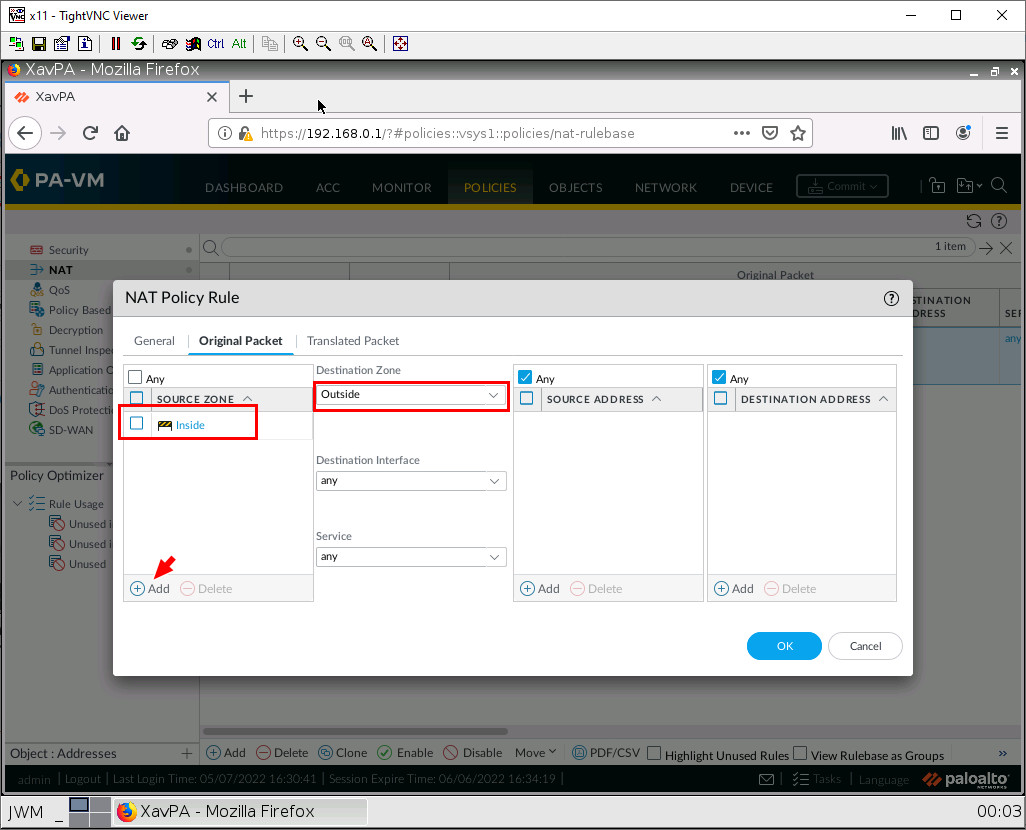
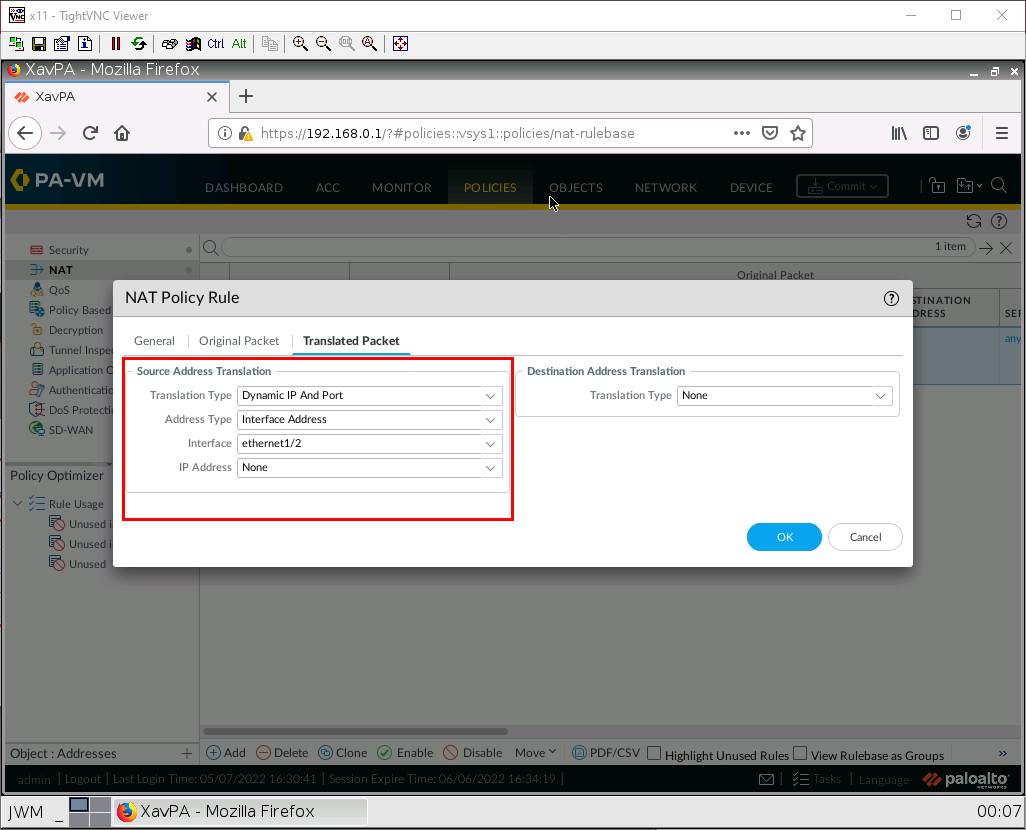
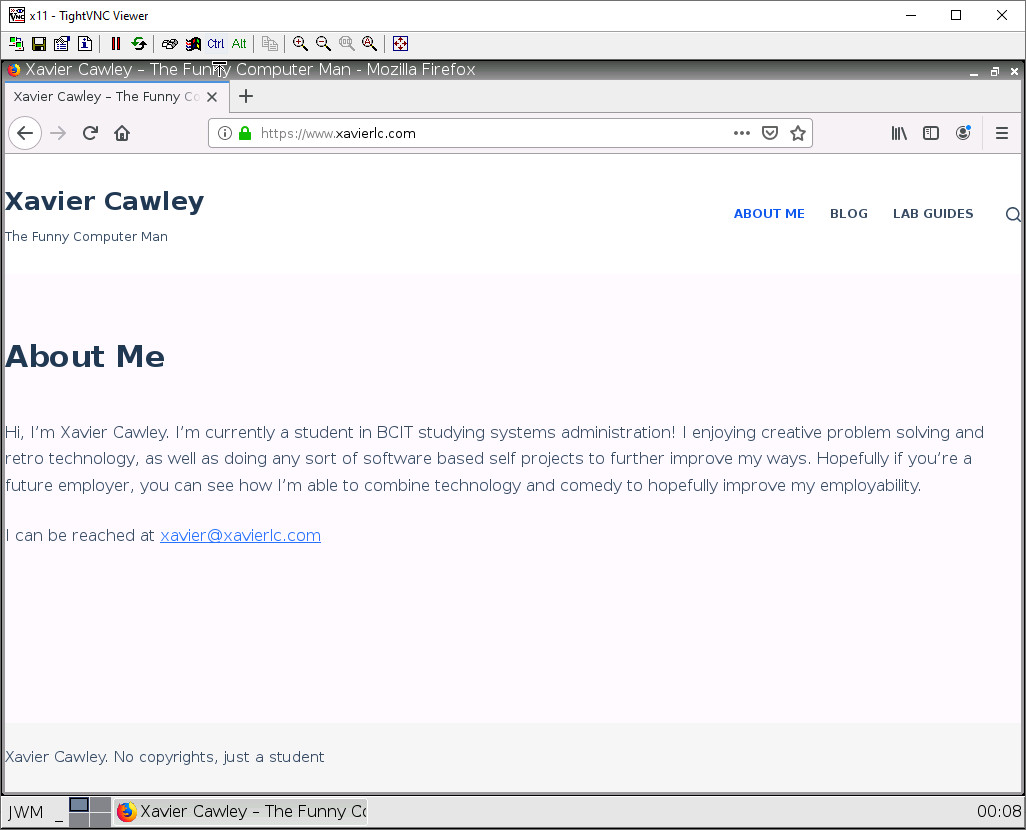
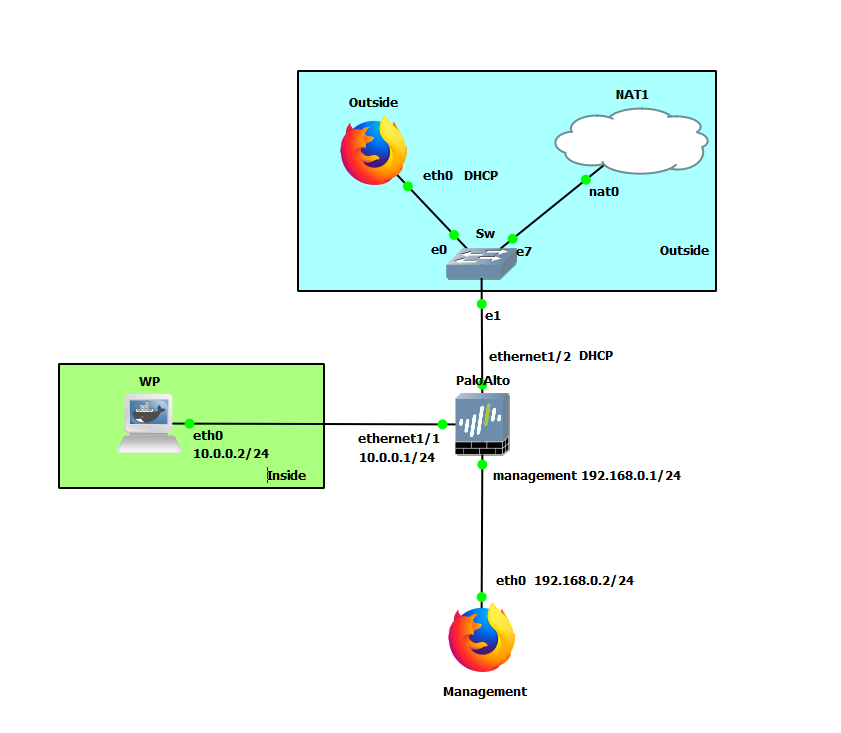
<?xml version="1.0" encoding="UTF-8"?>
<!DOCTYPE html PUBLIC "-//W3C//DTD XHTML 1.1//EN" "http://www.w3.org/TR/xhtml11/DTD/xhtml11.dtd">
<html xmlns="http://www.w3.org/1999/xhtml" xml:lang="en">
<head>
<meta content="text/html; charset=UTF-8" http-equiv="content-type" />
<meta http-equiv="Content-Language" content="en" />
<meta name="generator" content="Pressbooks 6.8.0" />
<meta name="pb-authors" content="Hamid Talebi" />
<meta name="pb-authors" content="Xavier Cawley" />
<meta name="pb-title" content="Palo Alto Firewall" />
<meta name="pb-language" content="en-ca" />
<meta name="pb-cover-image" content="https://opentextbc.ca/wp-content/uploads/sites/445/2023/11/OTB327-01-COVER-Palo-Alto-Firewall-Practical-Guidance-and-Hands-On-Labs.jpg" />
<meta name="pb-subtitle" content="Practical Guidance and Hands-On Labs" />
<meta name="pb-copyright-year" content="2023" />
<meta name="pb-about-50" content="This book explains step-by-step how to configure a Palo Alto firewall in the network. Each chapter begins with learning objectives and contains step-by-step explanations for GNS3 beginners on how to build different security scenarios from scratch." />
<meta name="pb-primary-subject" content="UR" />
<meta name="pb-publisher" content="BCcampus" />
<meta name="pb-publisher-city" content="Victoria, B.C." />
<meta name="pb-copyright-holder" content="Hamid Talebi, Xavier Cawley" />
<meta name="pb-book-license" content="cc-by" />
<meta name="pb-custom-copyright" content="© 2023 Hamid Talebi, Xavier CawleyThe CC licence permits you to retain, reuse, copy, redistribute, and revise this book—in whole or in part—for free providing the author is attributed as follows:Palo Alto Firewall: Practical Guidance and Hands-On Labs by Hamid Talebi and Xavier Cawley is licensed under a CC BY 4.0 licence.If you redistribute all or part of this book, it is recommended the following statement be added to the copyright page so readers can access the original book at no cost:Download for free from the B.C. Open Collection.Sample APA-style citation (7th Edition):Talebi, H., &amp; Cawley, X. (2023). Palo Alto firewall: Practical guidance and hands-on labs. BCcampus. https://opentextbc.ca/paloalto/Cover image attribution:“personal firewall” by jiricek72 has been dedicated to the public domain.Ebook ISBN: 978-1-77420-231-9Print ISBN: 978-1-77420-230-2Visit BCcampus Open Education to learn about open education in British Columbia." />
<meta name="pb-ebook-isbn" content="978-1-77420-231-9" />
<meta name="pb-is-based-on" content="https://pressbooks.bccampus.ca/paloalto" />
<meta name="pb-print-isbn" content="978-1-77420-230-2" />
<meta name="pb-additional-subjects" content="URQ" />
<meta name="pb-publication-date" content="1701216000" />
<title>Palo Alto Firewall</title>
</head>
<body lang='en' >
<div id="half-title-page"><h1 class="title">Palo Alto Firewall</h1></div>
<div id="title-page">
			<h1 class="title">Palo Alto Firewall</h1>
		<h2 class="subtitle">Practical Guidance and Hands-On Labs</h2>
					<p class="author">Hamid Talebi and Xavier Cawley</p>
								<p class="publisher">BCcampus</p>
		<p class="publisher-city">Victoria, B.C.</p>
	</div>
<div id="copyright-page">
	<div class="ugc">
					
<div class="license-attribution"><p><img src="https://opentextbc.ca/paloalto/wp-content/themes/pressbooks-book/packages/buckram/assets/images/cc-by.svg" alt="Icon for the Creative Commons Attribution 4.0 International License" /></p><p>Palo Alto Firewall by Hamid Talebi, Xavier Cawley is licensed under a <a rel="license" href="https://creativecommons.org/licenses/by/4.0/">Creative Commons Attribution 4.0 International License</a>, except where otherwise noted.</p></div>

							<p>© 2023 Hamid Talebi, Xavier Cawley</p><p>The CC licence permits you to retain, reuse, copy, redistribute, and revise this book—in whole or in part—for free providing the author is attributed as follows:</p><div class="textbox"><em><a href="https://opentextbc.ca/paloalto/">Palo Alto Firewall: Practical Guidance and Hands-On Labs</a></em> by Hamid Talebi and Xavier Cawley is licensed under a <a href="http://creativecommons.org/licenses/by/4.0/">CC BY 4.0 licence</a>.</div><p>If you redistribute all or part of this book, it is recommended the following statement be added to the copyright page so readers can access the original book at no cost:</p><div class="textbox">Download for free from the <a href="https://collection.bccampus.ca/">B.C. Open Collection</a>.</div><p><strong>Sample APA-style citation (7th Edition):</strong></p><div class="textbox">Talebi, H., &#38; Cawley, X. (2023). <i>Palo Alto firewall: Practical guidance and hands-on labs</i>. BCcampus. https://opentextbc.ca/paloalto/</div><p><strong>Cover image attribution:</strong></p><div class="textbox"><a href="https://openclipart.org/detail/292137/personal-firewall">“personal firewall”</a> by <a href="https://openclipart.org/artist/jiricek72">jiricek72</a> has been dedicated to the <a href="https://creativecommons.org/publicdomain/zero/1.0/">public domain</a>.</div><p><strong>Ebook ISBN:</strong> 978-1-77420-231-9</p><p><strong>Print ISBN:</strong> 978-1-77420-230-2</p><p>Visit <a href="http://open.bccampus.ca/">BCcampus Open Education</a> to learn about open education in British Columbia.</p>
							</div>
</div>
<div id="toc">
	<h1>Contents</h1>
	<ul>
					<li class="front-matter miscellaneous">
	<a href="#front-matter-accessibility-statement">
		<span class="toc-chapter-title">Accessibility Statement</span>
							</a>
	</li>

					<li class="front-matter miscellaneous">
	<a href="#front-matter-for-students-how-to-access-and-use-this-textbook">
		<span class="toc-chapter-title">For Students: How to Access and Use this Textbook</span>
							</a>
	</li>

					<li class="front-matter miscellaneous">
	<a href="#front-matter-about-bccampus-open-education">
		<span class="toc-chapter-title">About BCcampus Open Education</span>
							</a>
	</li>

					<li class="front-matter miscellaneous">
	<a href="#front-matter-dedication">
		<span class="toc-chapter-title">Dedication</span>
							</a>
	</li>

					<li class="front-matter introduction">
	<a href="#front-matter-introduction">
		<span class="toc-chapter-title">A Practical Introduction</span>
							</a>
	</li>

					<li class="part">
	<a href="#part-basics">
					Chapter 1. Basics
			</a>
</li>

					<li class="chapter standard">
	<a href="#chapter-gns3-palo-alto">
		<span class="toc-chapter-title">1.1 GNS3 and Palo Alto</span>
							</a>
	</li>

					<li class="chapter standard">
	<a href="#chapter-dora-the-dhcp-provider">
		<span class="toc-chapter-title">1.2 DORA the DHCP Provider</span>
							</a>
	</li>

					<li class="chapter standard">
	<a href="#chapter-snat">
		<span class="toc-chapter-title">1.3 SNAT</span>
							</a>
	</li>

					<li class="chapter standard">
	<a href="#chapter-dnat">
		<span class="toc-chapter-title">1.4 DNAT</span>
							</a>
	</li>

					<li class="part">
	<a href="#part-security-tuneup">
					Chapter 2. Security Tuneup
			</a>
</li>

					<li class="chapter standard">
	<a href="#chapter-work-with-applications">
		<span class="toc-chapter-title">2.1 Work with Applications</span>
							</a>
	</li>

					<li class="chapter standard">
	<a href="#chapter-deal-with-bad-actors">
		<span class="toc-chapter-title">2.2 Deal with Bad Actors</span>
							</a>
	</li>

					<li class="chapter standard">
	<a href="#chapter-block-files-and-viruses">
		<span class="toc-chapter-title">2.3 Block Files and Viruses</span>
							</a>
	</li>

					<li class="part">
	<a href="#part-advanced-networking">
					Chapter 3. Advanced Networking
			</a>
</li>

					<li class="chapter standard">
	<a href="#chapter-captive-portal">
		<span class="toc-chapter-title">3.1 Captive Portal</span>
							</a>
	</li>

					<li class="chapter standard">
	<a href="#chapter-remote-access-vpn">
		<span class="toc-chapter-title">3.2 Remote Access VPN</span>
							</a>
	</li>

					<li class="chapter standard">
	<a href="#chapter-site-to-site-vpn">
		<span class="toc-chapter-title">3.3 Site-to-Site VPN</span>
							</a>
	</li>

					<li class="part">
	<a href="#part-cloud-technologies">
					Chapter 4. Cloud Technologies
			</a>
</li>

					<li class="chapter standard">
	<a href="#chapter-ipsec-vpn-palo-alto-on-prem-azure">
		<span class="toc-chapter-title">4.1 IPsec VPN between Palo Alto on Premise and Microsoft Azure</span>
							</a>
	</li>

					<li class="chapter standard">
	<a href="#chapter-deploy-palo-alto-to-azure">
		<span class="toc-chapter-title">4.2 Deploy Palo Alto to Azure</span>
							</a>
	</li>

					<li class="chapter standard">
	<a href="#chapter-s2s-vpn-palo-alto-on-prem-azure">
		<span class="toc-chapter-title">4.3 Site-to-Site VPN between Palo Alto on Premise and Palo Alto in the Azure</span>
							</a>
	</li>

					<li class="part">
	<a href="#part-capstone-project">
					Capstone Project
			</a>
</li>

					<li class="chapter standard">
	<a href="#chapter-capstone-project">
		<span class="toc-chapter-title">Capstone Project</span>
							</a>
	</li>

					<li class="back-matter miscellaneous">
	<a href="#back-matter-gns3">
		<span class="toc-chapter-title">Appendix: GNS3 Basics</span>
							</a>
	</li>

					<li class="back-matter acknowledgements">
	<a href="#back-matter-acknowledgements">
		<span class="toc-chapter-title">Acknowledgements</span>
							</a>
	</li>

					<li class="back-matter about-the-author">
	<a href="#back-matter-about-the-authors">
		<span class="toc-chapter-title">About the Authors</span>
							</a>
	</li>

					<li class="back-matter miscellaneous">
	<a href="#back-matter-versioning-history">
		<span class="toc-chapter-title">Versioning History</span>
							</a>
	</li>

			</ul>
</div>
<div class="front-matter miscellaneous " id="front-matter-accessibility-statement" title="Accessibility Statement">
	<div class="front-matter-title-wrap">
		<p class="front-matter-number">1</p>
		<h1 class="front-matter-title">Accessibility Statement</h1>
								</div>
	<div class="ugc front-matter-ugc">
				 <p>BCcampus Open Education believes that education must be available to everyone. This means supporting the creation of free, open, and accessible educational resources. We are actively committed to increasing the accessibility and usability of the textbooks we produce.</p> <h1>Accessibility of This Textbook</h1> <p>The <a href="https://opentextbc.ca/paloalto/" data-url="https://opentextbc.ca/paloalto/">web version of this resource</a> has been designed to meet <a href="https://www.w3.org/TR/WCAG20/" data-url="https://www.w3.org/TR/WCAG20/">Web Content Accessibility Guidelines 2.0</a>, level AA. In addition, it follows all guidelines in <a href="https://opentextbc.ca/accessibilitytoolkit/back-matter/appendix-checklist-for-accessibility-toolkit/" data-url="https://opentextbc.ca/accessibilitytoolkit/back-matter/appendix-checklist-for-accessibility-toolkit/">Appendix A: Checklist for Accessibility</a> of the <a href="https://opentextbc.ca/accessibilitytoolkit/" data-url="https://opentextbc.ca/accessibilitytoolkit/"><em>Accessibility Toolkit – 2nd Edition</em></a>. It includes:</p> <ul><li><strong>Easy navigation</strong>. This text has a linked table of contents and uses headings in each chapter to make navigation easy.</li> <li><strong>Accessible images</strong>. All images in this text that convey information have alternative text. Images that are decorative have empty alternative text.</li> <li><strong>Accessible links</strong>. All links use descriptive link text.</li> </ul> <table class="grid" style="width: 100%; height: 306px;"><caption>Accessibility Checklist</caption> <tbody><tr style="height: 18px;"><th style="height: 18px;" scope="col">Element</th> <th style="height: 18px;" scope="col">Requirements</th> <th style="height: 18px;" scope="col">Pass?</th> </tr> <tr style="height: 18px;"><th style="height: 18px;" scope="row">Headings</th> <td style="height: 18px;">Content is organized under headings and subheadings that are used sequentially.</td> <td style="height: 18px;">Yes</td> </tr> <tr style="height: 36px;"><th style="height: 36px;" scope="row">Images</th> <td style="height: 36px;">Images that convey information include alternative text descriptions. These descriptions are provided in the alt text field, in the surrounding text, or linked to as a long description.</td> <td style="height: 36px;">Yes</td> </tr> <tr style="height: 18px;"><th style="height: 18px;" scope="row">Images</th> <td style="height: 18px;">Images and text do not rely on colour to convey information.</td> <td style="height: 18px;">Yes</td> </tr> <tr style="height: 36px;"><th style="height: 36px;" scope="row">Images</th> <td style="height: 36px;">Images that are purely decorative or are already described in the surrounding text contain empty alternative text descriptions. (Descriptive text is unnecessary if the image doesn’t convey contextual content information.)</td> <td style="height: 36px;">Yes</td> </tr> <tr style="height: 18px;"><th style="height: 18px;" scope="row">Tables</th> <td style="height: 18px;">Tables include row and/or column headers that have the correct scope assigned.</td> <td style="height: 18px;">Yes</td> </tr> <tr style="height: 18px;"><th style="height: 18px;" scope="row">Tables</th> <td style="height: 18px;">Tables include a title or caption.</td> <td style="height: 18px;">Yes</td> </tr> <tr style="height: 18px;"><th style="height: 18px;" scope="row">Tables</th> <td style="height: 18px;">Tables do not have merged or split cells.</td> <td style="height: 18px;">Yes</td> </tr> <tr style="height: 18px;"><th style="height: 18px;" scope="row">Tables</th> <td style="height: 18px;">Tables have adequate cell padding.</td> <td style="height: 18px;">Yes</td> </tr> <tr><th>Multimedia</th> <td>Videos have captions of all speech content and relevant non-speech content that has been edited by a human for accuracy.</td> <td>Yes</td> </tr> <tr style="height: 18px;"><th style="height: 18px;" scope="row">Links</th> <td style="height: 18px;">The link text describes the destination of the link.</td> <td style="height: 18px;">Yes</td> </tr> <tr style="height: 18px;"><th style="height: 18px;" scope="row">Links</th> <td style="height: 18px;">Links do not open new windows or tabs. If they do, a textual reference is included in the link text.</td> <td style="height: 18px;">Yes</td> </tr> <tr style="height: 18px;"><th style="height: 18px;"><strong>Links</strong></th> <td style="height: 18px;">Links to files include the file type in the link text.</td> <td style="height: 18px;">Yes</td> </tr> <tr style="height: 18px;"><th style="height: 18px;" scope="row">Font</th> <td style="height: 18px;">Font size is 12 point or higher for body text.</td> <td style="height: 18px;">Yes</td> </tr> <tr style="height: 18px;"><th style="height: 18px;" scope="row">Font</th> <td style="height: 18px;">Font size is 9 point for footnotes or endnotes.</td> <td style="height: 18px;">Yes</td> </tr> <tr style="height: 18px;"><th style="height: 18px;" scope="row">Font</th> <td style="height: 18px;">Font size can be zoomed to 200% in the webbook or eBook formats.</td> <td style="height: 18px;">Yes</td> </tr> </tbody> </table> <h1>Known Accessibility Issues and Areas for Improvement</h1> <ul><li>The book relies heavily on screenshots from the Palo Alto firewall software. These screenshots do not have alt text. While many of the screenshots are described in the surrounding text, the book has not been reviewed to ensure that the surrounding text is an adequate alternative for all images in the book.</li> </ul> <h1>Let Us Know if You are Having Problems Accessing This Book</h1> <p>We are always looking for ways to make our textbooks more accessible. If you have problems accessing this textbook, please contact us to let us know so we can fix the issue.</p> <p>Please include the following information:</p> <ul><li>The name of the textbook</li> <li>The location of the problem by providing a web address or page description.</li> <li>A description of the problem</li> <li>The computer, software, browser, and any assistive technology you are using that can help us diagnose and solve your issue (e.g., Windows 10, Google Chrome (Version 65.0.3325.181), NVDA screen reader)</li> </ul> <p>You can contact us one of the following ways:</p> <ul><li>Web form: <a href="https://open.bccampus.ca/contact-us/" data-url="https://open.bccampus.ca/contact-us/">BCcampus IT Support</a></li> <li>Web form: <a href="https://collection.bccampus.ca/report-error/" data-url="https://collection.bccampus.ca/report-error/">Report an Error</a></li> </ul> <p>This statement was last updated on November 29, 2023.</p> <p>The Accessibility Checklist table was adapted from one originally created by the <a href="https://press.rebus.community/the-rebus-guide-to-publishing-open-textbooks/back-matter/accessibility-assessment/" data-url="https://press.rebus.community/the-rebus-guide-to-publishing-open-textbooks/back-matter/accessibility-assessment/">Rebus Community</a> and shared under a <a href="https://creativecommons.org/licenses/by/4.0/" data-url="https://creativecommons.org/licenses/by/4.0/">CC BY 4.0 License</a>.</p> 
	</div>


	</div>
<div class="front-matter miscellaneous " id="front-matter-for-students-how-to-access-and-use-this-textbook" title="For Students: How to Access and Use this Textbook">
	<div class="front-matter-title-wrap">
		<p class="front-matter-number">2</p>
		<h1 class="front-matter-title">For Students: How to Access and Use this Textbook</h1>
								</div>
	<div class="ugc front-matter-ugc">
				 <p>This textbook is available in the following formats:</p> <ul><li><strong>Online webbook</strong>. You can read this textbook online on a computer or mobile device in one of the following browsers: Chrome, Firefox, Edge, and Safari.</li> <li><strong>PDF</strong>. You can download this book as a PDF to read on a computer (Digital PDF) or print it out (Print PDF).</li> <li><strong>Mobile</strong>. If you want to read this textbook on your phone or tablet, you can use the EPUB (eReader) file.</li> <li><strong>HTML</strong>. An HTML file can be opened in a browser. It has very little style so it doesn’t look very nice, but some people might find it useful.</li> </ul> <p>For more information about the accessibility of this textbook, see the Accessibility Statement.</p> <p>You can access the online webbook and download any of the formats for free here: <a href="https://opentextbc.ca/paloalto/" data-url="https://opentextbc.ca/paloalto/"><em>Palo Alto Firewall: Practical Guidance and Hands-On Labs</em></a>. To download the book in a different format, look for the “Download this book” drop-down menu and select the file type you want.</p> <table><caption>How can I use the different formats?</caption> <tbody><tr><th scope="col">Format</th> <th scope="col">Internet required?</th> <th scope="col">Device</th> <th scope="col">Required apps</th> <th scope="col">Accessibility Features</th> <th scope="col">Screen reader compatible</th> </tr> <tr><td>Online webbook</td> <td>Yes</td> <td>Computer, tablet, phone</td> <td>An Internet browser (Chrome, Firefox, Edge, or Safari)</td> <td>WCAG 2.0 AA compliant, option to enlarge text, and compatible with browser text-to-speech tools</td> <td>Yes</td> </tr> <tr><td>PDF</td> <td>No</td> <td>Computer, print copy</td> <td>Adobe Reader (for reading on a computer) or a printer</td> <td>Ability to highlight and annotate the text. If reading on the computer, you can zoom in.</td> <td>Unsure</td> </tr> <tr><td>EPUB</td> <td>No</td> <td>Computer, tablet, phone</td> <td>An eReader app</td> <td>Option to enlarge text, change font style, size, and colour.</td> <td>Unsure</td> </tr> <tr><td>HTML</td> <td>No</td> <td>Computer, tablet, phone</td> <td>An Internet browser (Chrome, Firefox, Edge, or Safari)</td> <td>WCAG 2.0 AA compliant and compatible with browser text-to-speech tools.</td> <td>Yes</td> </tr> </tbody> </table> <h1 style="page-break-before: always;">Tips for Using This Textbook</h1> <ul><li><strong>Search the textbook</strong>. <ul><li>If using the online webbook, you can use the search bar in the top right corner to search the entire book for a key word or phrase. To search a specific chapter, open that chapter and use your browser’s search feature by hitting <strong>[Cntr] + [f]</strong> on your keyboard if using a Windows computer or <strong>[Command] + [f] </strong>if using a Mac computer.</li> <li>The <strong>[Cntr] + [f]</strong> and <strong>[Command] + [f]</strong> keys will also allow you to search a PDF, HTML, and EPUB files if you are reading them on a computer.</li> <li>If using an eBook app to read this textbook, the app should have a built-in search tool.</li> </ul> </li> <li><strong>Navigate the textbook</strong>. <ul><li>This textbook has a table of contents to help you navigate through the book easier. If using the online webbook, you can find the full table of contents on the book’s homepage or by selecting “Contents” from the top menu when you are in a chapter.</li> </ul> </li> <li><strong>Annotate the textbook</strong>. <ul><li>If you like to highlight or write on your textbooks, you can do that by getting a print copy, using the Digital PDF in Adobe Reader, or using the highlighting tools in eReader apps.</li> </ul> </li> </ul> 
	</div>


	</div>
<div class="front-matter miscellaneous " id="front-matter-about-bccampus-open-education" title="About BCcampus Open Education">
	<div class="front-matter-title-wrap">
		<p class="front-matter-number">3</p>
		<h1 class="front-matter-title">About BCcampus Open Education</h1>
								</div>
	<div class="ugc front-matter-ugc">
				 <p><em>Palo Alto Firewall: Practical Guidance and Hands-On Labs </em> by Hamid Talebi and Xavier Cawley was funded by BCcampus Open Education.</p> <p><a href="https://open.bccampus.ca/" data-url="https://open.bccampus.ca/">BCcampus Open Education</a> began in 2012 as the B.C. Open Textbook Project with the goal of making post-secondary education in British Columbia more accessible by reducing students’ costs through the use of open textbooks and other OER. <a href="https://bccampus.ca/" data-url="https://bccampus.ca/">BCcampus</a> supports the post-secondary institutions of British Columbia as they adapt and evolve their teaching and learning practices to enable powerful learning opportunities for the students of B.C. BCcampus Open Education is funded by the <a href="https://www2.gov.bc.ca/gov/content/governments/organizational-structure/ministries-organizations/ministries/post-secondary-education-and-future-skills" data-url="https://www2.gov.bc.ca/gov/content/governments/organizational-structure/ministries-organizations/ministries/post-secondary-education-and-future-skills">Ministry of Post-Secondary Education and Future Skills</a> and the <a href="http://www.hewlett.org/" data-url="http://www.hewlett.org/">Hewlett Foundation</a>.</p> <p>Open educational resources (OER) are teaching, learning, and research resources that, through permissions granted by the copyright holder, allow others to use, distribute, keep, or make changes to them. Our open textbooks are openly licensed using a <a href="https://creativecommons.org/licenses/" data-url="https://creativecommons.org/licenses/">Creative Commons licence</a> and are offered in various eBook formats free of charge, or as printed books that are available at cost.</p> <p>For more information about open education in British Columbia, please visit the <a href="https://open.bccampus.ca/" data-url="https://open.bccampus.ca/">BCcampus Open Education</a> website. If you are an instructor who is using this book for a course, please fill out our <a href="https://open.bccampus.ca/use-open-textbooks/tell-us-youre-using-an-open-textbook/" data-url="https://open.bccampus.ca/use-open-textbooks/tell-us-youre-using-an-open-textbook/">Adoption of an Open Textbook</a> form.</p> <div class="textbox">This book was produced using the following styles: <a href="https://opentextbc.ca/paloalto/wp-content/uploads/sites/445/2022/07/Palo-Alto-Firewall-Style-Sheet.docx" data-url="https://opentextbc.ca/paloalto/wp-content/uploads/sites/445/2022/07/Palo-Alto-Firewall-Style-Sheet.docx">Palo Alto Firewall: Practical Guidance and Hands-On Labs Style Sheet [Word file]</a></div> 
	</div>


	</div>
<div class="front-matter miscellaneous " id="front-matter-dedication" title="Dedication">
	<div class="front-matter-title-wrap">
		<p class="front-matter-number">4</p>
		<h1 class="front-matter-title">Dedication</h1>
								</div>
	<div class="ugc front-matter-ugc">
				 <p>This book is dedicated to to our loving parents.</p> 
	</div>


	</div>
<div class="front-matter introduction " id="front-matter-introduction" title="A Practical Introduction">
	<div class="front-matter-title-wrap">
		<p class="front-matter-number">5</p>
		<h1 class="front-matter-title">A Practical Introduction</h1>
								</div>
	<div class="ugc front-matter-ugc">
				 <h1>The Fundamental Theory</h1> <p>Palo Alto is a next-generation firewall. This means that it uses more advanced techniques to detect threats compared to a traditional firewall. Where a more traditional firewall would inspect source and destination IP addresses and ports, a next generation firewall would detect an application, user, or piece of content. From there we can choose to either allow, block, drop or reset the connection.</p> <h2>Chapter Navigation</h2> <p>Every lab will contain a learning outcome section on the top. Here is an example:</p> <div class="textbox textbox--learning-objectives"><div class="textbox__header"><p class="textbox__title">Learning Objectives</p> </div> <div class="textbox__content"><ul><li>Learn how to navigate this book</li> <li>Open up GNS3</li> </ul> </div> </div> <p>These will contain what the current lab is trying to teach.</p> <p>A topology of how the lab will look like, will be displayed after the learning outcomes. Here is an example:</p> <div class="wp-caption aligncenter" id="attachment_21" aria-describedby="caption-attachment-21" style="width: 500px"><img class="wp-image-21" src="https://opentextbc.ca/wp-content/uploads/sites/445/2022/05/2022-03-11-20-29-14-image.png" alt="Example Topology" width="500" height="411" srcset="https://opentextbc.ca/paloalto/wp-content/uploads/sites/445/2022/05/2022-03-11-20-29-14-image.png 701w, https://opentextbc.ca/paloalto/wp-content/uploads/sites/445/2022/05/2022-03-11-20-29-14-image-300x247.png 300w, https://opentextbc.ca/paloalto/wp-content/uploads/sites/445/2022/05/2022-03-11-20-29-14-image-65x53.png 65w, https://opentextbc.ca/paloalto/wp-content/uploads/sites/445/2022/05/2022-03-11-20-29-14-image-225x185.png 225w, https://opentextbc.ca/paloalto/wp-content/uploads/sites/445/2022/05/2022-03-11-20-29-14-image-350x288.png 350w" title="" /><div class="wp-caption-text" id="caption-attachment-21">Figure E.1: An example scenario</div></div> <h2>A Practical Introduction</h2> <p>What this book aims to accomplish is a practical understanding of the usage and functionality of Palo Alto firewalls. Learn by doing will be a strong driving force in the coming labs and examples in this book, and I encourage you to try and extend these labs and have fun with them.</p> 
	</div>


	</div>
<div class="part-wrapper" id="part-basics-wrapper">
    <div class="part  " id="part-basics">
	<div class="part-title-wrap">
		<p class="part-number">I</p>
		<h1 class="part-title">Chapter 1. Basics</h1>
	</div>
	<div class="ugc part-ugc">
		
	</div>
			
				
	</div>
<div class="chapter standard " id="chapter-gns3-palo-alto" title="1.1 GNS3 and Palo Alto">
	<div class="chapter-title-wrap">
		<p class="chapter-number">1</p>
		<h1 class="chapter-title">1.1 GNS3 and Palo Alto</h1>
								</div>
	<div class="ugc chapter-ugc">
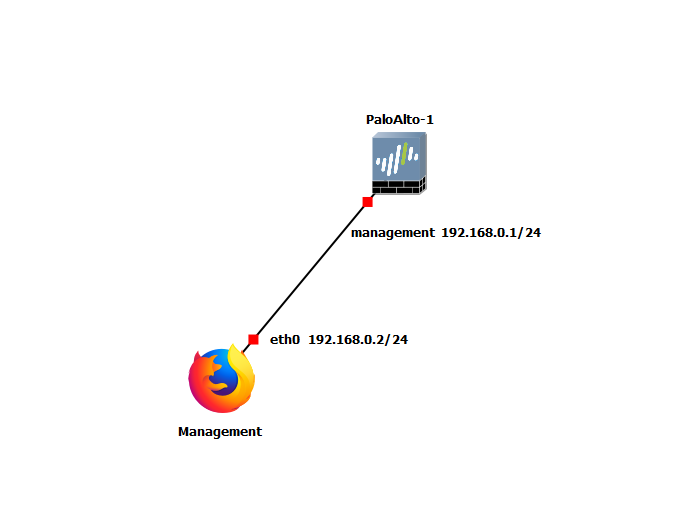
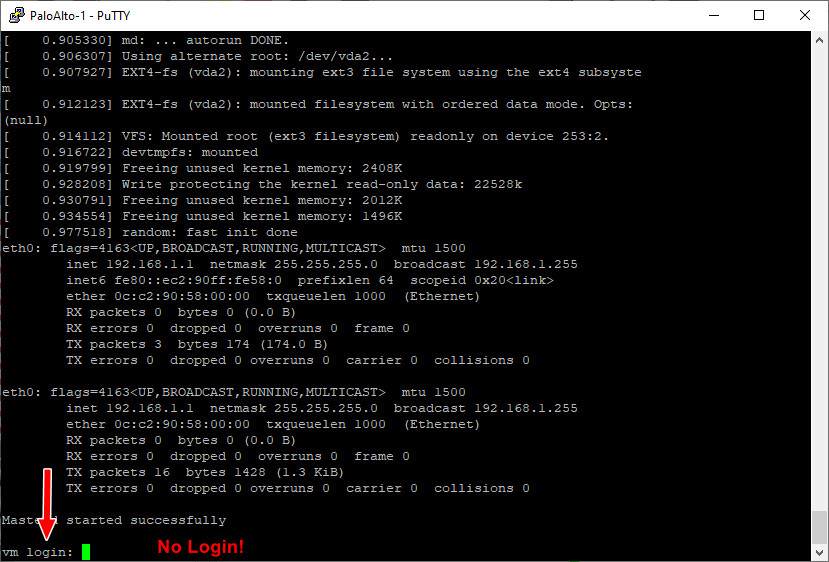
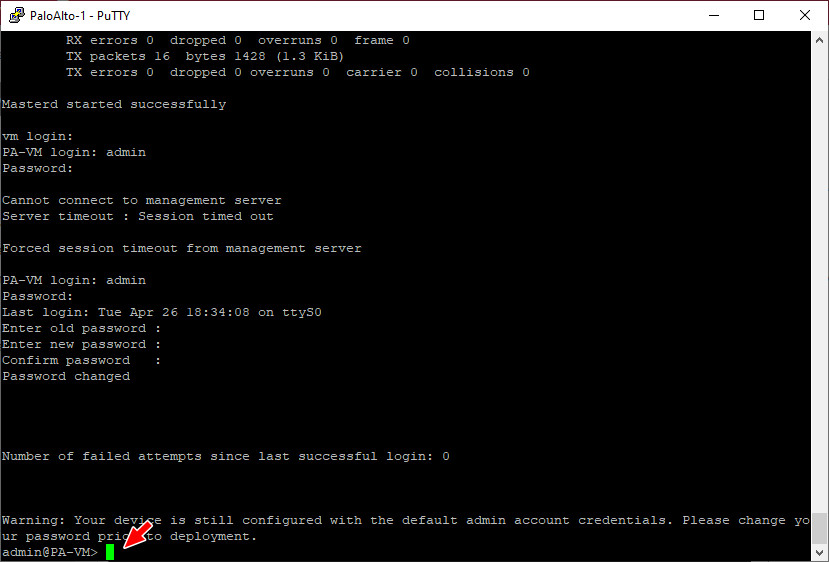
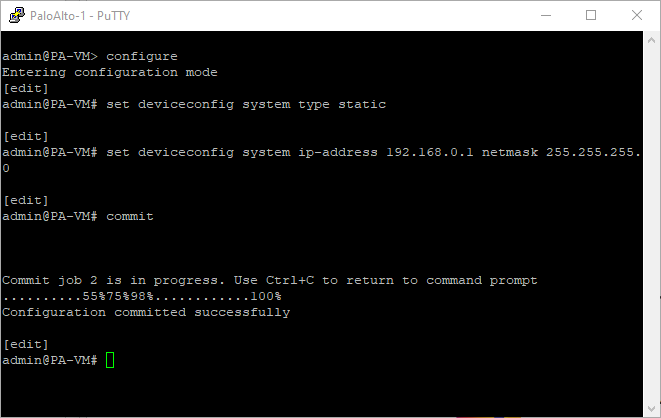
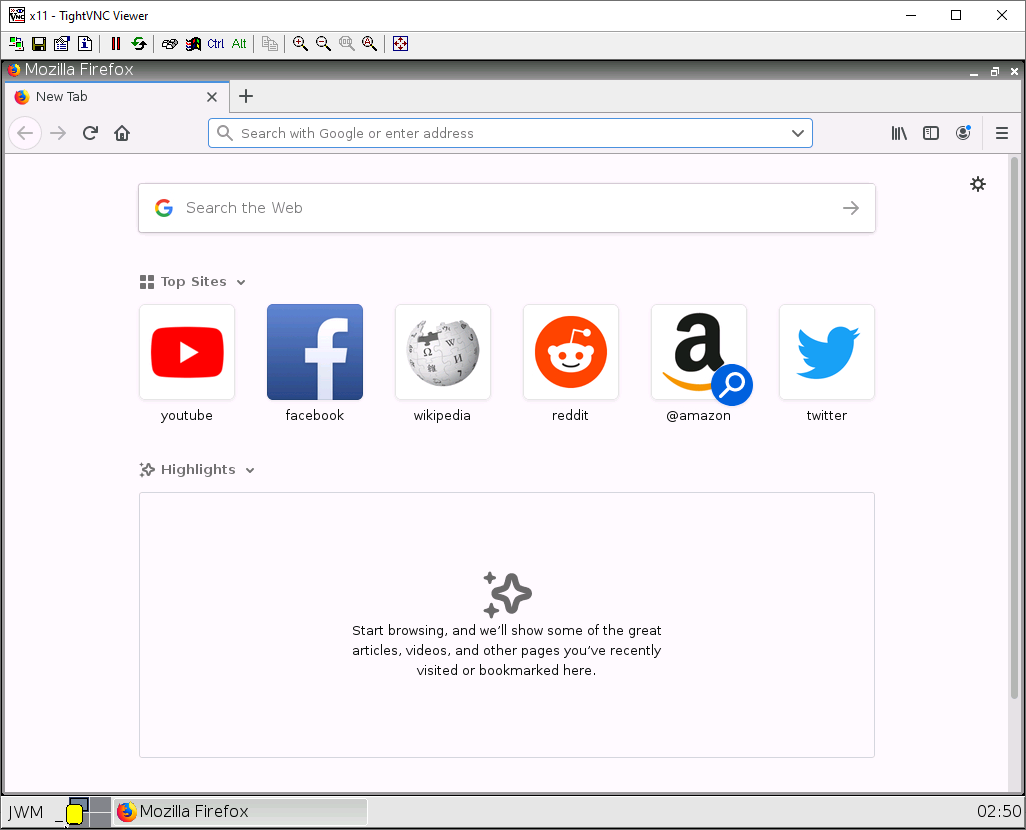
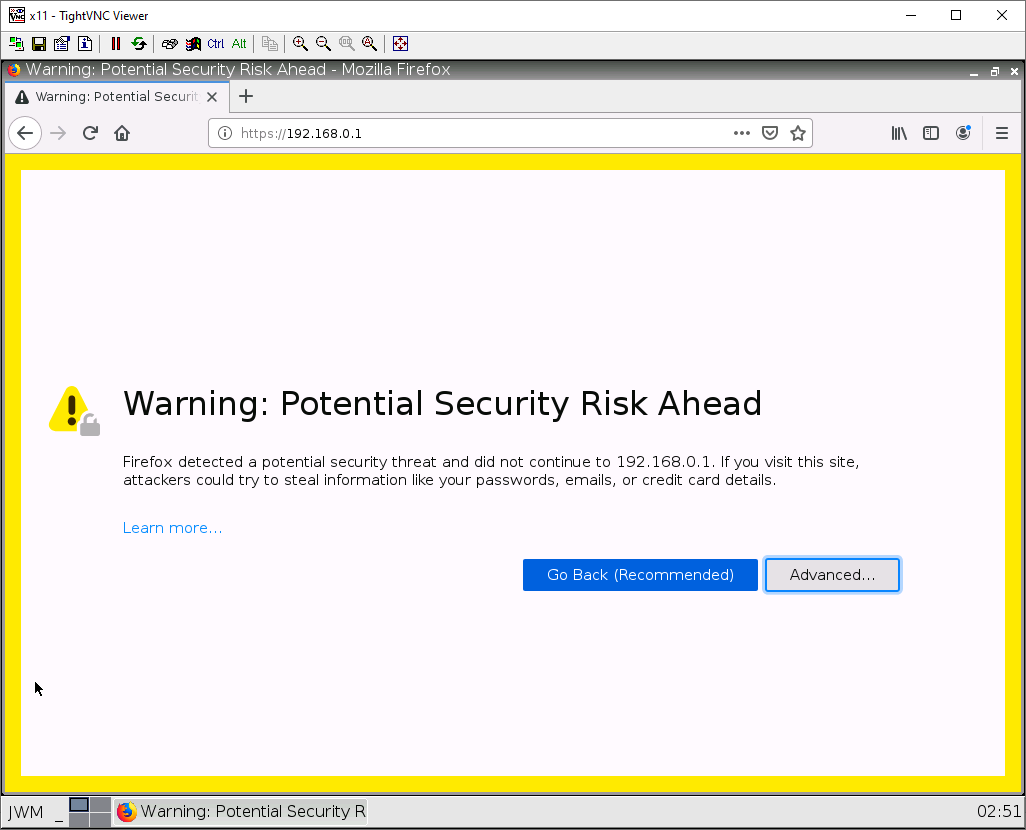
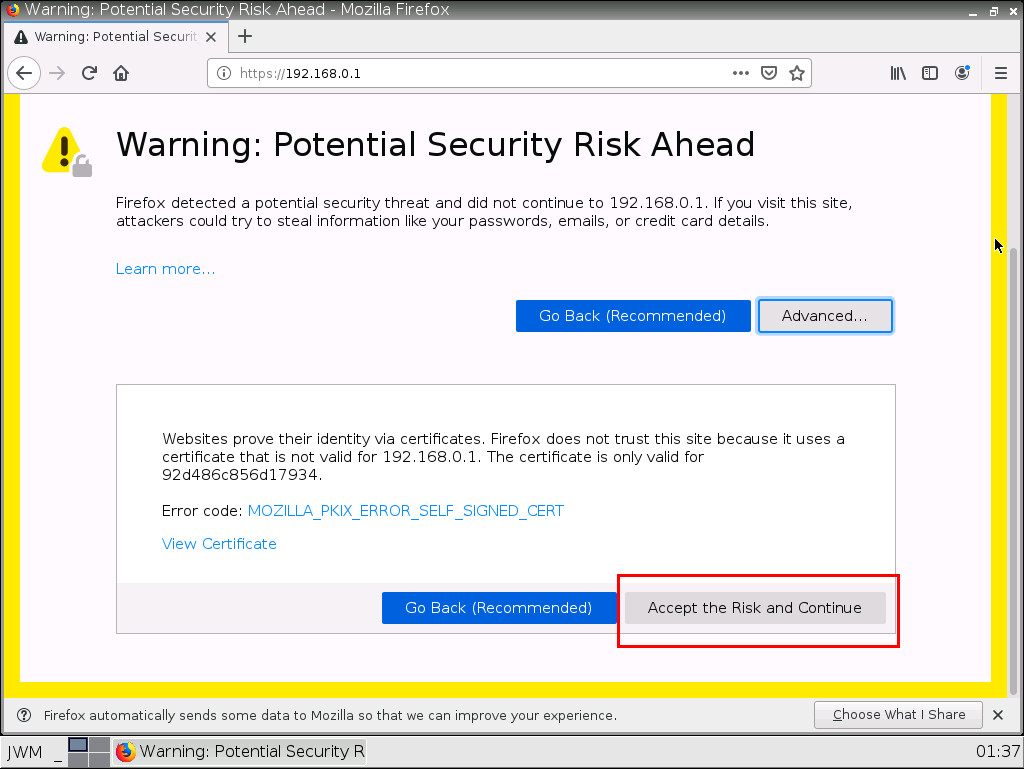
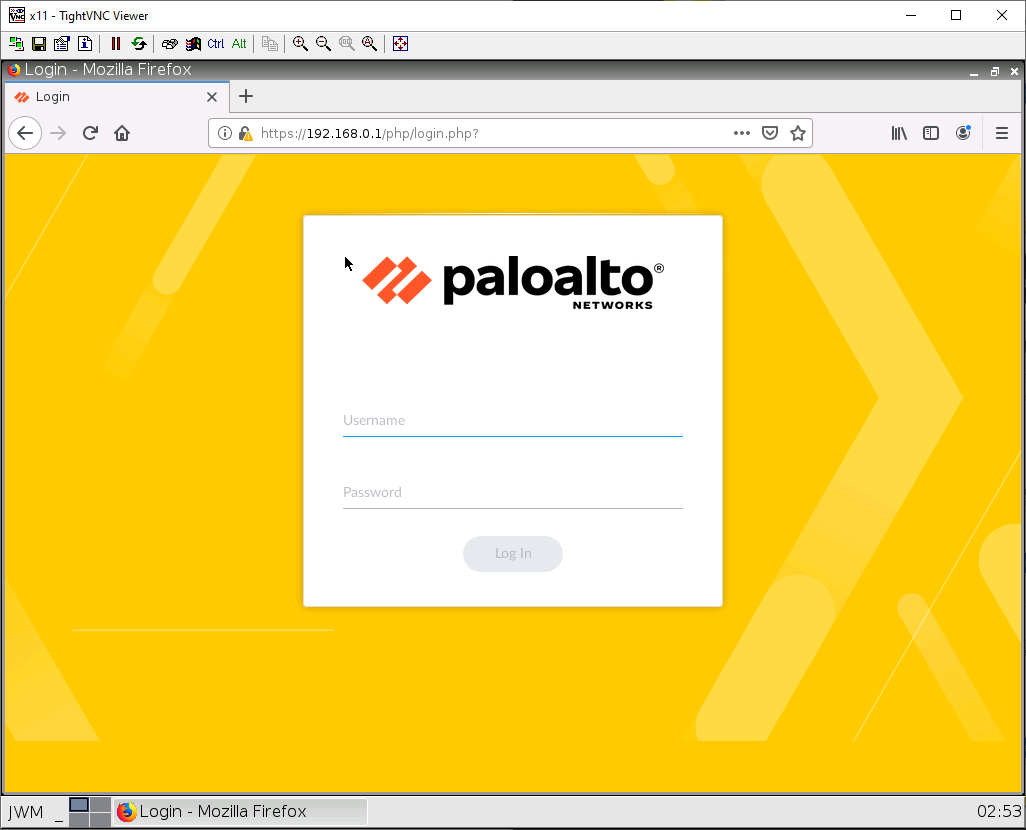
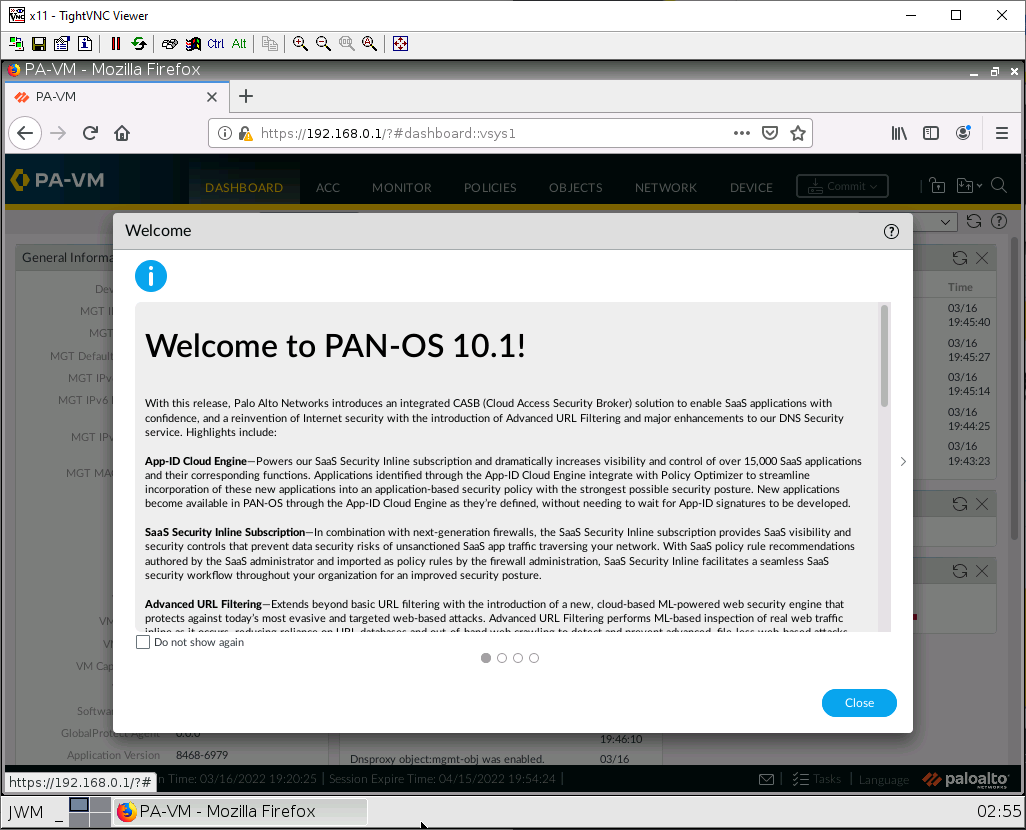
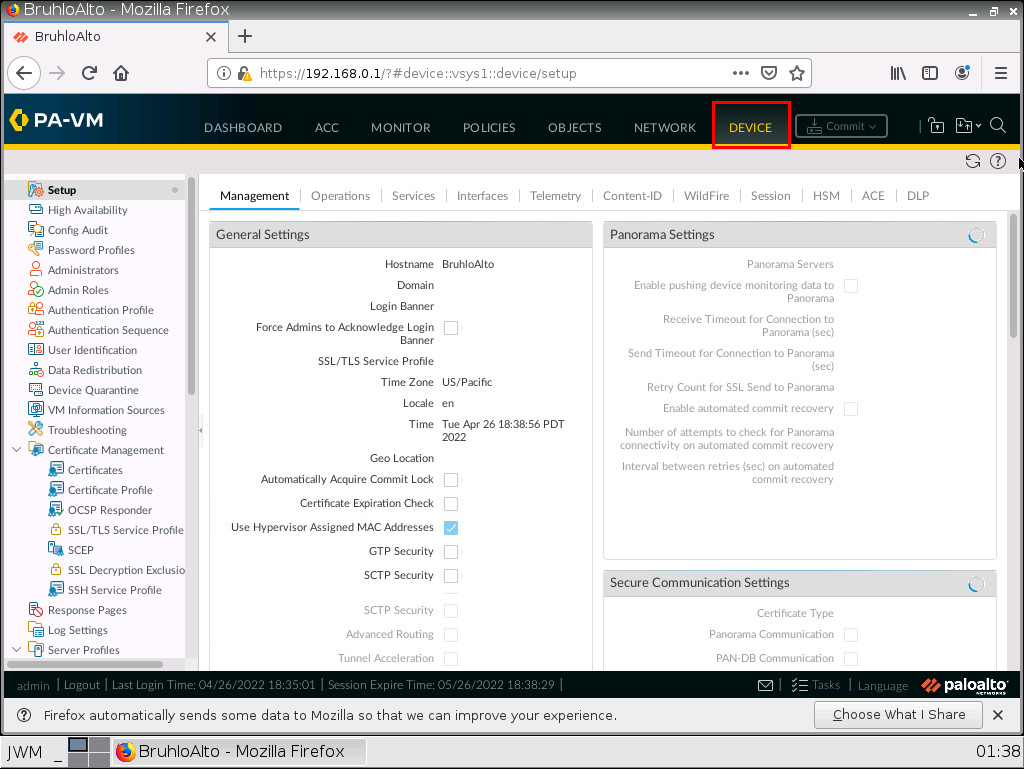
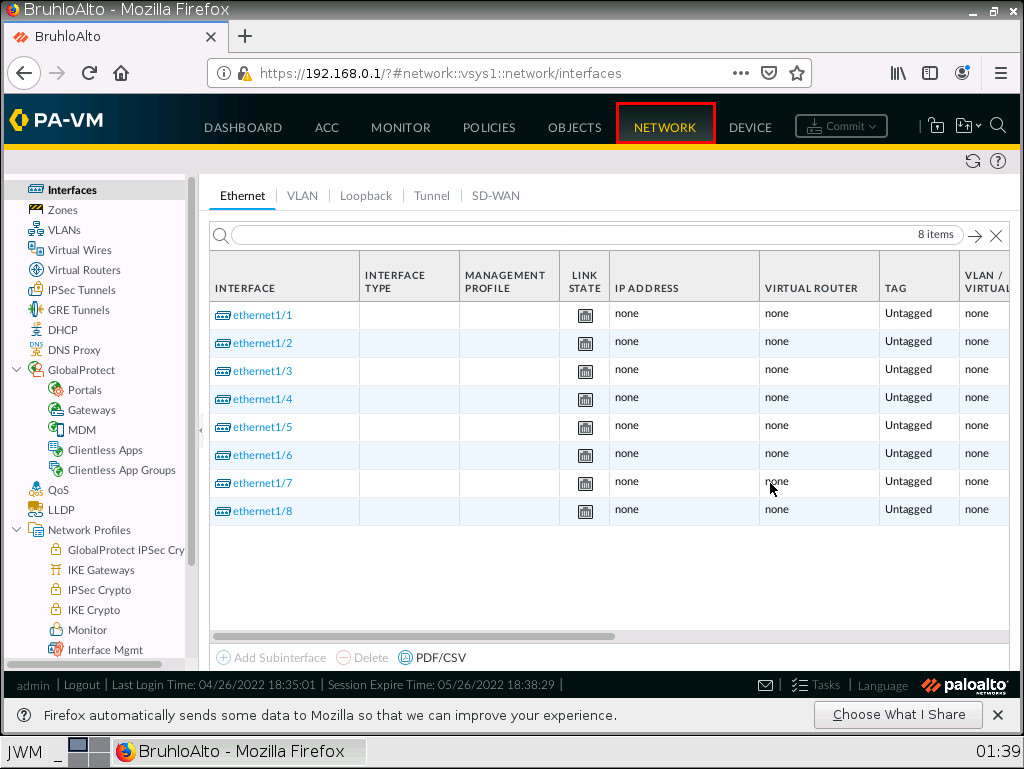
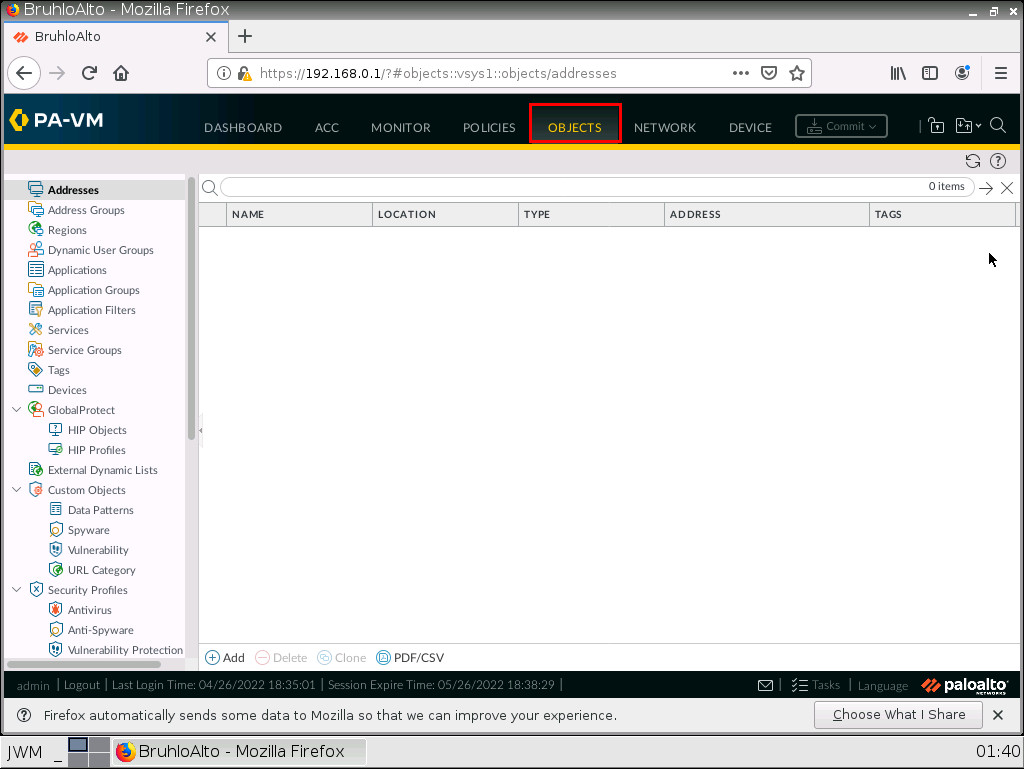
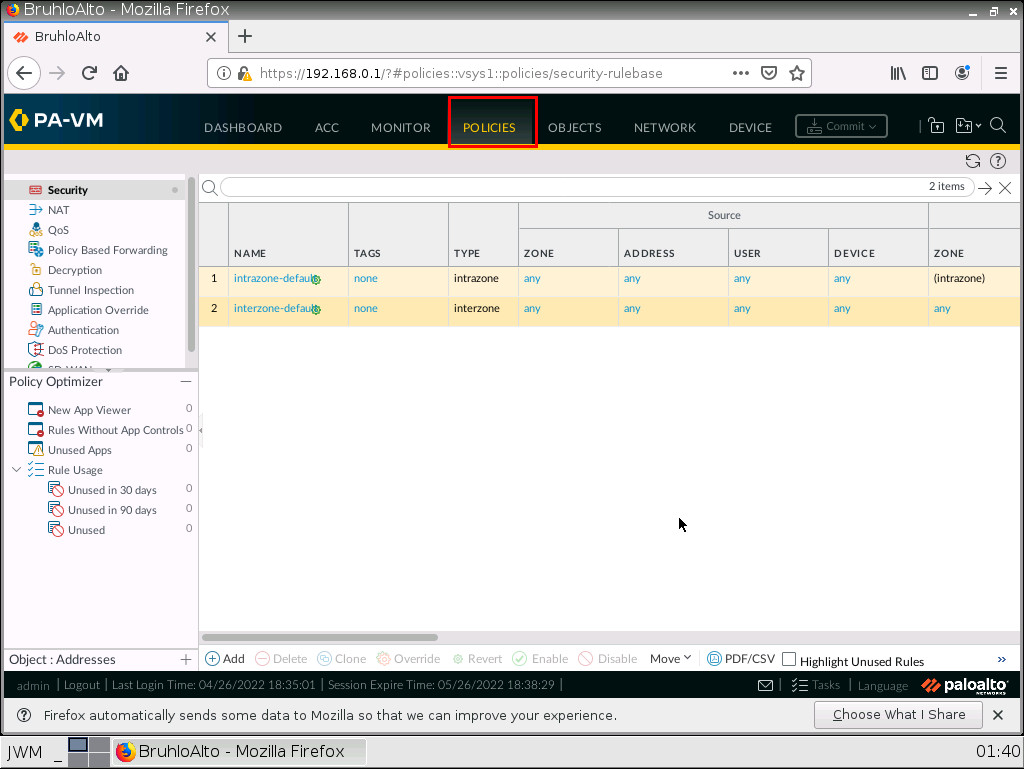
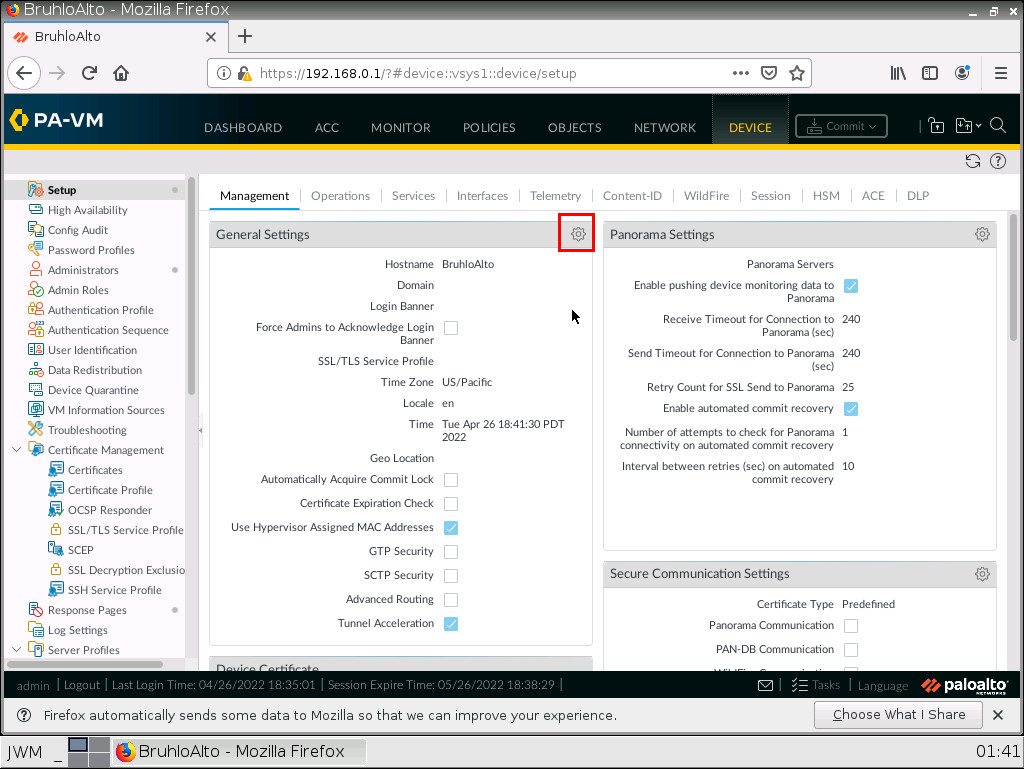
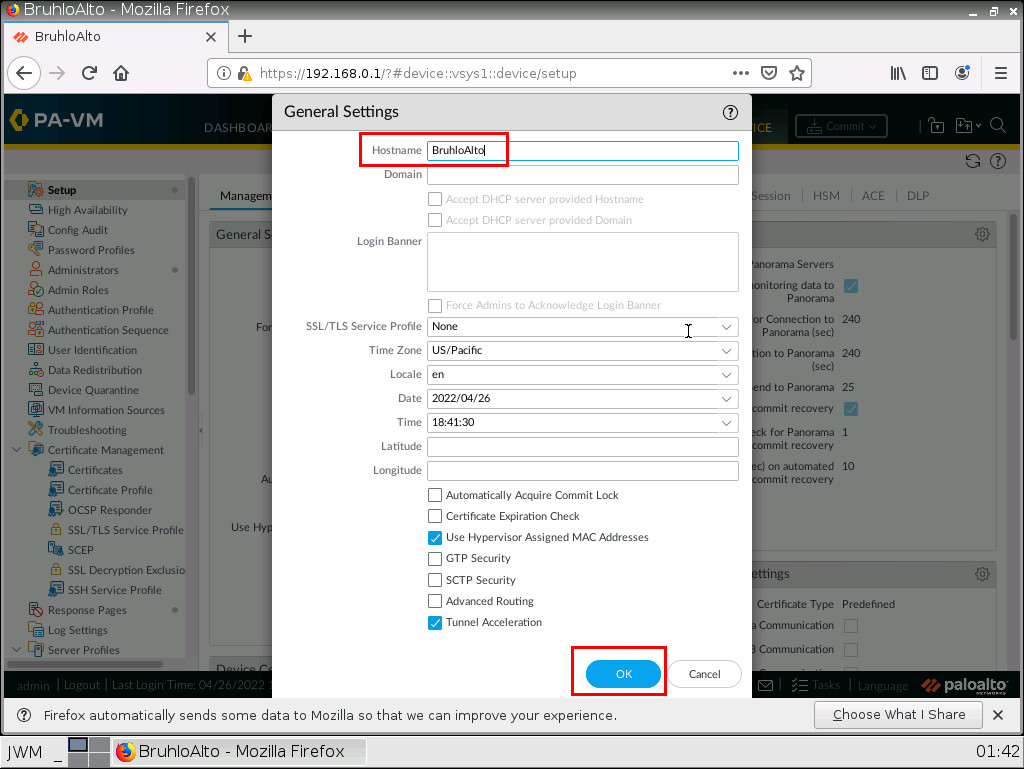
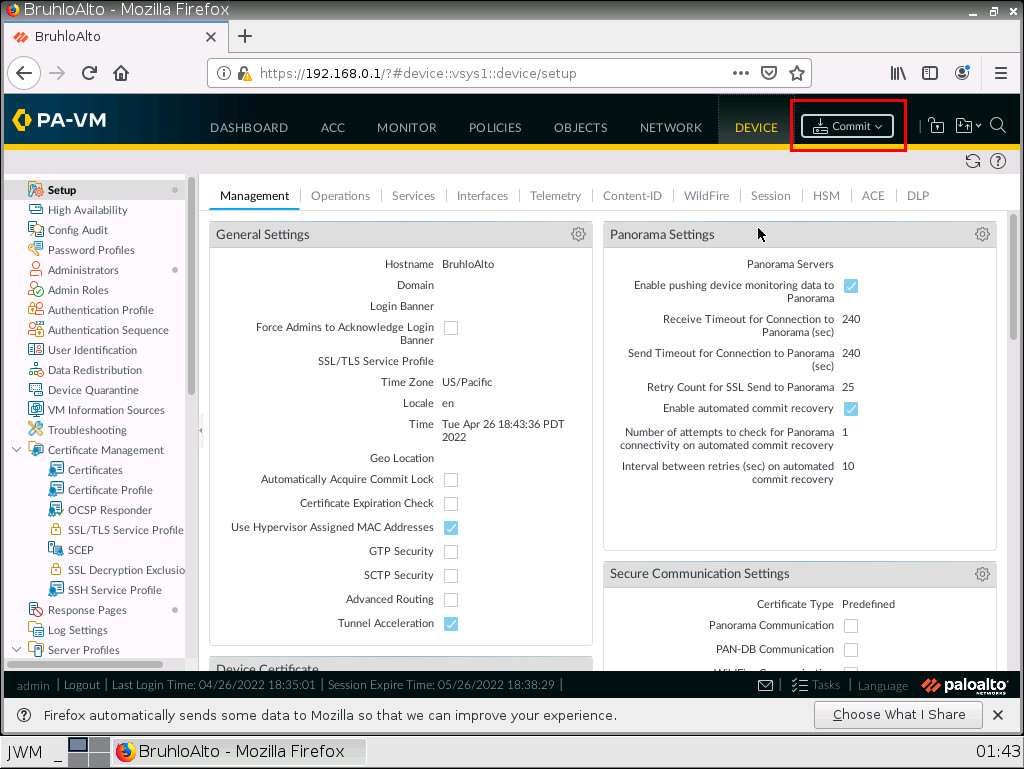
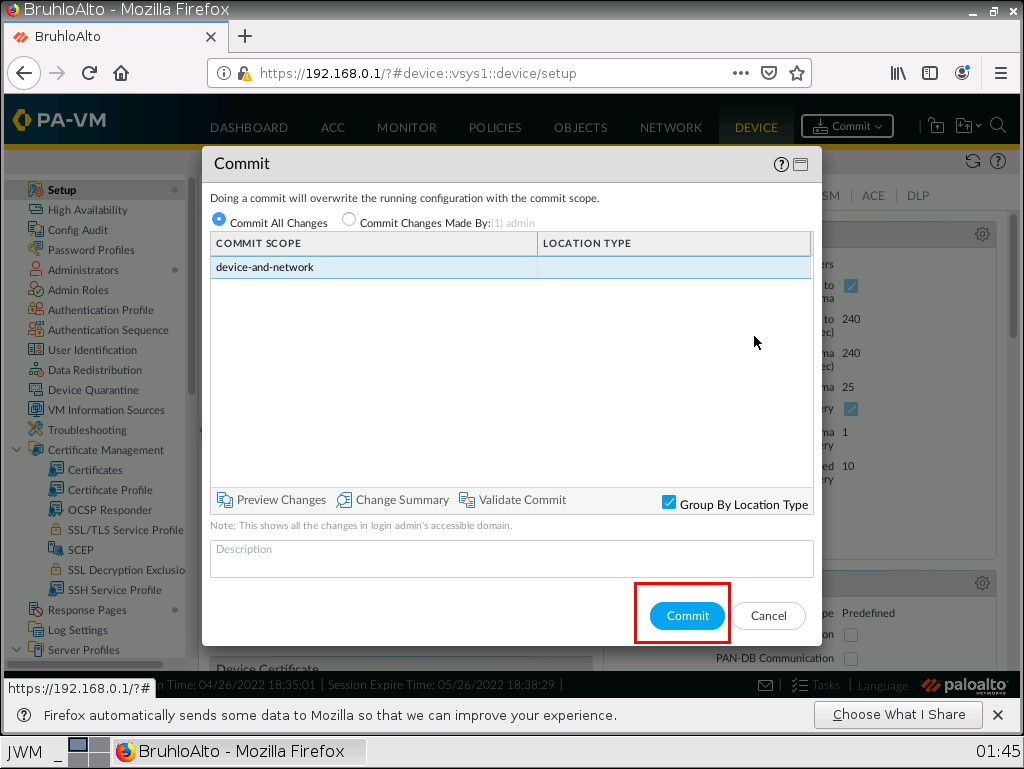
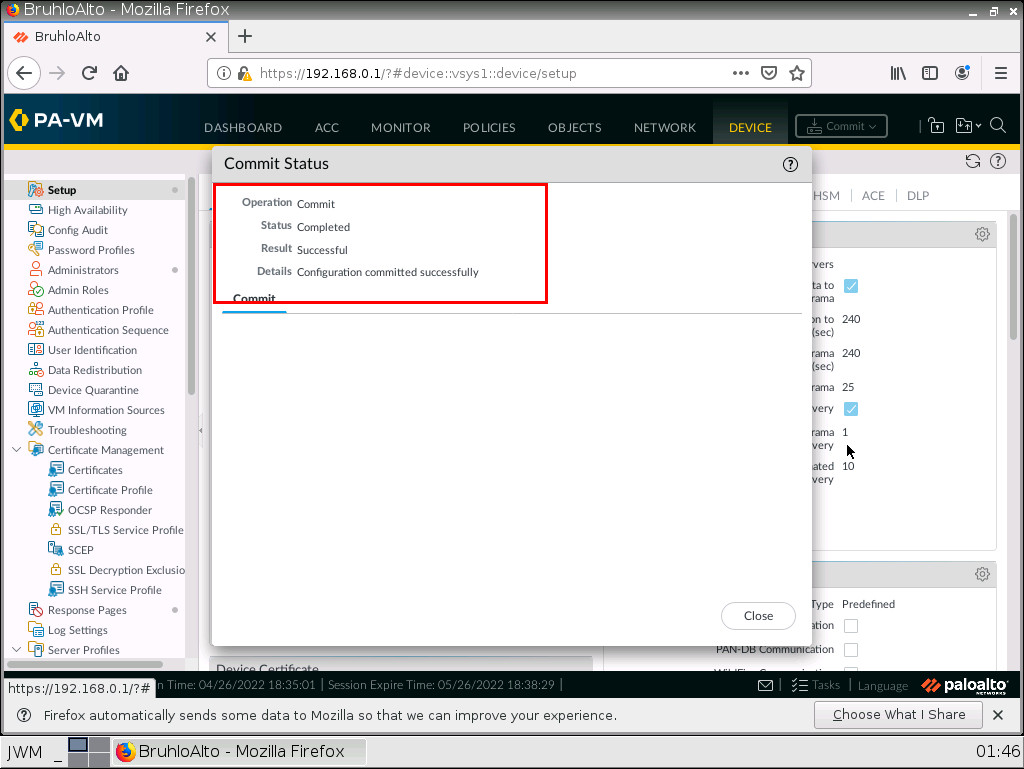
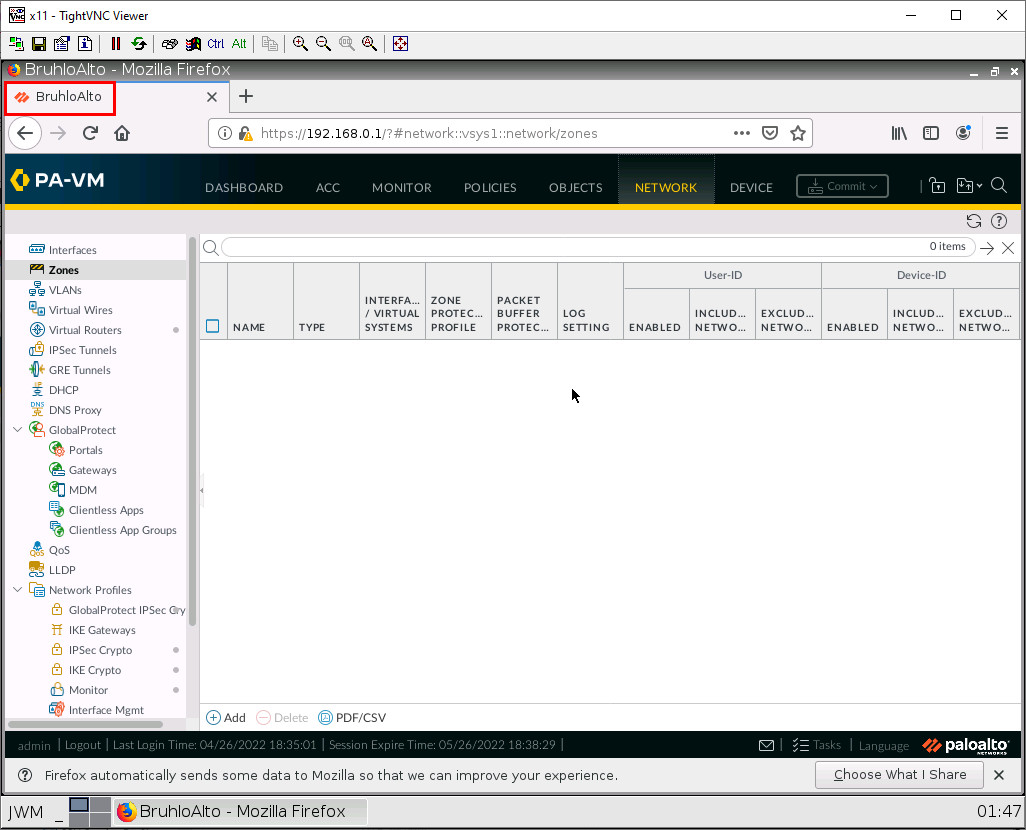
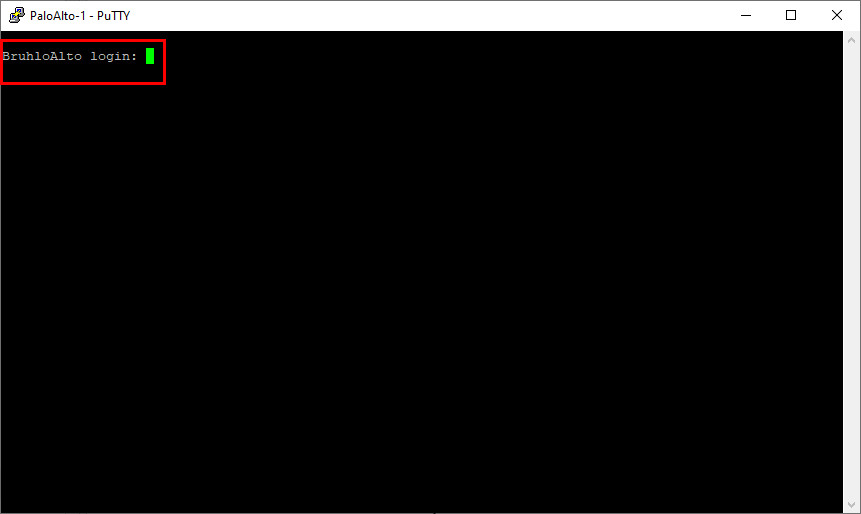
				 <div class="textbox textbox--learning-objectives"><div class="textbox__header"><p class="textbox__title">Learning Objectives</p> </div> <div class="textbox__content"><ul><li>Configure a static IP for the management port on the firewall</li> <li>Change general settings of the firewall using the web interface</li> </ul> </div> </div> <div class="textbox shaded"><p><strong>Scenario</strong>: In this lab, we’re only going to start with the basics. Connecting to and configuring basic settings on Palo Alto. There will be a little console usage, but don’t fret. The rest of these will involve some sort of GUI based option</p> </div> <div class="wp-caption aligncenter" id="attachment_43" aria-describedby="caption-attachment-43" style="width: 500px"><img class="wp-image-24" style="text-align: initial; font-size: 1em;" src="https://opentextbc.ca/wp-content/uploads/sites/445/2022/03/1.png" alt="Main Scenario" width="500" height="367" srcset="https://opentextbc.ca/paloalto/wp-content/uploads/sites/445/2022/03/1.png 695w, https://opentextbc.ca/paloalto/wp-content/uploads/sites/445/2022/03/1-300x220.png 300w, https://opentextbc.ca/paloalto/wp-content/uploads/sites/445/2022/03/1-65x48.png 65w, https://opentextbc.ca/paloalto/wp-content/uploads/sites/445/2022/03/1-225x165.png 225w, https://opentextbc.ca/paloalto/wp-content/uploads/sites/445/2022/03/1-350x257.png 350w" title="" /><div class="wp-caption-text" id="caption-attachment-43">Figure 1.1: Main Scenario</div></div> <table class="grid" style="border-collapse: collapse; width: 100%; height: 45px;"><caption>Table 1.1: Addressing Table</caption> <tbody><tr style="height: 15px;"><th style="width: 50%; height: 15px;" scope="col">Device</th> <th style="width: 50%; height: 15px;" scope="col">Configuration</th> </tr> <tr style="height: 15px;"><td style="width: 50%; height: 15px;">PaloAlto-1</td> <td style="width: 50%; height: 15px;">Management: 192.168.0.1/24</td> </tr> <tr style="height: 15px;"><td style="width: 50%; height: 15px;">WebTerm1-Management</td> <td style="width: 50%; height: 15px;">eth0: 192.168.0.2/24</td> </tr> </tbody> </table> <h2>Console into the Palo Alto Device</h2> <p>Make sure to start all your devices, then double click the Palo Alto device. You should see a console window pop up. We need to wait till the prompt changes to “PA-VM”. Otherwise, we cannot login.</p> <div class="wp-caption aligncenter" aria-describedby="caption-attachment-43" style="width: 829px"><img class="wp-image-25 size-full" src="https://opentextbc.ca/wp-content/uploads/sites/445/2023/11/Palo1.jpg" alt="No Login" width="829" height="562" srcset="https://opentextbc.ca/paloalto/wp-content/uploads/sites/445/2023/11/Palo1.jpg 829w, https://opentextbc.ca/paloalto/wp-content/uploads/sites/445/2023/11/Palo1-300x203.jpg 300w, https://opentextbc.ca/paloalto/wp-content/uploads/sites/445/2023/11/Palo1-768x521.jpg 768w, https://opentextbc.ca/paloalto/wp-content/uploads/sites/445/2023/11/Palo1-65x44.jpg 65w, https://opentextbc.ca/paloalto/wp-content/uploads/sites/445/2023/11/Palo1-225x153.jpg 225w, https://opentextbc.ca/paloalto/wp-content/uploads/sites/445/2023/11/Palo1-350x237.jpg 350w" title="" /><div class="wp-caption-text">Figure 1.2: No Login</div></div> <p>After about 15 mins, hit enter, and the prompt should change. Login with the following credentials:<br /> <strong>Username:</strong> admin<br /> <strong>Password:</strong> admin</p> <p style="page-break-before: always;">It will prompt you to change your password. Once you’re finished changing your password, you will see the prompt change to this:</p> <div class="wp-caption aligncenter" aria-describedby="caption-attachment-43" style="width: 829px"><img class="wp-image-26 size-full" src="https://opentextbc.ca/wp-content/uploads/sites/445/2023/11/Palo2.jpg" alt="Firewall General mode" width="829" height="562" srcset="https://opentextbc.ca/paloalto/wp-content/uploads/sites/445/2023/11/Palo2.jpg 829w, https://opentextbc.ca/paloalto/wp-content/uploads/sites/445/2023/11/Palo2-300x203.jpg 300w, https://opentextbc.ca/paloalto/wp-content/uploads/sites/445/2023/11/Palo2-768x521.jpg 768w, https://opentextbc.ca/paloalto/wp-content/uploads/sites/445/2023/11/Palo2-65x44.jpg 65w, https://opentextbc.ca/paloalto/wp-content/uploads/sites/445/2023/11/Palo2-225x153.jpg 225w, https://opentextbc.ca/paloalto/wp-content/uploads/sites/445/2023/11/Palo2-350x237.jpg 350w" title="" /><div class="wp-caption-text">Figure 1.3: Firewall General mode</div></div> <h2 style="page-break-before: always;">Configure a Static IP on the Palo Alto Device</h2> <p>I promise you that this is one of the only times we will be interfacing with the command line. But this is necessary for setting up a static IP. Type these commands into the now open console:</p> <div class="textbox shaded"><code>1) configure</code><br /> <code>2) set deviceconfig system type <strong>static&nbsp;</strong></code><br /> <code>3) set deviceconfig system ip-address <strong>192.168.0.1</strong> netmask <strong>255.255.255.0&nbsp;</strong></code><br /> <code>4) commit</code></div> <p><strong>Line 1:</strong> Gets you into configuration mode.</p> <p><strong>Line 2:</strong> Configuration mode command to set the management interface to a static address.</p> <p><strong>Line 3:</strong> Sets IP of the management interface.</p> <p><strong>Line 4:</strong> Every time you make any change in Palo Alto, you must commit the changes for it to take effect.</p> <p>It should look like this if all commands were successful:</p> <div class="wp-caption aligncenter" aria-describedby="caption-attachment-43" style="width: 500px"><img class="wp-image-27" src="https://opentextbc.ca/wp-content/uploads/sites/445/2023/11/2022-03-16-19-46-28-image.png" alt="Set a static IP address" width="500" height="316" srcset="https://opentextbc.ca/paloalto/wp-content/uploads/sites/445/2023/11/2022-03-16-19-46-28-image.png 661w, https://opentextbc.ca/paloalto/wp-content/uploads/sites/445/2023/11/2022-03-16-19-46-28-image-300x190.png 300w, https://opentextbc.ca/paloalto/wp-content/uploads/sites/445/2023/11/2022-03-16-19-46-28-image-65x41.png 65w, https://opentextbc.ca/paloalto/wp-content/uploads/sites/445/2023/11/2022-03-16-19-46-28-image-225x142.png 225w, https://opentextbc.ca/paloalto/wp-content/uploads/sites/445/2023/11/2022-03-16-19-46-28-image-350x221.png 350w" title="" /><div class="wp-caption-text">Figure 1.4: Set a static IP address</div></div> <h2 style="page-break-before: always;">Access the Web Interface from Webterm</h2> <p>Double click on the webterm device. A Firefox window should immediately pop up:</p> <div class="wp-caption aligncenter" aria-describedby="caption-attachment-43" style="width: 600px"><img class="wp-image-28" src="https://opentextbc.ca/wp-content/uploads/sites/445/2023/11/2022-03-16-19-50-52-image.png" alt="WebTerm Firefox browser" width="600" height="485" srcset="https://opentextbc.ca/paloalto/wp-content/uploads/sites/445/2023/11/2022-03-16-19-50-52-image.png 1026w, https://opentextbc.ca/paloalto/wp-content/uploads/sites/445/2023/11/2022-03-16-19-50-52-image-300x243.png 300w, https://opentextbc.ca/paloalto/wp-content/uploads/sites/445/2023/11/2022-03-16-19-50-52-image-1024x828.png 1024w, https://opentextbc.ca/paloalto/wp-content/uploads/sites/445/2023/11/2022-03-16-19-50-52-image-768x621.png 768w, https://opentextbc.ca/paloalto/wp-content/uploads/sites/445/2023/11/2022-03-16-19-50-52-image-65x53.png 65w, https://opentextbc.ca/paloalto/wp-content/uploads/sites/445/2023/11/2022-03-16-19-50-52-image-225x182.png 225w, https://opentextbc.ca/paloalto/wp-content/uploads/sites/445/2023/11/2022-03-16-19-50-52-image-350x283.png 350w" title="" /><div class="wp-caption-text">Figure 1.5: WebTerm Firefox browser</div></div> <p>On the top address bar, type in “<a class="internal" href="https://192.168.0.1" data-url="https://192.168.0.1">https://192.168.0.1</a>” (without quotes) then hit enter.</p> <p style="page-break-before: always;">After typing that in, you should see a block page:</p> <div class="wp-caption aligncenter" aria-describedby="caption-attachment-43" style="width: 600px"><img class="wp-image-29" src="https://opentextbc.ca/wp-content/uploads/sites/445/2023/11/2022-03-16-19-52-12-image.png" alt="Type IP address of Palo Alto" width="600" height="485" srcset="https://opentextbc.ca/paloalto/wp-content/uploads/sites/445/2023/11/2022-03-16-19-52-12-image.png 1026w, https://opentextbc.ca/paloalto/wp-content/uploads/sites/445/2023/11/2022-03-16-19-52-12-image-300x243.png 300w, https://opentextbc.ca/paloalto/wp-content/uploads/sites/445/2023/11/2022-03-16-19-52-12-image-1024x828.png 1024w, https://opentextbc.ca/paloalto/wp-content/uploads/sites/445/2023/11/2022-03-16-19-52-12-image-768x621.png 768w, https://opentextbc.ca/paloalto/wp-content/uploads/sites/445/2023/11/2022-03-16-19-52-12-image-65x53.png 65w, https://opentextbc.ca/paloalto/wp-content/uploads/sites/445/2023/11/2022-03-16-19-52-12-image-225x182.png 225w, https://opentextbc.ca/paloalto/wp-content/uploads/sites/445/2023/11/2022-03-16-19-52-12-image-350x283.png 350w" title="" /><div class="wp-caption-text">Figure 1.6: Type IP address of Palo Alto</div></div> <p style="page-break-before: always;">To get past this, click advanced, then click “<strong>Accept the Risk</strong>”.</p> <div class="wp-caption aligncenter" aria-describedby="caption-attachment-43" style="width: 600px"><img class="wp-image-30" src="https://opentextbc.ca/wp-content/uploads/sites/445/2023/11/Palo3.jpg" alt="Past of security warning" width="600" height="451" srcset="https://opentextbc.ca/paloalto/wp-content/uploads/sites/445/2023/11/Palo3.jpg 1024w, https://opentextbc.ca/paloalto/wp-content/uploads/sites/445/2023/11/Palo3-300x225.jpg 300w, https://opentextbc.ca/paloalto/wp-content/uploads/sites/445/2023/11/Palo3-768x577.jpg 768w, https://opentextbc.ca/paloalto/wp-content/uploads/sites/445/2023/11/Palo3-65x49.jpg 65w, https://opentextbc.ca/paloalto/wp-content/uploads/sites/445/2023/11/Palo3-225x169.jpg 225w, https://opentextbc.ca/paloalto/wp-content/uploads/sites/445/2023/11/Palo3-350x263.jpg 350w" title="" /><div class="wp-caption-text">Figure 1.7: Past of security warning</div></div> <p style="page-break-before: always;">Now that we’re past the scary-looking warning screen, type in the credentials to the user: <strong>admin</strong>. The password should be the <strong>password</strong> you set after initially logging in through the command line.</p> <div class="wp-caption aligncenter" aria-describedby="caption-attachment-43" style="width: 600px"><img class="wp-image-31" src="https://opentextbc.ca/wp-content/uploads/sites/445/2023/11/2022-03-16-19-54-15-image.png" alt="Enter credentials" width="600" height="485" srcset="https://opentextbc.ca/paloalto/wp-content/uploads/sites/445/2023/11/2022-03-16-19-54-15-image.png 1026w, https://opentextbc.ca/paloalto/wp-content/uploads/sites/445/2023/11/2022-03-16-19-54-15-image-300x243.png 300w, https://opentextbc.ca/paloalto/wp-content/uploads/sites/445/2023/11/2022-03-16-19-54-15-image-1024x828.png 1024w, https://opentextbc.ca/paloalto/wp-content/uploads/sites/445/2023/11/2022-03-16-19-54-15-image-768x621.png 768w, https://opentextbc.ca/paloalto/wp-content/uploads/sites/445/2023/11/2022-03-16-19-54-15-image-65x53.png 65w, https://opentextbc.ca/paloalto/wp-content/uploads/sites/445/2023/11/2022-03-16-19-54-15-image-225x182.png 225w, https://opentextbc.ca/paloalto/wp-content/uploads/sites/445/2023/11/2022-03-16-19-54-15-image-350x283.png 350w" title="" /><div class="wp-caption-text">Figure 1.8: Enter credentials</div></div> <p style="page-break-before: always;">Now, we’re in the web interface for the Palo Alto device!</p> <div class="wp-caption aligncenter" aria-describedby="caption-attachment-43" style="width: 1026px"><img class="wp-image-32 size-full" src="https://opentextbc.ca/wp-content/uploads/sites/445/2023/11/2022-03-16-19-55-10-image.png" alt="First page of Palo Alto" width="1026" height="830" srcset="https://opentextbc.ca/paloalto/wp-content/uploads/sites/445/2023/11/2022-03-16-19-55-10-image.png 1026w, https://opentextbc.ca/paloalto/wp-content/uploads/sites/445/2023/11/2022-03-16-19-55-10-image-300x243.png 300w, https://opentextbc.ca/paloalto/wp-content/uploads/sites/445/2023/11/2022-03-16-19-55-10-image-1024x828.png 1024w, https://opentextbc.ca/paloalto/wp-content/uploads/sites/445/2023/11/2022-03-16-19-55-10-image-768x621.png 768w, https://opentextbc.ca/paloalto/wp-content/uploads/sites/445/2023/11/2022-03-16-19-55-10-image-65x53.png 65w, https://opentextbc.ca/paloalto/wp-content/uploads/sites/445/2023/11/2022-03-16-19-55-10-image-225x182.png 225w, https://opentextbc.ca/paloalto/wp-content/uploads/sites/445/2023/11/2022-03-16-19-55-10-image-350x283.png 350w" title="" /><div class="wp-caption-text">Figure 1.9: First page of Palo Alto</div></div> <h2 style="page-break-before: always;">Explore the Web Interface</h2> <p>Let’s focus on what we’ll actually be used as these labs progress.</p> <div class="wp-caption aligncenter" aria-describedby="caption-attachment-43" style="width: 1024px"><img class="wp-image-33 size-full" src="https://opentextbc.ca/wp-content/uploads/sites/445/2023/11/Palo4.jpg" alt="Device Settings" width="1024" height="769" srcset="https://opentextbc.ca/paloalto/wp-content/uploads/sites/445/2023/11/Palo4.jpg 1024w, https://opentextbc.ca/paloalto/wp-content/uploads/sites/445/2023/11/Palo4-300x225.jpg 300w, https://opentextbc.ca/paloalto/wp-content/uploads/sites/445/2023/11/Palo4-768x577.jpg 768w, https://opentextbc.ca/paloalto/wp-content/uploads/sites/445/2023/11/Palo4-65x49.jpg 65w, https://opentextbc.ca/paloalto/wp-content/uploads/sites/445/2023/11/Palo4-225x169.jpg 225w, https://opentextbc.ca/paloalto/wp-content/uploads/sites/445/2023/11/Palo4-350x263.jpg 350w" title="" /><div class="wp-caption-text">Figure 1.10: Device Settings</div></div> <p style="page-break-before: always;">In device settings, we can change the hostname, create users, generate certs, etc. The bottom line is that it is used for general system administration. We will be delving more into this as the chapters progress.</p> <div class="wp-caption aligncenter" aria-describedby="caption-attachment-43" style="width: 1024px"><img class="wp-image-34 size-full" src="https://opentextbc.ca/wp-content/uploads/sites/445/2023/11/Palo5.jpg" alt="Network Interfaces Settings" width="1024" height="769" srcset="https://opentextbc.ca/paloalto/wp-content/uploads/sites/445/2023/11/Palo5.jpg 1024w, https://opentextbc.ca/paloalto/wp-content/uploads/sites/445/2023/11/Palo5-300x225.jpg 300w, https://opentextbc.ca/paloalto/wp-content/uploads/sites/445/2023/11/Palo5-768x577.jpg 768w, https://opentextbc.ca/paloalto/wp-content/uploads/sites/445/2023/11/Palo5-65x49.jpg 65w, https://opentextbc.ca/paloalto/wp-content/uploads/sites/445/2023/11/Palo5-225x169.jpg 225w, https://opentextbc.ca/paloalto/wp-content/uploads/sites/445/2023/11/Palo5-350x263.jpg 350w" title="" /><div class="wp-caption-text">Figure 1.11: Network Interfaces Settings</div></div> <p style="page-break-before: always;">In network settings, we can change interface IP addresses, create tunnels, and setup routing.</p> <div class="wp-caption aligncenter" aria-describedby="caption-attachment-43" style="width: 1024px"><img class="wp-image-35 size-full" src="https://opentextbc.ca/wp-content/uploads/sites/445/2023/11/Palo6jpg.jpg" alt="Objects Settings" width="1024" height="769" srcset="https://opentextbc.ca/paloalto/wp-content/uploads/sites/445/2023/11/Palo6jpg.jpg 1024w, https://opentextbc.ca/paloalto/wp-content/uploads/sites/445/2023/11/Palo6jpg-300x225.jpg 300w, https://opentextbc.ca/paloalto/wp-content/uploads/sites/445/2023/11/Palo6jpg-768x577.jpg 768w, https://opentextbc.ca/paloalto/wp-content/uploads/sites/445/2023/11/Palo6jpg-65x49.jpg 65w, https://opentextbc.ca/paloalto/wp-content/uploads/sites/445/2023/11/Palo6jpg-225x169.jpg 225w, https://opentextbc.ca/paloalto/wp-content/uploads/sites/445/2023/11/Palo6jpg-350x263.jpg 350w" title="" /><div class="wp-caption-text">Figure 1.12: Objects Settings</div></div> <p style="page-break-before: always;">We won’t be using the objects tab very much, however, it is important to know about it. Here, we can create pre-defined address objects, define ports, and create security policy templates.</p> <div class="wp-caption aligncenter" aria-describedby="caption-attachment-43" style="width: 1024px"><img class="wp-image-36 size-full" src="https://opentextbc.ca/wp-content/uploads/sites/445/2023/11/Palo7.jpg" alt="Policy Settings" width="1024" height="769" srcset="https://opentextbc.ca/paloalto/wp-content/uploads/sites/445/2023/11/Palo7.jpg 1024w, https://opentextbc.ca/paloalto/wp-content/uploads/sites/445/2023/11/Palo7-300x225.jpg 300w, https://opentextbc.ca/paloalto/wp-content/uploads/sites/445/2023/11/Palo7-768x577.jpg 768w, https://opentextbc.ca/paloalto/wp-content/uploads/sites/445/2023/11/Palo7-65x49.jpg 65w, https://opentextbc.ca/paloalto/wp-content/uploads/sites/445/2023/11/Palo7-225x169.jpg 225w, https://opentextbc.ca/paloalto/wp-content/uploads/sites/445/2023/11/Palo7-350x263.jpg 350w" title="" /><div class="wp-caption-text">Figure 1.13: Policy Settings</div></div> <p>The policies tab is arguably the most important tab of the firewall. Here we will configure security policies and define NAT rules. An important thing to note is these pre-existing security policies. Everything within a zone is allowed, whereas a zone to another zone is not allowed.</p> <h2 style="page-break-before: always;">Change the Hostname of Palo Alto</h2> <p>Head over to the device tab, and click the cog icon to the right of device settings.</p> <div class="wp-caption aligncenter" aria-describedby="caption-attachment-43" style="width: 1024px"><img class="wp-image-37 size-full" src="https://opentextbc.ca/wp-content/uploads/sites/445/2023/11/Palo8.jpg" alt="Changing hostname" width="1024" height="769" srcset="https://opentextbc.ca/paloalto/wp-content/uploads/sites/445/2023/11/Palo8.jpg 1024w, https://opentextbc.ca/paloalto/wp-content/uploads/sites/445/2023/11/Palo8-300x225.jpg 300w, https://opentextbc.ca/paloalto/wp-content/uploads/sites/445/2023/11/Palo8-768x577.jpg 768w, https://opentextbc.ca/paloalto/wp-content/uploads/sites/445/2023/11/Palo8-65x49.jpg 65w, https://opentextbc.ca/paloalto/wp-content/uploads/sites/445/2023/11/Palo8-225x169.jpg 225w, https://opentextbc.ca/paloalto/wp-content/uploads/sites/445/2023/11/Palo8-350x263.jpg 350w" title="" /><div class="wp-caption-text">Figure 1.14: Changing hostname</div></div> <p>Change the hostname to anything but PA-VM. I will change mine to “BruhloAlto”.</p> <p style="page-break-before: always;">After changing the hostname to anything you desire, click on <b>OK</b> at the bottom right of the screen.</p> <div class="wp-caption aligncenter" aria-describedby="caption-attachment-43" style="width: 1024px"><img class="wp-image-38 size-full" src="https://opentextbc.ca/wp-content/uploads/sites/445/2023/11/Palo9.jpg" alt="General Settings" width="1024" height="769" srcset="https://opentextbc.ca/paloalto/wp-content/uploads/sites/445/2023/11/Palo9.jpg 1024w, https://opentextbc.ca/paloalto/wp-content/uploads/sites/445/2023/11/Palo9-300x225.jpg 300w, https://opentextbc.ca/paloalto/wp-content/uploads/sites/445/2023/11/Palo9-768x577.jpg 768w, https://opentextbc.ca/paloalto/wp-content/uploads/sites/445/2023/11/Palo9-65x49.jpg 65w, https://opentextbc.ca/paloalto/wp-content/uploads/sites/445/2023/11/Palo9-225x169.jpg 225w, https://opentextbc.ca/paloalto/wp-content/uploads/sites/445/2023/11/Palo9-350x263.jpg 350w" title="" /><div class="wp-caption-text">Figure 1.15: General Settings</div></div> <p style="page-break-before: always;">After any change in Palo Alto, you will have to commit the changes. When you make changes in Palo Alto, it is put into what we call a “<strong>candidate configuration</strong>.” This means that changes do not take effect immediately. After we change some settings, we need to press the commit button on the top right.</p> <div class="wp-caption aligncenter" aria-describedby="caption-attachment-43" style="width: 1024px"><img class="wp-image-39 size-full" src="https://opentextbc.ca/wp-content/uploads/sites/445/2023/11/Palo10.jpg" alt="Commit Configuration" width="1024" height="769" srcset="https://opentextbc.ca/paloalto/wp-content/uploads/sites/445/2023/11/Palo10.jpg 1024w, https://opentextbc.ca/paloalto/wp-content/uploads/sites/445/2023/11/Palo10-300x225.jpg 300w, https://opentextbc.ca/paloalto/wp-content/uploads/sites/445/2023/11/Palo10-768x577.jpg 768w, https://opentextbc.ca/paloalto/wp-content/uploads/sites/445/2023/11/Palo10-65x49.jpg 65w, https://opentextbc.ca/paloalto/wp-content/uploads/sites/445/2023/11/Palo10-225x169.jpg 225w, https://opentextbc.ca/paloalto/wp-content/uploads/sites/445/2023/11/Palo10-350x263.jpg 350w" title="" /><div class="wp-caption-text">Figure 1.16: Commit Configuration</div></div> <p style="page-break-before: always;">Pressing commit will push the candidate configuration to the running configuration. This is helpful because the Palo Alto device is smart enough to tell you if a configuration won’t work without affecting your active network settings. Let’s commit these changes by clicking commit again.</p> <div class="wp-caption aligncenter" aria-describedby="caption-attachment-43" style="width: 1024px"><img class="wp-image-40 size-full" src="https://opentextbc.ca/wp-content/uploads/sites/445/2023/11/Palo11.jpg" alt="Commit all changes" width="1024" height="769" srcset="https://opentextbc.ca/paloalto/wp-content/uploads/sites/445/2023/11/Palo11.jpg 1024w, https://opentextbc.ca/paloalto/wp-content/uploads/sites/445/2023/11/Palo11-300x225.jpg 300w, https://opentextbc.ca/paloalto/wp-content/uploads/sites/445/2023/11/Palo11-768x577.jpg 768w, https://opentextbc.ca/paloalto/wp-content/uploads/sites/445/2023/11/Palo11-65x49.jpg 65w, https://opentextbc.ca/paloalto/wp-content/uploads/sites/445/2023/11/Palo11-225x169.jpg 225w, https://opentextbc.ca/paloalto/wp-content/uploads/sites/445/2023/11/Palo11-350x263.jpg 350w" title="" /><div class="wp-caption-text">Figure 1.17: Commit all changes</div></div> <p style="page-break-before: always;">If all is well, after a while you should see something similar to this. It means everything worked!</p> <div class="wp-caption aligncenter" aria-describedby="caption-attachment-43" style="width: 1024px"><img class="wp-image-41 size-full" src="https://opentextbc.ca/wp-content/uploads/sites/445/2023/11/Palo12.jpg" alt="Configuration committed successfully" width="1024" height="769" srcset="https://opentextbc.ca/paloalto/wp-content/uploads/sites/445/2023/11/Palo12.jpg 1024w, https://opentextbc.ca/paloalto/wp-content/uploads/sites/445/2023/11/Palo12-300x225.jpg 300w, https://opentextbc.ca/paloalto/wp-content/uploads/sites/445/2023/11/Palo12-768x577.jpg 768w, https://opentextbc.ca/paloalto/wp-content/uploads/sites/445/2023/11/Palo12-65x49.jpg 65w, https://opentextbc.ca/paloalto/wp-content/uploads/sites/445/2023/11/Palo12-225x169.jpg 225w, https://opentextbc.ca/paloalto/wp-content/uploads/sites/445/2023/11/Palo12-350x263.jpg 350w" title="" /><div class="wp-caption-text">Figure 1.18: Configuration committed successfully</div></div> <h2 style="page-break-before: always;">Verify the Changes</h2> <p>Refresh the page by pressing the F5 key (or clicking on the refresh button) on the webterm web browser. If the hostname changed, the tab will change to the hostname you set.</p> <div class="wp-caption aligncenter" aria-describedby="caption-attachment-43" style="width: 400px"><img class="wp-image-42" src="https://opentextbc.ca/wp-content/uploads/sites/445/2023/11/Palo13.jpg" alt="Verify configuration" width="400" height="324" srcset="https://opentextbc.ca/paloalto/wp-content/uploads/sites/445/2023/11/Palo13.jpg 1026w, https://opentextbc.ca/paloalto/wp-content/uploads/sites/445/2023/11/Palo13-300x243.jpg 300w, https://opentextbc.ca/paloalto/wp-content/uploads/sites/445/2023/11/Palo13-1024x828.jpg 1024w, https://opentextbc.ca/paloalto/wp-content/uploads/sites/445/2023/11/Palo13-768x621.jpg 768w, https://opentextbc.ca/paloalto/wp-content/uploads/sites/445/2023/11/Palo13-65x53.jpg 65w, https://opentextbc.ca/paloalto/wp-content/uploads/sites/445/2023/11/Palo13-225x182.jpg 225w, https://opentextbc.ca/paloalto/wp-content/uploads/sites/445/2023/11/Palo13-350x283.jpg 350w" title="" /><div class="wp-caption-text">Figure 1.19: Verify configuration</div></div> <p>You can also see the changes being reflected on the console interface if you press enter.</p> <div class="wp-caption aligncenter" aria-describedby="caption-attachment-43" style="width: 400px"><img class="wp-image-43" src="https://opentextbc.ca/wp-content/uploads/sites/445/2023/11/Palo14.jpg" alt="Verify configuration in CLI" width="400" height="239" srcset="https://opentextbc.ca/paloalto/wp-content/uploads/sites/445/2023/11/Palo14.jpg 861w, https://opentextbc.ca/paloalto/wp-content/uploads/sites/445/2023/11/Palo14-300x179.jpg 300w, https://opentextbc.ca/paloalto/wp-content/uploads/sites/445/2023/11/Palo14-768x458.jpg 768w, https://opentextbc.ca/paloalto/wp-content/uploads/sites/445/2023/11/Palo14-65x39.jpg 65w, https://opentextbc.ca/paloalto/wp-content/uploads/sites/445/2023/11/Palo14-225x134.jpg 225w, https://opentextbc.ca/paloalto/wp-content/uploads/sites/445/2023/11/Palo14-350x209.jpg 350w" title="" /><div class="wp-caption-text">Figure 1.20: Verify configuration in CLI</div></div> 
	</div>


	</div>
<div class="chapter standard " id="chapter-dora-the-dhcp-provider" title="1.2 DORA the DHCP Provider">
	<div class="chapter-title-wrap">
		<p class="chapter-number">2</p>
		<h1 class="chapter-title">1.2 DORA the DHCP Provider</h1>
								</div>
	<div class="ugc chapter-ugc">
				 <div class="textbox textbox--learning-objectives"><div class="textbox__header"><p class="textbox__title">Learning Objectives</p> </div> <div class="textbox__content"><ul><li>Set up a DHCP server on Palo Alto</li> <li>Set up zones</li> <li>Connect clients to the internet with Palo Alto</li> </ul> </div> </div> <div class="textbox shaded"><p><strong>Scenario</strong>: In this lab, we are going to configure our friend DORA (Discover Offer Request Acknowledge) the hander of addresses. And we’ll also be configuring internet access so that clients may finally browse their precious Internet with SNAT (Source Network Address Translation).</p> </div> <div class="wp-caption aligncenter" id="attachment_73" aria-describedby="caption-attachment-73" style="width: 1078px"><img class="wp-image-46 size-full" src="https://opentextbc.ca/wp-content/uploads/sites/445/2022/03/topology2.png" alt="main scenario" width="1078" height="471" srcset="https://opentextbc.ca/paloalto/wp-content/uploads/sites/445/2022/03/topology2.png 1078w, https://opentextbc.ca/paloalto/wp-content/uploads/sites/445/2022/03/topology2-300x131.png 300w, https://opentextbc.ca/paloalto/wp-content/uploads/sites/445/2022/03/topology2-1024x447.png 1024w, https://opentextbc.ca/paloalto/wp-content/uploads/sites/445/2022/03/topology2-768x336.png 768w, https://opentextbc.ca/paloalto/wp-content/uploads/sites/445/2022/03/topology2-65x28.png 65w, https://opentextbc.ca/paloalto/wp-content/uploads/sites/445/2022/03/topology2-225x98.png 225w, https://opentextbc.ca/paloalto/wp-content/uploads/sites/445/2022/03/topology2-350x153.png 350w" title="" /><div class="wp-caption-text" id="caption-attachment-73">Figure 1.21: main scenario</div></div> <table class="grid" style="border-collapse: collapse; width: 100%; height: 109px;"><caption>Table 1.2: Addressing Table</caption> <tbody><tr style="height: 18px;"><th style="width: 50%; height: 18px;" scope="col">Device</th> <th style="width: 50%; height: 18px;" scope="col">Configuration</th> </tr> <tr style="height: 55px;"><td style="width: 50%; height: 55px;">PaloAlto</td> <td style="width: 50%; height: 55px;">management: 192.168.0.1/24<br /> Ethernet1/1: 10.0.0.1/24<br /> Ethernet1/2: DHCP</td> </tr> <tr style="height: 18px;"><td style="width: 50%; height: 18px;">Client (WebTerm)</td> <td style="width: 50%; height: 18px;">eth0: DHCP</td> </tr> <tr style="height: 18px;"><td style="width: 50%; height: 18px;">Management (WebTerm)</td> <td style="width: 50%; height: 18px;">eth0: 192.168.0.2/24</td> </tr> </tbody> </table> <table class="grid" style="border-collapse: collapse; width: 100%;"><caption>Table 1.3: Zone Configuration</caption> <tbody><tr><th style="width: 50%;" scope="col">Zones</th> <th style="width: 50%;" scope="col">Interfaces</th> </tr> <tr><td style="width: 50%;">Inside</td> <td style="width: 50%;">Ethernet1/1</td> </tr> <tr><td style="width: 50%;">Outside</td> <td style="width: 50%;">Ethernet1/2</td> </tr> </tbody> </table> <h2>Create Zones in the Palo Alto Web Interface</h2> <p>Under the network tab, click zones, then add on the bottom left of the screen.</p> <div class="wp-caption aligncenter" aria-describedby="caption-attachment-73" style="width: 500px"><img class="wp-image-47" src="https://opentextbc.ca/wp-content/uploads/sites/445/2023/11/DHCP1.jpg" alt="Creating zones" width="500" height="375" srcset="https://opentextbc.ca/paloalto/wp-content/uploads/sites/445/2023/11/DHCP1.jpg 1024w, https://opentextbc.ca/paloalto/wp-content/uploads/sites/445/2023/11/DHCP1-300x225.jpg 300w, https://opentextbc.ca/paloalto/wp-content/uploads/sites/445/2023/11/DHCP1-768x577.jpg 768w, https://opentextbc.ca/paloalto/wp-content/uploads/sites/445/2023/11/DHCP1-65x49.jpg 65w, https://opentextbc.ca/paloalto/wp-content/uploads/sites/445/2023/11/DHCP1-225x169.jpg 225w, https://opentextbc.ca/paloalto/wp-content/uploads/sites/445/2023/11/DHCP1-350x263.jpg 350w" title="" /><div class="wp-caption-text">Figure 1.22: Creating zones</div></div> <p>In here, we just change the name and type of zone. For information’s sake. We will only be dealing with (mostly) layer 3 things in Palo Alto for this book. After that, press <b>OK</b>. Remember to create Inside and Outside zones (Remember to also commit changes from time to time!)</p> <div class="wp-caption aligncenter" aria-describedby="caption-attachment-73" style="width: 500px"><img class="wp-image-48" src="https://opentextbc.ca/wp-content/uploads/sites/445/2023/11/DHCP2.jpg" alt="Create a zone Inside as a layer3" width="500" height="404" srcset="https://opentextbc.ca/paloalto/wp-content/uploads/sites/445/2023/11/DHCP2.jpg 1026w, https://opentextbc.ca/paloalto/wp-content/uploads/sites/445/2023/11/DHCP2-300x243.jpg 300w, https://opentextbc.ca/paloalto/wp-content/uploads/sites/445/2023/11/DHCP2-1024x828.jpg 1024w, https://opentextbc.ca/paloalto/wp-content/uploads/sites/445/2023/11/DHCP2-768x621.jpg 768w, https://opentextbc.ca/paloalto/wp-content/uploads/sites/445/2023/11/DHCP2-65x53.jpg 65w, https://opentextbc.ca/paloalto/wp-content/uploads/sites/445/2023/11/DHCP2-225x182.jpg 225w, https://opentextbc.ca/paloalto/wp-content/uploads/sites/445/2023/11/DHCP2-350x283.jpg 350w" title="" /><div class="wp-caption-text">Figure 1.23: Create a zone Inside as a layer3</div></div> <div class="wp-caption aligncenter" aria-describedby="caption-attachment-73" style="width: 500px"><img class="wp-image-49" src="https://opentextbc.ca/wp-content/uploads/sites/445/2023/11/1.jpg" alt="Create a zone Outside as a layer3" width="500" height="404" srcset="https://opentextbc.ca/paloalto/wp-content/uploads/sites/445/2023/11/1.jpg 1026w, https://opentextbc.ca/paloalto/wp-content/uploads/sites/445/2023/11/1-300x243.jpg 300w, https://opentextbc.ca/paloalto/wp-content/uploads/sites/445/2023/11/1-1024x828.jpg 1024w, https://opentextbc.ca/paloalto/wp-content/uploads/sites/445/2023/11/1-768x621.jpg 768w, https://opentextbc.ca/paloalto/wp-content/uploads/sites/445/2023/11/1-65x53.jpg 65w, https://opentextbc.ca/paloalto/wp-content/uploads/sites/445/2023/11/1-225x182.jpg 225w, https://opentextbc.ca/paloalto/wp-content/uploads/sites/445/2023/11/1-350x283.jpg 350w" title="" /><div class="wp-caption-text">Figure 1.24: Create a zone Outside as a layer3</div></div> <h2>Set Up a Static Interface IP Address in Palo Alto</h2> <p>Go under the network tab, and click on ethernet1/1.</p> <div class="wp-caption aligncenter" aria-describedby="caption-attachment-73" style="width: 500px"><img class="wp-image-50" src="https://opentextbc.ca/wp-content/uploads/sites/445/2023/11/DHCP3.jpg" alt="Select Ethernet 1/1" width="500" height="404" srcset="https://opentextbc.ca/paloalto/wp-content/uploads/sites/445/2023/11/DHCP3.jpg 1026w, https://opentextbc.ca/paloalto/wp-content/uploads/sites/445/2023/11/DHCP3-300x243.jpg 300w, https://opentextbc.ca/paloalto/wp-content/uploads/sites/445/2023/11/DHCP3-1024x828.jpg 1024w, https://opentextbc.ca/paloalto/wp-content/uploads/sites/445/2023/11/DHCP3-768x621.jpg 768w, https://opentextbc.ca/paloalto/wp-content/uploads/sites/445/2023/11/DHCP3-65x53.jpg 65w, https://opentextbc.ca/paloalto/wp-content/uploads/sites/445/2023/11/DHCP3-225x182.jpg 225w, https://opentextbc.ca/paloalto/wp-content/uploads/sites/445/2023/11/DHCP3-350x283.jpg 350w" title="" /><div class="wp-caption-text">Figure 1.25: Select Ethernet 1/1</div></div> <p style="page-break-before: always;">The first thing we want to do when configuring an interface is changing the interface type to layer 3, the virtual router to default, and changing the security zone to the desired zone. In this case, we have to change it to inside for ethernet1/1, and outside for ethernet1/2.</p> <div class="wp-caption aligncenter" aria-describedby="caption-attachment-73" style="width: 400px"><img class="wp-image-51" src="https://opentextbc.ca/wp-content/uploads/sites/445/2023/11/DHCP4.jpg" alt="Ethernet 1/1 Configuration" width="400" height="324" srcset="https://opentextbc.ca/paloalto/wp-content/uploads/sites/445/2023/11/DHCP4.jpg 1026w, https://opentextbc.ca/paloalto/wp-content/uploads/sites/445/2023/11/DHCP4-300x243.jpg 300w, https://opentextbc.ca/paloalto/wp-content/uploads/sites/445/2023/11/DHCP4-1024x828.jpg 1024w, https://opentextbc.ca/paloalto/wp-content/uploads/sites/445/2023/11/DHCP4-768x621.jpg 768w, https://opentextbc.ca/paloalto/wp-content/uploads/sites/445/2023/11/DHCP4-65x53.jpg 65w, https://opentextbc.ca/paloalto/wp-content/uploads/sites/445/2023/11/DHCP4-225x182.jpg 225w, https://opentextbc.ca/paloalto/wp-content/uploads/sites/445/2023/11/DHCP4-350x283.jpg 350w" title="" /><div class="wp-caption-text">Figure 1.26: Ethernet 1/1 Configuration</div></div> <p>Now, under the IPv4 tab of the opened window, click on <b>Add</b>, then type in the address and prefix of the interface.</p> <div class="wp-caption aligncenter" aria-describedby="caption-attachment-73" style="width: 400px"><img class="wp-image-52" src="https://opentextbc.ca/wp-content/uploads/sites/445/2023/11/DHCP5.jpg" alt="Set an IP address for Ethernet 1/1" width="400" height="300" srcset="https://opentextbc.ca/paloalto/wp-content/uploads/sites/445/2023/11/DHCP5.jpg 1024w, https://opentextbc.ca/paloalto/wp-content/uploads/sites/445/2023/11/DHCP5-300x225.jpg 300w, https://opentextbc.ca/paloalto/wp-content/uploads/sites/445/2023/11/DHCP5-768x577.jpg 768w, https://opentextbc.ca/paloalto/wp-content/uploads/sites/445/2023/11/DHCP5-65x49.jpg 65w, https://opentextbc.ca/paloalto/wp-content/uploads/sites/445/2023/11/DHCP5-225x169.jpg 225w, https://opentextbc.ca/paloalto/wp-content/uploads/sites/445/2023/11/DHCP5-350x263.jpg 350w" title="" /><div class="wp-caption-text">Figure 1.27: Set an IP address for Ethernet 1/1</div></div> <h2 style="page-break-before: always;">Ping an Interface in Palo Alto</h2> <p>By default, a Palo Alto interface is not pingable. In a lab environment, checking if pings are working is a good sanity test. Go to the advanced tab, click the drop-down menu next to the management profile, then click <b>New</b>.</p> <div class="wp-caption aligncenter" aria-describedby="caption-attachment-73" style="width: 1026px"><img class="wp-image-53 size-full" src="https://opentextbc.ca/wp-content/uploads/sites/445/2023/11/DHCP6.jpg" alt="Ethernet 1/1 configuration - Advanced Tab" width="1026" height="830" srcset="https://opentextbc.ca/paloalto/wp-content/uploads/sites/445/2023/11/DHCP6.jpg 1026w, https://opentextbc.ca/paloalto/wp-content/uploads/sites/445/2023/11/DHCP6-300x243.jpg 300w, https://opentextbc.ca/paloalto/wp-content/uploads/sites/445/2023/11/DHCP6-1024x828.jpg 1024w, https://opentextbc.ca/paloalto/wp-content/uploads/sites/445/2023/11/DHCP6-768x621.jpg 768w, https://opentextbc.ca/paloalto/wp-content/uploads/sites/445/2023/11/DHCP6-65x53.jpg 65w, https://opentextbc.ca/paloalto/wp-content/uploads/sites/445/2023/11/DHCP6-225x182.jpg 225w, https://opentextbc.ca/paloalto/wp-content/uploads/sites/445/2023/11/DHCP6-350x283.jpg 350w" title="" /><div class="wp-caption-text">Figure 1.28: Ethernet 1/1 configuration – Advanced Tab</div></div> <p style="page-break-before: always;">Call this whatever you want, but make sure to tick the ping option under networking services. Then press <b>OK</b>.</p> <div class="wp-caption aligncenter" aria-describedby="caption-attachment-73" style="width: 1024px"><img class="wp-image-54 size-full" src="https://opentextbc.ca/wp-content/uploads/sites/445/2023/11/DHCP7.jpg" alt="Enable Ping under Interface Management Profile" width="1024" height="769" srcset="https://opentextbc.ca/paloalto/wp-content/uploads/sites/445/2023/11/DHCP7.jpg 1024w, https://opentextbc.ca/paloalto/wp-content/uploads/sites/445/2023/11/DHCP7-300x225.jpg 300w, https://opentextbc.ca/paloalto/wp-content/uploads/sites/445/2023/11/DHCP7-768x577.jpg 768w, https://opentextbc.ca/paloalto/wp-content/uploads/sites/445/2023/11/DHCP7-65x49.jpg 65w, https://opentextbc.ca/paloalto/wp-content/uploads/sites/445/2023/11/DHCP7-225x169.jpg 225w, https://opentextbc.ca/paloalto/wp-content/uploads/sites/445/2023/11/DHCP7-350x263.jpg 350w" title="" /><div class="wp-caption-text">Figure 1.29: Enable Ping under Interface Management Profile</div></div> <h2 style="page-break-before: always;">Enable DHCP on an Interface in Palo Alto</h2> <p>It’s almost the same thing as setting up a static interface, but you act differently in the IPV4 menu. Instead of typing in an IP address and mask, you just specify that this is a DHCP client.</p> <div class="wp-caption aligncenter" aria-describedby="caption-attachment-73" style="width: 1024px"><img class="wp-image-55 size-full" src="https://opentextbc.ca/wp-content/uploads/sites/445/2023/11/DHCP8.jpg" alt="Enable DHCP Client on Ethernet 1/2" width="1024" height="769" srcset="https://opentextbc.ca/paloalto/wp-content/uploads/sites/445/2023/11/DHCP8.jpg 1024w, https://opentextbc.ca/paloalto/wp-content/uploads/sites/445/2023/11/DHCP8-300x225.jpg 300w, https://opentextbc.ca/paloalto/wp-content/uploads/sites/445/2023/11/DHCP8-768x577.jpg 768w, https://opentextbc.ca/paloalto/wp-content/uploads/sites/445/2023/11/DHCP8-65x49.jpg 65w, https://opentextbc.ca/paloalto/wp-content/uploads/sites/445/2023/11/DHCP8-225x169.jpg 225w, https://opentextbc.ca/paloalto/wp-content/uploads/sites/445/2023/11/DHCP8-350x263.jpg 350w" title="" /><div class="wp-caption-text">Figure 1.30: Enable DHCP Client on Ethernet 1/2</div></div> <p>Don’t forget to commit your changes!</p> <p style="page-break-before: always;">If all is well after a commit, you will be able to check your DHCP IP address by clicking “dynamic DHCP client” in the main network menu.</p> <div class="wp-caption aligncenter" aria-describedby="caption-attachment-73" style="width: 400px"><img class="wp-image-56" src="https://opentextbc.ca/wp-content/uploads/sites/445/2023/11/DHCP9.jpg" alt="Dynamic DHCP Client- Receive an IP address from DHCP Server" width="400" height="300" srcset="https://opentextbc.ca/paloalto/wp-content/uploads/sites/445/2023/11/DHCP9.jpg 1024w, https://opentextbc.ca/paloalto/wp-content/uploads/sites/445/2023/11/DHCP9-300x225.jpg 300w, https://opentextbc.ca/paloalto/wp-content/uploads/sites/445/2023/11/DHCP9-768x577.jpg 768w, https://opentextbc.ca/paloalto/wp-content/uploads/sites/445/2023/11/DHCP9-65x49.jpg 65w, https://opentextbc.ca/paloalto/wp-content/uploads/sites/445/2023/11/DHCP9-225x169.jpg 225w, https://opentextbc.ca/paloalto/wp-content/uploads/sites/445/2023/11/DHCP9-350x263.jpg 350w" title="" /><div class="wp-caption-text">Figure 1.31: Dynamic DHCP Client- Receive an IP address from DHCP Server</div></div> <p>Here is an example of that:</p> <div class="wp-caption aligncenter" aria-describedby="caption-attachment-73" style="width: 400px"><img class="wp-image-57" src="https://opentextbc.ca/wp-content/uploads/sites/445/2023/11/2022-03-18-17-56-33-image.png" alt="IP Address of Interface 1/2" width="400" height="324" srcset="https://opentextbc.ca/paloalto/wp-content/uploads/sites/445/2023/11/2022-03-18-17-56-33-image.png 1026w, https://opentextbc.ca/paloalto/wp-content/uploads/sites/445/2023/11/2022-03-18-17-56-33-image-300x243.png 300w, https://opentextbc.ca/paloalto/wp-content/uploads/sites/445/2023/11/2022-03-18-17-56-33-image-1024x828.png 1024w, https://opentextbc.ca/paloalto/wp-content/uploads/sites/445/2023/11/2022-03-18-17-56-33-image-768x621.png 768w, https://opentextbc.ca/paloalto/wp-content/uploads/sites/445/2023/11/2022-03-18-17-56-33-image-65x53.png 65w, https://opentextbc.ca/paloalto/wp-content/uploads/sites/445/2023/11/2022-03-18-17-56-33-image-225x182.png 225w, https://opentextbc.ca/paloalto/wp-content/uploads/sites/445/2023/11/2022-03-18-17-56-33-image-350x283.png 350w" title="" /><div class="wp-caption-text">Figure 1.32: IP Address of Interface 1/2</div></div> <h2 style="page-break-before: always;">Set Up a DHCP Server in Palo Alto</h2> <p>In the network tab, click on <strong>DHCP</strong>, then click <b>Add.</b></p> <div class="wp-caption aligncenter" aria-describedby="caption-attachment-73" style="width: 400px"><img class="wp-image-58" src="https://opentextbc.ca/wp-content/uploads/sites/445/2023/11/DHCP10.jpg" alt="Add a DHCP Server" width="400" height="300" srcset="https://opentextbc.ca/paloalto/wp-content/uploads/sites/445/2023/11/DHCP10.jpg 1024w, https://opentextbc.ca/paloalto/wp-content/uploads/sites/445/2023/11/DHCP10-300x225.jpg 300w, https://opentextbc.ca/paloalto/wp-content/uploads/sites/445/2023/11/DHCP10-768x577.jpg 768w, https://opentextbc.ca/paloalto/wp-content/uploads/sites/445/2023/11/DHCP10-65x49.jpg 65w, https://opentextbc.ca/paloalto/wp-content/uploads/sites/445/2023/11/DHCP10-225x169.jpg 225w, https://opentextbc.ca/paloalto/wp-content/uploads/sites/445/2023/11/DHCP10-350x263.jpg 350w" title="" /><div class="wp-caption-text">Figure 1.33: Add a DHCP Server</div></div> <p>First, we need to define the interface, I set that to ethernet1/1 because it is our LAN. Then, I press <strong>Add</strong> and define a range that fits the network subnet.</p> <div class="wp-caption aligncenter" aria-describedby="caption-attachment-73" style="width: 500px"><img class="wp-image-59" src="https://opentextbc.ca/wp-content/uploads/sites/445/2023/11/DHCP11.jpg" alt="Set a IP Pools for Interface 1/1" width="500" height="375" srcset="https://opentextbc.ca/paloalto/wp-content/uploads/sites/445/2023/11/DHCP11.jpg 1024w, https://opentextbc.ca/paloalto/wp-content/uploads/sites/445/2023/11/DHCP11-300x225.jpg 300w, https://opentextbc.ca/paloalto/wp-content/uploads/sites/445/2023/11/DHCP11-768x577.jpg 768w, https://opentextbc.ca/paloalto/wp-content/uploads/sites/445/2023/11/DHCP11-65x49.jpg 65w, https://opentextbc.ca/paloalto/wp-content/uploads/sites/445/2023/11/DHCP11-225x169.jpg 225w, https://opentextbc.ca/paloalto/wp-content/uploads/sites/445/2023/11/DHCP11-350x263.jpg 350w" title="" /><div class="wp-caption-text">Figure 1.34: Set an IP Pools for Interface 1/1</div></div> <p>After that, we need to configure some DHCP options under the options tab. Here we need to define the gateway, (which is usually the interface IP address) subnet mask (which is usually 255.255.255.0), and a DNS server. I just use Google’s DNS server as an example.</p> <div class="wp-caption aligncenter" aria-describedby="caption-attachment-73" style="width: 500px"><img class="wp-image-60" src="https://opentextbc.ca/wp-content/uploads/sites/445/2023/11/DHCP12.jpg" alt="Set a Gateway and a primary DNS" width="500" height="375" srcset="https://opentextbc.ca/paloalto/wp-content/uploads/sites/445/2023/11/DHCP12.jpg 1024w, https://opentextbc.ca/paloalto/wp-content/uploads/sites/445/2023/11/DHCP12-300x225.jpg 300w, https://opentextbc.ca/paloalto/wp-content/uploads/sites/445/2023/11/DHCP12-768x577.jpg 768w, https://opentextbc.ca/paloalto/wp-content/uploads/sites/445/2023/11/DHCP12-65x49.jpg 65w, https://opentextbc.ca/paloalto/wp-content/uploads/sites/445/2023/11/DHCP12-225x169.jpg 225w, https://opentextbc.ca/paloalto/wp-content/uploads/sites/445/2023/11/DHCP12-350x263.jpg 350w" title="" /><div class="wp-caption-text">Figure 1.35: Set a Gateway and a primary DNS</div></div> <p>Again, remember to commit your changes!</p> <h2 style="page-break-before: always;">Ping Palo Alto from a LAN Device</h2> <p>When opening up your webterm for “Client”, click the bottom left button, then click terminal.</p> <div class="wp-caption aligncenter" aria-describedby="caption-attachment-73" style="width: 500px"><img class="wp-image-61" src="https://opentextbc.ca/wp-content/uploads/sites/445/2023/11/DHCP13.jpg" alt="Open Terminal in WebTerm1" width="500" height="404" srcset="https://opentextbc.ca/paloalto/wp-content/uploads/sites/445/2023/11/DHCP13.jpg 1026w, https://opentextbc.ca/paloalto/wp-content/uploads/sites/445/2023/11/DHCP13-300x243.jpg 300w, https://opentextbc.ca/paloalto/wp-content/uploads/sites/445/2023/11/DHCP13-1024x828.jpg 1024w, https://opentextbc.ca/paloalto/wp-content/uploads/sites/445/2023/11/DHCP13-768x621.jpg 768w, https://opentextbc.ca/paloalto/wp-content/uploads/sites/445/2023/11/DHCP13-65x53.jpg 65w, https://opentextbc.ca/paloalto/wp-content/uploads/sites/445/2023/11/DHCP13-225x182.jpg 225w, https://opentextbc.ca/paloalto/wp-content/uploads/sites/445/2023/11/DHCP13-350x283.jpg 350w" title="" /><div class="wp-caption-text">Figure 1.36: Open Terminal in WebTerm1</div></div> <p style="page-break-before: always;">Type in <span style="background-color: #d9d9d9;"><code>ip a</code></span><code>&nbsp;</code><code>or </code><span style="background-color: #d9d9d9;"><code>ifconfig</code></span> <code></code>on the terminal. If you see an IP address under eth0, the DHCP Server worked!</p> <div class="wp-caption aligncenter" aria-describedby="caption-attachment-73" style="width: 500px"><img class="wp-image-62" src="https://opentextbc.ca/wp-content/uploads/sites/445/2023/11/DHCP14.jpg" alt="Check the IP address in Terminal" width="500" height="404" srcset="https://opentextbc.ca/paloalto/wp-content/uploads/sites/445/2023/11/DHCP14.jpg 1026w, https://opentextbc.ca/paloalto/wp-content/uploads/sites/445/2023/11/DHCP14-300x243.jpg 300w, https://opentextbc.ca/paloalto/wp-content/uploads/sites/445/2023/11/DHCP14-1024x828.jpg 1024w, https://opentextbc.ca/paloalto/wp-content/uploads/sites/445/2023/11/DHCP14-768x621.jpg 768w, https://opentextbc.ca/paloalto/wp-content/uploads/sites/445/2023/11/DHCP14-65x53.jpg 65w, https://opentextbc.ca/paloalto/wp-content/uploads/sites/445/2023/11/DHCP14-225x182.jpg 225w, https://opentextbc.ca/paloalto/wp-content/uploads/sites/445/2023/11/DHCP14-350x283.jpg 350w" title="" /><div class="wp-caption-text">Figure 1.37: Check the IP address in Terminal</div></div> <p style="page-break-before: always;">Now, let’s ping our Palo Alto device. Type in <code><span style="background-color: #d9d9d9;">ping 10.0.0.1</span></code>. If all works out, you should see this:</p> <div class="wp-caption aligncenter" aria-describedby="caption-attachment-73" style="width: 500px"><img class="wp-image-63" src="https://opentextbc.ca/wp-content/uploads/sites/445/2023/11/DHCP15.jpg" alt="Ping 10.0.0.1 in the terminal" width="500" height="404" srcset="https://opentextbc.ca/paloalto/wp-content/uploads/sites/445/2023/11/DHCP15.jpg 1026w, https://opentextbc.ca/paloalto/wp-content/uploads/sites/445/2023/11/DHCP15-300x243.jpg 300w, https://opentextbc.ca/paloalto/wp-content/uploads/sites/445/2023/11/DHCP15-1024x828.jpg 1024w, https://opentextbc.ca/paloalto/wp-content/uploads/sites/445/2023/11/DHCP15-768x621.jpg 768w, https://opentextbc.ca/paloalto/wp-content/uploads/sites/445/2023/11/DHCP15-65x53.jpg 65w, https://opentextbc.ca/paloalto/wp-content/uploads/sites/445/2023/11/DHCP15-225x182.jpg 225w, https://opentextbc.ca/paloalto/wp-content/uploads/sites/445/2023/11/DHCP15-350x283.jpg 350w" title="" /><div class="wp-caption-text">Figure 1.38: Ping 10.0.0.1 in the terminal</div></div> <p>This means that everything so far worked! Press <strong>Ctrl+C</strong> to stop pinging the Palo Alto device.</p> <h2 style="page-break-before: always;">Security Profile Basics</h2> <p>In the policies tab, we want to create a new policy. Click on new in the bottom left of the Palo Alto web interface.</p> <div class="wp-caption aligncenter" aria-describedby="caption-attachment-73" style="width: 400px"><img class="wp-image-64" src="https://opentextbc.ca/wp-content/uploads/sites/445/2023/11/DHCP16.jpg" alt="Add a Security Policy" width="400" height="300" srcset="https://opentextbc.ca/paloalto/wp-content/uploads/sites/445/2023/11/DHCP16.jpg 1024w, https://opentextbc.ca/paloalto/wp-content/uploads/sites/445/2023/11/DHCP16-300x225.jpg 300w, https://opentextbc.ca/paloalto/wp-content/uploads/sites/445/2023/11/DHCP16-768x577.jpg 768w, https://opentextbc.ca/paloalto/wp-content/uploads/sites/445/2023/11/DHCP16-65x49.jpg 65w, https://opentextbc.ca/paloalto/wp-content/uploads/sites/445/2023/11/DHCP16-225x169.jpg 225w, https://opentextbc.ca/paloalto/wp-content/uploads/sites/445/2023/11/DHCP16-350x263.jpg 350w" title="" /><div class="wp-caption-text">Figure 1.39: Add a Security Policy</div></div> <p>Under the general tab, we just want to give it a name. We will only be working with universal rules.</p> <div class="wp-caption aligncenter" aria-describedby="caption-attachment-73" style="width: 400px"><img class="wp-image-65" src="https://opentextbc.ca/wp-content/uploads/sites/445/2023/11/DHCP17.jpg" alt="Set a Name for Security Policy" width="400" height="324" srcset="https://opentextbc.ca/paloalto/wp-content/uploads/sites/445/2023/11/DHCP17.jpg 1026w, https://opentextbc.ca/paloalto/wp-content/uploads/sites/445/2023/11/DHCP17-300x243.jpg 300w, https://opentextbc.ca/paloalto/wp-content/uploads/sites/445/2023/11/DHCP17-1024x828.jpg 1024w, https://opentextbc.ca/paloalto/wp-content/uploads/sites/445/2023/11/DHCP17-768x621.jpg 768w, https://opentextbc.ca/paloalto/wp-content/uploads/sites/445/2023/11/DHCP17-65x53.jpg 65w, https://opentextbc.ca/paloalto/wp-content/uploads/sites/445/2023/11/DHCP17-225x182.jpg 225w, https://opentextbc.ca/paloalto/wp-content/uploads/sites/445/2023/11/DHCP17-350x283.jpg 350w" title="" /><div class="wp-caption-text">Figure 1.40: Set a Name for Security Policy</div></div> <p style="page-break-before: always;">Under the source tab, we specify the inside zone (from). In this case, it will be the “Inside” zone.</p> <div class="wp-caption aligncenter" aria-describedby="caption-attachment-73" style="width: 400px"><img class="wp-image-66" src="https://opentextbc.ca/wp-content/uploads/sites/445/2023/11/DHCP18.jpg" alt="Set a Source Zone for Security Policy" width="400" height="300" srcset="https://opentextbc.ca/paloalto/wp-content/uploads/sites/445/2023/11/DHCP18.jpg 1024w, https://opentextbc.ca/paloalto/wp-content/uploads/sites/445/2023/11/DHCP18-300x225.jpg 300w, https://opentextbc.ca/paloalto/wp-content/uploads/sites/445/2023/11/DHCP18-768x577.jpg 768w, https://opentextbc.ca/paloalto/wp-content/uploads/sites/445/2023/11/DHCP18-65x49.jpg 65w, https://opentextbc.ca/paloalto/wp-content/uploads/sites/445/2023/11/DHCP18-225x169.jpg 225w, https://opentextbc.ca/paloalto/wp-content/uploads/sites/445/2023/11/DHCP18-350x263.jpg 350w" title="" /><div class="wp-caption-text">Figure 1.41: Set a Source Zone for Security Policy</div></div> <p>Under the outside tab (to). Specify the outside zone.</p> <div class="wp-caption aligncenter" aria-describedby="caption-attachment-73" style="width: 400px"><img class="wp-image-67" src="https://opentextbc.ca/wp-content/uploads/sites/445/2023/11/DHCP19.jpg" alt="Set a Destination Zone for Security Policy" width="400" height="324" srcset="https://opentextbc.ca/paloalto/wp-content/uploads/sites/445/2023/11/DHCP19.jpg 1026w, https://opentextbc.ca/paloalto/wp-content/uploads/sites/445/2023/11/DHCP19-300x243.jpg 300w, https://opentextbc.ca/paloalto/wp-content/uploads/sites/445/2023/11/DHCP19-1024x828.jpg 1024w, https://opentextbc.ca/paloalto/wp-content/uploads/sites/445/2023/11/DHCP19-768x621.jpg 768w, https://opentextbc.ca/paloalto/wp-content/uploads/sites/445/2023/11/DHCP19-65x53.jpg 65w, https://opentextbc.ca/paloalto/wp-content/uploads/sites/445/2023/11/DHCP19-225x182.jpg 225w, https://opentextbc.ca/paloalto/wp-content/uploads/sites/445/2023/11/DHCP19-350x283.jpg 350w" title="" /><div class="wp-caption-text">Figure 1.42: Set a Destination Zone for Security Policy</div></div> <p>After that, press <b>OK</b> to confirm.</p> <h2 style="page-break-before: always;">SNAT (Source NAT: Access the Internet in Palo Alto)</h2> <p>Under the policies tab, go to NAT, then click <b>Add</b>.</p> <div class="wp-caption aligncenter" aria-describedby="caption-attachment-73" style="width: 1026px"><img class="wp-image-68 size-full" src="https://opentextbc.ca/wp-content/uploads/sites/445/2023/11/DHCP20.jpg" alt="Set a NAT" width="1026" height="830" srcset="https://opentextbc.ca/paloalto/wp-content/uploads/sites/445/2023/11/DHCP20.jpg 1026w, https://opentextbc.ca/paloalto/wp-content/uploads/sites/445/2023/11/DHCP20-300x243.jpg 300w, https://opentextbc.ca/paloalto/wp-content/uploads/sites/445/2023/11/DHCP20-1024x828.jpg 1024w, https://opentextbc.ca/paloalto/wp-content/uploads/sites/445/2023/11/DHCP20-768x621.jpg 768w, https://opentextbc.ca/paloalto/wp-content/uploads/sites/445/2023/11/DHCP20-65x53.jpg 65w, https://opentextbc.ca/paloalto/wp-content/uploads/sites/445/2023/11/DHCP20-225x182.jpg 225w, https://opentextbc.ca/paloalto/wp-content/uploads/sites/445/2023/11/DHCP20-350x283.jpg 350w" title="" /><div class="wp-caption-text">Figure 1.43: Set a NAT</div></div> <p style="page-break-before: always;">In this case, we want to translate packets originating from the Inside to go to the outside zone using the interface address of ethernet1/2. This would be Port Address Translation Overload. Under the general tab, just change the name.</p> <div class="wp-caption aligncenter" aria-describedby="caption-attachment-73" style="width: 1026px"><img class="wp-image-69 size-full" src="https://opentextbc.ca/wp-content/uploads/sites/445/2023/11/DHCP21.jpg" alt="Set a Name for NAT" width="1026" height="830" srcset="https://opentextbc.ca/paloalto/wp-content/uploads/sites/445/2023/11/DHCP21.jpg 1026w, https://opentextbc.ca/paloalto/wp-content/uploads/sites/445/2023/11/DHCP21-300x243.jpg 300w, https://opentextbc.ca/paloalto/wp-content/uploads/sites/445/2023/11/DHCP21-1024x828.jpg 1024w, https://opentextbc.ca/paloalto/wp-content/uploads/sites/445/2023/11/DHCP21-768x621.jpg 768w, https://opentextbc.ca/paloalto/wp-content/uploads/sites/445/2023/11/DHCP21-65x53.jpg 65w, https://opentextbc.ca/paloalto/wp-content/uploads/sites/445/2023/11/DHCP21-225x182.jpg 225w, https://opentextbc.ca/paloalto/wp-content/uploads/sites/445/2023/11/DHCP21-350x283.jpg 350w" title="" /><div class="wp-caption-text">Figure 1.44: Set a Name for NAT</div></div> <p style="page-break-before: always;">Under the original packet tab, click <strong>Add</strong> then make the source zone inside. As for the destination zone, make it outside.</p> <div class="wp-caption aligncenter" aria-describedby="caption-attachment-73" style="width: 1024px"><img class="wp-image-70 size-full" src="https://opentextbc.ca/wp-content/uploads/sites/445/2023/11/DHCP22.jpg" alt="Set a Source Zone and Destination Zone for NAT" width="1024" height="769" srcset="https://opentextbc.ca/paloalto/wp-content/uploads/sites/445/2023/11/DHCP22.jpg 1024w, https://opentextbc.ca/paloalto/wp-content/uploads/sites/445/2023/11/DHCP22-300x225.jpg 300w, https://opentextbc.ca/paloalto/wp-content/uploads/sites/445/2023/11/DHCP22-768x577.jpg 768w, https://opentextbc.ca/paloalto/wp-content/uploads/sites/445/2023/11/DHCP22-65x49.jpg 65w, https://opentextbc.ca/paloalto/wp-content/uploads/sites/445/2023/11/DHCP22-225x169.jpg 225w, https://opentextbc.ca/paloalto/wp-content/uploads/sites/445/2023/11/DHCP22-350x263.jpg 350w" title="" /><div class="wp-caption-text">Figure 1.45: Set a Source Zone and Destination Zone for NAT</div></div> <p style="page-break-before: always;">Under translated packet on source address translation. Specify the translation type as Dynamic IP and port, the address type as interface address, and the interface as ethernet1/2(The interface in the outside zone) After that, click <b>OK</b>.</p> <div class="wp-caption aligncenter" aria-describedby="caption-attachment-73" style="width: 1026px"><img class="wp-image-71 size-full" src="https://opentextbc.ca/wp-content/uploads/sites/445/2023/11/DHCP23.jpg" alt="Set a Translated Packet" width="1026" height="830" srcset="https://opentextbc.ca/paloalto/wp-content/uploads/sites/445/2023/11/DHCP23.jpg 1026w, https://opentextbc.ca/paloalto/wp-content/uploads/sites/445/2023/11/DHCP23-300x243.jpg 300w, https://opentextbc.ca/paloalto/wp-content/uploads/sites/445/2023/11/DHCP23-1024x828.jpg 1024w, https://opentextbc.ca/paloalto/wp-content/uploads/sites/445/2023/11/DHCP23-768x621.jpg 768w, https://opentextbc.ca/paloalto/wp-content/uploads/sites/445/2023/11/DHCP23-65x53.jpg 65w, https://opentextbc.ca/paloalto/wp-content/uploads/sites/445/2023/11/DHCP23-225x182.jpg 225w, https://opentextbc.ca/paloalto/wp-content/uploads/sites/445/2023/11/DHCP23-350x283.jpg 350w" title="" /><div class="wp-caption-text">Figure 1.46: Set a Translated Packet</div></div> <p style="page-break-after: always;">Don’t forget to commit!</p> <h2>Check Internet Connectivity on Webterm</h2> <p>In webterm, you could test pinging 8.8.8.8 like so:</p> <div class="wp-caption aligncenter" aria-describedby="caption-attachment-73" style="width: 400px"><img class="wp-image-72" src="https://opentextbc.ca/wp-content/uploads/sites/445/2023/11/2022-03-18-19-17-28-image.png" alt="Verify your configuration" width="400" height="324" srcset="https://opentextbc.ca/paloalto/wp-content/uploads/sites/445/2023/11/2022-03-18-19-17-28-image.png 1026w, https://opentextbc.ca/paloalto/wp-content/uploads/sites/445/2023/11/2022-03-18-19-17-28-image-300x243.png 300w, https://opentextbc.ca/paloalto/wp-content/uploads/sites/445/2023/11/2022-03-18-19-17-28-image-1024x828.png 1024w, https://opentextbc.ca/paloalto/wp-content/uploads/sites/445/2023/11/2022-03-18-19-17-28-image-768x621.png 768w, https://opentextbc.ca/paloalto/wp-content/uploads/sites/445/2023/11/2022-03-18-19-17-28-image-65x53.png 65w, https://opentextbc.ca/paloalto/wp-content/uploads/sites/445/2023/11/2022-03-18-19-17-28-image-225x182.png 225w, https://opentextbc.ca/paloalto/wp-content/uploads/sites/445/2023/11/2022-03-18-19-17-28-image-350x283.png 350w" title="" /><div class="wp-caption-text">Figure 1.47: Verify your configuration</div></div> <p>Or you can try navigating to a website for example https://something.com.</p> <div class="wp-caption aligncenter" aria-describedby="caption-attachment-73" style="width: 400px"><img class="wp-image-73" src="https://opentextbc.ca/wp-content/uploads/sites/445/2023/11/2022-03-18-19-18-05-image.png" alt="Verify your connectivity to the Internet" width="400" height="324" srcset="https://opentextbc.ca/paloalto/wp-content/uploads/sites/445/2023/11/2022-03-18-19-18-05-image.png 1026w, https://opentextbc.ca/paloalto/wp-content/uploads/sites/445/2023/11/2022-03-18-19-18-05-image-300x243.png 300w, https://opentextbc.ca/paloalto/wp-content/uploads/sites/445/2023/11/2022-03-18-19-18-05-image-1024x828.png 1024w, https://opentextbc.ca/paloalto/wp-content/uploads/sites/445/2023/11/2022-03-18-19-18-05-image-768x621.png 768w, https://opentextbc.ca/paloalto/wp-content/uploads/sites/445/2023/11/2022-03-18-19-18-05-image-65x53.png 65w, https://opentextbc.ca/paloalto/wp-content/uploads/sites/445/2023/11/2022-03-18-19-18-05-image-225x182.png 225w, https://opentextbc.ca/paloalto/wp-content/uploads/sites/445/2023/11/2022-03-18-19-18-05-image-350x283.png 350w" title="" /><div class="wp-caption-text">Figure 1.48: Verify your connectivity to the Internet</div></div> <p>If both of these work. You have successfully configured DHCP and SNAT properly!</p> 
	</div>


	</div>
<div class="chapter standard " id="chapter-snat" title="1.3 SNAT">
	<div class="chapter-title-wrap">
		<p class="chapter-number">3</p>
		<h1 class="chapter-title">1.3 SNAT</h1>
								</div>
	<div class="ugc chapter-ugc">
				 <div class="textbox textbox--learning-objectives"><div class="textbox__header"><p class="textbox__title">Learning Objectives</p> </div> <div class="textbox__content"><ul><li>Configure Source NAT (SNAT)</li> </ul> </div> </div> <div class="textbox"><p><strong>Prerequisites</strong>:</p> <ul><li>Security policy for Inside to Outside</li> <li>Interface configuration</li> <li>Knowledge of previous labs</li> </ul> </div> <div class="textbox shaded"><strong>Scenario</strong>: Source NAT is what your router does on a daily basis to provide you with Internet access just so you can go on social media and complain about how slow your internet is. Your router at home does this all automatically for you. But since we’re real network engineers with a firewall on one hand, and determination on the other. Let’s learn how to configure this all by ourselves using Palo Alto! We’ve already configured this in the previous chapter, so let’s just go over it again!</div> <div class="wp-caption aligncenter" id="attachment_81" aria-describedby="caption-attachment-81" style="width: 911px"><img class="wp-image-76 size-full" style="text-align: initial; font-size: 1em;" src="https://opentextbc.ca/wp-content/uploads/sites/445/2022/04/1.png" alt="Main Scenario" width="911" height="451" srcset="https://opentextbc.ca/paloalto/wp-content/uploads/sites/445/2022/04/1.png 911w, https://opentextbc.ca/paloalto/wp-content/uploads/sites/445/2022/04/1-300x149.png 300w, https://opentextbc.ca/paloalto/wp-content/uploads/sites/445/2022/04/1-768x380.png 768w, https://opentextbc.ca/paloalto/wp-content/uploads/sites/445/2022/04/1-65x32.png 65w, https://opentextbc.ca/paloalto/wp-content/uploads/sites/445/2022/04/1-225x111.png 225w, https://opentextbc.ca/paloalto/wp-content/uploads/sites/445/2022/04/1-350x173.png 350w" title="" /><div class="wp-caption-text" id="caption-attachment-81">Figure 1.49: Main Scenario</div></div> <table class="grid" style="border-collapse: collapse; width: 100%; height: 74px;"><caption>Table 1.4: Addressing Table</caption> <tbody><tr style="height: 15px;"><th style="width: 50%; height: 15px;" scope="col">Device</th> <th style="width: 50%; height: 15px;" scope="col">Configuration</th> </tr> <tr style="height: 14px;"><td style="width: 50%; height: 14px;">Clint</td> <td style="width: 50%; height: 14px;">eth0: 10.0.0.2/24 GW: 10.0.0.1 DNS: 8.8.8.8</td> </tr> <tr style="height: 15px;"><td style="width: 50%; height: 15px;">PaloAlto</td> <td style="width: 50%; height: 15px;">Ethernet1/1: 10.0.0.1/24<br /> Ethernet1/2: DHCP<br /> Management: 192.168.0.1/24</td> </tr> <tr style="height: 15px;"><td style="width: 50%; height: 15px;">Management (WebTerm)</td> <td style="width: 50%; height: 15px;">eth0: 192.168.0.2/24</td> </tr> <tr style="height: 15px;"><td style="width: 50%; height: 15px;">Outside (WebTerm)</td> <td style="width: 50%; height: 15px;">eth0: DHCP</td> </tr> </tbody> </table> <table class="grid" style="border-collapse: collapse; width: 100%; height: 54px;"><caption>Table 1.5: Zone Configuration</caption> <tbody><tr style="height: 18px;"><th style="width: 50%; height: 18px;" scope="col">Zone</th> <th style="width: 50%; height: 18px;" scope="col">Interface</th> </tr> <tr style="height: 18px;"><td style="width: 50%; height: 18px;">Inside</td> <td style="width: 50%; height: 18px;">Ethernet1/1</td> </tr> <tr style="height: 18px;"><td style="width: 50%; height: 18px;">Outside</td> <td style="width: 50%; height: 18px;">Ethernet1/2</td> </tr> </tbody> </table> <h2 style="page-break-before: always;">SNAT (Source NAT: Access the Internet in Palo Alto)</h2> <p>Under the policies tab, go to NAT, then click Add.</p> <div class="wp-caption aligncenter" aria-describedby="caption-attachment-81" style="width: 1026px"><img class="wp-image-77 size-full" src="https://opentextbc.ca/wp-content/uploads/sites/445/2023/11/2.jpg" alt="Set a Source NAT" width="1026" height="830" srcset="https://opentextbc.ca/paloalto/wp-content/uploads/sites/445/2023/11/2.jpg 1026w, https://opentextbc.ca/paloalto/wp-content/uploads/sites/445/2023/11/2-300x243.jpg 300w, https://opentextbc.ca/paloalto/wp-content/uploads/sites/445/2023/11/2-1024x828.jpg 1024w, https://opentextbc.ca/paloalto/wp-content/uploads/sites/445/2023/11/2-768x621.jpg 768w, https://opentextbc.ca/paloalto/wp-content/uploads/sites/445/2023/11/2-65x53.jpg 65w, https://opentextbc.ca/paloalto/wp-content/uploads/sites/445/2023/11/2-225x182.jpg 225w, https://opentextbc.ca/paloalto/wp-content/uploads/sites/445/2023/11/2-350x283.jpg 350w" title="" /><div class="wp-caption-text">Figure 1.50: Set a Source NAT</div></div> <p style="page-break-before: always;">We want to translate packets originating from the Inside to go to the outside zone using the interface address of ethernet1/2. This would be Port Address Translation Overload. Under the General tab, just change the name.</p> <div class="wp-caption aligncenter" aria-describedby="caption-attachment-81" style="width: 1026px"><img class="wp-image-78 size-full" src="https://opentextbc.ca/wp-content/uploads/sites/445/2023/11/3.jpg" alt="Set a Name for NAT" width="1026" height="830" srcset="https://opentextbc.ca/paloalto/wp-content/uploads/sites/445/2023/11/3.jpg 1026w, https://opentextbc.ca/paloalto/wp-content/uploads/sites/445/2023/11/3-300x243.jpg 300w, https://opentextbc.ca/paloalto/wp-content/uploads/sites/445/2023/11/3-1024x828.jpg 1024w, https://opentextbc.ca/paloalto/wp-content/uploads/sites/445/2023/11/3-768x621.jpg 768w, https://opentextbc.ca/paloalto/wp-content/uploads/sites/445/2023/11/3-65x53.jpg 65w, https://opentextbc.ca/paloalto/wp-content/uploads/sites/445/2023/11/3-225x182.jpg 225w, https://opentextbc.ca/paloalto/wp-content/uploads/sites/445/2023/11/3-350x283.jpg 350w" title="" /><div class="wp-caption-text">Figure 1.51: Set a Name for NAT</div></div> <p style="page-break-before: always;">Under the original packet tab, click add then make the source zone inside. As for the destination zone, make it outside.</p> <div class="wp-caption aligncenter" aria-describedby="caption-attachment-81" style="width: 1026px"><img class="wp-image-79 size-full" src="https://opentextbc.ca/wp-content/uploads/sites/445/2023/11/4.jpg" alt="Set a Source Zone and Destination Zone for NAT" width="1026" height="830" srcset="https://opentextbc.ca/paloalto/wp-content/uploads/sites/445/2023/11/4.jpg 1026w, https://opentextbc.ca/paloalto/wp-content/uploads/sites/445/2023/11/4-300x243.jpg 300w, https://opentextbc.ca/paloalto/wp-content/uploads/sites/445/2023/11/4-1024x828.jpg 1024w, https://opentextbc.ca/paloalto/wp-content/uploads/sites/445/2023/11/4-768x621.jpg 768w, https://opentextbc.ca/paloalto/wp-content/uploads/sites/445/2023/11/4-65x53.jpg 65w, https://opentextbc.ca/paloalto/wp-content/uploads/sites/445/2023/11/4-225x182.jpg 225w, https://opentextbc.ca/paloalto/wp-content/uploads/sites/445/2023/11/4-350x283.jpg 350w" title="" /><div class="wp-caption-text">Figure 1.52: Set a Source Zone and Destination Zone for NAT</div></div> <p>Configure these settings under the translated packet tab in the <strong>source address translation</strong> area:</p> <table class="grid" style="border-collapse: collapse; width: 100%; height: 82px;"><caption>Table 1.6: SNAT Configuration</caption> <tbody><tr style="height: 18px;"><th style="width: 50%; height: 18px;" scope="col">Parameter</th> <th style="width: 50%; height: 18px;" scope="col">Value</th> </tr> <tr style="height: 18px;"><td style="width: 50%; height: 18px;">Translation Type</td> <td style="width: 50%; height: 18px;">Dynamic IP and Port</td> </tr> <tr style="height: 18px;"><td style="width: 50%; height: 18px;">Address Type</td> <td style="width: 50%; height: 18px;">Interface Address</td> </tr> <tr style="height: 18px;"><td style="width: 50%; height: 18px;">Interface</td> <td style="width: 50%; height: 18px;">Ethernet1/2</td> </tr> <tr style="height: 10px;"><td style="width: 50%; height: 10px;">IP Address</td> <td style="width: 50%; height: 10px;">None</td> </tr> </tbody> </table> <div class="wp-caption aligncenter" aria-describedby="caption-attachment-81" style="width: 1026px"><img class="wp-image-80 size-full" src="https://opentextbc.ca/wp-content/uploads/sites/445/2023/11/5.jpg" alt="Set a Translated Packet" width="1026" height="830" srcset="https://opentextbc.ca/paloalto/wp-content/uploads/sites/445/2023/11/5.jpg 1026w, https://opentextbc.ca/paloalto/wp-content/uploads/sites/445/2023/11/5-300x243.jpg 300w, https://opentextbc.ca/paloalto/wp-content/uploads/sites/445/2023/11/5-1024x828.jpg 1024w, https://opentextbc.ca/paloalto/wp-content/uploads/sites/445/2023/11/5-768x621.jpg 768w, https://opentextbc.ca/paloalto/wp-content/uploads/sites/445/2023/11/5-65x53.jpg 65w, https://opentextbc.ca/paloalto/wp-content/uploads/sites/445/2023/11/5-225x182.jpg 225w, https://opentextbc.ca/paloalto/wp-content/uploads/sites/445/2023/11/5-350x283.jpg 350w" title="" /><div class="wp-caption-text">Figure 1.53: Set a Translated Packet</div></div> <p style="page-break-after: always;">Don’t forget to commit!</p> <h2>Check Internet Connectivity on Webterm</h2> <p>Open up webterm, and navigate to any website of your choosing.</p> <div class="wp-caption aligncenter" aria-describedby="caption-attachment-81" style="width: 1026px"><img class="wp-image-81 size-full" src="https://opentextbc.ca/wp-content/uploads/sites/445/2023/11/6.jpg" alt="Verify your connectivity to the Internet" width="1026" height="830" srcset="https://opentextbc.ca/paloalto/wp-content/uploads/sites/445/2023/11/6.jpg 1026w, https://opentextbc.ca/paloalto/wp-content/uploads/sites/445/2023/11/6-300x243.jpg 300w, https://opentextbc.ca/paloalto/wp-content/uploads/sites/445/2023/11/6-1024x828.jpg 1024w, https://opentextbc.ca/paloalto/wp-content/uploads/sites/445/2023/11/6-768x621.jpg 768w, https://opentextbc.ca/paloalto/wp-content/uploads/sites/445/2023/11/6-65x53.jpg 65w, https://opentextbc.ca/paloalto/wp-content/uploads/sites/445/2023/11/6-225x182.jpg 225w, https://opentextbc.ca/paloalto/wp-content/uploads/sites/445/2023/11/6-350x283.jpg 350w" title="" /><div class="wp-caption-text">Figure 1.54: Verify your connectivity to the Internet</div></div> <p>If your desired webpage showed up, you have successfully configured SNAT!</p> 
	</div>


	</div>
<div class="chapter standard " id="chapter-dnat" title="1.4 DNAT">
	<div class="chapter-title-wrap">
		<p class="chapter-number">4</p>
		<h1 class="chapter-title">1.4 DNAT</h1>
								</div>
	<div class="ugc chapter-ugc">
				 <div class="textbox textbox--learning-objectives"><div class="textbox__header"><p class="textbox__title">Learning Objectives</p> </div> <div class="textbox__content"><ul><li>Configure Destination NAT (DNAT)</li> <li>Configure WordPress</li> </ul> </div> </div> <div class="textbox"><p><strong>Prerequisites</strong>:</p> <ul><li>SNAT for the Internet</li> <li>Security policy for Inside to Outside</li> <li>Interface configuration</li> <li>Knowledge of previous labs</li> </ul> </div> <div class="textbox shaded"><strong>Scenario</strong>: When I think of DNAT (Destination Network Address Translation) I always think of the days of setting up port forwarding for all my favorite games just so I could host server friends can play on. You can think of DNAT like this too if it helps! The goal of this lab is to reach WordPress from the Outside. So, users only enter the IP address of Ethernet 1/2 in the Outside webterm and the firewall redirects the traffic to WordPress.</div> <div class="wp-caption aligncenter" id="attachment_94" aria-describedby="caption-attachment-94" style="width: 500px"><img class="wp-image-84" style="text-align: initial; font-size: 1em;" src="https://opentextbc.ca/wp-content/uploads/sites/445/2022/05/2022-04-18-01-36-27-image.png" alt="Main scenario" width="500" height="436" srcset="https://opentextbc.ca/paloalto/wp-content/uploads/sites/445/2022/05/2022-04-18-01-36-27-image.png 841w, https://opentextbc.ca/paloalto/wp-content/uploads/sites/445/2022/05/2022-04-18-01-36-27-image-300x261.png 300w, https://opentextbc.ca/paloalto/wp-content/uploads/sites/445/2022/05/2022-04-18-01-36-27-image-768x669.png 768w, https://opentextbc.ca/paloalto/wp-content/uploads/sites/445/2022/05/2022-04-18-01-36-27-image-65x57.png 65w, https://opentextbc.ca/paloalto/wp-content/uploads/sites/445/2022/05/2022-04-18-01-36-27-image-225x196.png 225w, https://opentextbc.ca/paloalto/wp-content/uploads/sites/445/2022/05/2022-04-18-01-36-27-image-350x305.png 350w" title="" /><div class="wp-caption-text" id="caption-attachment-94">Figure 1.55: Main scenario</div></div> <table class="grid" style="border-collapse: collapse; width: 100%; height: 74px;"><caption>Table 1.7: Addressing Table</caption> <tbody><tr style="height: 15px;"><th style="width: 50%; height: 15px;" scope="col">Device</th> <th style="width: 50%; height: 15px;" scope="col">Configuration</th> </tr> <tr style="height: 14px;"><td style="width: 50%; height: 14px;">WP (WordPress)</td> <td style="width: 50%; height: 14px;">eth0: 10.0.0.2/24 GW: 10.0.0.1</td> </tr> <tr style="height: 15px;"><td style="width: 50%; height: 15px;">PaloAlto</td> <td style="width: 50%; height: 15px;">Ethernet1/1: 10.0.0.1/24<br /> Ethernet1/2: DHCP<br /> Management: 192.168.0.1/24</td> </tr> <tr style="height: 15px;"><td style="width: 50%; height: 15px;">Management (WebTerm)</td> <td style="width: 50%; height: 15px;">eth0: 192.168.0.2/24</td> </tr> <tr style="height: 15px;"><td style="width: 50%; height: 15px;">Outside (WebTerm)</td> <td style="width: 50%; height: 15px;">eth0: DHCP</td> </tr> </tbody> </table> <table class="grid" style="border-collapse: collapse; width: 100%;"><caption>Table 1.8: Zone Configuration</caption> <tbody><tr><th style="width: 50%;" scope="col">Zone</th> <th style="width: 50%;" scope="col">Interface</th> </tr> <tr><td style="width: 50%;">Inside</td> <td style="width: 50%;">Ethernet1/1</td> </tr> <tr><td style="width: 50%;">Outside</td> <td style="width: 50%;">Ethernet1/2</td> </tr> </tbody> </table> <h2>Create Reference Addresses</h2> <p>Under <strong>Objects &gt; Addresses</strong>, click <strong>Add</strong>.</p> <div class="wp-caption aligncenter" aria-describedby="caption-attachment-94" style="width: 1026px"><img class="wp-image-85 size-full" src="https://opentextbc.ca/wp-content/uploads/sites/445/2023/11/NAT1.jpg" alt="Add an address" width="1026" height="830" srcset="https://opentextbc.ca/paloalto/wp-content/uploads/sites/445/2023/11/NAT1.jpg 1026w, https://opentextbc.ca/paloalto/wp-content/uploads/sites/445/2023/11/NAT1-300x243.jpg 300w, https://opentextbc.ca/paloalto/wp-content/uploads/sites/445/2023/11/NAT1-1024x828.jpg 1024w, https://opentextbc.ca/paloalto/wp-content/uploads/sites/445/2023/11/NAT1-768x621.jpg 768w, https://opentextbc.ca/paloalto/wp-content/uploads/sites/445/2023/11/NAT1-65x53.jpg 65w, https://opentextbc.ca/paloalto/wp-content/uploads/sites/445/2023/11/NAT1-225x182.jpg 225w, https://opentextbc.ca/paloalto/wp-content/uploads/sites/445/2023/11/NAT1-350x283.jpg 350w" title="" /><div class="wp-caption-text">Figure 1.56: Add an address</div></div> <p style="page-break-before: always;">In this window, we will add the IP of the WordPress server to reference it easier.</p> <div class="wp-caption aligncenter" aria-describedby="caption-attachment-94" style="width: 1026px"><img class="wp-image-86 size-full" src="https://opentextbc.ca/wp-content/uploads/sites/445/2023/11/2022-04-18-01-27-04-image.png" alt="WordPress IP address" width="1026" height="830" srcset="https://opentextbc.ca/paloalto/wp-content/uploads/sites/445/2023/11/2022-04-18-01-27-04-image.png 1026w, https://opentextbc.ca/paloalto/wp-content/uploads/sites/445/2023/11/2022-04-18-01-27-04-image-300x243.png 300w, https://opentextbc.ca/paloalto/wp-content/uploads/sites/445/2023/11/2022-04-18-01-27-04-image-1024x828.png 1024w, https://opentextbc.ca/paloalto/wp-content/uploads/sites/445/2023/11/2022-04-18-01-27-04-image-768x621.png 768w, https://opentextbc.ca/paloalto/wp-content/uploads/sites/445/2023/11/2022-04-18-01-27-04-image-65x53.png 65w, https://opentextbc.ca/paloalto/wp-content/uploads/sites/445/2023/11/2022-04-18-01-27-04-image-225x182.png 225w, https://opentextbc.ca/paloalto/wp-content/uploads/sites/445/2023/11/2022-04-18-01-27-04-image-350x283.png 350w" title="" /><div class="wp-caption-text">Figure 1.57: WordPress IP address</div></div> <p style="page-break-before: always;">We also want to put our firewall’s “public” IP (the interface facing the NAT cloud) here too. You can find the firewall’s DHCP address under <strong>network &gt; interfaces</strong>. Then click the hyperlink under IP address:</p> <div class="wp-caption aligncenter" aria-describedby="caption-attachment-94" style="width: 1024px"><img class="wp-image-56 size-full" src="https://opentextbc.ca/wp-content/uploads/sites/445/2023/11/DHCP9.jpg" alt="Dynamic-DHCP Client IP address" width="1024" height="769" srcset="https://opentextbc.ca/paloalto/wp-content/uploads/sites/445/2023/11/DHCP9.jpg 1024w, https://opentextbc.ca/paloalto/wp-content/uploads/sites/445/2023/11/DHCP9-300x225.jpg 300w, https://opentextbc.ca/paloalto/wp-content/uploads/sites/445/2023/11/DHCP9-768x577.jpg 768w, https://opentextbc.ca/paloalto/wp-content/uploads/sites/445/2023/11/DHCP9-65x49.jpg 65w, https://opentextbc.ca/paloalto/wp-content/uploads/sites/445/2023/11/DHCP9-225x169.jpg 225w, https://opentextbc.ca/paloalto/wp-content/uploads/sites/445/2023/11/DHCP9-350x263.jpg 350w" title="" /><div class="wp-caption-text">Figure 1.58: Dynamic-DHCP Client IP address</div></div> <p style="page-break-before: always;">From there you will find the IP address of the firewall:</p> <div class="wp-caption aligncenter" aria-describedby="caption-attachment-94" style="width: 1026px"><img class="wp-image-87 size-full" src="https://opentextbc.ca/wp-content/uploads/sites/445/2023/11/2022-04-18-01-30-12-image.png" alt="Verify Dynamic-DHCP Client IP address" width="1026" height="830" srcset="https://opentextbc.ca/paloalto/wp-content/uploads/sites/445/2023/11/2022-04-18-01-30-12-image.png 1026w, https://opentextbc.ca/paloalto/wp-content/uploads/sites/445/2023/11/2022-04-18-01-30-12-image-300x243.png 300w, https://opentextbc.ca/paloalto/wp-content/uploads/sites/445/2023/11/2022-04-18-01-30-12-image-1024x828.png 1024w, https://opentextbc.ca/paloalto/wp-content/uploads/sites/445/2023/11/2022-04-18-01-30-12-image-768x621.png 768w, https://opentextbc.ca/paloalto/wp-content/uploads/sites/445/2023/11/2022-04-18-01-30-12-image-65x53.png 65w, https://opentextbc.ca/paloalto/wp-content/uploads/sites/445/2023/11/2022-04-18-01-30-12-image-225x182.png 225w, https://opentextbc.ca/paloalto/wp-content/uploads/sites/445/2023/11/2022-04-18-01-30-12-image-350x283.png 350w" title="" /><div class="wp-caption-text">Figure 1.59: Verify Dynamic-DHCP Client IP address</div></div> <h2 style="page-break-before: always;">Create a DNAT Policy</h2> <p>Under <strong>Policies &gt; NAT</strong>, click the Add button on the bottom.</p> <div class="wp-caption aligncenter" aria-describedby="caption-attachment-94" style="width: 1026px"><img class="wp-image-88 size-full" src="https://opentextbc.ca/wp-content/uploads/sites/445/2023/11/NAT2.jpg" alt="Add a DNAT Policy" width="1026" height="830" srcset="https://opentextbc.ca/paloalto/wp-content/uploads/sites/445/2023/11/NAT2.jpg 1026w, https://opentextbc.ca/paloalto/wp-content/uploads/sites/445/2023/11/NAT2-300x243.jpg 300w, https://opentextbc.ca/paloalto/wp-content/uploads/sites/445/2023/11/NAT2-1024x828.jpg 1024w, https://opentextbc.ca/paloalto/wp-content/uploads/sites/445/2023/11/NAT2-768x621.jpg 768w, https://opentextbc.ca/paloalto/wp-content/uploads/sites/445/2023/11/NAT2-65x53.jpg 65w, https://opentextbc.ca/paloalto/wp-content/uploads/sites/445/2023/11/NAT2-225x182.jpg 225w, https://opentextbc.ca/paloalto/wp-content/uploads/sites/445/2023/11/NAT2-350x283.jpg 350w" title="" /><div class="wp-caption-text">Figure 1.60: Add a DNAT Policy</div></div> <p>Under the Original Packet tab, configure these settings:</p> <table class="grid" style="border-collapse: collapse; width: 100%;"><caption>Table 1.9: DNAT Configuration</caption> <tbody><tr><th style="width: 50%;" scope="col">Parameters</th> <th style="width: 50%;" scope="col">Value</th> </tr> <tr><td style="width: 50%;">Source Zone</td> <td style="width: 50%;">Outside</td> </tr> <tr><td style="width: 50%;">Destination Zone</td> <td style="width: 50%;">Outside</td> </tr> <tr><td style="width: 50%;">Destination Interface</td> <td style="width: 50%;">any</td> </tr> <tr><td style="width: 50%;">Service</td> <td style="width: 50%;">service-http</td> </tr> <tr><td style="width: 50%;">Destination Address</td> <td style="width: 50%;">(Firewall Public Address Here)</td> </tr> </tbody> </table> <div class="wp-caption aligncenter" aria-describedby="caption-attachment-94" style="width: 1026px"><img class="wp-image-89 size-full" src="https://opentextbc.ca/wp-content/uploads/sites/445/2023/11/2022-04-18-01-42-34-image.png" alt="DNAT Policy Rule- Original Packet" width="1026" height="830" srcset="https://opentextbc.ca/paloalto/wp-content/uploads/sites/445/2023/11/2022-04-18-01-42-34-image.png 1026w, https://opentextbc.ca/paloalto/wp-content/uploads/sites/445/2023/11/2022-04-18-01-42-34-image-300x243.png 300w, https://opentextbc.ca/paloalto/wp-content/uploads/sites/445/2023/11/2022-04-18-01-42-34-image-1024x828.png 1024w, https://opentextbc.ca/paloalto/wp-content/uploads/sites/445/2023/11/2022-04-18-01-42-34-image-768x621.png 768w, https://opentextbc.ca/paloalto/wp-content/uploads/sites/445/2023/11/2022-04-18-01-42-34-image-65x53.png 65w, https://opentextbc.ca/paloalto/wp-content/uploads/sites/445/2023/11/2022-04-18-01-42-34-image-225x182.png 225w, https://opentextbc.ca/paloalto/wp-content/uploads/sites/445/2023/11/2022-04-18-01-42-34-image-350x283.png 350w" title="" /><div class="wp-caption-text">Figure 1.61: DNAT Policy Rule- Original Packet</div></div> <p style="page-break-before: always;">Under the translated packet tab, Destination Address Translation. Configure these:</p> <table class="grid" style="border-collapse: collapse; width: 100%; height: 61px;"><caption>Table 1.10: DNAT Translated Packet Configuration</caption> <tbody><tr style="height: 15px;"><th style="width: 50%; height: 15px;" scope="col">Parameters</th> <th style="width: 50%; height: 15px;" scope="col">Value</th> </tr> <tr style="height: 16px;"><td style="width: 50%; height: 16px;">Translation Type</td> <td style="width: 50%; height: 16px;">Static IP</td> </tr> <tr style="height: 15px;"><td style="width: 50%; height: 15px;">Translated Address</td> <td style="width: 50%; height: 15px;">(IP of WordPress here)</td> </tr> <tr style="height: 15px;"><td style="width: 50%; height: 15px;">Translated Port</td> <td style="width: 50%; height: 15px;">80</td> </tr> </tbody> </table> <div class="wp-caption aligncenter" aria-describedby="caption-attachment-94" style="width: 1026px"><img class="wp-image-90 size-full" src="https://opentextbc.ca/wp-content/uploads/sites/445/2023/11/2022-04-18-01-44-24-image.png" alt="DNAT Policy Rule- Translated Packet" width="1026" height="830" srcset="https://opentextbc.ca/paloalto/wp-content/uploads/sites/445/2023/11/2022-04-18-01-44-24-image.png 1026w, https://opentextbc.ca/paloalto/wp-content/uploads/sites/445/2023/11/2022-04-18-01-44-24-image-300x243.png 300w, https://opentextbc.ca/paloalto/wp-content/uploads/sites/445/2023/11/2022-04-18-01-44-24-image-1024x828.png 1024w, https://opentextbc.ca/paloalto/wp-content/uploads/sites/445/2023/11/2022-04-18-01-44-24-image-768x621.png 768w, https://opentextbc.ca/paloalto/wp-content/uploads/sites/445/2023/11/2022-04-18-01-44-24-image-65x53.png 65w, https://opentextbc.ca/paloalto/wp-content/uploads/sites/445/2023/11/2022-04-18-01-44-24-image-225x182.png 225w, https://opentextbc.ca/paloalto/wp-content/uploads/sites/445/2023/11/2022-04-18-01-44-24-image-350x283.png 350w" title="" /><div class="wp-caption-text">Figure 1.62: DNAT Policy Rule- Translated Packet</div></div> <p>Then, press <strong>OK</strong>.</p> <h1>Security Policy for DNAT</h1> <p>Under <strong>Policies &gt; Security</strong>. Click <strong>Add</strong> at the bottom.</p> <div class="wp-caption aligncenter" aria-describedby="caption-attachment-94" style="width: 1026px"><img class="wp-image-91 size-full" src="https://opentextbc.ca/wp-content/uploads/sites/445/2023/11/NAT3.jpg" alt="Add a Security Policy" width="1026" height="830" srcset="https://opentextbc.ca/paloalto/wp-content/uploads/sites/445/2023/11/NAT3.jpg 1026w, https://opentextbc.ca/paloalto/wp-content/uploads/sites/445/2023/11/NAT3-300x243.jpg 300w, https://opentextbc.ca/paloalto/wp-content/uploads/sites/445/2023/11/NAT3-1024x828.jpg 1024w, https://opentextbc.ca/paloalto/wp-content/uploads/sites/445/2023/11/NAT3-768x621.jpg 768w, https://opentextbc.ca/paloalto/wp-content/uploads/sites/445/2023/11/NAT3-65x53.jpg 65w, https://opentextbc.ca/paloalto/wp-content/uploads/sites/445/2023/11/NAT3-225x182.jpg 225w, https://opentextbc.ca/paloalto/wp-content/uploads/sites/445/2023/11/NAT3-350x283.jpg 350w" title="" /><div class="wp-caption-text">Figure 1.63: Add a Security Policy</div></div> <p style="page-break-before: always;">Under the source tab, add the outside zone under the source zone:</p> <div class="wp-caption aligncenter" aria-describedby="caption-attachment-94" style="width: 1026px"><img class="wp-image-92 size-full" src="https://opentextbc.ca/wp-content/uploads/sites/445/2023/11/2022-04-18-01-46-15-image.png" alt="Configuring the Source Zone" width="1026" height="830" srcset="https://opentextbc.ca/paloalto/wp-content/uploads/sites/445/2023/11/2022-04-18-01-46-15-image.png 1026w, https://opentextbc.ca/paloalto/wp-content/uploads/sites/445/2023/11/2022-04-18-01-46-15-image-300x243.png 300w, https://opentextbc.ca/paloalto/wp-content/uploads/sites/445/2023/11/2022-04-18-01-46-15-image-1024x828.png 1024w, https://opentextbc.ca/paloalto/wp-content/uploads/sites/445/2023/11/2022-04-18-01-46-15-image-768x621.png 768w, https://opentextbc.ca/paloalto/wp-content/uploads/sites/445/2023/11/2022-04-18-01-46-15-image-65x53.png 65w, https://opentextbc.ca/paloalto/wp-content/uploads/sites/445/2023/11/2022-04-18-01-46-15-image-225x182.png 225w, https://opentextbc.ca/paloalto/wp-content/uploads/sites/445/2023/11/2022-04-18-01-46-15-image-350x283.png 350w" title="" /><div class="wp-caption-text">Figure 1.64: Configuring the Source Zone</div></div> <p style="page-break-before: always;">Under the destination tab, add the inside zone as the destination zone:</p> <div class="wp-caption aligncenter" aria-describedby="caption-attachment-94" style="width: 1026px"><img class="wp-image-93 size-full" src="https://opentextbc.ca/wp-content/uploads/sites/445/2023/11/2022-04-18-01-46-46-image.png" alt="Configuring the Destination Zone" width="1026" height="830" srcset="https://opentextbc.ca/paloalto/wp-content/uploads/sites/445/2023/11/2022-04-18-01-46-46-image.png 1026w, https://opentextbc.ca/paloalto/wp-content/uploads/sites/445/2023/11/2022-04-18-01-46-46-image-300x243.png 300w, https://opentextbc.ca/paloalto/wp-content/uploads/sites/445/2023/11/2022-04-18-01-46-46-image-1024x828.png 1024w, https://opentextbc.ca/paloalto/wp-content/uploads/sites/445/2023/11/2022-04-18-01-46-46-image-768x621.png 768w, https://opentextbc.ca/paloalto/wp-content/uploads/sites/445/2023/11/2022-04-18-01-46-46-image-65x53.png 65w, https://opentextbc.ca/paloalto/wp-content/uploads/sites/445/2023/11/2022-04-18-01-46-46-image-225x182.png 225w, https://opentextbc.ca/paloalto/wp-content/uploads/sites/445/2023/11/2022-04-18-01-46-46-image-350x283.png 350w" title="" /><div class="wp-caption-text">Figure 1.65: Configuring the Destination Zone</div></div> <p>After that press <strong>OK</strong>, then <strong>Commit</strong>.</p> <h2 style="page-break-before: always;">Test DNAT</h2> <p>Using the Outside webterm. Navigate to the public IP address of your firewall. If any webpage shows up, whether it’s the WordPress site or the one below. You got DNAT working!</p> <div class="wp-caption aligncenter" aria-describedby="caption-attachment-94" style="width: 1026px"><img class="wp-image-94 size-full" src="https://opentextbc.ca/wp-content/uploads/sites/445/2023/11/2022-04-18-01-49-08-image.png" alt="Verify your configuration" width="1026" height="830" srcset="https://opentextbc.ca/paloalto/wp-content/uploads/sites/445/2023/11/2022-04-18-01-49-08-image.png 1026w, https://opentextbc.ca/paloalto/wp-content/uploads/sites/445/2023/11/2022-04-18-01-49-08-image-300x243.png 300w, https://opentextbc.ca/paloalto/wp-content/uploads/sites/445/2023/11/2022-04-18-01-49-08-image-1024x828.png 1024w, https://opentextbc.ca/paloalto/wp-content/uploads/sites/445/2023/11/2022-04-18-01-49-08-image-768x621.png 768w, https://opentextbc.ca/paloalto/wp-content/uploads/sites/445/2023/11/2022-04-18-01-49-08-image-65x53.png 65w, https://opentextbc.ca/paloalto/wp-content/uploads/sites/445/2023/11/2022-04-18-01-49-08-image-225x182.png 225w, https://opentextbc.ca/paloalto/wp-content/uploads/sites/445/2023/11/2022-04-18-01-49-08-image-350x283.png 350w" title="" /><div class="wp-caption-text">Figure 1.66: Verify your configuration</div></div> 
	</div>


	</div>

</div>
<div class="part-wrapper" id="part-security-tuneup-wrapper">
    <div class="part  " id="part-security-tuneup">
	<div class="part-title-wrap">
		<p class="part-number">II</p>
		<h1 class="part-title">Chapter 2. Security Tuneup</h1>
	</div>
	<div class="ugc part-ugc">
		
	</div>
			
				
	</div>
<div class="chapter standard " id="chapter-work-with-applications" title="2.1 Work with Applications">
	<div class="chapter-title-wrap">
		<p class="chapter-number">5</p>
		<h1 class="chapter-title">2.1 Work with Applications</h1>
								</div>
	<div class="ugc chapter-ugc">
				 <div class="textbox textbox--learning-objectives"><div class="textbox__header"><p class="textbox__title">Learning Objectives</p> </div> <div class="textbox__content"><ul><li>Configure security policies</li> </ul> </div> </div> <div class="textbox"><p><strong>Prerequisites</strong>:</p> <ul><li>Knowledge of previous labs</li> <li>SNAT for internet access</li> <li>Security Policy from Inside to Outside</li> </ul> </div> <div class="textbox shaded"><strong>Scenario</strong>: Employees can doze off and do other things that they’re not supposed to do during work time. If only there was an easy application-aware next-generation firewall that can block these applications! (Hint: It’s this firewall!) In this lab, we are going to add applications to the security policy to only allow specific traffic to pass through the firewall.</div> <div class="wp-caption aligncenter" id="attachment_102" aria-describedby="caption-attachment-102" style="width: 987px"><img class="wp-image-98 size-full" src="https://opentextbc.ca/wp-content/uploads/sites/445/2022/04/2022-04-19-09-29-49-image.png" alt="main scenario" width="987" height="506" srcset="https://opentextbc.ca/paloalto/wp-content/uploads/sites/445/2022/04/2022-04-19-09-29-49-image.png 987w, https://opentextbc.ca/paloalto/wp-content/uploads/sites/445/2022/04/2022-04-19-09-29-49-image-300x154.png 300w, https://opentextbc.ca/paloalto/wp-content/uploads/sites/445/2022/04/2022-04-19-09-29-49-image-768x394.png 768w, https://opentextbc.ca/paloalto/wp-content/uploads/sites/445/2022/04/2022-04-19-09-29-49-image-65x33.png 65w, https://opentextbc.ca/paloalto/wp-content/uploads/sites/445/2022/04/2022-04-19-09-29-49-image-225x115.png 225w, https://opentextbc.ca/paloalto/wp-content/uploads/sites/445/2022/04/2022-04-19-09-29-49-image-350x179.png 350w" title="" /><div class="wp-caption-text" id="caption-attachment-102">Figure 2.1: Main scenario</div></div> <table class="grid" style="border-collapse: collapse; width: 100%; height: 92px;"><caption>Table 2.1: Addressing Table</caption> <tbody><tr style="height: 15px;"><th style="width: 50%; height: 15px;" scope="col">Device</th> <th style="width: 50%; height: 15px;" scope="col">Configuration</th> </tr> <tr style="height: 15px;"><td style="width: 50%; height: 15px;">Client (webterm)</td> <td style="width: 50%; height: 15px;">eth0: 10.0.0.2/24 GW: 10.0.0.1</td> </tr> <tr style="height: 47px;"><td style="width: 50%; height: 47px;">PaloAlto</td> <td style="width: 50%; height: 47px;">Ethernet1/1: 10.0.0.1/24<br /> Ethernet1/2: DHCP<br /> Management: 192.168.0.1/24</td> </tr> <tr style="height: 15px;"><td style="width: 50%; height: 15px;">Management (webterm)</td> <td style="width: 50%; height: 15px;">eth0: 192.168.0.2/24</td> </tr> </tbody> </table> <table class="grid" style="border-collapse: collapse; width: 100%;"><caption>Table 2.2: Zone Configuration</caption> <tbody><tr><th style="width: 50%;" scope="col">Zone</th> <th style="width: 50%;" scope="col">Interface</th> </tr> <tr><td style="width: 50%;">Inside</td> <td style="width: 50%;">Ethernet1/1</td> </tr> <tr><td style="width: 50%;">Outside</td> <td style="width: 50%;">Ethernet1/2</td> </tr> </tbody> </table> <h2 style="page-break-before: always;">Modify Allowed Applications</h2> <p>Under <strong>polices &gt; security</strong>, create a new security policy that allows inside to outside.</p> <div class="wp-caption aligncenter" aria-describedby="caption-attachment-102" style="width: 1026px"><img class="wp-image-99 size-full" src="https://opentextbc.ca/wp-content/uploads/sites/445/2023/11/Sec1.jpg" alt="Create a security Policy" width="1026" height="830" srcset="https://opentextbc.ca/paloalto/wp-content/uploads/sites/445/2023/11/Sec1.jpg 1026w, https://opentextbc.ca/paloalto/wp-content/uploads/sites/445/2023/11/Sec1-300x243.jpg 300w, https://opentextbc.ca/paloalto/wp-content/uploads/sites/445/2023/11/Sec1-1024x828.jpg 1024w, https://opentextbc.ca/paloalto/wp-content/uploads/sites/445/2023/11/Sec1-768x621.jpg 768w, https://opentextbc.ca/paloalto/wp-content/uploads/sites/445/2023/11/Sec1-65x53.jpg 65w, https://opentextbc.ca/paloalto/wp-content/uploads/sites/445/2023/11/Sec1-225x182.jpg 225w, https://opentextbc.ca/paloalto/wp-content/uploads/sites/445/2023/11/Sec1-350x283.jpg 350w" title="" /><div class="wp-caption-text">Figure 2.2: Create a Security Policy</div></div> <p>Under the application tab, add these under applications:</p> <ul><li>dns</li> <li>ssl</li> <li>web-browsing</li> <li>dns-over-https</li> </ul> <p>These will allow only basic web browsing.</p> <div class="wp-caption aligncenter" aria-describedby="caption-attachment-102" style="width: 1026px"><img class="wp-image-100 size-full" src="https://opentextbc.ca/wp-content/uploads/sites/445/2023/11/2022-04-19-09-46-30-image.png" alt="Set a custom application" width="1026" height="830" srcset="https://opentextbc.ca/paloalto/wp-content/uploads/sites/445/2023/11/2022-04-19-09-46-30-image.png 1026w, https://opentextbc.ca/paloalto/wp-content/uploads/sites/445/2023/11/2022-04-19-09-46-30-image-300x243.png 300w, https://opentextbc.ca/paloalto/wp-content/uploads/sites/445/2023/11/2022-04-19-09-46-30-image-1024x828.png 1024w, https://opentextbc.ca/paloalto/wp-content/uploads/sites/445/2023/11/2022-04-19-09-46-30-image-768x621.png 768w, https://opentextbc.ca/paloalto/wp-content/uploads/sites/445/2023/11/2022-04-19-09-46-30-image-65x53.png 65w, https://opentextbc.ca/paloalto/wp-content/uploads/sites/445/2023/11/2022-04-19-09-46-30-image-225x182.png 225w, https://opentextbc.ca/paloalto/wp-content/uploads/sites/445/2023/11/2022-04-19-09-46-30-image-350x283.png 350w" title="" /><div class="wp-caption-text">Figure 2.3: Set a custom application</div></div> <p>Press <strong>OK</strong>, and commit the changes.</p> <h2 style="page-break-before: always;">Test the Policy</h2> <p>On the client machine, navigate to any website, and you’ll see it works:</p> <div class="wp-caption aligncenter" aria-describedby="caption-attachment-102" style="width: 400px"><img class="wp-image-101" src="https://opentextbc.ca/wp-content/uploads/sites/445/2023/11/2022-04-19-09-48-12-image.png" alt="Verify your configuration" width="400" height="324" srcset="https://opentextbc.ca/paloalto/wp-content/uploads/sites/445/2023/11/2022-04-19-09-48-12-image.png 1026w, https://opentextbc.ca/paloalto/wp-content/uploads/sites/445/2023/11/2022-04-19-09-48-12-image-300x243.png 300w, https://opentextbc.ca/paloalto/wp-content/uploads/sites/445/2023/11/2022-04-19-09-48-12-image-1024x828.png 1024w, https://opentextbc.ca/paloalto/wp-content/uploads/sites/445/2023/11/2022-04-19-09-48-12-image-768x621.png 768w, https://opentextbc.ca/paloalto/wp-content/uploads/sites/445/2023/11/2022-04-19-09-48-12-image-65x53.png 65w, https://opentextbc.ca/paloalto/wp-content/uploads/sites/445/2023/11/2022-04-19-09-48-12-image-225x182.png 225w, https://opentextbc.ca/paloalto/wp-content/uploads/sites/445/2023/11/2022-04-19-09-48-12-image-350x283.png 350w" title="" /><div class="wp-caption-text">Figure 2.4: Verify your configuration</div></div> <p>However, you’ll notice that ping will not function:</p> <div class="wp-caption aligncenter" aria-describedby="caption-attachment-102" style="width: 400px"><img class="wp-image-102" src="https://opentextbc.ca/wp-content/uploads/sites/445/2023/11/2022-04-19-09-49-45-image.png" alt="Verify Ping" width="400" height="324" srcset="https://opentextbc.ca/paloalto/wp-content/uploads/sites/445/2023/11/2022-04-19-09-49-45-image.png 1026w, https://opentextbc.ca/paloalto/wp-content/uploads/sites/445/2023/11/2022-04-19-09-49-45-image-300x243.png 300w, https://opentextbc.ca/paloalto/wp-content/uploads/sites/445/2023/11/2022-04-19-09-49-45-image-1024x828.png 1024w, https://opentextbc.ca/paloalto/wp-content/uploads/sites/445/2023/11/2022-04-19-09-49-45-image-768x621.png 768w, https://opentextbc.ca/paloalto/wp-content/uploads/sites/445/2023/11/2022-04-19-09-49-45-image-65x53.png 65w, https://opentextbc.ca/paloalto/wp-content/uploads/sites/445/2023/11/2022-04-19-09-49-45-image-225x182.png 225w, https://opentextbc.ca/paloalto/wp-content/uploads/sites/445/2023/11/2022-04-19-09-49-45-image-350x283.png 350w" title="" /><div class="wp-caption-text">Figure 2.5: Verify Ping</div></div> <p>You can allow Ping application under application settings and then you can verify whether you are able to Ping or not.</p> 
	</div>


	</div>
<div class="chapter standard " id="chapter-deal-with-bad-actors" title="2.2 Deal with Bad Actors">
	<div class="chapter-title-wrap">
		<p class="chapter-number">6</p>
		<h1 class="chapter-title">2.2 Deal with Bad Actors</h1>
								</div>
	<div class="ugc chapter-ugc">
				 <div class="textbox textbox--learning-objectives"><div class="textbox__header"><p class="textbox__title">Learning Objectives</p> </div> <div class="textbox__content"><ul><li>Restrict certain websites</li> <li>Deal with DoS floods</li> </ul> </div> </div> <div class="textbox"><p><strong>Prerequisites</strong>:</p> <ul><li>SNAT for the Internet</li> <li>Security policy for Inside to Outside</li> <li>Interface configuration</li> <li>Knowledge of previous labs</li> </ul> </div> <div class="textbox shaded"><p><strong>Scenario</strong>: In this lab, we will learn how to block a specific website and how to prevent script kiddies from succeeding with the infinite ping tool they downloaded from the sketchiest site you’ve ever seen. Kali acts like an attacker machine and we are going to attack the firewall through port Ethernet1/2. Then, we’ll enable DoS Prevention in the firewall to prevent attacks.</p> </div> <div class="wp-caption aligncenter" id="attachment_138" aria-describedby="caption-attachment-138" style="width: 1164px"><img class="wp-image-105 size-full" src="https://opentextbc.ca/wp-content/uploads/sites/445/2022/04/2022-04-23-00-07-28-image.png" alt="Main scenario" width="1164" height="604" srcset="https://opentextbc.ca/paloalto/wp-content/uploads/sites/445/2022/04/2022-04-23-00-07-28-image.png 1164w, https://opentextbc.ca/paloalto/wp-content/uploads/sites/445/2022/04/2022-04-23-00-07-28-image-300x156.png 300w, https://opentextbc.ca/paloalto/wp-content/uploads/sites/445/2022/04/2022-04-23-00-07-28-image-1024x531.png 1024w, https://opentextbc.ca/paloalto/wp-content/uploads/sites/445/2022/04/2022-04-23-00-07-28-image-768x399.png 768w, https://opentextbc.ca/paloalto/wp-content/uploads/sites/445/2022/04/2022-04-23-00-07-28-image-65x34.png 65w, https://opentextbc.ca/paloalto/wp-content/uploads/sites/445/2022/04/2022-04-23-00-07-28-image-225x117.png 225w, https://opentextbc.ca/paloalto/wp-content/uploads/sites/445/2022/04/2022-04-23-00-07-28-image-350x182.png 350w" title="" /><div class="wp-caption-text" id="caption-attachment-138">Figure 2.6: Main scenario</div></div> <table class="grid" style="border-collapse: collapse; width: 100%; height: 107px;"><caption>Table 2.3: Addressing Table</caption> <tbody><tr style="height: 15px;"><th style="width: 50%; height: 15px;" scope="col">Device</th> <th style="width: 50%; height: 15px;" scope="col">Configuration</th> </tr> <tr style="height: 47px;"><td style="width: 50%; height: 47px;">PaloAlto-1</td> <td style="width: 50%; height: 47px;">management: 192.168.0.1/24<br /> Ethernet1/1: 10.0.0.1/24<br /> Ethernet1/2: DHCP</td> </tr> <tr style="height: 15px;"><td style="width: 50%; height: 15px;">Client (webterm)</td> <td style="width: 50%; height: 15px;">eth0: 10.0.0.2/24 GW: 10.0.0.1&nbsp;DNS: 8.8.8.8</td> </tr> <tr style="height: 15px;"><td style="width: 50%; height: 15px;">Management (webterm)</td> <td style="width: 50%; height: 15px;">eth0: 192.168.0.2/24</td> </tr> <tr style="height: 15px;"><td style="width: 50%; height: 15px;">KaliLinux2019-3-1</td> <td style="width: 50%; height: 15px;">eth0: DHCP</td> </tr> </tbody> </table> <table class="grid" style="border-collapse: collapse; width: 100%;"><caption>Table 2.4: Zone Configuration</caption> <tbody><tr><th style="width: 50%;" scope="col">Zone</th> <th style="width: 50%;" scope="col">Interfaces</th> </tr> <tr><td style="width: 50%;">Inside</td> <td style="width: 50%;">Ethernet1/1</td> </tr> <tr><td style="width: 50%;">Outside</td> <td style="width: 50%;">Ethernet1/2</td> </tr> </tbody> </table> <h2 style="page-break-before: always;">Create a URL Category</h2> <p>Under <strong>object &gt; custom objects &gt; URL category</strong>, click <strong>Add</strong>. Click cancel on the pop-up.</p> <div class="wp-caption aligncenter" aria-describedby="caption-attachment-138" style="width: 1026px"><img class="wp-image-106 size-full" src="https://opentextbc.ca/wp-content/uploads/sites/445/2023/11/2022-04-23-00-21-06-image.png" alt="Create a Custom URL Category" width="1026" height="830" srcset="https://opentextbc.ca/paloalto/wp-content/uploads/sites/445/2023/11/2022-04-23-00-21-06-image.png 1026w, https://opentextbc.ca/paloalto/wp-content/uploads/sites/445/2023/11/2022-04-23-00-21-06-image-300x243.png 300w, https://opentextbc.ca/paloalto/wp-content/uploads/sites/445/2023/11/2022-04-23-00-21-06-image-1024x828.png 1024w, https://opentextbc.ca/paloalto/wp-content/uploads/sites/445/2023/11/2022-04-23-00-21-06-image-768x621.png 768w, https://opentextbc.ca/paloalto/wp-content/uploads/sites/445/2023/11/2022-04-23-00-21-06-image-65x53.png 65w, https://opentextbc.ca/paloalto/wp-content/uploads/sites/445/2023/11/2022-04-23-00-21-06-image-225x182.png 225w, https://opentextbc.ca/paloalto/wp-content/uploads/sites/445/2023/11/2022-04-23-00-21-06-image-350x283.png 350w" title="" /><div class="wp-caption-text">Figure 2.7: Create a Custom URL Category</div></div> <p style="page-break-before: always;">Here we can block 5, 6, or multiple sites. But here we will use just 1. Give it a name, then click <strong>Add</strong>.</p> <div class="wp-caption aligncenter" aria-describedby="caption-attachment-138" style="width: 1026px"><img class="wp-image-107 size-full" src="https://opentextbc.ca/wp-content/uploads/sites/445/2023/11/1-1.jpg" alt="Add a CustomURL Category" width="1026" height="830" srcset="https://opentextbc.ca/paloalto/wp-content/uploads/sites/445/2023/11/1-1.jpg 1026w, https://opentextbc.ca/paloalto/wp-content/uploads/sites/445/2023/11/1-1-300x243.jpg 300w, https://opentextbc.ca/paloalto/wp-content/uploads/sites/445/2023/11/1-1-1024x828.jpg 1024w, https://opentextbc.ca/paloalto/wp-content/uploads/sites/445/2023/11/1-1-768x621.jpg 768w, https://opentextbc.ca/paloalto/wp-content/uploads/sites/445/2023/11/1-1-65x53.jpg 65w, https://opentextbc.ca/paloalto/wp-content/uploads/sites/445/2023/11/1-1-225x182.jpg 225w, https://opentextbc.ca/paloalto/wp-content/uploads/sites/445/2023/11/1-1-350x283.jpg 350w" title="" /><div class="wp-caption-text">Figure 2.8: Add a CustomURL Category</div></div> <p>Enter some websites you would like to block. Here I have added a sample website <a href="https://www.thegreattechadventure.com" data-url="https://www.thegreattechadventure.com">(www.thegreattechadventure.com)</a> you can also use wildcards if you want.</p> <p>After you’re done. Click <strong>OK</strong>.</p> <h2 style="page-break-before: always;">Block a Website</h2> <p>Under <strong>Policies &gt; Security</strong>. Click <strong>Add</strong>:</p> <div class="wp-caption aligncenter" aria-describedby="caption-attachment-138" style="width: 1026px"><img class="wp-image-91 size-full" src="https://opentextbc.ca/wp-content/uploads/sites/445/2023/11/NAT3.jpg" alt="Add a security policy" width="1026" height="830" srcset="https://opentextbc.ca/paloalto/wp-content/uploads/sites/445/2023/11/NAT3.jpg 1026w, https://opentextbc.ca/paloalto/wp-content/uploads/sites/445/2023/11/NAT3-300x243.jpg 300w, https://opentextbc.ca/paloalto/wp-content/uploads/sites/445/2023/11/NAT3-1024x828.jpg 1024w, https://opentextbc.ca/paloalto/wp-content/uploads/sites/445/2023/11/NAT3-768x621.jpg 768w, https://opentextbc.ca/paloalto/wp-content/uploads/sites/445/2023/11/NAT3-65x53.jpg 65w, https://opentextbc.ca/paloalto/wp-content/uploads/sites/445/2023/11/NAT3-225x182.jpg 225w, https://opentextbc.ca/paloalto/wp-content/uploads/sites/445/2023/11/NAT3-350x283.jpg 350w" title="" /><div class="wp-caption-text">Figure 2.9: Add a security policy</div></div> <p style="page-break-before: always;">Under the source tab, add the Inside zone under the source zone:</p> <div class="wp-caption aligncenter" aria-describedby="caption-attachment-138" style="width: 1026px"><img class="wp-image-108 size-full" src="https://opentextbc.ca/wp-content/uploads/sites/445/2023/11/2022-04-23-00-33-28-image.png" alt="Add a Source Zone" width="1026" height="830" srcset="https://opentextbc.ca/paloalto/wp-content/uploads/sites/445/2023/11/2022-04-23-00-33-28-image.png 1026w, https://opentextbc.ca/paloalto/wp-content/uploads/sites/445/2023/11/2022-04-23-00-33-28-image-300x243.png 300w, https://opentextbc.ca/paloalto/wp-content/uploads/sites/445/2023/11/2022-04-23-00-33-28-image-1024x828.png 1024w, https://opentextbc.ca/paloalto/wp-content/uploads/sites/445/2023/11/2022-04-23-00-33-28-image-768x621.png 768w, https://opentextbc.ca/paloalto/wp-content/uploads/sites/445/2023/11/2022-04-23-00-33-28-image-65x53.png 65w, https://opentextbc.ca/paloalto/wp-content/uploads/sites/445/2023/11/2022-04-23-00-33-28-image-225x182.png 225w, https://opentextbc.ca/paloalto/wp-content/uploads/sites/445/2023/11/2022-04-23-00-33-28-image-350x283.png 350w" title="" /><div class="wp-caption-text">Figure 2.10: Add a Source Zone</div></div> <p style="page-break-before: always;">Under the destination tab, add the Outside zone under the destination zone:</p> <div class="wp-caption aligncenter" aria-describedby="caption-attachment-138" style="width: 1026px"><img class="wp-image-109 size-full" src="https://opentextbc.ca/wp-content/uploads/sites/445/2023/11/2022-04-23-00-33-53-image.png" alt="Add a Destination Zone" width="1026" height="830" srcset="https://opentextbc.ca/paloalto/wp-content/uploads/sites/445/2023/11/2022-04-23-00-33-53-image.png 1026w, https://opentextbc.ca/paloalto/wp-content/uploads/sites/445/2023/11/2022-04-23-00-33-53-image-300x243.png 300w, https://opentextbc.ca/paloalto/wp-content/uploads/sites/445/2023/11/2022-04-23-00-33-53-image-1024x828.png 1024w, https://opentextbc.ca/paloalto/wp-content/uploads/sites/445/2023/11/2022-04-23-00-33-53-image-768x621.png 768w, https://opentextbc.ca/paloalto/wp-content/uploads/sites/445/2023/11/2022-04-23-00-33-53-image-65x53.png 65w, https://opentextbc.ca/paloalto/wp-content/uploads/sites/445/2023/11/2022-04-23-00-33-53-image-225x182.png 225w, https://opentextbc.ca/paloalto/wp-content/uploads/sites/445/2023/11/2022-04-23-00-33-53-image-350x283.png 350w" title="" /><div class="wp-caption-text">Figure 2.11: Add a Destination Zone</div></div> <p style="page-break-before: always;">Under the <strong>Service/URL</strong> Category tab, add the created URL category you created in the previous step.</p> <div class="wp-caption aligncenter" aria-describedby="caption-attachment-138" style="width: 1026px"><img class="wp-image-621 size-full" src="https://opentextbc.ca/wp-content/uploads/sites/445/2023/11/2-1.jpg" alt="Assign URL Category" width="1026" height="830" title="" /><div class="wp-caption-text">Figure 2.12: Assign URL Category</div></div> <p style="page-break-before: always;">Under the actions page, set the action to deny.</p> <div class="wp-caption aligncenter" aria-describedby="caption-attachment-138" style="width: 1026px"><img class="wp-image-111 size-full" src="https://opentextbc.ca/wp-content/uploads/sites/445/2023/11/Sec2.jpg" alt="Set an Action to Deny" width="1026" height="830" srcset="https://opentextbc.ca/paloalto/wp-content/uploads/sites/445/2023/11/Sec2.jpg 1026w, https://opentextbc.ca/paloalto/wp-content/uploads/sites/445/2023/11/Sec2-300x243.jpg 300w, https://opentextbc.ca/paloalto/wp-content/uploads/sites/445/2023/11/Sec2-1024x828.jpg 1024w, https://opentextbc.ca/paloalto/wp-content/uploads/sites/445/2023/11/Sec2-768x621.jpg 768w, https://opentextbc.ca/paloalto/wp-content/uploads/sites/445/2023/11/Sec2-65x53.jpg 65w, https://opentextbc.ca/paloalto/wp-content/uploads/sites/445/2023/11/Sec2-225x182.jpg 225w, https://opentextbc.ca/paloalto/wp-content/uploads/sites/445/2023/11/Sec2-350x283.jpg 350w" title="" /><div class="wp-caption-text">Figure 2.13: Set an Action to Deny</div></div> <p>Then click <strong>OK</strong>.</p> <h2 style="page-break-before: always;">Enable Block Pages</h2> <p>Under <strong>Device &gt; Response pages</strong>. Click on Disabled beside Application Block Page.</p> <div class="wp-caption aligncenter" aria-describedby="caption-attachment-138" style="width: 1026px"><img class="wp-image-112 size-full" src="https://opentextbc.ca/wp-content/uploads/sites/445/2023/11/Sec3.jpg" alt="Enabling Application Block Page" width="1026" height="830" srcset="https://opentextbc.ca/paloalto/wp-content/uploads/sites/445/2023/11/Sec3.jpg 1026w, https://opentextbc.ca/paloalto/wp-content/uploads/sites/445/2023/11/Sec3-300x243.jpg 300w, https://opentextbc.ca/paloalto/wp-content/uploads/sites/445/2023/11/Sec3-1024x828.jpg 1024w, https://opentextbc.ca/paloalto/wp-content/uploads/sites/445/2023/11/Sec3-768x621.jpg 768w, https://opentextbc.ca/paloalto/wp-content/uploads/sites/445/2023/11/Sec3-65x53.jpg 65w, https://opentextbc.ca/paloalto/wp-content/uploads/sites/445/2023/11/Sec3-225x182.jpg 225w, https://opentextbc.ca/paloalto/wp-content/uploads/sites/445/2023/11/Sec3-350x283.jpg 350w" title="" /><div class="wp-caption-text">Figure 2.14: Enabling Application Block Page</div></div> <p style="page-break-before: always;">Tick on the enable checkbox, then press <strong>OK</strong>.</p> <div class="wp-caption aligncenter" aria-describedby="caption-attachment-138" style="width: 1026px"><img class="wp-image-113 size-full" src="https://opentextbc.ca/wp-content/uploads/sites/445/2023/11/2022-04-23-00-38-58-image.png" alt="Enabling Application Block Page" width="1026" height="830" srcset="https://opentextbc.ca/paloalto/wp-content/uploads/sites/445/2023/11/2022-04-23-00-38-58-image.png 1026w, https://opentextbc.ca/paloalto/wp-content/uploads/sites/445/2023/11/2022-04-23-00-38-58-image-300x243.png 300w, https://opentextbc.ca/paloalto/wp-content/uploads/sites/445/2023/11/2022-04-23-00-38-58-image-1024x828.png 1024w, https://opentextbc.ca/paloalto/wp-content/uploads/sites/445/2023/11/2022-04-23-00-38-58-image-768x621.png 768w, https://opentextbc.ca/paloalto/wp-content/uploads/sites/445/2023/11/2022-04-23-00-38-58-image-65x53.png 65w, https://opentextbc.ca/paloalto/wp-content/uploads/sites/445/2023/11/2022-04-23-00-38-58-image-225x182.png 225w, https://opentextbc.ca/paloalto/wp-content/uploads/sites/445/2023/11/2022-04-23-00-38-58-image-350x283.png 350w" title="" /><div class="wp-caption-text">Figure 2.15: Enabling Application Block Page</div></div> <p>Make sure to commit your changes!</p> <h2 style="page-break-before: always;">Test the Blocked URL</h2> <p>Open up Firefox on the Client machine, and try to connect to the URL you blocked. If all is right, you should see a blocked page.</p> <div class="wp-caption aligncenter" aria-describedby="caption-attachment-138" style="width: 400px"><img class="wp-image-114" src="https://opentextbc.ca/wp-content/uploads/sites/445/2023/11/2022-04-23-00-41-38-image.png" alt="Application Block Page" width="400" height="324" srcset="https://opentextbc.ca/paloalto/wp-content/uploads/sites/445/2023/11/2022-04-23-00-41-38-image.png 1026w, https://opentextbc.ca/paloalto/wp-content/uploads/sites/445/2023/11/2022-04-23-00-41-38-image-300x243.png 300w, https://opentextbc.ca/paloalto/wp-content/uploads/sites/445/2023/11/2022-04-23-00-41-38-image-1024x828.png 1024w, https://opentextbc.ca/paloalto/wp-content/uploads/sites/445/2023/11/2022-04-23-00-41-38-image-768x621.png 768w, https://opentextbc.ca/paloalto/wp-content/uploads/sites/445/2023/11/2022-04-23-00-41-38-image-65x53.png 65w, https://opentextbc.ca/paloalto/wp-content/uploads/sites/445/2023/11/2022-04-23-00-41-38-image-225x182.png 225w, https://opentextbc.ca/paloalto/wp-content/uploads/sites/445/2023/11/2022-04-23-00-41-38-image-350x283.png 350w" title="" /><div class="wp-caption-text">Figure 2.16: Application Block Page</div></div> <p>If you see this page, that is alright too!</p> <div class="wp-caption aligncenter" aria-describedby="caption-attachment-138" style="width: 400px"><img class="wp-image-115" src="https://opentextbc.ca/wp-content/uploads/sites/445/2023/11/2022-04-23-00-42-15-image.png" alt="Application Block Page" width="400" height="324" srcset="https://opentextbc.ca/paloalto/wp-content/uploads/sites/445/2023/11/2022-04-23-00-42-15-image.png 1026w, https://opentextbc.ca/paloalto/wp-content/uploads/sites/445/2023/11/2022-04-23-00-42-15-image-300x243.png 300w, https://opentextbc.ca/paloalto/wp-content/uploads/sites/445/2023/11/2022-04-23-00-42-15-image-1024x828.png 1024w, https://opentextbc.ca/paloalto/wp-content/uploads/sites/445/2023/11/2022-04-23-00-42-15-image-768x621.png 768w, https://opentextbc.ca/paloalto/wp-content/uploads/sites/445/2023/11/2022-04-23-00-42-15-image-65x53.png 65w, https://opentextbc.ca/paloalto/wp-content/uploads/sites/445/2023/11/2022-04-23-00-42-15-image-225x182.png 225w, https://opentextbc.ca/paloalto/wp-content/uploads/sites/445/2023/11/2022-04-23-00-42-15-image-350x283.png 350w" title="" /><div class="wp-caption-text">Figure 2.17: Application Block Page</div></div> <h2 style="page-break-before: always;">Set Up Kali to Be a Bad Actor</h2> <p>After entering into the live graphical environment and testing for internet connection. Open up the terminal.</p> <div class="wp-caption aligncenter" aria-describedby="caption-attachment-138" style="width: 1026px"><img class="wp-image-116 size-full" src="https://opentextbc.ca/wp-content/uploads/sites/445/2023/11/2022-04-23-00-44-16-image.png" alt="Open up Terminal in Kali" width="1026" height="830" srcset="https://opentextbc.ca/paloalto/wp-content/uploads/sites/445/2023/11/2022-04-23-00-44-16-image.png 1026w, https://opentextbc.ca/paloalto/wp-content/uploads/sites/445/2023/11/2022-04-23-00-44-16-image-300x243.png 300w, https://opentextbc.ca/paloalto/wp-content/uploads/sites/445/2023/11/2022-04-23-00-44-16-image-1024x828.png 1024w, https://opentextbc.ca/paloalto/wp-content/uploads/sites/445/2023/11/2022-04-23-00-44-16-image-768x621.png 768w, https://opentextbc.ca/paloalto/wp-content/uploads/sites/445/2023/11/2022-04-23-00-44-16-image-65x53.png 65w, https://opentextbc.ca/paloalto/wp-content/uploads/sites/445/2023/11/2022-04-23-00-44-16-image-225x182.png 225w, https://opentextbc.ca/paloalto/wp-content/uploads/sites/445/2023/11/2022-04-23-00-44-16-image-350x283.png 350w" title="" /><div class="wp-caption-text">Figure 2.18: Open up Terminal in Kali</div></div> <p>We will be using <a href="https://github.com/GinjaChris/pentmenu" data-url="https://github.com/GinjaChris/pentmenu">Pentmenu by GinjaChris</a> to demonstrate a flood. Run these commands to download and run the application:</p> <div class="textbox shaded"><span style="color: #000000;"><code>#git clone https://github.com/GinjaChris/pentmenu</code></span><br /> <span style="color: #000000;"><code>#cd pentmenu</code></span><br /> <span style="color: #000000;"><code>#chmod +x pentmenu</code></span><br /> <span style="color: #000000;"><code>#./pentmenu</code></span></div> <div class="wp-caption aligncenter" aria-describedby="caption-attachment-138" style="width: 1026px"><img class="wp-image-117 size-full" src="https://opentextbc.ca/wp-content/uploads/sites/445/2023/11/2022-04-23-00-56-14-image.png" alt="PentMenu app" width="1026" height="830" srcset="https://opentextbc.ca/paloalto/wp-content/uploads/sites/445/2023/11/2022-04-23-00-56-14-image.png 1026w, https://opentextbc.ca/paloalto/wp-content/uploads/sites/445/2023/11/2022-04-23-00-56-14-image-300x243.png 300w, https://opentextbc.ca/paloalto/wp-content/uploads/sites/445/2023/11/2022-04-23-00-56-14-image-1024x828.png 1024w, https://opentextbc.ca/paloalto/wp-content/uploads/sites/445/2023/11/2022-04-23-00-56-14-image-768x621.png 768w, https://opentextbc.ca/paloalto/wp-content/uploads/sites/445/2023/11/2022-04-23-00-56-14-image-65x53.png 65w, https://opentextbc.ca/paloalto/wp-content/uploads/sites/445/2023/11/2022-04-23-00-56-14-image-225x182.png 225w, https://opentextbc.ca/paloalto/wp-content/uploads/sites/445/2023/11/2022-04-23-00-56-14-image-350x283.png 350w" title="" /><div class="wp-caption-text">Figure 2.19: PentMenu app</div></div> <p style="page-break-before: always;">Select option 2 for DoS attack.</p> <div class="wp-caption aligncenter" aria-describedby="caption-attachment-138" style="width: 1026px"><img class="wp-image-118 size-full" src="https://opentextbc.ca/wp-content/uploads/sites/445/2023/11/2022-04-23-00-57-05-image.png" alt="PentMenu app - Select DOS(2)" width="1026" height="830" srcset="https://opentextbc.ca/paloalto/wp-content/uploads/sites/445/2023/11/2022-04-23-00-57-05-image.png 1026w, https://opentextbc.ca/paloalto/wp-content/uploads/sites/445/2023/11/2022-04-23-00-57-05-image-300x243.png 300w, https://opentextbc.ca/paloalto/wp-content/uploads/sites/445/2023/11/2022-04-23-00-57-05-image-1024x828.png 1024w, https://opentextbc.ca/paloalto/wp-content/uploads/sites/445/2023/11/2022-04-23-00-57-05-image-768x621.png 768w, https://opentextbc.ca/paloalto/wp-content/uploads/sites/445/2023/11/2022-04-23-00-57-05-image-65x53.png 65w, https://opentextbc.ca/paloalto/wp-content/uploads/sites/445/2023/11/2022-04-23-00-57-05-image-225x182.png 225w, https://opentextbc.ca/paloalto/wp-content/uploads/sites/445/2023/11/2022-04-23-00-57-05-image-350x283.png 350w" title="" /><div class="wp-caption-text">Figure 2.20: PentMenu app – Select DoS (2)</div></div> <p style="page-break-before: always;">Select option 1 for ICMP Echo Flood.</p> <div class="wp-caption aligncenter" aria-describedby="caption-attachment-138" style="width: 1026px"><img class="wp-image-119 size-full" src="https://opentextbc.ca/wp-content/uploads/sites/445/2023/11/2022-04-23-00-57-43-image.png" alt="PentMenu app - Select ICMP Echo Flood(1)" width="1026" height="830" srcset="https://opentextbc.ca/paloalto/wp-content/uploads/sites/445/2023/11/2022-04-23-00-57-43-image.png 1026w, https://opentextbc.ca/paloalto/wp-content/uploads/sites/445/2023/11/2022-04-23-00-57-43-image-300x243.png 300w, https://opentextbc.ca/paloalto/wp-content/uploads/sites/445/2023/11/2022-04-23-00-57-43-image-1024x828.png 1024w, https://opentextbc.ca/paloalto/wp-content/uploads/sites/445/2023/11/2022-04-23-00-57-43-image-768x621.png 768w, https://opentextbc.ca/paloalto/wp-content/uploads/sites/445/2023/11/2022-04-23-00-57-43-image-65x53.png 65w, https://opentextbc.ca/paloalto/wp-content/uploads/sites/445/2023/11/2022-04-23-00-57-43-image-225x182.png 225w, https://opentextbc.ca/paloalto/wp-content/uploads/sites/445/2023/11/2022-04-23-00-57-43-image-350x283.png 350w" title="" /><div class="wp-caption-text">Figure 2.21: PentMenu app – Select ICMP Echo Flood(1)</div></div> <p style="page-break-before: always;">For the IP, use the IP of the interface in the outside zone. It should be in the 192.168.122.0/24 range.</p> <div class="wp-caption aligncenter" aria-describedby="caption-attachment-138" style="width: 1819px"><img class="wp-image-120 size-full" src="https://opentextbc.ca/wp-content/uploads/sites/445/2023/11/Sec4.jpg" alt="PentMenu app - Enter Target IP address" width="1819" height="794" srcset="https://opentextbc.ca/paloalto/wp-content/uploads/sites/445/2023/11/Sec4.jpg 1819w, https://opentextbc.ca/paloalto/wp-content/uploads/sites/445/2023/11/Sec4-300x131.jpg 300w, https://opentextbc.ca/paloalto/wp-content/uploads/sites/445/2023/11/Sec4-1024x447.jpg 1024w, https://opentextbc.ca/paloalto/wp-content/uploads/sites/445/2023/11/Sec4-768x335.jpg 768w, https://opentextbc.ca/paloalto/wp-content/uploads/sites/445/2023/11/Sec4-1536x670.jpg 1536w, https://opentextbc.ca/paloalto/wp-content/uploads/sites/445/2023/11/Sec4-65x28.jpg 65w, https://opentextbc.ca/paloalto/wp-content/uploads/sites/445/2023/11/Sec4-225x98.jpg 225w, https://opentextbc.ca/paloalto/wp-content/uploads/sites/445/2023/11/Sec4-350x153.jpg 350w" title="" /><div class="wp-caption-text">Figure 2.22: PentMenu app – Enter Target IP address</div></div> <p style="page-break-before: always;">Select r for random IP address.</p> <div class="wp-caption aligncenter" aria-describedby="caption-attachment-138" style="width: 1026px"><img class="wp-image-121 size-full" src="https://opentextbc.ca/wp-content/uploads/sites/445/2023/11/2022-04-23-01-01-02-image.png" alt="PentMenu app - Enter r for random IP address" width="1026" height="829" srcset="https://opentextbc.ca/paloalto/wp-content/uploads/sites/445/2023/11/2022-04-23-01-01-02-image.png 1026w, https://opentextbc.ca/paloalto/wp-content/uploads/sites/445/2023/11/2022-04-23-01-01-02-image-300x242.png 300w, https://opentextbc.ca/paloalto/wp-content/uploads/sites/445/2023/11/2022-04-23-01-01-02-image-1024x827.png 1024w, https://opentextbc.ca/paloalto/wp-content/uploads/sites/445/2023/11/2022-04-23-01-01-02-image-768x621.png 768w, https://opentextbc.ca/paloalto/wp-content/uploads/sites/445/2023/11/2022-04-23-01-01-02-image-65x53.png 65w, https://opentextbc.ca/paloalto/wp-content/uploads/sites/445/2023/11/2022-04-23-01-01-02-image-225x182.png 225w, https://opentextbc.ca/paloalto/wp-content/uploads/sites/445/2023/11/2022-04-23-01-01-02-image-350x283.png 350w" title="" /><div class="wp-caption-text">Figure 2.23: PentMenu app – Enter r for random IP address</div></div> <p>After about 2 seconds, press <strong>Ctrl+C.</strong></p> <h2 style="page-break-before: always;">Analyze the ICMP Flood</h2> <p>Back on the Management machine, go under <strong>Monitor &gt; Session browser</strong>.</p> <div class="wp-caption aligncenter" aria-describedby="caption-attachment-138" style="width: 1026px"><img class="wp-image-122 size-full" src="https://opentextbc.ca/wp-content/uploads/sites/445/2023/11/2022-04-23-01-05-43-image.png" alt="Verify session logs" width="1026" height="830" srcset="https://opentextbc.ca/paloalto/wp-content/uploads/sites/445/2023/11/2022-04-23-01-05-43-image.png 1026w, https://opentextbc.ca/paloalto/wp-content/uploads/sites/445/2023/11/2022-04-23-01-05-43-image-300x243.png 300w, https://opentextbc.ca/paloalto/wp-content/uploads/sites/445/2023/11/2022-04-23-01-05-43-image-1024x828.png 1024w, https://opentextbc.ca/paloalto/wp-content/uploads/sites/445/2023/11/2022-04-23-01-05-43-image-768x621.png 768w, https://opentextbc.ca/paloalto/wp-content/uploads/sites/445/2023/11/2022-04-23-01-05-43-image-65x53.png 65w, https://opentextbc.ca/paloalto/wp-content/uploads/sites/445/2023/11/2022-04-23-01-05-43-image-225x182.png 225w, https://opentextbc.ca/paloalto/wp-content/uploads/sites/445/2023/11/2022-04-23-01-05-43-image-350x283.png 350w" title="" /><div class="wp-caption-text">Figure 2.24: Verify session logs</div></div> <p>As you can see, there are many entries here for ping. We want to prevent floods like these.</p> <h2 style="page-break-before: always;">Create a DoS Protection Profile</h2> <p>Under <strong>Objects &gt; Security Profiles &gt; DoS Protection</strong>. Click Add.</p> <div class="wp-caption aligncenter" aria-describedby="caption-attachment-138" style="width: 1026px"><img class="wp-image-123 size-full" src="https://opentextbc.ca/wp-content/uploads/sites/445/2023/11/Sec5.jpg" alt="Create a DOS Protection" width="1026" height="830" srcset="https://opentextbc.ca/paloalto/wp-content/uploads/sites/445/2023/11/Sec5.jpg 1026w, https://opentextbc.ca/paloalto/wp-content/uploads/sites/445/2023/11/Sec5-300x243.jpg 300w, https://opentextbc.ca/paloalto/wp-content/uploads/sites/445/2023/11/Sec5-1024x828.jpg 1024w, https://opentextbc.ca/paloalto/wp-content/uploads/sites/445/2023/11/Sec5-768x621.jpg 768w, https://opentextbc.ca/paloalto/wp-content/uploads/sites/445/2023/11/Sec5-65x53.jpg 65w, https://opentextbc.ca/paloalto/wp-content/uploads/sites/445/2023/11/Sec5-225x182.jpg 225w, https://opentextbc.ca/paloalto/wp-content/uploads/sites/445/2023/11/Sec5-350x283.jpg 350w" title="" /><div class="wp-caption-text">Figure 2.25: Create a DoS Protection</div></div> <p style="page-break-before: always;">Set the type to Classified and under Flood protection, click the checkbox on the <strong>SYN Flood</strong>, <strong>UDP Flood</strong>, and <strong>ICMP Flood</strong> tabs.</p> <div class="wp-caption aligncenter" aria-describedby="caption-attachment-138" style="width: 1026px"><img class="wp-image-124 size-full" src="https://opentextbc.ca/wp-content/uploads/sites/445/2023/11/Sec6.2.jpg" alt="SYN Flood Protection" width="1026" height="830" srcset="https://opentextbc.ca/paloalto/wp-content/uploads/sites/445/2023/11/Sec6.2.jpg 1026w, https://opentextbc.ca/paloalto/wp-content/uploads/sites/445/2023/11/Sec6.2-300x243.jpg 300w, https://opentextbc.ca/paloalto/wp-content/uploads/sites/445/2023/11/Sec6.2-1024x828.jpg 1024w, https://opentextbc.ca/paloalto/wp-content/uploads/sites/445/2023/11/Sec6.2-768x621.jpg 768w, https://opentextbc.ca/paloalto/wp-content/uploads/sites/445/2023/11/Sec6.2-65x53.jpg 65w, https://opentextbc.ca/paloalto/wp-content/uploads/sites/445/2023/11/Sec6.2-225x182.jpg 225w, https://opentextbc.ca/paloalto/wp-content/uploads/sites/445/2023/11/Sec6.2-350x283.jpg 350w" title="" /><div class="wp-caption-text">Figure 2.26: SYN Flood Protection</div></div> <p>After that, click <strong>OK</strong>.</p> <h2 style="page-break-before: always;">Apply the DoS Protection Profile</h2> <p>Under <strong>Policies &gt; Dos Protection</strong>. Click <strong>Add</strong>.</p> <div class="wp-caption aligncenter" aria-describedby="caption-attachment-138" style="width: 1026px"><img class="wp-image-125 size-full" src="https://opentextbc.ca/wp-content/uploads/sites/445/2023/11/Sec7.jpg" alt="Add a DoS Protection Rule" width="1026" height="830" srcset="https://opentextbc.ca/paloalto/wp-content/uploads/sites/445/2023/11/Sec7.jpg 1026w, https://opentextbc.ca/paloalto/wp-content/uploads/sites/445/2023/11/Sec7-300x243.jpg 300w, https://opentextbc.ca/paloalto/wp-content/uploads/sites/445/2023/11/Sec7-1024x828.jpg 1024w, https://opentextbc.ca/paloalto/wp-content/uploads/sites/445/2023/11/Sec7-768x621.jpg 768w, https://opentextbc.ca/paloalto/wp-content/uploads/sites/445/2023/11/Sec7-65x53.jpg 65w, https://opentextbc.ca/paloalto/wp-content/uploads/sites/445/2023/11/Sec7-225x182.jpg 225w, https://opentextbc.ca/paloalto/wp-content/uploads/sites/445/2023/11/Sec7-350x283.jpg 350w" title="" /><div class="wp-caption-text">Figure 2.27: Add a DoS Protection Rule</div></div> <p style="page-break-before: always;">Under the Source tab, add the Outside zone.</p> <div class="wp-caption aligncenter" aria-describedby="caption-attachment-138" style="width: 1026px"><img class="wp-image-126 size-full" src="https://opentextbc.ca/wp-content/uploads/sites/445/2023/11/2022-04-23-01-13-35-image.png" alt="Add the Source Zone" width="1026" height="830" srcset="https://opentextbc.ca/paloalto/wp-content/uploads/sites/445/2023/11/2022-04-23-01-13-35-image.png 1026w, https://opentextbc.ca/paloalto/wp-content/uploads/sites/445/2023/11/2022-04-23-01-13-35-image-300x243.png 300w, https://opentextbc.ca/paloalto/wp-content/uploads/sites/445/2023/11/2022-04-23-01-13-35-image-1024x828.png 1024w, https://opentextbc.ca/paloalto/wp-content/uploads/sites/445/2023/11/2022-04-23-01-13-35-image-768x621.png 768w, https://opentextbc.ca/paloalto/wp-content/uploads/sites/445/2023/11/2022-04-23-01-13-35-image-65x53.png 65w, https://opentextbc.ca/paloalto/wp-content/uploads/sites/445/2023/11/2022-04-23-01-13-35-image-225x182.png 225w, https://opentextbc.ca/paloalto/wp-content/uploads/sites/445/2023/11/2022-04-23-01-13-35-image-350x283.png 350w" title="" /><div class="wp-caption-text">Figure 2.28: Add the Source Zone</div></div> <p style="page-break-before: always;">Under the Destination tab, add the Inside zone.</p> <div class="wp-caption aligncenter" aria-describedby="caption-attachment-138" style="width: 1026px"><img class="wp-image-127 size-full" src="https://opentextbc.ca/wp-content/uploads/sites/445/2023/11/2022-04-23-01-14-15-image.png" alt="Add the Destination Zone" width="1026" height="830" srcset="https://opentextbc.ca/paloalto/wp-content/uploads/sites/445/2023/11/2022-04-23-01-14-15-image.png 1026w, https://opentextbc.ca/paloalto/wp-content/uploads/sites/445/2023/11/2022-04-23-01-14-15-image-300x243.png 300w, https://opentextbc.ca/paloalto/wp-content/uploads/sites/445/2023/11/2022-04-23-01-14-15-image-1024x828.png 1024w, https://opentextbc.ca/paloalto/wp-content/uploads/sites/445/2023/11/2022-04-23-01-14-15-image-768x621.png 768w, https://opentextbc.ca/paloalto/wp-content/uploads/sites/445/2023/11/2022-04-23-01-14-15-image-65x53.png 65w, https://opentextbc.ca/paloalto/wp-content/uploads/sites/445/2023/11/2022-04-23-01-14-15-image-225x182.png 225w, https://opentextbc.ca/paloalto/wp-content/uploads/sites/445/2023/11/2022-04-23-01-14-15-image-350x283.png 350w" title="" /><div class="wp-caption-text">Figure 2.29: Add the Destination Zone</div></div> <p>Under the <strong>Option/Protection</strong> tab, configure these settings:</p> <table class="grid" style="border-collapse: collapse; width: 100%; height: 120px;"><caption>Table 2.5: DoS Rule Protection Configuration</caption> <tbody><tr style="height: 15px;"><th style="width: 50%; height: 15px;" scope="col">Parameter</th> <th style="width: 50%; height: 15px;" scope="col">Value</th> </tr> <tr style="height: 15px;"><td style="width: 50%; height: 15px;">Action</td> <td style="width: 50%; height: 15px;">Protect</td> </tr> <tr style="height: 15px;"><td style="width: 50%; height: 15px;">Schedule</td> <td style="width: 50%; height: 15px;">None</td> </tr> <tr style="height: 15px;"><td style="width: 50%; height: 15px;">Log Forwarding</td> <td style="width: 50%; height: 15px;">None</td> </tr> <tr style="height: 15px;"><td style="width: 50%; height: 15px;">Aggregate</td> <td style="width: 50%; height: 15px;">None</td> </tr> <tr style="height: 15px;"><td style="width: 50%; height: 15px;">Classified</td> <td style="width: 50%; height: 15px;"><em>Tick this box</em></td> </tr> <tr style="height: 15px;"><td style="width: 50%; height: 15px;">Profile</td> <td style="width: 50%; height: 15px;"><em>The name of the one you created</em></td> </tr> <tr style="height: 15px;"><td style="width: 50%; height: 15px;">Address</td> <td style="width: 50%; height: 15px;">source-IP-only</td> </tr> </tbody> </table> <div class="wp-caption aligncenter" aria-describedby="caption-attachment-138" style="width: 1026px"><img class="wp-image-128 size-full" src="https://opentextbc.ca/wp-content/uploads/sites/445/2023/11/2022-04-23-01-17-49-image.png" alt="DoS Rule - Option/Policies" width="1026" height="830" srcset="https://opentextbc.ca/paloalto/wp-content/uploads/sites/445/2023/11/2022-04-23-01-17-49-image.png 1026w, https://opentextbc.ca/paloalto/wp-content/uploads/sites/445/2023/11/2022-04-23-01-17-49-image-300x243.png 300w, https://opentextbc.ca/paloalto/wp-content/uploads/sites/445/2023/11/2022-04-23-01-17-49-image-1024x828.png 1024w, https://opentextbc.ca/paloalto/wp-content/uploads/sites/445/2023/11/2022-04-23-01-17-49-image-768x621.png 768w, https://opentextbc.ca/paloalto/wp-content/uploads/sites/445/2023/11/2022-04-23-01-17-49-image-65x53.png 65w, https://opentextbc.ca/paloalto/wp-content/uploads/sites/445/2023/11/2022-04-23-01-17-49-image-225x182.png 225w, https://opentextbc.ca/paloalto/wp-content/uploads/sites/445/2023/11/2022-04-23-01-17-49-image-350x283.png 350w" title="" /><div class="wp-caption-text">Figure 2.30: DoS Rule – Option/Policies</div></div> <p>Then click <strong>OK</strong>.</p> <h2 style="page-break-before: always;">Create a Zone Protection Profile</h2> <p>Under <strong>Network &gt; Network Profiles &gt; Zone Protection</strong>. Click <strong>Add</strong>.</p> <div class="wp-caption aligncenter" aria-describedby="caption-attachment-138" style="width: 1026px"><img class="wp-image-129 size-full" src="https://opentextbc.ca/wp-content/uploads/sites/445/2023/11/Sec8.jpg" alt="Add a Zone Protection" width="1026" height="830" srcset="https://opentextbc.ca/paloalto/wp-content/uploads/sites/445/2023/11/Sec8.jpg 1026w, https://opentextbc.ca/paloalto/wp-content/uploads/sites/445/2023/11/Sec8-300x243.jpg 300w, https://opentextbc.ca/paloalto/wp-content/uploads/sites/445/2023/11/Sec8-1024x828.jpg 1024w, https://opentextbc.ca/paloalto/wp-content/uploads/sites/445/2023/11/Sec8-768x621.jpg 768w, https://opentextbc.ca/paloalto/wp-content/uploads/sites/445/2023/11/Sec8-65x53.jpg 65w, https://opentextbc.ca/paloalto/wp-content/uploads/sites/445/2023/11/Sec8-225x182.jpg 225w, https://opentextbc.ca/paloalto/wp-content/uploads/sites/445/2023/11/Sec8-350x283.jpg 350w" title="" /><div class="wp-caption-text">Figure 2.31: Add a Zone Protection</div></div> <p style="page-break-before: always;">Under the flood protection tab, tick <strong>SYN</strong>, <strong>ICMP</strong>, and <strong>UDP</strong>.</p> <div class="wp-caption aligncenter" aria-describedby="caption-attachment-138" style="width: 1026px"><img class="wp-image-130 size-full" src="https://opentextbc.ca/wp-content/uploads/sites/445/2023/11/2022-04-23-01-18-37-image.png" alt="Add a Flood Protection" width="1026" height="830" srcset="https://opentextbc.ca/paloalto/wp-content/uploads/sites/445/2023/11/2022-04-23-01-18-37-image.png 1026w, https://opentextbc.ca/paloalto/wp-content/uploads/sites/445/2023/11/2022-04-23-01-18-37-image-300x243.png 300w, https://opentextbc.ca/paloalto/wp-content/uploads/sites/445/2023/11/2022-04-23-01-18-37-image-1024x828.png 1024w, https://opentextbc.ca/paloalto/wp-content/uploads/sites/445/2023/11/2022-04-23-01-18-37-image-768x621.png 768w, https://opentextbc.ca/paloalto/wp-content/uploads/sites/445/2023/11/2022-04-23-01-18-37-image-65x53.png 65w, https://opentextbc.ca/paloalto/wp-content/uploads/sites/445/2023/11/2022-04-23-01-18-37-image-225x182.png 225w, https://opentextbc.ca/paloalto/wp-content/uploads/sites/445/2023/11/2022-04-23-01-18-37-image-350x283.png 350w" title="" /><div class="wp-caption-text">Figure 2.32: Add a Flood Protection</div></div> <p style="page-break-before: always;">Under the Reconnaissance Protection tab, tick enables on all boxes, and change the action to block.</p> <div class="wp-caption aligncenter" aria-describedby="caption-attachment-138" style="width: 1026px"><img class="wp-image-131 size-full" src="https://opentextbc.ca/wp-content/uploads/sites/445/2023/11/2022-04-23-01-20-40-image.png" alt="Set UDP Port Scan" width="1026" height="830" srcset="https://opentextbc.ca/paloalto/wp-content/uploads/sites/445/2023/11/2022-04-23-01-20-40-image.png 1026w, https://opentextbc.ca/paloalto/wp-content/uploads/sites/445/2023/11/2022-04-23-01-20-40-image-300x243.png 300w, https://opentextbc.ca/paloalto/wp-content/uploads/sites/445/2023/11/2022-04-23-01-20-40-image-1024x828.png 1024w, https://opentextbc.ca/paloalto/wp-content/uploads/sites/445/2023/11/2022-04-23-01-20-40-image-768x621.png 768w, https://opentextbc.ca/paloalto/wp-content/uploads/sites/445/2023/11/2022-04-23-01-20-40-image-65x53.png 65w, https://opentextbc.ca/paloalto/wp-content/uploads/sites/445/2023/11/2022-04-23-01-20-40-image-225x182.png 225w, https://opentextbc.ca/paloalto/wp-content/uploads/sites/445/2023/11/2022-04-23-01-20-40-image-350x283.png 350w" title="" /><div class="wp-caption-text">Figure 2.33: Set UDP Port Scan</div></div> <p style="page-break-before: always;">Under the Packet Based Attack Protection tab, under the IP drop subtab, tick on <strong>Spoofed IP address</strong> and <strong>Strict IP Address</strong> Check.</p> <div class="wp-caption aligncenter" aria-describedby="caption-attachment-138" style="width: 1026px"><img class="wp-image-132 size-full" src="https://opentextbc.ca/wp-content/uploads/sites/445/2023/11/2022-04-23-01-23-19-image.png" alt="Enable Spoof IP address and Strict Address Check" width="1026" height="830" srcset="https://opentextbc.ca/paloalto/wp-content/uploads/sites/445/2023/11/2022-04-23-01-23-19-image.png 1026w, https://opentextbc.ca/paloalto/wp-content/uploads/sites/445/2023/11/2022-04-23-01-23-19-image-300x243.png 300w, https://opentextbc.ca/paloalto/wp-content/uploads/sites/445/2023/11/2022-04-23-01-23-19-image-1024x828.png 1024w, https://opentextbc.ca/paloalto/wp-content/uploads/sites/445/2023/11/2022-04-23-01-23-19-image-768x621.png 768w, https://opentextbc.ca/paloalto/wp-content/uploads/sites/445/2023/11/2022-04-23-01-23-19-image-65x53.png 65w, https://opentextbc.ca/paloalto/wp-content/uploads/sites/445/2023/11/2022-04-23-01-23-19-image-225x182.png 225w, https://opentextbc.ca/paloalto/wp-content/uploads/sites/445/2023/11/2022-04-23-01-23-19-image-350x283.png 350w" title="" /><div class="wp-caption-text">Figure 2.34: Enable Spoof IP address and Strict Address Check</div></div> <p style="page-break-before: always;">Under the Packet Based Attack Protection tab, under the TCP drop subtab, tick on <strong>TCP SYN with Data</strong> and <strong>TCP SYNACK with Data</strong>.</p> <div class="wp-caption aligncenter" aria-describedby="caption-attachment-138" style="width: 1026px"><img class="wp-image-133 size-full" src="https://opentextbc.ca/wp-content/uploads/sites/445/2023/11/2022-04-23-01-24-19-image.png" alt="Enable TCP SYN with Data" width="1026" height="830" srcset="https://opentextbc.ca/paloalto/wp-content/uploads/sites/445/2023/11/2022-04-23-01-24-19-image.png 1026w, https://opentextbc.ca/paloalto/wp-content/uploads/sites/445/2023/11/2022-04-23-01-24-19-image-300x243.png 300w, https://opentextbc.ca/paloalto/wp-content/uploads/sites/445/2023/11/2022-04-23-01-24-19-image-1024x828.png 1024w, https://opentextbc.ca/paloalto/wp-content/uploads/sites/445/2023/11/2022-04-23-01-24-19-image-768x621.png 768w, https://opentextbc.ca/paloalto/wp-content/uploads/sites/445/2023/11/2022-04-23-01-24-19-image-65x53.png 65w, https://opentextbc.ca/paloalto/wp-content/uploads/sites/445/2023/11/2022-04-23-01-24-19-image-225x182.png 225w, https://opentextbc.ca/paloalto/wp-content/uploads/sites/445/2023/11/2022-04-23-01-24-19-image-350x283.png 350w" title="" /><div class="wp-caption-text">Figure 2.35: Enable TCP SYN with Data</div></div> <p style="page-break-before: always;">Under the Packet Based Attack Protection tab, under the ICMP drop subtab, tick on <strong>ICMP Ping ID 0</strong>, <strong>ICMP Fragment</strong>, and <strong>ICMP Large Packet(&gt;1024).</strong></p> <div class="wp-caption aligncenter" aria-describedby="caption-attachment-138" style="width: 1026px"><img class="wp-image-134 size-full" src="https://opentextbc.ca/wp-content/uploads/sites/445/2023/11/2022-04-23-01-25-24-image.png" alt="Enable ICMP Ping ID 0, ICMP Fragment" width="1026" height="830" srcset="https://opentextbc.ca/paloalto/wp-content/uploads/sites/445/2023/11/2022-04-23-01-25-24-image.png 1026w, https://opentextbc.ca/paloalto/wp-content/uploads/sites/445/2023/11/2022-04-23-01-25-24-image-300x243.png 300w, https://opentextbc.ca/paloalto/wp-content/uploads/sites/445/2023/11/2022-04-23-01-25-24-image-1024x828.png 1024w, https://opentextbc.ca/paloalto/wp-content/uploads/sites/445/2023/11/2022-04-23-01-25-24-image-768x621.png 768w, https://opentextbc.ca/paloalto/wp-content/uploads/sites/445/2023/11/2022-04-23-01-25-24-image-65x53.png 65w, https://opentextbc.ca/paloalto/wp-content/uploads/sites/445/2023/11/2022-04-23-01-25-24-image-225x182.png 225w, https://opentextbc.ca/paloalto/wp-content/uploads/sites/445/2023/11/2022-04-23-01-25-24-image-350x283.png 350w" title="" /><div class="wp-caption-text">Figure 2.36: Enable ICMP Ping ID 0, ICMP Fragment</div></div> <p>Then click <strong>OK</strong>.</p> <h2 style="page-break-before: always;">Apply a Zone Protection Profile</h2> <p>Under <strong>Network &gt; Zones</strong>. Click on the Outside Zone.</p> <div class="wp-caption aligncenter" aria-describedby="caption-attachment-138" style="width: 1024px"><img class="wp-image-135 size-full" src="https://opentextbc.ca/wp-content/uploads/sites/445/2023/11/Sec9.jpg" alt="Create an Outside zone" width="1024" height="769" srcset="https://opentextbc.ca/paloalto/wp-content/uploads/sites/445/2023/11/Sec9.jpg 1024w, https://opentextbc.ca/paloalto/wp-content/uploads/sites/445/2023/11/Sec9-300x225.jpg 300w, https://opentextbc.ca/paloalto/wp-content/uploads/sites/445/2023/11/Sec9-768x577.jpg 768w, https://opentextbc.ca/paloalto/wp-content/uploads/sites/445/2023/11/Sec9-65x49.jpg 65w, https://opentextbc.ca/paloalto/wp-content/uploads/sites/445/2023/11/Sec9-225x169.jpg 225w, https://opentextbc.ca/paloalto/wp-content/uploads/sites/445/2023/11/Sec9-350x263.jpg 350w" title="" /><div class="wp-caption-text">Figure 2.37: Create an Outside zone</div></div> <p style="page-break-before: always;">Under the Zone Protection category, select the profile you just created.</p> <div class="wp-caption aligncenter" aria-describedby="caption-attachment-138" style="width: 1026px"><img class="wp-image-136 size-full" src="https://opentextbc.ca/wp-content/uploads/sites/445/2023/11/Sec10.jpg" alt="Enable Zone Protection under Outside Zone" width="1026" height="830" srcset="https://opentextbc.ca/paloalto/wp-content/uploads/sites/445/2023/11/Sec10.jpg 1026w, https://opentextbc.ca/paloalto/wp-content/uploads/sites/445/2023/11/Sec10-300x243.jpg 300w, https://opentextbc.ca/paloalto/wp-content/uploads/sites/445/2023/11/Sec10-1024x828.jpg 1024w, https://opentextbc.ca/paloalto/wp-content/uploads/sites/445/2023/11/Sec10-768x621.jpg 768w, https://opentextbc.ca/paloalto/wp-content/uploads/sites/445/2023/11/Sec10-65x53.jpg 65w, https://opentextbc.ca/paloalto/wp-content/uploads/sites/445/2023/11/Sec10-225x182.jpg 225w, https://opentextbc.ca/paloalto/wp-content/uploads/sites/445/2023/11/Sec10-350x283.jpg 350w" title="" /><div class="wp-caption-text">Figure 2.38: Enable Zone Protection under Outside Zone</div></div> <p>Click <strong>OK</strong>.</p> <p>Don’t forget to commit your changes!</p> <h2 style="page-break-before: always;">Test the DoS Protection</h2> <p>Run Pentmenu again using the previous options, then <strong>Ctrl+C</strong> after 3 seconds.</p> <div class="wp-caption aligncenter" aria-describedby="caption-attachment-138" style="width: 400px"><img class="wp-image-137" src="https://opentextbc.ca/wp-content/uploads/sites/445/2023/11/2022-04-23-01-54-06-image.png" alt="Running PentMenu" width="400" height="323" srcset="https://opentextbc.ca/paloalto/wp-content/uploads/sites/445/2023/11/2022-04-23-01-54-06-image.png 1026w, https://opentextbc.ca/paloalto/wp-content/uploads/sites/445/2023/11/2022-04-23-01-54-06-image-300x242.png 300w, https://opentextbc.ca/paloalto/wp-content/uploads/sites/445/2023/11/2022-04-23-01-54-06-image-1024x827.png 1024w, https://opentextbc.ca/paloalto/wp-content/uploads/sites/445/2023/11/2022-04-23-01-54-06-image-768x621.png 768w, https://opentextbc.ca/paloalto/wp-content/uploads/sites/445/2023/11/2022-04-23-01-54-06-image-65x53.png 65w, https://opentextbc.ca/paloalto/wp-content/uploads/sites/445/2023/11/2022-04-23-01-54-06-image-225x182.png 225w, https://opentextbc.ca/paloalto/wp-content/uploads/sites/445/2023/11/2022-04-23-01-54-06-image-350x283.png 350w" title="" /><div class="wp-caption-text">Figure 2.39: Running PentMenu</div></div> <p>Under <strong>Monitor &gt; Logs &gt; Threat</strong>. You should see an entry for an ICMP flood.</p> <div class="wp-caption aligncenter" aria-describedby="caption-attachment-138" style="width: 400px"><img class="wp-image-138" src="https://opentextbc.ca/wp-content/uploads/sites/445/2023/11/2022-04-23-01-54-49-image.png" alt="Verify logs" width="400" height="324" srcset="https://opentextbc.ca/paloalto/wp-content/uploads/sites/445/2023/11/2022-04-23-01-54-49-image.png 1026w, https://opentextbc.ca/paloalto/wp-content/uploads/sites/445/2023/11/2022-04-23-01-54-49-image-300x243.png 300w, https://opentextbc.ca/paloalto/wp-content/uploads/sites/445/2023/11/2022-04-23-01-54-49-image-1024x828.png 1024w, https://opentextbc.ca/paloalto/wp-content/uploads/sites/445/2023/11/2022-04-23-01-54-49-image-768x621.png 768w, https://opentextbc.ca/paloalto/wp-content/uploads/sites/445/2023/11/2022-04-23-01-54-49-image-65x53.png 65w, https://opentextbc.ca/paloalto/wp-content/uploads/sites/445/2023/11/2022-04-23-01-54-49-image-225x182.png 225w, https://opentextbc.ca/paloalto/wp-content/uploads/sites/445/2023/11/2022-04-23-01-54-49-image-350x283.png 350w" title="" /><div class="wp-caption-text">Figure 2.40: Verify logs</div></div> 
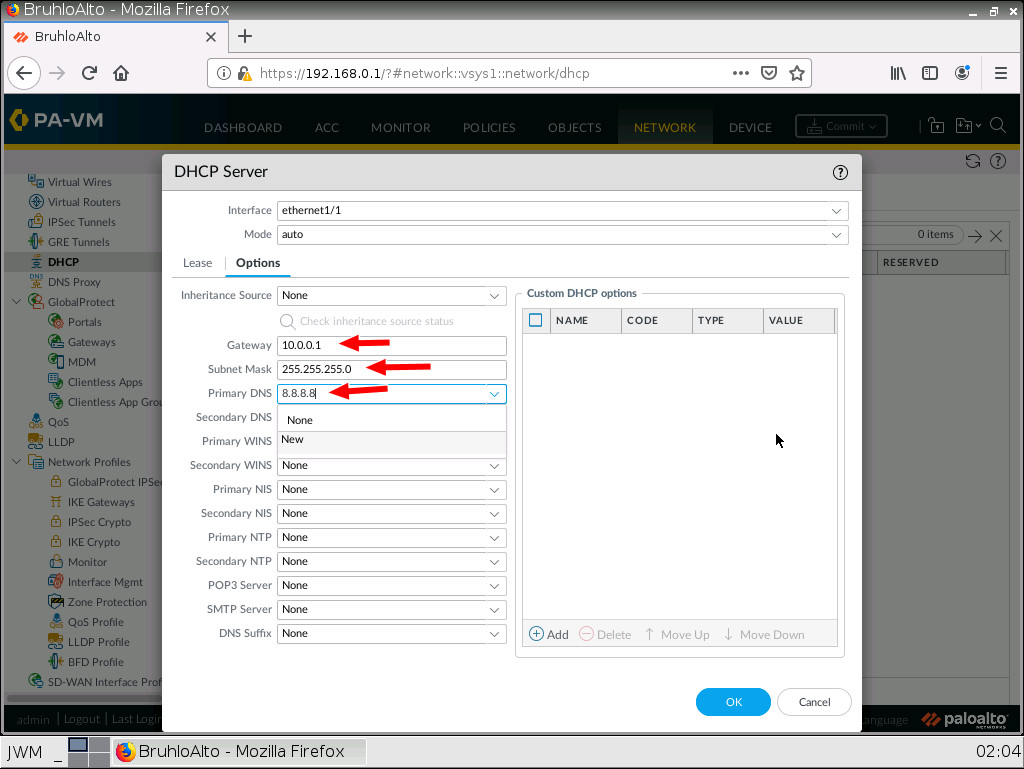
	</div>


	</div>
<div class="chapter standard " id="chapter-block-files-and-viruses" title="2.3 Block Files and Viruses">
	<div class="chapter-title-wrap">
		<p class="chapter-number">7</p>
		<h1 class="chapter-title">2.3 Block Files and Viruses</h1>
								</div>
	<div class="ugc chapter-ugc">
				 <div class="textbox textbox--learning-objectives"><div class="textbox__header"><p class="textbox__title">Learning Objectives</p> </div> <div class="textbox__content"><ul><li>Block specific file types</li> <li>Explore and “apply” advanced firewall features</li> </ul> </div> </div> <div class="textbox"><p><strong>Prerequisites</strong>:</p> <ul><li>SNAT for the Internet</li> <li>Security policy for Inside to Outside</li> <li>Interface configuration</li> <li>Enable block pages</li> <li>Knowledge of previous labs</li> </ul> </div> <div class="textbox shaded"><p><strong>Scenario</strong>: Here we will test out the file blocking, anti-malware, spyware, and spam features of Palo Alto. Sometimes we should block clients from downloading certain file types, and on top of that, implement some sort of antivirus and antispyware solution. We’ll also be “testing” wildfire. A feature that thwarts new exploits from happening.</p> </div> <div class="wp-caption aligncenter" id="attachment_156" aria-describedby="caption-attachment-156" style="width: 1091px"><img class="wp-image-141 size-full" src="https://opentextbc.ca/wp-content/uploads/sites/445/2022/04/2022-04-23-12-21-06-image.png" alt="Main scenario" width="1091" height="533" srcset="https://opentextbc.ca/paloalto/wp-content/uploads/sites/445/2022/04/2022-04-23-12-21-06-image.png 1091w, https://opentextbc.ca/paloalto/wp-content/uploads/sites/445/2022/04/2022-04-23-12-21-06-image-300x147.png 300w, https://opentextbc.ca/paloalto/wp-content/uploads/sites/445/2022/04/2022-04-23-12-21-06-image-1024x500.png 1024w, https://opentextbc.ca/paloalto/wp-content/uploads/sites/445/2022/04/2022-04-23-12-21-06-image-768x375.png 768w, https://opentextbc.ca/paloalto/wp-content/uploads/sites/445/2022/04/2022-04-23-12-21-06-image-65x32.png 65w, https://opentextbc.ca/paloalto/wp-content/uploads/sites/445/2022/04/2022-04-23-12-21-06-image-225x110.png 225w, https://opentextbc.ca/paloalto/wp-content/uploads/sites/445/2022/04/2022-04-23-12-21-06-image-350x171.png 350w" title="" /><div class="wp-caption-text" id="caption-attachment-156">Figure 2.41: Main scenario</div></div> <table class="grid" style="border-collapse: collapse; width: 100%;"><caption>Table 2.6: Addressing Table</caption> <tbody><tr><th style="width: 50%;" scope="col">Device</th> <th style="width: 50%;" scope="col">Configuration</th> </tr> <tr><td style="width: 50%;">PaloAlto-1</td> <td style="width: 50%;">management: 192.168.0.1/24<br /> Ethernet1/1: 10.0.0.1/24<br /> Ethernet1/2: DHCP</td> </tr> <tr><td style="width: 50%;">Client (webterm)</td> <td style="width: 50%;">eth0: 10.0.0.2/24 GW: 10.0.0.1&nbsp;DNS: 8.8.8.8</td> </tr> <tr><td style="width: 50%;">Management (webterm)</td> <td style="width: 50%;">eth0: 192.168.0.2/24</td> </tr> </tbody> </table> <table class="grid" style="border-collapse: collapse; width: 100%; height: 45px;"><caption>Table 2.7: Zone Configuration</caption> <tbody><tr style="height: 15px;"><th style="width: 50%; height: 15px;" scope="col">Zone</th> <th style="width: 50%; height: 15px;" scope="col">Interface</th> </tr> <tr style="height: 15px;"><td style="width: 50%; height: 15px;">Inside</td> <td style="width: 50%; height: 15px;">Ethernet1/1</td> </tr> <tr style="height: 15px;"><td style="width: 50%; height: 15px;">Outside</td> <td style="width: 50%; height: 15px;">Ethernet1/2</td> </tr> </tbody> </table> <h2 style="page-break-before: always;">Create an Antivirus Profile</h2> <p>Under <strong>Objects &gt; Security Profiles &gt; Antivirus</strong>. Click on default, then <strong>Clone</strong>.</p> <div class="wp-caption aligncenter" aria-describedby="caption-attachment-156" style="width: 1026px"><img class="wp-image-142 size-full" src="https://opentextbc.ca/wp-content/uploads/sites/445/2023/11/Vir1.jpg" alt="Creating an Antivirus Profile" width="1026" height="830" srcset="https://opentextbc.ca/paloalto/wp-content/uploads/sites/445/2023/11/Vir1.jpg 1026w, https://opentextbc.ca/paloalto/wp-content/uploads/sites/445/2023/11/Vir1-300x243.jpg 300w, https://opentextbc.ca/paloalto/wp-content/uploads/sites/445/2023/11/Vir1-1024x828.jpg 1024w, https://opentextbc.ca/paloalto/wp-content/uploads/sites/445/2023/11/Vir1-768x621.jpg 768w, https://opentextbc.ca/paloalto/wp-content/uploads/sites/445/2023/11/Vir1-65x53.jpg 65w, https://opentextbc.ca/paloalto/wp-content/uploads/sites/445/2023/11/Vir1-225x182.jpg 225w, https://opentextbc.ca/paloalto/wp-content/uploads/sites/445/2023/11/Vir1-350x283.jpg 350w" title="" /><div class="wp-caption-text">Figure 2.42: Creating an Antivirus Profile</div></div> <p style="page-break-before: always;">Click on <strong>OK</strong> for the next window.</p> <div class="wp-caption aligncenter" aria-describedby="caption-attachment-156" style="width: 1026px"><img class="wp-image-143 size-full" src="https://opentextbc.ca/wp-content/uploads/sites/445/2023/11/Vir2.jpg" alt="Cloning the Antivirus profile" width="1026" height="830" srcset="https://opentextbc.ca/paloalto/wp-content/uploads/sites/445/2023/11/Vir2.jpg 1026w, https://opentextbc.ca/paloalto/wp-content/uploads/sites/445/2023/11/Vir2-300x243.jpg 300w, https://opentextbc.ca/paloalto/wp-content/uploads/sites/445/2023/11/Vir2-1024x828.jpg 1024w, https://opentextbc.ca/paloalto/wp-content/uploads/sites/445/2023/11/Vir2-768x621.jpg 768w, https://opentextbc.ca/paloalto/wp-content/uploads/sites/445/2023/11/Vir2-65x53.jpg 65w, https://opentextbc.ca/paloalto/wp-content/uploads/sites/445/2023/11/Vir2-225x182.jpg 225w, https://opentextbc.ca/paloalto/wp-content/uploads/sites/445/2023/11/Vir2-350x283.jpg 350w" title="" /><div class="wp-caption-text">Figure 2.43: Cloning the Antivirus profile</div></div> <p style="page-break-before: always;">Select the new profile it clones (should be something like default-1).</p> <div class="wp-caption aligncenter" aria-describedby="caption-attachment-156" style="width: 1026px"><img class="wp-image-144 size-full" src="https://opentextbc.ca/wp-content/uploads/sites/445/2023/11/Vir3.jpg" alt="Verify the Antivirus profile" width="1026" height="830" srcset="https://opentextbc.ca/paloalto/wp-content/uploads/sites/445/2023/11/Vir3.jpg 1026w, https://opentextbc.ca/paloalto/wp-content/uploads/sites/445/2023/11/Vir3-300x243.jpg 300w, https://opentextbc.ca/paloalto/wp-content/uploads/sites/445/2023/11/Vir3-1024x828.jpg 1024w, https://opentextbc.ca/paloalto/wp-content/uploads/sites/445/2023/11/Vir3-768x621.jpg 768w, https://opentextbc.ca/paloalto/wp-content/uploads/sites/445/2023/11/Vir3-65x53.jpg 65w, https://opentextbc.ca/paloalto/wp-content/uploads/sites/445/2023/11/Vir3-225x182.jpg 225w, https://opentextbc.ca/paloalto/wp-content/uploads/sites/445/2023/11/Vir3-350x283.jpg 350w" title="" /><div class="wp-caption-text">Figure 2.44: Verify the Antivirus profile</div></div> <p style="page-break-before: always;">Rename the profile, and tick the option for packet capture.</p> <div class="wp-caption aligncenter" aria-describedby="caption-attachment-156" style="width: 1026px"><img class="wp-image-145 size-full" src="https://opentextbc.ca/wp-content/uploads/sites/445/2023/11/Vir4.jpg" alt="Enable Packet Captures under Antivirus Profile" width="1026" height="830" srcset="https://opentextbc.ca/paloalto/wp-content/uploads/sites/445/2023/11/Vir4.jpg 1026w, https://opentextbc.ca/paloalto/wp-content/uploads/sites/445/2023/11/Vir4-300x243.jpg 300w, https://opentextbc.ca/paloalto/wp-content/uploads/sites/445/2023/11/Vir4-1024x828.jpg 1024w, https://opentextbc.ca/paloalto/wp-content/uploads/sites/445/2023/11/Vir4-768x621.jpg 768w, https://opentextbc.ca/paloalto/wp-content/uploads/sites/445/2023/11/Vir4-65x53.jpg 65w, https://opentextbc.ca/paloalto/wp-content/uploads/sites/445/2023/11/Vir4-225x182.jpg 225w, https://opentextbc.ca/paloalto/wp-content/uploads/sites/445/2023/11/Vir4-350x283.jpg 350w" title="" /><div class="wp-caption-text">Figure 2.45: Enable Packet Captures under Antivirus Profile</div></div> <p>Then press <strong>OK</strong>.</p> <h2 style="page-break-before: always;">Create an Anti-Spyware Profile</h2> <p>Under <strong>Objects &gt; Security Profiles &gt; Anti-Spyware</strong>. Click <strong>Add</strong>.</p> <div class="wp-caption aligncenter" aria-describedby="caption-attachment-156" style="width: 1026px"><img class="wp-image-146 size-full" src="https://opentextbc.ca/wp-content/uploads/sites/445/2023/11/Vir5.jpg" alt="Add an Anti-Spyware Profile" width="1026" height="830" srcset="https://opentextbc.ca/paloalto/wp-content/uploads/sites/445/2023/11/Vir5.jpg 1026w, https://opentextbc.ca/paloalto/wp-content/uploads/sites/445/2023/11/Vir5-300x243.jpg 300w, https://opentextbc.ca/paloalto/wp-content/uploads/sites/445/2023/11/Vir5-1024x828.jpg 1024w, https://opentextbc.ca/paloalto/wp-content/uploads/sites/445/2023/11/Vir5-768x621.jpg 768w, https://opentextbc.ca/paloalto/wp-content/uploads/sites/445/2023/11/Vir5-65x53.jpg 65w, https://opentextbc.ca/paloalto/wp-content/uploads/sites/445/2023/11/Vir5-225x182.jpg 225w, https://opentextbc.ca/paloalto/wp-content/uploads/sites/445/2023/11/Vir5-350x283.jpg 350w" title="" /><div class="wp-caption-text">Figure 2.46: Add an Anti-Spyware Profile</div></div> <p>Under the signature policies tab, click <b>Add</b>, name it, then configure these:</p> <table class="grid" style="border-collapse: collapse; width: 100%;"><caption>Table 2.8: Anti-Spyware Configuration</caption> <tbody><tr><th style="width: 50%;" scope="col">Rule</th> <th style="width: 50%;" scope="col">Configuration</th> </tr> <tr><td style="width: 50%;">Medium</td> <td style="width: 50%;">Action: <em>Alert<br /> </em>Severity: <em style="font-family: inherit; font-size: inherit;">Medium, Low, Informational</em></td> </tr> <tr><td style="width: 50%;">HighAlert</td> <td style="width: 50%;">Action: <em>Drop<br /> Severity: Critical, High</em></td> </tr> </tbody> </table> <div class="wp-caption aligncenter" aria-describedby="caption-attachment-156" style="width: 1026px"><img class="wp-image-147 size-full" src="https://opentextbc.ca/wp-content/uploads/sites/445/2023/11/2022-04-23-12-47-38-image.png" alt="Verify an Anti-Spyware Profile" width="1026" height="830" srcset="https://opentextbc.ca/paloalto/wp-content/uploads/sites/445/2023/11/2022-04-23-12-47-38-image.png 1026w, https://opentextbc.ca/paloalto/wp-content/uploads/sites/445/2023/11/2022-04-23-12-47-38-image-300x243.png 300w, https://opentextbc.ca/paloalto/wp-content/uploads/sites/445/2023/11/2022-04-23-12-47-38-image-1024x828.png 1024w, https://opentextbc.ca/paloalto/wp-content/uploads/sites/445/2023/11/2022-04-23-12-47-38-image-768x621.png 768w, https://opentextbc.ca/paloalto/wp-content/uploads/sites/445/2023/11/2022-04-23-12-47-38-image-65x53.png 65w, https://opentextbc.ca/paloalto/wp-content/uploads/sites/445/2023/11/2022-04-23-12-47-38-image-225x182.png 225w, https://opentextbc.ca/paloalto/wp-content/uploads/sites/445/2023/11/2022-04-23-12-47-38-image-350x283.png 350w" title="" /><div class="wp-caption-text">Figure 2.47: Verify an Anti-Spyware Profile</div></div> <p>Then press <strong>OK</strong>.</p> <h2 style="page-break-before: always;">Create a File Blocking Profile</h2> <p>Under <strong>Objects &gt; Security Profiles &gt; File Blocking</strong>. Click <strong>Add</strong>.</p> <div class="wp-caption aligncenter" aria-describedby="caption-attachment-156" style="width: 1026px"><img class="wp-image-148 size-full" src="https://opentextbc.ca/wp-content/uploads/sites/445/2023/11/Vir6.jpg" alt="Add File blocking Profile" width="1026" height="830" srcset="https://opentextbc.ca/paloalto/wp-content/uploads/sites/445/2023/11/Vir6.jpg 1026w, https://opentextbc.ca/paloalto/wp-content/uploads/sites/445/2023/11/Vir6-300x243.jpg 300w, https://opentextbc.ca/paloalto/wp-content/uploads/sites/445/2023/11/Vir6-1024x828.jpg 1024w, https://opentextbc.ca/paloalto/wp-content/uploads/sites/445/2023/11/Vir6-768x621.jpg 768w, https://opentextbc.ca/paloalto/wp-content/uploads/sites/445/2023/11/Vir6-65x53.jpg 65w, https://opentextbc.ca/paloalto/wp-content/uploads/sites/445/2023/11/Vir6-225x182.jpg 225w, https://opentextbc.ca/paloalto/wp-content/uploads/sites/445/2023/11/Vir6-350x283.jpg 350w" title="" /><div class="wp-caption-text">Figure 2.48: Add File blocking Profile</div></div> <p>Configure these settings using the add button on the new window that just spawned.</p> <table class="grid" style="border-collapse: collapse; width: 100%; height: 77px;"><caption>Table 2.9: File Blocking Configuration</caption> <tbody><tr style="height: 15px;"><th style="width: 50%; height: 15px;" scope="col">Name</th> <th style="width: 50%; height: 15px;" scope="col">Properties</th> </tr> <tr style="height: 47px;"><td style="width: 50%; height: 47px;">PDF</td> <td style="width: 50%; height: 47px;">Applications: <em>any<br /> </em>File Types<em>: pdf, encrypted-pdf<br /> </em>Action:&nbsp;<em>Block</em></td> </tr> <tr style="height: 15px;"><td style="width: 50%; height: 15px;">EXE</td> <td style="width: 50%; height: 15px;">Applications:&nbsp;<em>any<br /> </em>File Types:&nbsp;<em>exe, com<br /> Action: Block</em></td> </tr> </tbody> </table> <div class="wp-caption aligncenter" aria-describedby="caption-attachment-156" style="width: 1026px"><img class="wp-image-149 size-full" src="https://opentextbc.ca/wp-content/uploads/sites/445/2023/11/2022-04-23-12-53-46-image.png" alt="Configure the File blocking profile" width="1026" height="830" srcset="https://opentextbc.ca/paloalto/wp-content/uploads/sites/445/2023/11/2022-04-23-12-53-46-image.png 1026w, https://opentextbc.ca/paloalto/wp-content/uploads/sites/445/2023/11/2022-04-23-12-53-46-image-300x243.png 300w, https://opentextbc.ca/paloalto/wp-content/uploads/sites/445/2023/11/2022-04-23-12-53-46-image-1024x828.png 1024w, https://opentextbc.ca/paloalto/wp-content/uploads/sites/445/2023/11/2022-04-23-12-53-46-image-768x621.png 768w, https://opentextbc.ca/paloalto/wp-content/uploads/sites/445/2023/11/2022-04-23-12-53-46-image-65x53.png 65w, https://opentextbc.ca/paloalto/wp-content/uploads/sites/445/2023/11/2022-04-23-12-53-46-image-225x182.png 225w, https://opentextbc.ca/paloalto/wp-content/uploads/sites/445/2023/11/2022-04-23-12-53-46-image-350x283.png 350w" title="" /><div class="wp-caption-text">Figure 2.49: Configure the File blocking profile</div></div> <p>Then click <strong>OK</strong>.</p> <h2 style="page-break-before: always;">Create a WildFire Profile</h2> <p>Under Objects, <strong>Security Profiles &gt; WildFire Analysis</strong>, click <strong>Add</strong>.</p> <div class="wp-caption aligncenter" aria-describedby="caption-attachment-156" style="width: 1026px"><img class="wp-image-150 size-full" src="https://opentextbc.ca/wp-content/uploads/sites/445/2023/11/Vir7.jpg" alt="Add a WildFire Profile" width="1026" height="830" srcset="https://opentextbc.ca/paloalto/wp-content/uploads/sites/445/2023/11/Vir7.jpg 1026w, https://opentextbc.ca/paloalto/wp-content/uploads/sites/445/2023/11/Vir7-300x243.jpg 300w, https://opentextbc.ca/paloalto/wp-content/uploads/sites/445/2023/11/Vir7-1024x828.jpg 1024w, https://opentextbc.ca/paloalto/wp-content/uploads/sites/445/2023/11/Vir7-768x621.jpg 768w, https://opentextbc.ca/paloalto/wp-content/uploads/sites/445/2023/11/Vir7-65x53.jpg 65w, https://opentextbc.ca/paloalto/wp-content/uploads/sites/445/2023/11/Vir7-225x182.jpg 225w, https://opentextbc.ca/paloalto/wp-content/uploads/sites/445/2023/11/Vir7-350x283.jpg 350w" title="" /><div class="wp-caption-text">Figure 2.50: Add a WildFire Profile</div></div> <p>Configure these settings using the add button on the new window that just spawned.</p> <table class="grid" style="border-collapse: collapse; width: 100%; height: 54px;"><caption>Table 2.10: WildFire Configuration</caption> <tbody><tr style="height: 18px;"><th style="width: 50%; height: 18px;" scope="col">Name</th> <th style="width: 50%; height: 18px;" scope="col">Properties</th> </tr> <tr style="height: 36px;"><td style="width: 50%; height: 36px;">Detect</td> <td style="width: 50%; height: 36px;">Applications: <em>any</em><br /> File Types: <em>archive, jar, ms-office</em></td> </tr> </tbody> </table> <div class="wp-caption aligncenter" aria-describedby="caption-attachment-156" style="width: 1026px"><img class="wp-image-151 size-full" src="https://opentextbc.ca/wp-content/uploads/sites/445/2023/11/2022-04-23-13-01-44-image.png" alt="Add a WildFire Profile" width="1026" height="830" srcset="https://opentextbc.ca/paloalto/wp-content/uploads/sites/445/2023/11/2022-04-23-13-01-44-image.png 1026w, https://opentextbc.ca/paloalto/wp-content/uploads/sites/445/2023/11/2022-04-23-13-01-44-image-300x243.png 300w, https://opentextbc.ca/paloalto/wp-content/uploads/sites/445/2023/11/2022-04-23-13-01-44-image-1024x828.png 1024w, https://opentextbc.ca/paloalto/wp-content/uploads/sites/445/2023/11/2022-04-23-13-01-44-image-768x621.png 768w, https://opentextbc.ca/paloalto/wp-content/uploads/sites/445/2023/11/2022-04-23-13-01-44-image-65x53.png 65w, https://opentextbc.ca/paloalto/wp-content/uploads/sites/445/2023/11/2022-04-23-13-01-44-image-225x182.png 225w, https://opentextbc.ca/paloalto/wp-content/uploads/sites/445/2023/11/2022-04-23-13-01-44-image-350x283.png 350w" title="" /><div class="wp-caption-text">Figure 2.51: Add a WildFire Profile</div></div> <p>Then press <strong>OK</strong>.</p> <h2 style="page-break-before: always;">Apply Security Profiles to a Security Policy</h2> <p>Under <strong>Polices &gt; Security</strong>. Click the policy for inside to outside you created.</p> <div class="wp-caption aligncenter" aria-describedby="caption-attachment-156" style="width: 1026px"><img class="wp-image-152 size-full" src="https://opentextbc.ca/wp-content/uploads/sites/445/2023/11/Vir8.jpg" alt="Add a Security Policy" width="1026" height="830" srcset="https://opentextbc.ca/paloalto/wp-content/uploads/sites/445/2023/11/Vir8.jpg 1026w, https://opentextbc.ca/paloalto/wp-content/uploads/sites/445/2023/11/Vir8-300x243.jpg 300w, https://opentextbc.ca/paloalto/wp-content/uploads/sites/445/2023/11/Vir8-1024x828.jpg 1024w, https://opentextbc.ca/paloalto/wp-content/uploads/sites/445/2023/11/Vir8-768x621.jpg 768w, https://opentextbc.ca/paloalto/wp-content/uploads/sites/445/2023/11/Vir8-65x53.jpg 65w, https://opentextbc.ca/paloalto/wp-content/uploads/sites/445/2023/11/Vir8-225x182.jpg 225w, https://opentextbc.ca/paloalto/wp-content/uploads/sites/445/2023/11/Vir8-350x283.jpg 350w" title="" /><div class="wp-caption-text">Figure 2.52: Add a Security Policy</div></div> <p style="page-break-before: always;">Under the Actions tab, in the Profile Setting subsection. Configure these:</p> <table class="grid" style="border-collapse: collapse; width: 100%; height: 90px;"><caption>Table 2.11: Security Policy Actions Configuration</caption> <tbody><tr style="height: 15px;"><th style="width: 50%; height: 15px;" scope="col">Parameters</th> <th style="width: 50%; height: 15px;" scope="col">Value</th> </tr> <tr style="height: 15px;"><td style="width: 50%; height: 15px;">Profile Type</td> <td style="width: 50%; height: 15px;">Profiles</td> </tr> <tr style="height: 15px;"><td style="width: 50%; height: 15px;">Antivirus</td> <td style="width: 50%; height: 15px;"><em>Select the one you created</em></td> </tr> <tr style="height: 15px;"><td style="width: 50%; height: 15px;">Anti-Spyware</td> <td style="width: 50%; height: 15px;"><em>Select the one you created</em></td> </tr> <tr style="height: 15px;"><td style="width: 50%; height: 15px;">File Blocking</td> <td style="width: 50%; height: 15px;"><em>Select the one you created</em></td> </tr> <tr style="height: 15px;"><td style="width: 50%; height: 15px;">WildFire Analysis</td> <td style="width: 50%; height: 15px;"><em>Select the one you created</em></td> </tr> </tbody> </table> <div class="wp-caption aligncenter" aria-describedby="caption-attachment-156" style="width: 1026px"><img class="wp-image-153 size-full" src="https://opentextbc.ca/wp-content/uploads/sites/445/2023/11/2022-04-23-13-05-54-image.png" alt="Assigning security profiles" width="1026" height="830" srcset="https://opentextbc.ca/paloalto/wp-content/uploads/sites/445/2023/11/2022-04-23-13-05-54-image.png 1026w, https://opentextbc.ca/paloalto/wp-content/uploads/sites/445/2023/11/2022-04-23-13-05-54-image-300x243.png 300w, https://opentextbc.ca/paloalto/wp-content/uploads/sites/445/2023/11/2022-04-23-13-05-54-image-1024x828.png 1024w, https://opentextbc.ca/paloalto/wp-content/uploads/sites/445/2023/11/2022-04-23-13-05-54-image-768x621.png 768w, https://opentextbc.ca/paloalto/wp-content/uploads/sites/445/2023/11/2022-04-23-13-05-54-image-65x53.png 65w, https://opentextbc.ca/paloalto/wp-content/uploads/sites/445/2023/11/2022-04-23-13-05-54-image-225x182.png 225w, https://opentextbc.ca/paloalto/wp-content/uploads/sites/445/2023/11/2022-04-23-13-05-54-image-350x283.png 350w" title="" /><div class="wp-caption-text">Figure 2.53: Assigning security profiles</div></div> <p>Then click <strong>OK</strong>. Remember to commit your changes!</p> <h2 style="page-break-before: always;">Test the Security Profiles</h2> <p>Since I do not have a licence, we cannot demonstrate all of these profile features, as you can see when you commit.</p> <div class="wp-caption aligncenter" aria-describedby="caption-attachment-156" style="width: 1026px"><img class="wp-image-154 size-full" src="https://opentextbc.ca/wp-content/uploads/sites/445/2023/11/Vir9.jpg" alt="Commit the configuration" width="1026" height="830" srcset="https://opentextbc.ca/paloalto/wp-content/uploads/sites/445/2023/11/Vir9.jpg 1026w, https://opentextbc.ca/paloalto/wp-content/uploads/sites/445/2023/11/Vir9-300x243.jpg 300w, https://opentextbc.ca/paloalto/wp-content/uploads/sites/445/2023/11/Vir9-1024x828.jpg 1024w, https://opentextbc.ca/paloalto/wp-content/uploads/sites/445/2023/11/Vir9-768x621.jpg 768w, https://opentextbc.ca/paloalto/wp-content/uploads/sites/445/2023/11/Vir9-65x53.jpg 65w, https://opentextbc.ca/paloalto/wp-content/uploads/sites/445/2023/11/Vir9-225x182.jpg 225w, https://opentextbc.ca/paloalto/wp-content/uploads/sites/445/2023/11/Vir9-350x283.jpg 350w" title="" /><div class="wp-caption-text">Figure 2.54: Commit the configuration</div></div> <p>This is ok, we can still test out the file blocking features.</p> <p style="page-break-before: always;">On the client, navigate to a website that hosts PDF files (I used <a href="https://panedufiles.com" data-url="https://panedufiles.com">panedufiles.com</a>).</p> <div class="wp-caption aligncenter" aria-describedby="caption-attachment-156" style="width: 400px"><img class="wp-image-155" src="https://opentextbc.ca/wp-content/uploads/sites/445/2023/11/2022-04-23-13-09-01-image.png" alt="Verify the configuration" width="400" height="324" srcset="https://opentextbc.ca/paloalto/wp-content/uploads/sites/445/2023/11/2022-04-23-13-09-01-image.png 1026w, https://opentextbc.ca/paloalto/wp-content/uploads/sites/445/2023/11/2022-04-23-13-09-01-image-300x243.png 300w, https://opentextbc.ca/paloalto/wp-content/uploads/sites/445/2023/11/2022-04-23-13-09-01-image-1024x828.png 1024w, https://opentextbc.ca/paloalto/wp-content/uploads/sites/445/2023/11/2022-04-23-13-09-01-image-768x621.png 768w, https://opentextbc.ca/paloalto/wp-content/uploads/sites/445/2023/11/2022-04-23-13-09-01-image-65x53.png 65w, https://opentextbc.ca/paloalto/wp-content/uploads/sites/445/2023/11/2022-04-23-13-09-01-image-225x182.png 225w, https://opentextbc.ca/paloalto/wp-content/uploads/sites/445/2023/11/2022-04-23-13-09-01-image-350x283.png 350w" title="" /><div class="wp-caption-text">Figure 2.55: Verify the configuration</div></div> <p>Try and open one of these. If it shows the file blocking screen, it means that the file blocking worked!</p> <div class="wp-caption aligncenter" aria-describedby="caption-attachment-156" style="width: 400px"><img class="wp-image-156" src="https://opentextbc.ca/wp-content/uploads/sites/445/2023/11/2022-04-23-13-09-42-image.png" alt="File Transfer Blocked" width="400" height="324" srcset="https://opentextbc.ca/paloalto/wp-content/uploads/sites/445/2023/11/2022-04-23-13-09-42-image.png 1026w, https://opentextbc.ca/paloalto/wp-content/uploads/sites/445/2023/11/2022-04-23-13-09-42-image-300x243.png 300w, https://opentextbc.ca/paloalto/wp-content/uploads/sites/445/2023/11/2022-04-23-13-09-42-image-1024x828.png 1024w, https://opentextbc.ca/paloalto/wp-content/uploads/sites/445/2023/11/2022-04-23-13-09-42-image-768x621.png 768w, https://opentextbc.ca/paloalto/wp-content/uploads/sites/445/2023/11/2022-04-23-13-09-42-image-65x53.png 65w, https://opentextbc.ca/paloalto/wp-content/uploads/sites/445/2023/11/2022-04-23-13-09-42-image-225x182.png 225w, https://opentextbc.ca/paloalto/wp-content/uploads/sites/445/2023/11/2022-04-23-13-09-42-image-350x283.png 350w" title="" /><div class="wp-caption-text">Figure 2.56: File Transfer Blocked</div></div> 
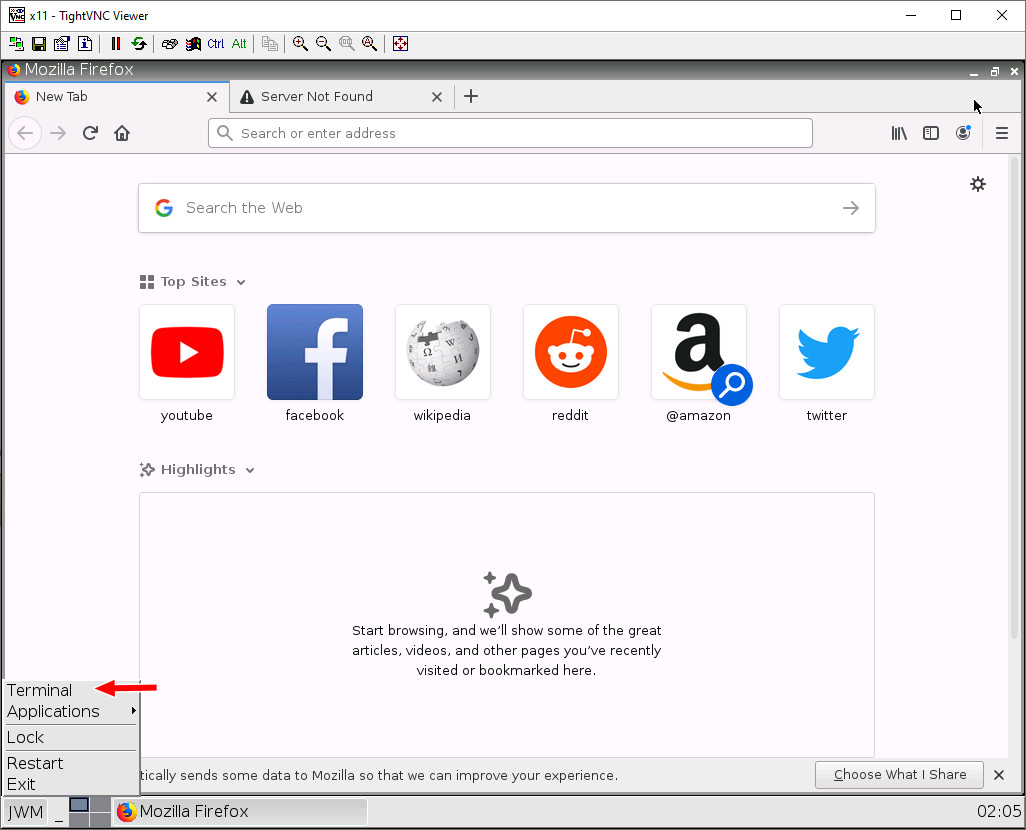
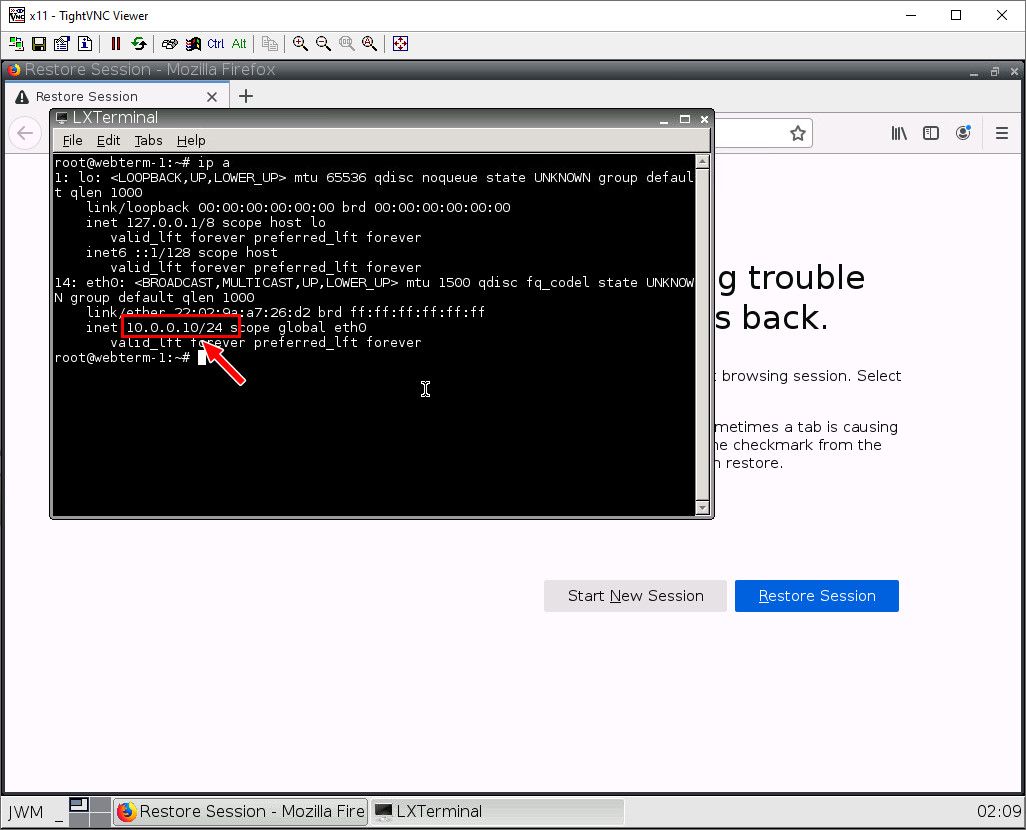
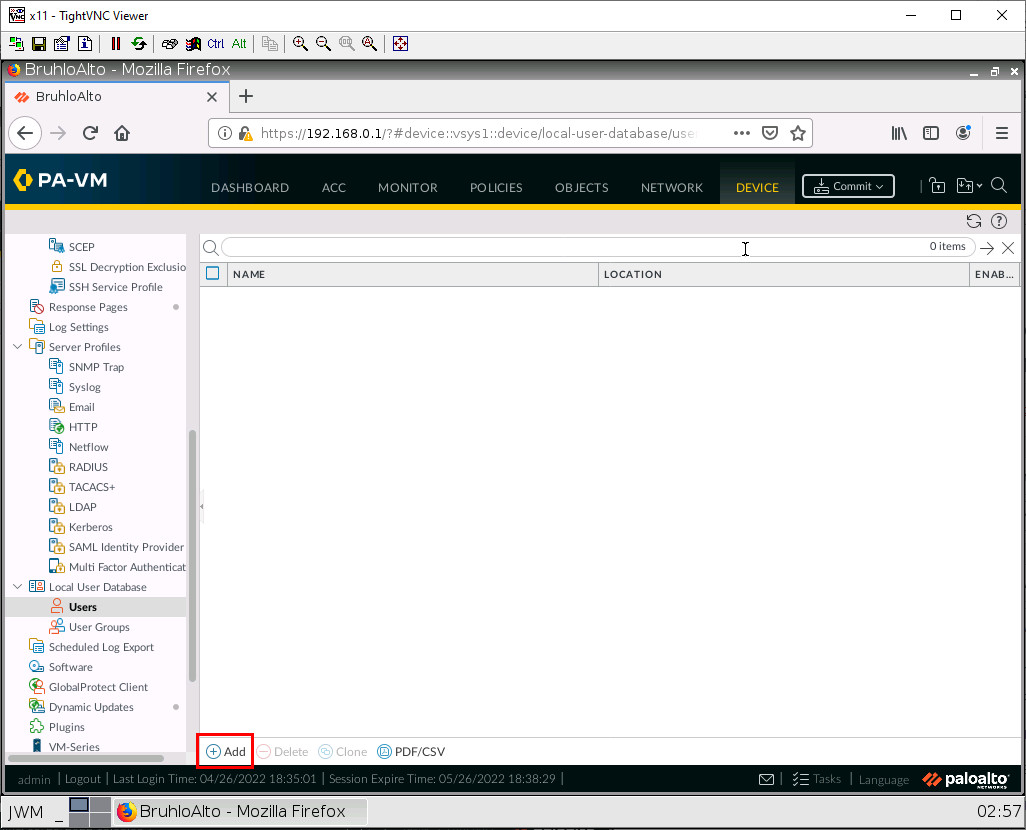
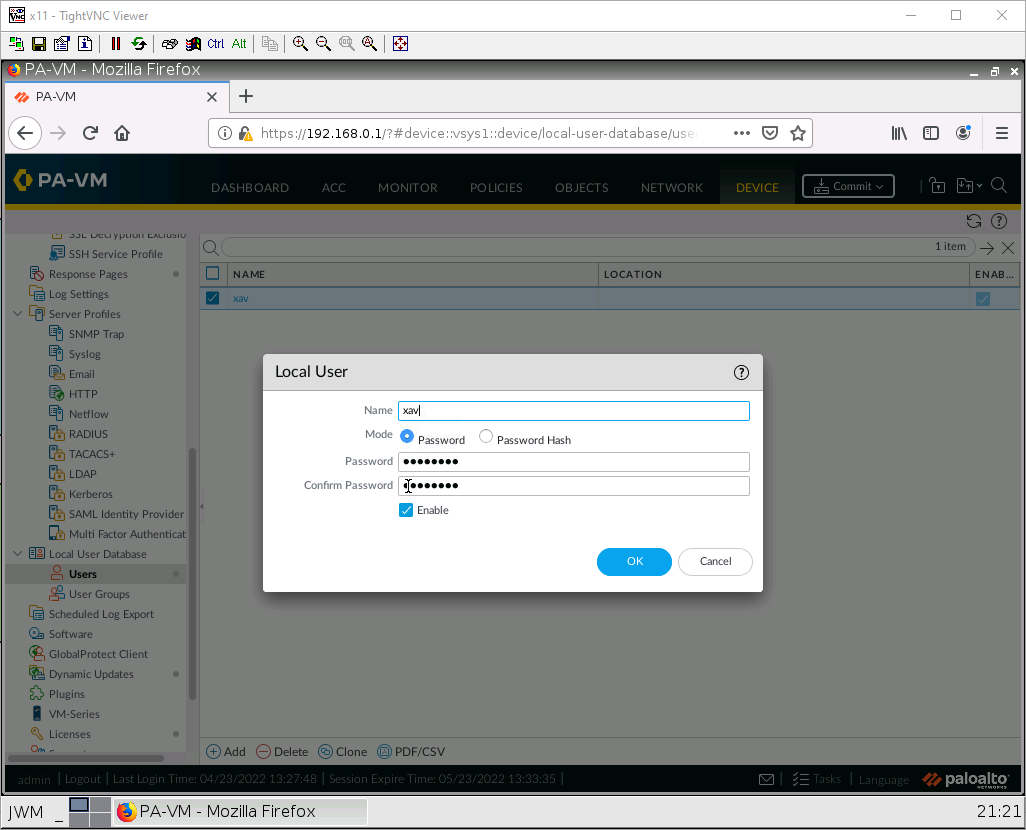
	</div>


	</div>

</div>
<div class="part-wrapper" id="part-advanced-networking-wrapper">
    <div class="part  " id="part-advanced-networking">
	<div class="part-title-wrap">
		<p class="part-number">III</p>
		<h1 class="part-title">Chapter 3. Advanced Networking</h1>
	</div>
	<div class="ugc part-ugc">
		
	</div>
			
				
	</div>
<div class="chapter standard " id="chapter-captive-portal" title="3.1 Captive Portal">
	<div class="chapter-title-wrap">
		<p class="chapter-number">8</p>
		<h1 class="chapter-title">3.1 Captive Portal</h1>
								</div>
	<div class="ugc chapter-ugc">
				 <div class="textbox textbox--learning-objectives"><div class="textbox__header"><p class="textbox__title">Learning Objectives</p> </div> <div class="textbox__content"><ul><li>Configure VLANs</li> <li>Configure captive portal</li> </ul> </div> </div> <div class="textbox"><p><strong>Prerequisites</strong>:</p> <ul><li>Setup Zones</li> <li>Some interface configuration</li> <li>Configuring VLANs on the GNS3 switch</li> <li>Knowledge of previous labs</li> </ul> </div> <div class="textbox shaded"><p><strong>Scenario</strong>: Now let’s push for some advanced networking configurations. Sometimes you just have to push departments into their own VLANs for organization and compliance. Say we have a guest and employee network. We want to prevent communication between the two as much as possible. We would also want to implement some sort of login to access the internet for guests, much like hotels.</p> </div> <div class="wp-caption aligncenter" id="attachment_185" aria-describedby="caption-attachment-185" style="width: 1073px"><img class="wp-image-160 size-full" src="https://opentextbc.ca/wp-content/uploads/sites/445/2022/04/usethisone.png" alt="Main scenario" width="1073" height="549" srcset="https://opentextbc.ca/paloalto/wp-content/uploads/sites/445/2022/04/usethisone.png 1073w, https://opentextbc.ca/paloalto/wp-content/uploads/sites/445/2022/04/usethisone-300x153.png 300w, https://opentextbc.ca/paloalto/wp-content/uploads/sites/445/2022/04/usethisone-1024x524.png 1024w, https://opentextbc.ca/paloalto/wp-content/uploads/sites/445/2022/04/usethisone-768x393.png 768w, https://opentextbc.ca/paloalto/wp-content/uploads/sites/445/2022/04/usethisone-65x33.png 65w, https://opentextbc.ca/paloalto/wp-content/uploads/sites/445/2022/04/usethisone-225x115.png 225w, https://opentextbc.ca/paloalto/wp-content/uploads/sites/445/2022/04/usethisone-350x179.png 350w" title="" /><div class="wp-caption-text" id="caption-attachment-185">Figure 3.1: Main scenario</div></div> <table class="grid" style="border-collapse: collapse; width: 100%;"><caption>Table 3.1: Addressing Table</caption> <tbody><tr><th style="width: 50%;" scope="col">Device</th> <th style="width: 50%;" scope="col">Configuration</th> </tr> <tr><td style="width: 50%;">PaloAlto-1</td> <td style="width: 50%;">management: 192.168.0.1/24<br /> Ethernet1/1: Trunking<br /> Ethernet1/1.10: 10.10.10.1/24<br /> Ethernet1/1.20: 20.20.20.1/24<br /> Ethernet1/2: DHCP</td> </tr> <tr><td style="width: 50%;">VLAN-10</td> <td style="width: 50%;">eth0: 10.10.10.10/24 GW: 10.10.10.1 DNS: 8.8.8.8</td> </tr> <tr><td style="width: 50%;">VLAN-20</td> <td style="width: 50%;">eth0: 20.20.20.20/24 GW: 20.20.20.1 DNS: 8.8.8.8</td> </tr> <tr><td style="width: 50%;">Management</td> <td style="width: 50%;">eth0: 192.168.0.2/24</td> </tr> <tr><td style="width: 50%;">Switchy</td> <td style="width: 50%;">e0: Access mode, VLAN 10<br /> e1: Access mode, VLAN 20<br /> e7: dot1q, VLAN 1</td> </tr> </tbody> </table> <table class="grid" style="border-collapse: collapse; width: 100%;"><caption>Table 3.2: Zone Configuration</caption> <tbody><tr><th style="width: 50%;" scope="col">Zone</th> <th style="width: 50%;" scope="col">Interface</th> </tr> <tr><td style="width: 50%;">VLAN10</td> <td style="width: 50%;">Ethernet1/1.10</td> </tr> <tr><td style="width: 50%;">VLAN20</td> <td style="width: 50%;">Ethernet1/1.20</td> </tr> <tr><td style="width: 50%;">Outside</td> <td style="width: 50%;">Ethernet1/2</td> </tr> </tbody> </table> <h2>Configure Sub Interfaces</h2> <p>Under <strong>Network &gt; Interfaces</strong>. Click on <strong>ethernet1/1.</strong></p> <div class="wp-caption aligncenter" aria-describedby="caption-attachment-185" style="width: 1026px"><img class="wp-image-161 size-full" src="https://opentextbc.ca/wp-content/uploads/sites/445/2023/11/VLAN1.jpg" alt="Ethernet 1/1 configuration" width="1026" height="830" srcset="https://opentextbc.ca/paloalto/wp-content/uploads/sites/445/2023/11/VLAN1.jpg 1026w, https://opentextbc.ca/paloalto/wp-content/uploads/sites/445/2023/11/VLAN1-300x243.jpg 300w, https://opentextbc.ca/paloalto/wp-content/uploads/sites/445/2023/11/VLAN1-1024x828.jpg 1024w, https://opentextbc.ca/paloalto/wp-content/uploads/sites/445/2023/11/VLAN1-768x621.jpg 768w, https://opentextbc.ca/paloalto/wp-content/uploads/sites/445/2023/11/VLAN1-65x53.jpg 65w, https://opentextbc.ca/paloalto/wp-content/uploads/sites/445/2023/11/VLAN1-225x182.jpg 225w, https://opentextbc.ca/paloalto/wp-content/uploads/sites/445/2023/11/VLAN1-350x283.jpg 350w" title="" /><div class="wp-caption-text">Figure 3.2: Ethernet 1/1 configuration</div></div> <p style="page-break-before: always;">In this window, we just want to set the interface type to <strong>layer 3</strong>.</p> <div class="wp-caption aligncenter" aria-describedby="caption-attachment-185" style="width: 1026px"><img class="wp-image-162 size-full" src="https://opentextbc.ca/wp-content/uploads/sites/445/2023/11/VLAN2.jpg" alt="Set Interface type to Layer3" width="1026" height="830" srcset="https://opentextbc.ca/paloalto/wp-content/uploads/sites/445/2023/11/VLAN2.jpg 1026w, https://opentextbc.ca/paloalto/wp-content/uploads/sites/445/2023/11/VLAN2-300x243.jpg 300w, https://opentextbc.ca/paloalto/wp-content/uploads/sites/445/2023/11/VLAN2-1024x828.jpg 1024w, https://opentextbc.ca/paloalto/wp-content/uploads/sites/445/2023/11/VLAN2-768x621.jpg 768w, https://opentextbc.ca/paloalto/wp-content/uploads/sites/445/2023/11/VLAN2-65x53.jpg 65w, https://opentextbc.ca/paloalto/wp-content/uploads/sites/445/2023/11/VLAN2-225x182.jpg 225w, https://opentextbc.ca/paloalto/wp-content/uploads/sites/445/2023/11/VLAN2-350x283.jpg 350w" title="" /><div class="wp-caption-text">Figure 3.3: Set Interface type to Layer3</div></div> <p>Then press <strong>OK</strong>.</p> <p style="page-break-before: always;">Now while <strong>ethernet1/1</strong> is still selected, click on add sub interface.</p> <div class="wp-caption aligncenter" aria-describedby="caption-attachment-185" style="width: 1026px"><img class="wp-image-163 size-full" src="https://opentextbc.ca/wp-content/uploads/sites/445/2023/11/VLAN3.jpg" alt="Add Sub interfaces" width="1026" height="830" srcset="https://opentextbc.ca/paloalto/wp-content/uploads/sites/445/2023/11/VLAN3.jpg 1026w, https://opentextbc.ca/paloalto/wp-content/uploads/sites/445/2023/11/VLAN3-300x243.jpg 300w, https://opentextbc.ca/paloalto/wp-content/uploads/sites/445/2023/11/VLAN3-1024x828.jpg 1024w, https://opentextbc.ca/paloalto/wp-content/uploads/sites/445/2023/11/VLAN3-768x621.jpg 768w, https://opentextbc.ca/paloalto/wp-content/uploads/sites/445/2023/11/VLAN3-65x53.jpg 65w, https://opentextbc.ca/paloalto/wp-content/uploads/sites/445/2023/11/VLAN3-225x182.jpg 225w, https://opentextbc.ca/paloalto/wp-content/uploads/sites/445/2023/11/VLAN3-350x283.jpg 350w" title="" /><div class="wp-caption-text">Figure 3.4: Add Sub interfaces</div></div> <p style="page-break-before: always;">We want to add 2 sub-interfaces. Here is what you should configure:</p> <table class="grid" style="border-collapse: collapse; width: 100%;"><caption>Table 3.3: Sub Interface Configuration</caption> <tbody><tr><th style="width: 50%;" scope="col">Interface</th> <th style="width: 50%;" scope="col">Configuration</th> </tr> <tr><td style="width: 50%;">Ethernet1/1.10</td> <td style="width: 50%;">Interface Name: 10<br /> Tag: 10<br /> Config tab:<br /> – Virtual Router: <em style="font-family: inherit; font-size: inherit;">default<br /> </em>– Security Zone: <em>VLAN10<br /> </em>IPv4:<em><br /> </em>– Type: <em>Static<br /> – IP: 10.10.10.1/24</em></td> </tr> <tr><td style="width: 50%;">Ethernet1/1.20</td> <td style="width: 50%;">Interface Name: 20<br /> Tag: 20<br /> Config tab:<br /> – Virtual Router: <em style="font-family: inherit; font-size: inherit;">default<br /> </em>– Security Zone: <em>VLAN20<br /> </em>IPv4:<em><br /> </em>– Type: <em>Static<br /> – IP: 20.20.20.1/24</em></td> </tr> </tbody> </table> <div class="wp-caption aligncenter" aria-describedby="caption-attachment-185" style="width: 550px"><img class="wp-image-164" src="https://opentextbc.ca/wp-content/uploads/sites/445/2023/11/VLAN4.jpg" alt="Verify Sub interfaces" width="550" height="445" srcset="https://opentextbc.ca/paloalto/wp-content/uploads/sites/445/2023/11/VLAN4.jpg 1026w, https://opentextbc.ca/paloalto/wp-content/uploads/sites/445/2023/11/VLAN4-300x243.jpg 300w, https://opentextbc.ca/paloalto/wp-content/uploads/sites/445/2023/11/VLAN4-1024x828.jpg 1024w, https://opentextbc.ca/paloalto/wp-content/uploads/sites/445/2023/11/VLAN4-768x621.jpg 768w, https://opentextbc.ca/paloalto/wp-content/uploads/sites/445/2023/11/VLAN4-65x53.jpg 65w, https://opentextbc.ca/paloalto/wp-content/uploads/sites/445/2023/11/VLAN4-225x182.jpg 225w, https://opentextbc.ca/paloalto/wp-content/uploads/sites/445/2023/11/VLAN4-350x283.jpg 350w" title="" /><div class="wp-caption-text">Figure 3.5: Verify Sub interfaces</div></div> <h2 style="page-break-before: always;">Semi-Advanced Security Policies</h2> <p>Well, it’s not really advanced, but under <strong>Policies &gt; Security</strong>, click <strong>Add</strong>.</p> <div class="wp-caption aligncenter" aria-describedby="caption-attachment-185" style="width: 1026px"><img class="wp-image-165 size-full" src="https://opentextbc.ca/wp-content/uploads/sites/445/2023/11/VLAN5.jpg" alt="Add a Security Policy" width="1026" height="830" srcset="https://opentextbc.ca/paloalto/wp-content/uploads/sites/445/2023/11/VLAN5.jpg 1026w, https://opentextbc.ca/paloalto/wp-content/uploads/sites/445/2023/11/VLAN5-300x243.jpg 300w, https://opentextbc.ca/paloalto/wp-content/uploads/sites/445/2023/11/VLAN5-1024x828.jpg 1024w, https://opentextbc.ca/paloalto/wp-content/uploads/sites/445/2023/11/VLAN5-768x621.jpg 768w, https://opentextbc.ca/paloalto/wp-content/uploads/sites/445/2023/11/VLAN5-65x53.jpg 65w, https://opentextbc.ca/paloalto/wp-content/uploads/sites/445/2023/11/VLAN5-225x182.jpg 225w, https://opentextbc.ca/paloalto/wp-content/uploads/sites/445/2023/11/VLAN5-350x283.jpg 350w" title="" /><div class="wp-caption-text">Figure 3.6: Add a Security Policy</div></div> <p style="page-break-before: always;">We will be making a policy to allow <strong>VLAN10</strong> and <strong>VLAN20</strong> into the Outside zone. We can do this by adding multiple zones under the source zone.</p> <div class="wp-caption aligncenter" aria-describedby="caption-attachment-185" style="width: 1026px"><img class="wp-image-166 size-full" src="https://opentextbc.ca/wp-content/uploads/sites/445/2023/11/VLAN6.jpg" alt="Security Policy Rule - Source Zone" width="1026" height="830" srcset="https://opentextbc.ca/paloalto/wp-content/uploads/sites/445/2023/11/VLAN6.jpg 1026w, https://opentextbc.ca/paloalto/wp-content/uploads/sites/445/2023/11/VLAN6-300x243.jpg 300w, https://opentextbc.ca/paloalto/wp-content/uploads/sites/445/2023/11/VLAN6-1024x828.jpg 1024w, https://opentextbc.ca/paloalto/wp-content/uploads/sites/445/2023/11/VLAN6-768x621.jpg 768w, https://opentextbc.ca/paloalto/wp-content/uploads/sites/445/2023/11/VLAN6-65x53.jpg 65w, https://opentextbc.ca/paloalto/wp-content/uploads/sites/445/2023/11/VLAN6-225x182.jpg 225w, https://opentextbc.ca/paloalto/wp-content/uploads/sites/445/2023/11/VLAN6-350x283.jpg 350w" title="" /><div class="wp-caption-text">Figure 3.7: Security Policy Rule – Source Zone</div></div> <p>Then click <strong>OK</strong>.</p> <h2 style="page-break-before: always;">Semi-Advanced NAT Policies</h2> <p>Still not really advanced. But under <strong>Policies &gt; NAT</strong>, click <strong>Add</strong>.</p> <div class="wp-caption aligncenter" aria-describedby="caption-attachment-185" style="width: 1026px"><img class="wp-image-167 size-full" src="https://opentextbc.ca/wp-content/uploads/sites/445/2023/11/1-2.jpg" alt="Add a NAT Policy" width="1026" height="830" srcset="https://opentextbc.ca/paloalto/wp-content/uploads/sites/445/2023/11/1-2.jpg 1026w, https://opentextbc.ca/paloalto/wp-content/uploads/sites/445/2023/11/1-2-300x243.jpg 300w, https://opentextbc.ca/paloalto/wp-content/uploads/sites/445/2023/11/1-2-1024x828.jpg 1024w, https://opentextbc.ca/paloalto/wp-content/uploads/sites/445/2023/11/1-2-768x621.jpg 768w, https://opentextbc.ca/paloalto/wp-content/uploads/sites/445/2023/11/1-2-65x53.jpg 65w, https://opentextbc.ca/paloalto/wp-content/uploads/sites/445/2023/11/1-2-225x182.jpg 225w, https://opentextbc.ca/paloalto/wp-content/uploads/sites/445/2023/11/1-2-350x283.jpg 350w" title="" /><div class="wp-caption-text">Figure 3.8: Add a NAT Policy</div></div> <p style="page-break-before: always;">We want to make a Static NAT policy for the Internet connectivity. But under the Original Packet tab, we can select multiple zones.</p> <div class="wp-caption aligncenter" aria-describedby="caption-attachment-185" style="width: 1026px"><img class="wp-image-168 size-full" src="https://opentextbc.ca/wp-content/uploads/sites/445/2023/11/VLAN7.jpg" alt="Select the Source Zone in NAT Policy Rule" width="1026" height="830" srcset="https://opentextbc.ca/paloalto/wp-content/uploads/sites/445/2023/11/VLAN7.jpg 1026w, https://opentextbc.ca/paloalto/wp-content/uploads/sites/445/2023/11/VLAN7-300x243.jpg 300w, https://opentextbc.ca/paloalto/wp-content/uploads/sites/445/2023/11/VLAN7-1024x828.jpg 1024w, https://opentextbc.ca/paloalto/wp-content/uploads/sites/445/2023/11/VLAN7-768x621.jpg 768w, https://opentextbc.ca/paloalto/wp-content/uploads/sites/445/2023/11/VLAN7-65x53.jpg 65w, https://opentextbc.ca/paloalto/wp-content/uploads/sites/445/2023/11/VLAN7-225x182.jpg 225w, https://opentextbc.ca/paloalto/wp-content/uploads/sites/445/2023/11/VLAN7-350x283.jpg 350w" title="" /><div class="wp-caption-text">Figure 3.9: Select the Source Zone</div></div> <p style="page-break-before: always;">Configure the rest for static NAT, then press <strong>OK</strong>.</p> <div class="wp-caption aligncenter" aria-describedby="caption-attachment-185" style="width: 1026px"><img class="wp-image-624 size-full" src="https://opentextbc.ca/wp-content/uploads/sites/445/2023/11/2-1-1.jpg" alt="SNAT Translated Packet Tab" width="1026" height="830" title="" /><div class="wp-caption-text">Figure 3.10: SNAT Translated Packet Tab</div></div> <h2 style="page-break-before: always;">Add a User</h2> <p>Under <strong>Device &gt; Local User Database &gt; Users</strong>. Click <strong>Add</strong>.</p> <div class="wp-caption aligncenter" aria-describedby="caption-attachment-185" style="width: 1026px"><img class="wp-image-170 size-full" src="https://opentextbc.ca/wp-content/uploads/sites/445/2023/11/VLAN8.jpg" alt="Add Users" width="1026" height="830" srcset="https://opentextbc.ca/paloalto/wp-content/uploads/sites/445/2023/11/VLAN8.jpg 1026w, https://opentextbc.ca/paloalto/wp-content/uploads/sites/445/2023/11/VLAN8-300x243.jpg 300w, https://opentextbc.ca/paloalto/wp-content/uploads/sites/445/2023/11/VLAN8-1024x828.jpg 1024w, https://opentextbc.ca/paloalto/wp-content/uploads/sites/445/2023/11/VLAN8-768x621.jpg 768w, https://opentextbc.ca/paloalto/wp-content/uploads/sites/445/2023/11/VLAN8-65x53.jpg 65w, https://opentextbc.ca/paloalto/wp-content/uploads/sites/445/2023/11/VLAN8-225x182.jpg 225w, https://opentextbc.ca/paloalto/wp-content/uploads/sites/445/2023/11/VLAN8-350x283.jpg 350w" title="" /><div class="wp-caption-text">Figure 3.11: Add Users</div></div> <p style="page-break-before: always;">Create any user you want with a username and password. Here is an example:</p> <div class="wp-caption aligncenter" aria-describedby="caption-attachment-185" style="width: 1026px"><img class="wp-image-171 size-full" src="https://opentextbc.ca/wp-content/uploads/sites/445/2023/11/2022-04-23-14-22-00-image.png" alt="Add an user Xav" width="1026" height="830" srcset="https://opentextbc.ca/paloalto/wp-content/uploads/sites/445/2023/11/2022-04-23-14-22-00-image.png 1026w, https://opentextbc.ca/paloalto/wp-content/uploads/sites/445/2023/11/2022-04-23-14-22-00-image-300x243.png 300w, https://opentextbc.ca/paloalto/wp-content/uploads/sites/445/2023/11/2022-04-23-14-22-00-image-1024x828.png 1024w, https://opentextbc.ca/paloalto/wp-content/uploads/sites/445/2023/11/2022-04-23-14-22-00-image-768x621.png 768w, https://opentextbc.ca/paloalto/wp-content/uploads/sites/445/2023/11/2022-04-23-14-22-00-image-65x53.png 65w, https://opentextbc.ca/paloalto/wp-content/uploads/sites/445/2023/11/2022-04-23-14-22-00-image-225x182.png 225w, https://opentextbc.ca/paloalto/wp-content/uploads/sites/445/2023/11/2022-04-23-14-22-00-image-350x283.png 350w" title="" /><div class="wp-caption-text">Figure 3.12: Add a user xav</div></div> <p>Then click <strong>OK</strong>.</p> <h2 style="page-break-before: always;">Create an Authentication Profile</h2> <p>Under <strong>Device &gt; Authentication Profile</strong>, click <strong>Add</strong>.</p> <div class="wp-caption aligncenter" aria-describedby="caption-attachment-185" style="width: 1026px"><img class="wp-image-172 size-full" src="https://opentextbc.ca/wp-content/uploads/sites/445/2023/11/VLAN9.jpg" alt="Add an Authentication Profile" width="1026" height="830" srcset="https://opentextbc.ca/paloalto/wp-content/uploads/sites/445/2023/11/VLAN9.jpg 1026w, https://opentextbc.ca/paloalto/wp-content/uploads/sites/445/2023/11/VLAN9-300x243.jpg 300w, https://opentextbc.ca/paloalto/wp-content/uploads/sites/445/2023/11/VLAN9-1024x828.jpg 1024w, https://opentextbc.ca/paloalto/wp-content/uploads/sites/445/2023/11/VLAN9-768x621.jpg 768w, https://opentextbc.ca/paloalto/wp-content/uploads/sites/445/2023/11/VLAN9-65x53.jpg 65w, https://opentextbc.ca/paloalto/wp-content/uploads/sites/445/2023/11/VLAN9-225x182.jpg 225w, https://opentextbc.ca/paloalto/wp-content/uploads/sites/445/2023/11/VLAN9-350x283.jpg 350w" title="" /><div class="wp-caption-text">Figure 3.13: Add an Authentication Profile</div></div> <p style="page-break-before: always;">Under the Authentication tab, change the type to Local Database.</p> <div class="wp-caption aligncenter" aria-describedby="caption-attachment-185" style="width: 1026px"><img class="wp-image-173 size-full" src="https://opentextbc.ca/wp-content/uploads/sites/445/2023/11/VLAN10.jpg" alt="Select Local Database" width="1026" height="830" srcset="https://opentextbc.ca/paloalto/wp-content/uploads/sites/445/2023/11/VLAN10.jpg 1026w, https://opentextbc.ca/paloalto/wp-content/uploads/sites/445/2023/11/VLAN10-300x243.jpg 300w, https://opentextbc.ca/paloalto/wp-content/uploads/sites/445/2023/11/VLAN10-1024x828.jpg 1024w, https://opentextbc.ca/paloalto/wp-content/uploads/sites/445/2023/11/VLAN10-768x621.jpg 768w, https://opentextbc.ca/paloalto/wp-content/uploads/sites/445/2023/11/VLAN10-65x53.jpg 65w, https://opentextbc.ca/paloalto/wp-content/uploads/sites/445/2023/11/VLAN10-225x182.jpg 225w, https://opentextbc.ca/paloalto/wp-content/uploads/sites/445/2023/11/VLAN10-350x283.jpg 350w" title="" /><div class="wp-caption-text">Figure 3.14: Select Local Database</div></div> <p style="page-break-before: always;">Under the Advanced tab, add your user.</p> <div class="wp-caption aligncenter" aria-describedby="caption-attachment-185" style="width: 1026px"><img class="wp-image-174 size-full" src="https://opentextbc.ca/wp-content/uploads/sites/445/2023/11/2022-04-23-14-27-00-image.png" alt="Add user xav as Allow List" width="1026" height="830" srcset="https://opentextbc.ca/paloalto/wp-content/uploads/sites/445/2023/11/2022-04-23-14-27-00-image.png 1026w, https://opentextbc.ca/paloalto/wp-content/uploads/sites/445/2023/11/2022-04-23-14-27-00-image-300x243.png 300w, https://opentextbc.ca/paloalto/wp-content/uploads/sites/445/2023/11/2022-04-23-14-27-00-image-1024x828.png 1024w, https://opentextbc.ca/paloalto/wp-content/uploads/sites/445/2023/11/2022-04-23-14-27-00-image-768x621.png 768w, https://opentextbc.ca/paloalto/wp-content/uploads/sites/445/2023/11/2022-04-23-14-27-00-image-65x53.png 65w, https://opentextbc.ca/paloalto/wp-content/uploads/sites/445/2023/11/2022-04-23-14-27-00-image-225x182.png 225w, https://opentextbc.ca/paloalto/wp-content/uploads/sites/445/2023/11/2022-04-23-14-27-00-image-350x283.png 350w" title="" /><div class="wp-caption-text">Figure 3.15: Add user xav as Allow List</div></div> <p>Then press <strong>OK</strong>.</p> <h2 style="page-break-before: always;">Configure the Captive Portal</h2> <p>Under Device, User Identification in the Authentication Portal Settings tab, click the settings icon.</p> <div class="wp-caption aligncenter" aria-describedby="caption-attachment-185" style="width: 1026px"><img class="wp-image-175 size-full" src="https://opentextbc.ca/wp-content/uploads/sites/445/2023/11/VLAN11.jpg" alt="Authentication Portal Settings" width="1026" height="830" srcset="https://opentextbc.ca/paloalto/wp-content/uploads/sites/445/2023/11/VLAN11.jpg 1026w, https://opentextbc.ca/paloalto/wp-content/uploads/sites/445/2023/11/VLAN11-300x243.jpg 300w, https://opentextbc.ca/paloalto/wp-content/uploads/sites/445/2023/11/VLAN11-1024x828.jpg 1024w, https://opentextbc.ca/paloalto/wp-content/uploads/sites/445/2023/11/VLAN11-768x621.jpg 768w, https://opentextbc.ca/paloalto/wp-content/uploads/sites/445/2023/11/VLAN11-65x53.jpg 65w, https://opentextbc.ca/paloalto/wp-content/uploads/sites/445/2023/11/VLAN11-225x182.jpg 225w, https://opentextbc.ca/paloalto/wp-content/uploads/sites/445/2023/11/VLAN11-350x283.jpg 350w" title="" /><div class="wp-caption-text">Figure 3.16: Authentication Portal Settings</div></div> <p>Configure these settings:</p> <table class="grid" style="border-collapse: collapse; width: 100%; height: 60px;"><caption>Table 3.4: Authentication Portal Configuration</caption> <tbody><tr style="height: 15px;"><th style="width: 50%; height: 15px;" scope="col">Parameter</th> <th style="width: 50%; height: 15px;" scope="col">Value</th> </tr> <tr style="height: 15px;"><td style="width: 50%; height: 15px;">Enable Authentication Portal</td> <td style="width: 50%; height: 15px;"><em>Tick this box</em></td> </tr> <tr style="height: 15px;"><td style="width: 50%; height: 15px;">Authentication Profile</td> <td style="width: 50%; height: 15px;"><em>Select the one you created</em></td> </tr> <tr style="height: 15px;"><td style="width: 50%; height: 15px;">Mode</td> <td style="width: 50%; height: 15px;">Transparent</td> </tr> </tbody> </table> <div class="wp-caption aligncenter" aria-describedby="caption-attachment-185" style="width: 1026px"><img class="wp-image-176 size-full" src="https://opentextbc.ca/wp-content/uploads/sites/445/2023/11/2022-04-23-14-30-11-image.png" alt="Authentication Portal Settings - Select Transparent" width="1026" height="830" srcset="https://opentextbc.ca/paloalto/wp-content/uploads/sites/445/2023/11/2022-04-23-14-30-11-image.png 1026w, https://opentextbc.ca/paloalto/wp-content/uploads/sites/445/2023/11/2022-04-23-14-30-11-image-300x243.png 300w, https://opentextbc.ca/paloalto/wp-content/uploads/sites/445/2023/11/2022-04-23-14-30-11-image-1024x828.png 1024w, https://opentextbc.ca/paloalto/wp-content/uploads/sites/445/2023/11/2022-04-23-14-30-11-image-768x621.png 768w, https://opentextbc.ca/paloalto/wp-content/uploads/sites/445/2023/11/2022-04-23-14-30-11-image-65x53.png 65w, https://opentextbc.ca/paloalto/wp-content/uploads/sites/445/2023/11/2022-04-23-14-30-11-image-225x182.png 225w, https://opentextbc.ca/paloalto/wp-content/uploads/sites/445/2023/11/2022-04-23-14-30-11-image-350x283.png 350w" title="" /><div class="wp-caption-text">Figure 3.17: Authentication Portal Settings – Select Transparent</div></div> <p>Then press <strong>OK</strong>.</p> <p style="page-break-before: always;">Under <strong>Network &gt; Zones</strong>, click on the VLAN10 zone.</p> <div class="wp-caption aligncenter" aria-describedby="caption-attachment-185" style="width: 1026px"><img class="wp-image-177 size-full" src="https://opentextbc.ca/wp-content/uploads/sites/445/2023/11/VLAN12.jpg" alt="Select Vlan 10" width="1026" height="830" srcset="https://opentextbc.ca/paloalto/wp-content/uploads/sites/445/2023/11/VLAN12.jpg 1026w, https://opentextbc.ca/paloalto/wp-content/uploads/sites/445/2023/11/VLAN12-300x243.jpg 300w, https://opentextbc.ca/paloalto/wp-content/uploads/sites/445/2023/11/VLAN12-1024x828.jpg 1024w, https://opentextbc.ca/paloalto/wp-content/uploads/sites/445/2023/11/VLAN12-768x621.jpg 768w, https://opentextbc.ca/paloalto/wp-content/uploads/sites/445/2023/11/VLAN12-65x53.jpg 65w, https://opentextbc.ca/paloalto/wp-content/uploads/sites/445/2023/11/VLAN12-225x182.jpg 225w, https://opentextbc.ca/paloalto/wp-content/uploads/sites/445/2023/11/VLAN12-350x283.jpg 350w" title="" /><div class="wp-caption-text">Figure 3.18: Select Vlan 10</div></div> <p style="page-break-before: always;">In this window, we just want to tick the <strong>Enable User Identification</strong> checkbox.</p> <div class="wp-caption aligncenter" aria-describedby="caption-attachment-185" style="width: 1026px"><img class="wp-image-178 size-full" src="https://opentextbc.ca/wp-content/uploads/sites/445/2023/11/VLAN13.jpg" alt="Enable User Identification" width="1026" height="830" srcset="https://opentextbc.ca/paloalto/wp-content/uploads/sites/445/2023/11/VLAN13.jpg 1026w, https://opentextbc.ca/paloalto/wp-content/uploads/sites/445/2023/11/VLAN13-300x243.jpg 300w, https://opentextbc.ca/paloalto/wp-content/uploads/sites/445/2023/11/VLAN13-1024x828.jpg 1024w, https://opentextbc.ca/paloalto/wp-content/uploads/sites/445/2023/11/VLAN13-768x621.jpg 768w, https://opentextbc.ca/paloalto/wp-content/uploads/sites/445/2023/11/VLAN13-65x53.jpg 65w, https://opentextbc.ca/paloalto/wp-content/uploads/sites/445/2023/11/VLAN13-225x182.jpg 225w, https://opentextbc.ca/paloalto/wp-content/uploads/sites/445/2023/11/VLAN13-350x283.jpg 350w" title="" /><div class="wp-caption-text">Figure 3.19: Enable User Identification</div></div> <p>Then press <strong>OK</strong>.</p> <p style="page-break-before: always;">Finally, under <strong>Policies &gt; Authentication</strong>. Click <strong>Add</strong>.</p> <div class="wp-caption aligncenter" aria-describedby="caption-attachment-185" style="width: 1026px"><img class="wp-image-179 size-full" src="https://opentextbc.ca/wp-content/uploads/sites/445/2023/11/VLAN14.jpg" alt="Add an authentication Policy" width="1026" height="830" srcset="https://opentextbc.ca/paloalto/wp-content/uploads/sites/445/2023/11/VLAN14.jpg 1026w, https://opentextbc.ca/paloalto/wp-content/uploads/sites/445/2023/11/VLAN14-300x243.jpg 300w, https://opentextbc.ca/paloalto/wp-content/uploads/sites/445/2023/11/VLAN14-1024x828.jpg 1024w, https://opentextbc.ca/paloalto/wp-content/uploads/sites/445/2023/11/VLAN14-768x621.jpg 768w, https://opentextbc.ca/paloalto/wp-content/uploads/sites/445/2023/11/VLAN14-65x53.jpg 65w, https://opentextbc.ca/paloalto/wp-content/uploads/sites/445/2023/11/VLAN14-225x182.jpg 225w, https://opentextbc.ca/paloalto/wp-content/uploads/sites/445/2023/11/VLAN14-350x283.jpg 350w" title="" /><div class="wp-caption-text">Figure 3.20: Add an authentication Policy</div></div> <p style="page-break-before: always;">Under the Source tab, add <strong>VLAN 10</strong> in the source zone.</p> <div class="wp-caption aligncenter" aria-describedby="caption-attachment-185" style="width: 1026px"><img class="wp-image-180 size-full" src="https://opentextbc.ca/wp-content/uploads/sites/445/2023/11/VLAN15.jpg" alt="Add the Source Zone" width="1026" height="830" srcset="https://opentextbc.ca/paloalto/wp-content/uploads/sites/445/2023/11/VLAN15.jpg 1026w, https://opentextbc.ca/paloalto/wp-content/uploads/sites/445/2023/11/VLAN15-300x243.jpg 300w, https://opentextbc.ca/paloalto/wp-content/uploads/sites/445/2023/11/VLAN15-1024x828.jpg 1024w, https://opentextbc.ca/paloalto/wp-content/uploads/sites/445/2023/11/VLAN15-768x621.jpg 768w, https://opentextbc.ca/paloalto/wp-content/uploads/sites/445/2023/11/VLAN15-65x53.jpg 65w, https://opentextbc.ca/paloalto/wp-content/uploads/sites/445/2023/11/VLAN15-225x182.jpg 225w, https://opentextbc.ca/paloalto/wp-content/uploads/sites/445/2023/11/VLAN15-350x283.jpg 350w" title="" /><div class="wp-caption-text">Figure 3.21: Add the Source Zone</div></div> <p style="page-break-before: always;">Under the Destination tab, add Outside in <strong>Destination Zone</strong>.</p> <div class="wp-caption aligncenter" aria-describedby="caption-attachment-185" style="width: 1026px"><img class="wp-image-181 size-full" src="https://opentextbc.ca/wp-content/uploads/sites/445/2023/11/VLAN16.jpg" alt="Add the Destination Zone" width="1026" height="830" srcset="https://opentextbc.ca/paloalto/wp-content/uploads/sites/445/2023/11/VLAN16.jpg 1026w, https://opentextbc.ca/paloalto/wp-content/uploads/sites/445/2023/11/VLAN16-300x243.jpg 300w, https://opentextbc.ca/paloalto/wp-content/uploads/sites/445/2023/11/VLAN16-1024x828.jpg 1024w, https://opentextbc.ca/paloalto/wp-content/uploads/sites/445/2023/11/VLAN16-768x621.jpg 768w, https://opentextbc.ca/paloalto/wp-content/uploads/sites/445/2023/11/VLAN16-65x53.jpg 65w, https://opentextbc.ca/paloalto/wp-content/uploads/sites/445/2023/11/VLAN16-225x182.jpg 225w, https://opentextbc.ca/paloalto/wp-content/uploads/sites/445/2023/11/VLAN16-350x283.jpg 350w" title="" /><div class="wp-caption-text">Figure 3.22: Add the Destination Zone</div></div> <p style="page-break-before: always;">Under Actions, change the Authentication Enforcement setting, change it to <strong>default-web-form</strong>.</p> <div class="wp-caption aligncenter" aria-describedby="caption-attachment-185" style="width: 1026px"><img class="wp-image-182 size-full" src="https://opentextbc.ca/wp-content/uploads/sites/445/2023/11/VLAN17.jpg" alt="Select default-web-form" width="1026" height="830" srcset="https://opentextbc.ca/paloalto/wp-content/uploads/sites/445/2023/11/VLAN17.jpg 1026w, https://opentextbc.ca/paloalto/wp-content/uploads/sites/445/2023/11/VLAN17-300x243.jpg 300w, https://opentextbc.ca/paloalto/wp-content/uploads/sites/445/2023/11/VLAN17-1024x828.jpg 1024w, https://opentextbc.ca/paloalto/wp-content/uploads/sites/445/2023/11/VLAN17-768x621.jpg 768w, https://opentextbc.ca/paloalto/wp-content/uploads/sites/445/2023/11/VLAN17-65x53.jpg 65w, https://opentextbc.ca/paloalto/wp-content/uploads/sites/445/2023/11/VLAN17-225x182.jpg 225w, https://opentextbc.ca/paloalto/wp-content/uploads/sites/445/2023/11/VLAN17-350x283.jpg 350w" title="" /><div class="wp-caption-text">Figure 3.23: Select default-web-form</div></div> <p>Then press <strong>OK</strong>.</p> <h2 style="page-break-before: always;">Test VLANs and Captive Portal</h2> <p>On the VLAN-20 webterm, navigate to any website. If all was right, the desired website should appear.</p> <div class="wp-caption aligncenter" aria-describedby="caption-attachment-185" style="width: 1026px"><img class="wp-image-183 size-full" src="https://opentextbc.ca/wp-content/uploads/sites/445/2023/11/2022-04-23-14-55-20-image.png" alt="Verify your configuration" width="1026" height="830" srcset="https://opentextbc.ca/paloalto/wp-content/uploads/sites/445/2023/11/2022-04-23-14-55-20-image.png 1026w, https://opentextbc.ca/paloalto/wp-content/uploads/sites/445/2023/11/2022-04-23-14-55-20-image-300x243.png 300w, https://opentextbc.ca/paloalto/wp-content/uploads/sites/445/2023/11/2022-04-23-14-55-20-image-1024x828.png 1024w, https://opentextbc.ca/paloalto/wp-content/uploads/sites/445/2023/11/2022-04-23-14-55-20-image-768x621.png 768w, https://opentextbc.ca/paloalto/wp-content/uploads/sites/445/2023/11/2022-04-23-14-55-20-image-65x53.png 65w, https://opentextbc.ca/paloalto/wp-content/uploads/sites/445/2023/11/2022-04-23-14-55-20-image-225x182.png 225w, https://opentextbc.ca/paloalto/wp-content/uploads/sites/445/2023/11/2022-04-23-14-55-20-image-350x283.png 350w" title="" /><div class="wp-caption-text">Figure 3.24: Verify your configuration</div></div> <p style="page-break-before: always;">On the VLAN-10 webterm, navigate to any website. If all was right, you should see a certificate error, accept this. Then you should see a login page.</p> <div class="wp-caption aligncenter" aria-describedby="caption-attachment-185" style="width: 400px"><img class="wp-image-184" src="https://opentextbc.ca/wp-content/uploads/sites/445/2023/11/2022-04-23-14-56-58-image.png" alt="Login Page" width="400" height="324" srcset="https://opentextbc.ca/paloalto/wp-content/uploads/sites/445/2023/11/2022-04-23-14-56-58-image.png 1026w, https://opentextbc.ca/paloalto/wp-content/uploads/sites/445/2023/11/2022-04-23-14-56-58-image-300x243.png 300w, https://opentextbc.ca/paloalto/wp-content/uploads/sites/445/2023/11/2022-04-23-14-56-58-image-1024x828.png 1024w, https://opentextbc.ca/paloalto/wp-content/uploads/sites/445/2023/11/2022-04-23-14-56-58-image-768x621.png 768w, https://opentextbc.ca/paloalto/wp-content/uploads/sites/445/2023/11/2022-04-23-14-56-58-image-65x53.png 65w, https://opentextbc.ca/paloalto/wp-content/uploads/sites/445/2023/11/2022-04-23-14-56-58-image-225x182.png 225w, https://opentextbc.ca/paloalto/wp-content/uploads/sites/445/2023/11/2022-04-23-14-56-58-image-350x283.png 350w" title="" /><div class="wp-caption-text">Figure 3.25: Login Page</div></div> <p>Enter your credentials and log in. If all was successful, you should see the website appear.</p> <div class="wp-caption aligncenter" aria-describedby="caption-attachment-185" style="width: 400px"><img class="wp-image-185" src="https://opentextbc.ca/wp-content/uploads/sites/445/2023/11/2022-04-23-14-57-51-image.png" alt="Verify your configuration" width="400" height="324" srcset="https://opentextbc.ca/paloalto/wp-content/uploads/sites/445/2023/11/2022-04-23-14-57-51-image.png 1026w, https://opentextbc.ca/paloalto/wp-content/uploads/sites/445/2023/11/2022-04-23-14-57-51-image-300x243.png 300w, https://opentextbc.ca/paloalto/wp-content/uploads/sites/445/2023/11/2022-04-23-14-57-51-image-1024x828.png 1024w, https://opentextbc.ca/paloalto/wp-content/uploads/sites/445/2023/11/2022-04-23-14-57-51-image-768x621.png 768w, https://opentextbc.ca/paloalto/wp-content/uploads/sites/445/2023/11/2022-04-23-14-57-51-image-65x53.png 65w, https://opentextbc.ca/paloalto/wp-content/uploads/sites/445/2023/11/2022-04-23-14-57-51-image-225x182.png 225w, https://opentextbc.ca/paloalto/wp-content/uploads/sites/445/2023/11/2022-04-23-14-57-51-image-350x283.png 350w" title="" /><div class="wp-caption-text">Figure 3.26: Verify your configuration</div></div> 
	</div>


	</div>
<div class="chapter standard " id="chapter-remote-access-vpn" title="3.2 Remote Access VPN">
	<div class="chapter-title-wrap">
		<p class="chapter-number">9</p>
		<h1 class="chapter-title">3.2 Remote Access VPN</h1>
								</div>
	<div class="ugc chapter-ugc">
				 <div class="textbox textbox--learning-objectives"><div class="textbox__header"><p class="textbox__title">Learning Objectives</p> </div> <div class="textbox__content"><ul><li>Configure a tunnel interface</li> <li>Configure a remote access VPN</li> </ul> </div> </div> <div class="textbox"><p><strong>Prerequisites</strong>:</p> <ul><li>Setup Zones</li> <li>Some interface configuration</li> <li>Create a new user</li> <li>Create an auth policy</li> <li>Policy that allows VPN to Inside</li> <li>Policy that allows Outside to VPN</li> <li>Knowledge of previous labs</li> </ul> </div> <div class="textbox shaded"><p><strong>Scenario</strong>: VPNs aren’t just about changing your location like many advertisements say they’re for. What it’s really used for is to securely access a remote location’s resources like your workplace, or even your own home. That is what this lab will focus on. We are going to install GlobalProtect Agent on Kali and then we’ll try to reach the Internal through VPN connection.</p> </div> <div class="wp-caption aligncenter" id="attachment_214" aria-describedby="caption-attachment-214" style="width: 990px"><img class="wp-image-188 size-full" style="text-align: initial; font-size: 14pt;" src="https://opentextbc.ca/wp-content/uploads/sites/445/2022/04/2022-04-24-21-16-57-image.png" alt="main scenario" width="990" height="544" srcset="https://opentextbc.ca/paloalto/wp-content/uploads/sites/445/2022/04/2022-04-24-21-16-57-image.png 990w, https://opentextbc.ca/paloalto/wp-content/uploads/sites/445/2022/04/2022-04-24-21-16-57-image-300x165.png 300w, https://opentextbc.ca/paloalto/wp-content/uploads/sites/445/2022/04/2022-04-24-21-16-57-image-768x422.png 768w, https://opentextbc.ca/paloalto/wp-content/uploads/sites/445/2022/04/2022-04-24-21-16-57-image-65x36.png 65w, https://opentextbc.ca/paloalto/wp-content/uploads/sites/445/2022/04/2022-04-24-21-16-57-image-225x124.png 225w, https://opentextbc.ca/paloalto/wp-content/uploads/sites/445/2022/04/2022-04-24-21-16-57-image-350x192.png 350w" title="" /><div class="wp-caption-text" id="caption-attachment-214">Figure 3.27: Main scenario</div></div> <table class="grid" style="border-collapse: collapse; width: 100%; height: 75px;"><caption>Table 3.5: Addressing Table</caption> <tbody><tr style="height: 15px;"><th style="width: 50%; height: 15px;" scope="col">Device</th> <th style="width: 50%; height: 15px;" scope="col">Configuration</th> </tr> <tr style="height: 15px;"><td style="width: 50%; height: 15px;">PaloAlto-1</td> <td style="width: 50%; height: 15px;">management: 192.168.0.1/24<br /> Ethernet1/1: 10.0.0.1/24<br /> Ethernet1/2: DHCP</td> </tr> <tr style="height: 15px;"><td style="width: 50%; height: 15px;">Internal (WordPress)</td> <td style="width: 50%; height: 15px;">eth0: 10.0.0.2/24 GW: 10.0.0.1</td> </tr> <tr style="height: 15px;"><td style="width: 50%; height: 15px;">KaliLinux2019.3-1</td> <td style="width: 50%; height: 15px;">eth0: DHCP</td> </tr> <tr style="height: 15px;"><td style="width: 50%; height: 15px;">Management</td> <td style="width: 50%; height: 15px;">eth0: 192.168.0.2/24</td> </tr> </tbody> </table> <table class="grid" style="border-collapse: collapse; width: 100%; height: 60px;"><caption>Table 3.6: Zone Configuration</caption> <tbody><tr style="height: 15px;"><th style="width: 50%; height: 15px;" scope="col">Zone</th> <th style="width: 50%; height: 15px;" scope="col">Interface</th> </tr> <tr style="height: 15px;"><td style="width: 50%; height: 15px;">Inside</td> <td style="width: 50%; height: 15px;">Ethernet1/1</td> </tr> <tr style="height: 15px;"><td style="width: 50%; height: 15px;">Outside</td> <td style="width: 50%; height: 15px;">Ethernet1/2</td> </tr> <tr style="height: 15px;"><td style="width: 50%; height: 15px;">VPN</td> <td style="width: 50%; height: 15px;">Tunnel.1</td> </tr> </tbody> </table> <h2 style="page-break-before: always;">Create a Tunnel Interface</h2> <p>Under <strong>Network &gt; Interfaces</strong> in the Tunnel tab, click <b>Add</b>.</p> <div class="wp-caption aligncenter" aria-describedby="caption-attachment-214" style="width: 1026px"><img class="wp-image-189 size-full" src="https://opentextbc.ca/wp-content/uploads/sites/445/2023/11/Rem1.jpg" alt="Creating a Tunnel" width="1026" height="830" srcset="https://opentextbc.ca/paloalto/wp-content/uploads/sites/445/2023/11/Rem1.jpg 1026w, https://opentextbc.ca/paloalto/wp-content/uploads/sites/445/2023/11/Rem1-300x243.jpg 300w, https://opentextbc.ca/paloalto/wp-content/uploads/sites/445/2023/11/Rem1-1024x828.jpg 1024w, https://opentextbc.ca/paloalto/wp-content/uploads/sites/445/2023/11/Rem1-768x621.jpg 768w, https://opentextbc.ca/paloalto/wp-content/uploads/sites/445/2023/11/Rem1-65x53.jpg 65w, https://opentextbc.ca/paloalto/wp-content/uploads/sites/445/2023/11/Rem1-225x182.jpg 225w, https://opentextbc.ca/paloalto/wp-content/uploads/sites/445/2023/11/Rem1-350x283.jpg 350w" title="" /><div class="wp-caption-text">Figure 3.28: Creating a Tunnel</div></div> <p style="page-break-before: always;">In the new window, change the virtual router to default, and the security zone to the VPN zone.</p> <div class="wp-caption aligncenter" aria-describedby="caption-attachment-214" style="width: 1026px"><img class="wp-image-190 size-full" src="https://opentextbc.ca/wp-content/uploads/sites/445/2023/11/Rem2.jpg" alt="Tunnel Interface" width="1026" height="830" srcset="https://opentextbc.ca/paloalto/wp-content/uploads/sites/445/2023/11/Rem2.jpg 1026w, https://opentextbc.ca/paloalto/wp-content/uploads/sites/445/2023/11/Rem2-300x243.jpg 300w, https://opentextbc.ca/paloalto/wp-content/uploads/sites/445/2023/11/Rem2-1024x828.jpg 1024w, https://opentextbc.ca/paloalto/wp-content/uploads/sites/445/2023/11/Rem2-768x621.jpg 768w, https://opentextbc.ca/paloalto/wp-content/uploads/sites/445/2023/11/Rem2-65x53.jpg 65w, https://opentextbc.ca/paloalto/wp-content/uploads/sites/445/2023/11/Rem2-225x182.jpg 225w, https://opentextbc.ca/paloalto/wp-content/uploads/sites/445/2023/11/Rem2-350x283.jpg 350w" title="" /><div class="wp-caption-text">Figure 3.29: Tunnel Interface</div></div> <p>Then click <b>OK</b>.</p> <h2 style="page-break-before: always;">Enable User ACL for a Zone</h2> <p>Under <strong>Network &gt; Zone</strong>, click the VPN zone.</p> <div class="wp-caption aligncenter" aria-describedby="caption-attachment-214" style="width: 1026px"><img class="wp-image-191 size-full" src="https://opentextbc.ca/wp-content/uploads/sites/445/2023/11/Rem3.jpg" alt="Create a VPN Zone" width="1026" height="830" srcset="https://opentextbc.ca/paloalto/wp-content/uploads/sites/445/2023/11/Rem3.jpg 1026w, https://opentextbc.ca/paloalto/wp-content/uploads/sites/445/2023/11/Rem3-300x243.jpg 300w, https://opentextbc.ca/paloalto/wp-content/uploads/sites/445/2023/11/Rem3-1024x828.jpg 1024w, https://opentextbc.ca/paloalto/wp-content/uploads/sites/445/2023/11/Rem3-768x621.jpg 768w, https://opentextbc.ca/paloalto/wp-content/uploads/sites/445/2023/11/Rem3-65x53.jpg 65w, https://opentextbc.ca/paloalto/wp-content/uploads/sites/445/2023/11/Rem3-225x182.jpg 225w, https://opentextbc.ca/paloalto/wp-content/uploads/sites/445/2023/11/Rem3-350x283.jpg 350w" title="" /><div class="wp-caption-text">Figure 3.30: Create a VPN Zone</div></div> <p style="page-break-before: always;">Tick the <strong>Enable user identification</strong> box.</p> <div class="wp-caption aligncenter" aria-describedby="caption-attachment-214" style="width: 1026px"><img class="wp-image-192 size-full" src="https://opentextbc.ca/wp-content/uploads/sites/445/2023/11/Rem4.jpg" alt="Enable User Identification under VPN Zone" width="1026" height="830" srcset="https://opentextbc.ca/paloalto/wp-content/uploads/sites/445/2023/11/Rem4.jpg 1026w, https://opentextbc.ca/paloalto/wp-content/uploads/sites/445/2023/11/Rem4-300x243.jpg 300w, https://opentextbc.ca/paloalto/wp-content/uploads/sites/445/2023/11/Rem4-1024x828.jpg 1024w, https://opentextbc.ca/paloalto/wp-content/uploads/sites/445/2023/11/Rem4-768x621.jpg 768w, https://opentextbc.ca/paloalto/wp-content/uploads/sites/445/2023/11/Rem4-65x53.jpg 65w, https://opentextbc.ca/paloalto/wp-content/uploads/sites/445/2023/11/Rem4-225x182.jpg 225w, https://opentextbc.ca/paloalto/wp-content/uploads/sites/445/2023/11/Rem4-350x283.jpg 350w" title="" /><div class="wp-caption-text">Figure 3.31: Enable User Identification under VPN Zone</div></div> <p>Then press <strong>OK</strong>.</p> <h2 style="page-break-before: always;">Generate Certs</h2> <p>Under <strong>Device &gt; Certificate Management &gt; Certificates</strong>, click&nbsp;on <b>Generate.</b></p> <div class="wp-caption aligncenter" aria-describedby="caption-attachment-214" style="width: 1026px"><img class="wp-image-193 size-full" src="https://opentextbc.ca/wp-content/uploads/sites/445/2023/11/Rem5.jpg" alt="Generate a certificate" width="1026" height="830" srcset="https://opentextbc.ca/paloalto/wp-content/uploads/sites/445/2023/11/Rem5.jpg 1026w, https://opentextbc.ca/paloalto/wp-content/uploads/sites/445/2023/11/Rem5-300x243.jpg 300w, https://opentextbc.ca/paloalto/wp-content/uploads/sites/445/2023/11/Rem5-1024x828.jpg 1024w, https://opentextbc.ca/paloalto/wp-content/uploads/sites/445/2023/11/Rem5-768x621.jpg 768w, https://opentextbc.ca/paloalto/wp-content/uploads/sites/445/2023/11/Rem5-65x53.jpg 65w, https://opentextbc.ca/paloalto/wp-content/uploads/sites/445/2023/11/Rem5-225x182.jpg 225w, https://opentextbc.ca/paloalto/wp-content/uploads/sites/445/2023/11/Rem5-350x283.jpg 350w" title="" /><div class="wp-caption-text">Figure 3.32: Generate a certificate</div></div> <p>Configure these settings in the new window:</p> <table class="grid" style="border-collapse: collapse; width: 100%; height: 60px;"><caption>Table 3.7: Certificate Generation</caption> <tbody><tr style="height: 15px;"><th style="width: 50%; height: 15px;" scope="col">Parameters</th> <th style="width: 50%; height: 15px;" scope="col">Value</th> </tr> <tr style="height: 15px;"><td style="width: 50%; height: 15px;">Certificate Name</td> <td style="width: 50%; height: 15px;"><em>Cert Name Here</em></td> </tr> <tr style="height: 15px;"><td style="width: 50%; height: 15px;">Common Name</td> <td style="width: 50%; height: 15px;"><em>The DHCP IP of Ethernet1/2</em></td> </tr> <tr style="height: 15px;"><td style="width: 50%; height: 15px;">Certificate Authority</td> <td style="width: 50%; height: 15px;"><em>Tick this box</em></td> </tr> </tbody> </table> <div class="wp-caption aligncenter" aria-describedby="caption-attachment-214" style="width: 1026px"><img class="wp-image-194 size-full" src="https://opentextbc.ca/wp-content/uploads/sites/445/2023/11/2022-04-25-00-46-16-image.png" alt="Generate a certificate" width="1026" height="830" srcset="https://opentextbc.ca/paloalto/wp-content/uploads/sites/445/2023/11/2022-04-25-00-46-16-image.png 1026w, https://opentextbc.ca/paloalto/wp-content/uploads/sites/445/2023/11/2022-04-25-00-46-16-image-300x243.png 300w, https://opentextbc.ca/paloalto/wp-content/uploads/sites/445/2023/11/2022-04-25-00-46-16-image-1024x828.png 1024w, https://opentextbc.ca/paloalto/wp-content/uploads/sites/445/2023/11/2022-04-25-00-46-16-image-768x621.png 768w, https://opentextbc.ca/paloalto/wp-content/uploads/sites/445/2023/11/2022-04-25-00-46-16-image-65x53.png 65w, https://opentextbc.ca/paloalto/wp-content/uploads/sites/445/2023/11/2022-04-25-00-46-16-image-225x182.png 225w, https://opentextbc.ca/paloalto/wp-content/uploads/sites/445/2023/11/2022-04-25-00-46-16-image-350x283.png 350w" title="" /><div class="wp-caption-text">Figure 3.33: Generate a certificate</div></div> <p>Then click <strong>Generate</strong>.</p> <h2 style="page-break-before: always;">Create an SSL/TLS Service Profile</h2> <p>Under <strong>Device &gt; Certificate Management &gt; SSL/TLS</strong> Service Profile, click <b>Add</b>.</p> <div class="wp-caption aligncenter" aria-describedby="caption-attachment-214" style="width: 1026px"><img class="wp-image-195 size-full" src="https://opentextbc.ca/wp-content/uploads/sites/445/2023/11/Rem6.jpg" alt="Add SSL/TLS Service Profile" width="1026" height="830" srcset="https://opentextbc.ca/paloalto/wp-content/uploads/sites/445/2023/11/Rem6.jpg 1026w, https://opentextbc.ca/paloalto/wp-content/uploads/sites/445/2023/11/Rem6-300x243.jpg 300w, https://opentextbc.ca/paloalto/wp-content/uploads/sites/445/2023/11/Rem6-1024x828.jpg 1024w, https://opentextbc.ca/paloalto/wp-content/uploads/sites/445/2023/11/Rem6-768x621.jpg 768w, https://opentextbc.ca/paloalto/wp-content/uploads/sites/445/2023/11/Rem6-65x53.jpg 65w, https://opentextbc.ca/paloalto/wp-content/uploads/sites/445/2023/11/Rem6-225x182.jpg 225w, https://opentextbc.ca/paloalto/wp-content/uploads/sites/445/2023/11/Rem6-350x283.jpg 350w" title="" /><div class="wp-caption-text">Figure 3.34: Add SSL/TLS Service Profile</div></div> <p style="page-break-before: always;">In the new window, add the certificate you generated.</p> <div class="wp-caption aligncenter" aria-describedby="caption-attachment-214" style="width: 1026px"><img class="wp-image-196 size-full" src="https://opentextbc.ca/wp-content/uploads/sites/445/2023/11/2022-04-25-00-52-33-image.png" alt="Configure SSL/TLS Service Profile" width="1026" height="830" srcset="https://opentextbc.ca/paloalto/wp-content/uploads/sites/445/2023/11/2022-04-25-00-52-33-image.png 1026w, https://opentextbc.ca/paloalto/wp-content/uploads/sites/445/2023/11/2022-04-25-00-52-33-image-300x243.png 300w, https://opentextbc.ca/paloalto/wp-content/uploads/sites/445/2023/11/2022-04-25-00-52-33-image-1024x828.png 1024w, https://opentextbc.ca/paloalto/wp-content/uploads/sites/445/2023/11/2022-04-25-00-52-33-image-768x621.png 768w, https://opentextbc.ca/paloalto/wp-content/uploads/sites/445/2023/11/2022-04-25-00-52-33-image-65x53.png 65w, https://opentextbc.ca/paloalto/wp-content/uploads/sites/445/2023/11/2022-04-25-00-52-33-image-225x182.png 225w, https://opentextbc.ca/paloalto/wp-content/uploads/sites/445/2023/11/2022-04-25-00-52-33-image-350x283.png 350w" title="" /><div class="wp-caption-text">Figure 3.35: Configure SSL/TLS Service Profile</div></div> <p>Then click <b>OK</b>.</p> <h2 style="page-break-before: always;">Create a GlobalProtect Portal</h2> <p>Under <strong>Network &gt; GlobalProtect &gt; Portals</strong>, then click <b>Add</b>.</p> <div class="wp-caption aligncenter" aria-describedby="caption-attachment-214" style="width: 1026px"><img class="wp-image-197 size-full" src="https://opentextbc.ca/wp-content/uploads/sites/445/2023/11/Rem7.jpg" alt="Add a Portal" width="1026" height="830" srcset="https://opentextbc.ca/paloalto/wp-content/uploads/sites/445/2023/11/Rem7.jpg 1026w, https://opentextbc.ca/paloalto/wp-content/uploads/sites/445/2023/11/Rem7-300x243.jpg 300w, https://opentextbc.ca/paloalto/wp-content/uploads/sites/445/2023/11/Rem7-1024x828.jpg 1024w, https://opentextbc.ca/paloalto/wp-content/uploads/sites/445/2023/11/Rem7-768x621.jpg 768w, https://opentextbc.ca/paloalto/wp-content/uploads/sites/445/2023/11/Rem7-65x53.jpg 65w, https://opentextbc.ca/paloalto/wp-content/uploads/sites/445/2023/11/Rem7-225x182.jpg 225w, https://opentextbc.ca/paloalto/wp-content/uploads/sites/445/2023/11/Rem7-350x283.jpg 350w" title="" /><div class="wp-caption-text">Figure 3.36: Add a Portal</div></div> <p style="page-break-before: always;">In the general tab, set the interface to Ethernet1/2.</p> <div class="wp-caption aligncenter" aria-describedby="caption-attachment-214" style="width: 1026px"><img class="wp-image-198 size-full" src="https://opentextbc.ca/wp-content/uploads/sites/445/2023/11/Rem8.jpg" alt="GlobalProtect Portal Configuration" width="1026" height="830" srcset="https://opentextbc.ca/paloalto/wp-content/uploads/sites/445/2023/11/Rem8.jpg 1026w, https://opentextbc.ca/paloalto/wp-content/uploads/sites/445/2023/11/Rem8-300x243.jpg 300w, https://opentextbc.ca/paloalto/wp-content/uploads/sites/445/2023/11/Rem8-1024x828.jpg 1024w, https://opentextbc.ca/paloalto/wp-content/uploads/sites/445/2023/11/Rem8-768x621.jpg 768w, https://opentextbc.ca/paloalto/wp-content/uploads/sites/445/2023/11/Rem8-65x53.jpg 65w, https://opentextbc.ca/paloalto/wp-content/uploads/sites/445/2023/11/Rem8-225x182.jpg 225w, https://opentextbc.ca/paloalto/wp-content/uploads/sites/445/2023/11/Rem8-350x283.jpg 350w" title="" /><div class="wp-caption-text">Figure 3.37: GlobalProtect Portal Configuration</div></div> <p style="page-break-before: always;">In the authentication tab, select SSL/TLS profile you created in the previous step, then click <strong>Add</strong>.</p> <div class="wp-caption aligncenter" aria-describedby="caption-attachment-214" style="width: 1026px"><img class="wp-image-199 size-full" src="https://opentextbc.ca/wp-content/uploads/sites/445/2023/11/Rem9.jpg" alt="Adding SSL/TLS Profile" width="1026" height="830" srcset="https://opentextbc.ca/paloalto/wp-content/uploads/sites/445/2023/11/Rem9.jpg 1026w, https://opentextbc.ca/paloalto/wp-content/uploads/sites/445/2023/11/Rem9-300x243.jpg 300w, https://opentextbc.ca/paloalto/wp-content/uploads/sites/445/2023/11/Rem9-1024x828.jpg 1024w, https://opentextbc.ca/paloalto/wp-content/uploads/sites/445/2023/11/Rem9-768x621.jpg 768w, https://opentextbc.ca/paloalto/wp-content/uploads/sites/445/2023/11/Rem9-65x53.jpg 65w, https://opentextbc.ca/paloalto/wp-content/uploads/sites/445/2023/11/Rem9-225x182.jpg 225w, https://opentextbc.ca/paloalto/wp-content/uploads/sites/445/2023/11/Rem9-350x283.jpg 350w" title="" /><div class="wp-caption-text">Figure 3.38: Adding SSL/TLS Profile</div></div> <p style="page-break-before: always;">In the new window, change the authentication profile, then press <strong>OK</strong>.</p> <div class="wp-caption aligncenter" aria-describedby="caption-attachment-214" style="width: 1026px"><img class="wp-image-200 size-full" src="https://opentextbc.ca/wp-content/uploads/sites/445/2023/11/Rem10.jpg" alt="Adding Authentication Profile" width="1026" height="830" srcset="https://opentextbc.ca/paloalto/wp-content/uploads/sites/445/2023/11/Rem10.jpg 1026w, https://opentextbc.ca/paloalto/wp-content/uploads/sites/445/2023/11/Rem10-300x243.jpg 300w, https://opentextbc.ca/paloalto/wp-content/uploads/sites/445/2023/11/Rem10-1024x828.jpg 1024w, https://opentextbc.ca/paloalto/wp-content/uploads/sites/445/2023/11/Rem10-768x621.jpg 768w, https://opentextbc.ca/paloalto/wp-content/uploads/sites/445/2023/11/Rem10-65x53.jpg 65w, https://opentextbc.ca/paloalto/wp-content/uploads/sites/445/2023/11/Rem10-225x182.jpg 225w, https://opentextbc.ca/paloalto/wp-content/uploads/sites/445/2023/11/Rem10-350x283.jpg 350w" title="" /><div class="wp-caption-text">Figure 3.39: Adding Authentication Profile</div></div> <p style="page-break-before: always;">In the agent tab, in the agent section, click <b>Add</b>.</p> <div class="wp-caption aligncenter" aria-describedby="caption-attachment-214" style="width: 1026px"><img class="wp-image-201 size-full" src="https://opentextbc.ca/wp-content/uploads/sites/445/2023/11/Rem11.jpg" alt="Adding the agent" width="1026" height="830" srcset="https://opentextbc.ca/paloalto/wp-content/uploads/sites/445/2023/11/Rem11.jpg 1026w, https://opentextbc.ca/paloalto/wp-content/uploads/sites/445/2023/11/Rem11-300x243.jpg 300w, https://opentextbc.ca/paloalto/wp-content/uploads/sites/445/2023/11/Rem11-1024x828.jpg 1024w, https://opentextbc.ca/paloalto/wp-content/uploads/sites/445/2023/11/Rem11-768x621.jpg 768w, https://opentextbc.ca/paloalto/wp-content/uploads/sites/445/2023/11/Rem11-65x53.jpg 65w, https://opentextbc.ca/paloalto/wp-content/uploads/sites/445/2023/11/Rem11-225x182.jpg 225w, https://opentextbc.ca/paloalto/wp-content/uploads/sites/445/2023/11/Rem11-350x283.jpg 350w" title="" /><div class="wp-caption-text">Figure 3.40: Adding the agent</div></div> <p style="page-break-before: always;">In the internal tab in the Internal gateway, click <b>Add.</b></p> <div class="wp-caption aligncenter" aria-describedby="caption-attachment-214" style="width: 1026px"><img class="wp-image-202 size-full" src="https://opentextbc.ca/wp-content/uploads/sites/445/2023/11/Rem12.jpg" alt="Configure Internal Gateway" width="1026" height="830" srcset="https://opentextbc.ca/paloalto/wp-content/uploads/sites/445/2023/11/Rem12.jpg 1026w, https://opentextbc.ca/paloalto/wp-content/uploads/sites/445/2023/11/Rem12-300x243.jpg 300w, https://opentextbc.ca/paloalto/wp-content/uploads/sites/445/2023/11/Rem12-1024x828.jpg 1024w, https://opentextbc.ca/paloalto/wp-content/uploads/sites/445/2023/11/Rem12-768x621.jpg 768w, https://opentextbc.ca/paloalto/wp-content/uploads/sites/445/2023/11/Rem12-65x53.jpg 65w, https://opentextbc.ca/paloalto/wp-content/uploads/sites/445/2023/11/Rem12-225x182.jpg 225w, https://opentextbc.ca/paloalto/wp-content/uploads/sites/445/2023/11/Rem12-350x283.jpg 350w" title="" /><div class="wp-caption-text">Figure 3.41: Configure Internal Gateway</div></div> <p style="page-break-before: always;">In this window, change the Address to select IP, and in the IPv4 box, type in the IP of Ethernet1/2.</p> <div class="wp-caption aligncenter" aria-describedby="caption-attachment-214" style="width: 1026px"><img class="wp-image-203 size-full" src="https://opentextbc.ca/wp-content/uploads/sites/445/2023/11/Rem13a.jpg" alt="Set the IP address for Internal Gateway" width="1026" height="830" srcset="https://opentextbc.ca/paloalto/wp-content/uploads/sites/445/2023/11/Rem13a.jpg 1026w, https://opentextbc.ca/paloalto/wp-content/uploads/sites/445/2023/11/Rem13a-300x243.jpg 300w, https://opentextbc.ca/paloalto/wp-content/uploads/sites/445/2023/11/Rem13a-1024x828.jpg 1024w, https://opentextbc.ca/paloalto/wp-content/uploads/sites/445/2023/11/Rem13a-768x621.jpg 768w, https://opentextbc.ca/paloalto/wp-content/uploads/sites/445/2023/11/Rem13a-65x53.jpg 65w, https://opentextbc.ca/paloalto/wp-content/uploads/sites/445/2023/11/Rem13a-225x182.jpg 225w, https://opentextbc.ca/paloalto/wp-content/uploads/sites/445/2023/11/Rem13a-350x283.jpg 350w" title="" /><div class="wp-caption-text">Figure 3.42: Set the IP address for Internal Gateway</div></div> <p style="page-break-before: always;">Press <b>OK</b> twice to get back to the agent tab. Then in the trusted root ca section, add your generated cert, and tick the box to install in local root certificate store.</p> <div class="wp-caption aligncenter" aria-describedby="caption-attachment-214" style="width: 1026px"><img class="wp-image-204 size-full" src="https://opentextbc.ca/wp-content/uploads/sites/445/2023/11/2022-04-25-01-26-39-image.png" alt="Add the Root CA certificate" width="1026" height="830" srcset="https://opentextbc.ca/paloalto/wp-content/uploads/sites/445/2023/11/2022-04-25-01-26-39-image.png 1026w, https://opentextbc.ca/paloalto/wp-content/uploads/sites/445/2023/11/2022-04-25-01-26-39-image-300x243.png 300w, https://opentextbc.ca/paloalto/wp-content/uploads/sites/445/2023/11/2022-04-25-01-26-39-image-1024x828.png 1024w, https://opentextbc.ca/paloalto/wp-content/uploads/sites/445/2023/11/2022-04-25-01-26-39-image-768x621.png 768w, https://opentextbc.ca/paloalto/wp-content/uploads/sites/445/2023/11/2022-04-25-01-26-39-image-65x53.png 65w, https://opentextbc.ca/paloalto/wp-content/uploads/sites/445/2023/11/2022-04-25-01-26-39-image-225x182.png 225w, https://opentextbc.ca/paloalto/wp-content/uploads/sites/445/2023/11/2022-04-25-01-26-39-image-350x283.png 350w" title="" /><div class="wp-caption-text">Figure 3.43: Add the Root CA certificate</div></div> <p>Then press <b>OK</b>.</p> <h2 style="page-break-before: always;">Create a GlobalProtect Gateway</h2> <p>Under <strong>Network &gt; GlobalProtect &gt; Gateways</strong>, click <b>Add</b>.</p> <div class="wp-caption aligncenter" aria-describedby="caption-attachment-214" style="width: 1026px"><img class="wp-image-205 size-full" src="https://opentextbc.ca/wp-content/uploads/sites/445/2023/11/Rem14.jpg" alt="Add a Gateway" width="1026" height="830" srcset="https://opentextbc.ca/paloalto/wp-content/uploads/sites/445/2023/11/Rem14.jpg 1026w, https://opentextbc.ca/paloalto/wp-content/uploads/sites/445/2023/11/Rem14-300x243.jpg 300w, https://opentextbc.ca/paloalto/wp-content/uploads/sites/445/2023/11/Rem14-1024x828.jpg 1024w, https://opentextbc.ca/paloalto/wp-content/uploads/sites/445/2023/11/Rem14-768x621.jpg 768w, https://opentextbc.ca/paloalto/wp-content/uploads/sites/445/2023/11/Rem14-65x53.jpg 65w, https://opentextbc.ca/paloalto/wp-content/uploads/sites/445/2023/11/Rem14-225x182.jpg 225w, https://opentextbc.ca/paloalto/wp-content/uploads/sites/445/2023/11/Rem14-350x283.jpg 350w" title="" /><div class="wp-caption-text">Figure 3.44: Add a Gateway</div></div> <p style="page-break-before: always;">In the general tab, set the interface to Ethernet1/2.</p> <div class="wp-caption aligncenter" aria-describedby="caption-attachment-214" style="width: 1026px"><img class="wp-image-206 size-full" src="https://opentextbc.ca/wp-content/uploads/sites/445/2023/11/2022-04-25-01-35-57-image.png" alt="GlobalProtect Gateway Configuration" width="1026" height="830" srcset="https://opentextbc.ca/paloalto/wp-content/uploads/sites/445/2023/11/2022-04-25-01-35-57-image.png 1026w, https://opentextbc.ca/paloalto/wp-content/uploads/sites/445/2023/11/2022-04-25-01-35-57-image-300x243.png 300w, https://opentextbc.ca/paloalto/wp-content/uploads/sites/445/2023/11/2022-04-25-01-35-57-image-1024x828.png 1024w, https://opentextbc.ca/paloalto/wp-content/uploads/sites/445/2023/11/2022-04-25-01-35-57-image-768x621.png 768w, https://opentextbc.ca/paloalto/wp-content/uploads/sites/445/2023/11/2022-04-25-01-35-57-image-65x53.png 65w, https://opentextbc.ca/paloalto/wp-content/uploads/sites/445/2023/11/2022-04-25-01-35-57-image-225x182.png 225w, https://opentextbc.ca/paloalto/wp-content/uploads/sites/445/2023/11/2022-04-25-01-35-57-image-350x283.png 350w" title="" /><div class="wp-caption-text">Figure 3.45: GlobalProtect Gateway Configuration</div></div> <p style="page-break-before: always;">In the Authentication tab, add your <strong>SSL/TLS</strong> profile, then click <b>Add</b>.</p> <div class="wp-caption aligncenter" aria-describedby="caption-attachment-214" style="width: 1026px"><img class="wp-image-207 size-full" src="https://opentextbc.ca/wp-content/uploads/sites/445/2023/11/Rem15.jpg" alt="SSL/TLS Service Profile" width="1026" height="830" srcset="https://opentextbc.ca/paloalto/wp-content/uploads/sites/445/2023/11/Rem15.jpg 1026w, https://opentextbc.ca/paloalto/wp-content/uploads/sites/445/2023/11/Rem15-300x243.jpg 300w, https://opentextbc.ca/paloalto/wp-content/uploads/sites/445/2023/11/Rem15-1024x828.jpg 1024w, https://opentextbc.ca/paloalto/wp-content/uploads/sites/445/2023/11/Rem15-768x621.jpg 768w, https://opentextbc.ca/paloalto/wp-content/uploads/sites/445/2023/11/Rem15-65x53.jpg 65w, https://opentextbc.ca/paloalto/wp-content/uploads/sites/445/2023/11/Rem15-225x182.jpg 225w, https://opentextbc.ca/paloalto/wp-content/uploads/sites/445/2023/11/Rem15-350x283.jpg 350w" title="" /><div class="wp-caption-text">Figure 3.46: SSL/TLS Service Profile</div></div> <p style="page-break-before: always;">In the new window, select your authentication profile, then click <b>OK.</b></p> <div class="wp-caption aligncenter" aria-describedby="caption-attachment-214" style="width: 1026px"><img class="wp-image-208 size-full" src="https://opentextbc.ca/wp-content/uploads/sites/445/2023/11/Rem16.jpg" alt="Authentication Profile" width="1026" height="830" srcset="https://opentextbc.ca/paloalto/wp-content/uploads/sites/445/2023/11/Rem16.jpg 1026w, https://opentextbc.ca/paloalto/wp-content/uploads/sites/445/2023/11/Rem16-300x243.jpg 300w, https://opentextbc.ca/paloalto/wp-content/uploads/sites/445/2023/11/Rem16-1024x828.jpg 1024w, https://opentextbc.ca/paloalto/wp-content/uploads/sites/445/2023/11/Rem16-768x621.jpg 768w, https://opentextbc.ca/paloalto/wp-content/uploads/sites/445/2023/11/Rem16-65x53.jpg 65w, https://opentextbc.ca/paloalto/wp-content/uploads/sites/445/2023/11/Rem16-225x182.jpg 225w, https://opentextbc.ca/paloalto/wp-content/uploads/sites/445/2023/11/Rem16-350x283.jpg 350w" title="" /><div class="wp-caption-text">Figure 3.47: Authentication Profile</div></div> <p style="page-break-before: always;">Under the agent tab, in tunnel settings, tick the tunnel mode checkbox and select the tunnel you made.</p> <div class="wp-caption aligncenter" aria-describedby="caption-attachment-214" style="width: 1026px"><img class="wp-image-209 size-full" src="https://opentextbc.ca/wp-content/uploads/sites/445/2023/11/Rem17.jpg" alt="Tunnel Mode and Interface" width="1026" height="830" srcset="https://opentextbc.ca/paloalto/wp-content/uploads/sites/445/2023/11/Rem17.jpg 1026w, https://opentextbc.ca/paloalto/wp-content/uploads/sites/445/2023/11/Rem17-300x243.jpg 300w, https://opentextbc.ca/paloalto/wp-content/uploads/sites/445/2023/11/Rem17-1024x828.jpg 1024w, https://opentextbc.ca/paloalto/wp-content/uploads/sites/445/2023/11/Rem17-768x621.jpg 768w, https://opentextbc.ca/paloalto/wp-content/uploads/sites/445/2023/11/Rem17-65x53.jpg 65w, https://opentextbc.ca/paloalto/wp-content/uploads/sites/445/2023/11/Rem17-225x182.jpg 225w, https://opentextbc.ca/paloalto/wp-content/uploads/sites/445/2023/11/Rem17-350x283.jpg 350w" title="" /><div class="wp-caption-text">Figure 3.48: Tunnel Mode and Interface</div></div> <p style="page-break-before: always;">In client settings, click <b>Add</b>.</p> <div class="wp-caption aligncenter" aria-describedby="caption-attachment-214" style="width: 1026px"><img class="wp-image-210 size-full" src="https://opentextbc.ca/wp-content/uploads/sites/445/2023/11/Rem18.jpg" alt="Client Settings" width="1026" height="830" srcset="https://opentextbc.ca/paloalto/wp-content/uploads/sites/445/2023/11/Rem18.jpg 1026w, https://opentextbc.ca/paloalto/wp-content/uploads/sites/445/2023/11/Rem18-300x243.jpg 300w, https://opentextbc.ca/paloalto/wp-content/uploads/sites/445/2023/11/Rem18-1024x828.jpg 1024w, https://opentextbc.ca/paloalto/wp-content/uploads/sites/445/2023/11/Rem18-768x621.jpg 768w, https://opentextbc.ca/paloalto/wp-content/uploads/sites/445/2023/11/Rem18-65x53.jpg 65w, https://opentextbc.ca/paloalto/wp-content/uploads/sites/445/2023/11/Rem18-225x182.jpg 225w, https://opentextbc.ca/paloalto/wp-content/uploads/sites/445/2023/11/Rem18-350x283.jpg 350w" title="" /><div class="wp-caption-text">Figure 3.49: Client Settings</div></div> <p style="page-break-before: always;">Make sure the <strong>Any</strong> checkbox is ticked on top of the OS category, then press <b>OK</b>.</p> <div class="wp-caption aligncenter" aria-describedby="caption-attachment-214" style="width: 1026px"><img class="wp-image-211 size-full" src="https://opentextbc.ca/wp-content/uploads/sites/445/2023/11/Rem19.jpg" alt="Select Client as Any" width="1026" height="830" srcset="https://opentextbc.ca/paloalto/wp-content/uploads/sites/445/2023/11/Rem19.jpg 1026w, https://opentextbc.ca/paloalto/wp-content/uploads/sites/445/2023/11/Rem19-300x243.jpg 300w, https://opentextbc.ca/paloalto/wp-content/uploads/sites/445/2023/11/Rem19-1024x828.jpg 1024w, https://opentextbc.ca/paloalto/wp-content/uploads/sites/445/2023/11/Rem19-768x621.jpg 768w, https://opentextbc.ca/paloalto/wp-content/uploads/sites/445/2023/11/Rem19-65x53.jpg 65w, https://opentextbc.ca/paloalto/wp-content/uploads/sites/445/2023/11/Rem19-225x182.jpg 225w, https://opentextbc.ca/paloalto/wp-content/uploads/sites/445/2023/11/Rem19-350x283.jpg 350w" title="" /><div class="wp-caption-text">Figure 3.50: Select Client as Any</div></div> <p style="page-break-before: always;">In client IP pool settings, add an IP pool range of this:</p> <p><span style="background-color: #d1d1d1;"><code>172.16.10.1-172.16.10.10</code></span></p> <div class="wp-caption aligncenter" aria-describedby="caption-attachment-214" style="width: 1026px"><img class="wp-image-212 size-full" src="https://opentextbc.ca/wp-content/uploads/sites/445/2023/11/Rem20.jpg" alt="IP Pool Configuration" width="1026" height="830" srcset="https://opentextbc.ca/paloalto/wp-content/uploads/sites/445/2023/11/Rem20.jpg 1026w, https://opentextbc.ca/paloalto/wp-content/uploads/sites/445/2023/11/Rem20-300x243.jpg 300w, https://opentextbc.ca/paloalto/wp-content/uploads/sites/445/2023/11/Rem20-1024x828.jpg 1024w, https://opentextbc.ca/paloalto/wp-content/uploads/sites/445/2023/11/Rem20-768x621.jpg 768w, https://opentextbc.ca/paloalto/wp-content/uploads/sites/445/2023/11/Rem20-65x53.jpg 65w, https://opentextbc.ca/paloalto/wp-content/uploads/sites/445/2023/11/Rem20-225x182.jpg 225w, https://opentextbc.ca/paloalto/wp-content/uploads/sites/445/2023/11/Rem20-350x283.jpg 350w" title="" /><div class="wp-caption-text">Figure 3.51: IP Pool Configuration</div></div> <p>Then press <b>OK</b>. Don’t forget to commit the configuration!</p> <h2 style="page-break-before: always;">Install the GlobalProtect Client on Kali</h2> <p>Open up a terminal window and run the following commands:</p> <div class="textbox shaded"><code>#curl -L https://bit.ly/32Ljx1y --output GP.deb</code><br /> <code>#sudo dpkg -i GP.deb</code><br /> <code>#globalprotect connect -p [IP of Palo Alto Ethernet1/2 Here]</code></div> <p>When connecting, it will show an error about validation. Type in y then press enter.</p> <p>It will also ask for your username and password. Enter the one you created prior.</p> <div class="wp-caption aligncenter" aria-describedby="caption-attachment-214" style="width: 1026px"><img class="wp-image-213 size-full" src="https://opentextbc.ca/wp-content/uploads/sites/445/2023/11/2022-04-25-01-45-47-image.png" alt="Installing GlobalProtect on Kali Linux" width="1026" height="830" srcset="https://opentextbc.ca/paloalto/wp-content/uploads/sites/445/2023/11/2022-04-25-01-45-47-image.png 1026w, https://opentextbc.ca/paloalto/wp-content/uploads/sites/445/2023/11/2022-04-25-01-45-47-image-300x243.png 300w, https://opentextbc.ca/paloalto/wp-content/uploads/sites/445/2023/11/2022-04-25-01-45-47-image-1024x828.png 1024w, https://opentextbc.ca/paloalto/wp-content/uploads/sites/445/2023/11/2022-04-25-01-45-47-image-768x621.png 768w, https://opentextbc.ca/paloalto/wp-content/uploads/sites/445/2023/11/2022-04-25-01-45-47-image-65x53.png 65w, https://opentextbc.ca/paloalto/wp-content/uploads/sites/445/2023/11/2022-04-25-01-45-47-image-225x182.png 225w, https://opentextbc.ca/paloalto/wp-content/uploads/sites/445/2023/11/2022-04-25-01-45-47-image-350x283.png 350w" title="" /><div class="wp-caption-text">Figure 3.52: Installing GlobalProtect on Kali Linux</div></div> <h2 style="page-break-before: always;">Test Remote Access VPN</h2> <p>On Kali, after connecting to GlobalProtect, navigate to the IP of the WordPress Server (Internal).</p> <div class="wp-caption aligncenter" aria-describedby="caption-attachment-214" style="width: 1026px"><img class="wp-image-214 size-full" src="https://opentextbc.ca/wp-content/uploads/sites/445/2023/11/2022-04-25-01-50-02-image.png" alt="Verify your configuration" width="1026" height="830" srcset="https://opentextbc.ca/paloalto/wp-content/uploads/sites/445/2023/11/2022-04-25-01-50-02-image.png 1026w, https://opentextbc.ca/paloalto/wp-content/uploads/sites/445/2023/11/2022-04-25-01-50-02-image-300x243.png 300w, https://opentextbc.ca/paloalto/wp-content/uploads/sites/445/2023/11/2022-04-25-01-50-02-image-1024x828.png 1024w, https://opentextbc.ca/paloalto/wp-content/uploads/sites/445/2023/11/2022-04-25-01-50-02-image-768x621.png 768w, https://opentextbc.ca/paloalto/wp-content/uploads/sites/445/2023/11/2022-04-25-01-50-02-image-65x53.png 65w, https://opentextbc.ca/paloalto/wp-content/uploads/sites/445/2023/11/2022-04-25-01-50-02-image-225x182.png 225w, https://opentextbc.ca/paloalto/wp-content/uploads/sites/445/2023/11/2022-04-25-01-50-02-image-350x283.png 350w" title="" /><div class="wp-caption-text">Figure 3.53: Verify your configuration</div></div> <p>If everything was correct, it should display the WordPress site!</p> 
	</div>


	</div>
<div class="chapter standard " id="chapter-site-to-site-vpn" title="3.3 Site-to-Site VPN">
	<div class="chapter-title-wrap">
		<p class="chapter-number">10</p>
		<h1 class="chapter-title">3.3 Site-to-Site VPN</h1>
								</div>
	<div class="ugc chapter-ugc">
				 <div class="textbox textbox--learning-objectives"><div class="textbox__header"><p class="textbox__title">Learning Objectives</p> </div> <div class="textbox__content"><ul><li>Configure site-to-site VPN</li> <li>Configure static routing</li> </ul> </div> </div> <div class="textbox"><p><strong>Prerequisites</strong>:</p> <ul><li>Create Zones on both firewalls</li> <li>Create a tunnel interface on both firewalls</li> <li>Create a policy to allow VPN to Inside on both firewalls</li> <li>Create a policy to allow Inside to VPN on both firewalls</li> <li>Interface configuration</li> <li>Knowledge of previous labs</li> </ul> </div> <div class="textbox shaded"><p><strong>Scenario</strong>: This one is a bit tricky since you will be managing both devices. A site-to-site VPN is what your company would set up if you had offices in other locations without being directly connected to each other. But in this lab, we’ll just take it easy and assume that they have a direct connection to each other. So, we are going to configure site-to-site VPN between two Palo Alto firewalls. Then, you should be able to ping from client-1 to client-2.</p> </div> <div class="wp-caption aligncenter" id="attachment_227" aria-describedby="caption-attachment-227" style="width: 600px"><img class="wp-image-217" src="https://opentextbc.ca/wp-content/uploads/sites/445/2022/04/2022-04-25-02-05-17-image.png" alt="Main scenario" width="600" height="305" srcset="https://opentextbc.ca/paloalto/wp-content/uploads/sites/445/2022/04/2022-04-25-02-05-17-image.png 980w, https://opentextbc.ca/paloalto/wp-content/uploads/sites/445/2022/04/2022-04-25-02-05-17-image-300x152.png 300w, https://opentextbc.ca/paloalto/wp-content/uploads/sites/445/2022/04/2022-04-25-02-05-17-image-768x390.png 768w, https://opentextbc.ca/paloalto/wp-content/uploads/sites/445/2022/04/2022-04-25-02-05-17-image-65x33.png 65w, https://opentextbc.ca/paloalto/wp-content/uploads/sites/445/2022/04/2022-04-25-02-05-17-image-225x114.png 225w, https://opentextbc.ca/paloalto/wp-content/uploads/sites/445/2022/04/2022-04-25-02-05-17-image-350x178.png 350w" title="" /><div class="wp-caption-text" id="caption-attachment-227">Figure 3.54: Main scenario</div></div> <table class="grid" style="border-collapse: collapse; width: 100%; height: 118px;"><caption>Table 3.8: Addressing Table</caption> <tbody><tr style="height: 15px;"><th style="width: 50%; height: 15px;" scope="col">Device</th> <th style="width: 50%; height: 15px;" scope="col">Configuration</th> </tr> <tr style="height: 47px;"><td style="width: 50%; height: 47px;">Site-1</td> <td style="width: 50%; height: 47px;">management: 192.168.0.1/24<br /> Ethernet1/1: 10.0.0.1/24<br /> Ethernet1/2: 1.1.1.1/24</td> </tr> <tr style="height: 11px;"><td style="width: 50%; height: 11px;">Site-2</td> <td style="width: 50%; height: 11px;">management: 192.168.0.2/24<br /> Ethernet1/1: 172.16.10.1/24<br /> Ethernet1/2: 1.1.1.2/24</td> </tr> <tr style="height: 15px;"><td style="width: 50%; height: 15px;">Site1-Client</td> <td style="width: 50%; height: 15px;">eth0: 10.0.0.2/24 GW: 10.0.0.1</td> </tr> <tr style="height: 15px;"><td style="width: 50%; height: 15px;">Site2-Client</td> <td style="width: 50%; height: 15px;">eth0: 172.16.10.2/24 GW: 172.16.10.1</td> </tr> <tr style="height: 15px;"><td style="width: 50%; height: 15px;">Management1</td> <td style="width: 50%; height: 15px;">eth0: 192.168.0.3/24</td> </tr> </tbody> </table> <table class="grid" style="border-collapse: collapse; width: 100%;"><caption>Table 3.9: Zone Configuration for Site1</caption> <tbody><tr><th style="width: 50%;" scope="col">Zone</th> <th style="width: 50%;" scope="col">Interface</th> </tr> <tr><td style="width: 50%;">Inside</td> <td style="width: 50%;">Ethernet1/1</td> </tr> <tr><td style="width: 50%;">VPN</td> <td style="width: 50%;">Ethernet1/2, tunnel.1</td> </tr> </tbody> </table> <table class="grid" style="border-collapse: collapse; width: 100%; height: 45px;"><caption>Table 3.10: Zone Configuration for Site2</caption> <tbody><tr style="height: 15px;"><th style="width: 50%; height: 15px;" scope="col">Zone</th> <th style="width: 50%; height: 15px;" scope="col">Interface</th> </tr> <tr style="height: 15px;"><td style="width: 50%; height: 15px;">Inside</td> <td style="width: 50%; height: 15px;">Ethernet1/1</td> </tr> <tr style="height: 15px;"><td style="width: 50%; height: 15px;">VPN</td> <td style="width: 50%; height: 15px;">Ethernet1/2, tunnel.1</td> </tr> </tbody> </table> <h2>Create an IKE Gateway</h2> <p>Under <strong>Network &gt; Network Profiles &gt; IKE Gateways</strong>, click <b>Add</b>.</p> <div class="wp-caption aligncenter" aria-describedby="caption-attachment-227" style="width: 1026px"><img class="wp-image-218 size-full" src="https://opentextbc.ca/wp-content/uploads/sites/445/2023/11/S1.jpg" alt="Add an IKE Gateways" width="1026" height="830" srcset="https://opentextbc.ca/paloalto/wp-content/uploads/sites/445/2023/11/S1.jpg 1026w, https://opentextbc.ca/paloalto/wp-content/uploads/sites/445/2023/11/S1-300x243.jpg 300w, https://opentextbc.ca/paloalto/wp-content/uploads/sites/445/2023/11/S1-1024x828.jpg 1024w, https://opentextbc.ca/paloalto/wp-content/uploads/sites/445/2023/11/S1-768x621.jpg 768w, https://opentextbc.ca/paloalto/wp-content/uploads/sites/445/2023/11/S1-65x53.jpg 65w, https://opentextbc.ca/paloalto/wp-content/uploads/sites/445/2023/11/S1-225x182.jpg 225w, https://opentextbc.ca/paloalto/wp-content/uploads/sites/445/2023/11/S1-350x283.jpg 350w" title="" /><div class="wp-caption-text">Figure 3.55: Add an IKE Gateway</div></div> <p style="page-break-before: always;">On the Site1 firewall, configure these settings:</p> <table class="grid" style="border-collapse: collapse; width: 100%; height: 105px;"><caption>Table 3.11: Site1 IKE Gateway Configuration</caption> <tbody><tr style="height: 15px;"><th style="width: 50%; height: 15px;" scope="col">Parameter</th> <th style="width: 50%; height: 15px;" scope="col">Value</th> </tr> <tr style="height: 15px;"><td style="width: 50%; height: 15px;">Interface</td> <td style="width: 50%; height: 15px;">Ethernet1/2</td> </tr> <tr style="height: 15px;"><td style="width: 50%; height: 15px;">Local IP Address</td> <td style="width: 50%; height: 15px;">1.1.1.1/24</td> </tr> <tr style="height: 15px;"><td style="width: 50%; height: 15px;">Peer IP Address Type</td> <td style="width: 50%; height: 15px;">IP</td> </tr> <tr style="height: 15px;"><td style="width: 50%; height: 15px;">Peer Address</td> <td style="width: 50%; height: 15px;">1.1.1.2</td> </tr> <tr style="height: 15px;"><td style="width: 50%; height: 15px;">Pre-shared Key</td> <td style="width: 50%; height: 15px;"><em>Password Here</em></td> </tr> <tr style="height: 15px;"><td style="width: 50%; height: 15px;">Confirm Pre-shared key</td> <td style="width: 50%; height: 15px;"><em>Confirm Password Here</em></td> </tr> </tbody> </table> <div class="wp-caption aligncenter" aria-describedby="caption-attachment-227" style="width: 600px"><img class="wp-image-219" src="https://opentextbc.ca/wp-content/uploads/sites/445/2023/11/S2.jpg" alt="Site1 Firewall- IKE Gateway Configuration" width="600" height="485" srcset="https://opentextbc.ca/paloalto/wp-content/uploads/sites/445/2023/11/S2.jpg 1026w, https://opentextbc.ca/paloalto/wp-content/uploads/sites/445/2023/11/S2-300x243.jpg 300w, https://opentextbc.ca/paloalto/wp-content/uploads/sites/445/2023/11/S2-1024x828.jpg 1024w, https://opentextbc.ca/paloalto/wp-content/uploads/sites/445/2023/11/S2-768x621.jpg 768w, https://opentextbc.ca/paloalto/wp-content/uploads/sites/445/2023/11/S2-65x53.jpg 65w, https://opentextbc.ca/paloalto/wp-content/uploads/sites/445/2023/11/S2-225x182.jpg 225w, https://opentextbc.ca/paloalto/wp-content/uploads/sites/445/2023/11/S2-350x283.jpg 350w" title="" /><div class="wp-caption-text">Figure 3.56: Site1 Firewall: IKE Gateway Configuration</div></div> <p>Then press <strong>OK</strong>.</p> <p style="page-break-before: always;">On the Site2 firewall, configure these settings:</p> <table class="grid" style="border-collapse: collapse; width: 100%; height: 105px;"><caption>Table 3.12: Site2 IKE Gateway Configuration</caption> <tbody><tr style="height: 15px;"><th style="width: 50%; height: 15px;" scope="col">Parameters</th> <th style="width: 50%; height: 15px;" scope="col">Value</th> </tr> <tr style="height: 15px;"><td style="width: 50%; height: 15px;">Interface</td> <td style="width: 50%; height: 15px;">Ethernet1/2</td> </tr> <tr style="height: 15px;"><td style="width: 50%; height: 15px;">Local IP Address</td> <td style="width: 50%; height: 15px;">1.1.1.2/24</td> </tr> <tr style="height: 15px;"><td style="width: 50%; height: 15px;">Peer IP Address Type</td> <td style="width: 50%; height: 15px;">IP</td> </tr> <tr style="height: 15px;"><td style="width: 50%; height: 15px;">Peer Address</td> <td style="width: 50%; height: 15px;">1.1.1.1</td> </tr> <tr style="height: 15px;"><td style="width: 50%; height: 15px;">Pre-shared Key</td> <td style="width: 50%; height: 15px;"><em>Same Password as before here</em></td> </tr> <tr style="height: 15px;"><td style="width: 50%; height: 15px;">Confirm Pre-shared key</td> <td style="width: 50%; height: 15px;"><em>Confirm same password as before here</em></td> </tr> </tbody> </table> <div class="wp-caption aligncenter" aria-describedby="caption-attachment-227" style="width: 600px"><img class="wp-image-220" src="https://opentextbc.ca/wp-content/uploads/sites/445/2023/11/S3.jpg" alt="Site2 Firewall- IKE Gateway Configuration" width="600" height="485" srcset="https://opentextbc.ca/paloalto/wp-content/uploads/sites/445/2023/11/S3.jpg 1026w, https://opentextbc.ca/paloalto/wp-content/uploads/sites/445/2023/11/S3-300x243.jpg 300w, https://opentextbc.ca/paloalto/wp-content/uploads/sites/445/2023/11/S3-1024x828.jpg 1024w, https://opentextbc.ca/paloalto/wp-content/uploads/sites/445/2023/11/S3-768x621.jpg 768w, https://opentextbc.ca/paloalto/wp-content/uploads/sites/445/2023/11/S3-65x53.jpg 65w, https://opentextbc.ca/paloalto/wp-content/uploads/sites/445/2023/11/S3-225x182.jpg 225w, https://opentextbc.ca/paloalto/wp-content/uploads/sites/445/2023/11/S3-350x283.jpg 350w" title="" /><div class="wp-caption-text">Figure 3.57: Site2 Firewall: IKE Gateway Configuration</div></div> <p>Then press <strong>OK</strong>.</p> <h2>Create an IPsec Tunnel</h2> <p>Under <strong>Network &gt; IPsec Tunnel</strong>, click <b>Add</b>.</p> <div class="wp-caption aligncenter" aria-describedby="caption-attachment-227" style="width: 1026px"><img class="wp-image-221 size-full" src="https://opentextbc.ca/wp-content/uploads/sites/445/2023/11/S4.jpg" alt="Site1 Firewall- Add an IPSEC Tunnels" width="1026" height="830" srcset="https://opentextbc.ca/paloalto/wp-content/uploads/sites/445/2023/11/S4.jpg 1026w, https://opentextbc.ca/paloalto/wp-content/uploads/sites/445/2023/11/S4-300x243.jpg 300w, https://opentextbc.ca/paloalto/wp-content/uploads/sites/445/2023/11/S4-1024x828.jpg 1024w, https://opentextbc.ca/paloalto/wp-content/uploads/sites/445/2023/11/S4-768x621.jpg 768w, https://opentextbc.ca/paloalto/wp-content/uploads/sites/445/2023/11/S4-65x53.jpg 65w, https://opentextbc.ca/paloalto/wp-content/uploads/sites/445/2023/11/S4-225x182.jpg 225w, https://opentextbc.ca/paloalto/wp-content/uploads/sites/445/2023/11/S4-350x283.jpg 350w" title="" /><div class="wp-caption-text">Figure 3.58: Site1 Firewall: Add an IPsec Tunnel</div></div> <p style="page-break-before: always;">On both firewalls, configure these settings:</p> <table class="grid" style="border-collapse: collapse; width: 100%;"><caption>Table 3.13: IPsec Tunnel Configuration</caption> <tbody><tr><th style="width: 50%;" scope="col">Parameters</th> <th style="width: 50%;" scope="col">Value</th> </tr> <tr><td style="width: 50%;">Tunnel Interface</td> <td style="width: 50%;">tunnel.1</td> </tr> <tr><td style="width: 50%;">IKE Gateway</td> <td style="width: 50%;"><em>The one you created on the respective firewall</em></td> </tr> </tbody> </table> <div class="wp-caption aligncenter" aria-describedby="caption-attachment-227" style="width: 1026px"><img class="wp-image-222 size-full" src="https://opentextbc.ca/wp-content/uploads/sites/445/2023/11/S5.jpg" alt="Site1 and Site 2 Firewall- IPSEC Tunnel Configuration" width="1026" height="830" srcset="https://opentextbc.ca/paloalto/wp-content/uploads/sites/445/2023/11/S5.jpg 1026w, https://opentextbc.ca/paloalto/wp-content/uploads/sites/445/2023/11/S5-300x243.jpg 300w, https://opentextbc.ca/paloalto/wp-content/uploads/sites/445/2023/11/S5-1024x828.jpg 1024w, https://opentextbc.ca/paloalto/wp-content/uploads/sites/445/2023/11/S5-768x621.jpg 768w, https://opentextbc.ca/paloalto/wp-content/uploads/sites/445/2023/11/S5-65x53.jpg 65w, https://opentextbc.ca/paloalto/wp-content/uploads/sites/445/2023/11/S5-225x182.jpg 225w, https://opentextbc.ca/paloalto/wp-content/uploads/sites/445/2023/11/S5-350x283.jpg 350w" title="" /><div class="wp-caption-text">Figure 3.59: Site1 and Site2 Firewall: IPsec Tunnel Configuration</div></div> <h2 style="page-break-before: always;">Create Static Routes</h2> <p>Under <strong>Network &gt; Virtual Routers</strong>, click default.</p> <div class="wp-caption aligncenter" aria-describedby="caption-attachment-227" style="width: 1026px"><img class="wp-image-223 size-full" src="https://opentextbc.ca/wp-content/uploads/sites/445/2023/11/S6.jpg" alt="Virtual Routers Configuration" width="1026" height="830" srcset="https://opentextbc.ca/paloalto/wp-content/uploads/sites/445/2023/11/S6.jpg 1026w, https://opentextbc.ca/paloalto/wp-content/uploads/sites/445/2023/11/S6-300x243.jpg 300w, https://opentextbc.ca/paloalto/wp-content/uploads/sites/445/2023/11/S6-1024x828.jpg 1024w, https://opentextbc.ca/paloalto/wp-content/uploads/sites/445/2023/11/S6-768x621.jpg 768w, https://opentextbc.ca/paloalto/wp-content/uploads/sites/445/2023/11/S6-65x53.jpg 65w, https://opentextbc.ca/paloalto/wp-content/uploads/sites/445/2023/11/S6-225x182.jpg 225w, https://opentextbc.ca/paloalto/wp-content/uploads/sites/445/2023/11/S6-350x283.jpg 350w" title="" /><div class="wp-caption-text">Figure 3.60: Virtual Routers Configuration</div></div> <p style="page-break-before: always;">Under the static routes tab, click <b>Add</b>.</p> <div class="wp-caption aligncenter" aria-describedby="caption-attachment-227" style="width: 1026px"><img class="wp-image-224 size-full" src="https://opentextbc.ca/wp-content/uploads/sites/445/2023/11/S7.jpg" alt="Add a Static Route in the Site1" width="1026" height="830" srcset="https://opentextbc.ca/paloalto/wp-content/uploads/sites/445/2023/11/S7.jpg 1026w, https://opentextbc.ca/paloalto/wp-content/uploads/sites/445/2023/11/S7-300x243.jpg 300w, https://opentextbc.ca/paloalto/wp-content/uploads/sites/445/2023/11/S7-1024x828.jpg 1024w, https://opentextbc.ca/paloalto/wp-content/uploads/sites/445/2023/11/S7-768x621.jpg 768w, https://opentextbc.ca/paloalto/wp-content/uploads/sites/445/2023/11/S7-65x53.jpg 65w, https://opentextbc.ca/paloalto/wp-content/uploads/sites/445/2023/11/S7-225x182.jpg 225w, https://opentextbc.ca/paloalto/wp-content/uploads/sites/445/2023/11/S7-350x283.jpg 350w" title="" /><div class="wp-caption-text">Figure 3.61: Add a Static Route in the Site1</div></div> <p style="page-break-before: always;">On the Site1 firewall, configure these settings:</p> <table class="grid" style="border-collapse: collapse; width: 100%;"><caption>Table 3.14: Site1 Static Route Configuration</caption> <tbody><tr><th style="width: 50%;" scope="col">Parameters</th> <th style="width: 50%;" scope="col">Value</th> </tr> <tr><td style="width: 50%;">Destination</td> <td style="width: 50%;">172.16.10.0/24</td> </tr> <tr><td style="width: 50%;">Interface</td> <td style="width: 50%;">tunnel.1</td> </tr> <tr><td style="width: 50%;">Next Hop</td> <td style="width: 50%;">None</td> </tr> </tbody> </table> <div class="wp-caption aligncenter" aria-describedby="caption-attachment-227" style="width: 1026px"><img class="wp-image-225 size-full" src="https://opentextbc.ca/wp-content/uploads/sites/445/2023/11/S8.jpg" alt="Static Route Configuration in the Site 1" width="1026" height="830" srcset="https://opentextbc.ca/paloalto/wp-content/uploads/sites/445/2023/11/S8.jpg 1026w, https://opentextbc.ca/paloalto/wp-content/uploads/sites/445/2023/11/S8-300x243.jpg 300w, https://opentextbc.ca/paloalto/wp-content/uploads/sites/445/2023/11/S8-1024x828.jpg 1024w, https://opentextbc.ca/paloalto/wp-content/uploads/sites/445/2023/11/S8-768x621.jpg 768w, https://opentextbc.ca/paloalto/wp-content/uploads/sites/445/2023/11/S8-65x53.jpg 65w, https://opentextbc.ca/paloalto/wp-content/uploads/sites/445/2023/11/S8-225x182.jpg 225w, https://opentextbc.ca/paloalto/wp-content/uploads/sites/445/2023/11/S8-350x283.jpg 350w" title="" /><div class="wp-caption-text">Figure 3.62: Static Route Configuration in the Site1</div></div> <p style="page-break-before: always;">On the Site2 firewall, configure these settings:</p> <table class="grid" style="border-collapse: collapse; width: 100%;"><caption>Table 3.15: Site2 Static Route Configuration</caption> <tbody><tr><th style="width: 50%;" scope="col">Parameters</th> <th style="width: 50%;" scope="col">Value</th> </tr> <tr><td style="width: 50%;">Destination</td> <td style="width: 50%;">10.0.0.0/24</td> </tr> <tr><td style="width: 50%;">Interface</td> <td style="width: 50%;">tunnel.1</td> </tr> <tr><td style="width: 50%;">Next Hop</td> <td style="width: 50%;">None</td> </tr> </tbody> </table> <div class="wp-caption aligncenter" aria-describedby="caption-attachment-227" style="width: 1026px"><img class="wp-image-226 size-full" src="https://opentextbc.ca/wp-content/uploads/sites/445/2023/11/2022-04-25-02-52-22-image.png" alt="Static Route Configuration in the Site 2" width="1026" height="830" srcset="https://opentextbc.ca/paloalto/wp-content/uploads/sites/445/2023/11/2022-04-25-02-52-22-image.png 1026w, https://opentextbc.ca/paloalto/wp-content/uploads/sites/445/2023/11/2022-04-25-02-52-22-image-300x243.png 300w, https://opentextbc.ca/paloalto/wp-content/uploads/sites/445/2023/11/2022-04-25-02-52-22-image-1024x828.png 1024w, https://opentextbc.ca/paloalto/wp-content/uploads/sites/445/2023/11/2022-04-25-02-52-22-image-768x621.png 768w, https://opentextbc.ca/paloalto/wp-content/uploads/sites/445/2023/11/2022-04-25-02-52-22-image-65x53.png 65w, https://opentextbc.ca/paloalto/wp-content/uploads/sites/445/2023/11/2022-04-25-02-52-22-image-225x182.png 225w, https://opentextbc.ca/paloalto/wp-content/uploads/sites/445/2023/11/2022-04-25-02-52-22-image-350x283.png 350w" title="" /><div class="wp-caption-text">Figure 3.63: Static Route Configuration in the Site 2</div></div> <p>Then press <strong>OK</strong>.</p> <h2 style="page-break-before: always;">Test the Site-to-Site</h2> <p>On any client device, try and ping the other client on the other site.</p> <div class="wp-caption aligncenter" aria-describedby="caption-attachment-227" style="width: 1026px"><img class="wp-image-227 size-full" src="https://opentextbc.ca/wp-content/uploads/sites/445/2023/11/2022-04-25-02-54-25-image.png" alt="Verify your configuration" width="1026" height="830" srcset="https://opentextbc.ca/paloalto/wp-content/uploads/sites/445/2023/11/2022-04-25-02-54-25-image.png 1026w, https://opentextbc.ca/paloalto/wp-content/uploads/sites/445/2023/11/2022-04-25-02-54-25-image-300x243.png 300w, https://opentextbc.ca/paloalto/wp-content/uploads/sites/445/2023/11/2022-04-25-02-54-25-image-1024x828.png 1024w, https://opentextbc.ca/paloalto/wp-content/uploads/sites/445/2023/11/2022-04-25-02-54-25-image-768x621.png 768w, https://opentextbc.ca/paloalto/wp-content/uploads/sites/445/2023/11/2022-04-25-02-54-25-image-65x53.png 65w, https://opentextbc.ca/paloalto/wp-content/uploads/sites/445/2023/11/2022-04-25-02-54-25-image-225x182.png 225w, https://opentextbc.ca/paloalto/wp-content/uploads/sites/445/2023/11/2022-04-25-02-54-25-image-350x283.png 350w" title="" /><div class="wp-caption-text">Figure 3.64: Verify your configuration</div></div> <p>If you can ping the other client in the other site, everything worked!</p> 
	</div>


	</div>

</div>
<div class="part-wrapper" id="part-cloud-technologies-wrapper">
    <div class="part  " id="part-cloud-technologies">
	<div class="part-title-wrap">
		<p class="part-number">IV</p>
		<h1 class="part-title">Chapter 4. Cloud Technologies</h1>
	</div>
	<div class="ugc part-ugc">
		
	</div>
			
				
	</div>
<div class="chapter standard " id="chapter-ipsec-vpn-palo-alto-on-prem-azure" title="4.1 IPsec VPN between Palo Alto on Premise and Microsoft Azure">
	<div class="chapter-title-wrap">
		<p class="chapter-number">11</p>
		<h1 class="chapter-title">4.1 IPsec VPN between Palo Alto on Premise and Microsoft Azure</h1>
								</div>
	<div class="ugc chapter-ugc">
				 <div class="textbox textbox--learning-objectives"><div class="textbox__header"><p class="textbox__title">Learning Objectives</p> </div> <div class="textbox__content"><ul><li>Configure a Virtual Network in Microsoft Azure</li> <li>Set up and configure the Azure VPN Gateway for IPsec VPN</li> <li>Implement Network Security Groups (NSGs) in Azure for traffic control</li> <li>Monitor and troubleshoot IPsec VPN connections on Palo Alto</li> </ul> </div> </div> <div class="textbox shaded"><strong>Scenario</strong>: We are going to connect on-premise Palo Alto to Azure Virtual Gateway. This is going to be IPsec VPN between Palo Alto and Azure. First, we’ll configure Azure and then connect Palo Alto through Port1 to Azure Virtual Gateway.</div> <div class="wp-caption aligncenter" id="attachment_274" aria-describedby="caption-attachment-274" style="width: 1173px"><img class="wp-image-231 size-full" src="https://opentextbc.ca/wp-content/uploads/sites/445/2022/05/ScreenShot00176.png" alt="Site-to-Site VPN between Palo Alto on-prem and Microsoft Azure" width="1173" height="541" srcset="https://opentextbc.ca/paloalto/wp-content/uploads/sites/445/2022/05/ScreenShot00176.png 1173w, https://opentextbc.ca/paloalto/wp-content/uploads/sites/445/2022/05/ScreenShot00176-300x138.png 300w, https://opentextbc.ca/paloalto/wp-content/uploads/sites/445/2022/05/ScreenShot00176-1024x472.png 1024w, https://opentextbc.ca/paloalto/wp-content/uploads/sites/445/2022/05/ScreenShot00176-768x354.png 768w, https://opentextbc.ca/paloalto/wp-content/uploads/sites/445/2022/05/ScreenShot00176-65x30.png 65w, https://opentextbc.ca/paloalto/wp-content/uploads/sites/445/2022/05/ScreenShot00176-225x104.png 225w, https://opentextbc.ca/paloalto/wp-content/uploads/sites/445/2022/05/ScreenShot00176-350x161.png 350w" title="" /><div class="wp-caption-text" id="caption-attachment-274">Figure 4.1: Main scenario</div></div> <h2 style="page-break-before: always;">Azure Configuration</h2> <ol><li>Create a resource group in Azure as follows: <ul><li><strong>Resource group:</strong> Pal</li> <li><strong>Region:</strong> West US</li> </ul> <div class="wp-caption aligncenter" id="attachment_234" aria-describedby="caption-attachment-234" style="width: 1103px"><img class="wp-image-232 size-full" src="https://opentextbc.ca/wp-content/uploads/sites/445/2023/11/ScreenShot00131.png" alt="Step1-Create a resource group" width="1103" height="382" srcset="https://opentextbc.ca/paloalto/wp-content/uploads/sites/445/2023/11/ScreenShot00131.png 1103w, https://opentextbc.ca/paloalto/wp-content/uploads/sites/445/2023/11/ScreenShot00131-300x104.png 300w, https://opentextbc.ca/paloalto/wp-content/uploads/sites/445/2023/11/ScreenShot00131-1024x355.png 1024w, https://opentextbc.ca/paloalto/wp-content/uploads/sites/445/2023/11/ScreenShot00131-768x266.png 768w, https://opentextbc.ca/paloalto/wp-content/uploads/sites/445/2023/11/ScreenShot00131-65x23.png 65w, https://opentextbc.ca/paloalto/wp-content/uploads/sites/445/2023/11/ScreenShot00131-225x78.png 225w, https://opentextbc.ca/paloalto/wp-content/uploads/sites/445/2023/11/ScreenShot00131-350x121.png 350w" title="" /><div class="wp-caption-text" id="caption-attachment-234">Figure 4.2: Create a resource group</div></div> <div class="wp-caption aligncenter" aria-describedby="caption-attachment-234" style="width: 500px"><img class="wp-image-233" src="https://opentextbc.ca/wp-content/uploads/sites/445/2023/11/ScreenShot00132.png" alt="Step 2- create a resource group" width="500" height="400" srcset="https://opentextbc.ca/paloalto/wp-content/uploads/sites/445/2023/11/ScreenShot00132.png 1003w, https://opentextbc.ca/paloalto/wp-content/uploads/sites/445/2023/11/ScreenShot00132-300x240.png 300w, https://opentextbc.ca/paloalto/wp-content/uploads/sites/445/2023/11/ScreenShot00132-768x615.png 768w, https://opentextbc.ca/paloalto/wp-content/uploads/sites/445/2023/11/ScreenShot00132-65x52.png 65w, https://opentextbc.ca/paloalto/wp-content/uploads/sites/445/2023/11/ScreenShot00132-225x180.png 225w, https://opentextbc.ca/paloalto/wp-content/uploads/sites/445/2023/11/ScreenShot00132-350x280.png 350w" title="" /><div class="wp-caption-text">Figure 4.3: Create a resource group</div></div> <div class="wp-caption aligncenter" aria-describedby="caption-attachment-234" style="width: 500px"><img class="wp-image-234" src="https://opentextbc.ca/wp-content/uploads/sites/445/2023/11/ScreenShot00133.png" alt="Step3- create a resource group" width="500" height="485" srcset="https://opentextbc.ca/paloalto/wp-content/uploads/sites/445/2023/11/ScreenShot00133.png 764w, https://opentextbc.ca/paloalto/wp-content/uploads/sites/445/2023/11/ScreenShot00133-300x291.png 300w, https://opentextbc.ca/paloalto/wp-content/uploads/sites/445/2023/11/ScreenShot00133-65x63.png 65w, https://opentextbc.ca/paloalto/wp-content/uploads/sites/445/2023/11/ScreenShot00133-225x218.png 225w, https://opentextbc.ca/paloalto/wp-content/uploads/sites/445/2023/11/ScreenShot00133-350x339.png 350w" title="" /><div class="wp-caption-text">Figure 4.4: Create a resource group</div></div> </li> <li>Create a virtual network as follows: <ul><li><strong>Resource group:</strong> Pal</li> <li><strong>Name:</strong> Azure-Pal</li> <li><strong>Region:</strong> West US</li> <li><strong>Change the default subnet:</strong> 10.0.1.0/24</li> </ul> <div class="wp-caption aligncenter" id="attachment_239" aria-describedby="caption-attachment-239" style="width: 1072px"><img class="wp-image-235 size-full" src="https://opentextbc.ca/wp-content/uploads/sites/445/2023/11/ScreenShot00134.png" alt="Step1- create a virtual network" width="1072" height="809" srcset="https://opentextbc.ca/paloalto/wp-content/uploads/sites/445/2023/11/ScreenShot00134.png 1072w, https://opentextbc.ca/paloalto/wp-content/uploads/sites/445/2023/11/ScreenShot00134-300x226.png 300w, https://opentextbc.ca/paloalto/wp-content/uploads/sites/445/2023/11/ScreenShot00134-1024x773.png 1024w, https://opentextbc.ca/paloalto/wp-content/uploads/sites/445/2023/11/ScreenShot00134-768x580.png 768w, https://opentextbc.ca/paloalto/wp-content/uploads/sites/445/2023/11/ScreenShot00134-65x49.png 65w, https://opentextbc.ca/paloalto/wp-content/uploads/sites/445/2023/11/ScreenShot00134-225x170.png 225w, https://opentextbc.ca/paloalto/wp-content/uploads/sites/445/2023/11/ScreenShot00134-350x264.png 350w" title="" /><div class="wp-caption-text" id="caption-attachment-239">Figure 4.5: Create a virtual network</div></div> <div class="wp-caption aligncenter" aria-describedby="caption-attachment-239" style="width: 1880px"><img class="wp-image-236 size-full" src="https://opentextbc.ca/wp-content/uploads/sites/445/2023/11/ScreenShot00135.png" alt="Step2- create a virtual network(Change default subnet)" width="1880" height="854" srcset="https://opentextbc.ca/paloalto/wp-content/uploads/sites/445/2023/11/ScreenShot00135.png 1880w, https://opentextbc.ca/paloalto/wp-content/uploads/sites/445/2023/11/ScreenShot00135-300x136.png 300w, https://opentextbc.ca/paloalto/wp-content/uploads/sites/445/2023/11/ScreenShot00135-1024x465.png 1024w, https://opentextbc.ca/paloalto/wp-content/uploads/sites/445/2023/11/ScreenShot00135-768x349.png 768w, https://opentextbc.ca/paloalto/wp-content/uploads/sites/445/2023/11/ScreenShot00135-1536x698.png 1536w, https://opentextbc.ca/paloalto/wp-content/uploads/sites/445/2023/11/ScreenShot00135-65x30.png 65w, https://opentextbc.ca/paloalto/wp-content/uploads/sites/445/2023/11/ScreenShot00135-225x102.png 225w, https://opentextbc.ca/paloalto/wp-content/uploads/sites/445/2023/11/ScreenShot00135-350x159.png 350w" title="" /><div class="wp-caption-text">Figure 4.6: Create a virtual network (Change default subnet)</div></div> <div class="wp-caption aligncenter" aria-describedby="caption-attachment-239" style="width: 500px"><img class="wp-image-833 size-full" src="https://opentextbc.ca/wp-content/uploads/sites/445/2023/11/ScreenShot00085-1.jpg" alt="Step3- create a virtual network" width="500" height="841" title="" /><div class="wp-caption-text">Figure 4.7: Create a virtual network</div></div> <div class="wp-caption aligncenter" aria-describedby="caption-attachment-239" style="width: 500px"><img class="wp-image-834 size-full" src="https://opentextbc.ca/wp-content/uploads/sites/445/2023/11/ScreenShot00086-1.jpg" alt="Step4- create a virtual network" width="500" height="825" title="" /><div class="wp-caption-text">Figure 4.8: Create a virtual network</div></div> <div class="wp-caption aligncenter" aria-describedby="caption-attachment-239" style="width: 500px"><img class="wp-image-239" src="https://opentextbc.ca/wp-content/uploads/sites/445/2023/11/ScreenShot00136.png" alt="Step5- create a virtual network" width="500" height="677" title="" /><div class="wp-caption-text">Figure 4.9: Create a virtual network</div></div> </li> <li style="page-break-before: always;">Create a virtual network gateway as following: <ul><li><strong>Name:</strong> Azure-VPN-Pal</li> <li><strong>Region:</strong> West US</li> <li><strong>Generation:</strong> Generation1</li> <li><strong>Gateway subnet address range:</strong> 10.0.0.0/24</li> <li><strong>Public IP address name:</strong> AzurePublic</li> </ul> <p>Click on Create and Review. It takes around <strong>25</strong> minutes to deploy a virtual network gateway in Azure.</p> <div class="wp-caption aligncenter" id="attachment_245" aria-describedby="caption-attachment-245" style="width: 500px"><img class="wp-image-240" src="https://opentextbc.ca/wp-content/uploads/sites/445/2023/11/ScreenShot00137.png" alt="Step1- create a virtual network gateways" width="500" height="219" srcset="https://opentextbc.ca/paloalto/wp-content/uploads/sites/445/2023/11/ScreenShot00137.png 904w, https://opentextbc.ca/paloalto/wp-content/uploads/sites/445/2023/11/ScreenShot00137-300x131.png 300w, https://opentextbc.ca/paloalto/wp-content/uploads/sites/445/2023/11/ScreenShot00137-768x336.png 768w, https://opentextbc.ca/paloalto/wp-content/uploads/sites/445/2023/11/ScreenShot00137-65x28.png 65w, https://opentextbc.ca/paloalto/wp-content/uploads/sites/445/2023/11/ScreenShot00137-225x99.png 225w, https://opentextbc.ca/paloalto/wp-content/uploads/sites/445/2023/11/ScreenShot00137-350x153.png 350w" title="" /><div class="wp-caption-text" id="caption-attachment-245">Figure 4.10: Create a virtual network gateway</div></div> <div class="wp-caption aligncenter" aria-describedby="caption-attachment-245" style="width: 500px"><img class="wp-image-241" src="https://opentextbc.ca/wp-content/uploads/sites/445/2023/11/ScreenShot00138.png" alt="Step 2- create a virtual network gateway" width="500" height="677" title="" /><div class="wp-caption-text">Figure 4.11: Create a virtual network gateway</div></div> <div class="wp-caption aligncenter" aria-describedby="caption-attachment-245" style="width: 500px"><img class="wp-image-242" src="https://opentextbc.ca/wp-content/uploads/sites/445/2023/11/ScreenShot00139.png" alt="Step3- create a virtual network gateway" width="500" height="389" srcset="https://opentextbc.ca/paloalto/wp-content/uploads/sites/445/2023/11/ScreenShot00139.png 1032w, https://opentextbc.ca/paloalto/wp-content/uploads/sites/445/2023/11/ScreenShot00139-300x233.png 300w, https://opentextbc.ca/paloalto/wp-content/uploads/sites/445/2023/11/ScreenShot00139-1024x796.png 1024w, https://opentextbc.ca/paloalto/wp-content/uploads/sites/445/2023/11/ScreenShot00139-768x597.png 768w, https://opentextbc.ca/paloalto/wp-content/uploads/sites/445/2023/11/ScreenShot00139-65x51.png 65w, https://opentextbc.ca/paloalto/wp-content/uploads/sites/445/2023/11/ScreenShot00139-225x175.png 225w, https://opentextbc.ca/paloalto/wp-content/uploads/sites/445/2023/11/ScreenShot00139-350x272.png 350w" title="" /><div class="wp-caption-text">Figure 4.12: Create a virtual network gateway</div></div> <div class="wp-caption aligncenter" aria-describedby="caption-attachment-245" style="width: 400px"><img class="wp-image-243" src="https://opentextbc.ca/wp-content/uploads/sites/445/2023/11/ScreenShot00140.png" alt="Step4- create a virtual network gateway" width="400" height="421" srcset="https://opentextbc.ca/paloalto/wp-content/uploads/sites/445/2023/11/ScreenShot00140.png 781w, https://opentextbc.ca/paloalto/wp-content/uploads/sites/445/2023/11/ScreenShot00140-285x300.png 285w, https://opentextbc.ca/paloalto/wp-content/uploads/sites/445/2023/11/ScreenShot00140-768x808.png 768w, https://opentextbc.ca/paloalto/wp-content/uploads/sites/445/2023/11/ScreenShot00140-65x68.png 65w, https://opentextbc.ca/paloalto/wp-content/uploads/sites/445/2023/11/ScreenShot00140-225x237.png 225w, https://opentextbc.ca/paloalto/wp-content/uploads/sites/445/2023/11/ScreenShot00140-350x368.png 350w" title="" /><div class="wp-caption-text">Figure 4.13: Create a virtual network gateway</div></div> <div class="wp-caption aligncenter" aria-describedby="caption-attachment-245" style="width: 1317px"><img class="wp-image-244 size-full" src="https://opentextbc.ca/wp-content/uploads/sites/445/2023/11/ScreenShot00141.png" alt="Step 5- create a virtual network gateway( Deployment)" width="1317" height="354" srcset="https://opentextbc.ca/paloalto/wp-content/uploads/sites/445/2023/11/ScreenShot00141.png 1317w, https://opentextbc.ca/paloalto/wp-content/uploads/sites/445/2023/11/ScreenShot00141-300x81.png 300w, https://opentextbc.ca/paloalto/wp-content/uploads/sites/445/2023/11/ScreenShot00141-1024x275.png 1024w, https://opentextbc.ca/paloalto/wp-content/uploads/sites/445/2023/11/ScreenShot00141-768x206.png 768w, https://opentextbc.ca/paloalto/wp-content/uploads/sites/445/2023/11/ScreenShot00141-65x17.png 65w, https://opentextbc.ca/paloalto/wp-content/uploads/sites/445/2023/11/ScreenShot00141-225x60.png 225w, https://opentextbc.ca/paloalto/wp-content/uploads/sites/445/2023/11/ScreenShot00141-350x94.png 350w" title="" /><div class="wp-caption-text">Figure 4.14: Create a virtual network gateway (deployment)</div></div> <div class="wp-caption aligncenter" aria-describedby="caption-attachment-245" style="width: 1075px"><img class="wp-image-245 size-full" src="https://opentextbc.ca/wp-content/uploads/sites/445/2023/11/ScreenShot00150.png" alt="Step 6- Deployment of virtual network gateway" width="1075" height="319" srcset="https://opentextbc.ca/paloalto/wp-content/uploads/sites/445/2023/11/ScreenShot00150.png 1075w, https://opentextbc.ca/paloalto/wp-content/uploads/sites/445/2023/11/ScreenShot00150-300x89.png 300w, https://opentextbc.ca/paloalto/wp-content/uploads/sites/445/2023/11/ScreenShot00150-1024x304.png 1024w, https://opentextbc.ca/paloalto/wp-content/uploads/sites/445/2023/11/ScreenShot00150-768x228.png 768w, https://opentextbc.ca/paloalto/wp-content/uploads/sites/445/2023/11/ScreenShot00150-65x19.png 65w, https://opentextbc.ca/paloalto/wp-content/uploads/sites/445/2023/11/ScreenShot00150-225x67.png 225w, https://opentextbc.ca/paloalto/wp-content/uploads/sites/445/2023/11/ScreenShot00150-350x104.png 350w" title="" /><div class="wp-caption-text">Figure 4.15: Deployment of virtual network gateway</div></div> </li> <li style="page-break-before: always;">Create a local network gateway as follows: <ul><li><strong>Resource Group:</strong> Pal</li> <li><strong>Region:</strong> West US</li> <li><strong>Name:</strong> PaloAlto</li> <li><strong>IP Address:</strong> IP_Address_of_Port1_FortiGate(On Prem)</li> <li><strong>Address Space:</strong> IP_Address_LocalNetwork</li> </ul> <div class="wp-caption aligncenter" id="attachment_249" aria-describedby="caption-attachment-249" style="width: 400px"><img class="wp-image-246" src="https://opentextbc.ca/wp-content/uploads/sites/445/2023/11/ScreenShot00151.png" alt="Step 1- create a local network gateway" width="400" height="172" srcset="https://opentextbc.ca/paloalto/wp-content/uploads/sites/445/2023/11/ScreenShot00151.png 753w, https://opentextbc.ca/paloalto/wp-content/uploads/sites/445/2023/11/ScreenShot00151-300x129.png 300w, https://opentextbc.ca/paloalto/wp-content/uploads/sites/445/2023/11/ScreenShot00151-65x28.png 65w, https://opentextbc.ca/paloalto/wp-content/uploads/sites/445/2023/11/ScreenShot00151-225x97.png 225w, https://opentextbc.ca/paloalto/wp-content/uploads/sites/445/2023/11/ScreenShot00151-350x151.png 350w" title="" /><div class="wp-caption-text" id="caption-attachment-249">Figure 4.16: Create a local network gateway</div></div> <div class="wp-caption aligncenter" aria-describedby="caption-attachment-249" style="width: 400px"><img class="wp-image-247" src="https://opentextbc.ca/wp-content/uploads/sites/445/2023/11/ScreenShot00152.png" alt="Step 2- create a local network gateway" width="400" height="303" srcset="https://opentextbc.ca/paloalto/wp-content/uploads/sites/445/2023/11/ScreenShot00152.png 1062w, https://opentextbc.ca/paloalto/wp-content/uploads/sites/445/2023/11/ScreenShot00152-300x227.png 300w, https://opentextbc.ca/paloalto/wp-content/uploads/sites/445/2023/11/ScreenShot00152-1024x775.png 1024w, https://opentextbc.ca/paloalto/wp-content/uploads/sites/445/2023/11/ScreenShot00152-768x581.png 768w, https://opentextbc.ca/paloalto/wp-content/uploads/sites/445/2023/11/ScreenShot00152-65x49.png 65w, https://opentextbc.ca/paloalto/wp-content/uploads/sites/445/2023/11/ScreenShot00152-225x170.png 225w, https://opentextbc.ca/paloalto/wp-content/uploads/sites/445/2023/11/ScreenShot00152-350x265.png 350w" title="" /><div class="wp-caption-text">Figure 4.17: Create a local network gateway</div></div> <div class="wp-caption aligncenter" aria-describedby="caption-attachment-249" style="width: 400px"><img class="wp-image-248" src="https://opentextbc.ca/wp-content/uploads/sites/445/2023/11/ScreenShot00153.png" alt="Step 3- create a local network gateway (Review + create)" width="400" height="395" srcset="https://opentextbc.ca/paloalto/wp-content/uploads/sites/445/2023/11/ScreenShot00153.png 817w, https://opentextbc.ca/paloalto/wp-content/uploads/sites/445/2023/11/ScreenShot00153-300x296.png 300w, https://opentextbc.ca/paloalto/wp-content/uploads/sites/445/2023/11/ScreenShot00153-768x758.png 768w, https://opentextbc.ca/paloalto/wp-content/uploads/sites/445/2023/11/ScreenShot00153-65x64.png 65w, https://opentextbc.ca/paloalto/wp-content/uploads/sites/445/2023/11/ScreenShot00153-225x222.png 225w, https://opentextbc.ca/paloalto/wp-content/uploads/sites/445/2023/11/ScreenShot00153-350x345.png 350w" title="" /><div class="wp-caption-text">Figure 4.18: Create a local network gateway (review + create)</div></div> <div class="wp-caption aligncenter" aria-describedby="caption-attachment-249" style="width: 819px"><img class="wp-image-249" src="https://opentextbc.ca/wp-content/uploads/sites/445/2023/11/ScreenShot00154.png" alt="Step 4- Verify local network gateway deployment" width="819" height="237" title="" /><div class="wp-caption-text">Figure 4.19: Verify local network gateway deployment</div></div> </li> <li style="page-break-before: always;">Go to Virtual network gateway and create a connection in <strong>Virtual network gateways &gt; Azure-VPN-Pal &gt; connections &gt; Add</strong><br /> <div class="wp-caption aligncenter" id="attachment_251" aria-describedby="caption-attachment-251" style="width: 250px"><img class="wp-image-250" src="https://opentextbc.ca/wp-content/uploads/sites/445/2023/11/ScreenShot00155.png" alt="Connection configuration" width="250" height="468" srcset="https://opentextbc.ca/paloalto/wp-content/uploads/sites/445/2023/11/ScreenShot00155.png 441w, https://opentextbc.ca/paloalto/wp-content/uploads/sites/445/2023/11/ScreenShot00155-160x300.png 160w, https://opentextbc.ca/paloalto/wp-content/uploads/sites/445/2023/11/ScreenShot00155-65x122.png 65w, https://opentextbc.ca/paloalto/wp-content/uploads/sites/445/2023/11/ScreenShot00155-225x421.png 225w, https://opentextbc.ca/paloalto/wp-content/uploads/sites/445/2023/11/ScreenShot00155-350x656.png 350w" title="" /><div class="wp-caption-text" id="caption-attachment-251">Figure 4.20: Connection configuration</div></div> <p>Based on the Microsoft article <a href="https://learn.microsoft.com/en-us/azure/vpn-gateway/vpn-gateway-about-compliance-crypto" data-url="https://learn.microsoft.com/en-us/azure/vpn-gateway/vpn-gateway-about-compliance-crypto">“About cryptographic requirements and Azure VPN gateways”</a>, by default, integrity is SHA384, SHA256, SHA1, MD5, and encryption is AES256, AES192, AES128, DES3, DES. So, we’ll select SHA1 and AES128 in FortiGate. After doing this step, you should receive a Public IP address in the Overview tab.</p> <div class="wp-caption aligncenter" aria-describedby="caption-attachment-251" style="width: 1539px"><img class="wp-image-251 size-full" src="https://opentextbc.ca/wp-content/uploads/sites/445/2023/11/ScreenShot00156.png" alt="Verify public IP address" width="1539" height="399" srcset="https://opentextbc.ca/paloalto/wp-content/uploads/sites/445/2023/11/ScreenShot00156.png 1539w, https://opentextbc.ca/paloalto/wp-content/uploads/sites/445/2023/11/ScreenShot00156-300x78.png 300w, https://opentextbc.ca/paloalto/wp-content/uploads/sites/445/2023/11/ScreenShot00156-1024x265.png 1024w, https://opentextbc.ca/paloalto/wp-content/uploads/sites/445/2023/11/ScreenShot00156-768x199.png 768w, https://opentextbc.ca/paloalto/wp-content/uploads/sites/445/2023/11/ScreenShot00156-1536x398.png 1536w, https://opentextbc.ca/paloalto/wp-content/uploads/sites/445/2023/11/ScreenShot00156-65x17.png 65w, https://opentextbc.ca/paloalto/wp-content/uploads/sites/445/2023/11/ScreenShot00156-225x58.png 225w, https://opentextbc.ca/paloalto/wp-content/uploads/sites/445/2023/11/ScreenShot00156-350x91.png 350w" title="" /><div class="wp-caption-text">Figure 4.21: Verify the public IP address</div></div> </li> </ol> <h2 style="page-break-before: always;">Palo Alto Configuration</h2> <ol><li>First, we’ll configure Ports IP address.<br /> <div class="wp-caption aligncenter" id="attachment_257" aria-describedby="caption-attachment-257" style="width: 652px"><img class="wp-image-252" src="https://opentextbc.ca/wp-content/uploads/sites/445/2023/11/ScreenShot00142.png" alt="Ethernet 1/1 Config" width="652" height="284" title="" /><div class="wp-caption-text" id="caption-attachment-257">Figure 4.22: Ethernet 1/1 Config</div></div> <div class="wp-caption aligncenter" aria-describedby="caption-attachment-257" style="width: 657px"><img class="wp-image-253" src="https://opentextbc.ca/wp-content/uploads/sites/445/2023/11/ScreenShot00143.png" alt="Ethernet 1/1 IPV4" width="657" height="364" title="" /><div class="wp-caption-text">Figure 4.23: Ethernet 1/1 IPV4</div></div> <div class="wp-caption aligncenter" aria-describedby="caption-attachment-257" style="width: 666px"><img class="wp-image-254" src="https://opentextbc.ca/wp-content/uploads/sites/445/2023/11/ScreenShot00144.png" alt="Ethernet 1/2 Config" width="666" height="299" srcset="https://opentextbc.ca/paloalto/wp-content/uploads/sites/445/2023/11/ScreenShot00144.png 920w, https://opentextbc.ca/paloalto/wp-content/uploads/sites/445/2023/11/ScreenShot00144-300x134.png 300w, https://opentextbc.ca/paloalto/wp-content/uploads/sites/445/2023/11/ScreenShot00144-768x344.png 768w, https://opentextbc.ca/paloalto/wp-content/uploads/sites/445/2023/11/ScreenShot00144-65x29.png 65w, https://opentextbc.ca/paloalto/wp-content/uploads/sites/445/2023/11/ScreenShot00144-225x101.png 225w, https://opentextbc.ca/paloalto/wp-content/uploads/sites/445/2023/11/ScreenShot00144-350x157.png 350w" title="" /><div class="wp-caption-text">Figure 4.24: Ethernet 1/2 Config</div></div> <div class="wp-caption aligncenter" aria-describedby="caption-attachment-257" style="width: 668px"><img class="wp-image-255" src="https://opentextbc.ca/wp-content/uploads/sites/445/2023/11/ScreenShot00145.png" alt="Ethernet 1/2 IPv4" width="668" height="499" title="" /><div class="wp-caption-text">Figure 4.25: Ethernet 1/2 IPv4</div></div> <p>Then, create a tunnel.</p> <div class="wp-caption aligncenter" aria-describedby="caption-attachment-257" style="width: 670px"><img class="wp-image-256" src="https://opentextbc.ca/wp-content/uploads/sites/445/2023/11/ScreenShot00146.png" alt="Create a tunnel 1" width="670" height="236" title="" /><div class="wp-caption-text">Figure 4.26: Create a tunnel 1</div></div> <div class="wp-caption aligncenter" aria-describedby="caption-attachment-257" style="width: 691px"><img class="wp-image-257" src="https://opentextbc.ca/wp-content/uploads/sites/445/2023/11/ScreenShot00147.png" alt="Verify Tunnel1" width="691" height="219" srcset="https://opentextbc.ca/paloalto/wp-content/uploads/sites/445/2023/11/ScreenShot00147-300x96.png 300w, https://opentextbc.ca/paloalto/wp-content/uploads/sites/445/2023/11/ScreenShot00147-65x21.png 65w, https://opentextbc.ca/paloalto/wp-content/uploads/sites/445/2023/11/ScreenShot00147-225x72.png 225w, https://opentextbc.ca/paloalto/wp-content/uploads/sites/445/2023/11/ScreenShot00147-350x112.png 350w" title="" /><div class="wp-caption-text">Figure 4.27: Verify Tunnel1</div></div> <p>Then, <strong>commit the configuration</strong>!</p></li> <li style="page-break-before: always;">Create a static route to tunnel1 and ethernet1/1 as following figures. Traffic related to <strong>10.0.0.0/16</strong> should go through the tunnel. The rest of the traffic should go through the default Gateway.<br /> <div class="wp-caption aligncenter" id="attachment_259" aria-describedby="caption-attachment-259" style="width: 500px"><img class="wp-image-258" src="https://opentextbc.ca/wp-content/uploads/sites/445/2023/11/ScreenShot00169.png" alt="Create a static route to ethernet 1/1" width="500" height="459" srcset="https://opentextbc.ca/paloalto/wp-content/uploads/sites/445/2023/11/ScreenShot00169.png 739w, https://opentextbc.ca/paloalto/wp-content/uploads/sites/445/2023/11/ScreenShot00169-300x275.png 300w, https://opentextbc.ca/paloalto/wp-content/uploads/sites/445/2023/11/ScreenShot00169-65x60.png 65w, https://opentextbc.ca/paloalto/wp-content/uploads/sites/445/2023/11/ScreenShot00169-225x206.png 225w, https://opentextbc.ca/paloalto/wp-content/uploads/sites/445/2023/11/ScreenShot00169-350x321.png 350w" title="" /><div class="wp-caption-text" id="caption-attachment-259">Figure 4.28: Create a static route to ethernet 1/1</div></div> <div class="wp-caption aligncenter" aria-describedby="caption-attachment-259" style="width: 500px"><img class="wp-image-259" src="https://opentextbc.ca/wp-content/uploads/sites/445/2023/11/ScreenShot00170.png" alt="Create a static route to tunnel.1" width="500" height="438" srcset="https://opentextbc.ca/paloalto/wp-content/uploads/sites/445/2023/11/ScreenShot00170.png 745w, https://opentextbc.ca/paloalto/wp-content/uploads/sites/445/2023/11/ScreenShot00170-300x263.png 300w, https://opentextbc.ca/paloalto/wp-content/uploads/sites/445/2023/11/ScreenShot00170-65x57.png 65w, https://opentextbc.ca/paloalto/wp-content/uploads/sites/445/2023/11/ScreenShot00170-225x197.png 225w, https://opentextbc.ca/paloalto/wp-content/uploads/sites/445/2023/11/ScreenShot00170-350x307.png 350w" title="" /><div class="wp-caption-text">Figure 4.29: Create a static route to tunnel.1</div></div> </li> <li style="page-break-before: always;">Go to <strong>Network &gt; Network Profiles &gt; Create an IKE Crypto</strong>.<br /> <div class="wp-caption aligncenter" id="attachment_260" aria-describedby="caption-attachment-260" style="width: 500px"><img class="wp-image-260" src="https://opentextbc.ca/wp-content/uploads/sites/445/2023/11/ScreenShot00177.png" alt="Create an IKE Crypto Profile" width="500" height="270" srcset="https://opentextbc.ca/paloalto/wp-content/uploads/sites/445/2023/11/ScreenShot00177.png 994w, https://opentextbc.ca/paloalto/wp-content/uploads/sites/445/2023/11/ScreenShot00177-300x162.png 300w, https://opentextbc.ca/paloalto/wp-content/uploads/sites/445/2023/11/ScreenShot00177-768x415.png 768w, https://opentextbc.ca/paloalto/wp-content/uploads/sites/445/2023/11/ScreenShot00177-65x35.png 65w, https://opentextbc.ca/paloalto/wp-content/uploads/sites/445/2023/11/ScreenShot00177-225x122.png 225w, https://opentextbc.ca/paloalto/wp-content/uploads/sites/445/2023/11/ScreenShot00177-350x189.png 350w" title="" /><div class="wp-caption-text" id="caption-attachment-260">Figure 4.30: Create an IKE Crypto Profile</div></div> </li> <li>Go to <strong>Network &gt; Network Profiles &gt; Create an IPsec Crypto Profile</strong>.<br /> <div class="wp-caption aligncenter" id="attachment_261" aria-describedby="caption-attachment-261" style="width: 500px"><img class="wp-image-261" src="https://opentextbc.ca/wp-content/uploads/sites/445/2023/11/ScreenShot00178.png" alt="Create an IPSEC Crypto Profile" width="500" height="282" srcset="https://opentextbc.ca/paloalto/wp-content/uploads/sites/445/2023/11/ScreenShot00178.png 998w, https://opentextbc.ca/paloalto/wp-content/uploads/sites/445/2023/11/ScreenShot00178-300x169.png 300w, https://opentextbc.ca/paloalto/wp-content/uploads/sites/445/2023/11/ScreenShot00178-768x433.png 768w, https://opentextbc.ca/paloalto/wp-content/uploads/sites/445/2023/11/ScreenShot00178-65x37.png 65w, https://opentextbc.ca/paloalto/wp-content/uploads/sites/445/2023/11/ScreenShot00178-225x127.png 225w, https://opentextbc.ca/paloalto/wp-content/uploads/sites/445/2023/11/ScreenShot00178-350x197.png 350w" title="" /><div class="wp-caption-text" id="caption-attachment-261">Figure 4.31: Create an IPsec Crypto Profile</div></div> </li> <li style="page-break-before: always;">Go to <strong>Network &gt; Network Profiles &gt; Create an IKE Crypto Gateways</strong>.<br /> <div class="wp-caption aligncenter" id="attachment_263" aria-describedby="caption-attachment-263" style="width: 500px"><img class="wp-image-262" src="https://opentextbc.ca/wp-content/uploads/sites/445/2023/11/ScreenShot00157.png" alt="Create an IKE Gateway" width="500" height="408" srcset="https://opentextbc.ca/paloalto/wp-content/uploads/sites/445/2023/11/ScreenShot00157.png 743w, https://opentextbc.ca/paloalto/wp-content/uploads/sites/445/2023/11/ScreenShot00157-300x245.png 300w, https://opentextbc.ca/paloalto/wp-content/uploads/sites/445/2023/11/ScreenShot00157-65x53.png 65w, https://opentextbc.ca/paloalto/wp-content/uploads/sites/445/2023/11/ScreenShot00157-225x184.png 225w, https://opentextbc.ca/paloalto/wp-content/uploads/sites/445/2023/11/ScreenShot00157-350x285.png 350w" title="" /><div class="wp-caption-text" id="caption-attachment-263">Figure 4.32: Create an IKE Gateway</div></div> <div class="wp-caption aligncenter" aria-describedby="caption-attachment-263" style="width: 500px"><img class="wp-image-263" src="https://opentextbc.ca/wp-content/uploads/sites/445/2023/11/ScreenShot00158.png" alt="Select IKE Crypto Profile" width="500" height="307" srcset="https://opentextbc.ca/paloalto/wp-content/uploads/sites/445/2023/11/ScreenShot00158.png 748w, https://opentextbc.ca/paloalto/wp-content/uploads/sites/445/2023/11/ScreenShot00158-300x184.png 300w, https://opentextbc.ca/paloalto/wp-content/uploads/sites/445/2023/11/ScreenShot00158-65x40.png 65w, https://opentextbc.ca/paloalto/wp-content/uploads/sites/445/2023/11/ScreenShot00158-225x138.png 225w, https://opentextbc.ca/paloalto/wp-content/uploads/sites/445/2023/11/ScreenShot00158-350x215.png 350w" title="" /><div class="wp-caption-text">Figure 4.33: Select IKE Crypto Profile</div></div> </li> <li style="page-break-before: always;">Go to <strong>Network &gt; IPsec Tunnels &gt; Add. </strong>Select the previous profile you have created as Figure 4.34.<br /> <div class="wp-caption aligncenter" id="attachment_264" aria-describedby="caption-attachment-264" style="width: 500px"><img class="wp-image-264" src="https://opentextbc.ca/wp-content/uploads/sites/445/2023/11/ScreenShot00159.png" alt="Create an IPSEC Tunnel" width="500" height="220" srcset="https://opentextbc.ca/paloalto/wp-content/uploads/sites/445/2023/11/ScreenShot00159.png 996w, https://opentextbc.ca/paloalto/wp-content/uploads/sites/445/2023/11/ScreenShot00159-300x132.png 300w, https://opentextbc.ca/paloalto/wp-content/uploads/sites/445/2023/11/ScreenShot00159-768x339.png 768w, https://opentextbc.ca/paloalto/wp-content/uploads/sites/445/2023/11/ScreenShot00159-65x29.png 65w, https://opentextbc.ca/paloalto/wp-content/uploads/sites/445/2023/11/ScreenShot00159-225x99.png 225w, https://opentextbc.ca/paloalto/wp-content/uploads/sites/445/2023/11/ScreenShot00159-350x154.png 350w" title="" /><div class="wp-caption-text" id="caption-attachment-264">Figure 4.34: Create an IPsec Tunnel</div></div> </li> <li>Create a firewall policy from LAN to VPN zone and from VPN to LAN.<br /> <div class="wp-caption aligncenter" id="attachment_270" aria-describedby="caption-attachment-270" style="width: 1342px"><img class="wp-image-265 size-full" src="https://opentextbc.ca/wp-content/uploads/sites/445/2023/11/ScreenShot00180.png" alt="Create a security policy &amp;quot;LAN-AZ&amp;quot;" width="1342" height="468" srcset="https://opentextbc.ca/paloalto/wp-content/uploads/sites/445/2023/11/ScreenShot00180.png 1342w, https://opentextbc.ca/paloalto/wp-content/uploads/sites/445/2023/11/ScreenShot00180-300x105.png 300w, https://opentextbc.ca/paloalto/wp-content/uploads/sites/445/2023/11/ScreenShot00180-1024x357.png 1024w, https://opentextbc.ca/paloalto/wp-content/uploads/sites/445/2023/11/ScreenShot00180-768x268.png 768w, https://opentextbc.ca/paloalto/wp-content/uploads/sites/445/2023/11/ScreenShot00180-65x23.png 65w, https://opentextbc.ca/paloalto/wp-content/uploads/sites/445/2023/11/ScreenShot00180-225x78.png 225w, https://opentextbc.ca/paloalto/wp-content/uploads/sites/445/2023/11/ScreenShot00180-350x122.png 350w" title="" /><div class="wp-caption-text" id="caption-attachment-270">Figure 4.35: Create a security policy “LAN-AZ”</div></div> <div class="wp-caption aligncenter" aria-describedby="caption-attachment-270" style="width: 1339px"><img class="wp-image-266 size-full" src="https://opentextbc.ca/wp-content/uploads/sites/445/2023/11/ScreenShot00162.png" alt="Create a security policy &amp;quot;LAN-AZ&amp;quot; - Select source zone as LAN" width="1339" height="518" srcset="https://opentextbc.ca/paloalto/wp-content/uploads/sites/445/2023/11/ScreenShot00162.png 1339w, https://opentextbc.ca/paloalto/wp-content/uploads/sites/445/2023/11/ScreenShot00162-300x116.png 300w, https://opentextbc.ca/paloalto/wp-content/uploads/sites/445/2023/11/ScreenShot00162-1024x396.png 1024w, https://opentextbc.ca/paloalto/wp-content/uploads/sites/445/2023/11/ScreenShot00162-768x297.png 768w, https://opentextbc.ca/paloalto/wp-content/uploads/sites/445/2023/11/ScreenShot00162-65x25.png 65w, https://opentextbc.ca/paloalto/wp-content/uploads/sites/445/2023/11/ScreenShot00162-225x87.png 225w, https://opentextbc.ca/paloalto/wp-content/uploads/sites/445/2023/11/ScreenShot00162-350x135.png 350w" title="" /><div class="wp-caption-text">Figure 4.36: Create a security policy “LAN-AZ.” Select the source zone as LAN.</div></div> <div class="wp-caption aligncenter" aria-describedby="caption-attachment-270" style="width: 1344px"><img class="wp-image-267 size-full" src="https://opentextbc.ca/wp-content/uploads/sites/445/2023/11/ScreenShot00179.png" alt="Create a security policy &amp;quot;LAN-AZ&amp;quot; - Select destination zone as VPN" width="1344" height="522" srcset="https://opentextbc.ca/paloalto/wp-content/uploads/sites/445/2023/11/ScreenShot00179.png 1344w, https://opentextbc.ca/paloalto/wp-content/uploads/sites/445/2023/11/ScreenShot00179-300x117.png 300w, https://opentextbc.ca/paloalto/wp-content/uploads/sites/445/2023/11/ScreenShot00179-1024x398.png 1024w, https://opentextbc.ca/paloalto/wp-content/uploads/sites/445/2023/11/ScreenShot00179-768x298.png 768w, https://opentextbc.ca/paloalto/wp-content/uploads/sites/445/2023/11/ScreenShot00179-65x25.png 65w, https://opentextbc.ca/paloalto/wp-content/uploads/sites/445/2023/11/ScreenShot00179-225x87.png 225w, https://opentextbc.ca/paloalto/wp-content/uploads/sites/445/2023/11/ScreenShot00179-350x136.png 350w" title="" /><div class="wp-caption-text">Figure 4.37: Create a security policy “LAN-AZ.” Select destination zone as VPN.</div></div> <div class="wp-caption aligncenter" aria-describedby="caption-attachment-270" style="width: 1342px"><img class="wp-image-268 size-full" src="https://opentextbc.ca/wp-content/uploads/sites/445/2023/11/ScreenShot00163.png" alt="Create a security policy &amp;quot;AZ-LAN&amp;quot;" width="1342" height="479" srcset="https://opentextbc.ca/paloalto/wp-content/uploads/sites/445/2023/11/ScreenShot00163.png 1342w, https://opentextbc.ca/paloalto/wp-content/uploads/sites/445/2023/11/ScreenShot00163-300x107.png 300w, https://opentextbc.ca/paloalto/wp-content/uploads/sites/445/2023/11/ScreenShot00163-1024x365.png 1024w, https://opentextbc.ca/paloalto/wp-content/uploads/sites/445/2023/11/ScreenShot00163-768x274.png 768w, https://opentextbc.ca/paloalto/wp-content/uploads/sites/445/2023/11/ScreenShot00163-65x23.png 65w, https://opentextbc.ca/paloalto/wp-content/uploads/sites/445/2023/11/ScreenShot00163-225x80.png 225w, https://opentextbc.ca/paloalto/wp-content/uploads/sites/445/2023/11/ScreenShot00163-350x125.png 350w" title="" /><div class="wp-caption-text">Figure 4.38: Create a security policy “AZ-LAN”</div></div> <div class="wp-caption aligncenter" aria-describedby="caption-attachment-270" style="width: 1345px"><img class="wp-image-269 size-full" src="https://opentextbc.ca/wp-content/uploads/sites/445/2023/11/ScreenShot00164.png" alt="Create a security policy &amp;quot;AZ-LAN&amp;quot; - Select source zone as VPN" width="1345" height="524" srcset="https://opentextbc.ca/paloalto/wp-content/uploads/sites/445/2023/11/ScreenShot00164.png 1345w, https://opentextbc.ca/paloalto/wp-content/uploads/sites/445/2023/11/ScreenShot00164-300x117.png 300w, https://opentextbc.ca/paloalto/wp-content/uploads/sites/445/2023/11/ScreenShot00164-1024x399.png 1024w, https://opentextbc.ca/paloalto/wp-content/uploads/sites/445/2023/11/ScreenShot00164-768x299.png 768w, https://opentextbc.ca/paloalto/wp-content/uploads/sites/445/2023/11/ScreenShot00164-65x25.png 65w, https://opentextbc.ca/paloalto/wp-content/uploads/sites/445/2023/11/ScreenShot00164-225x88.png 225w, https://opentextbc.ca/paloalto/wp-content/uploads/sites/445/2023/11/ScreenShot00164-350x136.png 350w" title="" /><div class="wp-caption-text">Figure 4.39: Create a security policy “AZ-LAN.” Select source zone as VPN.</div></div> <div class="wp-caption aligncenter" aria-describedby="caption-attachment-270" style="width: 1339px"><img class="wp-image-270 size-full" src="https://opentextbc.ca/wp-content/uploads/sites/445/2023/11/ScreenShot00165.png" alt="Create a security policy &amp;quot;AZ-LAN&amp;quot; - Select destination zone as LAN" width="1339" height="509" srcset="https://opentextbc.ca/paloalto/wp-content/uploads/sites/445/2023/11/ScreenShot00165.png 1339w, https://opentextbc.ca/paloalto/wp-content/uploads/sites/445/2023/11/ScreenShot00165-300x114.png 300w, https://opentextbc.ca/paloalto/wp-content/uploads/sites/445/2023/11/ScreenShot00165-1024x389.png 1024w, https://opentextbc.ca/paloalto/wp-content/uploads/sites/445/2023/11/ScreenShot00165-768x292.png 768w, https://opentextbc.ca/paloalto/wp-content/uploads/sites/445/2023/11/ScreenShot00165-65x25.png 65w, https://opentextbc.ca/paloalto/wp-content/uploads/sites/445/2023/11/ScreenShot00165-225x86.png 225w, https://opentextbc.ca/paloalto/wp-content/uploads/sites/445/2023/11/ScreenShot00165-350x133.png 350w" title="" /><div class="wp-caption-text">Figure 4.40: Create a security policy “AZ-LAN.” Select destination zone as LAN.</div></div> <p>Don’t forget to commit the configuration!</p></li> </ol> <h2 style="page-break-before: always;">Verify Connections</h2> <p>If you navigate to IPsec Tunnel, the status should be up.</p> <div class="wp-caption aligncenter" aria-describedby="caption-attachment-274" style="width: 1281px"><img class="wp-image-271 size-full" src="https://opentextbc.ca/wp-content/uploads/sites/445/2023/11/ScreenShot00171.png" alt="Verify IPSEC Tunnel" width="1281" height="260" srcset="https://opentextbc.ca/paloalto/wp-content/uploads/sites/445/2023/11/ScreenShot00171.png 1281w, https://opentextbc.ca/paloalto/wp-content/uploads/sites/445/2023/11/ScreenShot00171-300x61.png 300w, https://opentextbc.ca/paloalto/wp-content/uploads/sites/445/2023/11/ScreenShot00171-1024x208.png 1024w, https://opentextbc.ca/paloalto/wp-content/uploads/sites/445/2023/11/ScreenShot00171-768x156.png 768w, https://opentextbc.ca/paloalto/wp-content/uploads/sites/445/2023/11/ScreenShot00171-65x13.png 65w, https://opentextbc.ca/paloalto/wp-content/uploads/sites/445/2023/11/ScreenShot00171-225x46.png 225w, https://opentextbc.ca/paloalto/wp-content/uploads/sites/445/2023/11/ScreenShot00171-350x71.png 350w" title="" /><div class="wp-caption-text">Figure 4.41: Verify IPsec Tunnel</div></div> <div class="wp-caption aligncenter" aria-describedby="caption-attachment-274" style="width: 500px"><img class="wp-image-272" src="https://opentextbc.ca/wp-content/uploads/sites/445/2023/11/ScreenShot00172.png" alt="Verify Connections in Azure" width="500" height="192" srcset="https://opentextbc.ca/paloalto/wp-content/uploads/sites/445/2023/11/ScreenShot00172.png 1313w, https://opentextbc.ca/paloalto/wp-content/uploads/sites/445/2023/11/ScreenShot00172-300x115.png 300w, https://opentextbc.ca/paloalto/wp-content/uploads/sites/445/2023/11/ScreenShot00172-1024x394.png 1024w, https://opentextbc.ca/paloalto/wp-content/uploads/sites/445/2023/11/ScreenShot00172-768x295.png 768w, https://opentextbc.ca/paloalto/wp-content/uploads/sites/445/2023/11/ScreenShot00172-65x25.png 65w, https://opentextbc.ca/paloalto/wp-content/uploads/sites/445/2023/11/ScreenShot00172-225x87.png 225w, https://opentextbc.ca/paloalto/wp-content/uploads/sites/445/2023/11/ScreenShot00172-350x135.png 350w" title="" /><div class="wp-caption-text">Figure 4.42: Verify connections in Azure</div></div> <div class="wp-caption aligncenter" aria-describedby="caption-attachment-274" style="width: 500px"><img class="wp-image-273" src="https://opentextbc.ca/wp-content/uploads/sites/445/2023/11/ScreenShot00174.png" alt="Verify ping from Windows to webterm" width="500" height="188" srcset="https://opentextbc.ca/paloalto/wp-content/uploads/sites/445/2023/11/ScreenShot00174.png 613w, https://opentextbc.ca/paloalto/wp-content/uploads/sites/445/2023/11/ScreenShot00174-300x113.png 300w, https://opentextbc.ca/paloalto/wp-content/uploads/sites/445/2023/11/ScreenShot00174-65x24.png 65w, https://opentextbc.ca/paloalto/wp-content/uploads/sites/445/2023/11/ScreenShot00174-225x84.png 225w, https://opentextbc.ca/paloalto/wp-content/uploads/sites/445/2023/11/ScreenShot00174-350x131.png 350w" title="" /><div class="wp-caption-text">Figure 4.43: Verify ping from Windows to webterm</div></div> <div class="wp-caption aligncenter" aria-describedby="caption-attachment-274" style="width: 500px"><img class="wp-image-274" src="https://opentextbc.ca/wp-content/uploads/sites/445/2023/11/ScreenShot00175.png" alt="Verify ping from webterm to Windows in Azure" width="500" height="148" srcset="https://opentextbc.ca/paloalto/wp-content/uploads/sites/445/2023/11/ScreenShot00175.png 826w, https://opentextbc.ca/paloalto/wp-content/uploads/sites/445/2023/11/ScreenShot00175-300x89.png 300w, https://opentextbc.ca/paloalto/wp-content/uploads/sites/445/2023/11/ScreenShot00175-768x228.png 768w, https://opentextbc.ca/paloalto/wp-content/uploads/sites/445/2023/11/ScreenShot00175-65x19.png 65w, https://opentextbc.ca/paloalto/wp-content/uploads/sites/445/2023/11/ScreenShot00175-225x67.png 225w, https://opentextbc.ca/paloalto/wp-content/uploads/sites/445/2023/11/ScreenShot00175-350x104.png 350w" title="" /><div class="wp-caption-text">Figure 4.44: Verify ping from webterm to Windows in Azure</div></div> 
	</div>


	</div>
<div class="chapter standard " id="chapter-deploy-palo-alto-to-azure" title="4.2 Deploy Palo Alto to Azure">
	<div class="chapter-title-wrap">
		<p class="chapter-number">12</p>
		<h1 class="chapter-title">4.2 Deploy Palo Alto to Azure</h1>
								</div>
	<div class="ugc chapter-ugc">
				 <div class="textbox textbox--learning-objectives"><div class="textbox__header"><p class="textbox__title">Learning Objectives</p> </div> <div class="textbox__content"><ul><li>Configure a Virtual Network in Microsoft Azure</li> <li>Set up and configure the Azure VPN Gateway for IPsec VPN</li> <li>Implement Network Security Groups (NSGs) in Azure for traffic control</li> <li>Monitor and troubleshoot IPsec VPN connections on Palo Alto</li> </ul> </div> </div> <div class="textbox shaded"><strong>Scenario</strong>: In this lab, we’ll learn how to deploy Palo Alto Firewall to Azure.</div> <ol><li>Go to Azure Marketplace and search for Palo Alto.<br /> <div class="wp-caption aligncenter" id="attachment_277" aria-describedby="caption-attachment-277" style="width: 820px"><img class="wp-image-277 size-full" src="https://opentextbc.ca/wp-content/uploads/sites/445/2022/04/ScreenShot00012.png" alt="Search for Palo Alto" width="820" height="302" srcset="https://opentextbc.ca/paloalto/wp-content/uploads/sites/445/2022/04/ScreenShot00012.png 820w, https://opentextbc.ca/paloalto/wp-content/uploads/sites/445/2022/04/ScreenShot00012-300x110.png 300w, https://opentextbc.ca/paloalto/wp-content/uploads/sites/445/2022/04/ScreenShot00012-768x283.png 768w, https://opentextbc.ca/paloalto/wp-content/uploads/sites/445/2022/04/ScreenShot00012-65x24.png 65w, https://opentextbc.ca/paloalto/wp-content/uploads/sites/445/2022/04/ScreenShot00012-225x83.png 225w, https://opentextbc.ca/paloalto/wp-content/uploads/sites/445/2022/04/ScreenShot00012-350x129.png 350w" title="" /><div class="wp-caption-text" id="caption-attachment-277">Figure 4.45: Search for Palo Alto</div></div> </li> <li style="page-break-before: always;">Select VM-Series Next-Generation Firewall from Palo Alto.<br /> <div class="wp-caption aligncenter" id="attachment_278" aria-describedby="caption-attachment-278" style="width: 1493px"><img class="wp-image-278 size-full" src="https://opentextbc.ca/wp-content/uploads/sites/445/2023/11/ScreenShot00013.png" alt="Select VM Series Next-Generation Firewall" width="1493" height="709" srcset="https://opentextbc.ca/paloalto/wp-content/uploads/sites/445/2023/11/ScreenShot00013.png 1493w, https://opentextbc.ca/paloalto/wp-content/uploads/sites/445/2023/11/ScreenShot00013-300x142.png 300w, https://opentextbc.ca/paloalto/wp-content/uploads/sites/445/2023/11/ScreenShot00013-1024x486.png 1024w, https://opentextbc.ca/paloalto/wp-content/uploads/sites/445/2023/11/ScreenShot00013-768x365.png 768w, https://opentextbc.ca/paloalto/wp-content/uploads/sites/445/2023/11/ScreenShot00013-65x31.png 65w, https://opentextbc.ca/paloalto/wp-content/uploads/sites/445/2023/11/ScreenShot00013-225x107.png 225w, https://opentextbc.ca/paloalto/wp-content/uploads/sites/445/2023/11/ScreenShot00013-350x166.png 350w" title="" /><div class="wp-caption-text" id="caption-attachment-278">Figure 4.46: Select VM Series Next-Generation Firewall</div></div> </li> <li>Then, Select <strong>VM-Series Next Generation Firewall</strong> from dropdown list.<br /> <div class="wp-caption aligncenter" id="attachment_279" aria-describedby="caption-attachment-279" style="width: 1304px"><img class="wp-image-279 size-full" src="https://opentextbc.ca/wp-content/uploads/sites/445/2023/11/ScreenShot00014.png" alt="Select VM-Series Next Generation Firewall" width="1304" height="529" srcset="https://opentextbc.ca/paloalto/wp-content/uploads/sites/445/2023/11/ScreenShot00014.png 1304w, https://opentextbc.ca/paloalto/wp-content/uploads/sites/445/2023/11/ScreenShot00014-300x122.png 300w, https://opentextbc.ca/paloalto/wp-content/uploads/sites/445/2023/11/ScreenShot00014-1024x415.png 1024w, https://opentextbc.ca/paloalto/wp-content/uploads/sites/445/2023/11/ScreenShot00014-768x312.png 768w, https://opentextbc.ca/paloalto/wp-content/uploads/sites/445/2023/11/ScreenShot00014-65x26.png 65w, https://opentextbc.ca/paloalto/wp-content/uploads/sites/445/2023/11/ScreenShot00014-225x91.png 225w, https://opentextbc.ca/paloalto/wp-content/uploads/sites/445/2023/11/ScreenShot00014-350x142.png 350w" title="" /><div class="wp-caption-text" id="caption-attachment-279">Figure 4.47: Select VM-Series Next Generation Firewall</div></div> </li> <li style="page-break-before: always;">Create a Firewall information, as Figure 4.48.<br /> <div class="wp-caption aligncenter" id="attachment_282" aria-describedby="caption-attachment-282" style="width: 1099px"><img class="wp-image-280 size-full" src="https://opentextbc.ca/wp-content/uploads/sites/445/2023/11/ScreenShot00015.png" alt="Step1- Create a VM-Series Palo Alto" width="1099" height="776" srcset="https://opentextbc.ca/paloalto/wp-content/uploads/sites/445/2023/11/ScreenShot00015.png 1099w, https://opentextbc.ca/paloalto/wp-content/uploads/sites/445/2023/11/ScreenShot00015-300x212.png 300w, https://opentextbc.ca/paloalto/wp-content/uploads/sites/445/2023/11/ScreenShot00015-1024x723.png 1024w, https://opentextbc.ca/paloalto/wp-content/uploads/sites/445/2023/11/ScreenShot00015-768x542.png 768w, https://opentextbc.ca/paloalto/wp-content/uploads/sites/445/2023/11/ScreenShot00015-65x46.png 65w, https://opentextbc.ca/paloalto/wp-content/uploads/sites/445/2023/11/ScreenShot00015-225x159.png 225w, https://opentextbc.ca/paloalto/wp-content/uploads/sites/445/2023/11/ScreenShot00015-350x247.png 350w" title="" /><div class="wp-caption-text" id="caption-attachment-282">Figure 4.48: Create a VM-Series Palo Alto</div></div> <div class="wp-caption aligncenter" aria-describedby="caption-attachment-282" style="width: 772px"><img class="wp-image-281" src="https://opentextbc.ca/wp-content/uploads/sites/445/2023/11/ScreenShot00016.png" alt="Step2- Networking Configuration" width="772" height="321" title="" /><div class="wp-caption-text">Figure 4.49: Networking configuration</div></div> <div class="wp-caption aligncenter" aria-describedby="caption-attachment-282" style="width: 768px"><img class="wp-image-282" src="https://opentextbc.ca/wp-content/uploads/sites/445/2023/11/ScreenShot00017.png" alt="Step3- VM Configuration (DNS-VM Name)" width="768" height="455" title="" /><div class="wp-caption-text">Figure 4.50: VM Configuration (DNS-VM Name)</div></div> </li> <li>Leave other tabs as default and press on “<strong>Review + create</strong>.” It will validate your information and then you can create a Palo Alto Firewall.<br /> <div class="wp-caption aligncenter" id="attachment_283" aria-describedby="caption-attachment-283" style="width: 784px"><img class="wp-image-283" src="https://opentextbc.ca/wp-content/uploads/sites/445/2023/11/ScreenShot00018.png" alt="Create a Firewall" width="784" height="553" title="" /><div class="wp-caption-text" id="caption-attachment-283">Figure 4.51: Create a firewall</div></div> </li> <li style="page-break-before: always;">Then, it will start deployment of Palo Alto. It takes around <strong>5 minutes</strong> to deploy Palo Alto.<br /> <div class="wp-caption aligncenter" id="attachment_285" aria-describedby="caption-attachment-285" style="width: 813px"><img class="wp-image-284" src="https://opentextbc.ca/wp-content/uploads/sites/445/2023/11/ScreenShot00019.png" alt="Deployment is in Progress" width="813" height="272" title="" /><div class="wp-caption-text" id="caption-attachment-285">Figure 4.52: Deployment is in progress</div></div> <div class="wp-caption aligncenter" aria-describedby="caption-attachment-285" style="width: 812px"><img class="wp-image-285" src="https://opentextbc.ca/wp-content/uploads/sites/445/2023/11/ScreenShot00020.png" alt="Deployment is complete" width="812" height="266" title="" /><div class="wp-caption-text">Figure 4.53: Deployment is complete</div></div> </li> <li style="page-break-before: always;">After deployment is completed, go to <strong>Resource group &gt; hamid &gt; Overview</strong> and look for Palo Alto Public IP address.<br /> <div class="wp-caption aligncenter" id="attachment_287" aria-describedby="caption-attachment-287" style="width: 903px"><img class="wp-image-286" src="https://opentextbc.ca/wp-content/uploads/sites/445/2023/11/ScreenShot00021.png" alt="Palo Alto Public IP Address" width="903" height="363" title="" /><div class="wp-caption-text" id="caption-attachment-287">Figure 4.54: Palo Alto Public IP Address</div></div> <div class="wp-caption aligncenter" aria-describedby="caption-attachment-287" style="width: 1210px"><img class="wp-image-287 size-full" src="https://opentextbc.ca/wp-content/uploads/sites/445/2023/11/ScreenShot00022.png" alt="Palo Alto Public IP Address" width="1210" height="406" srcset="https://opentextbc.ca/paloalto/wp-content/uploads/sites/445/2023/11/ScreenShot00022.png 1210w, https://opentextbc.ca/paloalto/wp-content/uploads/sites/445/2023/11/ScreenShot00022-300x101.png 300w, https://opentextbc.ca/paloalto/wp-content/uploads/sites/445/2023/11/ScreenShot00022-1024x344.png 1024w, https://opentextbc.ca/paloalto/wp-content/uploads/sites/445/2023/11/ScreenShot00022-768x258.png 768w, https://opentextbc.ca/paloalto/wp-content/uploads/sites/445/2023/11/ScreenShot00022-65x22.png 65w, https://opentextbc.ca/paloalto/wp-content/uploads/sites/445/2023/11/ScreenShot00022-225x75.png 225w, https://opentextbc.ca/paloalto/wp-content/uploads/sites/445/2023/11/ScreenShot00022-350x117.png 350w" title="" /><div class="wp-caption-text">Figure 4.55: Palo Alto Public IP Address</div></div> </li> <li style="page-break-before: always;">Type the IP address in the browser. You should be able to see the Palo Alto credentials page. Enter your username and password to log in to the firewall.<br /> <div class="wp-caption aligncenter" id="attachment_288" aria-describedby="caption-attachment-288" style="width: 1639px"><img class="wp-image-288 size-full" src="https://opentextbc.ca/wp-content/uploads/sites/445/2023/11/ScreenShot00023.png" alt="Palo Alto Firewall Credential Page" width="1639" height="682" srcset="https://opentextbc.ca/paloalto/wp-content/uploads/sites/445/2023/11/ScreenShot00023.png 1639w, https://opentextbc.ca/paloalto/wp-content/uploads/sites/445/2023/11/ScreenShot00023-300x125.png 300w, https://opentextbc.ca/paloalto/wp-content/uploads/sites/445/2023/11/ScreenShot00023-1024x426.png 1024w, https://opentextbc.ca/paloalto/wp-content/uploads/sites/445/2023/11/ScreenShot00023-768x320.png 768w, https://opentextbc.ca/paloalto/wp-content/uploads/sites/445/2023/11/ScreenShot00023-1536x639.png 1536w, https://opentextbc.ca/paloalto/wp-content/uploads/sites/445/2023/11/ScreenShot00023-65x27.png 65w, https://opentextbc.ca/paloalto/wp-content/uploads/sites/445/2023/11/ScreenShot00023-225x94.png 225w, https://opentextbc.ca/paloalto/wp-content/uploads/sites/445/2023/11/ScreenShot00023-350x146.png 350w" title="" /><div class="wp-caption-text" id="caption-attachment-288">Figure 4.56: Palo Alto Firewall Credential Page</div></div> </li> <li>Azure will create three interfaces, as Figure 4.57. By default, Eth0 is set as a management port and this port has the public IP address and you can reach the GUI through this IP address. Eth1 is set as an Untrusted interface and to be able to access the firewall through this port, you should set the Public address for this port.<br /> <div class="wp-caption aligncenter" id="attachment_289" aria-describedby="caption-attachment-289" style="width: 400px"><img class="wp-image-289" src="https://opentextbc.ca/wp-content/uploads/sites/445/2023/11/ScreenShot00055.png" alt="Palo Alto Firewall Interfaces by default" width="400" height="199" srcset="https://opentextbc.ca/paloalto/wp-content/uploads/sites/445/2023/11/ScreenShot00055.png 990w, https://opentextbc.ca/paloalto/wp-content/uploads/sites/445/2023/11/ScreenShot00055-300x149.png 300w, https://opentextbc.ca/paloalto/wp-content/uploads/sites/445/2023/11/ScreenShot00055-768x382.png 768w, https://opentextbc.ca/paloalto/wp-content/uploads/sites/445/2023/11/ScreenShot00055-65x32.png 65w, https://opentextbc.ca/paloalto/wp-content/uploads/sites/445/2023/11/ScreenShot00055-225x112.png 225w, https://opentextbc.ca/paloalto/wp-content/uploads/sites/445/2023/11/ScreenShot00055-350x174.png 350w" title="" /><div class="wp-caption-text" id="caption-attachment-289">Figure 4.57: Palo Alto Firewall Interfaces by default</div></div> </li> <li style="page-break-before: always;">To set interfaces in the firewall, you should go to <strong>Network &gt; Interfaces</strong> and set both <strong>ethernet1/1</strong> and <strong>ethernet1/2</strong> as a DHCP client. Also, uncheck “Automatically create default route pointing to default gateway.”<br /> <div class="wp-caption aligncenter" id="attachment_291" aria-describedby="caption-attachment-291" style="width: 500px"><img class="wp-image-290" src="https://opentextbc.ca/wp-content/uploads/sites/445/2023/11/ScreenShot00044.png" alt="Ethernet1/1 configuration" width="500" height="277" srcset="https://opentextbc.ca/paloalto/wp-content/uploads/sites/445/2023/11/ScreenShot00044.png 916w, https://opentextbc.ca/paloalto/wp-content/uploads/sites/445/2023/11/ScreenShot00044-300x166.png 300w, https://opentextbc.ca/paloalto/wp-content/uploads/sites/445/2023/11/ScreenShot00044-768x426.png 768w, https://opentextbc.ca/paloalto/wp-content/uploads/sites/445/2023/11/ScreenShot00044-65x36.png 65w, https://opentextbc.ca/paloalto/wp-content/uploads/sites/445/2023/11/ScreenShot00044-225x125.png 225w, https://opentextbc.ca/paloalto/wp-content/uploads/sites/445/2023/11/ScreenShot00044-350x194.png 350w" title="" /><div class="wp-caption-text" id="caption-attachment-291">Figure 4.58: Ethernet1/1 configuration</div></div> <div class="wp-caption aligncenter" aria-describedby="caption-attachment-291" style="width: 500px"><img class="wp-image-291" src="https://opentextbc.ca/wp-content/uploads/sites/445/2023/11/ScreenShot00045.png" alt="Ethernet1/2 configuration" width="500" height="277" srcset="https://opentextbc.ca/paloalto/wp-content/uploads/sites/445/2023/11/ScreenShot00045.png 918w, https://opentextbc.ca/paloalto/wp-content/uploads/sites/445/2023/11/ScreenShot00045-300x166.png 300w, https://opentextbc.ca/paloalto/wp-content/uploads/sites/445/2023/11/ScreenShot00045-768x425.png 768w, https://opentextbc.ca/paloalto/wp-content/uploads/sites/445/2023/11/ScreenShot00045-65x36.png 65w, https://opentextbc.ca/paloalto/wp-content/uploads/sites/445/2023/11/ScreenShot00045-225x125.png 225w, https://opentextbc.ca/paloalto/wp-content/uploads/sites/445/2023/11/ScreenShot00045-350x194.png 350w" title="" /><div class="wp-caption-text">Figure 4.59: Ethernet1/2 configuration</div></div> </li> <li style="page-break-before: always;">Then, you set a default route and set a zone for each interface.<br /> <div class="wp-caption aligncenter" id="attachment_294" aria-describedby="caption-attachment-294" style="width: 922px"><img class="wp-image-292 size-full" src="https://opentextbc.ca/wp-content/uploads/sites/445/2023/11/ScreenShot00046.png" alt="Ethernet1/1 zone and virtual router" width="922" height="414" srcset="https://opentextbc.ca/paloalto/wp-content/uploads/sites/445/2023/11/ScreenShot00046.png 922w, https://opentextbc.ca/paloalto/wp-content/uploads/sites/445/2023/11/ScreenShot00046-300x135.png 300w, https://opentextbc.ca/paloalto/wp-content/uploads/sites/445/2023/11/ScreenShot00046-768x345.png 768w, https://opentextbc.ca/paloalto/wp-content/uploads/sites/445/2023/11/ScreenShot00046-65x29.png 65w, https://opentextbc.ca/paloalto/wp-content/uploads/sites/445/2023/11/ScreenShot00046-225x101.png 225w, https://opentextbc.ca/paloalto/wp-content/uploads/sites/445/2023/11/ScreenShot00046-350x157.png 350w" title="" /><div class="wp-caption-text" id="caption-attachment-294">Figure 4.60: Ethernet1/1 zone and virtual router</div></div> <div class="wp-caption aligncenter" aria-describedby="caption-attachment-294" style="width: 917px"><img class="wp-image-293 size-full" src="https://opentextbc.ca/wp-content/uploads/sites/445/2023/11/ScreenShot00047.png" alt="Ethernet1/2 zone and virtual router" width="917" height="409" srcset="https://opentextbc.ca/paloalto/wp-content/uploads/sites/445/2023/11/ScreenShot00047.png 917w, https://opentextbc.ca/paloalto/wp-content/uploads/sites/445/2023/11/ScreenShot00047-300x134.png 300w, https://opentextbc.ca/paloalto/wp-content/uploads/sites/445/2023/11/ScreenShot00047-768x343.png 768w, https://opentextbc.ca/paloalto/wp-content/uploads/sites/445/2023/11/ScreenShot00047-65x29.png 65w, https://opentextbc.ca/paloalto/wp-content/uploads/sites/445/2023/11/ScreenShot00047-225x100.png 225w, https://opentextbc.ca/paloalto/wp-content/uploads/sites/445/2023/11/ScreenShot00047-350x156.png 350w" title="" /><div class="wp-caption-text">Figure 4.61: Ethernet1/2 zone and virtual router</div></div> <p style="page-break-before: always;">and then in Ethernet1/1 under the advanced tab, set management interface profile as Figure 4.62.</p> <div class="wp-caption aligncenter" aria-describedby="caption-attachment-294" style="width: 500px"><img class="wp-image-294" src="https://opentextbc.ca/wp-content/uploads/sites/445/2023/11/ScreenShot00048.png" alt="Ethernet1/1 Management Profile" width="500" height="434" srcset="https://opentextbc.ca/paloalto/wp-content/uploads/sites/445/2023/11/ScreenShot00048.png 740w, https://opentextbc.ca/paloalto/wp-content/uploads/sites/445/2023/11/ScreenShot00048-300x260.png 300w, https://opentextbc.ca/paloalto/wp-content/uploads/sites/445/2023/11/ScreenShot00048-65x56.png 65w, https://opentextbc.ca/paloalto/wp-content/uploads/sites/445/2023/11/ScreenShot00048-225x195.png 225w, https://opentextbc.ca/paloalto/wp-content/uploads/sites/445/2023/11/ScreenShot00048-350x304.png 350w" title="" /><div class="wp-caption-text">Figure 4.62: Ethernet1/1 Management Profile</div></div> </li> <li style="page-break-before: always;">Create a static route to 10.0.1.1.<br /> <div class="wp-caption aligncenter" id="attachment_295" aria-describedby="caption-attachment-295" style="width: 400px"><img class="wp-image-295" src="https://opentextbc.ca/wp-content/uploads/sites/445/2023/11/ScreenShot00033.png" alt="Create a static route to 10.0.1.1" width="400" height="364" srcset="https://opentextbc.ca/paloalto/wp-content/uploads/sites/445/2023/11/ScreenShot00033.png 751w, https://opentextbc.ca/paloalto/wp-content/uploads/sites/445/2023/11/ScreenShot00033-300x273.png 300w, https://opentextbc.ca/paloalto/wp-content/uploads/sites/445/2023/11/ScreenShot00033-65x59.png 65w, https://opentextbc.ca/paloalto/wp-content/uploads/sites/445/2023/11/ScreenShot00033-225x205.png 225w, https://opentextbc.ca/paloalto/wp-content/uploads/sites/445/2023/11/ScreenShot00033-350x319.png 350w" title="" /><div class="wp-caption-text" id="caption-attachment-295">Figure 4.63: Create a static route to 10.0.1.1</div></div> </li> <li>Create a public IP address and assign the public IP address to interface eth1 (Untrusted interface).<br /> <div class="wp-caption aligncenter" id="attachment_299" aria-describedby="caption-attachment-299" style="width: 500px"><img class="wp-image-296" src="https://opentextbc.ca/wp-content/uploads/sites/445/2023/11/ScreenShot00040.png" alt="Step1- Create a public IP address" width="500" height="252" srcset="https://opentextbc.ca/paloalto/wp-content/uploads/sites/445/2023/11/ScreenShot00040.png 1000w, https://opentextbc.ca/paloalto/wp-content/uploads/sites/445/2023/11/ScreenShot00040-300x151.png 300w, https://opentextbc.ca/paloalto/wp-content/uploads/sites/445/2023/11/ScreenShot00040-768x386.png 768w, https://opentextbc.ca/paloalto/wp-content/uploads/sites/445/2023/11/ScreenShot00040-65x33.png 65w, https://opentextbc.ca/paloalto/wp-content/uploads/sites/445/2023/11/ScreenShot00040-225x113.png 225w, https://opentextbc.ca/paloalto/wp-content/uploads/sites/445/2023/11/ScreenShot00040-350x176.png 350w" title="" /><div class="wp-caption-text" id="caption-attachment-299">Figure 4.64: Create a public IP address</div></div> <div class="wp-caption aligncenter" aria-describedby="caption-attachment-299" style="width: 350px"><img class="wp-image-297" src="https://opentextbc.ca/wp-content/uploads/sites/445/2023/11/ScreenShot00041.png" alt="Step2- Create a public IP address (SET SKU and Name)" width="350" height="514" srcset="https://opentextbc.ca/paloalto/wp-content/uploads/sites/445/2023/11/ScreenShot00041.png 560w, https://opentextbc.ca/paloalto/wp-content/uploads/sites/445/2023/11/ScreenShot00041-204x300.png 204w, https://opentextbc.ca/paloalto/wp-content/uploads/sites/445/2023/11/ScreenShot00041-65x95.png 65w, https://opentextbc.ca/paloalto/wp-content/uploads/sites/445/2023/11/ScreenShot00041-225x330.png 225w, https://opentextbc.ca/paloalto/wp-content/uploads/sites/445/2023/11/ScreenShot00041-350x514.png 350w" title="" /><div class="wp-caption-text">Figure 4.65: Create a public IP address (set SKU and name)</div></div> <div class="wp-caption aligncenter" aria-describedby="caption-attachment-299" style="width: 700px"><img class="wp-image-298" src="https://opentextbc.ca/wp-content/uploads/sites/445/2023/11/ScreenShot00042.png" alt="Step3- Select Interface eth1" width="700" height="253" srcset="https://opentextbc.ca/paloalto/wp-content/uploads/sites/445/2023/11/ScreenShot00042.png 1894w, https://opentextbc.ca/paloalto/wp-content/uploads/sites/445/2023/11/ScreenShot00042-300x108.png 300w, https://opentextbc.ca/paloalto/wp-content/uploads/sites/445/2023/11/ScreenShot00042-1024x370.png 1024w, https://opentextbc.ca/paloalto/wp-content/uploads/sites/445/2023/11/ScreenShot00042-768x277.png 768w, https://opentextbc.ca/paloalto/wp-content/uploads/sites/445/2023/11/ScreenShot00042-1536x555.png 1536w, https://opentextbc.ca/paloalto/wp-content/uploads/sites/445/2023/11/ScreenShot00042-65x23.png 65w, https://opentextbc.ca/paloalto/wp-content/uploads/sites/445/2023/11/ScreenShot00042-225x81.png 225w, https://opentextbc.ca/paloalto/wp-content/uploads/sites/445/2023/11/ScreenShot00042-350x126.png 350w" title="" /><div class="wp-caption-text">Figure 4.66: Select Interface eth1</div></div> <div class="wp-caption aligncenter" aria-describedby="caption-attachment-299" style="width: 400px"><img class="wp-image-299" src="https://opentextbc.ca/wp-content/uploads/sites/445/2023/11/ScreenShot00043.png" alt="Step4- Assign public IP address to Eth1" width="400" height="393" srcset="https://opentextbc.ca/paloalto/wp-content/uploads/sites/445/2023/11/ScreenShot00043.png 810w, https://opentextbc.ca/paloalto/wp-content/uploads/sites/445/2023/11/ScreenShot00043-300x294.png 300w, https://opentextbc.ca/paloalto/wp-content/uploads/sites/445/2023/11/ScreenShot00043-768x754.png 768w, https://opentextbc.ca/paloalto/wp-content/uploads/sites/445/2023/11/ScreenShot00043-65x64.png 65w, https://opentextbc.ca/paloalto/wp-content/uploads/sites/445/2023/11/ScreenShot00043-225x221.png 225w, https://opentextbc.ca/paloalto/wp-content/uploads/sites/445/2023/11/ScreenShot00043-350x344.png 350w" title="" /><div class="wp-caption-text">Figure 4.67: Assign public IP address to Eth1</div></div> </li> <li>Open the browser and type the public IP address. You should be able to access the firewall.</li> </ol> 
	</div>


	</div>
<div class="chapter standard " id="chapter-s2s-vpn-palo-alto-on-prem-azure" title="4.3 Site-to-Site VPN between Palo Alto on Premise and Palo Alto in the Azure">
	<div class="chapter-title-wrap">
		<p class="chapter-number">13</p>
		<h1 class="chapter-title">4.3 Site-to-Site VPN between Palo Alto on Premise and Palo Alto in the Azure</h1>
								</div>
	<div class="ugc chapter-ugc">
				 <div class="textbox textbox--learning-objectives"><div class="textbox__header"><p class="textbox__title">Learning Objectives</p> </div> <div class="textbox__content"><ul><li>Configure a Virtual Network in Microsoft Azure</li> <li>Set up and configure the Azure VPN Gateway for IPsec VPN</li> <li>Implement Network Security Groups (NSGs) in Azure for traffic control</li> <li>Monitor and troubleshoot IPsec VPN connections on Palo Alto</li> </ul> </div> </div> <div class="textbox shaded"><strong>Scenario</strong>: In this lab, we will create a site-to-site VPN from Palo Alto on-premise to Palo Alto in the Azure. Knowing the configuration of section 4.2 is necessary for this lab. I have created management and ethernet1/1 as a DHCP, so they will receive an IP address from Cloud.</div> <div class="wp-caption aligncenter" id="attachment_302" aria-describedby="caption-attachment-302" style="width: 1510px"><img class="wp-image-302 size-full" src="https://opentextbc.ca/wp-content/uploads/sites/445/2022/05/2.png" alt="Main scenario - Site to Site VPN between Palo Alto on-prem and Palo Alto in the Azure" width="1510" height="538" srcset="https://opentextbc.ca/paloalto/wp-content/uploads/sites/445/2022/05/2.png 1510w, https://opentextbc.ca/paloalto/wp-content/uploads/sites/445/2022/05/2-300x107.png 300w, https://opentextbc.ca/paloalto/wp-content/uploads/sites/445/2022/05/2-1024x365.png 1024w, https://opentextbc.ca/paloalto/wp-content/uploads/sites/445/2022/05/2-768x274.png 768w, https://opentextbc.ca/paloalto/wp-content/uploads/sites/445/2022/05/2-65x23.png 65w, https://opentextbc.ca/paloalto/wp-content/uploads/sites/445/2022/05/2-225x80.png 225w, https://opentextbc.ca/paloalto/wp-content/uploads/sites/445/2022/05/2-350x125.png 350w" title="" /><div class="wp-caption-text" id="caption-attachment-302">Figure 4.68: Main scenario</div></div> <h2 style="page-break-before: always;">On-Premise Palo Alto Configuration</h2> <table style="border-collapse: collapse; width: 100%; height: 82px;"><tbody><tr style="height: 18px;"><th style="width: 25%; height: 18px;" scope="col">Devices</th> <th style="width: 25%; height: 18px;" scope="col">Interface</th> <th style="width: 25%; height: 18px;" scope="col">IP address</th> </tr> <tr style="height: 18px;"><th style="width: 25%; height: 46px;" rowspan="3" scope="rowgroup">Palo Alto</th> <td style="width: 25%; height: 18px;">Management</td> <td style="width: 25%; height: 18px;">DHCP Client</td> </tr> <tr style="height: 10px;"><td style="width: 25%; height: 10px;">Ethernet 1/1</td> <td style="width: 25%; height: 10px;">DHCP Client</td> </tr> <tr style="height: 18px;"><td style="width: 25%; height: 18px;">Ethernet 1/2</td> <td style="width: 25%; height: 18px;">192.168.10.1/24</td> </tr> <tr style="height: 18px;"><th style="width: 25%; height: 18px;" scope="row">WebTerm</th> <td style="width: 25%; height: 18px;">Eth0</td> <td style="width: 25%; height: 18px;">192.168.10.2/24</td> </tr> </tbody> </table> <ol><li>Configure the interfaces of the firewall. Set Ethernet1/1 as a Untrust Zone and Ethernet1/2 as a Trust Zone.<br /> <div class="wp-caption aligncenter" id="attachment_303" aria-describedby="caption-attachment-303" style="width: 1447px"><img class="wp-image-303 size-full" src="https://opentextbc.ca/wp-content/uploads/sites/445/2023/11/ScreenShot00056.png" alt="Firewall Interfaces" width="1447" height="227" srcset="https://opentextbc.ca/paloalto/wp-content/uploads/sites/445/2023/11/ScreenShot00056.png 1447w, https://opentextbc.ca/paloalto/wp-content/uploads/sites/445/2023/11/ScreenShot00056-300x47.png 300w, https://opentextbc.ca/paloalto/wp-content/uploads/sites/445/2023/11/ScreenShot00056-1024x161.png 1024w, https://opentextbc.ca/paloalto/wp-content/uploads/sites/445/2023/11/ScreenShot00056-768x120.png 768w, https://opentextbc.ca/paloalto/wp-content/uploads/sites/445/2023/11/ScreenShot00056-65x10.png 65w, https://opentextbc.ca/paloalto/wp-content/uploads/sites/445/2023/11/ScreenShot00056-225x35.png 225w, https://opentextbc.ca/paloalto/wp-content/uploads/sites/445/2023/11/ScreenShot00056-350x55.png 350w" title="" /><div class="wp-caption-text" id="caption-attachment-303">Figure 4.69: Firewall Interfaces</div></div> </li> <li>Create a <strong>tunnel.1</strong> and set the tunnel as Untrust zone.<br /> <div class="wp-caption aligncenter" id="attachment_304" aria-describedby="caption-attachment-304" style="width: 1190px"><img class="wp-image-304 size-full" src="https://opentextbc.ca/wp-content/uploads/sites/445/2023/11/ScreenShot00057.png" alt="Create a tunnel" width="1190" height="209" srcset="https://opentextbc.ca/paloalto/wp-content/uploads/sites/445/2023/11/ScreenShot00057.png 1190w, https://opentextbc.ca/paloalto/wp-content/uploads/sites/445/2023/11/ScreenShot00057-300x53.png 300w, https://opentextbc.ca/paloalto/wp-content/uploads/sites/445/2023/11/ScreenShot00057-1024x180.png 1024w, https://opentextbc.ca/paloalto/wp-content/uploads/sites/445/2023/11/ScreenShot00057-768x135.png 768w, https://opentextbc.ca/paloalto/wp-content/uploads/sites/445/2023/11/ScreenShot00057-65x11.png 65w, https://opentextbc.ca/paloalto/wp-content/uploads/sites/445/2023/11/ScreenShot00057-225x40.png 225w, https://opentextbc.ca/paloalto/wp-content/uploads/sites/445/2023/11/ScreenShot00057-350x61.png 350w" title="" /><div class="wp-caption-text" id="caption-attachment-304">Figure 4.70: Create a tunnel</div></div> </li> <li style="page-break-before: always;">Create two static routes, one pointing to 142.232.197.254 (on-Prem Default Gateway) and the other one sending the traffic of Azure through the tunnel.<br /> <div class="wp-caption aligncenter" id="attachment_306" aria-describedby="caption-attachment-306" style="width: 500px"><img class="wp-image-305" src="https://opentextbc.ca/wp-content/uploads/sites/445/2023/11/ScreenShot00058.png" alt="Create a static route to default gateway" width="500" height="456" srcset="https://opentextbc.ca/paloalto/wp-content/uploads/sites/445/2023/11/ScreenShot00058.png 745w, https://opentextbc.ca/paloalto/wp-content/uploads/sites/445/2023/11/ScreenShot00058-300x273.png 300w, https://opentextbc.ca/paloalto/wp-content/uploads/sites/445/2023/11/ScreenShot00058-65x59.png 65w, https://opentextbc.ca/paloalto/wp-content/uploads/sites/445/2023/11/ScreenShot00058-225x205.png 225w, https://opentextbc.ca/paloalto/wp-content/uploads/sites/445/2023/11/ScreenShot00058-350x319.png 350w" title="" /><div class="wp-caption-text" id="caption-attachment-306">Figure 4.71: Create a static route to default gateway</div></div> <div class="wp-caption aligncenter" aria-describedby="caption-attachment-306" style="width: 500px"><img class="wp-image-306" src="https://opentextbc.ca/wp-content/uploads/sites/445/2023/11/ScreenShot00059.png" alt="Create a static route to Azure" width="500" height="436" srcset="https://opentextbc.ca/paloalto/wp-content/uploads/sites/445/2023/11/ScreenShot00059.png 744w, https://opentextbc.ca/paloalto/wp-content/uploads/sites/445/2023/11/ScreenShot00059-300x262.png 300w, https://opentextbc.ca/paloalto/wp-content/uploads/sites/445/2023/11/ScreenShot00059-65x57.png 65w, https://opentextbc.ca/paloalto/wp-content/uploads/sites/445/2023/11/ScreenShot00059-225x196.png 225w, https://opentextbc.ca/paloalto/wp-content/uploads/sites/445/2023/11/ScreenShot00059-350x305.png 350w" title="" /><div class="wp-caption-text">Figure 4.72: Create a static route to Azure</div></div> </li> <li style="page-break-before: always;">For setting up, site-to-site VPN we will use default IKE Crypto, IPsec Crypto profiles and we will only set IKE Gateway and IPsec Tunnel as following figures. You have to configure local and peer identification.<br /> <div class="wp-caption aligncenter" id="attachment_308" aria-describedby="caption-attachment-308" style="width: 450px"><img class="wp-image-307" src="https://opentextbc.ca/wp-content/uploads/sites/445/2023/11/ScreenShot00067.png" alt="Create an IKE Gateway" width="450" height="365" srcset="https://opentextbc.ca/paloalto/wp-content/uploads/sites/445/2023/11/ScreenShot00067.png 740w, https://opentextbc.ca/paloalto/wp-content/uploads/sites/445/2023/11/ScreenShot00067-300x243.png 300w, https://opentextbc.ca/paloalto/wp-content/uploads/sites/445/2023/11/ScreenShot00067-65x53.png 65w, https://opentextbc.ca/paloalto/wp-content/uploads/sites/445/2023/11/ScreenShot00067-225x182.png 225w, https://opentextbc.ca/paloalto/wp-content/uploads/sites/445/2023/11/ScreenShot00067-350x284.png 350w" title="" /><div class="wp-caption-text" id="caption-attachment-308">Figure 4.73: Create an IKE Gateway</div></div> <div class="wp-caption aligncenter" aria-describedby="caption-attachment-308" style="width: 500px"><img class="wp-image-308" src="https://opentextbc.ca/wp-content/uploads/sites/445/2023/11/ScreenShot00061.png" alt="Create an IPsec Tunnel" width="500" height="216" srcset="https://opentextbc.ca/paloalto/wp-content/uploads/sites/445/2023/11/ScreenShot00061.png 992w, https://opentextbc.ca/paloalto/wp-content/uploads/sites/445/2023/11/ScreenShot00061-300x130.png 300w, https://opentextbc.ca/paloalto/wp-content/uploads/sites/445/2023/11/ScreenShot00061-768x332.png 768w, https://opentextbc.ca/paloalto/wp-content/uploads/sites/445/2023/11/ScreenShot00061-65x28.png 65w, https://opentextbc.ca/paloalto/wp-content/uploads/sites/445/2023/11/ScreenShot00061-225x97.png 225w, https://opentextbc.ca/paloalto/wp-content/uploads/sites/445/2023/11/ScreenShot00061-350x151.png 350w" title="" /><div class="wp-caption-text">Figure 4.74: Create an IPsec Tunnel</div></div> </li> <li style="page-break-before: always;">Finally, create two security policies, one from Trust to Untrust zone and the other from Untrust to Trust zone.<br /> <div class="wp-caption aligncenter" id="attachment_309" aria-describedby="caption-attachment-309" style="width: 1420px"><img class="wp-image-309 size-full" src="https://opentextbc.ca/wp-content/uploads/sites/445/2023/11/ScreenShot00062.png" alt="Create two security policies" width="1420" height="196" srcset="https://opentextbc.ca/paloalto/wp-content/uploads/sites/445/2023/11/ScreenShot00062.png 1420w, https://opentextbc.ca/paloalto/wp-content/uploads/sites/445/2023/11/ScreenShot00062-300x41.png 300w, https://opentextbc.ca/paloalto/wp-content/uploads/sites/445/2023/11/ScreenShot00062-1024x141.png 1024w, https://opentextbc.ca/paloalto/wp-content/uploads/sites/445/2023/11/ScreenShot00062-768x106.png 768w, https://opentextbc.ca/paloalto/wp-content/uploads/sites/445/2023/11/ScreenShot00062-65x9.png 65w, https://opentextbc.ca/paloalto/wp-content/uploads/sites/445/2023/11/ScreenShot00062-225x31.png 225w, https://opentextbc.ca/paloalto/wp-content/uploads/sites/445/2023/11/ScreenShot00062-350x48.png 350w" title="" /><div class="wp-caption-text" id="caption-attachment-309">Figure 4.75: Create two security policies</div></div> </li> </ol> <h2>Azure Configuration</h2> <ol><li>Create a Palo Alto firewall in Azure and configure the interfaces. You need to do all steps in section 4.1 and assign public IP address to Ethernet 1 (Untrust Zone).</li> <li>Create a route in Azure pointing to Trust interface.<br /> <div class="wp-caption aligncenter" id="attachment_316" aria-describedby="caption-attachment-316" style="width: 500px"><img class="wp-image-310" src="https://opentextbc.ca/wp-content/uploads/sites/445/2023/11/ScreenShot00084.png" alt="Step1- create a route table" width="500" height="263" srcset="https://opentextbc.ca/paloalto/wp-content/uploads/sites/445/2023/11/ScreenShot00084.png 890w, https://opentextbc.ca/paloalto/wp-content/uploads/sites/445/2023/11/ScreenShot00084-300x158.png 300w, https://opentextbc.ca/paloalto/wp-content/uploads/sites/445/2023/11/ScreenShot00084-768x405.png 768w, https://opentextbc.ca/paloalto/wp-content/uploads/sites/445/2023/11/ScreenShot00084-65x34.png 65w, https://opentextbc.ca/paloalto/wp-content/uploads/sites/445/2023/11/ScreenShot00084-225x119.png 225w, https://opentextbc.ca/paloalto/wp-content/uploads/sites/445/2023/11/ScreenShot00084-350x184.png 350w" title="" /><div class="wp-caption-text" id="caption-attachment-316">Figure 4.76: Create a route table</div></div> <div class="wp-caption aligncenter" aria-describedby="caption-attachment-316" style="width: 500px"><img class="wp-image-311" src="https://opentextbc.ca/wp-content/uploads/sites/445/2023/11/ScreenShot00085.png" alt="Step2- create a route table" width="500" height="406" srcset="https://opentextbc.ca/paloalto/wp-content/uploads/sites/445/2023/11/ScreenShot00085.png 1012w, https://opentextbc.ca/paloalto/wp-content/uploads/sites/445/2023/11/ScreenShot00085-300x243.png 300w, https://opentextbc.ca/paloalto/wp-content/uploads/sites/445/2023/11/ScreenShot00085-768x623.png 768w, https://opentextbc.ca/paloalto/wp-content/uploads/sites/445/2023/11/ScreenShot00085-65x53.png 65w, https://opentextbc.ca/paloalto/wp-content/uploads/sites/445/2023/11/ScreenShot00085-225x183.png 225w, https://opentextbc.ca/paloalto/wp-content/uploads/sites/445/2023/11/ScreenShot00085-350x284.png 350w" title="" /><div class="wp-caption-text">Figure 4.77: Create a route table</div></div> <div class="wp-caption aligncenter" aria-describedby="caption-attachment-316" style="width: 500px"><img class="wp-image-312" src="https://opentextbc.ca/wp-content/uploads/sites/445/2023/11/ScreenShot00086.png" alt="Step3- create a route table(verify and create)" width="500" height="422" srcset="https://opentextbc.ca/paloalto/wp-content/uploads/sites/445/2023/11/ScreenShot00086.png 982w, https://opentextbc.ca/paloalto/wp-content/uploads/sites/445/2023/11/ScreenShot00086-300x253.png 300w, https://opentextbc.ca/paloalto/wp-content/uploads/sites/445/2023/11/ScreenShot00086-768x648.png 768w, https://opentextbc.ca/paloalto/wp-content/uploads/sites/445/2023/11/ScreenShot00086-65x55.png 65w, https://opentextbc.ca/paloalto/wp-content/uploads/sites/445/2023/11/ScreenShot00086-225x190.png 225w, https://opentextbc.ca/paloalto/wp-content/uploads/sites/445/2023/11/ScreenShot00086-350x295.png 350w" title="" /><div class="wp-caption-text">Figure 4.78: Create a route table (verify and create)</div></div> <div class="wp-caption aligncenter" aria-describedby="caption-attachment-316" style="width: 500px"><img class="wp-image-313" src="https://opentextbc.ca/wp-content/uploads/sites/445/2023/11/ScreenShot00087.png" alt="Step4 - Add a Route" width="500" height="227" srcset="https://opentextbc.ca/paloalto/wp-content/uploads/sites/445/2023/11/ScreenShot00087.png 1224w, https://opentextbc.ca/paloalto/wp-content/uploads/sites/445/2023/11/ScreenShot00087-300x136.png 300w, https://opentextbc.ca/paloalto/wp-content/uploads/sites/445/2023/11/ScreenShot00087-1024x464.png 1024w, https://opentextbc.ca/paloalto/wp-content/uploads/sites/445/2023/11/ScreenShot00087-768x348.png 768w, https://opentextbc.ca/paloalto/wp-content/uploads/sites/445/2023/11/ScreenShot00087-65x29.png 65w, https://opentextbc.ca/paloalto/wp-content/uploads/sites/445/2023/11/ScreenShot00087-225x102.png 225w, https://opentextbc.ca/paloalto/wp-content/uploads/sites/445/2023/11/ScreenShot00087-350x159.png 350w" title="" /><div class="wp-caption-text">Figure 4.79: Add a Route</div></div> <div class="wp-caption aligncenter" aria-describedby="caption-attachment-316" style="width: 500px"><img class="wp-image-314" src="https://opentextbc.ca/wp-content/uploads/sites/445/2023/11/ScreenShot00088.png" alt="Step5 - Add a default route pointing to 10.0.2.4(Trust Interface)" width="500" height="428" srcset="https://opentextbc.ca/paloalto/wp-content/uploads/sites/445/2023/11/ScreenShot00088.png 790w, https://opentextbc.ca/paloalto/wp-content/uploads/sites/445/2023/11/ScreenShot00088-300x257.png 300w, https://opentextbc.ca/paloalto/wp-content/uploads/sites/445/2023/11/ScreenShot00088-768x657.png 768w, https://opentextbc.ca/paloalto/wp-content/uploads/sites/445/2023/11/ScreenShot00088-65x56.png 65w, https://opentextbc.ca/paloalto/wp-content/uploads/sites/445/2023/11/ScreenShot00088-225x193.png 225w, https://opentextbc.ca/paloalto/wp-content/uploads/sites/445/2023/11/ScreenShot00088-350x299.png 350w" title="" /><div class="wp-caption-text">Figure 4.80: Add a default route pointing to 10.0.2.4 (Trust Interface)</div></div> <div class="wp-caption aligncenter" aria-describedby="caption-attachment-316" style="width: 500px"><img class="wp-image-315" src="https://opentextbc.ca/wp-content/uploads/sites/445/2023/11/ScreenShot00089.png" alt="Step 6 - Associate Trust route to Trust Subnet" width="500" height="125" srcset="https://opentextbc.ca/paloalto/wp-content/uploads/sites/445/2023/11/ScreenShot00089.png 1883w, https://opentextbc.ca/paloalto/wp-content/uploads/sites/445/2023/11/ScreenShot00089-300x75.png 300w, https://opentextbc.ca/paloalto/wp-content/uploads/sites/445/2023/11/ScreenShot00089-1024x256.png 1024w, https://opentextbc.ca/paloalto/wp-content/uploads/sites/445/2023/11/ScreenShot00089-768x192.png 768w, https://opentextbc.ca/paloalto/wp-content/uploads/sites/445/2023/11/ScreenShot00089-1536x384.png 1536w, https://opentextbc.ca/paloalto/wp-content/uploads/sites/445/2023/11/ScreenShot00089-65x16.png 65w, https://opentextbc.ca/paloalto/wp-content/uploads/sites/445/2023/11/ScreenShot00089-225x56.png 225w, https://opentextbc.ca/paloalto/wp-content/uploads/sites/445/2023/11/ScreenShot00089-350x88.png 350w" title="" /><div class="wp-caption-text">Figure 4.81: Associate Trust route to Trust Subnet</div></div> <div class="wp-caption aligncenter" aria-describedby="caption-attachment-316" style="width: 500px"><img class="wp-image-316" src="https://opentextbc.ca/wp-content/uploads/sites/445/2023/11/ScreenShot00090.png" alt="Step 7 - Associate fwVNET to Trust Subnet" width="500" height="228" srcset="https://opentextbc.ca/paloalto/wp-content/uploads/sites/445/2023/11/ScreenShot00090.png 788w, https://opentextbc.ca/paloalto/wp-content/uploads/sites/445/2023/11/ScreenShot00090-300x137.png 300w, https://opentextbc.ca/paloalto/wp-content/uploads/sites/445/2023/11/ScreenShot00090-768x351.png 768w, https://opentextbc.ca/paloalto/wp-content/uploads/sites/445/2023/11/ScreenShot00090-65x30.png 65w, https://opentextbc.ca/paloalto/wp-content/uploads/sites/445/2023/11/ScreenShot00090-225x103.png 225w, https://opentextbc.ca/paloalto/wp-content/uploads/sites/445/2023/11/ScreenShot00090-350x160.png 350w" title="" /><div class="wp-caption-text">Figure 4.82: Associate fwVNET to Trust Subnet</div></div> </li> <li>Set static routes as figures 4.83 and 4.84.<br /> <div class="wp-caption aligncenter" id="attachment_318" aria-describedby="caption-attachment-318" style="width: 500px"><img class="wp-image-317" src="https://opentextbc.ca/wp-content/uploads/sites/445/2023/11/ScreenShot00016-1.png" alt="Static route pointing to default gateway" width="500" height="456" srcset="https://opentextbc.ca/paloalto/wp-content/uploads/sites/445/2023/11/ScreenShot00016-1.png 597w, https://opentextbc.ca/paloalto/wp-content/uploads/sites/445/2023/11/ScreenShot00016-1-300x274.png 300w, https://opentextbc.ca/paloalto/wp-content/uploads/sites/445/2023/11/ScreenShot00016-1-65x59.png 65w, https://opentextbc.ca/paloalto/wp-content/uploads/sites/445/2023/11/ScreenShot00016-1-225x205.png 225w, https://opentextbc.ca/paloalto/wp-content/uploads/sites/445/2023/11/ScreenShot00016-1-350x320.png 350w" title="" /><div class="wp-caption-text" id="caption-attachment-318">Figure 4.83: Static route pointing to default gateway</div></div> <div class="wp-caption aligncenter" aria-describedby="caption-attachment-318" style="width: 500px"><img class="wp-image-318" src="https://opentextbc.ca/wp-content/uploads/sites/445/2023/11/ScreenShot00017-1.png" alt="Static route pointing to tunnel" width="500" height="434" srcset="https://opentextbc.ca/paloalto/wp-content/uploads/sites/445/2023/11/ScreenShot00017-1.png 595w, https://opentextbc.ca/paloalto/wp-content/uploads/sites/445/2023/11/ScreenShot00017-1-300x261.png 300w, https://opentextbc.ca/paloalto/wp-content/uploads/sites/445/2023/11/ScreenShot00017-1-65x56.png 65w, https://opentextbc.ca/paloalto/wp-content/uploads/sites/445/2023/11/ScreenShot00017-1-225x196.png 225w, https://opentextbc.ca/paloalto/wp-content/uploads/sites/445/2023/11/ScreenShot00017-1-350x304.png 350w" title="" /><div class="wp-caption-text">Figure 4.84: Static route pointing to tunnel</div></div> </li> <li style="page-break-before: always;">For setting up, site-to-site VPN we will use default IKE Crypto, IPsec Crypto profiles and we will only set IKE Gateway and IPsec Tunnel as figures 4.85 and 4.86.<br /> <div class="wp-caption aligncenter" id="attachment_320" aria-describedby="caption-attachment-320" style="width: 500px"><img class="wp-image-319" src="https://opentextbc.ca/wp-content/uploads/sites/445/2023/11/ScreenShot00064.png" alt="Create an IKE Gateway" width="500" height="410" srcset="https://opentextbc.ca/paloalto/wp-content/uploads/sites/445/2023/11/ScreenShot00064.png 742w, https://opentextbc.ca/paloalto/wp-content/uploads/sites/445/2023/11/ScreenShot00064-300x246.png 300w, https://opentextbc.ca/paloalto/wp-content/uploads/sites/445/2023/11/ScreenShot00064-65x53.png 65w, https://opentextbc.ca/paloalto/wp-content/uploads/sites/445/2023/11/ScreenShot00064-225x184.png 225w, https://opentextbc.ca/paloalto/wp-content/uploads/sites/445/2023/11/ScreenShot00064-350x287.png 350w" title="" /><div class="wp-caption-text" id="caption-attachment-320">Figure 4.85: Create an IKE Gateway</div></div> <div class="wp-caption aligncenter" aria-describedby="caption-attachment-320" style="width: 500px"><img class="wp-image-320" src="https://opentextbc.ca/wp-content/uploads/sites/445/2023/11/ScreenShot00066.png" alt="Create an IPsec Tunnel" width="500" height="218" srcset="https://opentextbc.ca/paloalto/wp-content/uploads/sites/445/2023/11/ScreenShot00066.png 993w, https://opentextbc.ca/paloalto/wp-content/uploads/sites/445/2023/11/ScreenShot00066-300x131.png 300w, https://opentextbc.ca/paloalto/wp-content/uploads/sites/445/2023/11/ScreenShot00066-768x335.png 768w, https://opentextbc.ca/paloalto/wp-content/uploads/sites/445/2023/11/ScreenShot00066-65x28.png 65w, https://opentextbc.ca/paloalto/wp-content/uploads/sites/445/2023/11/ScreenShot00066-225x98.png 225w, https://opentextbc.ca/paloalto/wp-content/uploads/sites/445/2023/11/ScreenShot00066-350x153.png 350w" title="" /><div class="wp-caption-text">Figure 4.86: Create an IPsec Tunnel</div></div> </li> <li style="page-break-before: always;">Finally, create two security policies, one from Trust to Untrust zone and the other from Untrust to Trust zone.<br /> <div class="wp-caption aligncenter" id="attachment_321" aria-describedby="caption-attachment-321" style="width: 800px"><img class="wp-image-321" src="https://opentextbc.ca/wp-content/uploads/sites/445/2023/11/ScreenShot00062-1.png" alt="Create two security policies" width="800" height="110" srcset="https://opentextbc.ca/paloalto/wp-content/uploads/sites/445/2023/11/ScreenShot00062-1.png 1420w, https://opentextbc.ca/paloalto/wp-content/uploads/sites/445/2023/11/ScreenShot00062-1-300x41.png 300w, https://opentextbc.ca/paloalto/wp-content/uploads/sites/445/2023/11/ScreenShot00062-1-1024x141.png 1024w, https://opentextbc.ca/paloalto/wp-content/uploads/sites/445/2023/11/ScreenShot00062-1-768x106.png 768w, https://opentextbc.ca/paloalto/wp-content/uploads/sites/445/2023/11/ScreenShot00062-1-65x9.png 65w, https://opentextbc.ca/paloalto/wp-content/uploads/sites/445/2023/11/ScreenShot00062-1-225x31.png 225w, https://opentextbc.ca/paloalto/wp-content/uploads/sites/445/2023/11/ScreenShot00062-1-350x48.png 350w" title="" /><div class="wp-caption-text" id="caption-attachment-321">Figure 4.87: Create two security policies</div></div> </li> <li>Add windows or Linux VM to Trust Subnet. This VM is for testing ping from Azure side to on-prem. We will not create a public IP address for the VM.<br /> <div class="wp-caption aligncenter" id="attachment_323" aria-describedby="caption-attachment-323" style="width: 500px"><img class="wp-image-322" src="https://opentextbc.ca/wp-content/uploads/sites/445/2023/11/ScreenShot00082.png" alt="Create a VM" width="500" height="388" srcset="https://opentextbc.ca/paloalto/wp-content/uploads/sites/445/2023/11/ScreenShot00082.png 1060w, https://opentextbc.ca/paloalto/wp-content/uploads/sites/445/2023/11/ScreenShot00082-300x233.png 300w, https://opentextbc.ca/paloalto/wp-content/uploads/sites/445/2023/11/ScreenShot00082-1024x794.png 1024w, https://opentextbc.ca/paloalto/wp-content/uploads/sites/445/2023/11/ScreenShot00082-768x596.png 768w, https://opentextbc.ca/paloalto/wp-content/uploads/sites/445/2023/11/ScreenShot00082-65x50.png 65w, https://opentextbc.ca/paloalto/wp-content/uploads/sites/445/2023/11/ScreenShot00082-225x174.png 225w, https://opentextbc.ca/paloalto/wp-content/uploads/sites/445/2023/11/ScreenShot00082-350x271.png 350w" title="" /><div class="wp-caption-text" id="caption-attachment-323">Figure 4.88: Create a VM</div></div> <div class="wp-caption aligncenter" aria-describedby="caption-attachment-323" style="width: 500px"><img class="wp-image-323" src="https://opentextbc.ca/wp-content/uploads/sites/445/2023/11/ScreenShot00083.png" alt="Assign Trust subnet with no public IP" width="500" height="363" srcset="https://opentextbc.ca/paloalto/wp-content/uploads/sites/445/2023/11/ScreenShot00083.png 1131w, https://opentextbc.ca/paloalto/wp-content/uploads/sites/445/2023/11/ScreenShot00083-300x218.png 300w, https://opentextbc.ca/paloalto/wp-content/uploads/sites/445/2023/11/ScreenShot00083-1024x742.png 1024w, https://opentextbc.ca/paloalto/wp-content/uploads/sites/445/2023/11/ScreenShot00083-768x557.png 768w, https://opentextbc.ca/paloalto/wp-content/uploads/sites/445/2023/11/ScreenShot00083-65x47.png 65w, https://opentextbc.ca/paloalto/wp-content/uploads/sites/445/2023/11/ScreenShot00083-225x163.png 225w, https://opentextbc.ca/paloalto/wp-content/uploads/sites/445/2023/11/ScreenShot00083-350x254.png 350w" title="" /><div class="wp-caption-text">Figure 4.89: Assign Trust subnet with no public IP</div></div> </li> <li style="page-break-before: always;">Now, you should be able to ping and your tunnel should be green.<br /> <div class="wp-caption aligncenter" id="attachment_326" aria-describedby="caption-attachment-326" style="width: 500px"><img class="wp-image-324" src="https://opentextbc.ca/wp-content/uploads/sites/445/2023/11/ScreenShot00091.png" alt="ping from WebTerm to Azure" width="500" height="296" srcset="https://opentextbc.ca/paloalto/wp-content/uploads/sites/445/2023/11/ScreenShot00091.png 810w, https://opentextbc.ca/paloalto/wp-content/uploads/sites/445/2023/11/ScreenShot00091-300x178.png 300w, https://opentextbc.ca/paloalto/wp-content/uploads/sites/445/2023/11/ScreenShot00091-768x455.png 768w, https://opentextbc.ca/paloalto/wp-content/uploads/sites/445/2023/11/ScreenShot00091-65x39.png 65w, https://opentextbc.ca/paloalto/wp-content/uploads/sites/445/2023/11/ScreenShot00091-225x133.png 225w, https://opentextbc.ca/paloalto/wp-content/uploads/sites/445/2023/11/ScreenShot00091-350x207.png 350w" title="" /><div class="wp-caption-text" id="caption-attachment-326">Figure 4.90: Ping from WebTerm to Azure</div></div> <div class="wp-caption aligncenter" aria-describedby="caption-attachment-326" style="width: 500px"><img class="wp-image-325" src="https://opentextbc.ca/wp-content/uploads/sites/445/2023/11/ScreenShot00092.png" alt="Ping from Azure to WebTerm" width="500" height="352" srcset="https://opentextbc.ca/paloalto/wp-content/uploads/sites/445/2023/11/ScreenShot00092.png 786w, https://opentextbc.ca/paloalto/wp-content/uploads/sites/445/2023/11/ScreenShot00092-300x211.png 300w, https://opentextbc.ca/paloalto/wp-content/uploads/sites/445/2023/11/ScreenShot00092-768x540.png 768w, https://opentextbc.ca/paloalto/wp-content/uploads/sites/445/2023/11/ScreenShot00092-65x46.png 65w, https://opentextbc.ca/paloalto/wp-content/uploads/sites/445/2023/11/ScreenShot00092-225x158.png 225w, https://opentextbc.ca/paloalto/wp-content/uploads/sites/445/2023/11/ScreenShot00092-350x246.png 350w" title="" /><div class="wp-caption-text">Figure 4.91: Ping from Azure to WebTerm</div></div> <div class="wp-caption aligncenter" aria-describedby="caption-attachment-326" style="width: 1073px"><img class="wp-image-326 size-full" src="https://opentextbc.ca/wp-content/uploads/sites/445/2023/11/ScreenShot00025.png" alt="Tunnel Status" width="1073" height="104" srcset="https://opentextbc.ca/paloalto/wp-content/uploads/sites/445/2023/11/ScreenShot00025.png 1073w, https://opentextbc.ca/paloalto/wp-content/uploads/sites/445/2023/11/ScreenShot00025-300x29.png 300w, https://opentextbc.ca/paloalto/wp-content/uploads/sites/445/2023/11/ScreenShot00025-1024x99.png 1024w, https://opentextbc.ca/paloalto/wp-content/uploads/sites/445/2023/11/ScreenShot00025-768x74.png 768w, https://opentextbc.ca/paloalto/wp-content/uploads/sites/445/2023/11/ScreenShot00025-65x6.png 65w, https://opentextbc.ca/paloalto/wp-content/uploads/sites/445/2023/11/ScreenShot00025-225x22.png 225w, https://opentextbc.ca/paloalto/wp-content/uploads/sites/445/2023/11/ScreenShot00025-350x34.png 350w" title="" /><div class="wp-caption-text">Figure 4.92: Tunnel Status</div></div> </li> </ol> 
	</div>


	</div>

</div>
<div class="part-wrapper" id="part-capstone-project-wrapper">
    <div class="part  " id="part-capstone-project">
	<div class="part-title-wrap">
		<p class="part-number">V</p>
		<h1 class="part-title">Capstone Project</h1>
	</div>
	<div class="ugc part-ugc">
		
	</div>
			
				
	</div>
<div class="chapter standard " id="chapter-capstone-project" title="Capstone Project">
	<div class="chapter-title-wrap">
		<p class="chapter-number">14</p>
		<h1 class="chapter-title">Capstone Project</h1>
								</div>
	<div class="ugc chapter-ugc">
				 <div class="wp-caption aligncenter" id="attachment_330" aria-describedby="caption-attachment-330" style="width: 993px"><img class="wp-image-330 size-full" src="https://opentextbc.ca/wp-content/uploads/sites/445/2022/04/2022-04-25-03-05-30-image.png" alt="Figure Capstone-1: Capstone Topology" width="993" height="731" srcset="https://opentextbc.ca/paloalto/wp-content/uploads/sites/445/2022/04/2022-04-25-03-05-30-image.png 993w, https://opentextbc.ca/paloalto/wp-content/uploads/sites/445/2022/04/2022-04-25-03-05-30-image-300x221.png 300w, https://opentextbc.ca/paloalto/wp-content/uploads/sites/445/2022/04/2022-04-25-03-05-30-image-768x565.png 768w, https://opentextbc.ca/paloalto/wp-content/uploads/sites/445/2022/04/2022-04-25-03-05-30-image-65x48.png 65w, https://opentextbc.ca/paloalto/wp-content/uploads/sites/445/2022/04/2022-04-25-03-05-30-image-225x166.png 225w, https://opentextbc.ca/paloalto/wp-content/uploads/sites/445/2022/04/2022-04-25-03-05-30-image-350x258.png 350w" title="" /><div class="wp-caption-text" id="caption-attachment-330">Figure C.1: Capstone Topology</div></div> <p>Well, this is it. The final lab. This will test everything you have learned so far and maybe some more. I will list the requirements and come up with a scenario below. I will not be providing IP addresses or zone information. If you can meet the requirements below, you can consider yourself pretty good at Palo Alto. Good luck!</p> <div class="textbox shaded" style="page-break-before: always;"><strong>Scenario</strong>: ODI (Openly Deceptive Insurance) is a company looking for a consultant to do all their networking. They have 2 office locations, one in Vancouver, and the other one in England. In the Vancouver site, they want 2 VLANs, VLAN 10 and VLAN 20. VLAN 20 will serve as a login only network, whereas VLAN 10 is for all the employees. Vancouver also hosts their internal webserver where they keep internal records of very important things like their next scam, and list of really good Netflix shows. They also have a site-to-site setup with their England site to access their other resources. But that site-to-site is mainly so that the Vancouver employees have access to British Netflix. The England site is responsible for hosting the public webserver in the DMZ, as well as being the main source of remote access employees so they can access the internal webserver by connecting to the England site online.</div> <h2>Requirements</h2> <h3>“Vancouver Site”:</h3> <ul><li>VLAN Configuration</li> <li>Captive Portal on VLAN 20</li> <li>DHCP Server to provide addressing for VLAN 10 and VLAN 20</li> <li>Access Internet through Site to Site VPN</li> <li>Site to Site VPN</li> </ul> <h3>“England Site”:</h3> <ul><li>Secure DMZ for DMZ webserver</li> <li>DoS protection for “public” facing interface</li> <li>Site to Site VPN</li> <li>Remote Access VPN</li> <li>Internet Access</li> </ul> <h2>Video Guide</h2> <p>This video will go over how I set it up and maybe some other additional tips and tricks. <a href="https://drive.google.com/file/d/1UIu4nOmj9RyPkaQWw-YOrzpmbjMMzkL8/view?usp=sharing" target="_blank" rel="noopener" data-url="https://drive.google.com/file/d/1UIu4nOmj9RyPkaQWw-YOrzpmbjMMzkL8/view?usp=sharing">Download Captions</a></p> <div class="textbox interactive-content interactive-content--oembed"><span class="interactive-content__icon"></span> <p>One or more interactive elements has been excluded from this version of the text. You can view them online here: <a href="#oembed-2" title="Palo Alto Capstone Firewall" data-url="https://opentextbc.ca/paloalto/?p=331#oembed-2">https://opentextbc.ca/paloalto/?p=331#oembed-2</a> </p> </div> 
	</div>


	</div>

</div>
<div class="back-matter miscellaneous " id="back-matter-gns3" title="Appendix: GNS3 Basics">
	<div class="back-matter-title-wrap">
		<p class="back-matter-number">1</p>
		<h1 class="back-matter-title">Appendix: GNS3 Basics</h1>
								</div>
	<div class="ugc back-matter-ugc">
				 <p>In this chapter, we’ll be going through the basics in GNS3. Try to play and familiarize yourself with this environment as this is a good tool for network simulations.</p> <h2>Configure Your Palo Alto Firewall Template and Adding the Device</h2> <p>Lets start by modifying the GNS3 template of the Palo Alto firewall by right clicking the existing template, and clicking on “configure template”.</p> <div class="wp-caption aligncenter" id="attachment_362" aria-describedby="caption-attachment-362" style="width: 444px"><img class="wp-image-333 size-full" src="https://opentextbc.ca/wp-content/uploads/sites/445/2022/04/templates.png" alt="Configure template" width="444" height="478" srcset="https://opentextbc.ca/paloalto/wp-content/uploads/sites/445/2022/04/templates.png 444w, https://opentextbc.ca/paloalto/wp-content/uploads/sites/445/2022/04/templates-279x300.png 279w, https://opentextbc.ca/paloalto/wp-content/uploads/sites/445/2022/04/templates-65x70.png 65w, https://opentextbc.ca/paloalto/wp-content/uploads/sites/445/2022/04/templates-225x242.png 225w, https://opentextbc.ca/paloalto/wp-content/uploads/sites/445/2022/04/templates-350x377.png 350w" title="" /><div class="wp-caption-text" id="caption-attachment-362">Figure A.1: Configure template</div></div> <p style="page-break-before: always;">Make sure the max amount of RAM is set to at least 4096MB, and the amount of vCPUs are at least 2.</p> <div class="wp-caption aligncenter" aria-describedby="caption-attachment-362" style="width: 500px"><img class="wp-image-334" src="https://opentextbc.ca/wp-content/uploads/sites/445/2023/11/PANTemplate.jpg" alt="Configure RAM and vCPUs" width="500" height="424" srcset="https://opentextbc.ca/paloalto/wp-content/uploads/sites/445/2023/11/PANTemplate.jpg 691w, https://opentextbc.ca/paloalto/wp-content/uploads/sites/445/2023/11/PANTemplate-300x254.jpg 300w, https://opentextbc.ca/paloalto/wp-content/uploads/sites/445/2023/11/PANTemplate-65x55.jpg 65w, https://opentextbc.ca/paloalto/wp-content/uploads/sites/445/2023/11/PANTemplate-225x191.jpg 225w, https://opentextbc.ca/paloalto/wp-content/uploads/sites/445/2023/11/PANTemplate-350x297.jpg 350w" title="" /><div class="wp-caption-text">Figure A.2: Configure RAM and vCPUs</div></div> <p style="page-break-before: always;">Now close the window, and drag in the Palo Alto device from the left hand pane.</p> <div class="wp-caption aligncenter" aria-describedby="caption-attachment-362" style="width: 744px"><img class="wp-image-335 size-full" src="https://opentextbc.ca/wp-content/uploads/sites/445/2023/11/80e78e649b7ec0c623e04d4235f4cbe743d16941.png" alt="Dragging the Palo Alto" width="744" height="520" srcset="https://opentextbc.ca/paloalto/wp-content/uploads/sites/445/2023/11/80e78e649b7ec0c623e04d4235f4cbe743d16941.png 744w, https://opentextbc.ca/paloalto/wp-content/uploads/sites/445/2023/11/80e78e649b7ec0c623e04d4235f4cbe743d16941-300x210.png 300w, https://opentextbc.ca/paloalto/wp-content/uploads/sites/445/2023/11/80e78e649b7ec0c623e04d4235f4cbe743d16941-65x45.png 65w, https://opentextbc.ca/paloalto/wp-content/uploads/sites/445/2023/11/80e78e649b7ec0c623e04d4235f4cbe743d16941-225x157.png 225w, https://opentextbc.ca/paloalto/wp-content/uploads/sites/445/2023/11/80e78e649b7ec0c623e04d4235f4cbe743d16941-350x245.png 350w" title="" /><div class="wp-caption-text">Figure A.3: Dragging the Palo Alto</div></div> <p>Once you’ve dragged in the Palo Alto device, right click it, then click “start”.</p> <div class="wp-caption aligncenter" aria-describedby="caption-attachment-362" style="width: 300px"><img class="wp-image-336" src="https://opentextbc.ca/wp-content/uploads/sites/445/2023/11/PANTemplate2.jpg" alt="Starting the Palo Alto" width="300" height="239" srcset="https://opentextbc.ca/paloalto/wp-content/uploads/sites/445/2023/11/PANTemplate2.jpg 402w, https://opentextbc.ca/paloalto/wp-content/uploads/sites/445/2023/11/PANTemplate2-300x239.jpg 300w, https://opentextbc.ca/paloalto/wp-content/uploads/sites/445/2023/11/PANTemplate2-65x52.jpg 65w, https://opentextbc.ca/paloalto/wp-content/uploads/sites/445/2023/11/PANTemplate2-225x179.jpg 225w, https://opentextbc.ca/paloalto/wp-content/uploads/sites/445/2023/11/PANTemplate2-350x279.jpg 350w" title="" /><div class="wp-caption-text">Figure A.4: Starting the Palo Alto</div></div> <p>Keep in mind that this device takes a while to start.</p> <h2>Webterm Installation</h2> <p>Let’s begin by clicking “new template” on the bottom left hand of GNS3.</p> <div class="wp-caption aligncenter" aria-describedby="caption-attachment-362" style="width: 1113px"><img class="wp-image-337 size-full" src="https://opentextbc.ca/wp-content/uploads/sites/445/2023/11/PANTemplate3.jpg" alt="Add a new template" width="1113" height="853" srcset="https://opentextbc.ca/paloalto/wp-content/uploads/sites/445/2023/11/PANTemplate3.jpg 1113w, https://opentextbc.ca/paloalto/wp-content/uploads/sites/445/2023/11/PANTemplate3-300x230.jpg 300w, https://opentextbc.ca/paloalto/wp-content/uploads/sites/445/2023/11/PANTemplate3-1024x785.jpg 1024w, https://opentextbc.ca/paloalto/wp-content/uploads/sites/445/2023/11/PANTemplate3-768x589.jpg 768w, https://opentextbc.ca/paloalto/wp-content/uploads/sites/445/2023/11/PANTemplate3-65x50.jpg 65w, https://opentextbc.ca/paloalto/wp-content/uploads/sites/445/2023/11/PANTemplate3-225x172.jpg 225w, https://opentextbc.ca/paloalto/wp-content/uploads/sites/445/2023/11/PANTemplate3-350x268.jpg 350w" title="" /><div class="wp-caption-text">Figure A.5: Add a new template</div></div> <p style="page-break-before: always;">We want to install this into the GNS3 VM. Click on the option to “Install an appliance from the GNS3 Server”, then click Next.</p> <div class="wp-caption aligncenter" aria-describedby="caption-attachment-362" style="width: 902px"><img class="wp-image-338 size-full" src="https://opentextbc.ca/wp-content/uploads/sites/445/2023/11/PANTemplate4.jpg" alt="Select &amp;quot;Install an appliance from the GNS3 server&amp;quot;" width="902" height="632" srcset="https://opentextbc.ca/paloalto/wp-content/uploads/sites/445/2023/11/PANTemplate4.jpg 902w, https://opentextbc.ca/paloalto/wp-content/uploads/sites/445/2023/11/PANTemplate4-300x210.jpg 300w, https://opentextbc.ca/paloalto/wp-content/uploads/sites/445/2023/11/PANTemplate4-768x538.jpg 768w, https://opentextbc.ca/paloalto/wp-content/uploads/sites/445/2023/11/PANTemplate4-65x46.jpg 65w, https://opentextbc.ca/paloalto/wp-content/uploads/sites/445/2023/11/PANTemplate4-225x158.jpg 225w, https://opentextbc.ca/paloalto/wp-content/uploads/sites/445/2023/11/PANTemplate4-350x245.jpg 350w" title="" /><div class="wp-caption-text">Figure A.6: Select “Install an appliance from the GNS3 server”</div></div> <p style="page-break-before: always;">On the next window, search for “webterm”, select the option under “guests”, then click install.</p> <div class="wp-caption aligncenter" aria-describedby="caption-attachment-362" style="width: 902px"><img class="wp-image-339 size-full" src="https://opentextbc.ca/wp-content/uploads/sites/445/2023/11/PANTemplate5.jpg" alt="Search for &amp;quot;webterm&amp;quot;" width="902" height="632" srcset="https://opentextbc.ca/paloalto/wp-content/uploads/sites/445/2023/11/PANTemplate5.jpg 902w, https://opentextbc.ca/paloalto/wp-content/uploads/sites/445/2023/11/PANTemplate5-300x210.jpg 300w, https://opentextbc.ca/paloalto/wp-content/uploads/sites/445/2023/11/PANTemplate5-768x538.jpg 768w, https://opentextbc.ca/paloalto/wp-content/uploads/sites/445/2023/11/PANTemplate5-65x46.jpg 65w, https://opentextbc.ca/paloalto/wp-content/uploads/sites/445/2023/11/PANTemplate5-225x158.jpg 225w, https://opentextbc.ca/paloalto/wp-content/uploads/sites/445/2023/11/PANTemplate5-350x245.jpg 350w" title="" /><div class="wp-caption-text">Figure A.7: Search for “webterm”</div></div> <p style="page-break-before: always;">On the next screen, ensure that “install the appliance on the GNS3 VM”, is already selected, then click Next.</p> <div class="wp-caption aligncenter" aria-describedby="caption-attachment-362" style="width: 902px"><img class="wp-image-340 size-full" src="https://opentextbc.ca/wp-content/uploads/sites/445/2023/11/PANTemplate6.jpg" alt="Select &amp;quot;Install the appliance on the GNS3 VM&amp;quot;" width="902" height="633" srcset="https://opentextbc.ca/paloalto/wp-content/uploads/sites/445/2023/11/PANTemplate6.jpg 902w, https://opentextbc.ca/paloalto/wp-content/uploads/sites/445/2023/11/PANTemplate6-300x211.jpg 300w, https://opentextbc.ca/paloalto/wp-content/uploads/sites/445/2023/11/PANTemplate6-768x539.jpg 768w, https://opentextbc.ca/paloalto/wp-content/uploads/sites/445/2023/11/PANTemplate6-65x46.jpg 65w, https://opentextbc.ca/paloalto/wp-content/uploads/sites/445/2023/11/PANTemplate6-225x158.jpg 225w, https://opentextbc.ca/paloalto/wp-content/uploads/sites/445/2023/11/PANTemplate6-350x246.jpg 350w" title="" /><div class="wp-caption-text">Figure A.8: Select “Install the appliance on the GNS3 VM”</div></div> <p style="page-break-before: always;">On the next screen, click Finish.</p> <div class="wp-caption aligncenter" aria-describedby="caption-attachment-362" style="width: 1004px"><img class="wp-image-341 size-full" src="https://opentextbc.ca/wp-content/uploads/sites/445/2023/11/2022-03-16-18-28-58-image.png" alt="Final step of Installation of webterm" width="1004" height="688" srcset="https://opentextbc.ca/paloalto/wp-content/uploads/sites/445/2023/11/2022-03-16-18-28-58-image.png 1004w, https://opentextbc.ca/paloalto/wp-content/uploads/sites/445/2023/11/2022-03-16-18-28-58-image-300x206.png 300w, https://opentextbc.ca/paloalto/wp-content/uploads/sites/445/2023/11/2022-03-16-18-28-58-image-768x526.png 768w, https://opentextbc.ca/paloalto/wp-content/uploads/sites/445/2023/11/2022-03-16-18-28-58-image-65x45.png 65w, https://opentextbc.ca/paloalto/wp-content/uploads/sites/445/2023/11/2022-03-16-18-28-58-image-225x154.png 225w, https://opentextbc.ca/paloalto/wp-content/uploads/sites/445/2023/11/2022-03-16-18-28-58-image-350x240.png 350w" title="" /><div class="wp-caption-text">Figure A.9: Final step of Installation of webterm</div></div> <p>After that, it should appear under all devices in GNS3.</p> <h2 style="page-break-before: always;">Configure Your Webterm Device with a Static IP</h2> <p>Drag in the webterm device from the left pane. Then once it finishes downloading the docker file, right click it and select “edit config”.</p> <div class="wp-caption aligncenter" aria-describedby="caption-attachment-362" style="width: 400px"><img class="wp-image-342" src="https://opentextbc.ca/wp-content/uploads/sites/445/2023/11/PANTemplate7.jpg" alt="Edit config" width="400" height="439" srcset="https://opentextbc.ca/paloalto/wp-content/uploads/sites/445/2023/11/PANTemplate7.jpg 509w, https://opentextbc.ca/paloalto/wp-content/uploads/sites/445/2023/11/PANTemplate7-273x300.jpg 273w, https://opentextbc.ca/paloalto/wp-content/uploads/sites/445/2023/11/PANTemplate7-65x71.jpg 65w, https://opentextbc.ca/paloalto/wp-content/uploads/sites/445/2023/11/PANTemplate7-225x247.jpg 225w, https://opentextbc.ca/paloalto/wp-content/uploads/sites/445/2023/11/PANTemplate7-350x384.jpg 350w" title="" /><div class="wp-caption-text">Figure A.10: Edit config</div></div> <p style="page-break-before: always;">A window will pop up containing the device’s network configuration. We want to modify this file to match the specified IP address. The final modification should look like a little like this:</p> <div class="wp-caption aligncenter" aria-describedby="caption-attachment-362" style="width: 500px"><img class="wp-image-343" src="https://opentextbc.ca/wp-content/uploads/sites/445/2023/11/PANTemplate8.jpg" alt="Configure the static IP address" width="500" height="460" srcset="https://opentextbc.ca/paloalto/wp-content/uploads/sites/445/2023/11/PANTemplate8.jpg 770w, https://opentextbc.ca/paloalto/wp-content/uploads/sites/445/2023/11/PANTemplate8-300x276.jpg 300w, https://opentextbc.ca/paloalto/wp-content/uploads/sites/445/2023/11/PANTemplate8-768x707.jpg 768w, https://opentextbc.ca/paloalto/wp-content/uploads/sites/445/2023/11/PANTemplate8-65x60.jpg 65w, https://opentextbc.ca/paloalto/wp-content/uploads/sites/445/2023/11/PANTemplate8-225x207.jpg 225w, https://opentextbc.ca/paloalto/wp-content/uploads/sites/445/2023/11/PANTemplate8-350x322.jpg 350w" title="" /><div class="wp-caption-text">Figure A.11: Configure the static IP address</div></div> <p>After these modifications, click on the save button on the bottom right of the window.</p> <h2 style="page-break-before: always;">Configure a Webterm DHCP Client</h2> <p>We just need to uncomment these 2 lines to enable DHCP. Click on save and we’re done.</p> <div class="wp-caption aligncenter" aria-describedby="caption-attachment-362" style="width: 770px"><img class="wp-image-344 size-full" src="https://opentextbc.ca/wp-content/uploads/sites/445/2023/11/PANTemplate9.jpg" alt="Configure the DHCP IP address" width="770" height="709" srcset="https://opentextbc.ca/paloalto/wp-content/uploads/sites/445/2023/11/PANTemplate9.jpg 770w, https://opentextbc.ca/paloalto/wp-content/uploads/sites/445/2023/11/PANTemplate9-300x276.jpg 300w, https://opentextbc.ca/paloalto/wp-content/uploads/sites/445/2023/11/PANTemplate9-768x707.jpg 768w, https://opentextbc.ca/paloalto/wp-content/uploads/sites/445/2023/11/PANTemplate9-65x60.jpg 65w, https://opentextbc.ca/paloalto/wp-content/uploads/sites/445/2023/11/PANTemplate9-225x207.jpg 225w, https://opentextbc.ca/paloalto/wp-content/uploads/sites/445/2023/11/PANTemplate9-350x322.jpg 350w" title="" /><div class="wp-caption-text">Figure A.12: Configure the DHCP IP address</div></div> <h2 style="page-break-before: always;">Connect Devices in GNS3</h2> <p>Please see the example in the GIF below (if using an offline version of this book, go to the <a href="#back-matter-gns3" data-url="https://opentextbc.ca/paloalto/back-matter/gns3/">web version of the appendix of <em>Palo Alto Firewall</em></a>):</p> <div class="wp-caption aligncenter" aria-describedby="caption-attachment-362" style="width: 720px"><img class="wp-image-345 size-full" src="https://opentextbc.ca/wp-content/uploads/sites/445/2023/11/cabling.gif" alt="Connecting devices" width="720" height="480" title="" /><div class="wp-caption-text">Figure A.13: Connecting devices</div></div> <h2 style="page-break-before: always;">Use NAT in GNS3</h2> <p>The NAT device in GNS3 will allow devices in our virtual topology to communicate with the internet. This device is under the all devices section of GNS3.</p> <div class="wp-caption aligncenter" aria-describedby="caption-attachment-362" style="width: 500px"><img class="wp-image-346" src="https://opentextbc.ca/wp-content/uploads/sites/445/2023/11/PANTemplate10.jpg" alt="Using NAT" width="500" height="360" srcset="https://opentextbc.ca/paloalto/wp-content/uploads/sites/445/2023/11/PANTemplate10.jpg 1079w, https://opentextbc.ca/paloalto/wp-content/uploads/sites/445/2023/11/PANTemplate10-300x216.jpg 300w, https://opentextbc.ca/paloalto/wp-content/uploads/sites/445/2023/11/PANTemplate10-1024x736.jpg 1024w, https://opentextbc.ca/paloalto/wp-content/uploads/sites/445/2023/11/PANTemplate10-768x552.jpg 768w, https://opentextbc.ca/paloalto/wp-content/uploads/sites/445/2023/11/PANTemplate10-65x47.jpg 65w, https://opentextbc.ca/paloalto/wp-content/uploads/sites/445/2023/11/PANTemplate10-225x162.jpg 225w, https://opentextbc.ca/paloalto/wp-content/uploads/sites/445/2023/11/PANTemplate10-350x252.jpg 350w" title="" /><div class="wp-caption-text">Figure A.14: Using NAT</div></div> <p>Make sure you select the GNS3VM as the option whenever you see this window (applies for all devices).</p> <div class="wp-caption aligncenter" aria-describedby="caption-attachment-362" style="width: 414px"><img class="wp-image-347 size-full" src="https://opentextbc.ca/wp-content/uploads/sites/445/2023/11/NewPan.jpg" alt="Select GNS3 VM" width="414" height="198" srcset="https://opentextbc.ca/paloalto/wp-content/uploads/sites/445/2023/11/NewPan.jpg 414w, https://opentextbc.ca/paloalto/wp-content/uploads/sites/445/2023/11/NewPan-300x143.jpg 300w, https://opentextbc.ca/paloalto/wp-content/uploads/sites/445/2023/11/NewPan-65x31.jpg 65w, https://opentextbc.ca/paloalto/wp-content/uploads/sites/445/2023/11/NewPan-225x108.jpg 225w, https://opentextbc.ca/paloalto/wp-content/uploads/sites/445/2023/11/NewPan-350x167.jpg 350w" title="" /><div class="wp-caption-text">Figure A.15: Select GNS3 VM</div></div> <h2 style="page-break-before: always;">Use Kali in GNS3</h2> <p>Sometimes we need to use Kali to demonstrate an attack. Please keep in mind that Kali is used strictly for testing purposes.</p> <p>Let’s begin by clicking “new template” on the bottom left hand of GNS3.</p> <div class="wp-caption aligncenter" aria-describedby="caption-attachment-362" style="width: 1113px"><img class="wp-image-337 size-full" src="https://opentextbc.ca/wp-content/uploads/sites/445/2023/11/PANTemplate3.jpg" alt="Create a new template" width="1113" height="853" srcset="https://opentextbc.ca/paloalto/wp-content/uploads/sites/445/2023/11/PANTemplate3.jpg 1113w, https://opentextbc.ca/paloalto/wp-content/uploads/sites/445/2023/11/PANTemplate3-300x230.jpg 300w, https://opentextbc.ca/paloalto/wp-content/uploads/sites/445/2023/11/PANTemplate3-1024x785.jpg 1024w, https://opentextbc.ca/paloalto/wp-content/uploads/sites/445/2023/11/PANTemplate3-768x589.jpg 768w, https://opentextbc.ca/paloalto/wp-content/uploads/sites/445/2023/11/PANTemplate3-65x50.jpg 65w, https://opentextbc.ca/paloalto/wp-content/uploads/sites/445/2023/11/PANTemplate3-225x172.jpg 225w, https://opentextbc.ca/paloalto/wp-content/uploads/sites/445/2023/11/PANTemplate3-350x268.jpg 350w" title="" /><div class="wp-caption-text">Figure A.16: Create a new template</div></div> <p style="page-break-before: always;">We want to install this into the GNS3 VM. Click on the option to “Install an appliance from the GNS3 Server”, then click Next.</p> <div class="wp-caption aligncenter" aria-describedby="caption-attachment-362" style="width: 902px"><img class="wp-image-338 size-full" src="https://opentextbc.ca/wp-content/uploads/sites/445/2023/11/PANTemplate4.jpg" alt="Select &amp;quot;Install an appliance from the GNS3 server&amp;quot;" width="902" height="632" srcset="https://opentextbc.ca/paloalto/wp-content/uploads/sites/445/2023/11/PANTemplate4.jpg 902w, https://opentextbc.ca/paloalto/wp-content/uploads/sites/445/2023/11/PANTemplate4-300x210.jpg 300w, https://opentextbc.ca/paloalto/wp-content/uploads/sites/445/2023/11/PANTemplate4-768x538.jpg 768w, https://opentextbc.ca/paloalto/wp-content/uploads/sites/445/2023/11/PANTemplate4-65x46.jpg 65w, https://opentextbc.ca/paloalto/wp-content/uploads/sites/445/2023/11/PANTemplate4-225x158.jpg 225w, https://opentextbc.ca/paloalto/wp-content/uploads/sites/445/2023/11/PANTemplate4-350x245.jpg 350w" title="" /><div class="wp-caption-text">Figure A.17: Select “Install an appliance from the GNS3 server”</div></div> <p style="page-break-before: always;">On the next window, search for “kali”, and select the non “CLI” option.</p> <div class="wp-caption aligncenter" aria-describedby="caption-attachment-362" style="width: 902px"><img class="wp-image-348 size-full" src="https://opentextbc.ca/wp-content/uploads/sites/445/2023/11/2022-03-29-17-28-01-image.png" alt="Search for &amp;quot;kali&amp;quot;" width="902" height="632" srcset="https://opentextbc.ca/paloalto/wp-content/uploads/sites/445/2023/11/2022-03-29-17-28-01-image.png 902w, https://opentextbc.ca/paloalto/wp-content/uploads/sites/445/2023/11/2022-03-29-17-28-01-image-300x210.png 300w, https://opentextbc.ca/paloalto/wp-content/uploads/sites/445/2023/11/2022-03-29-17-28-01-image-768x538.png 768w, https://opentextbc.ca/paloalto/wp-content/uploads/sites/445/2023/11/2022-03-29-17-28-01-image-65x46.png 65w, https://opentextbc.ca/paloalto/wp-content/uploads/sites/445/2023/11/2022-03-29-17-28-01-image-225x158.png 225w, https://opentextbc.ca/paloalto/wp-content/uploads/sites/445/2023/11/2022-03-29-17-28-01-image-350x245.png 350w" title="" /><div class="wp-caption-text">Figure A.18: Search for “kali”</div></div> <p style="page-break-before: always;">On the next screen, ensure that “install the appliance on the GNS3 VM”, is already selected, then click Next.</p> <div class="wp-caption aligncenter" aria-describedby="caption-attachment-362" style="width: 902px"><img class="wp-image-340 size-full" src="https://opentextbc.ca/wp-content/uploads/sites/445/2023/11/PANTemplate6.jpg" alt="Select &amp;quot;Install the appliance on the GNS3 VM&amp;quot;" width="902" height="633" srcset="https://opentextbc.ca/paloalto/wp-content/uploads/sites/445/2023/11/PANTemplate6.jpg 902w, https://opentextbc.ca/paloalto/wp-content/uploads/sites/445/2023/11/PANTemplate6-300x211.jpg 300w, https://opentextbc.ca/paloalto/wp-content/uploads/sites/445/2023/11/PANTemplate6-768x539.jpg 768w, https://opentextbc.ca/paloalto/wp-content/uploads/sites/445/2023/11/PANTemplate6-65x46.jpg 65w, https://opentextbc.ca/paloalto/wp-content/uploads/sites/445/2023/11/PANTemplate6-225x158.jpg 225w, https://opentextbc.ca/paloalto/wp-content/uploads/sites/445/2023/11/PANTemplate6-350x246.jpg 350w" title="" /><div class="wp-caption-text">Figure A.19: Select “Install the appliance on the GNS3 VM”</div></div> <p style="page-break-before: always;">Next again.</p> <div class="wp-caption aligncenter" aria-describedby="caption-attachment-362" style="width: 902px"><img class="wp-image-349 size-full" src="https://opentextbc.ca/wp-content/uploads/sites/445/2023/11/PANTemplate11.jpg" alt="Select Qemu binary" width="902" height="633" srcset="https://opentextbc.ca/paloalto/wp-content/uploads/sites/445/2023/11/PANTemplate11.jpg 902w, https://opentextbc.ca/paloalto/wp-content/uploads/sites/445/2023/11/PANTemplate11-300x211.jpg 300w, https://opentextbc.ca/paloalto/wp-content/uploads/sites/445/2023/11/PANTemplate11-768x539.jpg 768w, https://opentextbc.ca/paloalto/wp-content/uploads/sites/445/2023/11/PANTemplate11-65x46.jpg 65w, https://opentextbc.ca/paloalto/wp-content/uploads/sites/445/2023/11/PANTemplate11-225x158.jpg 225w, https://opentextbc.ca/paloalto/wp-content/uploads/sites/445/2023/11/PANTemplate11-350x246.jpg 350w" title="" /><div class="wp-caption-text">Figure A.20: Select Qemu binary</div></div> <p style="page-break-before: always;">Expand the “2019” option, and download both missing files. Also, you can download the latest version. Version 2019 is more stable in GNS3.</p> <div class="wp-caption aligncenter" aria-describedby="caption-attachment-362" style="width: 902px"><img class="wp-image-350 size-full" src="https://opentextbc.ca/wp-content/uploads/sites/445/2023/11/PANTemplate12.jpg" alt="Select &amp;quot;kali-linux-2019.3-amd64.iso&amp;quot;" width="902" height="633" srcset="https://opentextbc.ca/paloalto/wp-content/uploads/sites/445/2023/11/PANTemplate12.jpg 902w, https://opentextbc.ca/paloalto/wp-content/uploads/sites/445/2023/11/PANTemplate12-300x211.jpg 300w, https://opentextbc.ca/paloalto/wp-content/uploads/sites/445/2023/11/PANTemplate12-768x539.jpg 768w, https://opentextbc.ca/paloalto/wp-content/uploads/sites/445/2023/11/PANTemplate12-65x46.jpg 65w, https://opentextbc.ca/paloalto/wp-content/uploads/sites/445/2023/11/PANTemplate12-225x158.jpg 225w, https://opentextbc.ca/paloalto/wp-content/uploads/sites/445/2023/11/PANTemplate12-350x246.jpg 350w" title="" /><div class="wp-caption-text">Figure A.21: Select “kali-linux-2019.3-amd64.iso”</div></div> <p style="page-break-before: always;">After that, import the downloaded file to the specified 2019 selection.</p> <div class="wp-caption aligncenter" aria-describedby="caption-attachment-362" style="width: 946px"><img class="wp-image-351 size-full" src="https://opentextbc.ca/wp-content/uploads/sites/445/2023/11/PANTemplate13.jpg" alt="Select &amp;quot;kali-linux-2019.3-amd64.iso&amp;quot;" width="946" height="533" srcset="https://opentextbc.ca/paloalto/wp-content/uploads/sites/445/2023/11/PANTemplate13.jpg 946w, https://opentextbc.ca/paloalto/wp-content/uploads/sites/445/2023/11/PANTemplate13-300x169.jpg 300w, https://opentextbc.ca/paloalto/wp-content/uploads/sites/445/2023/11/PANTemplate13-768x433.jpg 768w, https://opentextbc.ca/paloalto/wp-content/uploads/sites/445/2023/11/PANTemplate13-65x37.jpg 65w, https://opentextbc.ca/paloalto/wp-content/uploads/sites/445/2023/11/PANTemplate13-225x127.jpg 225w, https://opentextbc.ca/paloalto/wp-content/uploads/sites/445/2023/11/PANTemplate13-350x197.jpg 350w" title="" /><div class="wp-caption-text">Figure A.22: Select “kali-linux-2019.3-amd64.iso”</div></div> <p style="page-break-before: always;">It should take a second, but GNS3 will start to load up the ISO into the GNS3VM.</p> <div class="wp-caption aligncenter" aria-describedby="caption-attachment-362" style="width: 902px"><img class="wp-image-352 size-full" src="https://opentextbc.ca/wp-content/uploads/sites/445/2023/11/2022-03-29-19-19-20-image.png" alt="Loading the ISO image" width="902" height="633" srcset="https://opentextbc.ca/paloalto/wp-content/uploads/sites/445/2023/11/2022-03-29-19-19-20-image.png 902w, https://opentextbc.ca/paloalto/wp-content/uploads/sites/445/2023/11/2022-03-29-19-19-20-image-300x211.png 300w, https://opentextbc.ca/paloalto/wp-content/uploads/sites/445/2023/11/2022-03-29-19-19-20-image-768x539.png 768w, https://opentextbc.ca/paloalto/wp-content/uploads/sites/445/2023/11/2022-03-29-19-19-20-image-65x46.png 65w, https://opentextbc.ca/paloalto/wp-content/uploads/sites/445/2023/11/2022-03-29-19-19-20-image-225x158.png 225w, https://opentextbc.ca/paloalto/wp-content/uploads/sites/445/2023/11/2022-03-29-19-19-20-image-350x246.png 350w" title="" /><div class="wp-caption-text">Figure A.23: Loading the ISO image</div></div> <p style="page-break-before: always;">After that, click the 2019 version again, then click Next.</p> <div class="wp-caption aligncenter" aria-describedby="caption-attachment-362" style="width: 902px"><img class="wp-image-353 size-full" src="https://opentextbc.ca/wp-content/uploads/sites/445/2023/11/PANTemplate14.jpg" alt="Ready to install Kali" width="902" height="633" srcset="https://opentextbc.ca/paloalto/wp-content/uploads/sites/445/2023/11/PANTemplate14.jpg 902w, https://opentextbc.ca/paloalto/wp-content/uploads/sites/445/2023/11/PANTemplate14-300x211.jpg 300w, https://opentextbc.ca/paloalto/wp-content/uploads/sites/445/2023/11/PANTemplate14-768x539.jpg 768w, https://opentextbc.ca/paloalto/wp-content/uploads/sites/445/2023/11/PANTemplate14-65x46.jpg 65w, https://opentextbc.ca/paloalto/wp-content/uploads/sites/445/2023/11/PANTemplate14-225x158.jpg 225w, https://opentextbc.ca/paloalto/wp-content/uploads/sites/445/2023/11/PANTemplate14-350x246.jpg 350w" title="" /><div class="wp-caption-text">Figure A.24: Ready to install</div></div> <p style="page-break-before: always;">Then click Finish.</p> <div class="wp-caption aligncenter" aria-describedby="caption-attachment-362" style="width: 902px"><img class="wp-image-354 size-full" src="https://opentextbc.ca/wp-content/uploads/sites/445/2023/11/PANTemplate15.jpg" alt="Final step of configuration" width="902" height="633" srcset="https://opentextbc.ca/paloalto/wp-content/uploads/sites/445/2023/11/PANTemplate15.jpg 902w, https://opentextbc.ca/paloalto/wp-content/uploads/sites/445/2023/11/PANTemplate15-300x211.jpg 300w, https://opentextbc.ca/paloalto/wp-content/uploads/sites/445/2023/11/PANTemplate15-768x539.jpg 768w, https://opentextbc.ca/paloalto/wp-content/uploads/sites/445/2023/11/PANTemplate15-65x46.jpg 65w, https://opentextbc.ca/paloalto/wp-content/uploads/sites/445/2023/11/PANTemplate15-225x158.jpg 225w, https://opentextbc.ca/paloalto/wp-content/uploads/sites/445/2023/11/PANTemplate15-350x246.jpg 350w" title="" /><div class="wp-caption-text">Figure A.25: Final step of configuration</div></div> <h2 style="page-break-before: always;">Use WordPress in GNS3</h2> <p>Sometimes we need a basic webserver to demonstrate website functionality. This can be accomplished using the WordPress appliance in GNS3. Start by clicking the new template button on the bottom of the page.</p> <div class="wp-caption aligncenter" aria-describedby="caption-attachment-362" style="width: 1113px"><img class="wp-image-337 size-full" src="https://opentextbc.ca/wp-content/uploads/sites/445/2023/11/PANTemplate3.jpg" alt="Create a new template" width="1113" height="853" srcset="https://opentextbc.ca/paloalto/wp-content/uploads/sites/445/2023/11/PANTemplate3.jpg 1113w, https://opentextbc.ca/paloalto/wp-content/uploads/sites/445/2023/11/PANTemplate3-300x230.jpg 300w, https://opentextbc.ca/paloalto/wp-content/uploads/sites/445/2023/11/PANTemplate3-1024x785.jpg 1024w, https://opentextbc.ca/paloalto/wp-content/uploads/sites/445/2023/11/PANTemplate3-768x589.jpg 768w, https://opentextbc.ca/paloalto/wp-content/uploads/sites/445/2023/11/PANTemplate3-65x50.jpg 65w, https://opentextbc.ca/paloalto/wp-content/uploads/sites/445/2023/11/PANTemplate3-225x172.jpg 225w, https://opentextbc.ca/paloalto/wp-content/uploads/sites/445/2023/11/PANTemplate3-350x268.jpg 350w" title="" /><div class="wp-caption-text">Figure A.26: Create a new template</div></div> <p style="page-break-before: always;">We want to install an appliance from the GNS3 server.</p> <div class="wp-caption aligncenter" aria-describedby="caption-attachment-362" style="width: 902px"><img class="wp-image-338 size-full" src="https://opentextbc.ca/wp-content/uploads/sites/445/2023/11/PANTemplate4.jpg" alt="Select &amp;quot;Install an appliance from the GNS3 server&amp;quot;" width="902" height="632" srcset="https://opentextbc.ca/paloalto/wp-content/uploads/sites/445/2023/11/PANTemplate4.jpg 902w, https://opentextbc.ca/paloalto/wp-content/uploads/sites/445/2023/11/PANTemplate4-300x210.jpg 300w, https://opentextbc.ca/paloalto/wp-content/uploads/sites/445/2023/11/PANTemplate4-768x538.jpg 768w, https://opentextbc.ca/paloalto/wp-content/uploads/sites/445/2023/11/PANTemplate4-65x46.jpg 65w, https://opentextbc.ca/paloalto/wp-content/uploads/sites/445/2023/11/PANTemplate4-225x158.jpg 225w, https://opentextbc.ca/paloalto/wp-content/uploads/sites/445/2023/11/PANTemplate4-350x245.jpg 350w" title="" /><div class="wp-caption-text">Figure A.27: Select “Install an appliance from the GNS3 server”</div></div> <p style="page-break-before: always;">Lookup “WordPress”, then click Install.</p> <div class="wp-caption aligncenter" aria-describedby="caption-attachment-362" style="width: 902px"><img class="wp-image-355 size-full" src="https://opentextbc.ca/wp-content/uploads/sites/445/2023/11/PANTemplate16.jpg" alt="Search for &amp;quot;WordPress&amp;quot;" width="902" height="632" srcset="https://opentextbc.ca/paloalto/wp-content/uploads/sites/445/2023/11/PANTemplate16.jpg 902w, https://opentextbc.ca/paloalto/wp-content/uploads/sites/445/2023/11/PANTemplate16-300x210.jpg 300w, https://opentextbc.ca/paloalto/wp-content/uploads/sites/445/2023/11/PANTemplate16-768x538.jpg 768w, https://opentextbc.ca/paloalto/wp-content/uploads/sites/445/2023/11/PANTemplate16-65x46.jpg 65w, https://opentextbc.ca/paloalto/wp-content/uploads/sites/445/2023/11/PANTemplate16-225x158.jpg 225w, https://opentextbc.ca/paloalto/wp-content/uploads/sites/445/2023/11/PANTemplate16-350x245.jpg 350w" title="" /><div class="wp-caption-text">Figure A.28: Search for “WordPress”</div></div> <p>Just press next for the following dialog boxes, and you should now have WordPress!</p> <div class="wp-caption aligncenter" aria-describedby="caption-attachment-362" style="width: 636px"><img class="wp-image-356 size-full" src="https://opentextbc.ca/wp-content/uploads/sites/445/2023/11/PANTemplate17.jpg" alt="Verify WordPress Installation" width="636" height="283" srcset="https://opentextbc.ca/paloalto/wp-content/uploads/sites/445/2023/11/PANTemplate17.jpg 636w, https://opentextbc.ca/paloalto/wp-content/uploads/sites/445/2023/11/PANTemplate17-300x133.jpg 300w, https://opentextbc.ca/paloalto/wp-content/uploads/sites/445/2023/11/PANTemplate17-65x29.jpg 65w, https://opentextbc.ca/paloalto/wp-content/uploads/sites/445/2023/11/PANTemplate17-225x100.jpg 225w, https://opentextbc.ca/paloalto/wp-content/uploads/sites/445/2023/11/PANTemplate17-350x156.jpg 350w" title="" /><div class="wp-caption-text">Figure A.29: Verify WordPress Installation</div></div> <h2>Configure WordPress</h2> <p>After changing the interface configuration, start the machine. You will see a dialogue box:</p> <div class="wp-caption aligncenter" aria-describedby="caption-attachment-362" style="width: 1144px"><img class="wp-image-357 size-full" src="https://opentextbc.ca/wp-content/uploads/sites/445/2023/11/2022-04-18-01-22-13-image.png" alt="Running WordPress" width="1144" height="540" srcset="https://opentextbc.ca/paloalto/wp-content/uploads/sites/445/2023/11/2022-04-18-01-22-13-image.png 1144w, https://opentextbc.ca/paloalto/wp-content/uploads/sites/445/2023/11/2022-04-18-01-22-13-image-300x142.png 300w, https://opentextbc.ca/paloalto/wp-content/uploads/sites/445/2023/11/2022-04-18-01-22-13-image-1024x483.png 1024w, https://opentextbc.ca/paloalto/wp-content/uploads/sites/445/2023/11/2022-04-18-01-22-13-image-768x363.png 768w, https://opentextbc.ca/paloalto/wp-content/uploads/sites/445/2023/11/2022-04-18-01-22-13-image-65x31.png 65w, https://opentextbc.ca/paloalto/wp-content/uploads/sites/445/2023/11/2022-04-18-01-22-13-image-225x106.png 225w, https://opentextbc.ca/paloalto/wp-content/uploads/sites/445/2023/11/2022-04-18-01-22-13-image-350x165.png 350w" title="" /><div class="wp-caption-text">Figure A.30: Running WordPress</div></div> <p>Press enter and you’ll see the device under some basic configuration. Once you get to the prompt, you can exit that window, and you will have WordPress ready!</p> <div class="wp-caption aligncenter" aria-describedby="caption-attachment-362" style="width: 1154px"><img class="wp-image-358 size-full" src="https://opentextbc.ca/wp-content/uploads/sites/445/2023/11/2022-04-18-01-23-39-image.png" alt="WordPress is Ready!" width="1154" height="550" srcset="https://opentextbc.ca/paloalto/wp-content/uploads/sites/445/2023/11/2022-04-18-01-23-39-image.png 1154w, https://opentextbc.ca/paloalto/wp-content/uploads/sites/445/2023/11/2022-04-18-01-23-39-image-300x143.png 300w, https://opentextbc.ca/paloalto/wp-content/uploads/sites/445/2023/11/2022-04-18-01-23-39-image-1024x488.png 1024w, https://opentextbc.ca/paloalto/wp-content/uploads/sites/445/2023/11/2022-04-18-01-23-39-image-768x366.png 768w, https://opentextbc.ca/paloalto/wp-content/uploads/sites/445/2023/11/2022-04-18-01-23-39-image-65x31.png 65w, https://opentextbc.ca/paloalto/wp-content/uploads/sites/445/2023/11/2022-04-18-01-23-39-image-225x107.png 225w, https://opentextbc.ca/paloalto/wp-content/uploads/sites/445/2023/11/2022-04-18-01-23-39-image-350x167.png 350w" title="" /><div class="wp-caption-text">Figure A.31: WordPress is Ready!</div></div> <h2>Use Switches in GNS3</h2> <p>Usually we just use switches to connect multiple devices together in GNS3. However, it can also be used for VLANs. Start by dragging one in and double clicking it.</p> <div class="wp-caption aligncenter" aria-describedby="caption-attachment-362" style="width: 450px"><img class="wp-image-359" src="https://opentextbc.ca/wp-content/uploads/sites/445/2023/11/2022-04-23-13-15-04-image.png" alt="Switch Configuration" width="450" height="320" srcset="https://opentextbc.ca/paloalto/wp-content/uploads/sites/445/2023/11/2022-04-23-13-15-04-image.png 691w, https://opentextbc.ca/paloalto/wp-content/uploads/sites/445/2023/11/2022-04-23-13-15-04-image-300x214.png 300w, https://opentextbc.ca/paloalto/wp-content/uploads/sites/445/2023/11/2022-04-23-13-15-04-image-65x46.png 65w, https://opentextbc.ca/paloalto/wp-content/uploads/sites/445/2023/11/2022-04-23-13-15-04-image-225x160.png 225w, https://opentextbc.ca/paloalto/wp-content/uploads/sites/445/2023/11/2022-04-23-13-15-04-image-350x249.png 350w" title="" /><div class="wp-caption-text">Figure A.32: Switch Configuration</div></div> <p>Here you can see that they are all basically untagged. To configure a specific port, simply double click your desired port.</p> <div class="wp-caption aligncenter" aria-describedby="caption-attachment-362" style="width: 450px"><img class="wp-image-360" src="https://opentextbc.ca/wp-content/uploads/sites/445/2023/11/2022-04-23-13-16-10-image.png" alt="Double click on port7" width="450" height="320" srcset="https://opentextbc.ca/paloalto/wp-content/uploads/sites/445/2023/11/2022-04-23-13-16-10-image.png 691w, https://opentextbc.ca/paloalto/wp-content/uploads/sites/445/2023/11/2022-04-23-13-16-10-image-300x214.png 300w, https://opentextbc.ca/paloalto/wp-content/uploads/sites/445/2023/11/2022-04-23-13-16-10-image-65x46.png 65w, https://opentextbc.ca/paloalto/wp-content/uploads/sites/445/2023/11/2022-04-23-13-16-10-image-225x160.png 225w, https://opentextbc.ca/paloalto/wp-content/uploads/sites/445/2023/11/2022-04-23-13-16-10-image-350x249.png 350w" title="" /><div class="wp-caption-text">Figure A.33: Double click on port7</div></div> <p style="page-break-before: always;">Configure the necessary settings for them (access is for tagging, dot1q is for trunking).</p> <div class="wp-caption aligncenter" aria-describedby="caption-attachment-362" style="width: 450px"><img class="wp-image-361" src="https://opentextbc.ca/wp-content/uploads/sites/445/2023/11/2022-04-23-13-16-54-image.png" alt="Select port7 as dot1q" width="450" height="320" srcset="https://opentextbc.ca/paloalto/wp-content/uploads/sites/445/2023/11/2022-04-23-13-16-54-image.png 691w, https://opentextbc.ca/paloalto/wp-content/uploads/sites/445/2023/11/2022-04-23-13-16-54-image-300x214.png 300w, https://opentextbc.ca/paloalto/wp-content/uploads/sites/445/2023/11/2022-04-23-13-16-54-image-65x46.png 65w, https://opentextbc.ca/paloalto/wp-content/uploads/sites/445/2023/11/2022-04-23-13-16-54-image-225x160.png 225w, https://opentextbc.ca/paloalto/wp-content/uploads/sites/445/2023/11/2022-04-23-13-16-54-image-350x249.png 350w" title="" /><div class="wp-caption-text">Figure A.34: Select port7 as dot1q</div></div> <p>Click on add to apply the changes.</p> <div class="wp-caption aligncenter" aria-describedby="caption-attachment-362" style="width: 450px"><img class="wp-image-362" src="https://opentextbc.ca/wp-content/uploads/sites/445/2023/11/PANTemplate18.jpg" alt="Click on Add to apply the changes" width="450" height="316" srcset="https://opentextbc.ca/paloalto/wp-content/uploads/sites/445/2023/11/PANTemplate18.jpg 691w, https://opentextbc.ca/paloalto/wp-content/uploads/sites/445/2023/11/PANTemplate18-300x211.jpg 300w, https://opentextbc.ca/paloalto/wp-content/uploads/sites/445/2023/11/PANTemplate18-65x46.jpg 65w, https://opentextbc.ca/paloalto/wp-content/uploads/sites/445/2023/11/PANTemplate18-225x158.jpg 225w, https://opentextbc.ca/paloalto/wp-content/uploads/sites/445/2023/11/PANTemplate18-350x246.jpg 350w" title="" /><div class="wp-caption-text">Figure A.35: Click on Add to apply the changes</div></div> <p>Then click Apply and OK.</p> 
	</div>


	</div>
<div class="back-matter acknowledgements " id="back-matter-acknowledgements" title="Acknowledgements">
	<div class="back-matter-title-wrap">
		<p class="back-matter-number">2</p>
		<h1 class="back-matter-title">Acknowledgements</h1>
								</div>
	<div class="ugc back-matter-ugc">
				 <p>We would like to thank Kacem Habiballah and Tim Carson for their great support during the project. Also, I appreciate <a href="https://open.bccampus.ca/" target="_blank" rel="noopener" data-url="https://open.bccampus.ca/">BCcampus</a> for the financial support of this project.</p> <p>We would like to thank my great students and friends Lewis Saludo, Tung Lee, and Jason Manning for their thoughtful feedback and great suggestions during this project.</p> 
	</div>


	</div>
<div class="back-matter about-the-author " id="back-matter-about-the-authors" title="About the Authors">
	<div class="back-matter-title-wrap">
		<p class="back-matter-number">3</p>
		<h1 class="back-matter-title">About the Authors</h1>
								</div>
	<div class="ugc back-matter-ugc">
				 <h2>Hamid Talebi</h2> <p><img class="hamid alignright" src="https://opentextbc.ca/wp-content/uploads/sites/438/2023/08/main-pic.jpg" alt="" width="136" height="155" title="" /><a href="https://talebi.ca/" data-url="https://talebi.ca/">Hamid Talebi</a> is an IT engineer with 14 years of experience and is a faculty member at Computer Information System Administration (CISA), School of Energy at BCIT. He has a Master of Science (MS) degree in Network Security. He has expertise and experience working with FortiGate and Palo Alto Firewalls, and SIEM software such as Qradar IBM, FortiSIEM, Splunk, and ArcSight.</p> <p>Before joining BCIT, Hamid held multiple roles IT security roles with a number of reputable organizations, such as the Canadian Institute for Cybersecurity and Bell. He designed and implemented a honeynet for the CIC and created a large IPS/IDS dataset over AWS for the CSE.</p> <p>He has been working in developing strong information security architectures with an Agile Project Management delivery methodology and assisting in the development of client IT and security strategies. Hamid has taught Network Security Fundamentals, Enterprise Network Security (FortiGate), Advanced Network Security (Palo Alto – Splunk – FortiSIEM), and Network Programming with Python at BCIT.</p> <h2>Xavier Cawley</h2> <p><img class="headshot alignright" style="float: right;" src="https://opentextbc.ca/wp-content/uploads/sites/445/2023/11/xavhead3-1.jpg" width="136" height="155" alt="" title="" />Xavier Cawley is a Junior Devops Engineer and recent graduate of the CISA program at BCIT. He has always had an interest in and knack for technology ever since the age of 10, whether it was fiddling with jumpers, or automating some tedious tasks for school. Whilst participating in the CISA program, Xavier was well known for creating guides and documentation for several classes and aiding students on labs and assignments.</p> 
	</div>


	</div>
<div class="back-matter miscellaneous " id="back-matter-versioning-history" title="Versioning History">
	<div class="back-matter-title-wrap">
		<p class="back-matter-number">4</p>
		<h1 class="back-matter-title">Versioning History</h1>
								</div>
	<div class="ugc back-matter-ugc">
				 <p>This page provides a record of edits and changes made to this book since its initial publication. Whenever edits or updates are made in the text, we provide a record and description of those changes here. If the change is minor, the version number increases by 0.01. If the edits involve substantial updates, the version number increases to the next full number.</p> <p>The files posted by this book always reflect the most recent version. If you find an error in this book, please fill out the <a href="https://collection.bccampus.ca/report-error" data-url="https://collection.bccampus.ca/report-error">Report an Error</a> form.</p> <table style="border-collapse: collapse; width: 100%;"><tbody><tr><th style="width: 10.2067%;" scope="col">Version</th> <th style="width: 19.3437%;" scope="col">Date</th> <th style="width: 34.7897%;" scope="col">Change</th> <th style="width: 35.6599%;" scope="col">Details</th> </tr> <tr><td style="width: 10.2067%;">1.00</td> <td style="width: 19.3437%;">November 29, 2023</td> <td style="width: 34.7897%;">Book published.</td> <td style="width: 35.6599%;">First version.</td> </tr> </tbody> </table> 
	</div>


	</div>

</body>
</html>