<?xml version="1.0" encoding="UTF-8"?>
<!DOCTYPE html PUBLIC "-//W3C//DTD XHTML 1.1//EN" "http://www.w3.org/TR/xhtml11/DTD/xhtml11.dtd">
<html xmlns="http://www.w3.org/1999/xhtml" xml:lang="en">
<head>
<meta content="text/html; charset=UTF-8" http-equiv="content-type" />
<meta http-equiv="Content-Language" content="en" />
<meta name="generator" content="Pressbooks 6.8.0" />
<meta name="pb-editors" content="Lauri Aesoph" />
<meta name="pb-editors" content="Josie Gray" />
<meta name="pb-authors" content="Amanda Coolidge" />
<meta name="pb-authors" content="Sue Doner" />
<meta name="pb-authors" content="Tara Robertson" />
<meta name="pb-authors" content="Josie Gray" />
<meta name="pb-cover-image" content="https://opentextbc.ca/accessibilitytoolkit/wp-content/uploads/sites/94/2023/10/552052105-resource-covers-accessibility-toolkit.png" />
<meta name="pb-title" content="Accessibility Toolkit - 2nd Edition" />
<meta name="pb-language" content="en-ca" />
<meta name="pb-copyright-year" content="2015, 2018" />
<meta name="pb-book-license" content="cc-by" />
<meta name="pb-custom-copyright" content="© 2015, 2018 BCcampusThe CC licence permits you to retain, reuse, copy, redistribute, and revise this book—in whole or in part—for free providing the authors are attributed as follows:The BCcampus Open Education Accessibility Toolkit – 2nd Edition by Amanda Coolidge, Sue Doner, Tara Robertson, and Josie Gray is used under a CC BY 4.0 licence.If you redistribute all or part of this book, it is recommended the following statement be added to the copyright page so readers can access the original book at no cost:Download for free from the https://opentextbc.ca/accessibilitytoolkitThis book can be referenced. In APA citation style, it would appear as follows:Coolidge, A., Doner, S., Robertson, T., &amp; Gray, J. (2018).  Accessibility toolkit – 2nd edition. BCcampus. https://opentextbc.ca/accessibilitytoolkit/Visit BCcampus Open Education to learn about open education in British Columbia.The first edition of the Accessibility Toolkit was published February 2015.Ebook ISBN: 978-1-77420-030-8Print ISBN: 978-1-77420-029-2Visit BCcampus Open Education to learn about open education in British Columbia." />
<meta name="pb-about-50" content="The goal of the Accessibility Toolkit - 2nd Edition is to provide resources for each content creator, instructional designer, educational technologist, librarian, administrator, and teaching assistant to create a truly open textbook—one that is free and accessible for all students. This is a collaboration between BCcampus, Camosun College, and CAPER-BC." />
<meta name="pb-about-unlimited" content="The goal of the Accessibility Toolkit – 2nd Edition is to provide resources for each content creator, instructional designer, educational technologist, librarian, administrator, and teaching assistant to create a truly open textbook—one that is free and accessible for all students.This second edition has built upon, and improved, the original toolkit—a collaboration between BCcampus, Camosun College, and CAPER-BC—with a new “Accessibility Statements” chapter, bibliography and list of links by chapter for print users in the back matter, updated information, and corrections to content, style and layout.The French translation of the first edition of the Accessibility Toolkit—La Trousse d’outils d’accessibilité —is still available. In time, a French translation of this second edition will be made available." />
<meta name="pb-copyright-holder" content="BCcampus" />
<meta name="pb-primary-subject" content="KNTP1" />
<meta name="pb-publisher" content="BCcampus" />
<meta name="pb-publisher-city" content="Victoria, B.C." />
<meta name="pb-publication-date" content="1535673600" />
<meta name="pb-short-title" content="Accessibility Toolkit" />
<meta name="pb-ebook-isbn" content="978-1-77420-030-8" />
<meta name="pb-print-isbn" content="978-1-77420-029-2" />
<meta name="pb-additional-subjects" content="CBW, JNSC" />
<meta name="pb-keywords-tags" content="Accessibility, Pressbooks, WCAG" />
<meta name="pb-bisac-subject" content="REF000000 REFERENCE / General" />
<title>Accessibility Toolkit - 2nd Edition</title>
</head>
<body lang='en' >
<div id="half-title-page"><h1 class="title">Accessibility Toolkit - 2nd Edition</h1></div>
<div id="title-page">
			<h1 class="title">Accessibility Toolkit - 2nd Edition</h1>
		<h2 class="subtitle"></h2>
					<p class="author">Amanda Coolidge; Sue Doner; Tara Robertson; and Josie Gray</p>
								<p class="publisher">BCcampus</p>
		<p class="publisher-city">Victoria, B.C.</p>
	</div>
<div id="copyright-page">
	<div class="ugc">
					
<div class="license-attribution"><p><img src="https://opentextbc.ca/accessibilitytoolkit/wp-content/themes/pressbooks-book/packages/buckram/assets/images/cc-by.svg" alt="Icon for the Creative Commons Attribution 4.0 International License" /></p><p>Accessibility Toolkit - 2nd Edition by BCcampus is licensed under a <a rel="license" href="https://creativecommons.org/licenses/by/4.0/">Creative Commons Attribution 4.0 International License</a>, except where otherwise noted.</p></div>

							<p>© 2015, 2018 BCcampus</p><p>The CC licence permits you to retain, reuse, copy, redistribute, and revise this book—in whole or in part—for free providing the authors are attributed as follows:</p><div class="textbox">The BCcampus Open Education <a href="https://opentextbc.ca/accessibilitytoolkit/"><em>Accessibility Toolkit &#8211; 2nd Edition</em></a> by Amanda Coolidge, Sue Doner, Tara Robertson, and Josie Gray is used under a <a href="https://creativecommons.org/licenses/by/4.0/">CC BY 4.0 licence</a>.</div><p>If you redistribute all or part of this book, it is recommended the following statement be added to the copyright page so readers can access the original book at no cost:</p><div class="textbox" style="text-align: center;">Download for free from the https://opentextbc.ca/accessibilitytoolkit</div><p>This book can be referenced. In APA citation style, it would appear as follows:</p><div class="textbox">Coolidge, A., Doner, S., Robertson, T., &#38; Gray, J. (2018).  <em>Accessibility toolkit &#8211; 2nd edition</em>. BCcampus. https://opentextbc.ca/accessibilitytoolkit/</div><p>Visit <a class="external-link" href="http://open.bccampus.ca/" rel="nofollow">BCcampus Open Education</a> to learn about open education in British Columbia.</p><p>The first edition of the <em>Accessibility Toolkit</em> was published February 2015.</p><p><strong>Ebook ISBN:</strong> 978-1-77420-030-8</p><p><strong>Print ISBN:</strong> 978-1-77420-029-2</p><p>Visit <a href="http://open.bccampus.ca/">BCcampus Open Education</a> to learn about open education in British Columbia.</p>
							</div>
</div>
<div id="toc">
	<h1>Contents</h1>
	<ul>
					<li class="front-matter miscellaneous">
	<a href="#front-matter-accessibility-statement">
		<span class="toc-chapter-title">Accessibility Statement</span>
							</a>
			<ul class="sections">
							<li class="section">
	<a href="#front-matter-686-section-1">
		<span class="toc-subsection-title">Accessibility features of the web version of this resource</span>
	</a>
</li>
							<li class="section">
	<a href="#front-matter-686-section-2">
		<span class="toc-subsection-title">Other file formats available</span>
	</a>
</li>
							<li class="section">
	<a href="#front-matter-686-section-3">
		<span class="toc-subsection-title">Known accessibility issues and areas for improvement</span>
	</a>
</li>
							<li class="section">
	<a href="#front-matter-686-section-4">
		<span class="toc-subsection-title">Accessibility standards</span>
	</a>
</li>
							<li class="section">
	<a href="#front-matter-686-section-5">
		<span class="toc-subsection-title">Let us know if you are having problems accessing this toolkit</span>
	</a>
</li>
					</ul>
	</li>

					<li class="front-matter miscellaneous">
	<a href="#front-matter-about-the-toolkit">
		<span class="toc-chapter-title">About This Toolkit</span>
							</a>
	</li>

					<li class="front-matter acknowledgements">
	<a href="#front-matter-acknowledgments">
		<span class="toc-chapter-title">Acknowledgements</span>
							</a>
	</li>

					<li class="front-matter introduction">
	<a href="#front-matter-introduction">
		<span class="toc-chapter-title">Introduction</span>
							</a>
			<ul class="sections">
							<li class="section">
	<a href="#front-matter-803-section-1">
		<span class="toc-subsection-title">Why an accessibility toolkit?</span>
	</a>
</li>
							<li class="section">
	<a href="#front-matter-803-section-2">
		<span class="toc-subsection-title">Updates to the second edition</span>
	</a>
</li>
							<li class="section">
	<a href="#front-matter-803-section-3">
		<span class="toc-subsection-title">What is Pressbooks?</span>
	</a>
</li>
					</ul>
	</li>

					<li class="part">
	<a href="#part-key-concepts">
					Key Concepts
			</a>
</li>

					<li class="chapter standard">
	<a href="#chapter-universal-design">
		<span class="toc-chapter-title">Universal Design</span>
							</a>
			<ul class="sections">
							<li class="section">
	<a href="#chapter-688-section-1">
		<span class="toc-subsection-title">Definition 1</span>
	</a>
</li>
							<li class="section">
	<a href="#chapter-688-section-2">
		<span class="toc-subsection-title">Definition 2</span>
	</a>
</li>
							<li class="section">
	<a href="#chapter-688-section-3">
		<span class="toc-subsection-title">Why Universal Design?</span>
	</a>
</li>
					</ul>
	</li>

					<li class="chapter standard">
	<a href="#chapter-using-personas">
		<span class="toc-chapter-title">Using Personas</span>
							</a>
			<ul class="sections">
							<li class="section">
	<a href="#chapter-695-section-1">
		<span class="toc-subsection-title">Mark</span>
	</a>
</li>
							<li class="section">
	<a href="#chapter-695-section-2">
		<span class="toc-subsection-title">Jacob</span>
	</a>
</li>
							<li class="section">
	<a href="#chapter-695-section-3">
		<span class="toc-subsection-title">Diana</span>
	</a>
</li>
							<li class="section">
	<a href="#chapter-695-section-4">
		<span class="toc-subsection-title">Trish</span>
	</a>
</li>
							<li class="section">
	<a href="#chapter-695-section-5">
		<span class="toc-subsection-title">Ann</span>
	</a>
</li>
							<li class="section">
	<a href="#chapter-695-section-6">
		<span class="toc-subsection-title">Steven</span>
	</a>
</li>
					</ul>
	</li>

					<li class="part">
	<a href="#part-best-practices">
					Best Practices
			</a>
</li>

					<li class="chapter standard">
	<a href="#chapter-organizing-content">
		<span class="toc-chapter-title">Organizing Content</span>
							</a>
			<ul class="sections">
							<li class="section">
	<a href="#chapter-698-section-1">
		<span class="toc-subsection-title">Who are you doing this for?</span>
	</a>
</li>
							<li class="section">
	<a href="#chapter-698-section-2">
		<span class="toc-subsection-title">Why is this important?</span>
	</a>
</li>
							<li class="section">
	<a href="#chapter-698-section-3">
		<span class="toc-subsection-title">What do you need to do?</span>
	</a>
</li>
					</ul>
	</li>

					<li class="chapter standard">
	<a href="#chapter-images">
		<span class="toc-chapter-title">Images</span>
							</a>
			<ul class="sections">
							<li class="section">
	<a href="#chapter-704-section-1">
		<span class="toc-subsection-title">What are images?</span>
	</a>
</li>
							<li class="section">
	<a href="#chapter-704-section-2">
		<span class="toc-subsection-title">Why are you including the images you have selected?</span>
	</a>
</li>
							<li class="section">
	<a href="#chapter-704-section-3">
		<span class="toc-subsection-title">Who are you doing this for?</span>
	</a>
</li>
							<li class="section">
	<a href="#chapter-704-section-4">
		<span class="toc-subsection-title">What do you need to do?</span>
	</a>
</li>
							<li class="section">
	<a href="#chapter-704-section-5">
		<span class="toc-subsection-title">Functional images</span>
	</a>
</li>
							<li class="section">
	<a href="#chapter-704-section-6">
		<span class="toc-subsection-title">Decorative images</span>
	</a>
</li>
							<li class="section">
	<a href="#chapter-704-section-7">
		<span class="toc-subsection-title">Using colour</span>
	</a>
</li>
							<li class="section">
	<a href="#chapter-704-section-8">
		<span class="toc-subsection-title">Long description example</span>
	</a>
</li>
					</ul>
	</li>

					<li class="chapter standard">
	<a href="#chapter-links">
		<span class="toc-chapter-title">Links</span>
							</a>
			<ul class="sections">
							<li class="section">
	<a href="#chapter-708-section-1">
		<span class="toc-subsection-title">What are links?</span>
	</a>
</li>
							<li class="section">
	<a href="#chapter-708-section-2">
		<span class="toc-subsection-title">Why are you including the links you have selected?</span>
	</a>
</li>
							<li class="section">
	<a href="#chapter-708-section-3">
		<span class="toc-subsection-title">Who are you doing this for?</span>
	</a>
</li>
							<li class="section">
	<a href="#chapter-708-section-4">
		<span class="toc-subsection-title">What do you need to do?</span>
	</a>
</li>
					</ul>
	</li>

					<li class="chapter standard">
	<a href="#chapter-tables">
		<span class="toc-chapter-title">Tables</span>
							</a>
			<ul class="sections">
							<li class="section">
	<a href="#chapter-709-section-1">
		<span class="toc-subsection-title">What are tables?</span>
	</a>
</li>
							<li class="section">
	<a href="#chapter-709-section-2">
		<span class="toc-subsection-title">Are your tables simple or complex?</span>
	</a>
</li>
							<li class="section">
	<a href="#chapter-709-section-3">
		<span class="toc-subsection-title">Who are you doing this for?</span>
	</a>
</li>
							<li class="section">
	<a href="#chapter-709-section-4">
		<span class="toc-subsection-title">What do you need to do?</span>
	</a>
</li>
							<li class="section">
	<a href="#chapter-709-section-5">
		<span class="toc-subsection-title">Create simple tables</span>
	</a>
</li>
					</ul>
	</li>

					<li class="chapter standard">
	<a href="#chapter-multimedia">
		<span class="toc-chapter-title">Multimedia</span>
							</a>
			<ul class="sections">
							<li class="section">
	<a href="#chapter-710-section-1">
		<span class="toc-subsection-title">What are multimedia?</span>
	</a>
</li>
							<li class="section">
	<a href="#chapter-710-section-2">
		<span class="toc-subsection-title">What types of multimedia are you including?</span>
	</a>
</li>
							<li class="section">
	<a href="#chapter-710-section-3">
		<span class="toc-subsection-title">Who are you doing this for?</span>
	</a>
</li>
							<li class="section">
	<a href="#chapter-710-section-4">
		<span class="toc-subsection-title">What do you need to do?</span>
	</a>
</li>
							<li class="section">
	<a href="#chapter-710-section-5">
		<span class="toc-subsection-title">Transcripts</span>
	</a>
</li>
							<li class="section">
	<a href="#chapter-710-section-6">
		<span class="toc-subsection-title">Captions</span>
	</a>
</li>
							<li class="section">
	<a href="#chapter-710-section-7">
		<span class="toc-subsection-title">Audio descriptions</span>
	</a>
</li>
					</ul>
	</li>

					<li class="chapter standard">
	<a href="#chapter-formulas">
		<span class="toc-chapter-title">Formulas</span>
							</a>
			<ul class="sections">
							<li class="section">
	<a href="#chapter-712-section-1">
		<span class="toc-subsection-title">What are formulas?</span>
	</a>
</li>
							<li class="section">
	<a href="#chapter-712-section-2">
		<span class="toc-subsection-title">Who are you doing this for?</span>
	</a>
</li>
							<li class="section">
	<a href="#chapter-712-section-3">
		<span class="toc-subsection-title">What do you need to do?</span>
	</a>
</li>
							<li class="section">
	<a href="#chapter-712-section-4">
		<span class="toc-subsection-title">MathML</span>
	</a>
</li>
							<li class="section">
	<a href="#chapter-712-section-5">
		<span class="toc-subsection-title">Image with an alt tag</span>
	</a>
</li>
							<li class="section">
	<a href="#chapter-712-section-6">
		<span class="toc-subsection-title">LaTeX</span>
	</a>
</li>
							<li class="section">
	<a href="#chapter-712-section-7">
		<span class="toc-subsection-title">Additional resources</span>
	</a>
</li>
					</ul>
	</li>

					<li class="chapter standard">
	<a href="#chapter-font-size">
		<span class="toc-chapter-title">Font Size</span>
							</a>
			<ul class="sections">
							<li class="section">
	<a href="#chapter-713-section-1">
		<span class="toc-subsection-title">What is font size?</span>
	</a>
</li>
							<li class="section">
	<a href="#chapter-713-section-2">
		<span class="toc-subsection-title">Who are you doing this for?</span>
	</a>
</li>
							<li class="section">
	<a href="#chapter-713-section-3">
		<span class="toc-subsection-title"> What do you need to do?</span>
	</a>
</li>
					</ul>
	</li>

					<li class="chapter standard">
	<a href="#chapter-colour-contrast">
		<span class="toc-chapter-title">Colour Contrast</span>
							</a>
			<ul class="sections">
							<li class="section">
	<a href="#chapter-715-section-1">
		<span class="toc-subsection-title">What is colour contrast?</span>
	</a>
</li>
							<li class="section">
	<a href="#chapter-715-section-2">
		<span class="toc-subsection-title">What role does colour play in the delivery of your content?</span>
	</a>
</li>
							<li class="section">
	<a href="#chapter-715-section-3">
		<span class="toc-subsection-title">Who are you doing this for?</span>
	</a>
</li>
							<li class="section">
	<a href="#chapter-715-section-4">
		<span class="toc-subsection-title">What do you need to do?</span>
	</a>
</li>
					</ul>
	</li>

					<li class="chapter standard">
	<a href="#chapter-accessibility-statements">
		<span class="toc-chapter-title">Accessibility Statements</span>
							<span class="chapter-author">Josie Gray</span>
					</a>
			<ul class="sections">
							<li class="section">
	<a href="#chapter-716-section-1">
		<span class="toc-subsection-title">What is an accessibility statement?</span>
	</a>
</li>
							<li class="section">
	<a href="#chapter-716-section-2">
		<span class="toc-subsection-title">Who are you doing this for?</span>
	</a>
</li>
							<li class="section">
	<a href="#chapter-716-section-3">
		<span class="toc-subsection-title">What do you need to do?</span>
	</a>
</li>
							<li class="section">
	<a href="#chapter-716-section-4">
		<span class="toc-subsection-title">Accessibility of This Resource</span>
	</a>
</li>
							<li class="section">
	<a href="#chapter-716-section-5">
		<span class="toc-subsection-title">Known Accessibility Issues and Areas for Improvement</span>
	</a>
</li>
							<li class="section">
	<a href="#chapter-716-section-6">
		<span class="toc-subsection-title">Let Us Know if You are Having Problems Accessing This Book</span>
	</a>
</li>
							<li class="section">
	<a href="#chapter-716-section-7">
		<span class="toc-subsection-title">Additional resources</span>
	</a>
</li>
					</ul>
	</li>

					<li class="back-matter appendix">
	<a href="#back-matter-appendix-checklist-for-accessibility-toolkit">
		<span class="toc-chapter-title">Appendix A: Checklist for Accessibility</span>
							</a>
			<ul class="sections">
							<li class="section">
	<a href="#back-matter-719-section-1">
		<span class="toc-subsection-title">Organizing content</span>
	</a>
</li>
							<li class="section">
	<a href="#back-matter-719-section-2">
		<span class="toc-subsection-title">Images</span>
	</a>
</li>
							<li class="section">
	<a href="#back-matter-719-section-3">
		<span class="toc-subsection-title">Links</span>
	</a>
</li>
							<li class="section">
	<a href="#back-matter-719-section-4">
		<span class="toc-subsection-title">Tables</span>
	</a>
</li>
							<li class="section">
	<a href="#back-matter-719-section-5">
		<span class="toc-subsection-title">Multimedia
</span>
	</a>
</li>
							<li class="section">
	<a href="#back-matter-719-section-6">
		<span class="toc-subsection-title">Formulas
</span>
	</a>
</li>
							<li class="section">
	<a href="#back-matter-719-section-7">
		<span class="toc-subsection-title">Font size</span>
	</a>
</li>
					</ul>
	</li>

					<li class="back-matter appendix">
	<a href="#back-matter-appendix-redesign-or-accommodation-activity-guidelines">
		<span class="toc-chapter-title">Appendix B: Redesign or Accommodation Activity Guidelines</span>
							</a>
			<ul class="sections">
							<li class="section">
	<a href="#back-matter-720-section-1">
		<span class="toc-subsection-title">About the “Redesign or Accommodation” activity</span>
	</a>
</li>
							<li class="section">
	<a href="#back-matter-720-section-2">
		<span class="toc-subsection-title">Attributions</span>
	</a>
</li>
					</ul>
	</li>

					<li class="back-matter miscellaneous">
	<a href="#back-matter-inclusive-design-webinar-series">
		<span class="toc-chapter-title">Appendix C: Inclusive Design Webinar Series</span>
							</a>
			<ul class="sections">
							<li class="section">
	<a href="#back-matter-1056-section-1">
		<span class="toc-subsection-title">Part 1: Inclusive Design</span>
	</a>
</li>
							<li class="section">
	<a href="#back-matter-1056-section-2">
		<span class="toc-subsection-title">Part 2: Presentations</span>
	</a>
</li>
							<li class="section">
	<a href="#back-matter-1056-section-3">
		<span class="toc-subsection-title">Part 3: Pressbooks</span>
	</a>
</li>
							<li class="section">
	<a href="#back-matter-1056-section-4">
		<span class="toc-subsection-title">Part 4: Inaccessibility</span>
	</a>
</li>
							<li class="section">
	<a href="#back-matter-1056-section-5">
		<span class="toc-subsection-title">CARL Webinar: How to Create Inclusive and Accessible OER</span>
	</a>
</li>
					</ul>
	</li>

					<li class="back-matter miscellaneous">
	<a href="#back-matter-appendix-d-how-to-improve-online-course-accessibility-video">
		<span class="toc-chapter-title">Appendix D: Improve Online Course Accessibility Video</span>
							</a>
	</li>

					<li class="back-matter appendix">
	<a href="#back-matter-appendix-list-of-links-by-chapter-for-print-users">
		<span class="toc-chapter-title">List of Links by Chapter for Print Users</span>
							</a>
			<ul class="sections">
							<li class="section">
	<a href="#back-matter-721-section-1">
		<span class="toc-subsection-title">About This Toolkit</span>
	</a>
</li>
							<li class="section">
	<a href="#back-matter-721-section-2">
		<span class="toc-subsection-title">Acknowledgements</span>
	</a>
</li>
							<li class="section">
	<a href="#back-matter-721-section-3">
		<span class="toc-subsection-title">Introduction</span>
	</a>
</li>
							<li class="section">
	<a href="#back-matter-721-section-4">
		<span class="toc-subsection-title">Accessibility Statement</span>
	</a>
</li>
							<li class="section">
	<a href="#back-matter-721-section-5">
		<span class="toc-subsection-title">Universal Design</span>
	</a>
</li>
							<li class="section">
	<a href="#back-matter-721-section-6">
		<span class="toc-subsection-title">Using Personas</span>
	</a>
</li>
							<li class="section">
	<a href="#back-matter-721-section-7">
		<span class="toc-subsection-title">Organizing Content</span>
	</a>
</li>
							<li class="section">
	<a href="#back-matter-721-section-8">
		<span class="toc-subsection-title">Images</span>
	</a>
</li>
							<li class="section">
	<a href="#back-matter-721-section-9">
		<span class="toc-subsection-title">Links</span>
	</a>
</li>
							<li class="section">
	<a href="#back-matter-721-section-10">
		<span class="toc-subsection-title">Tables</span>
	</a>
</li>
							<li class="section">
	<a href="#back-matter-721-section-11">
		<span class="toc-subsection-title">Multimedia</span>
	</a>
</li>
							<li class="section">
	<a href="#back-matter-721-section-12">
		<span class="toc-subsection-title">Formulas</span>
	</a>
</li>
							<li class="section">
	<a href="#back-matter-721-section-13">
		<span class="toc-subsection-title">Font Size</span>
	</a>
</li>
							<li class="section">
	<a href="#back-matter-721-section-14">
		<span class="toc-subsection-title">Colour Contrast</span>
	</a>
</li>
							<li class="section">
	<a href="#back-matter-721-section-15">
		<span class="toc-subsection-title">Accessibility Statements</span>
	</a>
</li>
							<li class="section">
	<a href="#back-matter-721-section-16">
		<span class="toc-subsection-title">Appendix A: Checklist for Accessibility</span>
	</a>
</li>
							<li class="section">
	<a href="#back-matter-721-section-17">
		<span class="toc-subsection-title">Appendix B: Redesign or Accommodation Activity Guidelines</span>
	</a>
</li>
							<li class="section">
	<a href="#back-matter-721-section-18">
		<span class="toc-subsection-title">Appendix C: Inclusive Design Webinar Series</span>
	</a>
</li>
							<li class="section">
	<a href="#back-matter-721-section-19">
		<span class="toc-subsection-title">Versioning History</span>
	</a>
</li>
					</ul>
	</li>

					<li class="back-matter bibliography">
	<a href="#back-matter-bibliography">
		<span class="toc-chapter-title">Bibliography</span>
							</a>
	</li>

					<li class="back-matter miscellaneous">
	<a href="#back-matter-versioning-history">
		<span class="toc-chapter-title">Versioning History</span>
							</a>
	</li>

			</ul>
</div>
<div class="front-matter miscellaneous with-subsections" id="front-matter-accessibility-statement" title="Accessibility Statement">
	<div class="front-matter-title-wrap">
		<p class="front-matter-number">1</p>
		<h1 class="front-matter-title">Accessibility Statement</h1>
								</div>
	<div class="ugc front-matter-ugc">
				
 <p>BCcampus Open Education believes that education must be available to everyone which means supporting the creation of free, open, and accessible educational resources. We are actively committed to increasing the accessibility and usability of the textbooks we produce.</p> <h1 id="front-matter-686-section-1" class="section-header">Accessibility features of the web version of this resource</h1> <p>The <a href="https://opentextbc.ca/accessibilitytoolkit/" data-url="https://opentextbc.ca/accessibilitytoolkit/">web version of the&nbsp;<em>Accessibility Toolkit</em></a> has been designed with accessibility in mind by incorporating the following features:</p> <ul><li>It has been optimized for people who use screen-reader technology. <ul><li>all content can be navigated using a keyboard</li> <li>links, headings, and tables are formatted to work with screen readers</li> <li>images have alt tags</li> </ul> </li> <li>Information is not conveyed by colour alone.</li> <li>There is an option to increase font size (see tab on top right of screen).</li> </ul> <h1 id="front-matter-686-section-2" class="section-header">Other file formats available</h1> <p>In addition to the web version, this book is available in a number of file formats including PDF, EPUB (for eReaders), MOBI (for Kindles), and various editable files. Here is a link to where you can&nbsp;<a href="https://opentextbc.ca/accessibilitytoolkit/" data-url="https://opentextbc.ca/accessibilitytoolkit/">download this book in another file format</a>. Look for the “Download this book” drop-down menu to select the file type you want.</p> <p>This book links to a number of external websites. For those using a print copy of this resource, the link text is underlined, and you can find the web addresses for all links in the back matter of the book.</p> <h1 id="front-matter-686-section-3" class="section-header">Known accessibility issues and areas for improvement</h1> <p>While we strive to ensure that this resource is as accessible and usable as possible, we might not always get it right. Any issues we identify will be listed below. There are currently no known issues.</p> <table style="border-collapse: collapse; width: 100%;"><caption>List of Known Accessibility Issues</caption> <tbody><tr style="height: 15px;"><th class="border" style="width: 25%; height: 15px;" scope="col">Location of issue</th> <th class="border" style="width: 25%; height: 15px;" scope="col">Need for improvement</th> <th class="border" style="width: 25%; height: 15px;" scope="col">Timeline</th> <th class="border" style="width: 25%; height: 15px;" scope="col">Work around</th> </tr> <tr style="height: 15px;"><td style="width: 25%; height: 15px;"></td> <td style="width: 25%; height: 15px;"></td> <td style="width: 25%; height: 15px;"></td> <td style="width: 25%; height: 15px;"></td> </tr> <tr style="height: 15px;"><td style="width: 25%; height: 15px;"></td> <td style="width: 25%; height: 15px;"></td> <td style="width: 25%; height: 15px;"></td> <td style="width: 25%; height: 15px;"></td> </tr> </tbody> </table> <h1 id="front-matter-686-section-4" class="section-header">Accessibility standards</h1> <p>The web version of this resource has been designed to meet <a href="https://www.w3.org/TR/WCAG20/" data-url="https://www.w3.org/TR/WCAG20/">Web Content Accessibility Guidelines 2.0</a>, level AA. In addition, it follows all guidelines in&nbsp;<a class="internal" href="#back-matter-appendix-checklist-for-accessibility-toolkit" data-url="/accessibilitytoolkit/back-matter/appendix-checklist-for-accessibility-toolkit/">Appendix A: Checklist for Accessibility</a>. The development of this toolkit involved working with students with various print disabilities who provided their personal perspectives and helped test the content.</p> <h1 id="front-matter-686-section-5" class="section-header">Let us know if you are having problems accessing this toolkit</h1> <p>We are always looking for ways to make our resources more accessible. If you have problems accessing this resource, please contact us to let us know so we can fix the issue.</p> <p>Please include the following information:</p> <ul><li>The location of the problem by providing a web address or page description</li> <li>A description of the problem</li> <li>The computer, software, browser, and any assistive technology you are using that can help us diagnose and solve your issue <ul><li>e.g., Windows 10, Google Chrome (Version 65.0.3325.181), NVDA screen reader</li> </ul> </li> </ul> <p>You can contact us one of the following ways:</p> <ul><li>Contact form: <a href="https://collection.bccampus.ca/contact/" target="_blank" rel="noopener" data-url="https://collection.bccampus.ca/contact/">BCcampus OpenEd Help</a></li> <li>Web form: <a href="https://open.bccampus.ca/browse-our-collection/reporting-an-error/" target="_blank" rel="noopener" data-url="https://open.bccampus.ca/browse-our-collection/reporting-an-error/">Report an Error</a></li> </ul> <p><strong>This statement was last updated on August 21, 2019.&nbsp;</strong></p> 

	</div>


	</div>
<div class="front-matter miscellaneous " id="front-matter-about-the-toolkit" title="About This Toolkit">
	<div class="front-matter-title-wrap">
		<p class="front-matter-number">2</p>
		<h1 class="front-matter-title">About This Toolkit</h1>
								</div>
	<div class="ugc front-matter-ugc">
				 <div class="textbox shaded" style="text-align: center;">This is one of many support guides from BCcampus Open Education. It is designed to supplement our main resource, the&nbsp;<a href="https://opentextbc.ca/selfpublishguide/" rel="noopener" data-url="https://opentextbc.ca/selfpublishguide/"><em>Self-Publishing Guide</em></a>.</div> <p>Welcome to BCcampus Open Education’s <em>Accessibility Toolkit – 2nd Edition. </em>This support resource was written for open textbook authors—and others involved in writing and publishing—to create a truly open and accessible textbook.</p> <p><a href="https://open.bccampus.ca/" data-url="https://open.bccampus.ca/">BCcampus Open Education</a> began in 2012 as the B.C. Open Textbook Project with the goal of making post-secondary education in British Columbia more accessible by reducing student costs through the use of openly licensed textbooks and other OER. <a href="https://bccampus.ca/" data-url="https://bccampus.ca/">BCcampus</a> supports the post-secondary institutions of British Columbia as they adapt and evolve their teaching and learning practices to enable powerful learning opportunities for the students of B.C. BCcampus Open Education is funded by the&nbsp;<a href="https://www2.gov.bc.ca/gov/content/governments/organizational-structure/ministries-organizations/ministries/post-secondary-education-and-future-skills" data-url="https://www2.gov.bc.ca/gov/content/governments/organizational-structure/ministries-organizations/ministries/post-secondary-education-and-future-skills">British Columbia Ministry of Post-Secondary Education and Future Skills</a>, and the <a href="http://www.hewlett.org/" data-url="http://www.hewlett.org/">Hewlett Foundation</a>.</p> <p>Open educational resources (OER) are defined as teaching, learning, and research resources that, through permissions granted by the copyright holder, allow others to use, distribute, keep, or make changes to them.&nbsp;We consider this publication — along with our guides, slide decks, and other support materials –as a type of OER that trains faculty, staff, and students&nbsp;how to build, customize, and use open textbooks.</p> <p>This toolkit does not come with an index. Instead, use the search field located in the top-right of each page in the online version to locate a specific topic.</p> <p>The <a href="https://bccampus.ca/bccampus-editorial-guidelines-for-tone-voice-and-style/" rel="noopener" data-url="https://bccampus.ca/bccampus-editorial-guidelines-for-tone-voice-and-style/">BCcampus Writing Guidelines for Articles and Web Content </a>and <a href="https://opentextbc.ca/selfpublishguide/back-matter/appendix-2/" rel="noopener" data-url="https://opentextbc.ca/selfpublishguide/back-matter/appendix-2/">BCcampus Open Education Style Guide</a>, along with the <a href="https://opentextbc.ca/accessibilitytoolkit/wp-content/uploads/sites/94/2018/08/BCcampus-Open-Ed-Style-Sheet-Accessibility-Toolkit-2nd-ed.docx" data-url="https://opentextbc.ca/accessibilitytoolkit/wp-content/uploads/sites/94/2018/08/BCcampus-Open-Ed-Style-Sheet-Accessibility-Toolkit-2nd-ed.docx">attached style sheet [Word file]</a>, were referenced during the copy editing and proofreading phases of this toolkit.</p> <p>For more information about open education in British Columbia, please visit the <a href="https://open.bccampus.ca/" data-url="https://open.bccampus.ca/">BCcampus Open Education</a> website.</p> <div class="textbox shaded" style="text-align: center;">If you find an error in this toolkit, please report it using the <a href="https://open.bccampus.ca/reporting-an-open-textbook-error/" data-url="https://open.bccampus.ca/reporting-an-open-textbook-error/">Report a Textbook Error</a> form. For other feedback or comments, contact <a href="https://open.bccampus.ca/contact-us/" data-url="https://open.bccampus.ca/contact-us/">BCcampus Support</a>.</div> 
	</div>


	</div>
<div class="front-matter acknowledgements " id="front-matter-acknowledgments" title="Acknowledgements">
	<div class="front-matter-title-wrap">
		<p class="front-matter-number">3</p>
		<h1 class="front-matter-title">Acknowledgements</h1>
								</div>
	<div class="ugc front-matter-ugc">
				 <p>Thank you to…</p> <ul><li>CAPER-BC and Tara Robertson for their continued involvement and work on ensuring educational resources are accessible to all students</li> <li>Sue Doner of Camosun College for her work in Universal Design, and creating the accessibility check points in this book</li> <li>Amanda Coolidge for managing the project and providing enthusiastic support</li> <li>Josie Gray for adding information on how to create accessible content in Pressbooks, writing the chapter on <a class="internal" href="#chapter-accessibility-statements" data-url="/accessibilitytoolkit/chapter/accessibility-statements/">Accessibility Statements</a>, and making other improvements for the second edition</li> <li>Laura Bulk, Mila Cherny, Charmaine Co, Lauren Rubin,&nbsp;Shruti Shravah, Steven Woo, and Chazz Young, the enthusiastic and generous student testers of this toolkit</li> <li>Sarah Horton and Whitney Quesenbery&nbsp;for giving permission to remix their <a href="http://uxmag.com/articles/book-excerpt-a-web-for-everyone" data-url="http://uxmag.com/articles/book-excerpt-a-web-for-everyone">personas of people with disabilities</a> and releasing them under a CC BY licence, as part of this toolkit</li> <li>Penn State for giving permission to use their <a href="http://accessibility.psu.edu/math/equations/" data-url="http://accessibility.psu.edu/math/equations/">accessibility guidelines on formulas and equations</a> and releasing them under a CC BY licence, as part of this toolkit</li> <li>Cynthia Ng for working on the personas</li> <li>Hilda Anggraeni for creating and adapting several personas</li> <li>The University of PEI for developing and contributing four new personas to the <a class="internal" href="#back-matter-appendix-redesign-or-accommodation-activity-guidelines" data-url="/accessibilitytoolkit/back-matter/appendix-redesign-or-accommodation-activity-guidelines/">Appendix B: Redesign or Accommodation Activity Guidelines</a></li> <li>BCcampus for leading this initiative to ensure that open textbooks are accessible from both a financial and access perspective</li> </ul> 
	</div>


	</div>
<div class="front-matter introduction with-subsections" id="front-matter-introduction" title="Introduction">
	<div class="front-matter-title-wrap">
		<p class="front-matter-number">4</p>
		<h1 class="front-matter-title">Introduction</h1>
								</div>
	<div class="ugc front-matter-ugc">
				
 <p>The original <em>Accessibility Toolkit</em> was a collaboration between BCcampus (Amanda Coolidge), Camosun College (Sue Doner), and Tara Robertson from the Centre for Accessible Post-secondary Education Resources BC (CAPER-BC), an organization that provides accessible learning and teaching materials to students and instructors who cannot use conventional print materials because of disabilities.</p> <h1 id="front-matter-803-section-1" class="section-header">Why an accessibility toolkit?</h1> <p>The focus of many open textbook projects is to provide access to education at low or no cost. But what does <em>access</em> mean? If the materials are not accessible for each and every student, do they fulfill the mandate to deliver fully open textbooks?</p> <p>The goal of the <em>Accessibility Toolkit – 2nd Edition</em> is to provide the resources needed for each content creator, instructional designer, educational technologist, librarian, administrator, and teaching assistant to create a truly open and accessible textbook – one that is free and accessible for all students.</p> <p>The suggestions provided in this guide are intended for the non-technical user. If you are looking for more technical descriptions about how to make your work accessible, review the <a href="http://www.w3.org/WAI/intro/wcag" data-url="http://www.w3.org/WAI/intro/wcag">WCAG (Web Content Accessibility Guidelines)</a>.</p> <h1 id="front-matter-803-section-2" class="section-header">Updates to the second edition</h1> <p>In this second edition, Josie Gray has made the following additions and changes.</p> <h2>New information<strong><br /> </strong></h2> <div><ul><li>A chapter on how to write <a class="internal" href="#chapter-accessibility-statements" data-url="/accessibilitytoolkit/chapter/accessibility-statements/">Accessibility Statements</a></li> <li>An <a href="#front-matter-accessibility-statement" data-url="/accessibilitytoolkit/front-matter/accessibility-statement/">Accessibility Statement</a> for this toolkit in the front matter</li> <li>Additions to the back matter: <ul><li><a class="internal" href="#back-matter-appendix-list-of-links-by-chapter-for-print-users" data-url="/accessibilitytoolkit/back-matter/appendix-list-of-links-by-chapter-for-print-users/">List of Links by Chapter for Print Users</a></li> <li><a class="internal" href="#back-matter-bibliography" data-url="/accessibilitytoolkit/back-matter/bibliography/">Bibliography</a></li> </ul> </li> </ul> <h2>Revised chapters</h2> <div>The following chapters were significantly changed and updated:</div> <ul><li><a class="internal" href="#chapter-images" data-url="/accessibilitytoolkit/chapter/images/">Images</a></li> <li><a class="internal" href="#chapter-links" data-url="/accessibilitytoolkit/chapter/links/">Links</a></li> <li><a class="internal" href="#chapter-tables" data-url="/accessibilitytoolkit/chapter/tables/">Tables</a></li> </ul> </div> <h2>Book-wide changes</h2> <div><ul><li>Screenshots of the Pressbooks editor replaced to reflect updates</li> <li>Information added about how to meet accessibly requirements when publishing in Pressbooks</li> <li>Heading levels changed to conform to guidelines outlined in <a class="internal" href="#chapter-organizing-content" data-url="/accessibilitytoolkit/chapter/organizing-content/">Organizing Content</a></li> <li>Image attributions moved from captions to the end of each chapter</li> <li>Errors corrected and content updated</li> </ul> </div> <p>The French translation of the first edition of the <em>Accessibility Toolkit</em>, <a href="https://opentextbc.ca/troussedoutildaccessibilite/" data-url="https://opentextbc.ca/troussedoutildaccessibilite/"><em>La Trousse d’outils d’accessibilité</em></a>, is still available. With time, a French translation of this second edition will be made available.</p> <h1 id="front-matter-803-section-3" class="section-header  pressbooks"><a data-url=""></a>What is Pressbooks?</h1> <p>In addition to providing general strategies for ensuring the creation of accessible content, the <em>Accessibility Toolkit – 2nd Edition </em>includes specific instructions on how to achieve accessibility requirements in Pressbooks. Pressbooks is an online authoring tool based on WordPress, and used by BCcampus Open Education (and other open textbook projects) to create and modify open textbooks. (See the BCcampus Open Education <a href="https://opentextbc.ca/pressbooks/" data-url="https://opentextbc.ca/pressbooks/"><em>Pressbooks Guide</em></a>.)</p> <p>In May 2018, <a href="https://pressbooks.org/blog/2018/05/01/our-accessibility-policy-and-forthcoming-accessibility-improvements/" data-url="https://pressbooks.org/blog/2018/05/01/our-accessibility-policy-and-forthcoming-accessibility-improvements/">Pressbooks announced their <em>Accessibility Policy</em></a>, outlining their efforts and commitment to making their software accessible.</p> <p>BCcampus maintains a free <a href="https://pressbooks.bccampus.ca/" data-url="https://pressbooks.bccampus.ca/">self-serve instance of Pressbooks</a> for faculty and staff from post-secondary institutions in British Columbia and the Yukon.</p> <div class="textbox textbox--key-takeaways"><div class="textbox__header"><p class="textbox__title" style="text-align: center;">To Care and Comply: Accessibility of Online Course Content</p> </div> <div class="textbox__content"><p>Here is a video looking at Portland Community College’s web-accessibility guidelines, and how supporting students with disabilities is a shared responsibility across the college. The video includes stories from students whose education is impacted by inaccessible web content, and ways faculty and staff can improve online course materials to make course content more accessible.</p> <div class="textbox interactive-content interactive-content--oembed"><span class="interactive-content__icon"></span> <p>One or more interactive elements has been excluded from this version of the text. You can view them online here: <a href="#oembed-2" title="To Care &amp; Comply: Accessibility of Online Course Content" data-url="https://opentextbc.ca/accessibilitytoolkit/?p=803#oembed-2">https://opentextbc.ca/accessibilitytoolkit/?p=803#oembed-2</a> </p> </div> </div> </div> <h3>Media Attributions</h3> <ul><li>“<a href="https://youtu.be/eks3r-nE9lU" data-url="https://youtu.be/eks3r-nE9lU">To Care and Comply: Accessibility of Online Course Content</a>” by <a href="https://www.youtube.com/channel/UCN466LfbD0UoUAFM9MbNQIA" data-url="https://www.youtube.com/channel/UCN466LfbD0UoUAFM9MbNQIA">Portland Community College</a>. © <a href="https://creativecommons.org/licenses/by/3.0/" data-url="https://creativecommons.org/licenses/by/3.0/">Creative Commons Attribution 3.0 Unported Licence</a>.</li> </ul> 

	</div>


	</div>
<div class="part-wrapper" id="part-key-concepts-wrapper">
    <div class="part  " id="part-key-concepts">
	<div class="part-title-wrap">
		<p class="part-number">I</p>
		<h1 class="part-title">Key Concepts</h1>
	</div>
	<div class="ugc part-ugc">
		<div class="textbox textbox--learning-objectives"><div class="textbox__header"><p class="textbox__title" style="text-align: center;">Section Topics</p> </div> <div class="textbox__content"><p>This section describes key concepts that describe and will direct your accessibility work. They include:</p> <ul><li>Definitions of and the rationale for using Universal Design</li> <li>How using personas will help you understand the students reading your textbook</li> </ul> </div> </div>
	</div>
			
				
	</div>
<div class="chapter standard with-subsections" id="chapter-universal-design" title="Universal Design">
	<div class="chapter-title-wrap">
		<p class="chapter-number">1</p>
		<h1 class="chapter-title">Universal Design</h1>
								</div>
	<div class="ugc chapter-ugc">
				
 <p>Universal Design is the process of creating products (devices, environments, systems, and processes) that are usable by people with the widest possible range of abilities, operating within the widest possible range of situations (environments, conditions, and circumstances). Universal Design emerged from the slightly earlier concept of being barrier-free, the broader <a title="Accessibility" href="http://en.wikipedia.org/wiki/Accessibility" data-url="http://en.wikipedia.org/wiki/Accessibility">accessibility movement</a>, and <a href="https://en.wikipedia.org/wiki/Assistive_technology#Adaptive_Technology" data-url="https://en.wikipedia.org/wiki/Assistive_technology#Adaptive_Technology">adaptive technology</a> and <a title="Assistive technology" href="http://en.wikipedia.org/wiki/Assistive_technology" data-url="http://en.wikipedia.org/wiki/Assistive_technology">assistive technology</a>.&nbsp;It&nbsp;also seeks to blend <a title="Aesthetics" href="http://en.wikipedia.org/wiki/Aesthetics" data-url="http://en.wikipedia.org/wiki/Aesthetics">aesthetics</a> into these core considerations.</p> <p>Let’s review two common definitions of Universal Design.</p> <h1 id="chapter-688-section-1" class="section-header">Definition 1</h1> <p>Universal Design or Universal Instructional Design (UID)</p> <blockquote><p>an approach to teaching that consists of the proactive design and use of inclusive instructional and evaluation strategies. This approach provides academic access to a broad range of learners, including students with disabilities, while:</p> <ul><li>maintaining academic standards […]</li> <li>reducing the need to having to retrofit after a course is already underway<span class="footnote"><span class="footnote-indirect" data-fnref="688-1"></span></span></li> </ul> </blockquote> <h1 id="chapter-688-section-2" class="section-header">Definition 2</h1> <p>Universal Instructional Design (UID)</p> <blockquote><p>an approach to designing course instruction, materials and content to benefit people of all learning styles without adaptation or retrofitting. UID provides equal access to learning, not simply equal access to information. UID allows the student to control the method of accessing information while the instructor monitors the learning process and initiates any beneficial methods… It should be noted that UID does not remove academic challenges; it removes barriers to access.<span class="footnote"><span class="footnote-indirect" data-fnref="688-2"></span></span></p></blockquote> <h1 id="chapter-688-section-3" class="section-header">Why Universal Design?</h1> <p>For our purposes, we frame the practice of using Universal Design in a holistic and manageable way and begin by addressing the barriers that are easy to anticipate and proactively remediate. This toolkit, therefore, will provide guidance if the answer to any of the following questions is “yes.”</p> <ul><li>Do I have visual materials that present core concepts that&nbsp;not all students may be&nbsp;able to see or understand?</li> <li>Do I have multimedia materials (e.g., audio, video) that present core concepts that not all students may be&nbsp;able to be hear, see, or otherwise access?</li> <li>Do I have documents that present core concepts in a format that not all students may be able to access?</li> </ul> <p>In the&nbsp;<em>Accessibility Toolkit – 2nd Edition,</em> we focus on an adjunct to Universal Design: <a href="http://udlguidelines.cast.org/" data-url="http://udlguidelines.cast.org/">Universal Design for Learning</a> (UDL). UDL is a set of principles for curriculum development that gives all individuals equal opportunities to learn and provides a blueprint for creating instructional goals, methods, materials, and assessments that work for everyone. Rather than&nbsp;a single, one-size-fits-all solution, it offers a&nbsp;flexible approach that can be customized and adjusted for individual needs.<span class="footnote"><span class="footnote-indirect" data-fnref="688-3"></span></span></p> 

	</div>
			
				
				<div class="footnotes"><div id='688-1'>University of Victoria, "Universal Instructional Design (UID)," Centre for Accessible Learning, accessed March 27, 2018, https://www.uvic.ca/services/cal/staff/universal-instructional-design/index.php.</div><div id='688-2'>Ohio State University, "Universal Design for Learning," Partnership Grant: Fast Facts for Faculty, accessed March 27, 2018, https://ada.osu.edu/resources/fastfacts/Universal_Design.htm.</div><div id='688-3'>"The UDL Guidelines,"<em> CAST, </em>accessed August 21, 2018, http://udlguidelines.cast.org/.</div></div>
	</div>
<div class="chapter standard with-subsections" id="chapter-using-personas" title="Using Personas">
	<div class="chapter-title-wrap">
		<p class="chapter-number">2</p>
		<h1 class="chapter-title">Using Personas</h1>
								</div>
	<div class="ugc chapter-ugc">
				
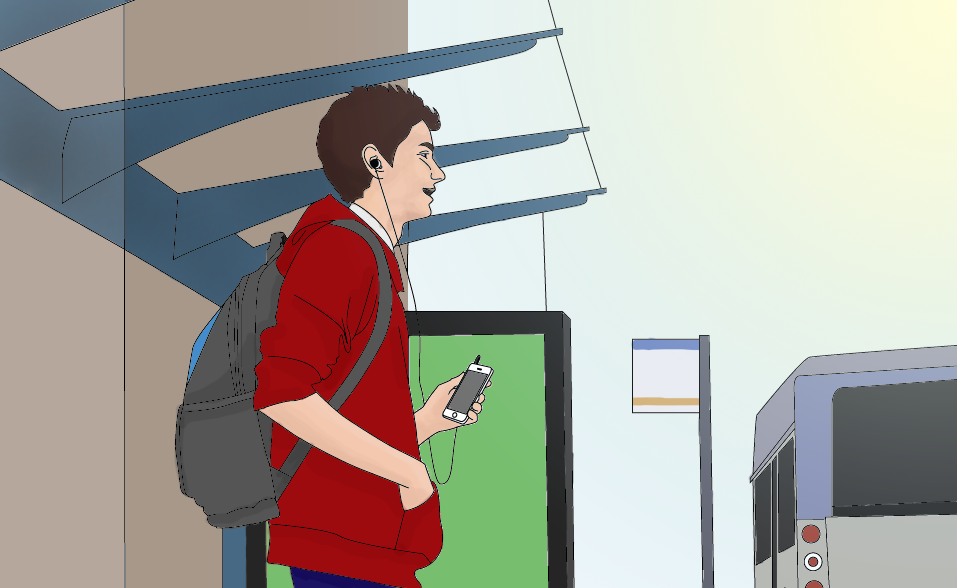
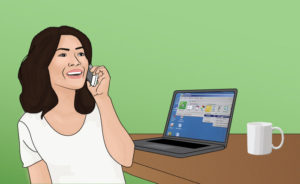
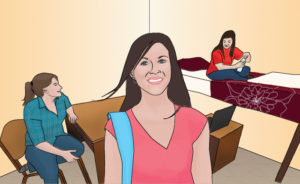
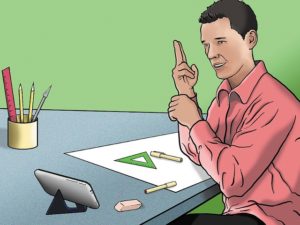
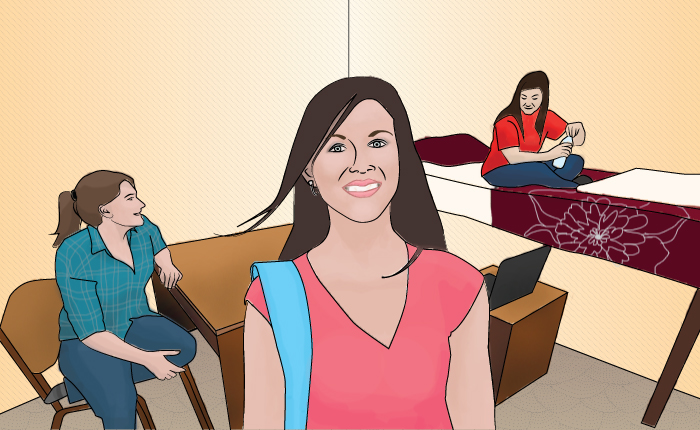
 <p>Designers use personas to&nbsp;represent the different types of people who might access a website or product. In this toolkit, we have used personas to help you keep in mind the types of students and their various abilities&nbsp;while you’re developing content. We’ve also used these personas to&nbsp;introduce different types of hardware and software that students typically use.</p> <p>We’ve adapted personas from&nbsp;Sarah Horton and Whitney Quesenbery’s book <a href="http://uxmag.com/articles/book-excerpt-a-web-for-everyone" data-url="http://uxmag.com/articles/book-excerpt-a-web-for-everyone"><em>A Web for Everyone: Designing Accessible User Experience</em></a>&nbsp;so they are specific to post-secondary students with print disabilities in British Columbia (based on&nbsp;data from <a href="http://caperbc.ca/files/2014/05/CAPER-BC-Annual-Report-2014.pdf#page=13" target="_blank" rel="noopener" data-url="http://caperbc.ca/files/2014/05/CAPER-BC-Annual-Report-2014.pdf#page=13">CAPER-BC Annual Report [PDF]</a>&nbsp;and the students who attended our focus group).</p> <p>These are some of the students who will be reading the open textbooks that you write.</p> <h1 id="chapter-695-section-1" class="section-header"><a id="Mark" data-url=""></a>Mark</h1> <p><a href="https://opentextbc.ca/accessibilitytoolkit/wp-content/uploads/sites/94/2018/06/persona3.png" data-url="https://opentextbc.ca/accessibilitytoolkit/wp-content/uploads/sites/94/2018/06/persona3.png"><img src="https://opentextbc.ca/accessibilitytoolkit/wp-content/uploads/sites/94/2018/06/persona3-300x184.png" alt="Mark has a learning disability. He absorbs information best by hearing it." class="wp-image-689 size-medium aligncenter" width="300" height="184" srcset="https://opentextbc.ca/accessibilitytoolkit/wp-content/uploads/sites/94/2018/06/persona3-300x184.png 300w, https://opentextbc.ca/accessibilitytoolkit/wp-content/uploads/sites/94/2018/06/persona3-768x472.png 768w, https://opentextbc.ca/accessibilitytoolkit/wp-content/uploads/sites/94/2018/06/persona3-65x40.png 65w, https://opentextbc.ca/accessibilitytoolkit/wp-content/uploads/sites/94/2018/06/persona3-225x138.png 225w, https://opentextbc.ca/accessibilitytoolkit/wp-content/uploads/sites/94/2018/06/persona3-350x215.png 350w, https://opentextbc.ca/accessibilitytoolkit/wp-content/uploads/sites/94/2018/06/persona3.png 957w" title=""></a>Mark is 17 years old. He is a future heavy-duty mechanic with a learning disability that was diagnosed in Grade 8. Mark absorbs information best by hearing it and enjoys making and fixing stuff with his hands. He’s in his first semester of college, taking trades courses and loving it. Mark can’t wait to complete the foundation courses and move into his first apprenticeship placement. He lives at home with his family; they all share one computer.</p> <p><strong>Ability</strong>: Difficulty absorbing a lot of information when reading</p> <p><strong>Aptitude</strong>:&nbsp;Basic technology user</p> <p><strong>Attitude</strong>:&nbsp;Prefers to do things himself, but can get easily frustrated or impatient, especially with technology</p> <p><strong>Assistive technology</strong>: MP3 player</p> <p><strong>Format&nbsp;preference</strong>: MP3 so he can listen on the go</p> <p>Listen to an <a href="http://caperbc.ca/files/2014/02/Paul.mp3" rel="noopener" data-url="http://caperbc.ca/files/2014/02/Paul.mp3">MP3 recording of a synthetic voice</a>.</p> <p></p> <div class="textbox interactive-content interactive-content--audio"><span class="interactive-content__icon"></span> <p>One or more interactive elements has been excluded from this version of the text. You can view them online here: <a href="https://opentextbc.ca/accessibilitytoolkit/?p=695#audio-695-1" title="Using Personas">https://opentextbc.ca/accessibilitytoolkit/?p=695#audio-695-1</a> </p> </div> <hr> <h1 id="chapter-695-section-2" class="section-header"><a id="Jacob" data-url=""></a>Jacob</h1> <p><img src="https://opentextbc.ca/accessibilitytoolkit/wp-content/uploads/sites/94/2018/06/Jacob-300x225.jpg" alt="Jacob is blind" class="wp-image-690 size-medium aligncenter" width="300" height="225" srcset="https://opentextbc.ca/accessibilitytoolkit/wp-content/uploads/sites/94/2018/06/Jacob-300x225.jpg 300w, https://opentextbc.ca/accessibilitytoolkit/wp-content/uploads/sites/94/2018/06/Jacob-65x49.jpg 65w, https://opentextbc.ca/accessibilitytoolkit/wp-content/uploads/sites/94/2018/06/Jacob-225x169.jpg 225w, https://opentextbc.ca/accessibilitytoolkit/wp-content/uploads/sites/94/2018/06/Jacob-350x263.jpg 350w, https://opentextbc.ca/accessibilitytoolkit/wp-content/uploads/sites/94/2018/06/Jacob.jpg 640w" title=""></p> <p>Jacob is a fourth-year business administration student who is blind and a bit of a geek.&nbsp;Jacob is 28 years old and can’t wait to get his last few classes out of the way so he can start his career. He shares an apartment with his girlfriend.</p> <p><strong>Ability</strong>:&nbsp;Blind since birth</p> <p><strong>Aptitude</strong>:&nbsp;Skilled technology user</p> <p><strong>Attitude</strong>:&nbsp;Digital native, early adopter, persists until he gets it</p> <p><strong>Assistive technologies</strong>:</p> <ul><li>Screen reader (JAWS on his laptop, VoiceOver on his iPhone)</li> <li>Victor Reader Stream</li> <li>Audio recorder (to take notes)</li> <li>Refreshable Braille display</li> </ul> <p><strong>Format preference</strong>:&nbsp;Electronic text, which he can easily use in JAWS and with VoiceOver; detests PDFs</p> <p>Watch a <a href="https://www.youtube.com/watch?v=_YpNrOkW0Mw#t=4m08s" rel="noopener" data-url="https://www.youtube.com/watch?v=_YpNrOkW0Mw#t=4m08s">student using JAWS</a> (4:08-6:18s).</p> <div class="textbox interactive-content interactive-content--oembed"><span class="interactive-content__icon"></span> <p>One or more interactive elements has been excluded from this version of the text. You can view them online here: <a href="#oembed-6" title="Assistive Software Demo: ZoomText, JAWS and Dragon" data-url="https://opentextbc.ca/accessibilitytoolkit/?p=695#oembed-6">https://opentextbc.ca/accessibilitytoolkit/?p=695#oembed-6</a> </p> </div> <p>Listen to a <a href="https://soundcloud.com/freecodecamp/zersiaxs-screen-reader" rel="noopener" data-url="https://soundcloud.com/freecodecamp/zersiaxs-screen-reader">computer-science student’s screen reader</a>.</p> <div class="textbox interactive-content interactive-content--oembed"><span class="interactive-content__icon"></span> <p>One or more interactive elements has been excluded from this version of the text. You can view them online here: <a href="#oembed-7" title="Zersiax's Screen Reader by freeCodeCamp" data-url="https://opentextbc.ca/accessibilitytoolkit/?p=695#oembed-7">https://opentextbc.ca/accessibilitytoolkit/?p=695#oembed-7</a> </p> </div> <hr> <h1 id="chapter-695-section-3" class="section-header"><a id="Diana" data-url=""></a>Diana</h1> <p><img src="https://opentextbc.ca/accessibilitytoolkit/wp-content/uploads/sites/94/2018/06/persona_diana-300x184.jpg" alt="Diana has poor vision and needs enlarged text or uses text-to-speech software." class="wp-image-691 size-medium aligncenter" width="300" height="184" srcset="https://opentextbc.ca/accessibilitytoolkit/wp-content/uploads/sites/94/2018/06/persona_diana-300x184.jpg 300w, https://opentextbc.ca/accessibilitytoolkit/wp-content/uploads/sites/94/2018/06/persona_diana-65x40.jpg 65w, https://opentextbc.ca/accessibilitytoolkit/wp-content/uploads/sites/94/2018/06/persona_diana-225x138.jpg 225w, https://opentextbc.ca/accessibilitytoolkit/wp-content/uploads/sites/94/2018/06/persona_diana-350x215.jpg 350w, https://opentextbc.ca/accessibilitytoolkit/wp-content/uploads/sites/94/2018/06/persona_diana.jpg 700w" title=""></p> <p style="text-align: left;">Diana is retraining to be a personal coach after she experienced vision loss and was unable to continue working as a bus driver. She is 48 years old and taking many of her classes online. She lives with her husband.</p> <p><strong>Ability</strong>: Gradual&nbsp;loss of vision; can easily read using a magnifier, but her eyes fatigue quickly</p> <p><strong>Aptitude</strong>: Intermediate technology user</p> <p><strong>Attitude</strong>: Has a routine and likes to stick to it</p> <p><strong>Assistive technologies</strong>:</p> <ul><li>ZoomText</li> <li>TextAloud text to speech software</li> </ul> <p><strong>Format preference</strong>:&nbsp;PDF or electronic text that she can enlarge on her computer or listen to using&nbsp;TextAloud</p> <p>Watch a <a href="https://www.youtube.com/watch?v=_YpNrOkW0Mw" rel="noopener" data-url="https://www.youtube.com/watch?v=_YpNrOkW0Mw">student using ZoomText</a>&nbsp;(0-1:31). <a href="https://www.youtube.com/watch?v=_YpNrOkW0Mw" data-url="https://www.youtube.com/watch?v=_YpNrOkW0Mw"></a></p> <div class="textbox interactive-content interactive-content--oembed"><span class="interactive-content__icon"></span> <p>One or more interactive elements has been excluded from this version of the text. You can view them online here: <a href="#oembed-8" title="Assistive Software Demo: ZoomText, JAWS and Dragon" data-url="https://opentextbc.ca/accessibilitytoolkit/?p=695#oembed-8">https://opentextbc.ca/accessibilitytoolkit/?p=695#oembed-8</a> </p> </div> <hr> <h1 id="chapter-695-section-4" class="section-header"><a id="Trish" data-url=""></a>Trish</h1> <p><img src="https://opentextbc.ca/accessibilitytoolkit/wp-content/uploads/sites/94/2018/06/Emily-300x225.jpg" alt="Trish has a physical disability. She prefers ebook formats and print." class="wp-image-692 size-medium aligncenter" width="300" height="225" srcset="https://opentextbc.ca/accessibilitytoolkit/wp-content/uploads/sites/94/2018/06/Emily-300x225.jpg 300w, https://opentextbc.ca/accessibilitytoolkit/wp-content/uploads/sites/94/2018/06/Emily-65x49.jpg 65w, https://opentextbc.ca/accessibilitytoolkit/wp-content/uploads/sites/94/2018/06/Emily-225x169.jpg 225w, https://opentextbc.ca/accessibilitytoolkit/wp-content/uploads/sites/94/2018/06/Emily-350x263.jpg 350w, https://opentextbc.ca/accessibilitytoolkit/wp-content/uploads/sites/94/2018/06/Emily.jpg 640w" title=""></p> <p>Trish is a college student taking university transfer courses who prefers using print books. An accident left Trish with several physical disabilities. She is 18 years old and lives with her family.</p> <p><strong>Ability</strong>: Suffers from brain damage, paralysis, and has motor issues</p> <p><strong>Aptitude</strong>: Basic computer user, intermediate iPad user</p> <p><strong>Attitude</strong>: Generally dependent on family, so enjoys reading and studying independently</p> <p><strong>Assistive technologies</strong>:</p> <ul><li>iPad</li> <li>Motorized wheelchair</li> </ul> <p><strong>Format preference</strong>: eBook formats, such as PDF, that can be easily loaded onto her iPad</p> <hr> <h1 id="chapter-695-section-5" class="section-header"><a id="Ann" data-url=""></a>Ann</h1> <p><img src="https://opentextbc.ca/accessibilitytoolkit/wp-content/uploads/sites/94/2018/06/persona2-300x184.jpg" alt="Ann has a learning disability that makes it difficult for her to concentrate." class="wp-image-693 size-medium aligncenter" width="300" height="184" srcset="https://opentextbc.ca/accessibilitytoolkit/wp-content/uploads/sites/94/2018/06/persona2-300x184.jpg 300w, https://opentextbc.ca/accessibilitytoolkit/wp-content/uploads/sites/94/2018/06/persona2-65x40.jpg 65w, https://opentextbc.ca/accessibilitytoolkit/wp-content/uploads/sites/94/2018/06/persona2-225x138.jpg 225w, https://opentextbc.ca/accessibilitytoolkit/wp-content/uploads/sites/94/2018/06/persona2-350x215.jpg 350w, https://opentextbc.ca/accessibilitytoolkit/wp-content/uploads/sites/94/2018/06/persona2.jpg 700w" title=""></p> <p>Ann is a chemistry major with ADHD, a learning disability that makes it difficult for her to concentrate. She is 20 years old and hopes to become a pharmacist. Ann lives in a dorm on campus with two other female students.</p> <p><strong>Ability</strong>: ADHD, has difficulty concentrating</p> <p><strong>Aptitude</strong>: Intermediate computer user</p> <p><strong>Attitude</strong>: Struggles at times, but is very appreciative of how much learning software helps her</p> <p><strong>Assistive technology</strong>: Kurzweil learning software (on laptop)</p> <p><strong>Format preference</strong>:&nbsp;Reading and listening at the same time</p> <p>Watch a <a href="https://www.youtube.com/watch?v=_YpNrOkW0Mw#t=1m32s" rel="noopener" data-url="https://www.youtube.com/watch?v=_YpNrOkW0Mw#t=1m32s">student using Kurzweil on a computer</a> (1:32-4:07).</p> <div class="textbox interactive-content interactive-content--oembed"><span class="interactive-content__icon"></span> <p>One or more interactive elements has been excluded from this version of the text. You can view them online here: <a href="#oembed-9" title="Assistive Software Demo: ZoomText, JAWS and Dragon" data-url="https://opentextbc.ca/accessibilitytoolkit/?p=695#oembed-9">https://opentextbc.ca/accessibilitytoolkit/?p=695#oembed-9</a> </p> </div> <hr> <h1 id="chapter-695-section-6" class="section-header"><a id="Steven" data-url=""></a>Steven</h1> <p><img src="https://opentextbc.ca/accessibilitytoolkit/wp-content/uploads/sites/94/2018/06/Steven-300x225.jpg" alt="Steven is deaf" class="wp-image-694 size-medium aligncenter" width="300" height="225" srcset="https://opentextbc.ca/accessibilitytoolkit/wp-content/uploads/sites/94/2018/06/Steven-300x225.jpg 300w, https://opentextbc.ca/accessibilitytoolkit/wp-content/uploads/sites/94/2018/06/Steven-65x49.jpg 65w, https://opentextbc.ca/accessibilitytoolkit/wp-content/uploads/sites/94/2018/06/Steven-225x169.jpg 225w, https://opentextbc.ca/accessibilitytoolkit/wp-content/uploads/sites/94/2018/06/Steven-350x263.jpg 350w, https://opentextbc.ca/accessibilitytoolkit/wp-content/uploads/sites/94/2018/06/Steven.jpg 640w" title=""></p> <p>Steven is an English major who is deaf. He is 23 years old and likes the flexibility of taking online classes. He lives by himself.</p> <p><strong>Ability</strong>: Native language is ASL; can speak and read lips</p> <p><strong>Aptitude</strong>: Intermediate technology user</p> <p><strong>Attitude</strong>: Can get annoyed about accessibility, such as lack of captions</p> <p><strong>Assistive technologies</strong>:</p> <ul><li>CART (communication access real-time translation) for lectures</li> <li>Captions</li> <li>Video chat</li> </ul> <p><strong>Format preference</strong>: No preference in regards to textbook formats; but, videos without captions are meaningless</p> <p>Watch a <a href="https://www.youtube.com/watch?v=qn4B0gyDosA" rel="noopener" data-url="https://www.youtube.com/watch?v=qn4B0gyDosA">video demonstration of CART</a>. Note: this video is also captioned.</p> <div class="textbox interactive-content interactive-content--oembed"><span class="interactive-content__icon"></span> <p>One or more interactive elements has been excluded from this version of the text. You can view them online here: <a href="#oembed-10" title="Communication Access Realtime Translation: CART Services for Deaf and Hard-of-Hearing People" data-url="https://opentextbc.ca/accessibilitytoolkit/?p=695#oembed-10">https://opentextbc.ca/accessibilitytoolkit/?p=695#oembed-10</a> </p> </div> <h3>Media Attributions</h3> <ul><li>Jacob: “<a href="https://www.flickr.com/photos/rosenfeldmedia/11496864803/in/album-72157638911360206/" data-url="https://www.flickr.com/photos/rosenfeldmedia/11496864803/in/album-72157638911360206/">WFE003: Jacob</a>” by <a href="https://www.flickr.com/photos/rosenfeldmedia/" data-url="https://www.flickr.com/photos/rosenfeldmedia/">Rosenfeld Media</a>. © <a href="https://creativecommons.org/licenses/by/2.0/" data-url="https://creativecommons.org/licenses/by/2.0/">Creative Commons Attribution 2.0 Generic Licence</a>.</li> <li>Trish: “<a href="https://www.flickr.com/photos/rosenfeldmedia/11496848136/in/album-72157638911360206/" data-url="https://www.flickr.com/photos/rosenfeldmedia/11496848136/in/album-72157638911360206/">WFE002: Emily</a>” by <a href="https://www.flickr.com/photos/rosenfeldmedia/" data-url="https://www.flickr.com/photos/rosenfeldmedia/">Rosenfeld Media</a>. © <a href="https://creativecommons.org/licenses/by/2.0/" data-url="https://creativecommons.org/licenses/by/2.0/">Creative Commons Attribution 2.0 Generic Licence</a>.</li> <li>Steven: “<a href="https://www.flickr.com/photos/rosenfeldmedia/11496879803/in/album-72157638911360206/" data-url="https://www.flickr.com/photos/rosenfeldmedia/11496879803/in/album-72157638911360206/">WFE005: Steven</a>”&nbsp;by <a href="https://www.flickr.com/photos/rosenfeldmedia/" data-url="https://www.flickr.com/photos/rosenfeldmedia/">Rosenfeld Media</a>. © <a href="https://creativecommons.org/licenses/by/2.0/" data-url="https://creativecommons.org/licenses/by/2.0/">Creative Commons Attribution 2.0 Generic Licence</a>.</li> <li>Mark, Diana, Ann: Original artwork by Hilda Anggraeni (BCcampus). © <a href="https://creativecommons.org/licenses/by/2.0/" data-url="https://creativecommons.org/licenses/by/2.0/">Creative Commons Attribution 4.0 International Licence</a>.</li> </ul> 

	</div>


	</div>

</div>
<div class="part-wrapper" id="part-best-practices-wrapper">
    <div class="part  " id="part-best-practices">
	<div class="part-title-wrap">
		<p class="part-number">II</p>
		<h1 class="part-title">Best Practices</h1>
	</div>
	<div class="ugc part-ugc">
		<div class="textbox textbox--learning-objectives"><div class="textbox__header"><p class="textbox__title" style="text-align: center;">Section Topics</p> </div> <div class="textbox__content"><p>This section covers best practices for making your open textbook accessible. Each chapter covers which students benefit, why accessibility is important, and the steps required to make various elements accessible.</p> <ul><li>How to organize content</li> <li>Images</li> <li>Links</li> <li>Tables</li> <li>Multimedia</li> <li>Formulas</li> <li>Font size</li> <li>Colour contrast</li> <li>How to write an accessibility statement</li> </ul> </div> </div>
	</div>
			
				
	</div>
<div class="chapter standard with-subsections" id="chapter-organizing-content" title="Organizing Content">
	<div class="chapter-title-wrap">
		<p class="chapter-number">3</p>
		<h1 class="chapter-title">Organizing Content</h1>
								</div>
	<div class="ugc chapter-ugc">
				
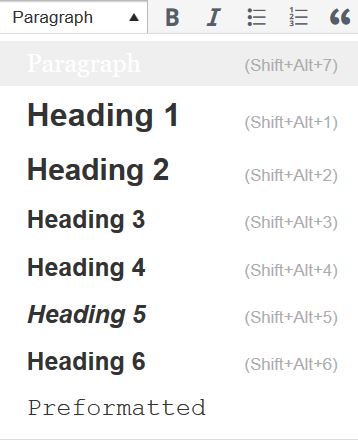
 <p>Organizing content so it has a logical flow just makes sense.&nbsp;Using chapters, headings, and sub-headings to organize a resource allows students to clearly see how the main concepts are related. In addition, headings are one of the main ways that students using a screen reader navigate through a chapter.</p> <h1 id="chapter-698-section-1" class="section-header">Who are you doing this for?</h1> <p>Everyone benefits from having content that’s clearly organized. Well-organized content supports students who:</p> <ul><li>Have a learning disability, like <a class="internal" href="#Ann" data-url="/accessibilitytoolkit/chapter/using-personas/#Ann">Ann</a></li> <li>Are blind or have low vision, like <a class="internal" href="#Jacob" data-url="/accessibilitytoolkit/chapter/using-personas/#Jacob">Jacob</a></li> </ul> <div class="wp-caption aligncenter" id="attachment_693" aria-describedby="caption-attachment-693" style="width: 300px"><a href="https://opentextbc.ca/accessibilitytoolkit/wp-content/uploads/sites/94/2018/06/persona2.jpg" data-url="https://opentextbc.ca/accessibilitytoolkit/wp-content/uploads/sites/94/2018/06/persona2.jpg"><img src="https://opentextbc.ca/accessibilitytoolkit/wp-content/uploads/sites/94/2018/06/persona2-300x184.jpg" alt="Ann has a learning disability that makes it difficult for her to concentrate" class="wp-image-693 size-medium" width="300" height="184" srcset="https://opentextbc.ca/accessibilitytoolkit/wp-content/uploads/sites/94/2018/06/persona2-300x184.jpg 300w, https://opentextbc.ca/accessibilitytoolkit/wp-content/uploads/sites/94/2018/06/persona2-65x40.jpg 65w, https://opentextbc.ca/accessibilitytoolkit/wp-content/uploads/sites/94/2018/06/persona2-225x138.jpg 225w, https://opentextbc.ca/accessibilitytoolkit/wp-content/uploads/sites/94/2018/06/persona2-350x215.jpg 350w, https://opentextbc.ca/accessibilitytoolkit/wp-content/uploads/sites/94/2018/06/persona2.jpg 700w" title=""></a><div class="wp-caption-text" id="caption-attachment-693">Ann: “This allows me to go back and easily find the important points.”</div></div> <div class="wp-caption aligncenter" id="attachment_690" aria-describedby="caption-attachment-690" style="width: 300px"><a href="https://opentextbc.ca/accessibilitytoolkit/wp-content/uploads/sites/94/2018/06/Jacob.jpg" data-url="https://opentextbc.ca/accessibilitytoolkit/wp-content/uploads/sites/94/2018/06/Jacob.jpg"><img src="https://opentextbc.ca/accessibilitytoolkit/wp-content/uploads/sites/94/2018/06/Jacob-300x225.jpg" alt="Jacob is blind" class="wp-image-690 size-medium" width="300" height="225" srcset="https://opentextbc.ca/accessibilitytoolkit/wp-content/uploads/sites/94/2018/06/Jacob-300x225.jpg 300w, https://opentextbc.ca/accessibilitytoolkit/wp-content/uploads/sites/94/2018/06/Jacob-65x49.jpg 65w, https://opentextbc.ca/accessibilitytoolkit/wp-content/uploads/sites/94/2018/06/Jacob-225x169.jpg 225w, https://opentextbc.ca/accessibilitytoolkit/wp-content/uploads/sites/94/2018/06/Jacob-350x263.jpg 350w, https://opentextbc.ca/accessibilitytoolkit/wp-content/uploads/sites/94/2018/06/Jacob.jpg 640w" title=""></a><div class="wp-caption-text" id="caption-attachment-690">Jacob: “This gives me more control in navigating through the chapter. I can skip to the relevant section, instead of having to read the whole thing in a linear fashion.”</div></div> <hr> <h1 id="chapter-698-section-2" class="section-header">Why is this important?</h1> <p>Headings help to identify the hierarchical structure of a document (e.g., sections, sub-sections). They provide a visual cue that helps sighted readers quickly navigate through sections of a document, skimming until they find the section they are looking for. Similarly, headings create logical divisions in the content and allow a non-sighted user to navigate a page or document easily using a screen reader.</p> <p>When it comes to using visual references to indicate the hierarchy and structure of a document, you might be accustomed to changing the font style, enlarging the type size, or highlighting the text with bold, underline or italics to create the impression of a heading. This approach presents problems when creating material with accessibility in mind because screen readers won’t identify the text as a heading.&nbsp;Instead, the screen reader will just “read” through the text of a heading as if it were regular content, missing your intended cues about structure and organization.</p> <h1 id="chapter-698-section-3" class="section-header">What do you need to do?</h1> <p>In <a href="#pressbooks" data-url="/accessibilitytoolkit/front-matter/introduction/#pressbooks">Pressbooks</a>, use the <a href="http://en.support.wordpress.com/visual-editor/#styles" data-url="http://en.support.wordpress.com/visual-editor/#styles">visual editor</a> to tag sections&nbsp;with Heading 1, sub-sections&nbsp;with Heading 2, sub-sections of sub-sections with Heading 3, and so on.</p> <div class="wp-caption aligncenter" id="attachment_697" aria-describedby="caption-attachment-697" style="width: 244px"><a href="https://opentextbc.ca/accessibilitytoolkit/wp-content/uploads/sites/94/2018/06/heading-options-2.jpg" data-url="https://opentextbc.ca/accessibilitytoolkit/wp-content/uploads/sites/94/2018/06/heading-options-2.jpg"><img src="https://opentextbc.ca/accessibilitytoolkit/wp-content/uploads/sites/94/2018/06/heading-options-2-244x300.jpg" alt="A drop-down menu showing a list of heading options in Pressbooks" class="wp-image-697 size-medium" width="244" height="300" srcset="https://opentextbc.ca/accessibilitytoolkit/wp-content/uploads/sites/94/2018/06/heading-options-2-244x300.jpg 244w, https://opentextbc.ca/accessibilitytoolkit/wp-content/uploads/sites/94/2018/06/heading-options-2-65x80.jpg 65w, https://opentextbc.ca/accessibilitytoolkit/wp-content/uploads/sites/94/2018/06/heading-options-2-225x277.jpg 225w, https://opentextbc.ca/accessibilitytoolkit/wp-content/uploads/sites/94/2018/06/heading-options-2-350x430.jpg 350w, https://opentextbc.ca/accessibilitytoolkit/wp-content/uploads/sites/94/2018/06/heading-options-2.jpg 358w" title=""></a><div class="wp-caption-text" id="caption-attachment-697">Heading options in Pressbooks’ visual editor</div></div> <h3>Media Attributions</h3> <ul><li>Ann: Original artwork by Hilda Anggraeni (BCcampus). © <a href="https://creativecommons.org/licenses/by/4.0/" data-url="https://creativecommons.org/licenses/by/4.0/">Creative Commons Attribution 4.0 International Licence</a>.</li> <li>Jacob: “<a href="https://www.flickr.com/photos/rosenfeldmedia/11496864803/in/album-72157638911360206/" data-url="https://www.flickr.com/photos/rosenfeldmedia/11496864803/in/album-72157638911360206/">WFE003: Jacob</a>” by <a href="https://www.flickr.com/photos/rosenfeldmedia/" data-url="https://www.flickr.com/photos/rosenfeldmedia/">Rosenfeld Media</a>. © <a href="https://creativecommons.org/licenses/by/2.0/" data-url="https://creativecommons.org/licenses/by/2.0/">Creative Commons Attribution 2.0 Generic Licence</a>.</li> </ul> 

	</div>


	</div>
<div class="chapter standard with-subsections" id="chapter-images" title="Images">
	<div class="chapter-title-wrap">
		<p class="chapter-number">4</p>
		<h1 class="chapter-title">Images</h1>
								</div>
	<div class="ugc chapter-ugc">
				
 <p>In this section, we provide recommendations to guide your inclusion of accessible, image-based content.</p> <h1 id="chapter-704-section-1" class="section-header">What are images?</h1> <p>Images are non-text elements that include&nbsp;photographs, illustrations, diagrams, pictures, charts, graphs, and maps.</p> <p><strong>File types used</strong>: GIF, JPG, PNG</p> <h1 id="chapter-704-section-2" class="section-header">Why are you including the images you have selected?</h1> <p>Before you can determine what to do to make an image&nbsp;accessible, you must identify its <em>purpose</em> or <em>value</em> to your textbook. Consider the following questions:</p> <ol><li>Does your image serve a&nbsp;<a title="Functional Images" href="#functional" data-url="https://opentextbc.ca/accessibilitytoolkit/chapter/images/#functional">functional</a> purpose?&nbsp;In other words, is it conveying non-text content to students? If so, you should: <ol type="a"><li>provide a text alternative that serves the equivalent purpose of the non-text material<span class="footnote"><span class="footnote-indirect" data-fnref="704-1"></span></span></li> <li>not use colour as the only visual means of conveying information<span class="footnote"><span class="footnote-indirect" data-fnref="704-2"></span></span></li> </ol> </li> <li>Does your image serve more of a&nbsp;<a title="Decorative Images" href="#decorative" data-url="https://opentextbc.ca/accessibilitytoolkit/chapter/images/#decorative">decorative</a> purpose?&nbsp;In other words, is it primarily a design element that does not convey content? If so, you should: <ol type="a"><li>avoid unnecessary text descriptions</li> </ol> </li> </ol> <h1 id="chapter-704-section-3" class="section-header">Who are you doing this for?</h1> <p>This work supports students who:</p> <ul><li>Are blind or have low vision, like <a title="Full description of Jacob's profile" href="#Jacob" data-url="/accessibilitytoolkit/chapter/using-personas/#Jacob">Jacob</a></li> <li>Have poor contrast vision</li> <li>Are colour blind and cannot differentiate between certain colours</li> <li>Use a device with monochrome display</li> <li>Use a print copy that is in black and white</li> <li>Have limited Internet access and cannot download images</li> <li>Have a form of&nbsp;cognitive disability</li> </ul> <p><img class="aligncenter wp-image-690 size-medium" src="https://opentextbc.ca/accessibilitytoolkit/wp-content/uploads/sites/94/2018/06/Jacob-300x225.jpg" alt="Jacob is blind" width="300" height="225" srcset="https://opentextbc.ca/accessibilitytoolkit/wp-content/uploads/sites/94/2018/06/Jacob-300x225.jpg 300w, https://opentextbc.ca/accessibilitytoolkit/wp-content/uploads/sites/94/2018/06/Jacob-65x49.jpg 65w, https://opentextbc.ca/accessibilitytoolkit/wp-content/uploads/sites/94/2018/06/Jacob-225x169.jpg 225w, https://opentextbc.ca/accessibilitytoolkit/wp-content/uploads/sites/94/2018/06/Jacob-350x263.jpg 350w, https://opentextbc.ca/accessibilitytoolkit/wp-content/uploads/sites/94/2018/06/Jacob.jpg 640w" title=""></p> <hr> <h1 id="chapter-704-section-4" class="section-header">What do you need to do?</h1> <p>Determine the role of each image used in content as either functional or decorative. Once that has been decided, select how each image will meet accessibility needs by providing descriptive text in a variety of ways. Figures, such as charts and graphs that rely on colour to convey information, should also be evaluated for accessibility by students who are unable to distinguish between or see colour.</p> <h1 id="chapter-704-section-5" class="section-header"><a id="functional" data-url=""></a>Functional images</h1> <p>Consider what your content page would look like if the images didn’t load. Now try writing alternative text for each image that would work as a replacement and provide the same information as the image.</p> <p>There are three ways to provide alternative text descriptions for images:</p> <ol><li>Describe the image in the <a href="#intext" data-url="https://opentextbc.ca/accessibilitytoolkit/chapter/images/#intext">surrounding text</a>.</li> <li>Describe the image in the <a href="#alt" data-url="https://opentextbc.ca/accessibilitytoolkit/chapter/images/#alt">alt tag</a>.</li> <li>Create and link to a <a href="#longdescription" data-url="https://opentextbc.ca/accessibilitytoolkit/chapter/images/#longdescription">long description</a> of the image.</li> </ol> <p>As you work on developing your&nbsp;alternative text descriptions, keep the following recommendations and guidelines in mind:</p> <ul><li>Remember that alternative text must convey the content and functionality of an image, and is rarely a literal&nbsp;description of the image (e.g., “photo of cat<em>”</em>). Rather than providing what the image looks like, alternative text should convey the content of the image and what it does.<span class="footnote"><span class="footnote-indirect" data-fnref="704-3"></span></span></li> <li>For relatively simple images (e.g., photographs, illustrations), try to keep your text descriptions short. You should aim to create a brief alternative (one or two short sentences) that is an accurate and concise equivalent to the information in the image.</li> <li>For more complex images (e.g., detailed charts, graphs, maps), you will need to provide more than a one- or two-sentence description to ensure all users will benefit from the content or context you&nbsp;intend to provide.</li> <li>Leave out unnecessary information. For example, you do not need to include information like “image of…” or “photo of…”; assistive technologies will automatically&nbsp;identify the material as an image, so including that detail in your alternative description is redundant.</li> <li>Avoid redundancy of content in your alternative description. Don’t&nbsp;repeat information that already appears in text adjacent&nbsp;to the image.</li> </ul> <div class="textbox shaded">For strategies on how to make complex visuals such as graphs, tables, charts, and more accessible, see the following resource created by Supada Amornchat (CC BY-NC-SA): <a href="https://opentextbc.ca/accessibilitytoolkit/wp-content/uploads/sites/94/2018/06/complex-images.pdf" data-url="https://opentextbc.ca/accessibilitytoolkit/wp-content/uploads/sites/94/2018/06/complex-images.pdf">Describing Complex Images for All Learners [PDF]</a>. <p>If you need to describe images that appear in assessments, see the <a href="https://opentextbc.ca/accessibilitytoolkit/wp-content/uploads/sites/94/2018/06/Image-Description-Guidelines-for-Assessments_IDGA_NWEA1.pdf" data-url="https://opentextbc.ca/accessibilitytoolkit/wp-content/uploads/sites/94/2018/06/Image-Description-Guidelines-for-Assessments_IDGA_NWEA1.pdf">NWEA Image Description Guidelines for Assessments [PDF]</a>.</p></div> <h2 id="surroundingtext"><a id="intext" data-url=""></a>Descriptions in surrounding text</h2> <p>You can use the surrounding text to provide the same information as conveyed by the image. This is often the best option for complex images because it makes the information available for everyone, not just those using the alt tags.</p> <p>If you are editing someone else’s work for accessibility, you are probably not at liberty to start adding to the main text. However, if you are the author, this is the best and easiest option.</p> <p>If an image has been adequately described in the surrounding text, you can either provide a few-word description of the image in the alt tag or follow the procedures for <a href="#decorative" data-url="https://opentextbc.ca/accessibilitytoolkit/chapter/images/#decorative">decorative images</a>.</p> <h2><a id="alt" data-url=""></a>Alt tags</h2> <p>An alt tag refers to the alt attribute (<em>alt</em> is short for alternative) within an IMG tag. All images uploaded into Pressbooks have an alt tag, but for them to be useful, you need to insert an image description.</p> <p>Alt tags are used in two cases:</p> <ol><li>When an image doesn’t download due slow Internet, the alt tag content will display instead of the image.</li> <li>For people who are visually impaired and use screen readers, when a screen reader finds an image, it will read out the content of the alt tag.</li> </ol> <p>Alt tags should be no longer than 125 characters, including spaces and punctuation.<span class="footnote"><span class="footnote-indirect" data-fnref="704-4"></span></span> This is because when a screen reader finds an image, it will say “Graphic” before reading out the alt tag. If the alt tag is longer than 125 characters, the screen reader will interrupt the flow of text and say “Graphic” again, before continuing to read out the alt tag. This can be confusing. For images that require descriptions longer than 125 characters, see the section on <a href="#longdescription" data-url="https://opentextbc.ca/accessibilitytoolkit/chapter/images/#longdescription">long descriptions</a>.</p> <p>To edit an image’s alt tag in Pressbooks, click on the image and select the PENCIL icon (edit). Under image details, there will be two textboxes: one titled “Caption” and one titled “Alternative Text.” The “Caption” box contains the image’s caption, which appears under the image in the visual editor. The “Alternative Text” box is where you describe the image.</p> <h2 id="longdescriptions"><a id="longdescription" data-url=""></a>Long descriptions</h2> <p>Complex images, especially charts or graphs, will often require descriptions longer than 125 characters and it may not always be possible to add an explanation to the surrounding text. In this case, you can provide a link to a longer image description or an accessible table. One way to do this is to create a section for long descriptions in your resource and use links to allow people to easily switch between the image and its description and back again.</p> <h3><a id="howtold" data-url=""></a><strong>How to set up a long description for an image in Pressbooks</strong></h3> <p>Figure 1.1 shows an image from <em><a href="https://opentextbc.ca/introductiontosociology2ndedition/" data-url="https://opentextbc.ca/introductiontosociology2ndedition/">Introduction to Sociology – 2nd Canadian Edition</a></em> that requires a longer description than what can fit in an alt tag. As such, at the end of the caption, there is a link to the image’s description.</p> <p>Anyone using this textbook can access this image description by clicking on the [Image description] link, which will take them to the image description at the end of the chapter (or by flipping to the end of the chapter in the print version). This will also work for people using screen readers who are navigating through the book with a keyboard.</p> <p>Curious about how this works? Try clicking on the [Image Description] link in the caption of Figure 1.1.<a id="retfig1.1" data-url=""></a></p> <div class="wp-caption aligncenter" id="attachment_699" aria-describedby="caption-attachment-699" style="width: 300px"><a href="https://opentextbc.ca/accessibilitytoolkit/wp-content/uploads/sites/94/2018/06/2049201506_0f9b17182a_o.jpg" data-url="https://opentextbc.ca/accessibilitytoolkit/wp-content/uploads/sites/94/2018/06/2049201506_0f9b17182a_o.jpg"><img class="wp-image-699 size-medium" title="Wong-Baker Pain Rating Scale. Long description available." src="https://opentextbc.ca/accessibilitytoolkit/wp-content/uploads/sites/94/2018/06/2049201506_0f9b17182a_o-300x224.jpg" alt="Wong-Baker Pain Rating Scale. Long description available." width="300" height="224" data-popupalt-original-title="null" srcset="https://opentextbc.ca/accessibilitytoolkit/wp-content/uploads/sites/94/2018/06/2049201506_0f9b17182a_o-300x224.jpg 300w, https://opentextbc.ca/accessibilitytoolkit/wp-content/uploads/sites/94/2018/06/2049201506_0f9b17182a_o-65x48.jpg 65w, https://opentextbc.ca/accessibilitytoolkit/wp-content/uploads/sites/94/2018/06/2049201506_0f9b17182a_o-225x168.jpg 225w, https://opentextbc.ca/accessibilitytoolkit/wp-content/uploads/sites/94/2018/06/2049201506_0f9b17182a_o-350x261.jpg 350w, https://opentextbc.ca/accessibilitytoolkit/wp-content/uploads/sites/94/2018/06/2049201506_0f9b17182a_o.jpg 711w"></a><div class="wp-caption-text" id="caption-attachment-699">Figure 1.1 The Wong-Baker Faces Pain Rating Scale helps health care providers assess an individual’s level of pain. What might a symbolic interactionist observe about this method? <a href="#fig1.1" data-url="https://opentextbc.ca/accessibilitytoolkit/chapter/images/#fig1.1">[Image Description]</a></div></div> <p>Adding a long description to an image in <a href="#pressbooks" data-url="/accessibilitytoolkit/front-matter/introduction/#pressbooks">Pressbooks</a> can be complicated, but the following four steps will help guide you through the process.</p> <h3 style="text-align: left;"><span style="text-decoration: underline;"><strong>Step 1: Add an alt tag</strong></span></h3> <p>Even though you will be providing a long description, the image still needs an <a href="#alt" data-url="https://opentextbc.ca/accessibilitytoolkit/chapter/images/#alt">alt tag</a>.&nbsp;In the Alternative Text field in the image editor, provide a <em>brief</em> image description (only a few words), and state that there is an image description available.</p> <p><strong>Example alt tag</strong>: Wong-Baker Faces pain rating scale. Image description available.</p> <h3 style="text-align: left;"><span style="text-decoration: underline;"><strong>Step 2: Create the image description and insert it at the end of the chapter</strong></span></h3> <ol><li>Create a “Image Descriptions” heading at the end of the chapter. All image descriptions will be added under this heading in the order that the images appear in the chapter.</li> <li>Under the “Image Descriptions” heading, insert the image’s figure number followed by the image description.</li> </ol> <p><strong>Example</strong>:</p> <blockquote><p><strong>Figure 1.1 image description</strong>:&nbsp;The&nbsp;Wong-Baker Faces pain rating scale uses cartoon faces to illustrate the different levels of pain that correspond to a numbered scale from 1 to 10. Zero is smiling, 2 is a small smile, 4 is a straight face, 6 is a slightly sad face, 8 is a big sad face, and 10 is a bigger sad face that is crying.</p></blockquote> <h3 style="text-align: left;"><span style="text-decoration: underline;"><strong>Step 3: Link to the image description from the image’s caption</strong></span></h3> <p>Provide a link to the image description in the caption of the image. Because the description will be on the same page of the image, you will be providing a same-page link using anchor tags.</p> <div class="textbox shaded" style="text-align: center;">For information on how to create same-page links in Pressbooks, see <a href="https://opentextbc.ca/pressbooks/chapter/hyperlink-material/" data-url="https://opentextbc.ca/pressbooks/chapter/hyperlink-material/">Hyperlink Material</a> in the <a href="https://opentextbc.ca/pressbooks/" data-url="https://opentextbc.ca/pressbooks/"><em>Pressbooks Guide</em></a>.</div> <ol><li>Come up with a unique ID for the image description, which will allow you to link directly to the description in the chapter. In this case, we used “fig1.1”. (The ID can be whatever you want, but if you have multiple images that require long descriptions, it is best practice to establish a convention for creating IDs to keep them simple and consistent. Note that IDs are case sensitive.)</li> <li>Insert the ID using the “Anchor” button at the beginning of the image description. <ol type="a"><li>Place your cursor at the beginning of the image description entry.</li> <li>Select the “Anchor” button from the WYSIWYG visual editor. The button appears in the third row and looks like a ribbon.<img class="aligncenter wp-image-1094 size-medium" src="https://opentextbc.ca/accessibilitytoolkit/wp-content/uploads/sites/94/2018/06/anchor1-300x89.jpg" alt="" width="300" height="89" srcset="https://opentextbc.ca/accessibilitytoolkit/wp-content/uploads/sites/94/2018/06/anchor1-300x89.jpg 300w, https://opentextbc.ca/accessibilitytoolkit/wp-content/uploads/sites/94/2018/06/anchor1-65x19.jpg 65w, https://opentextbc.ca/accessibilitytoolkit/wp-content/uploads/sites/94/2018/06/anchor1-225x66.jpg 225w, https://opentextbc.ca/accessibilitytoolkit/wp-content/uploads/sites/94/2018/06/anchor1-350x103.jpg 350w, https://opentextbc.ca/accessibilitytoolkit/wp-content/uploads/sites/94/2018/06/anchor1.jpg 522w" title=""></li> <li>A dialogue box will pop up asking you to provide a name for the anchor. Insert the ID you created and select OK.<img class="aligncenter wp-image-1093 size-medium" src="https://opentextbc.ca/accessibilitytoolkit/wp-content/uploads/sites/94/2018/06/anchor-1-300x115.jpg" alt="" width="300" height="115" srcset="https://opentextbc.ca/accessibilitytoolkit/wp-content/uploads/sites/94/2018/06/anchor-1-300x115.jpg 300w, https://opentextbc.ca/accessibilitytoolkit/wp-content/uploads/sites/94/2018/06/anchor-1-65x25.jpg 65w, https://opentextbc.ca/accessibilitytoolkit/wp-content/uploads/sites/94/2018/06/anchor-1-225x86.jpg 225w, https://opentextbc.ca/accessibilitytoolkit/wp-content/uploads/sites/94/2018/06/anchor-1-350x134.jpg 350w, https://opentextbc.ca/accessibilitytoolkit/wp-content/uploads/sites/94/2018/06/anchor-1.jpg 426w" title=""></li> </ol> </li> <li>Go back to your image. At the end of the caption, add “[Image Description]” to use for the link text.</li> <li>Link the [Image Description] text to the anchor you created. <ol type="a"><li>Select the [Image Description] text.</li> <li>Select the “Insert/edit link” button from the WYSIWYG Visual editor. The button appears in the first row and looks like a chain link.</li> <li>A dialogue box will pop up asking you to provide a URL. Insert a number sign (#) followed by the ID you created and select the “Apply” button.<a href="https://opentextbc.ca/accessibilitytoolkit/wp-content/uploads/sites/94/2018/06/anchor2.jpg" data-url="https://opentextbc.ca/accessibilitytoolkit/wp-content/uploads/sites/94/2018/06/anchor2.jpg"><img class="aligncenter wp-image-1095" src="https://opentextbc.ca/accessibilitytoolkit/wp-content/uploads/sites/94/2018/06/anchor2.jpg" alt="" width="500" height="130" srcset="https://opentextbc.ca/accessibilitytoolkit/wp-content/uploads/sites/94/2018/06/anchor2.jpg 900w, https://opentextbc.ca/accessibilitytoolkit/wp-content/uploads/sites/94/2018/06/anchor2-300x78.jpg 300w, https://opentextbc.ca/accessibilitytoolkit/wp-content/uploads/sites/94/2018/06/anchor2-768x200.jpg 768w, https://opentextbc.ca/accessibilitytoolkit/wp-content/uploads/sites/94/2018/06/anchor2-65x17.jpg 65w, https://opentextbc.ca/accessibilitytoolkit/wp-content/uploads/sites/94/2018/06/anchor2-225x59.jpg 225w, https://opentextbc.ca/accessibilitytoolkit/wp-content/uploads/sites/94/2018/06/anchor2-350x91.jpg 350w" title=""></a></li> </ol> </li> </ol> <p>The following table displays how the caption will look in the visual editor view and in the image editor view.</p> <table style="width: 100%;"><caption>A Sample Caption With a Link to an Image Description</caption> <tbody><tr><th class="border" style="width: 69px;">Visual editor view</th> <td class="border" style="width: 830px;">Figure 1.1&nbsp;The Wong-Baker Faces pain rating scale helps health care providers assess an individual’s level of pain. What might a symbolic interactionist observe about this method? <a href="#fig1.1" data-url="https://opentextbc.ca/accessibilitytoolkit/chapter/images/#fig1.1">[Image Description]</a></td> </tr> <tr><th class="border" style="width: 69px;">Image editor view</th> <td class="border" style="width: 830px;">Figure 1.1&nbsp;The Wong-Baker Faces pain rating scale helps health care providers assess an individual’s level of pain. What might a symbolic interactionist observe about this method? &lt;a href=”#fig1.1″&gt;[Image Description]&lt;/a&gt;</td> </tr> </tbody> </table> <h3 style="text-align: left;"><span style="text-decoration: underline;"><strong>Step 4: Link the image description back to the image</strong></span></h3> <p>Insert a link at the end of the image description that takes users back to the original image. This will make it easy for people to navigate back to their spot in the chapter after accessing the image description.</p> <p><strong>Example:</strong></p> <blockquote><p><strong>Figure 1.1 image description</strong>: The&nbsp;Wong-Baker Faces pain rating scale uses cartoon faces to illustrate the different levels of pain that correspond to a numbered scale from 1 to 10. Zero is smiling, 2 is a small smile, 4 is a straight face, 6 is a slightly sad face, 8 is a big sad face, and 10 is a bigger sad face that is crying. <a href="#retfig1.1" data-url="https://opentextbc.ca/accessibilitytoolkit/chapter/images/#retfig1.1">[Return to Figure 1.1]</a></p></blockquote> <ol><li>To link back to the image, you will need a new unique ID. In this case, we used “retfig1.1”.</li> <li>Insert the ID using the “Anchor” button right before the image in the chapter.</li> <li>Link the [Return to Figure 1.1] text to the anchor you just created.</li> </ol> <p>Now that you have reviewed the steps to add a long description to a Pressbooks image, see Chapter 8 of the <em>Introduction to Tourism and Hospitality in B.C.</em> open textbook for an <a href="https://opentextbc.ca/introtourism/chapter/chapter-8-services-marketing/#fig8.1" data-url="https://opentextbc.ca/introtourism/chapter/chapter-8-services-marketing/#fig8.1">example of what long descriptions look like in practice</a>.</p> <h1 id="chapter-704-section-6" class="section-header  Decorative"><a id="decorative" data-url=""></a>Decorative images</h1> <p>If an image does not add meaning, i.e., if it’s included for decorative or design purposes only, or if the image is adequately described in the caption and/or surrounding text, it doesn’t need an alt tag. Including alternative text descriptions for decorative images “simply slows the process down with no benefit because the screen-reading software vocalizes the content of the [alternative text description], whether that alternative text adds value or not.”<span class="footnote"><span class="footnote-indirect" data-fnref="704-5"></span></span></p> <p>When the alt tag is left blank, the screen reader will not announce the presence of the image and will skip to the next content.</p> <h1 id="chapter-704-section-7" class="section-header"><a id="colour" data-url=""></a>Using colour</h1> <p class="page-break-after">Consider what your images would look like if they only displayed in black and white. Would any necessary context or content be lost if the colour was “turned off?” Images should not rely on colour to convey information; if your point requires colour, you may need to edit or format the image so the concepts presented are not lost to those who are colour blind or require high contrast between colours.</p> <div class="textbox textbox--key-takeaways"><div class="textbox__header"><p class="textbox__title" style="text-align: center;">Example 1: Inaccessible Bar Chart</p> </div> <div class="textbox__content"><p>In Chart 1, colour is the only means by which information is conveyed. For students who are colour blind, have poor contrast vision, or are using a black-and-white print copy (see Chart 2), relevant information is lost.</p> <table style="border-collapse: collapse; width: 100%;"><tbody><tr><td style="width: 50%;"><div class="wp-caption aligncenter" id="attachment_701" aria-describedby="caption-attachment-701" style="width: 300px"><img class="wp-image-701 size-medium" src="https://opentextbc.ca/accessibilitytoolkit/wp-content/uploads/sites/94/2018/06/colour-depend-1-300x249-300x249.jpg" alt="" width="300" height="249" srcset="https://opentextbc.ca/accessibilitytoolkit/wp-content/uploads/sites/94/2018/06/colour-depend-1-300x249.jpg 300w, https://opentextbc.ca/accessibilitytoolkit/wp-content/uploads/sites/94/2018/06/colour-depend-1-300x249-65x54.jpg 65w, https://opentextbc.ca/accessibilitytoolkit/wp-content/uploads/sites/94/2018/06/colour-depend-1-300x249-225x187.jpg 225w" title=""><div class="wp-caption-text" id="caption-attachment-701">Chart 1: In this bar chart, colour is the sole means of communicating the data.</div></div> </td> <td style="width: 50%;"><div class="wp-caption aligncenter" id="attachment_702" aria-describedby="caption-attachment-702" style="width: 300px"><img class="wp-image-702 size-medium" src="https://opentextbc.ca/accessibilitytoolkit/wp-content/uploads/sites/94/2018/06/colour-depend-2-300x249-300x249.jpg" alt="Bar chart viewed in greyscale" width="300" height="249" srcset="https://opentextbc.ca/accessibilitytoolkit/wp-content/uploads/sites/94/2018/06/colour-depend-2-300x249.jpg 300w, https://opentextbc.ca/accessibilitytoolkit/wp-content/uploads/sites/94/2018/06/colour-depend-2-300x249-65x54.jpg 65w, https://opentextbc.ca/accessibilitytoolkit/wp-content/uploads/sites/94/2018/06/colour-depend-2-300x249-225x187.jpg 225w" title=""><div class="wp-caption-text" id="caption-attachment-702">Chart 2: This view of the same bar chart displays how the chart might appear to a student who is colour blind, or whose device does not display colour. All of the meaningful data is lost.</div></div> </td> </tr> </tbody> </table> </div> </div> <p class="page-break-after"><span style="color: #ffffff;">.</span></p> <div class="textbox textbox--key-takeaways"><div class="textbox__header"><p class="textbox__title" style="text-align: center;">Example 2: Accessible Bar Chart</p> </div> <div class="textbox__content"><p>Students who are colour blind can distinguish between high-contrast shades. In Chart 3, contextual labels have been added to each bar at the bottom of the chart. Note that the chart will still require an <a href="#alt" data-url="https://opentextbc.ca/accessibilitytoolkit/chapter/images/#alt">alt tag</a>.</p> <div class="wp-caption aligncenter" id="attachment_703" aria-describedby="caption-attachment-703" style="width: 300px"><img class="wp-image-703 size-medium" src="https://opentextbc.ca/accessibilitytoolkit/wp-content/uploads/sites/94/2018/06/colour-depend-3-300x268-300x268.jpg" alt="Modified bar chart with high-contrast colours and labels" width="300" height="268" srcset="https://opentextbc.ca/accessibilitytoolkit/wp-content/uploads/sites/94/2018/06/colour-depend-3-300x268.jpg 300w, https://opentextbc.ca/accessibilitytoolkit/wp-content/uploads/sites/94/2018/06/colour-depend-3-300x268-65x58.jpg 65w, https://opentextbc.ca/accessibilitytoolkit/wp-content/uploads/sites/94/2018/06/colour-depend-3-300x268-225x201.jpg 225w" title=""><div class="wp-caption-text" id="caption-attachment-703">Chart 3: In this view of the bar chart, high-contrast colours have been used so that shading differences will still display in grey scale. Text labels have also been added so that the data is not just being communicated with colour.</div></div> </div> </div> <h1 id="chapter-704-section-8" class="section-header">Long description example</h1> <p><strong><a id="fig1.1" data-url=""></a>Figure 1.1 image description</strong>: The&nbsp;Wong-Baker Faces pain rating scale uses cartoon faces to illustrate the different levels of pain that correspond to a numbered scale from 1 to 10. Zero is smiling, 2 is a small smile, 4 is a straight face, 6 is a slightly sad face, 8 is a big sad face, and 10 is a bigger sad face that is crying.&nbsp;<a href="#retfig1.1" data-url="https://opentextbc.ca/accessibilitytoolkit/chapter/images/#retfig1.1">[Return to Figure 1.1]</a></p> <h3>Media Attributions</h3> <ul><li>Jacob: “<a href="https://www.flickr.com/photos/rosenfeldmedia/11496864803/in/album-72157638911360206/" data-url="https://www.flickr.com/photos/rosenfeldmedia/11496864803/in/album-72157638911360206/">WFE003: Jacob</a>” by&nbsp;<a href="https://www.flickr.com/photos/rosenfeldmedia/" data-url="https://www.flickr.com/photos/rosenfeldmedia/">Rosenfeld Media</a>. <a href="https://creativecommons.org/licenses/by/2.0/" data-url="https://creativecommons.org/licenses/by/2.0/">Creative Commons Attribution 2.0 Generic Licence</a>.</li> <li>Figure 1.1: “<a href="https://www.flickr.com/photos/juhansonin/2049201506/in/photolist-485Gds-Gfsitv-5KQxMS-doLdQm-bpMpmF-fETJSX-5WDuJv-UVEQ3X-gynsF5-vSk4L-gyo14C-WEFF8H-9cDHG9-8MCUGP-CZttLq-6CnBn-avc7mY-gyoqtg-gyote6-azLAn1-9pLs8j-gyor4z-biXAQK-gynT2v-qSg7ND-71wDHy-8Sx26k-gynZDQ-7j3p1L-6HAbnE-bUKXf9-8Sx28H-8RmTcU-dveXaK-VWgU1N-5KQxMJ-gynU1p-942Aa4-7J552L-gynU2r-gynYUU-gyoqZB-gynYCm-VUm8Yb-9cN7Vd-doXrbg-8Uky1F-gyotjM-3cjrwC-5KQxMh" data-url="https://www.flickr.com/photos/juhansonin/2049201506/in/photolist-485Gds-Gfsitv-5KQxMS-doLdQm-bpMpmF-fETJSX-5WDuJv-UVEQ3X-gynsF5-vSk4L-gyo14C-WEFF8H-9cDHG9-8MCUGP-CZttLq-6CnBn-avc7mY-gyoqtg-gyote6-azLAn1-9pLs8j-gyor4z-biXAQK-gynT2v-qSg7ND-71wDHy-8Sx26k-gynZDQ-7j3p1L-6HAbnE-bUKXf9-8Sx28H-8RmTcU-dveXaK-VWgU1N-5KQxMJ-gynU1p-942Aa4-7J552L-gynU2r-gynYUU-gyoqZB-gynYCm-VUm8Yb-9cN7Vd-doXrbg-8Uky1F-gyotjM-3cjrwC-5KQxMh">Pain Scales</a>” by <a href="https://www.flickr.com/photos/juhansonin/" data-url="https://www.flickr.com/photos/juhansonin/">Juhan Sonin</a>. Adapted by BCcampus (cropped).&nbsp;© <a href="https://creativecommons.org/licenses/by/2.0/" data-url="https://creativecommons.org/licenses/by/2.0/">Creative Commons Attribution 2.0 Generic Licence</a>.</li> </ul> 

	</div>
			
				
				<div class="footnotes"><div id='704-1'>"Web Content Accessibility Guidelines (WCAG) 2.0: Guideline 1.1," <em>W3C</em>, accessed March 27, 2018, http://www.w3.org/TR/WCAG20/#text-equiv.</div><div id='704-2'>"Web Content Accessibility Guidelines (WCAG) 2.0: Guideline 1.4.1," <em>W3C,</em> accessed March 27, 2018, http://www.w3.org/TR/WCAG20/#visual-audio-contrast.</div><div id='704-3'>"Alt text blunders," <em>WebAIM</em>, accessed March 27, 2018, http://webaim.org/articles/gonewild/#alttext.</div><div id='704-4'>All screen readers are different, so a 125-character max is a recommendation. Other sources may provide a different number.</div><div id='704-5'>"Top 10 Tips for Making Your Website Accessible," <em>UC Berkeley: Web Access</em>, accessed March 27, 2018, https://webaccess.berkeley.edu/resources/tips/web-accessibility#accessible-alt.</div></div>
	</div>
<div class="chapter standard with-subsections" id="chapter-links" title="Links">
	<div class="chapter-title-wrap">
		<p class="chapter-number">5</p>
		<h1 class="chapter-title">Links</h1>
								</div>
	<div class="ugc chapter-ugc">
				
 <p>In this section, we review how to add accessible links to content. Links include weblinks, links between different chapters of a book, links within a chapter, and links to attached files.</p> <h1 id="chapter-708-section-1" class="section-header">What are links?</h1> <p>A link (also called a hyperlink) is found in a file, document, or web page that redirects the reader to additional information found in another online location such as a new web page; links are typically activated by clicking on a highlighted word or image on the screen.</p> <p><strong>File types used: </strong>HTML, PDF, DOCX, XLS</p> <h1 id="chapter-708-section-2" class="section-header">Why are you including the links you have selected?</h1> <p>Generally, links are included within content to point the user to additional information that is available at another location. Links between different parts of a book are also used to facilitate navigation.</p> <div class="textbox shaded" style="text-align: center;">For a detailed description on how to link to material in Pressbooks, see <a href="https://opentextbc.ca/pressbooks/chapter/hyperlink-material/" data-url="https://opentextbc.ca/pressbooks/chapter/hyperlink-material/">Hyperlink Material</a> in the <a href="https://opentextbc.ca/pressbooks/" data-url="https://opentextbc.ca/pressbooks/"><em>Pressbooks Guide</em></a>.</div> <h1 id="chapter-708-section-3" class="section-header">Who are you doing this for?</h1> <p>This work supports students who:</p> <ul><li>Have a physical disability, like <a title="Full description of Trish's Profile" href="#Trish" data-url="/accessibilitytoolkit/chapter/using-personas/#Trish">Trish</a></li> <li>Have a form of cognitive disability, like <a class="internal" href="#Ann" data-url="/accessibilitytoolkit/chapter/using-personas/#Ann">Ann</a></li> <li>Are deaf or hard of hearing, like <a class="internal" href="#Steven" data-url="/accessibilitytoolkit/chapter/using-personas/#Steven">Steven</a></li> <li>Are blind or have low vision, like <a class="internal" href="#Jacob" data-url="/accessibilitytoolkit/chapter/using-personas/#Jacob">Jacob</a> and <a class="internal" href="#Diana" data-url="/accessibilitytoolkit/chapter/using-personas/#Diana">Diana</a></li> </ul> <p><a href="https://opentextbc.ca/accessibilitytoolkit/wp-content/uploads/sites/94/2018/06/Emily.jpg" data-url="https://opentextbc.ca/accessibilitytoolkit/wp-content/uploads/sites/94/2018/06/Emily.jpg"><img class="aligncenter wp-image-692 size-medium" src="https://opentextbc.ca/accessibilitytoolkit/wp-content/uploads/sites/94/2018/06/Emily-300x225.jpg" alt="Trish has a physical disability. She prefers ebook formats and print." width="300" height="225" srcset="https://opentextbc.ca/accessibilitytoolkit/wp-content/uploads/sites/94/2018/06/Emily-300x225.jpg 300w, https://opentextbc.ca/accessibilitytoolkit/wp-content/uploads/sites/94/2018/06/Emily-65x49.jpg 65w, https://opentextbc.ca/accessibilitytoolkit/wp-content/uploads/sites/94/2018/06/Emily-225x169.jpg 225w, https://opentextbc.ca/accessibilitytoolkit/wp-content/uploads/sites/94/2018/06/Emily-350x263.jpg 350w, https://opentextbc.ca/accessibilitytoolkit/wp-content/uploads/sites/94/2018/06/Emily.jpg 640w" title=""></a></p> <hr> <h1 id="chapter-708-section-4" class="section-header">What do you need to do?</h1> <p>Links can be helpful. But, like other non-text elements, they must be assessed for how students with a range of challenges can and will access them. Understanding and attending to these needs through descriptive text, proper link opening, and—when needed—a web address will ensure that all students can benefit.</p> <h2 class="sctxt">Create descriptive link text</h2> <p class="sctxt">You need to ensure that all links have text that describes the topic or purpose of the link. This is important because people using screen readers might have their screen reader set to read out the text for each link on a page. As such, the link text must describe the content of the link when taken out of context for the surrounding paragraph. While link texts such as “click here” or “read more” will make sense to sighted users, they mean nothing when read on their own.<span class="footnote"><span class="footnote-indirect" data-fnref="708-1"></span></span></p> <p><strong>Example 1:</strong> Click <a href="http://open.bccampus.ca/" data-url="http://open.bccampus.ca/">here</a> for information on BCcampus Open Education.</p> <p><strong>Example 2:</strong> You can find more information on BCcampus Open Education at <a href="http://open.bccampus.ca/" data-url="http://open.bccampus.ca/">http://open.bccampus.ca/.</a></p> <p><strong>Example 3:</strong> <a href="http://open.bccampus.ca/" data-url="http://open.bccampus.ca/">Information on BCcampus Open Education</a> is available online.</p> <p>While the first two examples make sense in the context of the sentence, neither link text describes the purpose of its link. While the second example is better than the first, having the web address as the link text still does not make the purpose of the link clear. The third example is the most accessible.</p> <h2>Link to non-web content</h2> <p>If you want to link to something that isn’t a web page—such as a Word document, Excel file, or PDF—you should include this information in the link text.<span class="footnote"><span class="footnote-indirect" data-fnref="708-2"></span></span> This is important because it informs the user what will happen when they click on the link, thus preventing confusion. In addition, a user may decide not to click on a link if they know it’s a certain file type. This typically happens when a user doesn’t have the software needed to open the file or when they know the file type is inaccessible to them.</p> <p><strong>Example: </strong><a href="https://opentextbc.ca/accessibilitytoolkit/wp-content/uploads/sites/184/2017/06/BC-Open-Textbooks-Review-Rubric.docx" data-url="https://opentextbc.ca/accessibilitytoolkit/wp-content/uploads/sites/184/2017/06/BC-Open-Textbooks-Review-Rubric.docx">B.C. Open Textbooks Review Rubric [Word file]</a></p> <h2 class="sctxt">New tabs/windows</h2> <p class="sctxt">The default setting for links in Pressbooks is that they not open in a new window or tab. This is the preferred behaviour, since a new window, opening unexpectedly, can be disorienting for people. This is especially true for individuals who have difficulty perceiving visual content.<span class="footnote"><span class="footnote-indirect" data-fnref="708-3"></span></span></p> <p class="sctxt">However, if a link must open in a new window or tab, the best practice is to include a textual reference.<span class="footnote"><span class="footnote-indirect" data-fnref="708-4"></span></span></p> <p class="sctxt"><strong>Example</strong>: <a href="http://open.bccampus.ca/" target="_blank" rel="noopener noreferrer" data-url="http://open.bccampus.ca/">Information on BCcampus Open Education [New Tab]</a> is available online.</p> <p>Pressbooks allows you to edit whether or not a link opens in a new tab. Here is how:</p> <ul><li>Click on the link and select the PENCIL icon (edit).<a href="https://opentextbc.ca/accessibilitytoolkit/wp-content/uploads/sites/94/2018/06/link1-1.png" data-url="https://opentextbc.ca/accessibilitytoolkit/wp-content/uploads/sites/94/2018/06/link1-1.png"><img class="aligncenter wp-image-705 size-medium" src="https://opentextbc.ca/accessibilitytoolkit/wp-content/uploads/sites/94/2018/06/link1-1-300x128.png" alt="&amp;quot;&amp;quot;" width="300" height="128" srcset="https://opentextbc.ca/accessibilitytoolkit/wp-content/uploads/sites/94/2018/06/link1-1-300x128.png 300w, https://opentextbc.ca/accessibilitytoolkit/wp-content/uploads/sites/94/2018/06/link1-1-65x28.png 65w, https://opentextbc.ca/accessibilitytoolkit/wp-content/uploads/sites/94/2018/06/link1-1-225x96.png 225w, https://opentextbc.ca/accessibilitytoolkit/wp-content/uploads/sites/94/2018/06/link1-1-350x149.png 350w, https://opentextbc.ca/accessibilitytoolkit/wp-content/uploads/sites/94/2018/06/link1-1.png 430w" title=""></a></li> <li>Select the GEAR icon (link options).</li> </ul> <p><a href="https://opentextbc.ca/accessibilitytoolkit/wp-content/uploads/sites/94/2018/06/link2-1.png" data-url="https://opentextbc.ca/accessibilitytoolkit/wp-content/uploads/sites/94/2018/06/link2-1.png"><img class="aligncenter wp-image-706 size-medium" src="https://opentextbc.ca/accessibilitytoolkit/wp-content/uploads/sites/94/2018/06/link2-1-300x78.png" alt="&amp;quot;&amp;quot;" width="300" height="78" srcset="https://opentextbc.ca/accessibilitytoolkit/wp-content/uploads/sites/94/2018/06/link2-1-300x78.png 300w, https://opentextbc.ca/accessibilitytoolkit/wp-content/uploads/sites/94/2018/06/link2-1-65x17.png 65w, https://opentextbc.ca/accessibilitytoolkit/wp-content/uploads/sites/94/2018/06/link2-1-225x59.png 225w, https://opentextbc.ca/accessibilitytoolkit/wp-content/uploads/sites/94/2018/06/link2-1-350x91.png 350w, https://opentextbc.ca/accessibilitytoolkit/wp-content/uploads/sites/94/2018/06/link2-1.png 609w" title=""></a></p> <ul><li>Check (or uncheck) the “Open link in a new tab” box. Click “Save” or “Add Link.”</li> </ul> <p><a href="https://opentextbc.ca/accessibilitytoolkit/wp-content/uploads/sites/94/2018/06/link3-1.png" data-url="https://opentextbc.ca/accessibilitytoolkit/wp-content/uploads/sites/94/2018/06/link3-1.png"><img class="aligncenter wp-image-707 size-medium" src="https://opentextbc.ca/accessibilitytoolkit/wp-content/uploads/sites/94/2018/06/link3-1-300x300.png" alt="&amp;quot;&amp;quot;" width="300" height="300" srcset="https://opentextbc.ca/accessibilitytoolkit/wp-content/uploads/sites/94/2018/06/link3-1-300x300.png 300w, https://opentextbc.ca/accessibilitytoolkit/wp-content/uploads/sites/94/2018/06/link3-1-150x150.png 150w, https://opentextbc.ca/accessibilitytoolkit/wp-content/uploads/sites/94/2018/06/link3-1-768x768.png 768w, https://opentextbc.ca/accessibilitytoolkit/wp-content/uploads/sites/94/2018/06/link3-1-65x65.png 65w, https://opentextbc.ca/accessibilitytoolkit/wp-content/uploads/sites/94/2018/06/link3-1-225x225.png 225w, https://opentextbc.ca/accessibilitytoolkit/wp-content/uploads/sites/94/2018/06/link3-1-350x350.png 350w, https://opentextbc.ca/accessibilitytoolkit/wp-content/uploads/sites/94/2018/06/link3-1.png 774w" title=""></a></p> <h2>Links in reference lists</h2> <p>Citation styles often require a URL to be provided for all web-based content. For example, in APA style, the <em>Accessibility Toolkit</em> would be referenced as follows:</p> <p class="hanging-indent">Coolidge, A., Doner, S., Robertson, T., &amp; Gray, J. (2018). <em>Accessibility Toolkit </em>(2nd ed.). BCcampus. https://opentextbc.ca/accessibilitytoolkit/</p> <p>The URL is provided to make it easy for people to navigate to the original source. However, it can be frustrating when screen readers read out the full URL for every source. As such, how can we make this link accessible to people using screen readers while still adhering to citation guidelines?</p> <h3 id="aria">Option 1: WAI-ARIA labels</h3> <p>One solution is WAI-ARIA.<span class="footnote"><span class="footnote-indirect" data-fnref="708-5"></span></span> WAI-ARIA allows you to add attributes to HTML to provide instructions that are recognized by assistive technologies. As such, we can hyperlink the URL and use an ARIA label to specify what the screen reader should read aloud. This way, the URL will still appear visually and can be clicked to navigate to the source, but when a screen reader encounters it, it will read out the ARIA label rather than the URL.</p> <p>Here is what the citation would look like:</p> <div class="textbox shaded"><p class="hanging-indent">Coolidge, A., Doner, S., Robertson, T., &amp; Gray, J. (2018). <em>Accessibility Toolkit </em>(2nd ed.). BCcampus. <a href="https://opentextbc.ca/accessibilitytoolkit/" aria-label="Accessibility Toolkit" data-url="https://opentextbc.ca/accessibilitytoolkit/">https://opentextbc.ca/accessibilitytoolkit/</a></p> </div> <p>Here is what the HTML would look like.</p> <div class="textbox shaded"><code>&lt;p class="hanging-indent"&gt;Coolidge, A., Doner, S., Robertson, T., &amp; Gray, J. (2018). &lt;em&gt;Accessibility Toolkit&lt;/em&gt; (2nd ed). BCcampus. &lt;a <span style="color: #0000ff;">aria-label="Accessibility Toolkit"</span> href="https://opentextbc.ca/accessibilitytoolkit/&gt;https://opentextbc.ca/accessibility toolkit/&lt;/a&gt;&lt;/p&gt;</code></div> <h3>Option 2: Link the citation title</h3> <p>If editing HTML is out of your comfort zone, another option is to use the title in the citation as the link text and leave the URL unlinked.</p> <p>Here is an example:</p> <p class="hanging-indent">Coolidge, A., Doner, S., Robertson, T., &amp; Gray, J. (2018). <a href="https://opentextbc.ca/accessibilitytoolkit/" data-url="https://opentextbc.ca/accessibilitytoolkit/"><em>Accessibility Toolkit </em>(2nd ed.)</a>. BCcampus. https://opentextbc.ca/accessibilitytoolkit/</p> <p>With this method, screen readers would still read out the URL if references were being read through from beginning to end. However, if a person using a screen reader wanted to navigate through the page by links, they would hear the title rather than the URL.</p> <h2 id="provide-links">Provide web addresses in print copies</h2> <p>One thing to keep in mind is that most open textbooks have a print-on-demand option. For that reason, it is a good idea to provide the web address for external links so people using a print copy of the book can find the online content. You can do this by including the web address in-text (Example 1), providing the web address in a footnote (Example 2), or by providing a list of web addresses on a single page in the back matter of the book organized by chapter (Example 3).</p> <p><strong>Example 1:</strong> <a href="https://open.bccampus.ca/" data-url="https://open.bccampus.ca/">Information on BCcampus Open Education</a> (https://open.bccampus.ca) is available online.</p> <p><strong>Example 2:</strong> <a href="https://open.bccampus.ca/" data-url="https://open.bccampus.ca/">Information on BCcampus Open Education</a><span class="footnote"><span class="footnote-indirect" data-fnref="708-6"></span></span> is available online.</p> <p><strong>Example 3: </strong>See the <a class="internal" href="#back-matter-appendix-list-of-links-by-chapter-for-print-users" data-url="/accessibilitytoolkit/back-matter/appendix-list-of-links-by-chapter-for-print-users/">List of Links by Chapter for Print Users</a> in the back matter of this toolkit.</p> <h3>Provide web addresses in Print PDF in Pressbooks</h3> <p>If you are working in Pressbooks, there is an easy workaround that will cause the web address to be included in parentheses immediately after the link text in the Print PDF.</p> <div class="wp-caption aligncenter" id="attachment_1142" aria-describedby="caption-attachment-1142" style="width: 1129px"><img class="wp-image-1142 size-full" src="https://opentextbc.ca/accessibilitytoolkit/wp-content/uploads/sites/94/2020/02/links.jpg" alt="A sentence referencing Purdue&amp;#039;s Online Writing Lab (OWL) followed by the web address to the OWL website in parentheses" width="1129" height="75" srcset="https://opentextbc.ca/accessibilitytoolkit/wp-content/uploads/sites/94/2020/02/links.jpg 1129w, https://opentextbc.ca/accessibilitytoolkit/wp-content/uploads/sites/94/2020/02/links-300x20.jpg 300w, https://opentextbc.ca/accessibilitytoolkit/wp-content/uploads/sites/94/2020/02/links-1024x68.jpg 1024w, https://opentextbc.ca/accessibilitytoolkit/wp-content/uploads/sites/94/2020/02/links-768x51.jpg 768w, https://opentextbc.ca/accessibilitytoolkit/wp-content/uploads/sites/94/2020/02/links-65x4.jpg 65w, https://opentextbc.ca/accessibilitytoolkit/wp-content/uploads/sites/94/2020/02/links-225x15.jpg 225w, https://opentextbc.ca/accessibilitytoolkit/wp-content/uploads/sites/94/2020/02/links-350x23.jpg 350w" title=""><div class="wp-caption-text" id="caption-attachment-1142">A screenshot from a Print PDF file showing the name of a website followed by its web address in parentheses.</div></div> <p>All you have to do is add the following to your PDF Custom Styles:<span class="footnote"><span class="footnote-indirect" data-fnref="708-7"></span></span></p> <div class="textbox shaded"><code>.print a::after {</code><br> <code>content: <span class="ILfuVd"><span class="e24Kjd">"</span></span> (<span class="ILfuVd"><span class="e24Kjd">"</span></span> attr(href) <span class="ILfuVd"><span class="e24Kjd">"</span></span>)<span class="ILfuVd"><span class="e24Kjd">"</span></span>;</code><br> <code>}</code></div> <p>However, there may be cases where you do not want a web address to be provided in the print copy. For example, the web address for an internal link to a specific chapter is not helpful for people using the print copy. As such, you can edit the Custom Styles to exclude certain links that have a particular class assigned. In this example, we have created a link class called “internal” and asked that all links with <code>class="internal"</code> not have their web address provided in the PDF. Note that you will have to add the class to the link’s HTML yourself.</p> <p>For example, the HTML for an internal link would be edited to look like this:</p> <blockquote><p><code>&lt;a <span style="color: #0000ff;">class="internal"</span> href="/accessibilitytoolkit/chapter/links/"&gt;Links&lt;/a&gt;</code></p></blockquote> <p>And the Custom Styles would look like this:</p> <div class="textbox shaded"><code>.print a:<span style="color: #0000ff;"><strong>not(.internal):</strong></span>:after {</code><br> <code>content: <span class="ILfuVd"><span class="e24Kjd">" </span></span>(" attr(href) ")";</code><br> <code>}</code></div> <p>For more information on how to edit the Custom Styles for your book, check out the chapter in the <em>Pressbooks User Guide</em> on <a href="https://guide.pressbooks.com/chapter/customizing-your-exports-with-custom-styles/" data-url="https://guide.pressbooks.com/chapter/customizing-your-exports-with-custom-styles/">Customizing your Exports with Custom Styles</a>.</p> <h3>Media Attributions</h3> <ul><li>Trish: “<a href="https://www.flickr.com/photos/rosenfeldmedia/11496848136/in/album-72157638911360206/" data-url="https://www.flickr.com/photos/rosenfeldmedia/11496848136/in/album-72157638911360206/">WFE002: Emily</a>” by <a href="https://www.flickr.com/photos/rosenfeldmedia/" data-url="https://www.flickr.com/photos/rosenfeldmedia/">Rosenfeld Media</a>. © <a href="https://creativecommons.org/licenses/by/2.0/" data-url="https://creativecommons.org/licenses/by/2.0/">Creative Commons Attribution 2.0 Generic Licence</a>.</li> </ul> 

	</div>
			
				
				<div class="footnotes"><div id='708-1'>"Ensure link text is meaningful within context," <em>Web Accessibility,</em> accessed March 28, 2018, https://www.webaccessibility.com/best_practices.php?best_practice_id=1301.</div><div id='708-2'>"Links to non-HTML resources," <em>WebAIM</em>, accessed March 28, 2018, https://webaim.org/techniques/hypertext/hypertext_links#non_html.</div><div id='708-3'>"G200: Opening new windows and tabs from a link only when necessary," accessed March 28, 2018, <em>W3C, </em>http://www.w3.org/TR/2014/NOTE-WCAG20-TECHS-20140916/G200.</div><div id='708-4'>Penn State, "Links on a Web Page," <em>Accessibility</em>, accessed March 28, 2018, http://accessibility.psu.edu/linkshtml.</div><div id='708-5'>
Thank you to Baldur Bjarnason for sharing this workaround on the <a href="https://www.rebus.community/t/urls-and-screen-readers-for-an-annotated-bibliography/1450" data-url="https://www.rebus.community/t/urls-and-screen-readers-for-an-annotated-bibliography/1450">Rebus Community help page</a>.
</div><div id='708-6'>https://open.bccampus.ca</div><div id='708-7'>
Thank you to Christina Hendricks for sharing this workaround in her blog post: <a href="https://blogs.ubc.ca/chendricks/2020/01/11/accessibility-open-textbooks/" data-url="https://blogs.ubc.ca/chendricks/2020/01/11/accessibility-open-textbooks/">Some things I'm learning about accessibility and open textbooks</a>.
</div></div>
	</div>
<div class="chapter standard with-subsections" id="chapter-tables" title="Multimedia">
	<div class="chapter-title-wrap">
		<p class="chapter-number">6</p>
		<h1 class="chapter-title">Tables</h1>
								</div>
	<div class="ugc chapter-ugc">
				
 <p>In this section, we provide guidelines and recommendations for formatting tables.</p> <h1 id="chapter-709-section-1" class="section-header">What are tables?</h1> <p>In this context, tables refer to <em>data tables</em>, which include row and/or column header information to categorize content. (Tables that do not have headers are called <em>layout tables</em>.)</p> <p><strong>File types include:</strong> DOCX, HTML, PDF</p> <h1 id="chapter-709-section-2" class="section-header">Are your tables simple or complex?</h1> <p>A simple table includes a maximum of one header column and/or one header row. A&nbsp;complex table includes more than one header column and/or header row, and may include&nbsp;merged or split cells.<span class="footnote"><span class="footnote-indirect" data-fnref="709-1"></span></span></p> <p>We recommend you make every effort to keep&nbsp;data tables as simple in structure as possible. The more complex the design of a data table, the less accessible it will be for some students using screen-reading technology to access their textbook materials. Screen readers move left-to-right, top-to-bottom, one cell at a time, and because a screen reader does not repeat a cell, merging or splitting cells can affect the reading order of a table.</p> <p>However, you can use merged or split table cells if they are formatted correctly. Check out this web page to learn more: <a href="https://www.w3.org/WAI/tutorials/tables/" data-url="https://www.w3.org/WAI/tutorials/tables/">Tables Concepts</a></p> <h1 id="chapter-709-section-3" class="section-header">Who are you doing this for?</h1> <p>This work supports students who:</p> <ul><li>Have a form of&nbsp;cognitive disability, like <a title="Full description of Jacob's profile" href="#Ann" data-url="/accessibilitytoolkit/chapter/using-personas/#Ann">Ann</a></li> <li>Are blind or have low vision, like <a title="Full description of Jacob's profile" href="#Jacob" data-url="/accessibilitytoolkit/chapter/using-personas/#Jacob">Jacob</a></li> </ul> <p><a href="https://opentextbc.ca/accessibilitytoolkit/wp-content/uploads/sites/94/2018/06/persona2.jpg" data-url="https://opentextbc.ca/accessibilitytoolkit/wp-content/uploads/sites/94/2018/06/persona2.jpg"><img class="aligncenter wp-image-693 size-medium" src="https://opentextbc.ca/accessibilitytoolkit/wp-content/uploads/sites/94/2018/06/persona2-300x184.jpg" alt="Ann has a learning disability that makes it difficult for her to concentrate." width="300" height="184" srcset="https://opentextbc.ca/accessibilitytoolkit/wp-content/uploads/sites/94/2018/06/persona2-300x184.jpg 300w, https://opentextbc.ca/accessibilitytoolkit/wp-content/uploads/sites/94/2018/06/persona2-65x40.jpg 65w, https://opentextbc.ca/accessibilitytoolkit/wp-content/uploads/sites/94/2018/06/persona2-225x138.jpg 225w, https://opentextbc.ca/accessibilitytoolkit/wp-content/uploads/sites/94/2018/06/persona2-350x215.jpg 350w, https://opentextbc.ca/accessibilitytoolkit/wp-content/uploads/sites/94/2018/06/persona2.jpg 700w" title=""></a></p> <hr> <h1 id="chapter-709-section-4" class="section-header">What do you need to do?</h1> <p>In the same way that your content hierarchy needs headings and structure (see <a class="internal" href="#chapter-organizing-content" data-url="/accessibilitytoolkit/chapter/organizing-content/">Organizing Content</a>), tables need a properly defined structure to be accessible. This means that you must add row and column headers to define the different sections of data. Screen readers read tables horizontally—cell by cell, row by row—and row and column headers help give context to the data in each cell for students who are blind, have low vision, or have a cognitive disability.</p> <h1 id="chapter-709-section-5" class="section-header"><a id="Simple" data-url=""></a>Create simple tables</h1> <p>A simple table includes:</p> <ol class="page-break-after"><li>A table title or caption</li> <li>Maximum of one row of column headers and/or maximum of one column of row headers, with the appropriate scope assigned</li> <li>Avoid using merged or split cells</li> <li>Adequate cell padding for visual learners</li> </ol> <div class="textbox textbox--key-takeaways"><div class="textbox__header"><p class="textbox__title" style="text-align: center;">Example 1: How to Create a Simple Table</p> </div> <div class="textbox__content"><p>The table below is a simple table. Reviewed against the preceding requirements list, this table:</p> <ol><li>Includes&nbsp;a <strong>caption</strong> (Spring Blossoms)</li> <li>Has one row&nbsp;in which cells are&nbsp;tagged as <strong>column headers</strong> (Colour Family, Bulbs, Shrubs, Trees), and one column (beginning on the second row) in which the cells are tagged as <strong>row headers</strong> (Pink, Yellow)</li> <li>Avoids the use of merged or split cells wherever possible</li> <li>Has adequate <strong>cell padding</strong>&nbsp;to provide space buffering around the data in each cell. (Cell padding in this table is set at “10”).</li> </ol> <table style="border-collapse: collapse; width: 100%;" cellpadding="10"><caption>Spring Blossoms</caption> <tbody><tr><th style="width: 25%;" scope="col">Colour Family</th> <th style="width: 25%;" scope="col">Bulbs</th> <th style="width: 25%;" scope="col">Shrubs</th> <th style="width: 25%;" scope="col">Trees</th> </tr> <tr><th style="width: 25%;" scope="row">Pink</th> <td style="width: 25%;">Tulips</td> <td style="width: 25%;">Flowering currant</td> <td style="width: 25%;">Ornamental plum</td> </tr> <tr><th style="width: 25%;" scope="row">Yellow</th> <td style="width: 25%;">Daffodils</td> <td style="width: 25%;">Forsythia</td> <td style="width: 25%;">Star magnolia</td> </tr> </tbody> </table> <p>For a student accessing the table through a screen reader, the first row of data following the column headers will be presented along the lines of:</p> <ul><li>Row 2, Colour family, column 1, Pink</li> <li>Bulbs, column 2, Tulips</li> <li>Shrubs, column 3, Flowering currant</li> <li>Trees, column 4, Ornamental plum</li> </ul> <p>Marking cells in the first row and/or column of a table as header cells allows a screen reader to interpret the structure of a table and how cells relate to each other. This, in turn, ensures that someone using a screen reader can navigate through a table and understand what column/row a given cell is in. If a table doesn’t have headers, the screen reader will recite cell information starting in the upper left corner and continuing left to right, top to bottom.</p> </div> </div> <h2>How to mark cells and rows as headers</h2> <p>As with section headings, it is not enough to bold or enlarge text in table cells that you want to be marked as headers.</p> <p>If you are familiar with HTML, you can go into the text editor and change tags to tags. Row-header tags are given the <code>scope="row"</code> attribute and column-header tags get a <code>scope="col"</code> attribute.<span class="footnote"><span class="footnote-indirect" data-fnref="709-2"></span></span> See Example 2 for how to create an accessible HTML table.</p> <p>For those not comfortable with HTML, here is how you create table row and column headers in <a href="#pressbooks" data-url="/accessibilitytoolkit/front-matter/introduction/#pressbooks">Pressbooks</a>.</p> <ol><li>Create your table and fill the cells with data.</li> <li>Select all of the cells that will be your column headers. (This should be all cells in the first row of your table.) <ol type="a"><li>select the table icon from the top menu of the Visual editor: Table icon &gt; Cell &gt; Table cell properties.</li> <li>set the “Cell type” to “Header cell.”</li> <li>set the “Scope” to “Column.”</li> </ol> </li> <li>Select all of the cells that will be your row headers. (This should be all cells in the first column of your table, except for the cell in the first row, which has already been marked as a column header.) <ol type="a"><li>select the table icon from the top menu of the visual editor: Table icon &gt; Cell &gt; Table cell properties.</li> <li>set the “Cell type” to “Header cell.”</li> <li>set the “Scope” to “Row.”</li> </ol> </li> </ol> <h2>How to create a table caption</h2> <p>Select your table, click the Table icon &gt; Table Properties and check “Caption.” Select the space directly above the centre of the table you created and type your caption.</p> <p class="page-break-after">An example of an inaccessible table header would be one that appears either before or after the table, with no markup connecting the title to the table.</p> <div class="textbox textbox--key-takeaways"><div class="textbox__header"><p class="textbox__title" style="text-align: center;">Example 2: Accessible HTML Table Markup</p> </div> <div class="textbox__content"><p><code>&lt;table&gt;&lt;caption&gt;Table 1.1 Spring Blossoms&lt;/caption&gt;</code></p> <p><code>&lt;thead&gt;</code></p> <p><code>&lt;tr&gt;</code></p> <p><code>&lt;th scope="col"&gt;Colour Family&lt;/th&gt;</code></p> <p><code>&lt;th scope="col"&gt;Bulbs&lt;/th&gt;</code></p> <p><code>&lt;th scope="col"&gt;Shrubs&lt;/th&gt;</code></p> <p><code>&lt;th scope="col"&gt;Trees&lt;/th&gt;</code></p> <p><code>&lt;/tr&gt;</code></p> <p><code>&lt;/thead&gt;</code></p> <p><code>&lt;tbody&gt;</code></p> <p><code>&lt;tr&gt;</code></p> <p><code>&lt;th scope="row"&gt;Pink&lt;/th&gt;</code></p> <p><code>&lt;td&gt;Tulips&lt;/td&gt;</code></p> <p><code>&lt;td&gt;Flowering currant&lt;/td&gt;</code></p> <p><code>&lt;td&gt;Ornamental plum&lt;/td&gt;</code></p> <p><code>&lt;/tr&gt;</code></p> <p><code>......</code></p> <p><code>&lt;/tbody&gt;</code></p> <p><code>&lt;/table&gt;</code></p> </div> </div> <h2 class="page-break-before">Add a [Skip Table] option</h2> <p>For large data tables, it can be a good idea to add a link which will allow people to skip the content of the table. See Table 2.4 for an example.</p> <table style="border-collapse: collapse; width: 100%;"><caption>Table 2.4. Main Sociological Research Methods.</caption> <tbody><tr><td style="width: 10%; text-align: center;" colspan="4"><a href="#skiptable2.4" data-url="https://opentextbc.ca/accessibilitytoolkit/chapter/tables/#skiptable2.4">[Skip Table]</a></td> </tr> <tr><th style="width: 10%;" scope="col">Method</th> <th style="width: 30%;" scope="col">Implementation</th> <th style="width: 30%;" scope="col">Advantages</th> <th style="width: 30%;" scope="col">Challenges</th> </tr> <tr><th style="width: 10%;" scope="row">Survey</th> <td style="width: 30%;">Questionnaires and interviews.</td> <td style="width: 30%;">Yields many responses, can survey a large sample, data can be generalized, and quantitative data are easy to chart.</td> <td style="width: 30%;">Can be time consuming, can be difficult to encourage participant response, and captures what people think and believe, but not necessarily how they behave in real life.</td> </tr> <tr><th style="width: 10%;" scope="row">Fieldwork</th> <td style="width: 30%;">Observation, participant observation, ethnography, case study.</td> <td style="width: 30%;">Yields detailed, accurate, and real-life information.</td> <td style="width: 30%;">Time consuming, data are often descriptive and not conducive to generalization, researcher bias is difficult to control for, qualitative data are difficult to organize.</td> </tr> <tr><th style="width: 10%;" scope="row">Experiment</th> <td style="width: 30%;">Deliberate manipulation of social customs and mores.</td> <td style="width: 30%;">Tests cause-and-effect relationships.</td> <td style="width: 30%;">Hawthorne effect, artificial conditions of research, and ethical concerns about people’s well-being.</td> </tr> <tr><th style="width: 10%;" scope="row">Secondary data analysis</th> <td style="width: 30%;">Analysis of government data (census, health, crime statistics), research of historic documents, and content analysis.</td> <td style="width: 30%;">Makes good use of previous sociological information.</td> <td style="width: 30%;">Data could be focused on a purpose other than yours, data can be hard to find, and taking into account the historical or cultural context of texts.</td> </tr> </tbody> </table> <p id="skiptable2.4">As shown, this link is best placed in a row preceding the column headers. That way, someone using a screen reader will hear the caption of the table before being given the option to skip the table.</p> <div class="textbox shaded" style="text-align: center;">For more information about creating same page links in Pressbooks, see <a href="https://opentextbc.ca/pressbooks/chapter/hyperlink-material/" data-url="https://opentextbc.ca/pressbooks/chapter/hyperlink-material/">Hyperlink Material</a> in the <a href="https://opentextbc.ca/pressbooks/" data-url="https://opentextbc.ca/pressbooks/"><em>Pressbooks Guide</em></a>.</div> <h3>Media Attributions</h3> <ul><li>Ann: Original artwork by Hilda Anggraeni (BCcampus). © <a href="https://creativecommons.org/licenses/by/4.0/" data-url="https://creativecommons.org/licenses/by/4.0/">Creative Commons Attribution 4.0 International Licence</a>.</li> <li>Table 2.4. “Main Sociological Research Methods” in <a href="https://opentextbc.ca/introductiontosociology2ndedition/chapter/chapter-2-sociological-research/" data-url="https://opentextbc.ca/introductiontosociology2ndedition/chapter/chapter-2-sociological-research/">Introduction to Sociology – 2nd Canadian Edition</a>&nbsp;by William Little. © <a href="https://creativecommons.org/licenses/by/4.0/" data-url="https://creativecommons.org/licenses/by/4.0/">Creative Commons Attribution 4.0 International Licence</a>.</li> </ul> 

	</div>
			
				
				<div class="footnotes"><div id='709-1'>Penn State, "Tables," <em>Accessibility,</em> accessed March 28, 2018, http://accessibility.psu.edu/tables.</div><div id='709-2'>"Tables with Two Headers," <em>Web Accessibility Tutorials</em>, accessed January 17, 2018, https://www.w3.org/WAI/tutorials/tables/two-headers/.</div></div>
	</div>
<div class="chapter standard with-subsections" id="chapter-multimedia" title="Multi-media">
	<div class="chapter-title-wrap">
		<p class="chapter-number">7</p>
		<h1 class="chapter-title">Multimedia</h1>
								</div>
	<div class="ugc chapter-ugc">
				
 <p>In this section, we provide recommendations to guide your inclusion of accessible multimedia content.</p> <h1 id="chapter-710-section-1" class="section-header">What are multimedia?</h1> <p>The term multimedia refers to a variety of ways, or media, used to communicate information, such as&nbsp;videos, audio,&nbsp;animations, and slideshows.</p> <p><strong>File types used</strong>: MP3, MP4, PPT</p> <h1 id="chapter-710-section-2" class="section-header">What types of multimedia are you including?</h1> <p>Before you can determine what you need to do to make media accessible, you must understand what is required for different types of multimedia. Consider the following questions:</p> <ol><li>Does your multimedia resource include audio narration or instructions? If so, you should: <ul><li>provide a complete <a title="Transcript of all speech content and relevant non-speech content" href="#transcripts" data-url="https://opentextbc.ca/accessibilitytoolkit/chapter/multimedia/#transcripts">transcript</a>&nbsp;of all speech content and relevant non-speech content in the resource</li> </ul> </li> <li>Does your multimedia resource include audio that is synchronized with a video presentation? If so, you should: <ul><li>provide <a title="Captions of all speech content and relevant non-speech content" href="#captions" data-url="https://opentextbc.ca/accessibilitytoolkit/chapter/multimedia/#captions">captions </a>of all speech content and relevant non-speech content in the resource</li> </ul> </li> <li>Does your multimedia resource include contextual visuals (e.g., charts, graphs) that are not addressed in the spoken content? If so, you should: <ul><li>provide <a title="Audio Descriptions of relevant visual materials" href="#AudioDesc" data-url="https://opentextbc.ca/accessibilitytoolkit/chapter/multimedia/#AudioDesc">audio descriptions </a>of relevant visual materials in the resource</li> </ul> </li> </ol> <h1 id="chapter-710-section-3" class="section-header">Who are you doing this for?</h1> <p>This work supports students who:</p> <ul><li>Are deaf or hard of hearing, like <a title="Full description of Steven's profile" href="#Steven" data-url="/accessibilitytoolkit/chapter/using-personas/#Steven">Steven</a></li> <li>Are blind or have low vision, like <a title="Full description of Jacob's profile" href="#Jacob" data-url="/accessibilitytoolkit/chapter/using-personas/#Jacob">Jacob</a></li> <li>Have a form of&nbsp;cognitive disability</li> <li>Are in a location where they cannot play or hear audio</li> <li>Are not native-English speakers and need written-word formats to support understanding</li> </ul> <p><a href="https://opentextbc.ca/accessibilitytoolkit/wp-content/uploads/sites/94/2018/06/Steven.jpg" data-url="https://opentextbc.ca/accessibilitytoolkit/wp-content/uploads/sites/94/2018/06/Steven.jpg"><img src="https://opentextbc.ca/accessibilitytoolkit/wp-content/uploads/sites/94/2018/06/Steven-300x225.jpg" alt="Steven is deaf" class="aligncenter wp-image-694 size-medium" width="300" height="225" srcset="https://opentextbc.ca/accessibilitytoolkit/wp-content/uploads/sites/94/2018/06/Steven-300x225.jpg 300w, https://opentextbc.ca/accessibilitytoolkit/wp-content/uploads/sites/94/2018/06/Steven-65x49.jpg 65w, https://opentextbc.ca/accessibilitytoolkit/wp-content/uploads/sites/94/2018/06/Steven-225x169.jpg 225w, https://opentextbc.ca/accessibilitytoolkit/wp-content/uploads/sites/94/2018/06/Steven-350x263.jpg 350w, https://opentextbc.ca/accessibilitytoolkit/wp-content/uploads/sites/94/2018/06/Steven.jpg 640w" title=""></a></p> <hr> <h1 id="chapter-710-section-4" class="section-header">What do you need to do?</h1> <p>Many types of multimedia present information in a non-text manner. For students unable to use the original version of these formats, providing text as a transcript, caption, or written description gives them access.</p> <h1 id="chapter-710-section-5" class="section-header"><a id="transcripts" data-url=""></a>Transcripts</h1> <p>Consider what your students would get out of your multimedia resource if they were not able to hear the audio portion, or if they had difficulty understanding the spoken word. A text transcript provides students with equivalent information to the audio content in a multimedia resource.<span class="footnote"><span class="footnote-indirect" data-fnref="710-1"></span></span></p> <p>As you work on developing a text transcript, keep in mind the following recommendations about what to include:</p> <ul><li>Speaker’s name</li> <li>All speech content. If there is speech that is not relevant, it is usually best to indicate that it has been excluded from the transcript, e.g., “[A &amp; B chatted while slides were loading].”</li> <li>Relevant descriptions about the speech. Descriptions that convey emotions and mood are usually provided in brackets, e.g., “Don’t touch that! [shouted].”</li> <li>Descriptions of relevant non-speech audio. These are usually provided in brackets, e.g., “[metal pipes crashing to concrete floor].”&nbsp;Background noise that isn’t relevant can be left out.</li> <li>Headings and sub-headings. Headings help when they make a transcript more usable or easy to navigate, especially when the transcript is long. When included, put headings in brackets to show they were not part of the original audio, e.g., [Introduction]; [Group Discussion]; [Case Study].</li> </ul> <div class="textbox textbox--key-takeaways"><div class="textbox__header"><p class="textbox__title" style="text-align: center;">Transcripts and Third-Party Videos</p> </div> <div class="textbox__content"><p>If you are not producing your own video resource&nbsp;but are planning to embed video materials from a&nbsp;third-party source (e.g., YouTube), be aware that not all third-party videos include transcripts. While services like YouTube technically support transcripts, not all of their contributors include them. If you select a video resource that does not already&nbsp;have a transcript, you will need to produce one yourself.</p> <p>Creating a transcript for a third-party video might infringe on copyright, depending on how the video has been licensed. Before producing a&nbsp;transcript for media materials you did not create, contact the copyright holder of that material for permission to do so. (See information about using <a href="https://opentextbc.ca/pressbooks/chapter/videos-audio-interactive-media/#youtube" data-url="https://opentextbc.ca/pressbooks/chapter/videos-audio-interactive-media/#youtube">YouTube in Pressbooks</a> in the <a href="https://opentextbc.ca/pressbooks/" data-url="https://opentextbc.ca/pressbooks/"><em>Pressbooks Guide</em></a>.)</p> </div> </div> <h1 id="chapter-710-section-6" class="section-header"><a id="captions" data-url=""></a>Captions</h1> <p>Captions are the text that is synchronized with the audio in a video presentation. Captions are important when people need to see what’s happening in the video and get the audio information in text at the same time.</p> <p>The work you put into creating a text transcript for a video resource&nbsp;can be&nbsp;repurposed to provide captions. Keep in mind the following recommendations about what to include in your captions:</p> <ul><li>All speech content. If there is speech that is not relevant, it is usually best to indicate that it has been excluded from the captions, e.g., “[A &amp; B chatted while slides were loading].”</li> <li>Descriptions of relevant non-speech audio. These are usually provided in brackets, e.g., “[metal pipes crashing to concrete floor]”; “[background music by XXX plays].” Background noise that isn’t relevant can be left out.</li> </ul> <h1 id="chapter-710-section-7" class="section-header"><a id="AudioDesc" data-url=""></a>Audio descriptions</h1> <p>Consider what your students would get out of a multimedia resource if they were not able to see embedded visual materials critical for comprehension. Audio descriptions are helpful if visual content (e.g., a chart or map)&nbsp;in a video or presentation&nbsp;provides important context that is not available through the audio alone.<span class="footnote"><span class="footnote-indirect" data-fnref="710-2"></span></span></p> <p>When describing visual elements in your multimedia resources, keep in mind the following recommendations and guidelines:</p> <ul><li>When contextual visual content on the screen is not described in the audio itself, you will need to provide an objective audio description of the visual element.</li> <li>Whenever possible, avoid creating the need for audio descriptions in the first place by being proactive at the time of recording. If you pay&nbsp;attention to contextual visuals while recording, you may find opportunities to convey the visual content with the accompanying spoken material instead of inserting audio descriptions of the visual content after the fact.</li> </ul> <div class="textbox textbox--key-takeaways"><div class="textbox__header"><p class="textbox__title" style="text-align: center;">Example 1</p> </div> <div class="textbox__content"><p>To help students fully grasp a concept that you are trying to convey in your video, you have included some contextual visual references (e.g., maps, charts, physical demonstrations of a process). However, you realize, after making the video, that the audio portion does not describe these visuals&nbsp;in enough detail for a student, like <a class="internal" href="#Jacob" data-url="/accessibilitytoolkit/chapter/using-personas/#Jacob">Jacob</a>, to be able to access all of the concepts you intended to convey.</p> <p>In this case, you would need to record&nbsp;an audio description of the visual material that provides enough detail so students, like <a class="internal" href="#Jacob" data-url="/accessibilitytoolkit/chapter/using-personas/#Jacob">Jacob</a>, have the same content available to visual learners.</p> </div> </div> <div class="textbox textbox--key-takeaways"><div class="textbox__header"><p class="textbox__title" style="text-align: center;">Example 2</p> </div> <div class="textbox__content"><p>You are recording a video or presentation that includes a chart that tracks coal production in British Columbia, and as part of the presentation you want to focus on specific data in the chart. The narrator or presenter might point to sections on the chart and say:</p> <p style="text-align: center;">“<em>As you can see, metallurgical coal projection increased by three million tonnes over these two years.</em>“</p> <p>In this case, audio descriptions would be necessary to provide the missing context to students with visual disabilities; these students cannot see the data on the chart that tells visual learners what the production figures are and for what dates. However, if the narrator or presenter instead says:</p> <p style="text-align: center;">“<em>This chart illustrates that metallurgical coal production in B.C. increased from 23 million tonnes in 1999 to 26 million tonnes in 2001,”</em></p> <p>the visual content is conveyed through the audio and no audio description will be necessary.</p> </div> </div> <h3>Media Attributions</h3> <ul><li>Steven: “<a href="https://www.flickr.com/photos/rosenfeldmedia/11496879803/in/album-72157638911360206/" data-url="https://www.flickr.com/photos/rosenfeldmedia/11496879803/in/album-72157638911360206/">WFE005: Steven</a>”&nbsp;by&nbsp;<a href="https://www.flickr.com/photos/rosenfeldmedia/" data-url="https://www.flickr.com/photos/rosenfeldmedia/">Rosenfeld Media</a>&nbsp;is used under a&nbsp;<a href="https://creativecommons.org/licenses/by/2.0/" data-url="https://creativecommons.org/licenses/by/2.0/">Creative Commons Attribution 2.0 Generic Licence</a>.</li> </ul> 

	</div>
			
				
				<div class="footnotes"><div id='710-1'>"Web Content Accessibility Guidelines (WCAG) 2.0: Guideline 1.2," <em>W3C</em>, http://www.w3.org/TR/WCAG20/#media-equiv (accessed April 17, 2018).</div><div id='710-2'>"Web Content Accessibility Guidelines (WCAG) 2.0: Guideline 1.2.3," <em>W3C</em>, accessed April 17, 2018, http://www.w3.org/TR/WCAG20/#media-equiv.</div></div>
	</div>
<div class="chapter standard with-subsections" id="chapter-formulas" title="Formulas">
	<div class="chapter-title-wrap">
		<p class="chapter-number">8</p>
		<h1 class="chapter-title">Formulas</h1>
								</div>
	<div class="ugc chapter-ugc">
				
 <p>In this section, we review how to add accessible formulas to content.</p> <h1 id="chapter-712-section-1" class="section-header">What are formulas?</h1> <p>Formulas refer to math equations and science formulas.</p> <p><strong>File types used:&nbsp;</strong> LaTex, MathType</p> <h1 id="chapter-712-section-2" class="section-header">Who are you doing this for?</h1> <p>This work supports students who:</p> <ul><li>Are blind or have low vision</li> <li>Have a form of&nbsp;cognitive disability, like <a title="Full description of Mark's Profile" href="#Mark" data-url="/accessibilitytoolkit/chapter/using-personas/#Mark">Mark</a></li> <li>Have a physical disability</li> </ul> <p><a href="https://opentextbc.ca/accessibilitytoolkit/wp-content/uploads/sites/94/2018/06/persona3.png" data-url="https://opentextbc.ca/accessibilitytoolkit/wp-content/uploads/sites/94/2018/06/persona3.png"><img src="https://opentextbc.ca/accessibilitytoolkit/wp-content/uploads/sites/94/2018/06/persona3-300x184.png" alt="Mark has a learning disability. He absorbs information best by hearing it." class="aligncenter wp-image-689 size-medium" width="300" height="184" srcset="https://opentextbc.ca/accessibilitytoolkit/wp-content/uploads/sites/94/2018/06/persona3-300x184.png 300w, https://opentextbc.ca/accessibilitytoolkit/wp-content/uploads/sites/94/2018/06/persona3-768x472.png 768w, https://opentextbc.ca/accessibilitytoolkit/wp-content/uploads/sites/94/2018/06/persona3-65x40.png 65w, https://opentextbc.ca/accessibilitytoolkit/wp-content/uploads/sites/94/2018/06/persona3-225x138.png 225w, https://opentextbc.ca/accessibilitytoolkit/wp-content/uploads/sites/94/2018/06/persona3-350x215.png 350w, https://opentextbc.ca/accessibilitytoolkit/wp-content/uploads/sites/94/2018/06/persona3.png 957w" title=""></a></p> <hr> <h1 id="chapter-712-section-3" class="section-header">What do you need to do?</h1> <p>There are several ways to handle equations, from images with alt tags to MathML. Having access to an equation editor such as MathType or MathMagic can streamline processing and converting equations. These tools are similar to equation editors found in the Microsoft Office.</p> <h1 id="chapter-712-section-4" class="section-header">MathML</h1> <p>Math ML is a text-based XML (short for “extensible markup language”) designed for math equations. Browsers that support MathML are able to translate the XML into a formatted equation. Since MathML with MathJax can be rendered in many systems, including HTML, sites at Penn State, Angel and Drupal, it is considered the best choice for accessibility.</p> <p>Here is information about <a href="http://sites.psu.edu/accessibility/math/mathml" data-url="http://sites.psu.edu/accessibility/math/mathml">creating and viewing MathML</a>.</p> <p>MathML may vary from system to system and the content can change rapidly.</p> <h1 id="chapter-712-section-5" class="section-header">Image with an alt tag</h1> <p>A safe option is to create an image of an equation (or export it from an equation editor) and then insert the image into a document with an alt tag.</p> <p>Note: Alt tags can be written in Nemeth MathSpeak for students who have learned that system.</p> <div class="textbox"><h3>Example 1: An equation in HTML</h3> <p><a href="https://opentextbc.ca/accessibilitytoolkit/wp-content/uploads/sites/94/2018/08/MM0over.png" data-url="https://opentextbc.ca/accessibilitytoolkit/wp-content/uploads/sites/94/2018/08/MM0over.png"><img src="https://opentextbc.ca/accessibilitytoolkit/wp-content/uploads/sites/94/2018/08/MM0over.png" alt="m equals begin fraction m sub 0 over begin square root 1 minus begin fraction v sup 2 over c sup 2 end fraction end square root end fraction" class="aligncenter wp-image-1014 size-full" width="217" height="163" srcset="https://opentextbc.ca/accessibilitytoolkit/wp-content/uploads/sites/94/2018/08/MM0over.png 217w, https://opentextbc.ca/accessibilitytoolkit/wp-content/uploads/sites/94/2018/08/MM0over-65x49.png 65w" title=""></a></p> <p>View the alt tag</p> <p>alt = “m equals begin fraction m sub 0 over begin square root 1 minus begin fraction v sup 2 over c sup 2 end fraction end square root end fraction”</p> </div> <h1 id="chapter-712-section-6" class="section-header"><a id="latex" data-url=""></a>LaTeX</h1> <p>LaTeX is a math markup language familiar to many in the science and math community. Unfortunately, it is not currently supported by screen reader technology. It is, however, fairly simple to convert LaTeX to an image or MathML in most equation editors.</p> <p>To import LaTeX, follow these steps in MathMagic and MathType:</p> <ol><li>Copy a piece of LaTeX code such as<br> <code>m &amp;= \frac{m_0}{\sqrt{1-\frac{v^2}{c^2}}}</code><br> into an equation editor’s main editing window.</li> <li>The equation should appear fully formatted. Make minor adjustments as needed.</li> </ol> <hr> <p>At a BCcampus user-testing session, students indicated that it would be helpful to place an audio file of the formula or equation alongside each, allowing the user to hear exactly how the formula or equation should be interpreted.</p> <div class="textbox"><h3 id="example2">Example 2: An equation with audio</h3> <p><a href="https://opentextbc.ca/accessibilitytoolkit/wp-content/uploads/sites/94/2018/08/MM0over.png" data-url="https://opentextbc.ca/accessibilitytoolkit/wp-content/uploads/sites/94/2018/08/MM0over.png"><img src="https://opentextbc.ca/accessibilitytoolkit/wp-content/uploads/sites/94/2018/08/MM0over.png" alt="m equals begin fraction m sub 0 over begin square root 1 minus begin fraction v sup 2 over c sup 2 end fraction end square root end fraction" class="aligncenter wp-image-1014 size-full" width="217" height="163" srcset="https://opentextbc.ca/accessibilitytoolkit/wp-content/uploads/sites/94/2018/08/MM0over.png 217w, https://opentextbc.ca/accessibilitytoolkit/wp-content/uploads/sites/94/2018/08/MM0over-65x49.png 65w" title=""></a></p> <p></p> <div class="textbox interactive-content interactive-content--audio"><span class="interactive-content__icon"></span> <p>One or more interactive elements has been excluded from this version of the text. You can view them online here: <a href="https://opentextbc.ca/accessibilitytoolkit/?p=712#audio-712-1" title="Formulas">https://opentextbc.ca/accessibilitytoolkit/?p=712#audio-712-1</a> </p> </div> </div> <h1 id="chapter-712-section-7" class="section-header">Additional resources</h1> <h2>Math accessibility at Portland Community College</h2> <p>In 2012, Portland Community College departments took a closer look at making math accessible to blind students. Read more about the <a href="https://www.pcc.edu/instructional-support/accessibility/sas/math/" data-url="https://www.pcc.edu/instructional-support/accessibility/sas/math/">math accessibility study</a>.</p> <p>Watch <a href="https://www.youtube.com/watch?v=VlMWINOe_5s&amp;feature=youtu.be" rel="noopener" data-url="https://www.youtube.com/watch?v=VlMWINOe_5s&amp;feature=youtu.be">Math Accessibility at Portland Community College</a>. (This video is an open educational resource.)</p> <h3>Media Attributions</h3> <ul><li>Mark:&nbsp;Original artwork by Hilda Anggraeni (BCcampus). © <a href="https://creativecommons.org/licenses/by/4.0/" data-url="https://creativecommons.org/licenses/by/4.0/">Creative Commons Attribution 4.0 International Licence</a>.</li> </ul> <h3>Text Attributions</h3> <p>This chapter is a derivative of <a href="http://accessibility.psu.edu/equations" data-url="http://accessibility.psu.edu/equations">Equations: MathML, Images and LaTeX</a> by Penn State. Penn State has provided permission to the authors to use this information under the licence of the toolkit.</p> 

	</div>


	</div>
<div class="chapter standard with-subsections" id="chapter-font-size" title="Font Size">
	<div class="chapter-title-wrap">
		<p class="chapter-number">9</p>
		<h1 class="chapter-title">Font Size</h1>
								</div>
	<div class="ugc chapter-ugc">
				
 <p>In this section, we review the two main concerns regarding font size on the web.</p> <h1 id="chapter-713-section-1" class="section-header">What is font size?</h1> <p>Font size is the size of text visible on the screen.</p> <h1 id="chapter-713-section-2" class="section-header">Who are you doing this for?</h1> <p>This work supports students who:</p> <ul><li>Are blind or have low vision, like <a class="internal" href="#Diana" data-url="/accessibilitytoolkit/chapter/using-personas/#Diana">Diana</a></li> <li>Have a form of cognitive disability</li> <li>Are deaf or hard of hearing</li> <li>Have a physical disability</li> </ul> <p><img src="https://opentextbc.ca/accessibilitytoolkit/wp-content/uploads/sites/94/2018/06/persona_diana-300x184.jpg" alt="Diana has poor vision and needs enlarged text or uses text-to-speech software." class="aligncenter wp-image-691 size-medium" width="300" height="184" srcset="https://opentextbc.ca/accessibilitytoolkit/wp-content/uploads/sites/94/2018/06/persona_diana-300x184.jpg 300w, https://opentextbc.ca/accessibilitytoolkit/wp-content/uploads/sites/94/2018/06/persona_diana-65x40.jpg 65w, https://opentextbc.ca/accessibilitytoolkit/wp-content/uploads/sites/94/2018/06/persona_diana-225x138.jpg 225w, https://opentextbc.ca/accessibilitytoolkit/wp-content/uploads/sites/94/2018/06/persona_diana-350x215.jpg 350w, https://opentextbc.ca/accessibilitytoolkit/wp-content/uploads/sites/94/2018/06/persona_diana.jpg 700w" title=""></p> <hr> <h1 id="chapter-713-section-3" class="section-header">&nbsp;What do you need to do?</h1> <p>There are two main concerns when working with font sizes:</p> <ol><li>Ensuring that default font sizes are not too small.</li> <li>Ensuring that text can be expanded to 200% on websites.<span class="footnote"><span class="footnote-indirect" data-fnref="713-1"></span></span></li> </ol> <p>Keep in mind these recommendations and guidelines:</p> <ul><li>Use 12 point for body text. For most documents, body text should be around 12 points. Small fonts may be illegible for some audiences.</li> <li>&nbsp;Use 9 point for footnotes. If a document contains footnotes or endnotes, the minimum size should be 9 points.</li> <li>The <a title="WCAG Guidelines" href="http://www.w3.org/TR/UNDERSTANDING-WCAG20/visual-audio-contrast-scale.html" data-url="http://www.w3.org/TR/UNDERSTANDING-WCAG20/visual-audio-contrast-scale.html">Web Content Accessibility Guidelines (WCAG 2.0)</a> recommend ensuring that text can be zoomed to 200%. As well, we recommend using liquid layouts<span class="footnote"><span class="footnote-indirect" data-fnref="713-2"></span></span> that can accommodate 200% text.</li> </ul> <h3>Media Attributions</h3> <ul><li>Diana:&nbsp;Original artwork by Hilda Anggraeni (BCcampus). © <a href="https://creativecommons.org/licenses/by/4.0/" data-url="https://creativecommons.org/licenses/by/4.0/">Creative Commons Attribution 4.0 International Licence</a>.</li> </ul> 

	</div>
			
				
				<div class="footnotes"><div id='713-1'>"Font Size on the Web," <em>Accessibility and Usability at Penn State, </em>accessed April 17, 2018, http://accessibility.psu.edu/fontsizehtml/.</div><div id='713-2'>Liquid layout are layouts that are based on percentages of the current browser window's size. They flex with the size of the window, even if the current viewer changes their browser size as they're viewing the site. Liquid width layouts allow a very efficient use of the space provided by any given web browser window or screen resolution.</div></div>
	</div>
<div class="chapter standard with-subsections" id="chapter-colour-contrast" title="Colour Contrast">
	<div class="chapter-title-wrap">
		<p class="chapter-number">10</p>
		<h1 class="chapter-title">Colour Contrast</h1>
								</div>
	<div class="ugc chapter-ugc">
				
 <p>In this section, we provide guidelines and recommendations about colour contrast in your textbook materials.</p> <h1 id="chapter-715-section-1" class="section-header">What is colour contrast?</h1> <p>Colour contrast refers to the hue,&nbsp;lightness and saturation of text, images, and background.</p> <p><strong>File types include</strong>: DOCX, HTML, PDF, JPG, GIF</p> <h1 id="chapter-715-section-2" class="section-header">What role does colour play in the delivery of your content?</h1> <p>When documents or web pages do not provide enough contrast between foreground elements&nbsp;(e.g., text,&nbsp;images) and background&nbsp;elements (e.g., colour, watermark images), some students will have difficulty reading the content. Consider the following questions:</p> <ol><li>Have you presented text- or image-based content on a coloured or textured background? If so, you should: <ul><li>confirm that there is <a title="Contrast" href="#contrast" data-url="https://opentextbc.ca/accessibilitytoolkit/chapter/colour-contrast/#contrast">sufficient contrast</a> between your foreground&nbsp;content and the&nbsp;chosen background colour or texture</li> </ul> </li> <li>Have you included links in your content? If so, you should: <ul><li>confirm that the <a title="Web link colour" href="#links" data-url="https://opentextbc.ca/accessibilitytoolkit/chapter/colour-contrast/#links">colour of your web links</a> is distinct from both your background colour and the colour of the surrounding text</li> </ul> </li> <li>Have you used colour to convey concepts or information? If so, you should: <ul><li>confirm that you are <a title="Colour" href="#colour" data-url="https://opentextbc.ca/accessibilitytoolkit/chapter/colour-contrast/#colour">not using colour alone</a> to convey this information</li> </ul> </li> </ol> <h1 id="chapter-715-section-3" class="section-header">Who are you doing this for?</h1> <p>This work supports students who:</p> <ul><li>Have low vision, like <a title="Full description of Diana's profile" href="#Diana" data-url="/accessibilitytoolkit/chapter/using-personas/#Diana">Diana</a></li> <li>Have poor contrast vision</li> <li>Are colour blind and cannot differentiate between certain colours</li> <li>Use a device with monochrome display</li> <li>Use a print copy that is in black and white</li> </ul> <p><a href="https://opentextbc.ca/accessibilitytoolkit/wp-content/uploads/sites/94/2018/06/persona_diana.jpg" data-url="https://opentextbc.ca/accessibilitytoolkit/wp-content/uploads/sites/94/2018/06/persona_diana.jpg"><img src="https://opentextbc.ca/accessibilitytoolkit/wp-content/uploads/sites/94/2018/06/persona_diana-300x184.jpg" alt="Diana has poor vision and needs enlarged text or uses text-to-speech software." class="aligncenter wp-image-691 size-medium" width="300" height="184" srcset="https://opentextbc.ca/accessibilitytoolkit/wp-content/uploads/sites/94/2018/06/persona_diana-300x184.jpg 300w, https://opentextbc.ca/accessibilitytoolkit/wp-content/uploads/sites/94/2018/06/persona_diana-65x40.jpg 65w, https://opentextbc.ca/accessibilitytoolkit/wp-content/uploads/sites/94/2018/06/persona_diana-225x138.jpg 225w, https://opentextbc.ca/accessibilitytoolkit/wp-content/uploads/sites/94/2018/06/persona_diana-350x215.jpg 350w, https://opentextbc.ca/accessibilitytoolkit/wp-content/uploads/sites/94/2018/06/persona_diana.jpg 700w" title=""></a></p> <hr> <h1 id="chapter-715-section-4" class="section-header">What do you need to do?</h1> <p>In order to use colour in a way that is most accessible, take into account colour contrast between text and background, and whether or not colour is used to convey information and the location of a link.</p> <h2><a id="contrast" data-url=""></a>Contrast</h2> <p>Students with low vision and/or a form of colour blindness may have difficulty reading text that does not contrast enough with the background colour selected. If the colour palette you have adopted is too subtle (e.g., white text on a pastel background; medium-grey text on a light-grey background), the contrast between your foreground and background is probably insufficient for some students.</p> <p>Level AAA of the “Web Content Accessibility Guidelines (WCAG 2.0)” requires that “the visual presentation of text and images of text has a contrast ratio of at least 7:1.”<span class="footnote"><span class="footnote-indirect" data-fnref="715-1"></span></span> The following image presents four different foreground/background colour-contrast examples to illustrate insufficient and sufficient colour contrast ratios.</p> <div class="wp-caption aligncenter" id="attachment_342" aria-describedby="caption-attachment-342" style="width: 500px"><a href="https://opentextbc.ca/accessibilitytoolkit/wp-content/uploads/sites/94/2015/02/colour-contrast-egs.jpg" data-url="https://opentextbc.ca/accessibilitytoolkit/wp-content/uploads/sites/94/2015/02/colour-contrast-egs.jpg"><img src="https://opentextbc.ca/accessibilitytoolkit/wp-content/uploads/sites/94/2015/02/colour-contrast-egs.jpg" alt="Examples of font colour against background colour; showcases issues with insufficient contrast" class="wp-image-342" width="500" height="167" srcset="https://opentextbc.ca/accessibilitytoolkit/wp-content/uploads/sites/94/2015/02/colour-contrast-egs.jpg 600w, https://opentextbc.ca/accessibilitytoolkit/wp-content/uploads/sites/94/2015/02/colour-contrast-egs-300x100.jpg 300w, https://opentextbc.ca/accessibilitytoolkit/wp-content/uploads/sites/94/2015/02/colour-contrast-egs-65x22.jpg 65w, https://opentextbc.ca/accessibilitytoolkit/wp-content/uploads/sites/94/2015/02/colour-contrast-egs-225x75.jpg 225w, https://opentextbc.ca/accessibilitytoolkit/wp-content/uploads/sites/94/2015/02/colour-contrast-egs-350x117.jpg 350w" title=""></a><div class="wp-caption-text" id="caption-attachment-342">Image displays four examples of different font colour against different background colours; only one of the sample combinations provides sufficient colour contrast.</div></div> <div class="textbox textbox--key-takeaways"><div class="textbox__header"><p class="textbox__title" style="text-align: center;">How to Test Your Materials for Colour-Contrast Ratios</p> </div> <div class="textbox__content"><p>There are many online and downloadable tools available to help you evaluate colour-contrast ratios. Here are a few we have tried and like:</p> <ul><li><a title="Color Checker (opens in a new window)" href="http://webaim.org/resources/contrastchecker/" rel="noopener" target="_blank" data-url="http://webaim.org/resources/contrastchecker/">WebAIM’s Color Contrast Checker</a>:&nbsp;This web-based tool allows you to select or enter colour values to test, and provides you with a “pass” or “fail”&nbsp;on your contrast ratio.</li> <li><a title="Another web-based tool for checking colour contrast; (opens in a new window)" href="http://www.contrastchecker.com/" rel="noopener" target="_blank" data-url="http://www.contrastchecker.com/">ACART’s Contrast Checker</a>:&nbsp;This is a straightforward, web-based tool you can use to both check colour contrast and view your selections in grey scale. This tool also allows you to keep a history of the colour combinations you have&nbsp;tested.</li> <li><a title="Accessibility color wheel; (opens in a new window)" href="http://gmazzocato.altervista.org/colorwheel/wheel.php" target="_blank" rel="noopener" data-url="http://gmazzocato.altervista.org/colorwheel/wheel.php">Giacomo Mazzocato’s Accessibility Color Wheel</a>:This web-based tool includes several options for testing your colour selections, including simulations of three types of colour blindness. You can also opt to test what your contrast ratio is when the foreground and background colour selections are inverted.</li> </ul> </div> </div> <h2><a id="links" data-url=""></a>Link colours</h2> <p>Links must be visually distinct from both the surrounding, non-linked text and the background colour. If you do not underline your links (or provide some other non-colour cue), you must ensure that you provide both sufficient contrast between the link and background colours <em>and</em> between the link colour and that of the surrounding text.</p> <p>Web Content Accessibility Guidelines (WCAG 2.0) require a:</p> <ul><li>4.5:1 contrast between the link text colour and the background</li> <li>3:1 contrast between the link text colour and the surrounding non-link text colour<span class="footnote"><span class="footnote-indirect" data-fnref="715-2"></span></span></li> </ul> <h2>High-contrast mode</h2> <p>Some students need to see light text on a dark background for it to be readable, while others require dark text on a light background.&nbsp;Students with low vision (like <a title="Full description of Diana's profile" href="#diana" data-url="/accessibilitytoolkit/chapter/chapter-1/#diana">Diana</a>) must be able to see content when it is displayed in high-contrast mode. This can be a subjective experience, based on individual student needs. We recommend testing your text- and image-based content&nbsp;as you go by using high-contrast mode on your own computer and making adjustments as needed.</p> <p>All content items such as text, images, bullets, and table borders must be visible in&nbsp;both regular and high-contrast modes.</p> <div class="textbox textbox--key-takeaways"><div class="textbox__header"><p class="textbox__title" style="text-align: center;">How to Test Your Content in High-Contrast Mode</p> </div> <div class="textbox__content"><p>To test the visibility of your content in this mode, turn on high contrast by simultaneously pressing the following keys on your (PC) keyboard:</p> <p style="padding-left: 30px;"><strong>Left ALT + Left SHIFT + Print Screen</strong>.</p> <p>To turn off high contrast mode, repeat this step.</p> </div> </div> <h2><a data-url=""></a><a data-url=""></a>Use of colour</h2> <p>You should not rely on colour as the sole means of conveying information and instruction. If the point you are making depends on colour to be understood, you will need to edit your materials so that concepts presented in the visuals are not lost to those who are colour blind or who require high contrast between colours.<span class="footnote"><span class="footnote-indirect" data-fnref="715-3"></span></span></p> <div class="textbox shaded" style="text-align: center;">For more information on using colour to convey information, see the <a title="Use of Colour vs Image-based content" href="#colour" data-url="/accessibilitytoolkit/chapter/images/#colour">Images</a> chapter.</div> <h3>Media Attributions</h3> <ul><li>Diana: Original artwork by Hilda Anggraeni (BCcampus). © <a href="https://creativecommons.org/licenses/by/4.0/" data-url="https://creativecommons.org/licenses/by/4.0/">Creative Commons Attribution 4.0 International Licence</a>.</li> </ul> 

	</div>
			
				
				<div class="footnotes"><div id='715-1'>WCAG defines three levels of minimum accessibility standards: A, AA, and AAA. AAA outlines the highest level of minimum standards for web accessibility. Large text can have a lower contrast ratio (4.5:1). In addition, text that conveys no information or is part of a logo has no colour contrast requirements. See "Web Content Accessibility Guidelines (WCAG) 2.0, Guideline 1.4.6 Contrast (Enhanced)," <em>WC</em><i>3</i>, accessed February 28, 2018, http://www.w3.org/TR/UNDERSTANDING-WCAG20/visual-audio-contrast7.html.</div><div id='715-2'>"WCAG 2.0 and Link Color," <em>WebAIM, </em>accessed June 7, 2018, http://webaim.org/blog/wcag-2-0-and-link-colors/.</div><div id='715-3'>"Web Content Accessibility Guidelines (WCAG) 2.0, Guideline 1.4.1 Use of Color,"  <em>WC3</em>, accessed June 7, 2018, http://www.w3.org/TR/WCAG20/#visual-audio-contrast.</div></div>
	</div>
<div class="chapter standard with-subsections" id="chapter-accessibility-statements" title="Accessibility Statements">
	<div class="chapter-title-wrap">
		<p class="chapter-number">11</p>
		<h1 class="chapter-title">Accessibility Statements</h1>
					<p class="chapter-author">Josie Gray</p>
			</div>
	<div class="ugc chapter-ugc">
				
 <p>Once you have created an accessible textbook, you should provide an accessibility statement. While an accessibility statement is not required, it can be an important and useful addition to a resource for which you have worked to make accessible. This section will outline guidelines and recommendations about what to include in an accessibility statement and who the accessibility statement is for.</p> <h1 id="chapter-716-section-1" class="section-header">What is an accessibility statement?</h1> <p>An accessibility statement&nbsp;acts as resource for those who have questions about the accessibility features of your resource. It should provide an overview of accessibility features and contact information in case there are any problems.</p> <h1 id="chapter-716-section-2" class="section-header">Who are you doing this for?</h1> <p>When writing an accessibility statement, it is important to keep in mind who the statement is for. This will guide the language you use and the type of information you include. Ultimately, the accessibility statement is for people who have disabilities or are having problems accessing your resource for whatever reason.</p> <p>Hassell Inclusion’s blog post on <a href="https://www.hassellinclusion.com/blog/write-accessibility-statement/" data-url="https://www.hassellinclusion.com/blog/write-accessibility-statement/">“How to write an effective Accessibility Statement”</a> notes that many accessibility statements ignore who will be accessing the accessibility statement or why. Instead, they make statements about the organization’s commitment to accessibility, combined with technical jargon related to web development, accessibility, and accessibility legislation. Rather than acting as a helpful resource for people with disabilities, this type of accessibility statement “read[s] like a combination of a sales pitch on how socially responsible the organization is, a technology manual, and some legal small print.”<span class="footnote"><span class="footnote-indirect" data-fnref="716-1"></span></span></p> <p>Chances are, the only time people will be interested in an accessibility statement is when they have trouble accessing content in the textbook or resource. Therefore, make sure your accessibility statement provides the information readers are looking for.</p> <h1 id="chapter-716-section-3" class="section-header">What do you need to do?</h1> <p>Here are tips for writing a useful accessibility statement:</p> <ul><li>Use clear and simple language, avoiding jargon and technical terms</li> <li>Include information about how people can personalize their experience. This might include information about: <ul><li>features of the platform used for the resource (e.g., if a book is in Pressbooks, mention the ability of users to increase the font size in the web book)</li> <li>the ability to change browser settings</li> <li>a link to each available file format</li> <li>assistive technologies</li> </ul> </li> <li>Outline specific accessibility features and how to use them when relevant</li> <li>Do not make false claims or ignore known accessibility issues. Be as transparent and open about accessibility barriers as possible. This means: <ul><li>describing what is being done to fix the problem and a timeline</li> <li>providing any temporary workarounds</li> </ul> </li> <li>Include information about who is responsible for the accessibility of the content and their contact information so people can submit issues, suggestions, or complaints related to accessibility.</li> <li>Describe the organization’s accessibility policy, and the work that has been done to make the resource accessible. Here, you can provide information like: <ul><li>accessibility guidelines you are following (e.g., WCAG 2.0)</li> <li>any federal, provincial, or state legislation you are conforming to</li> <li>any user testing you performed<span class="footnote"><span class="footnote-indirect" data-fnref="716-2"></span></span></li> </ul> </li> </ul> <p>Here is a sample accessibility statement that you can adapt for your own purposes:</p> <div class="textbox textbox--key-takeaways"><div class="textbox__header"><p class="textbox__title" style="text-align: center;">Sample Accessibility Statement</p> </div> <div class="textbox__content"><p>[Name of organization] believes that education needs to be available to everyone, which means supporting the creation of free, open, and accessible educational resources. We are actively committed to increasing the accessibility and usability of the textbooks we produce.</p> <h1 id="chapter-716-section-4" class="section-header">Accessibility of This Resource</h1> <p>The <span style="color: #0000ff;">web version of this resource [INSERT LINK TO THE WEBBOOK HOMEPAGE]</span> has been designed to meet <a href="https://www.w3.org/TR/WCAG20/" data-url="https://www.w3.org/TR/WCAG20/">Web Content Accessibility Guidelines 2.0</a>, level AA. In addition, it follows all guidelines in <a href="#back-matter-appendix-checklist-for-accessibility-toolkit" data-url="https://opentextbc.ca/accessibilitytoolkit/back-matter/appendix-checklist-for-accessibility-toolkit/">Appendix A: Checklist for Accessibility</a> of the <a href="https://opentextbc.ca/accessibilitytoolkit/" data-url="https://opentextbc.ca/accessibilitytoolkit/"><em>Accessibility Toolkit – 2nd Edition</em></a>. It includes:</p> <ul><li><strong>Easy navigation</strong>. This resource has a linked table of contents and uses headings in each chapter to make navigation easy.</li> <li><strong>Accessible math equations</strong>. Many of the equations in this resource have been written in LaTeX and rendered with MathJax, which makes them accessible to people using screen readers that are set up to read MathML. The rest of the equations are rendered as images with appropriate alternative text.</li> <li><strong>Accessible videos</strong>. All videos in this resource have captions.</li> <li><strong>Accessible images</strong>. All images in this resource that convey information have alternative text. Images that are decorative have empty alternative text.</li> <li><strong>Accessible links</strong>. All links use descriptive link text.</li> </ul> <p><span style="color: #0000ff;">[Note: Make sure the above list only includes content that appears in the book. If there are no videos, don’t mention videos.]</span></p> <table class="grid" style="width: 100%;"><caption>Accessibility Checklist</caption> <tbody><tr><th scope="col">Element</th> <th scope="col">Requirements</th> <th scope="col">Pass?</th> </tr> <tr><th scope="row">Headings</th> <td>Content is organized under headings and subheadings that are used sequentially.</td> <td></td> </tr> <tr><th scope="row">Images</th> <td>Images that convey information include alternative text descriptions. These descriptions are provided in the alt text field, in the surrounding text, or linked to as a long description.</td> <td></td> </tr> <tr><th scope="row">Images</th> <td>Images and text do not rely on colour to convey information.</td> <td></td> </tr> <tr><th scope="row">Images</th> <td>Images that are purely decorative or are already described in the surrounding text contain empty alternative text descriptions. (Descriptive text is unnecessary if the image doesn’t convey contextual content information.)</td> <td></td> </tr> <tr><th scope="row">Tables</th> <td>Tables include row and/or column headers that have the correct scope assigned.</td> <td></td> </tr> <tr><th scope="row">Tables</th> <td>Tables include a title or caption.</td> <td></td> </tr> <tr><th scope="row">Tables</th> <td>Tables do not have merged or split cells.</td> <td></td> </tr> <tr><th scope="row">Tables</th> <td>Tables have adequate cell padding.</td> <td></td> </tr> <tr><th scope="row">Links</th> <td>The link text describes the destination of the link.</td> <td></td> </tr> <tr><th scope="row">Links</th> <td>Links do not open new windows or tabs. If they do, a textual reference is included in the link text.</td> <td></td> </tr> <tr><th><strong>Links</strong></th> <td>Links to files include the file type in the link text.</td> <td></td> </tr> <tr><th><strong>Audio</strong></th> <td>All audio content includes a transcript that includes all speech content and relevant descriptions of non-speech audio and speaker names/headings where necessary.</td> <td></td> </tr> <tr><th scope="row">Video</th> <td>All videos include high-quality (i.e., not machine generated) captions of all speech content and relevant non-speech content.</td> <td></td> </tr> <tr><th scope="row">Video</th> <td>All videos with contextual visuals (graphs, charts, etc.) are described audibly in the video.</td> <td></td> </tr> <tr><th>H5P</th> <td>All H5P activities have been tested for accessibility by the H5P team and have passed their testing.</td> <td></td> </tr> <tr><th>H5P</th> <td>All H5P activities that include images, videos, and/or audio content meet the accessibility requirements for those media types.</td> <td></td> </tr> <tr><th scope="row">Formulas</th> <td>Formulas have been created using LaTeX and are rendered with MathJax.</td> <td></td> </tr> <tr><th scope="row">Formulas</th> <td>If LaTeX is not an option, formulas are images with alternative text descriptions.</td> <td></td> </tr> <tr><th scope="row">Font</th> <td>Font size is 12 point or higher for body text.</td> <td></td> </tr> <tr><th scope="row">Font</th> <td>Font size is 9 point for footnotes or endnotes.</td> <td></td> </tr> <tr><th scope="row">Font</th> <td>Font size can be zoomed to 200% in the webbook or eBook formats.</td> <td></td> </tr> </tbody> </table> <h1 id="chapter-716-section-5" class="section-header">Known Accessibility Issues and Areas for Improvement</h1> <p><span style="color: #0000ff;">[Insert description of any known issues in a bulleted list. If none, then insert: There are currently no known accessibility issues.]</span></p> <h1 id="chapter-716-section-6" class="section-header">Let Us Know if You are Having Problems Accessing This Book</h1> <p>We are always looking for ways to make our resources more accessible. If you have problems accessing this resource, please contact us to let us know so we can fix the issue.</p> <p>Please include the following information:</p> <ul><li>The name of the resource</li> <li>The location of the problem by providing a web address or page description.</li> <li>A description of the problem</li> <li>The computer, software, browser, and any assistive technology you are using that can help us diagnose and solve your issue (e.g., Windows 10, Google Chrome (Version 65.0.3325.181), NVDA screen reader)</li> </ul> <p>Here is how you can contact us: <span style="color: #0000ff;">[Insert a link to a contact form and/or an email]</span></p> <p>This statement was last updated on <span style="color: #0000ff;">[TODAY’S DATE]</span>.</p> <p>The Accessibility Checklist table was adapted by from one originally created by the <a href="https://press.rebus.community/the-rebus-guide-to-publishing-open-textbooks/back-matter/accessibility-assessment/" data-url="https://press.rebus.community/the-rebus-guide-to-publishing-open-textbooks/back-matter/accessibility-assessment/">Rebus Community</a> and shared under a <a href="https://creativecommons.org/licenses/by/4.0/" data-url="https://creativecommons.org/licenses/by/4.0/">CC BY 4.0 licence</a>.</p> </div> </div> <h1 id="chapter-716-section-7" class="section-header">Additional resources</h1> <p>For more information, refer to the following resources:</p> <ul><li><a href="https://www.w3.org/TR/WCAG20/#conformance-claims" data-url="https://www.w3.org/TR/WCAG20/#conformance-claims">Web Content Accessibility Guidelines: Conformance Claims</a></li> <li><a href="https://www.nomensa.com/blog/2009/writing-an-accessibility-statement" data-url="https://www.nomensa.com/blog/2009/writing-an-accessibility-statement">Nomensa: How to Write an Accessibility Statement</a></li> <li><a href="https://web.archive.org/web/20161203101842/https://www.access8878.co.uk/getting-started-with-bs-8878/creating-an-accessibility-statement.aspx" data-url="https://web.archive.org/web/20161203101842/https://www.access8878.co.uk/getting-started-with-bs-8878/creating-an-accessibility-statement.aspx">Access 8878’s Accessibility Statement</a></li> </ul> <p>For sample accessibility statements, refer to the following pages:</p> <ul><li><a href="https://www2.gov.bc.ca/gov/content/home/accessibility" data-url="https://www2.gov.bc.ca/gov/content/home/accessibility">B.C. Government Website’s Accessibility Statement</a></li> <li><a href="http://www.hassellinclusion.com/accessibility/" data-url="http://www.hassellinclusion.com/accessibility/">Hassell Inclusion’s Accessibility Statement</a></li> </ul> 

	</div>
			
				
				<div class="footnotes"><div id='716-1'>"Accessibility Statement," <em>Hassellinclusion</em>, accessed August 23, 2018, http://www.hassellinclusion.com/accessibility/.</div><div id='716-2'><em>"Creating an Accessibility Statement," Access 8878</em>, accessed August 30, 2018, https://web.archive.org/web/20161203101842/https://www.access8878.co.uk/getting-started-with-bs-8878/creating-an-accessibility-statement.aspx.</div></div>
	</div>

</div>
<div class="back-matter appendix with-subsections" id="back-matter-appendix-checklist-for-accessibility-toolkit" title="Appendix A: Checklist for Accessibility">
	<div class="back-matter-title-wrap">
		<p class="back-matter-number">1</p>
		<h1 class="back-matter-title">Appendix A: Checklist for Accessibility</h1>
								</div>
	<div class="ugc back-matter-ugc">
				
 <h1 id="back-matter-719-section-1" class="section-header">Organizing content</h1> <ul style="list-style-type: none;"><li>☐ Content is organized under headings and subheadings.</li> <li>☐ Headings and subheadings are used sequentially (e.g., Heading 1, Heading 2).</li> </ul> <h1 id="back-matter-719-section-2" class="section-header">Images</h1> <ul style="list-style-type: none;"><li>☐ Images that convey information include alternative text (alt text) descriptions of the image’s content or function.</li> <li>☐ Graphs, charts, and maps also include contextual or supporting details in the text surrounding the image.</li> <li>☐ Images do not rely on colour to convey information.</li> <li>☐ Images that are purely decorative do not have alt text descriptions. (Descriptive text is unnecessary if the image doesn’t convey contextual content information).</li> </ul> <h1 id="back-matter-719-section-3" class="section-header">Links</h1> <ul style="list-style-type: none;"><li>☐ The link text describes the destination of the link and does not use generic text such as “click here” or “read more.”</li> <li>☐ If a link will open or download a file (like a PDF or Excel file), a textual reference is included in the link information (e.g., [PDF]).</li> <li>☐ Links do not open in new windows or tabs.</li> <li>☐ If a link must open in a new window or tab, a textual reference is included in the link information (e.g., [NewTab]).</li> <li>☐ For citations and references, the title of the resource is hyperlinked, and the full URL is not hyperlinked.</li> </ul> <h1 id="back-matter-719-section-4" class="section-header">Tables</h1> <ul style="list-style-type: none;"><li>☐ Tables are used to structure information and not for layout.</li> <li></li> <li>☐ Tables include row and column headers.</li> <li>☐ Row and column headers have the correct scope assigned.</li> <li>☐ Tables include a caption.</li> <li>☐ Tables avoid merged or split cells.</li> <li>☐ Tables have adequate cell padding.<strong><br /> </strong></li> </ul> <h1 id="back-matter-719-section-5" class="section-header">Multimedia<strong><br /> </strong></h1> <ul style="list-style-type: none;"><li>☐ All audio content includes a transcript. The transcript includes all speech content and relevant descriptions of non-speech audio and speaker names/headings where necessary.</li> <li>☐ Videos have captions of all speech content and relevant non-speech content that has been edited by a human for accuracy..</li> <li>☐ All videos with contextual visuals (graphs, charts, etc.) are described audibly in the video.</li> </ul> <h1 id="back-matter-719-section-6" class="section-header">Formulas<strong><br /> </strong></h1> <ul style="list-style-type: none;"><li>☐ Equations written in plain text use proper symbols (i.e., −, ×, ÷).<span class="footnote"><span class="footnote-indirect" data-fnref="719-1"></span></span></li> <li>☐ For complex equations, one of the following is true: <ul type="a"><li>They were written using LaTeX and are rendered with MathJax (Pressbooks).</li> <li>They were written using Microsoft Word’s equation editor.</li> <li>They are presented as images with alternative text descriptions.</li> </ul> </li> <li>☐ Written equations are properly interpreted by text-to-speech tools.<span class="footnote"><span class="footnote-indirect" data-fnref="719-2"></span></span></li> </ul> <h1 id="back-matter-719-section-7" class="section-header">Font size</h1> <ul style="list-style-type: none;"><li>☐ Font size is 12 point or higher for body text in Word and PDF documents.</li> <li>☐ Font size is 9 point for footnotes or endnotes in Word and PDF documents.</li> <li>☐ Font size can be enlarged by 200 per cent in webbook or ebook formats without needing to scroll side to side.</li> </ul> <div class="textbox" style="text-align: left;">All open textbooks from the <a href="https://openstax.org/" data-url="https://openstax.org/">OpenStax collection</a> are accessible according to&nbsp;<a href="https://openstax.org/accessibility-statement" data-url="https://openstax.org/accessibility-statement">this accessibility statement</a>.</div> 

	</div>
			
				
				<div class="footnotes"><div id='719-1'>For example, a hyphen (-) may look like a minus sign (−), but it will not be read out correctly by text-to-speech tools.</div><div id='719-2'>Written equations should prioritize semantic markup over visual markup so text-to-speech tools will read out an equation in a way that makes sense to auditory learners. This applies to both equations written in LaTeX and equations written in Microsoft Word’s equation editor.</div></div>
	</div>
<div class="back-matter appendix with-subsections" id="back-matter-appendix-redesign-or-accommodation-activity-guidelines" title="Appendix B: Redesign or Accommodation Activity Guidelines">
	<div class="back-matter-title-wrap">
		<p class="back-matter-number">2</p>
		<h1 class="back-matter-title">Appendix B: Redesign or Accommodation Activity Guidelines</h1>
								</div>
	<div class="ugc back-matter-ugc">
				
 <h1 id="back-matter-720-section-1" class="section-header">About the “Redesign or Accommodation” activity</h1> <p>We have grounded the “Redesign or Accommodation?” activity in student-centred Universal Design for Learning (UDL)—a framework that recognizes that we cannot design learning experiences for a specific type of student.</p> <p>“Redesign or Accommodation?” also incorporates the humanizing element of student <em>Personas</em>, some who you will recognize from this accessibility toolkit. Each participant adopts a <em>Persona</em> and advocates from that student’s perspective when presented with a <em>Scenario</em> that is based on common or recurring components of course delivery.</p> <p>In facilitated discussions, participants identify potential barriers that the <em>Scenario</em> presents for their <em>Persona</em>-selves, consider what accommodations to address the barrier would look like—and if their <em>Persona</em> would even qualify to receive one, and then determine if the barrier/s could be avoided entirely by applying a UDL-based redesign to the course components in question.</p> <p>We have created several <em>Scenarios</em> for this activity, but we also recommend you try running <em>Scenarios</em> arising from your own practice and within your own institution against your <em>Persona</em>-based selves; it may help to proactively identify and address barriers before they affect your students.</p> <p>Below are assorted “Redesign or Accommodation?” activity materials.</p> <ul><li><a href="https://opentextbc.ca/accessibilitytoolkit/wp-content/uploads/sites/94/2016/05/Redesign-or-Accommodation-Activity-Guidelines.pdf" data-url="https://opentextbc.ca/accessibilitytoolkit/wp-content/uploads/sites/94/2016/05/Redesign-or-Accommodation-Activity-Guidelines.pdf"></a><a href="https://opentextbc.ca/accessibilitytoolkit/wp-content/uploads/sites/94/2016/05/RoA-Activity-Guidelines_for-predistribution.pdf" data-url="https://opentextbc.ca/accessibilitytoolkit/wp-content/uploads/sites/94/2016/05/RoA-Activity-Guidelines_for-predistribution.pdf">Redesign or Accommodation Activity Guidelines [PDF file]</a></li> <li><a href="https://opentextbc.ca/accessibilitytoolkit/wp-content/uploads/sites/94/2016/05/Redesign-or-Accommodation_Scenarios-ALL.pdf" data-url="https://opentextbc.ca/accessibilitytoolkit/wp-content/uploads/sites/94/2016/05/Redesign-or-Accommodation_Scenarios-ALL.pdf">Redesign or Accommodation Scenarios [PDF file]</a></li> </ul> <p>Personas</p> <ul><li><a href="https://opentextbc.ca/accessibilitytoolkit/wp-content/uploads/sites/94/2016/05/2017-Redesign-or-Accommodation-PersonaCards-for-pre-distribution.pdf" data-url="https://opentextbc.ca/accessibilitytoolkit/wp-content/uploads/sites/94/2016/05/2017-Redesign-or-Accommodation-PersonaCards-for-pre-distribution.pdf">Redesign or Accommodation Persona Cards (Detailed) [PDF file]</a></li> <li><a href="https://opentextbc.ca/accessibilitytoolkit/wp-content/uploads/sites/94/2016/05/RorA-Personas_for-printing.pdf" data-url="https://opentextbc.ca/accessibilitytoolkit/wp-content/uploads/sites/94/2016/05/RorA-Personas_for-printing.pdf">Persona Cards for Printing [PDF file]</a></li> <li><a href="https://opentextbc.ca/accessibilitytoolkit/wp-content/uploads/sites/94/2018/06/Personas-for-Course-Design-OSU-Ecampus-2019.pdf" data-url="https://opentextbc.ca/accessibilitytoolkit/wp-content/uploads/sites/94/2018/06/Personas-for-Course-Design-OSU-Ecampus-2019.pdf">Additional Personas for Course Design by OSU Ecampus [PDF file]</a></li> </ul> <h1 id="back-matter-720-section-2" class="section-header">Attributions</h1> <p>Thank you to the University of Prince Edward Island (<i>Alex, Khaleed, &nbsp;Maridee,</i> and&nbsp;<i>Natalie</i>) for developing and contributing four new persona to the “Redesign or Accommodation?” activity, a collaborative effort between UPEI’s&nbsp;Accessibility Services&nbsp;and the&nbsp;E-Learning Office. And thank you to Elisabeth McBrien and Heather Garcia of Oregon State University for creating an additional set of personas to facilitate accessible and inclusive course design.</p> 

	</div>


	</div>
<div class="back-matter miscellaneous with-subsections" id="back-matter-inclusive-design-webinar-series" title="Appendix C: Inclusive Design Webinar Series">
	<div class="back-matter-title-wrap">
		<p class="back-matter-number">3</p>
		<h1 class="back-matter-title">Appendix C: Inclusive Design Webinar Series</h1>
								</div>
	<div class="ugc back-matter-ugc">
				
 <p>In February 2019, BCcampus hosted a four-part webinar series on inclusive design. Each webinar focused on a different topic to address the varying ways that inclusive design practices can influence post-secondary education.</p> <p>Inclusive design is never something that we complete. Nor is it something that can be perfected. It is not a finish line we can cross. Instead, it is something to practice, integrate with our everyday work, and continually revisit and reevaluate. And we hope that these webinars can act as a starting place for that process.</p> <h1 id="back-matter-1056-section-1" class="section-header">Part 1: Inclusive Design</h1> <p>In the first webinar, Jess Mitchell, Senior Manager of Research and Design at the Inclusive Design Research Centre, joined us to introduce the concept of inclusive design. Jess explained that inclusive design is “design that considers the full range of human diversity” and highlighted the importance of creating adaptable and flexible resources that allow people to customize their experience in a way that works best for them.</p> <div class="textbox interactive-content interactive-content--oembed"><span class="interactive-content__icon"></span> <p>One or more interactive elements has been excluded from this version of the text. You can view them online here: <a href="#oembed-6" title="Inclusive Design Webinar Series Part 1: Inclusive Design" data-url="https://opentextbc.ca/accessibilitytoolkit/?p=1056#oembed-6">https://opentextbc.ca/accessibilitytoolkit/?p=1056#oembed-6</a> </p> </div> <h1 id="back-matter-1056-section-2" class="section-header">Part 2: Presentations</h1> <p>In week two, we looked at inclusive design in presentations. Here, we covered how to create accessible PowerPoint slides, how to present in an accessible way, and how sharing presentation materials in multiple formats can make your talk or lecture more accessible.</p> <p><a href="https://opentextbc.ca/accessibilitytoolkit/wp-content/uploads/sites/94/2019/05/Accessible-Presentations-real-copy.pptx" data-url="https://opentextbc.ca/accessibilitytoolkit/wp-content/uploads/sites/94/2019/05/Accessible-Presentations-real-copy.pptx">Presentations [PPT]</a></p> <div class="textbox interactive-content interactive-content--oembed"><span class="interactive-content__icon"></span> <p>One or more interactive elements has been excluded from this version of the text. You can view them online here: <a href="#oembed-7" title="Inclusive Design Webinar Series Part 2: Presentations" data-url="https://opentextbc.ca/accessibilitytoolkit/?p=1056#oembed-7">https://opentextbc.ca/accessibilitytoolkit/?p=1056#oembed-7</a> </p> </div> <h1 id="back-matter-1056-section-3" class="section-header">Part 3: Pressbooks</h1> <p>When it comes to creating open textbooks, Pressbooks is a powerful tool. And applying inclusive design practices to the OER that we are creating in Pressbooks can help ensure that the book is easy to use and navigate in all formats.</p> <p><a href="https://opentextbc.ca/accessibilitytoolkit/wp-content/uploads/sites/94/2019/05/Pressbooks-Accessibility.pptx" data-url="https://opentextbc.ca/accessibilitytoolkit/wp-content/uploads/sites/94/2019/05/Pressbooks-Accessibility.pptx">Pressbooks [PPT]</a></p> <div class="textbox interactive-content interactive-content--oembed"><span class="interactive-content__icon"></span> <p>One or more interactive elements has been excluded from this version of the text. You can view them online here: <a href="#oembed-8" title="Inclusive Design Webinar Series Part 3: Pressbooks" data-url="https://opentextbc.ca/accessibilitytoolkit/?p=1056#oembed-8">https://opentextbc.ca/accessibilitytoolkit/?p=1056#oembed-8</a> </p> </div> <h1 id="back-matter-1056-section-4" class="section-header">Part 4: Inaccessibility</h1> <p>In the final week, we worked on expanding our conceptions of what inaccessibility may look like to illustrate the diverse needs and barriers that students face. We offer a way to think more critically about digital and print accessibility, especially as it relates to open textbooks and open educational resources.</p> <p><a href="https://opentextbc.ca/accessibilitytoolkit/wp-content/uploads/sites/94/2019/05/Inaccessibility-Feb-26.pptx" data-url="https://opentextbc.ca/accessibilitytoolkit/wp-content/uploads/sites/94/2019/05/Inaccessibility-Feb-26.pptx">Inaccessibility [PPT]</a></p> <div class="textbox interactive-content interactive-content--oembed"><span class="interactive-content__icon"></span> <p>One or more interactive elements has been excluded from this version of the text. You can view them online here: <a href="#oembed-9" title="Inclusive Design Webinar Series Part 4: Inaccessibility" data-url="https://opentextbc.ca/accessibilitytoolkit/?p=1056#oembed-9">https://opentextbc.ca/accessibilitytoolkit/?p=1056#oembed-9</a> </p> </div> <h1 id="back-matter-1056-section-5" class="section-header">CARL Webinar: How to Create Inclusive and Accessible OER</h1> <p>In this webinar, we will talk about how to design OER so they are more inclusive and accessible for all students. This will include an overview of the technical considerations of digital accessibility. For example, what are the minimum technical requirements that ensure students with print disabilities can access and navigate through the resource? We will also look at how inclusive design practices can help us create educational materials that are more versatile and useful for students. For example, what does an accessible resource look like for a student with no personal computer? Or a student with a learning disability that makes reading difficult? Ultimately, students can be very different from each other, and what may work for one student may not work for another. But by designing for those differences, we can create educational materials that are more useful, powerful, and accessible to all.</p> <div class="textbox interactive-content interactive-content--oembed"><span class="interactive-content__icon"></span> <p>One or more interactive elements has been excluded from this version of the text. You can view them online here: <a href="#oembed-10" title="How to Create Inclusive and Accessible OER (Oct. 16, 2019)" data-url="https://opentextbc.ca/accessibilitytoolkit/?p=1056#oembed-10">https://opentextbc.ca/accessibilitytoolkit/?p=1056#oembed-10</a> </p> </div> 

	</div>


	</div>
<div class="back-matter miscellaneous " id="back-matter-appendix-d-how-to-improve-online-course-accessibility-video" title="Appendix D: Improve Online Course Accessibility Video">
	<div class="back-matter-title-wrap">
		<p class="back-matter-number">4</p>
		<h1 class="back-matter-title">Appendix D: Improve Online Course Accessibility Video</h1>
								</div>
	<div class="ugc back-matter-ugc">
				 <p>This video provides steps to improve the accessibility of online courses for all students and highlights some free tools that make the process easier.</p> <div class="textbox interactive-content interactive-content--oembed"><span class="interactive-content__icon"></span> <p>One or more interactive elements has been excluded from this version of the text. You can view them online here: <a href="#oembed-2" title="Improve the accessibility of your online course" data-url="https://opentextbc.ca/accessibilitytoolkit/?p=1171#oembed-2">https://opentextbc.ca/accessibilitytoolkit/?p=1171#oembed-2</a> </p> </div> <div class="textbox">If you would like to embed the above video in an online resource, visit the <a href="https://media.bccampus.ca/media/0_8evrsjlz" data-url="https://media.bccampus.ca/media/0_8evrsjlz">video on the BCcampus Kaltura website</a>. At the bottom of that webpage select “Share” from the blue dropdown menu and copy the oEmbed code listed.</div> <p>&nbsp;</p> 
	</div>


	</div>
<div class="back-matter appendix with-subsections" id="back-matter-appendix-list-of-links-by-chapter-for-print-users" title="List of Links by Chapter for Print Users">
	<div class="back-matter-title-wrap">
		<p class="back-matter-number">5</p>
		<h1 class="back-matter-title">List of Links by Chapter for Print Users</h1>
								</div>
	<div class="ugc back-matter-ugc">
				
 <p>This page contains a list of links to external resources referenced in this book for people who are using a print version. Links are listed by the chapters in which they appear and are listed alphabetically. Internal links are not included in this list.</p> <h1 id="back-matter-721-section-1" class="section-header">About This Toolkit</h1> <ul><li>BCcampus (https://bccampus.ca/about-us/)</li> <li>BCcampus Support (https://open.bccampus.ca/contact-us/)</li> <li>BCcampus Open Education (http://open.bccampus.ca/)</li> <li>BCcampus Open Education Style Guide (https://opentextbc.ca/selfpublishguide/back-matter/appendix-2/)</li> <li>BCcampus Writing Guidelines for Style and Tone (https://bccampus.ca/bccampus-editorial-guidelines-for-tone-voice-and-style/)</li> <li>British Columbia Ministry of Advanced Education, Skills &amp; Training (https://www2.gov.bc.ca/gov/content/governments/organizational-structure/ministries-organizations/ministries/advanced-education-skills-training)</li> <li>Hewlett Foundation (http://www.hewlett.org/)</li> <li>Report a Textbook Error form (https://open.bccampus.ca/reporting-an-open-textbook-error/)</li> <li>Self-Publishing Guide (https://opentextbc.ca/selfpublishguide/)</li> </ul> <h1 id="back-matter-721-section-2" class="section-header">Acknowledgements</h1> <ul><li>Accessibility guidelines on formulas and equations (http://accessibility.psu.edu/math/equations/)</li> <li>Personas of people with disabilities (http://uxmag.com/articles/book-excerpt-a-web-for-everyone)</li> </ul> <h1 id="back-matter-721-section-3" class="section-header">Introduction</h1> <ul><li><em>La Trousse d’outils d’accessibilité&nbsp;</em>(https://opentextbc.ca/troussedoutildaccessibilite/)</li> <li>Pressbooks announced their&nbsp;<em>Accessibility Policy</em> (https://pressbooks.org/blog/2018/05/01/our-accessibility-policy-and-forthcoming-accessibility-improvements/)</li> <li>Pressbooks Guide (https://opentextbc.ca/pressbooks/)</li> <li>Self-serve instance of Pressbooks (https://pressbooks.bccampus.ca/)</li> <li>To Care &amp; Comply: Accessibility of Online Course Content (https://www.youtube.com/watch?v=eks3r-nE9lU&amp;feature=youtu.be)</li> <li>WCAG (Web Content Accessibility Guidelines) (http://www.w3.org/WAI/intro/wcag)</li> </ul> <h1 id="back-matter-721-section-4" class="section-header">Accessibility Statement</h1> <ul><li>BCcampus Support (https://open.bccampus.ca/contact-us/)</li> <li>Download this book in another file format (https://opentextbc.ca/accessibilitytoolkit/)</li> <li>Report an Open Textbook Error form (https://open.bccampus.ca/reporting-an-open-textbook-error/)</li> <li style="margin-top: 0.5em;">Web Content Accessibility Guidelines 2.0 (https://www.w3.org/TR/WCAG20/)</li> <li>Web version of the&nbsp;<em>Accessibility Toolkit</em> (https://opentextbc.ca/accessibilitytoolkit/)</li> </ul> <h1 id="back-matter-721-section-5" class="section-header">Universal Design</h1> <ul><li>Accessibility movement (http://en.wikipedia.org/wiki/Accessibility)</li> <li>Adaptive technology (http://en.wikipedia.org/wiki/Adaptive_technology)</li> <li>Aesthetics (http://en.wikipedia.org/wiki/Aesthetics)</li> <li>Assistive technology (http://en.wikipedia.org/wiki/Assistive_technology)</li> <li>Universal Design for Learning (http://www.udlcenter.org/aboutudl/udlcurriculum)</li> </ul> <h1 id="back-matter-721-section-6" class="section-header">Using Personas</h1> <ul><li><em>A Web for Everyone: Designing Accessible User Experience&nbsp;</em>(http://uxmag.com/articles/book-excerpt-a-web-for-everyone)</li> <li>CAPER-BC Annual Report [PDF] (https://caperbc.ca/files/2014/05/CAPER-BC-Annual-Report-2014.pdf#page=13)</li> <li>Computer-science student’s screen reader (https://soundcloud.com/freecodecamp)</li> <li>MP3 recording of a synthetic voice (http://caperbc.ca/files/2014/02/Paul.mp3)</li> <li>Student using JAWS (https://www.youtube.com/watch?v=_YpNrOkW0Mw#t=4m08s)</li> <li>Student using&nbsp;Kurzweil on a computer (https://www.youtube.com/watch?v=_YpNrOkW0Mw#t=1m32s)</li> <li>Student using ZoomText (https://www.youtube.com/watch?v=_YpNrOkW0Mw)</li> <li>Video demonstration of CART (https://www.youtube.com/watch?v=qn4B0gyDosA)</li> </ul> <h1 id="back-matter-721-section-7" class="section-header">Organizing Content</h1> <ul><li>Visual editor (http://en.support.wordpress.com/visual-editor/#styles)</li> </ul> <h1 id="back-matter-721-section-8" class="section-header">Images</h1> <ul><li>Complex Images for All Learners: A Guide to Making Visual Content Accessible [PDF] (https://www.lsu.edu/accessibility/training/complex-images.pdf)</li> <li>Example of what long descriptions look like in practice (https://opentextbc.ca/introtourism/chapter/chapter-8-services-marketing/#fig8.1)</li> <li>Hyperlink Material (https://opentextbc.ca/pressbooks/chapter/hyperlink-material/)</li> <li><em>Introduction to Sociology – 2nd Canadian Edition</em> (https://opentextbc.ca/introductiontosociology2ndedition/)</li> <li><em>Pressbooks Guide</em> (https://opentextbc.ca/pressbooks/)</li> </ul> <h1 id="back-matter-721-section-9" class="section-header">Links</h1> <ul><li>Customizing your Exports with Custom Styles (https://guide.pressbooks.com/chapter/customizing-your-exports-with-custom-styles/)</li> <li>Here (https://open.bccampus.ca/)</li> <li>Hyperlink Material (https://opentextbc.ca/pressbooks/chapter/hyperlink-material/)</li> <li>Information on BCcampus Open Education (https://open.bccampus.ca/)</li> <li><em>Pressbooks Guide</em> (https://opentextbc.ca/pressbooks/)</li> <li>Rebus Community help page (https://www.rebus.community/t/urls-and-screen-readers-for-an-annotated-bibliography/1450)</li> <li>Some things I’m learning about accessibility and open textbooks (https://blogs.ubc.ca/chendricks/2020/01/11/accessibility-open-textbooks/)</li> </ul> <h1 id="back-matter-721-section-10" class="section-header">Tables</h1> <ul><li>Hyperlink Material (https://opentextbc.ca/pressbooks/chapter/hyperlink-material/)</li> <li><em>Pressbooks Guide</em> (https://opentextbc.ca/pressbooks/)</li> <li>Tables Concepts (https://www.w3.org/WAI/tutorials/tables/)</li> </ul> <h1 id="back-matter-721-section-11" class="section-header">Multimedia</h1> <ul><li><em>Pressbooks Guide</em> (https://opentextbc.ca/pressbooks/)</li> <li>YouTube in Pressbooks (https://opentextbc.ca/pressbooks/chapter/videos-audio-interactive-media/#youtube)</li> </ul> <h1 id="back-matter-721-section-12" class="section-header">Formulas</h1> <ul><li style="margin-top: 0.5em;">Creating and viewing Math ML (http://sites.psu.edu/accessibility/math/mathml)</li> <li>Equation with audio (http://opentextbc.ca/accessibilitytoolkit/wp-content/uploads/sites/94/2015/02/equation.m4a)</li> <li>Equations: MathML, Images and LaTeX&nbsp;(http://accessibility.psu.edu/equations)</li> <li>Math Accessibility at Portland Community College (https://www.youtube.com/watch?v=VlMWINOe_5s&amp;feature=youtu.be)</li> <li>Math accessibility study (https://www.pcc.edu/instructional-support/accessibility/sas/math/)</li> </ul> <h1 id="back-matter-721-section-13" class="section-header">Font Size</h1> <ul><li>Web Content Accessibility Guidelines (WCAG 2.0) (http://www.w3.org/TR/UNDERSTANDING-WCAG20/visual-audio-contrast-scale.html)</li> </ul> <h1 id="back-matter-721-section-14" class="section-header">Colour Contrast</h1> <ul><li>ACART’s Contrast Checker (http://www.contrastchecker.com/)</li> <li>Giacomo Mazzocato’s Accessibility Color Wheel (http://gmazzocato.altervista.org/colorwheel/wheel.php)</li> <li>WebAIM’s Color Contrast Checker (http://webaim.org/resources/contrastchecker/)</li> </ul> <h1 id="back-matter-721-section-15" class="section-header">Accessibility Statements</h1> <ul><li>Access 8878’s Accessibility Statement (https://web.archive.org/web/20161203101842/https://www.access8878.co.uk/getting-started-with-bs-8878/creating-an-accessibility-statement.aspx)</li> <li>BCcampus Support (https://open.bccampus.ca/contact-us/)</li> <li>B.C. Government Website’s Accessibility Statement (https://www2.gov.bc.ca/gov/content/home/accessibility)</li> <li style="margin-top: 0.5em;">Download this book in another file format (https://opentextbc.ca/accessibilitytoolkit/)</li> <li>Hassell Inclusion’s Accessibility Statement (http://www.hassellinclusion.com/accessibility/)</li> <li>How to write an effective Accessibility Statement (http://www.hassellinclusion.com/2012/05/write-accessibility-statement/)</li> <li>Nomensa: How to Write an Accessibility Statement (https://www.nomensa.com/blog/2009/writing-an-accessibility-statement)</li> <li>Report a Textbook Error (https://open.bccampus.ca/reporting-an-open-textbook-error/)</li> <li>Web Content Accessibility Guidelines 2.0 (https://www.w3.org/TR/WCAG20/)</li> <li>Web Content Accessibility Guidelines: Conformance Claims (https://www.w3.org/TR/WCAG20/#conformance-claims)</li> </ul> <h1 id="back-matter-721-section-16" class="section-header">Appendix A: Checklist for Accessibility</h1> <ul><li>OpenStax collection (https://openstax.org/)</li> <li>This accessibility statement (https://openstax.org/accessibility-statement)</li> </ul> <h1 id="back-matter-721-section-17" class="section-header">Appendix B: Redesign or Accommodation Activity Guidelines</h1> <ul><li>You can download all files in this chapter from the following link: https://opentextbc.ca/accessibilitytoolkit/back-matter/appendix-redesign-or-accommodation-activity-guidelines/</li> </ul> <h1 id="back-matter-721-section-18" class="section-header">Appendix C: Inclusive Design Webinar Series</h1> <ul><li>You can download all files and access all videos in this chapter from the following link: https://opentextbc.ca/accessibilitytoolkit/back-matter/inclusive-design-webinar-series/</li> </ul> <h1 id="back-matter-721-section-19" class="section-header">Versioning History</h1> <ul><li>Report a Textbook Error (https://open.bccampus.ca/reporting-an-open-textbook-error/)</li> </ul> 

	</div>


	</div>
<div class="back-matter bibliography " id="back-matter-bibliography" title="Bibliography">
	<div class="back-matter-title-wrap">
		<p class="back-matter-number">6</p>
		<h1 class="back-matter-title">Bibliography</h1>
								</div>
	<div class="ugc back-matter-ugc">
				 <p>“Alt Text Blunders.”&nbsp;<em>WebAIM</em>. Accessed March 27, 2018.&nbsp;http://webaim.org/articles/gonewild/#alttext.</p> <p>“Ensure Link Text Is Meaningful within Context.” <em>Web Accessibility.</em>&nbsp;Accessed&nbsp;March 28, 2018. https://www.webaccessibility.com/best_practices.php?best_practice_id=1301.</p> <p>“Font Size on the Web.” <em>Accessibility and Usability at Penn State. </em>Accessed April 17, 2018. http://accessibility.psu.edu/fontsizehtml/.</p> <p>“G200: Opening new windows and tabs from a link only when necessary.” <em>W3C</em>. Accessed March 28, 2018.<em>&nbsp;</em>http://www.w3.org/TR/2014/NOTE-WCAG20-TECHS-20140916/G200.</p> <p>“Accessibility Statement.” <em>Hassellinclusion.</em> Accessed August 23, 2018. http://www.hassellinclusion.com/accessibility/.</p> <p>“Links to Non-HTML Resources.”&nbsp;<em>WebAIM.</em>&nbsp;Accessed March 28, 2018. https://webaim.org/techniques/hypertext/hypertext_links#non_html.</p> <p>Penn State. “Links on a Web Page.”&nbsp;<em>Accessibility.</em> Accessed March 28, 2018.&nbsp;http://accessibility.psu.edu/linkshtml.</p> <p>Penn State. “Tables.” <em>Accessibility.</em>&nbsp;Accessed March 28, 2018. http://accessibility.psu.edu/tables..</p> <p>“Tables with Two Headers.” <em>Web Accessibility Tutorials.</em>&nbsp;Accessed January 17, 2018. https://www.w3.org/WAI/tutorials/tables/two-headers/.</p> <p>“Top 10 Tips for Making Your Website Accessible.” <em>UC Berkeley: Web</em> Access. Accessed March 27, 2018.<em>&nbsp;</em>https://webaccess.berkeley.edu/resources/tips/web-accessibility#accessible-alt.</p> <p>“WCAG 2.0 and Link Colors” <em>WebAIM</em>.&nbsp;Accessed June 7, 2018. http://webaim.org/blog/wcag-2-0-and-link-colors/.</p> <p>“Web Content Accessibility Guidelines (WCAG) 2.0: Guideline 1.1.” <em>W3C.</em>&nbsp;Accessed March 27, 2018. http://www.w3.org/TR/WCAG20/#text-equiv.</p> <p>“Web Content Accessibility Guidelines (WCAG) 2.0: Guideline 1.2.”&nbsp;<em>W3C.</em>&nbsp;Accessed April 17, 2018. http://www.w3.org/TR/WCAG20/#media-equiv.</p> <p>“Web Content Accessibility Guidelines (WCAG) 2.0: Guideline 1.2.3.” <em>W3C.</em>&nbsp;Accessed April 17, 2018. http://www.w3.org/TR/WCAG20/#media-equiv.</p> <p>“Web Content Accessibility Guidelines (WCAG) 2.0: Guideline 1.4.1.”&nbsp;<em>W3C.</em>&nbsp;Accessed March 27, 2018.&nbsp;http://www.w3.org/TR/WCAG20/#visual-audio-contrast.</p> <p>“What is UDL.”&nbsp;<em>National Center on Universal Design for Learning.</em> Accessed March 27, 2018. http://www.udlcenter.org/aboutudl/whatisudl.</p> 
	</div>


	</div>
<div class="back-matter miscellaneous " id="back-matter-versioning-history" title="Versioning History">
	<div class="back-matter-title-wrap">
		<p class="back-matter-number">7</p>
		<h1 class="back-matter-title">Versioning History</h1>
								</div>
	<div class="ugc back-matter-ugc">
				 <p>This page provides a record of changes made to this toolkit. Each set of edits is acknowledged with a 0.01 increase in the version number. The exported files for this toolkit reflect the most recent version.</p> <p>If you find an error in this toolkit, please fill out the&nbsp;<a href="https://open.bccampus.ca/browse-our-collection/reporting-an-error/" target="_blank" rel="noopener" data-url="https://open.bccampus.ca/browse-our-collection/reporting-an-error/">Report an Error</a> form.</p> <table style="border-collapse: collapse; width: 100%; height: 682px;"><tbody><tr style="height: 18px;"><td style="width: 12.1099%; height: 18px;"><strong>Version</strong></td> <td style="width: 18.2157%; height: 18px;"><strong>Date</strong></td> <td style="width: 25.6785%; height: 18px;"><strong>Change</strong></td> <td style="width: 43.9959%; height: 18px;"><strong>Details</strong></td> </tr> <tr style="height: 36px;"><td style="width: 12.1099%; height: 36px;">1.01</td> <td style="width: 18.2157%; height: 36px;">February 2015</td> <td style="width: 25.6785%; height: 36px;">Toolkit published in the B.C. Open Textbook Collection.</td> <td style="width: 43.9959%; height: 36px;"></td> </tr> <tr style="height: 55px;"><td style="width: 12.1099%; height: 55px;">1.02</td> <td style="width: 18.2157%; height: 55px;">September 19, 2017</td> <td style="width: 25.6785%; height: 55px;">Added a link to the&nbsp;<a class="internal" href="#back-matter-appendix-checklist-for-accessibility-toolkit" data-url="/accessibilitytoolkit/back-matter/appendix-checklist-for-accessibility-toolkit/">Appendix: Checklist for Accessibility</a>&nbsp;page.</td> <td style="width: 43.9959%; height: 55px;">Added a link to information describing the accessibility standards for all OpenStax books.</td> </tr> <tr style="height: 73px;"><td style="width: 12.1099%; height: 73px;">2.01</td> <td style="width: 18.2157%; height: 73px;">August 31, 2018</td> <td style="width: 25.6785%; height: 73px;">Second edition of toolkit completed and published in the B.C. Open Textbook Collection.</td> <td style="width: 43.9959%; height: 73px;">For details, see this <a href="https://opentextbc.ca/accessibilitytoolkit/wp-content/uploads/sites/94/2018/08/Accessibility-Toolkit-–-2nd-Edition-list-of-changes-and-additions.docx" data-url="https://opentextbc.ca/accessibilitytoolkit/wp-content/uploads/sites/94/2018/08/Accessibility-Toolkit-–-2nd-Edition-list-of-changes-and-additions.docx">list of changes and additions [Word file]</a> made to the first edition of the toolkit.</td> </tr> <tr style="height: 73px;"><td style="width: 12.1099%; height: 73px;">2.02</td> <td style="width: 18.2157%; height: 73px;">May 1, 2019</td> <td style="width: 25.6785%; height: 73px;">New back matter chapter titled Appendix C.</td> <td style="width: 43.9959%; height: 73px;">Added Inclusive Design Webinar Series recordings and PowerPoint slides.</td> </tr> <tr style="height: 15px;"><td style="width: 12.1099%; height: 15px;">2.03</td> <td style="width: 18.2157%; height: 15px;">Jun 27, 2019</td> <td style="width: 25.6785%; height: 15px;">New theme</td> <td style="width: 43.9959%; height: 15px;">Changed from Open Textbook to Clark theme.</td> </tr> <tr style="height: 104px;"><td style="width: 12.1099%; height: 104px;">2.04</td> <td style="width: 18.2157%; height: 104px;">August 21, 2019</td> <td style="width: 25.6785%; height: 104px;">Updated Images chapter and list of links.</td> <td style="width: 43.9959%; height: 104px;"><ul><li>The “Long Descriptions” section of the <a class="internal" href="#chapter-images" data-url="/accessibilitytoolkit/chapter/images/">Images</a> chapter was edited to show how to use anchors for creating internal links.</li> <li>The <a class="internal" href="#back-matter-appendix-list-of-links-by-chapter-for-print-users" data-url="/accessibilitytoolkit/back-matter/appendix-list-of-links-by-chapter-for-print-users/">List of Links by Chapter for Print Users</a> chapter was updated to account for changing links and new resources added to the book.</li> </ul> </td> </tr> <tr style="height: 15px;"><td style="width: 12.1099%; height: 15px;">2.05</td> <td style="width: 18.2157%; height: 15px;">October 1, 2019</td> <td style="width: 25.6785%; height: 15px;">ISBNs added: Print and eBook.</td> <td style="width: 43.9959%; height: 15px;"></td> </tr> <tr style="height: 47px;"><td style="width: 12.1099%; height: 47px;">2.06</td> <td style="width: 18.2157%; height: 47px;">January 14, 2020</td> <td style="width: 25.6785%; height: 47px;">Added new personas.</td> <td style="width: 43.9959%; height: 47px;">Posted a new collection of personas created by people working at Oregon State University to <a class="internal" href="#back-matter-appendix-redesign-or-accommodation-activity-guidelines" data-url="/accessibilitytoolkit/back-matter/appendix-redesign-or-accommodation-activity-guidelines/">Appendix B: Redesign or Accommodation Activity Guidelines</a>.</td> </tr> <tr style="height: 31px;"><td style="width: 12.1099%; height: 31px;">2.07</td> <td style="width: 18.2157%; height: 31px;">January 20, 2020</td> <td style="width: 25.6785%; height: 31px;">Added a webinar.</td> <td style="width: 43.9959%; height: 31px;">Added a webinar recording called “How to Create Inclusive and Accessible OER” to <a class="internal" href="#back-matter-inclusive-design-webinar-series" data-url="/accessibilitytoolkit/back-matter/inclusive-design-webinar-series/">Appendix C: Inclusive Design Webinar Series</a>.</td> </tr> <tr style="height: 15px;"><td style="width: 12.1099%; height: 15px;">2.08</td> <td style="width: 18.2157%; height: 15px;">February 10, 2020</td> <td style="width: 25.6785%; height: 15px;">Updated Links chapter.</td> <td style="width: 43.9959%; height: 15px;">Added a section called “Provide web addresses in Print PDF in Pressbooks.”</td> </tr> <tr style="height: 31px;"><td style="width: 12.1099%; height: 31px;">2.09</td> <td style="width: 18.2157%; height: 31px;">September 15, 2020</td> <td style="width: 25.6785%; height: 31px;">Updated Tables chapter.</td> <td style="width: 43.9959%; height: 31px;">Revised the Tables chapter to allow for merged or split table cells if they are formatted properly.</td> </tr> <tr style="height: 15px;"><td style="width: 12.1099%; height: 15px;">2.10</td> <td style="width: 18.2157%; height: 15px;">November 18, 2020</td> <td style="width: 25.6785%; height: 15px;">Updated Links chapter.</td> <td style="width: 43.9959%; height: 15px;">Added a section to the Links chapter called “Links in references.”</td> </tr> <tr style="height: 31px;"><td style="width: 12.1099%; height: 31px;">2.11</td> <td style="width: 18.2157%; height: 31px;">January 22, 2021</td> <td style="width: 25.6785%; height: 31px;">Added appendix</td> <td style="width: 43.9959%; height: 31px;">Added a video called “Improve the accessibility of your online course” to <a class="internal" href="#back-matter-appendix-d-how-to-improve-online-course-accessibility-video" data-url="https://opentextbc.ca/accessibilitytoolkit/back-matter/appendix-d-how-to-improve-online-course-accessibility-video/">Appendix D: Improve Online Course Accessibility Video</a></td> </tr> <tr style="height: 31px;"><td style="width: 12.1099%; height: 31px;">2.12</td> <td style="width: 18.2157%; height: 31px;">March 9, 2021</td> <td style="width: 25.6785%; height: 31px;">Added embedding instructions.</td> <td style="width: 43.9959%; height: 31px;">Added embedding instructions to “Improve the accessibility of your online course” to <a class="internal" href="#back-matter-appendix-d-how-to-improve-online-course-accessibility-video" data-url="https://opentextbc.ca/accessibilitytoolkit/back-matter/appendix-d-how-to-improve-online-course-accessibility-video/">Appendix D: Improve Online Course Accessibility Video</a></td> </tr> <tr style="height: 31px;"><td style="width: 12.1099%; height: 31px;">2.13</td> <td style="width: 18.2157%; height: 31px;">November 19, 2021</td> <td style="width: 25.6785%; height: 31px;">Updated <a class="internal" href="#back-matter-appendix-checklist-for-accessibility-toolkit" data-url="/accessibilitytoolkit/back-matter/appendix-checklist-for-accessibility-toolkit/">Appendix A: Checklist for Accessibility</a>.</td> <td style="width: 43.9959%; height: 31px;">Clarified a number of checklist items related to Multimedia, Formulas, and Links.</td> </tr> <tr style="height: 31px;"><td style="width: 12.1099%; height: 31px;">2.14</td> <td style="width: 18.2157%; height: 31px;">April 21, 2022</td> <td style="width: 25.6785%; height: 31px;">Updated <a class="internal" href="#back-matter-appendix-checklist-for-accessibility-toolkit" data-url="https://opentextbc.ca/accessibilitytoolkit/back-matter/appendix-checklist-for-accessibility-toolkit/">Appendix A: Checklist for Accessibility</a>.</td> <td style="width: 43.9959%; height: 31px;">Clarified/reworded a number of checklist items and rewrote items under “Formulas.”</td> </tr> <tr style="height: 15px;"><td style="width: 12.1099%; height: 15px;">2.15</td> <td style="width: 18.2157%; height: 15px;">December 9, 2022</td> <td style="width: 25.6785%; height: 15px;">Revised <a href="#chapter-accessibility-statements" data-url="https://opentextbc.ca/accessibilitytoolkit/chapter/accessibility-statements/">Accessibility Statements</a>.</td> <td style="width: 43.9959%; height: 15px;">Replaced the accessibility template with a newer version.</td> </tr> <tr style="height: 15px;"><td style="width: 12.1099%; height: 15px;">2.16</td> <td style="width: 18.2157%; height: 15px;">September 28, 2023</td> <td style="width: 25.6785%; height: 15px;">Update <a href="#chapter-images" data-url="https://opentextbc.ca/accessibilitytoolkit/chapter/images/">Images</a>.</td> <td style="width: 43.9959%; height: 15px;">Updated instructions for handling decorative images.</td> </tr> <tr><td style="width: 12.1099%;">2.17</td> <td style="width: 18.2157%;">October 31, 2023</td> <td style="width: 25.6785%;">Updated cover image.</td> <td style="width: 43.9959%;"></td> </tr> </tbody> </table> 
	</div>


	</div>

</body>
</html>